



SSD Not Detected in BIOS? How to Troubleshoot a New Drive
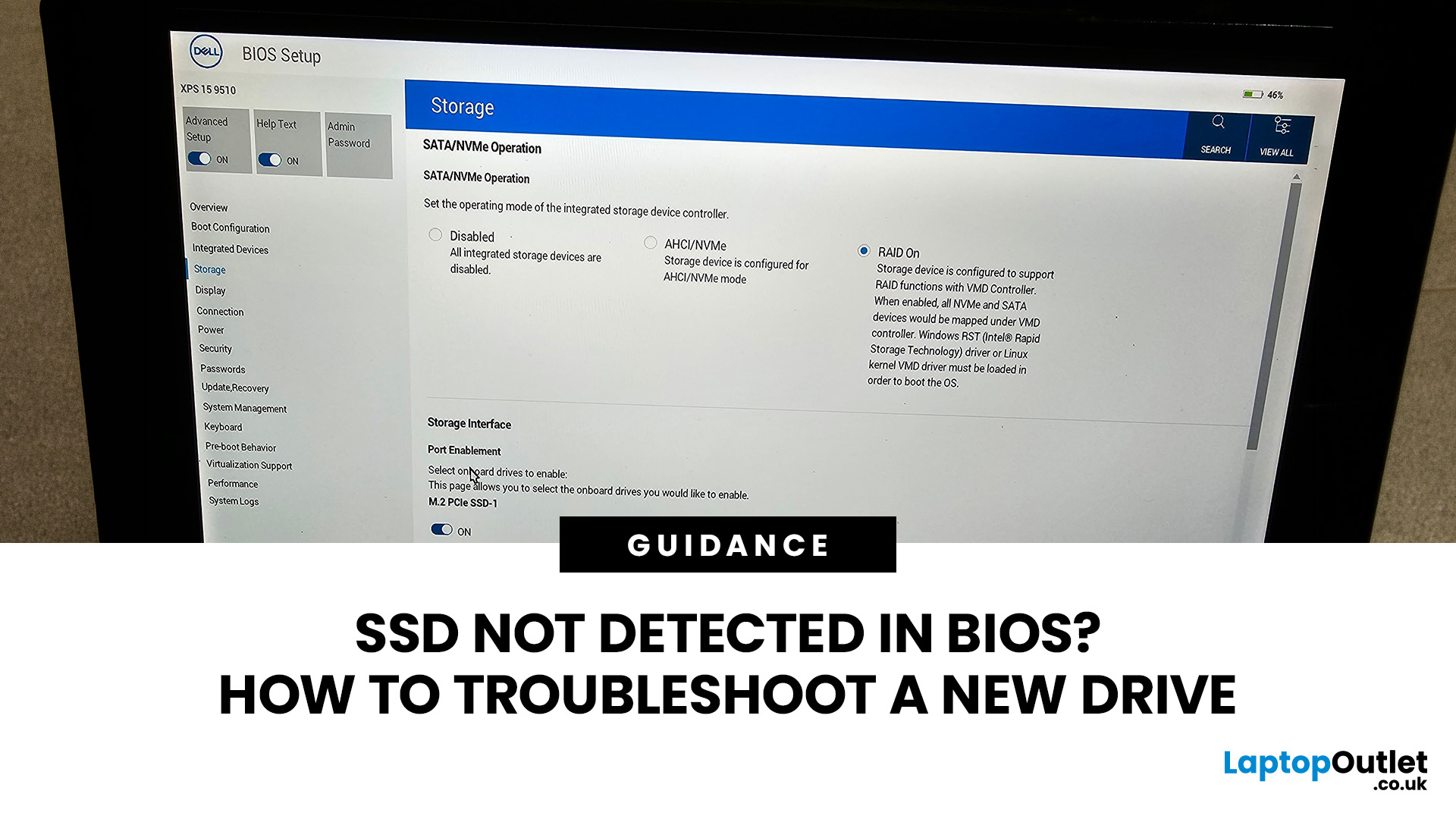
You install a new SSD, power the PC back on and expect extra storage or a faster boot drive. Instead, the drive is nowhere to be found. If your SSD is not detected in BIOS, the problem usually needs to be solved before changing anything inside Windows.
The good news is that a missing drive does not automatically mean the SSD is faulty. A loose connection, incompatible M.2 slot, disabled storage port, outdated BIOS, or incorrect storage configuration can all cause the same symptom. Here is how to work through the problem without randomly changing settings.
First, Check Where the SSD is Missing
Before opening the PC, confirm exactly where the drive disappears.
Enter your BIOS or UEFI firmware and look under sections such as Storage Information, NVMe Configuration, SATA Configuration or System Status. The exact menu varies between motherboard manufacturers. There are three different scenarios:
|
What you see |
What it usually means |
|
SSD missing from BIOS/UEFI |
Check installation, slot compatibility, cables, BIOS and hardware |
|
SSD appears in BIOS but not Windows Setup |
Storage controller or driver configuration may be involved |
|
SSD appears in BIOS and Disk Management but not File Explorer |
The drive may need initialising, partitioning or a drive letter |
Also, do not confuse the boot-device list with storage detection. A completely blank new SSD may be detected by the motherboard without appearing as a bootable device because no operating system or bootloader exists on it yet.
1. Power Down and Reseat the SSD
Start with the physical installation.
Shut the PC down completely, turn off the PSU where applicable and disconnect mains power before working inside the system.
For an M.2 drive, remove it and reinstall it firmly into the socket. The connector should be fully inserted before the SSD is lowered onto its stand-off and secured. Both ASUS and MSI recommend reseating an M.2 SSD as an early troubleshooting step when storage is not detected.
If a new SSD is not detected immediately after installation, this simple check is especially important. In addition, if you are upgrading more than storage, you can also compare compatible PC components before rebuilding the system.
2. Check Your M.2 Slot and SSD Type
This is one of the most common reasons for an M.2 SSD not detected in BIOS.
M.2 describes the physical form factor, not one universal storage interface. Depending on the hardware, an M.2 drive may communicate using SATA or PCIe/NVMe. Likewise, an M.2 socket may support NVMe only, SATA only or both. That means a drive can physically fit yet still be electrically incompatible. Check your motherboard manual for:
- Whether the M.2 slot supports PCIe/NVMe, SATA or both
- Supported M.2 sizes, such as 2280
- Which PCIe generations are supported
- Whether a particular M.2 socket depends on the installed CPU
- Whether the M.2 slot shares resources with SATA or PCIe ports
ASUS, for example, documents motherboards where one M.2 slot accepts SATA and PCIe drives while another accepts PCIe only. Kingston also notes that M.2 sockets can share PCIe lanes or SATA resources with other computer motherboard connections.
There are even boards where certain M.2 sockets only operate with particular CPU generations, so never assume every socket on the board is identical. Not sure whether your system needs SATA, M.2 SATA or NVMe? Our guide to choosing PC and laptop storage explains the differences before you buy or replace a drive.
3. Troubleshoot a SATA SSD Separately
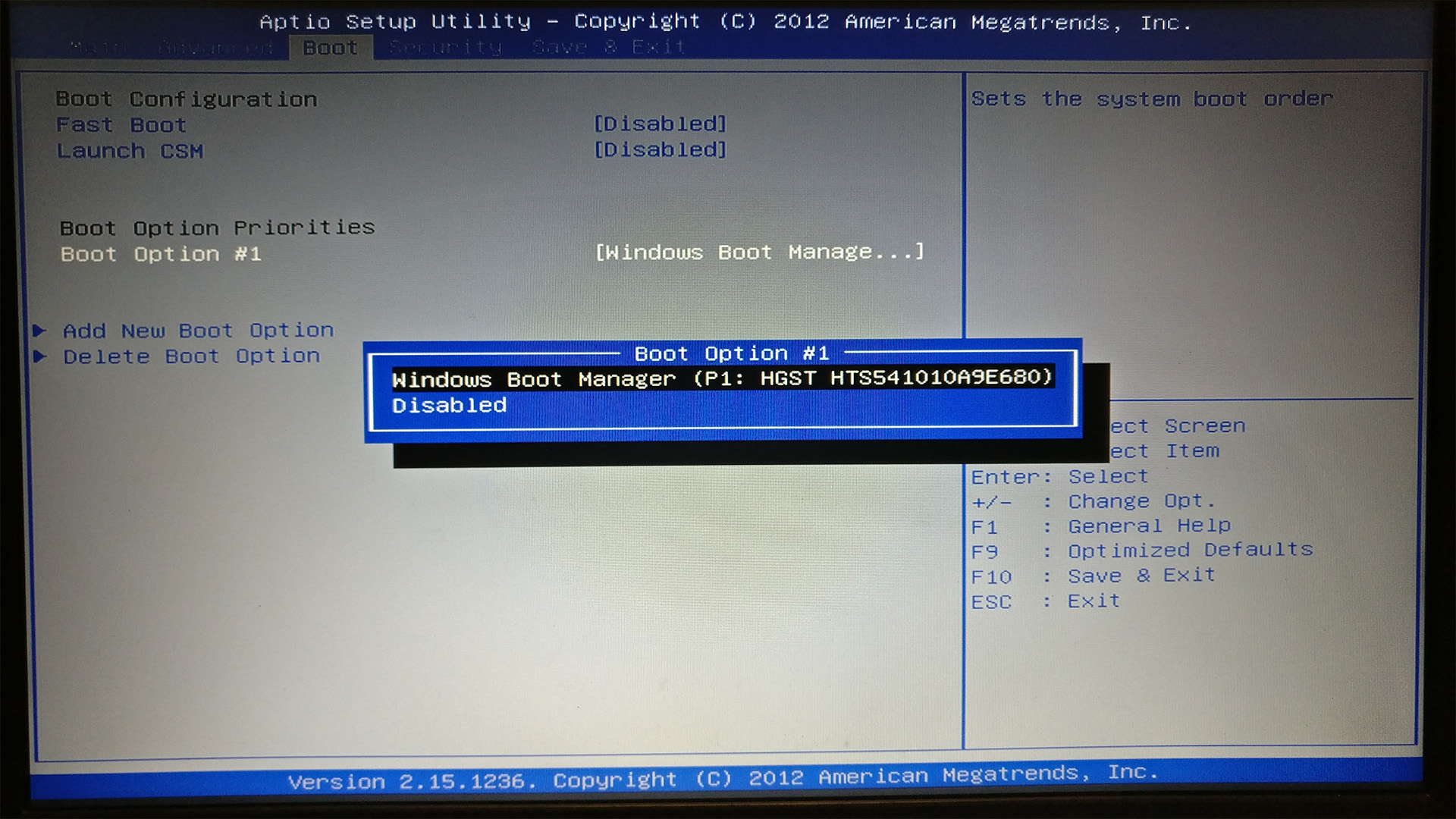
If you are installing a 2.5-inch SATA SSD, you have two connections to check: SATA data and SATA power.
Make sure the data cable is firmly connected to both the SSD and motherboard, then check the PSU power connector. If the SSD is not showing up in BIOS, try a known-good SATA cable and another motherboard SATA port.
A failed cable or disabled/shared SATA port can make a perfectly healthy SSD appear dead. Kingston specifically recommends checking the cable, motherboard port and BIOS port configuration when a SATA SSD is not detected.
Remember that some motherboards disable selected SATA ports when particular M.2 sockets are occupied. Your motherboard manual should show any lane or port-sharing restrictions.
4. Check BIOS or UEFI Storage Settings
If the installation looks correct but the SSD is not recognised in BIOS, inspect the firmware configuration.
Start by loading the motherboard's default or optimised settings if you previously changed storage, PCIe or overclocking options. ASUS notes that unstable overclocking configurations can also interfere with storage detection in some systems. Look for options relating to:
- SATA controllers
- M.2 or NVMe configuration
- PCIe storage
- AHCI
- RAID
- Intel Rapid Storage Technology
- Intel Volume Management Device, or VMD
Do not start changing AHCI, RAID, or VMD settings at random. An operating system installed under one storage-controller configuration may fail to boot after that configuration is changed. Intel specifically documents configuration dependencies between AHCI and Intel RST modes.
If an SSD is not detected in UEFI, use the motherboard manual rather than copying BIOS settings from a different PC. Menu names and appropriate configurations vary considerably between platforms.
5. Update the Motherboard BIOS
A BIOS update can improve hardware compatibility and resolve storage-detection issues, particularly with newer SSDs or older motherboard firmware.
MSI, ASUS, Kingston and Intel all include BIOS updates among their troubleshooting recommendations for SSD detection problems.
Only download BIOS files for your exact motherboard model and revision, and follow the manufacturer's update procedure.
6. NVMe SSD Detected Differently? Check VMD
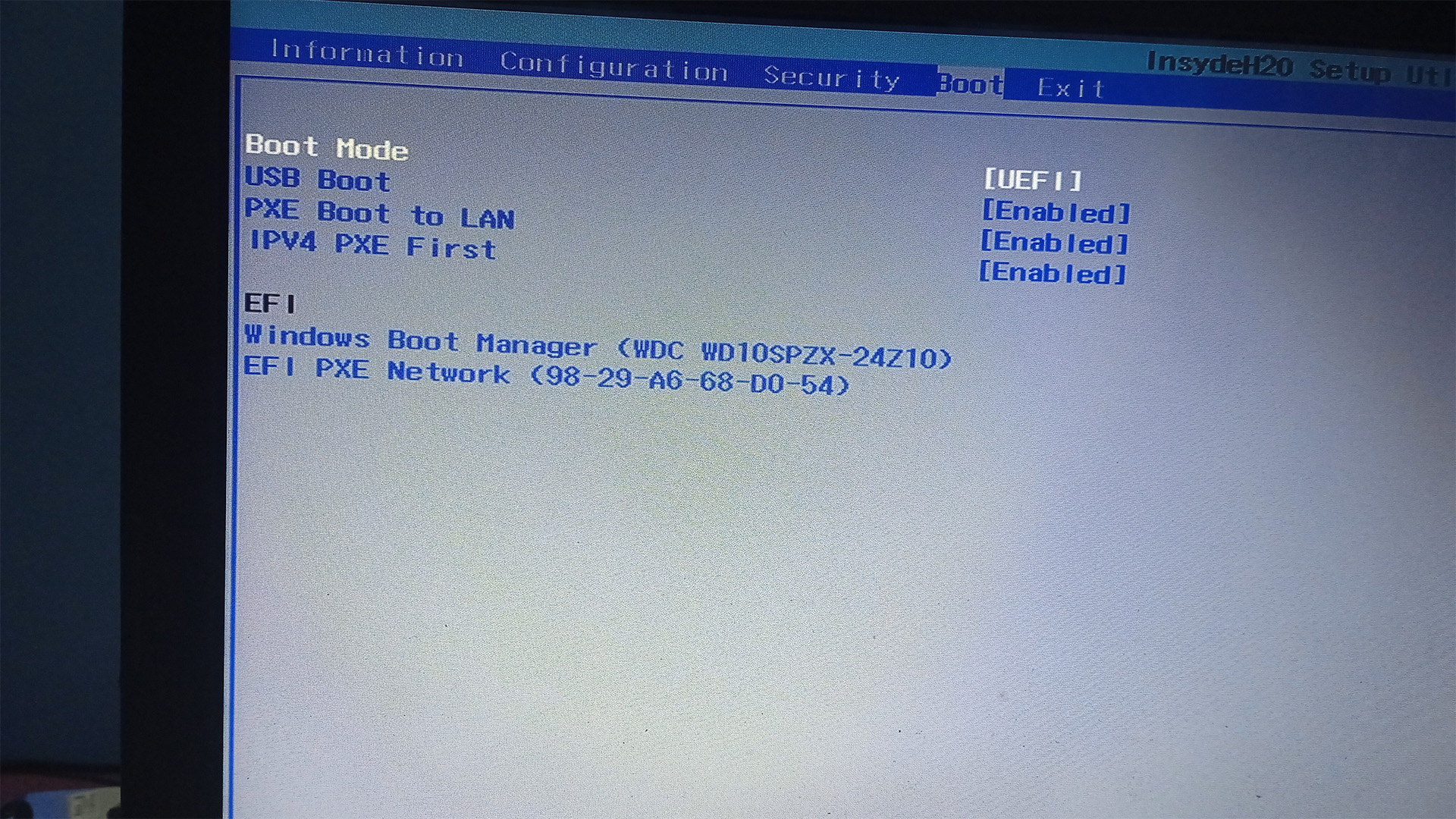
An NVMe SSD not detected in BIOS can sometimes create confusion on systems using Intel VMD.
On compatible platforms, NVMe storage managed through VMD may be listed under the Intel storage or RAID controller rather than the BIOS page where you expected to see a standalone NVMe drive. Intel documents this behaviour on VMD-capable systems.
There is another common situation: the SSD appears within the firmware, but Windows Setup cannot see it.
If Intel VMD or Intel RST controls the storage device, Windows installation may require the appropriate RST/VMD driver supplied for that platform. Intel recommends using the appropriate storage-controller driver, preferably from the PC or motherboard manufacturer, during Windows installation when required.
That is a Windows installation problem rather than the same thing as an SSD being completely absent from BIOS.
7. If BIOS Sees it, Check Windows Disk Management
Once BIOS detects the SSD, stop troubleshooting the motherboard and check Windows.
A brand-new internal SSD for PC may arrive without a Windows volume. In that case, File Explorer will not necessarily display it immediately. In Windows 11 or Windows 10:
- Right-click Start.
- Select Disk Management.
- Locate the new SSD.
- If required, bring the disk online.
- Initialise a genuinely new, empty disk.
- Create a new simple volume and assign a drive letter.
For modern UEFI PCs, GPT is generally the appropriate partition style. Microsoft confirms that Disk Management can initialise new drives, create volumes, and assign drive letters. Furthermore, for wider upgrade planning, Laptop Outlet also stocks computer storage across internal and external formats.
8. Test Another Slot or Computer
Still dealing with an SSD not detected in BIOS after checking everything above? Now you need to isolate the faulty component.
Try the SSD in another compatible M.2 socket or SATA port. If possible, test it in another computer that supports the same interface. You can also test a known-working SSD in the original slot.
Intel and MSI both recommend cross-testing the drive or using another compatible port to help determine whether the SSD, connection or motherboard is responsible. If the suspect SSD fails in multiple compatible systems while known-working drives operate normally, the SSD itself becomes the likely problem.
For temporary file storage or moving data between systems during an upgrade, compact external SSDs can also be useful without occupying an internal M.2 or SATA connection. If detection problems continue alongside crashes, corrupted files or other symptoms, see our guide to fixing laptop storage issues for further SSD troubleshooting and failure checks.
What Should You Avoid?
Troubleshooting becomes riskier when too many things are changed at once.
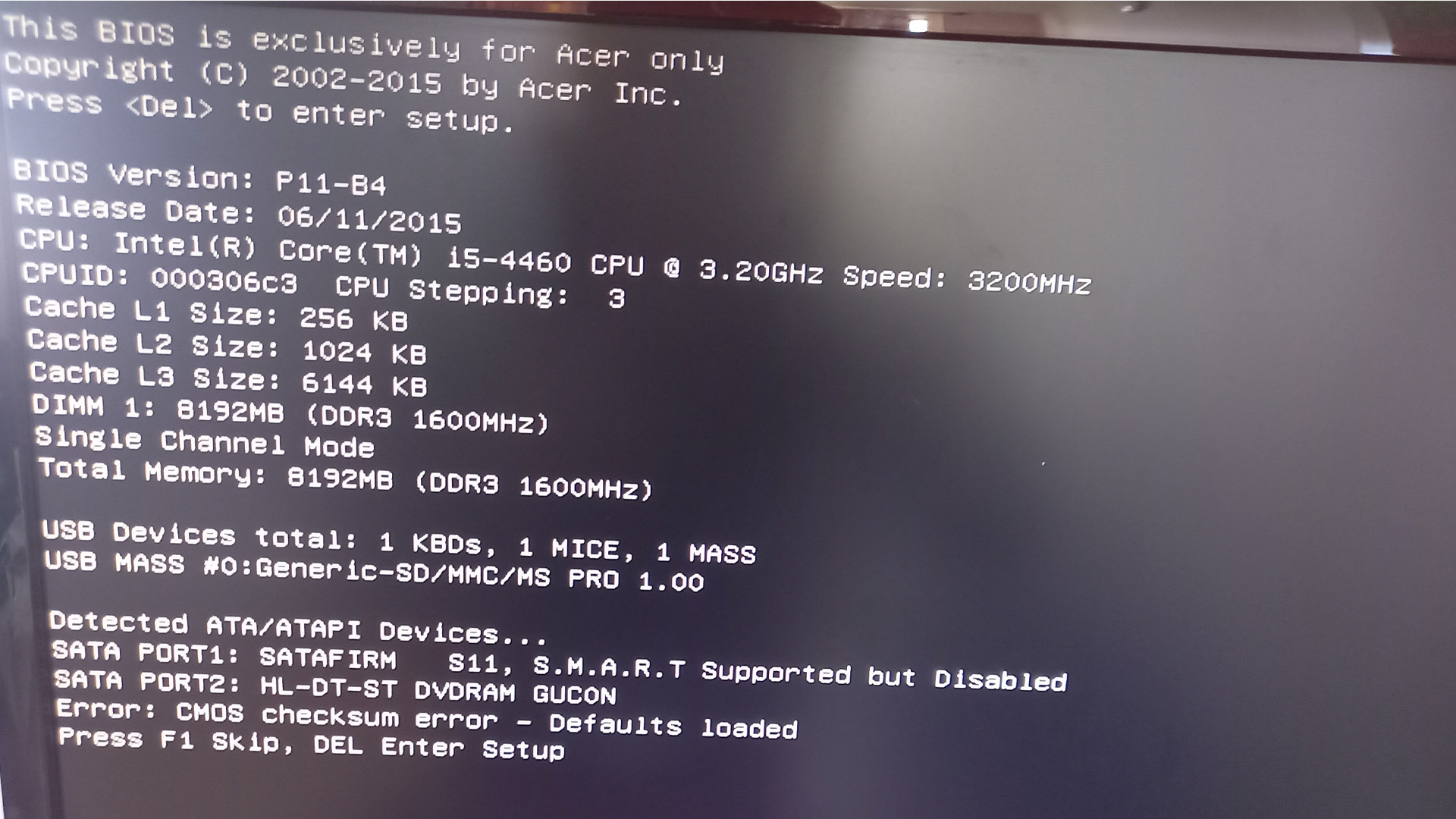
Avoid formatting a drive simply because it is missing, changing RAID/AHCI/VMD modes without understanding the current installation, forcing an incompatible M.2 drive into use, or flashing BIOS files intended for another motherboard.
Change one thing at a time and check detection again. That way, you know what actually fixed the problem. If the new SSD is replacing your existing system drive, our guide to cloning a hard drive to an SSD explains how to move Windows, applications and files across safely.

Final Checklist
When an SSD is not detected in BIOS, work through the problem in this order:
- Confirm whether the drive is missing from BIOS itself or only Windows.
- Reseat the M.2 SSD or reconnect SATA data and power cables.
- Confirm that the SSD interface matches the selected motherboard slot.
- Check for shared M.2, PCIe and SATA resources.
- Review BIOS storage-controller settings without changing modes blindly.
- Update the correct motherboard BIOS if necessary.
- If BIOS detects the drive, move troubleshooting into Windows.
- Cross-test the SSD and motherboard connection if detection still fails.
An SSD not showing up in BIOS is frustrating, but a methodical diagnosis usually tells you whether you have an installation issue, compatibility problem, firmware configuration or genuinely faulty drive. Once you separate those possibilities, fixing the problem becomes much more straightforward.

Why is my SSD not detected in BIOS?
An SSD may not be detected in BIOS because of a loose connection, incompatible M.2 slot, disabled SATA port, incorrect storage-controller setting or outdated BIOS. First, reseat the drive and confirm that the SSD interface matches the motherboard slot before changing advanced BIOS settings.
Why is my new SSD not showing up in BIOS?
A new SSD may not show up in BIOS if it is installed incorrectly or connected to an unsupported slot. Check the motherboard manual for M.2 SATA and NVMe compatibility, shared ports, and CPU-dependent slots. For SATA SSDs, also check the power cable and data connection.
What should I do if an NVMe SSD is not detected in BIOS?
Reseat the NVMe SSD, verify that the M.2 slot supports PCIe NVMe drives and check whether the slot shares lanes with another component. You should also review the motherboard’s NVMe, PCIe, VMD or storage-controller settings and install the latest compatible BIOS if necessary.
Can an SSD be detected in BIOS but not appear in Windows?
Yes. If BIOS detects the SSD but Windows does not show it in File Explorer, the drive may need to be initialised, partitioned or assigned a drive letter in Disk Management. During Windows installation, some systems may also require an Intel RST or VMD storage driver.
How can I tell if my SSD is faulty?
Test the SSD in another compatible M.2 slot, SATA port or computer. If the drive remains undetected across multiple compatible systems while known-working SSDs function normally, the SSD may be faulty. Checking cables, motherboard ports and BIOS settings first helps rule out other causes.
| Read More: |
| A Complete Guide to Formatting and Partitioning an SSD |
| How to Install or Upgrade a Laptop SSD: Step-by-Step Guide |
| Complete Windows Guide: How to Set Up, Update and Fix Common Issues |
Related Articles


Last Updated: May 07, 2026
HP laptops are built to deliver reliable performance, whether you’re working, studying, or simply enjoying entertainment. But like any modern computing device, they rely heavily on software and firmware updates to keep everything running smoothly. Outdated drivers or BIOS can lead to system instability, hardware not functioning correctly, or slower performance over time.
Knowing how to manage updates is an essential skill for users who want to maintain fast HP laptops and ensure HP laptop performance preservation. This article comprehensively explains everything you need to know about the BIOS HP laptops, as well as how to update drivers effectively.
What is the BIOS on HP Laptops?
The BIOS (Basic Input/Output System) is firmware stored on your laptop’s motherboard. It initialises hardware during startup and loads your operating system. On newer HP models, the BIOS has been replaced with UEFI (Unified Extensible Firmware Interface), which provides a more modern interface, faster boot times,
Last Updated: December 18, 2025
If you own a Microsoft Surface device - be it a Surface Laptop, Surface Pro, or another model, you’ll want it running smoothly, securely, and reliably. That means keeping its drivers, firmware, and BIOS up to date. Outdated drivers can cause performance drops, security vulnerabilities, and compatibility issues; meanwhile, the firmware/BIOS is the backbone that helps your hardware and OS work together.
This guide will take you through a full Surface update walkthrough: how to update Surface laptop drivers, Surface firmware installation, Surface BIOS update steps, Surface driver compatibility, and handling common update issues. At the end, you’ll feel confident in maintaining your device’s health and performance.
Step 1: Prepare Your Surface for Updating
Before doing anything, prep your device so updates go smoothly.
- Make sure your Surface is plugged into power. Updates (especially firmware/BIOS) can fail disastrously if battery dies mid-way.
- Charge the battery to at least 40% before starting.

Last Updated: October 08, 2025
If you’ve ever owned an ASUS laptop - whether it’s a VivoBook for uni work, a TUF machine for gaming, or a Zephyrus for serious creative projects - you’ll know that things don’t always run perfectly forever. Over time, you might notice your battery draining faster, your fans spinning louder, or a game stuttering that used to run smoothly. Nine times out of ten, that’s down to drivers or firmware needing an update.
Updating drivers and the BIOS isn’t glamorous, but it’s one of the most effective ways to keep your ASUS laptop running at its best. The latest drivers squash bugs, improve compatibility with Windows 11, and even unlock new features. A BIOS update can go further still, ironing out stability issues, boosting performance, and extending hardware lifespan.
The good news? ASUS gives you proper tools like MyASUS, Armoury Crate, EZ Flash, and WinFlash, which make updates far less intimidating than they sound. Whether you’re rocking an ASUS VivoBook, TU F, or Zephyrus, this walkthrough

Last Updated: January 06, 2026
Updating your motherboard BIOS is often recommended to improve system stability, fix bugs, or add support for new hardware. However, what if your PC won’t show anything on the screen? A failed GPU, incompatible CPU, or corrupted BIOS can leave you with a blank display, making a standard update impossible. The good news is that it is still possible to update BIOS without display on many modern motherboards. In this guide, we’ll explain how to update motherboard BIOS without display, the tools you’ll need, and the safest methods to follow, using clear, practical steps. Learn safe ways to update BIOS without a working screen.
Important Precautions Before You Begin
Updating BIOS always carries some risk, so preparation is essential, especially without a display. If your motherboard does not support display-free updates, attempting one could permanently damage it. Before starting, make sure you:
- confirm your exact motherboard model
- download the correct BIOS version from the manufacturer’s

Last Updated: February 17, 2026
Few things trigger instant panic like pressing the power button… and nothing happens. Or worse, your laptop turns on, shows the logo, and then just sits there. Stuck. Frozen. Judging you.
Laptop boot problems are one of the most common technical issues users face. From a laptop not booting at all to BIOS boot problems, startup errors, and endless boot loops, these issues can feel dramatic, but they’re often fixable. In many cases, Windows boot issues are caused by corrupted updates, drive errors, or simple configuration mistakes.
The key is knowing where the problem starts: power, BIOS, or operating system.
In this guide, we’ll walk you through real, step-by-step solutions to fix laptop boot loop errors, startup failures, and laptops that won’t turn on, no tech wizardry required.
What Are Laptop Boot Problems? (And Why They Feel So Stressful)
Laptop boot problems basically mean one thing: your laptop isn’t starting the way it’s supposed to. You press the power button expecting your system

Last Updated: April 22, 2026
Printers are one of those devices you only notice when something goes wrong. One day everything works fine, and the next day your printer refuses to print, shows as offline, or gets stuck with a paper jam. These issues can be frustrating, especially when you need something printed urgently.
The good news is that most Brother printer problems are not serious. In many cases, the issue is related to setup, connectivity, or simple maintenance rather than a fault with the printer itself. Once you understand how to diagnose and fix these problems, you can save time and avoid unnecessary replacements.
This guide covers the most common Brother printer issues and provides clear, practical solutions. Whether you are using a home printer, a multifunctional device, or a printer for office use, this troubleshooting guide will help you get things working again quickly.
Understanding Common Brother Printer Problems
Before jumping into fixes, it helps to understand why problems occur in the first place.
Last Updated: July 06, 2026
Laser printers are built for sharp text, fast output, and lower long-term running costs, but even reliable machines can develop faults. Smudged pages, streaks, repeated paper jams, faded print, offline errors, slow printing, and ghosting are common laser printer problems that occur in homes, student setups, and busy offices alike. The good news is that many laser printer issues can be diagnosed and fixed without calling support straight away.
This guide covers practical laser printer troubleshooting for the problems people hit most often, what usually causes them, and the steps worth trying before you replace parts or upgrade the printer.
If you want a clearer picture of how laser printers work before you start diagnosing faults, read our complete guide to laser printers, including how they work, where they perform best, and who should buy one.
A Quick Diagnostic Table for Common Laser Printer Problems
Before getting into the details, start here. In most cases, the symptom points you towards

Last Updated: July 06, 2026
Apple’s MacBook lineup has earned its reputation through years of delivering fast performance, long battery life, and a genuinely premium build quality that is hard to beat. Whether you are buying your first Mac, switching from Windows, or troubleshooting an issue, this MacBook & Apple guide covers everything you need.
What Exactly Is a MacBook?
A MacBook is Apple’s range of portable computers, running macOS. Unlike most Windows laptops, MacBooks use Apple’s own silicon. In 2026, that means the MacBook Neo runs on A18 Pro, while the latest MacBook Air and MacBook Pro run on M5-family chips: M5, M5 Pro, and M5 Max.
All MacBooks benefit from Apple’s tight hardware and software integration, meaning everything from apps to system updates is designed specifically for the machine you are holding. That is a big reason why so many people in creative, professional, education, and everyday roles swear by them.
What Are the Latest MacBook Models in 2026?

Apple currently sells MacBooks in three lines:

Last Updated: July 06, 2026
If your printer is acting up, the short answer is this: most all in one printer problems are fixable without replacing the whole machine. The fastest wins usually come from checking the connection, clearing the print queue, confirming the right printer is selected, inspecting paper loading, and running the built-in cleaning or alignment tools before assuming the hardware has failed. Microsoft, Brother, Epson, Canon, and HP all point users toward those same basics first, which is a strong sign that the smartest troubleshooting is usually methodical, not dramatic.
That is exactly what this guide is here to do. Instead of giving you random fixes with no logic behind them, this article breaks down the most common all-in-one printer issues, shows what each symptom usually means, and explains the best way to fix it. So, whether your machine is offline, feeding paper badly, refusing to scan, printing faded documents, or suddenly producing blank pages like it has given up on communication,

Last Updated: May 05, 2026
HP printers are reliable, but even the best machines throw a wobble from time to time. The good news is that the vast majority of issues are easy to resolve on your own. This guide will show you how to fix common HP printer problems without calling a professional. Whether you've got an HP OfficeJet, DeskJet, LaserJet, or ENVY, many of the checks below apply across the range.
What Are the Most Common HP Printer Problems?
Before diving into individual fixes, it helps to know what you are actually dealing with. HP printers, from compact home models to full office workhorses, tend to run into the same handful of issues time and again.
Here is a quick overview of the most frequently reported HP printer problems and what typically causes them:
| Problem | Most Likely Cause |
| Printer not printing | Stuck print queue, offline status, driver fault |
| Paper jam | Overfilled tray, worn rollers, torn paper fragments |
| Printer showing offline | Wi-Fi dropout, incorrect default printer setting |
| Blank or faded pages |

