



Complete Windows Guide: How to Set Up, Update and Fix Common Issues
A good Windows setup is not just about getting to the desktop. It means finishing the first-run setup properly, installing the latest updates, turning on backup and security features, and knowing which fixes to try before you jump to a reset or replacement. That matters even more now because Windows 10 support ended on 14 October 2025, so staying on a supported Windows version is part of basic maintenance, not an optional extra.
In this Windows & OS guide, we walk through the full process: how to set up Windows, how to update it safely, and how to fix common problems like failed updates, slow performance, Wi-Fi issues, broken apps, and recovery problems. We also cover when it is worth troubleshooting, when a reset makes more sense, and when moving to a newer Windows 11 device is the smarter call.
Quick Answer: The Best Way to Set Up, Update and Fix Windows
If you want the shortest version, do 4 things first. Finish the initial setup carefully, run Windows Update until there is nothing left to install, turn on backup, and check Windows Security before you start adding lots of apps.
If Windows starts acting up later, use the built-in route before trying bigger fixes. Start with a restart, then run the relevant troubleshooter, check storage, and repair the app. Those steps solve a large share of everyday Windows issues without wiping the PC.
If updates will not install, low storage, missing files, or a blocked Windows Update service are common causes. Microsoft’s own troubleshooting guidance recommends freeing disk space, rerunning Windows Update, and using the Windows Update troubleshooter before proceeding to deeper repairs.
If your laptop misses core Windows 11 requirements, especially TPM 2.0 and Secure Boot, replacement is often the cleaner route than forcing more life from a machine that is already on the wrong side of support. If your current device is no longer keeping up, browse our high-performance Windows 11 laptops for faster everyday use, smoother multitasking, and long-term support.
What to Do Before You Set Up Windows

Before you start changing settings, check that the PC is on a supported version of Windows and, if you are upgrading to Windows 11, that it meets Microsoft’s minimum requirements. For Windows 11, that means a compatible 64-bit processor with two or more cores, 4GB RAM, 64GB storage, TPM 2.0, and Secure Boot capability.
You should also sort out backup before you start experimenting. Windows Backup can help restore apps, settings, files, photos, and Edge data, and BitLocker recovery information is worth keeping somewhere safe, as certain repair and recovery actions may require the recovery key.
|
Before You Begin |
Why It Matters |
|---|---|
|
Check your Windows version and support status |
A supported version keeps receiving security updates |
|
Confirm Windows 11 compatibility |
Avoid failed upgrades and wasted setup time |
|
Back up files and settings |
Makes resets and upgrades far less risky |
|
Save your BitLocker recovery key |
Can be essential during recovery or repair |
|
Leave enough free storage |
Updates and repairs often fail on a nearly full drive |
That checklist aligns with Microsoft’s current support, recovery, BitLocker, backup, and Windows 11 requirements guidance.
| Helpful next step: if your current device does not support TPM 2.0 or Secure Boot, this is a natural point to browse our Windows 11 laptop range. |
How To Set Up Windows Properly the First Time
The best Windows setup for beginners is simple: finish the first-run prompts, connect to a trusted network, choose your account type carefully, install updates immediately, then review backup and security settings before loading the machine with extra apps.
1. Connect, Sign In, and Finish the First-Run Setup
Windows setup starts with the out-of-box experience (OOBE). This is where you choose language and region, connect to Wi-Fi, sign in, and complete device setup. Microsoft’s documentation notes that Windows can download setup-related updates during OOBE, which is one reason the first boot can take longer than expected.
2. Choose The Right Account Type
For most home users, a Microsoft account is the easiest option because it supports syncing across devices and works better with Windows Backup and other Microsoft services. A local account still works, but it is device-specific and misses some of that continuity.
3. Run Windows Update Straight Away
The first thing we would do on any new Windows laptop is head to Start, Settings, Windows Update, then select Check for updates. Keep going until all pending updates are installed, and restart the machine if needed. Windows is designed to download and install updates to keep the device secure and running properly, so there is little benefit in postponing this on a new machine.
4. Turn On Backup Early
Backup is easiest when the PC is still clean and organised. Windows Backup can back up supported files, folders, settings, credentials, apps, and preferences through a single interface, making recovery far easier after a reset, upgrade issue, or hardware failure.
5. Review Security Before Installing Everything Else
Windows Security is built into Windows and includes Microsoft Defender Antivirus, Firewall, and device security features such as Secure Boot visibility and core isolation settings on supported hardware. A quick review here gives you a clean security baseline before you start adding browsers, launchers, and third-party utilities.
How To Update Windows Safely
The safest way to update Windows is to use Windows Update in Settings and let Microsoft offer the update to your device when it is ready. That applies to routine monthly patches and, in most cases, larger Windows 11 feature updates too.
If your PC is compatible but you're not seeing the latest Windows 11 feature update yet, manual tools are available, including the Installation Assistant. Microsoft’s own support pages still describe Windows Update as the recommended path and advise waiting until the upgrade is offered there before using the assistant.
|
Update Method |
Best For |
When To Use It |
|---|---|---|
|
Windows Update in Settings |
Most users |
Routine security and feature updates |
|
Windows 11 Installation Assistant |
Eligible PCs not yet upgraded |
When the PC is compatible and Windows Update has not offered the upgrade |
|
Clean install or install media |
Major repair or fresh start |
When the existing installation is damaged or you want a completely clean setup |
Planning a full OS upgrade rather than a routine update? Read our Windows 11 upgrade guide for the safest way to move across.
What Are the Most Common Windows Problems and Fixes?
The most common Windows problems are failed updates, slow performance, low storage, Wi-Fi dropouts, apps that will not open properly, and system problems caused by recent changes. Microsoft has a built-in route for all of these, and it is usually better to follow that order than jump straight to a full reset.
|
Problem |
Likely Cause |
Best First Fix |
When To Escalate |
|---|---|---|---|
|
Windows Update will not install |
Low storage, damaged files, blocked service |
Run Windows Update troubleshooter and free space |
Use SFC, recovery options, or reinstall if repeated |
|
Laptop feels slow |
Too many startup apps, low free space, pending updates |
Disable startup apps, free space, install updates |
Reset if slowdown is system-wide and persistent |
|
Wi-Fi keeps dropping |
Network or adapter issue |
Run the Network and Internet troubleshooter |
Move to deeper network diagnostics if it continues |
|
App will not open or behaves oddly |
Corrupt app install or settings |
Repair or reset the app |
Reinstall or use System Restore if recent |
|
System became unstable after a change |
Driver, update, or software conflict |
Try System Restore |
Reset this PC if restore does not fix it |
How To Fix Windows Update Errors

Windows update errors usually come down to storage, damaged update files, missing system files, or services that are not running correctly. That is why the best fix order is: rerun Windows Update, run the troubleshooter, free space, restart, and only then move to command-line repair tools or recovery options.
Microsoft’s official guidance highlights a few recurring codes worth recognising:
- 0x800f0922 or 0x8007000E usually points to insufficient disk space
- 0x800F081F, 0x80073712, or 0x80246007 often point to corrupted or missing system files or incomplete downloads
- 0x80070422 means the Windows Update service is disabled or stopped
- 0x80070020 suggests another process is blocking the update
If Windows still refuses to update after the standard steps, System File Checker is a sensible next move because it checks for corrupt system files that can break update behaviour.
How To Improve Windows Performance
If Windows feels sluggish, start with startup apps and storage before you blame the hardware. Microsoft’s own performance guidance still recommends reducing background load, updating Windows, and keeping enough free space available.
Startup apps are one of the easiest wins. Windows lets you review and disable apps that launch automatically, and cutting back here can reduce boot time and background drain.
Storage matters too. Low disk space can affect both performance and updates, and Storage Sense can automate some cleanup on the system's drive.
If the machine still feels off, run updates, restart it, and check Windows Security for any unusual activity. Slow performance after months of neglected updates and a nearly full SSD is common and often fixable without a reset.
| Helpful next step: if an older machine still struggles after cleanup and updates, this is the point where comparing current ASUS laptop offers becomes more useful than squeezing out one more temporary fix. |
How To Fix Wi-Fi, App, and System Problems
- For Wi-Fi problems, start with the built-in Network and Internet troubleshooter in the Get Help app. Microsoft’s support flow uses that as the first step because it can automatically diagnose and fix many common connection issues.
- For apps that won't open or keep crashing, Windows offers a repair option for many apps and programs. That is usually better than uninstalling immediately because it can fix the installation without removing everything first.
- For system problems caused by a recent driver update or software change, System Restore is one of the safest intermediate fixes because it can roll the PC back to an earlier state without touching your personal files.
- If several things are broken at once and repair steps are going nowhere, Reset this PC is the next serious option. Microsoft’s documentation is clear that a reset reinstalls Windows, so it is effective, but it is not something to use casually without backup in place.
If your issue happens before Windows fully loads, start with our black screen guide before moving to a full reset.
Windows 10 vs Windows 11: Which Path Makes Sense In 2026?
In 2026, the practical answer is simple. If your hardware supports Windows 11, that is the version you should use for a supported, secure, everyday setup. Windows 10 still runs, but Microsoft ended free software updates, technical support, and security fixes for it on 14 October 2025.
|
Option |
Best For |
Trade-Off |
|---|---|---|
|
Stay on supported Windows 11 |
Most home and office users |
Requires compatible hardware |
|
Reset and keep existing Windows 11 laptop |
Systems with software issues, but solid hardware |
Takes time to rebuild apps and settings |
|
Replace an old Windows 10 laptop |
Unsupported or underpowered systems |
Higher upfront cost, better long-term support |
If your laptop misses core Windows 11 requirements, especially TPM 2.0 and Secure Boot, replacement is often the cleaner option than prolonging the life of a machine that is already on the wrong side of support. Still deciding whether to stay put or move on? Compare the two properly in our Windows 11 vs Windows 10 guide.
Which Windows Setup Suits Different Types of Users?
Students and Home Users
Students and general home users usually need a simple, low-friction setup: Windows fully updated, Windows Backup enabled, sensible startup apps, and enough free SSD space to avoid update problems later. Reliability matters more here than endless tweaking.
Office and Remote Work Users
Office users should prioritise update consistency, backups, account sync, and security posture. A Microsoft account setup is often more convenient here because it works better with synced settings and recovery if the device needs to be replaced quickly.
Creators and Power Users
Creators and heavier users benefit from the same Windows basics, but poor storage discipline and overloaded startup processes hurt these systems faster because they tend to run bigger files, more apps, and larger updates. Keeping fast storage available matters as much as raw specs.
Older Laptop Owners
Owners of older laptops need to decide earlier whether they are maintaining a supported machine or nursing an ageing one through repeated problems. If the hardware is not Windows 11-ready, the long-term answer is usually replacement rather than endless troubleshooting.
When Should You Upgrade, Reset, or Replace?
- Choose troubleshooting if the device is already on a supported version of Windows and the issue is recent, limited, or clearly tied to a single app, update, or setting. That is where troubleshooters, app repair, System Restore, and storage cleanup make sense.
- Choose a reset if Windows itself feels damaged, several features are failing at once, or performance is still poor after updates, cleanup, and repair steps. Resetting this PC reinstalls Windows, so it is a strong middle ground between light troubleshooting and a full replacement.
- Choose a replacement if the laptop is still on Windows 10, does not meet Windows 11 requirements, or no longer feels dependable enough for everyday work after multiple repair attempts. In those cases, buying new hardware saves time and hassle.
What Matters Most Before Buying a New Windows Laptop?
If you are buying instead of fixing, start with compatibility and headroom. The bare minimum for Windows 11 is 4GB RAM and 64GB storage, but most buyers will want more than that for a smoother day-to-day experience, especially once updates, browsers, Office apps, and cloud files pile up.
You should prioritise these buying checks first:
- Confirm it ships with Windows 11
- Make sure it supports TPM 2.0 and Secure Boot
- Prefer enough SSD space that updates and recovery do not become a constant problem
- Do not overlook backup, recovery, and account setup once it arrives
Those are the basics that stop a new laptop from becoming a maintenance headache 6 months later.

The Sensible Next Step for Most Windows Users
For most readers, the right decision is not complicated. If your Windows laptop is supported, set it up cleanly, run every pending update, enable backup, and use built-in troubleshooting before you do anything drastic. That resolves many Windows problems without wasted effort.
If the laptop is still on Windows 10 in 2026 or cannot meet Windows 11 requirements, the better move is usually to stop patching around the edges and move to supported hardware. That is the point where an upgrade stops being a nice extra and becomes the practical choice.

Common Windows Setup, Update and Troubleshooting Questions
How do I update Windows?
Open Start, go to Settings, choose Windows Update, and select Check for updates. Install everything available and restart if prompted.
Why is Windows Update failing?
Windows Update usually fails because of low storage, damaged or missing files, incomplete downloads, or a disabled update service.
Can I still use Windows 10 in 2026?
Yes, Windows 10 still runs, but Microsoft ended free updates, technical support, and security fixes on 14 October 2025.
What is the first thing to do on a new Windows laptop?
The first job is to finish setting up, connect to Wi-Fi, run Windows Update, and turn on backup before you start loading apps.
How do I fix a slow Windows laptop?
Start with updates, startup apps, and storage cleanup, because those are among the most common causes of poor everyday performance.
Should I reset my PC or replace it?
Reset it if the hardware is still good and Windows is the main problem. Replace it if the device is unsupported, does not meet Windows 11 requirements, or keeps failing after repeated fixes.
Do I need a Microsoft account to set up Windows?
No, a local account is still possible in some setups, but a Microsoft account gives better syncing and recovery convenience across Windows services and devices.
| Read More: |
| How to activate Windows and Microsoft Office |
| Windows keyboard shortcuts: ultimate guide |
| How to fix Windows 11 update problems |
Related Articles

Last Updated: May 06, 2026
Your Apple AirPods are a brilliant piece of kit, but sometimes the default name – usually something like '[Your Name]'s AirPods' – just doesn't feel personal enough.
Perhaps you have multiple pairs, or maybe you've bought them second-hand and want to shake off the previous owner's tag. Whatever your reason, learning how to rename AirPods is a simple process that helps you personalise your wireless earbuds.
This comprehensive guide will walk you through the simple steps to rename AirPods across all the common platforms.
Renaming Your AirPods on iPhone or iPad (The Easiest Way)
Renaming your AirPods on an iOS or iPadOS device is arguably the simplest method. The change will then update automatically on any other Apple device you own that uses the same Apple ID.
Steps to Rename Your AirPods on iPhone or iPad
- Ensure Connection: Make sure your AirPods are connected to your iPhone or iPad. The quickest way to do this is to open the AirPods case lid near your unlocked device, or place the AirPods

Last Updated: January 21, 2026
For a long time, tablets were seen as secondary devices. Great for Netflix, decent for browsing, but not serious enough for work or study.
That perception is officially outdated.
In 2026, Windows tablets have evolved into some of the most versatile devices you can buy. They’re no longer just tablets that can do work, they’re powerful, flexible computers that happen to be touch-first.
Whether you’re a student, a professional, or someone who wants one device that does everything, this guide breaks down the top Windows tablets in the UK 2026, how they perform in real life, and which models actually make sense to buy right now.
No hype. No spec-sheet dumping. Just clarity.
Why Windows Tablets Matter More Than Ever in 2026

The biggest reason Windows tablets have taken off again is simple: people want flexibility without compromise.
Windows tablets sit in a unique position between laptops and Android tablets. They give you:
- Full desktop software
- Proper multitasking
- Touch and pen support
- Detachable

Last Updated: January 21, 2026
Windows tablets have quietly become one of the most practical tech buys in the UK, especially if you want proper laptop features without paying laptop money. Whether you’re studying, working remotely, or just need a flexible everyday device, a Windows tablet (or budget 2 in 1 Windows tablet) can often do the job of both a tablet and a laptop.
In this 2026 guide, we’re breaking down the best Windows tablets in the UK by price, under £300, and £500 and explaining what you can realistically expect at each level. No hype, no spec overload, just clear advice to help you spend smart.
Why Choose a Windows Tablet Instead of Android or iPad?

Before diving into budgets, it’s worth understanding why people choose Windows tablets in the first place.
A Windows tablet gives you:
- A full desktop operating system
- Proper file management (folders, drives, downloads)
- Compatibility with Microsoft Office and desktop apps
- Keyboard and mouse support
- Often, a 2-in-1 experience with detachable or foldable keyboards
Last Updated: March 09, 2026
If you are comparing MacBook Neo vs Windows laptops, you are really asking one question: should you buy Apple’s cheapest Mac, or get a budget Windows laptop with more ports and more choice?
MacBook Neo is new, starts at £599, and is designed to be a simple, premium-feeling everyday laptop with macOS, long battery life, and strong call quality.
Budget Windows laptops can offer more screen sizes, more ports, and sometimes better upgrade options. But quality is inconsistent in this price range, and that’s where Neo tries to win.
Below is the practical, buyer-focused breakdown.
10-Second Answer Box
Choose MacBook Neo if
- You want the cleanest everyday experience for browsing, school, docs, and calls
- You value build quality and trackpad feel
- You want a laptop that stays fast and quiet for years, without tweaking settings
Choose a budget Windows laptop if
- You want more ports like HDMI and USB-A built in
- You need a bigger screen for the money
- You want the flexibility of Windows software and lots
Published: March 06, 2026
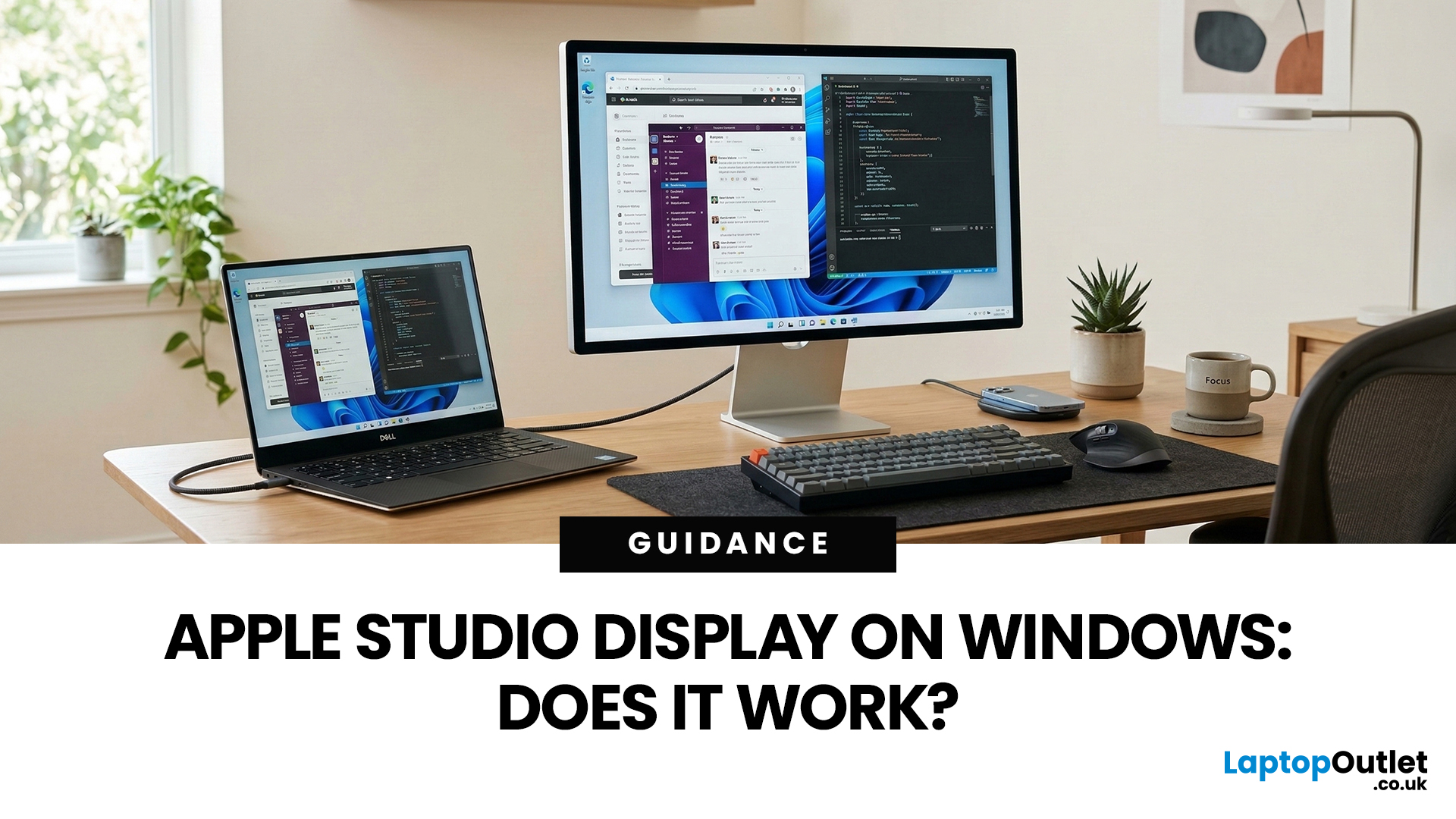
You’ve seen the Apple Studio Display. It’s sleek, stupidly sharp, and it makes your desk look like you’ve got your life together. But you’re on Windows. So, the big question is: Does Apple Studio Display work with Windows PCs? Yes, it can. But you won’t always get the full “Apple magic” experience on Windows.
Apple Studio Display + Windows: What Works vs What Doesn’t
Core Monitor Functions (generally work)
The good news: the basics are solid.
- You’ll get a picture (yep, it’s a monitor)
- Resolution and scaling can be adjusted in Windows settings
- It can act as an audio device (the built-in speakers often show up as an output option)
In other words: for day-to-day “I need a stunning screen”, you’re fine.
Features that May be Limited or Not Supported on Windows
Here’s where the “Apple ecosystem” bit starts showing:
- Center Stage (auto-follow webcam feature): usually not available as intended on Windows
- True Tone (auto colour temperature shifts): Generally not supported
- Firmware updates: typically
Last Updated: July 06, 2026
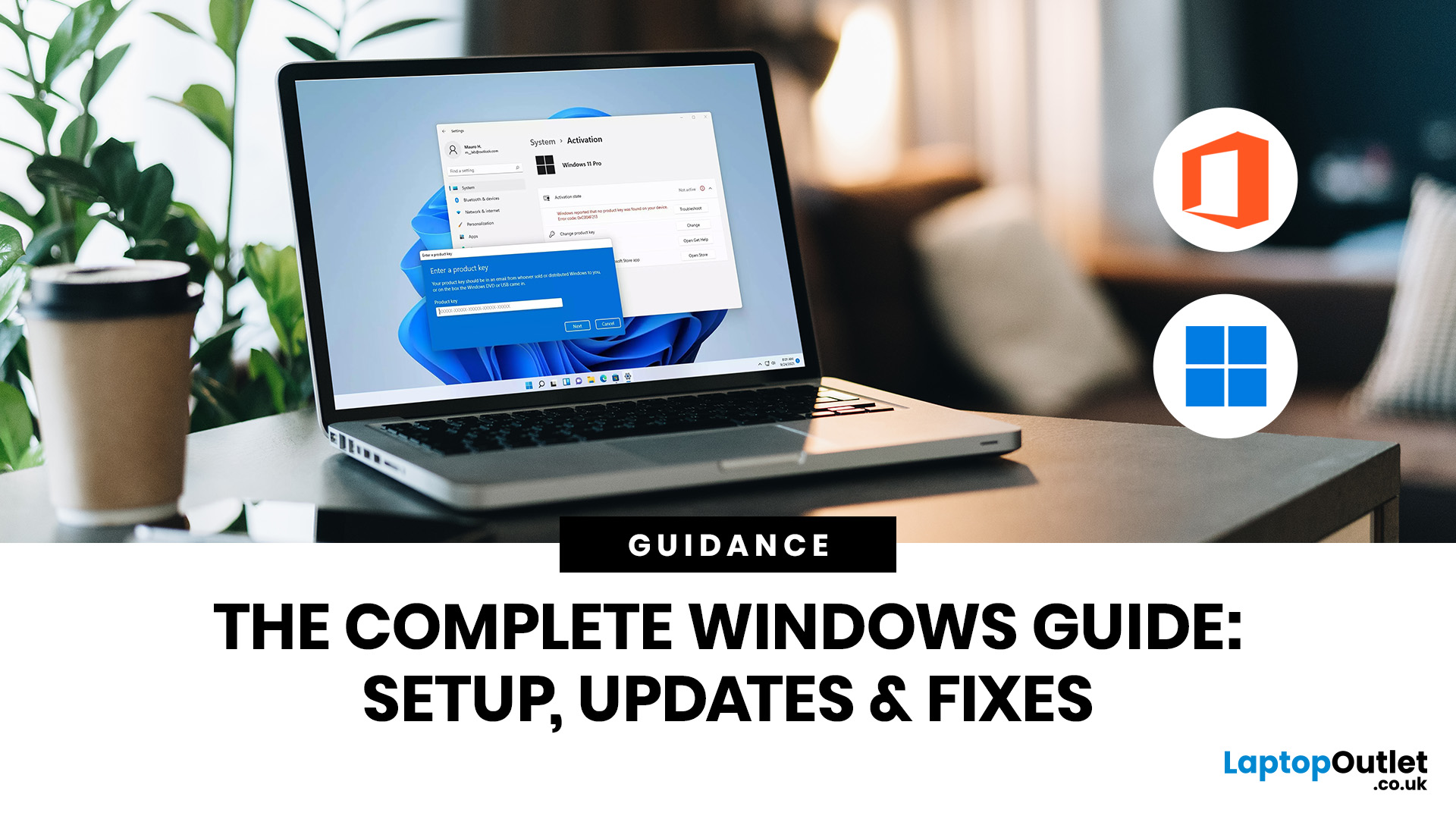
If you need to activate Windows Office key products on a new or existing device, the good news is that the process is usually straightforward once you know which licence you have. Whether you are looking for a Windows activation guide, Microsoft Office activation steps, or a quick fix for an activation error, this guide walks you through it in plain English.
Windows 10 and Windows 11 can be activated with either a 25-character product key or a digital licence, while Microsoft 365 and standalone Office versions are typically activated by signing in with the Microsoft account, or work or school account, linked to the purchase.
What is a Microsoft Activation Key?
A Microsoft activation key is usually a 25-character code used to activate Windows or redeem certain Office purchases. For Windows, activation depends on either a product key or a digital license. For newer Office and Microsoft 365 products, the Microsoft account attached to your purchase often replaces the product key for reinstalling
Last Updated: April 22, 2026
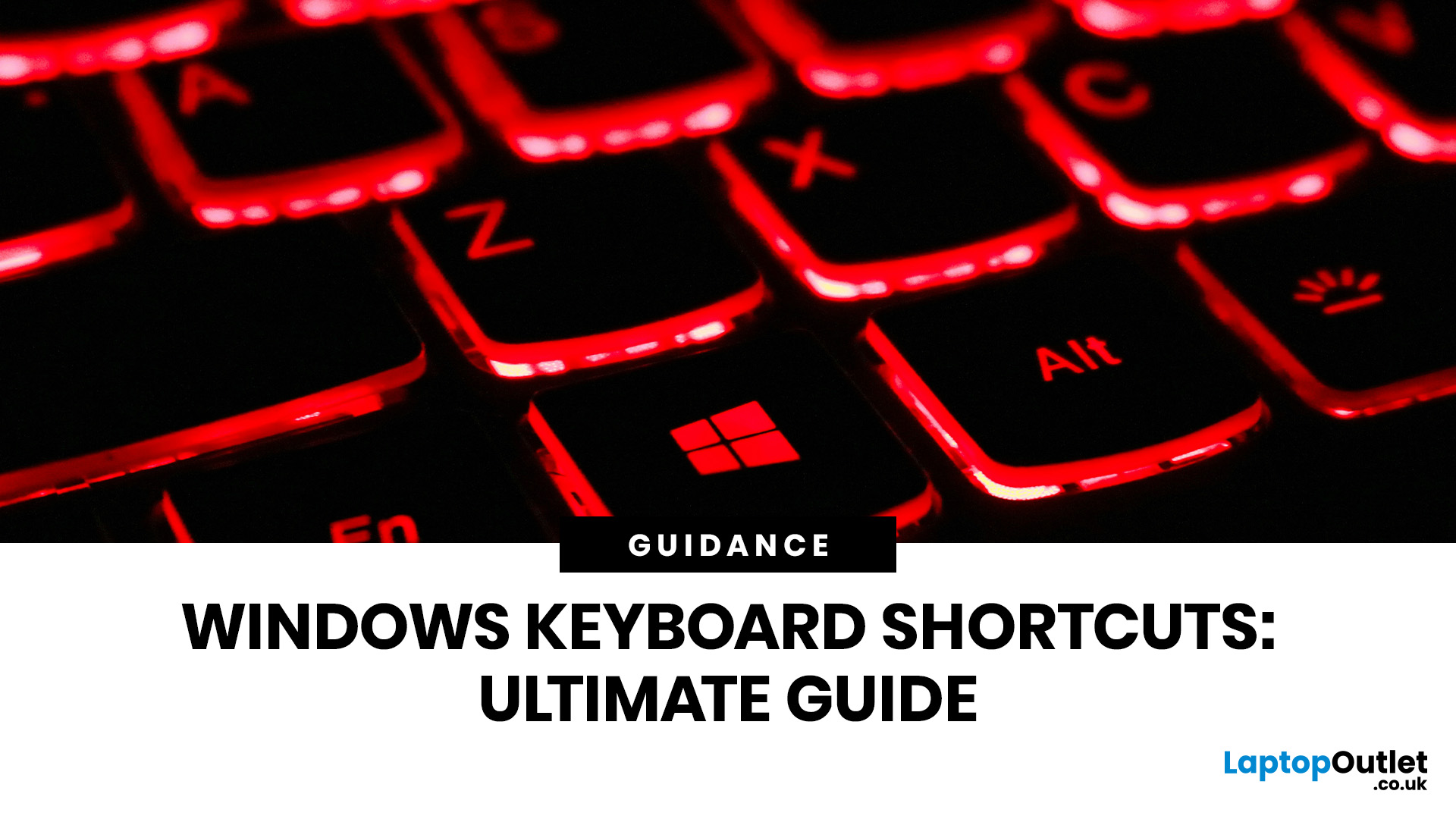
Stop reaching for the mouse every five seconds. Windows keyboard shortcuts are one of the fastest, simplest ways to boost your daily output - whether you're writing reports, navigating spreadsheets, or juggling a dozen open tabs at once.
This complete guide covers every shortcut worth knowing across Windows 10 and Windows 11, from the basics to the more advanced tricks that most people never discover.
Why Keyboard Shortcuts Are Worth Learning
Most people pick up one or two shortcuts by accident and never go any further. Yet the productivity gap between someone who relies on a mouse and someone genuinely fluent in shortcuts is striking - you spend less time clicking, less time searching, and considerably more time actually doing the work.
Here's what mastering shortcuts gives you:
- Speed: Tasks that take three clicks happen in milliseconds
- Concentration: Your hands stay on the keyboard, your eyes on the screen
- Less strain: Reduced repetitive mouse movement means fewer aches over a long
Last Updated: April 23, 2026
A blue screen of death fix isn't as daunting as it looks. That sudden blue screen and cryptic stop code are Windows' way of flagging a critical system error - and in most cases, it's something you can sort yourself without professional help.
This guide covers every cause, diagnostic method, and practical solution to get your machine running smoothly again.
What Is a Blue Screen of Death?
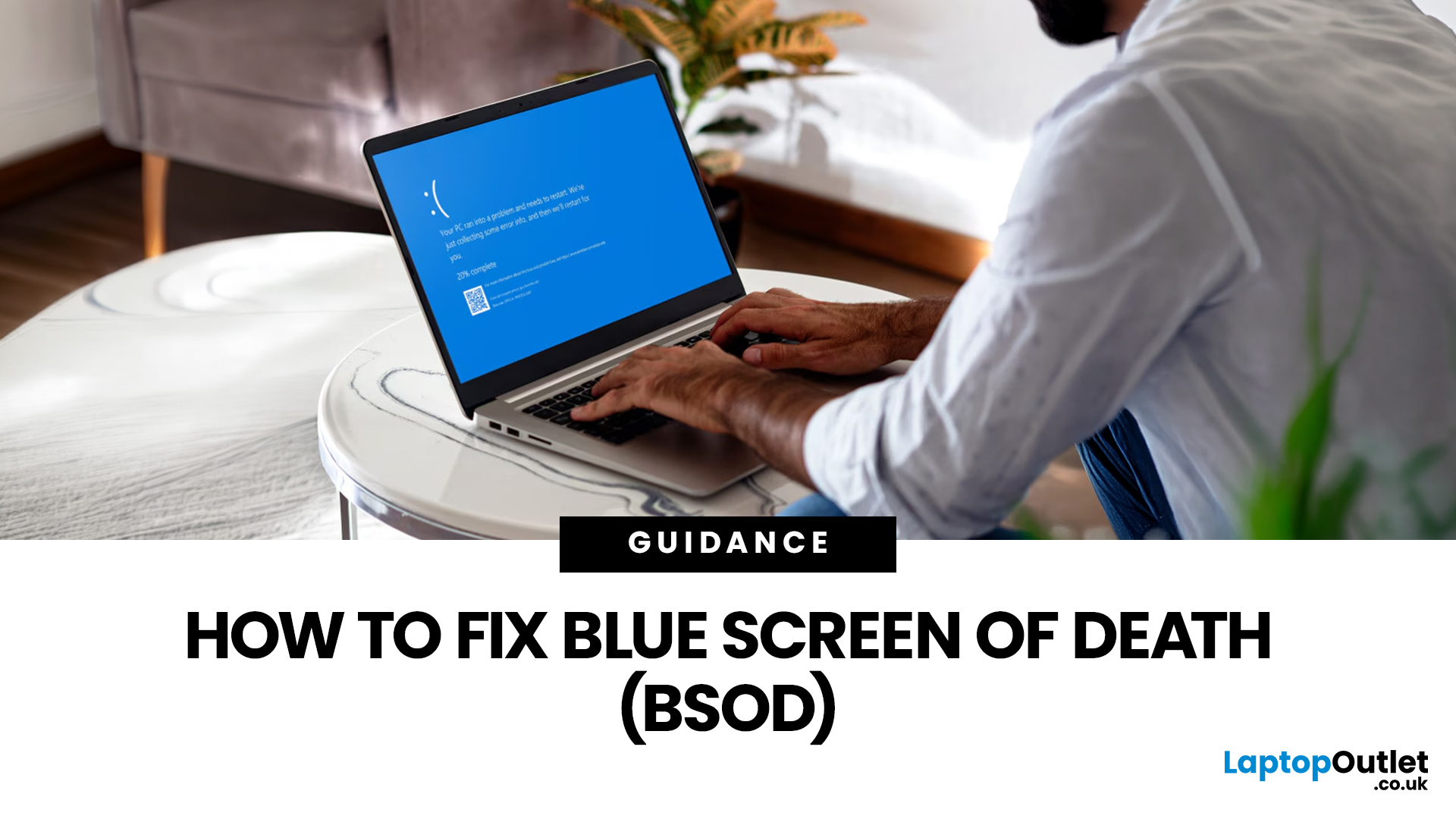
The blue screen of death (BSOD) is a critical stop error built into Windows. When the operating system encounters a fault it cannot safely recover from, it halts everything, logs the crash, and forces a restart - rather than risking data corruption or further damage. Think of it as a failsafe, not just a fault.
What Does It Look Like?
Depending on your version of Windows and the type of crash, a BSOD may show:
- A stop code identifying the error
- A message explaining that Windows ran into a problem
- A progress indicator while diagnostic information is collected
- Sometimes a QR code or additional troubleshooting
Last Updated: July 06, 2026
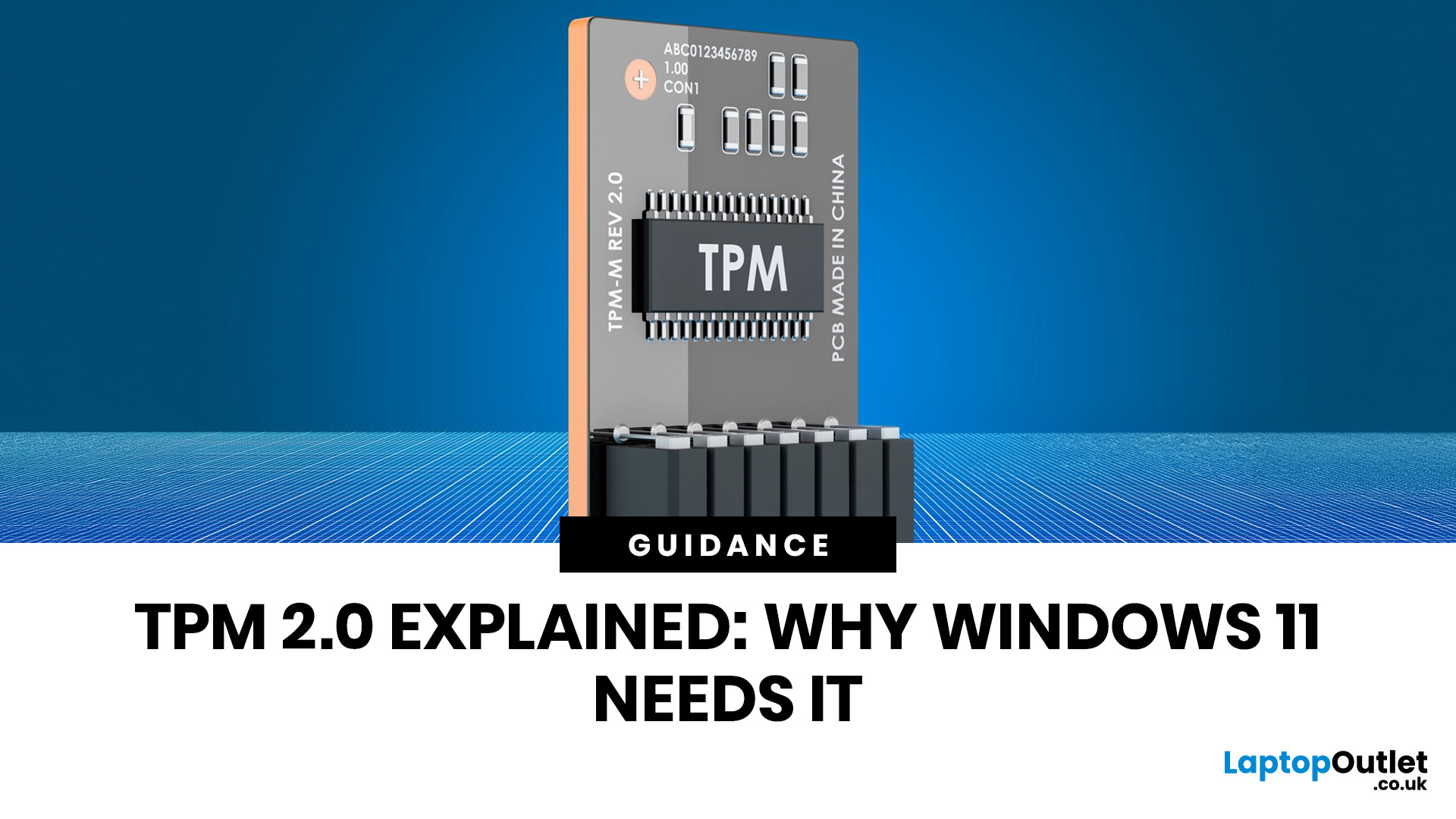
You go to upgrade your PC, everything seems fine, and then Windows 11 drops the digital equivalent of “not you, mate” with a message about TPM 2.0. Suddenly you are searching TPM 2.0 Windows 11, opening BIOS menus you have not touched since the Stone Age, and wondering if your laptop has secretly become ancient overnight. Microsoft’s official Windows 11 minimum requirements still include TPM 2.0, plus UEFI firmware and Secure Boot capability, so this is not some random pop-up glitch. It is part of the platform’s baseline security setup.
If you have been asking what is TPM in computer, do I need TPM for Windows 11, or why this tiny bit of hardware suddenly matters so much, this guide breaks it down in plain English. No jargon soup, no lecture mode, just what TPM is, what it does, why Windows 11 wants it, and what to do if your PC says TPM is missing or disabled.
| Quick answer: TPM 2.0 is a security component built into many modern PCs. It stores cryptographic keys, helps verify system integrity |
Last Updated: July 06, 2026
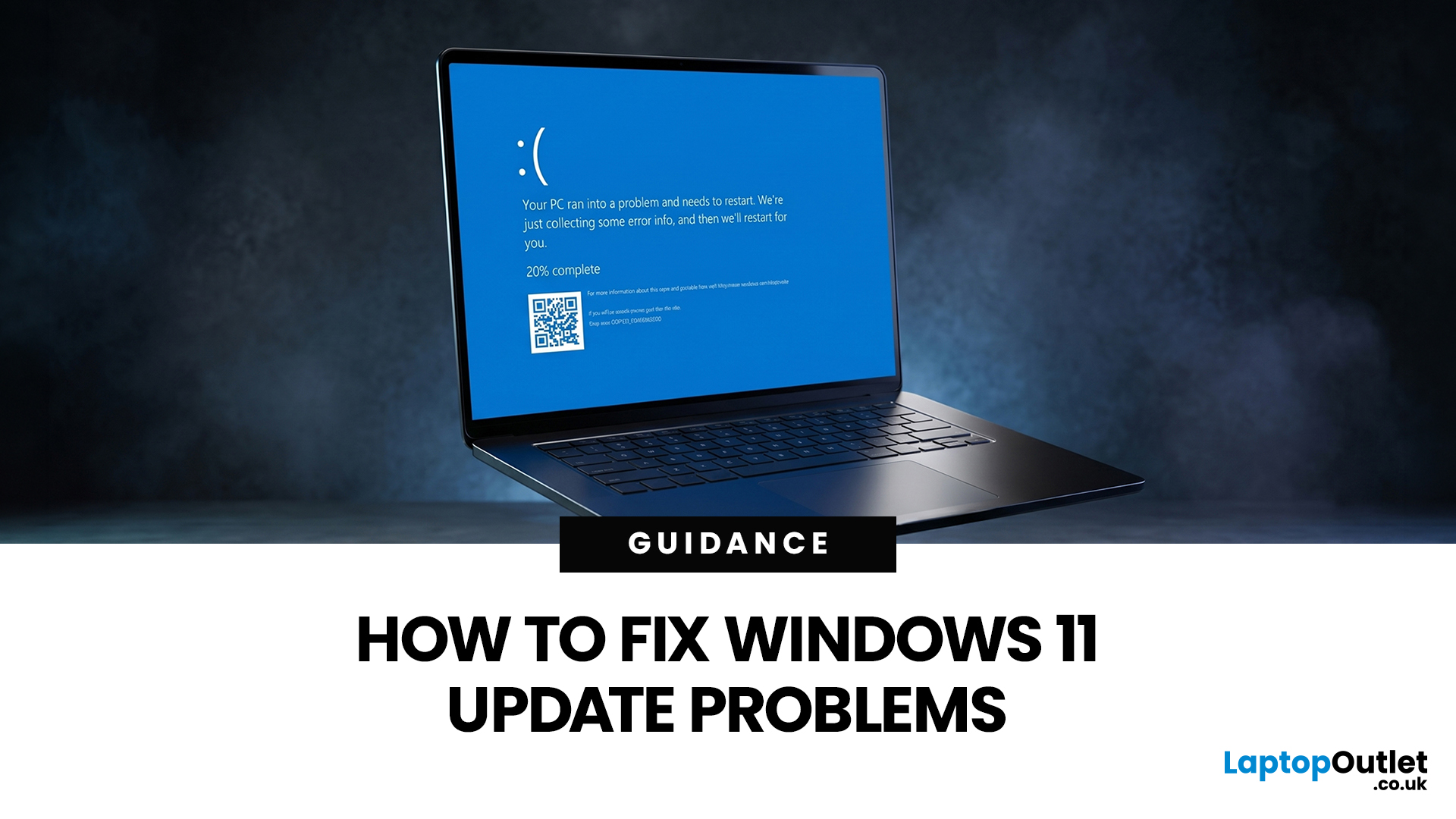
If your PC has decided that today is the day it will freeze at 61%, throw out a random error code, or restart at the worst possible time, you are very much not alone. Windows 11 update issues are one of those annoyingly common problems that can feel dramatic in the moment, but a lot of them are fixable with the right steps.
The good news is that most Windows 11 update problems usually come down to a handful of familiar causes: not enough storage, damaged update files, a disabled service, app conflicts, or a known issue that Microsoft is already tracking. Microsoft’s own support guidance still points users first to the built-in Windows Update troubleshooter and its broader update troubleshooting flow, which is usually the fastest place to start.
Why Windows 11 update fails in the first place
Let’s keep it real: when a Windows 11 update failed message pops up, it does not tell you much. The actual cause is usually one of these:
A Windows 11 update stuck during download or install can be linked

