



Laptop Boot Problems & Solutions: BIOS, Startup Errors & Boot Loops

Few things trigger instant panic like pressing the power button… and nothing happens. Or worse, your laptop turns on, shows the logo, and then just sits there. Stuck. Frozen. Judging you.
Laptop boot problems are one of the most common technical issues users face. From a laptop not booting at all to BIOS boot problems, startup errors, and endless boot loops, these issues can feel dramatic, but they’re often fixable. In many cases, Windows boot issues are caused by corrupted updates, drive errors, or simple configuration mistakes.
The key is knowing where the problem starts: power, BIOS, or operating system.
In this guide, we’ll walk you through real, step-by-step solutions to fix laptop boot loop errors, startup failures, and laptops that won’t turn on, no tech wizardry required.
What Are Laptop Boot Problems? (And Why They Feel So Stressful)
Laptop boot problems basically mean one thing: your laptop isn’t starting the way it’s supposed to. You press the power button expecting your system to load up normally… and instead you get a black screen, an endless spinning circle, or a device that just refuses to cooperate.
These issues are more common than you think, and they don’t always mean your laptop is “dead.” Boot problems can come from something as simple as a drained battery or as complex as corrupted system files.
The reason boot issues feel so intense is because they block everything. No login. No files. No work. Just you and a very unhelpful startup screen.
The good news? Most laptop boot problems have clear causes and even clearer fixes once you know where to look.
Boot vs Startup vs Power Issues: What’s Actually Happening?
Before jumping into repairs, it’s important to understand what kind of problem you’re dealing with. Not every “laptop not booting” situation is the same.
Boot Problems (Laptop Turns On but Won’t Load)
This is when your laptop powers up, but Windows never fully starts.
Common signs include:
- Laptop stuck on boot logo
- Endless loading screen
- Automatic repair loop
- Startup errors after updates
These are often linked to Windows boot issues or corrupted storage.
Startup Errors (Windows Loads, Then Fails)
In this case, Windows begins to load but crashes before reaching the desktop.
You might see:
- Blue Screen of Death (BSOD)
- “Your PC didn’t start correctly”
- Constant restarting
- Driver-related boot loop issues
This usually points to software corruption or failed system updates.
Power Issues (Laptop Won’t Turn On at All)
This is the most alarming scenario: no lights, no fan, no response.
Possible causes include:
- Dead battery or faulty charger
- Hardware failure
- Motherboard damage
- Overheating shutdown
If your laptop won’t turn on, troubleshooting starts with power checks before anything else.
Why Identifying the Type Matters
Fixing BIOS boot problems is totally different from fixing a Windows startup error. Once you know whether the issue is power-related, BIOS-related, or OS-related, you can apply the right solution faster and avoid making things worse.
Next up, we’ll cover quick fixes you should always try first before diving into advanced repairs.
Quick Checks Before Panic: Fix Laptop Boot Problems in Minutes
Before you assume the worst, take a breath. A surprising number of laptop boot problems are caused by small, fixable issues, not total system failure. In fact, many cases of a laptop not booting can be solved in under 10 minutes with a few basic checks.
Think of this as the “don’t call a repair shop yet” starter pack.
Check 1: Confirm Power Supply and Charging
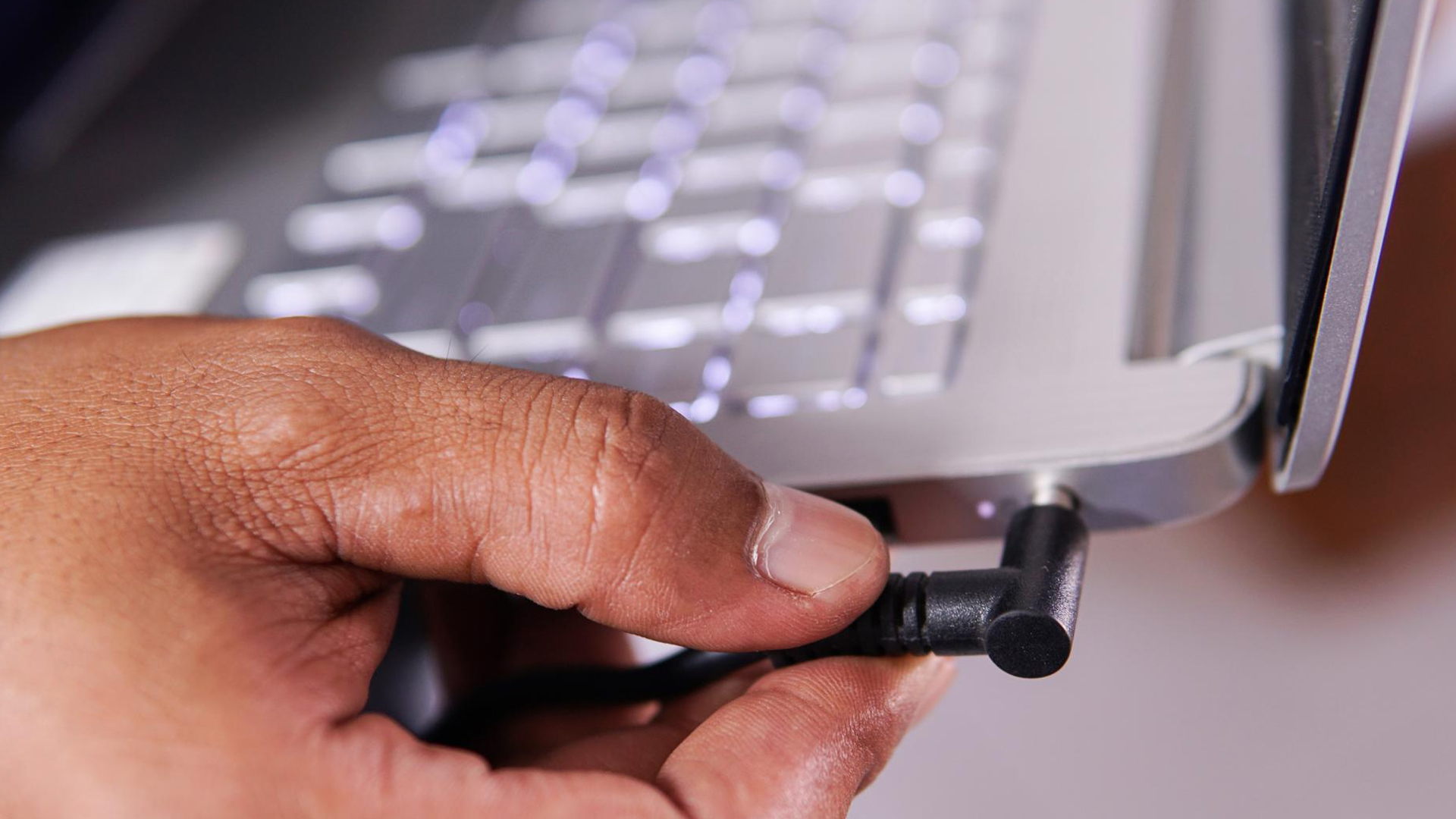
If your laptop won’t turn on, the first step is simple: make sure it’s actually getting power.
- Plug in the charger directly (skip extension cords)
- Look for charging indicator lights
- Try a different wall socket
- If possible, test with another compatible charger
Sometimes the issue isn’t the laptop, it’s the adapter. Sometimes laptop boot problems are connected to overall system performance issues. If your device has been taking longer and longer to start up, you may also want to check out our guide on why your laptop is running slow, as slow storage or heavy background processes can lead to startup failures.
Check 2: Disconnect All External Devices
USB drives, external hard disks, printers, and even memory cards can confuse the boot process.
Unplug everything, including:
- USB sticks
- External drives
- HDMI cables
- SD cards
- Wireless dongles
Then restart your laptop. This often fixes a laptop stuck on boot screen.
Check 3: Perform a Hard Reset
A hard reset clears residual power and can fix startup glitches.
Steps:
- Turn off the laptop completely
- Unplug the charger
- Remove the battery (if removable)
- Hold the power button for 15–20 seconds
- Reconnect power and restart
This is one of the easiest fixes for random laptop startup errors.
Check 4: Watch for Beep Codes or Blinking Lights
If your laptop powers on but won’t boot, pay attention to signals:
- Repeating beep sounds
- Flashing power lights
- Caps Lock blinking patterns
These often indicate hardware issues like RAM or motherboard problems.
Laptop Won’t Turn On at All (No Lights, No Fan, No Response)
This is the most serious and frustrating category of laptop boot problems: absolutely nothing happens when you press the power button.
No logo. No sound. No display. Just silence.
But even here, the cause isn’t always catastrophic.
Step 1: Battery vs Charger Problem
In many cases, the laptop isn’t dead — it’s just not receiving power.
Try this:
- Plug the charger in and wait 10 minutes
- Check if the charger brick feels warm (a sign it’s working)
- Look for charging LEDs
- Try turning it on without the battery (if removable)
Faulty chargers are one of the most common reasons a laptop won’t turn on.
Step 2: Check for Overheating Shutdown
If your laptop recently shut off suddenly and won’t restart, overheating could be the cause.
Signs include:
- Laptop felt extremely hot
- Fan was loud before shutdown
- Device powers off during heavy use
Let it cool down fully, then try again.
Step 3: Possible Hardware Failure Warning Signs
If there are no lights even with a working charger, the issue may involve:
- Damaged power port
- Failed motherboard
- Short circuit
- Internal component failure
At this point, DIY fixes are limited.
When to Get Professional Help
If you’ve tried multiple chargers and hard resets with zero response, it’s time for a technician, especially if the laptop is under warranty.
Laptop Turns On But Screen Stays Black
This is where things get confusing. Your laptop powers on. The fan spins. Maybe the keyboard lights up. But the screen? Completely black. No logo. No Windows loading screen. Nothing.
At this stage, many people assume they’re facing serious laptop boot problems — but sometimes, it’s not a boot issue at all. It could be a display or hardware problem instead.
Black Screen vs Boot Failure: Know the Difference
If you see absolutely nothing on the screen:
- Shine a flashlight at the display (you may see faint images — meaning backlight failure)
- Listen for Windows login sounds
- Check if Caps Lock responds when pressed
If the system is actually running in the background, the problem may be screen-related, not Windows boot issues.
Try an External Monitor Test
Connect your laptop to:
- An external monitor
- A TV via HDMI
If the external display works, your laptop screen may be faulty — not the boot system.
Reseat the RAM (Common Hidden Fix)
Loose or faulty RAM can cause a black screen on startup.
If you’re comfortable opening your laptop:
- Power off and unplug
- Remove the back panel
- Take out the RAM stick
- Reinsert it securely
- Restart
RAM issues are a surprisingly common cause of laptop not booting properly.
If none of these steps work and there’s no display anywhere, the issue may involve the motherboard or graphics chip — which requires professional repair.
It’s also important to remember that not every black screen is a true boot failure. Sometimes the laptop is running, but the display itself has stopped working. For deeper troubleshooting, visit our guide on laptop screen not working? common reasons & quick fixes to identify screen, backlight, or connector problems.
Laptop Stuck on Boot Screen or Manufacturer Logo
If your laptop turns on but freezes at the logo screen (Dell, HP, Lenovo, etc.), you’re dealing with one of the most common laptop boot problems: being stuck before Windows even loads.
This usually means the system can’t move past the hardware-to-OS handoff stage.
Why Laptops Get Stuck at Startup
Common causes include:
- Corrupted Windows updates
- Damaged system files
- BIOS boot problems
- Failing storage drive
- Incorrect boot order
When your laptop is stuck on boot, it’s often software-related and fixable.
Fix Laptop Stuck on Boot: Step-by-Step
1. Force Restart (Basic Reset)
Hold the power button for 10 seconds to shut down.
Turn it back on and see if it loads normally.
If it freezes again, move to advanced fixes.
2. Boot Into Safe Mode
- Turn laptop on
- Force shutdown when Windows starts loading (repeat 2–3 times)
- Windows should enter Recovery Mode
- Select Advanced Options → Startup Settings → Safe Mode
If Safe Mode loads, a driver or recent update is likely causing the issue.
3. Remove Recent Updates
In Recovery Mode:
Advanced Options → Uninstall Updates
Remove the most recent quality or feature update.
Failed updates are a major trigger for laptop startup errors.
4. Run Startup Repair
From Advanced Options:
Select Startup Repair
This automatically scans and fixes Windows boot issues.
If your laptop continues freezing at the logo even after Startup Repair, the problem may be deeper, possibly related to BIOS configuration or storage failure.
BIOS Boot Problems & Laptop BIOS Troubleshooting
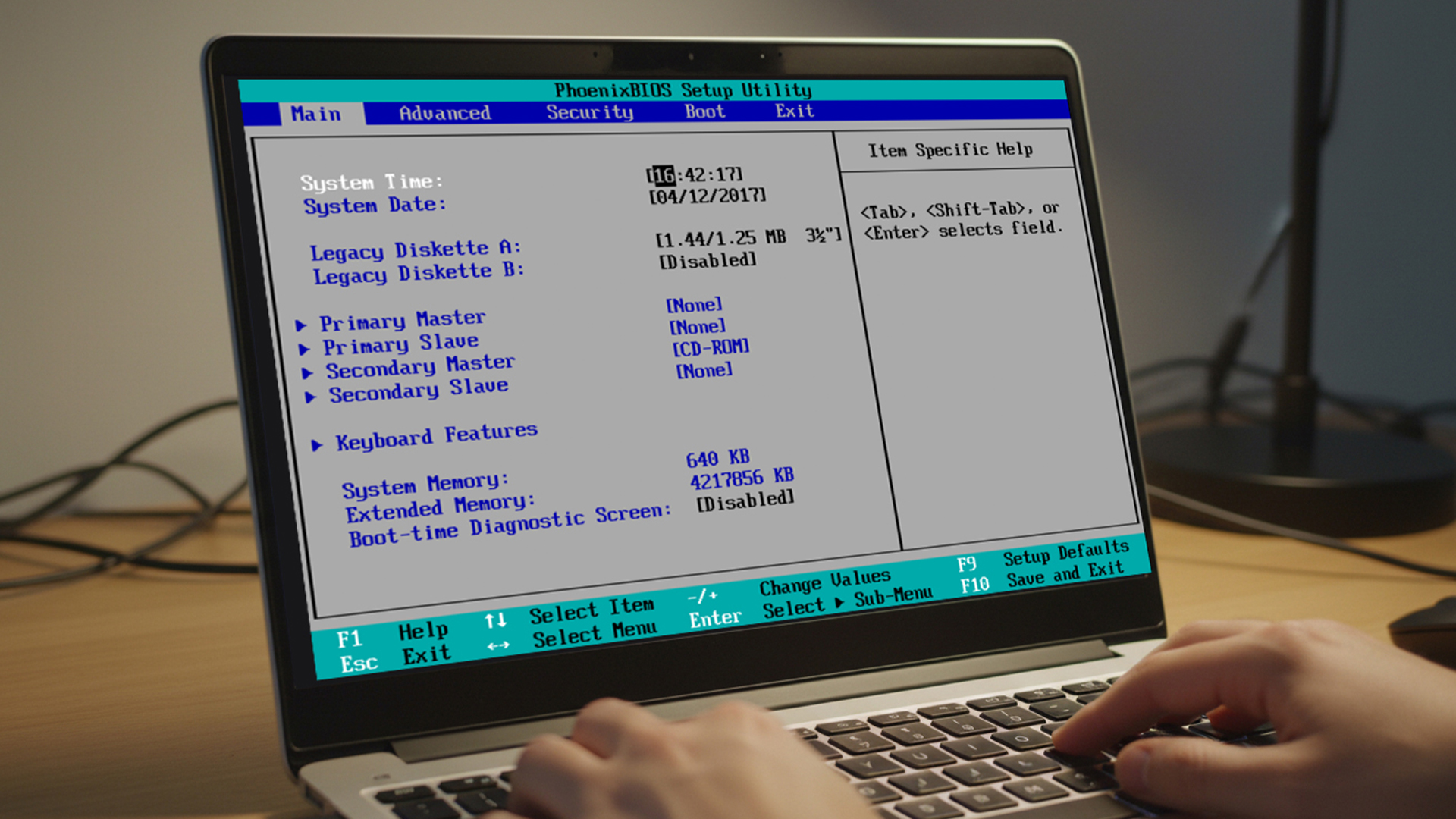
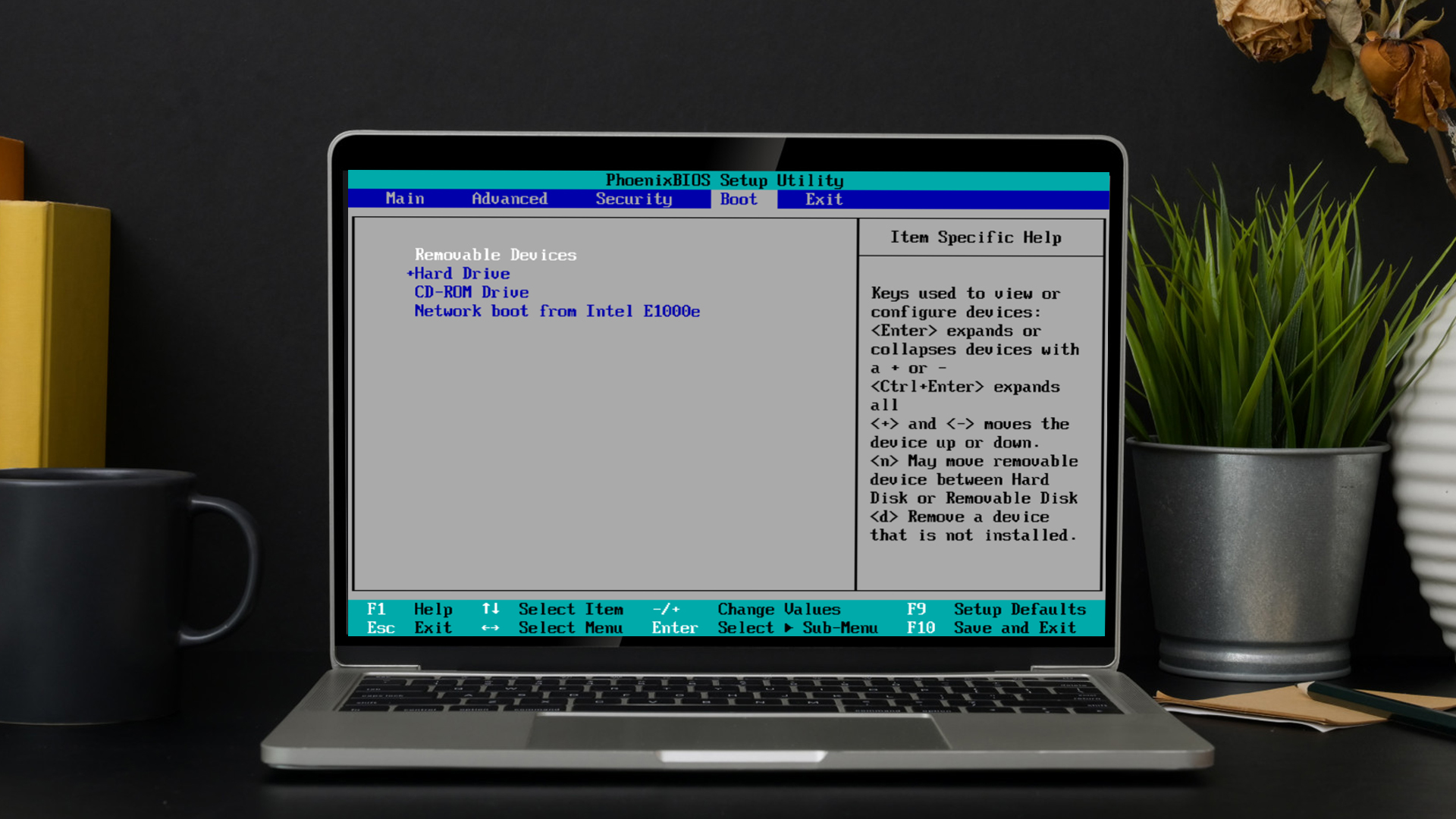
If your laptop won’t move past the logo screen or says “No Boot Device Found,” the issue may not be Windows, it could be the BIOS.
The BIOS (Basic Input/Output System) is the first program your laptop runs. It checks hardware and tells the system where to boot from. If something is misconfigured here, your laptop not booting suddenly makes sense.
Common BIOS Boot Problems
- Incorrect boot order (trying to boot from USB instead of SSD)
- Storage drive not detected
- Secure Boot conflicts
- Switching between UEFI and Legacy mode
- BIOS reset after battery removal
How to Fix BIOS Boot Errors
1. Check Boot Order
Restart and press F2, F10, DEL, or ESC (varies by brand) to enter BIOS.
Make sure your internal SSD/HDD is listed as Boot Option #1.
2. Reset BIOS to Default
Inside BIOS, look for:
Load Default Settings → Save & Exit
This resolves many BIOS boot problems caused by accidental configuration changes.
3. Check if the Drive Is Detected
If your SSD or HDD isn’t showing in BIOS, the issue may be:
- Loose connection
- Failing storage drive
- Hardware fault
At this point, storage troubleshooting becomes necessary.
4. Update BIOS (Advanced Users Only)
If BIOS is outdated, it may cause compatibility issues. Only update using the manufacturer’s official website and follow instructions carefully — improper BIOS updates can permanently damage the system.
Windows Boot Issues: Blue Screens & Automatic Repair Loops
If your laptop reaches the Windows loading screen but crashes or enters an “Automatic Repair” loop, you’re dealing with Windows boot issues.
These are typically software-based and highly fixable.
Common Laptop Startup Errors
- “Your PC did not start correctly”
- Blue Screen of Death (BSOD)
- Automatic Repair couldn’t repair your PC
- Endless restart cycle
These errors often happen after:
- Failed Windows updates
- Corrupted system files
- Driver conflicts
- Disk errors
Fixing Windows Boot Issues
1. Use Startup Repair
Recovery Mode → Advanced Options → Startup Repair
Let Windows attempt automatic repair first.
2. Run System File Checker
In Command Prompt:
sfc /scannow
This repairs corrupted Windows files.
3. Run DISM Tool
DISM /Online /Cleanup-Image /RestoreHealth
This fixes deeper system image issues.
4. Use System Restore
If the problem started recently:
Advanced Options → System Restore
Roll back to a working point.
Fix Laptop Boot Loop (Endless Restart Problem)
A laptop boot loop is when the device keeps restarting without ever reaching the desktop.
This is one of the most frustrating laptop boot problems but it’s usually repairable.
What Causes Boot Loops?
- Corrupted drivers
- Failed updates
- BIOS misconfiguration
- Malware
- Disk failure
How to Fix Laptop Boot Loop
1. Boot Into Safe Mode
Safe Mode loads minimal drivers. If it works, uninstall:
- Recently installed apps
- Graphics drivers
- Updates
2. Disable Automatic Restart
Advanced Options → Startup Settings → Disable automatic restart
This helps reveal the actual error message.
3. Repair Master Boot Record (MBR)
In Command Prompt (Recovery Mode):
bootrec /fixmbr
bootrec /fixboot
bootrec /rebuildbcd
This fixes corrupted boot configuration data.
If the boot loop persists after these steps, your storage drive may be failing.
When Storage Failure Causes Laptop Not Booting
Sometimes laptop boot problems are not about BIOS or Windows, they’re about your SSD or HDD failing.
Signs include:
- Clicking noise (HDD)
- Drive not detected in BIOS
- Extremely slow startup
- Disk errors before boot failure
Run drive diagnostics if accessible. If the drive isn’t detected at all, replacement is often necessary.
In many cases, upgrading to a modern SSD resolves both boot issues and performance problems.
When It’s Time to Upgrade Instead of Repair
If your laptop is several years old and repeatedly facing startup errors, constant boot loops, or hardware failures, repairs may not be cost-effective.
Signs it’s time to move on:
- Multiple hardware faults
- Slow mechanical HDD
- Limited RAM and outdated processor
- Frequent Windows boot issues after updates
Instead of repeated fixes, upgrading to modern laptops UK models can save time and stress.
Want Faster, Smarter Boot Times? Consider AI Powered Laptops
Modern systems are built differently. New AI powered laptops optimise startup performance, manage resources more efficiently, and reduce background process conflicts.
Benefits include:
- Faster boot times
- Smarter system optimisation
- Improved energy efficiency
- Better handling of Windows updates
If your current laptop struggles with repeated boot problems, upgrading to newer AI-driven hardware can eliminate many recurring issues.
How to Prevent Laptop Boot Problems in the Future
Prevention is always easier than recovery.
Follow these best practices:
- Avoid forced shutdowns
- Install Windows updates carefully
- Keep at least 20% disk space free
- Back up data regularly
- Monitor drive health
- Keep BIOS updated responsibly
- Use antivirus protection
Regular maintenance dramatically reduces the risk of laptop startup errors.

Conclusion: Don’t Panic - Diagnose Smartly
Laptop boot problems feel dramatic, but they’re rarely mysterious. Whether it’s a laptop stuck on boot, BIOS boot problems, or Windows startup errors, most issues follow a pattern and patterns can be fixed.
Start simple. Check power. Reset BIOS. Repair Windows. Diagnose storage. And if your device keeps struggling despite every fix, it may be time for smarter hardware built for today’s workloads.
Because a laptop that won’t boot shouldn’t control your day, you should control your tech.

Q/A About Laptop Boot Problems
Why is my laptop not booting?
It could be power failure, corrupted Windows files, BIOS misconfiguration, or storage issues.
How do I fix BIOS boot problems?
Check boot order, reset BIOS to default settings, and ensure the storage drive is detected.
What causes laptop startup errors?
Failed updates, corrupted system files, driver conflicts, or failing hardware.
Can I fix a laptop boot loop without reinstalling Windows?
Yes. Safe Mode, Startup Repair, and MBR repair often resolve boot loops.
When should I replace my laptop?
If hardware failures are frequent and repair costs approach replacement value.
| Read More: |
| Why Your Laptop Is Running Slow: Top Causes & Quick Fixes |
| Laptop Battery Draining Fast? Reasons & Easy Solutions |
| Laptop Screen Not Working? Common Reasons & Quick Fixes |
Related Articles


Last Updated: December 24, 2025
Technology never stands still, and if the past few years have taught us anything, it’s that innovation moves fast. As we look ahead, tech trends 2026 are shaping up to be smarter, faster and more user-focused than ever before. From AI-powered laptops to next-level PCs and sustainable tech, the future is all about performance with purpose. So, whether you’re upgrading your setup, planning ahead, or just love staying in the know, here’s a breakdown of the biggest tech trends set to define 2026.
AI Everywhere: Smarter Devices, Smarter Decisions
Artificial Intelligence is no longer a “nice to have” by 2026, it’s expected to be built into almost every device we use. We’re talking about laptops that learn your preferences, PCs that optimise performance in real time, and software that adapts to how you work or play.
AI-driven features such as predictive battery management, real-time security monitoring and intelligent multitasking will become standard. For users, this means less time managing

Published: December 24, 2025
Heading into 2026, the student laptop vibe is basically: lightweight enough to carry all day, fast enough to handle 27 Chrome tabs + a Zoom call, and affordable enough that you can still buy snacks. Whether you’re doing GCSE homework, uni essays, coding projects, or just living in Google Docs, this blog on Student Laptops 2026 breaks down what matters (and what’s just marketing fluff).
What to look for in Student Laptops 2026 (aka the “don’t get scammed” checklist)

1) RAM (memory):
- 8GB = the realistic minimum for 2026 if you want smooth multitasking.
- 16GB = the “I’m serious about this degree” upgrade (especially for creative apps, coding, or heavy research).
2) Storage:
- 256GB is okay, but 512GB is comfy if you keep lots of files, downloads, photos, and videos.
- If you see 128GB, it can work for light use - but you’ll want cloud storage habits.
3) Screen size:
- 14" laptop = the sweet spot (portable, still comfy for essays).
- 15" laptop = bigger and nicer for split-screen, but less “throw-it-in-your-bag”
Last Updated: April 21, 2026
The world of computing is changing fast. We are no longer just looking for faster processors or thinner designs. Today, the focus has shifted to intelligence.
To understand this shift, we need to look at a new category of devices: Copilot+ Laptops. These are not just standard computers; they are AI-powered laptops designed to think, learn, and assist you in real-time.
Whether you are a busy professional, a digital artist, or a student, Windows Copilot+ PCs offer a new way to interact with technology. By integrating hardware and software more tightly than ever before, these machines handle complex tasks with ease.
In this guide, we will explore why these next-generation Windows laptops are the ultimate choice for your next upgrade.
What are Copilot+ Laptops?
Copilot+ Laptops are a new class of Windows 11 laptops with dedicated hardware for advanced Artificial Intelligence (AI) tasks. They offer enhanced performance, security, and unique features that run locally on the device.
Unlike

Last Updated: January 21, 2026
Let’s be honest - most of us don’t work (or study, or relax) in just one way anymore. One minute you’re typing notes, the next you’re scrolling, watching something, sketching ideas, or replying to emails from the sofa.
That’s exactly why convertible tablets exist.
Also called 2-in-1 laptops, laptop tablets, or the very literal notebook two-in-one, these devices are designed to adapt to how you use tech throughout the day - not force you into one setup.
But choosing the right 2 in 1 laptop convertible isn’t always straightforward. Some lean more laptop. Some feel more like tablets. And some just… try to do everything and don’t quite nail it.
This guide breaks it all down in a way that actually makes sense.
What Is a Convertible Tablet (And Why Do People Buy Them)?
A convertible tablet is a hybrid device that combines:
- A laptop’s power (keyboard, trackpad, desktop software)
- A tablet’s flexibility (touchscreen, pen input, portability)
Most convertible tablets run Windows, which means you’re

Last Updated: April 28, 2026
Struggling to find HP laptop deals that don’t feel overpriced, outdated, or just not worth it? Yeah — scrolling through endless specs, inflated prices, and “fake” discounts can be frustrating, especially when you just need a laptop that actually works for study, work, or everyday life.
The problem? Too many laptops either cost way too much or cut corners where it matters. Slow performance, tiny storage, poor screens, not the vibe. And when you’re on a budget, finding reliable HP laptops UK shoppers can trust shouldn’t feel like a gamble.
That’s where Laptop Outlet comes in. We’ve rounded up some of the best HP laptops on sale in the UK, with prices starting from just £149.99. From cheap HP laptops for everyday use to powerful business-ready machines, our handpicked HP laptop offers give you serious value without compromising on quality.
HP 15-fc0045na – Everyday Power for You
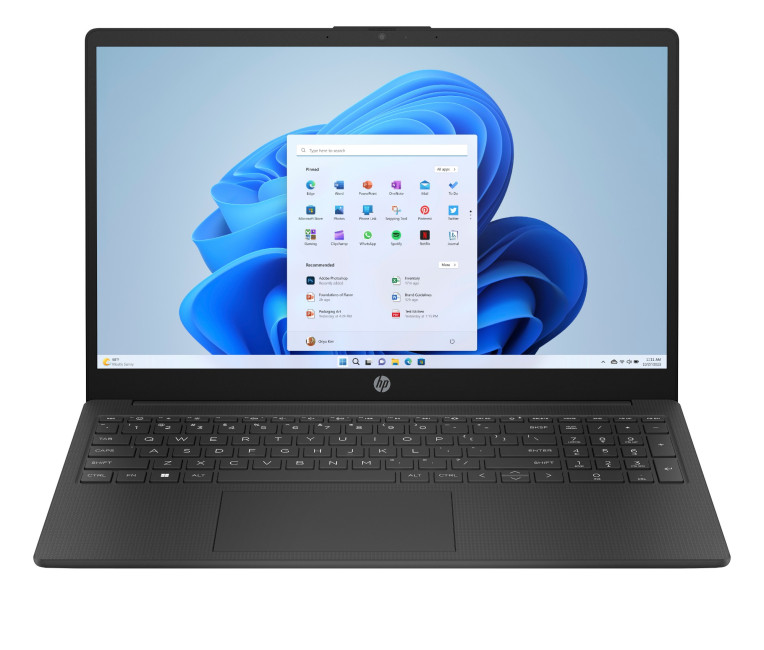
- The HP 15-fc0045na is a well-balanced 15.6-inch laptop that perfectly blends performance with everyday
Last Updated: January 28, 2026
We don’t usually abandon a tech purchase because of the price. It’s the delivery that makes us hesitate to move the things from whislist to place the order. Unexpected charges, unclear arrival dates, or slow dispatch can stop us right at checkout. And it feels unfair and cruel that we need to sacrifice our favourite gadget due to this delivery obstacle.
That’s why Laptop Outlet’s free standard delivery is kept clear and upfront, so you know exactly what you’re paying and when your order will arrive before you commit.
Let’s make it simple for you to understand that how free standard delivery by Laptop Outlet works, explore the key shipping benefits, and explain why it’s one of the smartest ways to stretch your tech budget further.
What Is Laptop Outlet’s Free Standard Delivery?
Free standard delivery by Laptop Outlet is designed to keep things simple, transparent, and affordable for customers across the UK.
Here’s how it works:
- Spend over £200 and your order qualifies for free standard
Last Updated: January 28, 2026
Buying tech online isn’t just about specs and price; delivery speed, flexibility, and reliability matter just as much. Whether you’re replacing a broken work laptop, upgrading your home setup, or ordering a last-minute gift, knowing your delivery options can make all the difference. In this guide, we explain Laptop Outlet delivery services options, how they work, and which service is best for your needs, from free standard delivery to next-day and book-a-slot delivery.
What Delivery Options Does Laptop Outlet Offer?
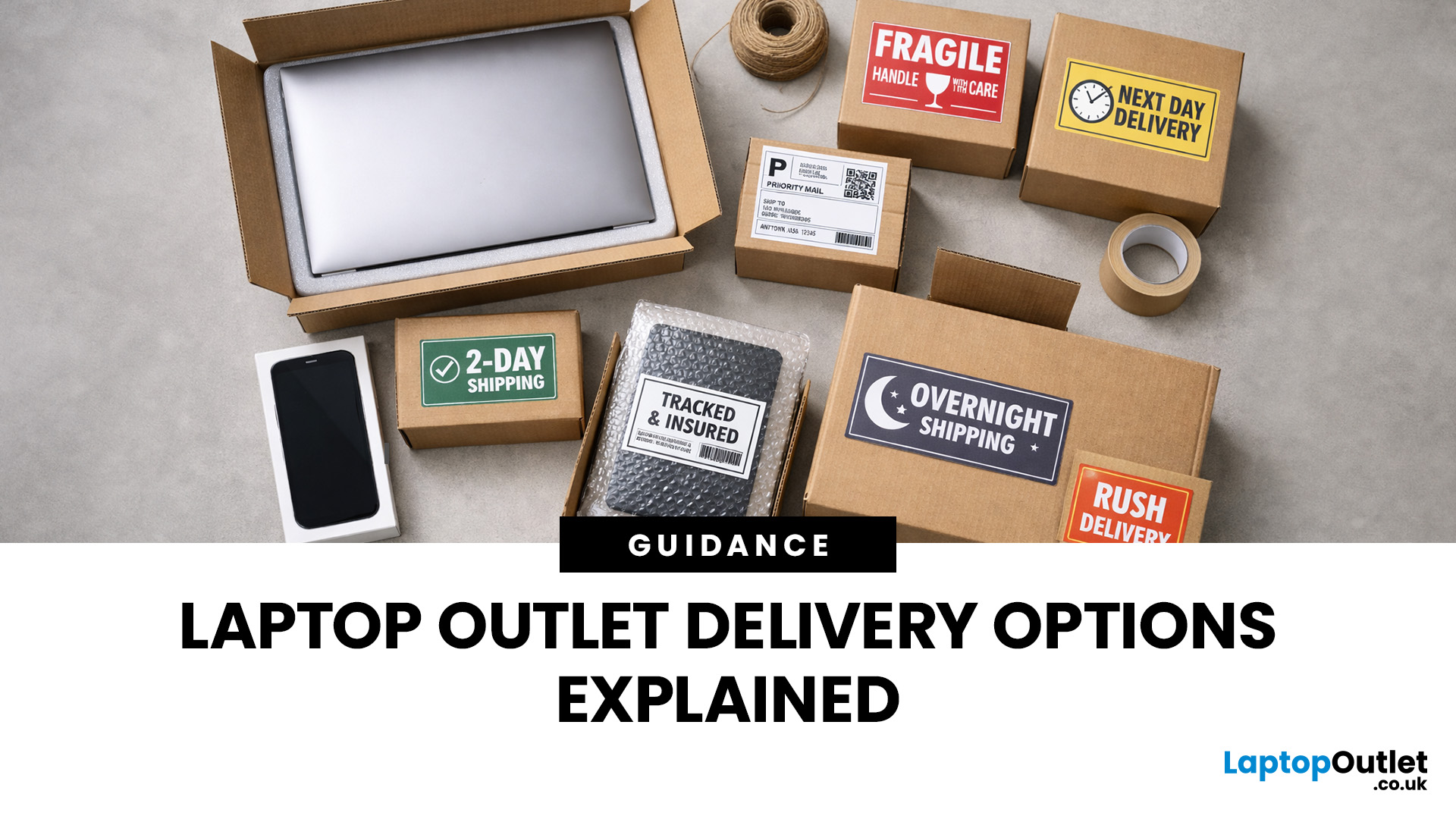
Laptop Outlet provides multiple delivery services designed to suit different customer needs, budgets, and timeframes. Each option is clearly shown at checkout, so you can choose the delivery speed and convenience level that works best for you. These include:
- Free Standard Delivery
- Next-Day/Priority Delivery
- Book-a-Slot Scheduled Delivery
How Does Laptop Outlet Delivery Work?
For full details, customers can always refer to the dedicated delivery info page. Laptop Outlet’s
Last Updated: January 28, 2026
Let’s be honest — when your tech lets you down, waiting is the last option you want. Maybe your laptop stopped working the night before a deadline, your PC failed mid-project, or you’ve just realised you need a new device now, not next week. That’s exactly where Laptop Outlet next-day / priority delivery comes in. If you need fast, reliable tech delivery in the UK, this guide explains how Laptop Outlet’s next-day service works, what you can order, and why it’s the smart choice for urgent tech needs.
Why Speed Matters When Ordering Tech Online
When your laptop or PC breaks, everything slows down — work, study, gaming, even staying connected. Waiting days for a replacement just isn’t practical. With next-day laptop delivery, you don’t have to put life on pause. Laptop Outlet’s express service is built for:
- Last-minute replacements
- Urgent work-from-home setups
- Business and study deadlines
- Time-sensitive gifts or upgrades
If speed matters to you, Laptop Outlet Express shipping delivers when

Last Updated: January 28, 2026
Let’s be real — waiting around all day for a delivery is no one’s idea of fun. You’ve got meetings, errands, school runs, and about a million other things going on. The last thing you want is to be stuck at home wondering “Will it arrive now… or later?” That’s exactly why customers love Laptop Outlet book-a-slot delivery.
This delivery option puts you in control, letting you choose when your tech arrives, not the other way around. Here’s how it works, why it’s so popular, and whether it’s the right choice for your next order.
What is Laptop Outlet Book-a-Slot Delivery?
Laptop Outlet’s book-a-slot delivery service is a scheduled tech delivery service that allows you to pick a specific delivery day and time slot at checkout. Instead of waiting around all day, you get a clearly defined delivery window, so you know exactly when your order is arriving. In short:
- You choose the day, time, and location
- The courier delivers within that slot
- Your tech arrives when it suits you
It’s one of Laptop

Last Updated: June 17, 2026
Valentine’s Day is basically a high-pressure speedrun of “prove you know me.” Flowers are fine. Chocolate is predictable. But if you want a gift that lands (and lasts), tech is the move.
This year, we’re making it easy to shop Valentine’s Day laptop gifts and other Valentine’s Day tech gifts that feel personal, useful, and genuinely exciting, without paying full-price panic-tax. At Laptop Outlet, we stock both new and refurbished tech in the UK, so you can pick something premium, practical, and still stay in your budget.
Why a Laptop is a Top-Tier Valentine’s Gift in 2026
A laptop gift for Valentine’s Day isn’t just “a laptop.” It’s a whole lifestyle upgrade. It’s better WFH days, smoother university deadlines, cleaner creative projects, cosier film nights, and finally not fighting with a slow machine that sounds like it’s trying to take off.
And because 2026 is not the year to overpay, laptop deals for Valentine’s Day (especially on refurbished models) can get you more performance for

