



A Complete Guide to Formatting and Partitioning an SSD
Formatting an SSD takes less than five minutes when you know what you're doing. The tricky part is knowing which tool to use, which file system to pick, and how to avoid losing data along the way. That's exactly what this guide covers.
You will learn how to format a solid state drive on Windows, macOS, and Linux laptops, with step-by-step instructions for each. You'll also find out how to partition your SSD and wipe it securely when needed.
Before You Start: What You Need to Know
Before you touch any settings, take a few minutes to prepare. Skipping this stage is the most common reason people run into problems when setting up or reformatting a drive.
Back Up Your Data First
Formatting wipes everything. Every file, folder, and installed programme will be gone.
- Copy important files to a USB drive or cloud storage
- Use an external drive for large backups (if you need one, you can buy external hard drive options from Laptop Outlet)
- Double-check your backup before proceeding
There's no undo button once formatting starts.
Pick the Right File System
Choosing the wrong file system causes compatibility headaches later. Here's a quick reference:
|
File System |
Best For |
Platform |
|
NTFS |
Internal Windows drives |
Windows |
|
APFS |
Internal macOS drives (SSDs) |
macOS |
|
exFAT |
Cross-platform external drives |
Windows + Mac + Linux (on supported Linux systems) |
|
ext4 |
Linux internal/external drives |
Linux |
Also decide between MBR and GPT partition styles. GPT is the right choice for any modern laptop and is required for drives over 2TB.
If you're also upgrading your memory alongside your storage, check out the best RAM for laptops to get the most out of your system.
Not fitted your new drive yet? Read our guide on how to install or upgrade a laptop SSD first, then come back here to format it.
How to Format an SSD on Windows
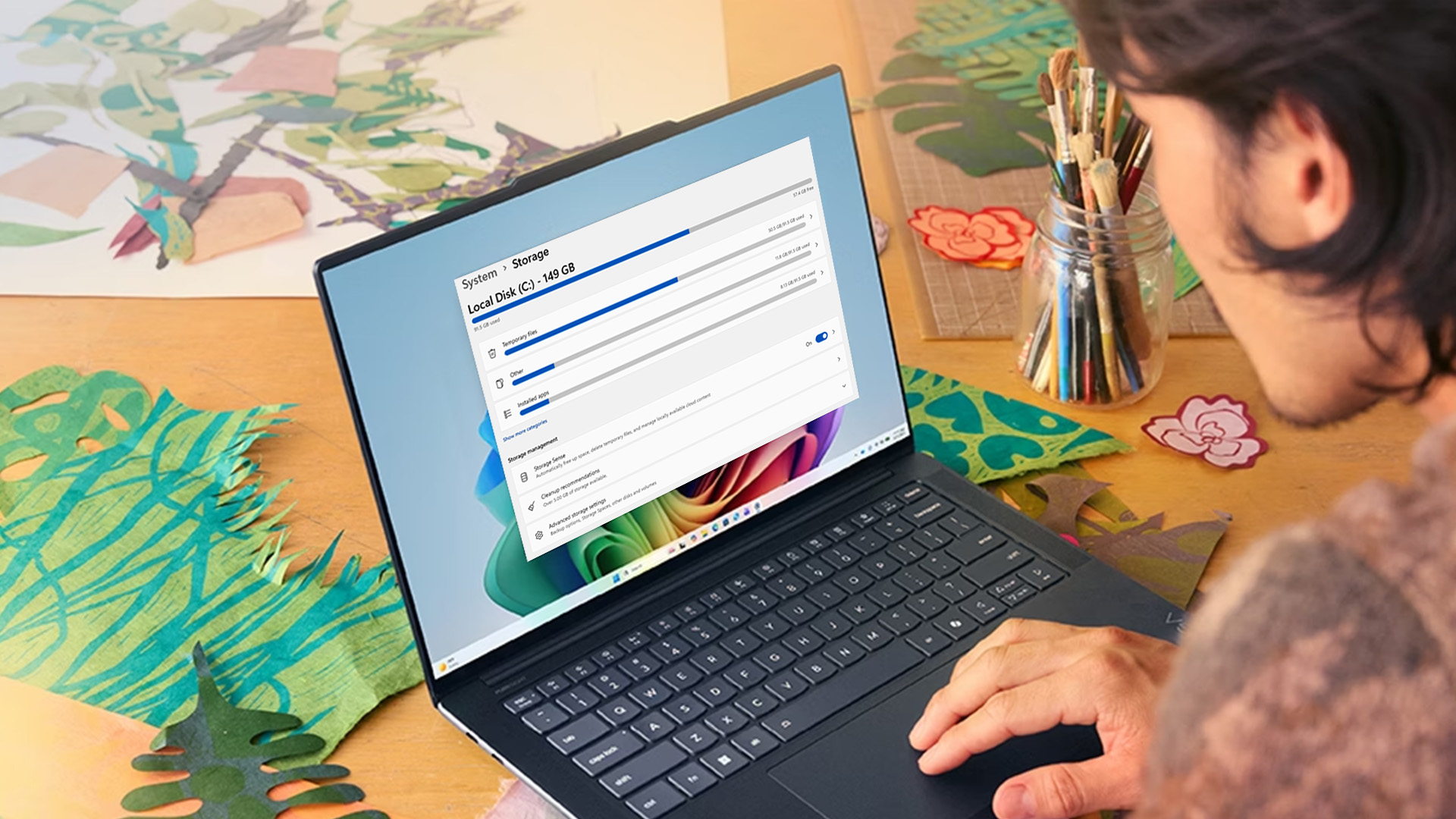
Windows gives you a couple of solid built-in tools for the job. File Explorer handles a quick reformat of your SSD drive, while Disk Management gives you full control, including when you need to format a new SSD that hasn't been initialised yet. The method you pick depends on your situation.
Method 1: File Explorer (Quick Format)
Best for external SSDs or secondary drives that already have a drive letter assigned.
- Press Win + E to open File Explorer
- Click This PC in the left pane
- Right-click your SSD and select Format
- Set File System to NTFS (or exFAT for cross-platform use)
- Tick Quick Format
- Click Start and confirm
Done. The whole process takes under a minute.
Method 2: Disk Management (Full Control)
Use this when formatting an SSD that is brand new or unallocated. It's also the right tool if you need to initialise your SSD — Windows will prompt you automatically when it detects a new, unrecognised drive.
- Press Win + X and select Disk Management
- If prompted to initialise the disk, choose GPT and click OK
- Right-click the unallocated space and select New Simple Volume
- Follow the wizard: set partition size, assign a drive letter, and choose NTFS
- Tick Perform a quick format and click Finish
Your SSD will now appear as a usable drive in File Explorer.
How to Partition an SSD on Windows
Partitioning splits your drive into separate sections, useful for organising data or dual-booting. Partitioning an SSD for your laptop is straightforward using Disk Management.
- Open Disk Management (Win + X)
- Right-click your SSD and select Shrink Volume
- Enter the amount of space (in MB) to free up
- Right-click the new unallocated space and select New Simple Volume
- Assign a letter, choose a file system, and click Finish
You can repeat this to create as many partitions as you need.
Need a faster drive to begin with? Browse high-speed internal SSDs at Laptop Outlet.
How to Format an SSD on macOS
macOS keeps things clean with its built-in Disk Utility app. It's the go-to solution whether you want to format your SSD drive for Mac-only use or cross-platform compatibility. The steps work the same for both internal and external drives, so this covers exactly how to format an SSD on your Mac laptop regardless of the setup.

Using Disk Utility: Step by Step
- Open Finder, go to Applications > Utilities > Disk Utility
- In the top-left menu, click View and select Show All Devices
- Select your SSD from the left sidebar (choose the physical drive, not just the volume)
- Click Erase at the top of the window
- Give the drive a name
- Set the Format to:
- APFS for macOS-only use on SSDs (recommended)
- exFAT for use across Windows and Mac
- Set Scheme to GUID Partition Map
- Click Erase and wait for the process to finish
That's it. Your drive is ready to use.
| Tip: If you're erasing the drive macOS is installed on, you'll need to boot into Recovery Mode first, then open Disk Utility from there. On Intel Macs, restart and hold Cmd + R. On Apple Silicon Macs (M1, M2, M3, M4), shut down fully, then press and hold the Power button until you see "Loading startup options." |
Partitioning SSD on macOS
On modern macOS with APFS, the recommended approach for SSDs is to add a new APFS Volume rather than creating a traditional partition. Volumes share space dynamically, so you don't have to set a fixed size upfront.
To add an APFS Volume (recommended for SSDs):
- Open Disk Utility and select your SSD's container in the left sidebar
- Click the + (Add Volume) button in the top toolbar
- Give the new volume a name and set the format to APFS
- Optionally set a size reserve or quota under Size Options
- Click Add, then click Done
To create a traditional fixed partition (if needed):
- Select the physical SSD (the top-level entry) in Disk Utility
- Click the Partition button in the top toolbar
- Click the + button beneath the pie chart
- Set the size, name, and format for the new partition
- Click Apply and confirm
macOS will handle the rest automatically.
How to Format an SSD on Linux
Linux gives you more flexibility than any other operating system when it comes to managing storage. Depending on your distribution and preference, you can use a graphical tool for a visual approach or the terminal for full control.
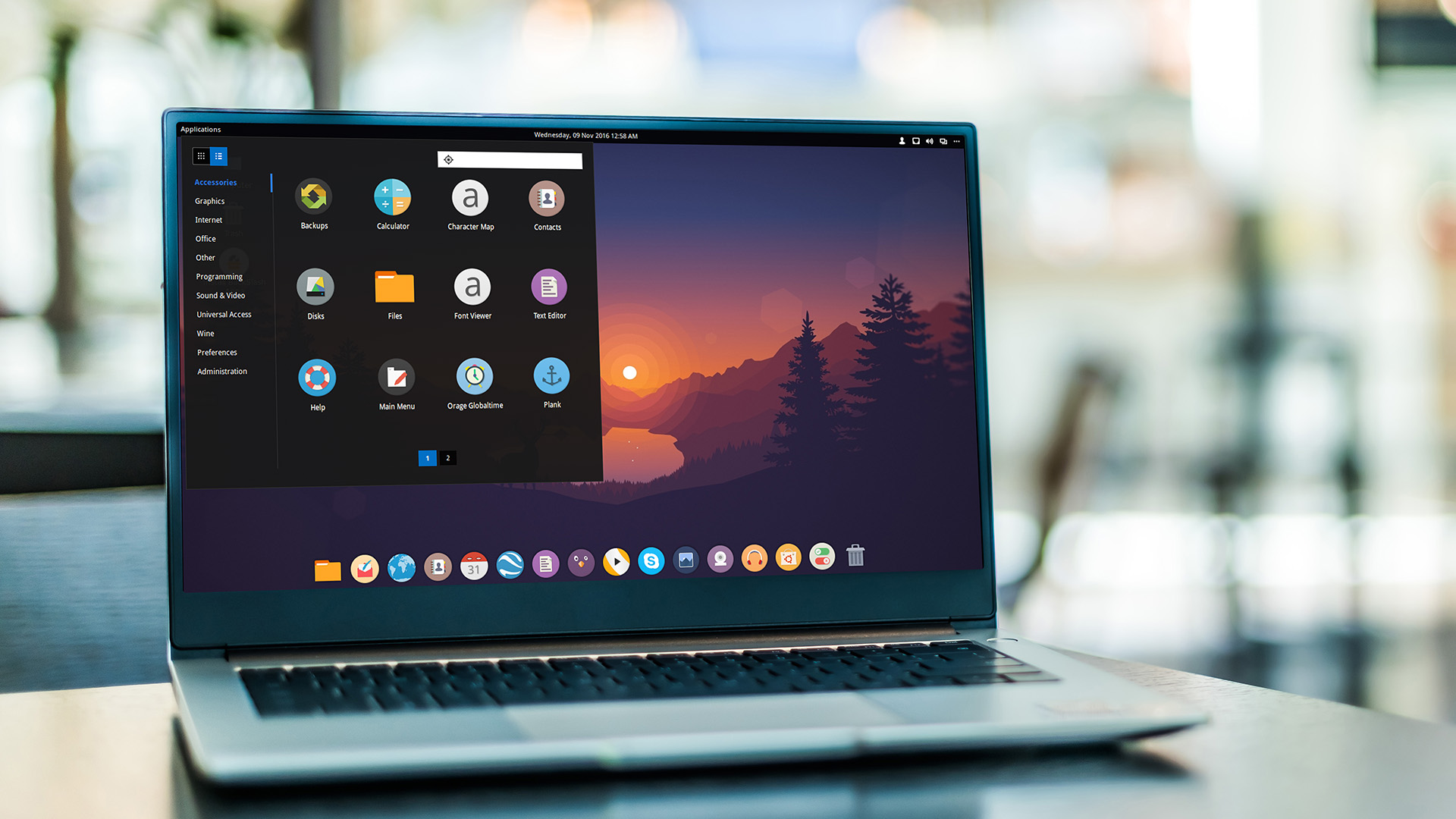
The methods below are common Linux approaches, but exact menus, package names, and available tools can vary depending on your distribution and desktop environment.
Using GNOME Disks (Built-In GUI)
GNOME Disks comes pre-installed on Ubuntu and most GNOME-based distributions, so there is nothing extra to install. It is the quickest way to format a drive if you prefer a straightforward graphical interface.
- Open Disks from your applications menu
- Select your SSD from the left sidebar — check the listed size to confirm it is the correct drive
- Click the menu icon (three horizontal lines) in the top-right corner of the window and select Format Disk
- Set the partitioning scheme to GPT and click Format, then confirm when prompted
- Once the disk is formatted, click the + button beneath the partition diagram to create a new partition
- Set the partition size using the slider or by entering a value manually
- Choose a file system:
- ext4 for Linux-only use (recommended)
- exFAT for cross-platform use across Windows and Mac
- Add a label to identify the drive, then click Create
Your SSD will be ready to use as soon as the process completes. If it does not mount automatically, click the play button (▶) next to the partition in GNOME Disks to mount it manually.
How to Partition an SSD on Linux
Partitioning on Linux is straightforward whether you use a graphical tool or the terminal. It is useful for separating your home directory from the system partition, dual-booting, or organising data across a large drive.
Using GParted:
- Open GParted and select your SSD from the top-right dropdown
If GParted is not already installed, install it using your distribution's package manager. For example, on Ubuntu or Debian-based systems: sudo apt update && sudo apt install gparted
- Right-click the unallocated space and select New
- Use the slider or enter a value to set the partition size — leave the remaining space unallocated if you plan to add more partitions
- Choose your file system (ext4 for Linux, exFAT for shared use) and add a label
- Click Add, then click the green tick (✓) to apply
- Repeat for each additional partition you need
Using fdisk (Command Line):
- Open your SSD in fdisk: sudo fdisk /dev/sdb
- Press n to create a new partition
- When prompted for the last sector, specify a size (e.g. +50G for a 50GB partition) or press Enter to use all remaining space
- Press n again to add another partition if needed, then press w to write all changes and exit
- Format each new partition individually:
sudo mkfs.ext4 /dev/sdb1
sudo mkfs.ext4 /dev/sdb2
As with any partition change, back up your data beforehand. Mistakes at this stage can result in data loss and the process cannot be undone once changes are written.
How to Erase an SSD Safely
A normal format usually removes the file index rather than securely erasing the underlying data. If you are selling, recycling, or repurposing a laptop, use a proper reset or erase method instead.
Windows
Go to Settings > System > Recovery > Reset this PC. Select Remove everything, then choose the option to clean the drive. This is the safest built-in method for preparing a Windows PC for a new owner. Avoid diskpart clean all unless you have a specific reason to use it, as it writes across the whole drive, adds unnecessary wear and is not the preferred approach for SSDs.
macOS
Go to Apple menu > System Settings > General > Transfer or Reset > Erase All Content and Settings. Follow the prompts to remove your data, settings and accounts from the Mac. This is Apple’s recommended method on supported Macs for handing the device to someone else. Disk Utility’s older secure erase options are not available for SSDs.
Linux (SATA SSD)
Open Terminal, run lsblk to list connected drives, and identify the correct SSD by its size and name. Then run sudo blkdiscard /dev/sdb, replacing sdb with the correct drive name. This is an advanced command that should only be used after confirming the correct device and checking that the drive supports discard operations.
Linux (NVMe SSD)
Open Terminal, run lsblk to confirm the correct NVMe drive, then use nvme-cli if it is installed. A typical command is sudo nvme format /dev/nvme0n1 --ses=2. On supported drives, this requests a cryptographic erase. Because NVMe secure erase features vary by model and firmware, check the command options for your drive before using it.
Manufacturer Tools
SSD makers such as Samsung and Crucial often provide their own utilities, such as Samsung Magician or Crucial Storage Executive. These tools may include Secure Erase or Sanitise features built into the drive firmware, and they are often among the most thorough options available.
To help preserve SSD lifespan, a quick format is usually the better choice than a full format when you simply need to prepare the drive for use. A full format does more work and is rarely necessary for SSDs unless you have a specific reason to use it.
Want a quality drive to start fresh on? Browse affordable internal SSDs at Laptop Outlet.
Prefer to keep your existing files and operating system intact? You can learn how to clone your hard drive to an SSD and skip the fresh install entirely.

Ready, Set, Format
Formatting and partitioning your SSD does not have to be complicated. Whether you're on Windows, macOS, or Linux, the built-in tools handle the job well. Just back up your data, pick the right file system, and follow the steps for your platform.
Getting it right matters from the start. Knowing how to format an SSD on your laptop correctly keeps your drive healthy and your system stable. If you want to avoid data loss, good backups matter far more than the formatting process itself. Use Quick Format, choose GPT on modern laptops, and reach for a manufacturer tool whenever you need a thorough secure erase.
Ready to upgrade? Explore all laptops and storage options at Laptop Outlet.

Extra Bits of SSD Wisdom...
How do I format an SSD without deleting Windows?
You cannot format the drive Windows is running on while it's active. Boot from a USB installation drive to format it safely.
You cannot format the drive Windows is running on while it's active. Boot from a USB installation drive to format it safely.
How do I know which file system to choose when formatting?
Use NTFS for Windows, APFS for Mac SSDs, and ext4 for Linux. Use exFAT for shared cross-platform drives.
Will formatting an SSD damage it?
No. A quick format causes minimal wear. Avoid full formats repeatedly, as these add unnecessary write cycles to your drive.
How do I format an SSD that isn't showing up on my laptop?
Open Disk Management (Windows) or Disk Utility (Mac) and look for unallocated or uninitialised disks. You may need to initialise it first.
Is it safe to partition an SSD?
Yes, partitioning is safe and does not harm the drive. Always back up data before making partition changes, as mistakes can cause data loss.
How long does formatting an SSD take?
A quick format typically takes under one minute. Full format takes longer but is rarely needed for SSDs.
| Read More: |
| SSD vs HDD: Which Storage Option is Right for You? |
| External Hard Drives vs USB Flash Drives: Which Should You Choose? |
| NAS Storage Explained: Do You Need One? |
Related Articles


Last Updated: July 02, 2026
Selecting the right PC storage solution is one of the most important decisions when upgrading or building a PC or laptop in 2025. Computer data storage affects everything from system boot times and game load speeds to file transfers and long-term reliability. This guide provides an in-depth look at the different storage options available today, how to compare them, and what to prioritise depending on your individual needs. With storage technologies evolving rapidly, understanding what each option offers ensures you don't overspend or settle for outdated hardware.
What are the Different Storage Types Available?
The first step is to understand the core types of storage available in 2025. These include SSDs, HDDs, and niche legacy technologies.
Solid State Drives (SSDs) are the standard for performance-focused PC storage. They use flash memory with no moving parts, making them faster, more durable, and more energy-efficient than older technologies. Key types include:
- SATA SSDs: These are entry-level
Last Updated: September 09, 2025
Need more storage or speed but don’t fancy paying full price? Buying a refurbished SSD or HDD could be the budget-friendly solution you’re after. Whether you're upgrading your current device or adding extra space for files, games, or media, refurbished drives offer great value without compromising functionality.
However, not all refurbished storage is created equal. To ensure your investment lasts and performs well, you need to understand the difference between drive types, evaluate their health, and select based on your specific needs, whether it’s for day-to-day use, gaming, or business tasks.
This guide covers everything you should know before buying refurbished SSD or HDD, external refurbished drives, or upgrading your refurbished SSD laptop. It’s your go-to resource for making a smart, informed choice.
Understanding the Difference Between SSD and HDD
When choosing between a refurbished SSD and HDD, it’s important to know how each works and which suits your needs better. Both offer
Last Updated: September 09, 2025
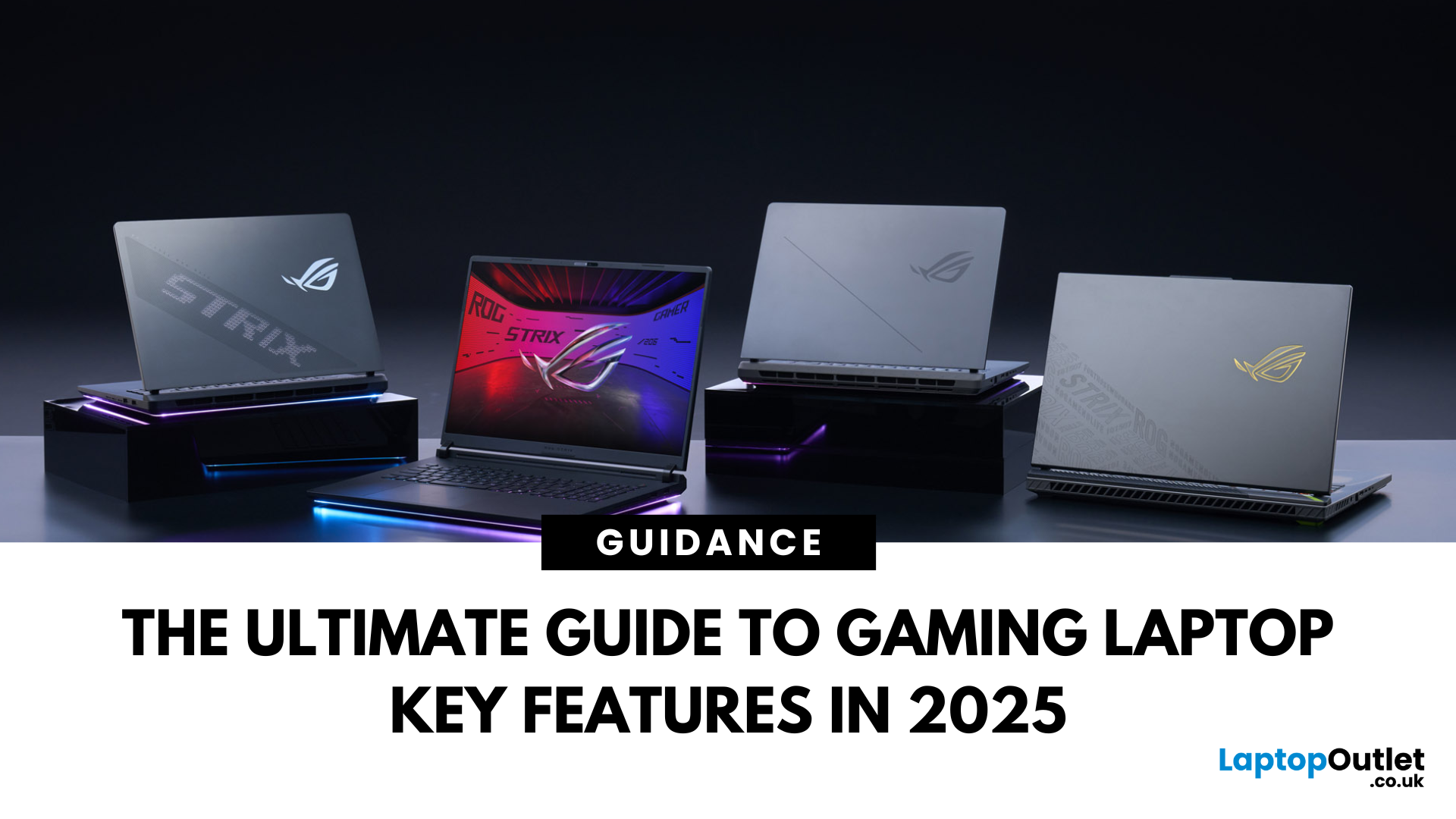
Choosing a gaming laptop today is all about understanding the gaming laptop key features that move the needle foryourgames and workflow. In 2025, the big shifts are real: next‑gen GPUs with AI frame generation, smarter CPUs with onboard NPUs, faster storage that feeds data straight to the GPU, premium displays (OLED/Mini‑LED) at esports‑grade refresh rates, and cooling systems that can keep all of it performing sustainably.
However, what does all of that actually mean when you just want smooth gameplay and a machine that lasts? Below, we have you covered with a clear, up‑to‑date walkthrough of what to look for in a gaming laptop with the evidence to back it. Whether you’re looking at entry-level models around £900, mid-range workhorses at £1,500, or premium powerhouses above £2,000, this guide focuses on the essential gaming laptop key features.
If you’d like a broader perspective from budgeting to comparisons, you can check out our full gaming laptop buying guide.
GPU: the first decision

Last Updated: May 06, 2026
If your computer is slowing down when you’ve got too many tabs open or your favourite game is stuttering, chances are you’ve asked yourself: How much RAM do I actually need? It’s one of the most common questions when buying a new PC, laptop, or planning an upgrade, and the answer isn’t the same for everyone.
RAM, short for Random Access Memory, works as your computer’s short-term memory. It’s where your system stores active data while juggling multiple tasks. Not enough RAM and everything slows to a crawl, no matter how fast your processor or SSD is. Too much RAM, however, can feel like money wasted if you’ll never use it.
Let’s break down RAM requirements for everyday users, gamers, and professionals, plus how to future-proof your setup. By the end, you’ll know exactly how much RAM you need today (and tomorrow).
What Is RAM and Why Does It Matter?
Think of RAM as your computer’s workbench. The bigger the bench, the more projects you can spread out and handle at once. If your bench is tiny,
Last Updated: May 06, 2026
Your laptop takes forever to boot, browser tabs keep freezing, and that giant Excel sheet crawls open like it’s stuck in traffic. Sound familiar? The issue might not be your Wi-Fi or a buggy update; it could simply be that your PC doesn’t have enough RAM.
RAM (Random Access Memory) is your computer’s short-term workspace. It’s where apps, games, and background tasks all line up for quick access. The more you multitask, the more memory your system needs. When it runs out, performance nosedives, slow startups, stuttering games, and even random crashes.
The upside? RAM is one of the easiest and most affordable upgrades you can make, and the improvement is immediate. Let’s get into the fixing journey.
1. Your PC Takes Forever to Start Up
If your morning routine involves switching on your computer and then making a cup of tea while it crawls through startup, that’s a big red flag for memory problems.
When Windows or macOS boots, it doesn’t just load the operating system; it also fires up background
Last Updated: October 06, 2025
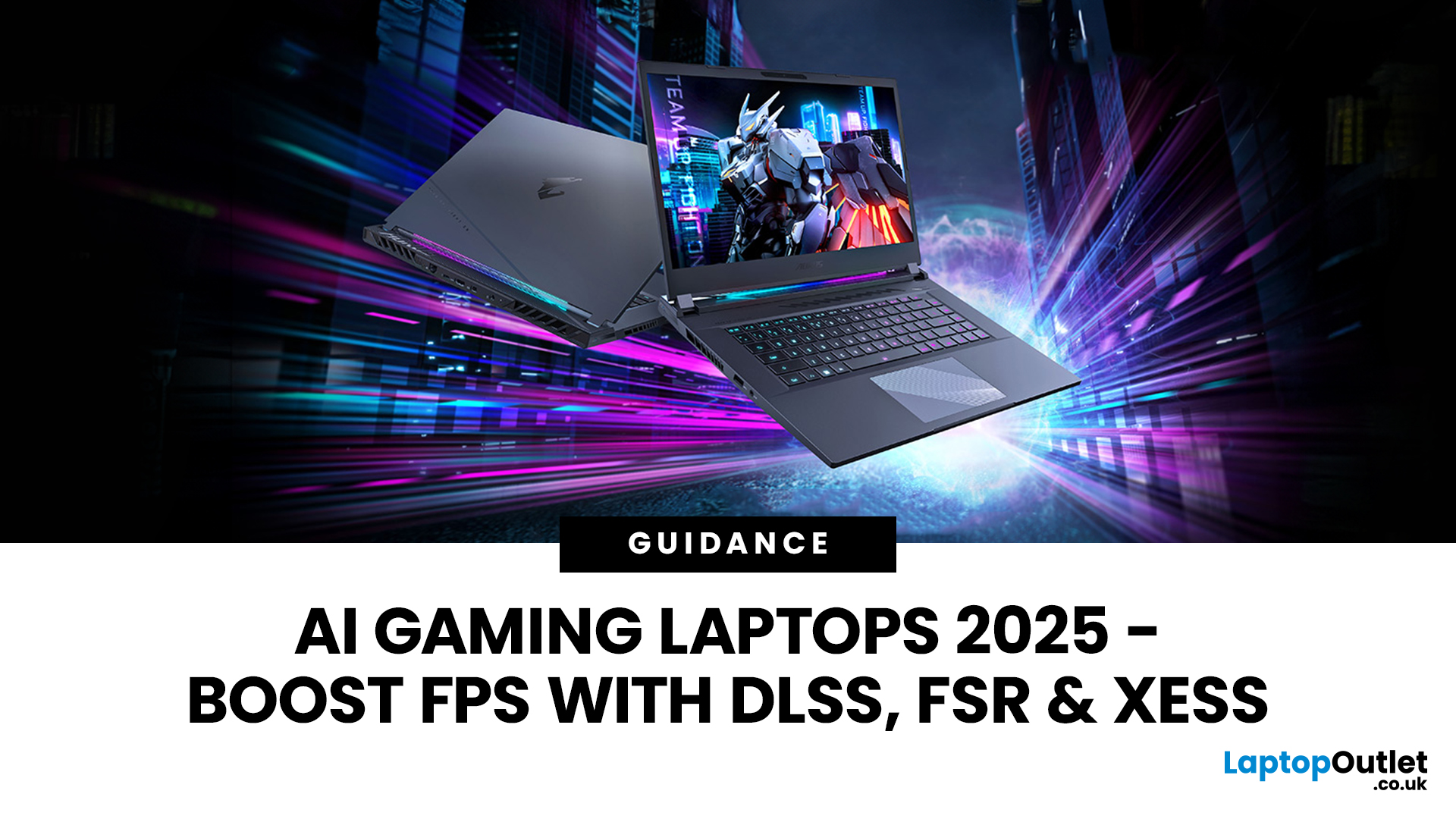
Gaming laptops have come a long way from the bulky machines of a decade ago. Today, they’re not just slimmer and more powerful - they’re also smarter, thanks to the rise of AI frame generation. Technologies like NVIDIA DLSS 3/4, AMD FSR, and Intel XeSS are transforming how games run, letting laptops push out smoother frame rates without needing desktop-level power.
So what exactly does that mean for you? In short: higher FPS, better visuals, and the ability to enjoy demanding titles like Cyberpunk 2077 or Starfield on the go, without watching your laptop choke.
In this guide, we’ll break down how AI frame generation works, why AI gaming laptops are the future, and which models in 2025 are worth your money. Think of it as your roadmap to boosting FPS with DLSS, FSR, and beyond - all while keeping your gaming portable.
What Is AI Frame Generation?
At its core, AI frame generation is all about teaching your graphics card to do less, while making your games look like it’s doing more. Sounds

Last Updated: October 15, 2025
Buying a MacBook isn’t just about picking between an Air or a Pro - it’s also about making smart choices with RAM and storage. These two specs are often overlooked, yet they’re the backbone of your laptop’s performance and longevity. Choose too little, and you’ll quickly hit frustrating slowdowns or run out of space. Choose wisely, and your MacBook will stay fast, reliable, and future-proof for years.
Unlike many Windows laptops, MacBook RAM and storage can’t be upgraded later - what you buy upfront is what you’ll live with. That makes it essential to understand how much you really need. Do students get by with 8GB of RAM? Should professionals always go for 16GB or more? Is 256GB storage enough in the cloud era, or do video editors really need 1TB and beyond?
Why RAM & Storage Matter in a MacBook
When you’re choosing a MacBook, the processor often gets the spotlight - but RAM and storage are just as important. They determine how smooth your experience is today and how well your laptop
Last Updated: October 14, 2025
Meet the ROG Ally — the Portable Gaming Beast
If you’ve been anywhere near gaming TikTok or Reddit lately, you’ll know the ASUS ROG Ally has taken the handheld scene by storm. It’s sleek, powerful, and gives a proper run for its money. But beyond its flashy white shell and 120 Hz display, there’s one detail everyone’s curious about: how fast is the storage really?
What Kind of SSD are We Talking About?
The 512 GB variant packs a PCIe Gen 4 NVMe SSD, fancy words for “blistering quick”, running over the M.2 2230 form factor (the compact size used in handhelds).
Typical specs:
- Sequential Read Speed – around 5,000 MB/s
- Sequential Write Speed – around 3,500 MB/s
- Random 4K Read/Write – 500K / 600K IOPS
That’s several times faster than older SATA SSDs and absolutely galaxies ahead of traditional hard drives. Translation? Instant game launches, smoother texture streaming, and snappier OS performance.
What is ROG Xbox Ally 512GB SSD Speed in Real-World Use?

Loading Times
When you’re booting
Last Updated: April 02, 2026
Black Friday 2025 is set to bring some of the best deals we’ve seen yet on gaming laptops and PCs, especially those powered by NVIDIA’s RTX 40-series graphics. But this year, smart buyers aren’t just chasing discounts, they’re targeting the right specs for lasting performance. The RTX 4060 and RTX 4070 GPUs have become the ideal mid-to-high range picks, balancing power, efficiency, and price. Pair that with fast DDR5 RAM and a 1TB NVMe SSD, and you have a future-ready setup built for modern gaming. This guide breaks down exactly what to look for in fast DDR5 RAM and a 1TB NVMe SSD, and you have a future-ready setup built for modern gaming. This guide breaks down exactly what to look for and make the most of Black Friday gaming laptop deals (RTX 4070) in the UK.
The 2025 Gaming Hardware Landscape: What’s Changed
Gaming hardware has evolved quickly over the past year, and 2025’s market looks very different from before. NVIDIA’s RTX 40-series GPUs, like the RTX 4060 and RTX 4070, now deliver

Last Updated: February 17, 2026
Storage problems aren’t just annoying; they’re productivity killers. Studies show that nearly 60% of laptop slowdowns are linked to storage-related issues, whether it’s low disk space, corrupted files, or failing SSDs. When your drive is over 85% full, performance can drop significantly because your system has less room to manage temporary files and virtual memory. Add disk errors or early SSD/HDD failure into the mix, and suddenly your “quick task” turns into a 30-minute meltdown.
Laptop storage issues don’t just slow things down, they risk your data, crash your apps, and test your patience.
The good news? Most storage problems are fixable in real time. In this guide, we’ll break down exactly what’s happening, why it’s happening, and how to fix it step-by-step, no tech degree required.
SSD vs HDD: What’s Actually Inside Your Laptop (And Why It Matters)

Before you panic about laptop storage issues, you need to know what you’re working with. Not all drives fail the same way and the fix

