



Fix Laptop Storage Issues: SSD/HDD Failure, Disk Errors & Low Space Fixes

Storage problems aren’t just annoying; they’re productivity killers. Studies show that nearly 60% of laptop slowdowns are linked to storage-related issues, whether it’s low disk space, corrupted files, or failing SSDs. When your drive is over 85% full, performance can drop significantly because your system has less room to manage temporary files and virtual memory. Add disk errors or early SSD/HDD failure into the mix, and suddenly your “quick task” turns into a 30-minute meltdown.
Laptop storage issues don’t just slow things down, they risk your data, crash your apps, and test your patience.
The good news? Most storage problems are fixable in real time. In this guide, we’ll break down exactly what’s happening, why it’s happening, and how to fix it step-by-step, no tech degree required.
SSD vs HDD: What’s Actually Inside Your Laptop (And Why It Matters)

Before you panic about laptop storage issues, you need to know what you’re working with. Not all drives fail the same way and the fix for an SSD is very different from fixing an HDD not working.
HDD (Hard Disk Drive) – The Old-School Spinner
An HDD stores data on spinning magnetic disks. It’s mechanical, which means moving parts and moving parts mean wear and tear.
Common laptop hard drive problems include:
- Clicking or grinding noises
- Slow boot times
- Frequent freezing
- Bad sectors
- Disk boot failure errors
Because HDDs rely on physical components, they’re more prone to damage from drops, overheating, or age.
SSD (Solid State Drive) – The Speed King
An SSD has no moving parts. It uses flash memory, which makes it:
- Faster
- Quieter
- More energy-efficient
- More durable
But SSD failure still happens.
SSD troubleshooting signs include:
- Random crashes
- Read-only files
- Drive not detected in BIOS
- Sudden corrupted disk errors
How Storage Problems Affect Performance
When storage is nearly full or failing:
- Boot time increases
- Apps lag or crash
- Updates fail
- System errors pop up
- Files become corrupted
Understanding your drive type is step one in choosing the right disk repair laptop method and avoiding bigger damage.
***Pro Tip: If your disk usage constantly shows 90–100% in Task Manager, you’re likely facing a low storage space issue or deeper disk errors.
And if your laptop still feels sluggish even after clearing space, the problem may go beyond storage. Our guide on why the laptop is running slow covers other major performance killers.
Low Storage Space? Here’s Your Real-Time Fix (Low Storage Space Fix Guide)
If your laptop keeps screaming “Storage Almost Full,” don’t ignore it. Once your drive crosses 80–85% capacity, performance can noticeably drop.
Why This Happens
Low storage space builds up because of:
- Temporary files
- Windows update cache
- Duplicate media
- Unused apps
- Hidden system restore files
Step-by-Step Low Storage Space Fix
Run Disk Cleanup
Search “Disk Cleanup” → Select drive → Delete temporary files.
Clear Temporary Files
Settings → System → Storage → Temporary Files → Remove.
Uninstall Unused Programs
Control Panel → Programs → Remove apps you haven’t opened since 2019.
Move Large Files
Transfer videos/photos to:
- External drive
- Cloud storage
Enable Storage Sense
Automatically deletes junk files in the background.
When Cleaning Isn’t Enough
If you’re constantly running out of space, it’s time for an upgrade to a laptop with high storage. Moving from 256GB to 512GB or 1TB SSD can completely eliminate recurring low storage stress and future-proof your system.
Next up: what to do when it’s not just full… but actually failing.
SSD Failure: Warning Signs, Causes & SSD Failure Fix
SSDs are fast, silent, and reliable, but they’re not immortal. When an SSD starts failing, the symptoms can look subtle at first, then escalate quickly. Acting early can prevent permanent data loss.
Signs of SSD Failure
Unlike traditional laptop hard drive problems, SSD failure rarely comes with noise. Instead, look for:
- Frequent system crashes or blue screens
- Files suddenly becoming read-only
- Slow file transfers or freezing during saves
- Drive not detected in BIOS
- Random corrupted disk messages
- Applications failing to install or update
If your system behaves inconsistently even after a restart, SSD troubleshooting should be your next move.
What Causes SSD Failure?
Common causes include:
- Firmware bugs
- Power surges or improper shutdowns
- Overheating
- Excessive write cycles
- Malware-related corruption
Although SSDs don’t suffer from mechanical wear like HDDs, they do have a limited number of write cycles.
Step-by-Step SSD Failure Fix
1. Check BIOS Detection
Restart your laptop and enter BIOS. If the drive isn’t listed, the issue may be hardware-related.
2. Update SSD Firmware
Visit the manufacturer’s website and install firmware updates to resolve known stability issues.
3. Run CHKDSK
Open Command Prompt as admin and run:
chkdsk C: /f /r
This scans for file system errors and attempts repair.
4. Check SMART Status
Use diagnostic tools (e.g., manufacturer utilities) to check SSD health indicators.
5. Back Up Immediately
If SMART shows warnings or errors persist, back up your data immediately.
If the SSD is no longer detectable or repeatedly failing, replacement is usually the safest solution.
HDD Not Working? Common Laptop Hard Drive Problems Explained
If you’re using a traditional hard drive and it starts acting up, the signs are usually louder, literally. HDDs rely on spinning disks and read/write heads, which makes them more vulnerable to physical damage.
Symptoms of an HDD Not Working
- Clicking or grinding noise
- Extremely slow file access
- Disk boot failure errors
- Frequent blue screen crashes
- Drive disappearing from File Explorer
- Laptop stuck on loading screen
These symptoms often indicate mechanical failure or severe disk errors.
Common Causes of Laptop Hard Drive Problems
- Physical shock or drops
- Overheating
- Bad sectors
- Corrupted partitions
- Loose SATA connections
Unlike SSD issues, many HDD failures are hardware-related rather than software-based.
How to Fix an HDD Not Working
1. Check Physical Connection
If possible, reseat the hard drive or check SATA cable connections.
2. Use Disk Management
Right-click Start → Disk Management.
Check if the drive appears as unallocated or offline.
3. Run CHKDSK
Run:
chkdsk D: /f /r
Replace D with the affected drive letter.
4. Try an External Enclosure
Remove the HDD and connect it via a USB enclosure to test detection on another system.
5. Use Data Recovery Software
If the drive is readable but corrupted, use recovery tools before attempting formatting.
If clicking noises persist or the drive disappears repeatedly, replacement is the most reliable fix. In many cases, upgrading from HDD to SSD not only resolves the issue but significantly improves speed and long-term stability.
Laptop Disk Errors: How to Diagnose & Repair Them Properly
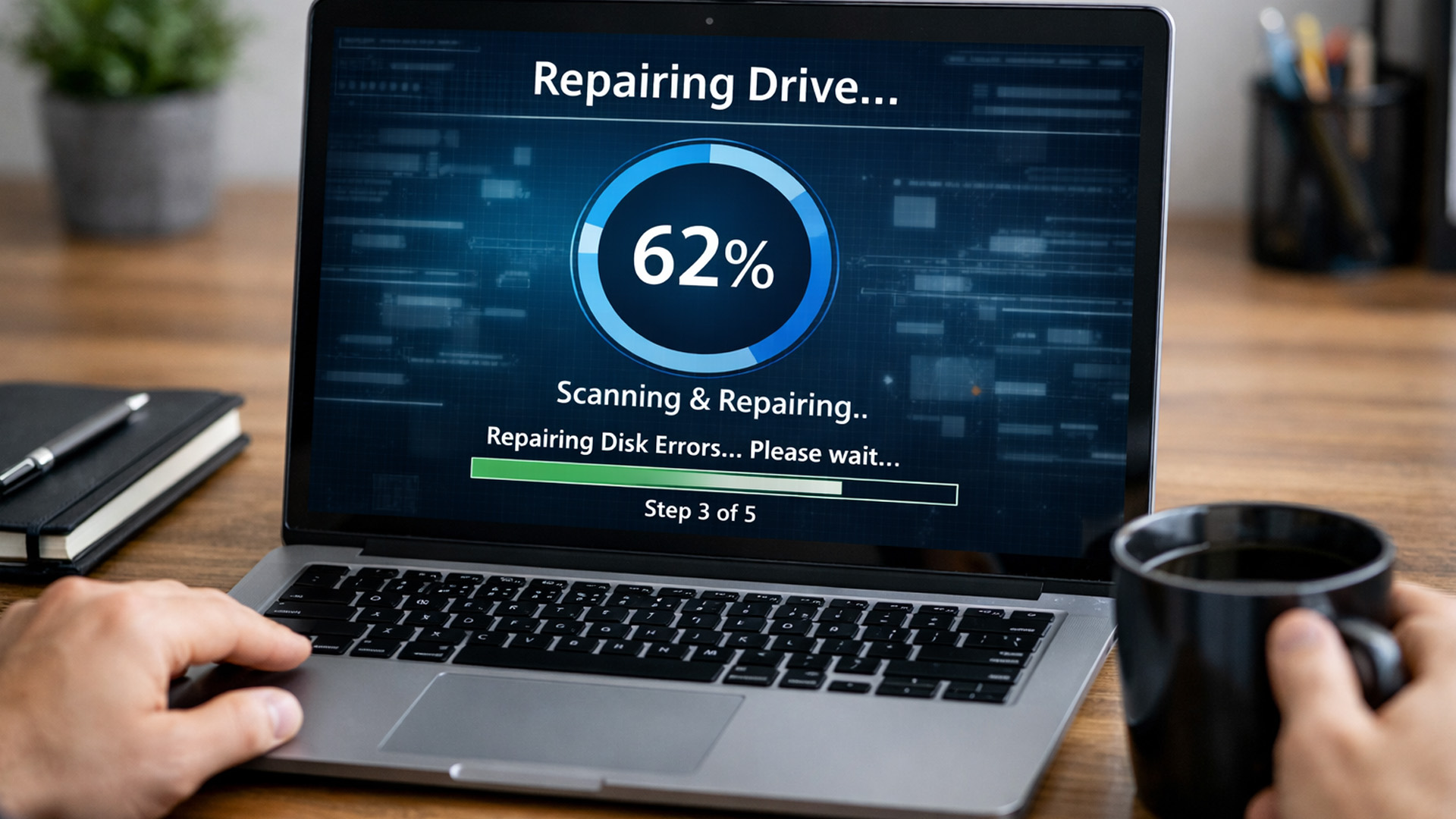
Few things are more frustrating than sudden laptop disk errors blocking access to your files. Whether it’s a boot failure or a corrupted drive message, disk errors usually signal file system damage, bad sectors, or deeper storage issues.
Common Laptop Disk Errors You Might See
- “Disk Boot Failure – Insert System Disk”
- “Operating System Not Found”
- “Cyclic Redundancy Check (CRC) Error”
- “Drive Needs to Be Formatted Before Use”
- “Scanning and Repairing Drive” loop
These messages often indicate file system corruption or partition damage rather than full hardware failure, which means repair is possible.
Step-by-Step Disk Repair Laptop Guide
Before assuming the worst, follow these repair methods in order.
1. Run CHKDSK (First Line of Defence)
Open Command Prompt as administrator and type:
chkdsk C: /f /r
This command scans for bad sectors and attempts to fix logical file system errors.
2. Run System File Checker (SFC)
If system files are damaged, run:
sfc /scannow
This repairs corrupted Windows files that may be triggering disk errors.
3. Use DISM Tool (Advanced Repair)
If SFC doesn’t resolve the issue:
DISM /Online /Cleanup-Image /RestoreHealth
DISM repairs deeper Windows image corruption.
4. Use Windows Startup Repair
If your laptop won’t boot:
Settings → Recovery → Advanced Startup → Startup Repair
This automatically fixes boot-related disk errors.
5. Rebuild MBR (For Boot Errors)
Using Command Prompt in recovery mode:
- bootrec /fixmbr
- bootrec /fixboot
- bootrec /rebuildbcd
This rebuilds the Master Boot Record if it’s corrupted.
If disk errors continue after multiple repair attempts, the issue may be hardware-related rather than software-based.
Corrupted Disk or Files? Here’s How to Fix a Corrupted Disk Safely
A corrupted disk can make files inaccessible, unreadable, or even completely invisible. The good news? In many cases, you can fix corrupted disk errors without losing data, if you act carefully.
Signs You Have a Corrupted Disk
- “File or directory is corrupted and unreadable”
- Drive shows as RAW in Disk Management
- Files won’t open or randomly disappear
- Missing partitions
- External drives asking to be formatted
Corruption usually happens because of unsafe shutdowns, malware, sudden power loss, or improper USB removal.
How to Fix Corrupted Disk Without Losing Data
1. Run CHKDSK with Repair Parameters
Use:
chkdsk E: /f /r /x
This fixes file system errors and attempts sector recovery.
2. Assign a Drive Letter (If Missing)
Disk Management → Right-click drive → Change Drive Letter and Paths → Assign letter.
Sometimes the drive works but simply isn’t mounted properly.
3. Use Data Recovery Software First
If the drive shows as RAW, do not format immediately. Use reliable recovery tools to retrieve files before making structural changes.
4. Format as a Last Resort
If data is backed up:
Right-click drive → Format → Choose NTFS (for Windows systems).
Formatting resolves file system corruption but erases data.
If corrupted disk problems return repeatedly, it may indicate underlying laptop storage issues such as failing SSD cells or expanding bad sectors in an HDD. In those cases, replacing the drive is safer than repeatedly attempting repairs.
Laptop Not Detecting Storage Drive? What It Means and How to Fix It
Sometimes the issue isn’t slow storage or disk corruption, it’s your laptop acting like the drive doesn’t exist at all. If your SSD or HDD disappears from File Explorer or isn’t showing up during boot, you may be dealing with a serious hardware or connection problem.
Symptoms Your Laptop Can’t Detect the Drive
- Drive missing from File Explorer
- “No Bootable Device Found” error
- SSD/HDD not listed in BIOS
- Disk not appearing in Disk Management
- Laptop stuck on startup screen
This can happen due to loose connections, firmware problems, or complete drive failure.
Fixes to Try Immediately
1. Check BIOS Settings
Restart and enter BIOS. If the drive isn’t listed, it may be disconnected or dead.
2. Inspect Disk Management
Right-click Start → Disk Management.
Sometimes the drive is present but unallocated or offline.
3. Update Storage Drivers
Outdated drivers can prevent detection. Update chipset and storage controller drivers through Device Manager.
4. Try External Testing
If possible, connect the drive via a USB enclosure to confirm whether it still works.
If the drive cannot be detected anywhere, replacement is usually the only option.
If your laptop is showing bigger hardware warning signs, like a blank display along with missing drives, our article on laptop screen not working? can help you diagnose deeper system faults.
Repair or Upgrade? Knowing When It’s Time to Replace Your Storage
Not every storage issue is worth repairing. Some problems are temporary, while others are warning signs that your drive is reaching the end of its life.
Signs You Should Replace Instead of Repair
- Repeated laptop disk errors even after CHKDSK
- Frequent crashes and freezing
- Drive health warnings in SMART reports
- Clicking noises (HDD)
- SSD becoming read-only
- Corruption returning after formatting
At this stage, continuing repairs may risk permanent data loss.
Why a Laptop Storage Upgrade Is Often the Best Fix
Upgrading your drive is one of the most effective long-term solutions for laptop storage issues. Benefits include:
- Faster boot and load times
- More space for files and apps
- Better reliability than older HDDs
- Reduced risk of corrupted disk problems
If your laptop still has a small or aging drive, upgrading to a larger SSD can feel like getting a brand-new machine.
Choosing the Right Storage Upgrade (And How Much Space You Actually Need)
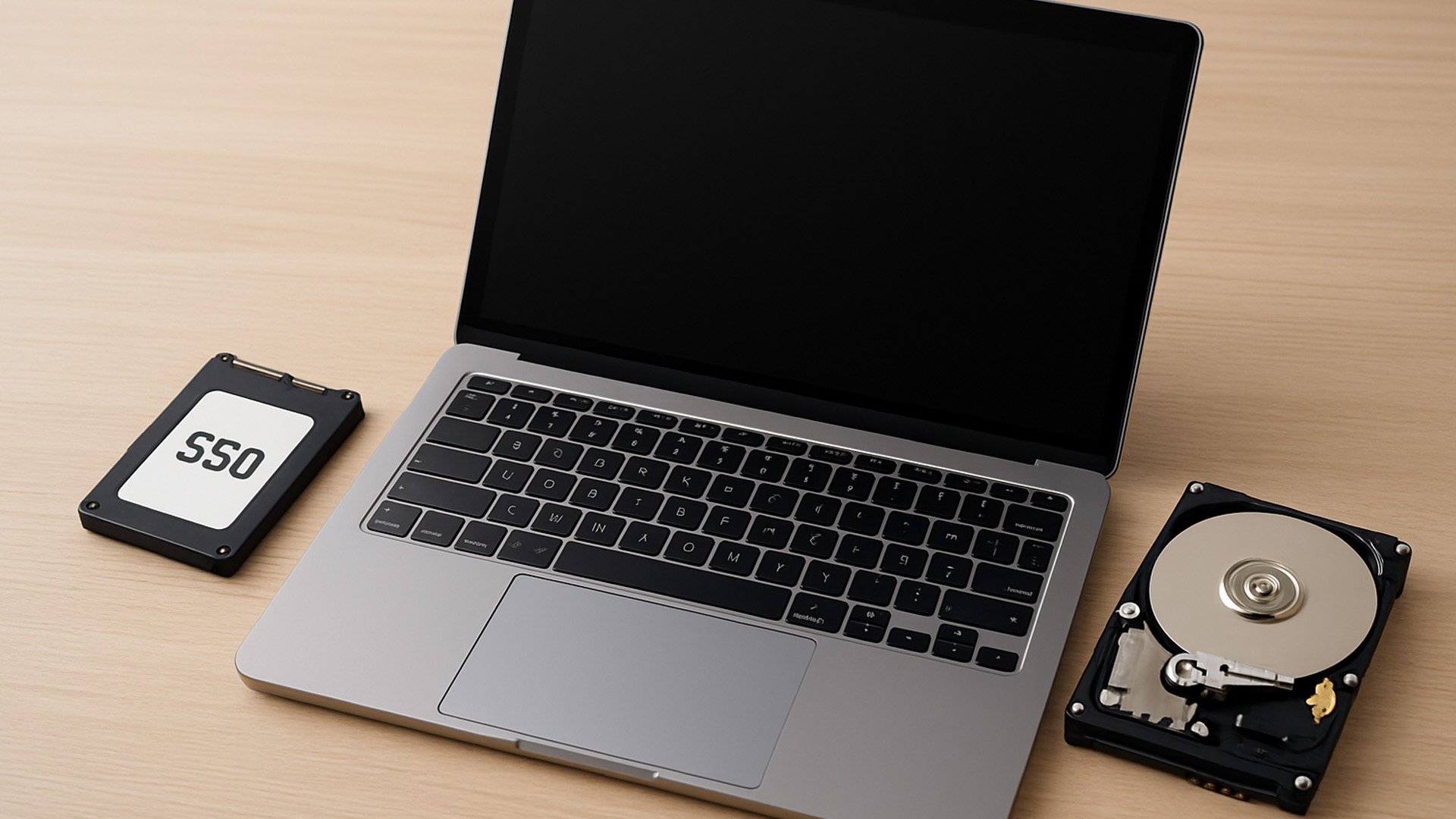
Storage upgrades aren’t one-size-fits-all. The right capacity depends on how you use your laptop.
Recommended Storage Sizes
- 256GB SSD: Only for basic browsing and light work
- 512GB SSD: Best for students and everyday users
- 1TB SSD: Ideal for gaming, creative work, large files
- 2TB SSD: For professionals needing maximum storage
If you constantly face low storage space fix situations, upgrading to laptops with high storage is the smartest move.
Preventing Laptop Storage Issues in the Future
Once you fix the problem, keeping it from returning is the real win.
Best Practices to Avoid Storage Problems
- Keep at least 15–20% free disk space
- Enable automatic backups
- Use Storage Sense or scheduled cleanup
- Avoid forced shutdowns
- Install updates regularly
- Monitor SSD health using SMART tools
- Run antivirus scans to prevent malware corruption
A little maintenance goes a long way in preventing laptop hard drive problems and unexpected SSD failure. Storage problems aren’t the only thing that can silently drain your laptop’s health, if your battery is also struggling, don’t miss our guide on laptop battery draining fast? Reasons & easy solutions.

The Bottom Line: Fix It Before It Fails
Laptop storage issues rarely explode overnight, they build up quietly. A little lag, a random corrupted disk error, constant low space warnings. Ignore them long enough, and your entire system pays the price. Your storage drive isn’t just another component, it’s where everything lives.
The upside? Most problems, from simple disk repair laptop fixes to early SSD troubleshooting, can be resolved before serious damage happens. And when repairs aren’t enough, a smart laptop storage upgrade can instantly transform performance.
Stay proactive. Back up your data. Upgrade when needed.
Because slow, crashing laptops? Not the standard anymore.

Quick Answers to Common Laptop Storage Questions
Why does my laptop keep running out of space?
Temporary files, large apps, and update caches build up quickly, especially on smaller drives.
Can SSD failure be fixed?
Sometimes firmware or file system issues can be repaired, but physical SSD failure usually requires replacement.
What causes laptop disk errors?
Bad sectors, corrupted file systems, unsafe shutdowns, or failing drives are the most common causes.
Is it better to replace an HDD with an SSD?
Yes. SSDs are faster, quieter, more durable, and the best upgrade for performance.
How do I fix a corrupted disk without losing files?
Run CHKDSK first, recover data using software, and only format if absolutely necessary.
How much storage does a laptop need today?
Most users should aim for at least 512GB SSD to avoid constant low storage problems.
| Read More: |
| How to Fix Wi-Fi Connection Issues on my Laptop? |
| The Ultimate Guide to Common Laptop Problems and How to Fix Them |
| Why Your Laptop Is Running Slow: Top Causes & Quick Fixes |
Related Articles


Last Updated: April 21, 2026
The world of computing is changing fast. We are no longer just looking for faster processors or thinner designs. Today, the focus has shifted to intelligence.
To understand this shift, we need to look at a new category of devices: Copilot+ Laptops. These are not just standard computers; they are AI-powered laptops designed to think, learn, and assist you in real-time.
Whether you are a busy professional, a digital artist, or a student, Windows Copilot+ PCs offer a new way to interact with technology. By integrating hardware and software more tightly than ever before, these machines handle complex tasks with ease.
In this guide, we will explore why these next-generation Windows laptops are the ultimate choice for your next upgrade.
What are Copilot+ Laptops?
Copilot+ Laptops are a new class of Windows 11 laptops with dedicated hardware for advanced Artificial Intelligence (AI) tasks. They offer enhanced performance, security, and unique features that run locally on the device.
Unlike

Last Updated: January 21, 2026
Let’s be honest - most of us don’t work (or study, or relax) in just one way anymore. One minute you’re typing notes, the next you’re scrolling, watching something, sketching ideas, or replying to emails from the sofa.
That’s exactly why convertible tablets exist.
Also called 2-in-1 laptops, laptop tablets, or the very literal notebook two-in-one, these devices are designed to adapt to how you use tech throughout the day - not force you into one setup.
But choosing the right 2 in 1 laptop convertible isn’t always straightforward. Some lean more laptop. Some feel more like tablets. And some just… try to do everything and don’t quite nail it.
This guide breaks it all down in a way that actually makes sense.
What Is a Convertible Tablet (And Why Do People Buy Them)?
A convertible tablet is a hybrid device that combines:
- A laptop’s power (keyboard, trackpad, desktop software)
- A tablet’s flexibility (touchscreen, pen input, portability)
Most convertible tablets run Windows, which means you’re

Last Updated: April 28, 2026
Struggling to find HP laptop deals that don’t feel overpriced, outdated, or just not worth it? Yeah — scrolling through endless specs, inflated prices, and “fake” discounts can be frustrating, especially when you just need a laptop that actually works for study, work, or everyday life.
The problem? Too many laptops either cost way too much or cut corners where it matters. Slow performance, tiny storage, poor screens, not the vibe. And when you’re on a budget, finding reliable HP laptops UK shoppers can trust shouldn’t feel like a gamble.
That’s where Laptop Outlet comes in. We’ve rounded up some of the best HP laptops on sale in the UK, with prices starting from just £149.99. From cheap HP laptops for everyday use to powerful business-ready machines, our handpicked HP laptop offers give you serious value without compromising on quality.
HP 15-fc0045na – Everyday Power for You
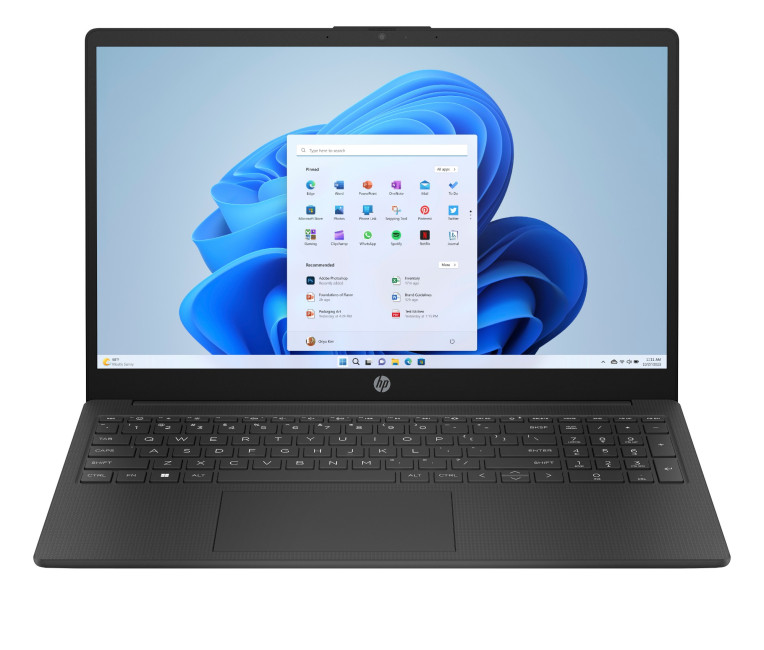
- The HP 15-fc0045na is a well-balanced 15.6-inch laptop that perfectly blends performance with everyday

Last Updated: January 28, 2026
We don’t usually abandon a tech purchase because of the price. It’s the delivery that makes us hesitate to move the things from whislist to place the order. Unexpected charges, unclear arrival dates, or slow dispatch can stop us right at checkout. And it feels unfair and cruel that we need to sacrifice our favourite gadget due to this delivery obstacle.
That’s why Laptop Outlet’s free standard delivery is kept clear and upfront, so you know exactly what you’re paying and when your order will arrive before you commit.
Let’s make it simple for you to understand that how free standard delivery by Laptop Outlet works, explore the key shipping benefits, and explain why it’s one of the smartest ways to stretch your tech budget further.
What Is Laptop Outlet’s Free Standard Delivery?
Free standard delivery by Laptop Outlet is designed to keep things simple, transparent, and affordable for customers across the UK.
Here’s how it works:
- Spend over £200 and your order qualifies for free standard
Last Updated: January 28, 2026
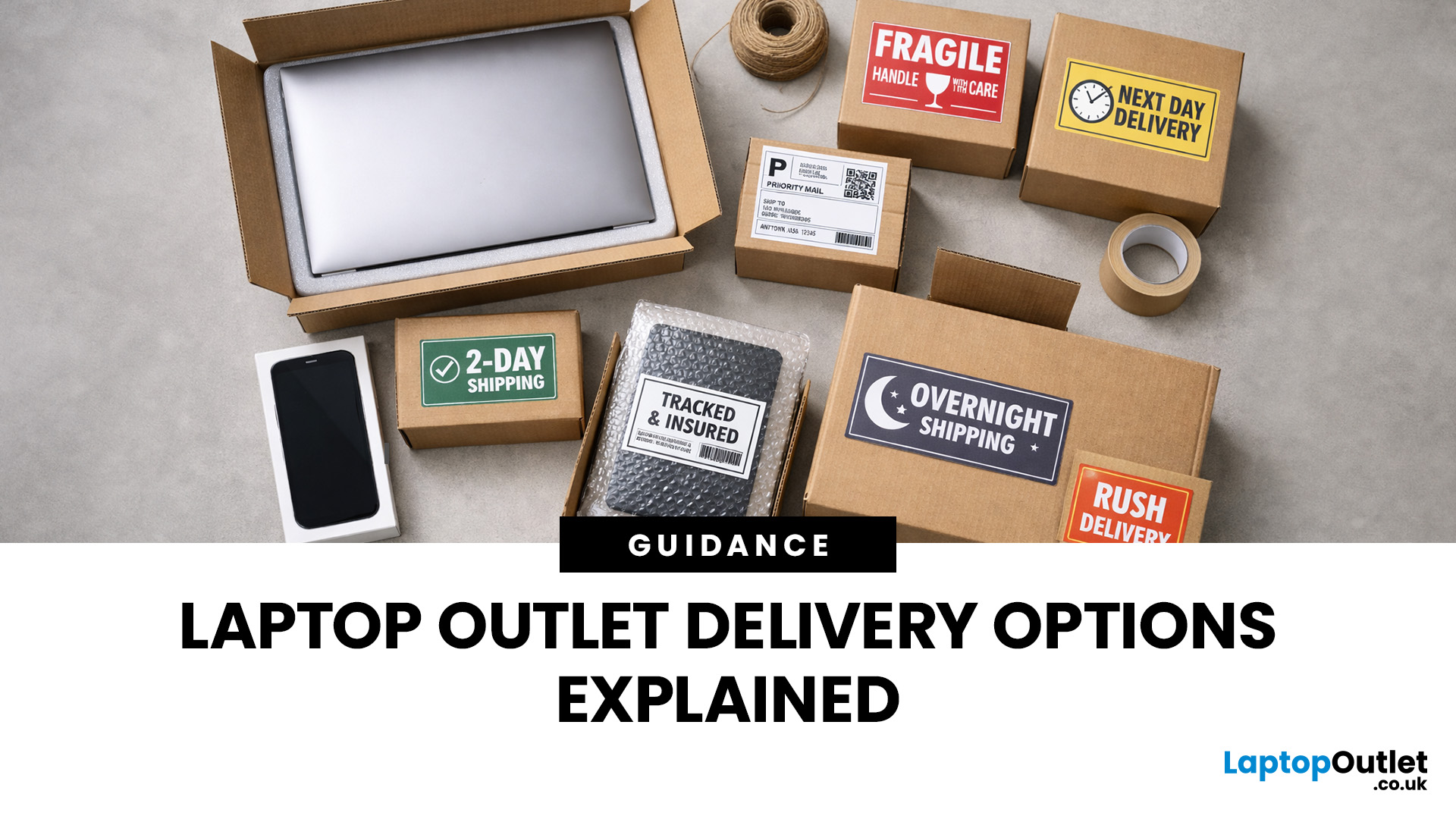
Buying tech online isn’t just about specs and price; delivery speed, flexibility, and reliability matter just as much. Whether you’re replacing a broken work laptop, upgrading your home setup, or ordering a last-minute gift, knowing your delivery options can make all the difference. In this guide, we explain Laptop Outlet delivery services options, how they work, and which service is best for your needs, from free standard delivery to next-day and book-a-slot delivery.
What Delivery Options Does Laptop Outlet Offer?
Laptop Outlet provides multiple delivery services designed to suit different customer needs, budgets, and timeframes. Each option is clearly shown at checkout, so you can choose the delivery speed and convenience level that works best for you. These include:
- Free Standard Delivery
- Next-Day/Priority Delivery
- Book-a-Slot Scheduled Delivery
How Does Laptop Outlet Delivery Work?
For full details, customers can always refer to the dedicated delivery info page. Laptop Outlet’s
Last Updated: January 28, 2026
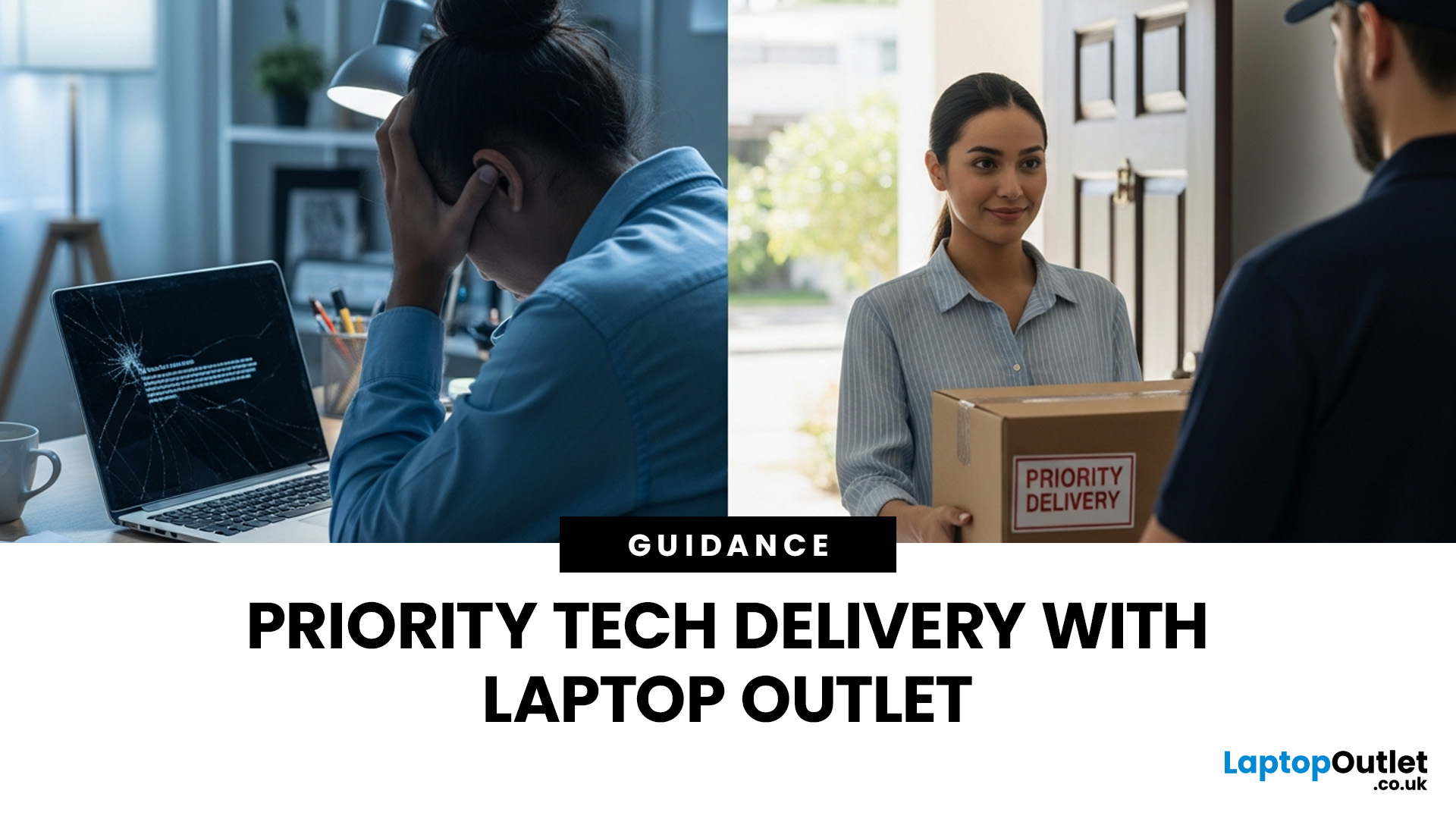
Let’s be honest — when your tech lets you down, waiting is the last option you want. Maybe your laptop stopped working the night before a deadline, your PC failed mid-project, or you’ve just realised you need a new device now, not next week. That’s exactly where Laptop Outlet next-day / priority delivery comes in. If you need fast, reliable tech delivery in the UK, this guide explains how Laptop Outlet’s next-day service works, what you can order, and why it’s the smart choice for urgent tech needs.
Why Speed Matters When Ordering Tech Online
When your laptop or PC breaks, everything slows down — work, study, gaming, even staying connected. Waiting days for a replacement just isn’t practical. With next-day laptop delivery, you don’t have to put life on pause. Laptop Outlet’s express service is built for:
- Last-minute replacements
- Urgent work-from-home setups
- Business and study deadlines
- Time-sensitive gifts or upgrades
If speed matters to you, Laptop Outlet Express shipping delivers when

Last Updated: January 28, 2026
Let’s be real — waiting around all day for a delivery is no one’s idea of fun. You’ve got meetings, errands, school runs, and about a million other things going on. The last thing you want is to be stuck at home wondering “Will it arrive now… or later?” That’s exactly why customers love Laptop Outlet book-a-slot delivery.
This delivery option puts you in control, letting you choose when your tech arrives, not the other way around. Here’s how it works, why it’s so popular, and whether it’s the right choice for your next order.
What is Laptop Outlet Book-a-Slot Delivery?
Laptop Outlet’s book-a-slot delivery service is a scheduled tech delivery service that allows you to pick a specific delivery day and time slot at checkout. Instead of waiting around all day, you get a clearly defined delivery window, so you know exactly when your order is arriving. In short:
- You choose the day, time, and location
- The courier delivers within that slot
- Your tech arrives when it suits you
It’s one of Laptop

Last Updated: June 17, 2026
Valentine’s Day is basically a high-pressure speedrun of “prove you know me.” Flowers are fine. Chocolate is predictable. But if you want a gift that lands (and lasts), tech is the move.
This year, we’re making it easy to shop Valentine’s Day laptop gifts and other Valentine’s Day tech gifts that feel personal, useful, and genuinely exciting, without paying full-price panic-tax. At Laptop Outlet, we stock both new and refurbished tech in the UK, so you can pick something premium, practical, and still stay in your budget.
Why a Laptop is a Top-Tier Valentine’s Gift in 2026
A laptop gift for Valentine’s Day isn’t just “a laptop.” It’s a whole lifestyle upgrade. It’s better WFH days, smoother university deadlines, cleaner creative projects, cosier film nights, and finally not fighting with a slow machine that sounds like it’s trying to take off.
And because 2026 is not the year to overpay, laptop deals for Valentine’s Day (especially on refurbished models) can get you more performance for

Last Updated: September 04, 2026
If you’re shopping for a new laptop this year, HP continues to be one of the most reliable and exciting brands to watch. From premium Ultrabooks and powerful gaming machines to flexible 2-in-1 devices built for modern work and study, the latest releases bring something for everyone.
In this guide, we’ll explore the latest HP laptops you shouldn’t miss in 2026, highlighting what makes them stand out, which users they suit best, and why HP remains a top choice for shoppers across the UK. Whether you’re upgrading your home setup, buying for university, or looking for a performance machine that keeps up with your workload, these HP laptop models are worth considering.
Top HP Laptop Models You Can Choose in 2026
The latest HP laptops in 2026 are redefining versatility, performance and AI-enabled productivity across the board. Let’s explore few of them:
HP OmniBook X FlipNGAI 14-fm0005na – Compact AI-Ready Performance
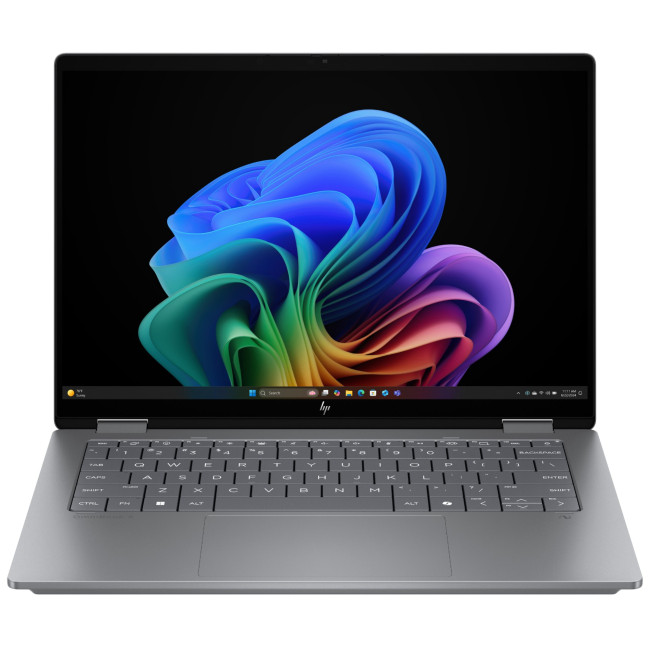
The HP OmniBook X FlipNGAI 14-fm0005na Intel® Core™ Ultra 5 226V

Last Updated: February 13, 2026
Because nothing kills the vibe faster than a laptop, that suddenly decides your fingers are irrelevant.
You sit down. You open your laptop. You’re mentally prepared to be productive (or at least pretend). And then .....boom... your laptop touchpad is not working. Or your laptop keyboard is not working. Or worse… both.
At this point, your laptop isn’t broken; it’s personally offended by you.
Before you rage-buy a new device or spiral into tech despair, here’s the good news: most laptop keyboard problems and touchpad issues are completely fixable. And no, you don’t need a computer science degree or a sacrifice to the tech gods.
This guide is not one of those vague “restart your device” articles and call it a day. This is a deep-dive, all-reasons, all-solutions, no-BS troubleshooting guide, written in human language, with enough detail to actually solve the problem.
We’ll cover:
- Software vs hardware problems (and how to tell the difference)
- Every common and uncommon reason your laptop input

