



How to Update BIOS Without Display: A Step-by-Step Guide

Updating your motherboard BIOS is often recommended to improve system stability, fix bugs, or add support for new hardware. However, what if your PC won’t show anything on the screen? A failed GPU, incompatible CPU, or corrupted BIOS can leave you with a blank display, making a standard update impossible. The good news is that it is still possible to update BIOS without display on many modern motherboards. In this guide, we’ll explain how to update motherboard BIOS without display, the tools you’ll need, and the safest methods to follow, using clear, practical steps. Learn safe ways to update BIOS without a working screen.
Important Precautions Before You Begin
Updating BIOS always carries some risk, so preparation is essential, especially without a display. If your motherboard does not support display-free updates, attempting one could permanently damage it. Before starting, make sure you:
- confirm your exact motherboard model
- download the correct BIOS version from the manufacturer’s website
- use a reliable USB flash drive (8–32GB, formatted to FAT32)
- ensure stable power (avoid power cuts during the update)
Method 1: Use BIOS Flashback (best and safest option)
Many modern ASUS, MSI, Gigabyte, and ASRock motherboards support BIOS Flashback (also called Q-Flash Plus or Flash BIOS Button). This is the easiest way to update the BIOS without a display.
What you need
- compatible motherboard with Flashback feature
- USB drive formatted to FAT32
- correct BIOS file (often renamed as instructed)
Steps
Once complete, the BIOS is updated, even with no display connected.
- Download the BIOS file for your motherboard
- Rename the file exactly as specified by the manufacturer
- Copy it to the root of the USB drive
- Insert the USB into the dedicated Flashback USB port
- Plug in power (CPU and RAM usually not required)
- Press and hold the BIOS Flashback button
- Wait for the LED to stop flashing (can take 5–10 minutes)
Furthermore, before replacing hardware, try resetting your graphics card using this simple method.
Method 2: Blind BIOS Update (advanced and risky)
A blind BIOS update means navigating the BIOS menu without seeing it. This method is not recommended unless you are experienced and have no other option.
When this might work
- you know the exact key sequence for your motherboard
- the system technically boots into BIOS
- the update utility auto-detects the USB file
Method 3: Use an Older Compatible CPU or GPU
This allows you to boot with display, update the BIOS normally, then reinstall your newer hardware. While not strictly updating BIOS without display, it’s one of the safest practical solutions. If the issue is caused by unsupported hardware:
- install an older supported CPU
- use a basic or spare GPU
Before downloading drivers, check how to find out which motherboard you’re using.
Method 4: Manufacturer or Professional Update Service
If your motherboard lacks Flashback and blind flashing isn’t viable, the safest option may be professional help. This avoids the risk of permanent damage and is often quicker than trial-and-error fixes. Options include:
- manufacturer service centres
- authorised repair shops
- retailers offering BIOS update support
What not to do When Updating BIOS Without Display
Any of these can result in an unrecoverable motherboard. Avoid these common mistakes:
- using the wrong BIOS file
- interrupting power during the update
- assuming all boards support Flashback
- forcing a blind update without research
How to Check if Your Motherboard Supports Display-Free BIOS Updates
If unsure, do not proceed until confirmed. To confirm support:
- check the motherboard’s manual or official product page
- look for features like BIOS Flashback, Q-Flash Plus, or Flash BIOS Button
- inspect the rear I/O for a labelled Flashback USB port
Final Checks After Updating BIOS
Your system should now recognise previously unsupported hardware. Once the update is complete:
- connect your display and boot the system
- load Optimised Defaults in BIOS
- re-enable settings such as XMP or boot mode if needed

Wrapping Up
In conclusion, while a blank screen can make BIOS updates feel intimidating, the right approach makes it manageable and safe. If your motherboard supports features like BIOS Flashback, you can confidently update BIOS without a display and restore system compatibility without specialist tools. With careful preparation, the correct BIOS file, and a stable power source, updating your motherboard BIOS can resolve boot issues, support new hardware, and help your PC perform reliably again.

Still Have Questions?
Can I update BIOS without display on any motherboard?
No. Only motherboards with features like BIOS Flashback or Q-Flash Plus allow you to update BIOS without display safely.
Is updating BIOS without display dangerous?
It can be if done incorrectly. Using official tools like Flashback is generally safe, but blind flashing is risky and not recommended.
Do I need a CPU installed to update BIOS without display?
With BIOS Flashback, many boards do not require a CPU, RAM, or GPU, just power and a USB drive.
How long does a BIOS update without display take?
Typically, 5–10 minutes. Never interrupt the process, even if it appears idle.
What should I do if BIOS update without display fails?
If it fails, stop further attempts and contact the motherboard manufacturer or a professional repair service to avoid permanent damage.
Related Articles


Last Updated: June 19, 2026
Building a solid gaming rig begins with choosing the right motherboard. It's the backbone - the component that connects everything: CPU, memory, GPU, storage, peripherals. Get it wrong, and you'll hinder performance or limit future upgrades. Pick it well, and you open the door to overclocking, lightning-fast connectivity, and seamless multitasking. Simply put, a good motherboard ensures your CPU, GPU, RAM, and storage all communicate seamlessly. It powers your connectivity, influences your upgrade path, and even impacts thermals and system stability. If you care about board performance, you should care about the brand which makes it all happen.
In this guide, we'll take a closer look at the best-known and most trusted gaming motherboards brands worldwide, including ASUS, MSI, Gigabyte, and ASRock. These manufacturers have built a reputation across global gaming and enthusiast communities for offering reliable, performance-driven hardware that caters to everyone from casual builders to elite

Last Updated: May 07, 2026
HP laptops are built to deliver reliable performance, whether you’re working, studying, or simply enjoying entertainment. But like any modern computing device, they rely heavily on software and firmware updates to keep everything running smoothly. Outdated drivers or BIOS can lead to system instability, hardware not functioning correctly, or slower performance over time.
Knowing how to manage updates is an essential skill for users who want to maintain fast HP laptops and ensure HP laptop performance preservation. This article comprehensively explains everything you need to know about the BIOS HP laptops, as well as how to update drivers effectively.
What is the BIOS on HP Laptops?
The BIOS (Basic Input/Output System) is firmware stored on your laptop’s motherboard. It initialises hardware during startup and loads your operating system. On newer HP models, the BIOS has been replaced with UEFI (Unified Extensible Firmware Interface), which provides a more modern interface, faster boot times,
Last Updated: December 18, 2025
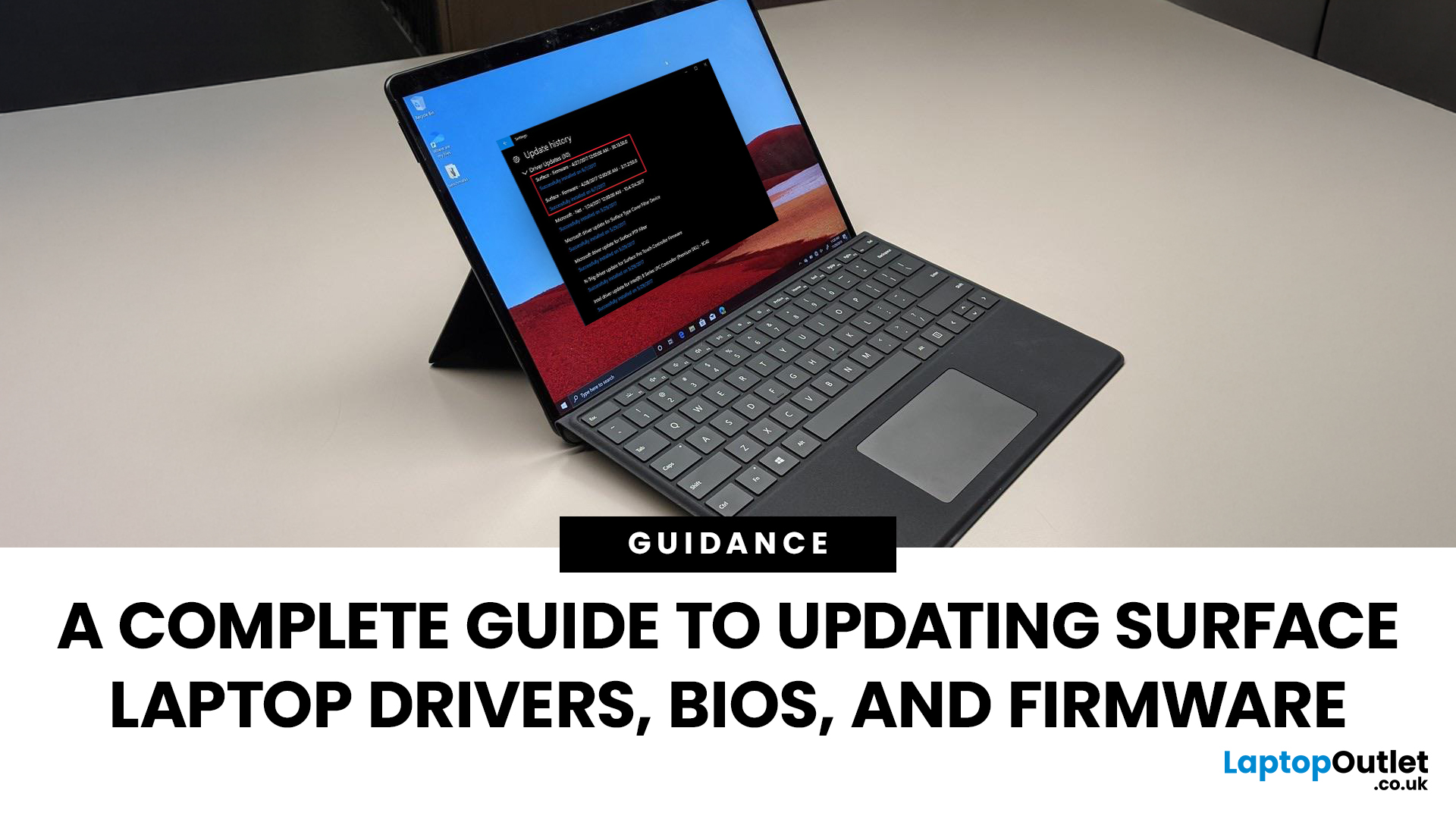
If you own a Microsoft Surface device - be it a Surface Laptop, Surface Pro, or another model, you’ll want it running smoothly, securely, and reliably. That means keeping its drivers, firmware, and BIOS up to date. Outdated drivers can cause performance drops, security vulnerabilities, and compatibility issues; meanwhile, the firmware/BIOS is the backbone that helps your hardware and OS work together.
This guide will take you through a full Surface update walkthrough: how to update Surface laptop drivers, Surface firmware installation, Surface BIOS update steps, Surface driver compatibility, and handling common update issues. At the end, you’ll feel confident in maintaining your device’s health and performance.
Step 1: Prepare Your Surface for Updating
Before doing anything, prep your device so updates go smoothly.
- Make sure your Surface is plugged into power. Updates (especially firmware/BIOS) can fail disastrously if battery dies mid-way.
- Charge the battery to at least 40% before starting.
Last Updated: October 08, 2025
If you’ve ever owned an ASUS laptop - whether it’s a VivoBook for uni work, a TUF machine for gaming, or a Zephyrus for serious creative projects - you’ll know that things don’t always run perfectly forever. Over time, you might notice your battery draining faster, your fans spinning louder, or a game stuttering that used to run smoothly. Nine times out of ten, that’s down to drivers or firmware needing an update.
Updating drivers and the BIOS isn’t glamorous, but it’s one of the most effective ways to keep your ASUS laptop running at its best. The latest drivers squash bugs, improve compatibility with Windows 11, and even unlock new features. A BIOS update can go further still, ironing out stability issues, boosting performance, and extending hardware lifespan.
The good news? ASUS gives you proper tools like MyASUS, Armoury Crate, EZ Flash, and WinFlash, which make updates far less intimidating than they sound. Whether you’re rocking an ASUS VivoBook, TU F, or Zephyrus, this walkthrough
Last Updated: November 20, 2025
“I Remember When … ”
Hello - I’m the motherboard, and I’ve watched the tech world spin faster than ever. Let me take you back.
In the earlier days of my life (think DDR3 memory, PCIe 2.0/3.0 lanes), I was pretty simple: socket + chipset + RAM slots + some PCIe lanes. Many PCs built in those days lived 3‑5 years before an upgrade.
But around 2022–2024, things started to shift dramatically. Two big inflection points:
- Memory: the shift from DDR4 to DDR5. Suddenly I had to support faster speeds, higher capacities, new signalling.
- Interconnect: the jump to PCIe 5.0, and major upgrades in storage (NVMe M.2) and connectivity (WiFi 6/6E, faster LAN).
For example, a recent spec sheet shows a modern board supporting DDR5 up to 9000 MT/s, PCIe 5.0 x16 for graphics, and 10 GbE LAN + WiFi 7.
From my end, I felt I was becoming more than just a support structure - I was the gateway to future performance.
Watching the Market Shift
While I evolve technically, the business around me

Published: November 13, 2025
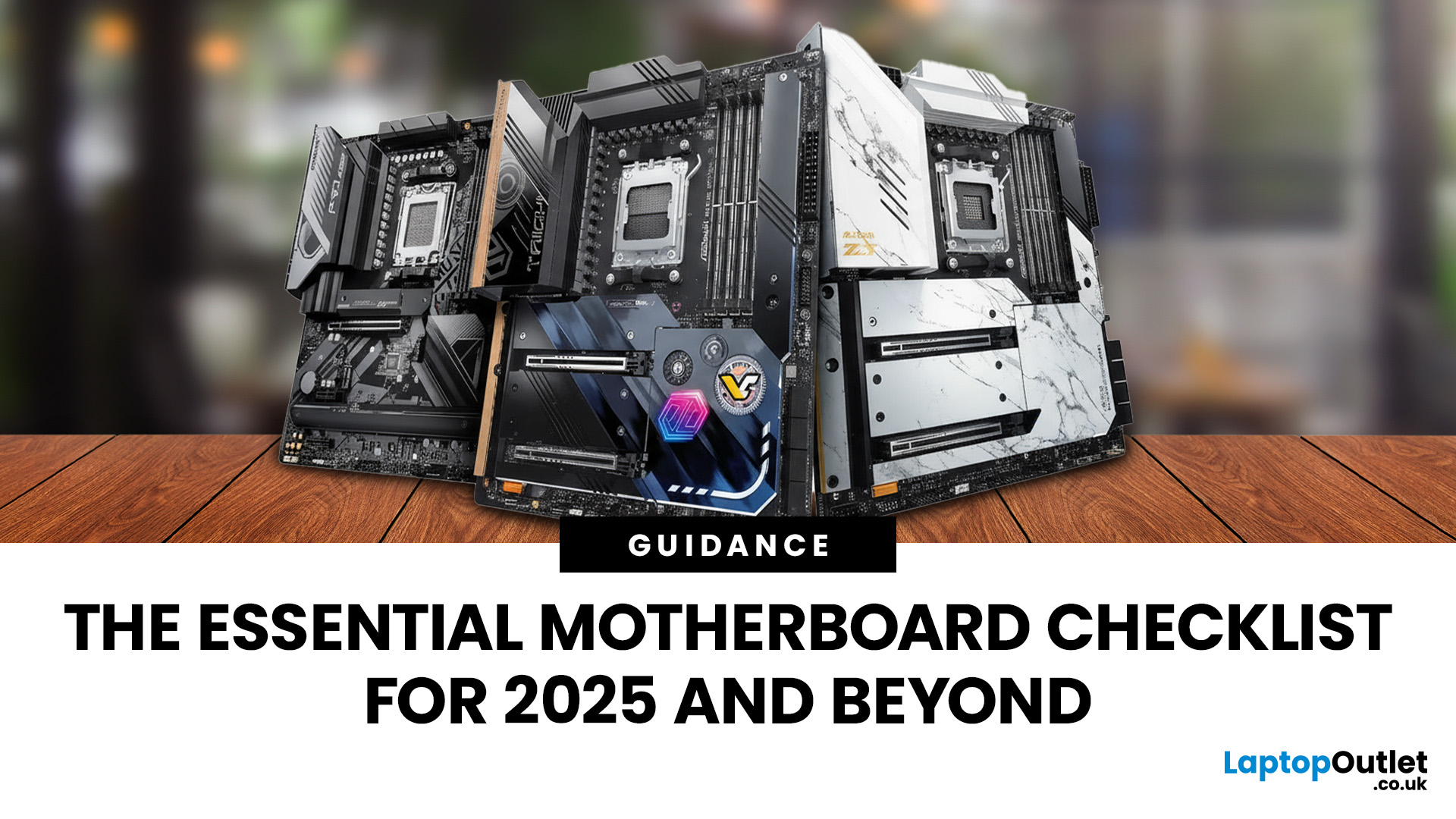
When it comes to motherboards for content creators, 2025 brings a new generation of platforms built for creators, streamers, and professionals. These boards go far beyond gaming specifications — they’re designed for high-performance workflows, advanced connectivity, and AI-enhanced creative control. Whether you’re editing 8K footage, producing music, or streaming live, choosing the right Streaming PC motherboard ensures your setup remains powerful, stable, and efficient.
This guide highlights the best motherboards for content creators and streamers in 2025, focusing on connectivity, expandability, and reliability, essential traits for professionals building a Creator PC build motherboard or a high-performance workstation.
What Makes a Motherboard Ideal for Content Creation?
Before exploring the best workstation motherboards, let’s examine what separates a good motherboard from a truly creator-focused one.
Chipset and CPU Compatibility
Modern DDR5 motherboards for creators should feature
Last Updated: April 28, 2026
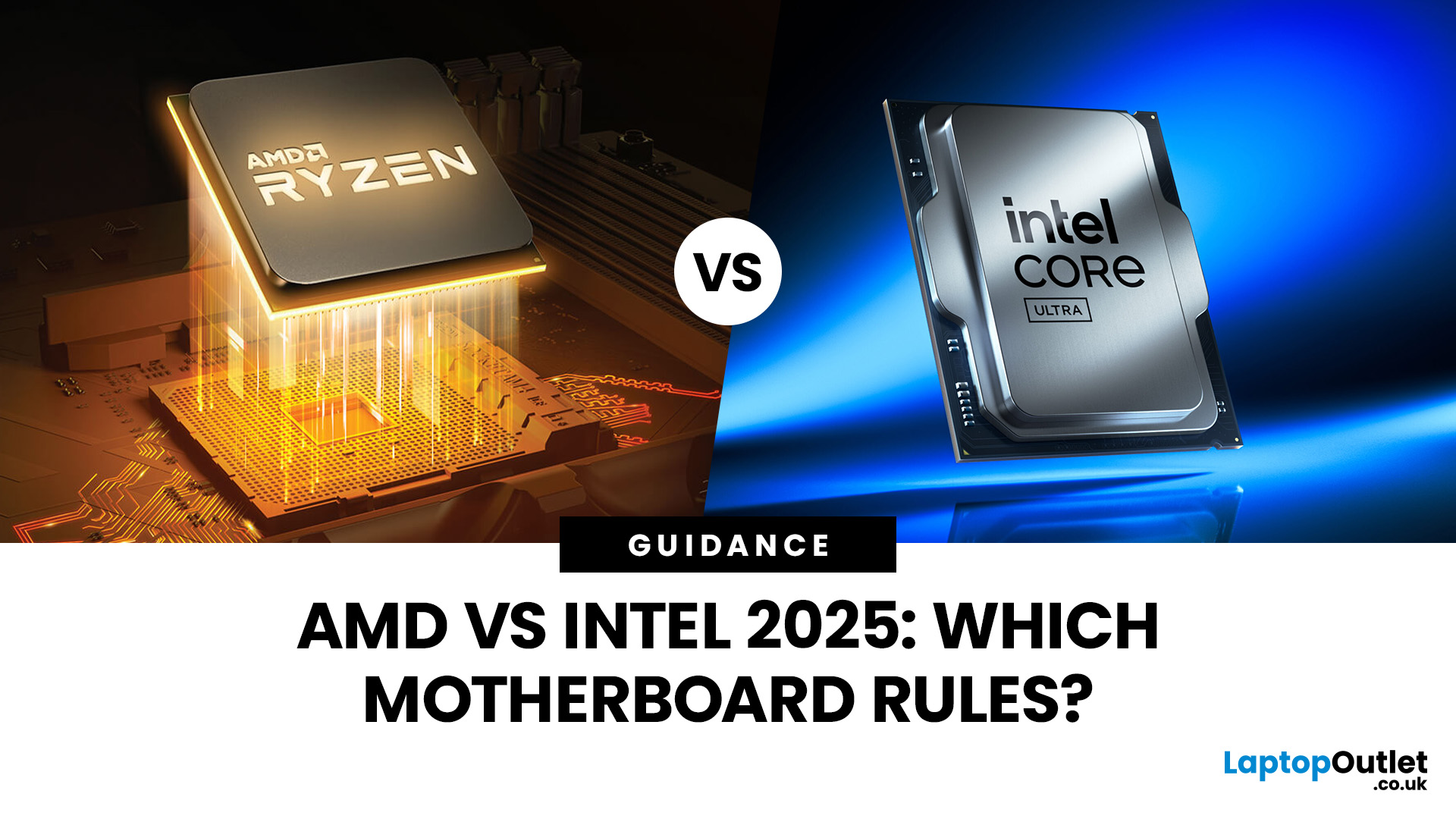
When building a new PC in 2025, choosing the right motherboard is the best long-term decision you can make. It’s the backbone of your system, and opting for an upgrade-ready motherboard means focusing on key technologies like DDR5 memory, fast PCIe standards, and next-gen connectivity.
This guide explores the essential features that define future-proof motherboards and highlights some top models for both AMD and Intel platforms.
If you are just starting your PC build, you should read our guide on how to choose the right motherboard.
Key Future-Proofing Features for 2025
What exactly makes a motherboard “future-proof”? It comes down to technologies that won't become bottlenecks for your most powerful components over the next five years.
- DDR5 Memory Support: This is non-negotiable. DDR5 compatible motherboards offer significantly higher bandwidth and speed than their predecessors.
- PCIe 5.0 Connectivity: This is crucial for both the primary graphics slot (for next-gen GPUs) and at least
Last Updated: November 19, 2025
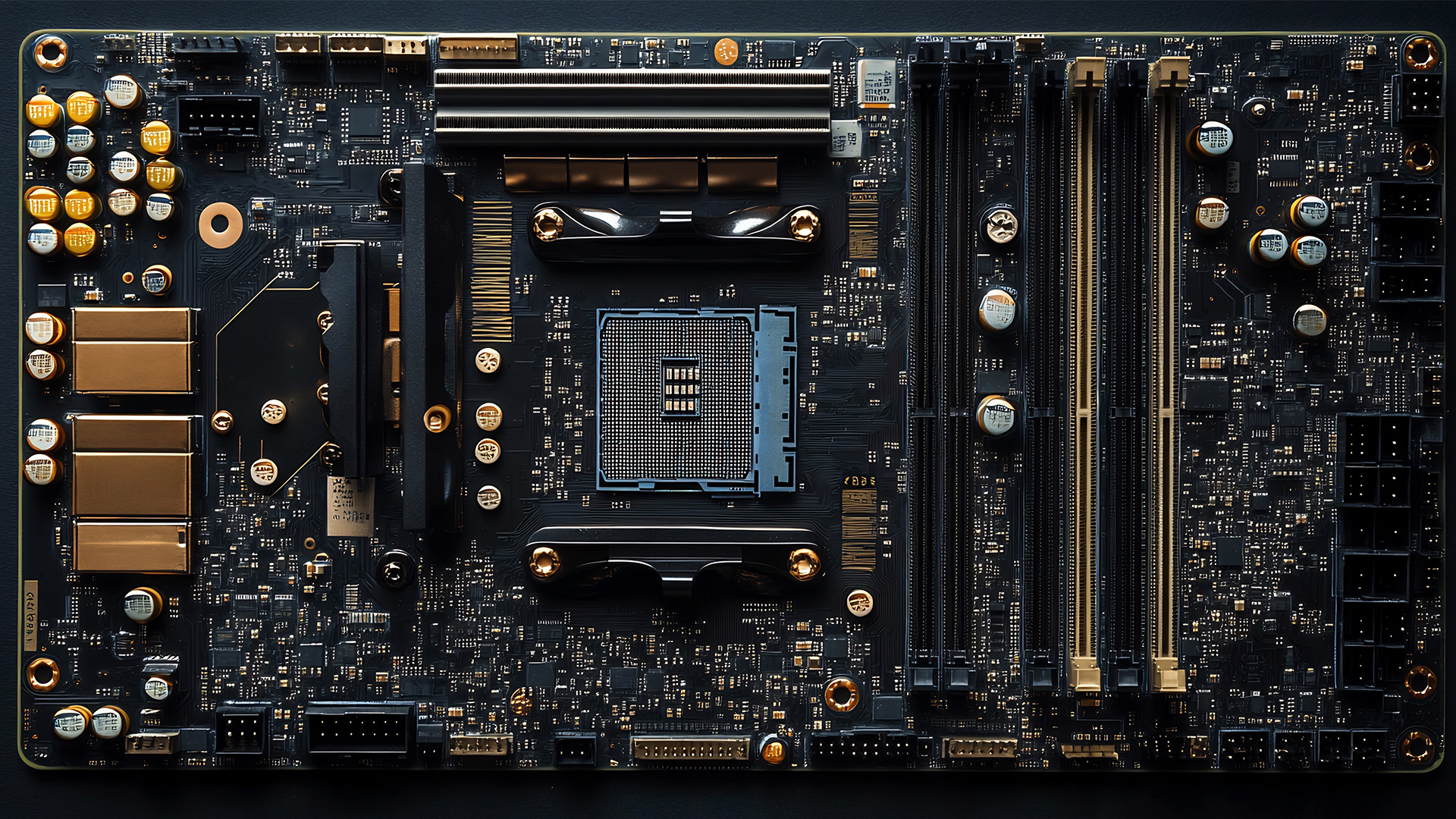
When you’re building or upgrading a PC, choosing the right motherboard can feel a little intimidating — especially when it comes down to the age-old rivalry of AMD vs Intel motherboards.
Both brands make fantastic hardware, but each has its strengths. Whether you’re planning a high-end gaming rig, a creative workstation, or an everyday PC, the motherboard you choose will shape your system’s performance, features, and future-proofing.
In this guide, we’ll compare Intel vs AMD motherboards across performance, chipsets, memory, overclocking, and more. By the end, you’ll know exactly which option suits your needs in 2025.
What Exactly is a Motherboard?
Before diving into the AMD vs Intel motherboards comparison, let's briefly clarify what a motherboard is and why it's so important.
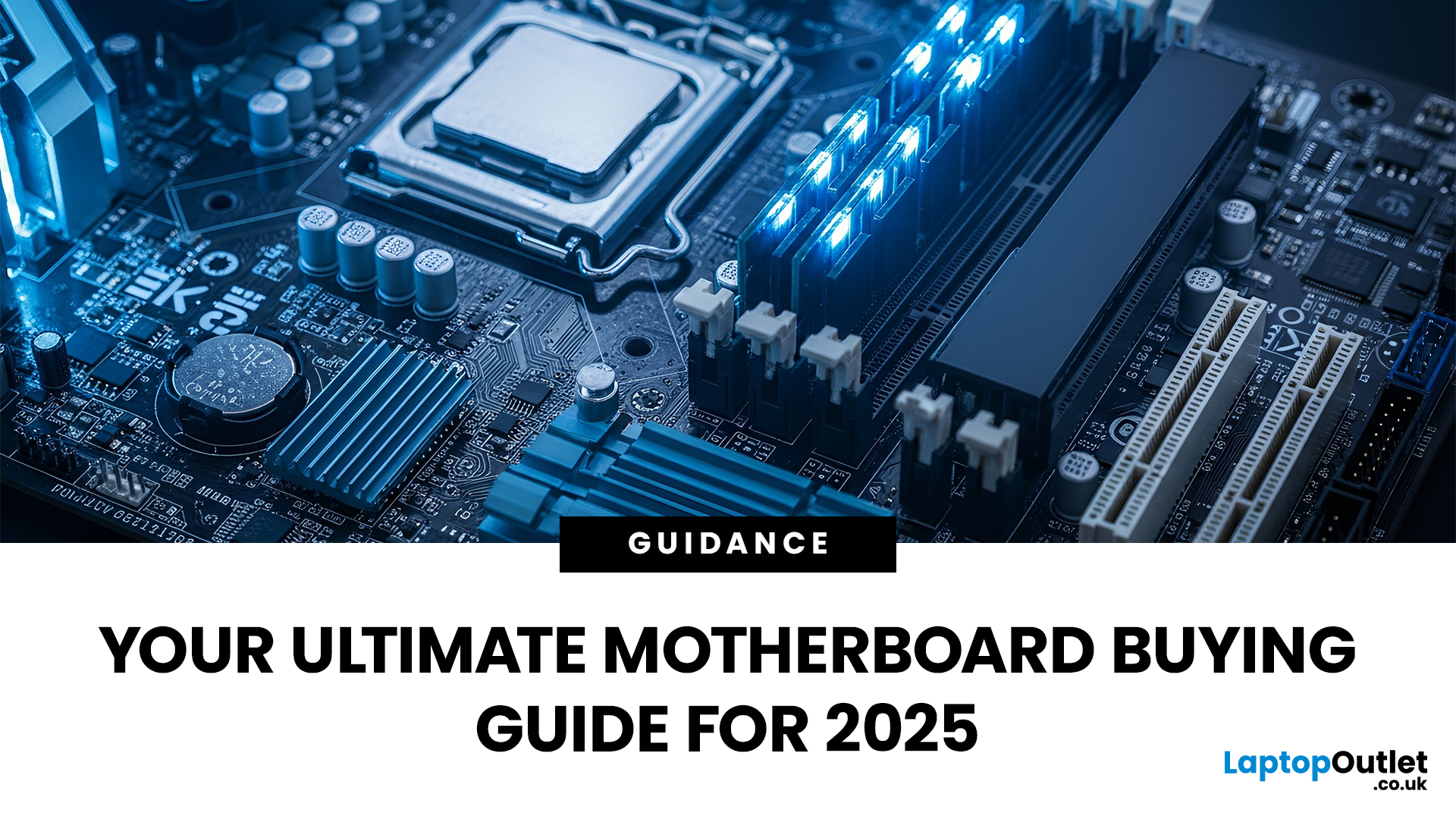
Often called the 'mainboard' or 'system board,' the motherboard is the central printed circuit board (PCB) in a computer. It is, quite simply, the foundation and communication hub for all other components.
It houses
Last Updated: December 03, 2025
The motherboard is the central nervous system of your computer. Every component, from the CPU and RAM to the GPU and storage drives, connects to it.
Making the right choice here is crucial. A well-chosen board ensures smooth performance, effortless upgrades, and long-term stability for your entire desktop PC build.
If you’re wondering how to choose the right motherboard to suit your needs, you’ve come to the right place. This comprehensive motherboard buying guide will take you through every essential step to help you lay the best foundation for your next project.
Step 1: CPU Choice Defines the Socket (AMD vs Intel)
The first and most crucial step when selecting a motherboard is choosing your CPU (Central Processing Unit). The processor dictates which socket type and chipset your motherboard must have.
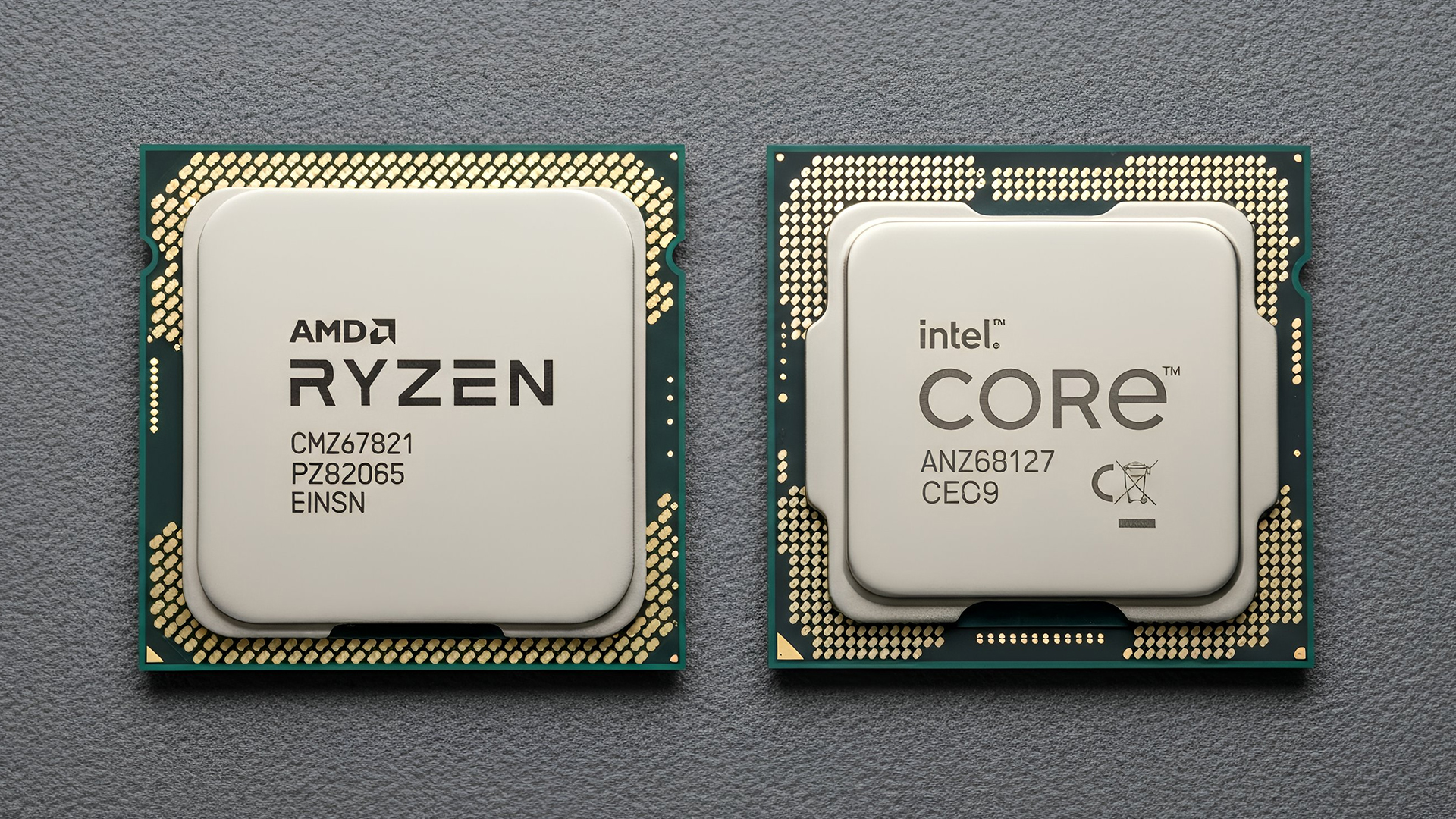
AMD vs Intel Motherboards
- AMD motherboards are known for value and longevity. Platforms like AM5 often maintain compatibility across several CPU generations, allowing for future upgrades

Last Updated: June 05, 2026
If you’re upgrading your gaming rig or building one from scratch in 2025, the motherboard you choose is going to set the tone for your entire PC. Whether you’re aiming for an affordable setup or an ultra-high-end powerhouse, the motherboard is the foundation - determining not just what components you can use today, but how future-ready your system will be.
This guide takes you through the best motherboards for gaming PCs in 2025, handpicked for performance, features, and value. You’ll find AMD and Intel options, from budget boards with modern DDR5 support to premium PCIe 5.0 powerhouses. Every recommendation is researched using up-to-date 2025 benchmarks, market data, and UK availability, ensuring you can make an informed purchase that fits your budget and build goals.
Why the Motherboard Matters in 2025

With the launch of AMD’s Ryzen 9000 and Intel’s 15th-gen “Arrow Lake” CPUs, the motherboard landscape has changed considerably. New chipsets like AMD B650E and Intel Z890 bring cutting-edge

