



The Complete MacBook guide: Models, Tips & Troubleshooting (2026)

Apple’s MacBook lineup has earned its reputation through years of delivering fast performance, long battery life, and a genuinely premium build quality that is hard to beat. Whether you are buying your first Mac, switching from Windows, or troubleshooting an issue, this MacBook & Apple guide covers everything you need.
What Exactly Is a MacBook?
A MacBook is Apple’s range of portable computers, running macOS. Unlike most Windows laptops, MacBooks use Apple’s own silicon. In 2026, that means the MacBook Neo runs on A18 Pro, while the latest MacBook Air and MacBook Pro run on M5-family chips: M5, M5 Pro, and M5 Max.
All MacBooks benefit from Apple’s tight hardware and software integration, meaning everything from apps to system updates is designed specifically for the machine you are holding. That is a big reason why so many people in creative, professional, education, and everyday roles swear by them.
What Are the Latest MacBook Models in 2026?

Apple currently sells MacBooks in three lines: MacBook Neo, MacBook Air, and MacBook Pro. Each comes in different sizes and chip configurations to suit different budgets and use cases.
Here is a quick overview:
|
Model |
Screen Sizes |
Chip Options |
Starting Price (UK) |
|---|---|---|---|
|
MacBook Neo |
13-inch |
A18 Pro |
from £599 |
|
MacBook Air |
13-inch, 15-inch |
M5 |
from £1,099 |
|
MacBook Pro |
14-inch, 16-inch |
M5, M5 Pro, M5 Max |
from £1,699 |
Here are the detailed specs of current MacBook models 2026:
MacBook Neo (2026)
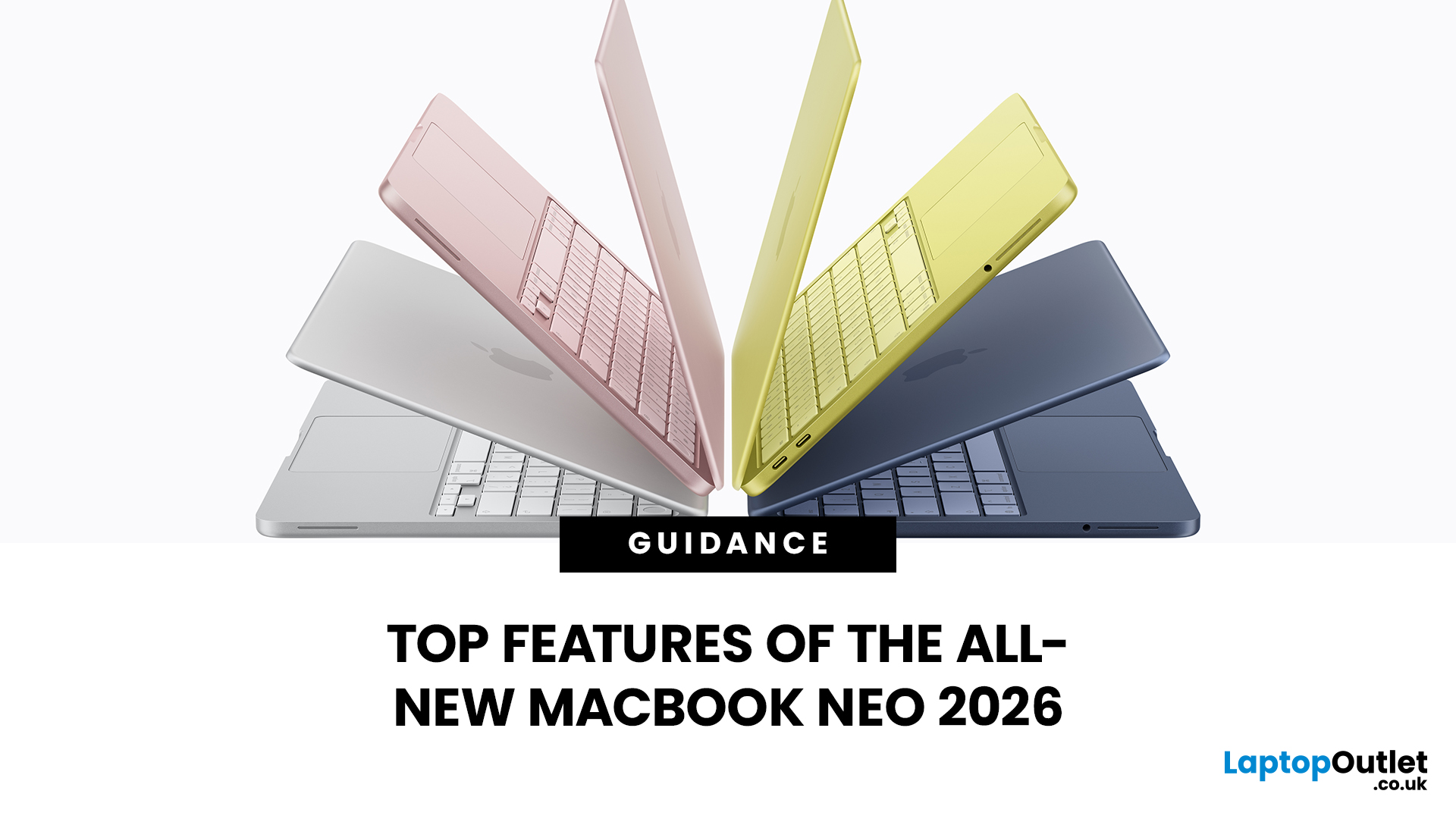
Available from 11 March 2026, the MacBook Neo is Apple’s new entry-level laptop and the most affordable MacBook in the current range. It comes in one size and four colours: Silver, Blush, Citrus, and Indigo.
Apple positions it as a lightweight everyday Mac for students, home users, and anyone who wants the Mac experience without paying MacBook Air money.
|
Specification |
MacBook Neo (2026) |
|---|---|
|
Chip |
Apple A18 Pro (6-core CPU, 5-core GPU, 16-core Neural Engine) |
|
RAM |
8GB unified memory |
|
Storage |
Starts with 256GB SSD (512GB option available) |
|
Display |
13.0-inch Liquid Retina, 2408 x 1506, 219ppi, 500 nits |
|
Battery |
Up to 16 hours video streaming / up to 11 hours wireless web |
|
Connectivity |
Wi-Fi 6E, Bluetooth 6 |
MacBook Neo is also completely fanless, so it runs silently like the MacBook Air. The trade-off is that it is designed for everyday tasks rather than sustained professional workloads, and it skips premium extras like Thunderbolt and MagSafe.
MacBook Air M5 (2026)
Released on 11 March 2026, the MacBook Air M5 is the go-to laptop for most people. It comes in two sizes and four colours: Sky Blue, Midnight, Starlight, and Silver.
|
Specification |
MacBook Air 13-inch M5 |
MacBook Air 15-inch M5 |
|---|---|---|
|
Chip |
Apple M5 (10-core CPU, 8-core GPU) |
Apple M5 (10-core CPU, 10-core GPU) |
|
RAM |
16GB unified memory (standard) |
16GB unified memory (standard) |
|
Storage |
Starts with 512GB SSD (up from 256GB in the previous generation) |
Starts with 512GB SSD |
|
Display |
13.6-inch Liquid Retina, 2560 x 1664, 224ppi |
15.3-inch Liquid Retina, 2880 x 1864, 224ppi |
|
Battery |
Up to 18 hours |
Up to 18 hours |
|
Connectivity |
Wi-Fi 7, Bluetooth 6 |
Wi-Fi 7, Bluetooth 6 |
Both Air models are completely fanless, meaning there are no moving parts and near-silent operation under most workloads.
MacBook Pro M5 (2026)
The MacBook Pro range is built for professionals who need sustained performance. It comes in 14-inch and 16-inch sizes, with a choice of three chips. All MacBook Pro models are available in Space Black and Silver.
|
Specifications |
MacBook Pro 14-inch M5 (2025) |
MacBook Pro 14-inch M5 Pro |
MacBook Pro 14-inch M5 Max |
MacBook Pro 16-inch M5 Pro |
MacBook Pro 16-inch M5 Max |
|---|---|---|---|---|---|
|
Chip |
Apple M5 (10-core CPU, 10-core GPU) |
M5 Pro (15-core CPU/16-core GPU or 18-core CPU/20-core GPU options) |
Apple M5 Max (up to 18-core CPU, 40-core GPU) |
Apple M5 Pro (18-core CPU, 20-core GPU) |
Apple M5 Max (18-core CPU, up to 40-core GPU) |
|
RAM |
16GB unified memory (standard) |
24GB unified memory (standard) |
36GB unified memory (standard) |
24GB unified memory (standard) |
36GB or higher unified memory |
|
Storage |
1TB SSD (standard) |
1TB SSD (standard) |
2TB SSD (standard) |
1TB SSD (standard) |
2TB SSD (standard) |
|
Display |
14.2-inch Liquid Retina XDR with ProMotion (up to 120Hz) |
14.2-inch Liquid Retina XDR with ProMotion (up to 120Hz) |
14.2-inch Liquid Retina XDR with ProMotion (up to 120Hz) |
16.2-inch Liquid Retina XDR with ProMotion (up to 120Hz) |
16.2-inch Liquid Retina XDR with ProMotion (up to 120Hz) |
|
Battery |
Up to 24 hours |
Up to 22 hours |
Up to 20 hours |
Up to 24 hours |
Up to 22 hours |
|
Connectivity |
Thunderbolt 4, Wi-Fi 6E, Bluetooth 5.3 |
Thunderbolt 5, Wi-Fi 7, Bluetooth 6 |
Thunderbolt 5, Wi-Fi 7, Bluetooth 6 |
Thunderbolt 5, Wi-Fi 7, Bluetooth 6 |
Thunderbolt 5, Wi-Fi 7, Bluetooth 6 |
Ready to upgrade to Mac? Browse MacBook laptops at Laptop Outlet for the best 2026 deals.
MacBook Screen Sizes Explained
Not sure which screen size suits you? Here is a breakdown to help you decide.
13-inch (MacBook Neo): The most affordable way into the Mac ecosystem. Great for students, web browsing, writing, streaming, and day-to-day work. Weighs 1.23kg.
13-inch (MacBook Air): The best all-round portable MacBook for most people. Ideal for commuting, students, and anyone who wants a light machine with stronger performance than the Neo. Weighs just 1.24kg.
14-inch (MacBook Pro): A sweet spot between portability and screen real estate. Popular with developers, writers, and photographers. Weighs from 1.55kg.
15-inch (MacBook Air): Offers a noticeably larger display without the price jump of a Pro. Ideal if you want more screen for multitasking. Weighs 1.51kg.
16-inch (MacBook Pro): Best for professionals working on video, 3D renders, or large datasets. The extra screen space and larger battery make a real difference for heavy, all-day use. Weighs 2.14kg.
|
Screen Size |
Best For |
Weight |
|---|---|---|
|
13-inch Neo |
Students, budgets, everyday portability |
1.23kg |
|
13-inch Air |
Portability, premium everyday use, travel |
1.24kg |
|
14-inch Pro |
Developers, photographers, on-the-go pros |
1.55kg |
|
15-inch Air |
Everyday use with more screen space |
1.51kg |
|
16-inch Pro |
Video editors, 3D artists, power users |
2.14kg |
As a general rule: if budget matters most, look at the Neo first. If you carry your laptop daily and want a more premium all-rounder, go 13-inch Air or 14-inch Pro. If you mostly work at a desk or café, 15-inch Air or 16-inch Pro gives you a much better workspace.
MacBook Features Across Latest Models: Pro vs. Air vs. Neo
Now that Apple sells three MacBook families, the decision is no longer just Air vs Pro. MacBook Neo is the value-first option, MacBook Air is the premium everyday laptop, and MacBook Pro is the performance-first machine for demanding professional work.
Performance and Fan/Cooling
The biggest difference is power. MacBook Neo uses the A18 Pro, which is designed for everyday tasks like browsing, documents, streaming, email, study, and light creative work. It is the least powerful of the three, but also the cheapest. It features fanless design.
MacBook Air steps up to the M5 chip, giving it much more performance for multitasking, coding, photo editing, and heavier day-to-day use. It is also fanless, which means silent operation under normal workloads.
MacBook Pro goes furthest with M5, M5 Pro, and M5 Max options. Unlike Neo and Air, it uses active cooling with fans, so it can hold peak performance for longer during video editing, music production, 3D work, and large code projects.
Memory and Storage
MacBook Neo keeps things simple with 8GB unified memory and 256GB or 512GB SSD storage. That is fine for everyday use, but it gives you the least flexibility long term.
MacBook Air starts higher, with 16GB unified memory and 512GB SSD storage, and can be configured up to 32GB memory and 4TB storage. That makes it a better fit for users who want more headroom.
MacBook Pro starts higher again and scales much further, depending on the model. It offers 16GB to 128GB unified memory and 1TB to 8TB SSD storage, making it the right choice for genuinely heavy professional workloads.
Display Quality
MacBook Neo has a 13-inch Liquid Retina display with 500 nits brightness and sRGB colour. It is perfectly fine for general use, but it is the most basic display in the lineup.
MacBook Air improves on that with 13.6-inch and 15.3-inch Liquid Retina options, plus P3 wide colour and True Tone. It looks richer and more premium than Neo, especially for photos, media, and everyday work.
MacBook Pro is the display leader. It uses Liquid Retina XDR displays in 14.2-inch and 16.2-inch sizes, with up to 1,600 nits peak HDR brightness and ProMotion up to 120Hz. If screen quality matters most, Pro is clearly ahead.
Battery life and Charging
MacBook Neo offers up to 16 hours video streaming and charges over USB-C. It is decent, but it has the shortest battery life of the three.
MacBook Air improves on that with up to 18 hours video streaming and adds MagSafe 3 as well as USB-C charging. That makes it more convenient than Neo.
MacBook Pro reaches up to 24 hours video streaming on some models and also includes MagSafe 3 plus USB-C charging. For long sessions away from a charger, Pro has the best ceiling overall.
Ports, External Displays and Connectivity
MacBook Neo is the most limited. It has two USB-C ports in total, a 3.5mm headphone jack, and support for one external display up to 4K at 60Hz.
MacBook Air is more practical. It includes two Thunderbolt 4 ports, MagSafe 3, a 3.5mm headphone jack, and support for up to two external displays.
MacBook Pro has the strongest connectivity. It adds HDMI, SDXC card slot, MagSafe 3, three USB-C ports, and a 3.5mm headphone jack. Depending on the model, those ports are Thunderbolt 4 or Thunderbolt 5, and higher-end Pro models support up to four external displays.
Wireless, Camera, Audio and Touch ID
MacBook Neo supports Wi-Fi 6E and Bluetooth 6, with a 1080p FaceTime HD camera, dual speakers, dual microphones, and Touch ID. It covers the basics well, but it is the simplest package here.
MacBook Air steps up to Wi-Fi 7, Bluetooth 6, a 12MP Center Stage camera, four-speaker system, three-mic array, and Touch ID. It feels noticeably more premium for calls, streaming, and day-to-day use.
MacBook Pro offers the strongest media setup overall. It includes a 12MP Center Stage camera, studio-quality three-mic array, six-speaker sound system, and Touch ID. Wireless varies by model: the base 14-inch M5 uses Wi-Fi 6E and Bluetooth 5.3, while M5 Pro and M5 Max models step up to Wi-Fi 7, Bluetooth 6, and Apple’s N1 wireless chip.
macOS Tahoe and iCloud Integration
All three MacBook families run macOS Tahoe in the current lineup and support Apple Intelligence. Apple also positions all three around seamless integration with iPhone and built-in Apple services.
Apple Intelligence availability can vary by model, language and region, so not every feature appears everywhere at the same time.
That includes iCloud integration, which lets your files, photos, notes, and other content stay in sync across Mac, iPhone, and iPad. This is not really a difference between Neo, Air, and Pro, because all three benefit from the same Apple ecosystem features.
Detailed Comparison Table: MacBook Neo vs Air vs Pro
|
Spec |
MacBook Neo |
MacBook Air |
MacBook Pro |
|---|---|---|---|
|
Positioning |
Entry-level MacBook |
Premium everyday MacBook |
Professional MacBook |
|
Sizes |
13-inch |
13-inch, 15-inch |
14-inch, 16-inch |
|
Chip options |
A18 Pro |
M5 |
M5, M5 Pro, M5 Max |
|
Cooling |
Fanless |
Fanless |
Active cooling |
|
Memory |
8GB |
16GB to 32GB |
16GB to 128GB |
|
Storage |
256GB to 512GB |
512GB to 4TB |
1TB to 8TB |
|
Display |
Liquid Retina, 500 nits, sRGB |
Liquid Retina, 500 nits, P3, True Tone |
Liquid Retina XDR, up to 1,600 nits HDR, ProMotion 120Hz |
|
Charging |
USB-C |
MagSafe 3 + USB-C |
MagSafe 3 + USB-C |
|
Ports |
2x USB-C, headphone jack |
2x Thunderbolt 4, MagSafe 3, headphone jack |
HDMI, SDXC, MagSafe 3, headphone jack, 3x Thunderbolt 4/5 |
|
External displays |
1 |
Up to 2 |
Up to 4 |
|
Wireless |
Wi-Fi 6E, Bluetooth 6 |
Wi-Fi 7, Bluetooth 6 |
Wi-Fi 6E or Wi-Fi 7 depending on model |
|
Camera |
1080p FaceTime HD |
12MP Center Stage |
12MP Center Stage |
|
Audio |
Dual speakers, dual mics |
Four speakers, three mics |
Six speakers, studio-quality mics |
|
Touch ID |
Yes |
Yes |
Yes |
|
Operating system |
macOS Tahoe |
macOS Tahoe |
macOS Tahoe |
|
iCloud integration |
Yes |
Yes |
Yes |
|
Best for |
Students, everyday use, tight budgets |
Most buyers, portable work, light creative use |
Video, music, coding, 3D, pro workflows |
How Do You Switch On a MacBook?
This trips up a surprising number of first-time Mac users, especially those switching from Windows. The good news is that the process is simple, but it is not identical across every current model.
On MacBook Neo, MacBook Air, and MacBook Pro
On MacBook Air and MacBook Pro, the power button is integrated into Touch ID in the top-right corner of the keyboard. On MacBook Neo, the top-right key can be either a Lock Key or Touch ID depending on the model. You can turn MacBook Neo on by lifting the lid, pressing the power button, pressing any key, or clicking the trackpad.
To turn on:
- MacBook Air and MacBook Pro: press the Touch ID / power button once
- MacBook Neo: lift the lid, or press the power button, any key, or the trackpad
- Your MacBook will start up and the Apple logo will appear on screen
- Once you reach the login screen, place your registered finger on Touch ID or enter your password
To wake from sleep:
Press any key, click the trackpad, or simply open the lid.
To force a restart:
Hold the power button / Touch ID button for about 10 seconds until the Mac shuts down completely. Then press it again once to restart. Only do this if the machine is fully frozen or unresponsive.
| Quick Tip: All current MacBooks use Apple silicon and should start up very quickly. If your MacBook is taking more than 30 seconds to reach the login screen, there may be a software or hardware issue worth investigating. |
Essential MacBook Usage Tips
Getting the most from your MacBook goes beyond simply opening apps and browsing the web. Whether you are using a MacBook Neo, MacBook Air, or MacBook Pro, macOS includes a range of built-in tools that can make everyday use faster, easier, and more organised.
Customise Your Dock
The Dock at the bottom of the screen is your main shortcut bar for apps, folders, and files. You can right-click any app icon and choose to keep it in the Dock permanently, or drag icons in and out to arrange it however you like.
You can also change the Dock’s position in System Settings > Desktop & Dock, which is especially useful if you use an external monitor and want a layout that feels more natural.
Use Spotlight Search
Press Command + Spacebar to open Spotlight, which is one of the fastest ways to use a Mac. You can launch apps, search for files, look up words, do quick sums, convert currencies, and find settings without digging through menus.
Once you get used to Spotlight, it becomes one of the most useful shortcuts on any MacBook.
Take Screenshots Quickly
macOS includes several built-in screenshot shortcuts:
- Command + Shift + 3: Capture the entire screen
- Command + Shift + 4: Capture a selected area
- Command + Shift + 4, then Space: Capture a specific window
- Command + Shift + 5: Open the full screenshot and screen recording toolbar
Screenshots are saved to your Desktop by default. If you hold Control while using these shortcuts, the screenshot is copied to your clipboard instead.
Use Multiple Desktops (Spaces)
macOS lets you create multiple virtual desktops, called Spaces, which are useful for keeping different tasks separate. For example, you might keep work apps on one desktop, personal browsing on another, and media or messages on a third.
Swipe up with three fingers on the trackpad to open Mission Control, then click the plus icon in the top-right corner to add a new desktop.
Enable Hot Corners
Hot Corners let you trigger actions by moving your pointer to one of the four corners of the screen. You can set a corner to show the desktop, lock the screen, open Mission Control, start the screensaver, and more.
To enable them, go to System Settings > Desktop & Dock > Hot Corners. It can take a little getting used to, but once set up properly, it can speed up everyday navigation a lot.
Keep macOS and Apps Updated
Keeping your MacBook updated is one of the easiest ways to maintain performance, stability, and security. Open System Settings > General > Software Update and turn on automatic updates so your Mac stays current.
This applies whether you are using a MacBook Neo for everyday tasks, a MacBook Air for portable work, or a MacBook Pro for professional projects. Regular updates help fix bugs, improve battery management, and patch security issues.
Learn the Most Useful Keyboard Shortcuts
A few shortcuts can save a surprising amount of time every day. Some of the most useful include:
- Command + C / Command + V: Copy and paste
- Command + Tab: Switch between open apps
- Command + W: Close the current window or tab
- Command + Q: Quit an app
- Command + Spacebar: Open Spotlight
- Command + Option + Escape: Force quit an unresponsive app
If you want to work faster on any MacBook, learning keyboard shortcuts is one of the quickest wins. Read our full Mac keyboard shortcuts guide to cut down the time you spend clicking through menus.
How Do You Uninstall Apps on a Mac?
Uninstalling apps on a Mac works differently from Windows. There is no traditional “Add or Remove Programs” menu. Instead, most apps can be removed directly from Finder or Launchpad.
The Easiest Method: Remove Apps Through Finder
- Open Finder
- Click Applications in the left-hand sidebar
- Find the app you want to remove
- Right-click it and select Move to Bin, or drag it to the Bin
- Right-click the Bin and choose Empty Bin to permanently delete it
For many apps, this is all you need to do.
Remove App Store Apps Through Launchpad
- Press F4 or open Launchpad from the Dock
- Click and hold an app icon until the icons start to wiggle
- Click the X on the app you want to remove, then confirm
This method works best for apps downloaded from the App Store.
Be Aware of Leftover Files
Some third-party apps leave behind extra files, such as preferences, caches, and support files stored in your Library folder. Moving the main app to the Bin removes the application itself, but it may not remove every related file.
If you want a completely clean uninstall, especially for larger third-party apps, it is worth following a full step-by-step removal guide.
For a deeper walkthrough, read our complete guide on how to uninstall apps on Mac for every method explained.
MacBook Not Turning on or Charging: How Do You Fix It?
Few things are more frustrating than pressing the power button and seeing nothing happen. The good news is that many startup and charging issues on MacBooks are caused by something simple, such as a faulty cable, a drained battery, or an unresponsive system.
Work through these steps in order:
Step 1: Check the Charger
Start with the basics. Make sure the charging cable is properly connected at both ends and that the power adaptor is plugged in securely.
If possible, try a different cable or power adaptor to rule out a faulty charger. Also inspect the charging port for dust, debris, or visible damage.
Step 2: Check the Power Source
Try plugging your MacBook into a different wall socket. If you are using an extension lead, power strip, or USB hub, connect the charger directly to the wall instead.
Sometimes the issue is not the laptop at all, but the power source.
Step 3: Leave It Charging for At Least 30 Minutes
If the battery is completely drained, your MacBook may not respond straight away. Leave it plugged in for at least 30 minutes before trying to turn it on again.
This is especially worth trying if the MacBook has not been used for a while or the battery was fully flat.
Step 4: Force A Restart
Hold the power button / Touch ID button for about 10 seconds until the MacBook shuts down fully. Wait another 10 seconds, then press it once again to restart.
This can help if the Mac has frozen or is stuck in an unresponsive state.
Step 5: For Older Intel Models, Reset the SMC
If you are dealing with an older Intel-based MacBook, the System Management Controller (SMC) is responsible for functions like charging, power, and battery behaviour. Resetting it can sometimes solve startup and charging issues.
On current Apple silicon models, including MacBook Neo, MacBook Air, and MacBook Pro, holding the power button for 10 seconds is effectively the equivalent first step, so there is no separate SMC reset in the same way.
|
When to get further help: If your MacBook still will not turn on or charge after trying all of the above, the problem may be hardware-related. Possible causes include a failed battery, damaged charging port, faulty adaptor, or internal logic board issue. |
For a full step-by-step walkthrough, read our dedicated guide on how to fix MacBook startup problems.
MacBook Battery Problems: When Should You Repair or Replace?
MacBook batteries wear down over time, just like any other rechargeable battery. Apple says MacBook batteries are designed to retain up to 80% of their original capacity after 1,000 complete charge cycles, although real-world battery life will vary depending on how you use and charge the laptop.
How To Check Your Battery Health on MacBook?
On current versions of macOS, the easiest way to check battery condition is through System Settings:
- Click the Apple menu
- Open System Settings
- Click Battery in the sidebar
- Look for Battery Health
In most modern MacBooks, you will usually see one of two battery health statuses:
|
Status |
What it means |
|---|---|
|
Normal |
The battery is functioning normally |
|
Service Recommended |
The battery still works, but it holds less charge than when it was new, or it may not be functioning normally |
Apple notes that you can usually continue using your Mac safely even if it shows Service Recommended, but it may be worth arranging a repair if the reduced battery life is affecting daily use.
On some older Macs or older macOS versions, you may instead see labels such as Replace Soon, Replace Now, or Service Battery when checking battery status from the menu bar.
What Should You Look At?
Two of the most useful indicators are:
- Cycle Count: how many full charge cycles the battery has gone through
- Battery Health / Condition: whether macOS thinks the battery is still performing normally
A high cycle count on its own does not automatically mean the battery needs replacing, but if your MacBook is draining much faster than it used to and macOS shows Service Recommended, that is a strong sign the battery is wearing out.
Tips to Prolong MacBook Battery Life
A few simple habits can help reduce battery wear over time:
- Turn on Optimised Battery Charging in Battery settings
- Use Charge Limit if your Mac supports it
- Avoid leaving your MacBook at 100% charge all the time
- Reduce screen brightness when working on battery
- Keep macOS updated so you get the latest battery management improvements
Apple says Optimised Battery Charging learns your routine and delays charging past 80% in some situations to help reduce battery ageing. It is also normal for your Mac sometimes to pause charging or sit below 100% for battery health reasons.
When Should You Repair or Replace the Battery?
It is worth looking into a battery replacement if:
- your MacBook’s battery life has become noticeably worse
- the laptop shuts down unexpectedly
- charging behaviour becomes unreliable
- macOS shows Service Recommended
Apple advises using an Apple Store or Apple Authorised Service Provider for built-in MacBook battery replacements. Apple’s one-year warranty covers a defective battery, and AppleCare may cover replacement in some cases if the battery holds less than 80% of its original capacity. If you are out of coverage, paid battery service is available, but Apple says pricing varies by model and service route.
For a full breakdown of symptoms, battery health checks, and repair options, read our guide on MacBook battery problems.
How Do You Force Quit on a Mac?

Apps sometimes freeze or stop responding, even on a MacBook. Whether you are using a MacBook Neo, MacBook Air, or MacBook Pro, the ways to force quit an app are the same.
The Quickest Method
Press Command + Option + Escape on your keyboard. This opens the Force Quit Applications window.
Select the app that is not responding, then click Force Quit.
Via the Apple Menu
Click the Apple logo in the top-left corner of the screen, then choose Force Quit.
This opens the same Force Quit window, where you can select the frozen app and close it.
Via Activity Monitor
You can also force quit apps through Activity Monitor, which is useful if your Mac is running slowly and you want to see which app is causing the problem.
- Open Spotlight with Command + Spacebar
- Type Activity Monitor and press Enter
- Find the app in the list
- Click it to select it
- Click the X button at the top of the window
|
Important warning: Force quitting closes the app immediately, which means any unsaved work inside that app may be lost. Use it only when the app will not close normally. |
For more detail on every method, including shortcuts and troubleshooting tips, read our full Mac force quit shortcut guide.
How Do You Factory Reset a MacBook?
There are several reasons you might want to factory reset a MacBook. You may be selling it, giving it to someone else, trading it in, or starting fresh to fix persistent software problems. On current MacBook types, the easiest method is usually Erase All Content and Settings, which Apple recommends on Macs with Apple silicon.
Before You Reset
Before wiping your MacBook, make sure you do the following:
- Back up your files using Time Machine or an external drive
- Sign out of your Apple Account and related services if needed
- Make sure you know your Apple Account password
- Keep the MacBook connected to power and Wi-Fi during the reset process
Apple also recommends preparing the Mac properly before selling, giving away, or trading it in so your personal data is removed and the next user gets a clean setup experience.
The Easiest Method: Erase All Content and Settings
On current MacBooks, this is the simplest way to factory reset the device:
- Open the Apple menu
- Go to System Settings
- Choose General
- Click Transfer or Reset
- Select Erase All Content and Settings
- Follow the on-screen steps to confirm
This removes your personal data, settings, apps, and user accounts, and returns the MacBook to a clean state ready for setup again. When the process is complete, the Mac will show the Hello screen.
If Erase All Content and Settings Is Not Available
If that option is missing or does not work, you can still reset the MacBook through macOS Recovery:
- Shut down the MacBook
- Hold the power button until you see Loading startup options
- Select Options, then click Continue
- Open Disk Utility and erase the startup disk
- Quit Disk Utility
- Choose Reinstall macOS
This reinstalls a fresh copy of macOS from Apple’s recovery system. Apple’s Recovery tools are built in, so you do not need a USB installer for the standard reset process.
After the Reset
If you are keeping the MacBook, you can continue through setup and sign in again. If you are selling it or giving it away, stop at the setup screen and shut it down so the new owner can complete the setup themselves. Apple specifically recommends leaving the Mac in that out-of-box state for handover.
For a full walkthrough, including older Intel Mac instructions and troubleshooting, read our complete factory reset MacBook guide.
How Do You Check CPU Usage on a Mac?
If your MacBook is running slowly, getting unusually warm, or apps feel sluggish, checking CPU usage can help you spot what is using the most processing power.
Check CPU Usage with Activity Monitor
- Open Spotlight with Command + Spacebar
- Type Activity Monitor and press Enter
- Click the CPU tab at the top
- Click the % CPU column to sort apps by highest usage
This will show which apps and background processes are using the most processor power at that moment.
What Counts as High CPU Usage?
If one app is sitting at a very high percentage for a long period, it may be the reason your Mac feels slow or unresponsive. In many cases, a frozen app, a browser tab, or a background task is the cause.
If needed, you can select the process and click the X button at the top of Activity Monitor to close it.
Other Useful Activity Monitor Tabs
Activity Monitor is not just for CPU usage. It also shows other helpful system data:
|
Column / Tab |
What it shows |
|---|---|
|
% CPU |
How much processor power an app is using |
|
Memory |
How much RAM an app is using |
|
Energy |
How much impact an app is having on battery life |
|
Disk |
How much an app is reading from or writing to storage |
Checking these tabs can help you work out whether the problem is the processor, memory usage, battery drain, or storage activity.
Quick tip: If an app keeps using a huge amount of CPU every time you open it, try updating it, restarting your MacBook, or reinstalling the app. Persistent high CPU usage can also be caused by browser extensions, background sync tools, or software bugs.
For a more detailed walkthrough, read our full Mac CPU usage guide.
MacBook Maintenance: Keeping Your Mac in Good Shape
Regular maintenance helps keep your MacBook running well and looking its best. No matter which MacBook you are using, the basics are the same: keep it clean, avoid harsh chemicals, and deal with dust and debris before they build up.
How to Clean a MacBook Keyboard Safely
MacBook keyboards can collect dust, crumbs, grease, and other debris over time. Apple recommends shutting the laptop down first, then using compressed air carefully to clear loose particles from the keyboard.
What you will need
You only need a few basic items:
- A can of compressed air
- A soft, lint-free cloth, such as microfibre
- A lightly dampened cloth for exterior cleaning if needed
For tougher marks on hard, non-porous exterior surfaces, Apple says you can use a cloth moistened with 70% isopropyl alcohol.
Step-by-step
- Shut down your MacBook and unplug the power adaptor.
- Hold the MacBook at a 75-degree angle, so it is slightly upright rather than fully vertical.
- Use compressed air to spray across the keyboard in a left-to-right motion.
- Rotate the MacBook onto its right side and spray again from left to right.
- Rotate it onto its left side and repeat the same process.
- If the keys or palm rest still look dirty, wipe the exterior gently with a soft, lint-free cloth.
- Let everything dry fully before turning the MacBook back on.
Tip: If you are cleaning more than just the keyboard, Apple recommends using water only on the display, while tougher smudges on the exterior can be removed with a cloth lightly moistened with 70% isopropyl alcohol.
For a fuller walkthrough, read our detailed guide on Mac keyboard cleaning tips.
iCloud Storage Management: How to Free Up Space
iCloud gives you 5GB of free storage by default, which can fill up quickly if you are syncing photos, device backups, messages, and documents. Here is how to stay on top of it.
Check What Is Using Your iCloud Space
- Go to System Settings
- Click your name at the top
- Select iCloud and click Manage
You will then see a breakdown of what is using your iCloud storage.
How To Free Up iCloud Space
- Delete old iPhone and iPad backups you no longer need
- Review and delete large files in iCloud Drive
- Turn off iCloud sync for apps you do not need backed up
- Remove photos, messages, or other stored data you no longer need
- Upgrade to iCloud+ if you regularly run out of space
In the UK, iCloud+ plans currently start at 50GB for £0.99/month.
For a full walkthrough of managing storage across all your Apple devices, read our guide on everything you need to know about iCloud Storage Management.
MacBook vs Chromebook: Which Should You Buy?
This depends entirely on what you need your laptop to do.
|
MacBook advantages |
Chromebook advantages |
|---|---|
|
Significantly more powerful for creative and professional work Full macOS desktop software ecosystem (Adobe, Final Cut Pro, Logic Pro, etc.) Better build quality and materials Longer software support (Apple supports models for 7 years or more) Far better resale value |
Much cheaper, with many models under £300 Excellent for web browsing, Google Workspace, and light document work Faster to set up and simpler to maintain Great for schools and shared use |
The honest verdict: If you need a laptop primarily for Google Docs, streaming, and light browsing, a Chromebook at a third of the price makes sense. If you want something that will grow with you, run proper software, and last five to seven years, a MacBook is a far better long-term investment.
For a detailed side-by-side breakdown, read our full Chromebook vs MacBook comparison.
Mac vs Windows: Which Is Right for You in 2026?

The Mac vs Windows debate is older than most laptops on the market. In 2026, both platforms are excellent. Here is where each wins.
|
Mac wins on... |
Windows wins on... |
|
Battery life (Apple silicon MacBooks remain class-leading) Build quality and trackpad experience Security and privacy by default Performance-per-watt efficiency Creative industry software (Final Cut Pro, Logic Pro, Motion) Long-term software updates |
Price variety (Windows laptops start from under £200) Gaming (far broader game library and support) Business and enterprise software compatibility Hardware customisation and repairability Touchscreen options (broadly available on Windows) |
Who should choose Mac: Creative professionals, students, developers, and anyone deeply invested in the Apple ecosystem.
Who should choose Windows: Gamers, business users needing specific enterprise software, budget buyers, and those who want the widest hardware choice.
For a comprehensive comparison with specific model recommendations, read our guide on Mac vs Windows laptop differences.

Neo, Air, or Pro: The Choice is Yours
This MacBook & Apple guide has covered the full MacBook lineup in 2026, including the new MacBook Neo, the ultra-portable MacBook Air, and the high-performance MacBook Pro. From understanding MacBook features across the different models to fixing common issues and getting more from macOS, you should now have a much clearer idea of which MacBook suits you best.
The bottom line: whether you want the affordability of MacBook Neo, the balance of MacBook Air, or the power of MacBook Pro, Apple’s laptop range remains one of the strongest on the market.
Browse Laptop Outlet to discover high-performance creative work laptops, including MacBooks, that perfectly suit your unique professional style.

A Few More Things...
What are the key MacBook Air vs MacBook Pro differences?
MacBook Air is thinner, lighter, fanless, and better suited to everyday use. MacBook Pro adds active cooling, a brighter Liquid Retina XDR display with ProMotion, more ports, and much more performance for demanding workloads.
What are the latest MacBook models in 2026?
The latest MacBook models are the MacBook Neo 13-inch, MacBook Air M5 in 13-inch and 15-inch sizes, and MacBook Pro in 14-inch and 16-inch sizes with M5, M5 Pro, and M5 Max options.
How long does a MacBook battery last?
MacBook Neo offers up to 16 hours of video streaming, MacBook Air up to 18 hours, and MacBook Pro up to 24 hours depending on the model and workload.
Which MacBook is best for students?
For the lowest price, MacBook Neo is the most affordable student option. For most students with a bigger budget, MacBook Air 13-inch M5 is the better all-round choice thanks to its stronger performance, better display, and longer battery life.
Can you upgrade RAM in a MacBook?
No. Current MacBooks use built-in unified memory, so RAM cannot be upgraded after purchase. It is important to choose the right configuration when you buy.
What macOS version do MacBooks run in 2026?
Current MacBooks support macOS Tahoe 26, Apple’s 2026 macOS release with expanded Apple Intelligence features.
Is it worth buying a refurbished MacBook?
Yes, as long as it comes from a reputable retailer like Laptop Outlet and includes a warranty. A refurbished MacBook can offer strong value if you want macOS and Apple hardware for less than a brand-new model.
What is the cheapest MacBook you can buy in the UK?
As of 2026, the cheapest new MacBook in the UK is the MacBook Neo, starting at £599.
How do you factory reset a MacBook before selling it?
The easiest method on current models is Erase All Content and Settings in System Settings > General > Transfer or Reset. If needed, you can also use macOS Recovery to erase the drive and reinstall macOS.
What is Apple Intelligence on MacBooks?
Apple Intelligence is Apple’s AI system for features such as writing help, smarter search, summarising, and improved productivity tools. Apple positions it across the current MacBook Neo, MacBook Air, and MacBook Pro lineup.
| Read More: |
| MacBook Air vs MacBook Pro (2026): Key Differences, Performance & Which One to Buy |
| MacBook Neo 2026: Everything You Need to Know |
| Are Refurbished MacBooks Good? |
Related Articles

Last Updated: March 19, 2026
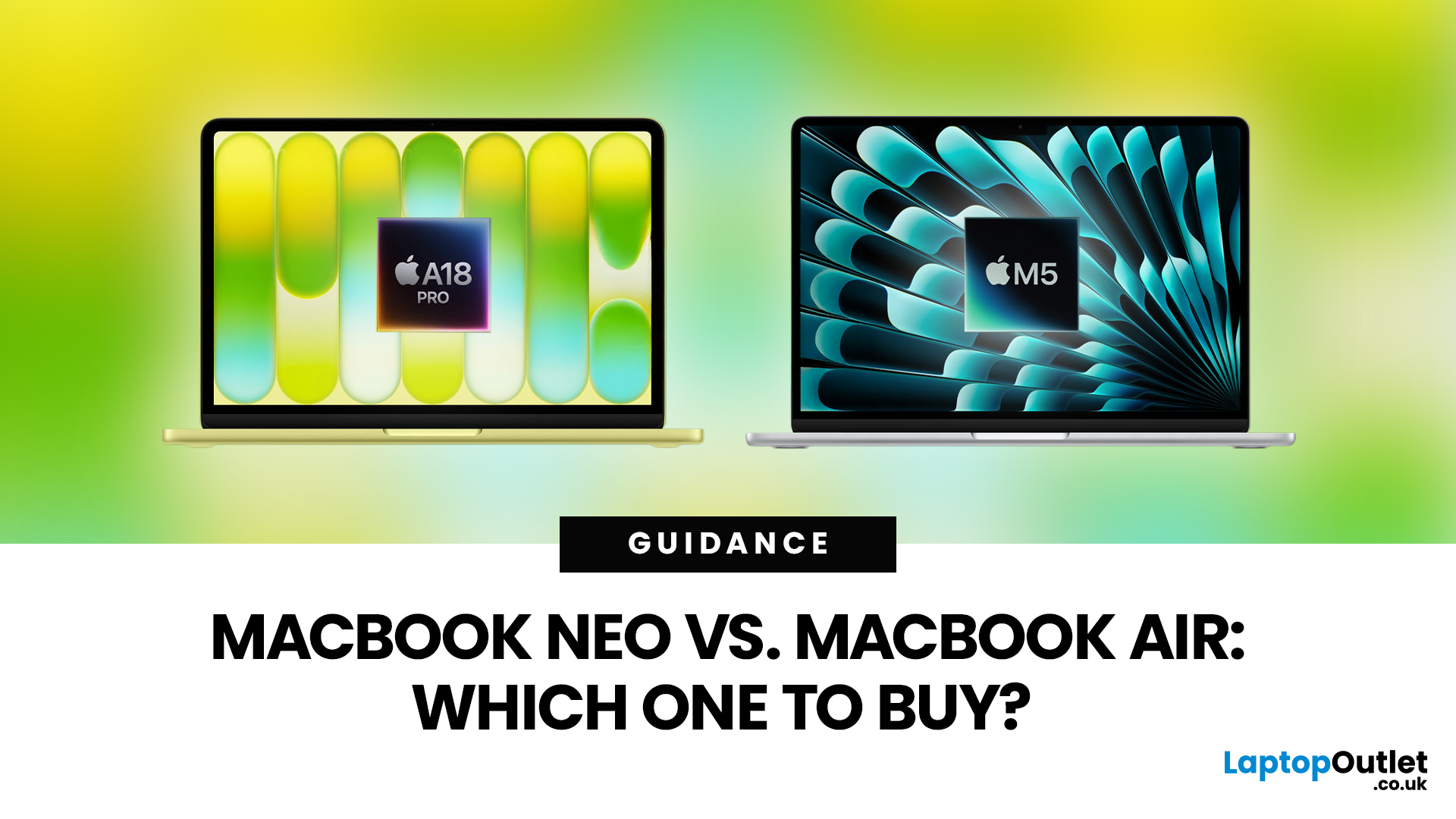
Apple’s 2026 MacBook line-up has a new talking point: MacBook Neo, a genuinely lower-cost Mac designed to bring more people into macOS without asking them to pay MacBook Air money. But the Air hasn’t suddenly become irrelevant. In fact, the newest MacBook Air (M5) is still Apple’s “default” recommendation for most buyers, thanks to stronger performance, more premium extras, and broader long-term headroom.
So, in this MacBook Neo vs MacBook Air guide, we’ll cut through the marketing, look at the real trade-offs (performance, ports, display, battery, and price), and help you choose the right Apple laptop for how you live and work in 2026.
MacBook Neo Overview
The MacBook Neo is Apple’s new entry-level MacBook, positioned below the Air on price. In the UK, Apple lists it from £599. To hit that price, Apple leans on iPhone-class silicon, the Neo is powered by the A18 Pro (the chip family used in iPhone Pro models), paired with 8GB of unified memory and 256GB or 512GB storage.
It also comes
Last Updated: March 09, 2026
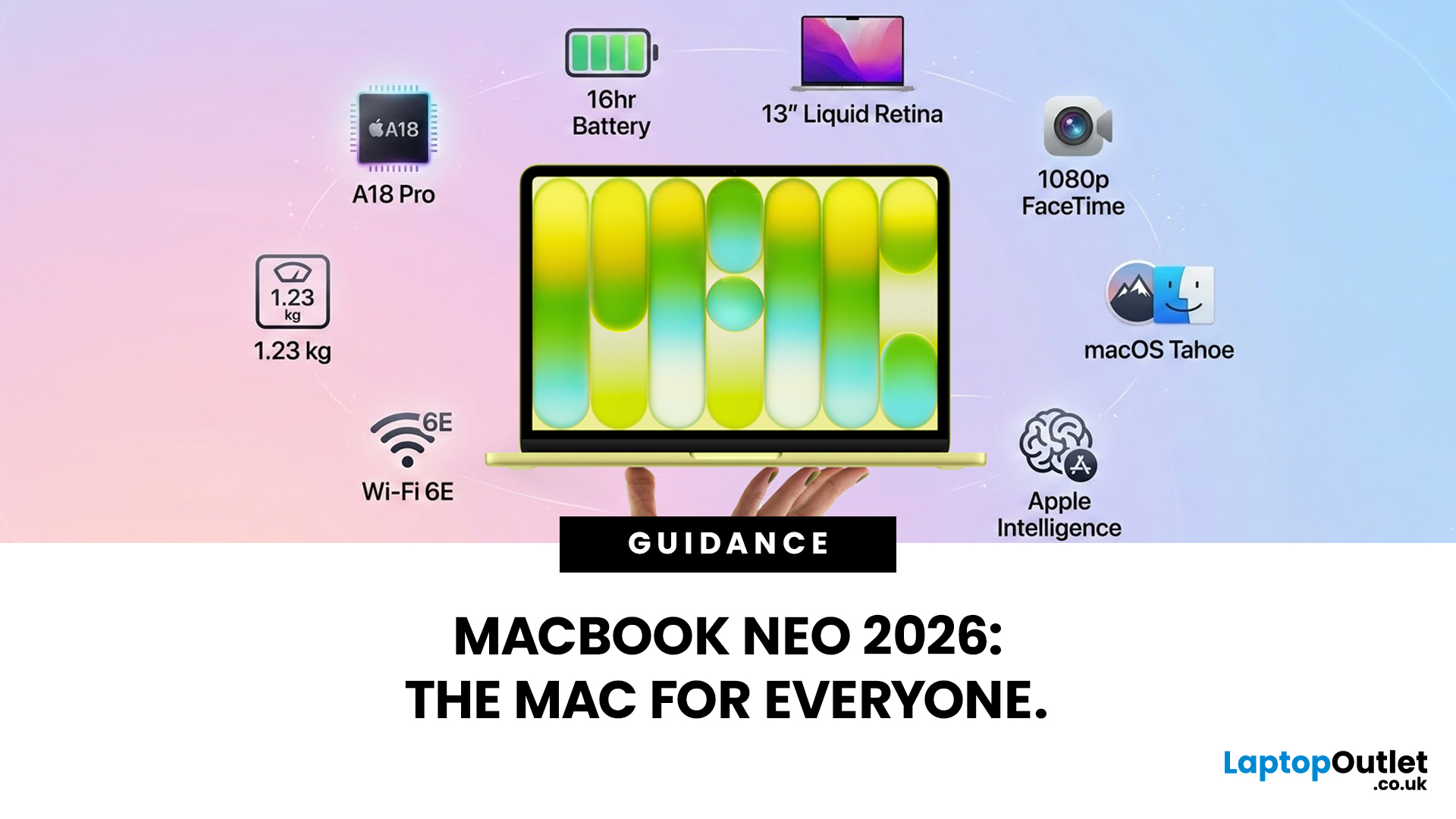
Apple has done something it has not done in years. It has built a MacBook that almost anyone can actually afford.
The MacBook Neo 2026 was announced on 4th March 2026 and went on sale from 11th March 2026. Starting at just £599, it is the most affordable Mac laptop Apple has ever made. That is a bold statement. And this time, Apple means it.
So, what exactly is the MacBook Neo, what can it do, and is it worth buying? Let us break it all down.
What Is the MacBook Neo 2026?
The MacBook Neo is Apple's brand new entry-level laptop. It sits below the MacBook Air and MacBook Pro in the lineup. Think of it as a proper Mac for everyone.
For years, the cheapest way into the Mac world was the MacBook Air at £999. That was too steep for many students and first-time buyers. The MacBook Neo changes that. It brings macOS, Apple silicon, and the full Mac experience to people who want a quality laptop without paying a premium price.
It is not a watered-down product. It is simply a smarter, more accessible
Last Updated: March 09, 2026
Apple has done something surprising. In March 2026, the company unveiled its most affordable laptop ever: the MacBook Neo.
Starting at just £599, it brings the full Mac experience to a much wider audience: students, first-time buyers, and budget-conscious shoppers who have long been priced out of the Apple ecosystem.
This is not just a stripped-down machine. The MacBook Neo features a beautiful aluminium design, a sharp Liquid Retina display, the A18 Pro chip, and up to 16 hours of battery life. In short, it packs a serious punch for its price.
So, what exactly makes this laptop worth your attention? Let us walk through every key MacBook Neo feature in detail.
MacBook Neo: Full Specs at a Glance
Before diving deep, here is a quick overview of everything the MacBook Neo brings to the table.
| Specification | Details |
| Processor | Apple A18 Pro (6-core CPU, 5-core GPU, 16-core Neural Engine) |
| Display | 13-inch Liquid Retina, 2408 x 1506 resolution, 500 nits |
| Memory | 8GB unified memory |
Last Updated: March 09, 2026
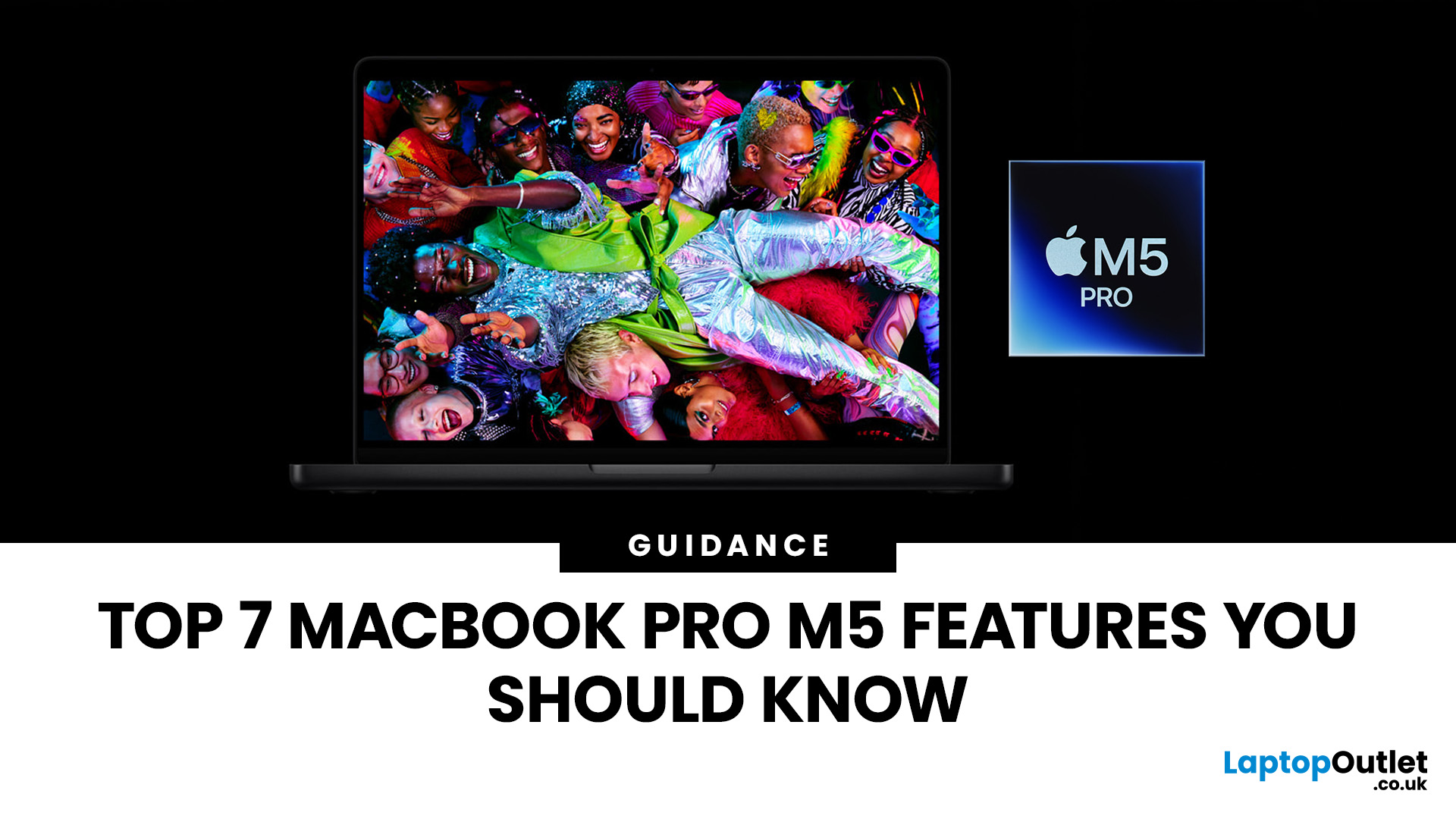
Apple’s MacBook Pro lineup has consistently defined what professional laptops can do, but the introduction of the M5 generation pushes the category even further. Powered by Apple’s latest silicon architecture and backed by upgrades in storage, connectivity, and AI performance, the MacBook Pro M5 is designed to handle modern workflows, from video production and software development to AI experimentation and heavy multitasking.
While the external design remains familiar, the real upgrades are under the hood. Apple has focused heavily on improving computational power, on-device AI processing, wireless capabilities, and storage performance. These changes make the MacBook Pro M5 one of the most capable laptops available for professionals and power users.
Below are the top seven MacBook Pro M5 features that stand out in the latest generation.
1. Next-Generation Apple Silicon: M5 Pro and M5 Max Chips
The biggest upgrade in the MacBook Pro M5 lineup is the introduction of Apple’s M5 Pro and M5

Last Updated: March 09, 2026
If you have been waiting for a proper budget Mac, it is finally here. MacBook Neo launched as Apple’s most affordable laptop ever, and it is clearly built for students, first-time Mac buyers, and anyone who just needs a reliable everyday laptop for browsing, documents, streaming, and calls. The big headline is the price. In the UK, MacBook Neo starts at £599, with £499 education pricing, and it goes on sale on Wednesday, March 11, 2026. Pre-orders are open now.
This guide breaks down what MacBook Neo is, who it is for, what you get for the money, and the trade-offs you should know before ordering.
Want to Buy a MacBook Neo? Quick Verdict
Buy MacBook Neo If You Want the Cheapest New Mac
MacBook Neo makes sense if your daily laptop life looks like this:
- Browsing and web apps
- Word, PowerPoint, Google Docs
- Email and admin
- Zoom or FaceTime calls
- School work and research
- Light photo editing and creative hobbies
It is designed to feel like a real MacBook, just at a lower cost.
Skip MacBook
Last Updated: March 09, 2026
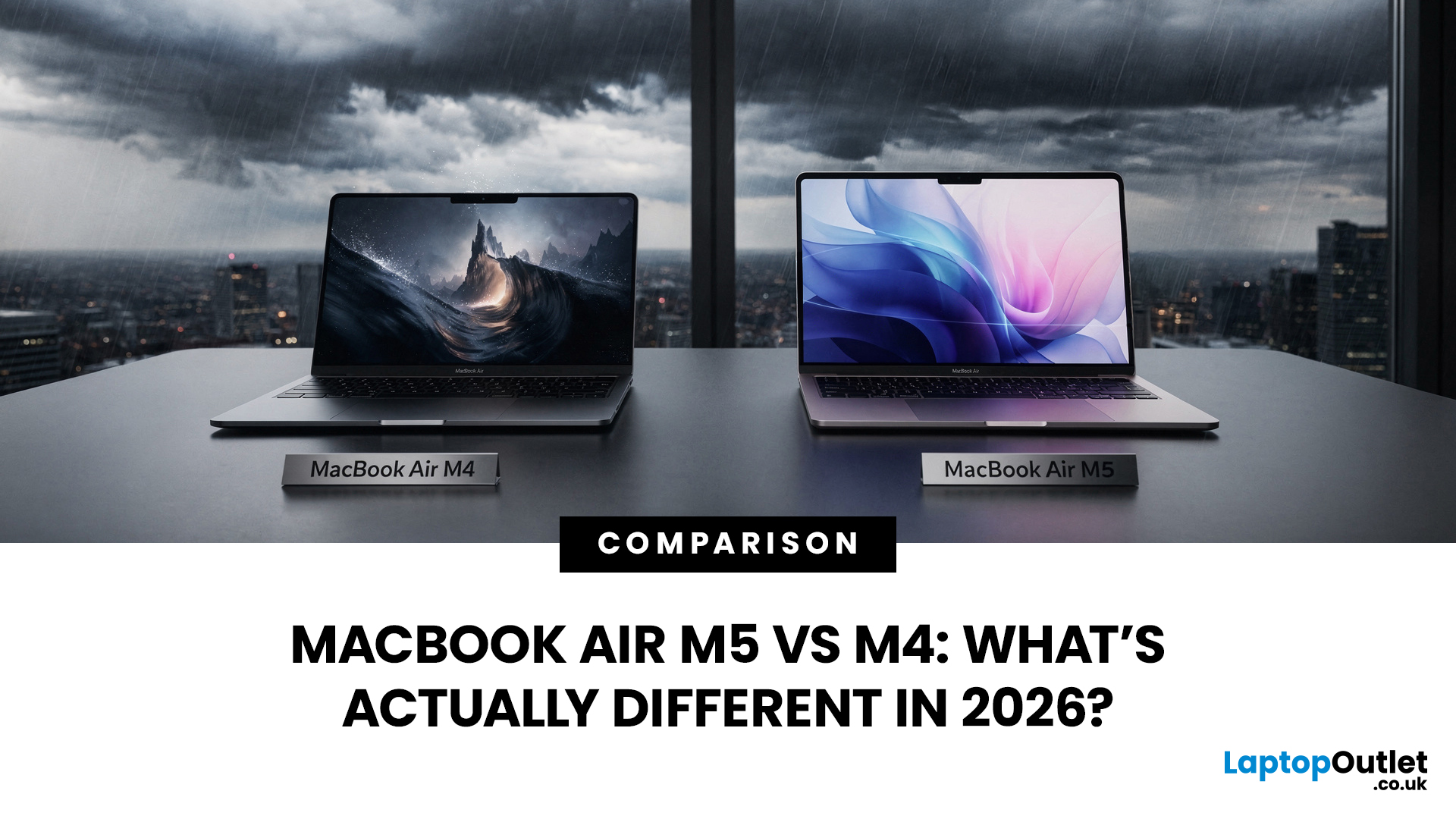
If you’ve been thinking about buying a MacBook Air this year, you’ve probably run into the same question everyone in the UK tech community is asking:
Should you buy the new MacBook Air M5 or save money with the M4?
At first glance, the two laptops look almost identical. Same ultra-thin aluminium design. Same beautiful display. Same lightweight build that makes the MacBook Air perfect for working in cafés, trains, or university libraries.
But once you dig a little deeper, the MacBook Air M5 vs M4 comparison starts to reveal some interesting differences.
Apple hasn’t completely reinvented the MacBook Air in 2026, but the company has quietly improved several areas including performance, storage, wireless connectivity, and AI features.
So, if you're planning to buy an Apple MacBook from UK, Laptop Outlet or Amazon, this guide will help you decide which model actually makes more sense.
Let’s break it down.
MacBook Air M5 vs M4: Quick Comparison
Before diving into details, here’s a quick overview

Last Updated: March 09, 2026
Apple laptops have never really been known for being “cheap.” For years, the entry point into the MacBook world started at around £999 or more. But that has finally changed.
In March 2026, Apple unveiled something unexpected: MacBook Neo, the company’s most affordable MacBook ever. Designed for students, casual users, and first-time Mac buyers, the Neo brings the macOS experience to a much lower price point than previous Apple laptops.
So how much does it cost in the UK? What specs do you get? And is it worth buying?
Let’s break it all down.
MacBook Neo Price UK
The MacBook Neo price in the UK starts at around £599 for the base configuration.
That makes it the cheapest MacBook Apple has ever released, significantly undercutting the MacBook Air, which currently starts at around £1,099 in the UK.
Here’s a quick breakdown of expected pricing tiers:
| Model | Storage | Expected UK Price |
| MacBook Neo (Base) | 256GB SSD | ~£599 |
| MacBook Neo | 512GB SSD | ~£699 |
| Education pricing | 256GB SSD | ~£499 (students/educators) |
Last Updated: March 09, 2026
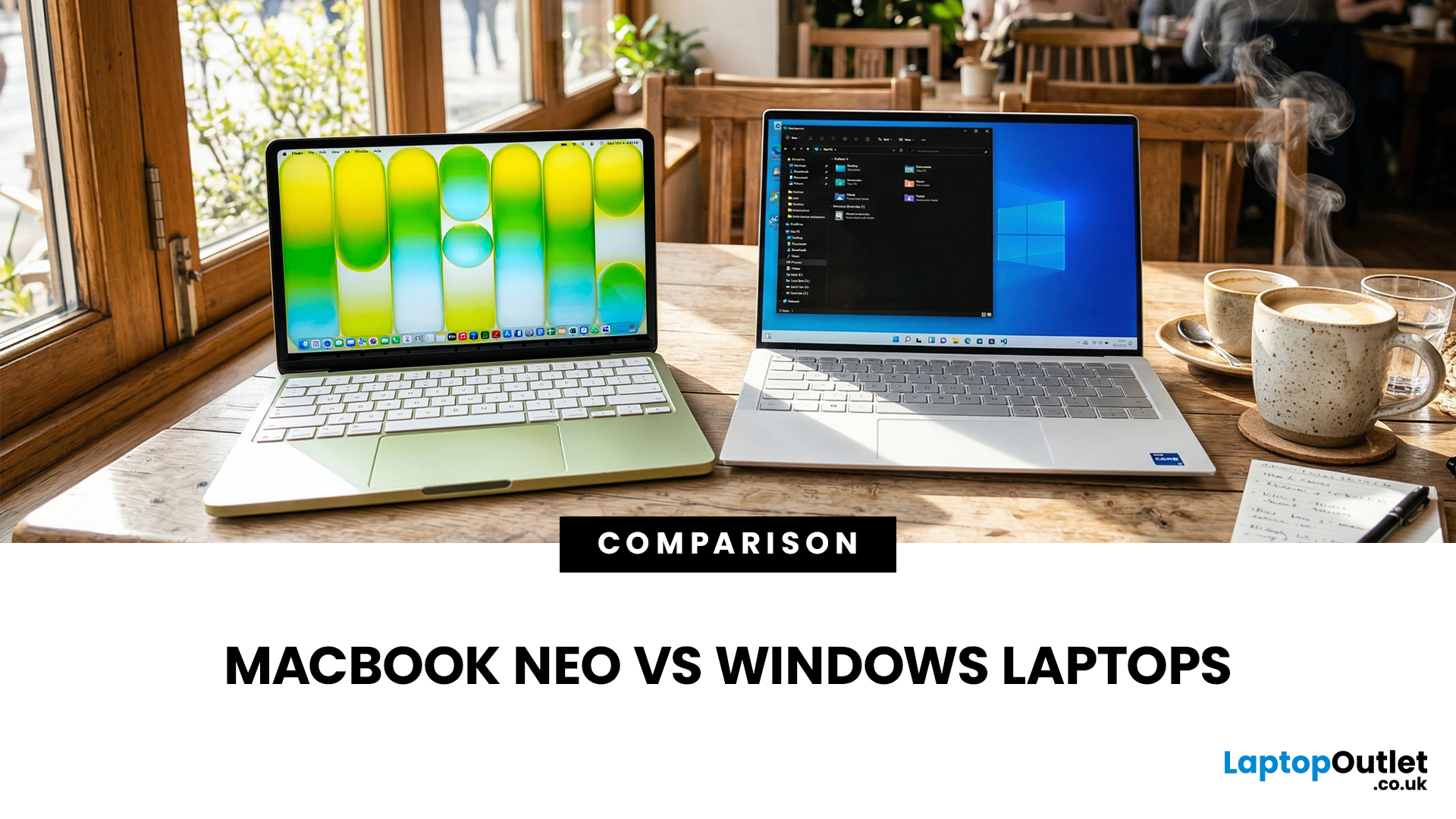
If you are comparing MacBook Neo vs Windows laptops, you are really asking one question: should you buy Apple’s cheapest Mac, or get a budget Windows laptop with more ports and more choice?
MacBook Neo is new, starts at £599, and is designed to be a simple, premium-feeling everyday laptop with macOS, long battery life, and strong call quality.
Budget Windows laptops can offer more screen sizes, more ports, and sometimes better upgrade options. But quality is inconsistent in this price range, and that’s where Neo tries to win.
Below is the practical, buyer-focused breakdown.
10-Second Answer Box
Choose MacBook Neo if
- You want the cleanest everyday experience for browsing, school, docs, and calls
- You value build quality and trackpad feel
- You want a laptop that stays fast and quiet for years, without tweaking settings
Choose a budget Windows laptop if
- You want more ports like HDMI and USB-A built in
- You need a bigger screen for the money
- You want the flexibility of Windows software and lots
Last Updated: March 09, 2026
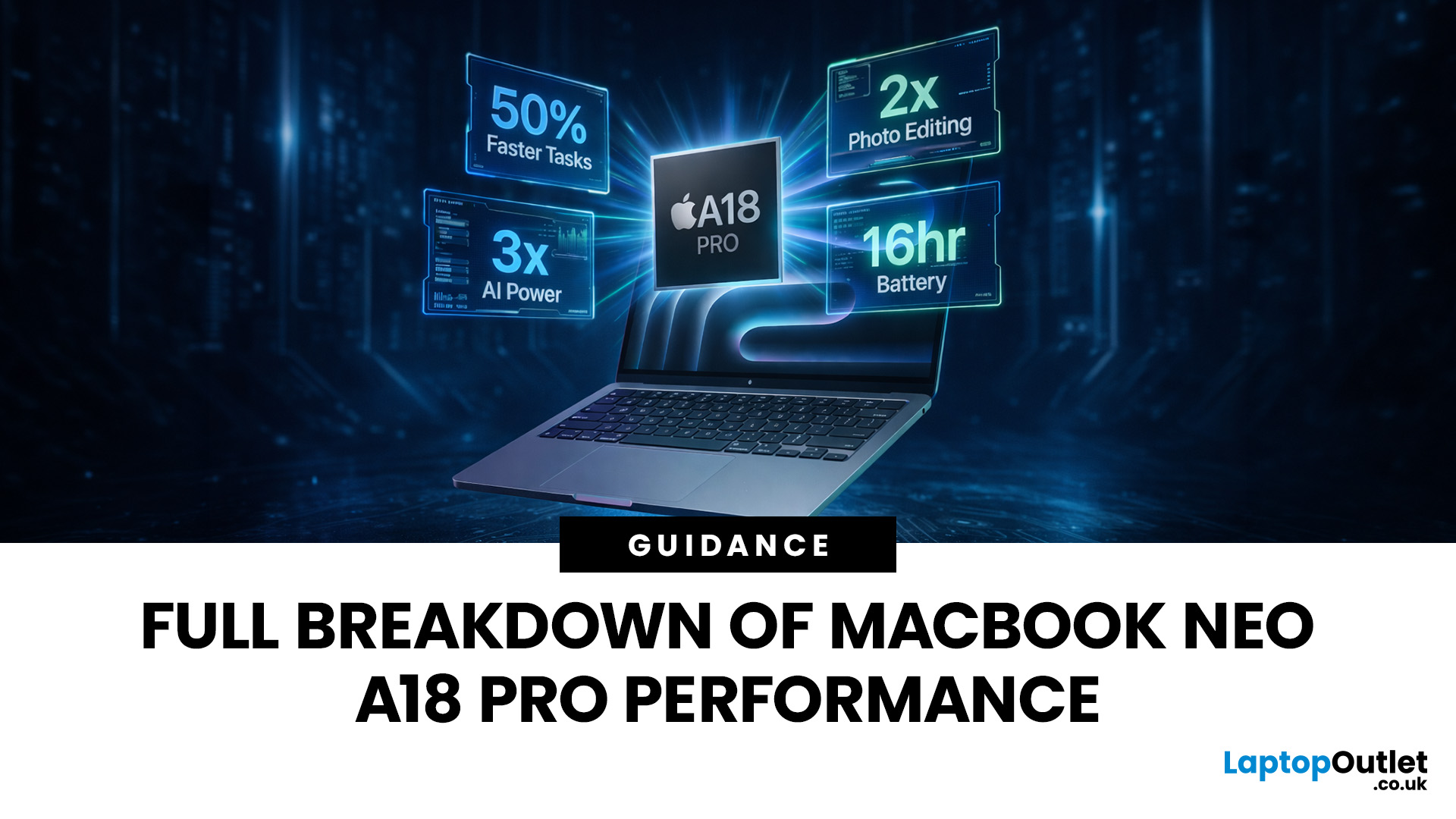
Apple made a bold move on 4 March 2026. It introduced the MacBook Neo — a laptop that starts at just £599 and runs on a chip that, until now, only lived inside iPhones.
That chip is the A18 Pro. And its arrival in a Mac laptop raises a very obvious question: what does it actually mean for performance?
The answer is more interesting than you might expect. This article breaks it all down — the architecture, the real-world gains, the trade-offs, and who this machine is really built for.
What Is the A18 Pro Chip?
The A18 Pro is not a new chip. It first appeared in the iPhone 16 Pro in late 2024. But placing it inside a laptop is entirely new territory for Apple.
This is the first time Apple has ever used a mobile-class chip to power a Mac. That alone makes the A18 Pro MacBook Neo a significant moment in computing history.
The Core Architecture
Here is what sits inside the A18 Pro:
- 6-core CPU — 2 performance cores and 4 efficiency cores
- 5-core GPU — hardware-accelerated ray tracing included

Last Updated: April 28, 2026
Apple’s Studio Display and Pro Display XDR are among the most advanced monitors available for professionals. With ultra-sharp 5K and 6K resolutions, these displays are designed for creatives who need exceptional colour accuracy, brightness, and detail.
However, to get the best experience, you need a powerful MacBook with strong graphics performance and Thunderbolt connectivity. Apple’s latest MacBooks powered by M3, M4, M5, M5 Pro, and M5 Max chips bring major improvements in performance, AI capabilities, and external display support.
Can MacBooks Support the Studio Display or Pro Display XDR?
Yes. Most modern Apple Silicon MacBooks can connect to these displays.
Studio Display
- Resolution: 5K (5120 × 2880)
- Thunderbolt / USB-C connection
- Works with most Apple Silicon Macs
Pro Display XDR
- Resolution: 6K (6016 × 3384)
- Requires high bandwidth Thunderbolt connection
- Best paired with MacBook Pro models
Modern MacBooks with Thunderbolt ports and Apple Silicon chips can drive high-resolution

