



How to Clone Your Hard Drive to an SSD: Upgrade Guide
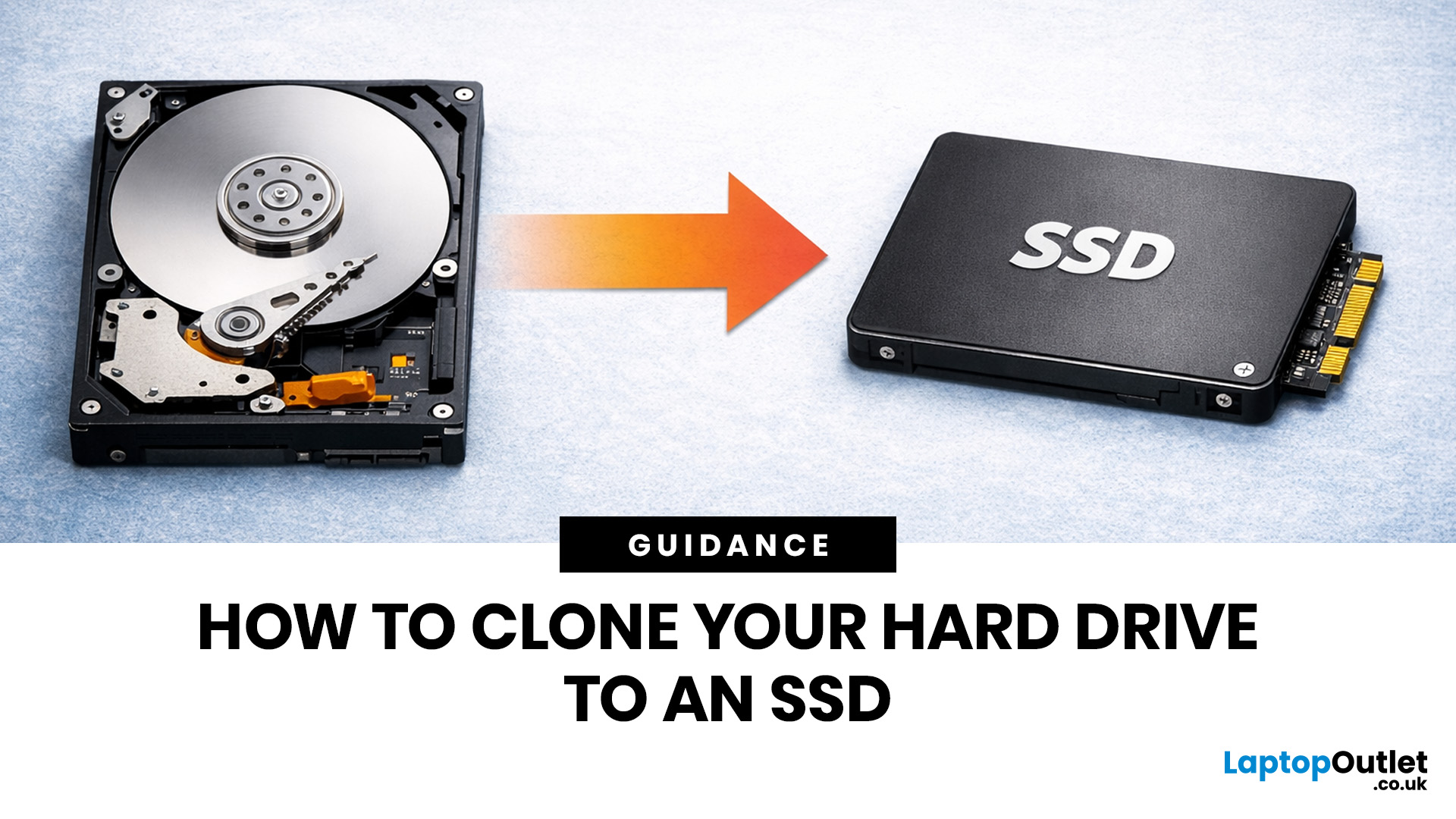
If your laptop feels slow to boot, takes too long to open files, or struggles with everyday performance, it may be time to clone hard drive to SSD and give your system a faster, more responsive upgrade. Moving from a traditional hard disk drive to a solid-state drive is one of the most effective ways to improve speed without replacing your entire device.
In this guide, you’ll learn how to clone a hard drive safely, what you need before you start, and how to handle the SSD migration process step by step. Whether you want to clone HDD to SSD for quicker startup times or simply transfer hard drive to SSD without losing your files, this guide will help you do it with confidence.
Why Upgrade from HDD to SSD?
A hard disk drive stores data using moving parts, while an SSD uses flash memory to access files much faster. That means quicker boot times, faster app launches, smoother multitasking, and less waiting around. If you use your laptop daily for work, study, browsing, or entertainment, choosing to clone disk to SSD can make the whole experience feel significantly better.
It is also a practical upgrade if your current laptop still meets your needs but feels held back by old storage. Instead of buying a brand-new machine straight away, you can improve performance by installing one of our high-speed internal SSDs. If you are comparing upgrade paths alongside broader device options, you can also explore all laptops to see whether a storage upgrade or a full refresh is the better fit.
What Does it Mean to Clone a Hard Drive?
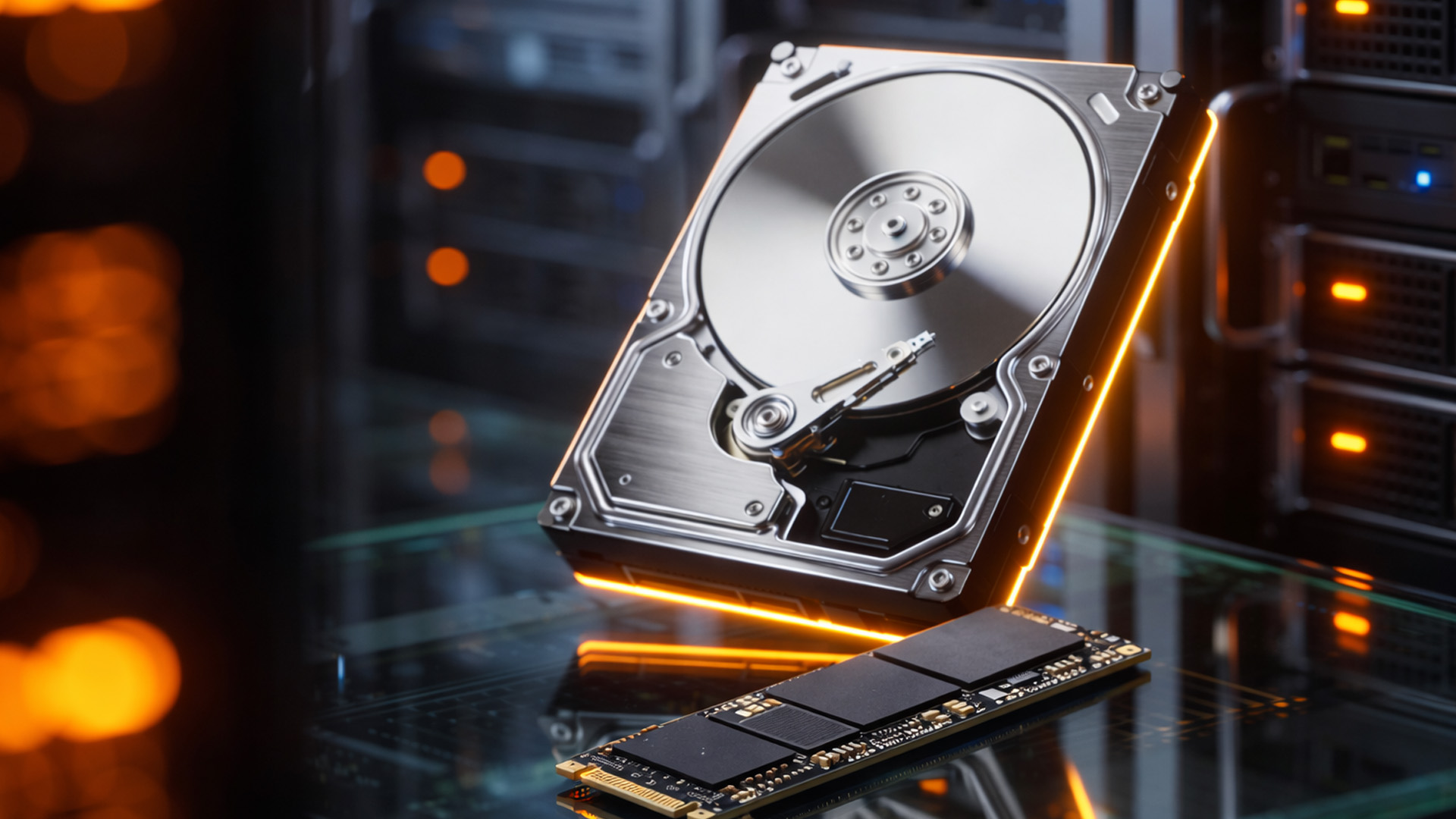
To clone a hard drive means creating an exact copy of your existing drive onto another drive. This includes your operating system, installed programs, settings, and personal files. When you clone computer hard drive data to an SSD, your new SSD becomes a working copy of the original, so you can swap drives and continue using your system with minimal disruption.
This is different from simply copying files manually. If you are wondering, “how do I copy a hard drive properly?”, cloning is usually the better answer because it keeps the drive structure, partitions, and boot information intact.
What You Need Before You Start
Before you begin the SSD migration process, make sure you have a few essentials ready. You will need your new SSD, cloning software, a way to connect the SSD to your laptop if it is not yet installed internally, and enough available space on the SSD to hold the data from your current drive.
It is also worth checking how much storage your existing drive is using. The SSD does not always need to match the full size of your old hard drive, but it must be large enough for the actual data you plan to move. If your current drive is cluttered, remove unwanted files first to make the process easier.
For users planning a wider RAM upgrade, this can also be a good time to review memory performance. Adding the best RAM for laptops alongside a storage upgrade can help improve overall responsiveness even further.
How to Clone a Hard Drive to an SSD
If you want to know how to clone HDD to SSD successfully, follow these steps carefully.
1. Back UpYour Important Files
Even though cloning is designed to preserve your data, it is always wise to create a backup before making major changes. Save your most important files to cloud storage or buy external hard drive options for extra peace of mind.
2. Connect the SSD
Install the SSD into your laptop if your device has a spare slot, or connect it externally using a SATA-to-USB adapter or enclosure. Your system needs to detect the new drive before the cloning software can use it.
3. Initialise the SSD if Needed
In some cases, Windows will prompt you to initialise the new SSD. Follow the on-screen instructions if necessary. This prepares the drive so the software can recognise it correctly.
4. Install andOpen Cloning Software
Choose trusted disk cloning software that supports your system and drive format. Most tools are designed to guide you through the process, making it easier to clone a hard drive even if you have never done it before.
5. Select Your Source and Destination Drives
Your source drive is the old HDD containing your files and operating system. Your destination drive is the new SSD. Double-check this step carefully. Selecting the wrong drive can result in lost data.
6. Start the Clone
Begin the process and allow the software to copy everything across. Depending on the amount of data, this could take anywhere from under an hour to several hours. Once complete, you will have a clone SSD setup that mirrors the original drive.
7. Replace the Old Drive or Change Boot Order
If your laptop only has one drive bay, power down the device and swap the HDD for the SSD. If both drives are installed, you may need to enter BIOS or UEFI settings and set the SSD as the primary boot device.
8. Test the SSD
Start your laptop from the SSD and make sure Windows, your files, and your apps load correctly. Once you confirm everything works as expected, you can wipe the old drive for reuse or keep it as a backup.
How to Clone Hard Drive Windows 10 Users Already Have in Place
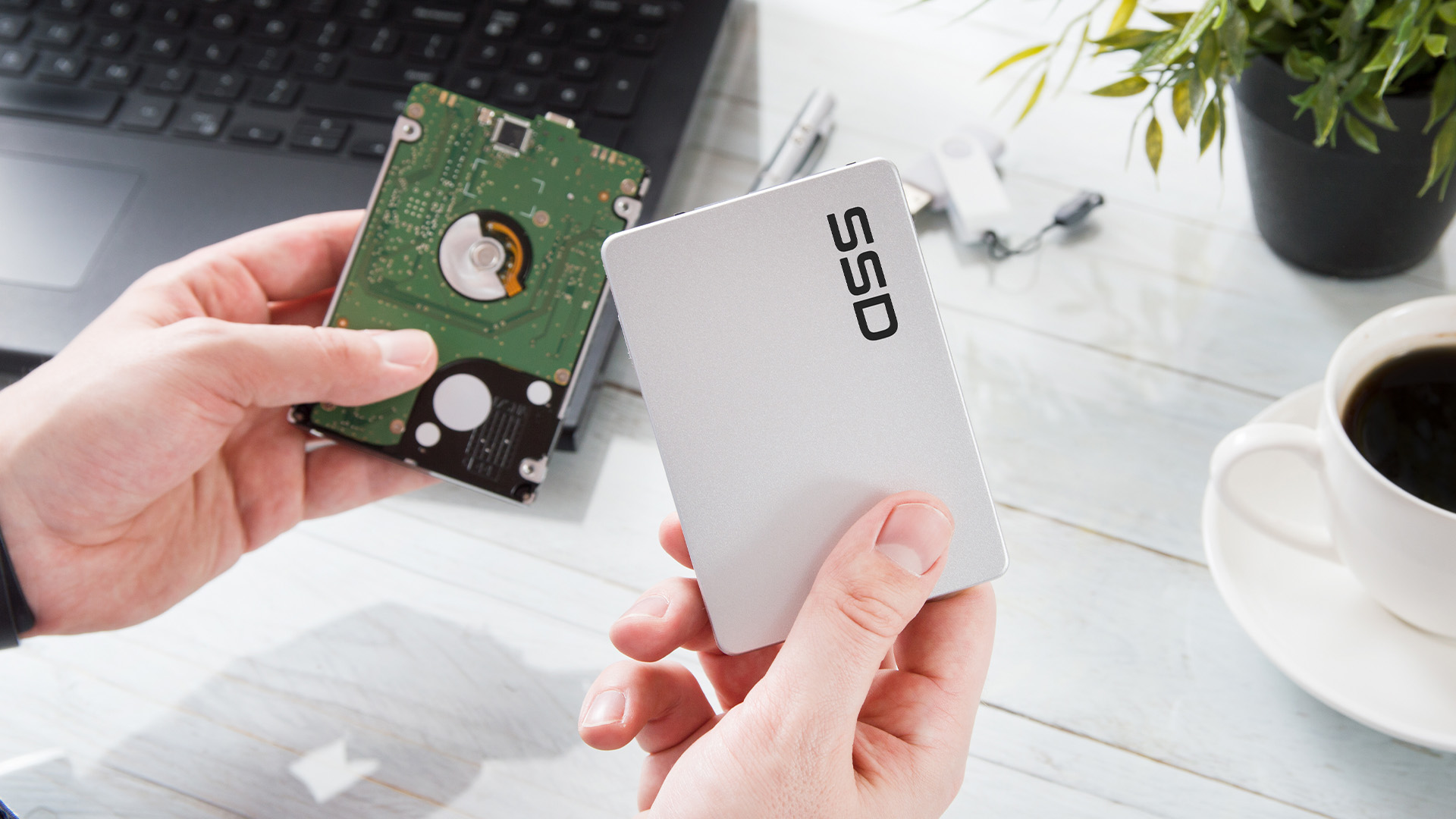
If you are specifically searching for how to clone hard drive Windows 10 systems, the process is largely the same. The key thing is making sure the cloning software supports Windows 10 boot partitions and recovery layouts. Once the clone is complete, Windows 10 should boot from the SSD just as it did from the original HDD, only much faster.
It is also worth checking that your SSD is set to AHCI mode where supported, and that partition alignment is handled correctly by the software. These details can affect SSD performance after the migration.
Common Mistakes to Avoid
When users try to clone solid state drive or HDD setups for the first time, a few issues tend to come up again and again.
- One of the most common is trying to clone more data than the SSD can hold.
- Another is forgetting to back up important files before starting.
- Some users also confuse file copying with full disk cloning, which leads to a drive that cannot boot properly.
- A third issue is using older cables, adaptors, or enclosures that interrupt the transfer.
- If the process fails midway, reconnect everything securely and start again with reliable hardware.
If you are shopping for upgrade parts, our range of affordable internal SSDs makes it easier to find the right capacity and performance level for your setup.
Should You Clone or Do a Clean Install?
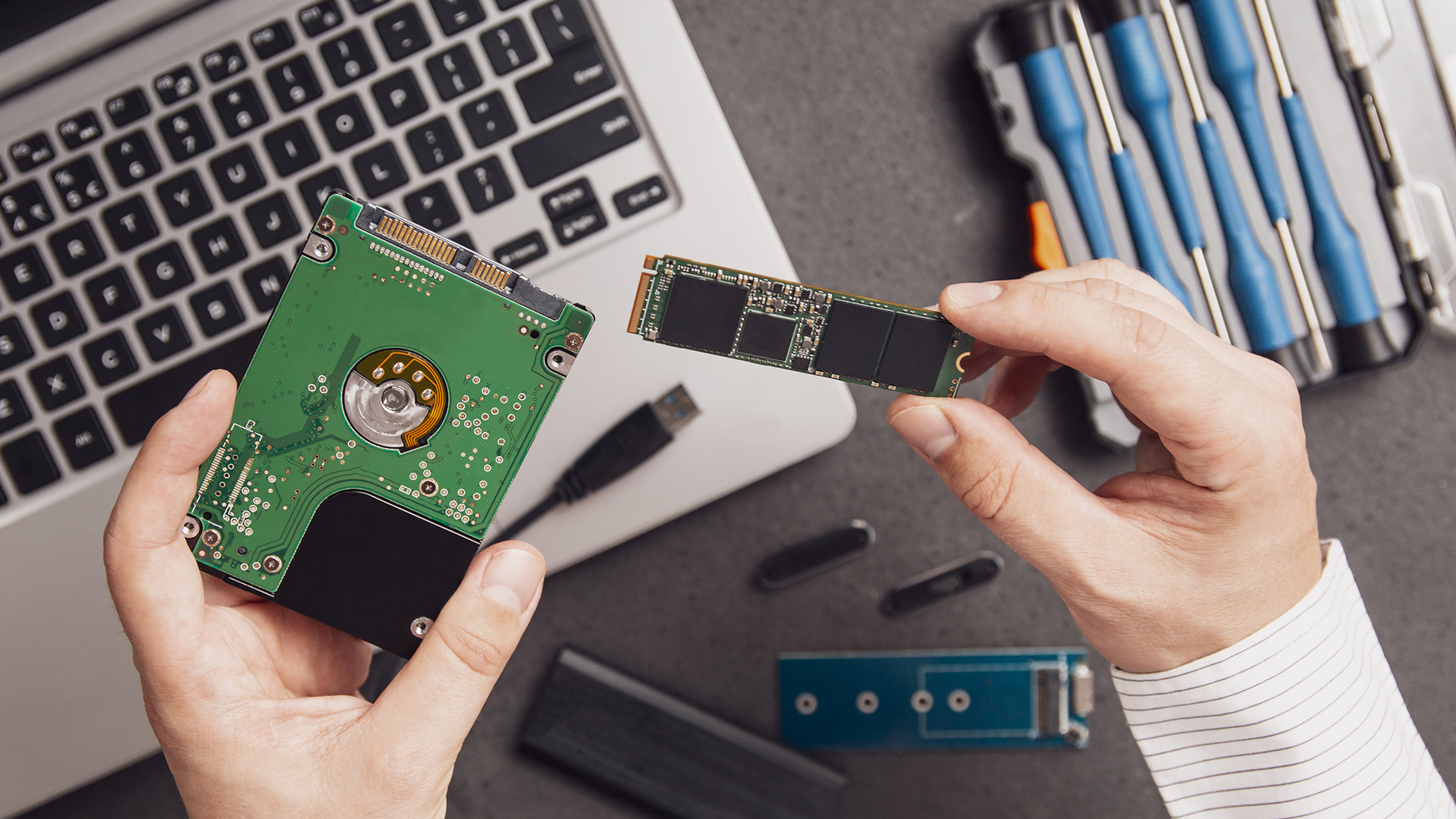
For most users, cloning is the fastest and easiest option. It saves time, keeps your settings in place, and reduces the need to reinstall software. If your system is healthy and you simply want better storage speed, it makes sense to clone hard drive to SSD and carry on using your laptop as normal.
A clean install may be the better route if your current system has serious software issues, malware problems, or years of clutter you would rather leave behind. In that case, installing Windows fresh on a new SSD can give you a cleaner starting point, though it takes more time to set everything back up.
Expert Advice for a Faster, Hassle-Free SSD Upgrade
From a practical upgrade point of view, the best results come from planning the move before you start. First, check what type of SSD your laptop supports, whether that is a 2.5-inch SATA SSD or an M.2 NVMe model. Buying the right format matters just as much as choosing the right capacity.
Next, keep at least some free space available on the SSD after the transfer. SSDs perform better when they are not completely full. It is also a good idea to update your laptop BIOS and storage drivers if recommended by the manufacturer before you begin the SSD migration process.
Finally, think about how you use your laptop day to day. If you mainly need a reliable machine for browsing, office work, streaming, and study, pairing faster storage with one of our lightweight laptops for daily tasks can be a smart long-term option. If you need extra portable storage after the upgrade, you can also buy external hard drive solutions to keep larger files, backups, and media libraries separate from your main SSD.

Final Thoughts
Learning how to clone a hard drive is a useful skill if you want a faster system without starting from scratch. Whether you need to clone HDD to SSD, transfer hard drive to SSD, or simply understand how the process works, the upgrade can make a noticeable difference to everyday laptop performance.
With the right preparation, trusted software, and a compatible SSD, you can clone a hard drive safely and enjoy faster boots, better responsiveness, and a smoother overall experience. Thus, save your most important files to cloud storage or explore external storage options for added security.

FAQs
Can I clone hard drive to SSD without reinstalling Windows?
Yes. When you clone hard drive to SSD, the cloning software copies your operating system, files, settings, and installed applications. That means you can usually boot from the SSD without reinstalling Windows.
How do I copy a hard drive if my laptop only has one drive slot?
You can connect the SSD externally using a SATA-to-USB adaptor or enclosure, complete the cloning process, then replace the internal HDD with the SSD once the transfer is finished.
Is cloning better than manually copying files?
Yes, in most cases. Manually copying files does not usually preserve the operating system or boot structure. If you want a usable replacement drive, it is better to clone a hard drive properly with dedicated software.
Can I clone HDD to SSD if the SSD is smaller?
Yes, but only if the data stored on the HDD fits within the SSD capacity. You may need to delete unnecessary files first so the clone disk to SSD process can complete successfully.
What should I do with my old hard drive after cloning?
Once you have confirmed the SSD works correctly, you can keep the old HDD as a backup, reuse it as external storage, or securely wipe it before recycling. Many users choose to buy external hard drive options or repurpose the old drive for additional storage.
| Read More: |
| SSD vs HDD: Which Storage Option is Right for You? |
| External Hard Drives vs USB Flash Drives: Which Should You Choose? |
| NAS Storage Explained: Do You Need One? |
Related Articles

Last Updated: September 11, 2025
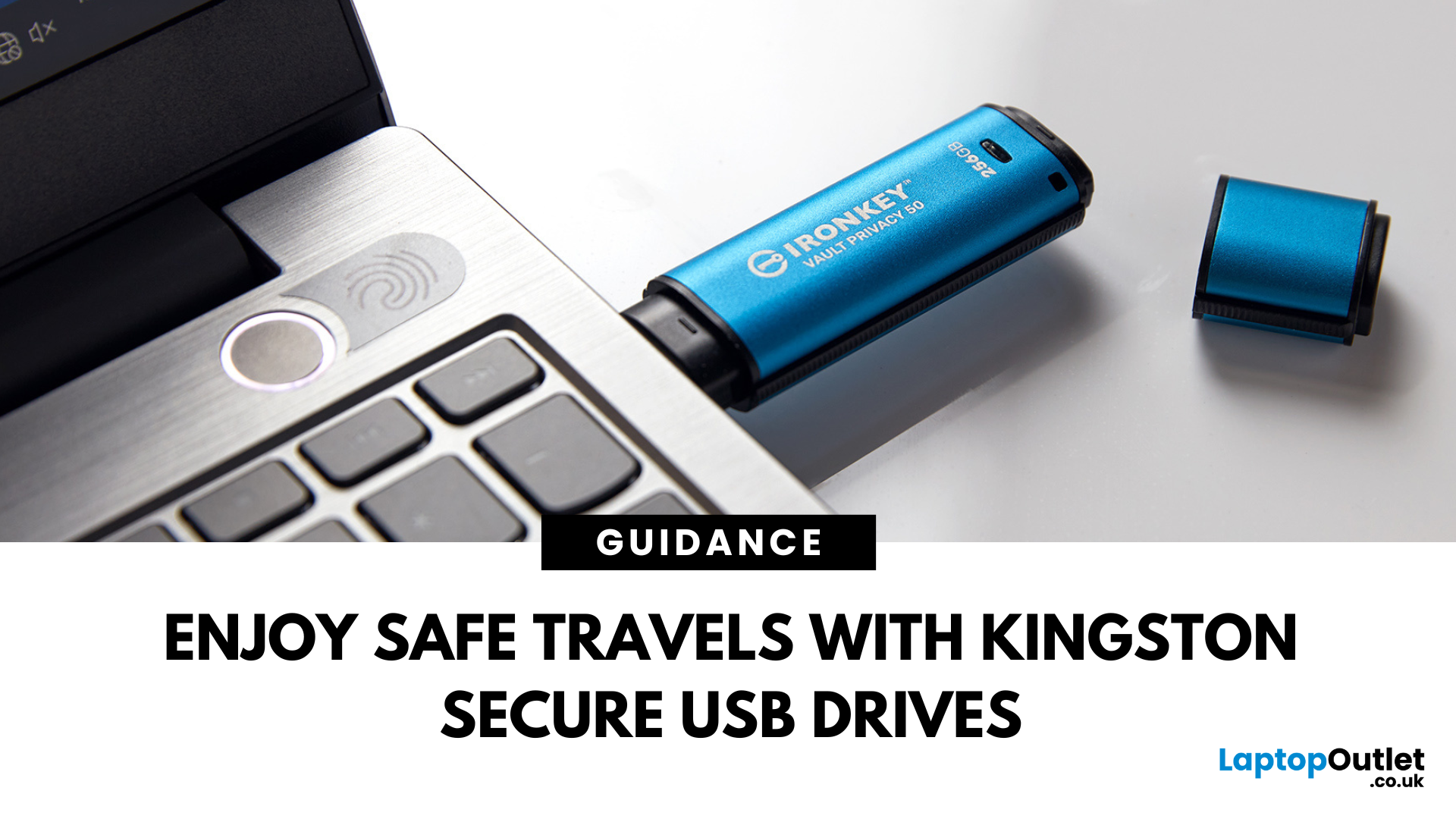
Enjoy Safe Travels with Kingston Secure USB Drives:
Whether you are a business professional travelling across continents or a student going home for the holidays, your data travels with you. From confidential presentations and financial documents to personal photos and files, portable storage devices like USB drives have become increasingly popular for storing a wide range of data. They offer convenience with their portability, but this convenience can sometimes pose some risks.
Travelling exposes your data to a number of threats, ranging from lost or stolen devices to unauthorised access in public spaces such as airports, hotels, and cafes. Even a moment of carelessness can lead to a data breach, especially if you are using standard USB drives that offer little to no protection.
That is where Kingston secure USB drives come in. Designed with military-grade encryption and tamper-proof features, these USB drives are built to keep your data safe, even in the most unpredictable environments.

Last Updated: September 11, 2025
Small Device, Big Function
You’ve probably used a USB flash drive or thumb drive before—but what exactly are they? These small but mighty devices are essential for storing and transferring data quickly and easily. Let’s unpack what a USB flash drive is, what it does, and why it’s still so popular in 2025.
1. What Is a USB Flash Drive?
A USB flash drive (also called a thumb drive, pen drive, or memory stick) is a small, portable storage device that connects to your computer or laptop via a USB port.
Key Characteristics:
Uses flash memory (no moving parts)
Plugs directly into USB-A or USB-C ports
Often pocket-sized and lightweight
The term "thumb drive" comes from its compact size—similar to a human thumb
2. What Is It Used For?
Storing documents, photos, videos, and music
Transferring files between devices
Backing up important data
Creating bootable drives for OS installations (like Windows 11)
3. USB Flash Drive vs External Hard Drive
| Feature | USB Flash Drive | External |
Last Updated: September 09, 2025
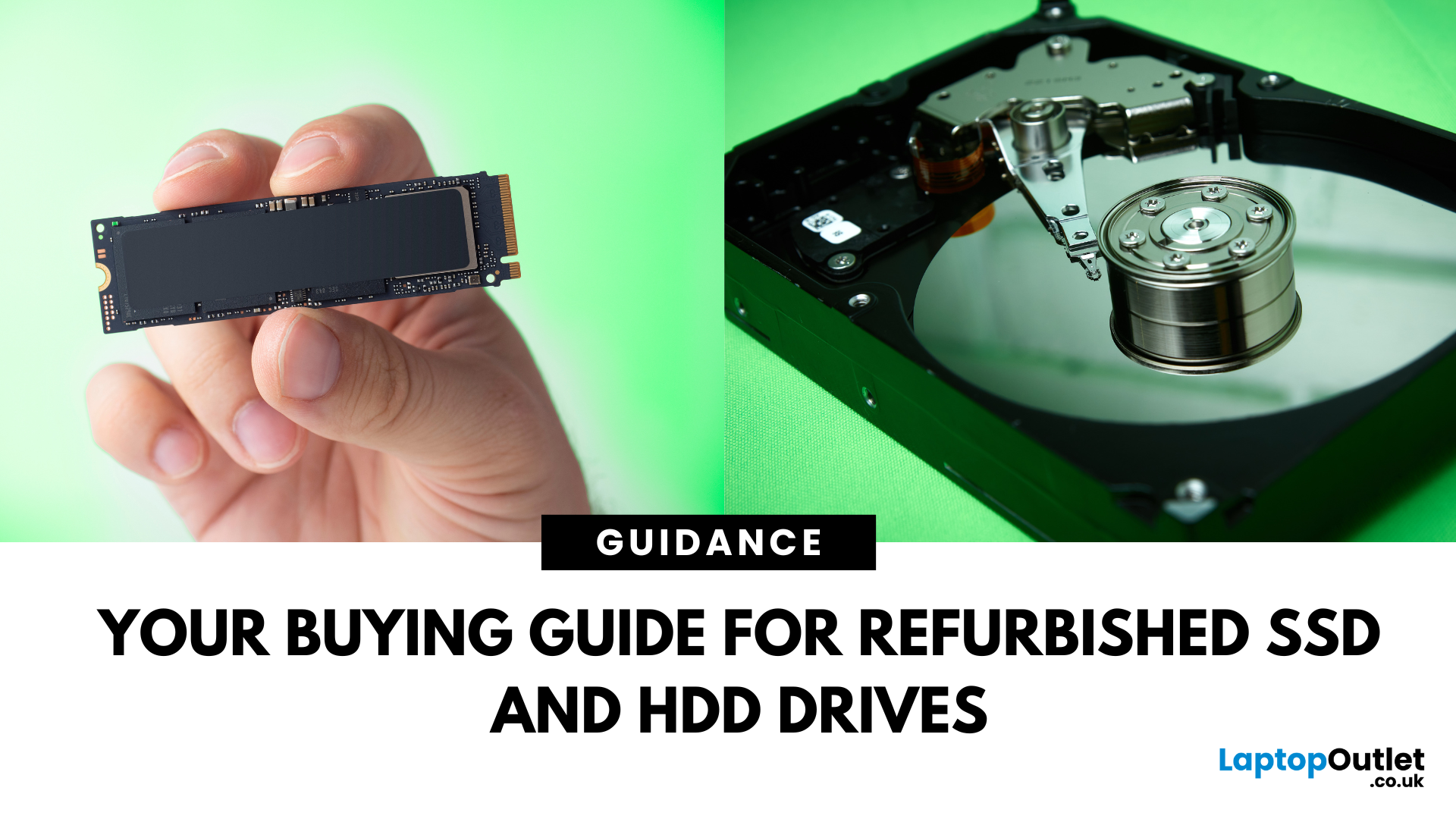
Need more storage or speed but don’t fancy paying full price? Buying a refurbished SSD or HDD could be the budget-friendly solution you’re after. Whether you're upgrading your current device or adding extra space for files, games, or media, refurbished drives offer great value without compromising functionality.
However, not all refurbished storage is created equal. To ensure your investment lasts and performs well, you need to understand the difference between drive types, evaluate their health, and select based on your specific needs, whether it’s for day-to-day use, gaming, or business tasks.
This guide covers everything you should know before buying refurbished SSD or HDD, external refurbished drives, or upgrading your refurbished SSD laptop. It’s your go-to resource for making a smart, informed choice.
Understanding the Difference Between SSD and HDD
When choosing between a refurbished SSD and HDD, it’s important to know how each works and which suits your needs better. Both offer

Last Updated: May 07, 2026
HP laptops are built to deliver reliable performance, whether you’re working, studying, or simply enjoying entertainment. But like any modern computing device, they rely heavily on software and firmware updates to keep everything running smoothly. Outdated drivers or BIOS can lead to system instability, hardware not functioning correctly, or slower performance over time.
Knowing how to manage updates is an essential skill for users who want to maintain fast HP laptops and ensure HP laptop performance preservation. This article comprehensively explains everything you need to know about the BIOS HP laptops, as well as how to update drivers effectively.
What is the BIOS on HP Laptops?
The BIOS (Basic Input/Output System) is firmware stored on your laptop’s motherboard. It initialises hardware during startup and loads your operating system. On newer HP models, the BIOS has been replaced with UEFI (Unified Extensible Firmware Interface), which provides a more modern interface, faster boot times,
Last Updated: December 18, 2025
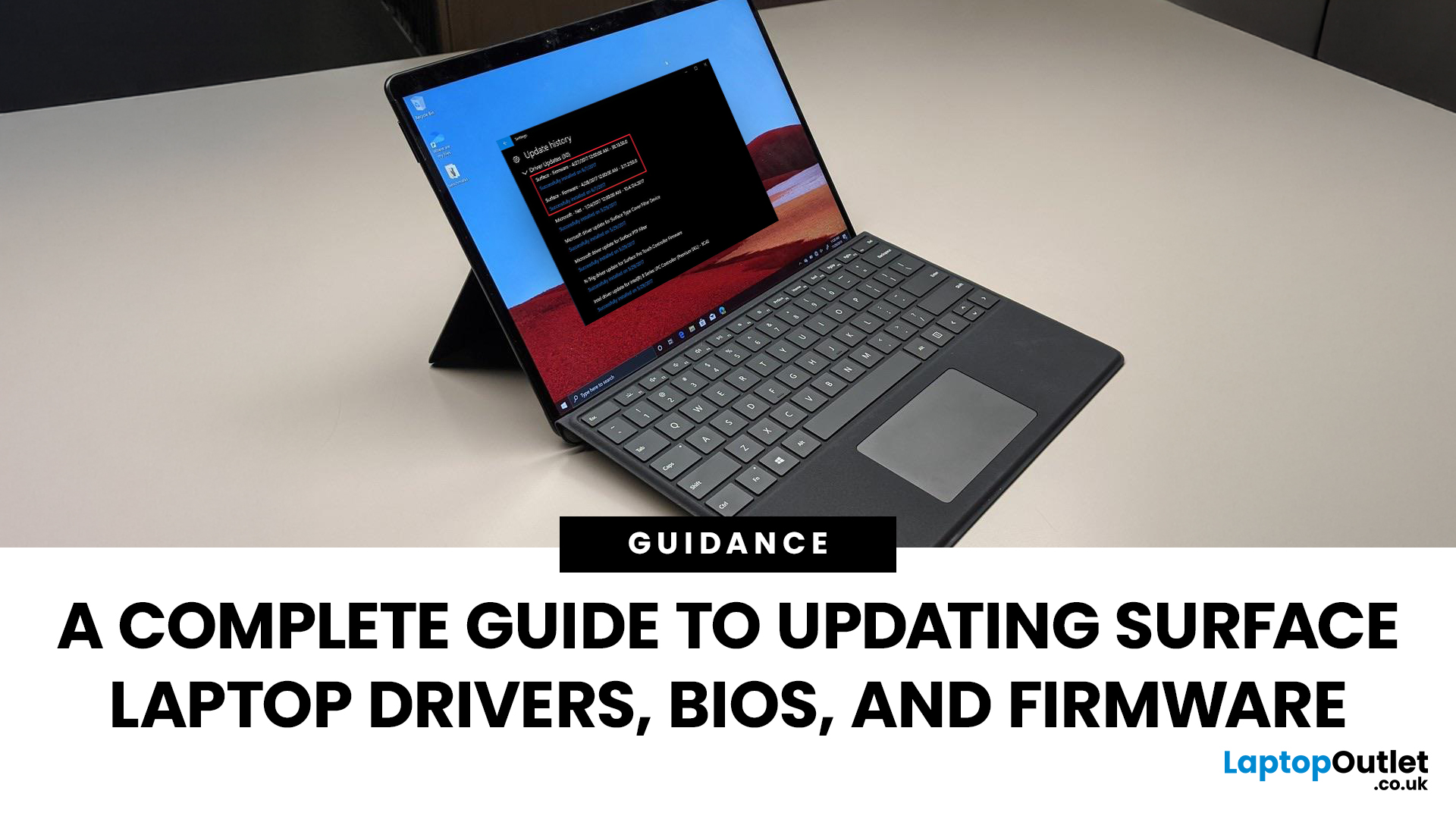
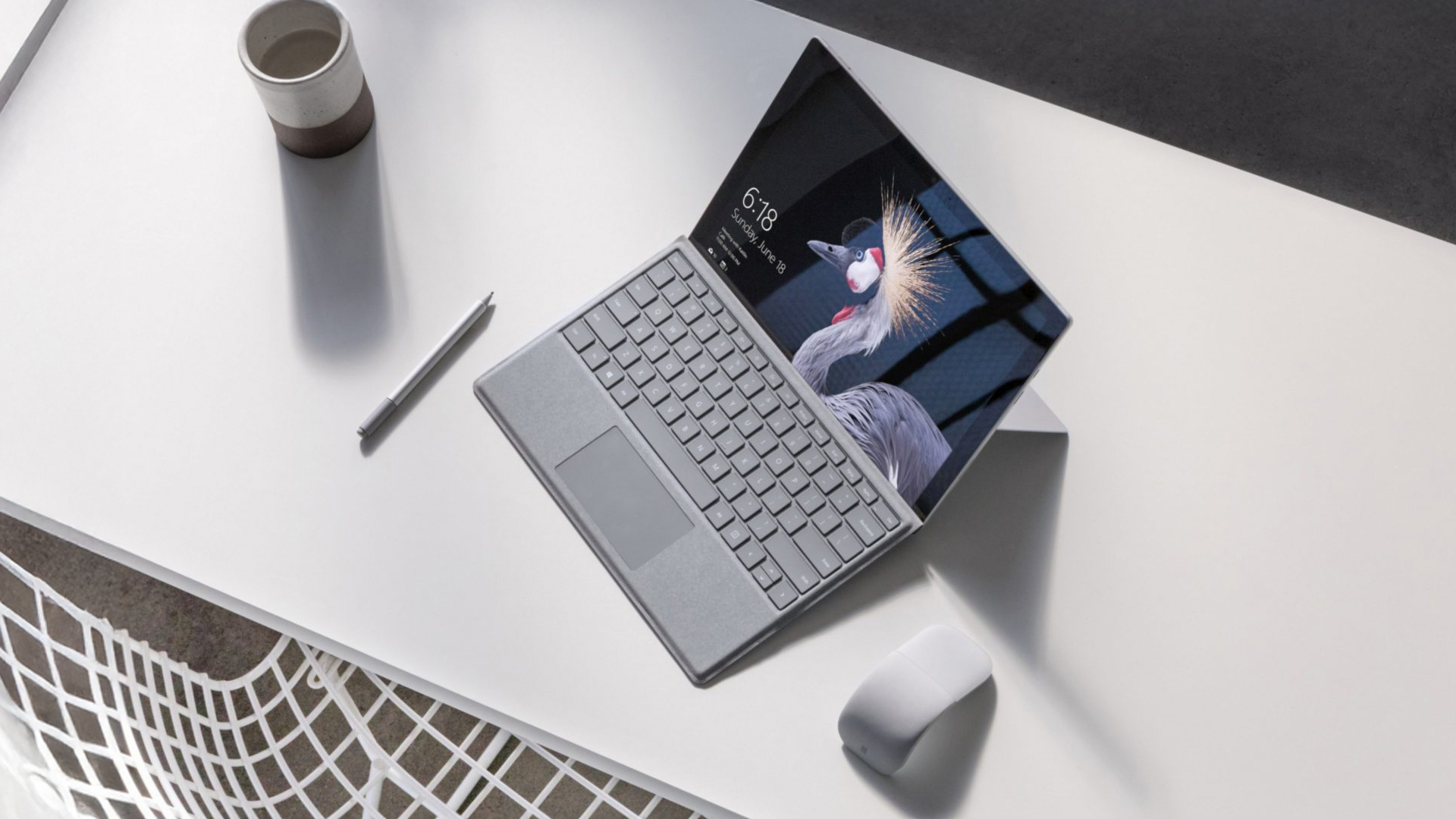
If you own a Microsoft Surface device - be it a Surface Laptop, Surface Pro, or another model, you’ll want it running smoothly, securely, and reliably. That means keeping its drivers, firmware, and BIOS up to date. Outdated drivers can cause performance drops, security vulnerabilities, and compatibility issues; meanwhile, the firmware/BIOS is the backbone that helps your hardware and OS work together.
This guide will take you through a full Surface update walkthrough: how to update Surface laptop drivers, Surface firmware installation, Surface BIOS update steps, Surface driver compatibility, and handling common update issues. At the end, you’ll feel confident in maintaining your device’s health and performance.
Step 1: Prepare Your Surface for Updating
Before doing anything, prep your device so updates go smoothly.
- Make sure your Surface is plugged into power. Updates (especially firmware/BIOS) can fail disastrously if battery dies mid-way.
- Charge the battery to at least 40% before starting.
Last Updated: October 08, 2025
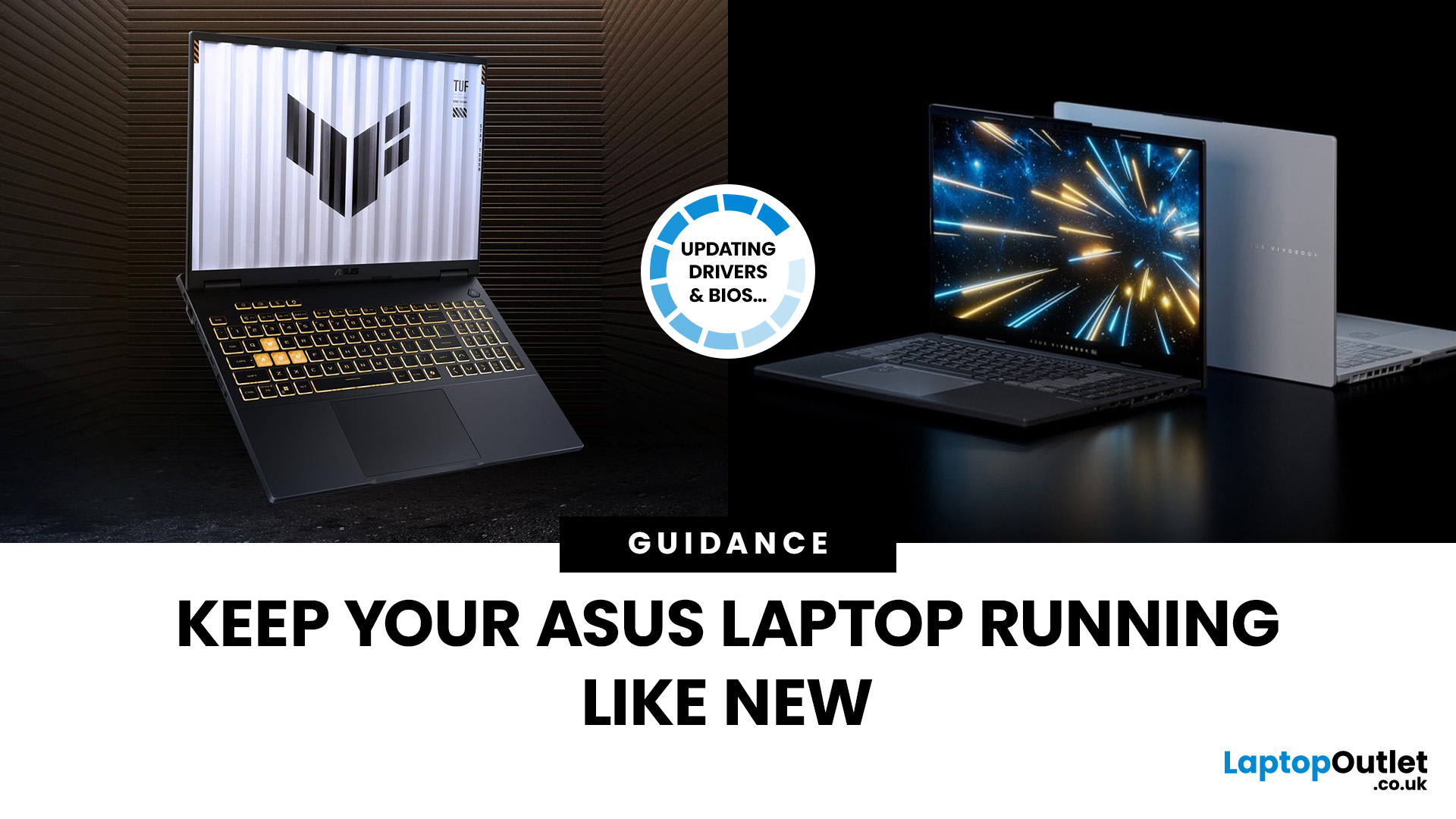
If you’ve ever owned an ASUS laptop - whether it’s a VivoBook for uni work, a TUF machine for gaming, or a Zephyrus for serious creative projects - you’ll know that things don’t always run perfectly forever. Over time, you might notice your battery draining faster, your fans spinning louder, or a game stuttering that used to run smoothly. Nine times out of ten, that’s down to drivers or firmware needing an update.
Updating drivers and the BIOS isn’t glamorous, but it’s one of the most effective ways to keep your ASUS laptop running at its best. The latest drivers squash bugs, improve compatibility with Windows 11, and even unlock new features. A BIOS update can go further still, ironing out stability issues, boosting performance, and extending hardware lifespan.
The good news? ASUS gives you proper tools like MyASUS, Armoury Crate, EZ Flash, and WinFlash, which make updates far less intimidating than they sound. Whether you’re rocking an ASUS VivoBook, TU F, or Zephyrus, this walkthrough
Last Updated: October 14, 2025
Meet the ROG Ally — the Portable Gaming Beast
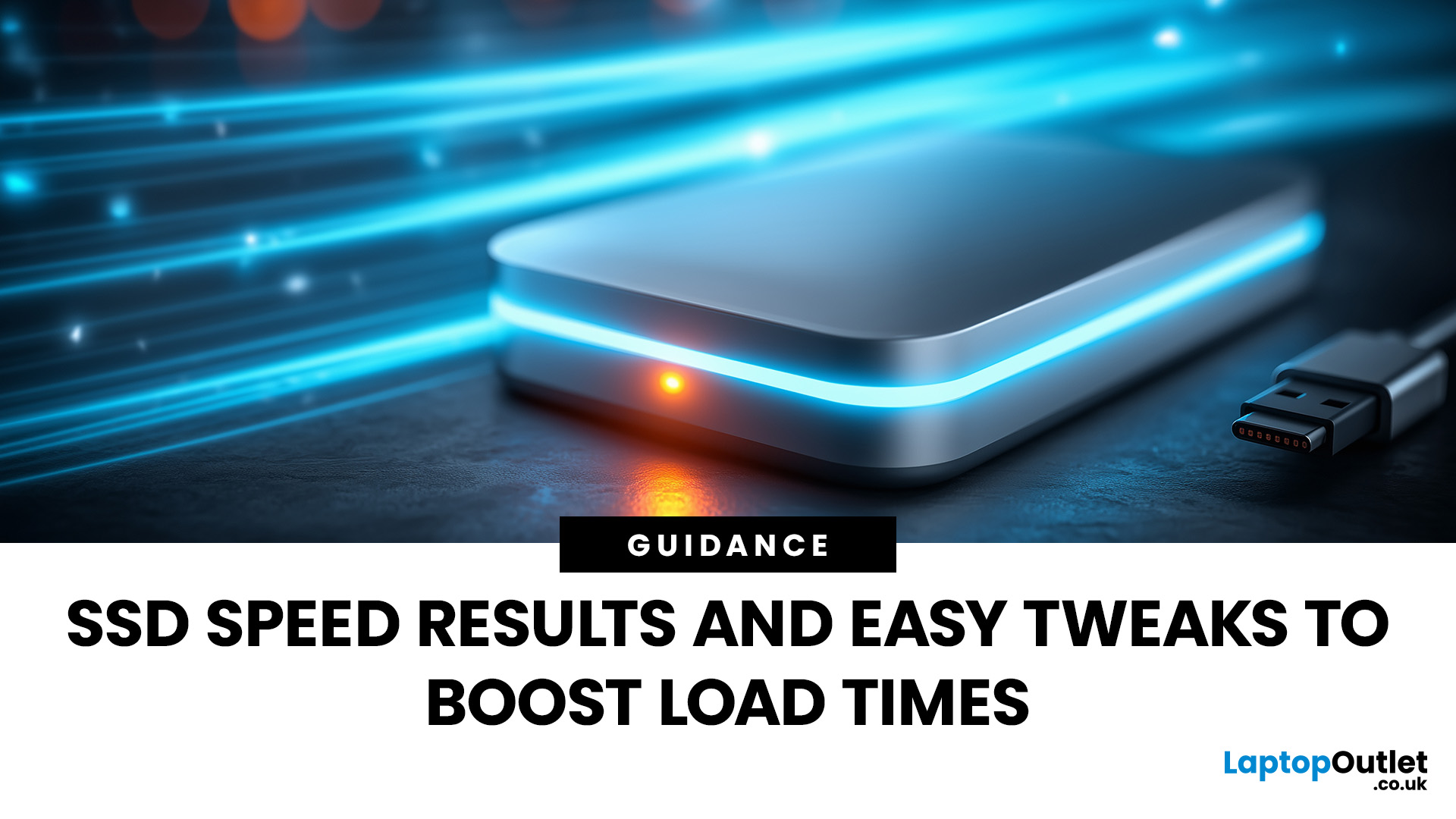
If you’ve been anywhere near gaming TikTok or Reddit lately, you’ll know the ASUS ROG Ally has taken the handheld scene by storm. It’s sleek, powerful, and gives a proper run for its money. But beyond its flashy white shell and 120 Hz display, there’s one detail everyone’s curious about: how fast is the storage really?
What Kind of SSD are We Talking About?
The 512 GB variant packs a PCIe Gen 4 NVMe SSD, fancy words for “blistering quick”, running over the M.2 2230 form factor (the compact size used in handhelds).
Typical specs:
- Sequential Read Speed – around 5,000 MB/s
- Sequential Write Speed – around 3,500 MB/s
- Random 4K Read/Write – 500K / 600K IOPS
That’s several times faster than older SATA SSDs and absolutely galaxies ahead of traditional hard drives. Translation? Instant game launches, smoother texture streaming, and snappier OS performance.
What is ROG Xbox Ally 512GB SSD Speed in Real-World Use?

Loading Times
When you’re booting
Last Updated: April 02, 2026
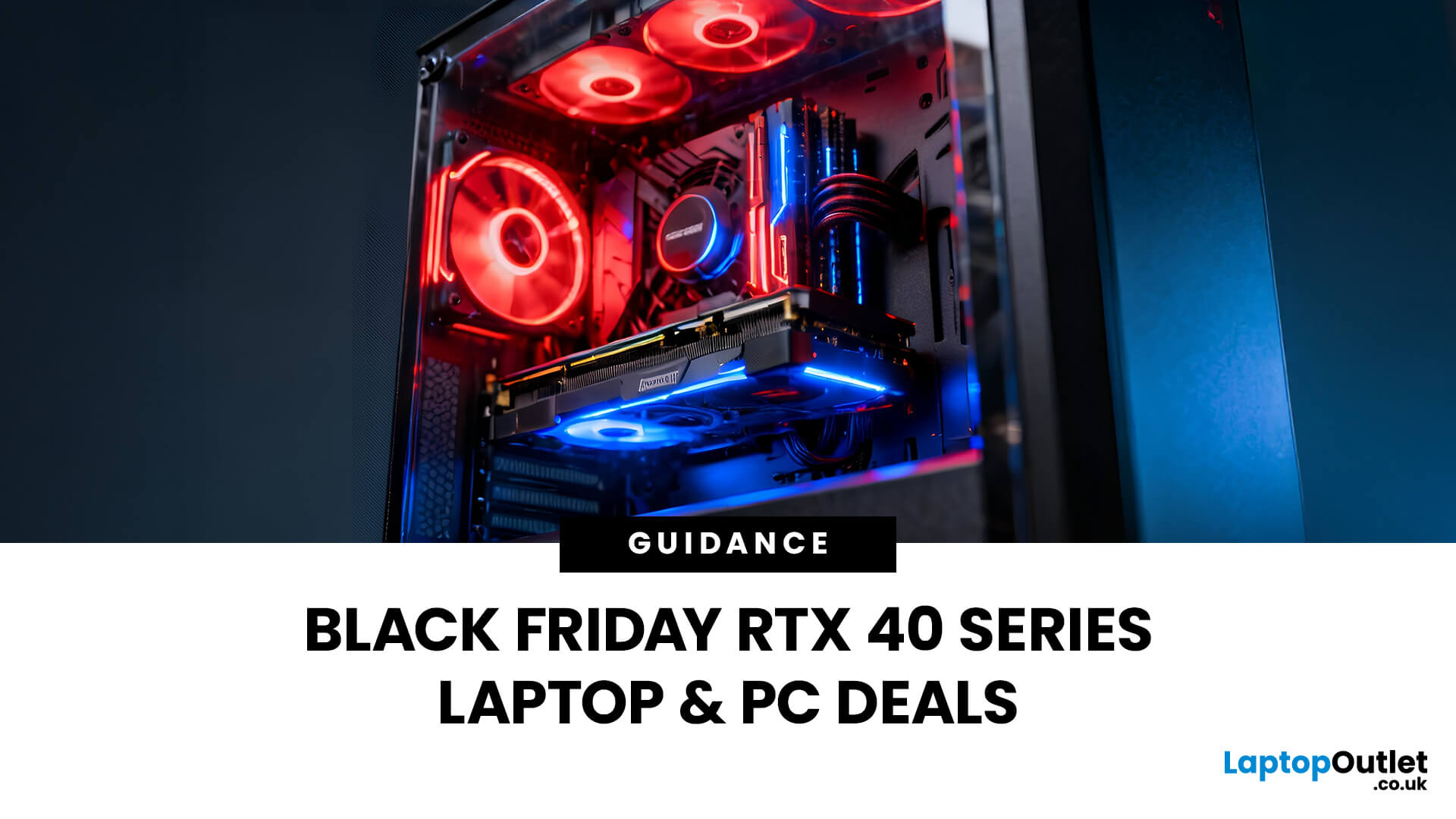
Black Friday 2025 is set to bring some of the best deals we’ve seen yet on gaming laptops and PCs, especially those powered by NVIDIA’s RTX 40-series graphics. But this year, smart buyers aren’t just chasing discounts, they’re targeting the right specs for lasting performance. The RTX 4060 and RTX 4070 GPUs have become the ideal mid-to-high range picks, balancing power, efficiency, and price. Pair that with fast DDR5 RAM and a 1TB NVMe SSD, and you have a future-ready setup built for modern gaming. This guide breaks down exactly what to look for in fast DDR5 RAM and a 1TB NVMe SSD, and you have a future-ready setup built for modern gaming. This guide breaks down exactly what to look for and make the most of Black Friday gaming laptop deals (RTX 4070) in the UK.
The 2025 Gaming Hardware Landscape: What’s Changed
Gaming hardware has evolved quickly over the past year, and 2025’s market looks very different from before. NVIDIA’s RTX 40-series GPUs, like the RTX 4060 and RTX 4070, now deliver
Last Updated: September 02, 2026

Last Updated: February 17, 2026
Storage problems aren’t just annoying; they’re productivity killers. Studies show that nearly 60% of laptop slowdowns are linked to storage-related issues, whether it’s low disk space, corrupted files, or failing SSDs. When your drive is over 85% full, performance can drop significantly because your system has less room to manage temporary files and virtual memory. Add disk errors or early SSD/HDD failure into the mix, and suddenly your “quick task” turns into a 30-minute meltdown.
Laptop storage issues don’t just slow things down, they risk your data, crash your apps, and test your patience.
The good news? Most storage problems are fixable in real time. In this guide, we’ll break down exactly what’s happening, why it’s happening, and how to fix it step-by-step, no tech degree required.
SSD vs HDD: What’s Actually Inside Your Laptop (And Why It Matters)

Before you panic about laptop storage issues, you need to know what you’re working with. Not all drives fail the same way and the fix

