



Updating Drivers & BIOS on ASUS Laptops: Step‑by‑Step Guide

If you’ve ever owned an ASUS laptop - whether it’s a VivoBook for uni work, a TUF machine for gaming, or a Zephyrus for serious creative projects - you’ll know that things don’t always run perfectly forever. Over time, you might notice your battery draining faster, your fans spinning louder, or a game stuttering that used to run smoothly. Nine times out of ten, that’s down to drivers or firmware needing an update.
Updating drivers and the BIOS isn’t glamorous, but it’s one of the most effective ways to keep your ASUS laptop running at its best. The latest drivers squash bugs, improve compatibility with Windows 11, and even unlock new features. A BIOS update can go further still, ironing out stability issues, boosting performance, and extending hardware lifespan.
The good news? ASUS gives you proper tools like MyASUS, Armoury Crate, EZ Flash, and WinFlash, which make updates far less intimidating than they sound. Whether you’re rocking an ASUS VivoBook, TU F, or Zephyrus, this walkthrough will give you the confidence to update like a pro and squeeze every ounce of performance from your machine.
Why Update Drivers & BIOS on ASUS Laptops?
Most people don’t think about drivers or BIOS until something goes wrong - a random crash, a game that won’t launch, or a laptop fan that suddenly sounds like it’s about to take off. The truth is that these updates are essential laptop maintenance steps that keep your ASUS laptop ticking over smoothly.
What Do Drivers Do?
Drivers are the middlemen between your laptop’s hardware and Windows 11. Update them and you’ll often see:
- Better stability → fewer blue screens or random crashes.
- Improved compatibility → your laptop plays nicer with new apps, peripherals, and games.
- Performance gains → GPU drivers in particular can add serious FPS boosts in the latest titles.
What About BIOS?
BIOS (Basic Input/Output System) is the firmware that boots your machine and controls low-level hardware functions. Updating it can:
- Fix annoying bugs (like fans running too loud).
- Improve battery efficiency.
- Unlock support for new CPUs, RAM, or storage.
- Optimise your machine for smoother performance.
Why Bother?
- If you’re on an ASUS TUF gaming laptop, keeping GPU and chipset drivers fresh can mean the difference between smooth gameplay and stutter city.
- For ASUS VivoBook owners, BIOS updates often fix sleep/wake issues or battery drain quirks.
- On high-end ROG Zephyrus models, BIOS updates are critical for thermal optimisation and squeezing maximum performance.
In short: updates aren’t just “optional extras” - they’re the difference between a laptop that feels sluggish after a year and one that still runs like new.
Preparing for Updates

Before you dive into downloads and flashing firmware, prep work matters. A little setup avoids big headaches.
Do These Before You Start
- Back up important files → Just in case. Updates rarely cause issues, but it’s better to be safe.
- Plug in your laptop → A BIOS update interrupted by low battery = potential brick. Keep it on mains power.
- Check your internet → You’ll need a stable connection for downloads.
- Note your exact model → ASUS has dozens of series (VivoBook, TUF, Zephyrus), and updates are model-specific.
How to Find Your Model Info
- Option 1: Use the MyASUS app → “Customer Support” > “System Info”.
- Option 2: Check the label on the underside of your laptop.
- Option 3: In Windows → Settings > System > About.
Getting the right drivers/BIOS for your exact model is non-negotiable. Installing the wrong update is like trying to fit car parts from a different make - best case, nothing happens; worst case, you’re dealing with a non-booting laptop.
Updating Drivers on ASUS Laptops (Step-by-Step)

Driver updates are the easiest part, and ASUS gives you a couple of straightforward ways to do it.
Option 1: MyASUS App (Easiest)
- Open MyASUS (pre-installed on most ASUS laptops).
- Go to Customer Support > Driver & Tools.
- Select your laptop model (it usually detects automatically).
- Install the latest drivers with one click.
Great for beginners - you don’t even have to think about which driver is which.
Option 2: ASUS Support Website (Manual)
- Visit the ASUS support site.
- Enter your model number.
- Head to Driver & Utility > choose Windows 11.
- Download and install drivers manually (chipset, GPU, audio, etc.).
Best if you want complete control or need a very specific driver version.
Option 3: Windows Update
- Open Settings > Update & Security > Windows Update.
- Check for driver updates.
- Handy, but these are often generic - not as finely tuned as ASUS-supplied versions.
Special Notes
- ASUS TUF laptops → GPU drivers are critical. Update NVIDIA/AMD drivers frequently.
- ASUS VivoBook → touchpad, Wi-Fi, and audio drivers often get key stability fixes.
Keeping drivers current ensures your laptop plays nicely with Windows 11 and delivers peak performance across apps, games, and workloads. If you’re unsure which or how to get the best one, check out our guide on gaming laptops buying guide for better options.
Updating BIOS on ASUS Laptops (Step-by-Step)
Updating the BIOS is where people usually get nervous - and fair enough, because if it goes wrong, it can be messy. But don’t worry: ASUS has made the process surprisingly simple with a few different tools.
Method 1: EZ Flash (via BIOS menu)
- Download the latest BIOS file from the ASUS Support website.
- Save it to a USB stick.
- Restart your laptop and press F2 to enter BIOS.
- Go to Advanced > ASUS EZ Flash Utility.
- Select the BIOS file on your USB and follow the on-screen prompts.
- Wait. Do not turn off your laptop until it restarts automatically.
Method 2: WinFlash (Windows utility)
- Download the WinFlash tool from the ASUS site.
- Run the app in Windows and point it to the BIOS file.
- Let it flash the BIOS without touching anything until it’s done.
Method 3: MyASUS (if supported)
Some ASUS laptops let you update BIOS directly through the MyASUS app under Customer Support > Live Update. This is the easiest route, but not all models have it.
Important Notes
- Make sure the laptop is plugged in.
- Never force shut down during the update.
- Don’t interrupt - it may take a few minutes.
Example: On high-performance models like the ASUS ROG Zephyrus, BIOS updates often improve thermal management, power profiles, and GPU stability - so they’re worth doing.
Troubleshooting Driver & BIOS Updates

Even when you follow everything step by step, things can go sideways. Here’s how to handle the most common issues:
Driver Update Fails
- Try using Device Manager to uninstall the driver, then reinstall the latest version.
- If the new driver causes problems, roll back to the previous version (Device Manager > Driver > Roll Back).
BIOS Update Freezes or Errors
- If your laptop restarts but won’t boot → use ASUS BIOS recovery (some models auto-recover by reloading the previous BIOS).
- If EZ Flash can’t detect the BIOS file → double-check you downloaded the correct version for your exact model.
General Problems After Updating
- Enter Safe Mode and uninstall problematic drivers.
- Run Windows System Restore to roll back.
- If things are still rocky, re-download the update from ASUS’s site - corrupted files are more common than you’d think.
Pro tip: ASUS’s support site usually provides step-by-step recovery instructions for your specific model - always worth checking before panicking.
Optimising Performance After Updates

Once the updates are done, don’t just shut the lid and walk away. A little post-update TLC makes sure your laptop is running at its best.
Verify the Updates
- Open Device Manager and check that the drivers now show the latest versions.
- Enter BIOS (F2 at startup) to confirm the new BIOS version is installed.
Optimisation Tools
- Armoury Crate (gaming laptops) → fine-tune fan profiles, GPU modes, and performance presets.
- MyASUS → run diagnostics and optimise battery health settings.
Performance Checks
- Run a benchmark (Cinebench, 3DMark, or even just your favourite game) to see the difference.
- Notice smoother multitasking, fewer crashes, and better thermals after a BIOS update.
Pro Tip
For ASUS TUF and Zephyrus owners, use Armoury Crate to enable Turbo or Performance Mode after updates - it makes the most of the new optimisations.
Best Practices for Future Updates
Keeping your ASUS laptop running smoothly isn’t about one-off updates - it’s about building a simple routine that saves you headaches down the line.
Stay Ahead with Regular Checks
- MyASUS Notifications → Enable automatic reminders for driver and BIOS updates.
- Quarterly Updates → Even if everything feels fine, check ASUS’s support page every few months. Quiet updates often bring important security fixes.
Avoid Risky Shortcuts
- Never download drivers or BIOS files from third-party sites. Stick to ASUS’s official support to avoid malware or corrupt files.
- Avoid beta drivers unless you’re comfortable testing - they can bring instability.
Keep a Backup Plan
- Create a Windows Restore Point before major updates. If something goes wrong, you can roll back quickly.
- Back up key files before BIOS updates - it’s rare, but data corruption can happen.
Bookmark Support Pages
Each ASUS model has its own driver and BIOS page. Bookmark yours (whether you’ve got a VivoBook, TUF, or Zephyrus) so you’re not fumbling around later.
Regular, careful updates will keep your ASUS laptop performing like new for years - and prevent those dreaded “why is my laptop so slow already?” moments.
Choosing the Right ASUS Laptop for Smooth Performance
While updates keep your current laptop sharp, choosing the right model upfront also makes life easier. ASUS’s lineup covers everything from lightweight student machines to powerhouse gaming rigs - and each comes with different update needs.
ASUS VivoBook – Everyday Productivity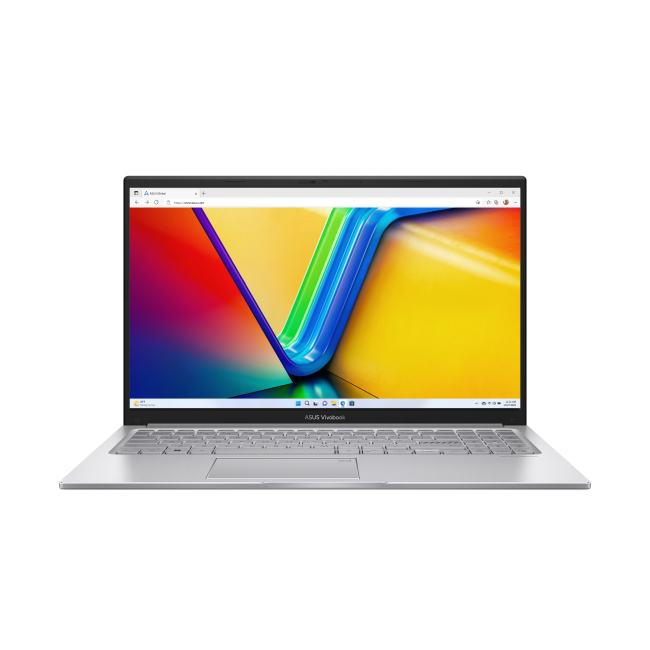
ASUS VivoBook models are a good option because:
- Best for students and casual users.
- Easy driver updates via MyASUS.
- Reliable for note-taking, browsing, and streaming.
ASUS TUF – Gaming on a Budget
ASUS TUF is the good choice because:
- Great mid-range choice for gamers.
- Driver updates (GPU especially) are key for FPS stability.
- BIOS updates often fine-tune cooling and performance balance.
ASUS ROG Zephyrus – High-End Gaming & Creative Work
ASUS ROG Zephyrus laptops is the good choice because:
- Built for professionals and gamers who push hardware to the max.
- BIOS updates frequently include performance and thermal optimisation.
- Best choice if you want top-tier power in a slim design. Learn more about how gaming laptops have evolved and what makes a great machine in 2025.
ASUS Full Range
Whether you’re looking for sleek ultraportable, versatile VivoBooks, or heavy-duty Zephyrus machines, ASUS has something for everyone. Browse our Full range of ASUS notebooks to get the best options.

FAQs – Quick Fixes & Smarter Updates for ASUS Laptops
How often should I update the BIOS on my ASUS laptop?
Only when ASUS releases a new BIOS for your specific model. Unlike drivers, BIOS updates aren’t frequent - think every few months, not weekly.
Can I update drivers in Windows 11 without using MyASUS?
Yes. You can grab updates through Windows Update or download them directly from ASUS’s support site. MyASUS just makes it easier.
Is it safe to update the BIOS with ASUS WinFlash?
Yes, as long as you’re plugged into power and follow the instructions. Don’t shut down or restart mid-update.
What if a BIOS update fails?
Many ASUS models have a recovery feature that reloads the previous BIOS. If not, ASUS support can guide you through recovery.
Do updates really improve gaming performance?
Absolutely. GPU driver updates often add optimisations for the latest titles, and BIOS updates on ASUS TUF/Zephyrus models can improve cooling and stability.

Wrapping It Up: Why Updates Keep Your ASUS Laptop Future-Ready
Updating your drivers and BIOS might not be the most exciting job, but it’s one of the smartest ways to keep your ASUS laptop running fast, stable, and secure. From smoother multitasking on a VivoBook, to optimised gaming on a TUF, to high-end performance tweaks on a Zephyrus, these updates unlock the full potential of your machine.
The tools ASUS provides - MyASUS, Armoury Crate, EZ Flash, WinFlash - mean you don’t need to be a tech wizard to get it done. Just take a bit of care, follow the right steps, and keep up a regular update routine.
Do it right, and you’ll enjoy a laptop that doesn’t just keep pace with today’s workloads - but is ready for tomorrows too.
| Read More: |
| ASUS Gaming Laptop vs Regular Laptop: Which One Should You Buy in 2025 |
| ASUS ROG vs TUF: Best Gaming Laptop for 2025 |
| The Ultimate Guide to Latest ASUS Laptops: Models, Features, and Usage |
Related Articles


Last Updated: September 09, 2026
ASUS Zenbook and HP Envy have long competed for buyers wanting a premium Windows laptop without moving into workstation or gaming territory. That comparison has changed though: Zenbook remains an active ASUS family, while HP has retired Envy as part of its move to the OmniBook range.
So, is an ASUS Zenbook better than an HP Envy today? That depends on whether you are comparing a new Zenbook against an older or refurbished Envy, or looking for HP's current equivalent.
ASUS Zenbook vs HP Envy: Quick Answer
Buying new? ASUS Zenbook is the more relevant choice because HP Envy is no longer an active current-generation range. HP says its newer OmniBook X family replaces Envy in its reorganised consumer line-up.
Buying refurbished or discounted? An HP Envy can still make sense if the processor generation, RAM, storage, battery condition and price compare favourably with newer alternatives.
| Area | ASUS Zenbook | HP Envy | HP's Current Alternative |
| Status | Current | Legacy/discontinued family | OmniBook X |
| Processors |

Last Updated: September 09, 2025
Worth the Hype?
ASUS has become a well-known name in the world of laptops—but are ASUS laptops any good in 2025? With stylish designs, competitive pricing, and powerful internals, ASUS continues to impress students, professionals, and gamers alike. Here’s a full breakdown to help you decide.
1. Who Makes ASUS Laptops?
ASUS is a Taiwanese tech company with a strong reputation for innovation, reliability, and cutting-edge hardware. They manufacture everything from entry-level Chromebooks to high-end gaming machines.
2. ASUS Laptop Line-up Explained
- VivoBook: Affordable, stylish laptops for students and everyday users
- ZenBook: Premium ultrabooks known for design and performance
- ROG (Republic of Gamers): Top-tier gaming laptops with high-end specs
- TUF Gaming: More affordable gaming range with solid durability
- ExpertBook: Business-focused with long battery life and portability
- Chromebooks: Lightweight and budget-friendly, great for browsing and docs
3. What Makes ASUS Laptops

Last Updated: April 02, 2026
Choosing the right laptop in 2025 is not easy. The market is full of options, and many buyers in the UK struggle to find a device that balances performance, price, and long-term value. This is where ASUS laptops stand out. With a strong reputation for design, reliability, and innovation, ASUS has become a top choice for students, professionals, gamers, and creative users across the UK.
In this latest ASUS Laptops guide, we will take you through every detail you need to know before making a purchase. From ASUS laptop features to a full breakdown of ASUS laptop models, we explain which series works best for your usage.
Whether you are searching for the best ASUS laptops 2025 for gaming, business, or everyday work, this guide has you covered. By the end, you will be able to confidently choose the right laptop for your needs.
Introduction to ASUS Laptops: Innovation, Performance, and Market Presence
Founded in 1989, ASUS has grown from a small hardware manufacturer into one of the most respected

Last Updated: April 02, 2026
Choosing the right laptop in 2025 can feel like a challenge. With numerous options available in the UK market, it’s easy to get lost in specifications, designs, and price tags. Yet, one brand continues to shine above the rest: ASUS.
From its beginnings in 1989, ASUS has grown into one of the most trusted laptop names worldwide, and its success in the UK is no exception. The brand’s strength lies in its ability to combine innovation, performance, and affordability, making technology accessible for all.
Every user finds a place in the ASUS story. Students rely on the Chromebook by ASUS for simplicity and value. Professionals turn to the sleek ZenBook lineup or reliable ExpertBook business laptops. Gamers embrace the power of ROG laptops and durable TUF series laptops, while creatives choose the ProArt devices for demanding projects.
This blog introduces ASUS laptops, exploring their history, brand strength, innovations, market position, and diverse series.
ASUS History
Founded in 1989 in

Last Updated: September 08, 2026
Lenovo and ASUS both cover everything from everyday laptops to premium business machines and high-performance gaming systems, but their strengths are not identical. Lenovo stands out through ThinkPad, Yoga, IdeaPad and Legion, while ASUS counters with Zenbook, Vivobook, ExpertBook, TUF Gaming and ROG. This Lenovo vs ASUS laptops comparison looks at processors, RAM, storage, displays, battery life, upgradeability and gaming hardware to help you see which brand fits your needs in 2026.
Lenovo vs ASUS: Quick Comparison
| Area | Lenovo | ASUS |
| Everyday laptops | IdeaPad | Vivobook |
| Premium thin-and-light | Yoga | Zenbook |
| Business | ThinkPad | ExpertBook |
| Gaming | Legion / LOQ | ROG / TUF Gaming |
| Current processors | Intel Core Ultra, AMD Ryzen AI, Snapdragon options | Intel Core Ultra, AMD Ryzen AI, Snapdragon options |
| Memory | Soldered or upgradeable depending on model | Soldered or upgradeable depending on model |
| Displays | IPS, OLED, touch and high-refresh options | IPS, OLED, touch, Mini LED and high-refresh options |
| Main strength |

Last Updated: September 08, 2026
Samsung and ASUS take noticeably different approaches to laptops in 2026. Samsung concentrates its Windows range around the Galaxy Book6 family, combining slim designs with Galaxy device integration, while ASUS spreads its options across Vivobook, Zenbook, ExpertBook, ProArt, TUF Gaming, and ROG. This Samsung vs ASUS laptops comparison looks at processors, RAM, storage, displays, battery life, connected features, and graphics to help you decide which approach suits you.
Samsung vs ASUS: Key Differences at a Glance
| Area | Samsung | ASUS |
| Everyday | Galaxy Book6 | Vivobook |
| Premium | Galaxy Book6 Pro | Zenbook |
| High performance | Galaxy Book6 Ultra | ProArt / ROG |
| Business | Galaxy Book6 / Pro | ExpertBook |
| Processors | Mainly Intel Core/Core Ultra | Intel Core Ultra, AMD Ryzen AI, Snapdragon |
| Displays | IPS and Dynamic AMOLED 2X | IPS, OLED, Mini LED, dual OLED |
| Dedicated graphics | Up to RTX 5070 on Book6 Ultra | Broad RTX range through ProArt, TUF and ROG |
| Key advantage | Galaxy ecosystem | Wider hardware and form-factor choice |

