



PCIe Lanes Explained: Can M.2 SSDs Reduce Graphics Card Speed?

Quick Answer: PCIe lanes determine how your graphics card and M.2 SSDs communicate with your processor. On some motherboards, adding an SSD can reduce GPU bandwidth from x16 to x8. This guide explains CPU and chipset lane sharing, its impact on gaming performance, and how to check motherboard compatibility before upgrading.
Adding another M.2 SSD to your gaming PC sounds like a straightforward upgrade. But could that extra storage reduce the bandwidth available to your graphics card?
Yes, an M.2 SSD can reduce your GPU's PCIe connection from x16 to x8 on certain motherboards. However, this doesn't happen on every system, and the actual performance impact depends on your graphics card, PCIe generation and motherboard layout. Understanding how PCIe lanes work helps you avoid unnecessary performance restrictions when choosing a motherboard, adding storage or upgrading your GPU.
What are PCIe Lanes and Why Do They Matter?
PCI Express (PCIe) is the high-speed connection that allows components such as graphics cards and NVMe SSDs to communicate with your computer.
Think of PCIe lanes as individual data pathways. Each lane carries information in both directions, while multiple lanes work together to provide greater bandwidth. You'll commonly encounter these configurations:
|
PCIe Connection |
Typical Use |
|
PCIe x1 |
Wi-Fi cards, sound cards and expansion devices |
|
PCIe x4 |
NVMe M.2 SSDs |
|
PCIe x8 |
Some graphics cards and expansion cards |
|
PCIe x16 |
Graphics cards requiring higher bandwidth |
However, lane count is only part of the picture.
PCIe 5.0 provides approximately twice the bandwidth per lane of PCIe 4.0. For example, PCIe 5.0 x8 offers roughly the same theoretical bandwidth as PCIe 4.0 x16.
Also, a full-length x16 motherboard slot doesn't necessarily operate at x16 electrically.
Buying tip: When choosing from our PC motherboard range, check the electrical lane configuration rather than relying on the physical appearance of the expansion slots.
CPU vs Chipset PCIe Lanes: What's the Difference?
Not every component communicates directly with your processor. Modern desktop platforms distribute PCIe express lanes between CPU-connected devices and components routed through the motherboard chipset.
CPU PCIe Lanes
CPU PCIe lanes provide a direct connection between the processor and supported hardware. These are commonly allocated to your primary graphics card and at least one high-speed NVMe storage slot.
For example, mainstream AMD Ryzen 7000 and 9000 desktop platforms can provide x16 graphics connectivity and a separate x4 NVMe connection, alongside other platform connections.
You can review our desktop CPU selection when planning a processor and motherboard combination. Remember that different CPU families can offer different PCIe lane arrangements, even on the same socket.
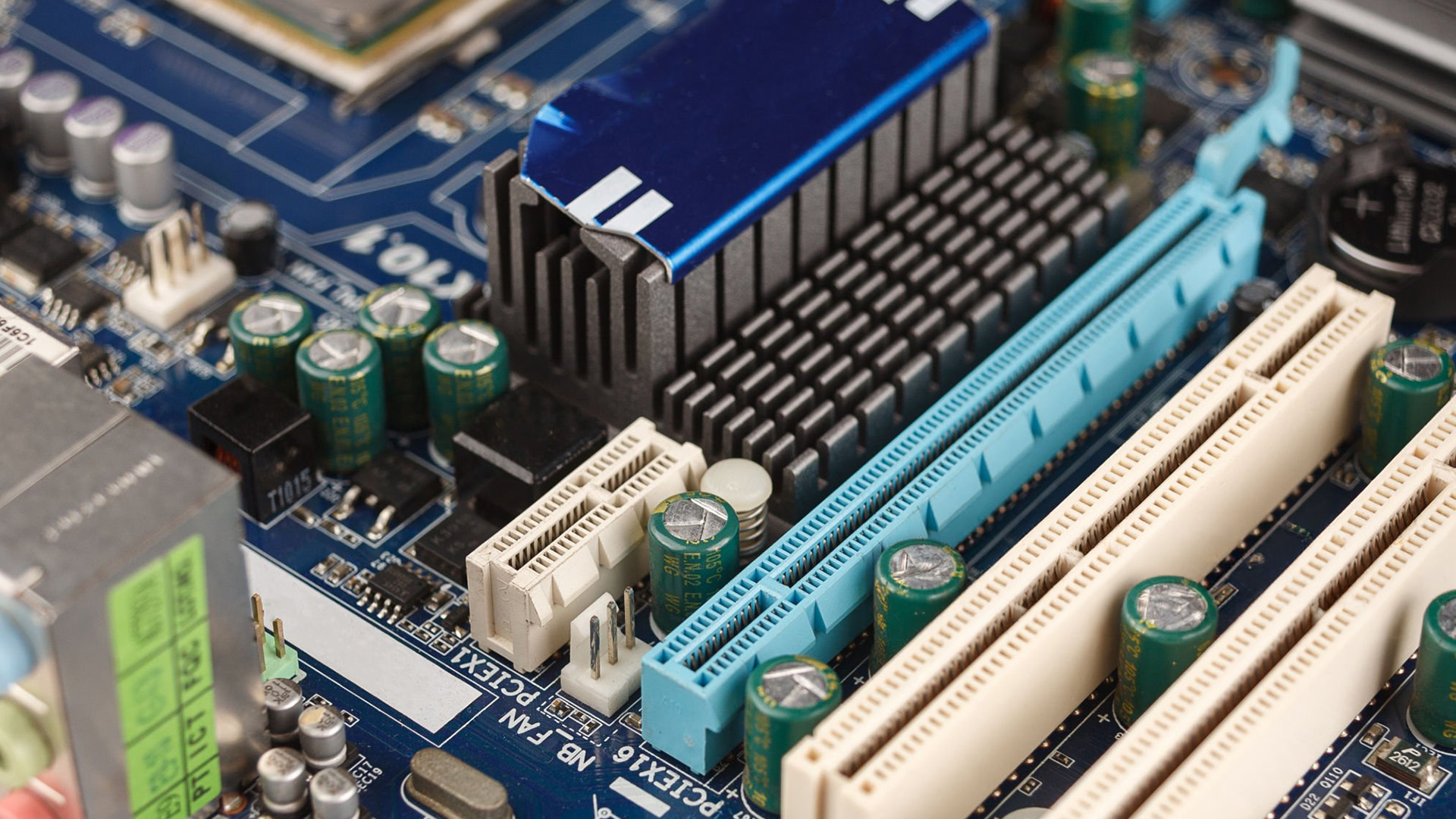
Chipset PCIe Lanes
Chipset PCIe lanes connect additional devices through the motherboard chipset, which communicates with the processor over a separate upstream connection. These connections commonly support secondary SSD slots, networking controllers and other expansion devices.
The important distinction is that devices connected through the chipset can share its available upstream bandwidth. For everyday gaming and general storage, this is rarely an issue. However, simultaneous heavy transfers across multiple devices may encounter bandwidth limitations.
Expert Advice: A chipset-connected SSD doesn't automatically take lanes away from your GPU. The exact wiring of the motherboard determines whether the graphics slot is affected.
Does an M.2 SSD Use PCIe Lanes?
Yes, an NVMe M.2 SSD typically uses four PCIe lanes, although some drives use fewer. However, not every M.2 drive relies on PCIe. M.2 is a physical form factor, and certain older M.2 SSDs use the SATA interface instead.
The real question isn't simply, 'does M.2 use PCIe lanes?' It's where those lanes come from.
An NVMe drive might connect through a dedicated CPU storage interface, the motherboard chipset or lanes shared with another expansion slot. For example, a motherboard may support three M.2 sockets with different arrangements:
- M.2_1: Four dedicated CPU-connected lanes.
- M.2_2: Four lanes from the chipset.
- M.2_3: Four CPU lanes shared with the main PCIe graphics slot.
Illustrative configuration only. Actual slot assignments vary by motherboard. In this example, installing a drive in M.2_3 could change how the graphics slot operates, while installing one in M.2_1 might leave GPU bandwidth untouched.
Before choosing from our internal solid-state drives, check both the supported PCIe generation and the M.2 slot's connection.
When Does an M.2 SSD Reduce GPU Speed?
An M.2 SSD can affect graphics card bandwidth when its slot shares CPU-connected lanes with the primary PCIe expansion slot.
Some motherboards support PCIe bifurcation, which divides a larger lane connection into smaller groups. For example, a motherboard that normally runs its graphics slot at x16 might switch to x8 when particular M.2 sockets are populated.
This is a real design consideration on certain high-end AM5 motherboards.
The ASUS ROG Strix X870E-E Gaming WiFi, for instance, documents a configuration in which enabling its additional CPU-connected M.2 slots changes the primary graphics connection from x16 to x8.
PCIe x16 vs x8: How Much Performance Do You Lose?
The difference depends on the interface generation and the graphics card's bandwidth requirements.
|
Connection |
Theoretical One-Way Bandwidth |
What It Means |
|
PCIe 3.0 x16 |
15.75 GB/s |
Older full-width GPU connection |
|
PCIe 4.0 x16 |
31.51 GB/s |
High-bandwidth graphics interface |
|
PCIe 4.0 x8 |
15.75 GB/s |
Half the bandwidth of Gen 4 x16 |
|
PCIe 5.0 x16 |
63.02 GB/s |
Higher bandwidth for compatible devices |
|
PCIe 5.0 x8 |
31.51 GB/s |
Similar theoretical bandwidth to Gen 4 x16 |
These figures represent theoretical bandwidth, not gaming frame rates. A graphics card with sufficient onboard VRAM may show little difference between x16 and x8 in many games. However, workloads involving frequent transfers between system memory and GPU memory can be more sensitive to reduced bandwidth.
When choosing from our graphics card range, check the GPU's supported PCIe generation and native lane width alongside the motherboard specifications. PCIe bandwidth is only one factor to consider when upgrading. Our graphics card buying guide for 2026 also covers power requirements, case clearance and compatibility checks.
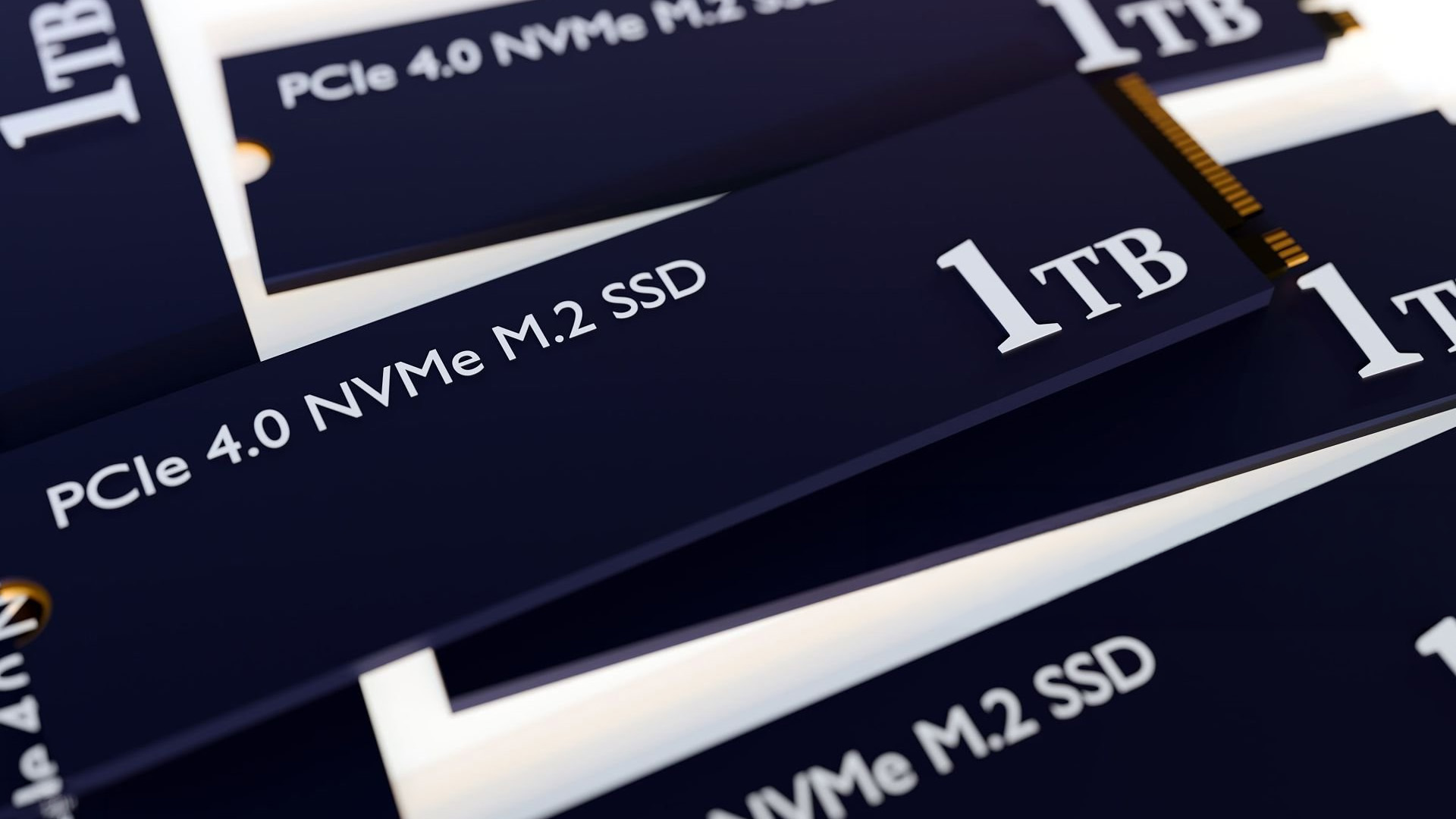
Do B650 Motherboards Share PCIe Lanes?
B650 PCIe lanes are a common concern for anyone building an AMD AM5 gaming PC.
The good news is that a typical B650 configuration supports a primary x16 graphics connection alongside a separate CPU-connected x4 NVMe interface.
AMD's official chipset specifications identify these as separate connectivity options, with the exact implementation depending on the motherboard and processor. However, this doesn't mean every B650 motherboard provides identical expansion capabilities.
Different designs may allocate additional SSD slots through the chipset or share bandwidth between certain connectors.
The processor matters too. Some Ryzen 8000-series desktop APUs provide fewer usable graphics lanes than Ryzen 7000 or 9000 desktop CPUs, so you shouldn't assume every AM5 processor supports the same x16 arrangement.
Our Recommendation: When looking at AM5 motherboards, check the exact model's expansion-slot and M.2 sharing tables. Don't pay extra for a higher-tier chipset solely because you assume it will prevent GPU bandwidth reductions.
How to Check GPU PCIe Lanes Before Upgrading
You don't need specialist hardware to check GPU PCIe lanes. A motherboard manual and a free diagnostic utility can usually tell you what you need to know.
Step 1: Check Your Motherboard Manual
Find your exact motherboard model on the manufacturer's website and open its specifications or user manual. Look for terms such as:
- PCIe operating mode
- Shared bandwidth
- M.2 and PCIe slot configuration
- PCIe bifurcation
- Expansion slot limitations
Pay particular attention to notes stating that populating one slot changes another from x16 to x8 or disables it completely.
Step 2: Check Your GPU Using GPU-Z
GPU-Z is a free Windows utility that displays information about your graphics card. Once installed:
- Open GPU-Z and find the Bus Interface field.
- Check the supported PCIe generation and lane width.
- Run its built-in render test to encourage the GPU to enter an active performance state.
- Check the reported link width while the test runs.
For example, a reading of PCIe x16 4.0 @ x8 4.0 indicates that the card supports PCIe 4.0 x16 but is currently operating at x8.
A lower link speed while idle doesn't necessarily indicate a problem, as modern systems use power-saving features.
Step 3: Check BIOS Settings
Some motherboards allow you to configure PCIe lane allocation in BIOS or UEFI. Look for PCIe bifurcation, slot bandwidth, and M.2 configuration options.
Avoid changing these settings without checking the manual. Selecting an incompatible configuration could disable an expansion slot or prevent an attached device from being detected. If your new M.2 drive doesn't appear after installation, our SSD not detected in BIOS troubleshooting guide explains how to check slot compatibility, firmware settings and possible connection issues.
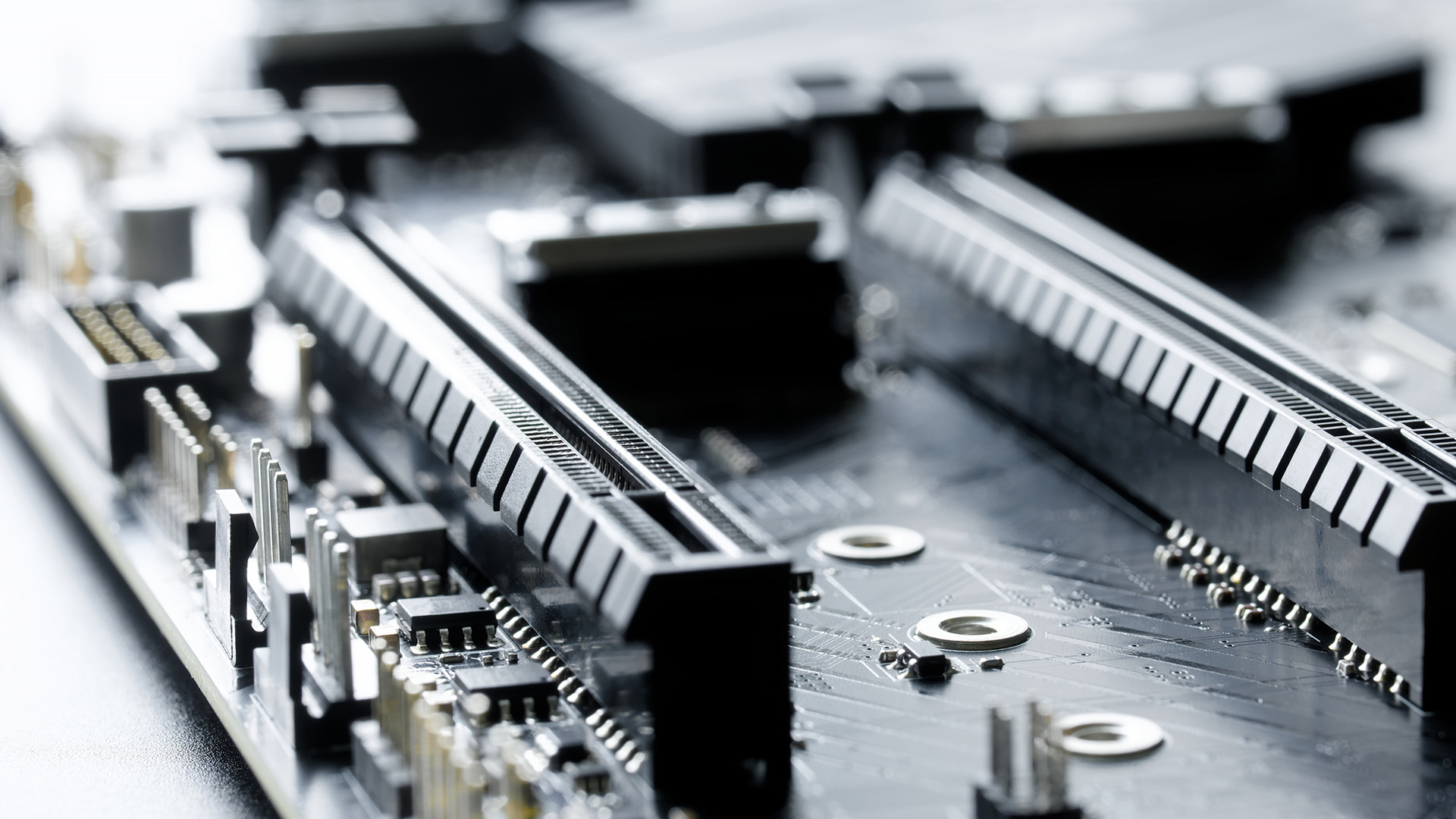
How to Choose the Right Motherboard for Multiple SSDs
If you're building a new gaming PC or upgrading storage, choosing the correct motherboard now can save you compatibility problems later. Here's what to prioritise:
|
Your PC Setup |
What to Look For |
|
One GPU and one NVMe SSD |
Primary x16 slot and a dedicated M.2 connection |
|
One GPU and two NVMe SSDs |
A second M.2 slot that doesn't reduce GPU lanes |
|
One GPU and three or more SSDs |
Clearly documented slot-sharing and chipset bandwidth |
|
Gaming and video editing |
Sufficient GPU bandwidth and suitable high-speed storage |
|
Multiple expansion cards |
Enough electrically connected lanes and compatible slot spacing |
Don't choose a motherboard based only on how many M.2 slots it advertises. Check whether those connections can operate together without restrictions.
Also consider whether you genuinely need PCIe 5.0 storage. A quality PCIe 4.0 NVMe SSD remains a sensible choice for many gaming and everyday workloads, where storage capacity and reliability may matter more than peak sequential transfer speeds.
At Laptop Outlet, we recommend checking the complete CPU, motherboard and storage combination before ordering rather than selecting each component independently. If you're planning a new build, our guide to choosing the right motherboard covers socket compatibility, expansion slots and storage support to help you make a more informed decision.

Final Thoughts: Should You Worry About PCIe Lane Sharing?
Installing an M.2 SSD won't automatically slow down your graphics card. The potential issue arises when your motherboard shares bandwidth between particular storage sockets and the GPU's PCIe connection.
For most gaming builds, a dedicated x16 graphics slot and an independent x4 NVMe connection provide a straightforward setup. Even when a GPU operates at x8, the performance difference depends on the PCIe generation and workload.
The best approach is to verify your motherboard's lane-sharing diagram before buying additional storage. You'll avoid unnecessary upgrades, preserve the bandwidth your components actually need and make better use of your budget.

Can an M.2 SSD Reduce FPS in Games?
Yes, but not directly in most situations. If installing an SSD reduces the GPU's available PCIe bandwidth, some games may experience lower performance. The impact depends on the graphics card, PCIe generation and memory requirements.
Is PCIe 4.0 x8 Enough for Gaming?
PCIe 4.0 x8 provides approximately 15.75 GB/s of theoretical one-way bandwidth. This can be sufficient for many gaming scenarios, although some GPUs and memory-intensive games may benefit from a wider connection.
Does Installing Two M.2 SSDs Disable PCIe x16?
Not necessarily. Many motherboards can run two NVMe SSDs without reducing the primary GPU connection. Others share lanes between particular slots. Always consult the manufacturer's specifications for your exact motherboard and processor combination.
| Read More: |
| Does an NVMe SSD Need a Heatsink? |
| Future-Proof Motherboards and Beyond: What to Look For |
| Vertical vs Horizontal GPU Mounting: Cooling and Compatibility |
Related Articles

Last Updated: August 06, 2026
Published: July 27, 2026
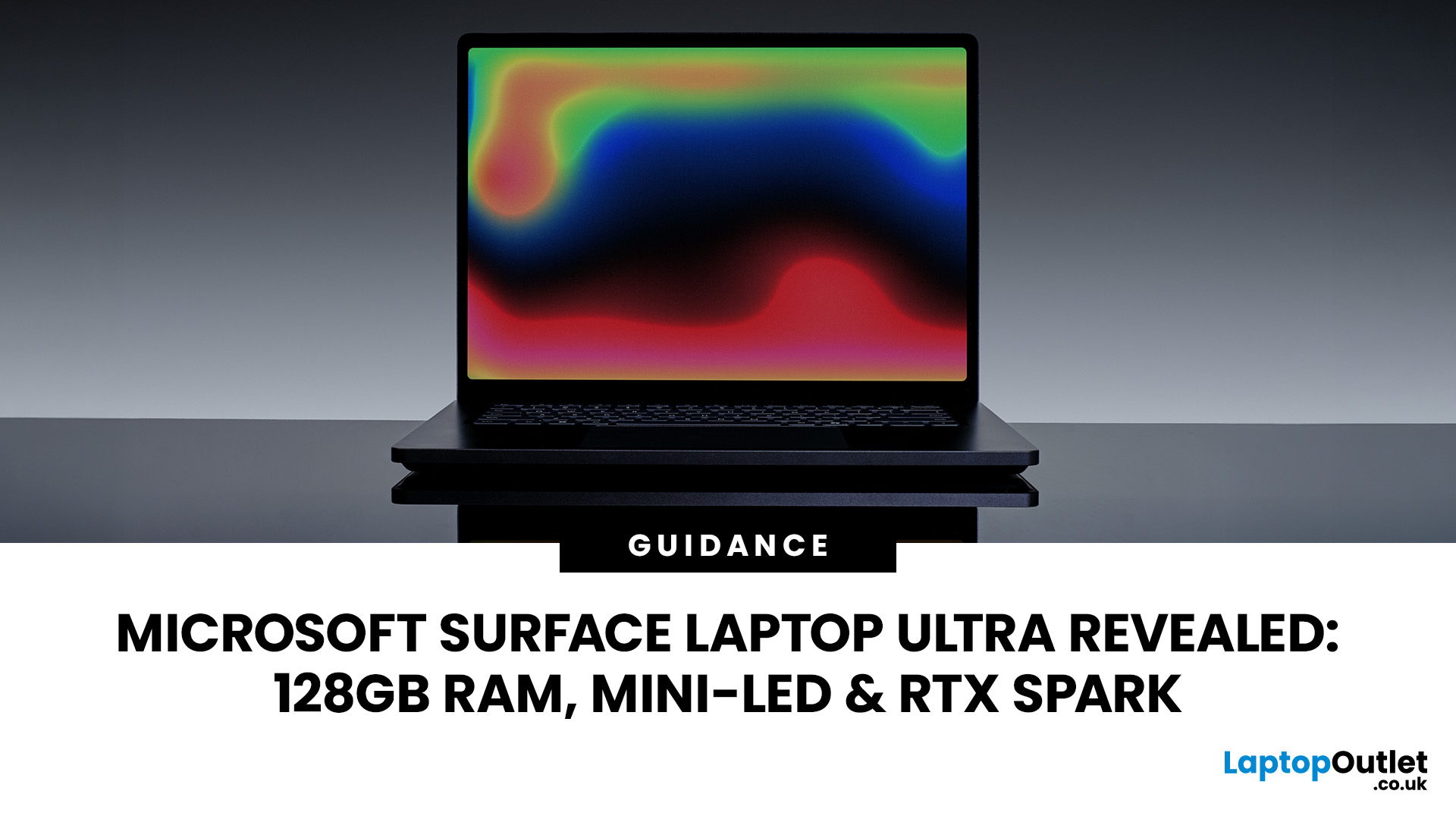
The Surface Laptop Ultra is Microsoft’s boldest laptop yet, built for local AI, 3D work, coding and demanding creative projects. It combines NVIDIA RTX Spark, Blackwell graphics, full CUDA support, and up to 128GB of unified memory, giving it serious workstation-level potential in a much slimmer design.
The 15-inch Mini-LED PixelSense Ultra display, upgraded cooling, and wider port selection make it even more appealing for power users. The only catch is that the exact UK price, full configurations and release date are still under wraps.
Microsoft Surface Ultra Specs at a Glance
The confirmed Microsoft Surface Ultra specs place the device above Microsoft’s conventional

Last Updated: September 03, 2026
Seeing Chrome using too much memory in Windows Task Manager can be concerning, especially when only a handful of tabs appear to be open. However, visible tabs tell only part of the story.
Chrome may run multiple processes behind those tabs, while individual websites can range from simple articles to demanding web applications. The important question is therefore not just how much RAM Chrome uses, but whether that usage is causing slowdowns, tab reloads or problems when you multitask.
Why Does Chrome Use So Much Memory?
Chrome's memory use is largely connected to how the browser is designed and how demanding modern websites have become. High RAM usage alone does not mean Chrome is faulty or poorly configured.
Chrome Uses Multiple Processes
Chrome does not run the entire browser inside a single operating-system process.
Chromium uses a multi-process architecture. The main browser process handles core browser functions, while separate renderer processes handle web content. Chrome can also
Published: September 17, 2026
The amount of RAM in a Dell PC affects how comfortably it can handle everyday programs, multitasking, and more demanding applications. Too little memory can hold performance back, while paying for far more than your workload needs often brings little practical benefit.
RAM, or Random Access Memory, is the short-term working space your PC uses for active applications and data. As your workload becomes heavier or you run more programs at once, the amount of memory you need generally increases.
For most Dell desktop buyers, 16GB of RAM is the safest choice. Choose 8GB for basic browsing, email, and light office work, while 32GB or more makes sense for heavier creative, technical or multitasking workloads. RAM matters, but processor performance, SSD storage, graphics capability and upgrade options also shape how responsive the PC feels.
How Much Dell PC RAM Do You Need?
Your ideal Dell PC RAM capacity depends mainly on the applications you run and how many you expect to use simultaneously.
Last Updated: September 24, 2026
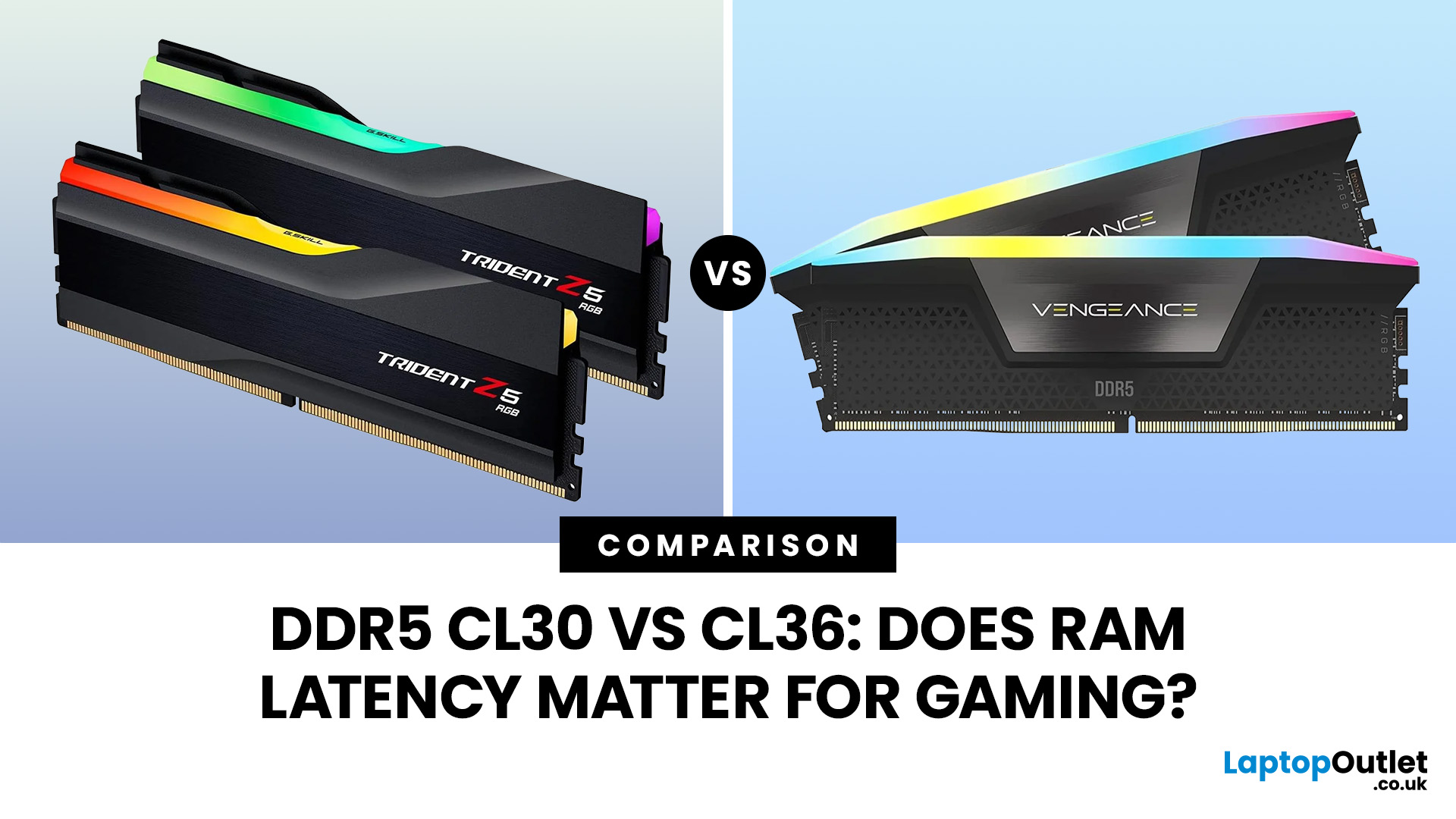
Quick Answer: If two DDR5 kits run at the same speed, CL30 has lower CAS latency than CL36. At DDR5-6000, CL30 works out at about 10ns of CAS delay versus 12ns for CL36. That can help in CPU-limited games, but the real gaming difference is usually much smaller than the 20% difference suggested by those latency figures. Memory speed, secondary timings, CPU architecture, and the game itself also matter.
When comparing RAM modules, specifications such as DDR5-6000 CL30 and DDR5-6000 CL36 can look confusingly similar. Both have the same data rate, so does paying attention to that CL number actually make a difference?
It can, but CL30 vs CL36 is not as simple as choosing the lowest number. Here is what those timings really mean and when lower RAM latency can affect your gaming PC.
What Do CL30 and CL36 Mean?
CL stands for CAS latency, or Column Address Strobe latency. It measures the number of memory clock cycles between a read command being issued and the RAM beginning to return the requested
Published: September 18, 2026
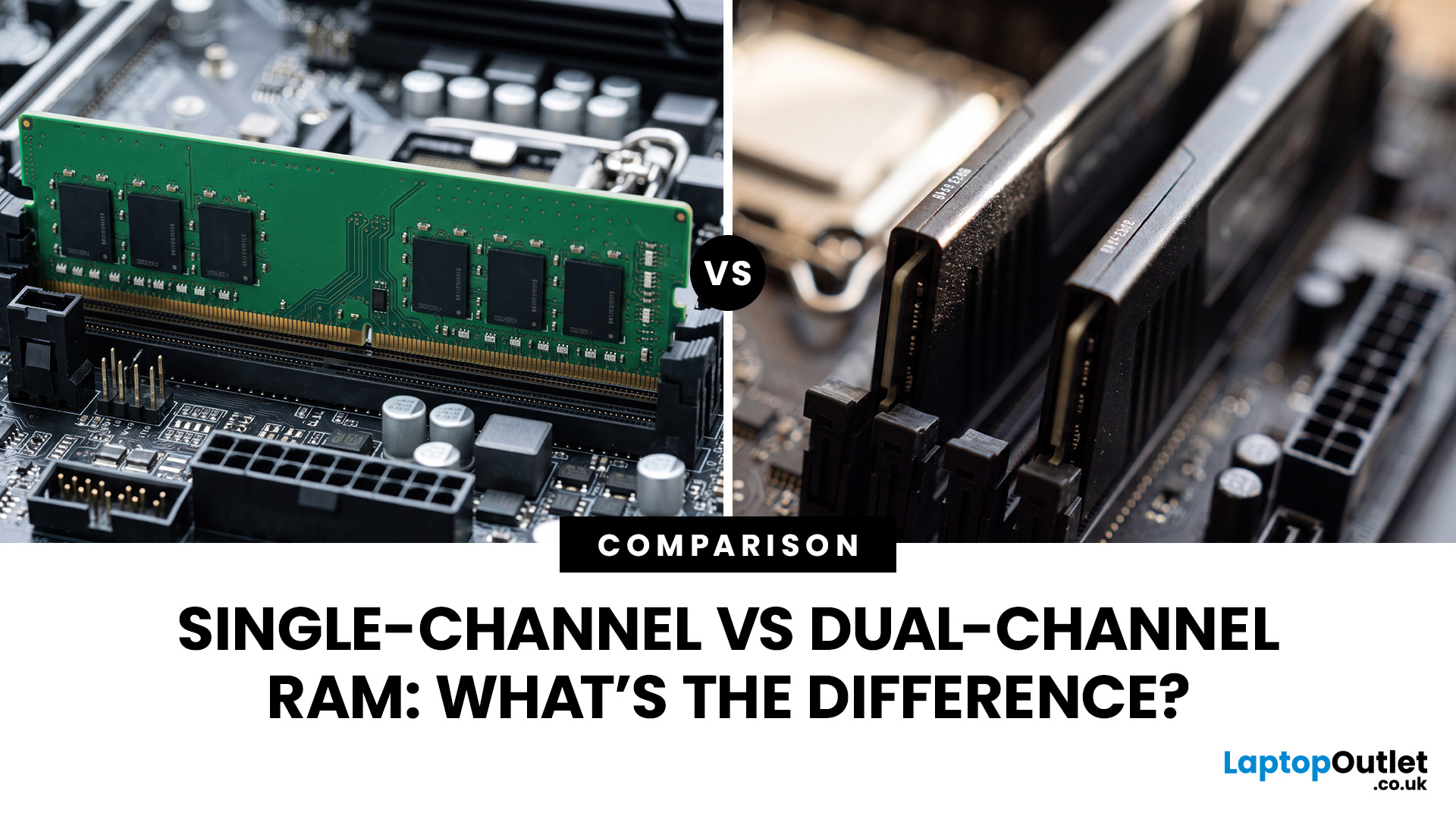
The difference between single channel vs dual channel RAM comes down to how the processor communicates with your system memory. Single-channel memory uses one system memory channel, while dual-channel memory uses two, allowing more data to move between the RAM and processor at the same time.
That extra memory bandwidth can improve performance in workloads that rely heavily on memory access. However, dual-channel RAM does not automatically make a desktop PC twice as fast. The difference you notice depends on the processor, graphics hardware, application and memory configuration.
If you are choosing new RAM and memory kits, understanding how channels work can help you decide whether one larger module or two smaller modules make more sense.
Single-Channel vs Dual-Channel RAM at a Glance
Here is the practical difference between the two configurations:
| Options | Single-Channel RAM | Dual-Channel RAM |
| System memory channels used | One | Two |
| Common configuration | 1x16GB | 2x8GB |
| Available memory bandwidth |

Last Updated: September 18, 2026
Installing RAM looks simple until you see four motherboard slots labelled A1, A2, B1 and B2. Put the memory in the wrong pair and your PC may still boot, but you might not be using the motherboard’s recommended memory configuration.
So, which RAM slots to use? On many four-slot desktop motherboards, a single stick goes in A2, while two sticks go in A2 and B2. With four compatible sticks, all four slots are populated. However, this is not a universal rule. Your motherboard manual should always take priority.
If you are upgrading capacity or building a PC, it is also worth checking that your RAM and memory modules are compatible with the motherboard before deciding where they go.
What Do A1, A2, B1 and B2 RAM Slots Mean?
Most mainstream desktop motherboards with four DIMM slots divide them between two memory channels, commonly called Channel A and Channel B.
The labels normally work like this:
| Slot | What the label usually means |
| A1 | First DIMM position on Channel A |
| A2 | Second DIMM position |

Last Updated: September 24, 2026
Published: September 22, 2026
Buying fast DDR5 RAM is only part of getting the performance printed on the box. Your memory may initially run at a lower standard speed until you enable the appropriate performance profile in your motherboard BIOS.
That is where Intel XMP and AMD EXPO come in. Both are RAM overclocking profiles that apply tested memory frequency, timing, and voltage settings without requiring you to configure every value manually.
So, what is the difference between XMP vs EXPO, and can you use an XMP kit with AMD or EXPO memory with Intel? Here is what you need to know before choosing or configuring your RAM.
XMP vs EXPO: What is the Difference?
The simplest distinction is the platform each standard was developed for.
Intel XMP, or Extreme Memory Profile, is Intel's memory-overclocking technology. AMD EXPO, or Extended Profiles for Overclocking, was developed for DDR5 memory used with AMD Ryzen processors on the AM5 platform.
Both technologies let a compatible motherboard read preconfigured performance
Last Updated: September 25, 2026
Two SSDs can both claim seriously fast read speeds while hiding one pretty important difference: one has dedicated DRAM, and the other does not.
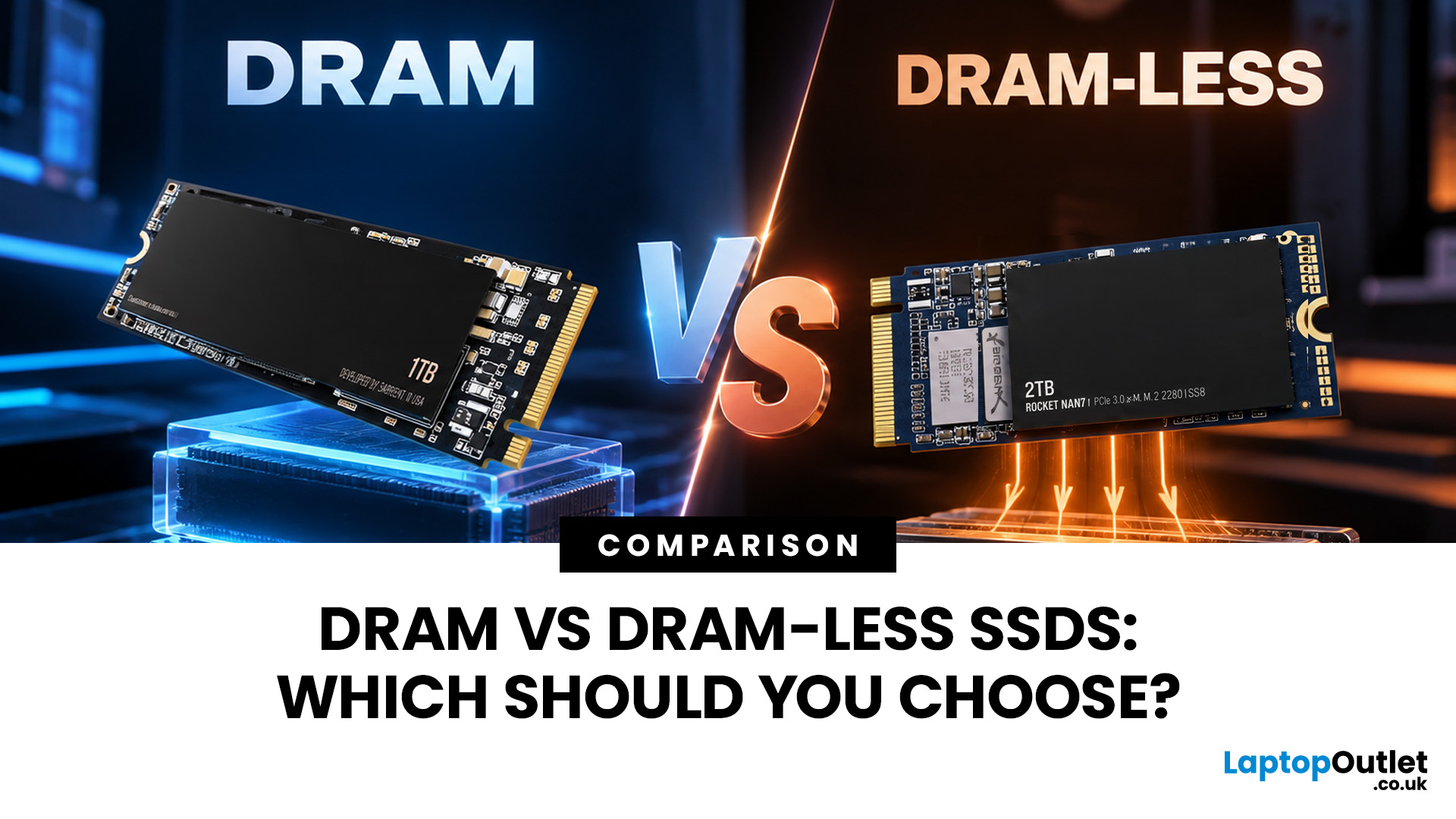
A DRAM vs DRAM-less SSD choice depends on how you use your PC. SSDs with DRAM generally offer more consistent random performance and sustained speeds, making them better suited to heavy workloads, large file transfers and professional use. Modern DRAM-less NVMe SSDs can still perform very well by using Host Memory Buffer (HMB), making them a strong choice for gaming, Windows 11 and everyday computing.
But the DRAM vs DRAM-less SSD debate is not as simple as “DRAM good, DRAM-less bad”. Modern NVMe drives have changed the game with Host Memory Buffer, smarter controllers and better caching. So, what actually matters when choosing one? Let’s break it down.
DRAM vs DRAM-Less SSD: Quick Answer
An SSD with DRAM has dedicated memory that helps its controller quickly locate and manage data stored across the NAND flash. This can improve responsiveness and

