



Which RAM Slots Should You Use? A Guide for 1, 2 or 4 Sticks

Installing RAM looks simple until you see four motherboard slots labelled A1, A2, B1 and B2. Put the memory in the wrong pair and your PC may still boot, but you might not be using the motherboard’s recommended memory configuration.
So, which RAM slots to use? On many four-slot desktop motherboards, a single stick goes in A2, while two sticks go in A2 and B2. With four compatible sticks, all four slots are populated. However, this is not a universal rule. Your motherboard manual should always take priority.
If you are upgrading capacity or building a PC, it is also worth checking that your RAM and memory modules are compatible with the motherboard before deciding where they go.
What Do A1, A2, B1 and B2 RAM Slots Mean?
Most mainstream desktop motherboards with four DIMM slots divide them between two memory channels, commonly called Channel A and Channel B.
The labels normally work like this:
|
Slot |
What the label usually means |
|
A1 |
First DIMM position on Channel A |
|
A2 |
Second DIMM position on Channel A |
|
B1 |
First DIMM position on Channel B |
|
B2 |
Second DIMM position on Channel B |
A DIMM is simply the type of memory module used in most desktop PCs. The slot labels tell you which channel and position each module belongs to.
Do not rely only on counting slots from the processor, though. The printed motherboard labels and manual are more reliable because layouts and recommended RAM slot order can vary.
Which RAM Slots Should You Use?
Here is the common arrangement on many four-slot consumer motherboards:
|
Number of RAM sticks |
Common configuration |
What to check |
|
1 stick |
A2 |
Check the preferred single-DIMM slot |
|
2 sticks |
A2 + B2 |
Check the recommended dual-channel pair |
|
4 sticks |
A1 + A2 + B1 + B2 |
Check four-DIMM support and memory compatibility |
Think of this as a useful starting point rather than a universal installation rule.
Installing One RAM Stick
If you are installing one RAM stick, do not simply use the slot closest to the processor.
On many current four-slot motherboards, A2 is the preferred single-module slot. This is often the second DIMM slot associated with Channel A.
Using another slot may still allow the PC to boot, but the board manufacturer may have validated a particular slot for the most reliable single-DIMM configuration. Look for a diagram labelled recommended memory configuration, memory population or similar in your manual.
Installing Two RAM Sticks
Two modules need more attention because the RAM placement determines whether they are distributed across the motherboard’s memory channels as intended.
On many four-DIMM motherboards, the recommended arrangement is:
A2 + B2
If your motherboard labels happen to follow the common physical layout, these may be what people casually call RAM slots 2 and 4. It is better to follow the A2/B2 markings than simply count slots, however.
Placing one compatible module in each recommended channel allows the system to use both motherboard memory channels. This increases available memory bandwidth compared with placing both modules within the same channel.
ASUS, for example, shows A2 for one module and A2 plus B2 for two modules in its current general DRAM installation guidance. MSI gives the same arrangement in its motherboard installation example while also noting that the correct method can vary between boards.
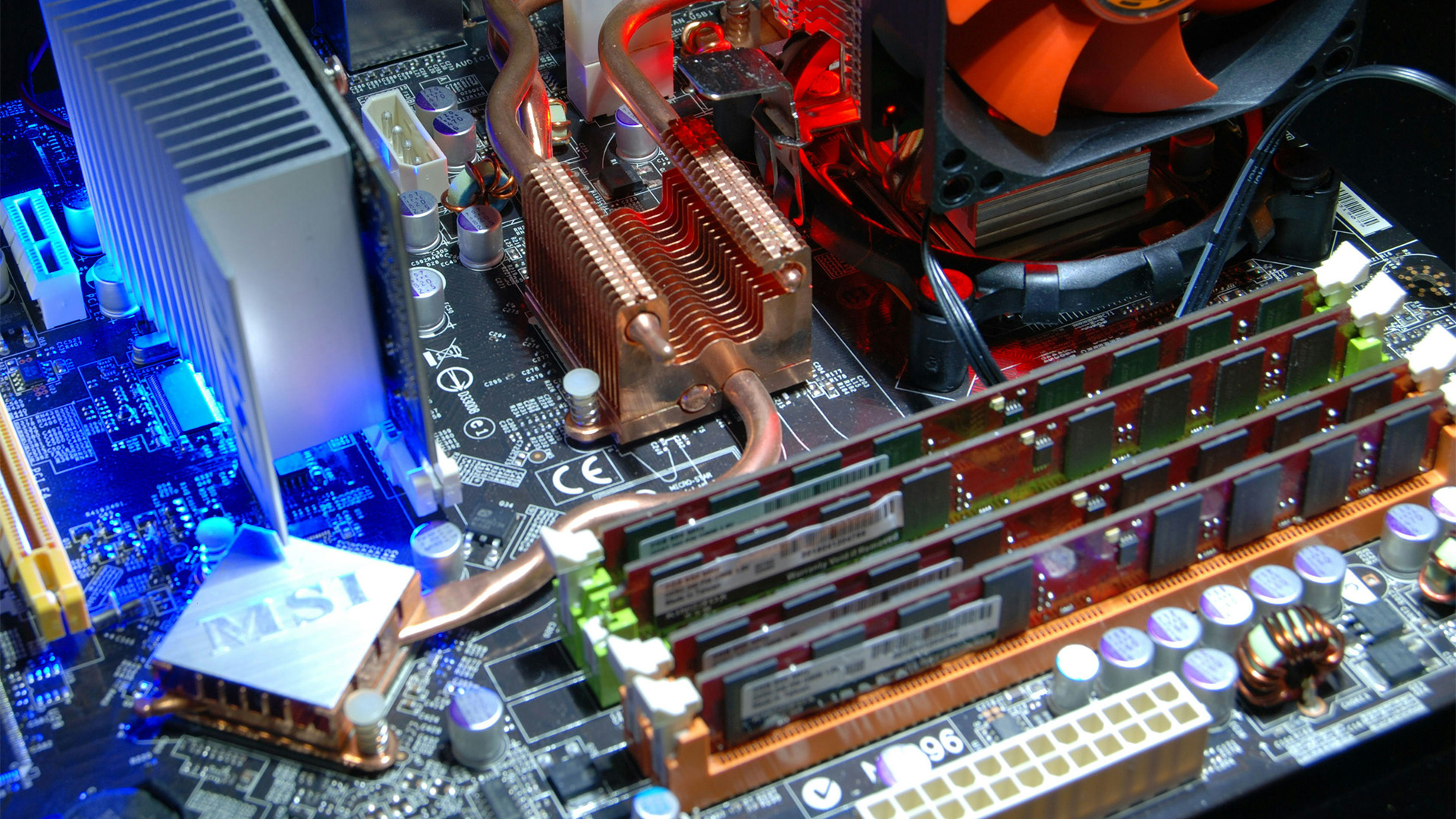
Installing Four RAM Sticks
If your motherboard has four DIMM slots and you plan to fill all four RAM slots, all four positions will normally be populated:
A1 + A2 + B1 + B2
Four modules do not turn a typical dual-channel consumer motherboard into a four-channel platform. You are still populating the available positions across its two main motherboard memory channels.
Using four sticks can also place different demands on the CPU's memory controller than a two-stick configuration. The stable memory speed therefore depends on the processor, motherboard, RAM modules and selected memory settings. Do not assume a four-module setup will automatically run at the same overclocked XMP or EXPO settings as a two-module kit.
Why A2 B2 RAM Slots Are Often Recommended?
You might wonder why the A1 B1 RAM slots are not always filled first.
The answer comes down to motherboard design. DIMM slots are connected to the CPU's memory controller through electrical traces on the motherboard, and manufacturers validate particular population layouts around that design.
That is why A2 and B2 are commonly preferred for two-module setups on modern four-slot consumer boards. Gigabyte, ASUS and MSI documentation all include examples using this arrangement, but the manufacturer-specific guidance for your board remains the final authority.
This also explains why swapping RAM from A2/B2 to A1/B1 simply because those slots look more convenient is not always a good idea.
How to Find the Correct RAM Slots
The safest way to determine the correct RAM slots is to identify your exact motherboard model.
You can then:
- Check the motherboard itself. Look beside the DIMM sockets for small labels such as DIMM_A1, DIMM_A2, DIMM_B1 and DIMM_B2.
- Open the motherboard manual. Search for “memory configuration”, “DIMM installation” or “memory population”.
- Check the manufacturer's support page. Download the manual for the exact model and revision where applicable.
- Follow the recommended configuration diagram. Use the specified layout for one, two or four modules rather than assuming every four-slot board is identical.
If you are planning a new desktop rather than upgrading an existing board, check the memory specifications when comparing motherboards for PC builds. Supported memory generation, capacity, slot count and speeds can differ between boards.
Check Your RAM Type Before Installation
Correct RAM installation order will not help if the memory itself is incompatible with the motherboard.
Desktop boards support a specific memory generation. A DDR4 motherboard requires compatible DDR4 RAM sticks, while a DDR5 board needs DDR5 memory. DDR4 and DDR5 DIMMs are physically keyed differently and are not interchangeable.
You should also check the motherboard's supported capacities and the CPU's memory specifications. For straightforward upgrades, matched modules or kits are generally easier to configure than combining memory with different specifications.
This guide focuses on full-size desktop memory sticks. Laptops normally use smaller SO-DIMM modules and have completely different internal layouts, so use model-specific instructions when upgrading laptop RAM.
How to Install RAM in the Recommended Slots
Once you know which slots to use, installation itself is relatively straightforward.
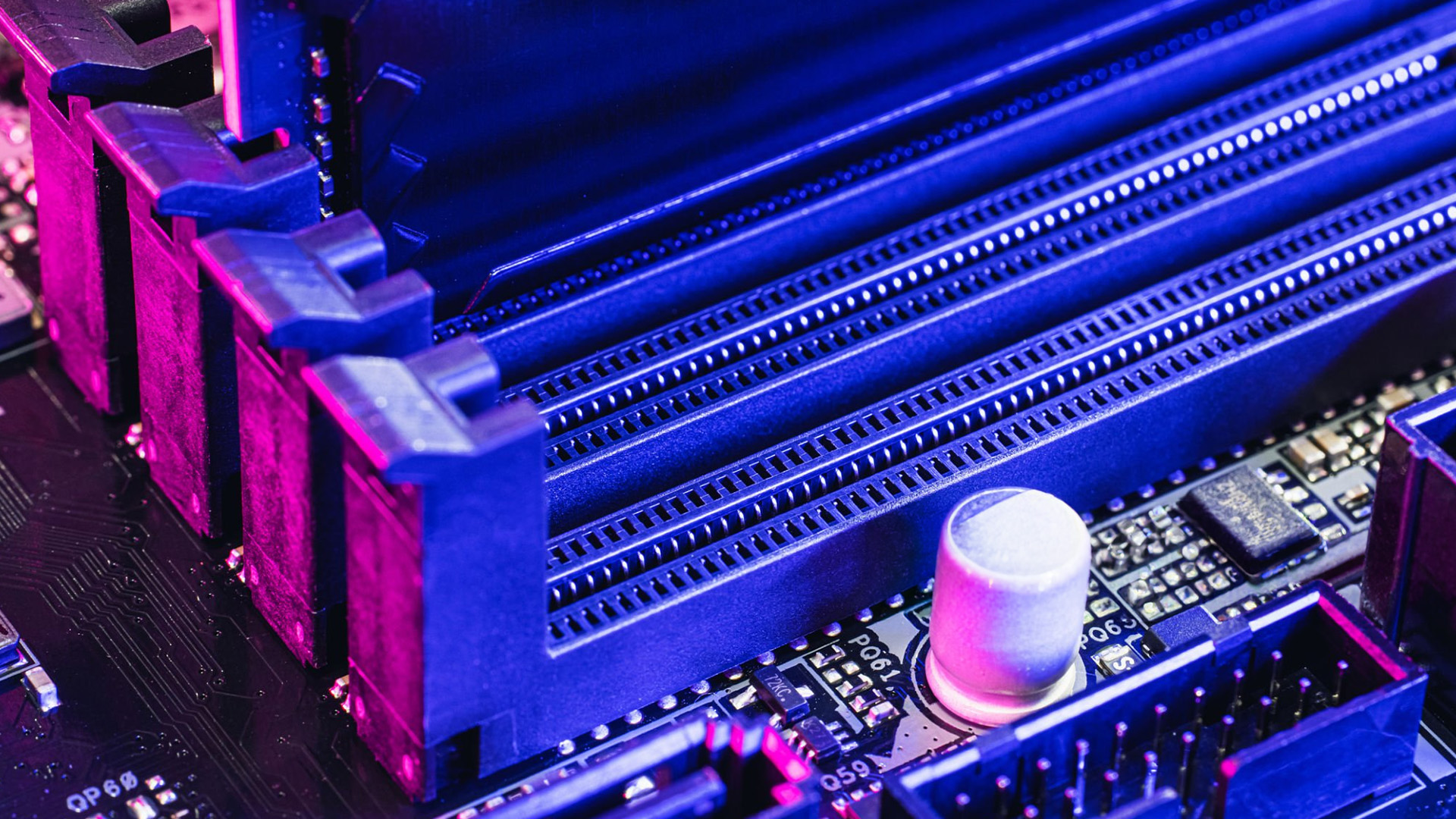
Shut the computer down, switch off the power supply where applicable and disconnect the power cable before opening the case. Open the DIMM slot retaining clip or clips, then line up the notch on the RAM module with the key in the slot.
Press the module firmly and evenly into place until the retention mechanism locks it securely. Some modern motherboards use a latch on only one end of the DIMM slot, so do not assume both ends must move.
After booting, check the BIOS or operating system to confirm that the expected memory capacity has been detected.
Common RAM Placement Mistakes
A few simple mistakes cause much of the confusion around motherboard RAM slots:
- Assuming slots 1 and 2 should be filled first: The recommended pair may instead be A2 and B2.
- Using A1 and B1 without checking: Some boards prefer A2/B2 for two modules.
- Putting two sticks next to each other: This may place them in a different configuration from the manufacturer's recommended pair.
- Counting slots instead of reading labels: “Second and fourth” is only useful when it matches the board's actual A2/B2 layout.
- Forcing incompatible RAM into a slot: DDR4 and DDR5 use different physical key positions.
- Ignoring the manual: The exact motherboard's population diagram should override general advice found elsewhere.

So, Which RAM Slots to Use
For many four-slot desktop motherboards, the common RAM placement is A2 for one stick, A2 and B2 for two sticks, and all four slots when using four modules.
When deciding which RAM slots to use, treat this as a common layout rather than a fixed rule. Check the DIMM labels and your motherboard’s recommended memory configuration before installation to make sure your RAM is installed in the correct slots.

A Few More Things to Know...
Should RAM go in slots 2 and 4?
Often, yes. On many four-slot motherboards, slots 2 and 4 correspond to A2 and B2, the preferred two-stick configuration. Always verify the labels and motherboard manual first.
Can I put one RAM stick in any slot?
The PC may work in several slots, but manufacturers often specify a preferred slot for one module. A2 is common on four-slot boards, but check the manual for your exact motherboard.
Is A2 and B2 better than A1 and B1?
A2 and B2 are commonly the recommended pair on modern four-slot consumer motherboards. That does not make the arrangement universal, so follow the memory population diagram supplied with your board.
What happens if I install RAM in the wrong slots?
The system may still boot, but it might not use the manufacturer's recommended channel configuration or could experience memory training or stability issues. Move the modules to the documented slots if necessary.
Can I use three RAM sticks?
Many systems can operate with three modules, but memory configuration becomes less straightforward and may be asymmetric. Check your motherboard documentation before using three sticks, especially if memory performance or overclocking matters.
Is it better to use two or four RAM sticks?
Neither is automatically better. Two sticks provide capacity while leaving slots available for upgrades and can simplify high-speed memory configurations. Four sticks provide more module capacity when needed but must be supported by the CPU and motherboard.
Related Articles


Last Updated: July 03, 2026
For most developers, the best machine is not necessarily the most expensive one. It is the one that keeps up with your workflow, feels comfortable to use for hours at a time, and still makes sense a few years down the line.
That matters even more in 2026. Modern development work is heavier than it used to be. A typical day might include an IDE, a browser with far too many tabs open, Docker, a local database, Slack, video calls, design files, and maybe a virtual machine or AI-assisted tools running in the background. A laptop that feels fine on paper can start to struggle surprisingly quickly once real work begins.
This guide is designed for a UK audience looking for a dependable laptop for software development, whether you are a student, a junior developer, a freelancer, or a full-time engineer replacing an ageing machine. Given below are top 10 laptops for programming and coding 2026:
1. ASUS Zenbook 14
Technical Specs:
- Intel Core Ultra 5 225H 14-Core Processor
- AI Ready Laptop
Last Updated: September 24, 2026
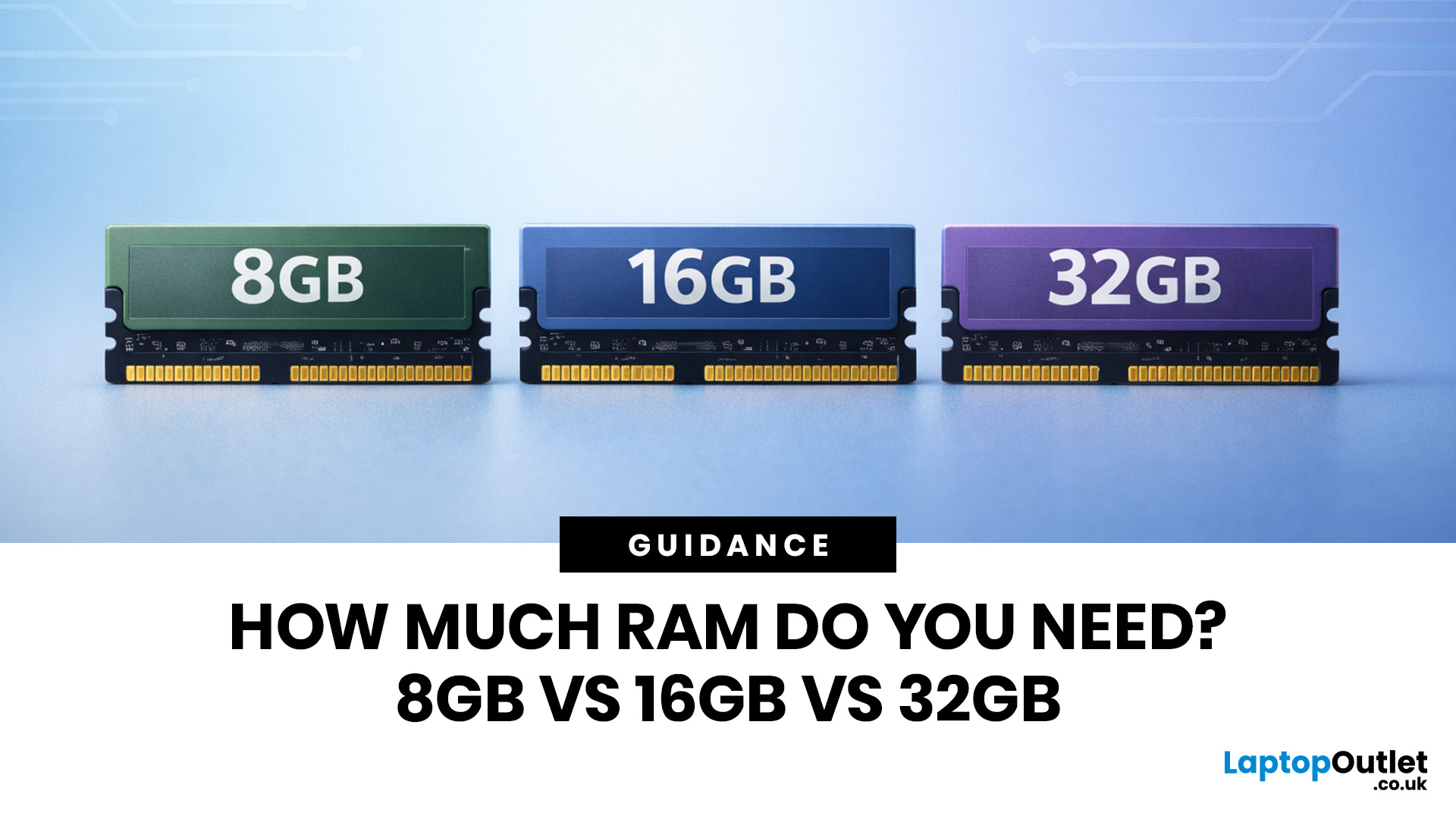
Wondering how much RAM you need? The practical answer is fairly simple. 8GB is still usable for basic laptop tasks; 16GB is the best all-around choice for most buyers, and 32GB is the right move for heavier gaming, creative work, coding, or extra long-term headroom.
For most laptop users, 16GB of RAM is the best all-round choice for work, study, multitasking and mainstream gaming. 8GB is still suitable for lighter everyday use, while 32GB makes more sense for creative work, coding, heavier gaming and demanding multitasking. 64GB is mainly for specialist professional workloads, while 4GB is best avoided on a new Windows laptop.
For RAM shoppers, the real question is not just how much RAM a laptop can run. It is about how much memory will give you a smooth, comfortable experience for how you actually work, study, stream, game, and multitask every day. That is where the difference between 8GB vs 16GB RAM, or 16GB vs 32GB, starts to matter.
What RAM Actually Does?
RAM is your laptop’s short-term
Last Updated: September 24, 2026
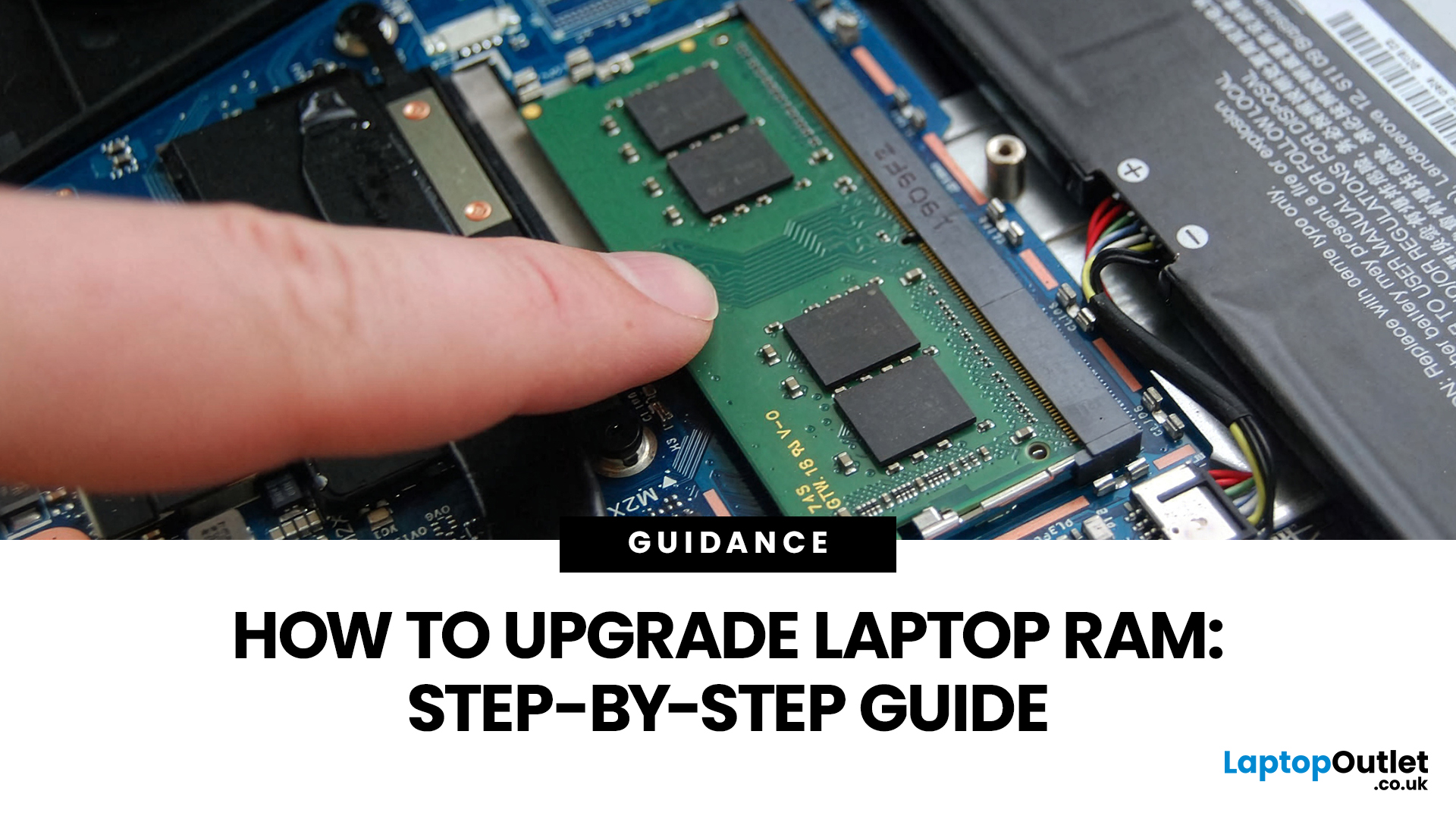
Upgrading laptop RAM is one of the simplest ways to make an older machine feel faster and more capable again, but only if the compatibility side is right from the start. That is the part many quick guides skip. Before buying anything, we always recommend checking whether the laptop has upgradeable memory, what RAM standard it uses, how much it supports, and whether upgrading means adding another module or replacing the existing setup.
To upgrade laptop RAM, first check whether your model has upgradeable SO-DIMM slots, the supported DDR generation, maximum capacity and current memory configuration. Buy compatible RAM, shut the laptop down, disconnect power, open the service panel, remove or add the module, then reassemble and boot up. Finally, confirm the new memory is recognised and test system performance for improved multitasking.
For UK shoppers, that matters because a RAM upgrade can be a much smarter option than replacing a laptop too early. If a system slows down with lots of browser
Last Updated: May 13, 2026
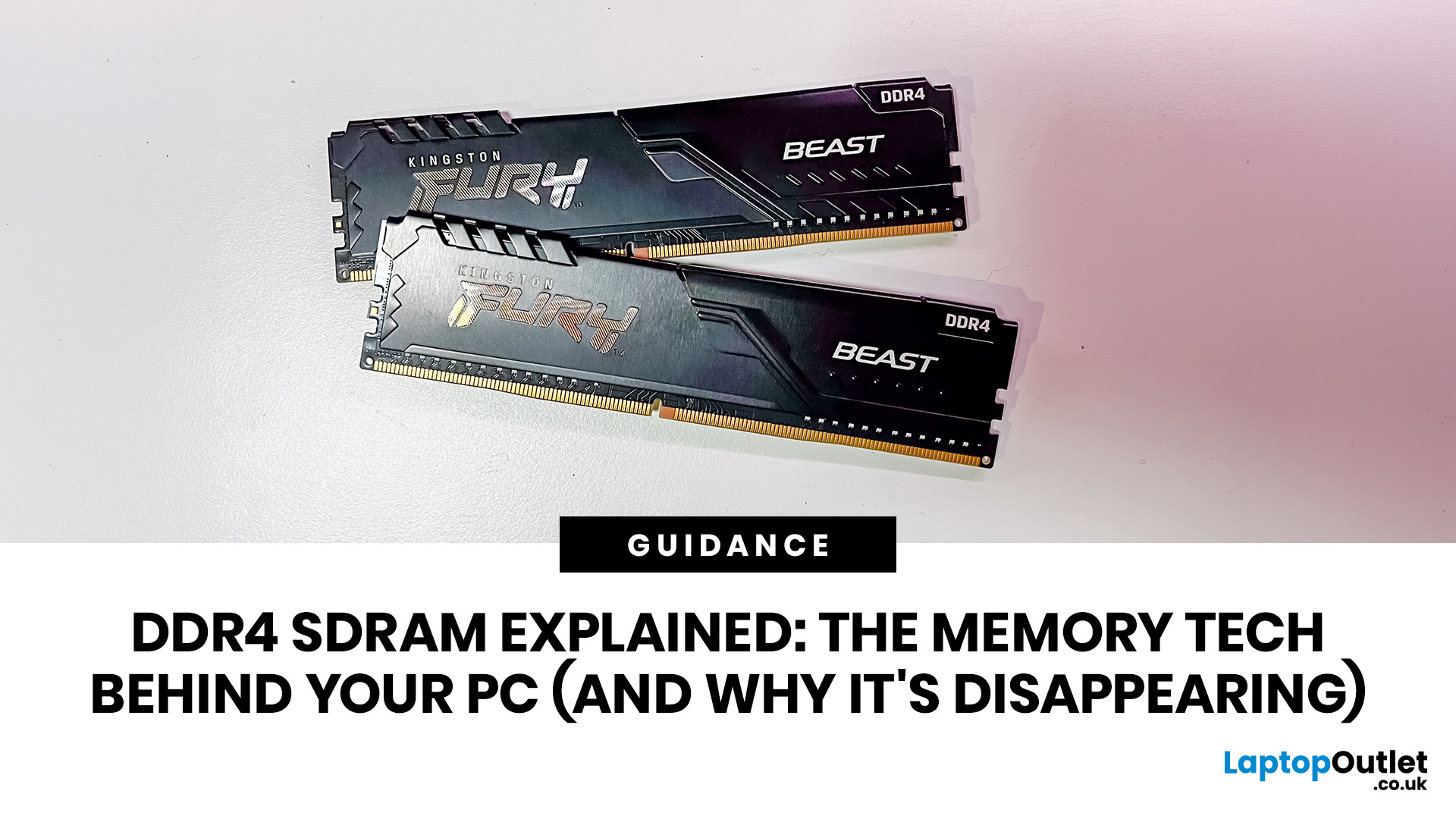
DDR4 is basically the reliable older sibling of modern PC memory. It powered gaming rigs, office PCs, laptops, creator setups and budget builds for years. But now? DDR5 has entered the chat, and new PC hardware is slowly moving on.
Still, DDR4 is not suddenly useless. Far from it. If your current PC uses DDR4, a memory upgrade can still make your system feel faster, smoother and less stressed. This guide has DDR4 SDRAM explained in plain English: what DDR4 memory is, how it works, how it compares with DDR5, and why it is gradually disappearing from new builds.
What is DDR4 SDRAM?
DDR4 stands for Double Data Rate 4. SDRAM stands for Synchronous Dynamic Random-Access Memory. Put together, DDR4 SDRAM is a type of computer memory used in desktops, laptops, workstations and servers.
In normal human terms, DDR4 is the short-term memory your PC uses while it is switched on. It temporarily holds the data your processor needs right now, such as open browser tabs, game assets, APPs, system

Last Updated: June 10, 2026
The 2026 RAM crunch is being driven by AI data centre demand. Memory makers are shifting capacity towards high-bandwidth memory, server DDR5, and enterprise SSDs, leaving less supply for consumer laptops. As a result, laptop RAM and SSD costs may rise, making many 2026 laptops more expensive or less generously specified.
If you were hoping laptop prices would settle down in 2026, the RAM market may have other plans.
The AI boom is pushing huge demand for memory chips, including DDR5, SSD storage, and high-bandwidth memory used in data centres. As manufacturers prioritise these high-margin AI products, consumer laptops could face tighter supply and higher component costs.
For UK buyers, that may mean more expensive laptops in 2026, fewer strong discounts, and budget models with weaker specs than before.
What Is the 2026 RAM Crunch?
The 2026 RAM crunch is a global memory shortage caused by rising demand for AI servers, high-bandwidth memory, DDR5 server memory, and enterprise SSDs.
In
Last Updated: June 18, 2026
For most buyers in 2026, the best laptop specs are a modern Intel Core Ultra 5/7 or AMD Ryzen AI 5/7 processor, 16GB RAM, 512GB SSD storage, and integrated graphics. Choose 32GB RAM, 1TB storage, and a dedicated GPU if you edit videos, create content, play demanding games, or use professional software.
Buying a new laptop in 2026 can feel confusing, especially when every product page is packed with technical words, numbers, and abbreviations. This processors & specs explained guide breaks everything down in plain English so you can understand what matters before you spend your money.
For most buyers, the four most important laptop components are the CPU, RAM, GPU, and storage. Once you understand these, it becomes much easier to compare models, avoid overspending, and choose a laptop that actually suits your daily needs.
What are Laptop Specs and Why Do They Matter?
Understanding laptop specifications becomes important. Specs affect:
- How fast your laptop feels when opening apps.
- How many
Last Updated: June 22, 2026
Your PC can look perfectly fine on the outside and still fail the moment it is pushed hard.
A game crashes after 20 minutes. A video export freezes at 92%. Your laptop randomly restarts during a heavy workload. Or maybe you have just upgraded your memory, changed your processor, built a new desktop, or enabled XMP/EXPO in the BIOS and want to know one thing:
Is my system actually stable?
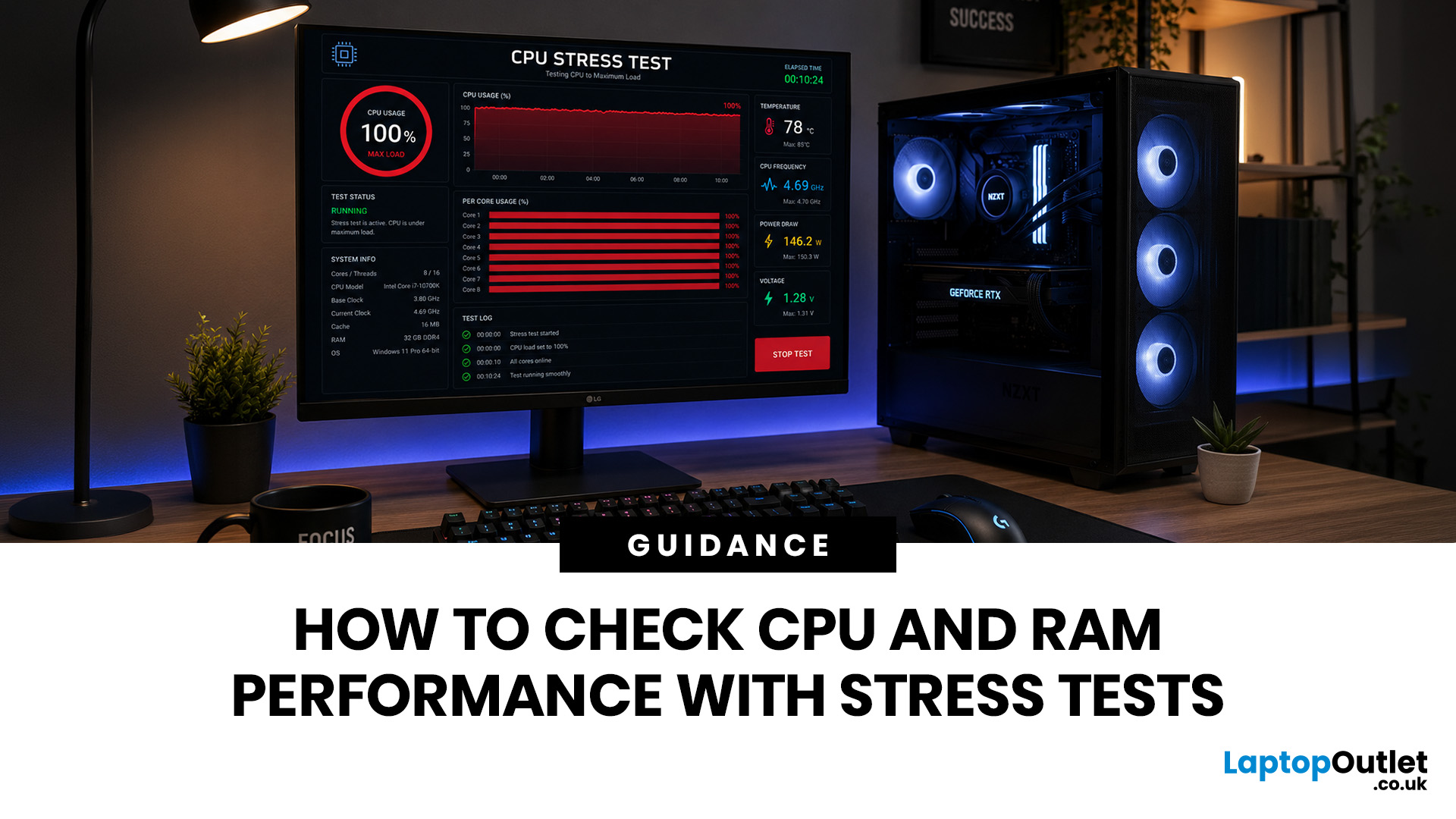
That is where a stress test CPU RAM process helps. By running a controlled CPU, RAM, or combined system stress testing session, you can find problems before they interrupt your work, gaming, editing, coding, or daily use.
In this guide, you will learn:
- What CPU and RAM stress testing
Last Updated: August 06, 2026
Published: July 27, 2026
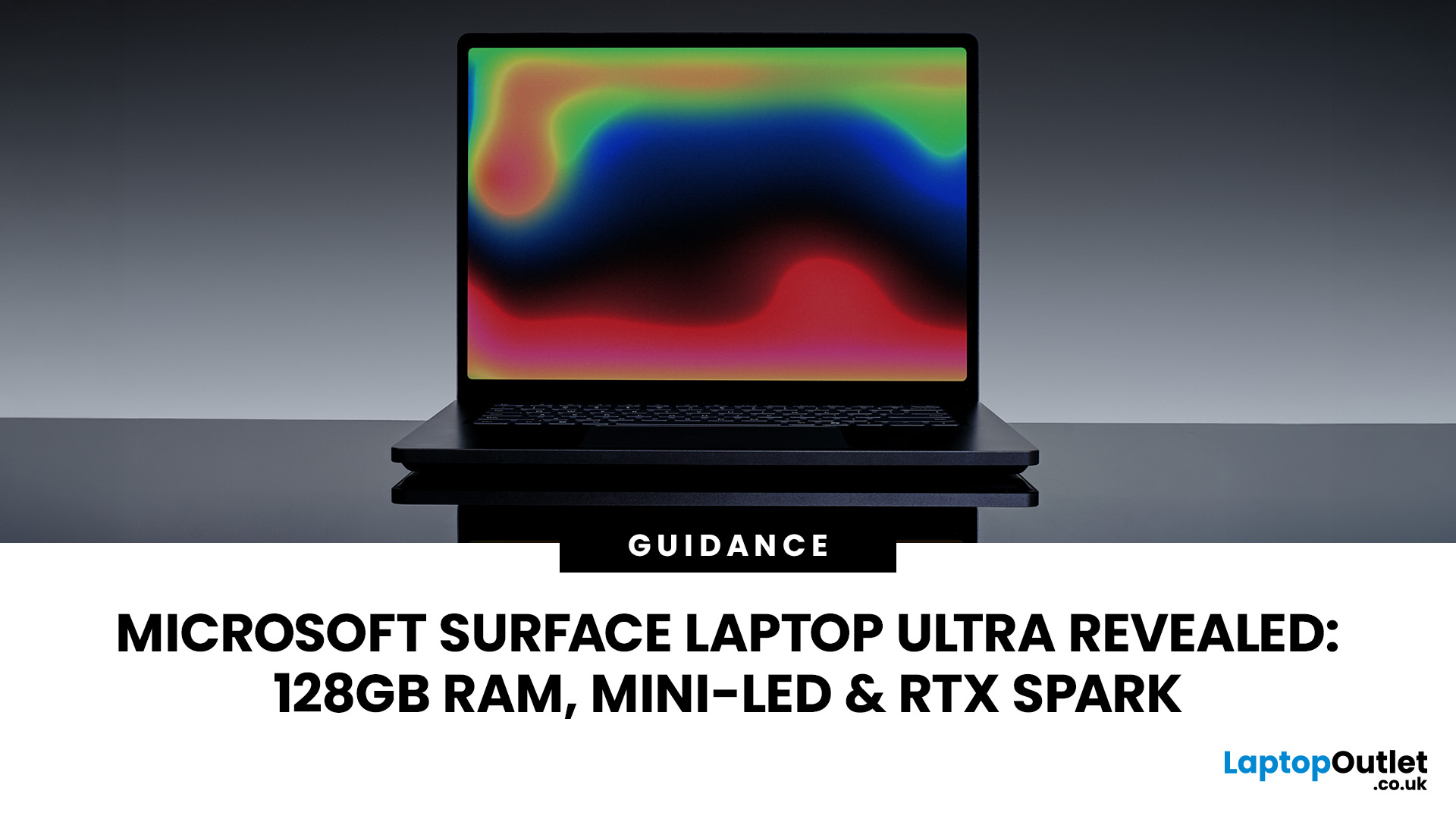
The Surface Laptop Ultra is Microsoft’s boldest laptop yet, built for local AI, 3D work, coding and demanding creative projects. It combines NVIDIA RTX Spark, Blackwell graphics, full CUDA support, and up to 128GB of unified memory, giving it serious workstation-level potential in a much slimmer design.
The 15-inch Mini-LED PixelSense Ultra display, upgraded cooling, and wider port selection make it even more appealing for power users. The only catch is that the exact UK price, full configurations and release date are still under wraps.
Microsoft Surface Ultra Specs at a Glance
The confirmed Microsoft Surface Ultra specs place the device above Microsoft’s conventional

Last Updated: September 03, 2026
Seeing Chrome using too much memory in Windows Task Manager can be concerning, especially when only a handful of tabs appear to be open. However, visible tabs tell only part of the story.
Chrome may run multiple processes behind those tabs, while individual websites can range from simple articles to demanding web applications. The important question is therefore not just how much RAM Chrome uses, but whether that usage is causing slowdowns, tab reloads or problems when you multitask.
Why Does Chrome Use So Much Memory?
Chrome's memory use is largely connected to how the browser is designed and how demanding modern websites have become. High RAM usage alone does not mean Chrome is faulty or poorly configured.
Chrome Uses Multiple Processes
Chrome does not run the entire browser inside a single operating-system process.
Chromium uses a multi-process architecture. The main browser process handles core browser functions, while separate renderer processes handle web content. Chrome can also

