



DRAM vs DRAM-Less SSDs: Which Should You Choose?
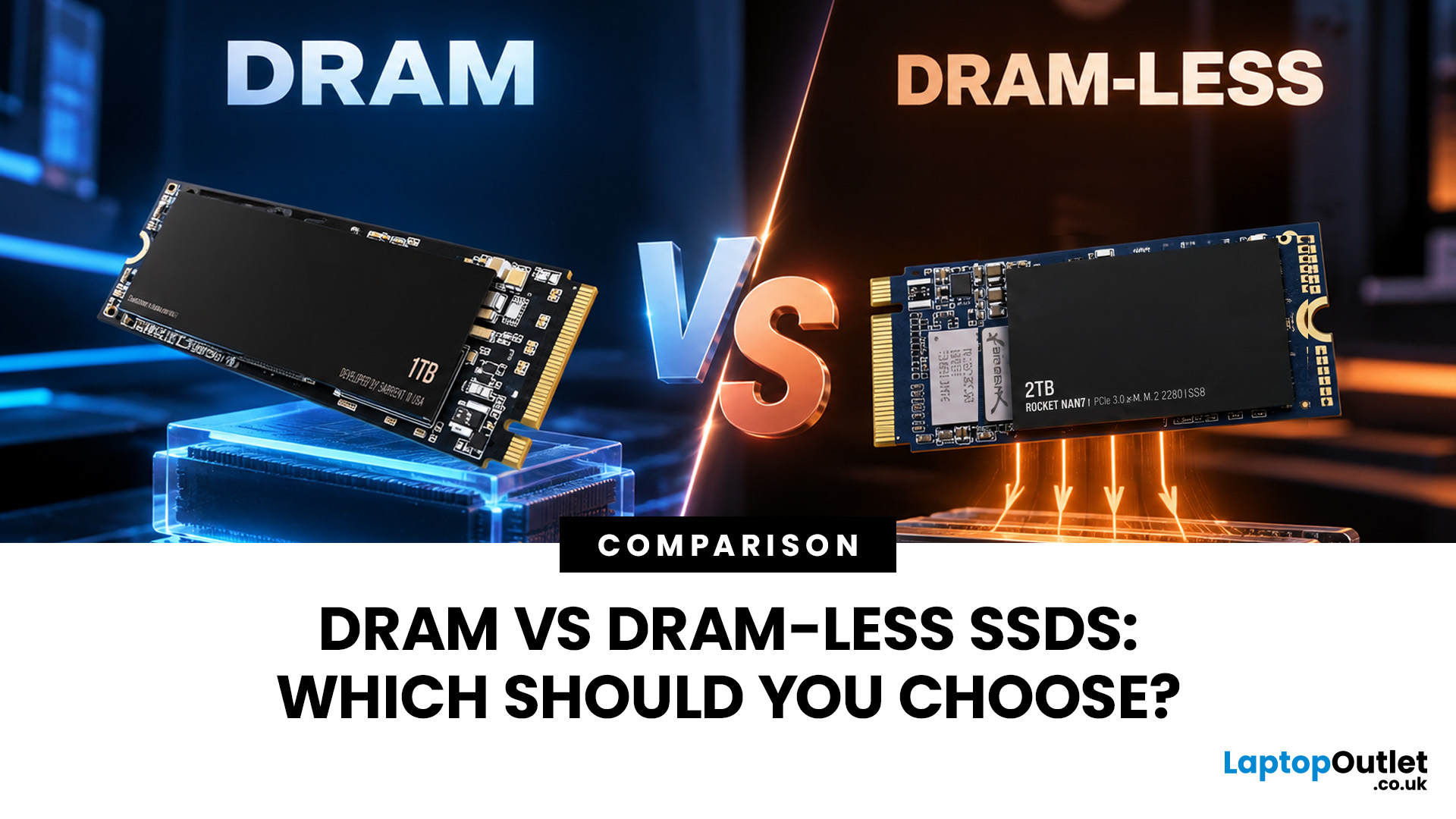
Two SSDs can both claim seriously fast read speeds while hiding one pretty important difference: one has dedicated DRAM, and the other does not.
A DRAM vs DRAM-less SSD choice depends on how you use your PC. SSDs with DRAM generally offer more consistent random performance and sustained speeds, making them better suited to heavy workloads, large file transfers and professional use. Modern DRAM-less NVMe SSDs can still perform very well by using Host Memory Buffer (HMB), making them a strong choice for gaming, Windows 11 and everyday computing.
But the DRAM vs DRAM-less SSD debate is not as simple as “DRAM good, DRAM-less bad”. Modern NVMe drives have changed the game with Host Memory Buffer, smarter controllers and better caching. So, what actually matters when choosing one? Let’s break it down.
DRAM vs DRAM-Less SSD: Quick Answer
An SSD with DRAM has dedicated memory that helps its controller quickly locate and manage data stored across the NAND flash. This can improve responsiveness and performance consistency, particularly during heavy random workloads and sustained activity.
A DRAM-less SSD removes that dedicated memory. Modern NVMe models can compensate using Host Memory Buffer, or HMB, which allows the controller to use a small amount of your PC's system RAM.
For gaming and normal everyday use, a good DRAM-less NVMe SSD can perform extremely well. For sustained file transfers, professional workloads, virtual machines and intensive multitasking, an SSD with dedicated DRAM may provide more consistent performance.
That is the short version. The details are where things get interesting.
What Does DRAM Actually Do in an SSD?
Your SSD is not simply a group of NAND flash chips waiting for Windows to ask for a file.
The controller needs to know where every piece of data is physically located. It does this using a Flash Translation Layer, commonly called the FTL, which maps the logical addresses used by your computer to locations within the NAND flash.
Think of it like the index in a massive book. Without an efficient index, finding the right page becomes a much bigger job.
An SSD DRAM cache can keep frequently required mapping information readily accessible to the controller. Kingston notes that SSD designs can use dedicated DRAM to store internal flash mapping tables and data being processed.
This is particularly useful when a drive is dealing with lots of small operations at once, rather than one neat sequential transfer.
That means DRAM can help with:
- random reads and writes
- mixed workloads
- multitasking
- metadata management
- maintaining consistent responsiveness
- demanding storage workloads
DRAM does not increase your usable storage capacity. A 1TB SSD with DRAM is still a 1TB SSD.
So, What Is a DRAM-Less SSD?
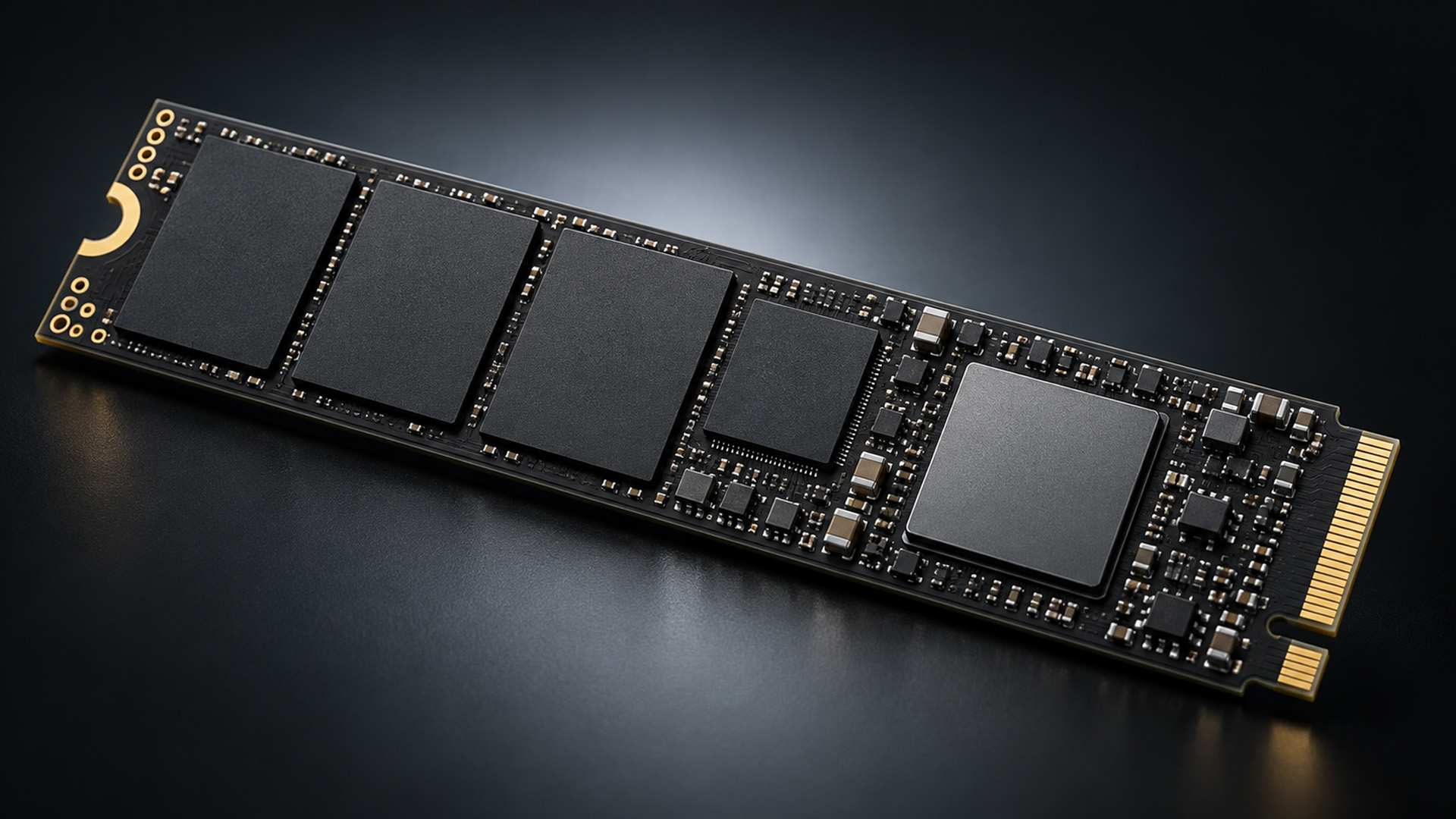
A DRAM-less SSD does exactly what the name suggests. There is no separate DRAM package sitting on the drive for the controller to use.
Older DRAM-less designs often had to rely more heavily on controller SRAM and NAND itself to manage mapping information. That could create noticeable performance penalties under demanding workloads.
Modern NVMe SSDs have a much smarter workaround: Host Memory Buffer.
HMB allows an NVMe controller to reserve a small section of the computer's system memory for its own use. Microsoft documents Host Memory Buffer as an NVMe feature that lets the host allocate memory exclusively to the controller, while the NVMe specification defines the mechanism at protocol level.
So, today's DRAM-less NVMe drive is not necessarily trying to do everything without fast memory. And that changes the conversation quite a lot.
DRAM vs DRAM-Less SSD Compared
|
Feature |
SSD with DRAM |
DRAM-less SSD |
|
Dedicated DRAM |
Yes |
No |
|
HMB required |
Usually no |
Often used on NVMe models |
|
Random performance |
Typically strong |
Can be very strong with modern HMB |
|
Sustained workloads |
Generally more consistent |
Depends heavily on NAND, controller and cache |
|
Power requirements |
Additional DRAM needs power |
Can be more efficient |
|
Cost to manufacture |
Higher |
Lower |
|
Everyday computing |
Excellent |
Often excellent |
|
Gaming |
Excellent |
Often excellent |
|
Heavy workstation use |
Well suited |
Model dependent |
The key phrase there is model dependent.
A modern DRAM-less NVMe SSD with a strong controller, TLC NAND and well-tuned firmware can outperform an older or weaker NVMe SSD with DRAM.
So DRAM should be one buying factor, not your entire buying strategy.
HMB vs DRAM SSD: What Is the Difference?
Dedicated DRAM sits directly on the SSD. HMB places the memory elsewhere by borrowing a portion of the computer's system RAM.
That extra distance means HMB is not identical to onboard DRAM. The SSD controller has to access the host memory through the NVMe and PCIe connection instead of talking to memory located directly on its own PCB.
However, modern PCIe interfaces and improved SSD controllers have made this approach surprisingly effective.
Tom's Hardware's testing of the DRAM-less Samsung 980, for example, documented the drive using HMB to access system memory for its FTL mapping requirements instead of relying on dedicated onboard DRAM.
There is another important detail here: HMB is associated with NVMe.
A DRAM-less SATA SSD cannot rely on the NVMe HMB mechanism. That makes the presence of DRAM potentially more significant when comparing older or entry-level SATA SSD designs.
HMB only uses a small portion of system memory, but if you are checking your wider PC configuration, it is also worth understanding why RAM can run slower than its advertised speed and how motherboard memory settings affect reported speeds.
DRAM Cache vs SLC Cache Explained
This is where SSD marketing gets messy.
DRAM cache and SLC cache are not the same thing.
DRAM is separate volatile memory primarily used to help the SSD controller manage mapping information, metadata and other operations.
SLC cache is part of the NAND flash operating temporarily in a faster one-bit-per-cell mode. Its main job is to absorb writes quickly before that data is eventually written into the drive's TLC or QLC NAND.
In simple terms:
DRAM cache: helps the controller know where data is.
SLC cache: helps the SSD write incoming data quickly.
That distinction matters because a DRAM-less SSD can still have a large SLC cache.
This is why some DRAM-less SSDs can hit impressive headline write speeds during short benchmarks. The data is landing in fast SLC cache.
Keep writing enough data, however, and that cache can fill. The drive then has to write directly to its underlying TLC or QLC NAND.
Suddenly that flashy benchmark number may look very different.
Why Sustained Write Speed Matters
Manufacturer specifications normally highlight peak sequential speeds because they are easy to compare.
Real storage workloads can be considerably messier.
Imagine transferring hundreds of gigabytes of video, installing several large games, moving a Steam library or working with high-resolution project files. Once the SLC cache becomes saturated, the drive's native NAND, controller design and firmware become much more visible.
This is where SSD sustained write speed becomes useful.
A drive capable of 7,000MB/s for a short burst is not necessarily capable of maintaining anything close to that throughout a 300GB transfer.
Dedicated DRAM can help maintain efficient mapping and consistent performance, but it does not magically eliminate SLC cache limits. NAND type, NAND parallelism, controller quality, available free space and firmware are all important too.
When comparing SSD reviews, look beyond the maximum number on the product page. Long file-copy tests and post-cache write tests tell you far more about heavy workloads.
What About SSD Random Read Performance?
Sequential speed gets the marketing spotlight. Random performance often tells you more about how responsive storage feels.
Opening applications, loading operating system files and accessing game assets can involve data scattered across different NAND locations rather than one enormous continuous file.
That is where SSD random read performance matters.
Having a fast mapping system helps the controller locate those blocks efficiently. Dedicated DRAM traditionally provides an advantage here, although modern HMB-equipped NVMe controllers have narrowed the gap substantially.
Queue depth matters too. An SSD boasting enormous maximum IOPS at high queue depths may not reproduce those numbers during normal desktop activity.
Translation: do not judge an SSD entirely by one massive number printed on the box.
DRAM vs DRAM-Less SSD for Gaming
Here is the plot twist gamers care about: DRAM-less does not automatically mean bad for gaming.
Games are largely read-focused once installed. Recent 2026 testing by Tom's Hardware across 11 games found that gameplay storage activity was dominated by random reads, while write activity was generally low. It also found that although SSDs dramatically improve loading compared with HDDs, differences between different SSD classes can be much smaller.
That makes a good HMB-equipped DRAM-less NVMe SSD perfectly reasonable for many gaming PCs.
Dedicated DRAM becomes more interesting when the same drive is simultaneously handling heavier workloads such as:
- downloading and unpacking large games
- installing major game updates
- recording gameplay
- moving large game libraries
- running Windows and background applications
- editing captured footage
So, for DRAM vs DRAM-less SSD for gaming, do not focus on DRAM alone.
A strong DRAM-less TLC NVMe drive may make more sense than a slower SSD simply because the second one happens to contain DRAM.
Capacity matters too. Running out of storage halfway through installing another 100GB game is not exactly a performance win.
Storage is only one part of gaming responsiveness. If you are also choosing memory for a new build, understanding DDR5 RAM latency can help when comparing timings such as CL30 and CL36.
Is a DRAM-Less SSD Good for Windows?
A DRAM-less SSD for Windows can be absolutely fine, particularly if it is a modern NVMe model with HMB and a capable controller.
Booting Windows, opening a browser, using Microsoft Office, streaming and carrying out everyday tasks do not automatically require a dedicated DRAM cache.
Things become more demanding when several storage-heavy jobs happen together.
Windows Update might be working in the background while you download a game, extract files, sync cloud storage and open applications. A well-designed SSD with dedicated DRAM can provide stronger consistency in these kinds of mixed workloads.
For a mainstream Windows 11 PC, however, rejecting every DRAM-less NVMe SSD would rule out some genuinely capable modern drives.
Look at the whole SSD.
When Should You Choose an SSD With DRAM?
An SSD with DRAM makes particular sense when storage performance is important to your workload rather than simply nice to have.
Consider prioritising dedicated DRAM for:
Content Creation
Large video files, high-resolution assets, scratch disks and frequent transfers can place much greater sustained pressure on storage.
Virtual Machines
Running VMs can generate intensive mixed and random I/O, especially when multiple environments operate simultaneously.
Development Work
Large codebases, compilation workloads and development environments can involve thousands of small storage operations.
Heavy Multitasking
If your primary SSD handles Windows, applications, downloads, project files and other storage-heavy jobs simultaneously, consistency becomes increasingly useful.
Frequent Large Transfers
Moving hundreds of gigabytes regularly exposes drive behaviour beyond the fast SLC cache.
For these workloads, check current internal SSDs by interface, capacity and specification rather than assuming every drive within the same PCIe generation will perform identically.
When Does DRAM-Less Make Sense?
Modern DRAM-less SSDs can make a lot of sense for mainstream PCs.
They are particularly suitable for:
- everyday home PCs
- gaming libraries
- typical Windows use
- laptops
- secondary storage
- lighter productivity workloads
- systems where lower power consumption matters
Some of the fastest current consumer SSD architectures prove that dedicated DRAM is no longer required simply to produce a responsive NVMe drive.
The important bit is choosing a good DRAM-less drive, not merely choosing any DRAM-less drive.
Look for HMB support, reputable controller hardware, sensible NAND, adequate endurance and independent sustained-performance testing.
DRAM Is Not the Only SSD Spec That Matters
Putting “has DRAM” at the top of your checklist and ignoring everything else is an easy way to buy the wrong SSD.
Check these factors too.
NAND Type
TLC and QLC NAND have different performance and endurance characteristics. QLC allows higher density, while TLC generally provides stronger native write performance.
If NAND type is another factor in your shortlist, our comparison of TLC vs QLC SSDs explains how they differ in speed, endurance and sustained write behaviour.
PCIe Generation
PCIe 3.0, 4.0 and 5.0 drives offer different maximum bandwidth levels, but the fastest interface does not automatically translate into equally dramatic improvements in every workload.
Capacity
SSD performance can differ between capacities of the same product family because NAND configuration, parallelism and cache behaviour may change.
Endurance
Check the manufacturer's TBW rating and warranty rather than assuming DRAM automatically determines lifespan.
Controller and Firmware
Controller architecture and firmware optimisation play a huge role in latency, caching behaviour, power management and performance consistency.
Thermals
High-performance NVMe SSDs can reduce performance when temperatures climb. Motherboard heatsinks and airflow therefore matter, particularly with faster PCIe drives.
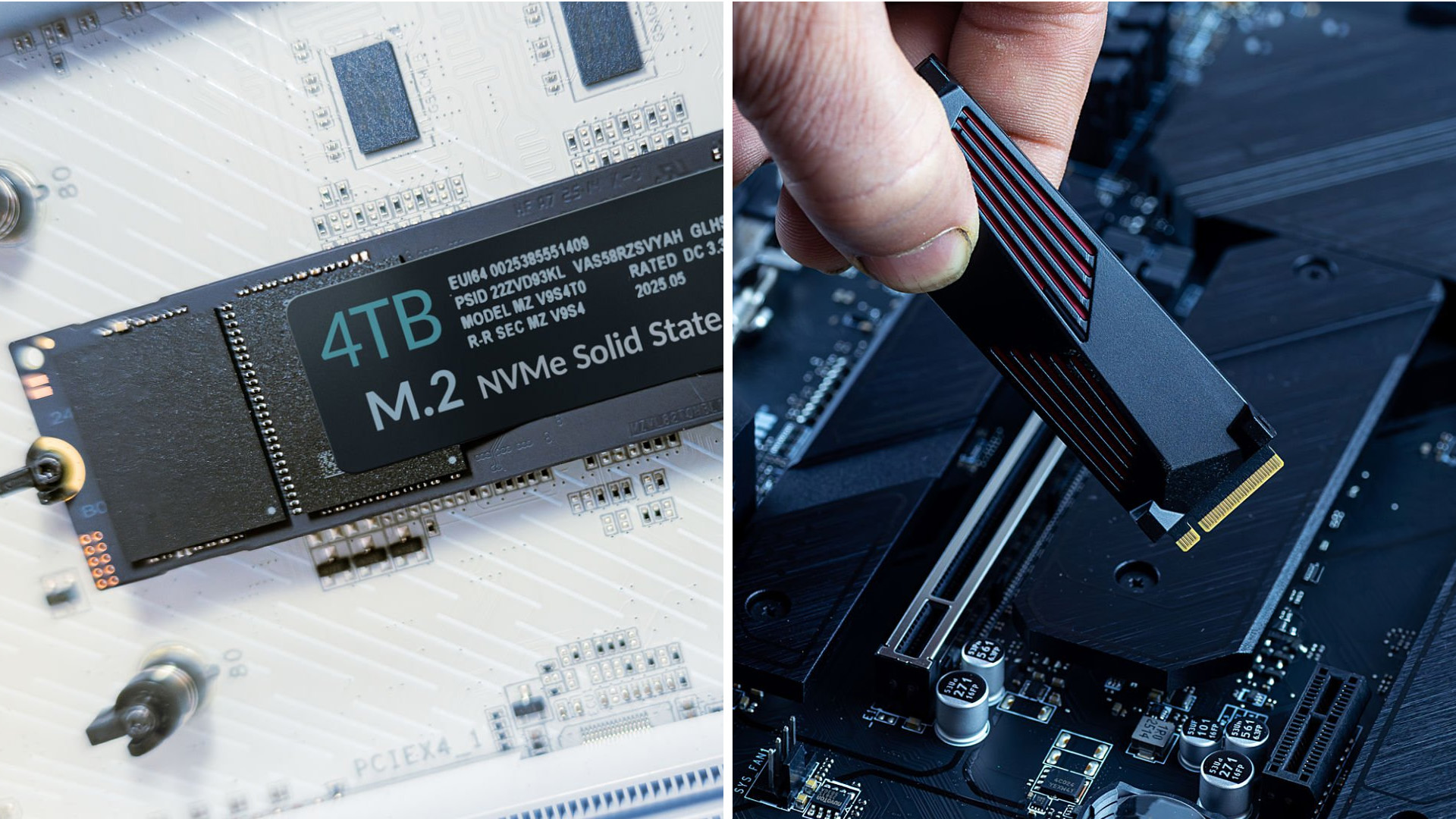
If you are building or upgrading a desktop, check your PC motherboards specifications for available M.2 slots, supported PCIe generations and heatsink configuration before ordering.
How Can You Tell if an SSD Has DRAM?
Annoyingly, manufacturers do not always make DRAM configuration obvious on the product page.
Start with the official specification sheet. Search for phrases such as:
- DRAM cache
- dedicated DRAM
- DDR4 or LPDDR4 cache
- Host Memory Buffer
- HMB
- DRAM-less design
If those details are missing, check reliable technical reviews for the exact drive and capacity.
Do not assume an entire SSD family uses identical hardware forever either. Controller, NAND and component configurations can sometimes vary between revisions.
When choosing between wider PC storage options, also confirm whether you actually need an internal NVMe drive, SATA storage or another format for your setup.

Which SSD Should You Choose?
Forget the idea that every SSD with DRAM is automatically superior to every DRAM-less model.
For gaming, general Windows use and everyday computing, a good modern DRAM-less NVMe SSD with HMB can offer excellent real-world performance.
For demanding content creation, virtual machines, frequent large transfers and storage-heavy professional workloads, dedicated DRAM is still worth considering because consistent latency and sustained performance become more important.
And if you are shopping for a DRAM-less SATA drive, pay closer attention. SATA does not provide the same HMB mechanism available to NVMe drives.
The smartest approach is to compare the complete drive: controller, NAND, DRAM or HMB configuration, SLC cache, sustained performance, endurance, thermals, capacity and warranty.
Need storage you can move between different systems instead? Portable SSDs offer fast external storage without opening your laptop or desktop.

FAQs
Do all NVMe SSDs have DRAM?
No. Many modern NVMe SSDs are DRAM-less and instead use Host Memory Buffer to access a small amount of system RAM for controller operations.
Is a DRAM-less SSD bad for gaming?
No. Modern games are primarily read-heavy, so a capable DRAM-less NVMe SSD can work extremely well for gaming, particularly when it supports HMB.
Is DRAM cache the same as SLC cache?
No. DRAM mainly assists with mapping and metadata management, while SLC cache uses NAND in a faster mode to temporarily accelerate incoming writes.
Does HMB use my PC's RAM?
Yes. HMB allows a compatible NVMe SSD to reserve a relatively small amount of system memory for the controller instead of using dedicated DRAM.
Is a DRAM-less SSD suitable for Windows 11?
Yes. A modern DRAM-less NVMe SSD with HMB can be a capable Windows 11 drive. Dedicated DRAM becomes more useful as storage workloads become heavier or more sustained.
Should I choose DRAM or a faster PCIe generation?
Neither specification should be judged alone. Compare real-world performance, NAND, controller, cache design, endurance, capacity and workload requirements before making the decision.
Related Articles

Last Updated: September 24, 2026
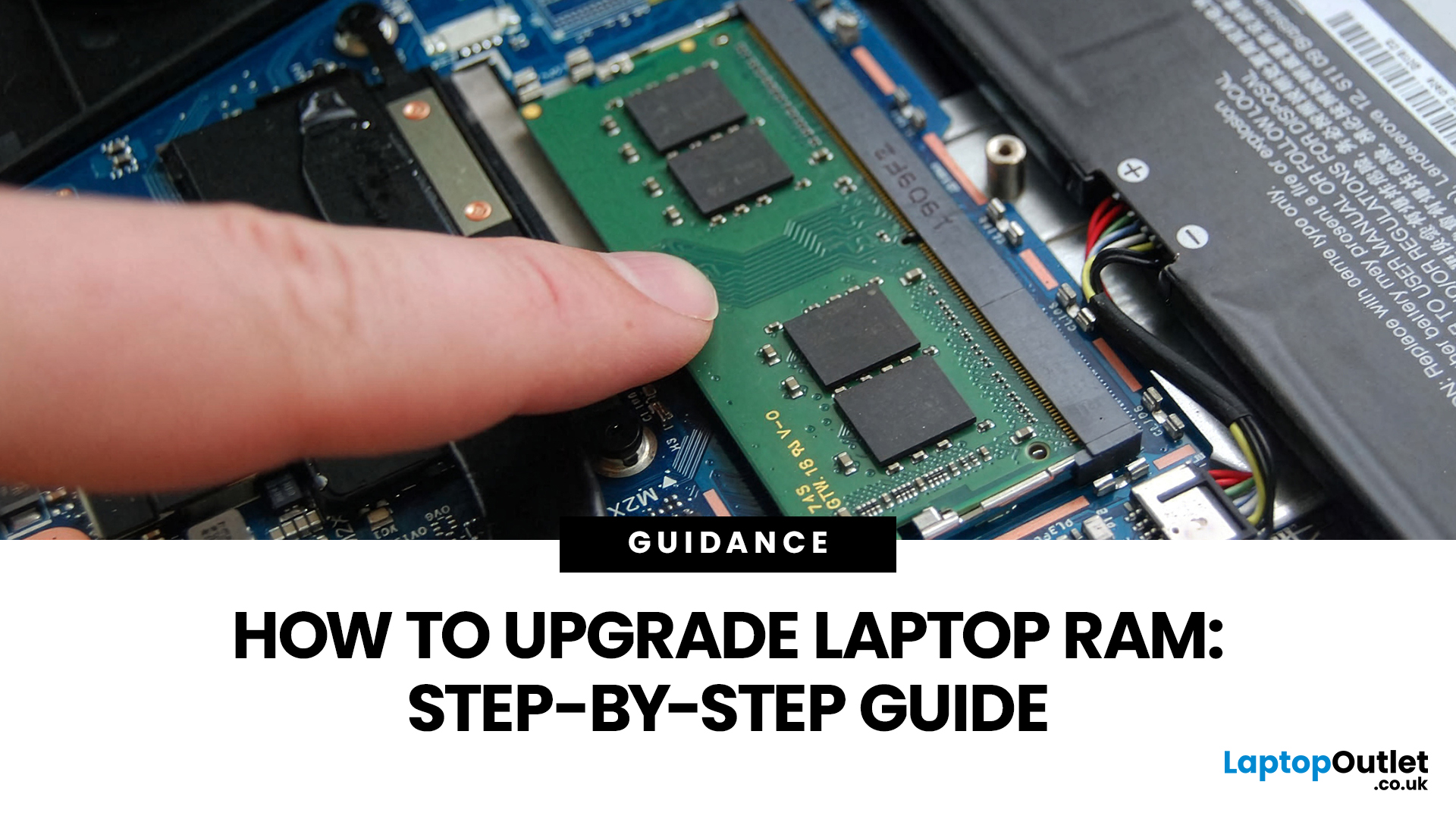
Upgrading laptop RAM is one of the simplest ways to make an older machine feel faster and more capable again, but only if the compatibility side is right from the start. That is the part many quick guides skip. Before buying anything, we always recommend checking whether the laptop has upgradeable memory, what RAM standard it uses, how much it supports, and whether upgrading means adding another module or replacing the existing setup.
To upgrade laptop RAM, first check whether your model has upgradeable SO-DIMM slots, the supported DDR generation, maximum capacity and current memory configuration. Buy compatible RAM, shut the laptop down, disconnect power, open the service panel, remove or add the module, then reassemble and boot up. Finally, confirm the new memory is recognised and test system performance for improved multitasking.
For UK shoppers, that matters because a RAM upgrade can be a much smarter option than replacing a laptop too early. If a system slows down with lots of browser
Last Updated: May 13, 2026
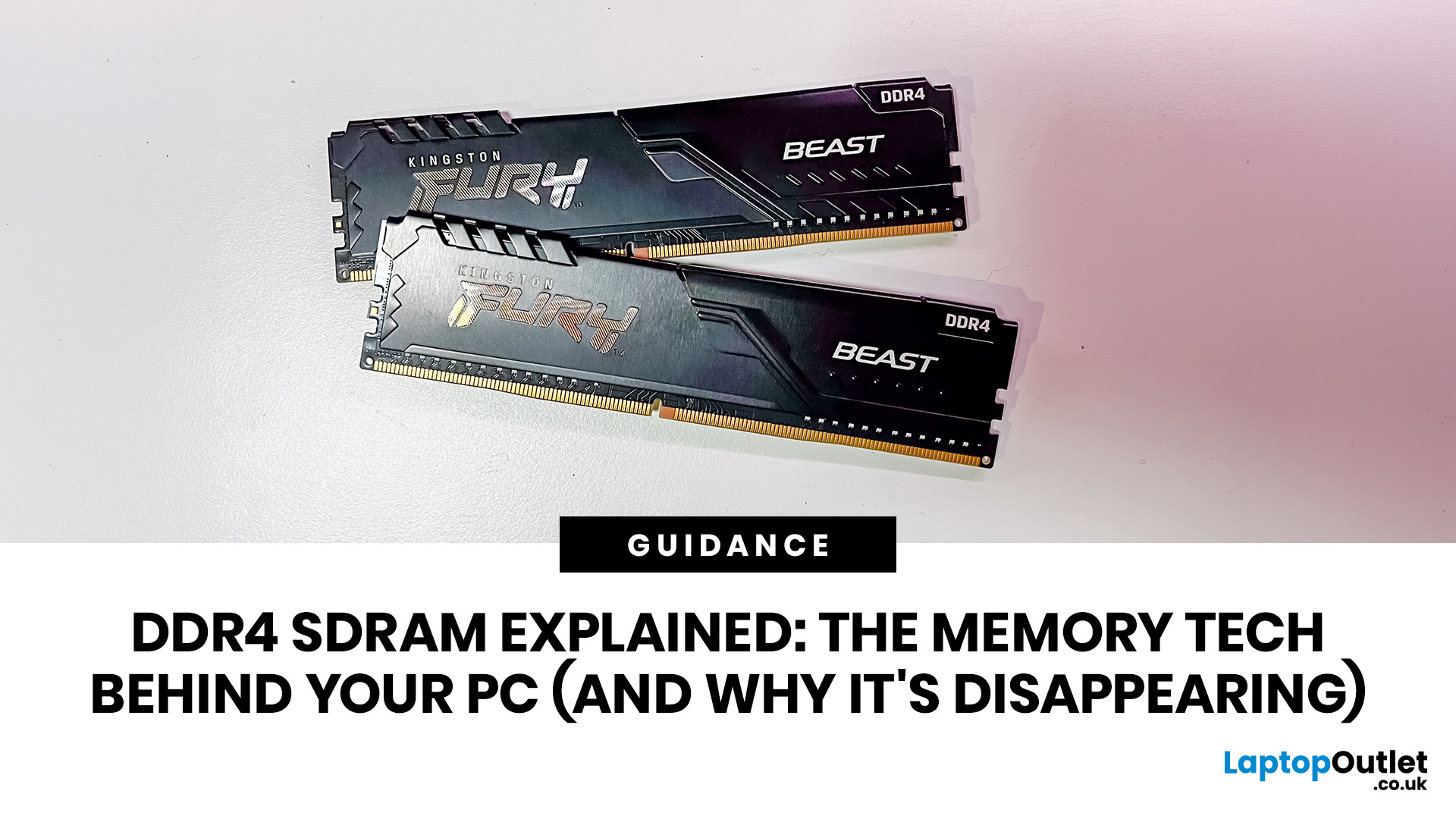
DDR4 is basically the reliable older sibling of modern PC memory. It powered gaming rigs, office PCs, laptops, creator setups and budget builds for years. But now? DDR5 has entered the chat, and new PC hardware is slowly moving on.
Still, DDR4 is not suddenly useless. Far from it. If your current PC uses DDR4, a memory upgrade can still make your system feel faster, smoother and less stressed. This guide has DDR4 SDRAM explained in plain English: what DDR4 memory is, how it works, how it compares with DDR5, and why it is gradually disappearing from new builds.
What is DDR4 SDRAM?
DDR4 stands for Double Data Rate 4. SDRAM stands for Synchronous Dynamic Random-Access Memory. Put together, DDR4 SDRAM is a type of computer memory used in desktops, laptops, workstations and servers.
In normal human terms, DDR4 is the short-term memory your PC uses while it is switched on. It temporarily holds the data your processor needs right now, such as open browser tabs, game assets, APPs, system

Last Updated: June 10, 2026
The 2026 RAM crunch is being driven by AI data centre demand. Memory makers are shifting capacity towards high-bandwidth memory, server DDR5, and enterprise SSDs, leaving less supply for consumer laptops. As a result, laptop RAM and SSD costs may rise, making many 2026 laptops more expensive or less generously specified.
If you were hoping laptop prices would settle down in 2026, the RAM market may have other plans.
The AI boom is pushing huge demand for memory chips, including DDR5, SSD storage, and high-bandwidth memory used in data centres. As manufacturers prioritise these high-margin AI products, consumer laptops could face tighter supply and higher component costs.
For UK buyers, that may mean more expensive laptops in 2026, fewer strong discounts, and budget models with weaker specs than before.
What Is the 2026 RAM Crunch?
The 2026 RAM crunch is a global memory shortage caused by rising demand for AI servers, high-bandwidth memory, DDR5 server memory, and enterprise SSDs.
In
Last Updated: June 18, 2026
For most buyers in 2026, the best laptop specs are a modern Intel Core Ultra 5/7 or AMD Ryzen AI 5/7 processor, 16GB RAM, 512GB SSD storage, and integrated graphics. Choose 32GB RAM, 1TB storage, and a dedicated GPU if you edit videos, create content, play demanding games, or use professional software.
Buying a new laptop in 2026 can feel confusing, especially when every product page is packed with technical words, numbers, and abbreviations. This processors & specs explained guide breaks everything down in plain English so you can understand what matters before you spend your money.
For most buyers, the four most important laptop components are the CPU, RAM, GPU, and storage. Once you understand these, it becomes much easier to compare models, avoid overspending, and choose a laptop that actually suits your daily needs.
What are Laptop Specs and Why Do They Matter?
Understanding laptop specifications becomes important. Specs affect:
- How fast your laptop feels when opening apps.
- How many
Last Updated: June 22, 2026
Your PC can look perfectly fine on the outside and still fail the moment it is pushed hard.
A game crashes after 20 minutes. A video export freezes at 92%. Your laptop randomly restarts during a heavy workload. Or maybe you have just upgraded your memory, changed your processor, built a new desktop, or enabled XMP/EXPO in the BIOS and want to know one thing:
Is my system actually stable?
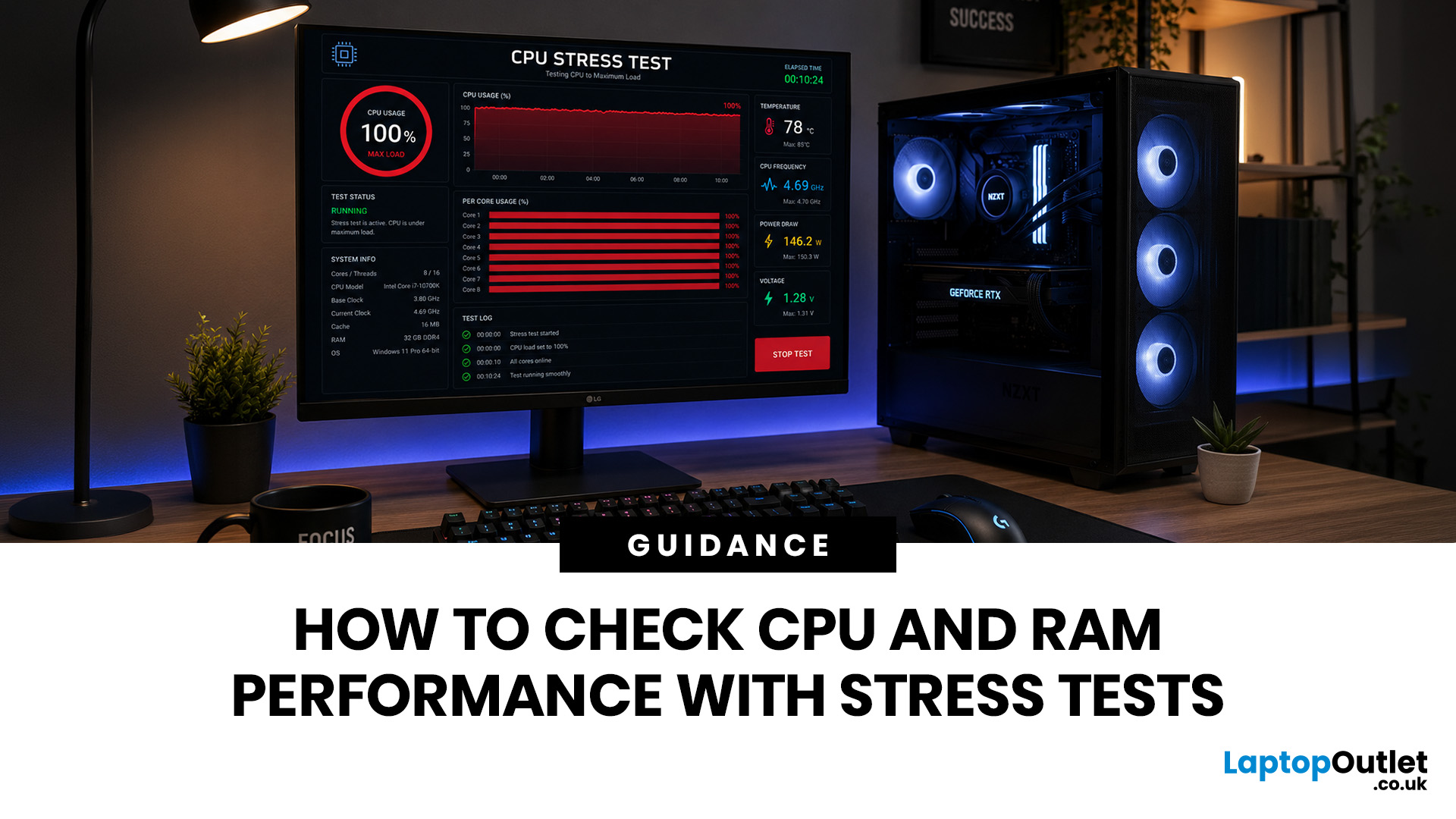
That is where a stress test CPU RAM process helps. By running a controlled CPU, RAM, or combined system stress testing session, you can find problems before they interrupt your work, gaming, editing, coding, or daily use.
In this guide, you will learn:
- What CPU and RAM stress testing
Last Updated: August 06, 2026
Published: July 27, 2026
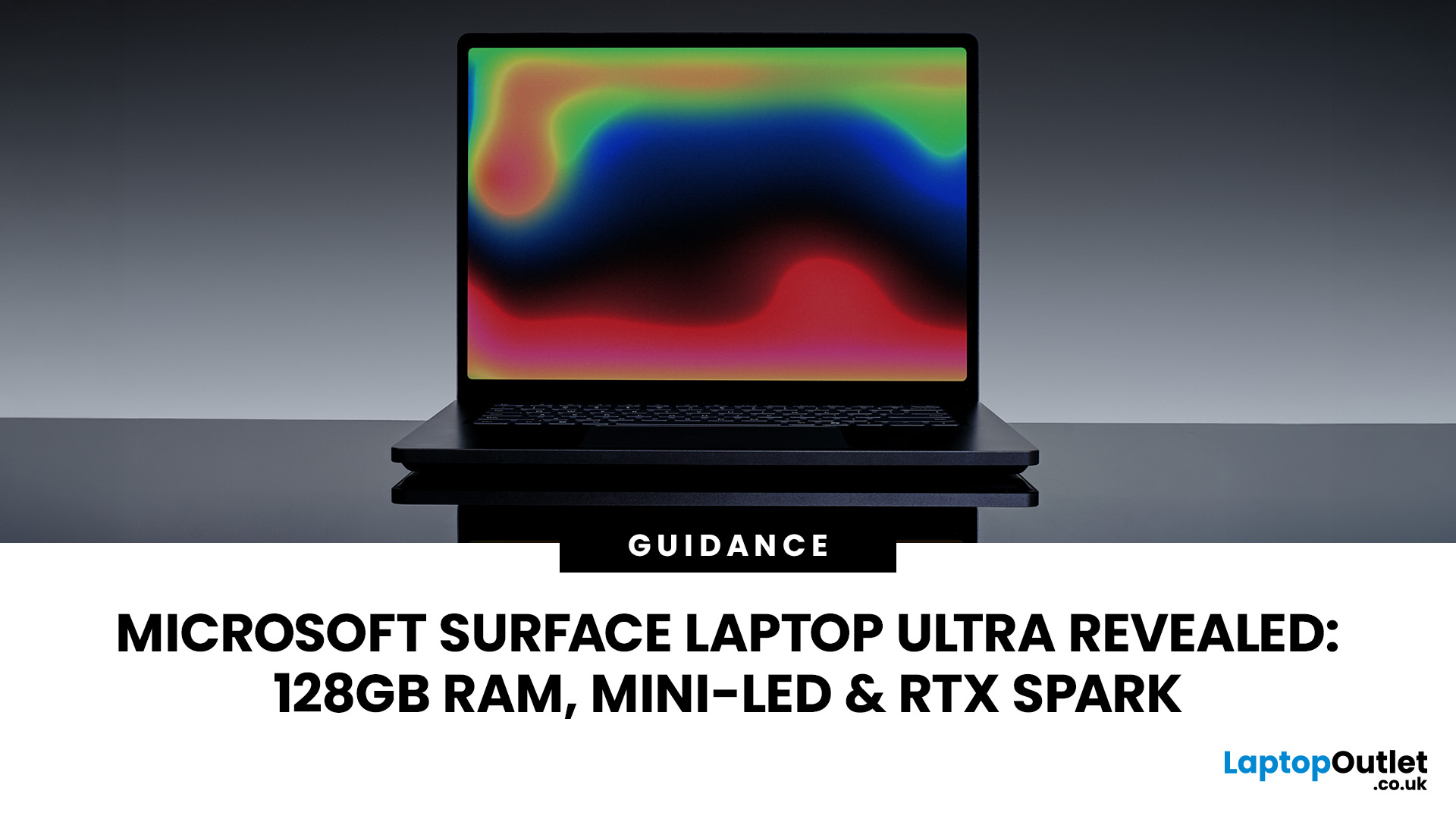
The Surface Laptop Ultra is Microsoft’s boldest laptop yet, built for local AI, 3D work, coding and demanding creative projects. It combines NVIDIA RTX Spark, Blackwell graphics, full CUDA support, and up to 128GB of unified memory, giving it serious workstation-level potential in a much slimmer design.
The 15-inch Mini-LED PixelSense Ultra display, upgraded cooling, and wider port selection make it even more appealing for power users. The only catch is that the exact UK price, full configurations and release date are still under wraps.
Microsoft Surface Ultra Specs at a Glance
The confirmed Microsoft Surface Ultra specs place the device above Microsoft’s conventional
Last Updated: September 03, 2026
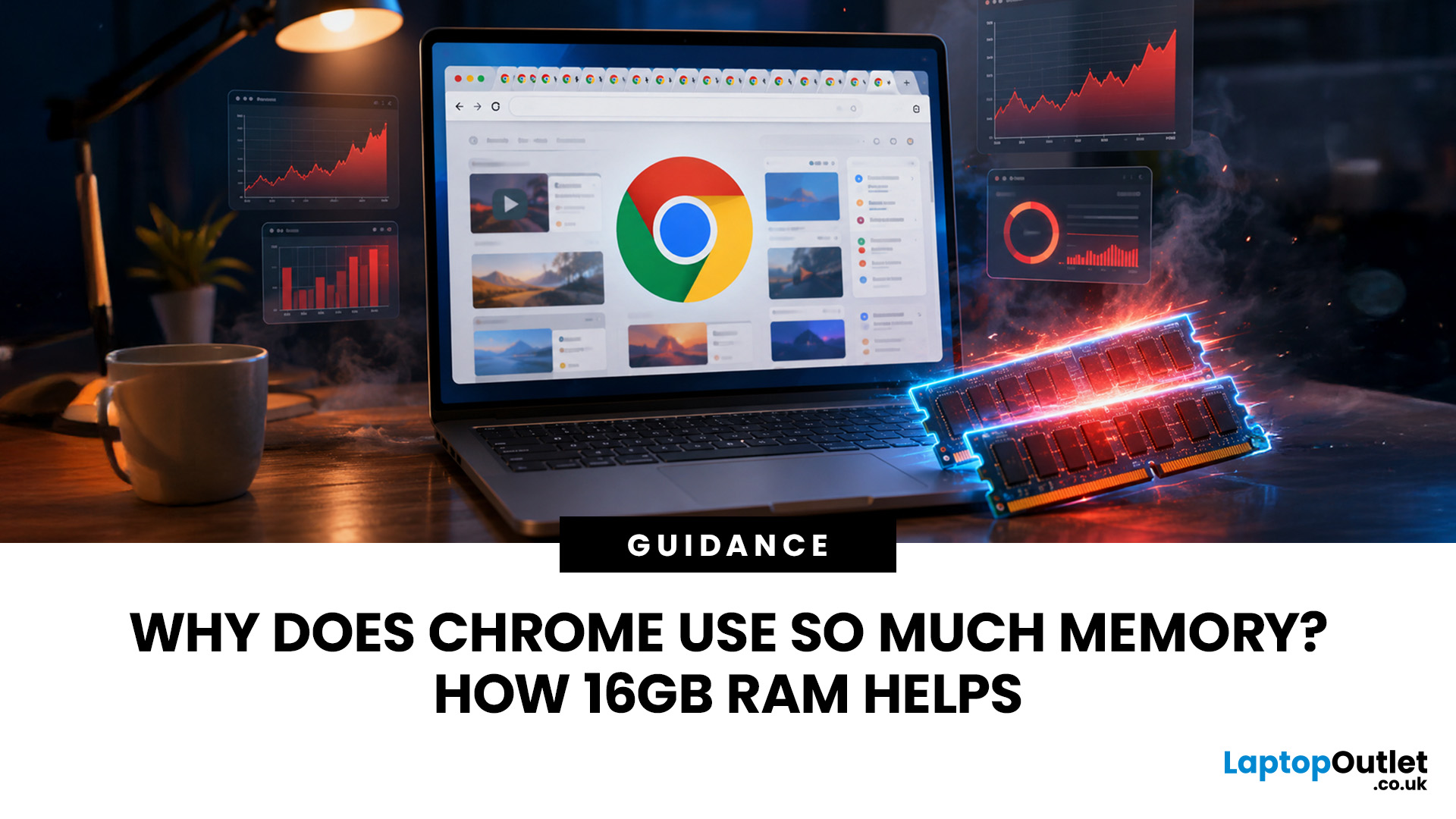
Seeing Chrome using too much memory in Windows Task Manager can be concerning, especially when only a handful of tabs appear to be open. However, visible tabs tell only part of the story.
Chrome may run multiple processes behind those tabs, while individual websites can range from simple articles to demanding web applications. The important question is therefore not just how much RAM Chrome uses, but whether that usage is causing slowdowns, tab reloads or problems when you multitask.
Why Does Chrome Use So Much Memory?
Chrome's memory use is largely connected to how the browser is designed and how demanding modern websites have become. High RAM usage alone does not mean Chrome is faulty or poorly configured.
Chrome Uses Multiple Processes
Chrome does not run the entire browser inside a single operating-system process.
Chromium uses a multi-process architecture. The main browser process handles core browser functions, while separate renderer processes handle web content. Chrome can also
Published: September 17, 2026
The amount of RAM in a Dell PC affects how comfortably it can handle everyday programs, multitasking, and more demanding applications. Too little memory can hold performance back, while paying for far more than your workload needs often brings little practical benefit.
RAM, or Random Access Memory, is the short-term working space your PC uses for active applications and data. As your workload becomes heavier or you run more programs at once, the amount of memory you need generally increases.
For most Dell desktop buyers, 16GB of RAM is the safest choice. Choose 8GB for basic browsing, email, and light office work, while 32GB or more makes sense for heavier creative, technical or multitasking workloads. RAM matters, but processor performance, SSD storage, graphics capability and upgrade options also shape how responsive the PC feels.
How Much Dell PC RAM Do You Need?
Your ideal Dell PC RAM capacity depends mainly on the applications you run and how many you expect to use simultaneously.
Last Updated: September 24, 2026
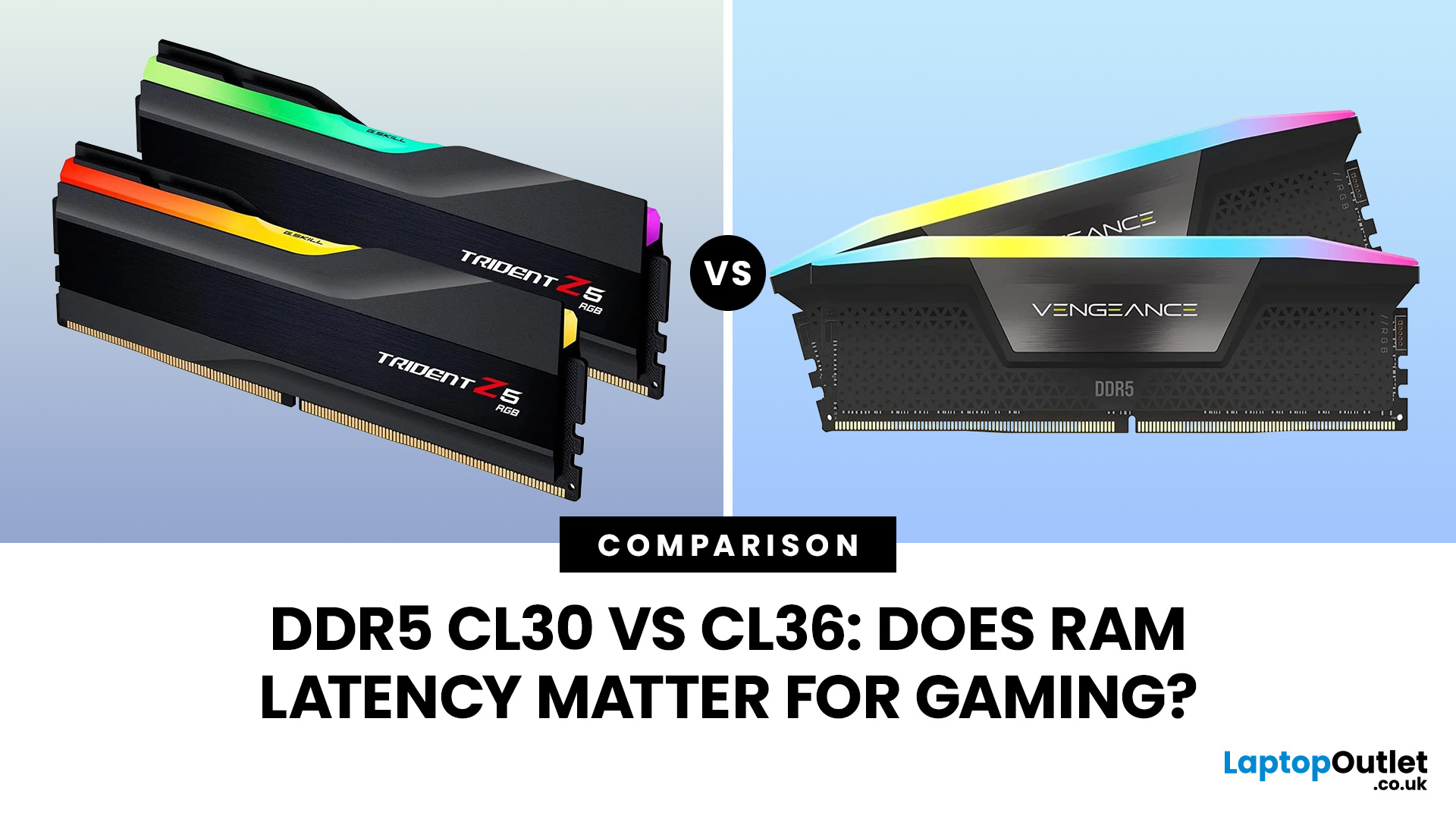
Quick Answer: If two DDR5 kits run at the same speed, CL30 has lower CAS latency than CL36. At DDR5-6000, CL30 works out at about 10ns of CAS delay versus 12ns for CL36. That can help in CPU-limited games, but the real gaming difference is usually much smaller than the 20% difference suggested by those latency figures. Memory speed, secondary timings, CPU architecture, and the game itself also matter.
When comparing RAM modules, specifications such as DDR5-6000 CL30 and DDR5-6000 CL36 can look confusingly similar. Both have the same data rate, so does paying attention to that CL number actually make a difference?
It can, but CL30 vs CL36 is not as simple as choosing the lowest number. Here is what those timings really mean and when lower RAM latency can affect your gaming PC.
What Do CL30 and CL36 Mean?
CL stands for CAS latency, or Column Address Strobe latency. It measures the number of memory clock cycles between a read command being issued and the RAM beginning to return the requested

