



Why Is My RAM Running Slow or Below Its Advertised Speed?
If your RAM is running slow, it may simply be operating at its default memory settings rather than the higher speed advertised on the kit. XMP or EXPO may need enabling, but a RAM speed mismatch can also result from MHz and MT/s being confused, motherboard or CPU limits, four-DIMM configurations, mixed memory kits, BIOS settings or compatibility issues.
Before changing anything, confirm what speed your memory is actually running at and how that figure is being reported.
Why Is My RAM Running Slow?
Buying a DDR4-3200 or DDR5-6000 kit does not necessarily mean it will boot at that speed immediately. Performance memory commonly includes a standard configuration for broad compatibility alongside a higher-performance XMP or EXPO profile.
Intel states that XMP-compatible memory initially uses default JEDEC settings and that an XMP profile can then be selected in BIOS AMD's EXPO technology works on a similar principle for compatible DDR5 memory on AM5 platforms. Both are forms of memory overclocking rather than guaranteed default operating speeds.
So, if your RAM is not running at full speed immediately after installation, the modules are not necessarily faulty.
If you are unfamiliar with memory specifications or are planning an upgrade, our random-access memory range gives you a useful reference for comparing DDR generation, capacity and rated speeds.
RAM MHz vs MT/s: Is Your RAM Actually Slow?
One of the easiest mistakes in memory speed troubleshooting is comparing two numbers that measure different things.
DDR means Double Data Rate, which means data is transferred twice during each memory clock cycle. Because of this, megatransfers per second (MT/s) is the more accurate way to describe the effective data rate of modern DDR memory.
For example:
|
RAM specification |
Actual clock |
Effective data rate |
|
DDR4-3200 |
1600 MHz |
3200 MT/s |
|
DDR5-4800 |
2400 MHz |
4800 MT/s |
|
DDR5-5600 |
2800 MHz |
5600 MT/s |
|
DDR5-6000 |
3000 MHz |
6000 MT/s |
That means a DDR5-6000 kit showing around 3000 MHz in a tool that reports the actual DRAM clock may be working correctly. It is not running at half speed.
This distinction matters because retailers and memory manufacturers have historically used MHz loosely when describing effective DDR speeds. MT/s is the technically correct unit for the transfer rate.
What Does Your RAM Speed Reading Mean?
Use the reported speed as a clue rather than immediately assuming there is a fault.
|
What you see |
Likely explanation |
|
DDR5-6000 kit running at 4800, 5200 or 5600 MT/s |
Default profile may be active |
|
DDR5-6000 showing around 3000 MHz |
Software may be displaying the DRAM clock rather than MT/s |
|
XMP/EXPO enabled but speed remains lower |
CPU, motherboard, BIOS or memory configuration may be limiting it |
|
Speed dropped after changing BIOS settings |
The performance profile may have been disabled or reset |
|
Four DIMMs run slower than two |
Additional memory-controller load may require a lower supported speed |
|
Mixed kits will not reach their rated speed |
The combined configuration may not be validated for the same profile |
This gives you a much better starting point than treating every low RAM frequency as the same problem.
How to Check RAM Speed in BIOS and Windows
Before trying to increase anything, establish three things: your kit's rated speed, the speed currently being used and whether an XMP or EXPO profile is active.
1. Check the Advertised Memory Specification
Look at the memory label, packaging or manufacturer's exact part-number specification.
You need to know:
- DDR generation
- advertised data rate
- capacity and module count
- timings
- XMP or EXPO support
Do not rely only on a retailer title or on what you remember ordering.
2. Check RAM Speed in Windows
In Windows 11, open Task Manager > Performance > Memory for a quick view of your installed memory and reported speed.
This is useful for an initial check, but remember that different monitoring applications may report the memory clock or effective transfer rate differently.
3. Check RAM Speed in BIOS
Restart your PC and enter the BIOS or UEFI. The required key varies by manufacturer but is commonly Delete or F2 on desktop motherboards.
Look for memory information and identify:
- current memory frequency or data rate
- XMP, EXPO or equivalent profile status
- selected memory profile
- installed capacity
- recognised DIMMs
BIOS terminology varies between motherboard manufacturers, so use the manufacturer's manual rather than following settings intended for a different board.
Why Is My RAM Speed Lower Than Advertised?
Once you know the reading is genuine, there are several reasons your RAM may not be reaching its rated speed.
XMP or EXPO Is Not Enabled
This is one of the first things to check with performance RAM.
Intel XMP profiles contain preset combinations of memory speed, timings and voltage. AMD EXPO provides a similar profile system for compatible AMD DDR5 platforms.
Without the appropriate profile, your system may use a more conservative default configuration.
Do not assume the profile is automatically active just because both the memory and motherboard support it.
The Motherboard RAM Speed Limit Is Lower
Your motherboard affects which memory generations; capacities and speeds can be used.
The motherboard specification page should tell you the maximum supported memory speeds and whether higher figures require an overclocking profile. You should also check the manufacturer's memory QVL, or Qualified Vendor List, for tested RAM configurations.
ASUS, for example, explicitly notes on its memory compatibility pages that a system may be unable to operate at the maximum supported memory speed because of platform constraints.
If your existing board is the limiting factor, compare the memory support information carefully before considering advanced motherboards. A higher advertised motherboard figure still does not guarantee every processor, and RAM combination will reach it.
The CPU Memory Speed Limit Matters Too
Your processor contains the memory controller, so RAM support is not determined by the motherboard alone.
The CPU manufacturer publishes an officially supported memory specification. Higher speeds may still be achievable through XMP or EXPO, but those settings can operate beyond the processor's standard memory specification.
Module count can also matter. For a specific real-world example, AMD lists the Ryzen 7 9700X at up to DDR5-5600 with two single- or dual-rank DIMMs, while its published maximum falls to DDR5-3600 in four-DIMM configurations. That does not mean every CPU behaves this way, but it shows why simply checking the speed printed on the RAM box is not enough.
Always check the specification for your exact processor.
You Are Using Four RAM Sticks
Four modules place more electrical load on the CPU's memory controller than two.
That can make very high memory speeds harder to maintain, particularly on configurations running beyond standard memory specifications. Memory manufacturers therefore commonly validate different speeds according to module count and platform.
If a two-DIMM system reaches its rated profile, but four DIMMs do not, the memory itself may not be defective.
The number of modules can affect more than maximum frequency. It is also worth understanding single-channel vs dual-channel RAM, especially when deciding whether to use one memory stick or a matched pair.
You Have Mixed Separate RAM Kits
Two kits with the same capacity, timings and advertised speed are not automatically equivalent to one validated four-module kit.
Manufacturers including Corsair and Kingston warn that combining separately validated performance kits can result in reduced speeds, instability or XMP/EXPO profiles failing to operate as intended.
For reliable high-speed memory, a matched kit validated for the required capacity is normally preferable.
BIOS Settings Have Changed
If your RAM previously ran at its expected speed and you suddenly notice RAM speed drops, think about what changed recently.
A BIOS update, CMOS reset, troubleshooting reset or failed configuration may leave memory settings at their defaults. Check the profile again before investigating the hardware itself.
Do not simply reapply aggressive settings if the PC has recently experienced boot failures or memory errors. Stability matters more than making the displayed number match the box.
How to Fix RAM Running Slow
Work through the problem in a controlled order instead of changing multiple BIOS settings at once.
Step 1: Confirm the Reading
Check whether your monitoring software is displaying MHz or MT/s. A 3000 MHz DRAM clock can represent DDR5-6000, so there may be nothing to fix.
Step 2: Identify Your Exact RAM Kit
Find the part number and confirm its rated speed, timings and supported memory profile. If you are using multiple separate kits, treat that as a potential compatibility issue.
Module placement matters too. Using the correct RAM slots for one, two or four sticks helps the motherboard use the intended memory-channel configuration and can prevent avoidable setup issues.
Step 3: Check the CPU and Motherboard
Look up your exact processor's official memory support and your motherboard's supported memory configurations.
Check the motherboard QVL where available.
Step 4: Update the BIOS When Appropriate
If the motherboard manufacturer has released BIOS updates covering memory compatibility or stability, installing the appropriate version can help with newer DIMMs and memory configurations.
Follow the manufacturer's instructions carefully and do not interrupt a firmware update once it has started.
Step 5: Enable the Correct XMP or EXPO Profile
Enter BIOS and locate the memory profile setting.
Depending on your platform and motherboard, you may see names such as:
XMP: Intel Extreme Memory Profile
EXPO: AMD Extended Profiles for Overclocking
DOCP or other manufacturer-specific labels: Used on certain motherboard generations and platforms
Select the appropriate validated profile rather than manually entering frequency, timings and voltage unless you understand memory overclocking.
Step 6: Save, Restart and Check Again
After saving the profile, let the system restart normally.
DDR5 systems can take longer than expected during memory training after settings change, so do not immediately interrupt the first boot unless the motherboard manufacturer instructs you to do so.
Once Windows loads, check the speed again.
Step 7: Verify Stability
Reaching the target number is only half the job.
If enabling the rated profile causes crashes, memory errors, freezes or repeated boot problems, return to stable settings and investigate compatibility before continuing.
The fastest setting is not useful if the system cannot run it reliably.
RAM Still Slow After Enabling XMP?
If your RAM is still slow after enabling XMP, enabling the profile was not the underlying solution.
Start with the motherboard's BIOS. Confirm that the selected profile actually remained active after restarting and that the displayed frequency changed.
Then check the complete memory configuration.
A high-speed profile may fail because:
- the CPU memory controller cannot maintain the requested configuration
- the motherboard does not support that RAM configuration at the requested speed
- four DIMMs are creating a heavier memory-controller load
- separately purchased memory kits have been combined
- the exact kit has compatibility problems with the current BIOS
- the system is falling back to safer settings after instability
Do not respond by immediately increasing memory or CPU-controller voltages. Intel and AMD both classify XMP/EXPO operation beyond published specifications as overclocking, and their documentation includes stability and warranty cautions.
If the profile is unstable, a slightly lower but fully stable memory speed is preferable to repeatedly forcing the advertised figure.
Why Did My RAM Speed Suddenly Drop?
A sudden change is different from RAM that has always operated below its rated specifications.
If performance was previously correct, check whether you recently:
- updated the BIOS
- reset BIOS settings
- cleared CMOS
- added or replaced memory
- installed additional DIMMs
- changed CPU or motherboard
- experienced failed boots after memory tuning
This distinction can save a lot of unnecessary troubleshooting.
If nothing changed and the system is also producing crashes or memory errors, investigate hardware stability rather than treating it as a frequency-setting problem alone.
Sometimes. The impact depends on what you do with the computer and how far below the intended configuration the memory is operating.
Memory-sensitive workloads and CPU-limited games can respond more noticeably to memory bandwidth and latency. Integrated graphics can also be affected because they use system memory rather than dedicated graphics memory.
For everyday browsing, documents and light applications, the practical difference may be much smaller. The key point is not to chase the largest possible number. Aim for the fastest configuration your complete system can run reliably.
If you are moving to a compatible newer platform and need higher-bandwidth memory, you can compare DDR5 RAM for next generation performance, but first make sure your processor and motherboard support DDR5.
Speed is only part of memory performance, particularly for gaming. If you are comparing DDR5 kits, understanding DDR5 CL30 vs CL36 and RAM latency can help explain how frequency and timings work together.
When Is a Hardware Upgrade Actually Necessary?
Do not replace RAM simply because the speed displayed in one application looks lower than the product description.
An upgrade becomes more relevant when your existing memory is genuinely incompatible with the platform, cannot provide enough capacity, repeatedly fails stability testing, or your motherboard and CPU cannot support the memory configuration you require.
If several parts are limiting the system, compare high performance PC components as a complete platform rather than treating RAM speed in isolation.
A balanced CPU, motherboard and memory combination is more useful than buying extremely fast RAM that the rest of the system cannot use reliably.

Final Check: What Should You Do First?
If your RAM appears slower than advertised, check the measurement before changing the hardware.
First confirm whether you are comparing MHz with MT/s. Then verify the active memory profile, followed by your CPU specification, motherboard support, DIMM configuration and memory-kit compatibility.
If XMP or EXPO is supported and stable, enabling the correct profile may bring the memory to its rated configuration. If it does not, investigate the platform limit rather than forcing the RAM to reach a number the complete system cannot reliably maintain.
Stable memory at a slightly lower speed is better than unstable memory running at its advertised maximum.

Why does my 6000 MT/s RAM show 3000 MHz?
DDR transfers data twice per clock cycle. A tool showing a 3000 MHz memory clock can therefore correspond to an effective DDR5 data rate of 6000 MT/s.
Why is my DDR5-6000 RAM running at 4800 MT/s?
Your PC may be using a default memory profile rather than the kit's higher XMP or EXPO setting. Check BIOS and hardware compatibility before enabling another profile.
Can my CPU limit my RAM speed?
Yes. The processor's integrated memory controller has published memory specifications, and supported speeds can vary with the number and type of DIMMs installed.
Can my motherboard limit RAM speed?
Yes. Motherboards support particular memory generations, capacities and configurations. Check the board's specification, BIOS support and memory QVL alongside your processor's memory specification.
Why is my RAM still slow after enabling XMP?
The profile may not be applying successfully, or the CPU, motherboard, DIMM count, BIOS or memory-kit combination may not remain stable at the requested speed.
Is it safe to enable XMP or EXPO?
They are widely supported memory-profile technologies, but Intel and AMD classify operation beyond published specifications as overclocking. Check compatibility, stability and applicable warranty conditions before using them.
Related Articles

Last Updated: September 24, 2026
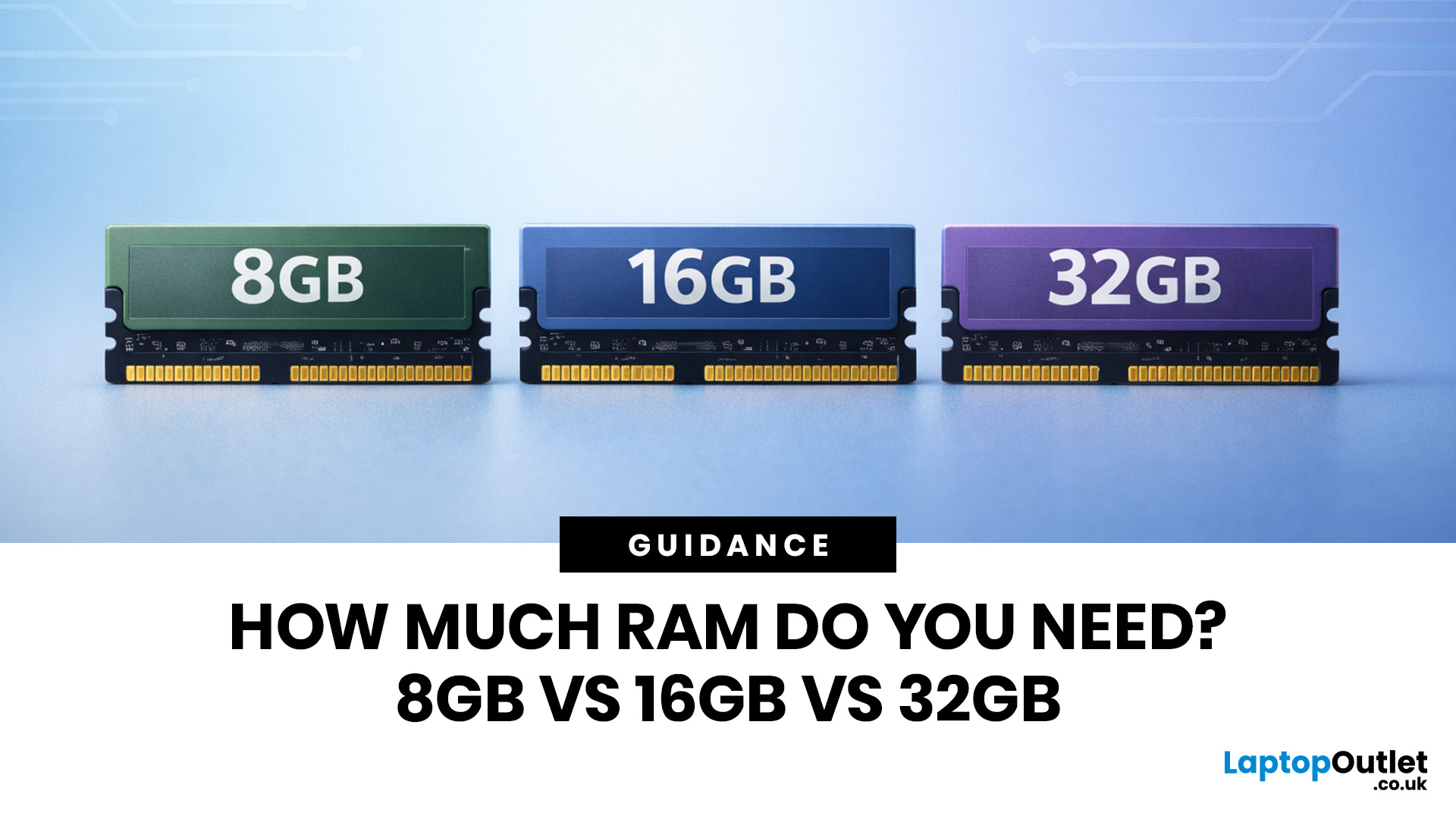
Wondering how much RAM you need? The practical answer is fairly simple. 8GB is still usable for basic laptop tasks; 16GB is the best all-around choice for most buyers, and 32GB is the right move for heavier gaming, creative work, coding, or extra long-term headroom.
For most laptop users, 16GB of RAM is the best all-round choice for work, study, multitasking and mainstream gaming. 8GB is still suitable for lighter everyday use, while 32GB makes more sense for creative work, coding, heavier gaming and demanding multitasking. 64GB is mainly for specialist professional workloads, while 4GB is best avoided on a new Windows laptop.
For RAM shoppers, the real question is not just how much RAM a laptop can run. It is about how much memory will give you a smooth, comfortable experience for how you actually work, study, stream, game, and multitask every day. That is where the difference between 8GB vs 16GB RAM, or 16GB vs 32GB, starts to matter.
What RAM Actually Does?
RAM is your laptop’s short-term
Last Updated: September 24, 2026
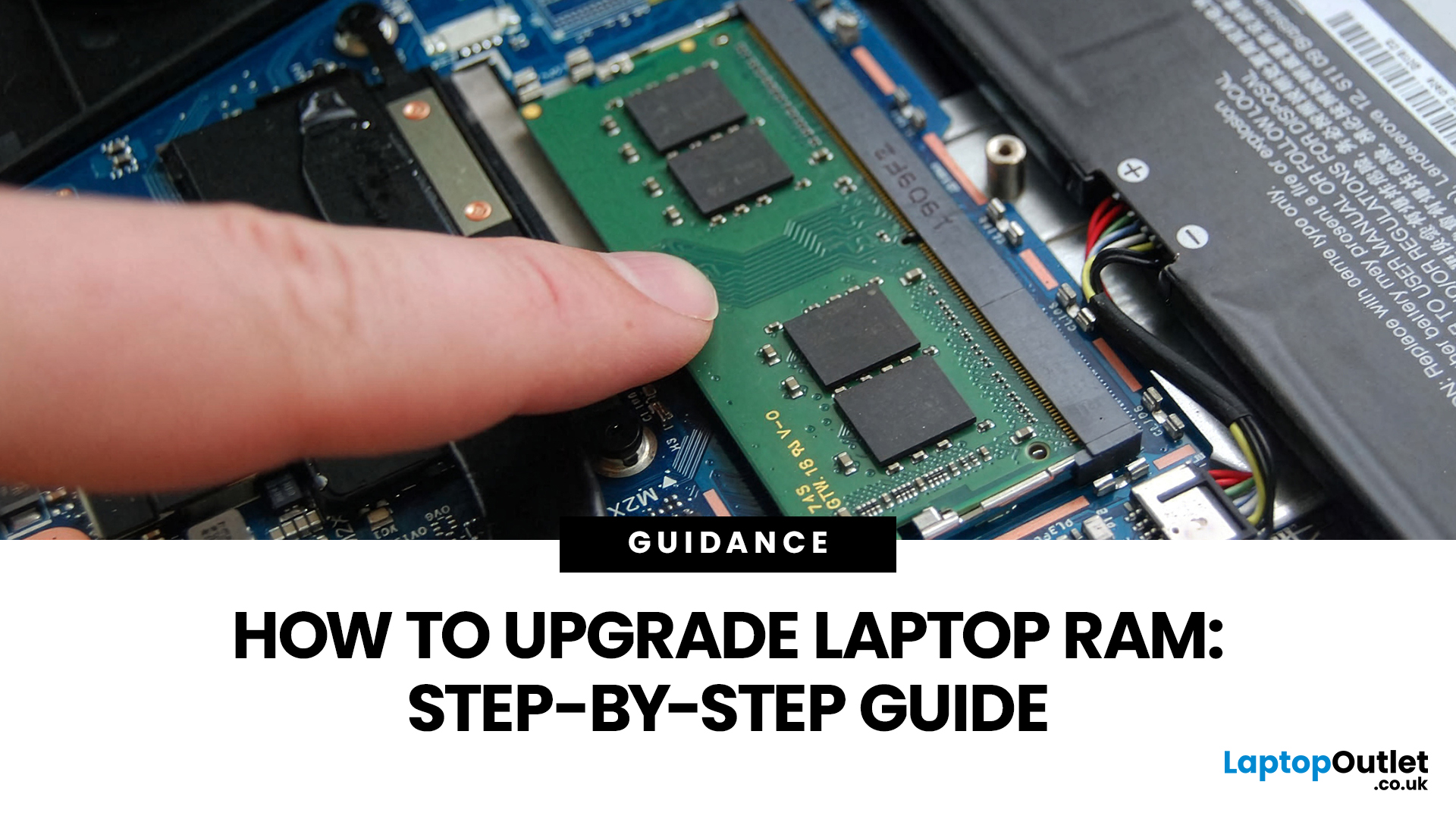
Upgrading laptop RAM is one of the simplest ways to make an older machine feel faster and more capable again, but only if the compatibility side is right from the start. That is the part many quick guides skip. Before buying anything, we always recommend checking whether the laptop has upgradeable memory, what RAM standard it uses, how much it supports, and whether upgrading means adding another module or replacing the existing setup.
To upgrade laptop RAM, first check whether your model has upgradeable SO-DIMM slots, the supported DDR generation, maximum capacity and current memory configuration. Buy compatible RAM, shut the laptop down, disconnect power, open the service panel, remove or add the module, then reassemble and boot up. Finally, confirm the new memory is recognised and test system performance for improved multitasking.
For UK shoppers, that matters because a RAM upgrade can be a much smarter option than replacing a laptop too early. If a system slows down with lots of browser
Last Updated: May 13, 2026
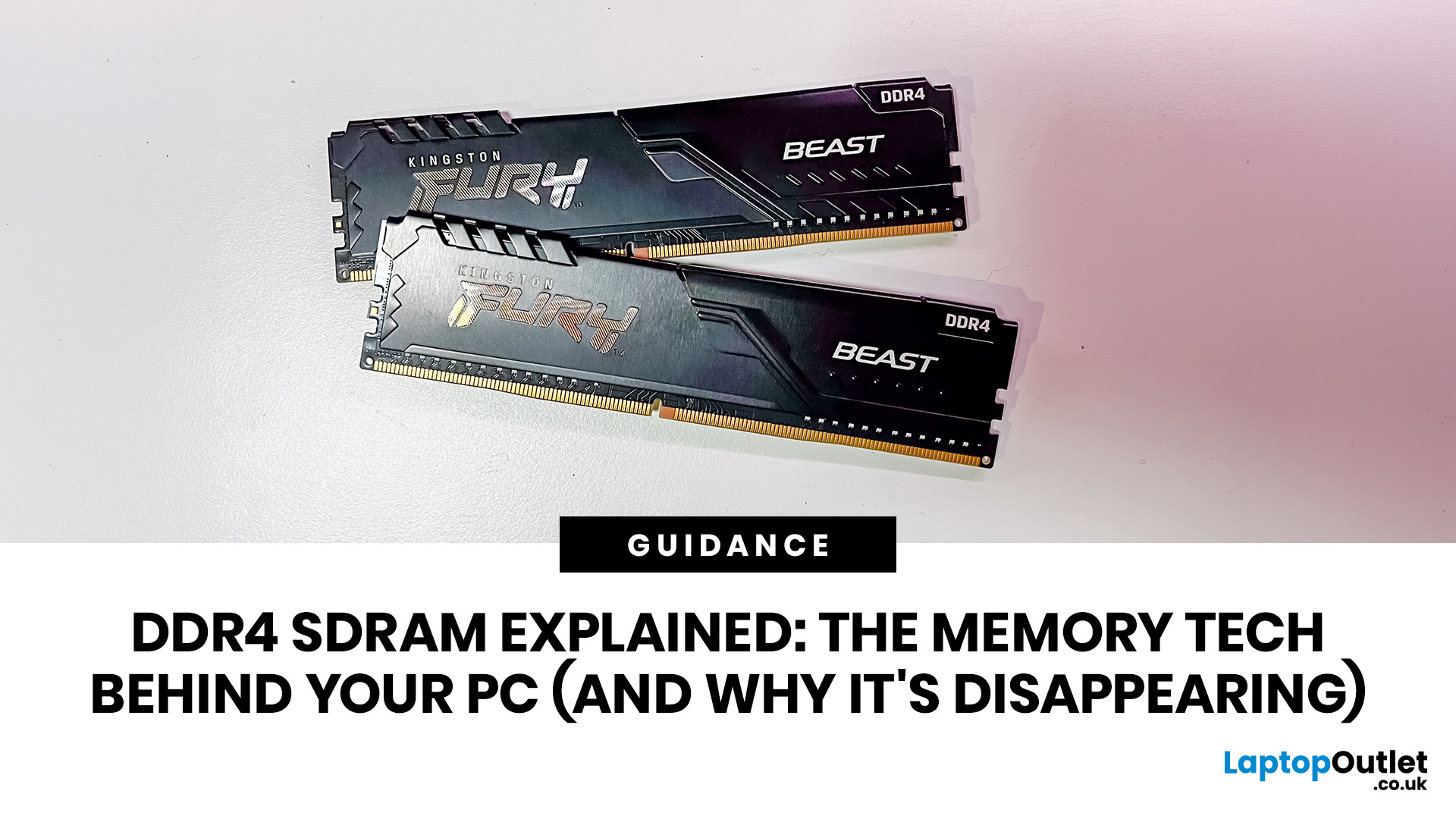
DDR4 is basically the reliable older sibling of modern PC memory. It powered gaming rigs, office PCs, laptops, creator setups and budget builds for years. But now? DDR5 has entered the chat, and new PC hardware is slowly moving on.
Still, DDR4 is not suddenly useless. Far from it. If your current PC uses DDR4, a memory upgrade can still make your system feel faster, smoother and less stressed. This guide has DDR4 SDRAM explained in plain English: what DDR4 memory is, how it works, how it compares with DDR5, and why it is gradually disappearing from new builds.
What is DDR4 SDRAM?
DDR4 stands for Double Data Rate 4. SDRAM stands for Synchronous Dynamic Random-Access Memory. Put together, DDR4 SDRAM is a type of computer memory used in desktops, laptops, workstations and servers.
In normal human terms, DDR4 is the short-term memory your PC uses while it is switched on. It temporarily holds the data your processor needs right now, such as open browser tabs, game assets, APPs, system

Last Updated: June 10, 2026
The 2026 RAM crunch is being driven by AI data centre demand. Memory makers are shifting capacity towards high-bandwidth memory, server DDR5, and enterprise SSDs, leaving less supply for consumer laptops. As a result, laptop RAM and SSD costs may rise, making many 2026 laptops more expensive or less generously specified.
If you were hoping laptop prices would settle down in 2026, the RAM market may have other plans.
The AI boom is pushing huge demand for memory chips, including DDR5, SSD storage, and high-bandwidth memory used in data centres. As manufacturers prioritise these high-margin AI products, consumer laptops could face tighter supply and higher component costs.
For UK buyers, that may mean more expensive laptops in 2026, fewer strong discounts, and budget models with weaker specs than before.
What Is the 2026 RAM Crunch?
The 2026 RAM crunch is a global memory shortage caused by rising demand for AI servers, high-bandwidth memory, DDR5 server memory, and enterprise SSDs.
In
Last Updated: June 18, 2026
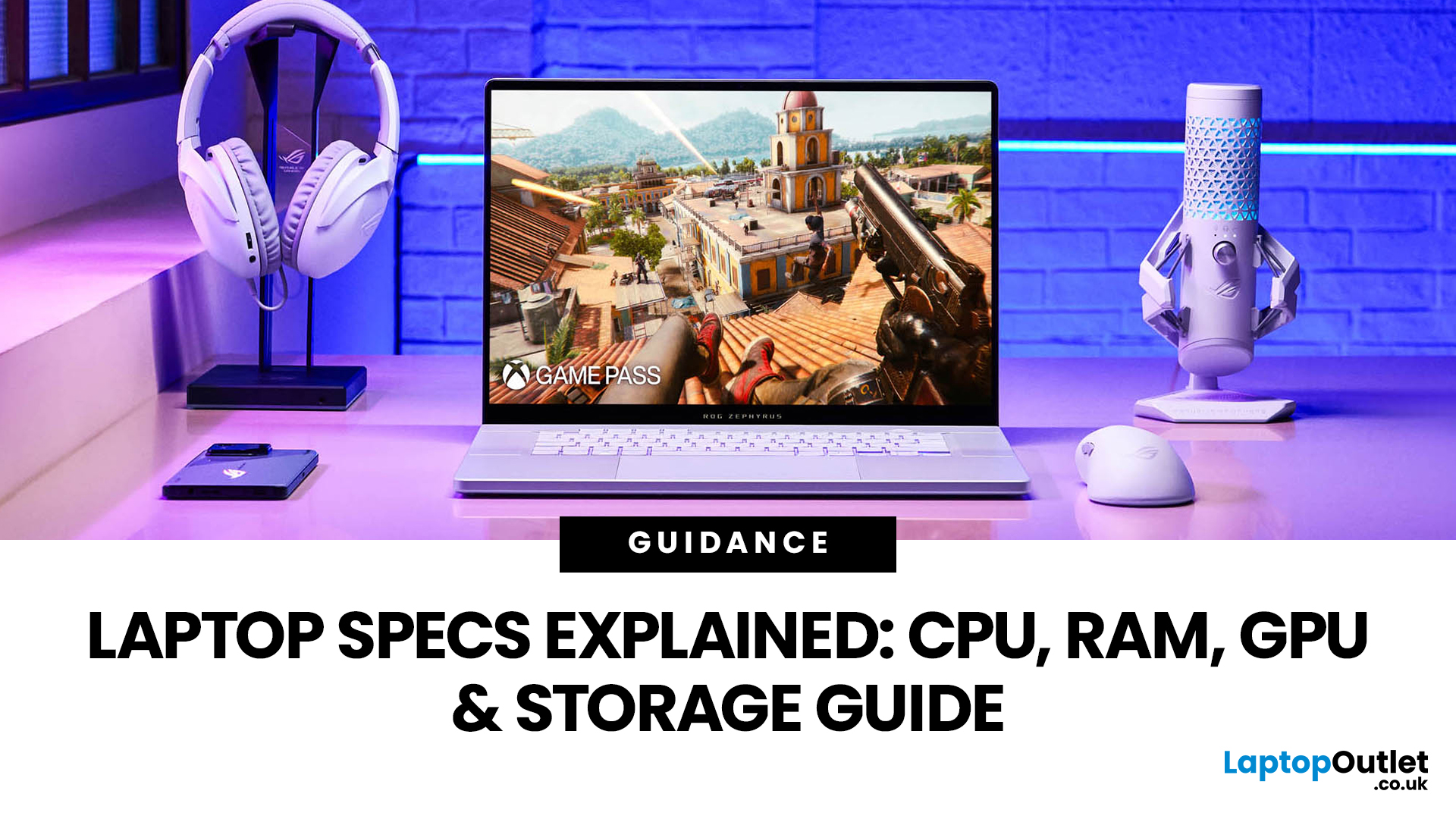
For most buyers in 2026, the best laptop specs are a modern Intel Core Ultra 5/7 or AMD Ryzen AI 5/7 processor, 16GB RAM, 512GB SSD storage, and integrated graphics. Choose 32GB RAM, 1TB storage, and a dedicated GPU if you edit videos, create content, play demanding games, or use professional software.
Buying a new laptop in 2026 can feel confusing, especially when every product page is packed with technical words, numbers, and abbreviations. This processors & specs explained guide breaks everything down in plain English so you can understand what matters before you spend your money.
For most buyers, the four most important laptop components are the CPU, RAM, GPU, and storage. Once you understand these, it becomes much easier to compare models, avoid overspending, and choose a laptop that actually suits your daily needs.
What are Laptop Specs and Why Do They Matter?
Understanding laptop specifications becomes important. Specs affect:
- How fast your laptop feels when opening apps.
- How many
Last Updated: June 22, 2026
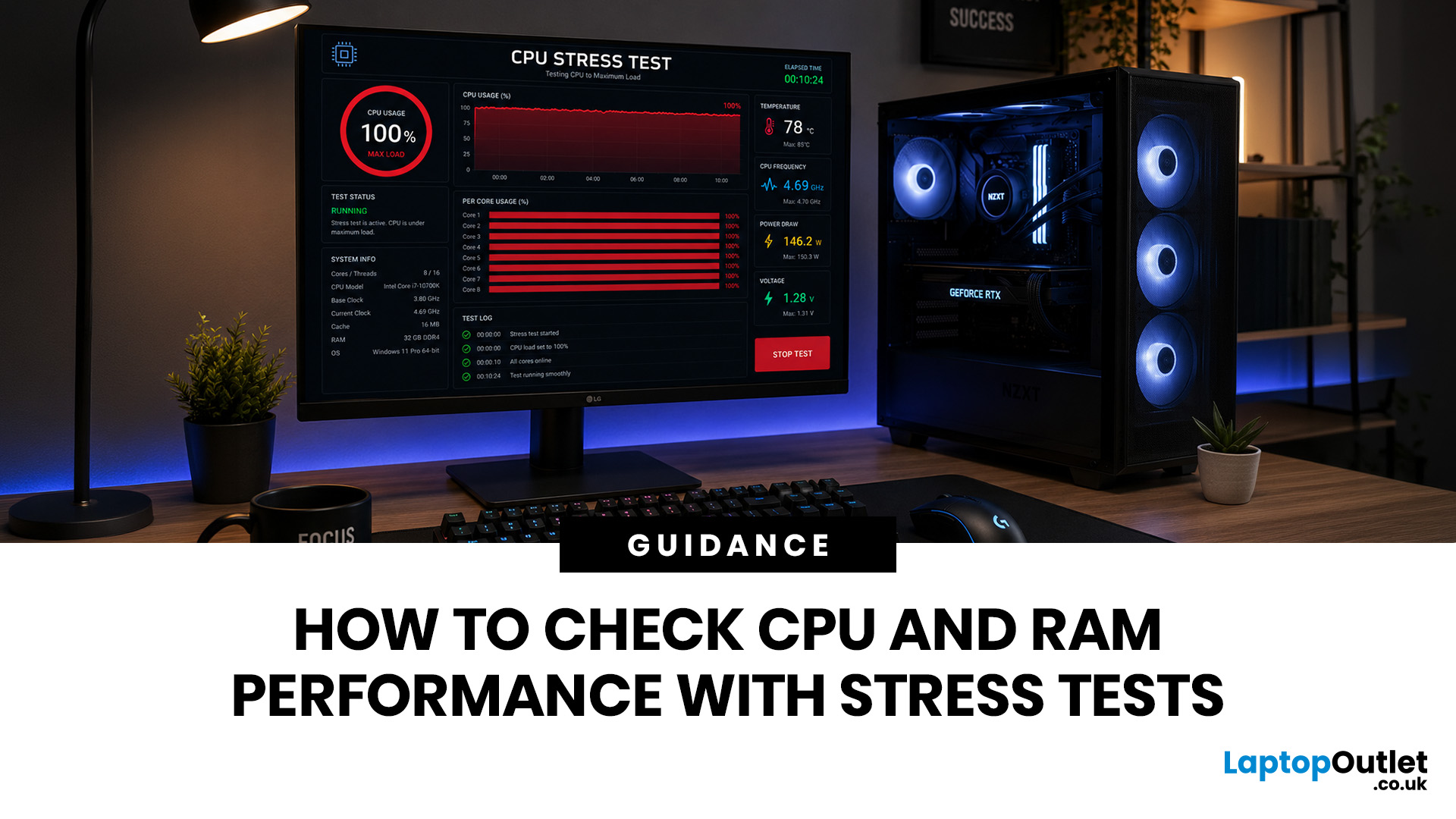
Your PC can look perfectly fine on the outside and still fail the moment it is pushed hard.
A game crashes after 20 minutes. A video export freezes at 92%. Your laptop randomly restarts during a heavy workload. Or maybe you have just upgraded your memory, changed your processor, built a new desktop, or enabled XMP/EXPO in the BIOS and want to know one thing:
Is my system actually stable?
That is where a stress test CPU RAM process helps. By running a controlled CPU, RAM, or combined system stress testing session, you can find problems before they interrupt your work, gaming, editing, coding, or daily use.
In this guide, you will learn:
- What CPU and RAM stress testing
Last Updated: August 06, 2026
Published: July 27, 2026
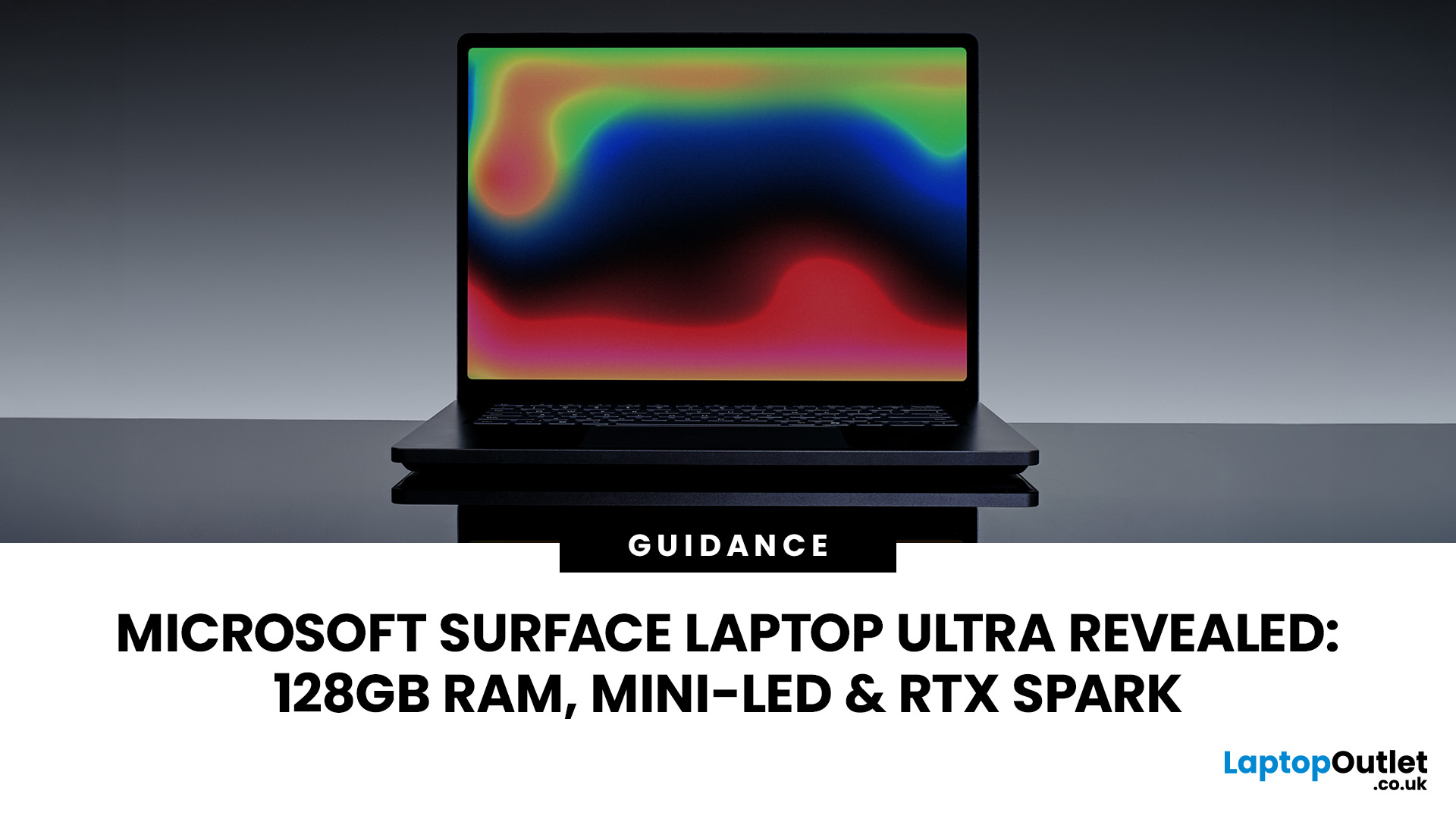
The Surface Laptop Ultra is Microsoft’s boldest laptop yet, built for local AI, 3D work, coding and demanding creative projects. It combines NVIDIA RTX Spark, Blackwell graphics, full CUDA support, and up to 128GB of unified memory, giving it serious workstation-level potential in a much slimmer design.
The 15-inch Mini-LED PixelSense Ultra display, upgraded cooling, and wider port selection make it even more appealing for power users. The only catch is that the exact UK price, full configurations and release date are still under wraps.
Microsoft Surface Ultra Specs at a Glance
The confirmed Microsoft Surface Ultra specs place the device above Microsoft’s conventional
Last Updated: September 03, 2026
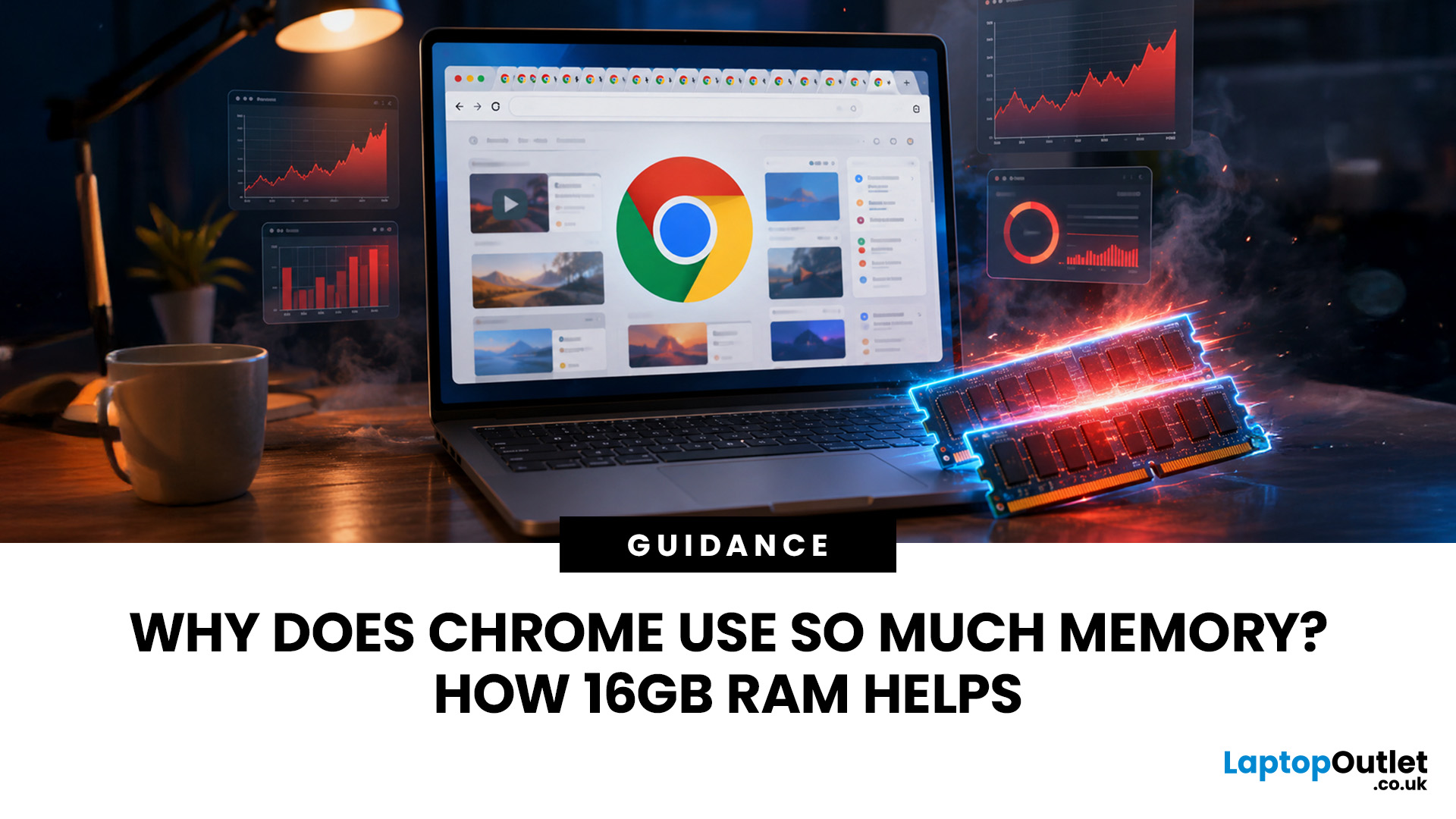
Seeing Chrome using too much memory in Windows Task Manager can be concerning, especially when only a handful of tabs appear to be open. However, visible tabs tell only part of the story.
Chrome may run multiple processes behind those tabs, while individual websites can range from simple articles to demanding web applications. The important question is therefore not just how much RAM Chrome uses, but whether that usage is causing slowdowns, tab reloads or problems when you multitask.
Why Does Chrome Use So Much Memory?
Chrome's memory use is largely connected to how the browser is designed and how demanding modern websites have become. High RAM usage alone does not mean Chrome is faulty or poorly configured.
Chrome Uses Multiple Processes
Chrome does not run the entire browser inside a single operating-system process.
Chromium uses a multi-process architecture. The main browser process handles core browser functions, while separate renderer processes handle web content. Chrome can also
Published: September 17, 2026
The amount of RAM in a Dell PC affects how comfortably it can handle everyday programs, multitasking, and more demanding applications. Too little memory can hold performance back, while paying for far more than your workload needs often brings little practical benefit.
RAM, or Random Access Memory, is the short-term working space your PC uses for active applications and data. As your workload becomes heavier or you run more programs at once, the amount of memory you need generally increases.
For most Dell desktop buyers, 16GB of RAM is the safest choice. Choose 8GB for basic browsing, email, and light office work, while 32GB or more makes sense for heavier creative, technical or multitasking workloads. RAM matters, but processor performance, SSD storage, graphics capability and upgrade options also shape how responsive the PC feels.
How Much Dell PC RAM Do You Need?
Your ideal Dell PC RAM capacity depends mainly on the applications you run and how many you expect to use simultaneously.

