



Why Does Chrome Use So Much Memory? How 16GB RAM Helps
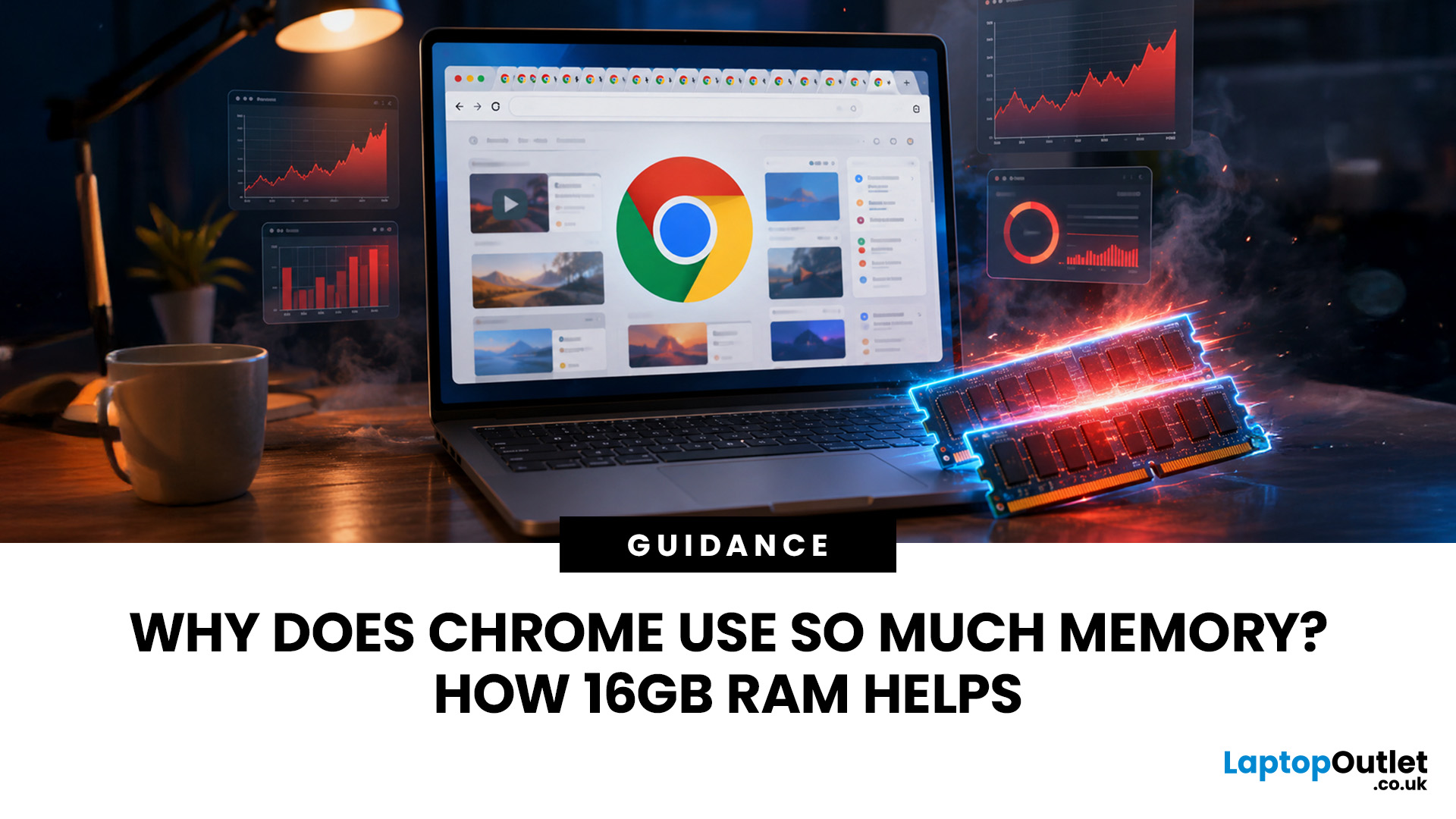
Seeing Chrome using too much memory in Windows Task Manager can be concerning, especially when only a handful of tabs appear to be open. However, visible tabs tell only part of the story.
Chrome may run multiple processes behind those tabs, while individual websites can range from simple articles to demanding web applications. The important question is therefore not just how much RAM Chrome uses, but whether that usage is causing slowdowns, tab reloads or problems when you multitask.
Why Does Chrome Use So Much Memory?
Chrome's memory use is largely connected to how the browser is designed and how demanding modern websites have become. High RAM usage alone does not mean Chrome is faulty or poorly configured.
Chrome Uses Multiple Processes
Chrome does not run the entire browser inside a single operating-system process.
Chromium uses a multi-process architecture. The main browser process handles core browser functions, while separate renderer processes handle web content. Chrome can also use dedicated processes for graphics, networking and other browser services.
This design has important benefits. If one renderer crashes, it does not necessarily bring down every open tab. Renderer processes can also operate inside restricted sandboxes, reducing what compromised webpage content can access.
The trade-off is additional resource overhead because multiple processes need their own memory.
This is why Windows Task Manager may display many Chrome processes even when you have considerably fewer visible tabs. Chromium's official architecture documentation confirms that Chrome deliberately separates browser and renderer processes to improve robustness and security.
Site Isolation Adds Some Memory Overhead
Chrome also uses Site Isolation as an important security feature.
On desktop versions of Chrome, different websites are isolated using separate renderer-process boundaries. A webpage containing an iframe from another site may therefore involve more than one renderer process.
This means the common assumption that one Chrome tab equals one process is incorrect.
Site Isolation creates some additional process overhead, but that overhead is a deliberate security trade-off. Chromium states that Site Isolation has been enabled by default for all sites on desktop Chrome since version 67.
Modern Websites Can Use Significant Amounts of RAM
Not every Chrome tab requires the same amount of memory.
A mostly static page containing text and a few images generally needs fewer resources than a browser-based application processing live data, video, documents or continuous updates.
Compare reading a news article with running:
- Microsoft 365 or Google Workspace
- A web-based video call
- A streaming service
- A large online spreadsheet
- A live analytics dashboard
- Multiple social or messaging platforms
Modern web applications can execute JavaScript, store application data, process media and update content continuously. Several demanding tabs can therefore consume far more memory than dozens of lightweight pages.
Tabs, Extensions and Background Activity Add Up
Chrome's total memory use increases as individual workloads accumulate.
Common contributors include:
- Multiple tabs
- Complex web applications
- Video and audio playback
- Browser extensions
- Background browser processes
- Cross-site content embedded within webpages
Extensions are particularly easy to overlook. Some continue running background tasks even when you are not actively interacting with them.
Installing many extensions can therefore increase Chrome's overall resource requirements.
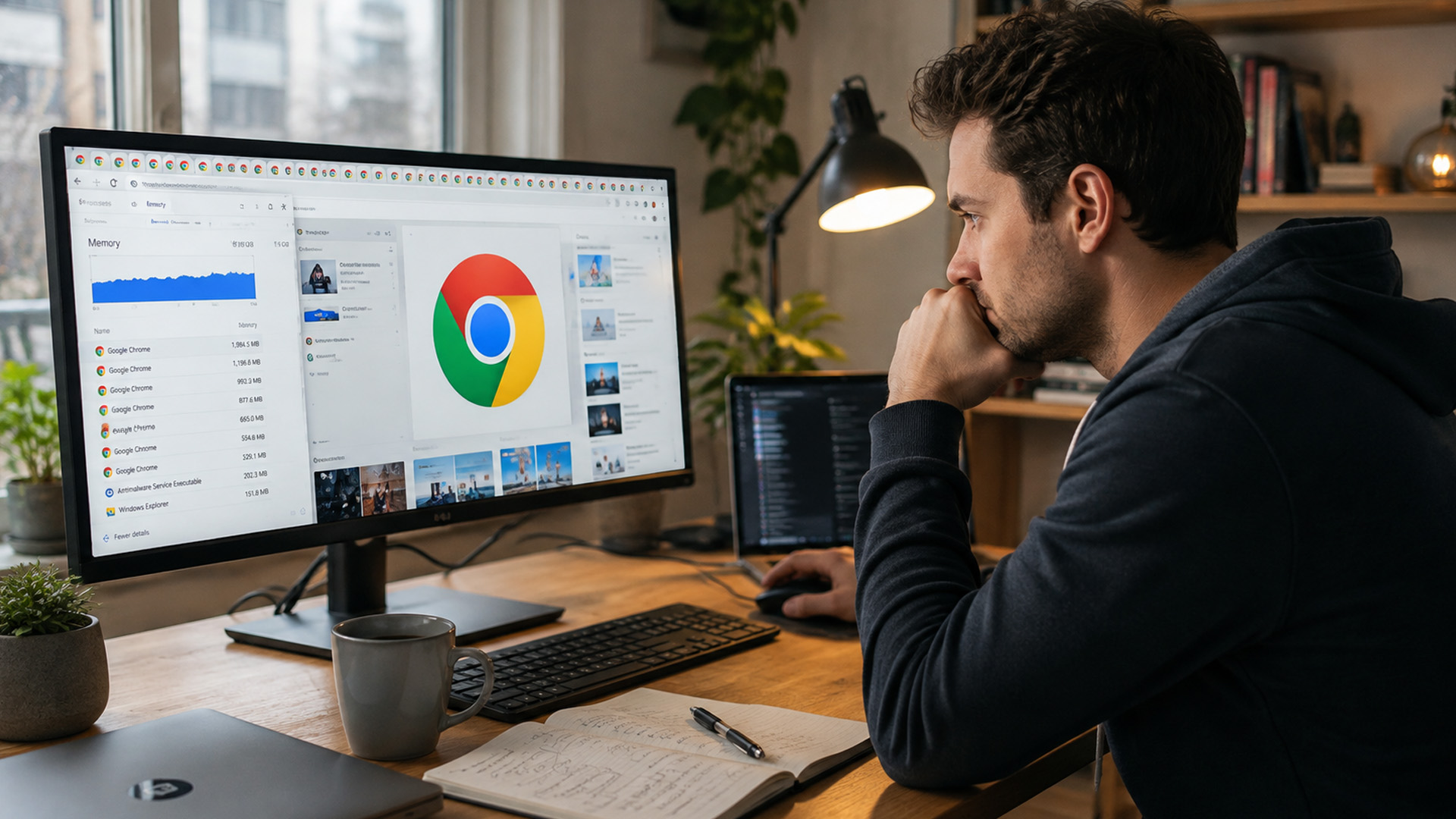
Is Chrome Using Too Much Memory Actually a Problem?
A large Chrome memory figure in Task Manager does not automatically indicate a problem.
RAM exists to hold data that applications need quickly. What matters more is whether your computer has enough available memory to support Chrome, Windows and the other applications you are actively using.
High RAM Usage Is Not Automatically Bad
If Chrome is using several gigabytes of RAM but your computer remains responsive, tabs open quickly and your other applications continue running normally, you may not have anything to fix.
Problems become more noticeable when the computer experiences sustained memory pressure.
Windows can manage memory in several ways when physical RAM becomes constrained. Its page file can back modified data and increase the system's overall commit limit, but storage is much slower than physical RAM for active workloads.
Microsoft's guidance on Windows page files explains that if committed memory reaches the system's commit limit, applications may be unable to obtain additional memory, potentially causing freezing or crashes.
Signs Your PC May Be Running Short of RAM
Pay more attention to how the computer behaves than to one Task Manager percentage.
Common warning signs include:
- Chrome tabs becoming slow to switch between
- Pages frequently needing to reload
- Websites or Chrome becoming unresponsive
- Other applications slowing down while Chrome is open
- Delays when switching between programs
- Applications crashing during demanding workloads
If these problems consistently appear during high memory usage and improve after closing applications or tabs, limited RAM may be contributing.
How Does 16GB RAM Help Chrome?
Moving from 8GB to 16GB RAM can make a noticeable difference for people who use Chrome alongside several other applications.
The benefit comes from providing more memory for the whole computer, not from changing how Chrome itself manages RAM.
16GB Provides More Memory Headroom
Adding RAM does not make Chrome inherently more memory-efficient.
Instead, 16GB provides additional headroom for Windows, Chrome and your other software to keep actively needed data in physical memory.
Consider a laptop with 8GB RAM running:
Chrome + Microsoft Word + Teams + Spotify + cloud syncing
All of these applications compete for the same physical RAM.
Laptops with 16GB memory provide more space for these workloads to coexist before the system becomes heavily constrained. This can make application switching and multitasking more consistent.
16GB Helps with Multi-Tab Browsing
There is no reliable answer to questions such as "How many Chrome tabs can 16GB RAM handle?"
Tab count alone does not measure memory demand.
Twenty lightweight reference pages could require less memory than five tabs containing a video conference, streaming service, complex spreadsheet and two demanding web applications.
The advantage of 16GB RAM for Chrome is therefore flexibility rather than a guaranteed tab count.
Chrome's Memory Saver feature can also deactivate eligible unused tabs, reducing the amount of memory a large browsing session needs at a particular time. Google's current documentation confirms that inactive tabs automatically reload when you return to them.
16GB Makes More Difference When You Multitask
The improvement becomes more noticeable when Chrome is only one part of your workload.
Someone browsing several websites while also using Office applications, Teams or Zoom, Spotify and cloud-syncing software needs considerably more memory than someone browsing a few simple pages.
For that reason, 16GB is particularly useful for work, study and everyday multitasking. Users comparing affordable business-focused laptops may also find 16GB a more practical choice when Chrome regularly runs alongside productivity and communication apps.
8GB vs 16GB RAM for Chrome
|
Usage |
8GB RAM |
16GB RAM |
|
A few normal browser tabs |
Usually sufficient |
Plenty of headroom |
|
Many mixed Chrome tabs |
Can become constrained with demanding pages |
More comfortable |
|
Several browser-based apps |
Less room for heavy workloads |
Better headroom |
|
Chrome plus Office and video calls |
Greater chance of memory pressure |
Better suited to multitasking |
|
Heavy everyday multitasking |
More limited |
More practical |
These are general comparisons rather than guaranteed performance levels. Chrome RAM usage depends on your websites, extensions, operating-system activity and other applications running at the same time.
How to Reduce Chrome Memory Usage Before Adding More RAM
If Google Chrome memory usage is causing genuine performance problems, you do not need to immediately upgrade your laptop memory.
Chrome includes several tools for identifying and reducing unnecessary resource use.
Enable Chrome Memory Saver
Chrome's Memory Saver deactivates eligible tabs that you are not currently using so more memory is available for active tasks.
Go to:
Chrome → Settings → Performance → Memory Saver
Google currently provides three Memory Saver levels:
- Moderate: Tabs become inactive after a longer period.
- Balanced: Google's recommended balance between memory savings and tab availability.
- Maximum: Tabs become inactive after a shorter period to save more memory.
Some activity prevents Chrome from deactivating a tab. Google's current guidance includes:
- Audio or video playback
- Calls
- Screen sharing
- Page notifications
- Active downloads
- Partially completed forms
- Pinned tabs
- Connected USB or Bluetooth devices
This behaviour is intentional because deactivating these tabs could interrupt something you are actively doing.
Find Memory-Heavy Tabs and Processes
Instead of guessing which tab is consuming resources, use Chrome's built-in Task Manager.
Open:
Chrome → More → More tools → Task manager
You can also use Shift + Esc on supported desktop platforms.
Look at the Memory footprint column to identify webpages, extensions and processes using unusually large amounts of memory.
Chrome can also display per-tab memory usage through its tab hover cards. Google currently places this option under Settings → Appearance → Show memory usage on supported desktop versions.
Remove Extensions You Do Not Need
Review your installed extensions and disable or remove ones you no longer use.
Do not remove an extension simply because it consumes some RAM. Extensions need resources to operate.
The aim is to eliminate unnecessary software, particularly extensions that continue running background processes despite offering little value. Google also recommends disabling or deleting unwanted extensions when troubleshooting Chrome performance.
Close Tabs You No Longer Need
Memory Saver makes large browsing sessions easier to manage, but keeping unnecessary tabs open still creates additional browser work.
Close pages you no longer need and bookmark anything you want to revisit.
Google's own Chrome performance guidance recommends closing unused tabs because Chrome has to work harder as the number of open tabs increases.
Keep Chrome Updated
Use the latest stable version of Chrome available for your computer.
Browser updates can include security patches, bug fixes and performance improvements. Google's troubleshooting guidance recommends updating Chrome before moving to more complicated performance fixes.
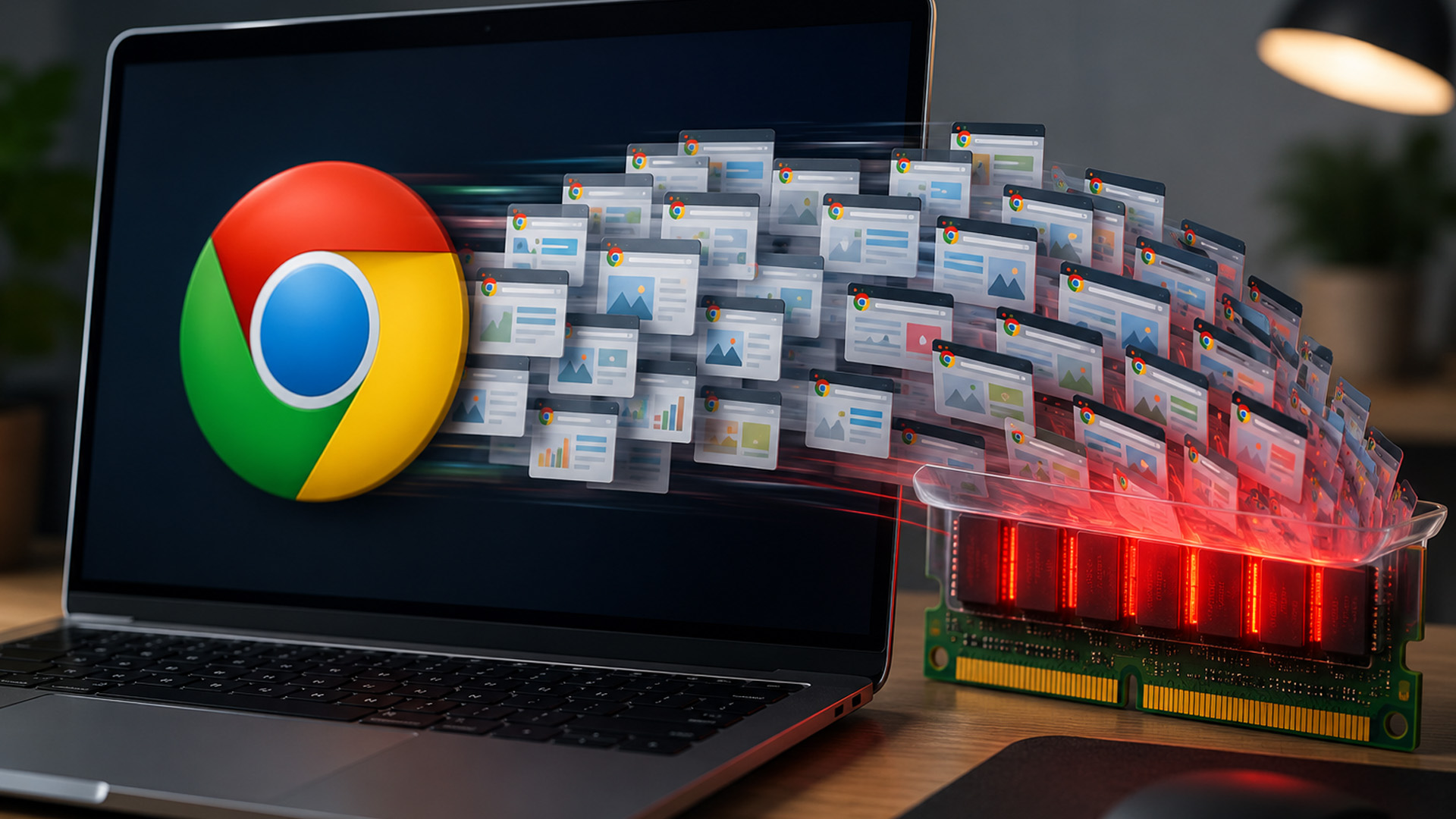
Do You Actually Need 16GB RAM for Chrome?
Choosing suitable RAM for your laptop depends on your normal workload. 16GB RAM is worth considering when physical memory is genuinely limiting Chrome and the other applications you regularly use.
An upgrade makes more sense if:
- Your 8GB computer regularly becomes memory-constrained during normal use
- You use Chrome alongside several desktop applications
- Your work relies heavily on browser-based tools
- Tabs regularly reload while you multitask
- Other programs slow down when Chrome is heavily used
- Performance improves significantly when you close applications
On Windows, check:
Task Manager → Performance → Memory
Watch memory use while performing your normal workload rather than immediately after starting the computer.
However, more RAM will not solve every Chrome performance problem.
A poorly behaving extension, demanding website, browser bug, overloaded processor, insufficient storage performance or slow internet connection can create symptoms that resemble a memory issue.
Establish whether memory pressure is actually the bottleneck before treating a RAM upgrade as the solution.

16GB Makes Chrome Easier to Live With
Chrome can use a significant amount of RAM because modern browsing involves much more than displaying simple webpages. Its multi-process architecture, Site Isolation, complex web applications, extensions and background activity all contribute to its memory requirements.
If you regularly see Chrome using too much memory, focus first on whether your PC is actually slowing down. Memory Saver, Chrome Task Manager, fewer unnecessary tabs and removing unwanted extensions can reduce pressure.
For users running Chrome alongside office, communication and media applications, 16GB RAM provides considerably more breathing room than 8GB. It does not make Chrome use less memory, but it can prevent limited physical RAM from becoming the bottleneck.

In Case You Were Wondering...
Do inactive Chrome tabs still use RAM?
Yes, although it depends on their state. Background tabs can continue using memory, while Memory Saver can deactivate eligible unused tabs and release much of their page memory until you return to them.
How many Chrome tabs can 16GB RAM handle comfortably?
There is no fixed number. 16GB RAM can handle many lightweight tabs, but video calls, streaming, large spreadsheets and complex web apps may use substantially more memory than ordinary webpages.
Can low available RAM make Chrome freeze or crash?
Yes, when low available RAM is part of sustained memory pressure. Severe memory or commit pressure can contribute to slowdowns, unresponsive applications and crashes, particularly during demanding multitasking.
Does Chrome Memory Saver really reduce RAM usage?
Yes. Chrome's Memory Saver deactivates eligible unused tabs so memory can be made available to active tasks. Tabs playing media, making calls, downloading files or performing certain other activities may remain active.
Is 16GB RAM enough for Chrome and everyday multitasking?
For most everyday workloads, 16GB RAM provides much more headroom than 8GB for Chrome alongside office, communication and media applications. Heavier creative, development or professional workloads may benefit from more.
| Read More: |
| How to Check CPU and RAM Performance with Stress Tests |
| How Much RAM Do You Need? 8GB vs 16GB vs 32GB |
| Signs You Need a RAM Upgrade (And How to Fix It) |
Related Articles

Last Updated: September 23, 2025
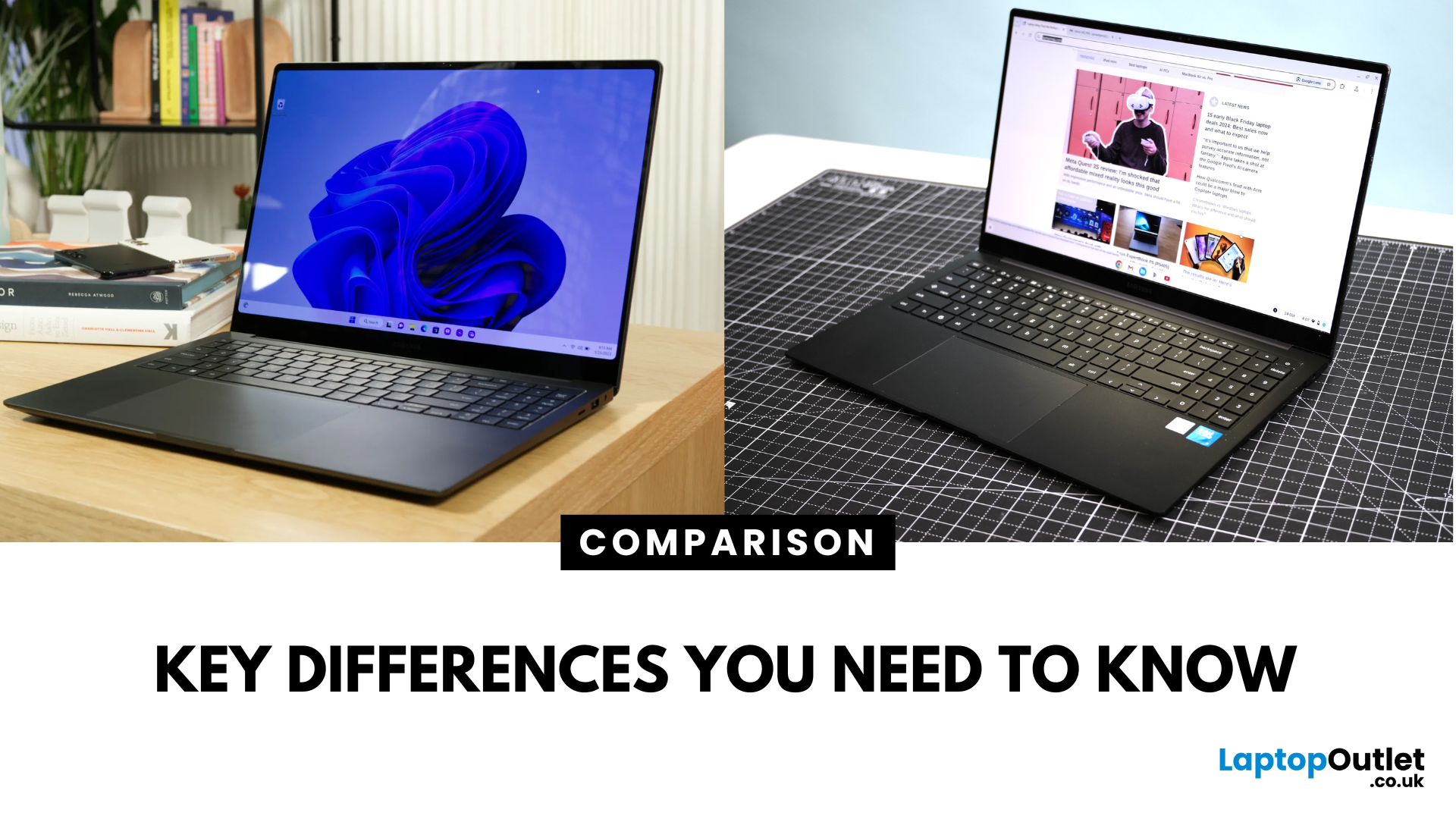
What’s the Key Difference?
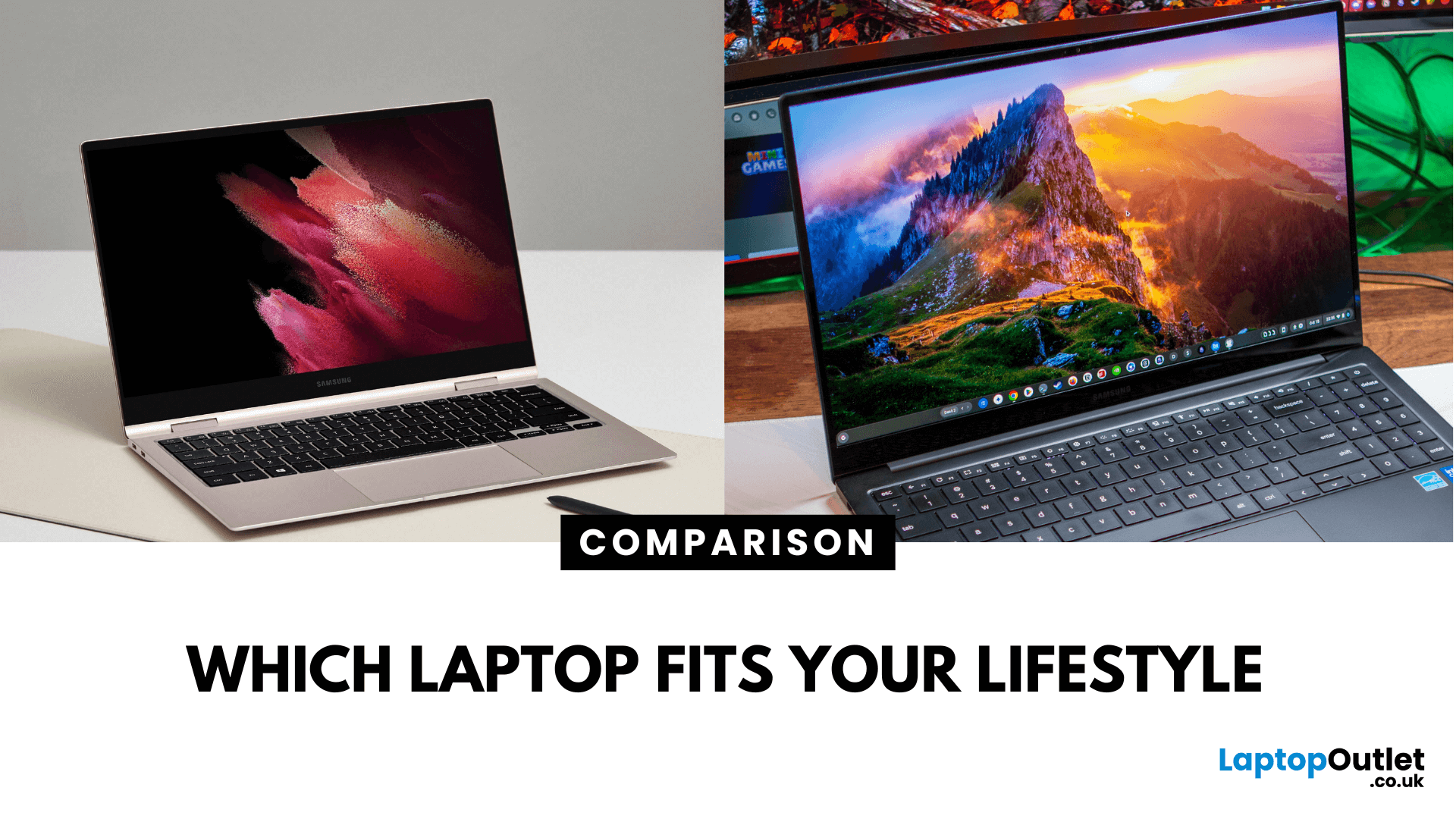
Samsung Galaxy Book is Samsung’s line of Windows laptops offering powerful hardware, rich feature sets, and mature software support -built for productivity and creativity. Chromebooks run Chrome OS—Google’s streamlined, cloud-centric platform built for speed, web apps, and light computing.
Fundamentally, Galaxy Books deliver full Windows power; Chromebooks deliver lightweight simplicity.
Feature Comparison Table
| Feature | Samsung Galaxy Book | Chromebook |
| Operating System | Windows – full desktop environment | Chrome OS – cloud-first, lightweight platform |
| Performance & Hardware | Premium processors, abundant RAM & storage | Lighter processors and configurations tailored for basic tasks |
| Design & Build | Sleek, stylish, built for mobility and premium feel | Ultra-light, minimalistic, highly portable |
| Battery Life | Strong battery for Windows usage | Excellent battery due to efficiency of Chrome OS |
| Portability | Lightweight for a Windows laptop | Extremely portable with featherweight designs |
Last Updated: September 09, 2025
Key Difference Between a Galaxy Laptop and a Galaxy Chromebook?
Galaxy Laptop (Galaxy Book): Runs Windows 11, supports all desktop software (Office, Adobe, coding tools, gaming), offers higher storage and RAM options, and integrates with Samsung Galaxy devices.
Galaxy Chromebook: Runs ChromeOS, focused on cloud apps and Android apps via Google Play Store. Cheaper, lighter, and built for students or light for everyday use.
Feature Comparison Table
| Feature | Samsung Galaxy Laptop (Galaxy Book) | Samsung Galaxy Chromebook |
| Operating System | Windows 11 | ChromeOS |
| Performance | Intel Core i5/i7, AMD, up to 16-32GB RAM | Entry-level Intel/ARM, up to 8GB RAM |
| Software | Full Windows apps (Office, Adobe, games) | Web apps + Android apps |
| Battery Life | 10–13 hours (depending on model) | 12–15 hours (light workloads) |
| Display Options | AMOLED 2X display, FHD/QHD, larger screens | OLED display, FHD or 4K touchscreen options |
| Weight | ~1.5–1.7 kg (Galaxy Book3 360, Pro) | ~1.0–1.2 kg (Chromebook Go, Pro) |
| Price Range (UK) | ~£750–£1,500+ |

Last Updated: July 02, 2026
Choosing the right laptop in 2025 can feel like a challenge. With endless options in the UK market, different brands, specifications, and price points, it’s easy to feel overwhelmed. This is where ASUS makes the decision simpler. Over the years, ASUS has built a reputation as one of the most trusted technology brands by offering laptops that combine performance, reliability, and affordability.
Think about the wide variety of users today: a student who needs a lightweight laptop for lectures, a business professional who spends hours travelling, a gamer chasing the ultimate performance, or a creative tackling demanding design projects. Each has unique needs, but ASUS has carefully designed a laptop series for all of them.
In this ASUS laptop Series explained blog, we’ll explore the full 2025 lineup: ZenBook, VivoBook, ROG, TUF Gaming, ExpertBook, Chromebook, and ProArt StudioBook, so you can confidently choose the ASUS laptop that fits your life.
A Quick Overview of the ASUS Laptop Series
Last Updated: June 09, 2026
Imagine your brain trying to juggle not just numbers, but thousands of entire books at once; that’s what modern AI workloads are asking from compute systems. The models keep growing larger and more complex: trillions of parameters, expanding context windows, and sparse activation models like “mixture of experts” that selectively wake up parts of the network, but still demand fast memory access everywhere.
Even the most powerful GPUs and AI accelerators, loaded with teraflops of compute, can sit idle if the memory subsystem lags. Memory bandwidth and latency have become the real choke points. This bottleneck is often referred to as the “memory wall”: compute capability (FLOPs) has been increasing at a far faster pace than DRAM and interconnect bandwidth.
And there’s more: power, cooling, and cost. High-performance memory like HBM isn’t just expensive; it’s energy-hungry. The energy required to move data around often exceeds the energy needed for actual computation. When you add in dataset
Last Updated: May 06, 2026
When planning your next desktop or gaming setup, selecting the correct RAM (Random Access Memory) is one of the most important decisions you’ll make. RAM directly impacts your system’s speed, responsiveness, and ability to handle multitasking or demanding applications. With so many types, speeds, and capacities available, knowing how to choose the right RAM for PC build can be confusing. This guide will help you understand the essentials so you can make the best choice for your system.
Why RAM Matters in a PC Build
RAM acts as your computer’s short-term memory, storing the data your system needs to access quickly. The more and faster RAM you have, the better your PC can handle tasks like gaming, video editing, or running multiple apps simultaneously. Choosing the right memory ensures smoother performance, reduces bottlenecks, and extends the lifespan of your build.
Capacity: How Much RAM Do You Really Need?
One of the first things to decide is how much memory your system requires.
- 8GB:
Last Updated: October 15, 2025
Acer has quietly built one of the most diverse laptop ranges on the market. While some brands focus on a single niche, Acer has gone broad, creating machines for every kind of user: from budget-friendly student laptops to thin-and-light ultrabooks, and even beastly gaming rigs that’ll chew through the latest AAA titles without blinking.
The key to understanding Acer lies in its series structure. Each family of laptops has its own personality and purpose. The Aspire range caters to everyday users who want balance on a budget. Swift laptops are all about style and portability for professionals. Nitro and Predator models push gaming to new levels, while Chromebooks simplify life for schools and casual users. And then there’s the TravelMate series, purpose-built for business reliability.
In this guide, we’ll break down the Acer Laptop Series one by one, highlight their standout models - like the Aspire 5, Swift Go, Nitro 5, Predator Triton, and Chromebook Spin - and explain who they’re best
Last Updated: March 06, 2026
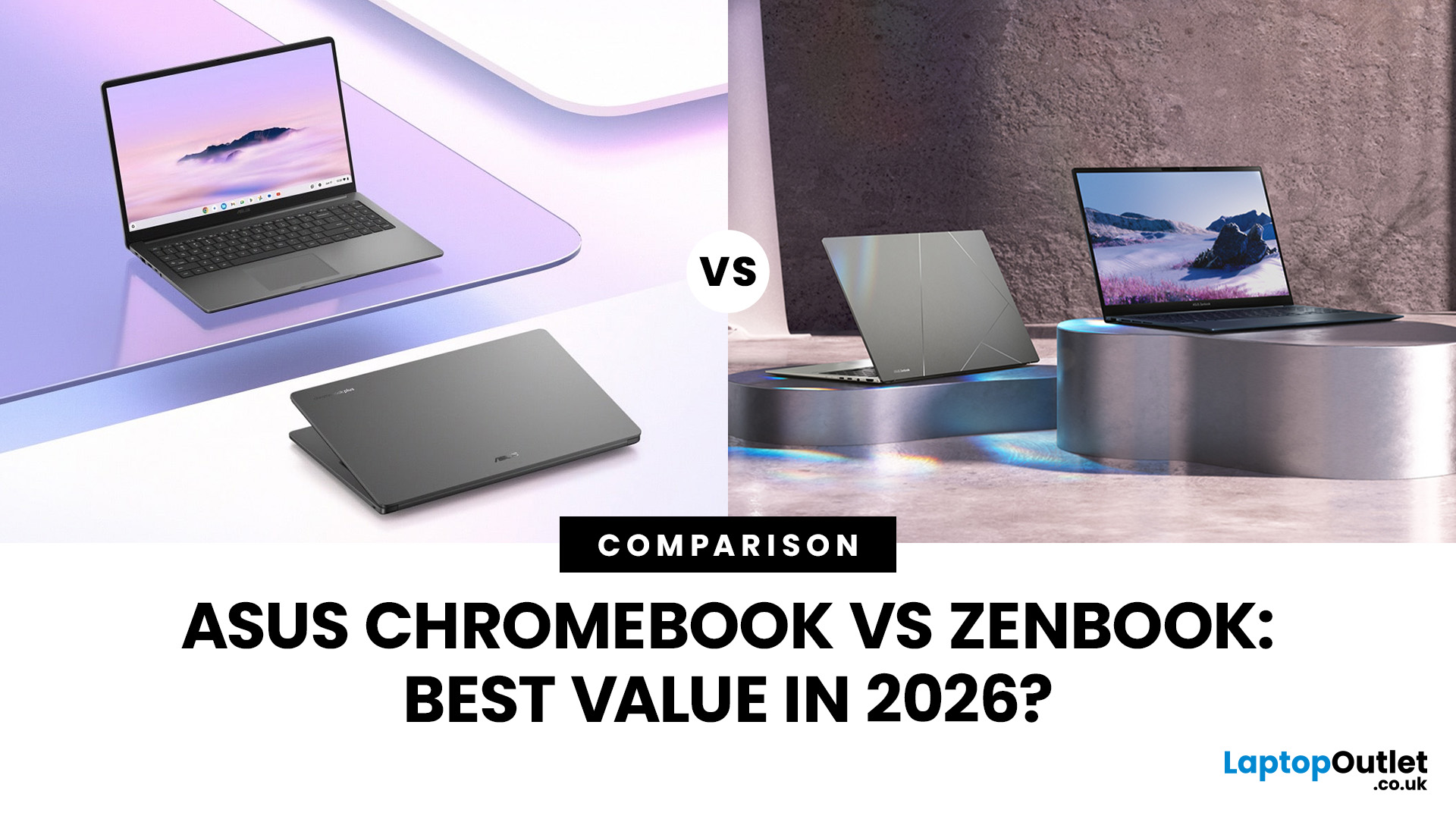
In 2026, ASUS continues to lead the ultrabook market with two standout options, the ASUS Chromebook and the ASUS ZenBook. Both deliver sleek design, portability, and performance, but they cater to different users. ASUS Chromebooks are lightweight, affordable, and perfect for students and everyday tasks, while ZenBooks offer premium craftsmanship, powerful hardware, and superior productivity for professionals and creators.
This comparison explores their specs, performance, battery life, and value, helping you decide which ultrabook suits your needs best. Whether you’re after effortless portability or all-day performance, we’ll uncover which ASUS laptop truly offers better value in 2026.
ASUS Chromebook vs ZenBook – The 2026 Ultrabook Showdown
In 2026, ASUS continues to lead the ultrabook arena with two stellar lineups that capture the essence of modern computing, the ASUS Chromebook and the ASUS ZenBook. Both are sleek, reliable, and performance-driven, but they serve very different lifestyles.
Last Updated: April 02, 2026
Most of us have an old laptop somewhere collecting dust. It’s slow, takes ages to boot, and probably sounds like it’s about to take off every time you open Chrome. But what if you could turn that relic into something fast, secure, and actually enjoyable to use again?
Enter ChromeOS Flex.
Whether you’re a student, a gamer needing a lightweight secondary machine, or a professional looking for a distraction-free setup, ChromeOS Flex is one of the easiest ways to revive old hardware without spending a penny.
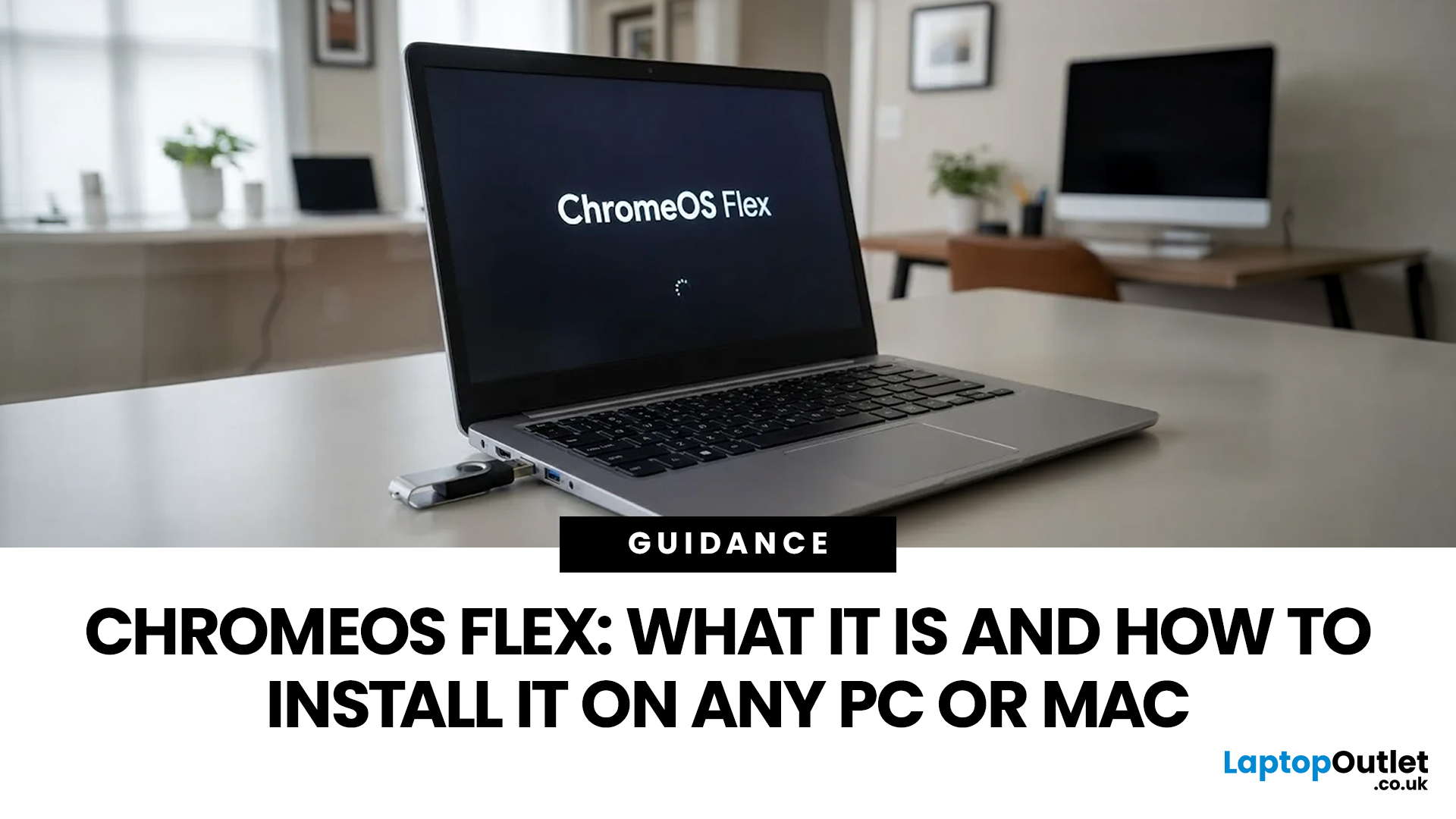
In this guide, we’ll break down exactly what ChromeOS Flex is, why it’s worth your time, and most importantly, how to install ChromeOS Flex on both PC and Mac step by step.
What Is ChromeOS Flex?
ChromeOS Flex is a lightweight, cloud-first operating system developed by Google. It’s essentially a version of ChromeOS (the one used on Chromebooks) designed to run on older Windows PCs and Macs.
Think of it as giving your ageing laptop a fresh brain, one that’s faster, safer, and built for

Last Updated: May 01, 2026
Memory cards look simply until you are standing there with a camera, drone, dash cam, or handheld console thinking, “Why does this tiny bit of plastic have more labels than a flight booking?” Fair. The names are confusing, the speed symbols look like exam questions, and buying the wrong one is a very expensive way to get absolutely nowhere.
So, let’s fix that.
This guide explains the main memory card types, the differences between SD, microSD, and CF, how memory cards work, and which card actually makes sense for your device. We’ll also answer the questions people ask all the time, like microSD the same as microSDXC, what is a CF card vs SD card, and how many pictures can a 64GB card hold. No waffle. No acronym soup. Just the stuff that helps you buy the right card first time.
Quick answer: what are the main types of memory cards?
Right now, the memory card world mostly splits into two big families: SD-based cards and CompactFlash-based cards. The SD family includes standard SD cards
Last Updated: June 04, 2026
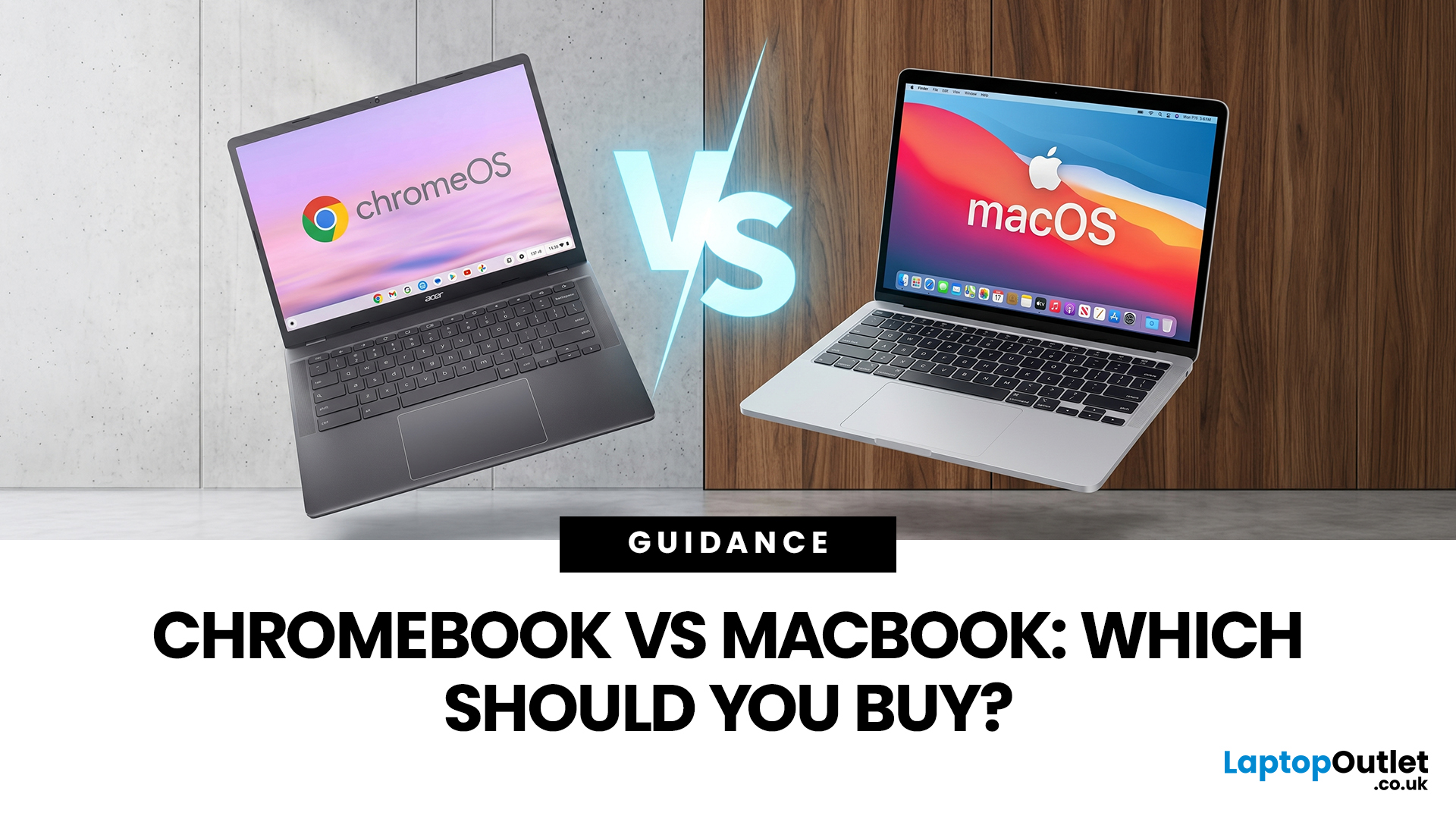
If you want the quickest answer, buy a Chromebook if you mainly use a browser, Google apps, streaming services, email, and simple everyday tools. Buy a MacBook if you need stronger performance, fuller desktop software support, and a laptop that gives you more room to grow over the next few years. That is the real Chromebook vs MacBook decision. It is less about the logo on the lid and more about how you actually work, study, and relax every day.
A Chromebook is a laptop that runs Chrome OS, built around speed, simplicity, built-in Google services, and lightweight computing. A MacBook runs macOS and is designed for a fuller desktop experience, stronger multitasking, and tighter integration with other Apple devices. If you already know you want to compare categories before choosing, start by browsing the best laptops to see where both options sit in the wider market.
Still deciding whether macOS is right for you at all? Read our PC vs Mac in 2026 guide before you choose.

