



Networking Explained: Essential Networking Accessories & Devices for UK Users
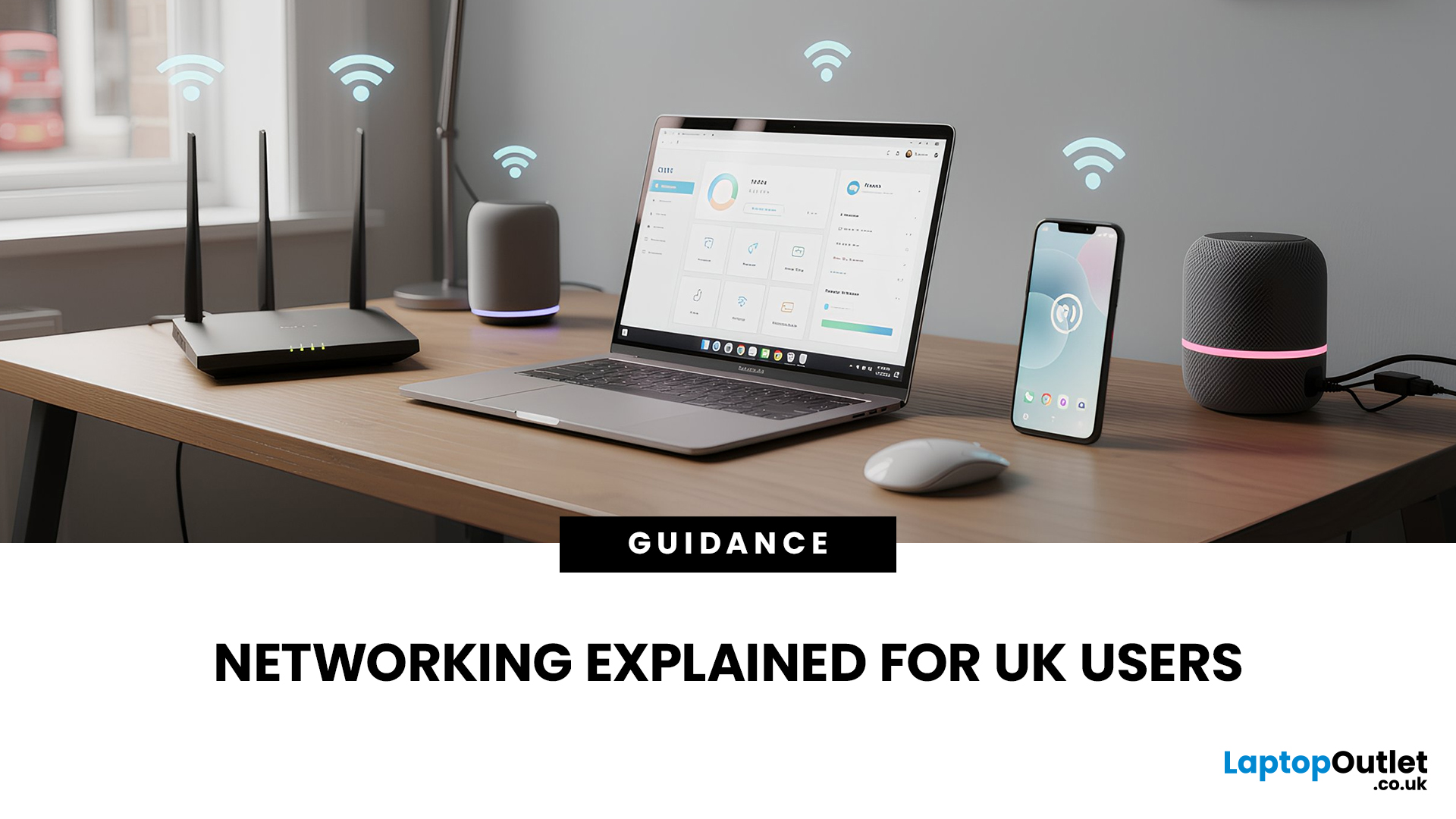
In today’s UK homes and offices, networking isn’t optional - it’s the backbone of how we work, study, stream, and stay connected. From remote meetings and online gaming to smart homes and cloud storage, everything relies on reliable networking accessories and networking devices working together behind the scenes.
Yet many people still struggle with slow Wi-Fi, unstable connections, or poor coverage, not because their internet provider is bad, but because their networking equipment isn’t set up correctly.
What Is Networking? (A Simple Explanation)
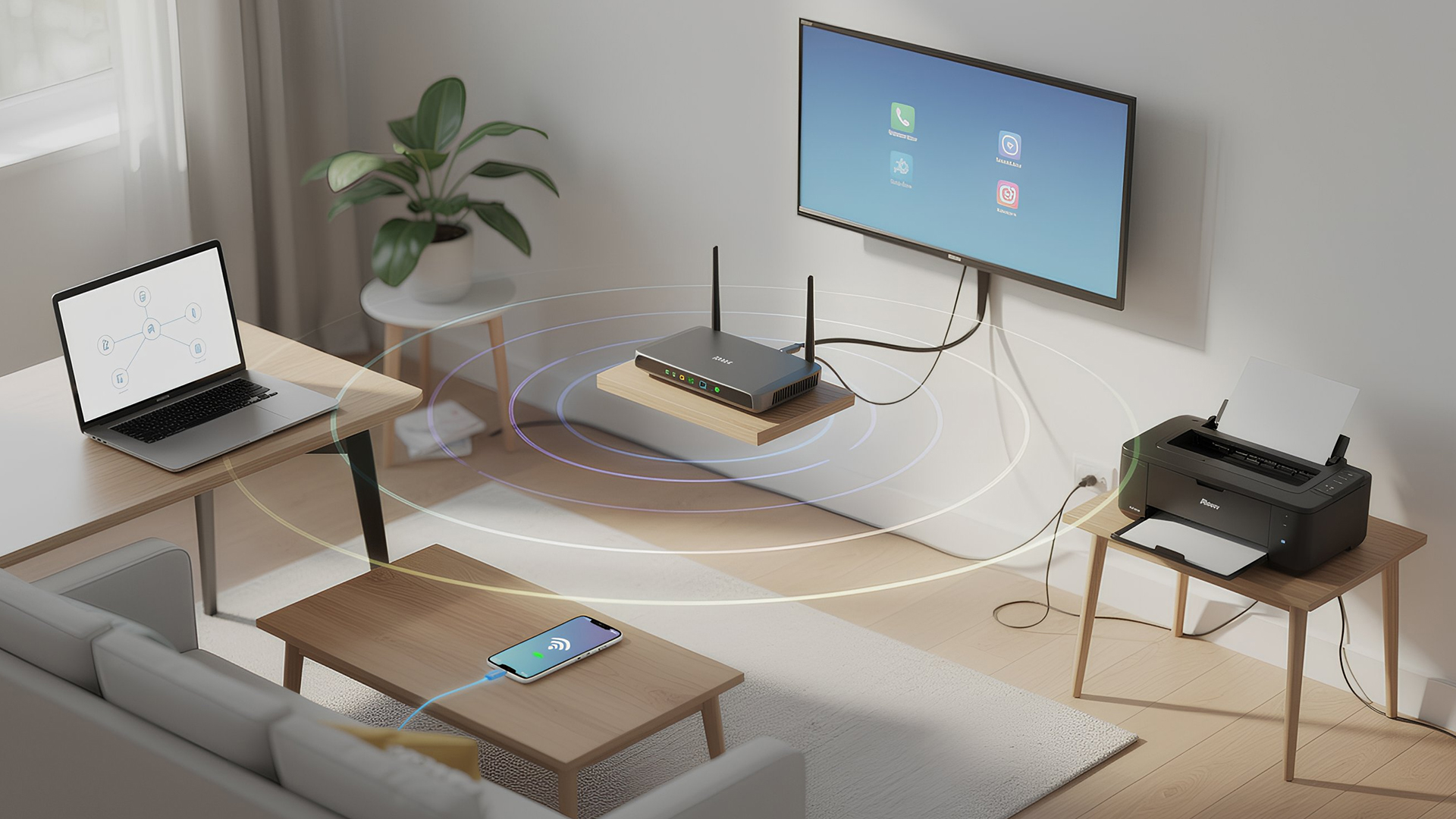
Networking is the process of connecting devices so they can communicate, share data, and access the internet. These devices might include:
- Laptops and desktops
- Smartphones and tablets
- Printers and scanners
- Smart TVs and streaming devices
- Smart home systems (lights, cameras, thermostats)
To make this possible, you need a combination of networking devices (like routers and access points) and networking accessories (such as network cards, adapters, and cables).
Together, these form your networking connectivity system and when one part underperforms, the entire network feels slow or unreliable.
Networking Accessories vs Networking Devices: What’s the Difference?
These terms are often used interchangeably, but they serve different roles.
Networking Devices
Networking devices actively manage or distribute network traffic. They include:
- Routers
- Access points
- Switches
- Modems
These are the “brains” of your network.
Networking Accessories
Networking accessories support connectivity between devices. Examples include:
- USB networking adapters
- Ethernet cables
They’re the tools that make networking flexible, scalable, and compatible with modern devices.
For most UK users, a strong setup requires both, not one or the other.
Why Networking Equipment Is More Important Than Ever in the UK
The way people use the internet has changed dramatically.
In 2026, UK households and workplaces rely on networking for:
- Hybrid and remote work
- Online education and virtual classrooms
- 4K streaming and cloud gaming
- Smart home automation
- Secure data transfer and backups
This increased demand means basic setups often fall short. Investing in quality networking equipment ensures:
- Faster and more stable connections
- Better coverage across rooms and floors
- Reduced interference and dropouts
- Improved security
Core Networking Hardware Every Setup Depends On
Before choosing specific accessories, it’s important to understand the key building blocks of a network.
Routers: The Centre of Your Network
A router connects your home or office to the internet and directs traffic between devices.
Modern routers do far more than older models:
- Manage multiple devices simultaneously
- Prioritise work or streaming traffic
- Offer advanced security features
- Support smart home integrations
Reliable brands like Netgear are widely used in the UK because they balance performance, security, and ease of setup.
Network Cards: Enabling Wired and Wireless Connections
Network cards allow devices to connect to a network, either wirelessly or via Ethernet.
They’re essential for:
- Desktop PCs without built-in Wi-Fi
- Laptops needing faster or more stable connectivity
- Upgrading older hardware
Both wired and wireless network cards remain critical networking cards, especially for users who want consistent speeds for work or gaming.
Access Points: Expanding Wireless Coverage
An access point creates an additional Wi-Fi connection point within a network.
Unlike extenders, access points:
- Deliver stronger, more stable connections
- Support multiple users efficiently
- Are ideal for large homes and offices
In UK buildings with thick walls or multiple floors, access points are often the best solution for reliable coverage.
Powerline Adapters: Wired Speeds Without New Cables
Powerline adapters use existing electrical wiring to transmit internet data.
They’re one of the most underrated networking accessories in UK homes, especially where Wi-Fi struggles.
Best use cases include:
- Upstairs rooms with weak Wi-Fi
- Garden offices
- Older properties with thick walls
They offer a balance between wired reliability and easy installation.
Adapters: Solving Compatibility Problems
Modern laptops often lack Ethernet ports or full-size USB connections. That’s where networking adapters come in.
Common types include:
- USB to Ethernet adapters
- USB-C networking adapters
- Wireless USB adapters
They’re essential laptop networking accessories, especially for professionals and students using slim devices.
Networking Tools Explained: How Everything Works Together
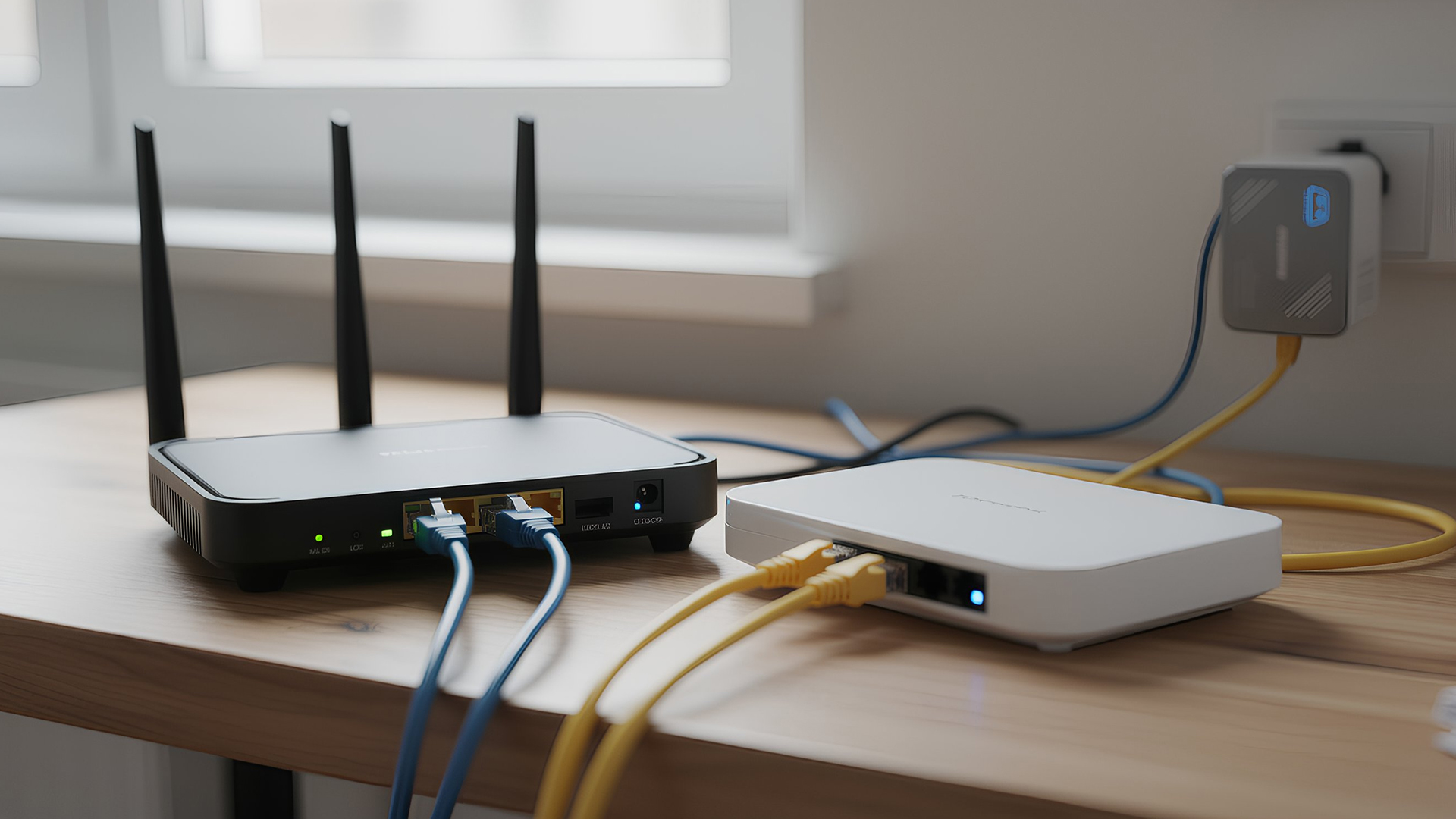
A complete network isn’t built from a single product — it’s a system.
Here’s how common networking tools interact:
- The router connects to the internet
- Access points extend wireless coverage
- Network cards enable device connectivity
- Powerline adapters overcome physical barriers
- Adapters ensure compatibility
When chosen correctly, these networking accessories create a fast, secure, and reliable setup.
Wired vs Wireless Networking Accessories (The Foundation)
Understanding the difference between wired and wireless setups helps you choose the right equipment.
Wired Networking Accessories
These include Ethernet cables, wired network cards, and powerline adapters.
Benefits:
- Maximum stability
- Lower latency
- Consistent speeds
Best for:
Offices, desktops, gaming setups, and high-demand workstations.
Wireless Networking Accessories
These include Wi-Fi network cards, access points, and wireless adapters.
Benefits:
- Flexible placement
- Cleaner setups
- Ideal for mobile devices
Best for:
Homes, laptops, tablets, and shared environments.
Most UK users benefit from combining both.
Why Investing in Quality Networking Hardware Pays Off
Cheap networking gear often causes:
- Slow speeds
- Frequent disconnections
- Security vulnerabilities
High-quality networking hardware delivers:
- Long-term reliability
- Better performance under load
- Improved security updates
For homes and offices alike, investing in proper networking equipment saves time, frustration, and future upgrade costs.
Choosing the Right Networking Accessories for Home, Office & Laptop Use in the UK
Now that we’ve covered what networking is and the essential networking hardware behind it, let’s focus on what actually matters to UK users in real life: choosing the right networking accessories for your setup.
Not every home, office, or laptop user needs the same equipment. The key is matching the right networking devices, networking tools, and networking equipment to how you use the internet every day.
In this section, we’ll break down:
- The best home networking accessories
- Essential office networking devices
- Must-have laptop networking accessories
- Wired vs wireless setups (and when to use each)
- Where to buy reliable networking gear in the UK
Home Networking Accessories: Building a Reliable Setup
For most UK households, wi-fi networking issues don’t come from slow broadband, they come from poor coverage, outdated equipment, or interference.
A strong home setup usually includes the following networking accessories:
Router + Wi-Fi Coverage Tools
Your router is the starting point, but it often isn’t enough on its own.
To improve coverage:
- Add access points for larger homes
- Use powerline adapters for difficult rooms
- Upgrade network cards for desktops
These additions ensure consistent speeds across multiple rooms, floors, and devices. For users just getting started, this guide connects closely with how to choose the best Wi-Fi router for your home, as the router is the foundation of every network.
Powerline Adapters for UK Homes
Many UK properties have thick walls or older layouts that block Wi-Fi signals. This is where powerline adapters shine.
They:
- Use existing electrical wiring
- Deliver stable, wired-like speeds
- Require minimal setup
They’re one of the most effective home networking accessories for streaming, gaming, and remote work.
Office Networking Devices: Performance & Stability First
In office environments, stability is more important than convenience. Dropped connections, slow speeds, or poor coverage directly impact productivity.
That’s why professional setups rely on a mix of wired networking accessories and managed wireless solutions.
Essential Office Networking Equipment
A typical office network includes:
- Business-grade router
- Multiple access points
- Wired network cards for workstations
- Backup powerline or Ethernet connections
This approach reduces interference and ensures reliable access for multiple users.
Access Points for Offices
Offices benefit greatly from access points because they:
- Handle multiple devices efficiently
- Provide consistent coverage
- Support secure network segmentation
They’re far more effective than consumer Wi-Fi extenders in professional environments.
Laptop Networking Accessories: Stay Connected Anywhere
Modern laptops are thinner, lighter, and more portable, but that often means fewer ports and weaker antennas.
That’s why laptop networking accessories are essential for students, professionals, and remote workers.
Network Cards for Laptops & Desktops
Upgrading or adding a network card can:
- Improve wireless performance
- Enable wired connections
- Reduce latency
Adapters: Small Tools That Solve Big Problems
Networking adapters ensure compatibility between modern devices and traditional networks.
Common uses include:
- USB-C to Ethernet adapters for laptops
- USB wireless adapters for older PCs
- Portable networking tools for travel
They’re among the most useful networking tools you can own. For a deeper look at upgrading device connectivity, see network cards: boost your PC connectivity in the UK, especially for desktops and older laptops.
Wired vs Wireless Networking Accessories: Which Is Better?
This isn’t about choosing one, it’s about using both correctly.
Wired Networking Accessories
Examples:
- Ethernet cables
- Wired network cards
- Powerline adapters
Advantages:
- Faster speeds
- Lower latency
- Maximum reliability
Best for:
Offices, gaming PCs, workstations, and data-heavy tasks.
Wireless Networking Accessories
Examples:
- Wi-Fi network cards
- Access points
- Wireless adapters
Advantages:
- Flexible placement
- Cleaner setups
- Better for mobile devices
Best for:
Homes, laptops, tablets, and shared spaces.
Most UK users benefit from a hybrid network combining both wired and wireless solutions. They’re especially useful for desktops and older laptops. Understanding these differences becomes even clearer when exploring network switches: expand your home or office network efficiently, especially for multi-device setups.
Choosing the Right Networking Equipment: A Practical Checklist
Before buying, ask yourself:
- How many devices will connect?
- Is coverage needed across multiple rooms or floors?
- Do I need mobility or maximum stability?
- Is this for home, office, or travel use?
Answering these questions helps you choose the right networking devices and avoid unnecessary upgrades.
Why Brand Quality Matters in Networking Hardware
Networking gear isn’t something you want to replace every year. Poor-quality products can cause:
- Connection drops
- Security vulnerabilities
- Compatibility issues
Trusted brands like Netgear are popular in the UK because they offer:
- Reliable performance
- Regular firmware updates
- Strong security features
This system-based approach aligns closely with access points: extend your Wi-Fi coverage easily in the UK, where placement and configuration are just as important as speed.

Final Thoughts: Building a Network That Works for You
Networking doesn’t have to be complicated. With the right networking accessories, you can create a setup that’s fast, stable, and ready for modern demands, whether that’s working from home, running an office, or staying connected on the go.
By choosing the right networking equipment, investing in reliable networking hardware, and using proven networking tools, UK users can avoid common connectivity issues and future-proof their networks.

Q&A For Networking Accessories & Devices
What are networking accessories and why are they important?
Networking accessories are tools that support and enhance network connectivity, such as network cards, adapters, powerline adapters, and access points. They help improve speed, stability, and coverage for home, office, and laptop setups, making them essential for reliable internet use in the UK.
What networking equipment do I need for a home network in the UK?
A typical UK home network requires a router, wireless networking accessories like access points or Wi-Fi adapters, and sometimes powerline adapters for rooms with weak signals. The right mix of networking devices and accessories ensures smooth streaming, browsing, and smart home performance.
What is the difference between wired and wireless networking accessories?
Wired networking accessories (such as Ethernet connections and network cards) offer faster, more stable connections, while wireless networking accessories provide flexibility and mobility. Most UK users benefit from combining both for a balanced and reliable network.
Which networking tools are best for office environments?
Offices typically require stable networking equipment such as access points, wired network cards, and business-grade routers. These office networking devices support multiple users, reduce interference, and ensure consistent performance throughout the workspace.
Are branded networking devices like Netgearworth buying?
Yes. Trusted brands like Netgear offer high-quality networking hardware with better performance, security updates, and long-term reliability. For UK users, investing in reputable networking devices helps avoid connectivity issues and future upgrade costs.
| Read More: |
| Best Gaming Routers for High-Performance UK Setups 2026 |
| Mesh Wi-Fi Systems: Full Coverage Networking Solutions for UK Homes |
| Organize Your Network Equipment in the UK |
Related Articles

Last Updated: July 01, 2025
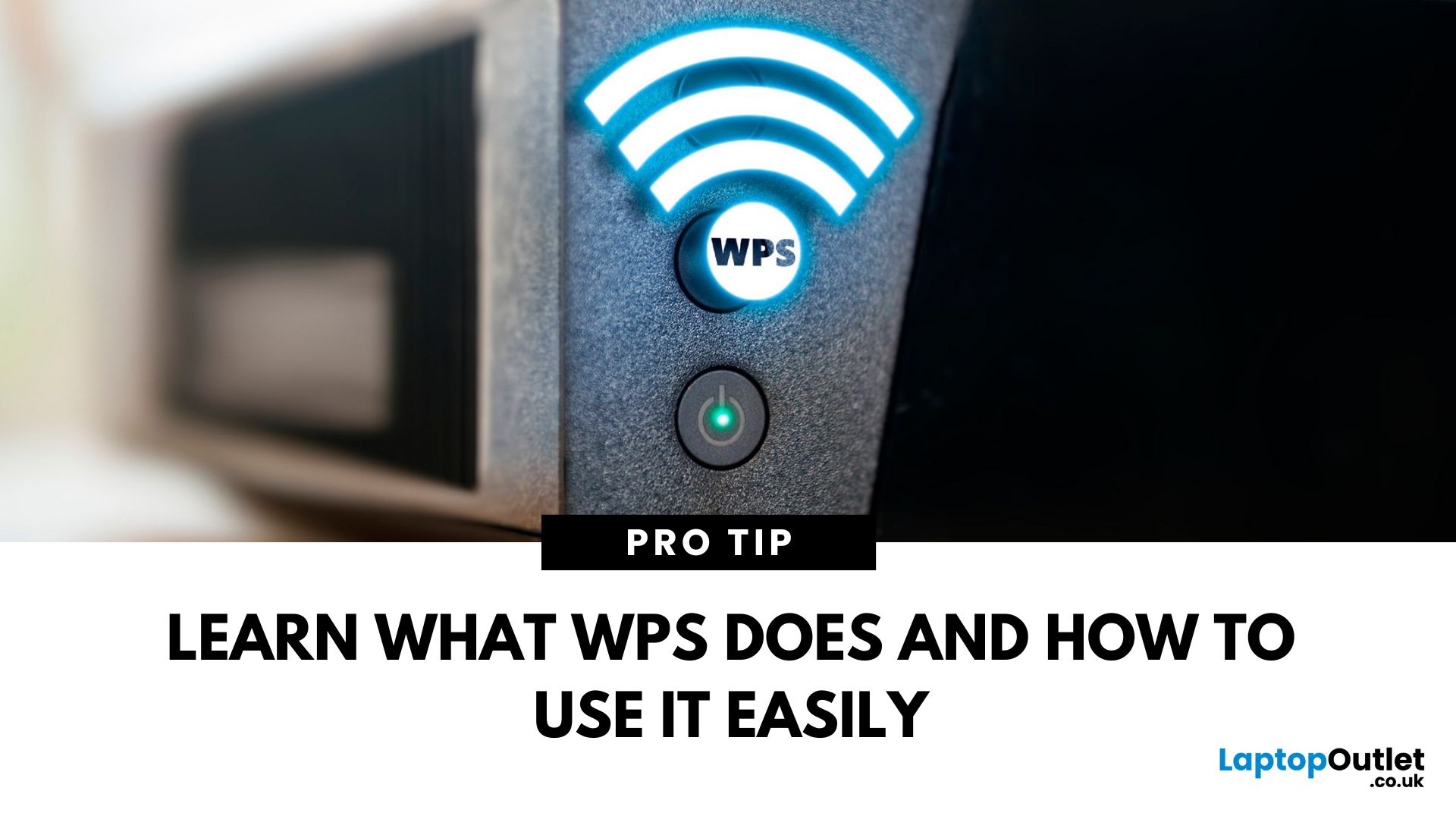
That Little Button Isn’t Just for Looks
If you’ve spotted a mysterious button labelled WPS on your Wi-Fi router, you might be wondering: What does it do—and should I use it? Here’s a beginner-friendly explanation of what the WPS button is and how it simplifies connecting devices to your Wi-Fi.
What Does WPS Stand For?
WPS stands for Wi-Fi Protected Setup. It’s a feature that helps you connect devices to your Wi-Fi network without typing in the Wi-Fi password.
Designed for convenience, especially for smart TVs, printers, and Wi-Fi extenders
What Does the WPS Button Do?
When you press the WPS button:
Your router enters a two-minute pairing mode
During this time, you can connect a compatible device without entering the password
It uses WPA2 security, so it’s secure for most home networks
How to Use the WPS Button
Steps:
Turn on the device you want to connect (e.g., printer or smart TV)
Go to its Wi-Fi settings and select your Wi-Fi network
Choose WPS connection
Last Updated: July 01, 2025
Your Wi-Fi Starts Here
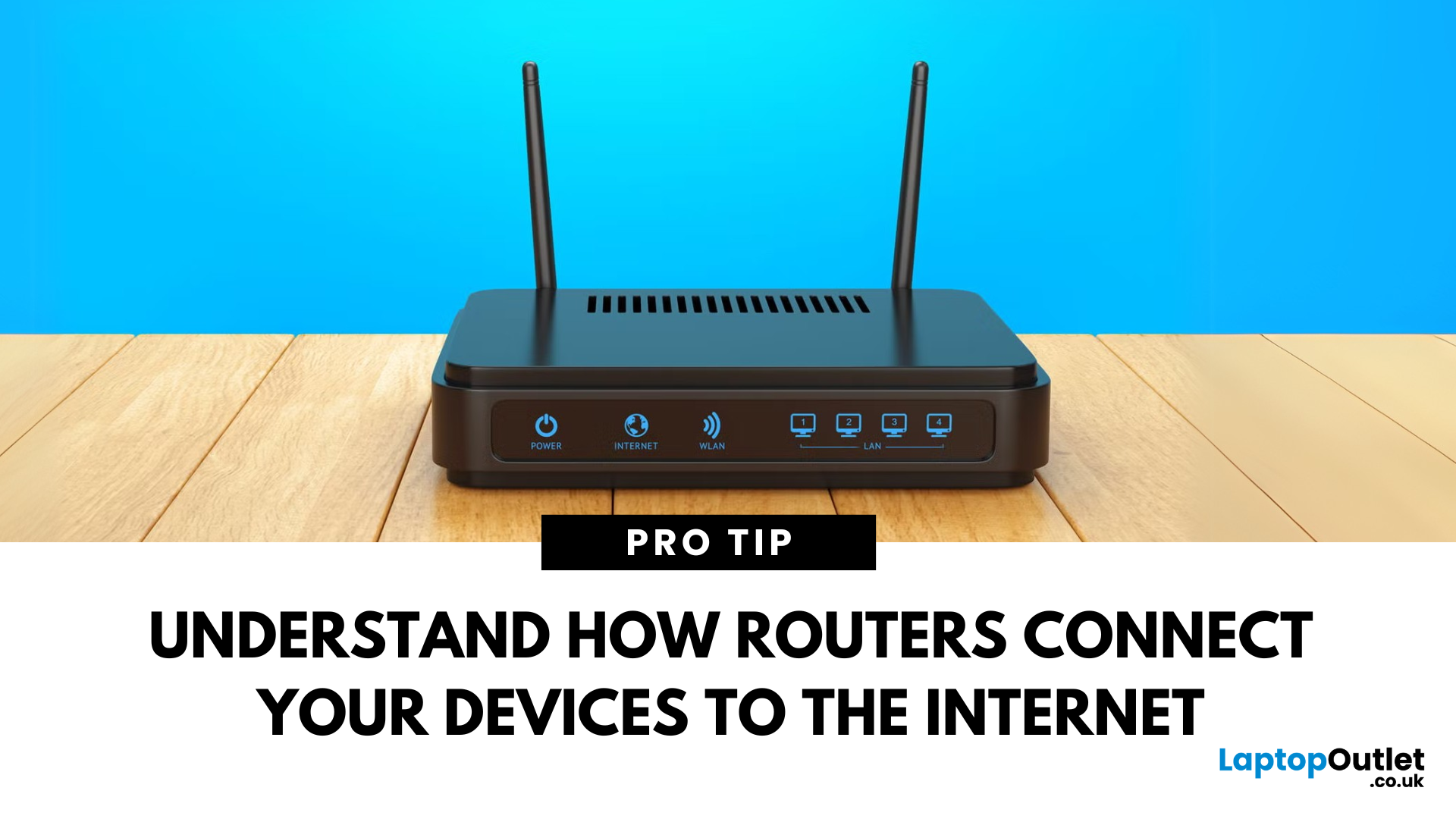
You’ve probably seen it flashing away in the corner of the room—but what is a router, and why is it essential for your internet connection? Here’s everything you need to know about this small but powerful device.
What Is a Router?
A router is a device that connects your home or office to the internet by routing data between your internet service provider (ISP) and your connected devices (like phones, laptops, smart TVs, and more).
It’s the heart of your Wi-Fi network, sending and receiving data from the web
How Does a Router Work?
- Connects to a modem (or includes one in some models)
- Assigns local IP addresses to devices in your network
- Sends and receives data packets to and from the internet
- Uses Wi-Fi or Ethernet to link devices wirelessly or via cable
Types of Routers
- Standalone Router: Connects to a separate modem
- Modem-Router Combo: Two-in-one device with both modem and router
- Mesh Wi-Fi Router: Covers large homes with multiple units
Last Updated: July 01, 2025
The Backbone of Your Internet
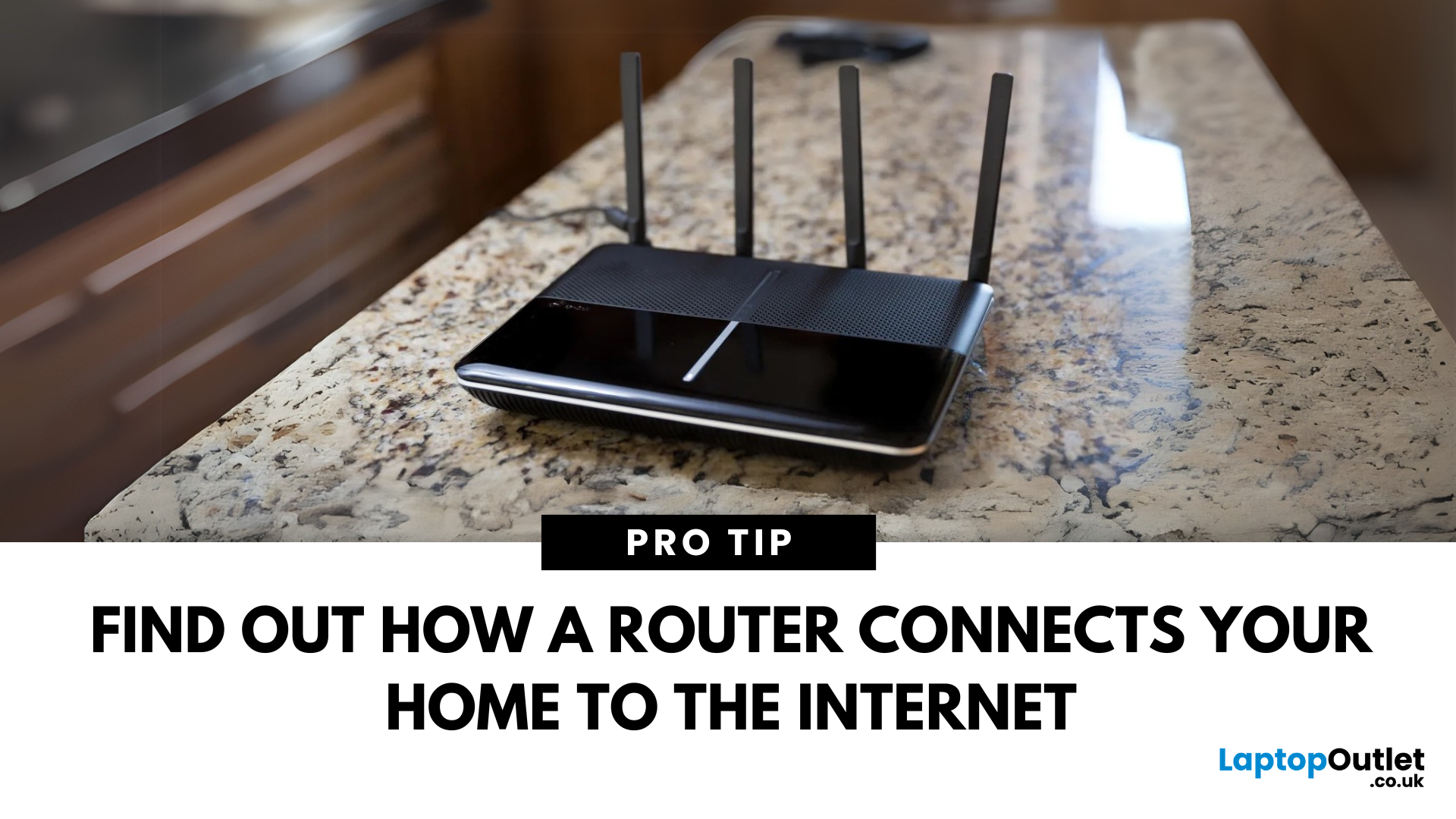
Your internet experience starts with a router—but what exactly does it do? Whether you’re streaming, gaming, working from home, or scrolling on your phone, the router keeps your digital life connected. Let’s break down what a router does and why it’s so important.
What Is a Router?
A router is a networking device that connects your devices to the internet and manages how they communicate with each other.
It “routes” traffic between your local devices (like your phone or laptop) and the broader internet
What Does a Router Actually Do?
- Distributes internet access from your modem to all connected devices
- Creates a local network so devices can talk to each other
- Assigns IP addresses to each device
- Directs data packets so the right information reaches the right device
Wi-Fi vs Router – What’s the Difference?
- Router: Manages traffic and connects devices
- Wi-Fi: The wireless signal your router creates
The router gives you internet; Wi-Fi
Last Updated: July 01, 2025
Keep Your Wi-Fi Safe and Secure
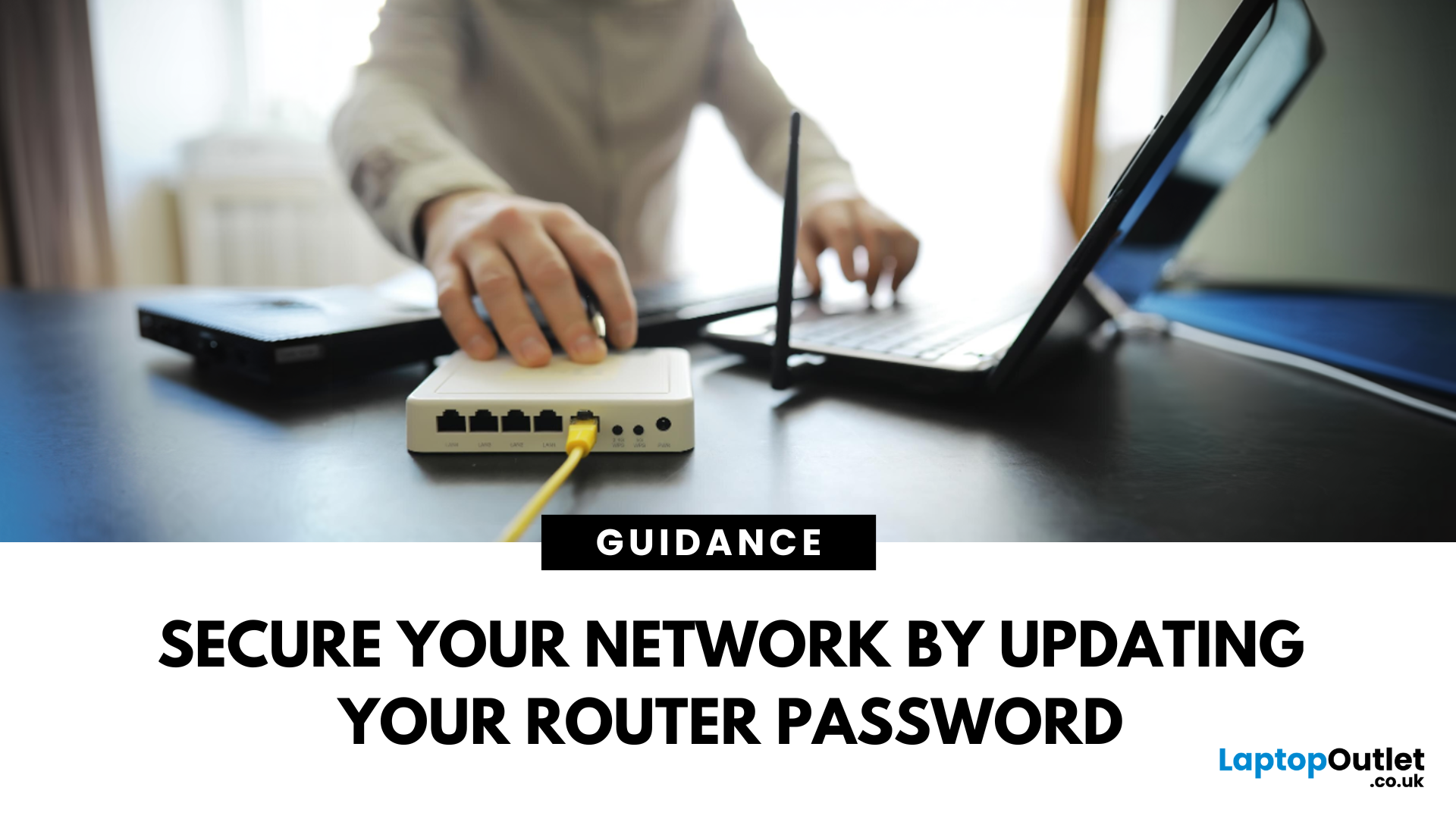
Your router password protects your home network from unwanted access. Whether you're updating your Wi-Fi credentials or changing the admin login, it’s a smart step for security. Here’s how to change your router password in just a few steps.
1. Know Which Password You’re Changing
- Wi-Fi Password: The one users enter to connect to your network
- Router Admin Password: Used to access router settings via web browser
It’s best to change both regularly for security
2. Connect to Your Router
- Make sure you're connected to your Wi-Fi or directly via Ethernet
- Open a web browser and type your router’s IP address (usually 192.168.0.1 or 192.168.1.1)
- Enter your admin username and password (often printed on the router or found in your manual)
3. Change Your Wi-Fi Password
Steps:
- Log in to your router settings
- Navigate to Wireless Settings or Wi-Fi Settings
- Locate the SSID (network name) and password fields
- Enter your new password (use a strong,

Last Updated: July 01, 2025
The Power of Digital Connections
In today’s world, few devices operate in isolation. Whether you’re sharing files, streaming media, or collaborating online, computer networking is at the heart of it all. So what exactly is networking in computers? Let’s break it down simply.
What Is Networking in Computers?
Networking in computing refers to connecting multiple computers and devices so they can share data, resources, and communication.
It’s how laptops, smartphones, printers, and servers talk to each other
Why Is Networking Important?
- Enables file and data sharing
- Supports remote access and teleworking
- Allows internet access for all connected devices
- Powers smart home and office automation
How Does Computer Networking Work?
- Devices connect via physical cables or wirelessly (Wi-Fi)
- A router or switch directs traffic
- Data travels in packets to the right device using IP addresses
Each device gets a unique network ID to manage communication
Types of Computer Networks

Last Updated: December 23, 2025
When it comes to competitive gaming or smooth 4K streaming, your internet connection is only as good as the router powering it. High latency, buffering, and packet drops can turn a winning game into frustration or ruin a live stream in seconds. That’s why choosing the right router—and configuring it correctly- is just as important as having fast broadband.
Ubiquiti has become a go-to name for gamers, streamers, and tech enthusiasts who want more than basic Wi-Fi. From the powerful UniFi Dream Machine to the gamer-centric AmpliFi series, Ubiquiti routers combine enterprise-grade stability with features built for demanding home setups. With the right optimisation - like low-latency settings, QoS for gaming traffic, and GeForce NOW tweaks - you can unlock their full potential.
In this guide, we’ll explore the best Ubiquiti routers for gaming and streaming and reveal the settings that give you a true performance edge.
Why Router Quality Matters for Gaming & Streaming
Every gamer and streamer

Last Updated: December 09, 2025
Wi-Fi acting weird? Pages not loading? Passwords forgotten? You’re not alone - sometimes even the most reliable routers like TP-Link need a fresh start. Whether your internet is unstable, you changed too many settings, or you just want to start over, resetting your router can fix a surprising number of problems.
In this complete guide, we’ll walk you through how to reset your TP-Link router, both the quick way (via the Reset button) and the advanced way (through the web interface). We’ll also explain what happens after a reset, how to reconfigure your network, and what to do if your reset doesn’t work.
Understanding What “Reset” Really Means

Before you hit any buttons, it’s important to know what a router reset actually does.
When you reset a TP-Link router, you’re restoring it to its factory default settings, exactly how it was when you first took it out of the box.
That means:
- All Wi-Fi names (SSID) and passwords you’ve set will be erased.
- Any changes to IP addresses, DNS, or security
Last Updated: January 26, 2026
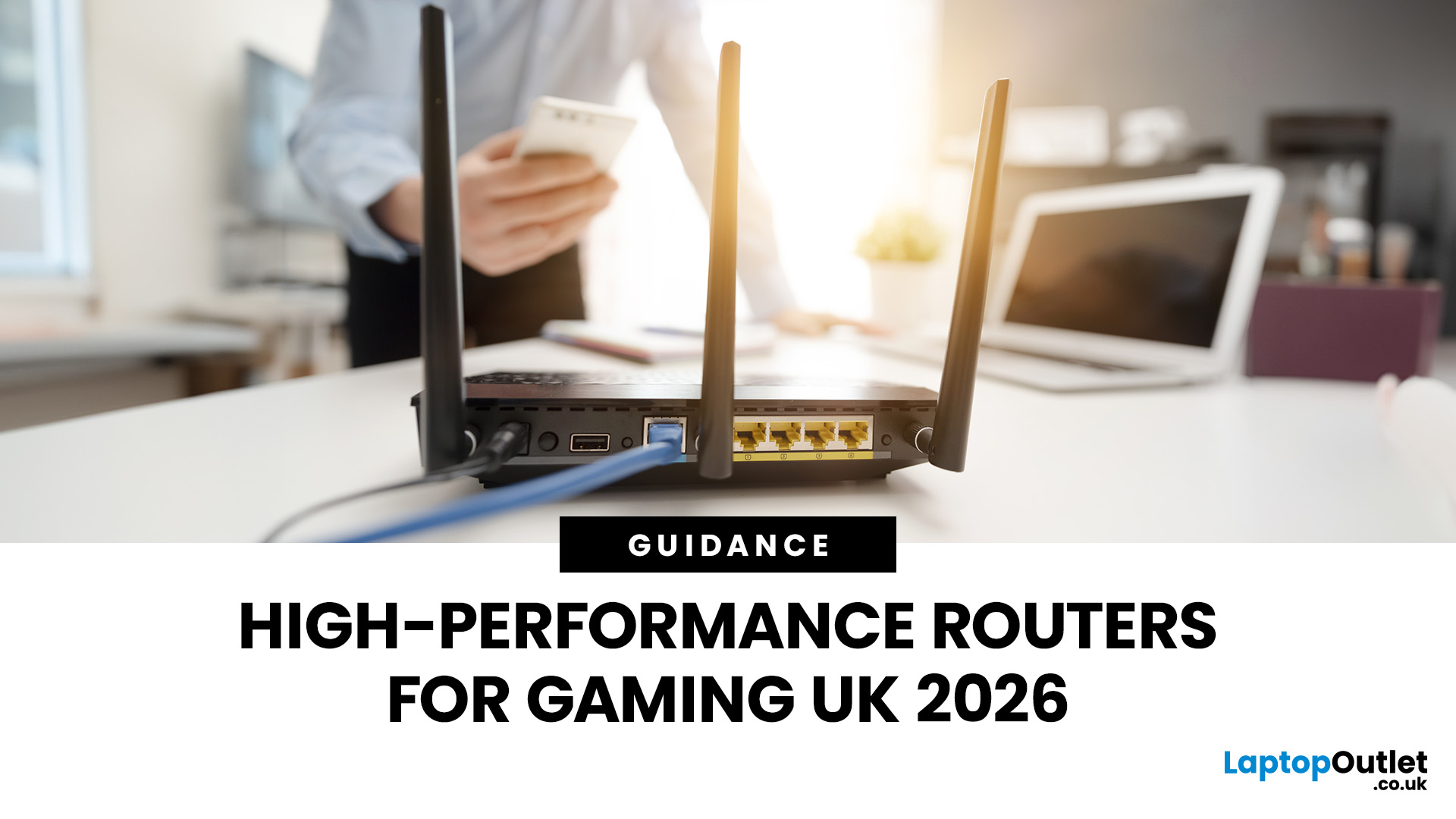
If you’re still using the free router that came with your broadband deal, you need to read this gaming router guide UK. With faster broadband speeds, competitive multiplayer titles, cloud gaming services, and always-connected consoles and PCs, your home network plays a critical role in how well you play. A powerful gaming PC or next-gen console can only perform at its best if it’s supported by a reliable, high-performance router. Whether you’re a competitive PC gamer, a PS5 warrior, a streamer juggling Twitch and Discord, or someone who just wants smooth online gaming without drama, this guide breaks down the best gaming routers UK gamers should actually care about, with real detail, not fluff.
What Makes a Router Good for Online Gaming?
Not all routers are created equal, and “gaming” isn’t just a marketing label. Understanding the core features will help you choose the right router for online gaming setup.
Low Latency and Stable Connections
Latency, often referred to as ping, is the
Last Updated: January 26, 2026
From working remotely and online learning to 4K streaming, smart home devices, and competitive gaming, UK households are placing more demand than ever on their home networks. Yet many homes still struggle with weak signals, dead zones, and inconsistent speeds. This is where mesh Wi-Fi explained properly can make all the difference.
In this guide, we’ll break down exactly how mesh Wi-Fi works, why it’s ideal for British homes, and how to choose the right system for your space. Whether you live in a Victorian terrace with thick brick walls, a multi-storey townhouse, or need reliable connectivity in a garden office, a modern Wi-Fi mesh system could be the upgrade your home network needs.
Mesh Wi-Fi Explained: What is a Mesh Network?
Traditional home Wi-Fi usually relies on a single router placed near where your broadband enters the property. While this can work in smaller flats, it often struggles to deliver consistent coverage across larger or more complex homes. Signal strength drops rapidly
Last Updated: March 12, 2026
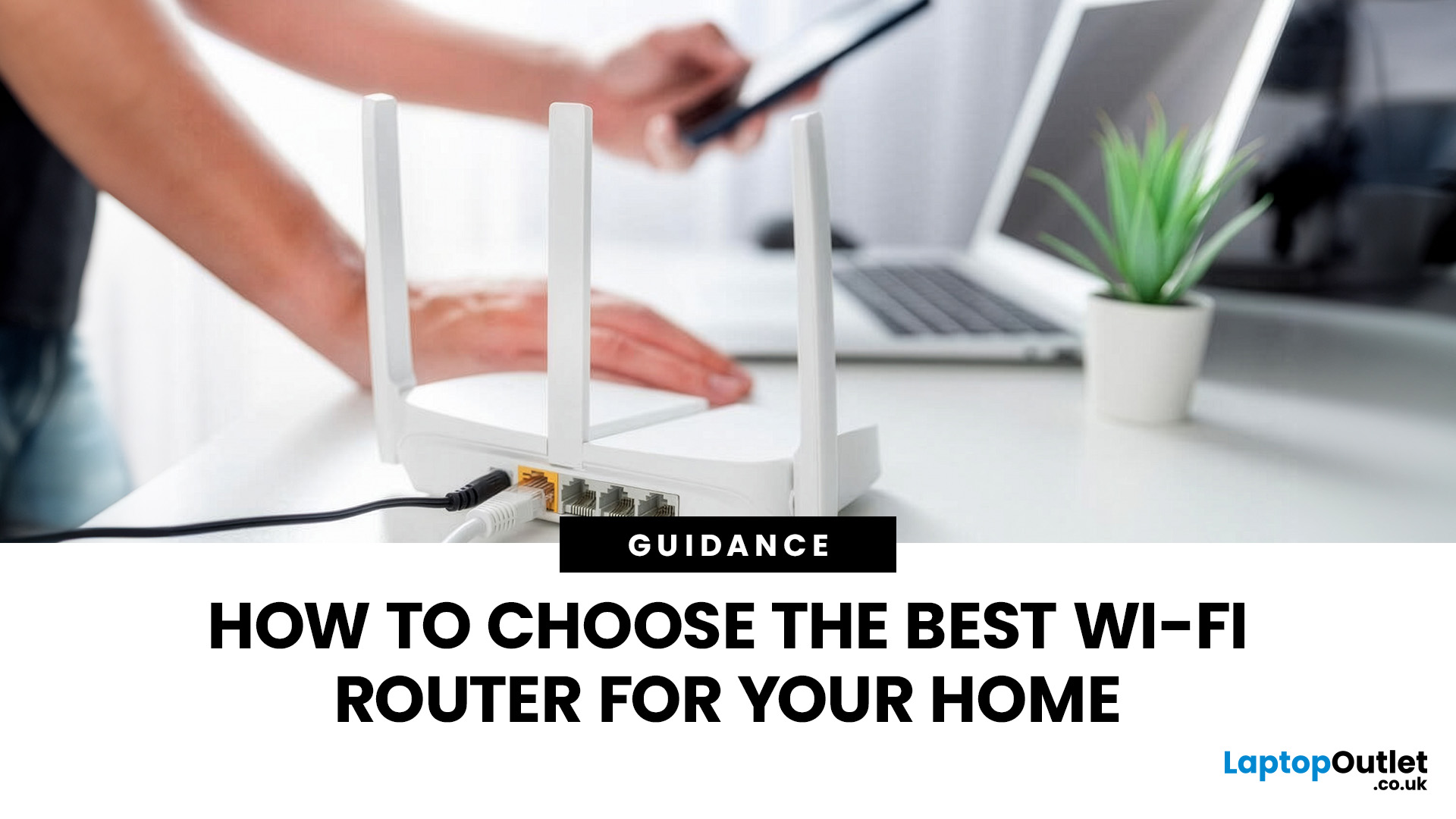
Most Wi-Fi guides start with specs. That’s already the wrong place.
To choose the best Wi-Fi router for your home, you first need to understand how Wi-Fi behaves inside real buildings, especially UK homes, which are often older, brick-built, and not designed for wireless signals.
What Wi-Fi Really Is (Without the Marketing Spin)
Wi-Fi is not “internet speed in the air”. It’s a radio signal that carries data between your router and your devices.
That signal:
- Weakens over distance
- Loses strength passing through walls
- Competes with other signals nearby
This is why Wi-Fi performance changes dramatically depending on where you are in your home, even when your broadband speed stays the same.
Important reality check:
Your router doesn’t “push” Wi-Fi evenly in all directions. It broadcasts radio waves that are:
- Reflected
- Absorbed
- Blocked
UK homes often make this worse because of:
- Solid brick and stone walls
- Metal-backed insulation
- Floor heating systems
- Older layouts with thick internal walls
This

