



Access Points: Extend Your Wi-Fi Coverage Easily in the UK
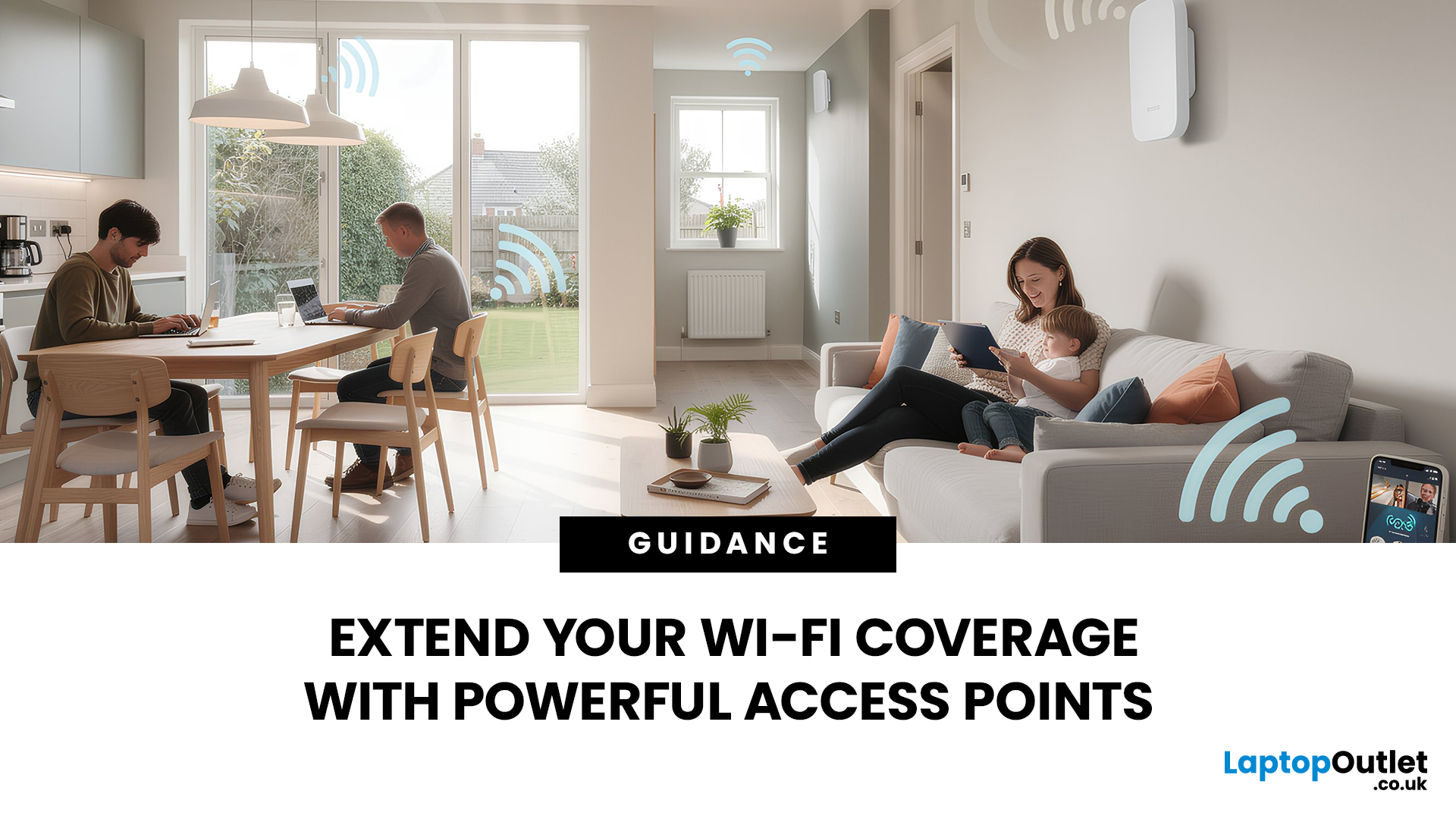
Is your Wi-Fi struggling to reach the far corners of your home or office? You are not alone. Many UK homes and businesses face "dead zones" where the internet signal simply vanishes. While a standard router is a great starting point, it often lacks the reach for larger properties or thick brick walls.
This is where wireless access points come into play. By adding the right hardware, you can enjoy a seamless, high-speed connection in every room. In this guide, we will explore how Wi-Fi access points work and 15 of the best Wi-Fi access points UK buyers can choose today to eliminate connectivity frustrations once and for all.
What are Wireless Access Points?
A wireless access point (WAP) is a device that creates a wireless local area network, or WLAN. It usually connects to your main router via an Ethernet cable. Once connected, it projects a Wi-Fi signal to a designated area.
Think of a router like a lightbulb in the hallway. It might light up the immediate area, but the bedrooms remain dark. An access point is like adding another lamp in a different room, wired back to the same power source.
In a business setting, office access points are essential. They allow hundreds of users to connect to the same network without the system crashing. For homeowners, smart home access points ensure that every smart plug, camera, and thermostat stays connected reliably.
How Wi-Fi Access Points Work
Understanding how Wi-Fi access points work is quite simple. Most APs connect directly to your main router using an Ethernet cable. This "backhaul" connection ensures that the data travels at the highest possible speed without interference.
Once connected to the cable, the AP broadcasts a wireless signal in its immediate area. Because it has a dedicated wired link to the internet source, it does not lose speed the way some older Wi-Fi range extenders might. It creates a local WLAN (Wireless Local Area Network) that devices can join easily.
Key Features to Look for in a UK Access Point
Before buying access points for home or workplace, consider these essential features to ensure your Wi-Fi expansion is successful:
- Wi-Fi Standard: Look for Wi-Fi 6 or the latest Wi-Fi 7 hardware for future-proofing.
- Power over Ethernet (PoE): This allows the device to receive power and data through a single cable, making mounting much easier.
- MU-MIMO Technology: This helps the AP handle multiple devices simultaneously without slowing down.
- Management: Cloud-managed options are great for those who want to monitor their network via an app.
- Environment: Decide if you need an indoor unit or an outdoor-rated model for garden coverage.
Top Wi-Fi Access Points to Choose From
We have selected a variety of top-tier models to suit every budget and requirement, from home offices to outdoor spaces.
1. D-Link Nuclias Cloud Managed AC1300 (DBA-1210P)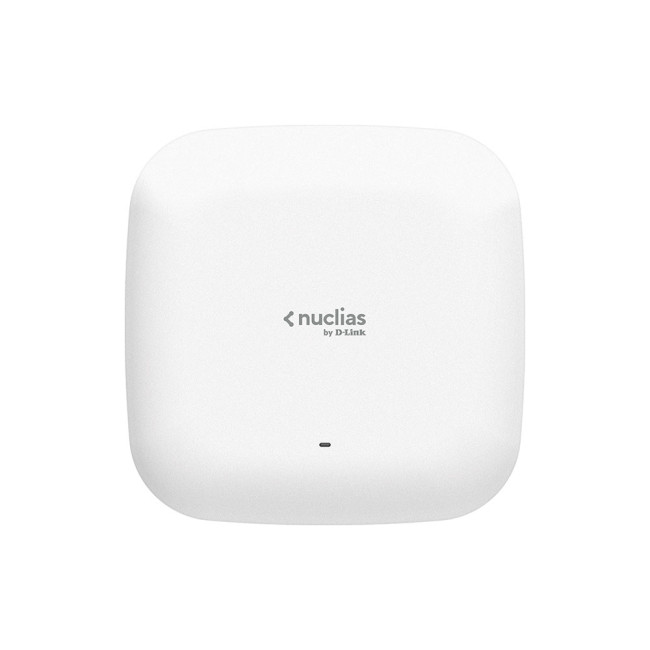
- Standard: Wi-Fi 5 (802.11ac Wave 2)
- Speed: Up to 1300 Mbps
- Management: Nuclias Cloud Managed
- Power: PoE (802.3af)
- MIMO: 2x2 MU-MIMO
- Interface: 1 x Gigabit LAN Port
- Mounting: Wall or Ceiling
This D-Link sleek white unit is perfect for businesses wanting easy remote management. It offers reliable dual-band speeds and high-density connectivity. Its cloud-based setup means you can manage your network from anywhere without needing a local controller.
2. TP-Link EAP115-Wall AP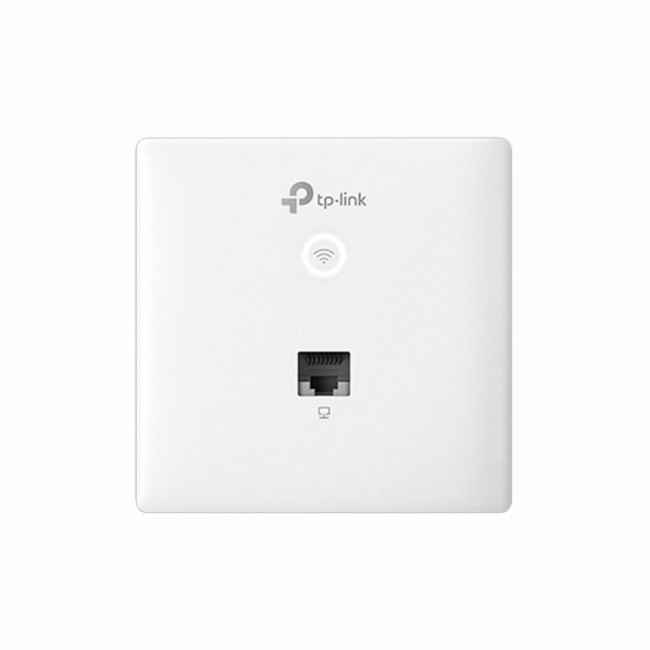
- Standard: Wi-Fi 4 (802.11n)
- Speed: 300 Mbps
- Management: Omada Centralised Management
- Power: PoE (802.3af)
- Interface: 2 x 10/100Mbps Ethernet Ports
- Mounting: In-Wall Data Junction Box
Designed to fit into standard wall plates, this TP-Link AP is a discreet solution for hotels or dorms. It provides a dedicated Wi-Fi signal for every room. The front-panel design makes it look like a standard socket.
3. D-Link Nuclias DBA-3620P Outdoor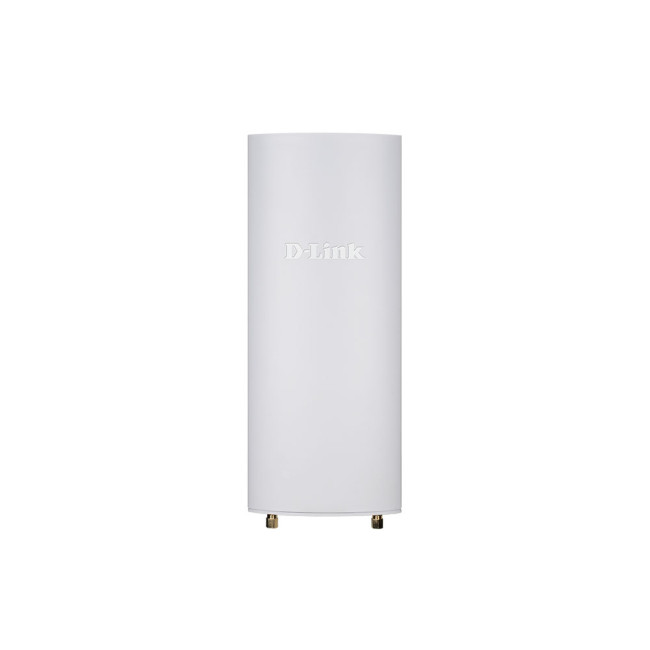
- Standard: Wi-Fi 5
- Speed: Up to 1300 Mbps
- Management: Cloud-Managed
- Power: PoE
- MIMO: 2x2 MU-MIMO
- Interface: 1 x Gigabit LAN
- Temperature Range: -40 to 50 °C
- Mounting: Wall or Pole
This rugged outdoor AP is built to withstand the British weather. It is ideal for gardens, car parks, or outdoor cafes. It provides high-speed connectivity even in harsh environments with its IP55-rated casing.
4. Zyxel NWA50AX-EU0102F Wi-Fi 6 AP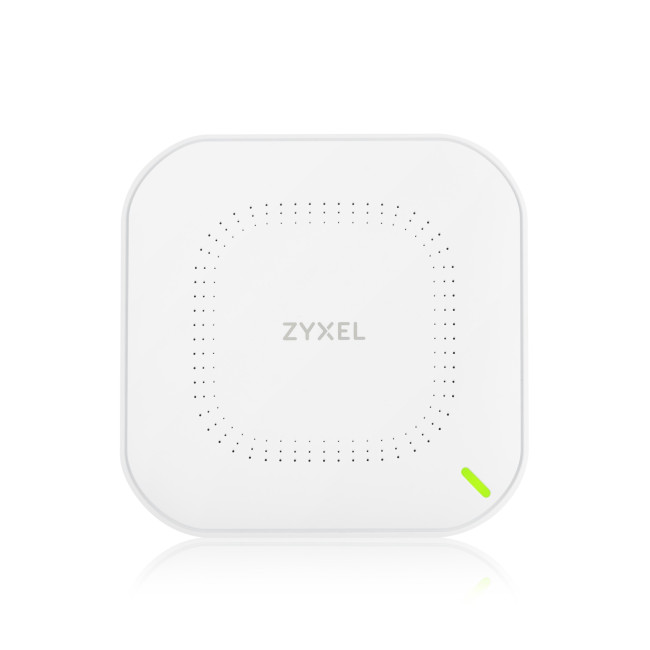
- Standard: Wi-Fi 6 (802.11ax)
- Speed: 1775 Mbps
- Management: NebulaFlex (Cloud or Standalone)
- Power: PoE or DC Power Adapter
- MIMO: 2x2 MU-MIMO
- Interface: 1 x Gigabit Ethernet RJ45
- Mounting: Wall or Ceiling
A fantastic entry-level Wi-Fi 6 AP for small offices and homes. It supports the latest security protocols and is very easy to configure via the Nebula app. It delivers a significant speed boost over older models.
5. TP-Link Omada EAP225-Outdoor
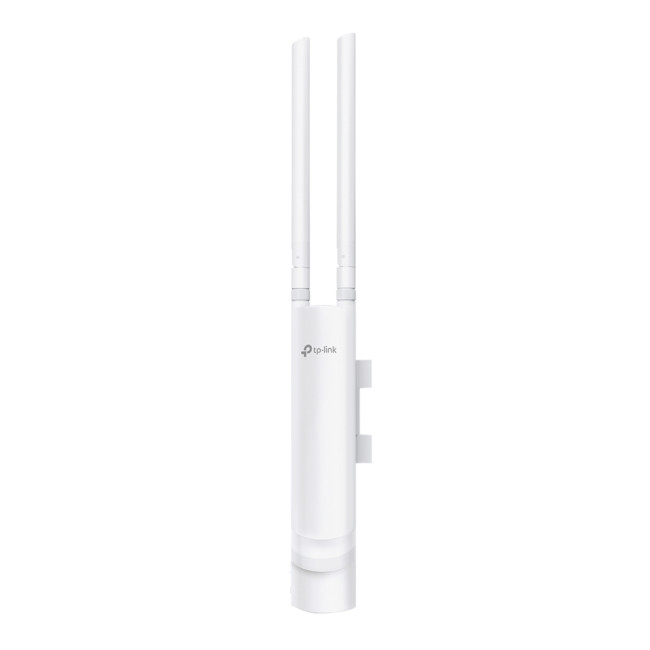
- Standard: Wi-Fi 5 (802.11ac)
- Speed: 1200 Mbps
- Technology: Omada Mesh Technology
- Power: Passive PoE or 802.3af
- MIMO: MU-MIMO
- Interface: 1 x Gigabit LAN
- Weatherproofing: IP65 rated
- Mounting: Wall or Pole
This is a popular choice for extending Wi-Fi to the garden or shed. It features high transmission power and high-gain antennas for long-range coverage. It is a cost-effective way to get reliable outdoor signal.
6. Ubiquiti U6+ AP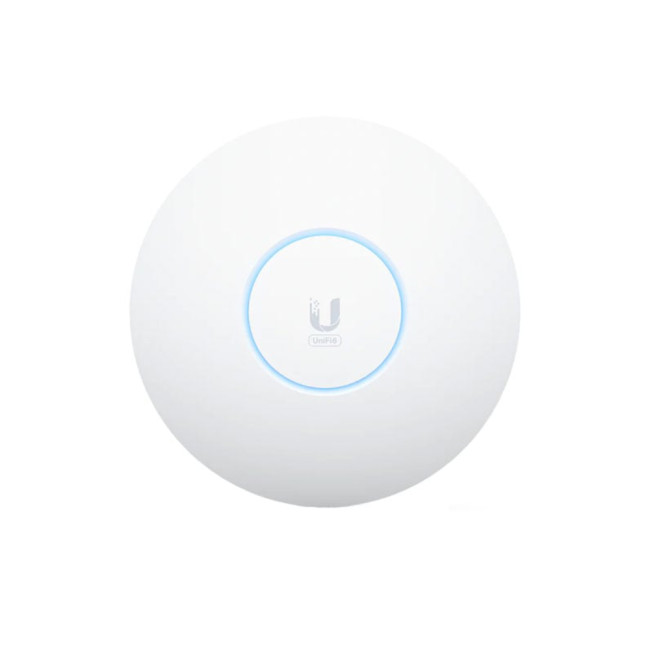
- Standard: Wi-Fi 6
- Speed: Up to 2 Gbps
- Management: UniFi Network Controller
- Power: PoE
- MIMO: 2x2 MU-MIMO
- Weatherproofing: IP54
- Interface: 1 x Gigabit Ethernet
- Mounting: Ceiling or Wall
Ubiquiti is a favourite for tech enthusiasts. This compact AP delivers massive throughput in a tiny frame. It is perfect for high-traffic areas where many devices need to connect simultaneously without dropping.
7. ASUS Expert WiFi EBR63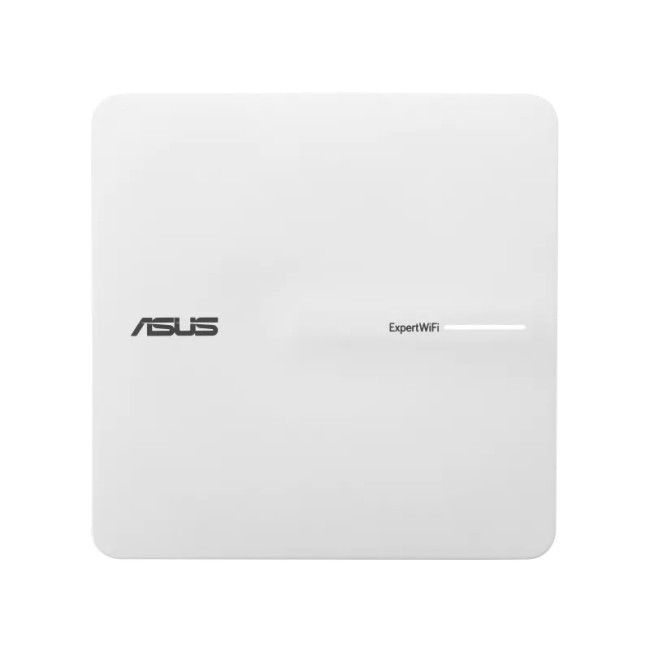
- Standard: Wi-Fi 6
- Speed: Up to 3000 Mbps
- Management: ExpertWiFi App
- Power: PoE or DC Adapter
- MIMO: 2x2 MU-MIMO
- Interface: 1 x GbE WAN, 3 x GbE LAN, 1 x USB 3.2
- Mounting: Desktop or Wall
This is a versatile 3-in-1 ASUS device acting as an AP, router, and security gateway. It is designed for small business owners who need professional features like VLANs and guest portals in an easy-to-use package.
8. DrayTek VigorAP 912C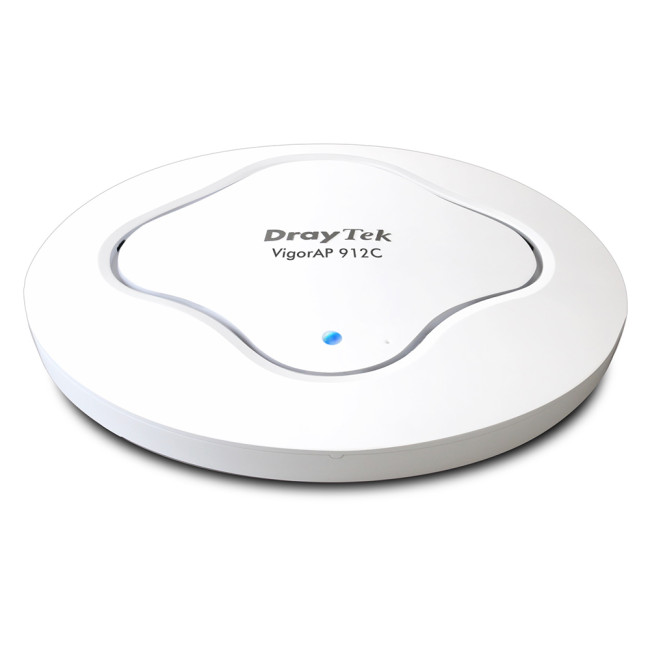
- Standard: Wi-Fi 5 (802.11ac Wave 2)
- Speed: 1200 Mbps
- Management: VigorACS / Central AP Management
- Power: PoE or DC
- MIMO: 2x2 MU-MIMO
- Interface: 1 x Gigabit LAN
- Mounting: Ceiling or Wall
DrayTek is known for rock-solid reliability. This access point is ideal for office environments that require stable, long-term performance. It includes advanced features like airtime fairness and band steering for optimal traffic.
9. ASUS ZenWiFi BD4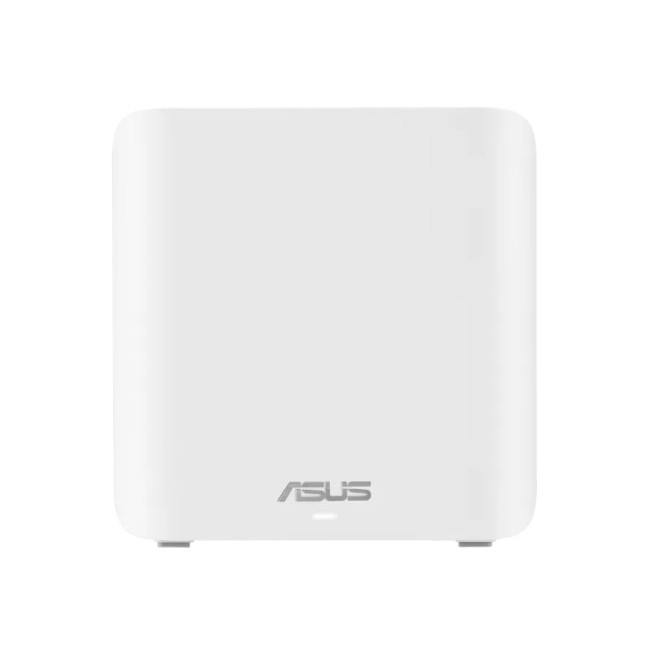
- Standard: Wi-Fi 7 (802.11be)
- Speed: Up to 3.6 Gbps
- Mesh Technology: ASUS AiMesh
- Coverage: Up to 6000+ sq. ft.
- Ethernet Ports: 2 x 2.5G Ports (Auto-detects WAN/LAN)
- Mounting: Wall
This is the future of networking. Using Wi-Fi 7, it offers blistering speeds and incredibly low latency. It is the ultimate choice for a high-end smart home or a professional creative studio.
10. Zyxel NWA55AXE-GB0102F Outdoor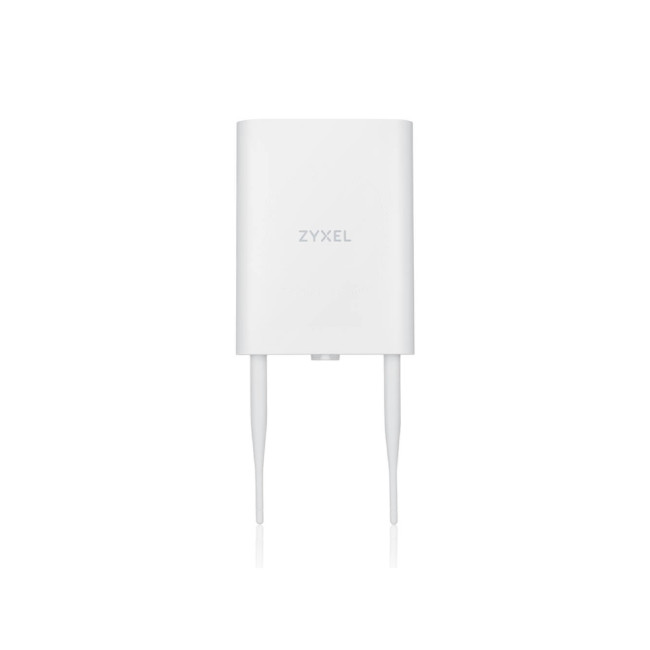
- Standard: Wi-Fi 6
- Speed: 1775 Mbps
- Management: NebulaFlex
- Power: PoE
- MIMO: 2x2 MU-MIMO
- Interface: 1 x Gigabit LAN
- Mounting: Wall or Pole
Another excellent outdoor option, this model brings Wi-Fi 6 speeds to your external spaces. It is perfect for those who want to work from the garden or provide guest Wi-Fi in outdoor seating areas.
11. Netgear WAX610-100EUS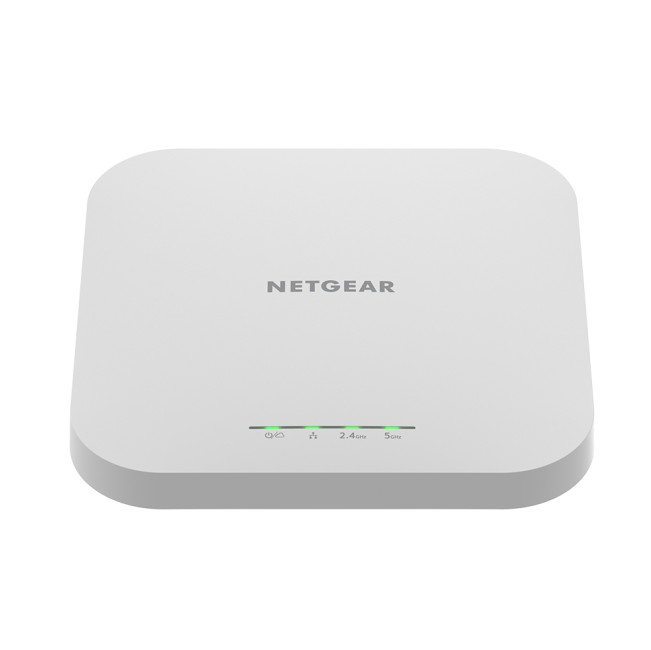
- Standard: Wi-Fi 6
- Speed: 1800 Mbps
- Management: Netgear Insight Cloud
- Power: PoE+ or DC
- MIMO: 2x2 MU-MIMO
- Interface: 1 x 2.5G Ethernet Port
- Mounting: Wall or Ceiling
This Netgear AP features a 2.5G port to ensure your Wi-Fi is not bottlenecked by a standard Gigabit cable. It is part of the Insight ecosystem, making it very simple for small businesses to deploy and manage.
12. Netgear Insight WAX610Y-100EUS (Outdoor)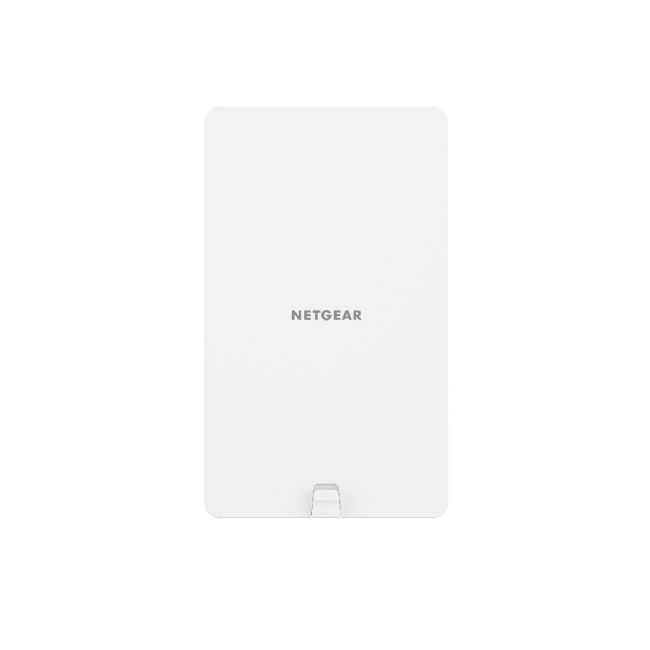
- Standard: Wi-Fi 6
- Speed: 1800 Mbps
- Management: Netgear Insight Cloud
- Power: PoE+
- MIMO: 2x2 MU-MIMO
- Interface: 1 x 2.5G Ethernet
- Mounting: Wall or Pole
This is the hardened, outdoor version of the WAX610. It offers the same high speeds and 2.5G connectivity but with an IP55 rating to survive rain, snow, and dust.
13. Ubiquiti U7-PRO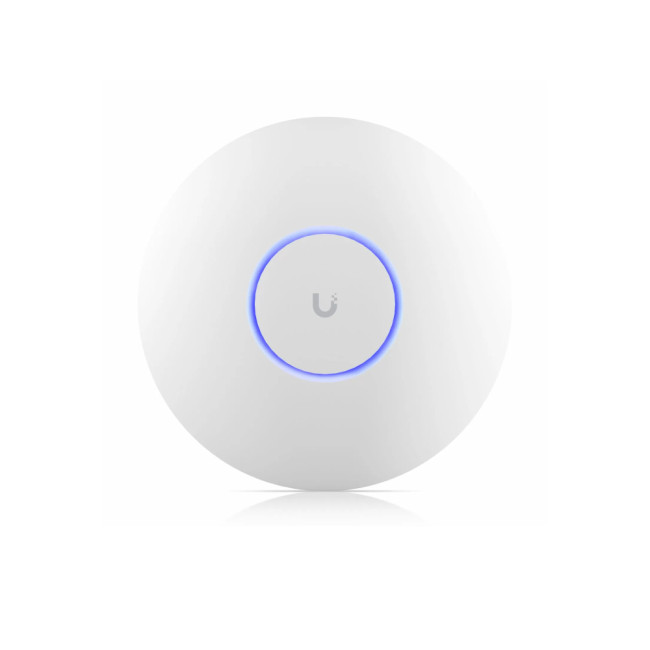
- Standard: Wi-Fi 7
- Speed: Up to 7.3 Gbps
- Management: UniFi Network
- Power: PoE+
- MIMO: 2x2 MU-MIMO
- Interface: 2.5 GbE RJ45 port
- Mounting: Ceiling or Wall
The U7 Pro is a high-performance AP designed for the next generation of devices. It uses the 6GHz band to provide interference-free, high-speed internet in crowded environments.
14. Zyxel NWA130BE-EU0101F (Wi-Fi 7)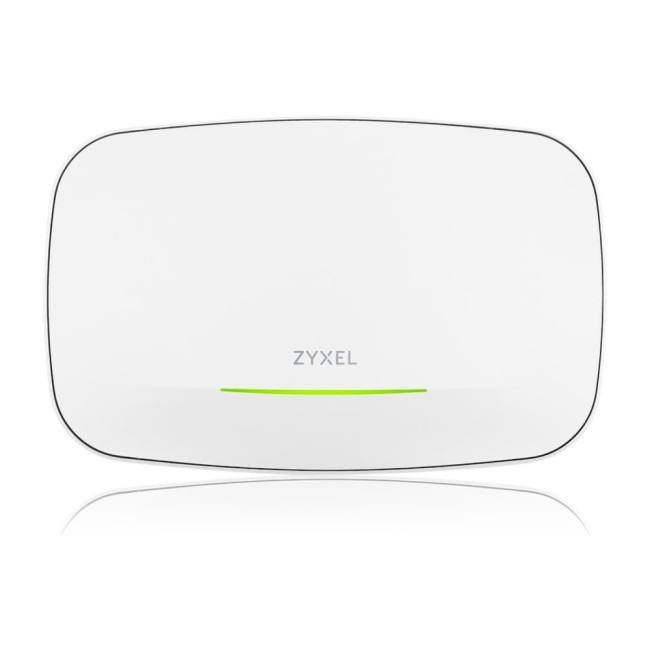
- Standard: Wi-Fi 7
- Speed: 11000 Mbps
- Management: NebulaFlex
- Power: PoE+ or DC
- MIMO: 2x2 MU-MIMO
- Interface: 2 x 2.5G LAN
- Mounting: Ceiling or Wall
Zyxel makes Wi-Fi 7 affordable for businesses with this model. It features dual 2.5G ports, allowing for flexible wiring and high-speed data transfer across your local network.
15. DrayTek VigorAP 1062C
- Standard: Wi-Fi 6
- Speed: 6000 Mbps
- Management: VigorACS / Central Management
- Power: PoE+ or DC
- MIMO: 4x4 MU-MIMO
- Interface: 1 x 2.5G LAN
- Mounting: Ceiling or Wall
A powerhouse for high-density environments. With 4x4 MIMO, it can handle a huge number of concurrent users. It is the perfect choice for busy offices or public venues.
Setting Up Your Access Point: A Simple Guide
Setting up your new device doesn't have to be daunting. Follow these simple steps to get started.
- Placement: Identify your Wi-Fi dead zones. Place the access point centrally between your router and the dead zone, preferably high up on a wall or ceiling.
- Cabling: Run a high-quality network cable from your router to the access point. If using PoE, connect it to a PoE injector or a PoE-capable switch.
- Configuration: Download the manufacturer’s app (like Omada, Insight, or Nebula). Scan the QR code on the device to add it to your network.
- SSID Setup: You can give the access point the same name (SSID) and password as your main router. This allows your devices to "roam" between them automatically.
Other Networking Essentials
To build a truly professional network, you might need more than just access points. Here are some other networking items to consider:
Mesh Wi-Fi: These systems use multiple nodes to create a single, seamless network. They are perfect for homes where running cables is impossible.
Network Switches: A switch expands the number of wired ports available. It allows you to connect multiple access points to one router easily.
Network Cards: Upgrade your desktop PC with a dedicated card. This ensures your computer can handle the high speeds of your new network.
Powerline Adapters: These send internet data through your home’s electrical wiring. They are a great alternative when you cannot drill holes for cables.
Gaming Routers: These prioritise gaming traffic to reduce lag. They work brilliantly alongside access points to keep your pings low and steady.
Adapters: USB Wi-Fi adapters are perfect for older laptops. They provide a quick and cheap way to access modern wireless bands.
Wi-Fi 7 Hardware: The newest standard in wireless technology. It offers incredible speeds and is ideal for future-proofing your home or office.
Wi-Fi Range Extenders: A budget-friendly way to boost signals. While not as powerful as access points, they help cover small, specific weak spots.
Server Racks: Professional server racks keep your networking gear organised. They are vital for structured and cool office environments.
Network Cables: High-quality Ethernet cables are the backbone of your network. Always choose Cat6 or higher for the best possible data speeds.

Achieve Seamless Wi-Fi Coverage
Understanding how Wi-Fi access points work is the first step toward a frustration-free digital life. Whether you need a discreet in-wall unit for your lounge or a powerful outdoor device for the patio, there is a solution for every budget.
By investing in quality wireless access points, you are not just buying a gadget; you are ensuring that your work, entertainment, and smart home devices remain connected without interruption.
Visit Laptop Outlet today to browse the full range of networking gear and take control of your connectivity.

A Little More Info for You...
How Wi-Fi access points work?
They connect to your router via a cable and broadcast a wireless signal. This creates a strong, local Wi-Fi zone in any room.
Can I use an access point with any router?
Yes, almost all access points work with any standard ISP router. You just need a spare Ethernet port to connect them.
Is an access point better than a range extender?
Generally, yes. Access points use a wired connection, which is much faster and more stable than the wireless repeating used by extenders.
Can I use an indoor access point outside?
It is not recommended. Outdoor units are weatherproofed. An indoor unit will likely fail quickly due to moisture, dust, or temperature changes.
Do I need a new router to use an access point?
No, most access points work with any existing router. You simply plug them in via an Ethernet cable to start.
Do I need professional help to install an AP?
Usually, no. Most modern access points are "plug and play" or can be set up easily using a simple smartphone app.
Do these products come with a warranty?
Yes, all our access points come with a minimum 1-year manufacturer warranty. This ensures your investment is protected against any faults.
Related Articles

Last Updated: July 01, 2025
Your Wi-Fi Starts Here
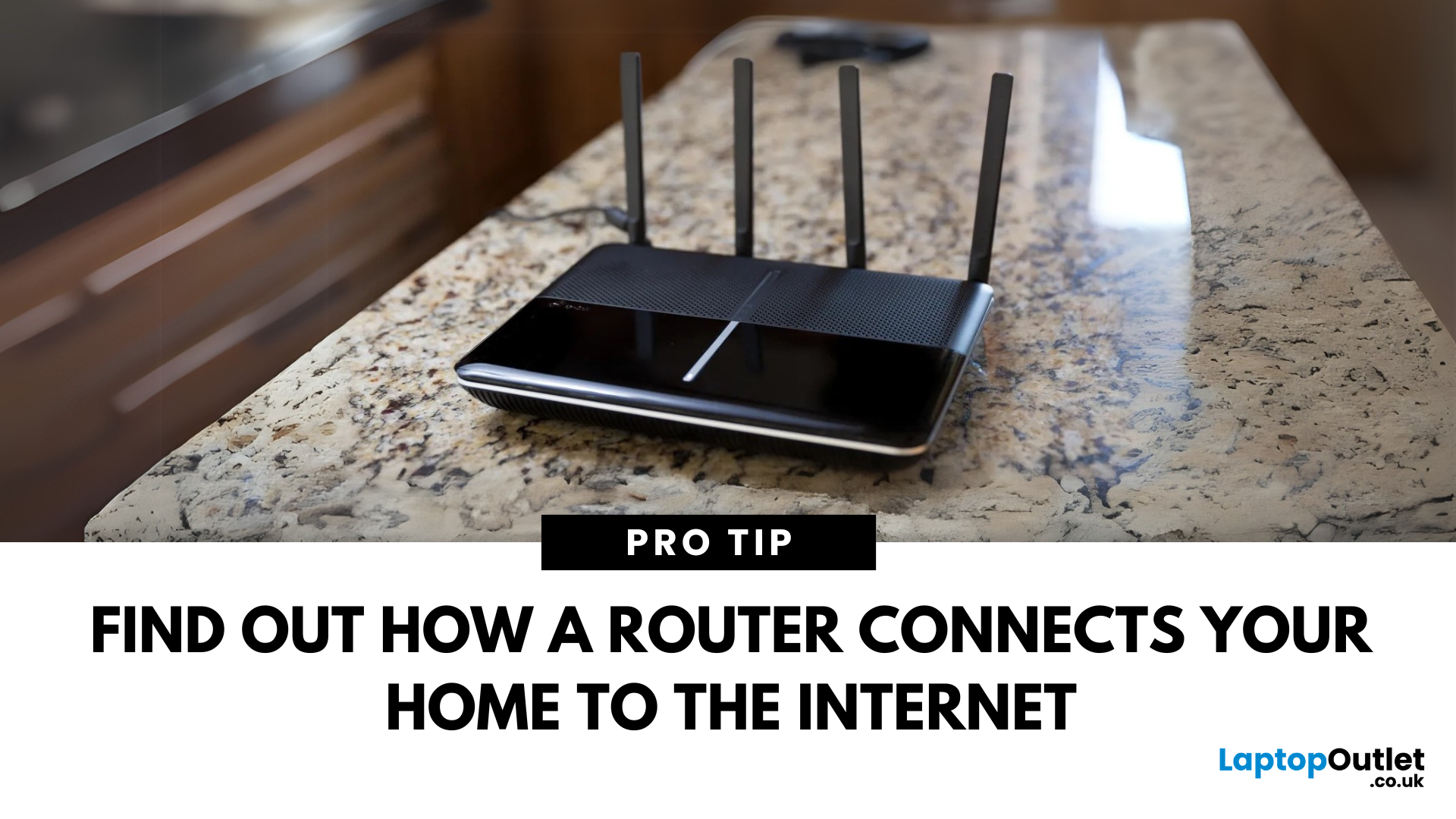
You’ve probably seen it flashing away in the corner of the room—but what is a router, and why is it essential for your internet connection? Here’s everything you need to know about this small but powerful device.
What Is a Router?
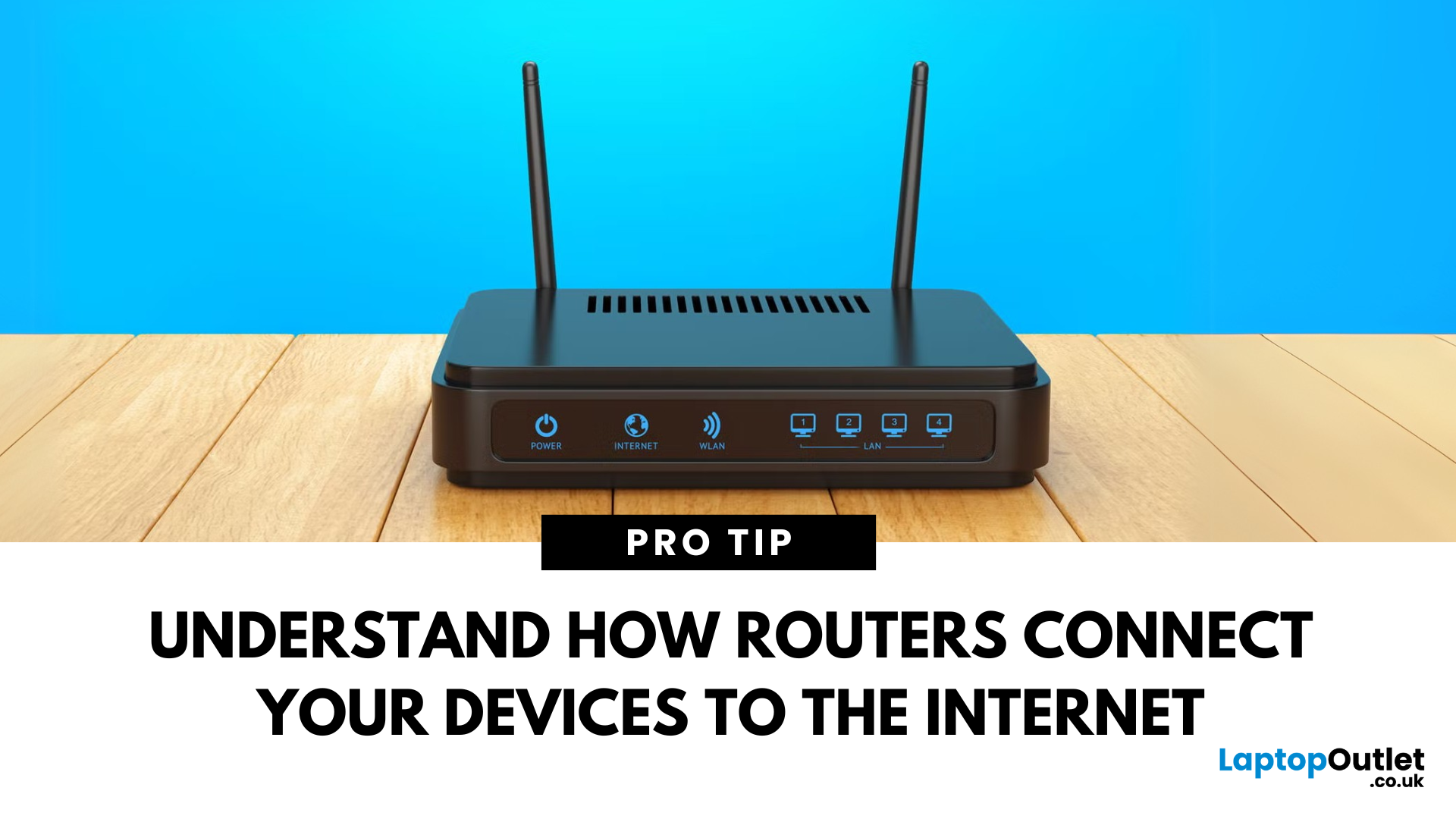
A router is a device that connects your home or office to the internet by routing data between your internet service provider (ISP) and your connected devices (like phones, laptops, smart TVs, and more).
It’s the heart of your Wi-Fi network, sending and receiving data from the web
How Does a Router Work?
- Connects to a modem (or includes one in some models)
- Assigns local IP addresses to devices in your network
- Sends and receives data packets to and from the internet
- Uses Wi-Fi or Ethernet to link devices wirelessly or via cable
Types of Routers
- Standalone Router: Connects to a separate modem
- Modem-Router Combo: Two-in-one device with both modem and router
- Mesh Wi-Fi Router: Covers large homes with multiple units
Last Updated: July 01, 2025
The Backbone of Your Internet
Your internet experience starts with a router—but what exactly does it do? Whether you’re streaming, gaming, working from home, or scrolling on your phone, the router keeps your digital life connected. Let’s break down what a router does and why it’s so important.
What Is a Router?
A router is a networking device that connects your devices to the internet and manages how they communicate with each other.
It “routes” traffic between your local devices (like your phone or laptop) and the broader internet
What Does a Router Actually Do?
- Distributes internet access from your modem to all connected devices
- Creates a local network so devices can talk to each other
- Assigns IP addresses to each device
- Directs data packets so the right information reaches the right device
Wi-Fi vs Router – What’s the Difference?
- Router: Manages traffic and connects devices
- Wi-Fi: The wireless signal your router creates
The router gives you internet; Wi-Fi
Last Updated: July 01, 2025
Keep Your Wi-Fi Safe and Secure
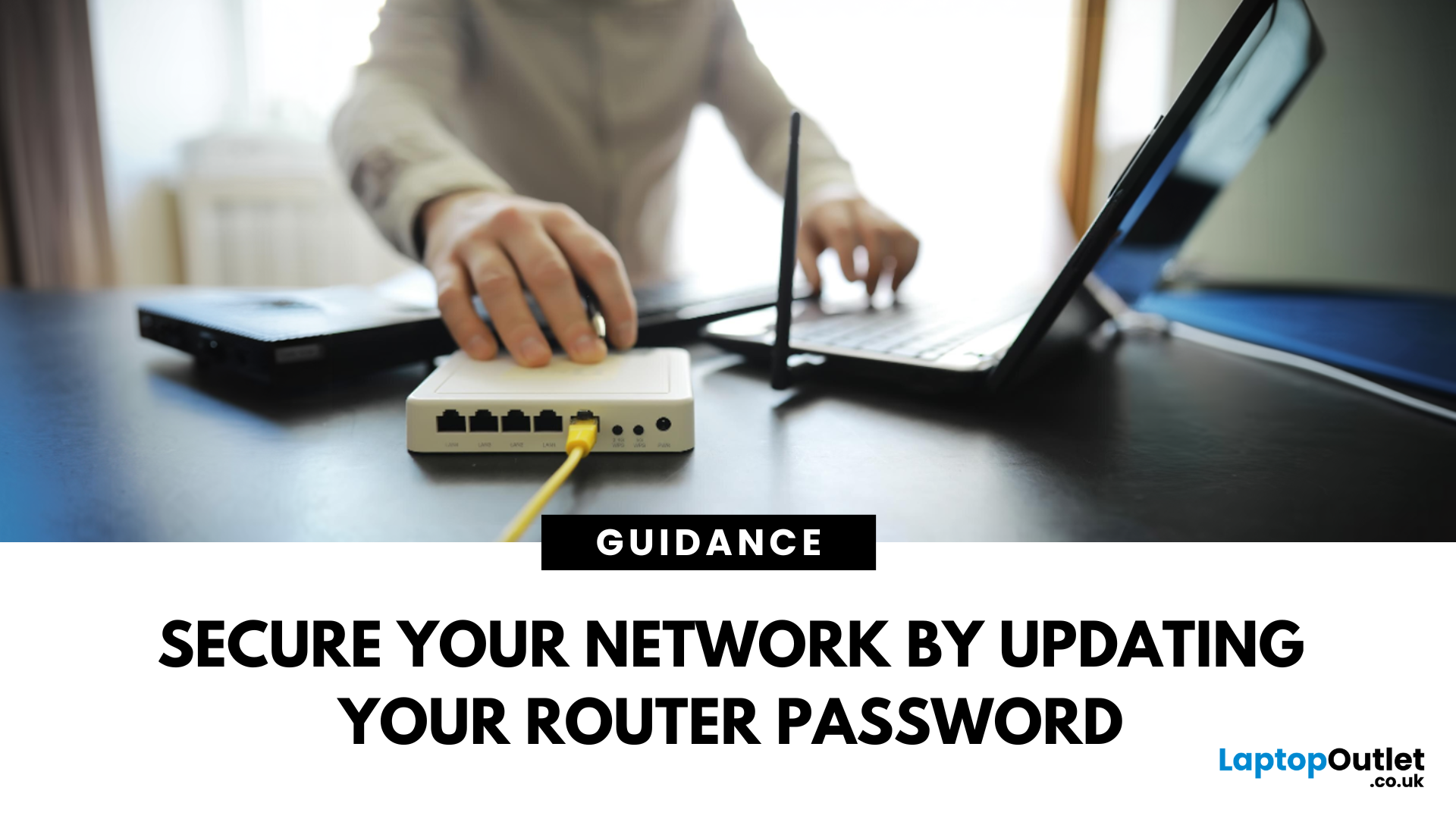
Your router password protects your home network from unwanted access. Whether you're updating your Wi-Fi credentials or changing the admin login, it’s a smart step for security. Here’s how to change your router password in just a few steps.
1. Know Which Password You’re Changing
- Wi-Fi Password: The one users enter to connect to your network
- Router Admin Password: Used to access router settings via web browser
It’s best to change both regularly for security
2. Connect to Your Router
- Make sure you're connected to your Wi-Fi or directly via Ethernet
- Open a web browser and type your router’s IP address (usually 192.168.0.1 or 192.168.1.1)
- Enter your admin username and password (often printed on the router or found in your manual)
3. Change Your Wi-Fi Password
Steps:
- Log in to your router settings
- Navigate to Wireless Settings or Wi-Fi Settings
- Locate the SSID (network name) and password fields
- Enter your new password (use a strong,

Last Updated: December 23, 2025
When it comes to competitive gaming or smooth 4K streaming, your internet connection is only as good as the router powering it. High latency, buffering, and packet drops can turn a winning game into frustration or ruin a live stream in seconds. That’s why choosing the right router—and configuring it correctly- is just as important as having fast broadband.
Ubiquiti has become a go-to name for gamers, streamers, and tech enthusiasts who want more than basic Wi-Fi. From the powerful UniFi Dream Machine to the gamer-centric AmpliFi series, Ubiquiti routers combine enterprise-grade stability with features built for demanding home setups. With the right optimisation - like low-latency settings, QoS for gaming traffic, and GeForce NOW tweaks - you can unlock their full potential.
In this guide, we’ll explore the best Ubiquiti routers for gaming and streaming and reveal the settings that give you a true performance edge.
Why Router Quality Matters for Gaming & Streaming
Every gamer and streamer

Last Updated: December 09, 2025
Wi-Fi acting weird? Pages not loading? Passwords forgotten? You’re not alone - sometimes even the most reliable routers like TP-Link need a fresh start. Whether your internet is unstable, you changed too many settings, or you just want to start over, resetting your router can fix a surprising number of problems.
In this complete guide, we’ll walk you through how to reset your TP-Link router, both the quick way (via the Reset button) and the advanced way (through the web interface). We’ll also explain what happens after a reset, how to reconfigure your network, and what to do if your reset doesn’t work.
Understanding What “Reset” Really Means

Before you hit any buttons, it’s important to know what a router reset actually does.
When you reset a TP-Link router, you’re restoring it to its factory default settings, exactly how it was when you first took it out of the box.
That means:
- All Wi-Fi names (SSID) and passwords you’ve set will be erased.
- Any changes to IP addresses, DNS, or security
Last Updated: January 26, 2026
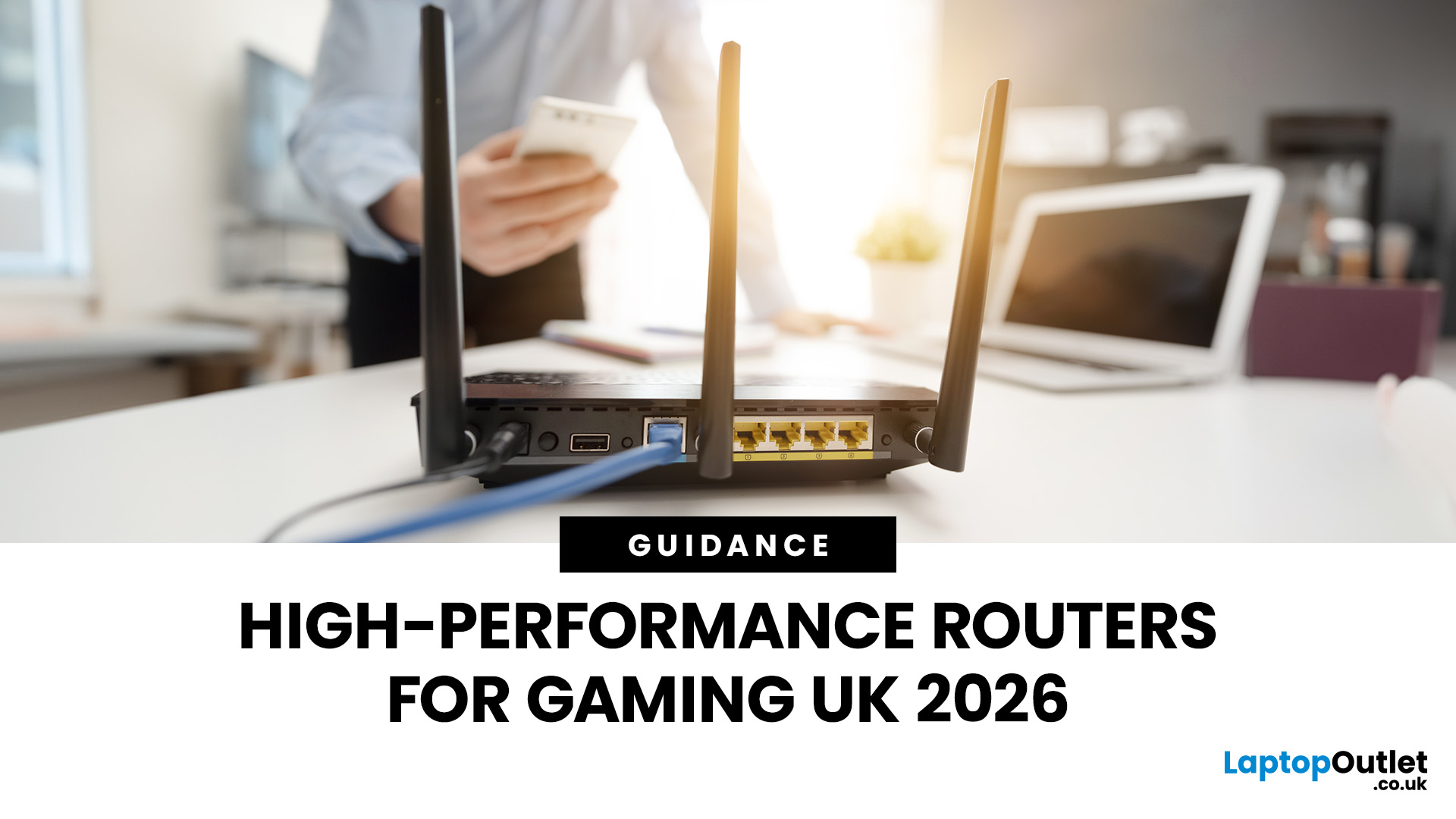
If you’re still using the free router that came with your broadband deal, you need to read this gaming router guide UK. With faster broadband speeds, competitive multiplayer titles, cloud gaming services, and always-connected consoles and PCs, your home network plays a critical role in how well you play. A powerful gaming PC or next-gen console can only perform at its best if it’s supported by a reliable, high-performance router. Whether you’re a competitive PC gamer, a PS5 warrior, a streamer juggling Twitch and Discord, or someone who just wants smooth online gaming without drama, this guide breaks down the best gaming routers UK gamers should actually care about, with real detail, not fluff.
What Makes a Router Good for Online Gaming?
Not all routers are created equal, and “gaming” isn’t just a marketing label. Understanding the core features will help you choose the right router for online gaming setup.
Low Latency and Stable Connections
Latency, often referred to as ping, is the
Last Updated: January 26, 2026
From working remotely and online learning to 4K streaming, smart home devices, and competitive gaming, UK households are placing more demand than ever on their home networks. Yet many homes still struggle with weak signals, dead zones, and inconsistent speeds. This is where mesh Wi-Fi explained properly can make all the difference.
In this guide, we’ll break down exactly how mesh Wi-Fi works, why it’s ideal for British homes, and how to choose the right system for your space. Whether you live in a Victorian terrace with thick brick walls, a multi-storey townhouse, or need reliable connectivity in a garden office, a modern Wi-Fi mesh system could be the upgrade your home network needs.
Mesh Wi-Fi Explained: What is a Mesh Network?
Traditional home Wi-Fi usually relies on a single router placed near where your broadband enters the property. While this can work in smaller flats, it often struggles to deliver consistent coverage across larger or more complex homes. Signal strength drops rapidly
Last Updated: March 12, 2026
Most Wi-Fi guides start with specs. That’s already the wrong place.
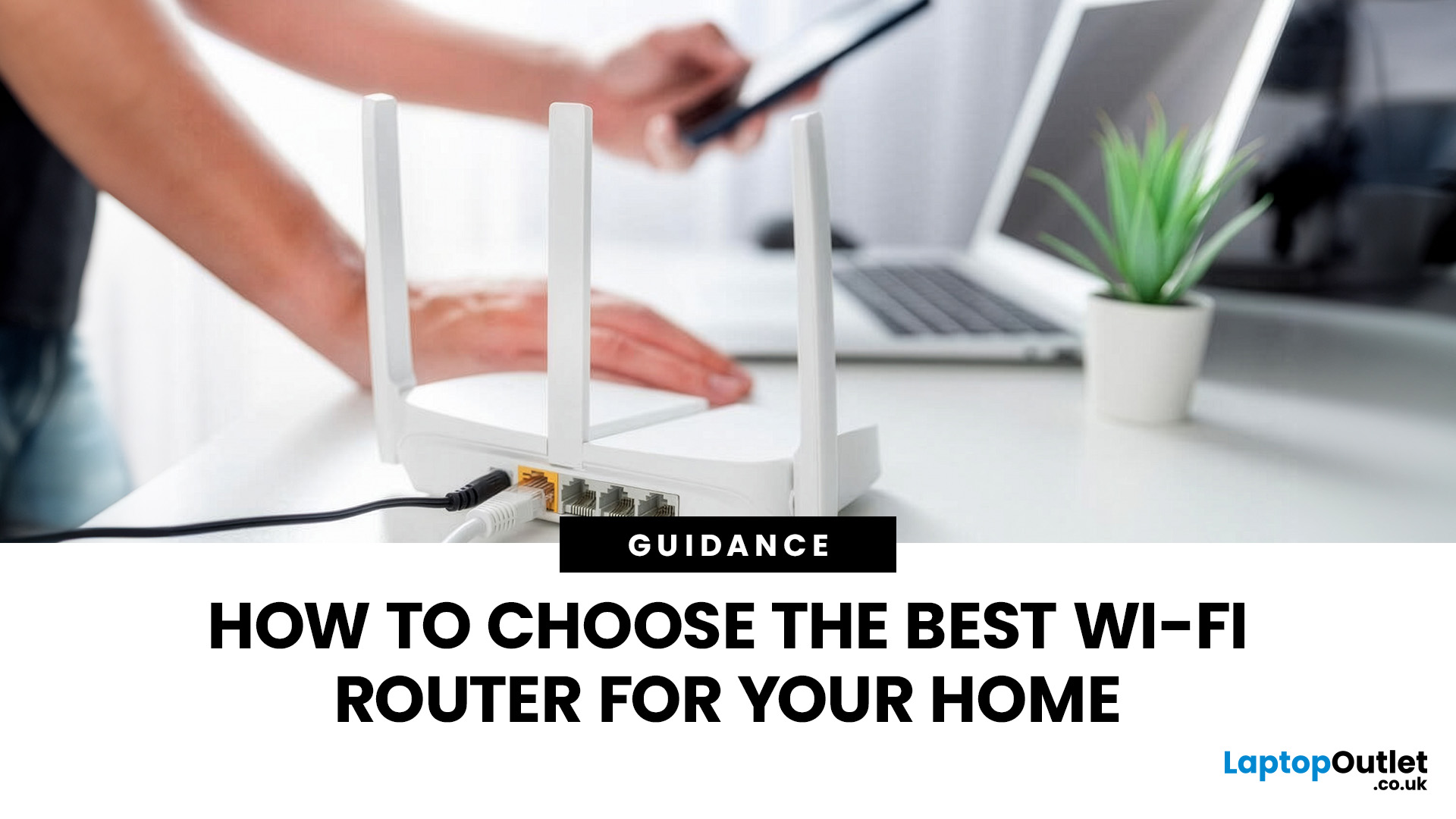
To choose the best Wi-Fi router for your home, you first need to understand how Wi-Fi behaves inside real buildings, especially UK homes, which are often older, brick-built, and not designed for wireless signals.
What Wi-Fi Really Is (Without the Marketing Spin)
Wi-Fi is not “internet speed in the air”. It’s a radio signal that carries data between your router and your devices.
That signal:
- Weakens over distance
- Loses strength passing through walls
- Competes with other signals nearby
This is why Wi-Fi performance changes dramatically depending on where you are in your home, even when your broadband speed stays the same.
Important reality check:
Your router doesn’t “push” Wi-Fi evenly in all directions. It broadcasts radio waves that are:
- Reflected
- Absorbed
- Blocked
UK homes often make this worse because of:
- Solid brick and stone walls
- Metal-backed insulation
- Floor heating systems
- Older layouts with thick internal walls
This
Last Updated: January 26, 2026
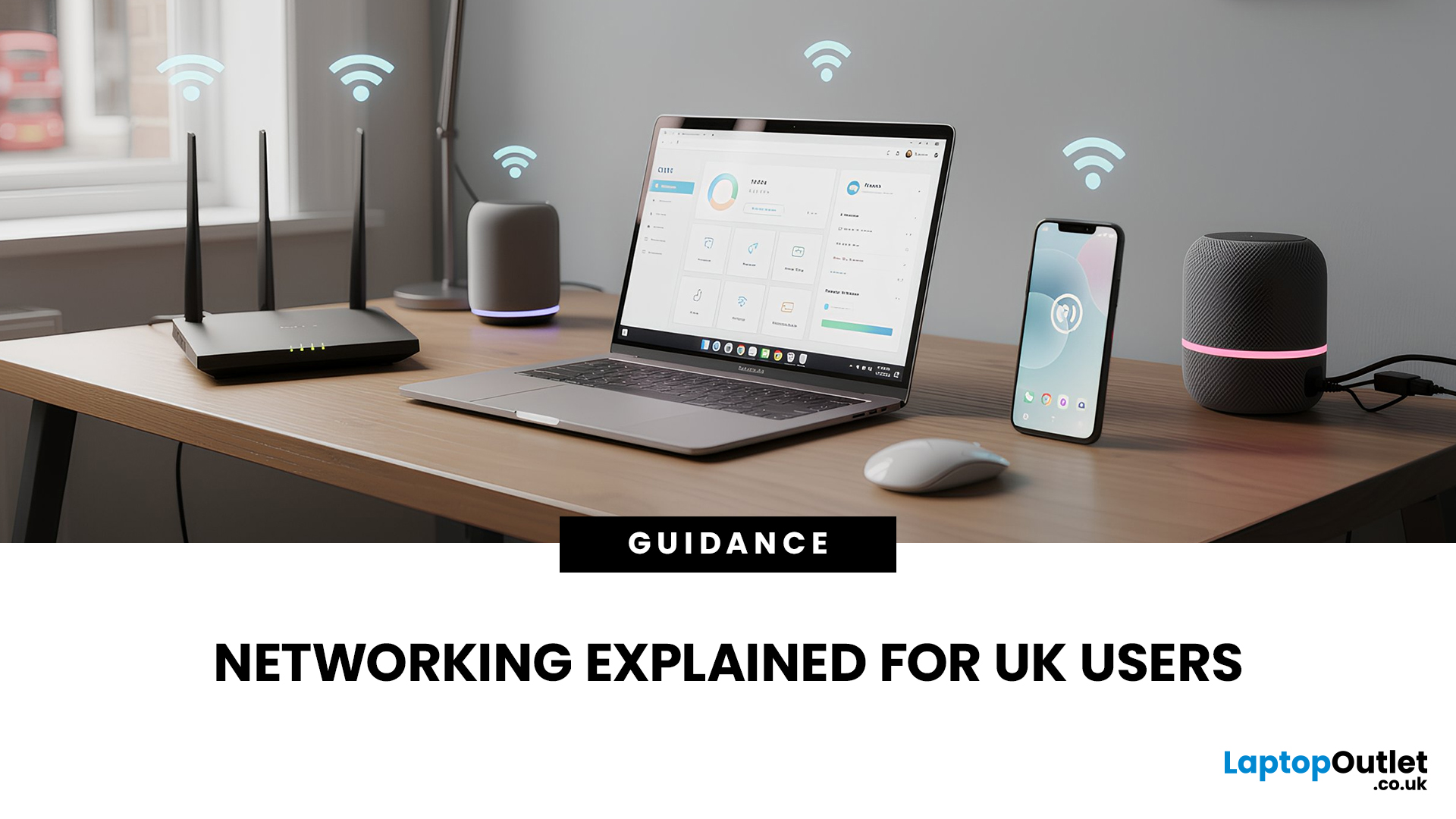
In today’s UK homes and offices, networking isn’t optional - it’s the backbone of how we work, study, stream, and stay connected. From remote meetings and online gaming to smart homes and cloud storage, everything relies on reliable networking accessories and networking devices working together behind the scenes.
Yet many people still struggle with slow Wi-Fi, unstable connections, or poor coverage, not because their internet provider is bad, but because their networking equipment isn’t set up correctly.
What Is Networking? (A Simple Explanation)
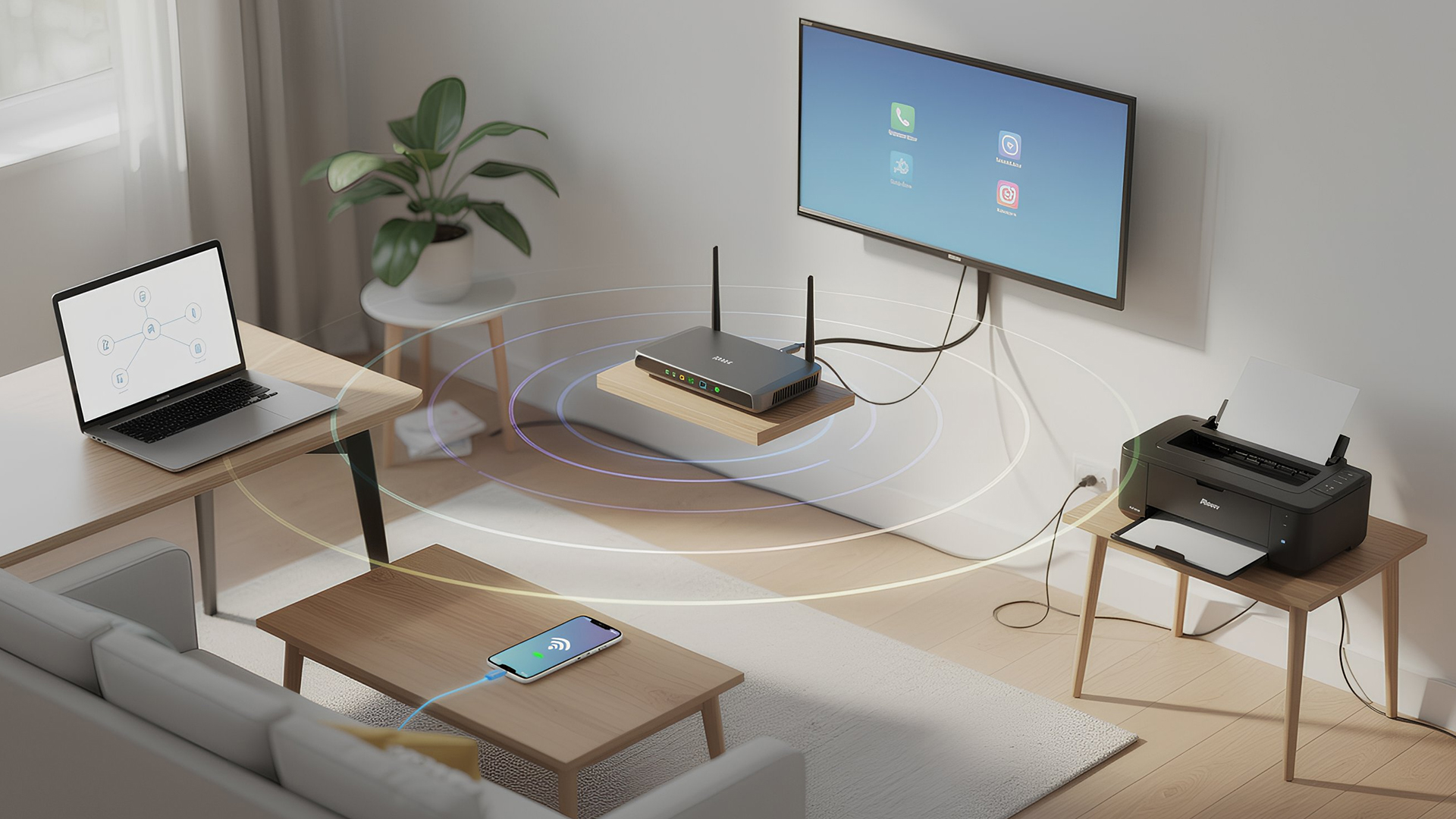
Networking is the process of connecting devices so they can communicate, share data, and access the internet. These devices might include:
- Laptops and desktops
- Smartphones and tablets
- Printers and scanners
- Smart TVs and streaming devices
- Smart home systems (lights, cameras, thermostats)
To make this possible, you need a combination of networking devices (like routers and access points) and networking accessories (such as network cards, adapters,

Last Updated: June 05, 2026
Dead zones and buffering are the enemies of a modern home. We rely on the internet for almost everything. We stream 4K movies in the lounge. We join video calls in the home office. We play fast-paced games in the bedroom. However, thick walls and long distances often weaken Wi-Fi signals.
This is where home network powerline adapters become essential. They offer a clever way to extend your internet connection without drilling holes or running long, messy network cables through your hallway. In this guide, we will explore the best PLC adapters UK residents can buy today.
What is a Powerline Adapter?
A powerline adapter (also known as a PLC adapter) is a device that sends internet data through the copper wiring in your walls. Most people use these home network powerline adapters to connect devices that require high bandwidth, such as gaming consoles, smart TVs, laptops, or desktop PCs. They provide the stability of a wired network adapter with the convenience of a plug-and-play setup.

