



What Is the WPS Button on My Router
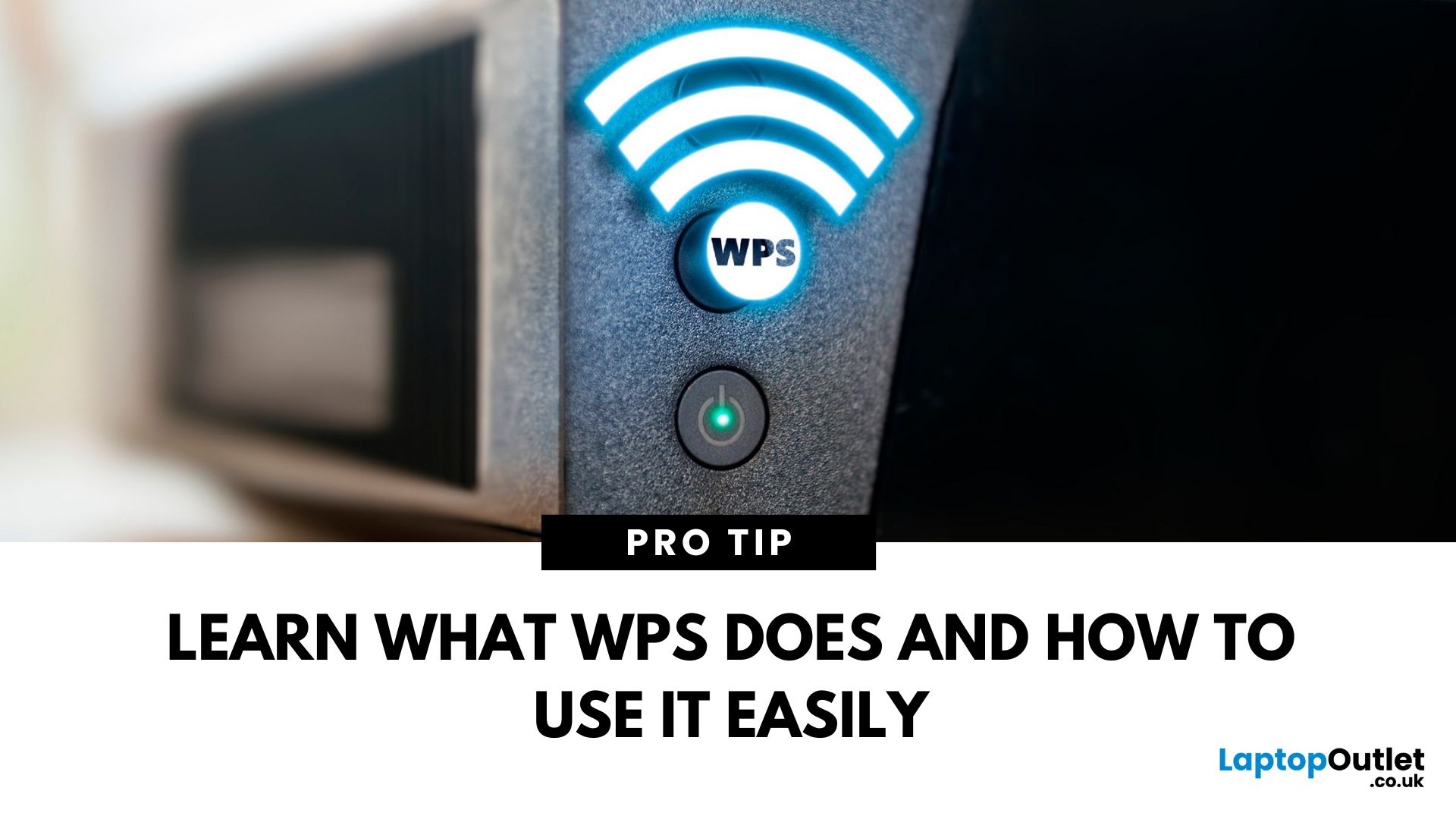
That Little Button Isn’t Just for Looks
If you’ve spotted a mysterious button labelled WPS on your Wi-Fi router, you might be wondering: What does it do—and should I use it? Here’s a beginner-friendly explanation of what the WPS button is and how it simplifies connecting devices to your Wi-Fi.
What Does WPS Stand For?
WPS stands for Wi-Fi Protected Setup. It’s a feature that helps you connect devices to your Wi-Fi network without typing in the Wi-Fi password.
Designed for convenience, especially for smart TVs, printers, and Wi-Fi extenders
What Does the WPS Button Do?
When you press the WPS button:
Your router enters a two-minute pairing mode
During this time, you can connect a compatible device without entering the password
It uses WPA2 security, so it’s secure for most home networks
How to Use the WPS Button
Steps:
Turn on the device you want to connect (e.g., printer or smart TV)
Go to its Wi-Fi settings and select your Wi-Fi network
Choose WPS connection (or similar wording)
Within 2 minutes, press the WPS button on your router
Your device should connect automatically without entering the Wi-Fi password
Where Is the WPS Button Located?
Usually on the back or side of your router
Sometimes labelled "WPS" or shown as two curved arrows forming a circle
When Should You Use WPS?
When setting up wireless printers, smart devices, or Wi-Fi range extenders
If you’re connecting a guest’s device temporarily
Is WPS Safe to Use?
WPS is generally safe for home networks, but it has some security limitations:
Vulnerable to brute-force attacks if PIN-based WPS is enabled
Best to disable WPS when not in use (especially in high-security setups)
Alternatives to WPS
If WPS isn’t working or supported:
Enter the Wi-Fi password manually
Use QR codes or app-based setup (common for smart home devices)
Final Thoughts: WPS Makes Wi-Fi Easy
The WPS button is a handy shortcut for connecting new devices to your network without typing long passwords. It’s perfect for setting up printers, extenders, and smart gadgets in seconds—just be sure to turn it off when you’re done for extra security.
Looking to upgrade your home Wi-Fi setup? Explore routers, extenders, and networking gear at Laptop Outlet today.
FAQs: WPS Button Questions Answered
1. Do all routers have a WPS button?
No—some modern routers may use app-based setups instead.
2. What if my device doesn’t support WPS?
You’ll need to connect manually using the Wi-Fi password.
3. Can I leave WPS on all the time?
It’s not recommended—turn it off when not in use for better security.
4. Does pressing the WPS button reset the router?
No—it only enables pairing mode. It doesn’t affect settings.
5. What devices work with WPS?
Printers, smart TVs, Wi-Fi extenders, and some older phones and tablets.
Read More:
| What Is Generative AI |
| What Is an AI PC |
| What Is a Chromebook |
Related Articles

Last Updated: April 01, 2026
Last Updated: September 11, 2025
Last Updated: December 01, 2025
In an era dominated by digital photography, smartphones have become our go-to devices for capturing and storing precious moments. But mobile phones do not have enough space to keep these pictures for a longer run. Transferring these photos to a more secure and convenient platform, such as a laptop, is a common requirement. Whether you're looking to free up space on your phone, organise your photos on a larger screen, or create backups, transferring pictures from your phone to a laptop is essential. This comprehensive guide will explore various methods to accomplish this task seamlessly.
Using a USB Cable
A USB cable is one of the most straightforward methods to transfer photos from your mobile phone to a laptop. This method is widely applicable and works for both Android and iOS devices.
For Android Devices
- Connect your Android phone to your laptop using a USB cable.
- On your phone, enable the "File Transfer" or "Media Transfer Protocol (MTP)" mode.
- Open the file explorer on your laptop

Last Updated: September 25, 2026
Most laptops have a useful lifespan of roughly 3 to 6 years, although some remain reliable for much longer. How long a laptop lasts depends on build quality, workload, cooling, battery health, hardware, maintenance and software support.
A laptop used mainly for browsing, documents and video calls may stay useful longer than one regularly pushed through gaming, video editing or other demanding workloads. A laptop also does not necessarily need replacing simply because it reaches a certain age.
What Is the Average Laptop Lifespan?
There is no fixed expiry date for a laptop. For many users, the average laptop lifespan falls somewhere between three and six years before age starts to affect performance, portability, reliability or software support.
These ranges are a practical guide, not a guarantee:
| Laptop type or usage | General useful lifespan | What usually affects it |
| Everyday browsing and office use | About 4 to 6 years | Battery wear, software demands and hardware ageing |
| Light, well-maintained |

