



What Is a Router?
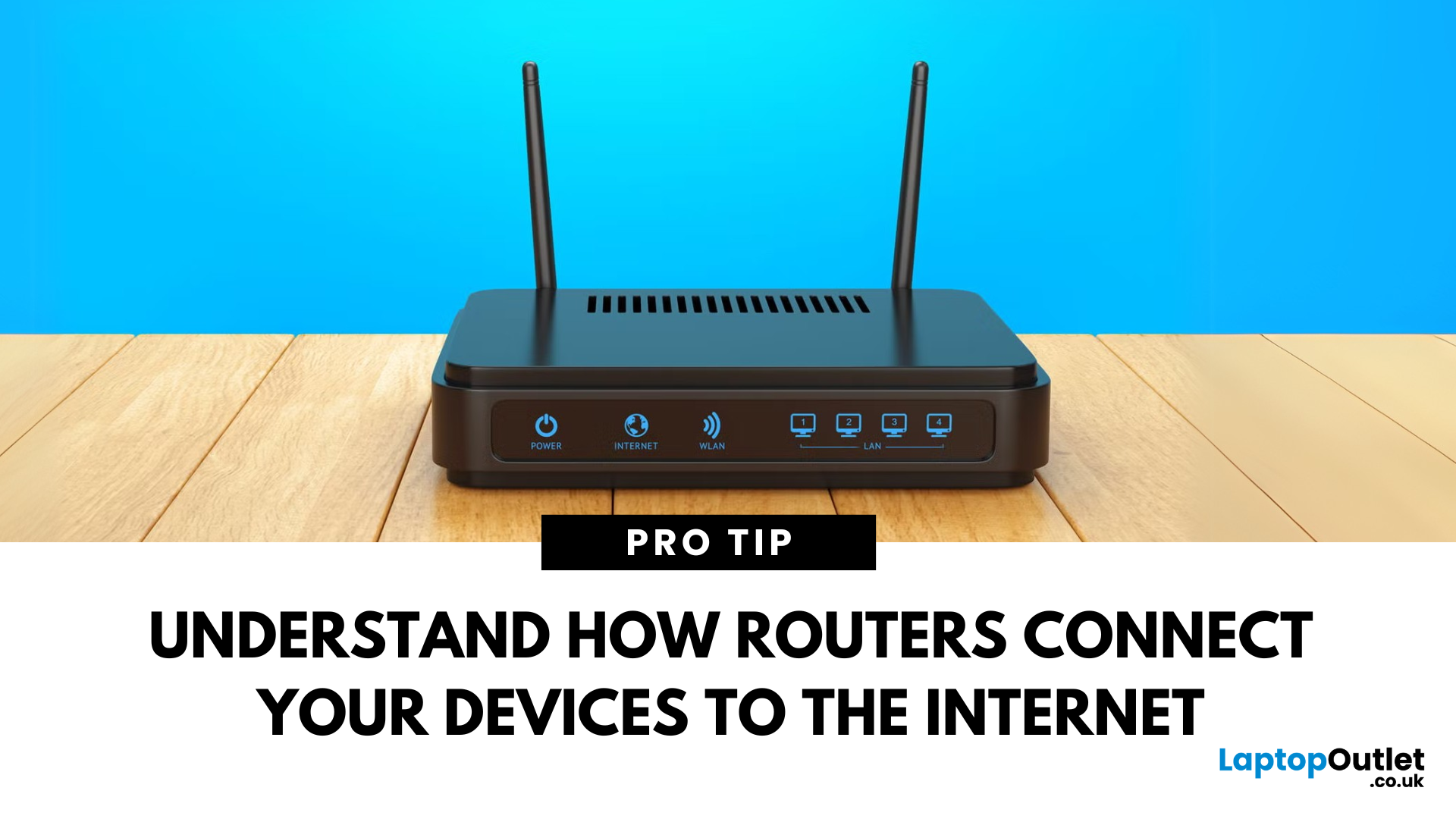
Your Wi-Fi Starts Here
You’ve probably seen it flashing away in the corner of the room—but what is a router, and why is it essential for your internet connection? Here’s everything you need to know about this small but powerful device.
What Is a Router?
A router is a device that connects your home or office to the internet by routing data between your internet service provider (ISP) and your connected devices (like phones, laptops, smart TVs, and more).
It’s the heart of your Wi-Fi network, sending and receiving data from the web
How Does a Router Work?
- Connects to a modem (or includes one in some models)
- Assigns local IP addresses to devices in your network
- Sends and receives data packets to and from the internet
- Uses Wi-Fi or Ethernet to link devices wirelessly or via cable
Types of Routers
- Standalone Router: Connects to a separate modem
- Modem-Router Combo: Two-in-one device with both modem and router
- Mesh Wi-Fi Router: Covers large homes with multiple units for consistent signal
- Gaming Router: Designed for low latency and prioritised traffic
Why Do You Need a Router?
- To share one internet connection with multiple devices
- To create a secure local network at home or work
- To enable wireless (Wi-Fi) connections across your space
Features to Look for in a Router
- Dual-band or tri-band Wi-Fi for better speeds and less interference
- Wi-Fi 6 or Wi-Fi 6E support for future-proof performance
- Gigabit Ethernet ports for faster wired connections
- Parental controls and guest network options
- WPA3 security for safer browsing
Common Router Terms Explained
- SSID: Your network’s name
- WPS: Button for quick, password-free connections
- Bandwidth: The amount of data your router can handle at once
- Firewall: A security feature that protects your network from threats
Tips for Better Wi-Fi from Your Router
- Place it in a central location
- Avoid thick walls or electronics that interfere
- Reboot the router regularly
- Update firmware for security and performance boosts
Final Thoughts: The Backbone of Your Digital Life
A router may not look exciting, but it’s what keeps you online. Whether you’re streaming, gaming, or working from home, having the right router ensures speed, reliability, and security.
Need a new router or Wi-Fi upgrade? Check out Laptop Outlet’s latest networking gear to power your digital life.
FAQs: Router Basics Answered
1. Is a router the same as a modem?
No—a modem connects to the internet, and a router distributes that connection to your devices.
2. Can I get Wi-Fi without a router?
Technically yes, but a router is needed for wireless access across multiple devices.
3. How many devices can connect to a router?
Depends on the model—some handle 10+, others support over 50.
4. Do I need a new router for faster internet?
If your current router is outdated, upgrading can help you get full speeds from your ISP.
5. Are routers secure?
Yes—with updated firmware and strong passwords, routers are secure. Look for WPA3 for the latest protection.
Read More:
| What Is the WPS Button on My Router |
| What Is NVIDIA DLSS |
| What Is a Cache |
Related Articles

Last Updated: September 09, 2025
Last Updated: December 11, 2025
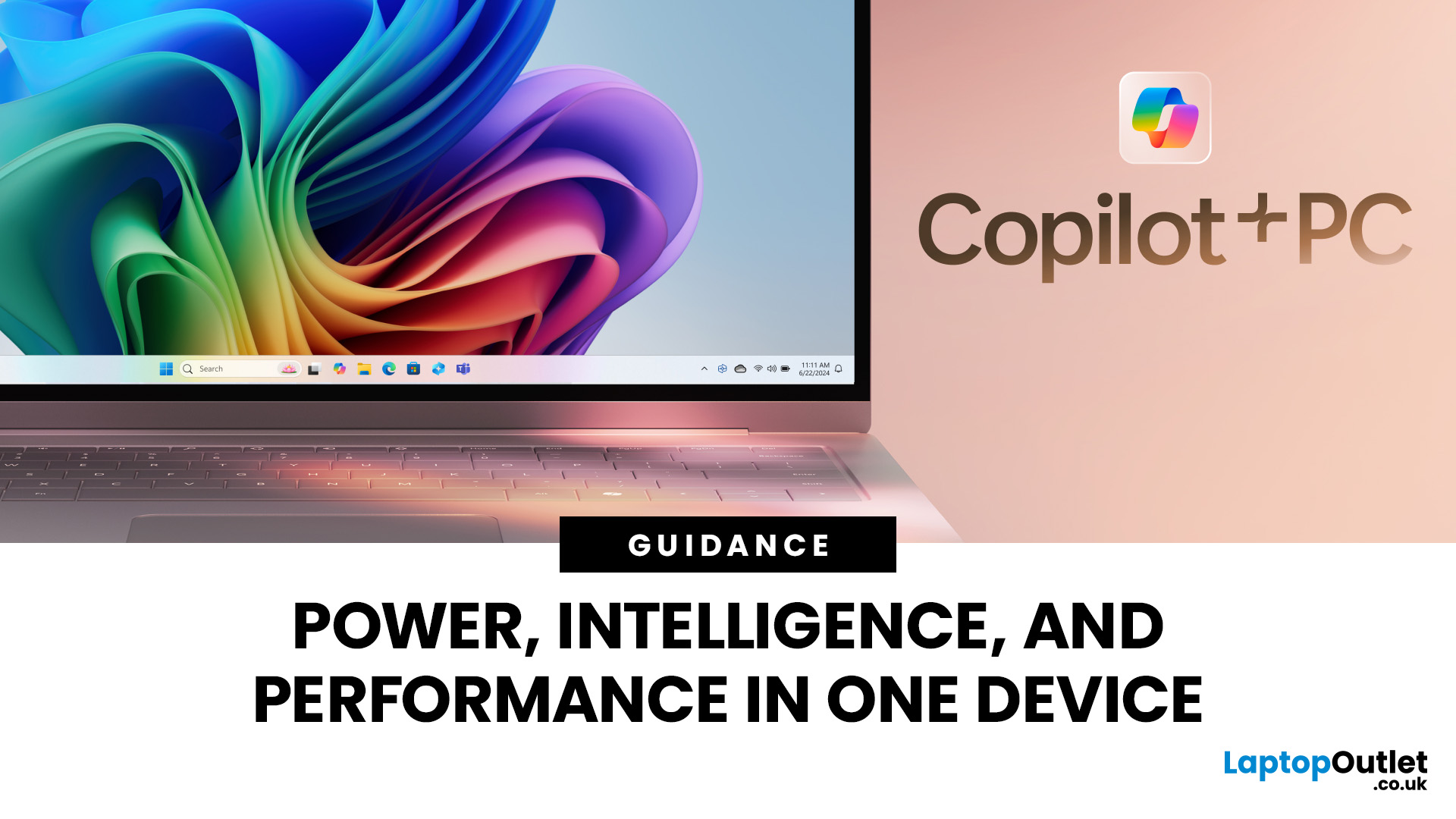
Microsoft introduced the world’s fastest and most powerful Windows PCs ever, Surface Copilot+ PCs. These are not just your run-of-the-mill updates to their previous models; instead, they are complete game changers. With the announcement of these AI-powered systems, Microsoft has again put itself at the vanguard of innovation.
Copilot+ PCs are powered by Qualcomm’s new Snapdragon X chips (or optionally Intel Core Ultra series in business variants), which feature an NPU (Neural Processing Unit) specially designed to handle complex AI (artificial intelligence) tasks that traditional PCs aren’t capable of.
Microsoft’s concept of AI is exciting (as is the technology behind Copilot+ PC), and the advantages are out-of-the-box. For instance, you don’t necessarily need a cloud connection for certain features (since some AI processing runs locally), and the security is top-notch as you’re not sharing all your information with third-party AI tool providers. All tools should be already embedded

Last Updated: September 16, 2026
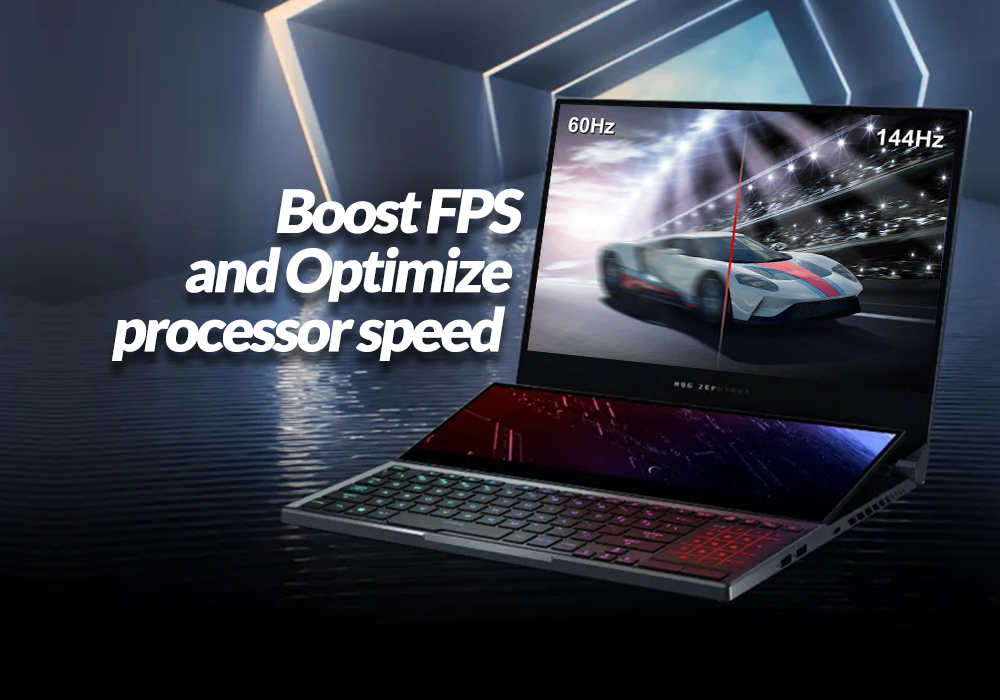
NVIDIA DLSS is a group of AI-powered graphics technologies designed for GeForce RTX graphics cards. It can raise frame rates, reconstruct higher-resolution images, improve ray-traced visuals and, on newer hardware, generate additional frames or enhance lighting and materials.
For gamers, the main benefit is simple: DLSS can make demanding games easier to run without relying only on raw GPU power. The result can be smoother play at higher resolutions or with settings such as ray tracing enabled, although the benefit depends on the game, graphics card and DLSS feature being used.
What Is NVIDIA DLSS?
DLSS originally stood for Deep Learning Super Sampling. The name started with AI upscaling, but DLSS has grown into a wider suite of neural rendering technologies. NVIDIA's DLSS developer overview now includes Super Resolution, Frame Generation, Multi Frame Generation, Ray Reconstruction and DLAA.
These features use the Tensor Cores inside NVIDIA RTX graphics cards. Tensor Cores are specialised
Last Updated: May 23, 2025
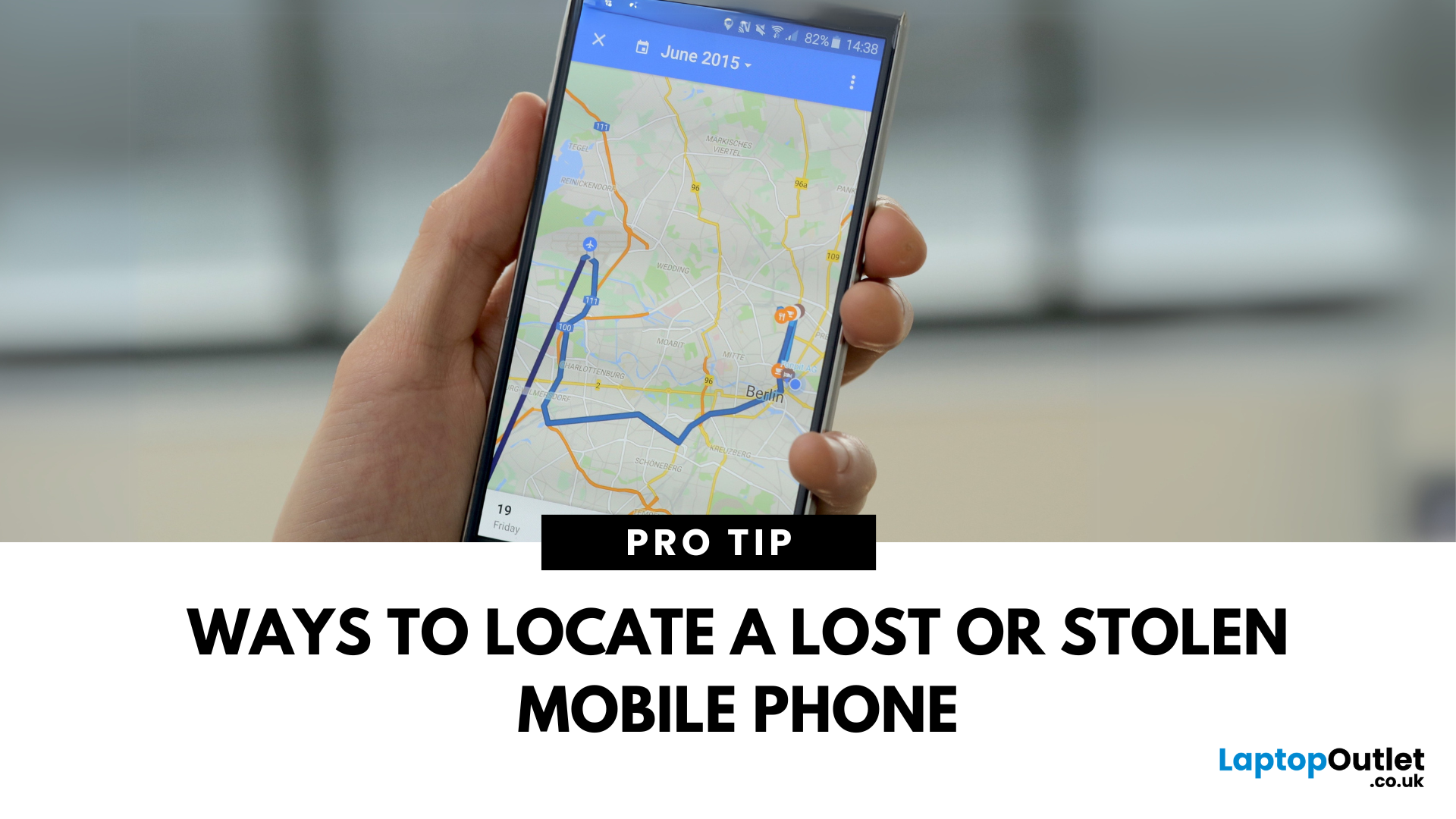
Lost Your Phone? Let’s Find It
Misplacing your smartphone is stressful, but modern devices come with built-in tracking features. Whether you’ve lost your device or want to locate a family member, tracking a mobile phone is easier than ever.
1. How to Track an iPhone (Find My iPhone)
Apple’s Find My feature is built into every iPhone.
Steps:
- Open the Find My app on another Apple device or visit iCloud.com
- Sign in with your Apple ID
- Select Devices
- Choose your missing iPhone
- View its location on the map
You can also Play Sound, Mark as Lost, or Erase the device remotely
2. How to Track an Android Phone (Find My Device)
Google offers a similar tool for Android users.
Steps:
- Visit android.com/find
- Sign in with your Google account linked to the phone
- Select your device
- View the location on the map
Options include Play Sound, Secure Device, or Erase Device remotely
3. How to Track a Family Member’s Phone
- iPhone: Set up Family Sharing and enable location
Last Updated: July 01, 2025
That Little Button Isn’t Just for Looks
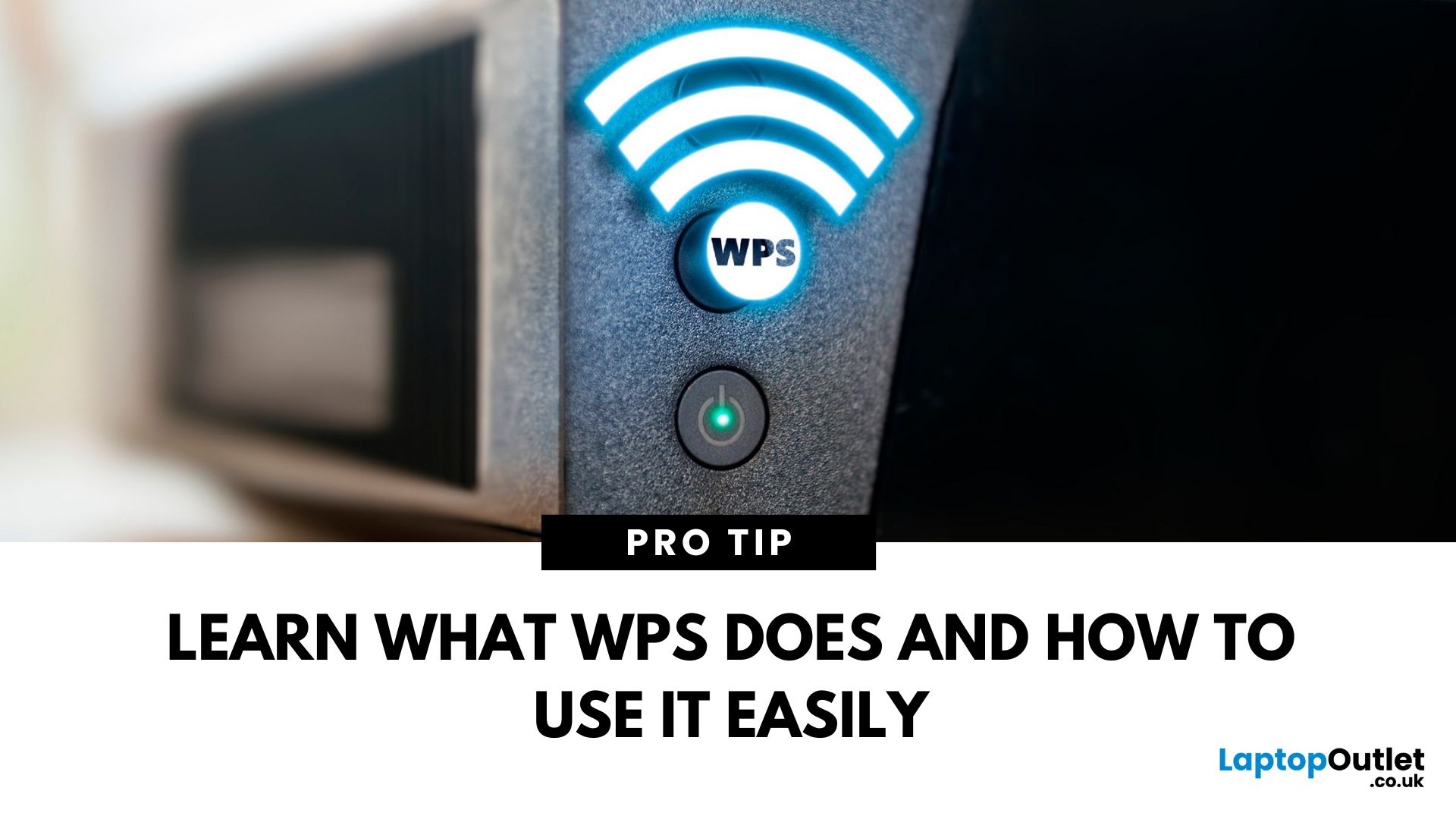
If you’ve spotted a mysterious button labelled WPS on your Wi-Fi router, you might be wondering: What does it do—and should I use it? Here’s a beginner-friendly explanation of what the WPS button is and how it simplifies connecting devices to your Wi-Fi.
What Does WPS Stand For?
WPS stands for Wi-Fi Protected Setup. It’s a feature that helps you connect devices to your Wi-Fi network without typing in the Wi-Fi password.
Designed for convenience, especially for smart TVs, printers, and Wi-Fi extenders
What Does the WPS Button Do?
When you press the WPS button:
Your router enters a two-minute pairing mode
During this time, you can connect a compatible device without entering the password
It uses WPA2 security, so it’s secure for most home networks
How to Use the WPS Button
Steps:
Turn on the device you want to connect (e.g., printer or smart TV)
Go to its Wi-Fi settings and select your Wi-Fi network
Choose WPS connection

