



How to Reset the TP-Link Router

Wi-Fi acting weird? Pages not loading? Passwords forgotten? You’re not alone - sometimes even the most reliable routers like TP-Link need a fresh start. Whether your internet is unstable, you changed too many settings, or you just want to start over, resetting your router can fix a surprising number of problems.
In this complete guide, we’ll walk you through how to reset your TP-Link router, both the quick way (via the Reset button) and the advanced way (through the web interface). We’ll also explain what happens after a reset, how to reconfigure your network, and what to do if your reset doesn’t work.
Understanding What “Reset” Really Means

Before you hit any buttons, it’s important to know what a router reset actually does.
When you reset a TP-Link router, you’re restoring it to its factory default settings, exactly how it was when you first took it out of the box.
That means:
- All Wi-Fi names (SSID) and passwords you’ve set will be erased.
- Any changes to IP addresses, DNS, or security settings will be lost.
- Your admin username and password will revert to the default (“admin”).
- Custom network rules, parental controls, or port forwarding settings will disappear.
Essentially, you’re giving your router a fresh start.
- If you only want to restart (reboot) your router - i.e., fix temporary slowdowns, you can simply unplug it for 30 seconds and plug it back in. That’s not a factory reset. Read to get a better idea of what are networks.
When Should You Reset Your TP-Link Router?
A full reset is a bigger step, so it’s best done only when necessary. Here are the most common situations where it’s actually helpful:
- You’ve forgotten your Wi-Fi password or admin login.
- Your router is not connecting to the internet even after restarting.
- Configuration errors after firmware updates or changes in ISP settings.
- You’re selling, giving away, or moving the router to a new location.
- You’ve changed advanced settings (firewall, DNS, static IP) and can’t remember what you did.
Resetting is like clearing your router’s memory, it wipes out the clutter that might be causing the problem. Read more about what is a router.
How to Reset TP-Link Router (Hardware Method)
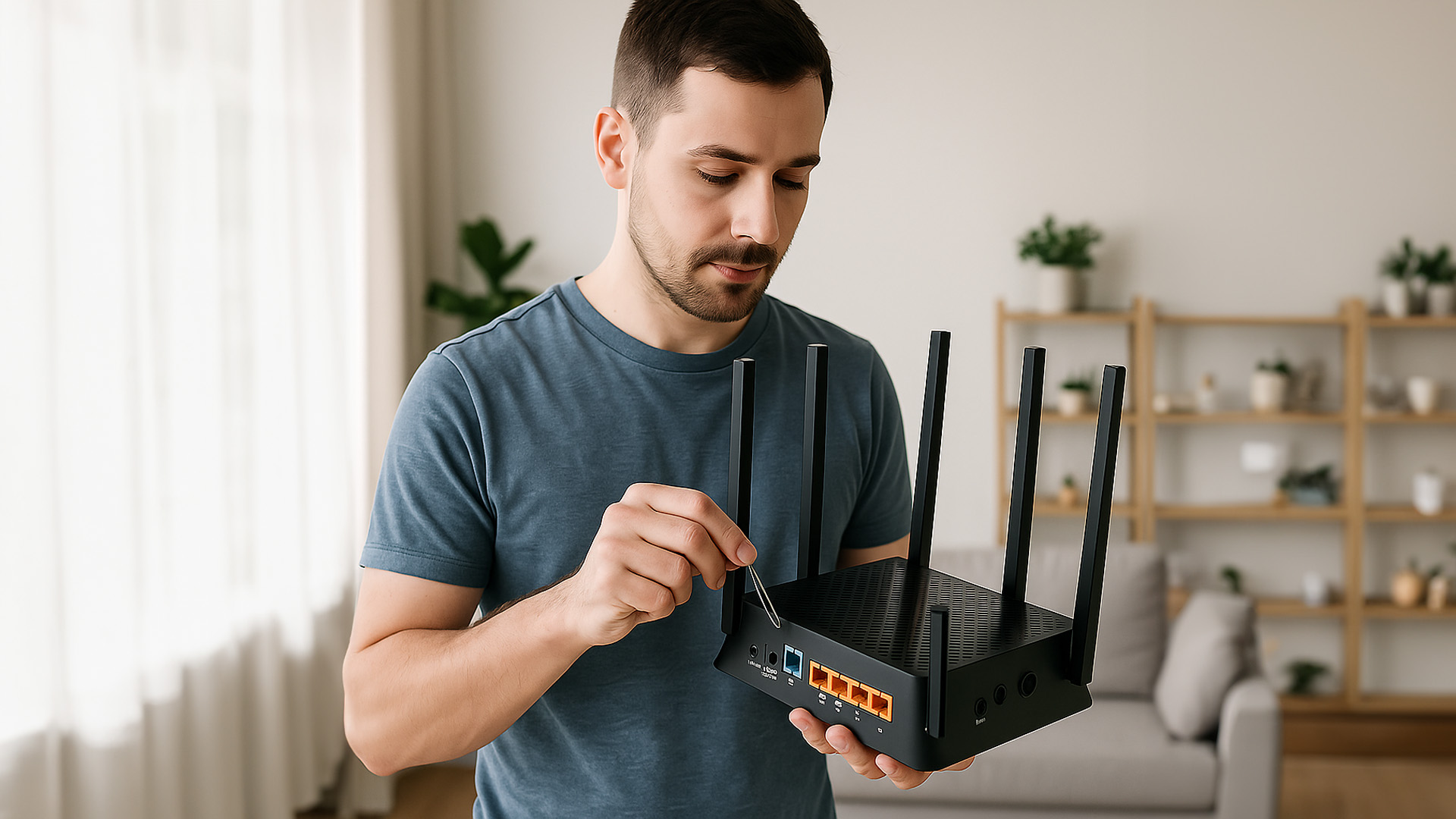
This is the simplest and fastest way - using the physical Reset button on your TP-Link router. It works even if you can’t access the web dashboard.
Here’s how to do it step-by-step:
- Keep your router powered on.
Don’t unplug it; the reset process needs power. - Locate the Reset button.
You’ll usually find it on the back panel near the Ethernet ports or the power jack. It’s often a tiny recessed hole labelled RESET or WPS/RESET. - Use a paperclip or pin.
Press and hold the button for about 10 seconds. You’ll see the router’s lights flash - that’s your cue it’s resetting. - Wait for the reboot.
Release the button and give it about 60 seconds to reboot. The router lights will flicker and then stabilize. - Reconnect your devices.
Once it’s done, your Wi-Fi network name (SSID) will revert to the default (something like “TP-Link_1234”).
Your router is now reset to factory settings! Get more detail about What does the WPS button on my router.
Important: Don’t unplug the router during the reset - doing so can corrupt the firmware.
How to Reset TP-Link Router from the Web Interface
If you still have access to your router’s admin panel (you can log in via browser), you can perform a reset through the settings menu.
Here’s how:
Connect your device to the TP-Link router via Wi-Fi or Ethernet.
Open a browser (Chrome, Edge, Firefox).
Type one of these addresses into the address bar:
- http://tplinkwifi.net
- or the IP address 192.168.0.1 or 192.168.1.1.
Log in with your username and password (default is both “admin”).
Go to System Tools → Factory Defaults or System → Reboot & Reset (depending on your model).
Click Restore Factory Defaults or Reset Router.
Confirm your choice. The router will restart automatically.
This software-based reset gives the same result as pressing the physical button, but it’s a little cleaner if you still have admin access.
What Happens After Resetting Your TP-Link Router
Once your router reboots after a reset, it’s basically a blank slate.
Here’s what you’ll notice:
- Your Wi-Fi name and password will revert to defaults (check the sticker on the bottom of your router).
- Your router’s admin panel will use the default login (usually admin/admin).
- All your custom settings, such as parental controls, guest networks, or IP reservations, are gone.
- You’ll need to reconnect to your Wi-Fi manually on all your devices.
It’s not a big deal, we’ll show you how to set everything up again in the next section.
How to Reconfigure Your TP-Link Router After Reset
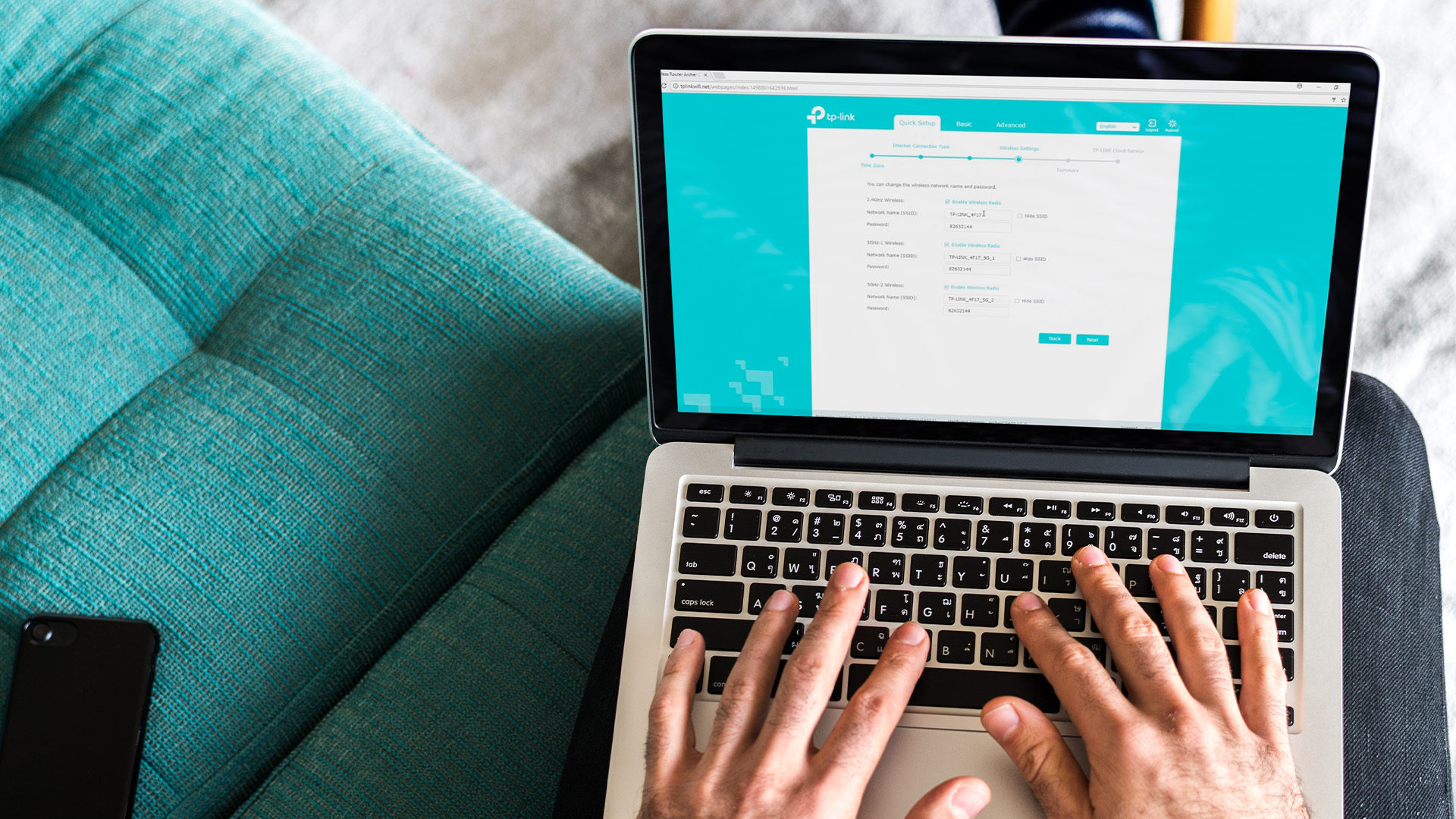
After resetting, your router is brand new in software terms, so you’ll need to walk through the initial setup again.
Here’s how to do that easily:
Step 1: Connect to the Router
- On your laptop or phone, look for the default network (e.g., TP-Link_XXXX).
- Connect using the default Wi-Fi password printed on your router label.
Step 2: Access the Setup Wizard
- Open a browser and go to tplinkwifi.net or 192.168.0.1.
- Log in with the default username and password (both admin).
Step 3: Choose Your Internet Type
- Select Auto Detect, or choose your ISP connection type (Dynamic IP, PPPoE, Static IP).
- If you’re unsure, your Internet Service Provider (ISP) can tell you.
Step 4: Create Your Wi-Fi Network
- Enter a new network name (SSID) and Wi-Fi password.
- This becomes your new wireless network, use something easy to recognize.
Step 5: Set Admin Password
- TP-Link will prompt you to create a new router login password (not the Wi-Fi password).
- Use something strong and memorable.
Step 6: Save and Reboot
- Click Save, and your router will reboot once more.
- After a minute or two, connect your devices to your new Wi-Fi network.
Your TP-Link router is now fully reset, reconfigured, and ready to go.
Reset vs. Reboot vs. Restore - Know the Difference
These three terms get thrown around a lot, but they’re not the same:
|
Action |
What It Does |
When to Use |
|
Reboot |
Turns router off and on again (temporary refresh) |
Fix slow speeds or connection drops |
|
Reset |
Restores factory defaults (erases all settings) |
Forgotten passwords, major issues |
|
Restore Settings |
Loads a backup configuration file |
Revert to previous custom setup |
If your issue is minor, like lag or occasional disconnects, try a reboot first. Only perform a reset when nothing else works.
Troubleshooting: If Your TP-Link Router Won’t Reset
Sometimes the router doesn’t reset as expected. Here’s how to fix that:
- Press long enough: Make sure you hold the Reset button for at least 10 seconds until the lights flash.
- Power cycle first: Unplug the router for 10 seconds, plug it back in, and try again.
- Use the correct button: On some models, WPS/RESET is dual-function, hold for a full 10 seconds, not just tap.
- Check power supply: Low power or unstable current can interrupt the reset process.
- Firmware recovery: If your router is stuck in a boot loop, use TP-Link’s TFTP recovery or the TP-Link Tether app to reinstall firmware.
Still stuck? You can always reach TP-Link’s support via their official help page - they’re responsive and guide you by model.
How to Reset Using the TP-Link Tether App (Optional)
If you prefer doing things from your phone, TP-Link’s Tether app (available on Android/iOS) lets you reset and manage your router remotely.
Here’s how:
- Connect your phone to your TP-Link Wi-Fi.
- Open the Tether app and log in to your TP-Link ID.
- Tap your router → go to Tools → System → Restore Factory Settings.
- Confirm the reset.
It’ll reboot and restore to factory defaults, no pin required. Super handy if your router is tucked away somewhere you don’t want to reach.
Reconnecting Devices After Reset
Once your TP-Link router is reset and reconfigured, every device that was previously connected will lose its connection.
You’ll need to:
- Forget the old network on each device.
- Connect to your new Wi-Fi SSID using the new password.
- Re-login to smart home gadgets (like Alexa, printers, or cameras).
If you have smart devices spread across your home, do this one at a time — some may need a reboot to detect the new network.
Securing Your Router After Reset
After restoring defaults, always take a few minutes to tighten your security:
- Change the default admin password - hackers love “admin/admin.”
- Use WPA3 or WPA2-AES encryption (check in Wireless Settings).
- Turn off WPS if you don’t use it - it’s a known vulnerability.
- Update firmware regularly under System Tools → Firmware Update.
- Back up your configuration after you finish setting up, so next time you can restore easily.
Taking these precautions ensures your freshly reset router stays safe and stable for years.
Quick Recap: The Easiest Way to Reset Your TP-Link Router
- Keep the router powered on.
- Find the Reset button on the back.
- Press and hold it for 10 seconds.
- Wait for the LEDs to flash and reboot.
- Connect using the default Wi-Fi credentials.
- Access tplinkwifi.net to set up a new network.
That’s it - simple, fast, and safe.
Support.

Common Questions About Resetting a TP-Link Router
Q1: Will resetting my router delete my internet plan or ISP credentials?
No. Your internet service stays the same, you’ll just need to re-enter your login details if your ISP uses PPPoE.
Q2: How long does a TP-Link router take to reset?
Usually about 1 minute for the process and another 1–2 minutes to reboot.
Q3: Do I need to reset my router regularly?
No - only when you face serious issues or change ISPs. For general maintenance, just reboot occasionally.
Q4: Can I reset my TP-Link range extender the same way?
Yes, same principle - hold the Reset button for about 10 seconds until LEDs flash.
Q5: Will resetting improve speed?
Sometimes. If misconfigurations or memory leaks caused lag, a reset clears them and can restore full performance.

Final Thoughts
Resetting your router isn’t a last resort, it’s often the fastest route back to a smooth, reliable internet connection. With TP-Link, the process is simple enough that anyone can do it in under five minutes.
A quick reset can solve login problems, random disconnects, or setup errors — all while giving your network a clean slate to start fresh.
So next time your Wi-Fi gets glitchy or you just want to secure your home network again, you know exactly how to reset your TP-Link router like a pro.
| Read More: |
| Best Ubiquiti Routers and Optimised Settings for Gaming & Streaming |
| What Is the WPS Button on My Router |
| How Do I Change a Router Password |
Related Articles

Last Updated: July 01, 2025
That Little Button Isn’t Just for Looks
If you’ve spotted a mysterious button labelled WPS on your Wi-Fi router, you might be wondering: What does it do—and should I use it? Here’s a beginner-friendly explanation of what the WPS button is and how it simplifies connecting devices to your Wi-Fi.
What Does WPS Stand For?
WPS stands for Wi-Fi Protected Setup. It’s a feature that helps you connect devices to your Wi-Fi network without typing in the Wi-Fi password.
Designed for convenience, especially for smart TVs, printers, and Wi-Fi extenders
What Does the WPS Button Do?
When you press the WPS button:
Your router enters a two-minute pairing mode
During this time, you can connect a compatible device without entering the password
It uses WPA2 security, so it’s secure for most home networks
How to Use the WPS Button
Steps:
Turn on the device you want to connect (e.g., printer or smart TV)
Go to its Wi-Fi settings and select your Wi-Fi network
Choose WPS connection
Last Updated: July 01, 2025
Your Wi-Fi Starts Here
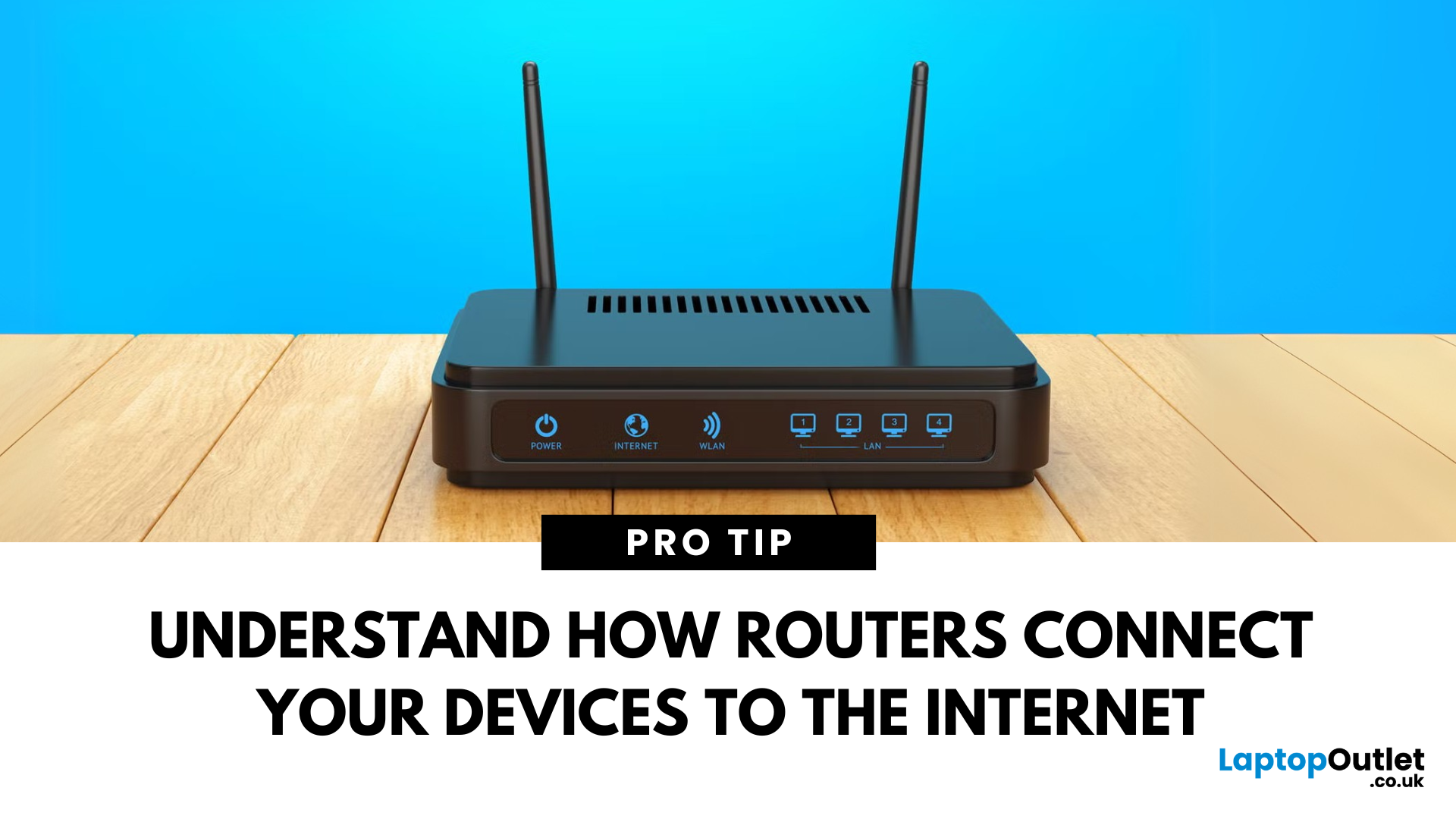
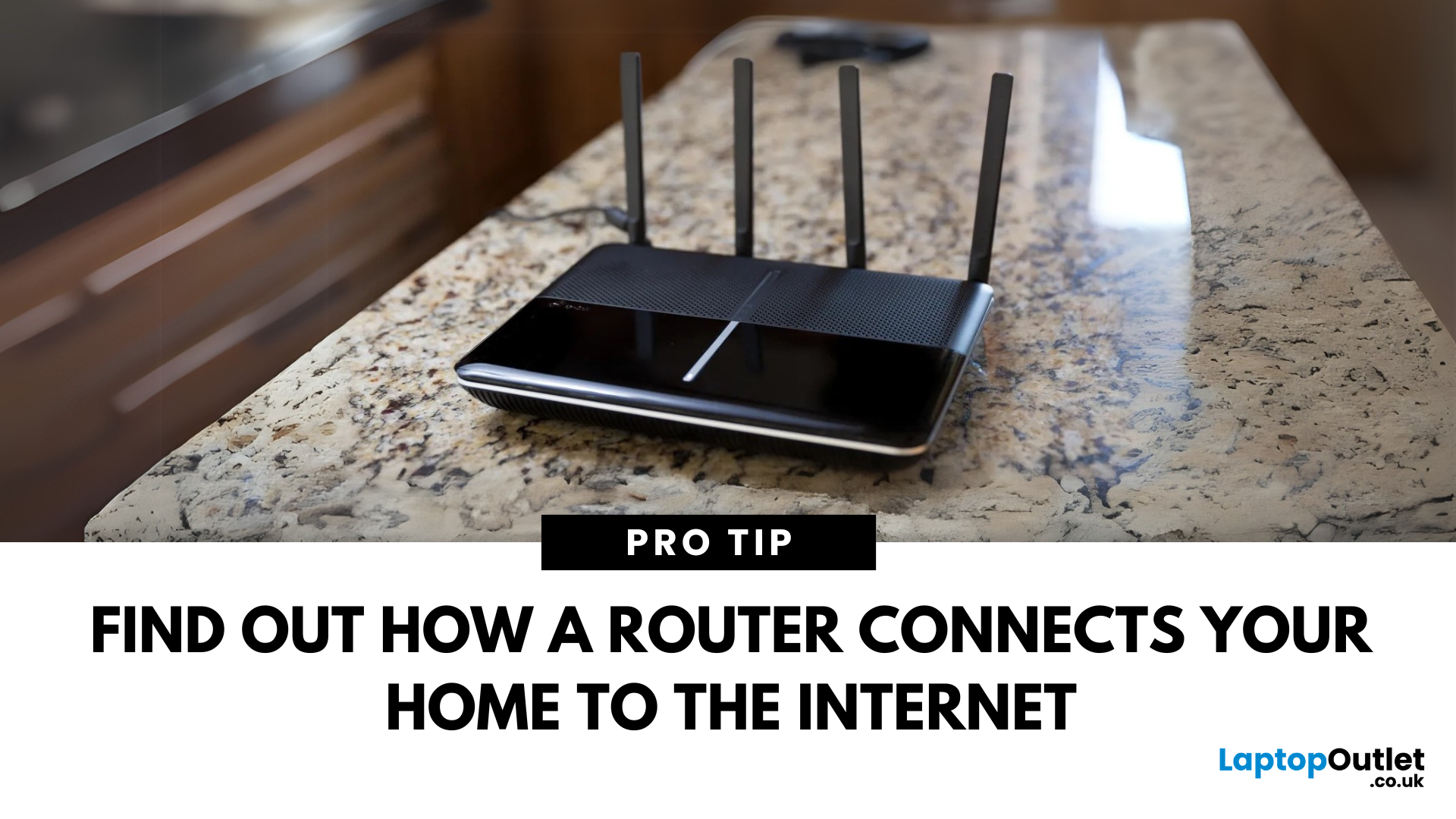
You’ve probably seen it flashing away in the corner of the room—but what is a router, and why is it essential for your internet connection? Here’s everything you need to know about this small but powerful device.
What Is a Router?
A router is a device that connects your home or office to the internet by routing data between your internet service provider (ISP) and your connected devices (like phones, laptops, smart TVs, and more).
It’s the heart of your Wi-Fi network, sending and receiving data from the web
How Does a Router Work?
- Connects to a modem (or includes one in some models)
- Assigns local IP addresses to devices in your network
- Sends and receives data packets to and from the internet
- Uses Wi-Fi or Ethernet to link devices wirelessly or via cable
Types of Routers
- Standalone Router: Connects to a separate modem
- Modem-Router Combo: Two-in-one device with both modem and router
- Mesh Wi-Fi Router: Covers large homes with multiple units
Last Updated: July 01, 2025
The Backbone of Your Internet
Your internet experience starts with a router—but what exactly does it do? Whether you’re streaming, gaming, working from home, or scrolling on your phone, the router keeps your digital life connected. Let’s break down what a router does and why it’s so important.
What Is a Router?
A router is a networking device that connects your devices to the internet and manages how they communicate with each other.
It “routes” traffic between your local devices (like your phone or laptop) and the broader internet
What Does a Router Actually Do?
- Distributes internet access from your modem to all connected devices
- Creates a local network so devices can talk to each other
- Assigns IP addresses to each device
- Directs data packets so the right information reaches the right device
Wi-Fi vs Router – What’s the Difference?
- Router: Manages traffic and connects devices
- Wi-Fi: The wireless signal your router creates
The router gives you internet; Wi-Fi
Last Updated: July 01, 2025
Keep Your Wi-Fi Safe and Secure
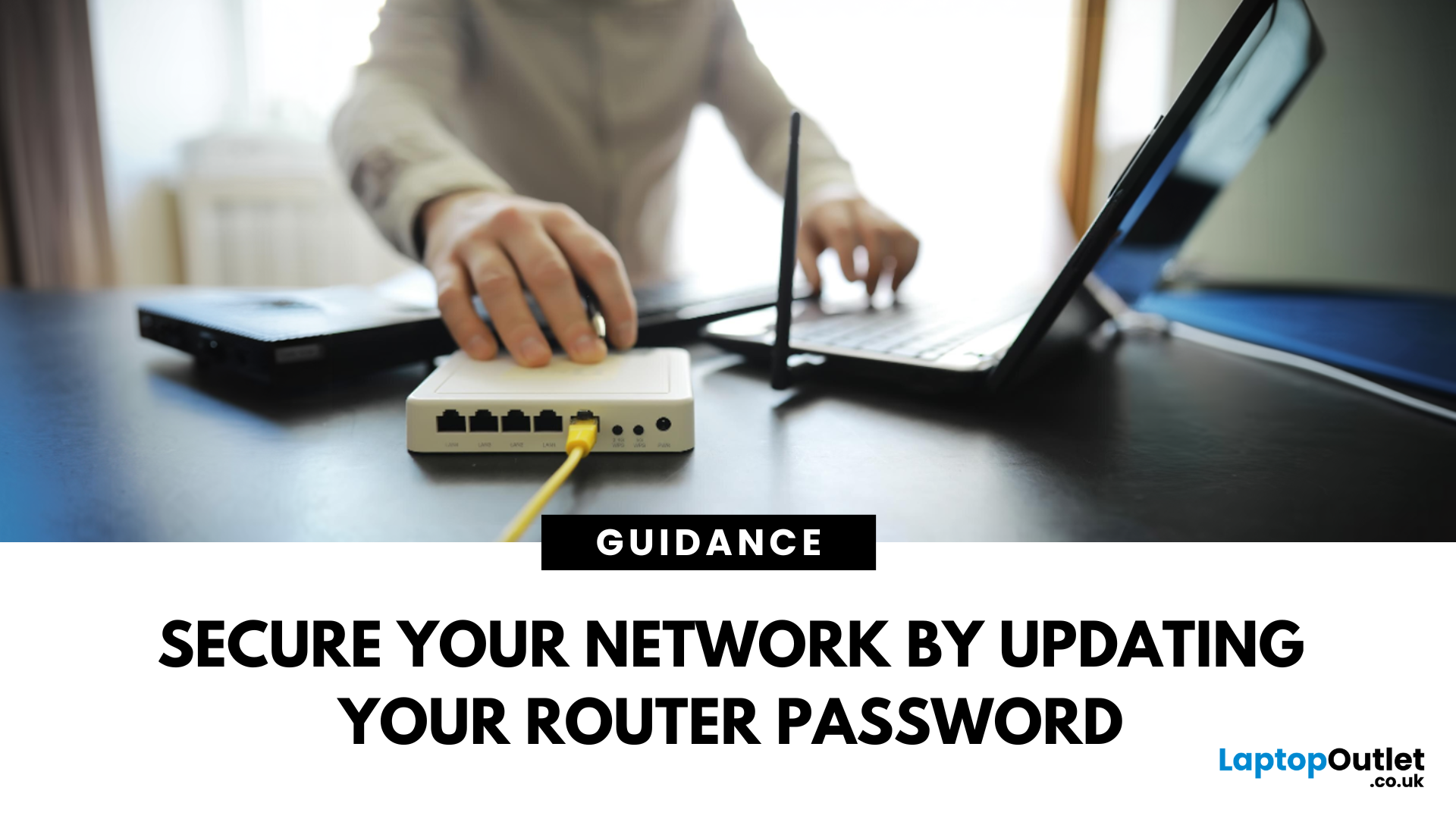
Your router password protects your home network from unwanted access. Whether you're updating your Wi-Fi credentials or changing the admin login, it’s a smart step for security. Here’s how to change your router password in just a few steps.
1. Know Which Password You’re Changing
- Wi-Fi Password: The one users enter to connect to your network
- Router Admin Password: Used to access router settings via web browser
It’s best to change both regularly for security
2. Connect to Your Router
- Make sure you're connected to your Wi-Fi or directly via Ethernet
- Open a web browser and type your router’s IP address (usually 192.168.0.1 or 192.168.1.1)
- Enter your admin username and password (often printed on the router or found in your manual)
3. Change Your Wi-Fi Password
Steps:
- Log in to your router settings
- Navigate to Wireless Settings or Wi-Fi Settings
- Locate the SSID (network name) and password fields
- Enter your new password (use a strong,

Last Updated: December 23, 2025
When it comes to competitive gaming or smooth 4K streaming, your internet connection is only as good as the router powering it. High latency, buffering, and packet drops can turn a winning game into frustration or ruin a live stream in seconds. That’s why choosing the right router—and configuring it correctly- is just as important as having fast broadband.
Ubiquiti has become a go-to name for gamers, streamers, and tech enthusiasts who want more than basic Wi-Fi. From the powerful UniFi Dream Machine to the gamer-centric AmpliFi series, Ubiquiti routers combine enterprise-grade stability with features built for demanding home setups. With the right optimisation - like low-latency settings, QoS for gaming traffic, and GeForce NOW tweaks - you can unlock their full potential.
In this guide, we’ll explore the best Ubiquiti routers for gaming and streaming and reveal the settings that give you a true performance edge.
Why Router Quality Matters for Gaming & Streaming
Every gamer and streamer

