



How Do I Change a Router Password
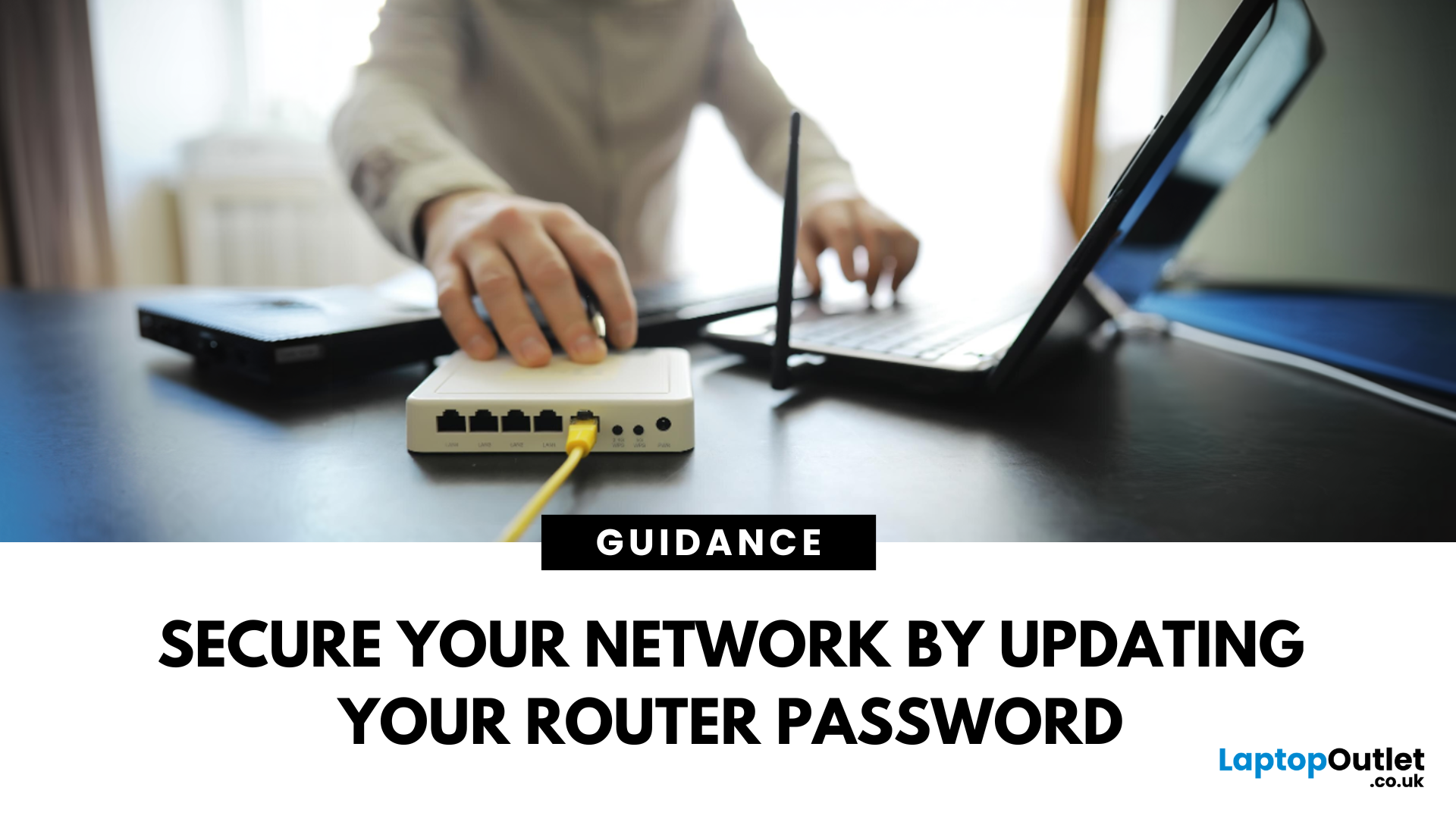
Keep Your Wi-Fi Safe and Secure
Your router password protects your home network from unwanted access. Whether you're updating your Wi-Fi credentials or changing the admin login, it’s a smart step for security. Here’s how to change your router password in just a few steps.
1. Know Which Password You’re Changing
- Wi-Fi Password: The one users enter to connect to your network
- Router Admin Password: Used to access router settings via web browser
It’s best to change both regularly for security
2. Connect to Your Router
- Make sure you're connected to your Wi-Fi or directly via Ethernet
- Open a web browser and type your router’s IP address (usually 192.168.0.1 or 192.168.1.1)
- Enter your admin username and password (often printed on the router or found in your manual)
3. Change Your Wi-Fi Password
Steps:
- Log in to your router settings
- Navigate to Wireless Settings or Wi-Fi Settings
- Locate the SSID (network name) and password fields
- Enter your new password (use a strong, secure one)
- Save changes and reconnect devices
Choose a mix of letters, numbers, and symbols for a stronger password
4. Change Your Router Admin Password
Steps:
- In your router settings, go to Administration, System Tools, or Maintenance
- Find the password change section
- Enter your current and new passwords
- Save settings and log back in with the new password
5. Use the Router’s App (Optional)
Some routers come with companion apps (e.g., TP-Link Tether, Netgear Nighthawk, Linksys Smart WiFi):
- Download the app on your phone
- Log in and go to Wi-Fi Settings or Router Settings
- Change your password directly through the app
6. Restart Your Router (If Required)
After changes are saved, your router might restart. You’ll need to reconnect all devices using the new Wi-Fi password.
Final Thoughts: Small Change, Big Security Boost
Changing your router password is a quick and essential way to keep your network secure. Whether you’re updating your Wi-Fi details or boosting login security, doing it regularly helps protect your data and devices.
Need a router upgrade? Shop secure, high-performance routers at Laptop Outlet today.
FAQs: Router Password Changes
1. What’s the default router password?
Usually “admin” for both username and password—check the label on your router.
2. How often should I change my router password?
Every 6–12 months or after any suspected security issue.
3. Will changing my Wi-Fi password disconnect my devices?
Yes—you’ll need to reconnect each device with the new password.
4. I forgot my router login—what now?
Reset your router by holding the reset button for 10–30 seconds.
5. Can I change my router password from my phone?
Yes—if your router has a mobile app, you can manage settings remotely.
Read More:
| What Is a Router? |
| What Is the WPS Button on My Router |
| What Does a Router Do |
Related Articles

Last Updated: July 01, 2025
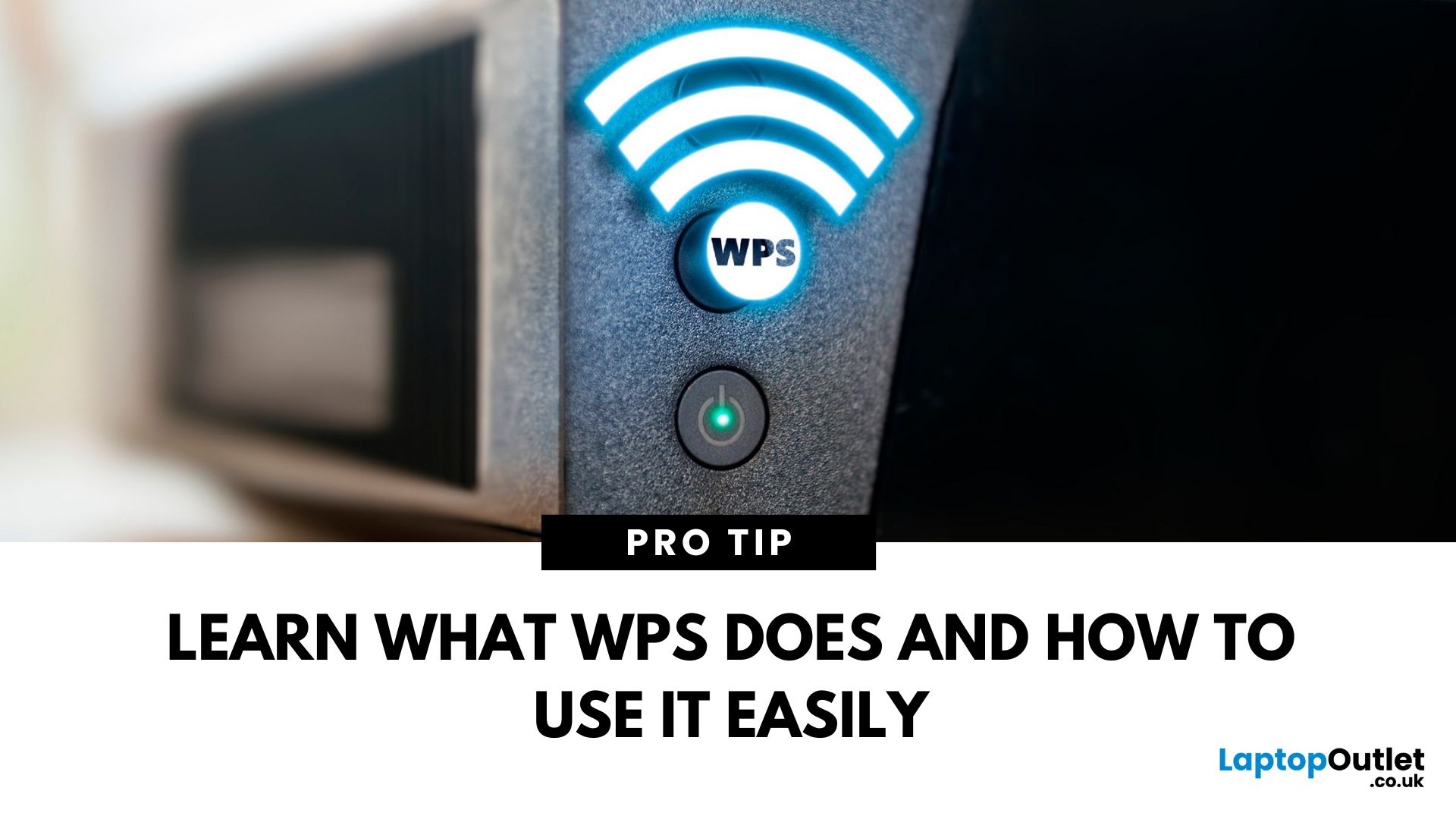
That Little Button Isn’t Just for Looks
If you’ve spotted a mysterious button labelled WPS on your Wi-Fi router, you might be wondering: What does it do—and should I use it? Here’s a beginner-friendly explanation of what the WPS button is and how it simplifies connecting devices to your Wi-Fi.
What Does WPS Stand For?
WPS stands for Wi-Fi Protected Setup. It’s a feature that helps you connect devices to your Wi-Fi network without typing in the Wi-Fi password.
Designed for convenience, especially for smart TVs, printers, and Wi-Fi extenders
What Does the WPS Button Do?
When you press the WPS button:
Your router enters a two-minute pairing mode
During this time, you can connect a compatible device without entering the password
It uses WPA2 security, so it’s secure for most home networks
How to Use the WPS Button
Steps:
Turn on the device you want to connect (e.g., printer or smart TV)
Go to its Wi-Fi settings and select your Wi-Fi network
Choose WPS connection
Last Updated: July 01, 2025
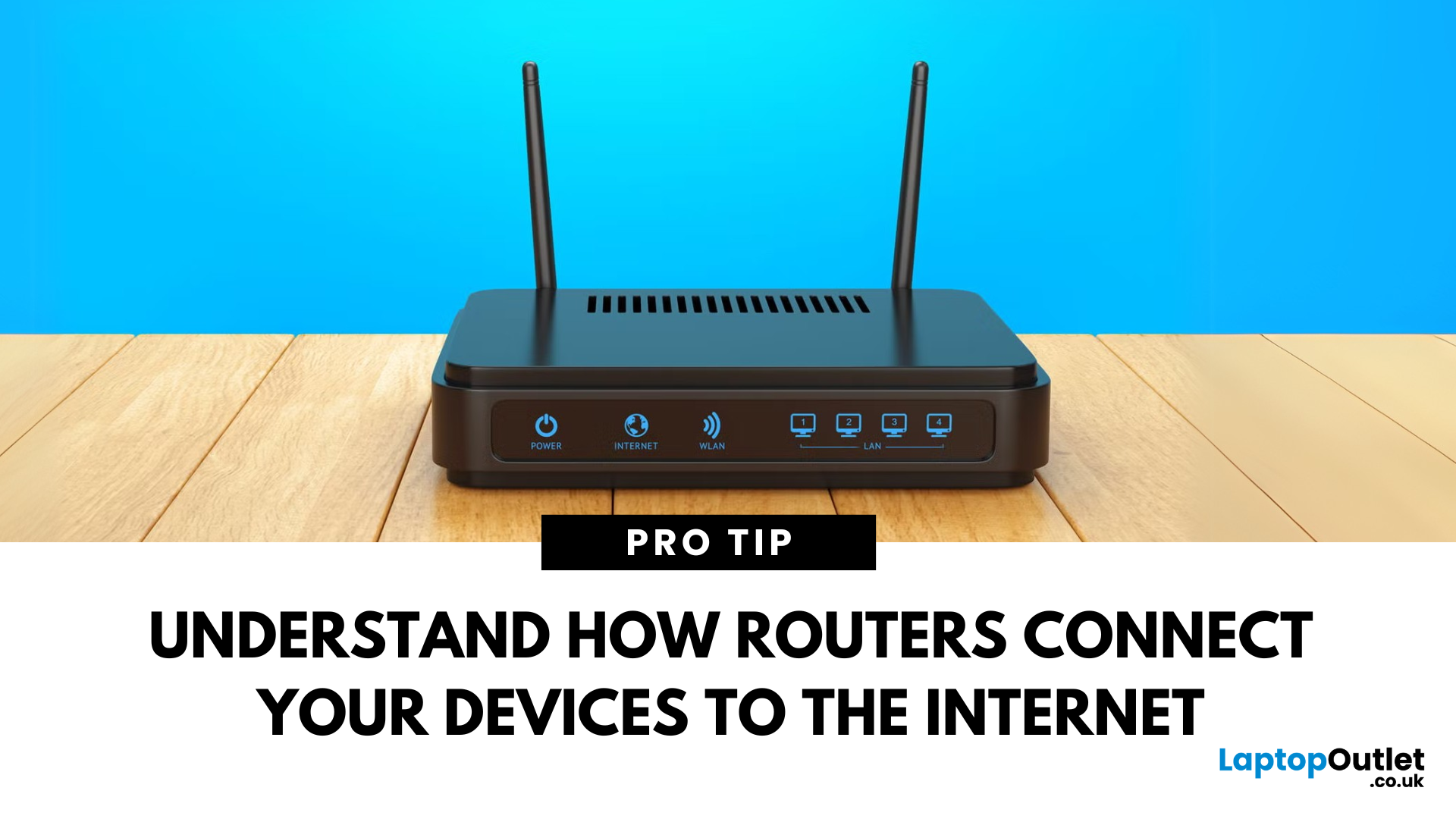
Your Wi-Fi Starts Here
You’ve probably seen it flashing away in the corner of the room—but what is a router, and why is it essential for your internet connection? Here’s everything you need to know about this small but powerful device.
What Is a Router?
A router is a device that connects your home or office to the internet by routing data between your internet service provider (ISP) and your connected devices (like phones, laptops, smart TVs, and more).
It’s the heart of your Wi-Fi network, sending and receiving data from the web
How Does a Router Work?
- Connects to a modem (or includes one in some models)
- Assigns local IP addresses to devices in your network
- Sends and receives data packets to and from the internet
- Uses Wi-Fi or Ethernet to link devices wirelessly or via cable
Types of Routers
- Standalone Router: Connects to a separate modem
- Modem-Router Combo: Two-in-one device with both modem and router
- Mesh Wi-Fi Router: Covers large homes with multiple units
Last Updated: May 23, 2025
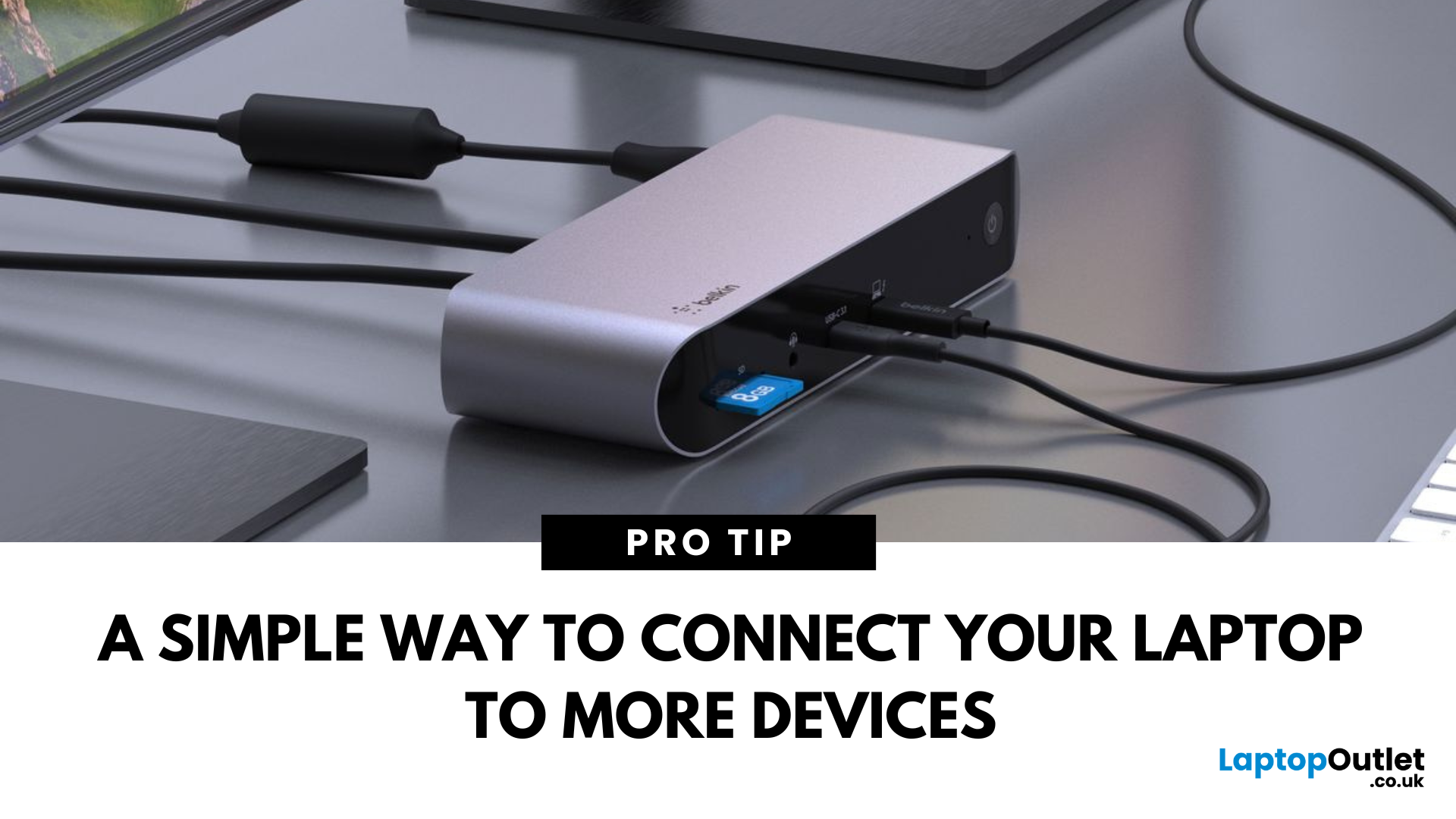
Simplify Your Laptop Setup
Ever feel limited by the number of ports on your laptop? That’s where a docking station comes in. Whether you're a remote worker, gamer, or creative pro, a docking station lets you turn your laptop into a full desktop workstation—with just one plug.
What Is a Docking Station?
A docking station is a device that connects to your laptop and expands its connectivity by offering multiple ports and features, such as:
- Extra USB ports
- HDMI or DisplayPort outputs
- Ethernet
- Audio jacks
- SD card readers
- Charging capabilities
Think of it as a hub that makes your laptop more powerful and easier to use with external devices
What Does a Docking Station Do?
- Connects multiple monitors
- Links external keyboards, mice, printers
- Provides wired internet (Ethernet)
- Charges your laptop and accessories
- Enables fast data transfer via USB-C or Thunderbolt
Types of Docking Stations
- Powered (AC adapter): Best for permanent workstations with charging support
Last Updated: July 01, 2025
The Backbone of Your Internet
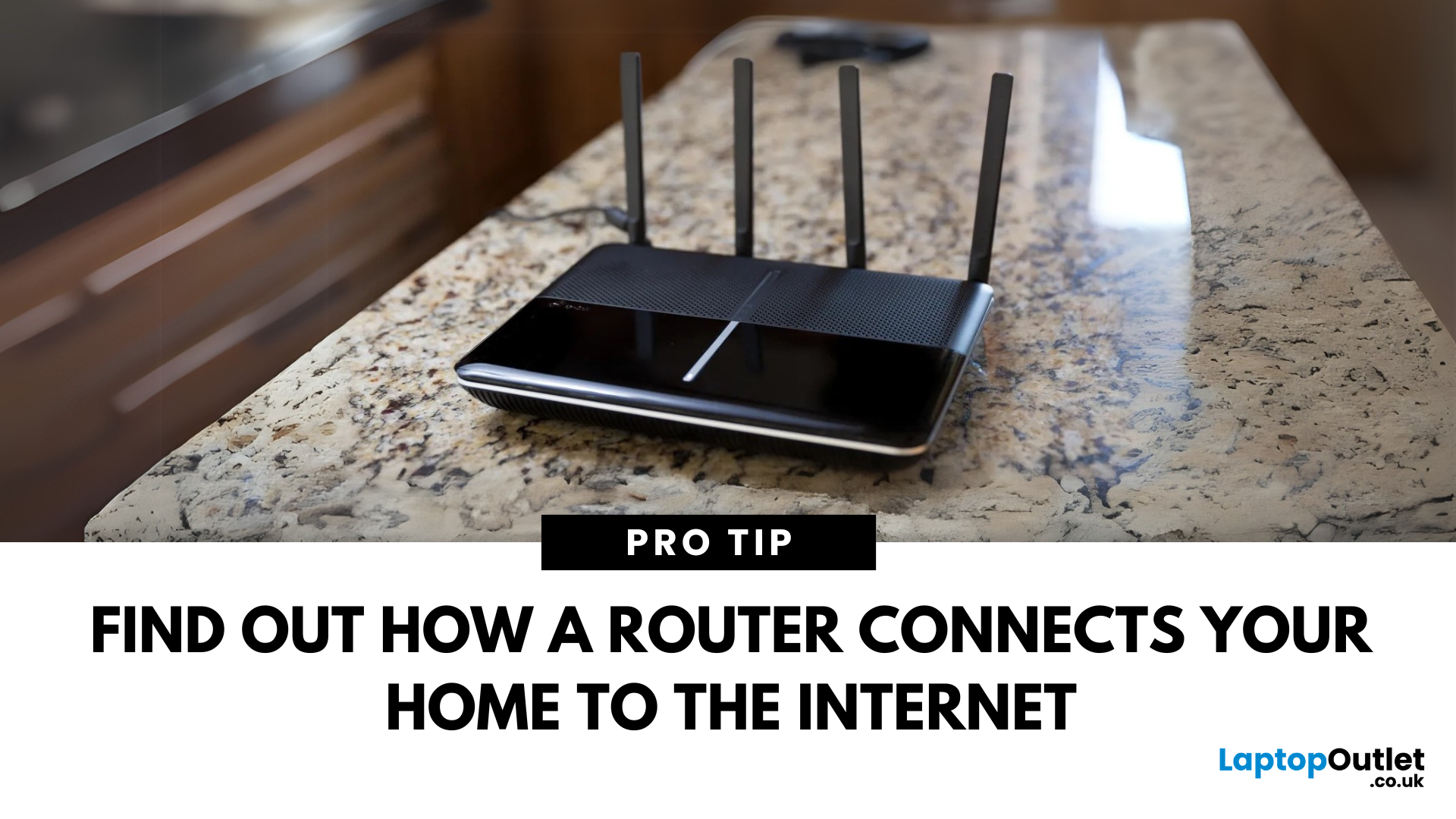
Your internet experience starts with a router—but what exactly does it do? Whether you’re streaming, gaming, working from home, or scrolling on your phone, the router keeps your digital life connected. Let’s break down what a router does and why it’s so important.
What Is a Router?
A router is a networking device that connects your devices to the internet and manages how they communicate with each other.
It “routes” traffic between your local devices (like your phone or laptop) and the broader internet
What Does a Router Actually Do?
- Distributes internet access from your modem to all connected devices
- Creates a local network so devices can talk to each other
- Assigns IP addresses to each device
- Directs data packets so the right information reaches the right device
Wi-Fi vs Router – What’s the Difference?
- Router: Manages traffic and connects devices
- Wi-Fi: The wireless signal your router creates
The router gives you internet; Wi-Fi

