



How to Force Quit on Mac: A Step-by-Step Guide
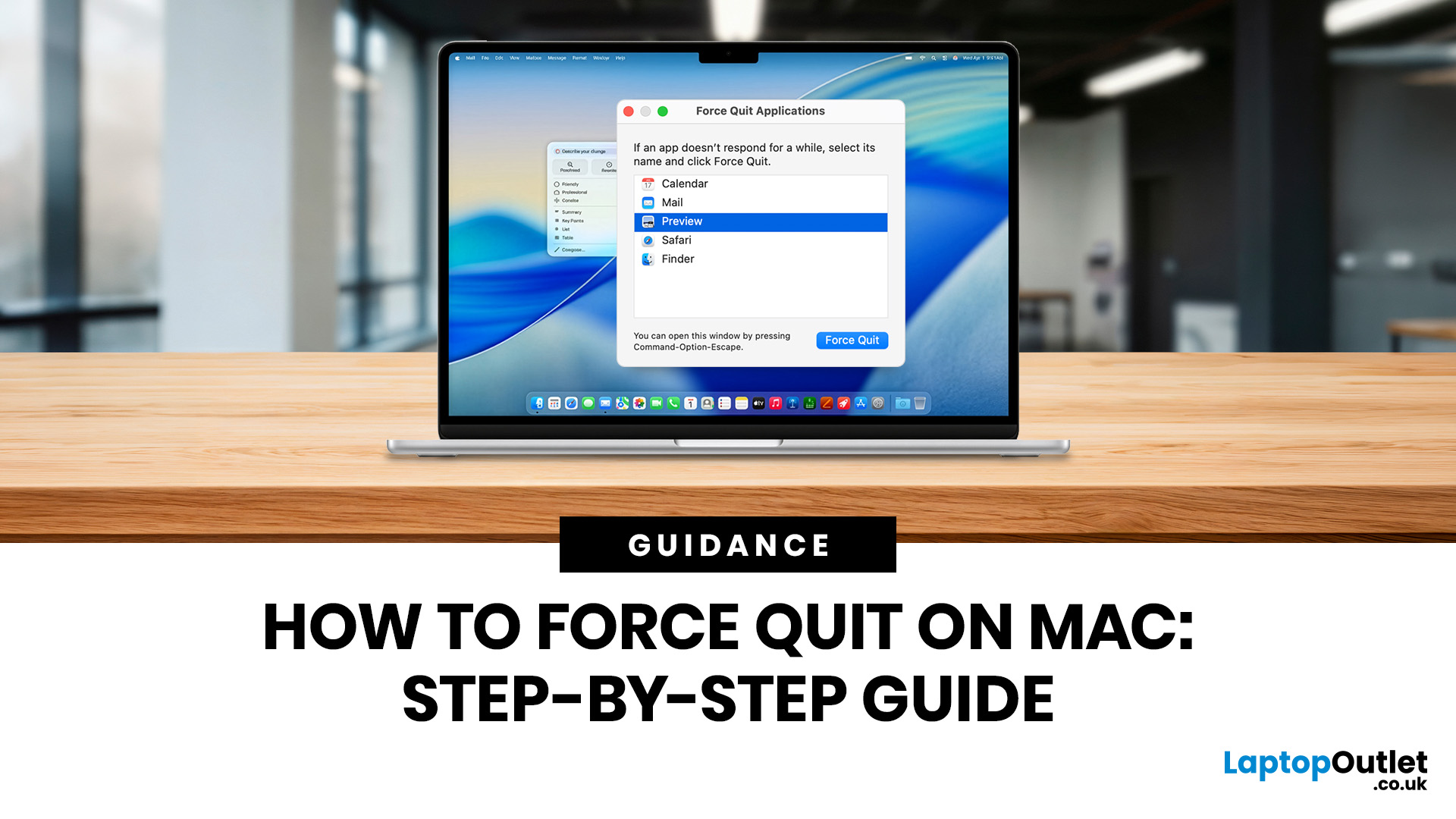
If you need to force quit Mac apps because one has frozen, the safest approach is to try a normal quit first, then use the Force Quit window, the Apple menu, or Activity Monitor if the app still will not respond. These steps work across current Mac laptops, including MacBook Air, MacBook Pro, and MacBook Neo, as well as desktop Macs.
What Does Force Quit Actually Do on a Mac?
Every method to force quit an app on Mac achieves the same result: it instructs macOS to terminate the application immediately, without waiting for it to shut down on its own terms.
Unlike a standard quit (Command + Q), force quitting bypasses the app's normal closing sequence entirely. Force closing of an app on Mac means it doesn't get a chance to save open files or tidy up temporary processes, so it's worth understanding the implications before you use it, particularly if you have unsaved work on screen.
When Should You Force Quit an App on Mac?
Choosing to force close on Mac should always be a last resort rather than a first response. Give macOS at least 30 to 60 seconds before you step in, as some apps just need a moment to catch up, particularly when handling large files or running demanding processes.
That said, here are clear signs it's time to force quit:
- The spinning rainbow beachball has been on screen for more than a minute
- The app is completely unresponsive to clicks and keyboard input
- Activity Monitor shows the app listed as "Not Responding"
- The app is consuming an unusually high percentage of CPU or RAM
- The app has visibly crashed but refuses to close on its own
If you see any of these, it's time to act.
Method 1: How to Force Quit on Mac Using the Keyboard Shortcut
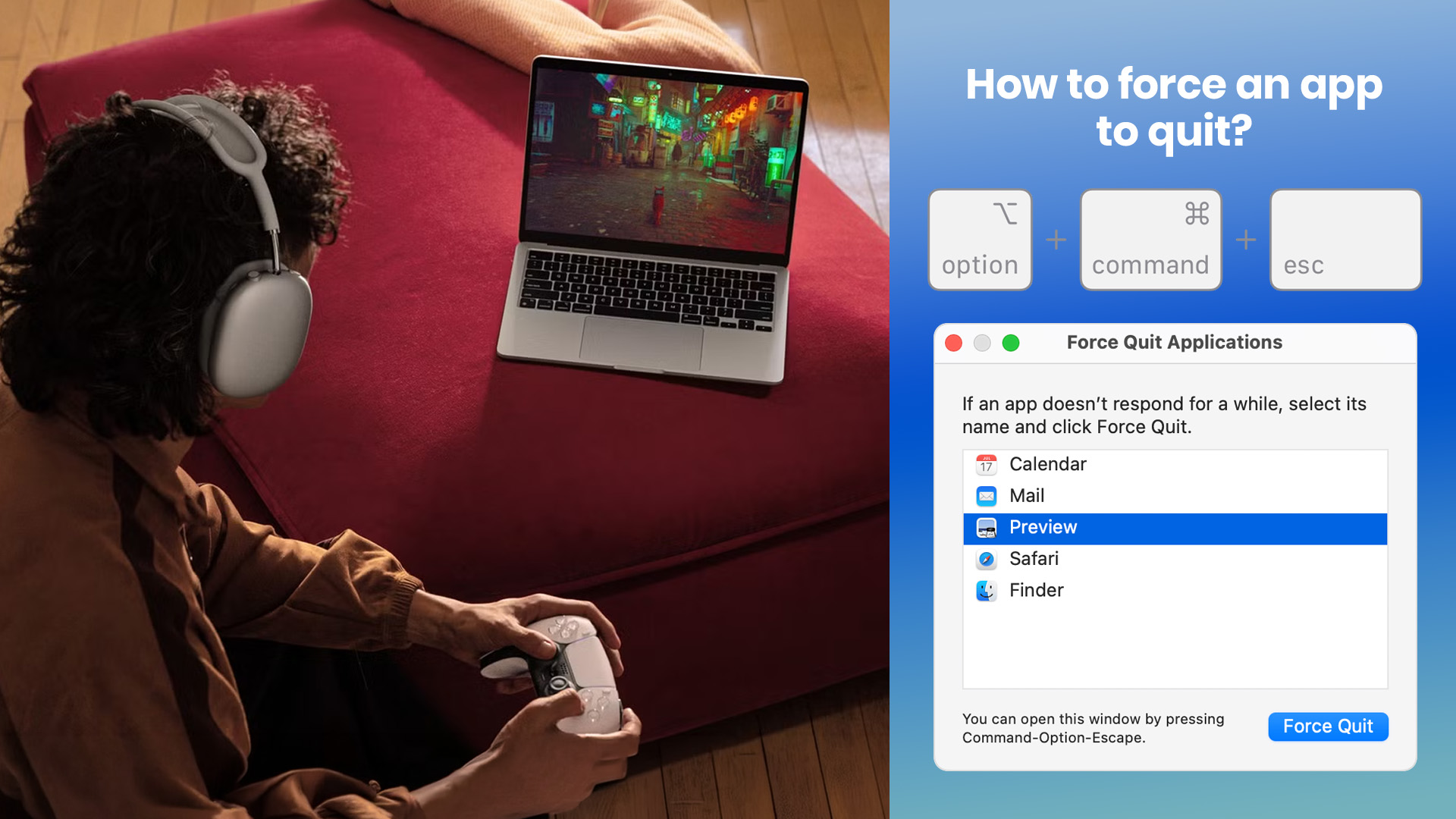
The force quit Mac shortcut is what most users reach for first, and it's easy to see why. It's accessible from anywhere on your Mac, works in under five seconds, and requires no menu navigation at all.
Follow these steps to force close on MacBook:
- Press Command (⌘) + Option (⌥) + Escape simultaneously
- The Force Quit Applications window will appear on screen
- Find the app that's not responding (it may show "not responding" in red text)
- Click on it to highlight it
- Click the Force Quit button in the bottom-right corner
- Confirm by clicking Force Quit in the prompt that appears
The app closes immediately. You can reopen it fresh from your Applications folder or Dock.
Tip: The Force Quit window stays open after you close one app. If several programmes have frozen at the same time, you can sort them all out without reopening the window repeatedly.
Method 2: How to Force Quit Mac Apps via the Apple Menu
If your keyboard isn't cooperating, or you simply prefer using the menu bar, the Apple menu gives you the same Force Quit window with just a couple of clicks.
Here is how to force a quit on Mac using Apple menu:
- Click the Apple logo in the top-left corner of your screen
- Select Force Quit from the drop-down menu
- The Force Quit Applications window opens
- Select the unresponsive app from the list
- Click Force Quit and confirm
Handy detail: If the frozen app is currently active (in the foreground), it will already be highlighted when the window opens. This shaves off a step and makes the process even quicker.
Method 3: How to Force Quit on Mac Using the Dock
If you can see the frozen app's icon sitting in your Dock, you can force quit it directly from there without opening any additional windows.
Steps to force quit app on Mac:
- Hold down the Option (⌥) key on your keyboard
- Right-click (or Control-click) on the frozen app's Dock icon
- A context menu will appear
- Click Force Quit at the bottom of the menu
Without holding Option first, the menu will only show the standard "Quit" option. Make sure you're holding Option before you right-click, or you won't see Force Quit.
Method 4: How to Force Quit on Mac with Activity Monitor
Activity Monitor is macOS's built-in task manager. It shows you every single process running on your Mac, including background tasks and system processes that never appear in the Dock or the Force Quit window.
This method is particularly useful for:
- Background processes causing slowdowns
- Processes without visible app windows
- Identifying which app is actually responsible for hogging your CPU or memory
Steps to force quit application on Mac:
- Open Spotlight Search by pressing Command (⌘) + Space
- Type Activity Monitor and press Enter
- Click the CPU tab to sort processes by CPU usage (frozen or runaway apps often spike here)
- Find the unresponsive application in the list
- Click on it to select it
- Click the X (Stop) button in the top-left of the Activity Monitor toolbar
- Select Force Quit in the confirmation dialogue box
Pro tip: It's worth opening Activity Monitor occasionally even when nothing is frozen. Spotting a resource-hungry process early can prevent a freeze before it happens.
Method 5: How to Force Quit on Mac Computer Using Terminal

Terminal lets you force end processes on Mac with absolute precision, and it's the method to reach for when the visual options have stopped working. The commands you need are short and simple.
Using the killall Command (Quickest Terminal Method)
1. Open Spotlight Search (Command + Space) and type Terminal, then press Enter
2. Type the following command, replacing "AppName" with the name of the frozen app:
killall AppName
For example, to force quit Safari:
killall Safari
3. Press Enter
If the standard command doesn't work, add -9 to force a harder termination:
killall -9 AppName
Using the kill Command with a Process ID (PID)
This approach is useful when you're not sure of the exact app name as macOS recognises it.
1. In Terminal, type:
ps aux | grep AppName
2. Find the number in the second column of the results. That is the Process ID (PID).
3. Type the following, replacing [PID] with that number:
kill [PID]
4. If the app stillwon't close, use the force kill:
kill -9 [PID]
The -9 signal cannot be caught or ignored by a process. It is the most forceful termination command available in macOS.
How Do You Force Quit Finder on Mac?
Finder is a special case. Because it's a core component of macOS, you can't actually close it completely; instead, you relaunch it. This is useful when your desktop freezes, files stop appearing correctly, or the Dock behaves oddly.
Steps:
- Press Command + Option + Escape
- Select Finder in the Force Quit Applications list
- Notice that the button reads Relaunch rather than Force Quit
- Click Relaunch
Finder will briefly disappear from your screen and restart within a few seconds. Everything else on your Mac stays open and untouched.
What Happens to Your Unsaved Work When You Force Quit?
The short answer is: it depends on the app. Many modern macOS applications have auto-save or crash recovery built in, but not all of them do.
|
Application |
What Typically Happens to Unsaved Work |
|
Pages / Microsoft Word |
Auto-save usually recovers recent changes on relaunch |
|
Google Chrome / Safari |
Tabs and sessions often restore automatically on relaunch |
|
Adobe Photoshop / Illustrator |
Auto-recovery dialogue appears when you reopen the app |
|
Apple Notes |
Syncs via iCloud; content is generally safe |
|
Final Cut Pro / Logic Pro |
Auto-save is built in; recent progress is usually preserved |
|
Other apps (no auto-save) |
Unsaved work may be permanently lost |
Many modern macOS applications have auto-save or crash recovery built in, so don't panic immediately. Always check for a recovery prompt when you reopen an app after force quitting it.
Habit worth forming: Press Command + S regularly throughout your work session. It takes less than a second and saves you from ever losing a significant amount of progress.
What Should You Do If Force Quit on Mac Doesn't Work?
In rare situations, even force quitting won't close a badly stuck application. Here's a logical order of steps to try:
- Wait Another Minute: macOS may be in the middle of a complex operation. Give it a bit more time before trying again.
- Use Terminal with kill -9: As covered above, kill -9 is the most forceful terminationoption available and rarely fails.
- Log Out of Your User Account: Go to Apple menu > Log Out [Your Name]. This closes all running apps and can release stuck processes without requiring a full restart.
- Restart Your Mac: Go to Apple menu > Restart. macOS will prompt you to force quit any apps still open during the restart process.
- Force Shutdown: If your screen is completely unresponsive and none of the above options are accessible, hold the Power button down for 5 to 10 seconds until the Mac shuts off. Restart it normally afterwards. Use this only as an absolute last resort.
How Can You Stop Apps from Freezing on Your Mac?

Prevention is always the better option. Here are practical steps you can take to keep things running smoothly:
- Keep macOS up to date: System updates frequently include bug fixes and performance improvements that resolve freezing issues
- Restart your Mac at least once a week: This clears memory and ends background processes that accumulate over time
- Close unused apps and browser tabs: Both consume RAM even when idle
- Keep at least 10 to 15% of your storage free: Low storage is a common cause of slowdowns on Mac
- Check Activity Monitor regularly: A quick look every few days helps you catch resource-heavy processes before they become a problem
- Avoid running too many demanding apps simultaneously: Video editing, 3D rendering, and browser-heavy workflows all compete for the same resources
For more help keeping your device running smoothly, see our MacBook user guide for model advice, performance tips, and troubleshooting support.
When a Force Quit Isn't Enough
If your Mac freezes regularly despite following all of the above, it may be a sign the hardware is ageing or running short on RAM. Browsing our laptops range is a good place to start if you're thinking about an upgrade.
If you're a student dealing with constant slowdowns, have a browse through our affordable laptops for studying. Professionals after something more capable will find solid choices in our best business laptops selection as well.
Designers battling with resource-heavy creative software might find something to love in our best laptops for designers range. And if you're interested in what modern performance looks like in 2026, our AI-powered laptops collection is well worth exploring.

Fix the Freeze for Good
The best approach is simple. Try a normal quit first, then use the shortcut or Apple menu if the app is frozen, and move to Activity Monitor only when you need more control.
Knowing how to force quit Mac apps properly saves time, reduces frustration, and helps you avoid unnecessary restarts. Used sensibly, it is a safe built-in fix for unresponsive apps on MacBook Air, MacBook Pro, MacBook Neo, and other Macs.
However, If you are dealing with constant freezes, a software fix might not be enough. Upgrade to a smoother experience by browsing our latest MacBook collection today.

While We’re On The Subject...
What is the shortcut to force quit on Mac?
Press Command + Option + Escape to open the Force Quit window, select the unresponsive app, and click Force Quit to close it.
Is it bad to force quit apps on Mac frequently?
Occasional force quitting is harmless. Doing it frequently may suggest a deeper issue such as low RAM, software bugs, or a macOS problem worth investigating.
Why is my Mac app not responding?
Apps usually freeze due to insufficient memory, high CPU load, software bugs, or conflicting processes. Activity Monitor can help identify the cause quickly.
How do I force quit Finder on a Mac?
Open the Force Quit window with Command + Option + Escape, select Finder, and click Relaunch. Finder restarts within a few seconds.
What if Force Quit does not work on Mac?
If Force Quit fails, restart your Mac from the Apple menu. If the Mac is completely stuck, hold the power button until it switches off.
Does force quitting lose unsaved work on Mac?
It can. Force quitting may close the app immediately, so unsaved edits in that app can disappear. Save normally whenever the app still responds.
| Read More: |
| How to Reset a MacBook to Factory Settings Safely: A Complete Guide |
| How to Check CPU Usage on a Mac Step-by-Step Guide |
| How to Uninstall Apps on Mac: Every Method Explained |
Related Articles


Published: March 12, 2026
Apple’s new MacBook Air M5 is officially here, and after spending time testing it myself, I can confidently say one thing: it’s fast. Like, open-all-my-tabs, edit-4K, switch-between-apps-without-thinking fast. But benchmarks and real use aren’t always the same thing. So, I ran several tests, used it for everyday work, and compared it with previous Air models to answer the real question: Are the MacBook Air M5 benchmarks strong enough to justify the upgrade?
For UK buyers in particular, this is shaping up to be one of the easiest MacBooks to recommend in 2026. Apple kept the thin, fanless design that people already love, but added the new M5 chip, improved base storage, faster wireless connectivity, and stronger performance across both benchmarks and daily workflows. Let’s break down the numbers and the real-world experience.
MacBook Air M5 Overview
Like iPhone 17e, iPad Air M4, and MacBook M5 Pro and M5 Max, Apple announced the MacBook Air M5 on 3 March 2026, with availability beginning
Published: March 12, 2026
If you have an old Valve Steam Machine tucked away under the telly or on a shelf, you might be wondering whether it can still do more than launch games. The good news is that, with the right setup, it can absolutely pull double duty as a compact desktop computer for everyday use.
This guide walks you through a practical Valve Steam Machine setup for desktop use, from connecting a monitor and peripherals to accessing SteamOS desktop mode and making the system feels more like a standard PC. Whether you want a lightweight machine for web browsing, media streaming, or casual home computing, repurposing a Steam Machine can be a clever and cost-effective option.
What is a Valve Steam Machine?
A Valve Steam Machine was originally designed as a living-room gaming PC. It brought PC gaming closer to the console experience, usually running SteamOS and focusing on controller-friendly play from the sofa.
That said, the hardware inside many Steam Machines is still capable of handling basic desktop

Published: March 13, 2026
If you have just bought Studio Display XDR and want to use it with a MacBook Pro, the setup is usually quick. In most cases, the screen should come on automatically within a few seconds. macOS should recognise the display without extra drivers or manual installation. According to Apple’s official Mac support documentation, compatible MacBook Pro models automatically detect Studio Display when connected through Thunderbolt. Studio Display XDR can also deliver up to 140W of host charging through that same cable, so your MacBook Pro can charge while connected.
This Studio Display XDR setup guide explains the full process for connecting the Apple Studio Display XDR to a MacBook Pro, from the initial cable connection to the display settings you may need to adjust afterwards. Studio Display XDR is not just another external monitor. It is a 27-inch 5K Retina XDR display with mini-LED backlighting, up to 2,000 nits peak HDR brightness, a 120Hz refresh rate with Adaptive Sync, built-in camera and

Published: March 13, 2026
Apple is entering a new era of product strategy. For years, the company has dominated the premium tech market with devices like the iPhone Pro and MacBook Pro. But now Apple appears to be expanding its ecosystem in two directions at once: more affordable devices and ultra-premium hardware.
The recent MacBook Neo release indicates that Apple has a budget-friendly laptop to attract students and first-time Mac users. At the same time, industry reports indicate Apple is building a lineup of Ultra devices that will sit above its current Pro models.
This shift highlights what many analysts now call the Apple Ultra strategy, a long-term plan to stretch Apple’s ecosystem from entry-level devices all the way to cutting-edge luxury hardware. From the MacBook Neo at the affordable end to devices like iPhone Ultra, MacBook Ultra, and AirPods Ultra, Apple’s premium device roadmap is becoming more ambitious than ever.
MacBook Neo: Apple’s New Entry-Level Laptop
The MacBook Neo is expected to become

Last Updated: April 02, 2026
Most of us have an old laptop somewhere collecting dust. It’s slow, takes ages to boot, and probably sounds like it’s about to take off every time you open Chrome. But what if you could turn that relic into something fast, secure, and actually enjoyable to use again?
Enter ChromeOS Flex.
Whether you’re a student, a gamer needing a lightweight secondary machine, or a professional looking for a distraction-free setup, ChromeOS Flex is one of the easiest ways to revive old hardware without spending a penny.
In this guide, we’ll break down exactly what ChromeOS Flex is, why it’s worth your time, and most importantly, how to install ChromeOS Flex on both PC and Mac step by step.
What Is ChromeOS Flex?
ChromeOS Flex is a lightweight, cloud-first operating system developed by Google. It’s essentially a version of ChromeOS (the one used on Chromebooks) designed to run on older Windows PCs and Macs.
Think of it as giving your ageing laptop a fresh brain, one that’s faster, safer, and built for
Last Updated: July 06, 2026
Apple’s MacBook lineup has earned its reputation through years of delivering fast performance, long battery life, and a genuinely premium build quality that is hard to beat. Whether you are buying your first Mac, switching from Windows, or troubleshooting an issue, this MacBook & Apple guide covers everything you need.
What Exactly Is a MacBook?
A MacBook is Apple’s range of portable computers, running macOS. Unlike most Windows laptops, MacBooks use Apple’s own silicon. In 2026, that means the MacBook Neo runs on A18 Pro, while the latest MacBook Air and MacBook Pro run on M5-family chips: M5, M5 Pro, and M5 Max.
All MacBooks benefit from Apple’s tight hardware and software integration, meaning everything from apps to system updates is designed specifically for the machine you are holding. That is a big reason why so many people in creative, professional, education, and everyday roles swear by them.
What Are the Latest MacBook Models in 2026?

Apple currently sells MacBooks in three lines:

Last Updated: May 06, 2026
Whether your storage is filling up, you're troubleshooting a glitchy app, or you're simply doing a digital spring clean, knowing how to uninstall apps on Mac properly makes a real difference. There's more to it than dragging things to the Bin. This guide covers every method, from the quickest drag-and-drop to deep-cleaning leftover files.
What Happens When You Simply Drag an App to the Bin?
It's tempting to think that moving an app to the Bin is a complete uninstall. Unfortunately, that's only part of the story.
When you install most apps on a Mac, macOS and the app itself may create supporting files in several different locations across your system. These can include preference files, cache data, application support folders, login items, and extensions.
When you drag the app itself to the Bin, many of those supporting files stay put. Over time, they can quietly pile up and waste storage space, which is especially noticeable on Macs with limited SSD capacity.
Method 1: How to Delete
Last Updated: May 06, 2026
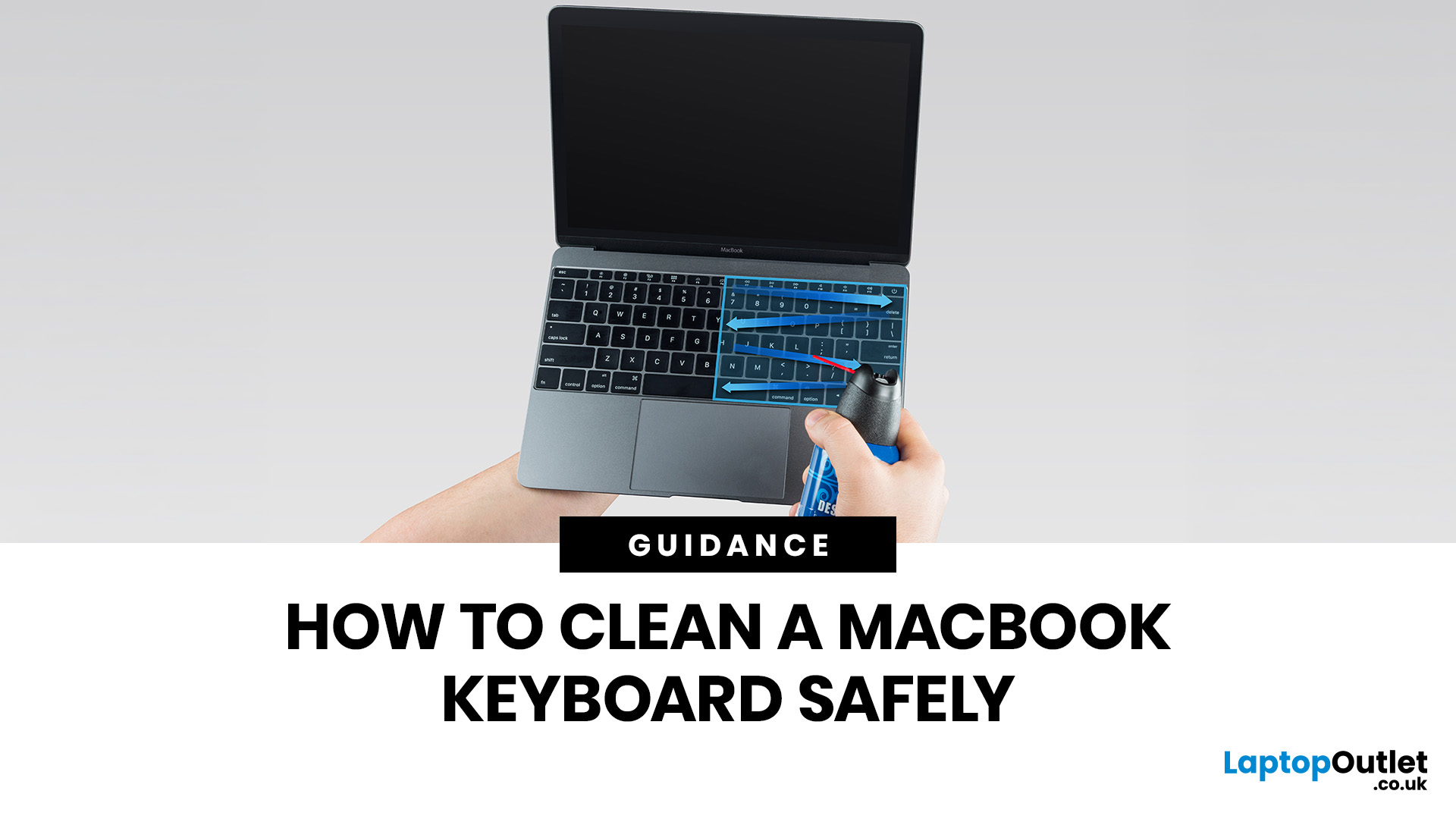
MacBook keyboard cleaning is simple when you do it the Apple-safe way: shut the laptop down, unplug it, use a soft lint-free cloth, keep moisture out of the openings, and never spray cleaner directly onto the keyboard. If you need to disinfect the surface, Apple says you can gently wipe off the hard, non-porous exterior, including the keyboard, with a 70 per cent isopropyl alcohol wipe, a 75 per cent ethyl alcohol wipe, or a disinfectant wipe.
That is the short version. The longer version matters because MacBook keyboards are not built for chaotic cleaning energy. Too much liquid, the wrong cleaner, or one “quick” spray straight onto the keys can turn a dusty keyboard into an expensive repair story. We will discuss today how to clean a Mac keyboard properly, how to remove dirt from MacBook keys, when compressed air makes sense, what not to use, and when a keyboard issue is no longer a cleaning job.
Quick Answer: How Can We Clean a MacBook Keyboard Safely?
The safest way to clean a MacBook
Last Updated: June 10, 2026
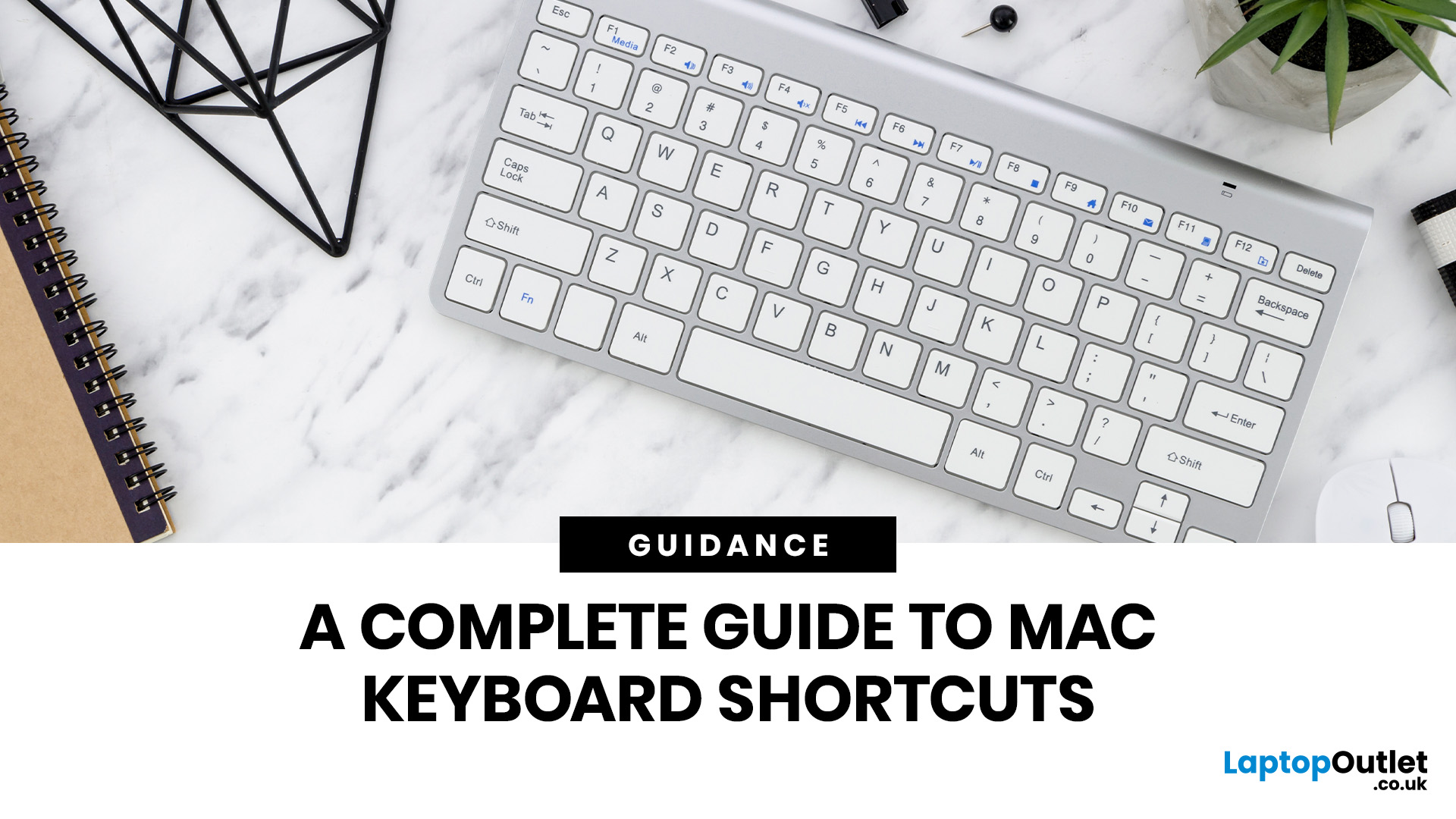
Mac keyboard shortcuts help you copy, paste, search, switch apps, manage files, take screenshots, and control system features faster from the keyboard. This 2026 guide explains the essential shortcuts, the meaning of Apple's modifier keys, practical shortcuts for everyday work, and the easiest ways to customise them for a smoother workflow.
What Are Mac Keyboard Shortcuts, And Why Should You Use Them?

Mac keyboard shortcuts are key combinations that carry out actions you would otherwise do with a mouse or trackpad. Apple notes that these shortcuts can save time, but also points out that some shortcuts vary by app, keyboard layout, and language.
For most people, the biggest benefit is speed. Copying text, opening Spotlight, closing tabs, switching apps, and locking the screen all feel quicker when your hands stay on the keyboard.
The same core shortcuts work across modern Macs, including MacBook, iMac, and Mac mini, as long as the keyboard layout matches.
If you are also comparing machines
Last Updated: May 01, 2026
If your MacBook is not turning on, the quickest way to solve it is to work out which problem you have. Some Macs have no power at all. Others are turning on, but the screen stays black, the battery is not charging properly, or macOS is failing during startup. Those are different faults, and they need different fixes.
In most cases, the right order is simple: check the charger and outlet, force a restart, rule out a blank-screen issue, then move to Safe Mode, Apple Diagnostics, or macOS Recovery if the Mac still will not boot. If your MacBook is charging but not turning on, the issue is often startup, display, or battery-health related rather than a completely dead machine.
What to do First When MacBook Doesn't Turn On

If your MacBook won't turn on, start with the basics before assuming the worst.
- Plug it into a known-working wall socket with a compatible charger and cable.
- Leave it connected for several minutes if the battery may be flat.
- Press and hold the power button for up to 10 seconds,

