



MacBook Battery Problems: When to Repair or Replace
MacBook battery issues do not always mean it is time for a replacement. Sometimes your battery is genuinely wearing out, but sometimes the real problem is heat, charging habits, background apps, or even a charger that is not pulling its weight. That is what makes battery problems so confusing: the symptoms can look dramatic, while the fix might be simple.
In this guide, we will help you figure out what your MacBook is actually trying to tell you. From battery drain and overheating to charging limits and health checks, you will learn how to spot the issue, understand the cause, and decide whether a repair or replacement makes the most sense.
Why MacBook battery issues happen in the first place
MacBook batteries are built with lithium-ion technology, which is great for fast charging and portability, but like every rechargeable battery, they wear down over time. Battery age is not just about how many years you have owned the laptop. It is also shaped by your charging habits, temperature history, and everyday usage. So, if you are dealing with Macbook battery issues, the battery may not have failed overnight, it has probably been ageing gradually in the background.
How usage affects MacBook battery lifespan
That is why two people can own the same MacBook model and have completely different battery experiences. One keeps it plugged in all day, while another uses it on the go. One sticks to light tasks like browsing and notes, while another pushes it with editing software, multitasking, and endless tabs. These habits all affect MacBook battery lifespan, which is why no two batteries age in exactly the same way.
Common MacBook battery problems do not always mean failure
Not every symptom points to the same cause. MacBook battery draining fast could mean battery ageing, but it could also come from background activity, a bright display, or syncing after an update. MacBook overheating battery issues may also be linked to heavy workloads rather than the battery itself. Even a MacBook that stops charging at 80% may not be faulty, as built-in battery protection features can cause that behaviour. That is why understanding the common MacBook battery problems first is so important before deciding on a fix.
How to check MacBook battery health before deciding anything
Before assuming the worst, the smartest move is to diagnose the issue properly. Learning how to check MacBook battery health can help you see whether the battery is genuinely worn out or whether the problem is being caused by settings, software, or charging habits. Once you know what is actually going on, it becomes much easier to decide whether repair or replacement makes more sense.
If you want a broader look at choosing, using, and fixing your device, our MacBook troubleshooting guide covers everything from buying advice to everyday maintenance.
How to check MacBook battery health properly
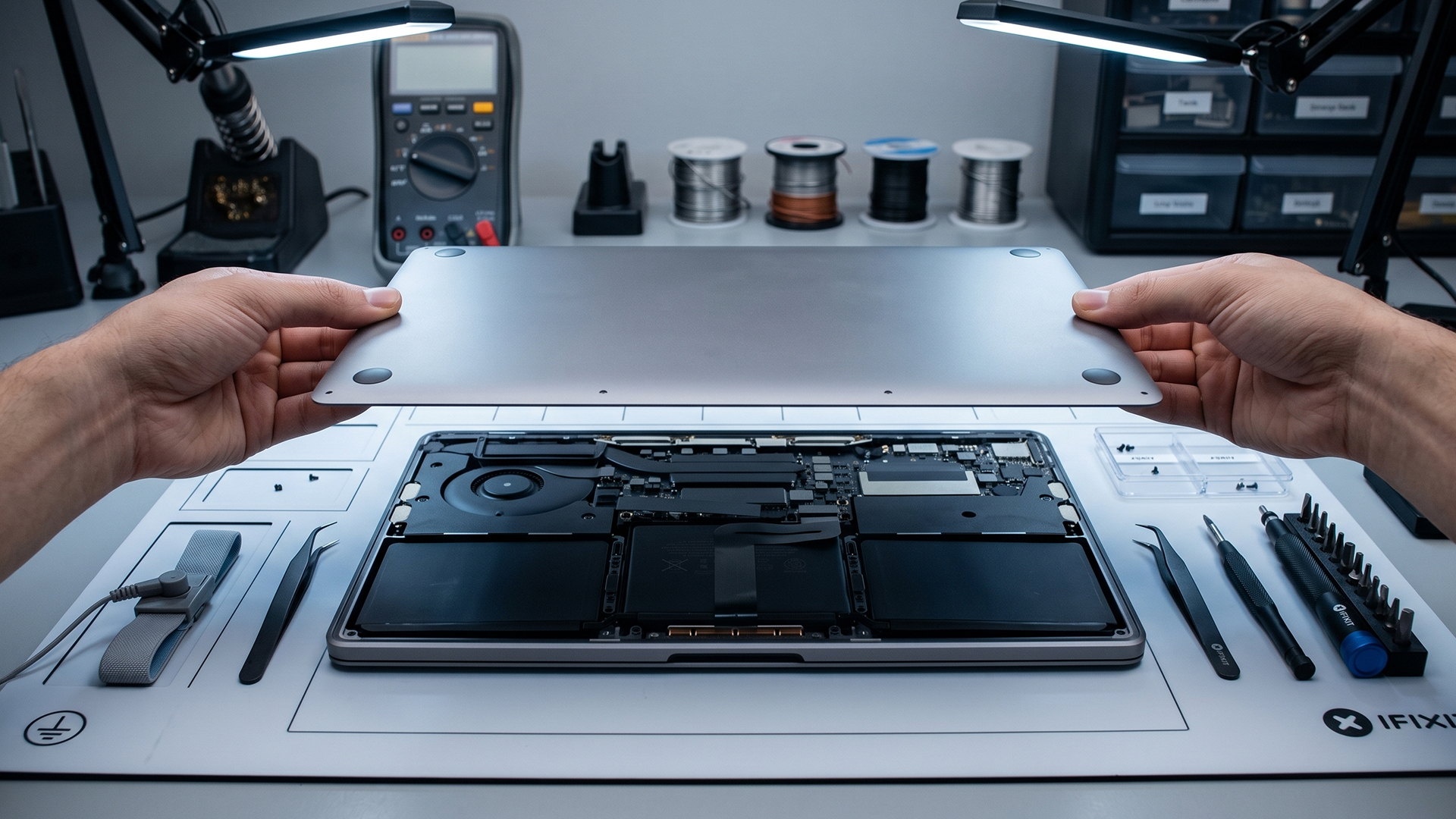
If you want to know whether your battery needs attention, the first step is to check the information built into macOS. This is the most reliable way to understand what is really going on.
Apple says you can check battery condition by going to Apple menu > System Settings > Battery and looking for Battery Health. On supported Macs, you will typically see Normal or Service Recommended. “Normal” means the battery is functioning normally. “Service Recommended” means the battery either holds less charge than when it was new or is not functioning normally. Apple also notes that if lowered battery capacity is affecting your experience, you can get service, even though the Mac can still be used safely.
You should also check Maximum Capacity, if your Mac shows it. That number tells you how much charge the battery can currently hold compared with when it was brand new. It is one of the clearest ways to understand real-world MacBook battery lifespan. A battery at 100% is essentially at full original capacity. A battery at 82% still works, but it will not last as long on a charge as it once did. Apple’s battery settings page makes clear that these built-in battery controls are there to help you manage energy use and optimise battery longevity.
Then there is cycle count. Apple defines a cycle as using an amount of battery equal to 100% of its capacity, whether that happens in one go or over multiple charges. You can find it in Option + Apple menu > System Information > Power. Apple also says cycle count limits vary by Mac model, and the battery is considered consumed once it reaches its limit. That does not mean it instantly dies, but it does mean performance is likely to be reduced and battery replacement becomes much easier to justify.
Step-by-step battery health guide
- Open Apple menu
- Click System Settings
- Select Battery
- Open Battery Health
- Check Condition and Maximum Capacity
- For cycle count, go to System Information > Power
Common MacBook battery problems and what they usually mean
This is where users often get stuck, because the same symptom can have multiple causes. Let’s break down the big ones.
1. MacBook battery draining fast
This is the one everyone notices first. Your battery percentage drops quicker than it used to, and suddenly you are carrying a charger everywhere like it is a life support cable.
Apple’s support guidance for quick battery drain does not jump straight to replacement. Instead, it recommends reducing display brightness, turning on Low Power Mode, disconnecting unused accessories, quitting apps you are not using, and checking for software updates. That tells you something important: fast drain is often a usage or settings issue before it is a hardware issue.
That said, if the battery is older, maximum capacity is noticeably reduced, and runtime no longer matches your day-to-day needs, then fast drain may be one of the clearest signs you are dealing with ageing hardware rather than temporary power hunger.
2. MacBook overheating battery issues
If your MacBook gets hot and the battery falls fast, it can feel like the battery is the whole problem. But in a lot of cases, the battery is only part of the story.
Heat can accelerate battery wear over time because temperature history affects chemical ageing. Apple also says if your Mac feels unusually warm when you are not doing anything especially demanding, you should check Activity Monitor for processes using a lot of CPU. That means overheating can come from background apps, system tasks, or poorly behaving software just as much as from the battery itself.
So when dealing with MacBook overheating battery issues, do not just blame the battery. Look at your workload, your ventilation, your charging habits, and what your apps are doing in the background.
3. The battery stops charging before 100%
This one causes so much unnecessary stress. People see 80% and assume the battery is broken. But Apple says that with Optimized Battery Charging, your Mac learns from your charging routine and may delay charging past 80% in some situations. On newer setups, Charge Limit can also intentionally cap what the Mac considers a full charge. Apple says the Mac may still occasionally charge to 100% to maintain accurate battery estimates.
So, if your MacBook stops at 80%, that is not automatically a repair issue. Sometimes it is literally the Mac trying to protect battery health.
If your MacBook is running hot or collecting dust, it is also worth reading our blog for MacBook keyboard cleaning to keep your laptop in better everyday condition.
4. “Service Recommended” appears in settings
This is the clearest battery-specific warning. Apple says that if you see Service Recommended, the battery’s ability to hold charge is less than when it was new, or the battery is not functioning normally. You can still continue using the Mac safely, but if the reduced runtime or behaviour is affecting your day, service becomes a very reasonable next step.
Common MacBook Battery Problems at a Glance
|
Symptom |
What it may mean |
First thing to check |
|
Battery drains very fast |
Ageing battery, heavy apps, poor settings |
Battery Health, Low Power Mode, background apps |
|
MacBook runs hot |
CPU-heavy tasks, poor airflow, battery wear |
Activity Monitor, charging habits, vents |
|
Stops at 80% |
Optimized charging or Charge Limit |
Battery settings |
|
Says Service Recommended |
Battery capacity reduced or battery not normal |
Plan for service or replacement |
What to try before paying for a repair
Before you commit to a battery service, it makes sense to rule out the stuff that is easy to fix.
Start with settings, apps, and everyday power use
Start with power settings. Turn on low power mode if battery life is your priority. Apple includes this in Battery settings specifically to reduce energy usage and help extend runtime. Then lower your display brightness, shorten the display sleep timer, and switch off Bluetooth or Wi-Fi when you do not need them. These are simple moves, but they can make a noticeable difference, especially on an older battery.
Next, close the apps you are not actively using. It sounds basic, but background browser tabs, cloud syncing apps, chat apps, media processes, and creative tools can all quietly eat through power. If your MacBook is getting hot, open Activity Monitor and see what is chewing CPU.
Check your charger and review battery settings
Then check your charger and cable. Apple says a low-wattage power adapter may run the Mac without charging the battery properly, especially if the computer is under heavy load. That means a weak charger can create “battery issues” that are actually power delivery issues. If your Mac says “Not Charging,” test another cable, another adapter, and another outlet before assuming the battery is done.
Also look at your battery settings. If Charge Limit or Optimized Battery Charging is enabled, the charging behaviour you think is broken might be perfectly normal. If you are about to travel or need maximum runtime for a specific day, charging to full makes sense. If you are mostly desk-based, limiting the charge more often can help reduce wear over time. Apple’s settings are now much more useful here than they used to be. If battery problems come with bigger performance issues, our guide to how to factory reset a MacBook can help if you want to start fresh before making a final decision.
Save-before-you-service checklist
- Turn on Low Power Mode
- Lower screen brightness
- Quit unused apps and tabs
- Check Activity Monitor
- Unplug unused accessories
- Test another cable and charger
- Review Battery Health and Maximum Capacity
- Check cycle count
- Review Charge Limit / Optimized Battery Charging
- Update macOS
MacBook battery repair vs replacement: what is the smarter move?
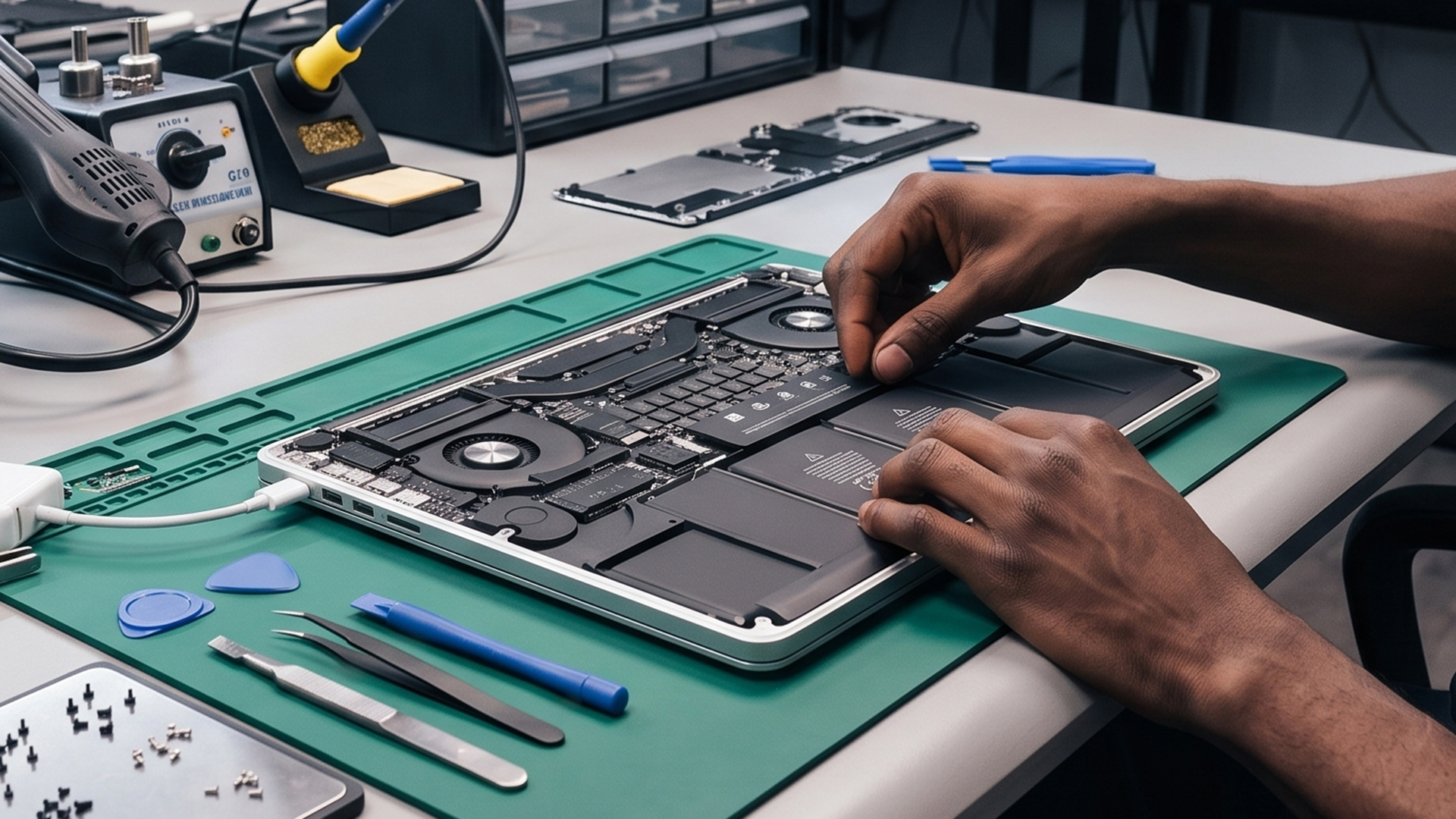
This is the part we really need the answer, so let’s clarify it.
Repair makes sense when:
Repair or troubleshooting first is the better option when Battery Health still shows normal, your cycle count is not especially high, and your issues seem tied to settings, charging accessories, or background activity. In that case, you are often dealing with behaviour that can be improved rather than hardware that has failed.
Repair-first also makes sense when the laptop is still fast, reliable, and valuable to you. If everything else about the MacBook feels good and the battery issue is relatively recent or inconsistent, it is smart to diagnose properly before paying for a new battery.
Replacement makes sense when:
A MacBook battery replacement becomes the better move when Battery Health shows ‘Service Recommended’, the maximum capacity has clearly dropped, the cycle count is near or at the limit for your model, or real-world battery life no longer fits your daily routine. Apple says the battery is considered consumed once it reaches its cycle count limit, which makes replacement a reasonable step for restoring usability.
Replacement is especially worth it when the laptop itself is still serving you well. If your MacBook is otherwise smooth, capable, and meets your work or study needs, a fresh battery can make it feel way more usable again. It is one of the few repairs that can significantly improve the day-to-day experience without forcing you into a full new purchase.
Repair vs replacement comparison table
|
Situation |
Repair / troubleshoot first |
Replace the battery |
|
Battery Health shows Normal |
Yes |
No |
|
Fast drain only during heavy app use |
Yes |
No |
|
Charging stops at 80% due to settings |
Yes |
No |
|
“Service Recommended” appears |
Maybe briefly |
Yes |
|
Maximum Capacity is much lower than before |
No |
Yes |
|
Cycle count is at its limit |
No |
Yes |
|
Laptop is otherwise fast and reliable |
Maybe |
Yes |
|
Laptop is old, slow, and struggling overall |
No |
Consider replacing the laptop |
When battery replacement is not the best investment
Sometimes the battery is not the only thing ageing. If your MacBook already feels slow, runs hot all the time, struggles with modern workloads, and no longer fits how you work or study, putting money into the battery alone may not be the smartest move.
Compare the cost of repair with the value of upgrading
This is when it makes sense to compare the cost of battery service against the value of buying something newer. Some users may still want to stay in Apple’s ecosystem and explore our MacBook collection for a newer model with better battery life and stronger efficiency. Others may prefer to browse best laptops more broadly to find a device that better suits their budget and performance needs.
Choose a laptop that fits how you actually use it
For students, battery life is a huge part of the experience, because being stuck near a socket all day defeats the point of having a laptop. If your current device feels like it is barely keeping up, affordable study laptops may offer better value than repeated repair costs. For professionals who need reliable all-day performance, good thermals, and less downtime, professional laptops for work can be a smarter long-term choice.
And if you are comparing brands while thinking about a bigger upgrade, it also makes sense to look at the latest Dell laptops, or even the best laptops for gaming if battery issues are only one part of a wider performance problem.
The key is simple: if your MacBook still fits your life, fixing it can make sense. But if the battery is just one of several ageing problems, upgrading may be the better investment.
How to know when to replace your MacBook battery
If you want a simpler answer, here it is.
Replace the battery when the laptop no longer gets through your normal day, Battery Health shows Service Recommended, or the battery has reached the point where its reduced capacity is affecting how you use the machine. Apple’s support pages are pretty clear that lower charge-holding ability and abnormal battery behaviour are valid reasons to seek service.
Replace it sooner if portability is a huge part of your routine. If you use your MacBook for commuting, lectures, travel, meetings, or hybrid work, poor battery life becomes a real productivity issue. A battery that technically “still works” but forces you to carry a charger everywhere is already failing the most important part of the laptop experience.
Wait a little longer if the issue is clearly tied to workload spikes, software quirks, or charging settings. If your MacBook only struggles during demanding sessions or only behaves oddly when plugged into a weak charger, the battery itself might not be the real problem yet.
- Does Battery Health say Normal?
- Yes → Check apps, settings, temperature, and charger first
- No → Go to next step
- Does it say Service Recommended?
- Yes → Battery replacement is likely the best move
- No → Check cycle count and maximum capacity
- Is the MacBook still fast and reliable overall?
- Yes → Replace the battery
- No → Consider replacing the laptop
A better way to think about MacBook battery lifespan
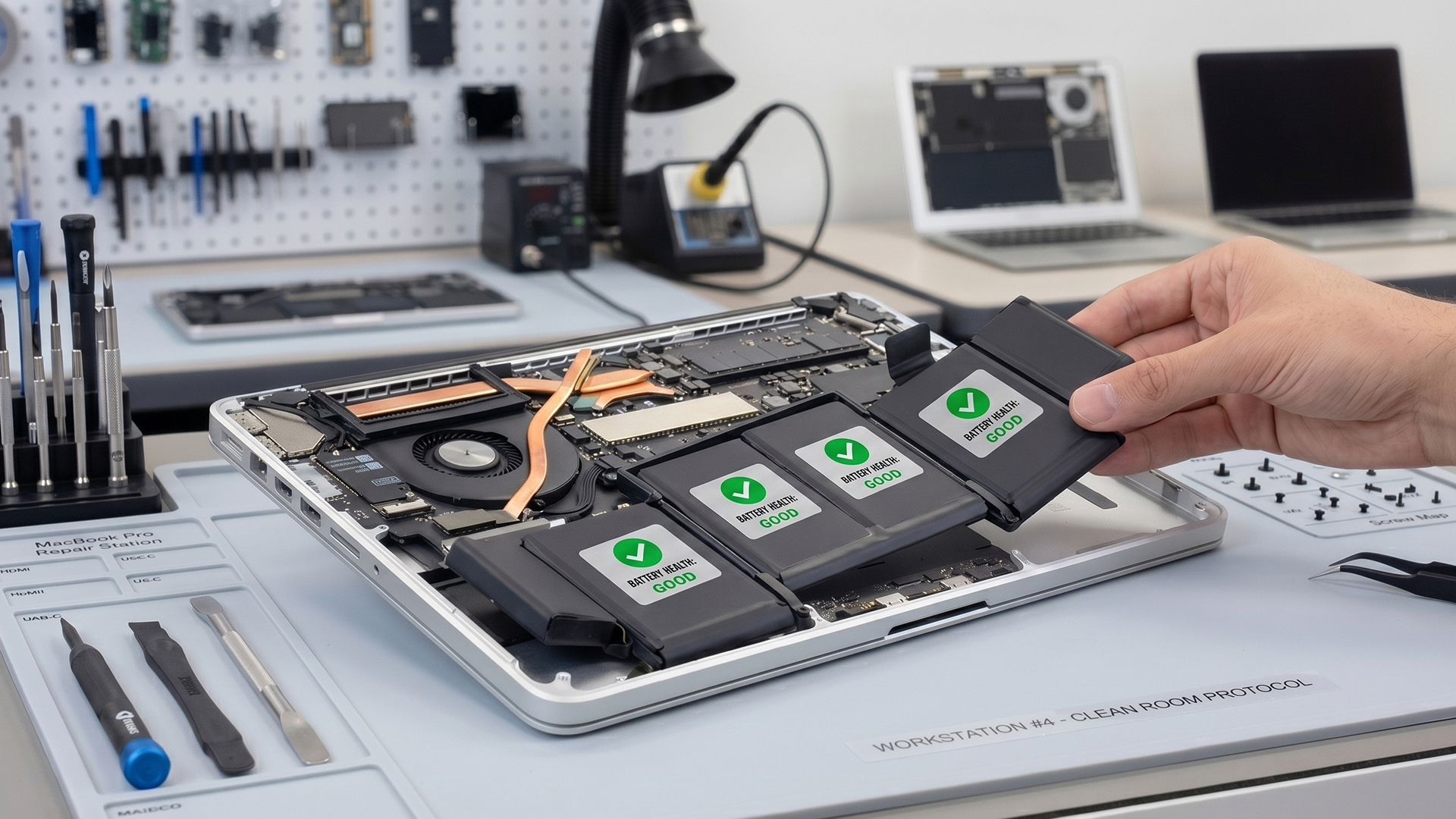
People often ask how many years a MacBook battery should last, but that is not really the best question. The better question is whether it still delivers the runtime and reliability you need.
Apple’s own guidance focuses less on age in years and more on capacity, cycle count, and how the battery is functioning. That is the right way to think about it. A battery can be a few years old and still be fine if it has been used lightly and treated well. Another can feel tired sooner if it has lived a hotter, harder life.
So instead of obsessing over whether your MacBook battery is “too old,” look at the evidence:
- Is Battery Health normal or not?
- Is maximum capacity still good enough for your routine?
- Has runtime dropped below what you actually need?
- Is the charging behaviour explained by settings?
- Is the laptop still worth keeping overall?
That gives you a much better answer than any generic “replace after X years” rule ever will.

Final thoughts
Macbook battery issues can feel dramatic, but the solution is usually more straightforward than it first seems. Some problems come from battery ageing. Some come from software, heat, settings, or chargers. Some are just Apple’s battery protection features doing their thing.
The smartest move is to check the built-in data first, not guess. Review Battery Health, Maximum Capacity, cycle count, and charging settings. If the battery still shows Normal, try fixes before you spend money. If it shows Service Recommended, has clearly reduced capacity, or no longer supports the way you use your laptop, replacement makes sense. And if the MacBook is ageing across the board, it may be time to stop forcing it and start looking at newer options.
Because sometimes the answer is “replace the battery.”
And sometimes the answer is “your laptop had a good run, but it is time.”

FAQ
How do I check MacBook battery health?
Go to System Settings > Battery and look for Battery Health. Apple says you may see Normal or Service Recommended depending on the battery’s condition.
What are the most common MacBook battery problems?
The most common issues are fast battery drain, overheating, charging stopping at 80%, “Not Charging” messages, and the Service Recommended warning. Apple’s support guidance shows that some of these are true battery wear, while others are related to settings or charging conditions.
When should I replace my MacBook battery?
A replacement makes sense when Battery Health shows Service Recommended, the battery can no longer hold enough charge for your needs, or the cycle count is at its limit.
Why is my MacBook only charging to 80%?
Apple says this can happen because of Optimized Battery Charging or Charge Limit, both of which are intended to help preserve long-term battery lifespan.
Is repair better than replacement?
Repair or troubleshooting first is better if the battery health is still normal and the issue is likely tied to apps, settings, heat, or charging accessories. Replacement is better when the battery itself is clearly degraded.
| Read More: |
| The Complete MacBook guide: Models, Tips & Troubleshooting |
| How to Clean a MacBook Keyboard Safely |
| Apple’s Next Big Move: From MacBook Neo to Ultra Devices |
Related Articles


Last Updated: March 09, 2026
If you have been waiting for a proper budget Mac, it is finally here. MacBook Neo launched as Apple’s most affordable laptop ever, and it is clearly built for students, first-time Mac buyers, and anyone who just needs a reliable everyday laptop for browsing, documents, streaming, and calls. The big headline is the price. In the UK, MacBook Neo starts at £599, with £499 education pricing, and it goes on sale on Wednesday, March 11, 2026. Pre-orders are open now.
This guide breaks down what MacBook Neo is, who it is for, what you get for the money, and the trade-offs you should know before ordering.
Want to Buy a MacBook Neo? Quick Verdict
Buy MacBook Neo If You Want the Cheapest New Mac
MacBook Neo makes sense if your daily laptop life looks like this:
- Browsing and web apps
- Word, PowerPoint, Google Docs
- Email and admin
- Zoom or FaceTime calls
- School work and research
- Light photo editing and creative hobbies
It is designed to feel like a real MacBook, just at a lower cost.
Skip MacBook
Last Updated: March 09, 2026
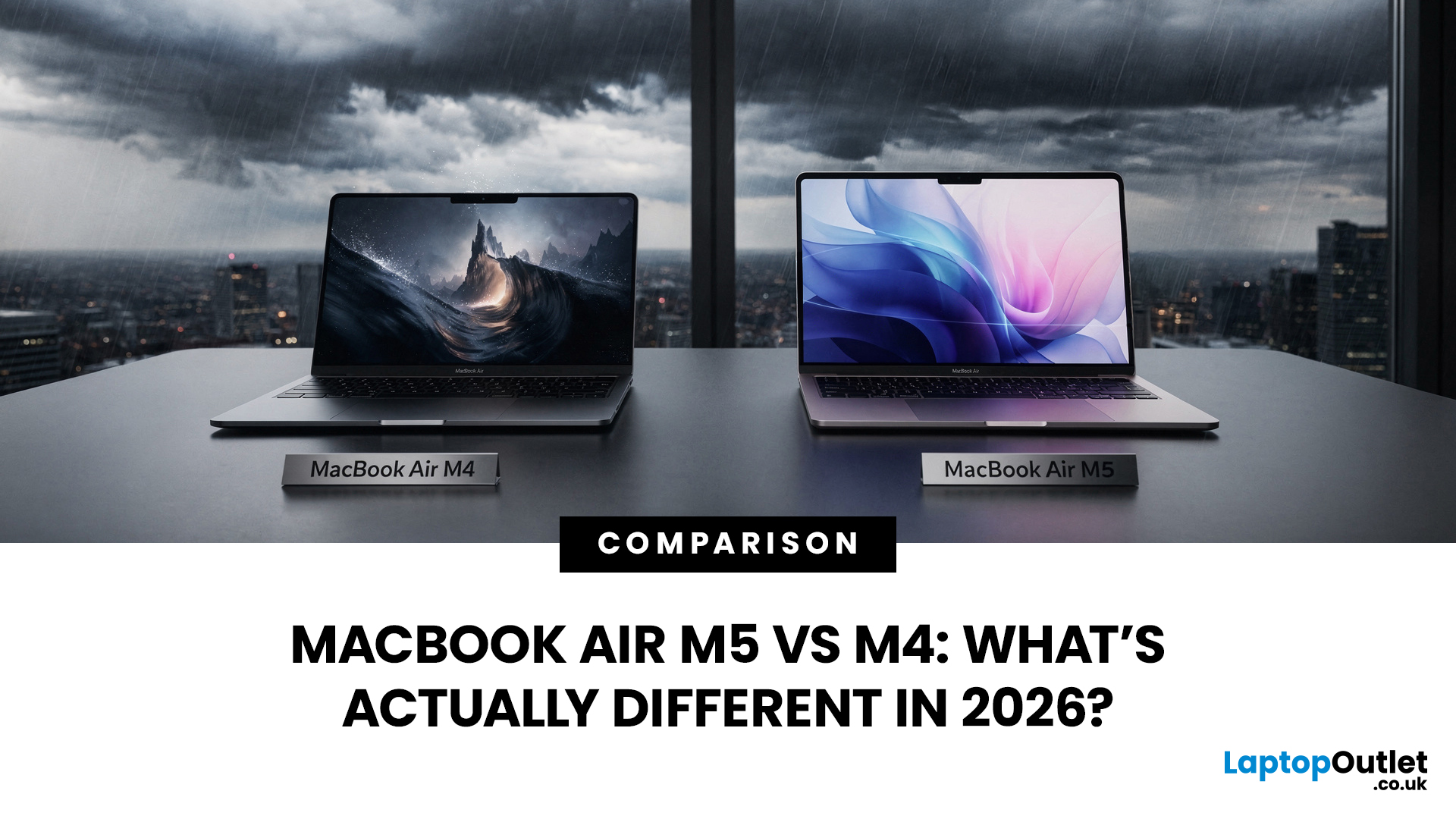
If you’ve been thinking about buying a MacBook Air this year, you’ve probably run into the same question everyone in the UK tech community is asking:
Should you buy the new MacBook Air M5 or save money with the M4?
At first glance, the two laptops look almost identical. Same ultra-thin aluminium design. Same beautiful display. Same lightweight build that makes the MacBook Air perfect for working in cafés, trains, or university libraries.
But once you dig a little deeper, the MacBook Air M5 vs M4 comparison starts to reveal some interesting differences.
Apple hasn’t completely reinvented the MacBook Air in 2026, but the company has quietly improved several areas including performance, storage, wireless connectivity, and AI features.
So, if you're planning to buy an Apple MacBook from UK, Laptop Outlet or Amazon, this guide will help you decide which model actually makes more sense.
Let’s break it down.
MacBook Air M5 vs M4: Quick Comparison
Before diving into details, here’s a quick overview

Last Updated: March 09, 2026
Apple laptops have never really been known for being “cheap.” For years, the entry point into the MacBook world started at around £999 or more. But that has finally changed.
In March 2026, Apple unveiled something unexpected: MacBook Neo, the company’s most affordable MacBook ever. Designed for students, casual users, and first-time Mac buyers, the Neo brings the macOS experience to a much lower price point than previous Apple laptops.
So how much does it cost in the UK? What specs do you get? And is it worth buying?
Let’s break it all down.
MacBook Neo Price UK
The MacBook Neo price in the UK starts at around £599 for the base configuration.
That makes it the cheapest MacBook Apple has ever released, significantly undercutting the MacBook Air, which currently starts at around £1,099 in the UK.
Here’s a quick breakdown of expected pricing tiers:
| Model | Storage | Expected UK Price |
| MacBook Neo (Base) | 256GB SSD | ~£599 |
| MacBook Neo | 512GB SSD | ~£699 |
| Education pricing | 256GB SSD | ~£499 (students/educators) |

Last Updated: March 09, 2026
If you are comparing MacBook Neo vs Windows laptops, you are really asking one question: should you buy Apple’s cheapest Mac, or get a budget Windows laptop with more ports and more choice?
MacBook Neo is new, starts at £599, and is designed to be a simple, premium-feeling everyday laptop with macOS, long battery life, and strong call quality.
Budget Windows laptops can offer more screen sizes, more ports, and sometimes better upgrade options. But quality is inconsistent in this price range, and that’s where Neo tries to win.
Below is the practical, buyer-focused breakdown.
10-Second Answer Box
Choose MacBook Neo if
- You want the cleanest everyday experience for browsing, school, docs, and calls
- You value build quality and trackpad feel
- You want a laptop that stays fast and quiet for years, without tweaking settings
Choose a budget Windows laptop if
- You want more ports like HDMI and USB-A built in
- You need a bigger screen for the money
- You want the flexibility of Windows software and lots
Last Updated: March 09, 2026
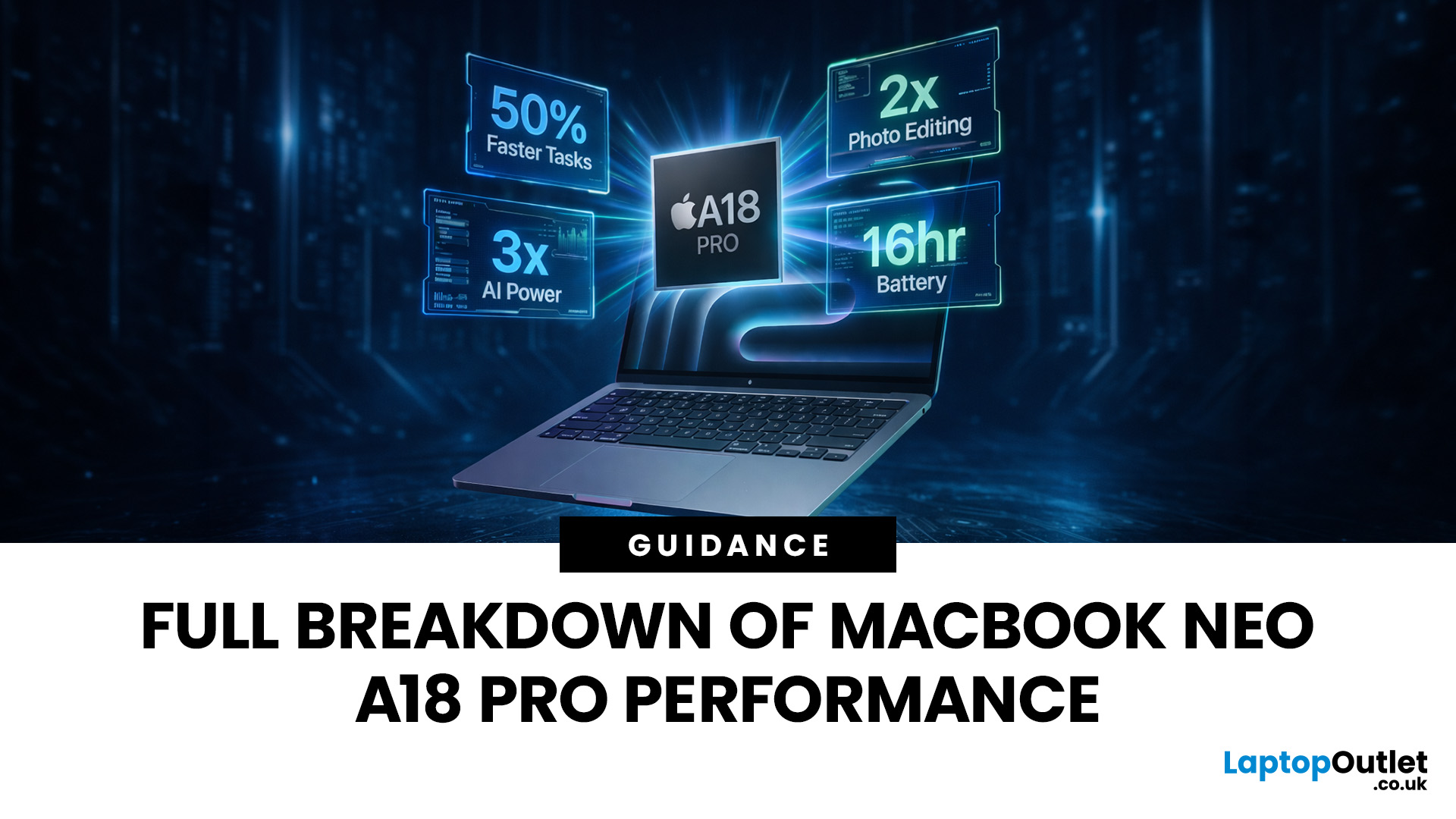
Apple made a bold move on 4 March 2026. It introduced the MacBook Neo — a laptop that starts at just £599 and runs on a chip that, until now, only lived inside iPhones.
That chip is the A18 Pro. And its arrival in a Mac laptop raises a very obvious question: what does it actually mean for performance?
The answer is more interesting than you might expect. This article breaks it all down — the architecture, the real-world gains, the trade-offs, and who this machine is really built for.
What Is the A18 Pro Chip?
The A18 Pro is not a new chip. It first appeared in the iPhone 16 Pro in late 2024. But placing it inside a laptop is entirely new territory for Apple.
This is the first time Apple has ever used a mobile-class chip to power a Mac. That alone makes the A18 Pro MacBook Neo a significant moment in computing history.
The Core Architecture
Here is what sits inside the A18 Pro:
- 6-core CPU — 2 performance cores and 4 efficiency cores
- 5-core GPU — hardware-accelerated ray tracing included

Last Updated: April 28, 2026
Apple’s Studio Display and Pro Display XDR are among the most advanced monitors available for professionals. With ultra-sharp 5K and 6K resolutions, these displays are designed for creatives who need exceptional colour accuracy, brightness, and detail.
However, to get the best experience, you need a powerful MacBook with strong graphics performance and Thunderbolt connectivity. Apple’s latest MacBooks powered by M3, M4, M5, M5 Pro, and M5 Max chips bring major improvements in performance, AI capabilities, and external display support.
Can MacBooks Support the Studio Display or Pro Display XDR?
Yes. Most modern Apple Silicon MacBooks can connect to these displays.
Studio Display
- Resolution: 5K (5120 × 2880)
- Thunderbolt / USB-C connection
- Works with most Apple Silicon Macs
Pro Display XDR
- Resolution: 6K (6016 × 3384)
- Requires high bandwidth Thunderbolt connection
- Best paired with MacBook Pro models
Modern MacBooks with Thunderbolt ports and Apple Silicon chips can drive high-resolution

Published: March 12, 2026
Apple’s new MacBook Air M5 is officially here, and after spending time testing it myself, I can confidently say one thing: it’s fast. Like, open-all-my-tabs, edit-4K, switch-between-apps-without-thinking fast. But benchmarks and real use aren’t always the same thing. So, I ran several tests, used it for everyday work, and compared it with previous Air models to answer the real question: Are the MacBook Air M5 benchmarks strong enough to justify the upgrade?
For UK buyers in particular, this is shaping up to be one of the easiest MacBooks to recommend in 2026. Apple kept the thin, fanless design that people already love, but added the new M5 chip, improved base storage, faster wireless connectivity, and stronger performance across both benchmarks and daily workflows. Let’s break down the numbers and the real-world experience.
MacBook Air M5 Overview
Like iPhone 17e, iPad Air M4, and MacBook M5 Pro and M5 Max, Apple announced the MacBook Air M5 on 3 March 2026, with availability beginning

Published: March 13, 2026
If you have just bought Studio Display XDR and want to use it with a MacBook Pro, the setup is usually quick. In most cases, the screen should come on automatically within a few seconds. macOS should recognise the display without extra drivers or manual installation. According to Apple’s official Mac support documentation, compatible MacBook Pro models automatically detect Studio Display when connected through Thunderbolt. Studio Display XDR can also deliver up to 140W of host charging through that same cable, so your MacBook Pro can charge while connected.
This Studio Display XDR setup guide explains the full process for connecting the Apple Studio Display XDR to a MacBook Pro, from the initial cable connection to the display settings you may need to adjust afterwards. Studio Display XDR is not just another external monitor. It is a 27-inch 5K Retina XDR display with mini-LED backlighting, up to 2,000 nits peak HDR brightness, a 120Hz refresh rate with Adaptive Sync, built-in camera and

Published: March 13, 2026
Apple is entering a new era of product strategy. For years, the company has dominated the premium tech market with devices like the iPhone Pro and MacBook Pro. But now Apple appears to be expanding its ecosystem in two directions at once: more affordable devices and ultra-premium hardware.
The recent MacBook Neo release indicates that Apple has a budget-friendly laptop to attract students and first-time Mac users. At the same time, industry reports indicate Apple is building a lineup of Ultra devices that will sit above its current Pro models.
This shift highlights what many analysts now call the Apple Ultra strategy, a long-term plan to stretch Apple’s ecosystem from entry-level devices all the way to cutting-edge luxury hardware. From the MacBook Neo at the affordable end to devices like iPhone Ultra, MacBook Ultra, and AirPods Ultra, Apple’s premium device roadmap is becoming more ambitious than ever.
MacBook Neo: Apple’s New Entry-Level Laptop
The MacBook Neo is expected to become

Last Updated: July 06, 2026
Apple’s MacBook lineup has earned its reputation through years of delivering fast performance, long battery life, and a genuinely premium build quality that is hard to beat. Whether you are buying your first Mac, switching from Windows, or troubleshooting an issue, this MacBook & Apple guide covers everything you need.
What Exactly Is a MacBook?
A MacBook is Apple’s range of portable computers, running macOS. Unlike most Windows laptops, MacBooks use Apple’s own silicon. In 2026, that means the MacBook Neo runs on A18 Pro, while the latest MacBook Air and MacBook Pro run on M5-family chips: M5, M5 Pro, and M5 Max.
All MacBooks benefit from Apple’s tight hardware and software integration, meaning everything from apps to system updates is designed specifically for the machine you are holding. That is a big reason why so many people in creative, professional, education, and everyday roles swear by them.
What Are the Latest MacBook Models in 2026?

Apple currently sells MacBooks in three lines:

