



How to Reset a MacBook to Factory Settings Safely: A Complete Guide
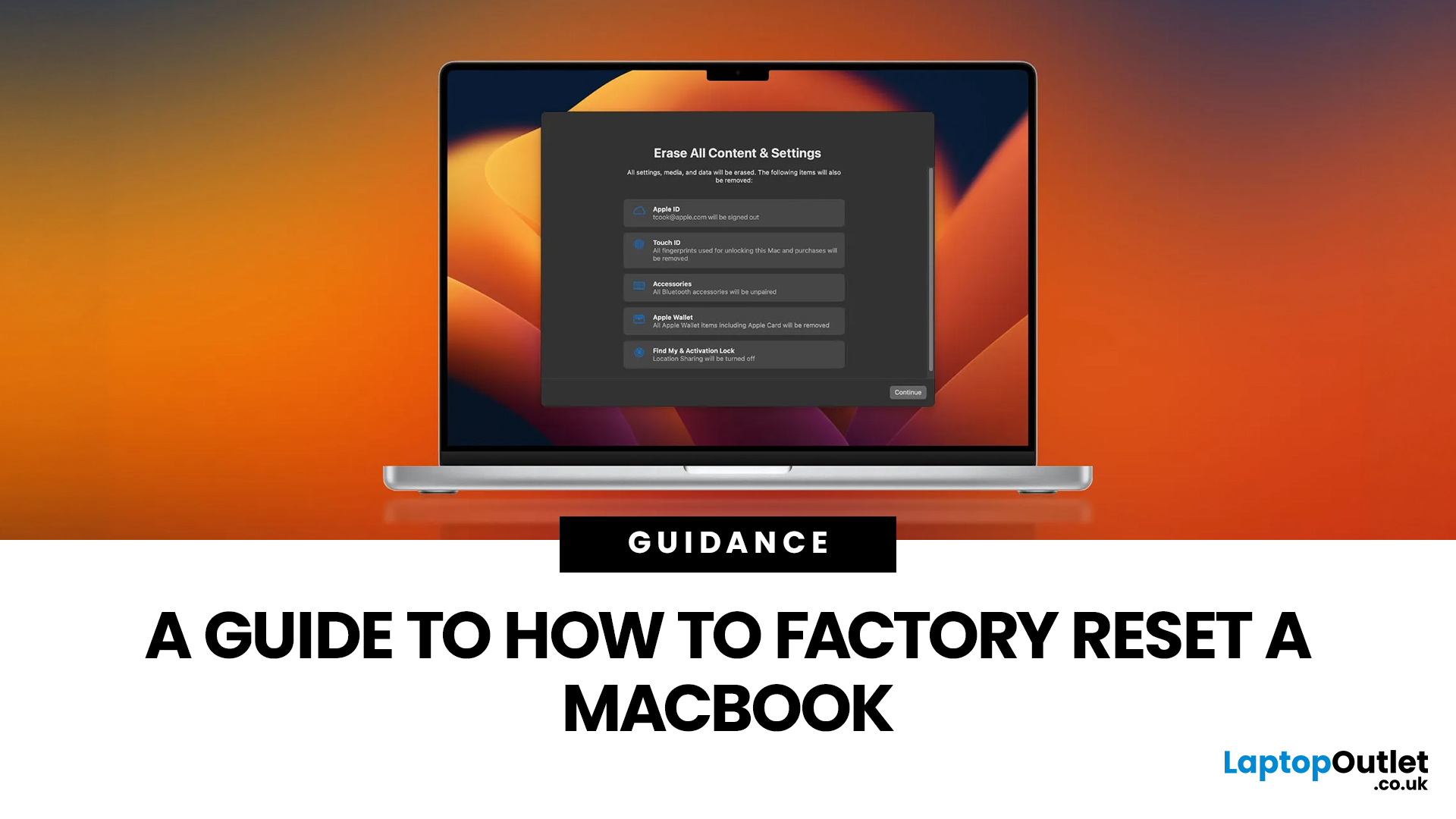
Whether you are selling your MacBook, troubleshooting a persistent software issue, or simply wanting a clean slate, knowing how to factory reset a MacBook safely is an essential skill for any Apple user.
The good news? Apple has made the process simpler than ever. But the steps you need to follow depend entirely on your MacBook model and the version of macOS you are running.
This guide will help you reset your Mac safely, avoid losing important files, and leave the laptop ready either for you or for its next owner.
What Does a Mac Factory Reset Actually Do?
A factory reset wipes your MacBook completely, removing all your files, apps, accounts, and personal settings. The end result is a machine that behaves exactly as it did the day you took it out of the box.
Depending on the method you use, the reset will either keep the current version of macOS installed or reinstall it fresh from scratch. Either way, your personal data is gone, so preparation is everything.
What To Do Before You Reset Mac to Factory Settings?
This is the most important section of this entire guide. Skipping these steps is the number one mistake people make, and it can cause real problems.
1. Back Up Your Data First
Once you hit reset, your files are gone. Full stop. Do not skip this.
Option A: Time Machine Backup (Recommended)
- Plug in an external drive.
- Go to Apple Menu > System Settings > General > Time Machine.
- Select your backup disk and click Back Up Now.
- Wait for it to complete fully before continuing.
Option B: iCloud Backup
- Make sure everything important is synced to iCloud Drive, iCloud Photos, and Notes before you proceed.
Option C: Manual Backup
- Copy important files to an external hard drive, USB stick, or cloud service like Google Drive or OneDrive.
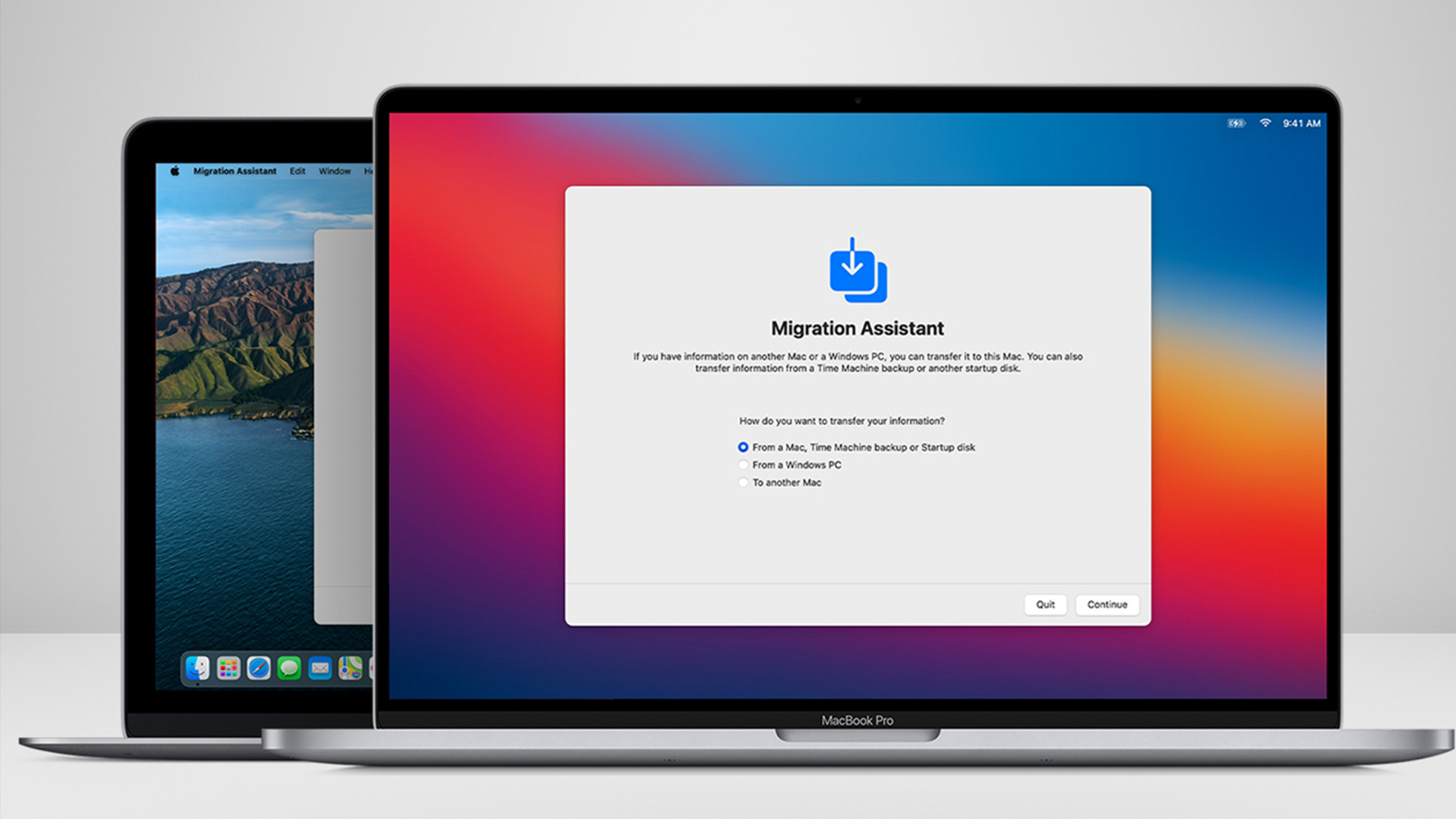
| Quick tip: If you are upgrading to a new MacBook, Migration Assistant can restore your backed-up data from Time Machine seamlessly on your new machine. |
2. Sign Out of Your Apple ID and iCloud
This is critical, especially if you are selling your Mac. Failing to sign out leaves Activation Lock enabled, which means the next owner cannot set up the device.
- macOS Tahoe / Sequoia / Ventura: Go to Apple Menu > System Settings > [Your Name] > Sign Out.
- When prompted, choose whether to keep a copy of iCloud data on the Mac. Since you are erasing it anyway, select Remove from Mac.
3. Sign Out of iMessage
Open the Messages app, then go to Messages > Settings > iMessage and click Sign Out. This unlinks the device from your phone number and Apple ID for messaging.
4. Deauthorise Your Mac in the Music App (for older macOS)
If your Mac is running macOS Catalina or earlier, open the Music app, then go to Account > Authorisations > Deauthorise This Computer. This frees up one of your five authorised devices.
Note: On macOS Catalina and later, Apple handles this automatically when you sign out of your Apple ID, so this step is only relevant on older systems.
5. Sign Out of Other Cloud Services
If you use Dropbox, Google Drive, OneDrive, or any other cloud syncing service, sign out of these before resetting. This prevents sync conflicts after the wipe and protects any files stored locally by those apps.
Pre-Reset Checklist at a Glance
|
Task |
Why It Matters |
|
Time Machine or manual backup |
Prevents permanent data loss |
|
Sign out of Apple ID / iCloud |
Removes Activation Lock |
|
Sign out of iMessage |
Unlinks phone number and Apple ID |
|
Deauthorise Music app (older macOS) |
Frees up an authorisation slot |
|
Sign out of cloud services |
Prevents sync issues after reset |
Which Mac Reset Method Do You Need?
The correct method depends on your MacBook model and macOS version. Use this table to find your path quickly.
|
MacBook Model |
Chip |
macOS Requirement |
Best Reset Method |
|
MacBook Neo (2026) |
A18 Pro |
macOS Tahoe |
Erase All Content and Settings |
|
MacBook Air M1, M2, M3, M4, M5 |
Apple Silicon |
macOS Monterey or later |
Erase All Content and Settings |
|
MacBook Pro M1, M2, M3, M4, M5 |
Apple Silicon |
macOS Monterey or later |
Erase All Content and Settings |
|
MacBook Pro Intel (2018-2020) |
Intel + T2 Chip |
macOS Monterey or later |
Erase All Content and Settings |
|
MacBook Air / Pro Intel (pre-2018) |
Intel (no T2) |
Any |
Recovery Mode + Disk Utility |
|
Any Mac (macOS Big Sur or earlier) |
Intel |
Older macOS |
Recovery Mode + Disk Utility |
Method 1: Factory Reset Mac via Erase All Content and Settings (macOS Monterey and Later)
This is the quickest and most reliable factory reset method for any modern MacBook. It is available on:
- All Apple Silicon Macs (M1 through M5, including the MacBook Neo's A18 Pro)
- Intel Macs with the Apple T2 Security Chip (MacBook Pro 2018-2020, MacBook Air 2018-2020)
- Running macOS Monterey (12) or later, including macOS Ventura, Sonoma, Sequoia, and the latest macOS Tahoe (26)
This method uses Apple's Erase Assistant, which wipes your personal data, removes your Apple ID, and disables Activation Lock all in one smooth process. It also keeps the current version of macOS installed, so the next user gets a clean setup screen without needing to reinstall the OS.
Step-by-Step: Erase All Content and Settings
Step 1: Make sure your Mac is plugged into power (especially important on a laptop).
Step 2: Open the Apple Menu (the Apple logo, top-left corner of your screen).
Step 3: Click System Settings.
Step 4: In the sidebar, scroll down and click General.
Step 5: Click Transfer or Reset.
Step 6: Click Erase All Content and Settings.
Step 7: Enter your administrator password when prompted, then click Unlock.
Step 8: The Erase Assistant will open. It will show you everything that is about to be removed. Review the list, then click Continue.
Step 9: You may be prompted to create a final Time Machine backup. If you have already done this, click Continue.
Step 10: Enter your Apple ID password to turn off Find My Mac and remove Activation Lock.
Step 11: Click Erase All Content and Settings on the final confirmation screen.
Your Mac will restart, the wipe will complete, and the device will boot to the Setup Assistant screen, ready for a new user or a fresh setup.
How long does it take? On Apple Silicon Macs with an SSD, this process typically takes 5 to 20 minutes. Intel T2 Macs may take slightly longer depending on the amount of data being erased.
Method 2: Mac Computer Factory Reset via Recovery Mode
People often search for MacBook Recovery Mode, but the current name is macOS Recovery. Use this method if:
- Your Mac runs an Intel processor without a T2 Security Chip (MacBook Air or Pro from 2017 and earlier)
- The Erase All Content and Settings option is not available
- Your Mac will not boot normally into macOS
- You want to fully reinstall macOS from scratch (rather than just wiping the drive)
This method takes longer and requires an internet connection to download macOS during reinstallation.
How to Enter Mac Recovery Mode
On Apple Silicon Macs (M1 to M5) and MacBook Neo (A18 Pro):
- Shut down your Mac fully.
- Press and hold the power button.
- Keep holding it until you see "Loading startup options" or a gear icon labelled Options.
- Release the power button, then click Options, followed by Continue.
- Select a user account and enter the password if prompted.
On Intel-Based Macs:
- Restart (or turn on) your Mac.
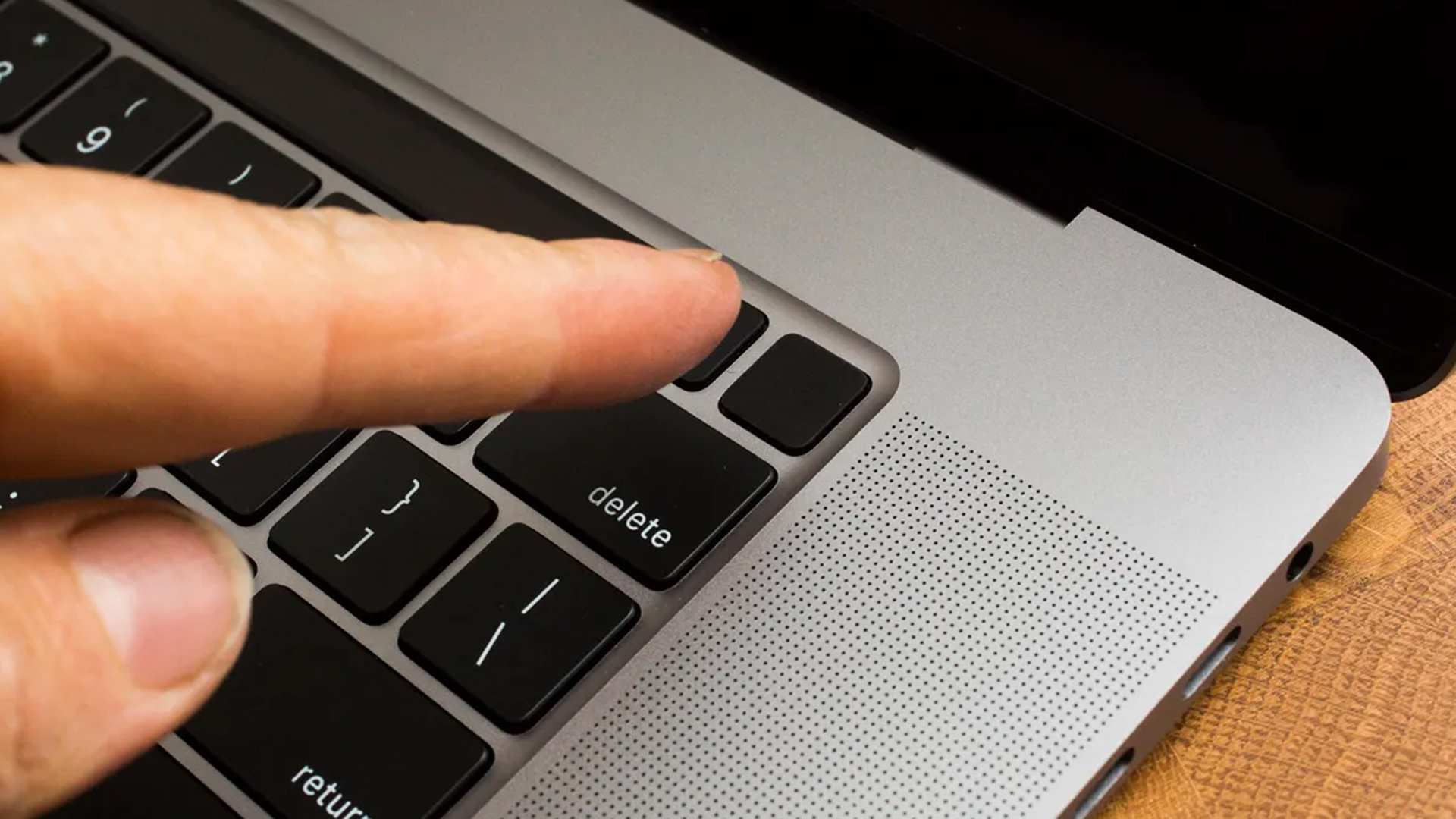
- Immediately press and hold Command (⌘) + R.
- Keep holding until you see the Apple logo or a spinning globe.
- Release the keys when the macOS Recovery screen appears.
| Tip: If the standard Command+R does not work on an Intel Mac, try Option+Command+R to download the latest compatible version of macOS from Apple's servers via Internet Recovery. You will need a Wi-Fi connection for this. |
If you are looking to move on from an older Mac, now might be a great time to explore our best MacBook collection.
Step-by-Step: Erase and Reinstall via Recovery Mode
Step 1: Open Disk Utility
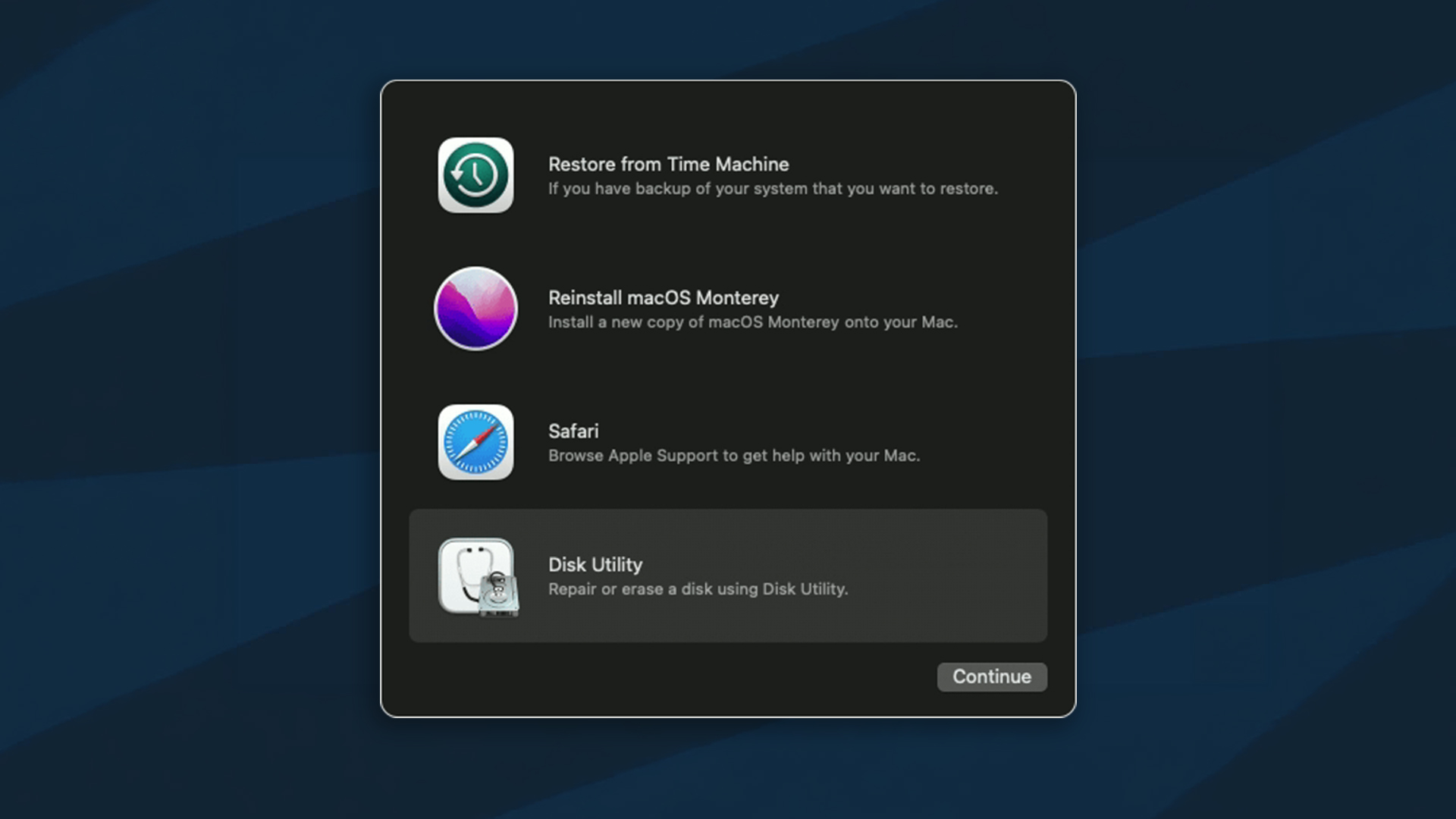
In the Recovery app window, click Disk Utility and then click Continue.
Step 2: Select Your Startup Disk
In the Disk Utility sidebar, click on Macintosh HD (or whatever your main drive is named). Make sure you select the Volume Group (shown at the top of the list), not just a sub-volume.
Step 3: Erase the Drive
Click Erase in the toolbar. Configure as follows:
- Name: Macintosh HD
- Format: APFS (recommended for all modern Macs with SSDs)
Then click Erase Volume Group and wait for the process to finish.
Step 4: Quit Disk Utility
Once the erase is complete, go to Disk Utility > Quit Disk Utility to return to the Recovery window.
Step 5: Reinstall macOS
In the Recovery window, select Reinstall macOS [version] and click Continue. Follow the on-screen prompts.
- Make sure your Mac is connected to Wi-Fi before this step.
- The download and installation can take anywhere from 30 to 90 minutes depending on your internet speed.
Step 6: Set Up Your Mac
Once the installation completes, your Mac will restart and boot into the Setup Assistant, just like a brand-new machine.
What If You Have Forgotten Your Mac Password?
If you cannot log in to your Mac at all, the Erase All Content and Settings route will not be accessible. Here is what to do:
For Apple Silicon Macs (M1 to M5) and MacBook Neo:
- Boot into Recovery Mode by holding the power button until startup options appear.
- Click Options > Continue.
- Select Disk Utility, erase the drive as described in Method 2, then reinstall macOS.
For Intel Macs:
- Boot into Recovery Mode with Command+R.
- From the Utilities menu, select Terminal and use the resetpassword command to reset your login credentials, or proceed directly to erasing via Disk Utility.
Important: If Activation Lock is enabled (because Find My Mac was turned on and the Apple ID was not signed out), the new user will need the original Apple ID credentials to set up the Mac after a reset. This cannot be bypassed.
What Happens to Data After You Reset Factory Settings on Mac?
A standard factory reset removes your files from the visible filesystem, but on older spinning hard drives, data can sometimes be recovered with specialist tools. Fortunately, virtually all modern MacBooks use APFS-encrypted SSDs with Apple Silicon or T2 chips, which means data is cryptographically secure after a wipe.
When you use Erase All Content and Settings, Apple destroys the encryption keys used to protect your SSD. This makes your data unrecoverable, even with professional data recovery tools. This is one of the main reasons Apple recommends this method over older approaches.
If you are selling your machine and want complete peace of mind, the APFS erase via Erase Assistant is genuinely secure and there is no need for additional data-wiping software on modern Macs.
After the Mac Reset: What Happens Next?
Once your MacBook restarts after a factory reset, it will boot straight into the Setup Assistant (sometimes called the Welcome screen). At this point, you have two options:
Option A: Set up as a new Mac
- Follow the on-screen steps to create a new Apple ID (or sign in to your existing one), connect to Wi-Fi, and configure your preferences from scratch.
Option B: Restore from a backup
- If you backed up with Time Machine, you can restore your files, apps, and settings via Migration Assistant during the setup process.
- If you backed up to iCloud, sign in to your Apple ID and your data will sync back automatically.
Troubleshooting: Common Mac Factory Reset Problems
Something gone wrong mid-reset? These are the most common issues and how to sort them out.
|
Problem |
What to Do |
|
"Erase All Content and Settings" is greyed out or missing |
Your Mac may not have a T2 chip or Apple Silicon, or it is running an older macOS. Use Method 2 instead. |
|
Mac is stuck on the Apple logo after reset |
Hold the power button for 10 seconds to force off, then boot into “Recovery Mode” and reinstall macOS. |
|
Reset fails partway through |
Check your internet connection, ensure the Mac is plugged into power, and try again. |
|
"Activation Lock" screen appears after reset |
The Apple ID was not signed out before the reset. The original Apple ID credentials are needed to proceed. |
|
Boot Camp partition is blocking the reset |
Use Boot Camp Assistant to remove Windows first, then proceed with “Erase All Content and Settings”. |
|
Mac will not enter Recovery Mode |
Try Internet Recovery (Option+Command+R on Intel), or use Apple Configurator 2 on a second Mac for Apple Silicon DFU |
Quick Comparison: Erase All Content and Settings vs Recovery Mode
Not sure which Mac computer factory reset method suits your situation? This table breaks down the key differences at a glance.
|
Feature |
Erase All Content and Settings |
Recovery Mode + Disk Utility |
|
Ease of use |
Very easy |
Moderate |
|
Time required |
5-20 minutes |
30-90+ minutes |
|
Reinstalls macOS? |
No (keeps current OS) |
Yes |
|
Removes Activation Lock? |
Yes |
No (must sign out first) |
|
Works without internet? |
Yes |
No (for reinstall) |
|
Best for |
Selling, giving away, fresh start |
Older Intel Macs, no T2 chip, boot issues |
|
Available on |
Apple Silicon + T2 Macs (macOS Monterey+) |
All Mac models |
Thinking About Upgrading After Your Reset?
If resetting your MacBook has made you realise it is time for something new, you are in the right place. Whether you need something powerful for design work, a lightweight laptop for studying, or a reliable machine for everyday office tasks, there is a MacBook for every need and budget.
Explore our full laptop collection to find new and refurbished laptops, including MacBooks, at affordable prices. From affordable laptops for students and reliable laptops for office work to the best creative laptops, we have got you covered.

The Right Way to Wipe Your Mac
Knowing how to factory reset a MacBook safely is essential, whether you are selling your device, troubleshooting problems, or handing it down to someone else. The right method depends on your model and macOS version:
- Apple Silicon Macs (M1-M5) and MacBook Neo running macOS Monterey or later: Use “Erase All Content and Settings” via System Settings. It is quick, secure, and handles everything in one go.
- Intel Macs with T2 Chip (2018-2020) on macOS Monterey or later: Same as above. Easy and effective.
- Older Intel Macs without T2: Use “Recovery Mode” with Disk Utility and reinstall macOS manually.
The most important thing is to back up your data and sign out of your Apple ID before you begin. Get those two things right, and the rest is straightforward.
If you are on an old Intel model, now might be a great time to explore how to choose the right MacBook for your next upgrade.

Everything Else You Need to Know...
How do you wipe a Mac computer?
Back up first, then use “Erase All Content and Settings” on newer Macs. Older Intel Macs need macOS Recovery, Disk Utility, and reinstalling macOS.
Does a factory reset delete everything on a MacBook?
Yes, a factory reset permanently removes all your files, apps, accounts, and settings. Always back up important data before proceeding.
Can I factory reset a MacBook without an Apple ID?
Yes, but Activation Lock must already be disabled. If Find My Mac is still on, you will need the original Apple ID credentials to complete the setup after the reset.
Will a factory reset remove malware from my MacBook?
Yes, a full factory reset erases the startup disk, removing virtually all malware. “Erase All Content and Settings” is considered secure and thorough.
How do I factory reset a MacBook if it won't turn on?
Boot into Recovery Mode. On Apple Silicon, hold the power button. On Intel, hold Command+R. Then use Disk Utility to erase the drive and reinstall macOS.
Can I undo a factory reset on a MacBook?
No, a factory reset cannot be undone. However, if you backed up with Time Machine or iCloud beforehand, you can restore your data to a new setup.
| Read More: |
| Everything You Need to Know About iCloud Storage Management |
| How to Check CPU Usage on a Mac Step-by-Step Guide |
| MacBook Not Turning On or Charging? Here’s How to Fix It |
Related Articles

Last Updated: March 09, 2026
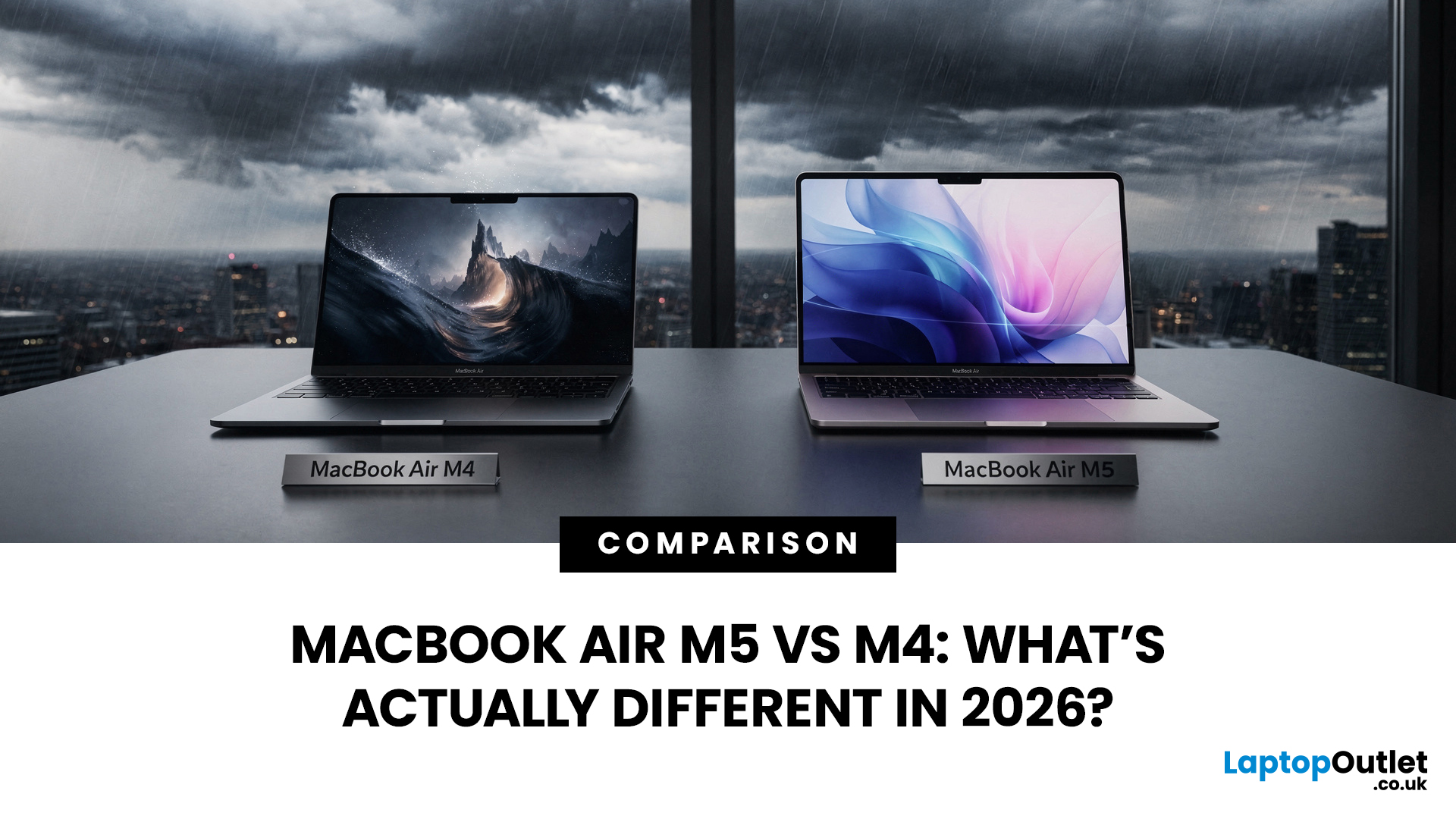
If you’ve been thinking about buying a MacBook Air this year, you’ve probably run into the same question everyone in the UK tech community is asking:
Should you buy the new MacBook Air M5 or save money with the M4?
At first glance, the two laptops look almost identical. Same ultra-thin aluminium design. Same beautiful display. Same lightweight build that makes the MacBook Air perfect for working in cafés, trains, or university libraries.
But once you dig a little deeper, the MacBook Air M5 vs M4 comparison starts to reveal some interesting differences.
Apple hasn’t completely reinvented the MacBook Air in 2026, but the company has quietly improved several areas including performance, storage, wireless connectivity, and AI features.
So, if you're planning to buy an Apple MacBook from UK, Laptop Outlet or Amazon, this guide will help you decide which model actually makes more sense.
Let’s break it down.
MacBook Air M5 vs M4: Quick Comparison
Before diving into details, here’s a quick overview

Last Updated: March 09, 2026
Apple laptops have never really been known for being “cheap.” For years, the entry point into the MacBook world started at around £999 or more. But that has finally changed.
In March 2026, Apple unveiled something unexpected: MacBook Neo, the company’s most affordable MacBook ever. Designed for students, casual users, and first-time Mac buyers, the Neo brings the macOS experience to a much lower price point than previous Apple laptops.
So how much does it cost in the UK? What specs do you get? And is it worth buying?
Let’s break it all down.
MacBook Neo Price UK
The MacBook Neo price in the UK starts at around £599 for the base configuration.
That makes it the cheapest MacBook Apple has ever released, significantly undercutting the MacBook Air, which currently starts at around £1,099 in the UK.
Here’s a quick breakdown of expected pricing tiers:
| Model | Storage | Expected UK Price |
| MacBook Neo (Base) | 256GB SSD | ~£599 |
| MacBook Neo | 512GB SSD | ~£699 |
| Education pricing | 256GB SSD | ~£499 (students/educators) |
Last Updated: March 09, 2026
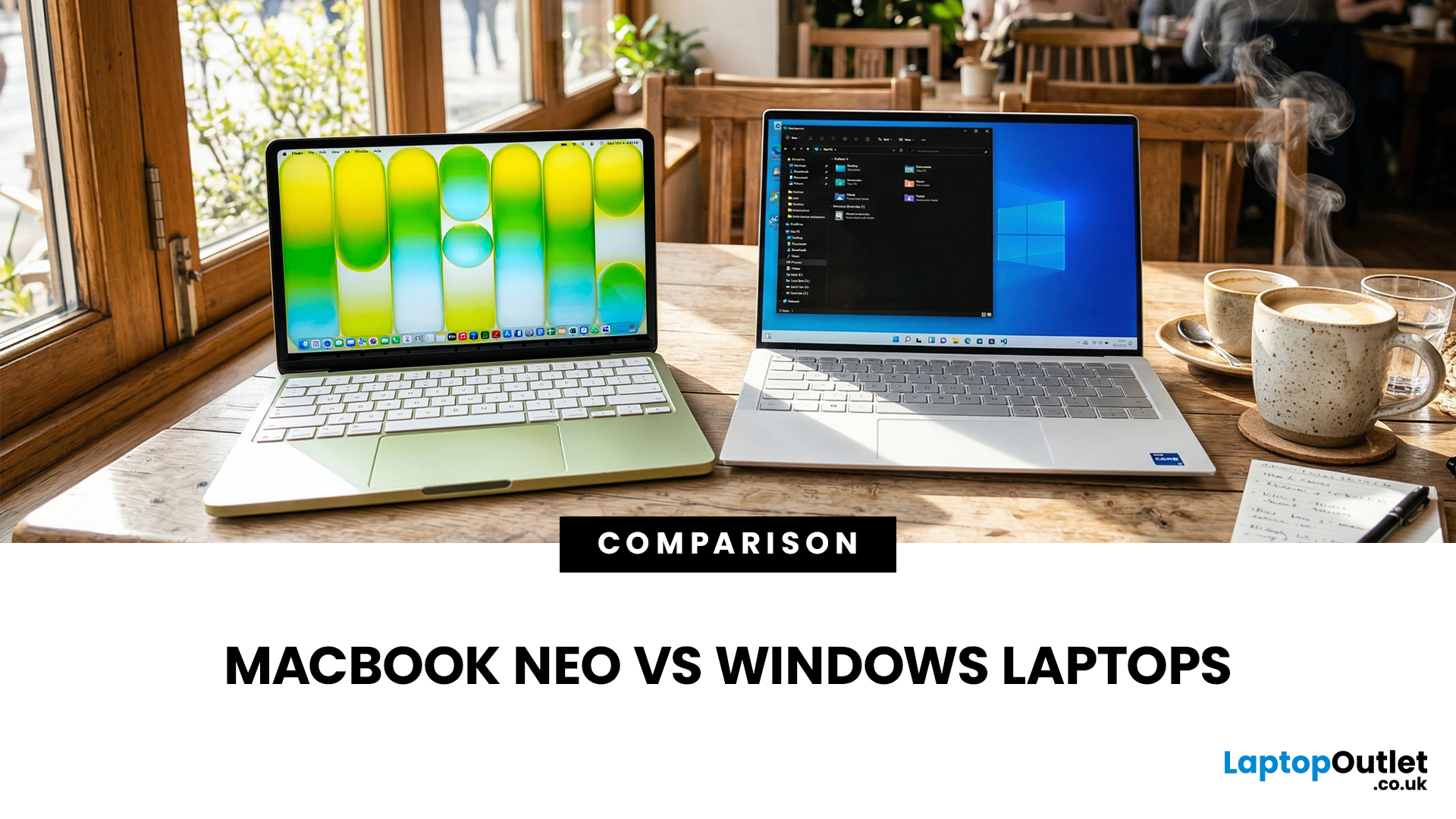
If you are comparing MacBook Neo vs Windows laptops, you are really asking one question: should you buy Apple’s cheapest Mac, or get a budget Windows laptop with more ports and more choice?
MacBook Neo is new, starts at £599, and is designed to be a simple, premium-feeling everyday laptop with macOS, long battery life, and strong call quality.
Budget Windows laptops can offer more screen sizes, more ports, and sometimes better upgrade options. But quality is inconsistent in this price range, and that’s where Neo tries to win.
Below is the practical, buyer-focused breakdown.
10-Second Answer Box
Choose MacBook Neo if
- You want the cleanest everyday experience for browsing, school, docs, and calls
- You value build quality and trackpad feel
- You want a laptop that stays fast and quiet for years, without tweaking settings
Choose a budget Windows laptop if
- You want more ports like HDMI and USB-A built in
- You need a bigger screen for the money
- You want the flexibility of Windows software and lots
Last Updated: March 09, 2026
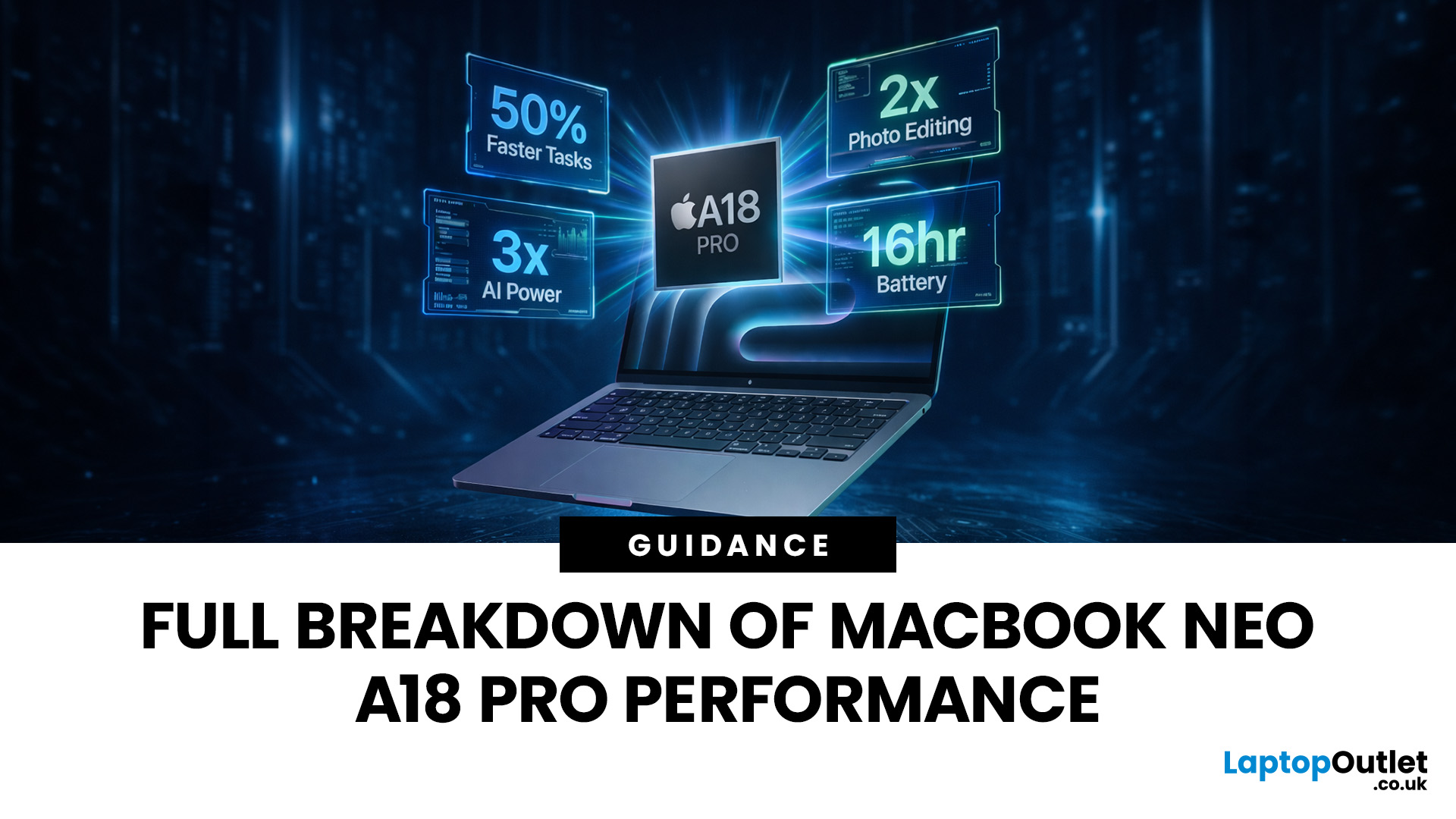
Apple made a bold move on 4 March 2026. It introduced the MacBook Neo — a laptop that starts at just £599 and runs on a chip that, until now, only lived inside iPhones.
That chip is the A18 Pro. And its arrival in a Mac laptop raises a very obvious question: what does it actually mean for performance?
The answer is more interesting than you might expect. This article breaks it all down — the architecture, the real-world gains, the trade-offs, and who this machine is really built for.
What Is the A18 Pro Chip?
The A18 Pro is not a new chip. It first appeared in the iPhone 16 Pro in late 2024. But placing it inside a laptop is entirely new territory for Apple.
This is the first time Apple has ever used a mobile-class chip to power a Mac. That alone makes the A18 Pro MacBook Neo a significant moment in computing history.
The Core Architecture
Here is what sits inside the A18 Pro:
- 6-core CPU — 2 performance cores and 4 efficiency cores
- 5-core GPU — hardware-accelerated ray tracing included

Last Updated: April 28, 2026
Apple’s Studio Display and Pro Display XDR are among the most advanced monitors available for professionals. With ultra-sharp 5K and 6K resolutions, these displays are designed for creatives who need exceptional colour accuracy, brightness, and detail.
However, to get the best experience, you need a powerful MacBook with strong graphics performance and Thunderbolt connectivity. Apple’s latest MacBooks powered by M3, M4, M5, M5 Pro, and M5 Max chips bring major improvements in performance, AI capabilities, and external display support.
Can MacBooks Support the Studio Display or Pro Display XDR?
Yes. Most modern Apple Silicon MacBooks can connect to these displays.
Studio Display
- Resolution: 5K (5120 × 2880)
- Thunderbolt / USB-C connection
- Works with most Apple Silicon Macs
Pro Display XDR
- Resolution: 6K (6016 × 3384)
- Requires high bandwidth Thunderbolt connection
- Best paired with MacBook Pro models
Modern MacBooks with Thunderbolt ports and Apple Silicon chips can drive high-resolution

Published: March 12, 2026
Apple’s new MacBook Air M5 is officially here, and after spending time testing it myself, I can confidently say one thing: it’s fast. Like, open-all-my-tabs, edit-4K, switch-between-apps-without-thinking fast. But benchmarks and real use aren’t always the same thing. So, I ran several tests, used it for everyday work, and compared it with previous Air models to answer the real question: Are the MacBook Air M5 benchmarks strong enough to justify the upgrade?
For UK buyers in particular, this is shaping up to be one of the easiest MacBooks to recommend in 2026. Apple kept the thin, fanless design that people already love, but added the new M5 chip, improved base storage, faster wireless connectivity, and stronger performance across both benchmarks and daily workflows. Let’s break down the numbers and the real-world experience.
MacBook Air M5 Overview
Like iPhone 17e, iPad Air M4, and MacBook M5 Pro and M5 Max, Apple announced the MacBook Air M5 on 3 March 2026, with availability beginning

Published: March 13, 2026
If you have just bought Studio Display XDR and want to use it with a MacBook Pro, the setup is usually quick. In most cases, the screen should come on automatically within a few seconds. macOS should recognise the display without extra drivers or manual installation. According to Apple’s official Mac support documentation, compatible MacBook Pro models automatically detect Studio Display when connected through Thunderbolt. Studio Display XDR can also deliver up to 140W of host charging through that same cable, so your MacBook Pro can charge while connected.
This Studio Display XDR setup guide explains the full process for connecting the Apple Studio Display XDR to a MacBook Pro, from the initial cable connection to the display settings you may need to adjust afterwards. Studio Display XDR is not just another external monitor. It is a 27-inch 5K Retina XDR display with mini-LED backlighting, up to 2,000 nits peak HDR brightness, a 120Hz refresh rate with Adaptive Sync, built-in camera and
Published: March 13, 2026
Apple is entering a new era of product strategy. For years, the company has dominated the premium tech market with devices like the iPhone Pro and MacBook Pro. But now Apple appears to be expanding its ecosystem in two directions at once: more affordable devices and ultra-premium hardware.
The recent MacBook Neo release indicates that Apple has a budget-friendly laptop to attract students and first-time Mac users. At the same time, industry reports indicate Apple is building a lineup of Ultra devices that will sit above its current Pro models.
This shift highlights what many analysts now call the Apple Ultra strategy, a long-term plan to stretch Apple’s ecosystem from entry-level devices all the way to cutting-edge luxury hardware. From the MacBook Neo at the affordable end to devices like iPhone Ultra, MacBook Ultra, and AirPods Ultra, Apple’s premium device roadmap is becoming more ambitious than ever.
MacBook Neo: Apple’s New Entry-Level Laptop
The MacBook Neo is expected to become
Last Updated: July 06, 2026
Apple’s MacBook lineup has earned its reputation through years of delivering fast performance, long battery life, and a genuinely premium build quality that is hard to beat. Whether you are buying your first Mac, switching from Windows, or troubleshooting an issue, this MacBook & Apple guide covers everything you need.
What Exactly Is a MacBook?
A MacBook is Apple’s range of portable computers, running macOS. Unlike most Windows laptops, MacBooks use Apple’s own silicon. In 2026, that means the MacBook Neo runs on A18 Pro, while the latest MacBook Air and MacBook Pro run on M5-family chips: M5, M5 Pro, and M5 Max.
All MacBooks benefit from Apple’s tight hardware and software integration, meaning everything from apps to system updates is designed specifically for the machine you are holding. That is a big reason why so many people in creative, professional, education, and everyday roles swear by them.
What Are the Latest MacBook Models in 2026?

Apple currently sells MacBooks in three lines:
Last Updated: May 06, 2026
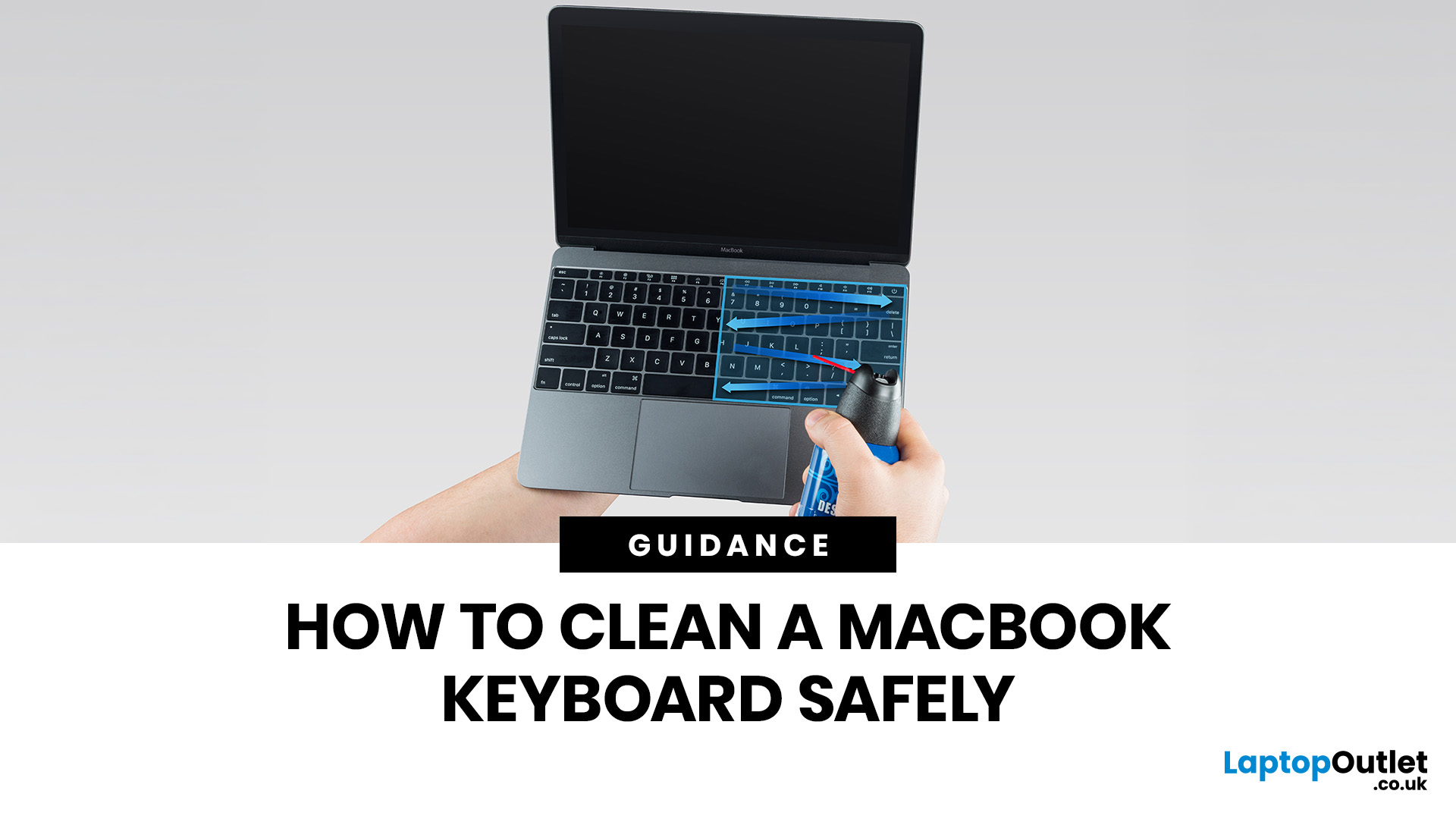
MacBook keyboard cleaning is simple when you do it the Apple-safe way: shut the laptop down, unplug it, use a soft lint-free cloth, keep moisture out of the openings, and never spray cleaner directly onto the keyboard. If you need to disinfect the surface, Apple says you can gently wipe off the hard, non-porous exterior, including the keyboard, with a 70 per cent isopropyl alcohol wipe, a 75 per cent ethyl alcohol wipe, or a disinfectant wipe.
That is the short version. The longer version matters because MacBook keyboards are not built for chaotic cleaning energy. Too much liquid, the wrong cleaner, or one “quick” spray straight onto the keys can turn a dusty keyboard into an expensive repair story. We will discuss today how to clean a Mac keyboard properly, how to remove dirt from MacBook keys, when compressed air makes sense, what not to use, and when a keyboard issue is no longer a cleaning job.
Quick Answer: How Can We Clean a MacBook Keyboard Safely?
The safest way to clean a MacBook

