




Blog Categories






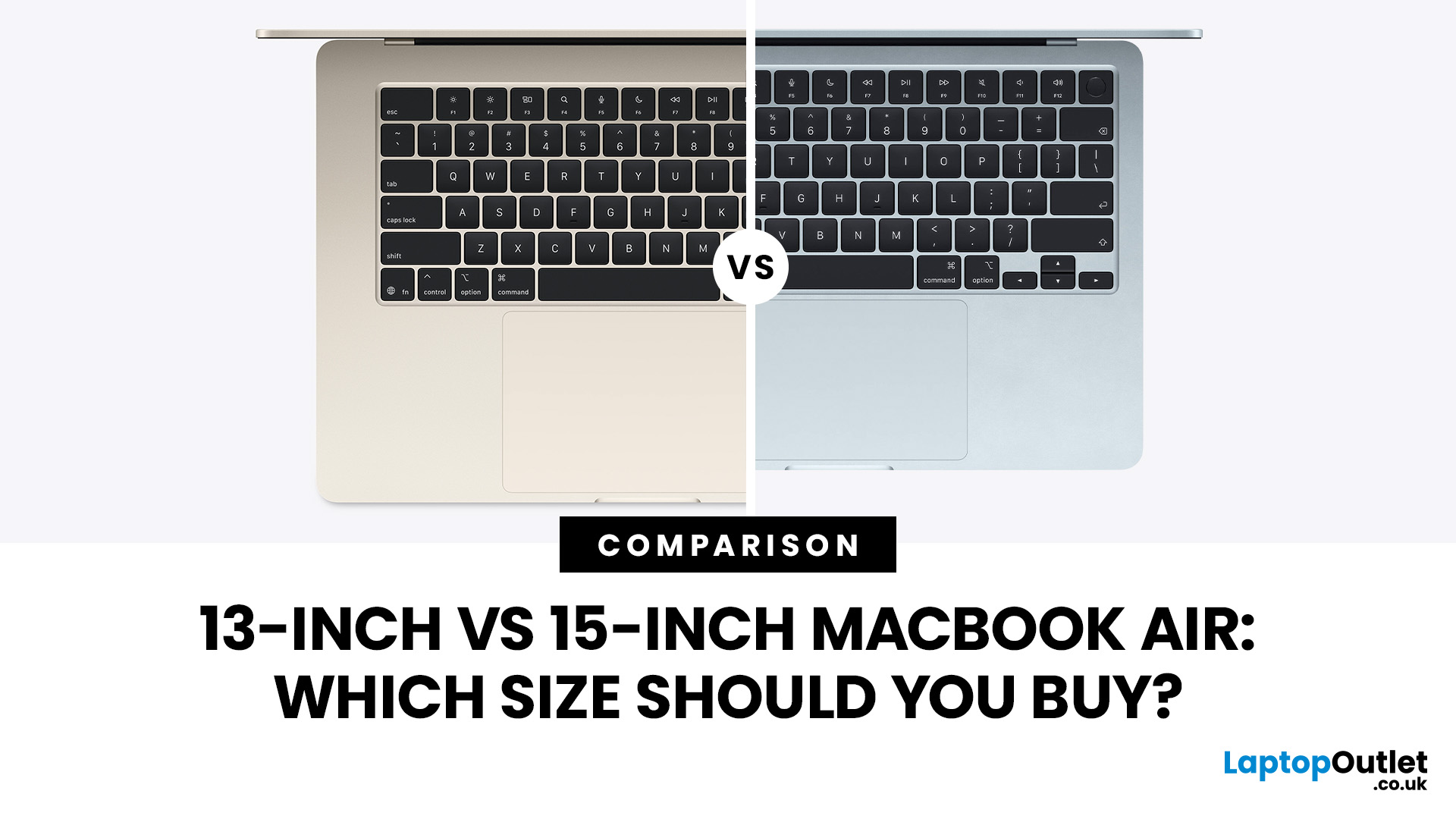

July 17, 2026

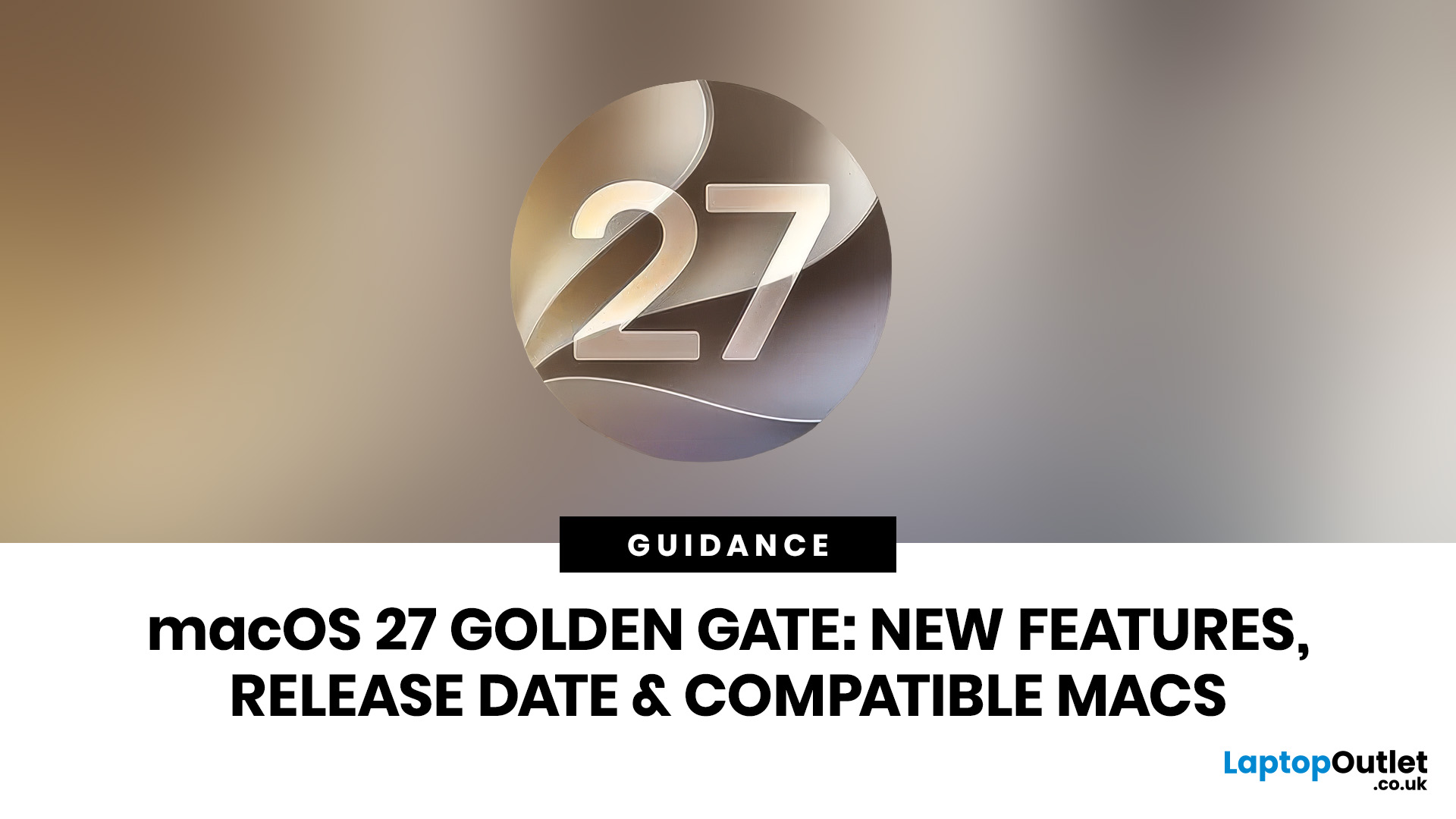
June 15, 2026
Apple has officially previewed macOS 27 Golden Gate, the next major version of macOS and the latest macOS version coming to compatible Macs. The update introduces a smarter Siri AI experience, deeper Apple Intelligence tools, refined Liquid Glass visuals, faster performance, and a major shift in macOS 27 compatibility.
This is not just another routine newest mac update. The golden gate macOS update marks the beginning of a new Apple silicon-only era for Mac users. That means anyone using an Intel-based Mac will need to pay close attention before planning the upgrade. For users searching for the newest Mac operating system, the new macOS, or the Apple newest operating system, macOS 27 is the update to watch in 2026.
Is macOS 27 the Newest Mac Operating System?
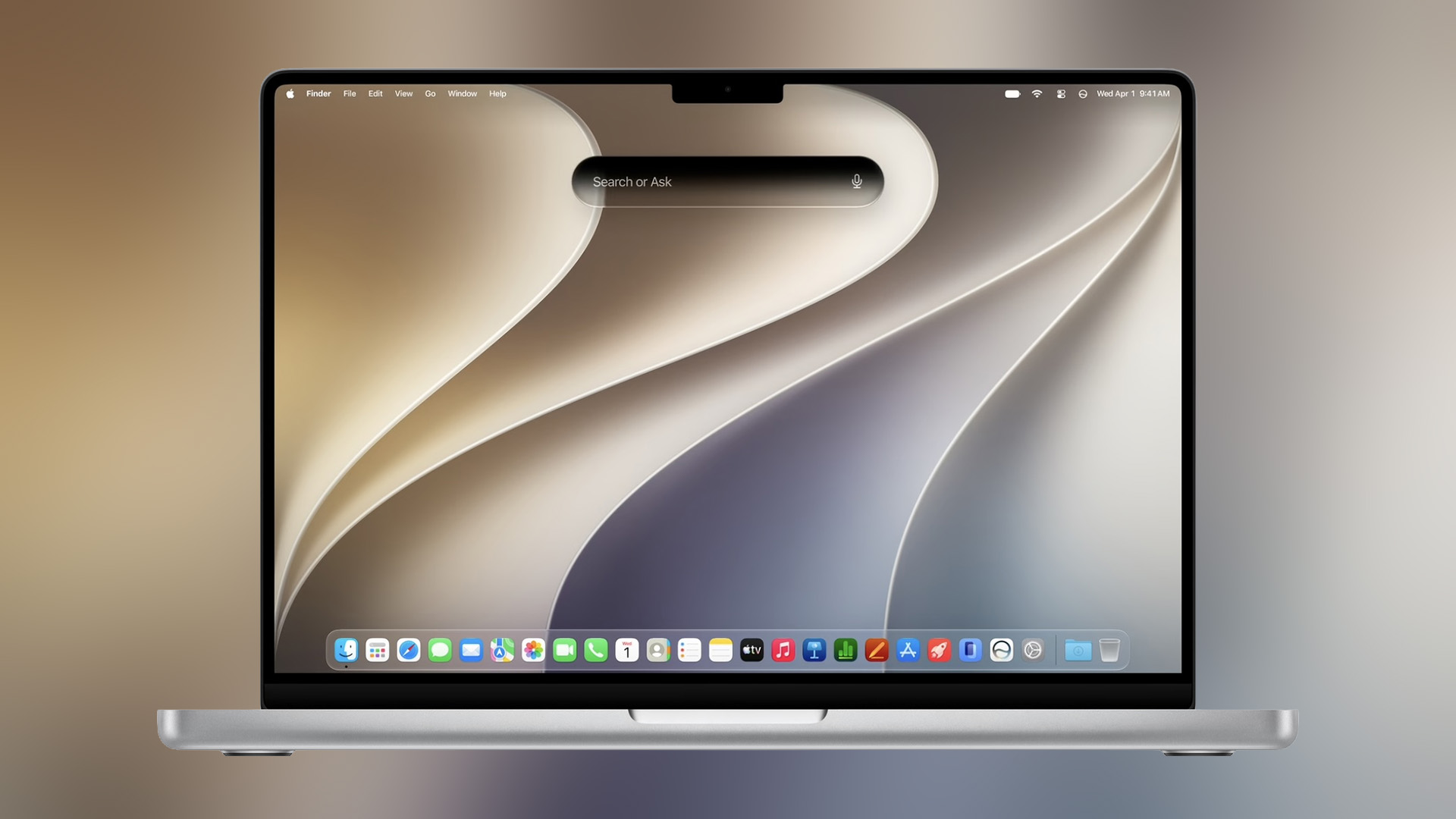
Yes, macOS 27 Golden Gate is Apple’s newest Mac operating system previewed for compatible Mac devices. It follows macOS 26 Tahoe and continues Apple’s naming tradition based on well-known California landmarks.
Golden Gate focuses on
June 10, 2026
The MacBook new release 2026 lineup brings faster M-series chips, improved battery life, better storage options, and stronger AI performance across Apple’s laptop range. For UK buyers, the biggest updates include the M5 MacBook Air, upgraded MacBook Pro models, and ongoing Apple MacBook leaks suggesting future OLED displays, slimmer designs, and possible M6 chip upgrades.
Apple’s 2026 MacBook lineup is already taking shape, with new models aimed at students, professionals, creatives, and everyday users across the UK. The biggest confirmed updates include the MacBook Air with M5 and the latest MacBook Pro upgrades with M5 Pro and M5 Max chips. Apple says the new MacBook Air offers faster performance, expanded AI capabilities, 512GB starting storage, Wi-Fi 7, Bluetooth 6, and up to 18 hours of battery life.
For UK shoppers, this makes the 2026 MacBook range especially relevant if you are upgrading from an older Intel MacBook, an M1 MacBook Air, or a Windows laptop.
MacBook Air 2026: Best
June 10, 2026
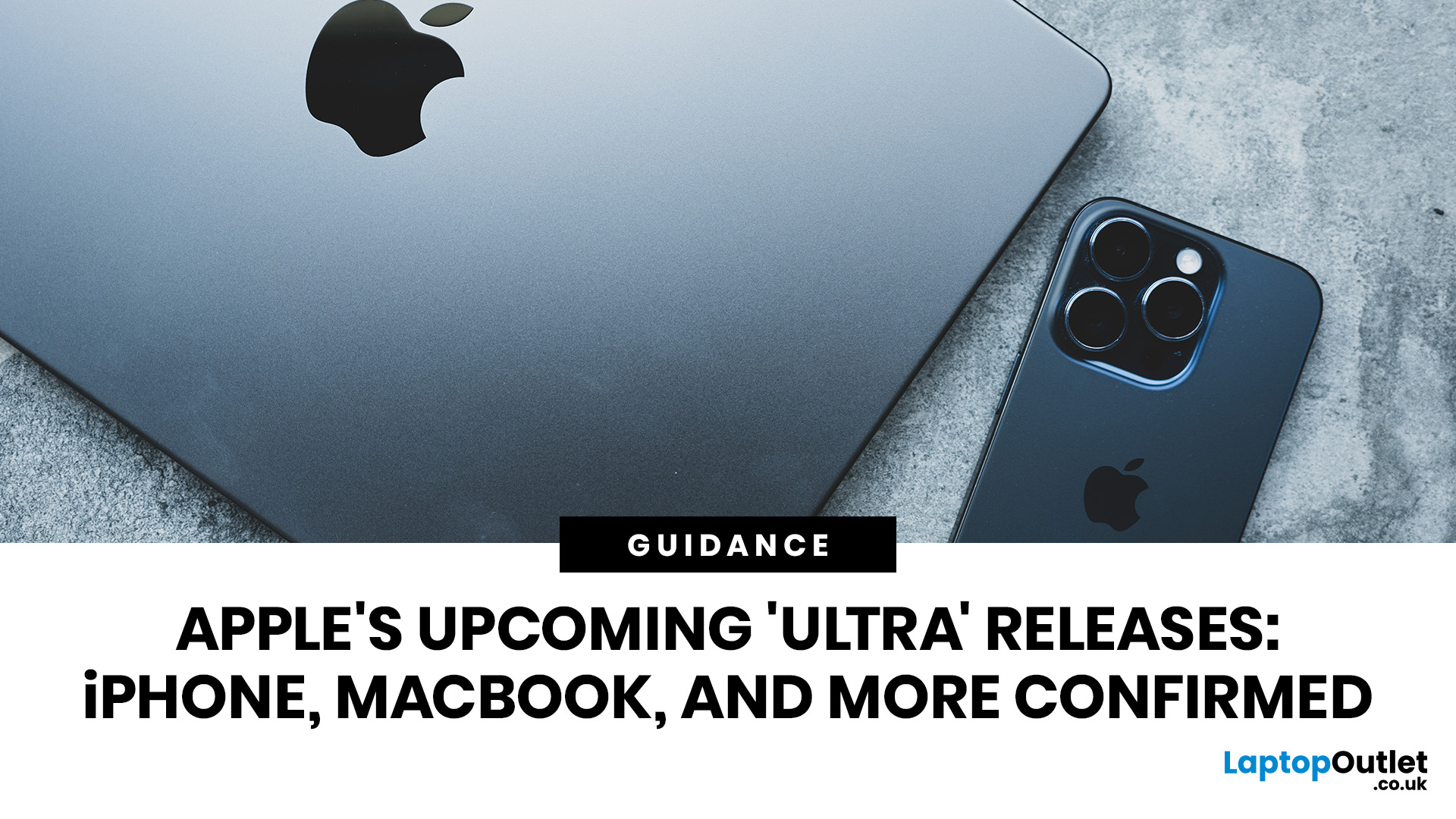
Quick answer: Apple is rolling out a new premium tier above its Pro range, and 2026 is the year it takes shape. Confirmed and strongly rumoured Apple Ultra releases include the iPhone Ultra, the MacBook Ultra, AirPods Ultra, and the Apple Watch Ultra 4.
For the first time, the word "Ultra" is migrating from a single smartwatch and a line of desktop chips onto iPhones, laptops, and earbuds. This is not a naming exercise. It signals a genuine leap in technology, ambition, and price. Here is everything you need to know, right now.
Note: Apple has not officially confirmed most of the products below. This article summarises current Apple leaks, analyst reports, and industry rumours.
What Exactly Is Apple's "Ultra" Strategy?
Until recently, Apple's product tiers were fairly straightforward: standard, Air, and Pro. Ultra was reserved for chips (like the M2 Ultra) and the Apple Watch Ultra, both of which signalled the absolute best in class. Now Apple is expanding that logic across
May 11, 2026
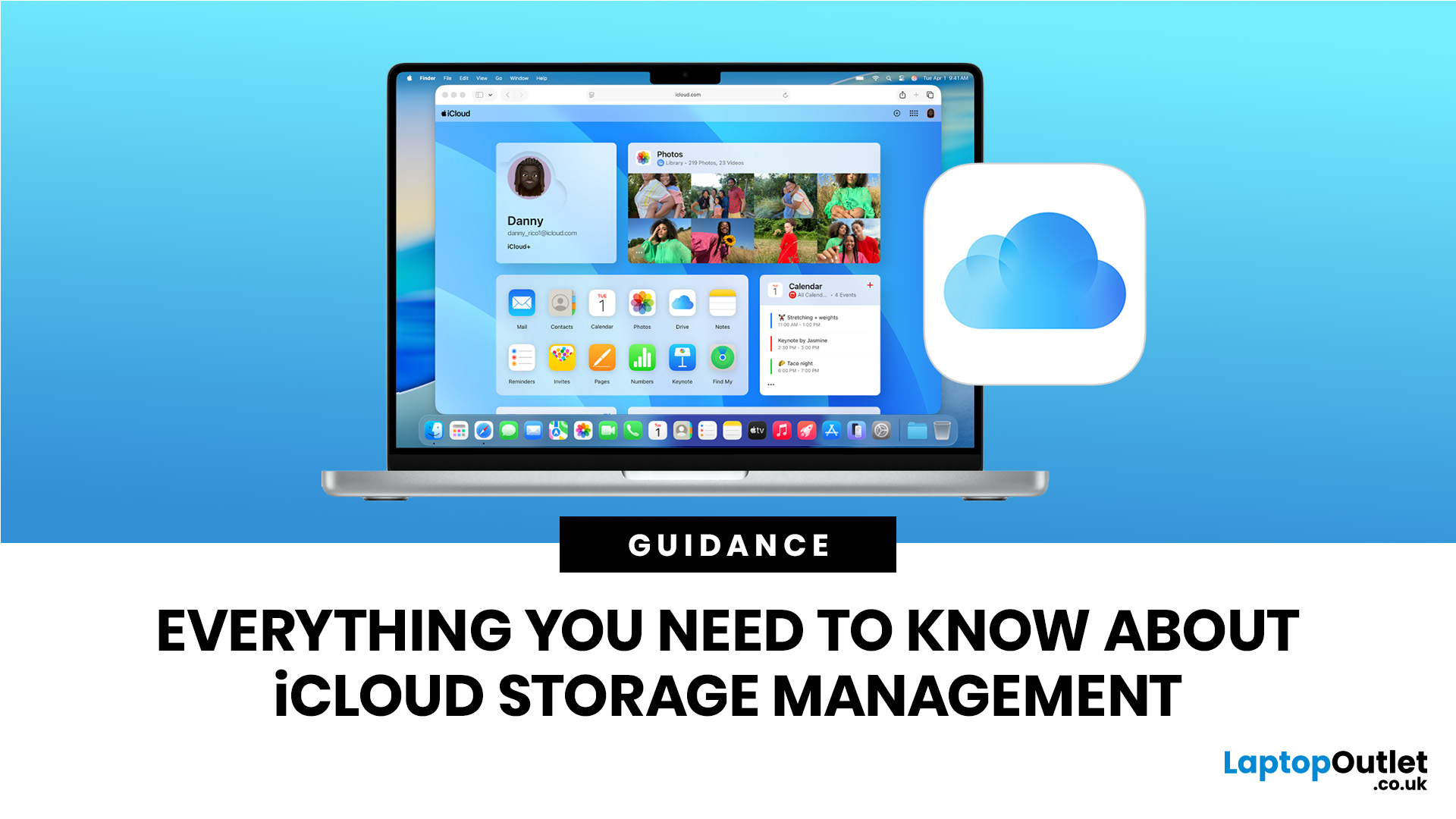
If you want better iCloud storage management, start with one simple rule: treat iCloud as a mix of syncing, backup, and storage, not just a spare online folder. iCloud keeps data safe in two main ways, syncing and backing up, and the difference matters because photos, files, messages, and device backups do not all behave the same way inside your storage allowance.
For most people, the best way to manage storage in iCloud is to check what is using space first, then decide what should stay synced, what should be backed up, what should be deleted, and when it makes more sense to upgrade to iCloud+ rather than keep trimming everything manually. Apple currently includes 5 GB of free iCloud storage, and in the UK, its paid iCloud+ tiers now run from 50 GB to 12 TB.
The Smartest Way to Manage iCloud Storage
The shortest answer is this: check your storage breakdown, clear the largest categories first, and avoid paying for more space until you know what is filling it. Apple’s storage view shows
June 04, 2026
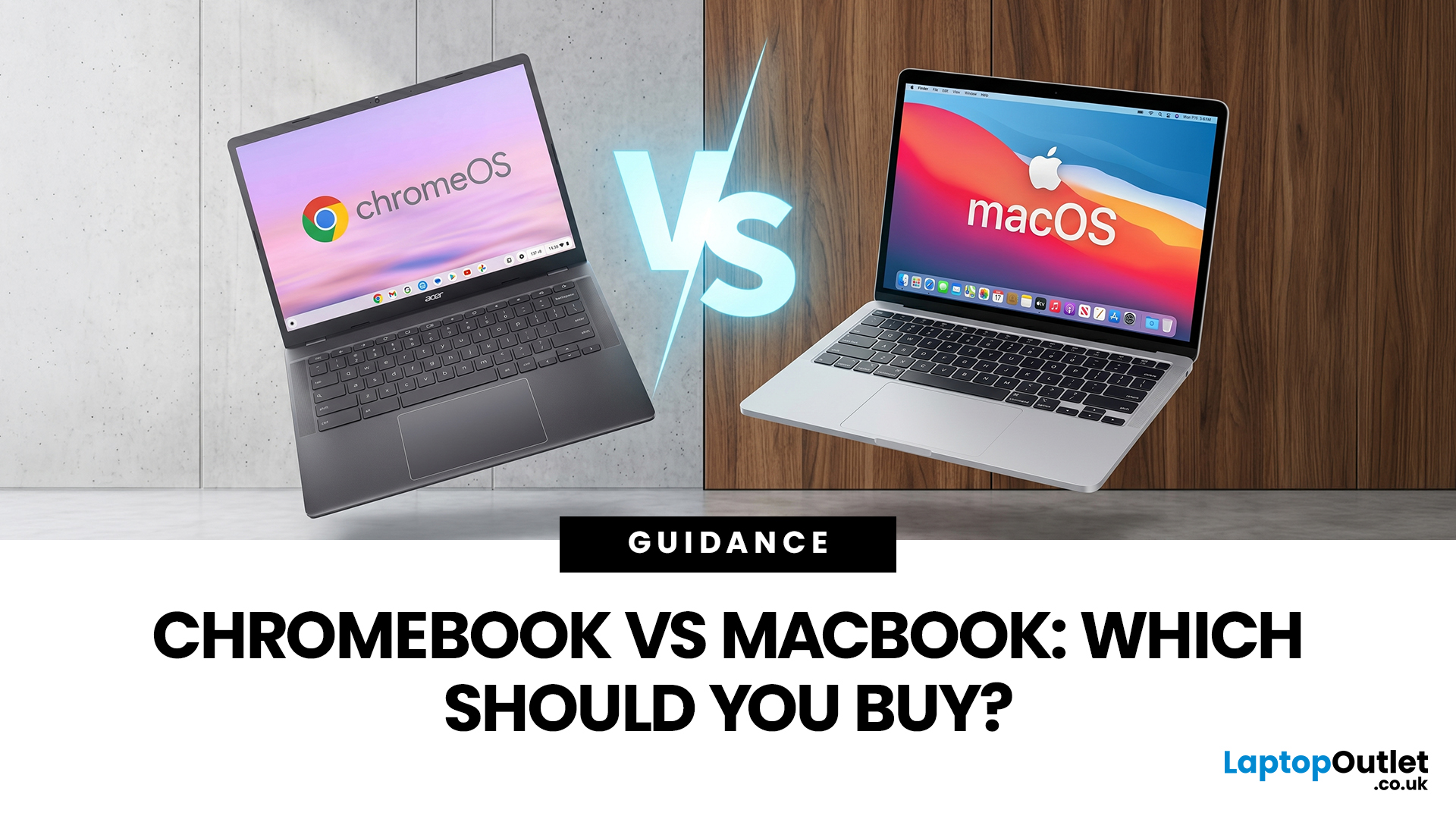
If you want the quickest answer, buy a Chromebook if you mainly use a browser, Google apps, streaming services, email, and simple everyday tools. Buy a MacBook if you need stronger performance, fuller desktop software support, and a laptop that gives you more room to grow over the next few years. That is the real Chromebook vs MacBook decision. It is less about the logo on the lid and more about how you actually work, study, and relax every day.
A Chromebook is a laptop that runs Chrome OS, built around speed, simplicity, built-in Google services, and lightweight computing. A MacBook runs macOS and is designed for a fuller desktop experience, stronger multitasking, and tighter integration with other Apple devices. If you already know you want to compare categories before choosing, start by browsing the best laptops to see where both options sit in the wider market.
Still deciding whether macOS is right for you at all? Read our PC vs Mac in 2026 guide before you choose.
Chromebook vs MacBook:
May 01, 2026
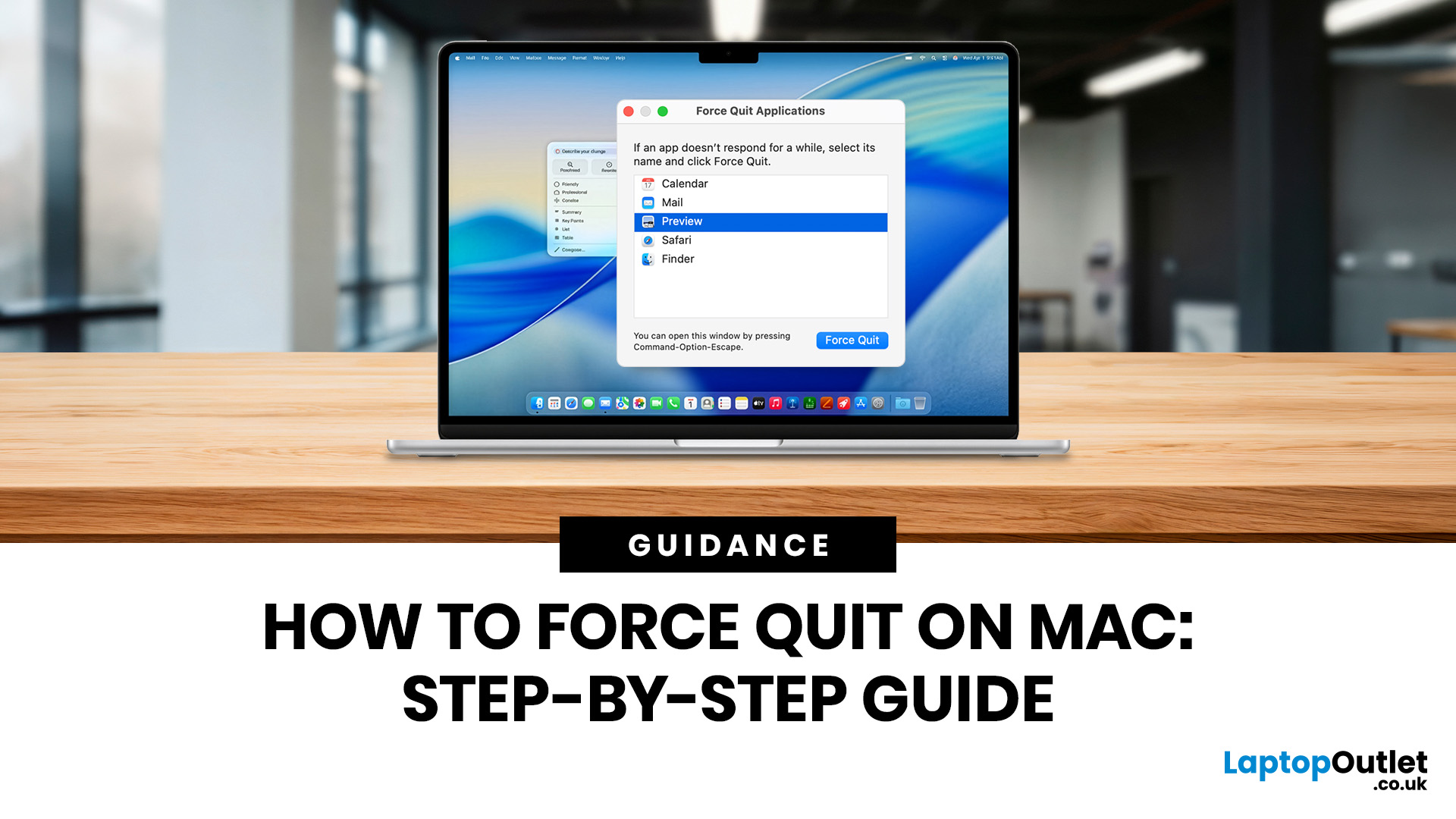
If you need to force quit Mac apps because one has frozen, the safest approach is to try a normal quit first, then use the Force Quit window, the Apple menu, or Activity Monitor if the app still will not respond. These steps work across current Mac laptops, including MacBook Air, MacBook Pro, and MacBook Neo, as well as desktop Macs.
What Does Force Quit Actually Do on a Mac?
Every method to force quit an app on Mac achieves the same result: it instructs macOS to terminate the application immediately, without waiting for it to shut down on its own terms.
Unlike a standard quit (Command + Q), force quitting bypasses the app's normal closing sequence entirely. Force closing of an app on Mac means it doesn't get a chance to save open files or tidy up temporary processes, so it's worth understanding the implications before you use it, particularly if you have unsaved work on screen.
When Should You Force Quit an App on Mac?
Choosing to force close on Mac should always be a last resort
June 17, 2026
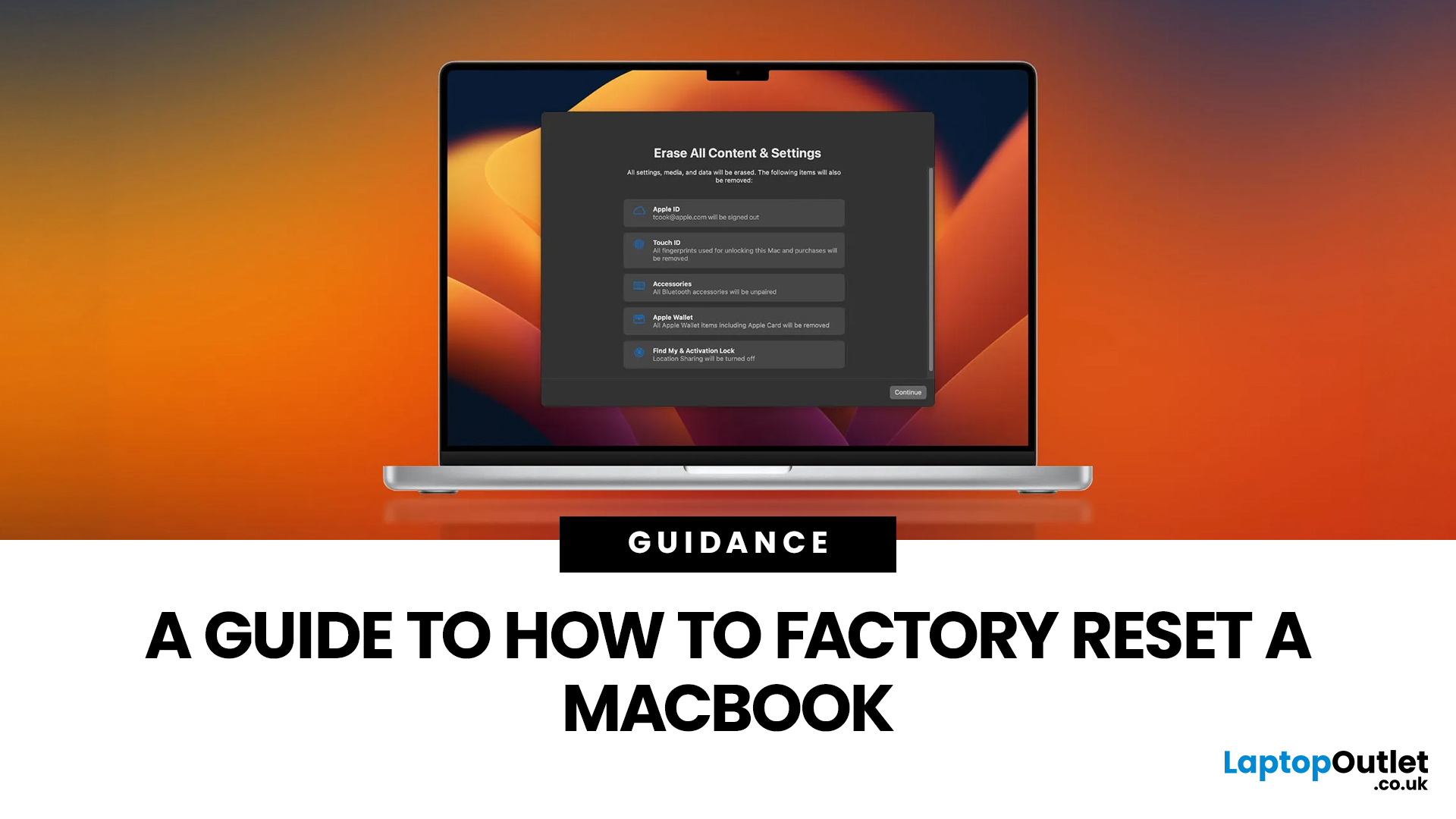
Whether you are selling your MacBook, troubleshooting a persistent software issue, or simply wanting a clean slate, knowing how to factory reset a MacBook safely is an essential skill for any Apple user.
The good news? Apple has made the process simpler than ever. But the steps you need to follow depend entirely on your MacBook model and the version of macOS you are running.
This guide will help you reset your Mac safely, avoid losing important files, and leave the laptop ready either for you or for its next owner.
What Does a Mac Factory Reset Actually Do?
A factory reset wipes your MacBook completely, removing all your files, apps, accounts, and personal settings. The end result is a machine that behaves exactly as it did the day you took it out of the box.
Depending on the method you use, the reset will either keep the current version of macOS installed or reinstall it fresh from scratch. Either way, your personal data is gone, so preparation is everything.
What To Do Before You
May 06, 2026
MacBook battery issues do not always mean it is time for a replacement. Sometimes your battery is genuinely wearing out, but sometimes the real problem is heat, charging habits, background apps, or even a charger that is not pulling its weight. That is what makes battery problems so confusing: the symptoms can look dramatic, while the fix might be simple.
In this guide, we will help you figure out what your MacBook is actually trying to tell you. From battery drain and overheating to charging limits and health checks, you will learn how to spot the issue, understand the cause, and decide whether a repair or replacement makes the most sense.
Why MacBook battery issues happen in the first place
MacBook batteries are built with lithium-ion technology, which is great for fast charging and portability, but like every rechargeable battery, they wear down over time. Battery age is not just about how many years you have owned the laptop. It is also shaped by your charging habits, temperature
May 01, 2026
If your MacBook is not turning on, the quickest way to solve it is to work out which problem you have. Some Macs have no power at all. Others are turning on, but the screen stays black, the battery is not charging properly, or macOS is failing during startup. Those are different faults, and they need different fixes.
In most cases, the right order is simple: check the charger and outlet, force a restart, rule out a blank-screen issue, then move to Safe Mode, Apple Diagnostics, or macOS Recovery if the Mac still will not boot. If your MacBook is charging but not turning on, the issue is often startup, display, or battery-health related rather than a completely dead machine.
What to do First When MacBook Doesn't Turn On

If your MacBook won't turn on, start with the basics before assuming the worst.
- Plug it into a known-working wall socket with a compatible charger and cable.
- Leave it connected for several minutes if the battery may be flat.
- Press and hold the power button for up to 10 seconds,

May 06, 2026
Whether your storage is filling up, you're troubleshooting a glitchy app, or you're simply doing a digital spring clean, knowing how to uninstall apps on Mac properly makes a real difference. There's more to it than dragging things to the Bin. This guide covers every method, from the quickest drag-and-drop to deep-cleaning leftover files.
What Happens When You Simply Drag an App to the Bin?
It's tempting to think that moving an app to the Bin is a complete uninstall. Unfortunately, that's only part of the story.
When you install most apps on a Mac, macOS and the app itself may create supporting files in several different locations across your system. These can include preference files, cache data, application support folders, login items, and extensions.
When you drag the app itself to the Bin, many of those supporting files stay put. Over time, they can quietly pile up and waste storage space, which is especially noticeable on Macs with limited SSD capacity.
Method 1: How to Delete
July 06, 2026
Apple’s MacBook lineup has earned its reputation through years of delivering fast performance, long battery life, and a genuinely premium build quality that is hard to beat. Whether you are buying your first Mac, switching from Windows, or troubleshooting an issue, this MacBook & Apple guide covers everything you need.
What Exactly Is a MacBook?
A MacBook is Apple’s range of portable computers, running macOS. Unlike most Windows laptops, MacBooks use Apple’s own silicon. In 2026, that means the MacBook Neo runs on A18 Pro, while the latest MacBook Air and MacBook Pro run on M5-family chips: M5, M5 Pro, and M5 Max.
All MacBooks benefit from Apple’s tight hardware and software integration, meaning everything from apps to system updates is designed specifically for the machine you are holding. That is a big reason why so many people in creative, professional, education, and everyday roles swear by them.
What Are the Latest MacBook Models in 2026?

Apple currently sells MacBooks in three lines: