



How to Check CPU Usage on a Mac Step-by-Step Guide
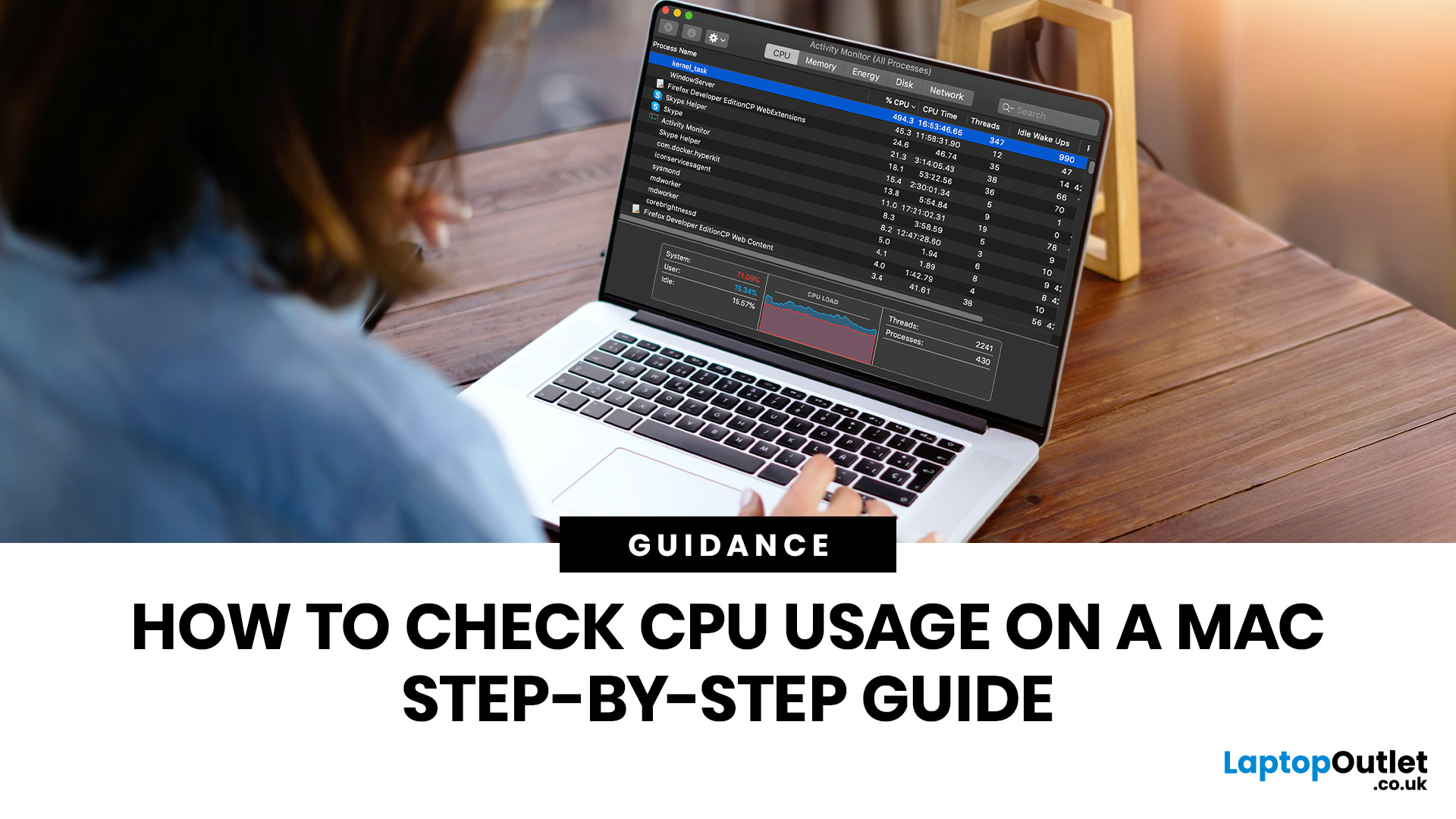
If you want to check CPU usage on a Mac, the fastest built-in method is Activity Monitor. Open it, click the CPU tab, and you can immediately see which APPs and processes are using the most processor power, along with overall User, System, and Idle percentages at the bottom of the window.
That makes CPU usage one of the most useful checks when your Mac feels slow, runs hot, drains battery quickly, or sounds busier than usual. In this guide, we will show you exactly how to see CPU usage on a Mac, how to interpret what you are looking at, and what to do next if one APP is using more processing power than it should.
How to See CPU Usage on a Mac
The easiest way to check processor usage on a Mac is to open Activity Monitor and click CPU. That view shows your Mac’s processor activity over time and lists active APPs and processes so you can spot what is using the most CPU. Apple also lets you open CPU Usage and CPU History from the Window menu for a more visual view.
If you want a quicker at-a-glance view, Activity Monitor can also show CPU activity in the Dock. That is useful if you want to keep an eye on performance without leaving the full window open all the time.
For most readers, that is all you need. The rest of the job is working out whether the CPU spike is normal, tied to one APP, or a sign that your Mac is struggling with the workload you are asking it to handle.
What CPU Usage on a Mac Actually Tells You
CPU usage shows how much of your Mac’s processor capacity is being used at a given moment. Apple breaks that into three simple categories in Activity Monitor:
|
Reading |
What it Means |
|
User |
CPU being used by APPs you opened, or by the processes those APPs launched |
|
System |
CPU being used by macOS system processes |
|
Idle |
CPU capacity not currently being used |
Those three percentages are what matter most when you want a quick read on performance.
- If Idle is high, your processor still has plenty of headroom.
- If User or System is consistently high, your Mac is working much harder.
Apple notes that most of the time the processor uses only a small percentage of its total capacity, and usage rises when you run APPs that need more intensive calculation.
How to Check CPU Usage on a Mac Step by Step
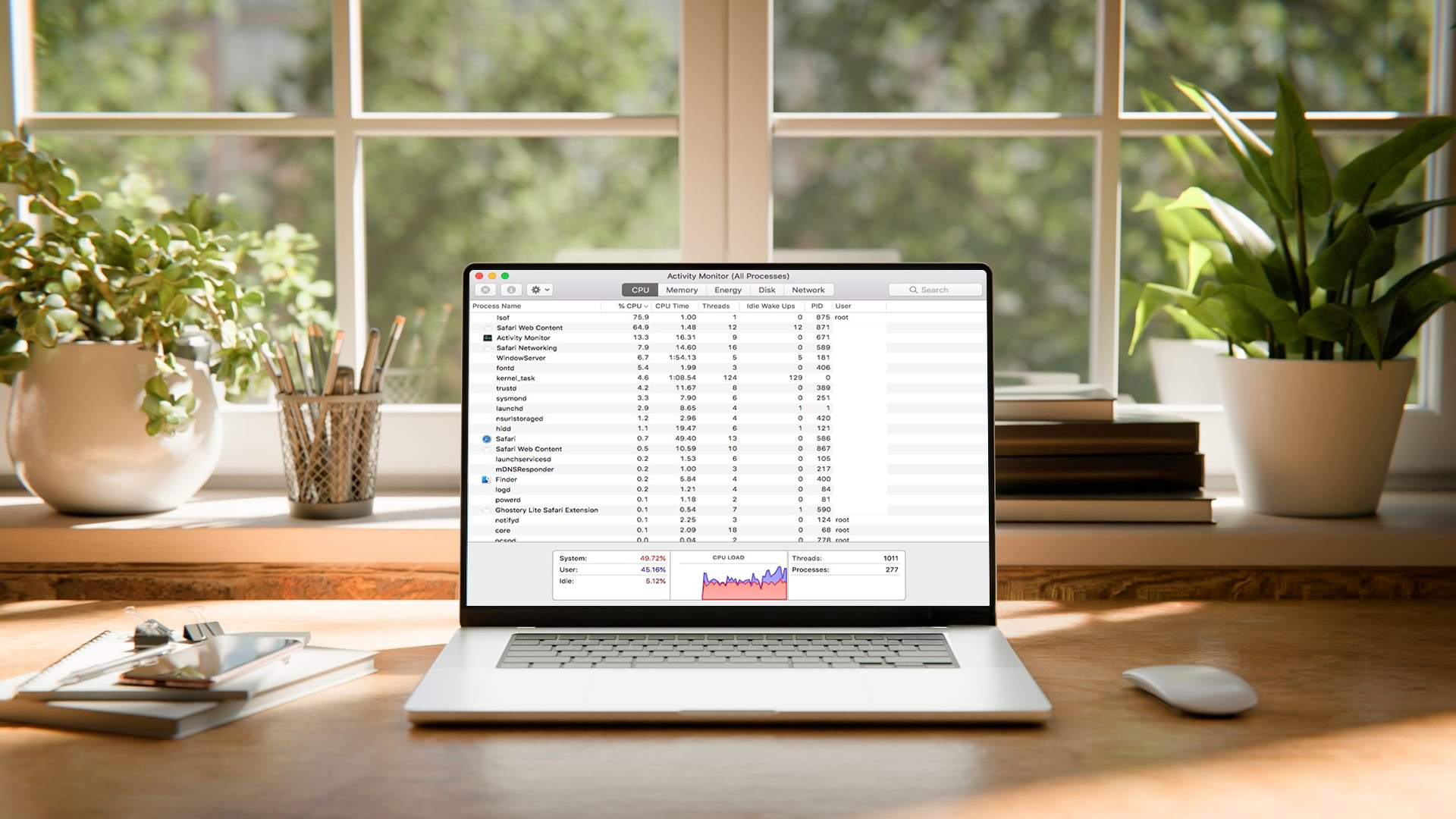
1. Open Activity Monitor
Open Activity Monitor on your Mac. The quickest way is to use Spotlight, which Apple says you can open with Command-Space and use to quickly find and open APPs. Search for “Activity Monitor” and open it from the results.
2. Click the CPU Tab
Once Activity Monitor opens, click CPU in the top section of the window. This is the main screen for checking CPU usage Mac readers usually need, because it shows processor activity over time and the list of processes currently using CPU resources.
3. Sort by CPU to Find the HeaviestAPPs
Click the relevant column heading to sort the list. Apple says you can sort processes by clicking a column heading, and reverse the order by clicking again. In practice, sorting by CPU helps you find the APP or process using the most processor time right now.
4. Read the Bottom Summary
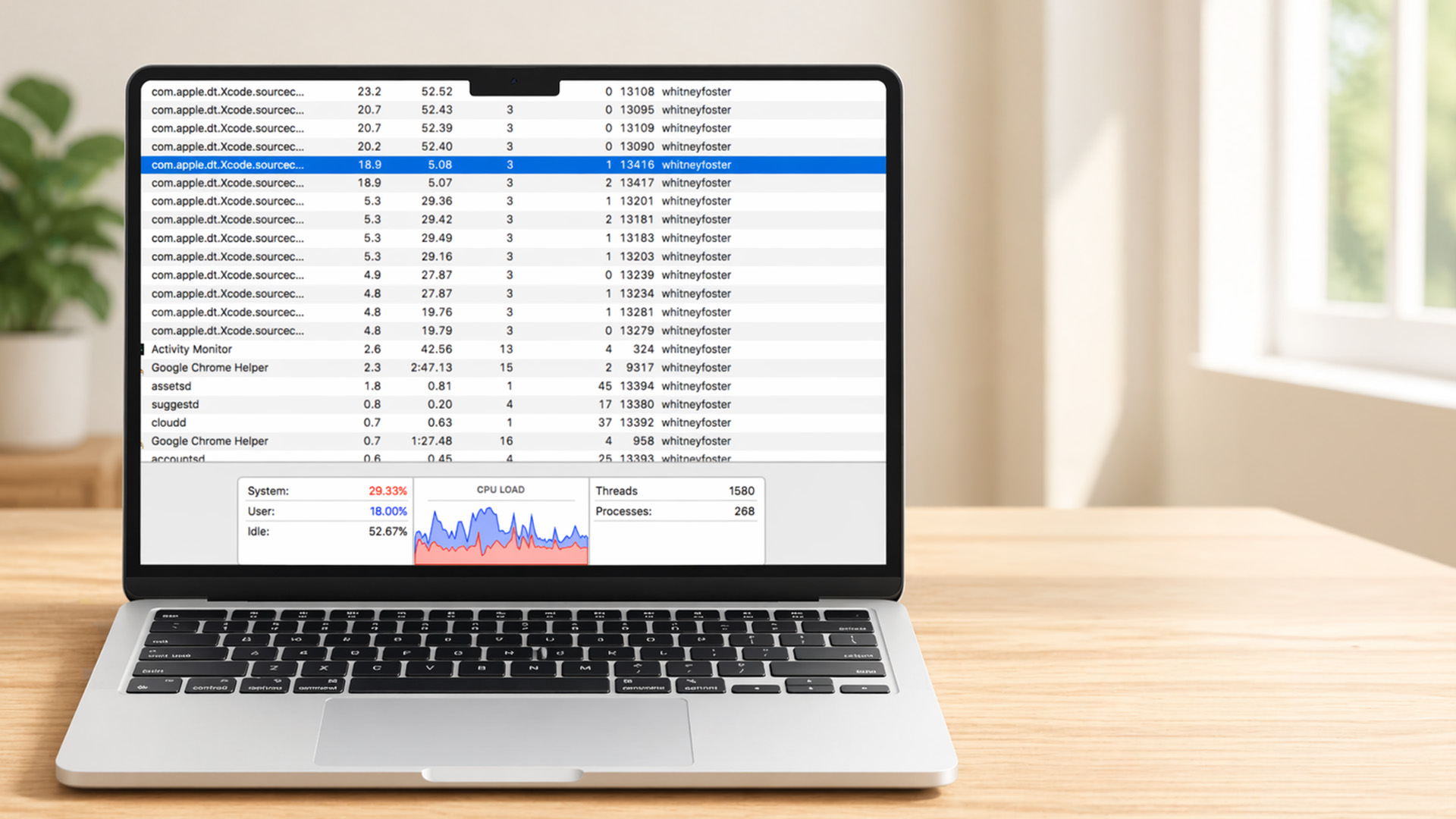
At the bottom of the CPU view, you will see System, User, and Idle percentages. That tells you whether the pressure is coming mainly from your APPs, macOS itself, or not much at all.
5. Open CPU Usage or CPU History for a Clearer View
If you want a more visual version, go to Window > CPU Usage for current processor activity or Window > CPU History for recent processor activity over time. These are useful when you want to see whether CPU load is spiking briefly or staying high.
Best Ways to Check Processor Usage on Mac
|
Method |
Best For |
Why It Helps |
|
Activity Monitor CPU tab |
Everyday checks |
Shows APPs, processes, and overall CPU load in one place |
|
CPU Usage window |
Quick live view |
Gives you a more immediate picture of current processor activity |
|
CPU History window |
Spotting trends |
Helps you see whether load is constant or just spiking |
|
Dock CPU view |
Passive monitoring |
Lets you watch CPU activity without keeping the full APP front and centre |
|
Energy tab |
Battery and efficiency checks |
Useful when the Mac feels warm or battery life drops, even if CPU load alone is not the full story |
That last point matters. If you came here looking for the Mac equivalent of checking power usage on PC, Activity Monitor’s Energy tab is the closest built-in place to look. Apple says it shows how much energy APPs are using and the combined energy impact over time. If your Mac feels hot, drains quickly, or struggles to last through normal use, our guide to MacBook battery problems can help you decide whether it is time to repair or replace it.
How to Show CPU Usage Without Keeping Activity Monitor Open
If you want to show CPU usage more casually while you work, the Dock view is the simplest option. Apple says Activity Monitor can display CPU activity as a live graph in the Dock by choosing View > Dock Icon and then selecting a CPU display option.
That is a useful middle ground. You still get live feedback, but you do not need the full process list open all the time. For anyone who regularly edits video, runs lots of browser tabs, works with design tools, or uses heavier productivity APPs, that can be enough to spot trouble early.
How to See Which App is Slowing Your Mac Down
The quickest way to find the problem APP is to sort the CPU list and look for the process at or near the top. Activity Monitor is designed to show how APPs and processes are using the processor, and Apple specifically positions it as the place to locate troublesome APPs when the system feels sluggish or unresponsive.
If one APP is clearly using far more CPU than the rest, that is your first place to investigate. Close the APP normally if you can. If it has frozen or is not responding, Apple says you can select it in Activity Monitor and use the Stop button to Quit or Force Quit the process. Furthermore, if an APP is frozen or using unusually high CPU and will not close normally, our step-by-step guide to force quitting on Mac shows the quickest ways to shut it down safely.
A practical rule is simple: if CPU usage jumps while a heavy task is running and then drops again, that is usually expected. If one APP keeps sitting at the top even when you are not actively using it, that is where performance troubleshooting should start. If one APP keeps using too much CPU and you no longer need it, our guide on how to uninstall APPS on Mac explains the cleanest ways to remove it fully.
What if CPU Usage is High but the Mac Still Feels Slow?
High CPU is not the only reason a Mac feels sluggish. Sometimes the processor is fine, but memory pressure or energy use is the real story.
Apple’s Memory tab shows Memory Pressure, which is the clearest built-in signal for whether your Mac is using RAM efficiently. Apple says green means memory is being used efficiently, yellow means your Mac may eventually need more RAM, and red means it needs more RAM. If you want a broader look at MacBook models, everyday performance tips, and common fixes beyond CPU monitoring, our complete MacBook guide is a useful next read.
That matters because a Mac can feel slow even when CPU usage is not extreme. If CPU looks normal but the machine still lags, switch to Memory and Energy before assuming the processor is the whole issue. This is also where the article becomes useful for buying decisions. If your Mac is regularly hitting CPU and memory limits at the same time, the issue may not be one bad APP. It may be that your workload has outgrown the machine.
If that is where you are, it makes sense to browse our best laptops or, if you want to stay in the Apple ecosystem, explore our MacBook collection.
Why is kernel_task Using so Much CPU?
A high kernel_task reading is one of the most misunderstood things in Activity Monitor. Apple says one of the functions of kernel_task is to help manage CPU temperature, and it can appear to use a large percentage of CPU while your Mac is trying to reduce heat-related strain. Apple also says that kernel_task does not itself cause the overheating condition. It responds to it.
That means you should not treat kernel_task the same way you would treat a rogue browser tab or a hung third-party APP. If you see it high alongside loud fans or heat, look at the APPs using the CPU intensely, your browser workload, or anything else pushing the system hard.
Activity Monitor vs CPU History vs Energy View
|
View |
Use it When |
Best Question It Answers |
|
CPU tab |
You want the main process list |
Which app is using the most processor right now? |
|
CPU Usage |
You want a live visual view |
Is CPU activity high this second? |
|
CPU History |
You want to spot patterns |
Is the spike constant or occasional? |
|
Energy tab |
You care about efficiency or battery life |
Which APPs are using the most energy over time? |
|
Memory tab |
The Mac feels slow even without high CPU |
Is RAM pressure the bigger problem? |
For most people, the CPU tab is the starting point and the only one they will use regularly. The other views become useful when the first screen tells you something is wrong but not why.
Use Case Breakdown: What Matters for Different Users
Students and Everyday MacBook Users
For everyday use, checking CPU usage on MacBook is usually about spotting a browser tab, meeting APP, or sync process that is using more power than expected. If one task is causing slowdowns occasionally, you may only need to close it or restart the Mac.
Office and Business Users
For work, the bigger question is consistency. If Teams, spreadsheets, browser tabs, and cloud APPs are pushing the machine hard every day, you may be dealing with workload mismatch rather than a temporary CPU spike. In that case, our range of professional laptops for work is the right next place to compare more suitable options.
Creators, Developers, and Power Users
If you edit media, run design software, work with local development tools, or keep many heavy APPs open at once, checking CPU usage should become a habit rather than a one-off fix. CPU History and Memory Pressure together give you a much better picture of sustained load than a quick glance at one moment in time.
Gamers and Performance-Heavy Buyers
Macs are not always the right answer for every graphics-heavy or gaming-led workload. If CPU usage checks keep confirming that your current machine is simply underpowered for what you want to do, our best laptops for gaming are worth comparing alongside broader categories.
When Should You Troubleshoot, and When Should You Upgrade?

Troubleshoot first if one APP is obviously misbehaving, the issue is recent, or the Mac usually performs well outside a few specific tasks. In those cases, Activity Monitor is doing exactly what it should do: pointing you to the process worth closing, updating, or investigating.
Upgrade becomes the stronger answer if CPU load, memory pressure, and energy drain are all becoming regular rather than occasional. Apple’s built-in tools make that easier to judge because they show processor activity, memory efficiency, and APP energy use in separate views rather than rolling everything into one vague “slow Mac” complaint. However, if performance issues are part of a bigger problem and your MacBook is also failing to power on or charge properly, our MacBook troubleshooting guide covers the most important fixes to try next.
If you are comparing broader alternatives, our latest Dell laptops and premium Samsung laptops are also worth a look, especially if you are open to a different setup for work or general productivity.

The Best Next Step After You Check CPU Usage
For most buyers, the right move is simple. Open Activity Monitor, sort by CPU, check the User, System, and Idle readings, then decide whether the issue is one APP, a wider memory problem, or a workload your Mac is no longer comfortable with.
That makes CPU monitoring useful for more than troubleshooting. It helps you decide whether to close an APP, change your workflow, or replace the machine with something better suited to the way you work.

Still Got Questions?
How do you check CPU usage on a Mac?
Open Activity Monitor and click the CPU tab. That is Apple’s built-in way to view processor activity and see which APPs and processes are using CPU power.
How do you check processor usage on MacBook?
The method is the same as on any other Mac. Open Activity Monitor, then use the CPU tab to see processor activity and sort APPs by usage.
How do you show CPU usage on a Mac without leaving the full window open?
Use Activity Monitor’s Dock Icon option. Apple says you can choose a CPU display from View > Dock Icon so CPU activity appears as a live graph in the Dock.
Why is my Mac using so much CPU?
High CPU usage is often caused by one or more APPs doing intensive work. Apple also notes that kernel_task can appear high when the system is helping manage CPU temperature.
What should I do if one APP is using too much CPU?
Try closing the APP normally first. If it is frozen or not responding, Apple says you can use Activity Monitor to Quit or Force Quit the process.
| Read More: |
| A Complete Guide to Mac Keyboard Shortcuts |
| Everything You Need to Know About iCloud Storage Management |
| PC vs Mac in 2026: Which One Is Right for You? |
Related Articles

Last Updated: September 09, 2025
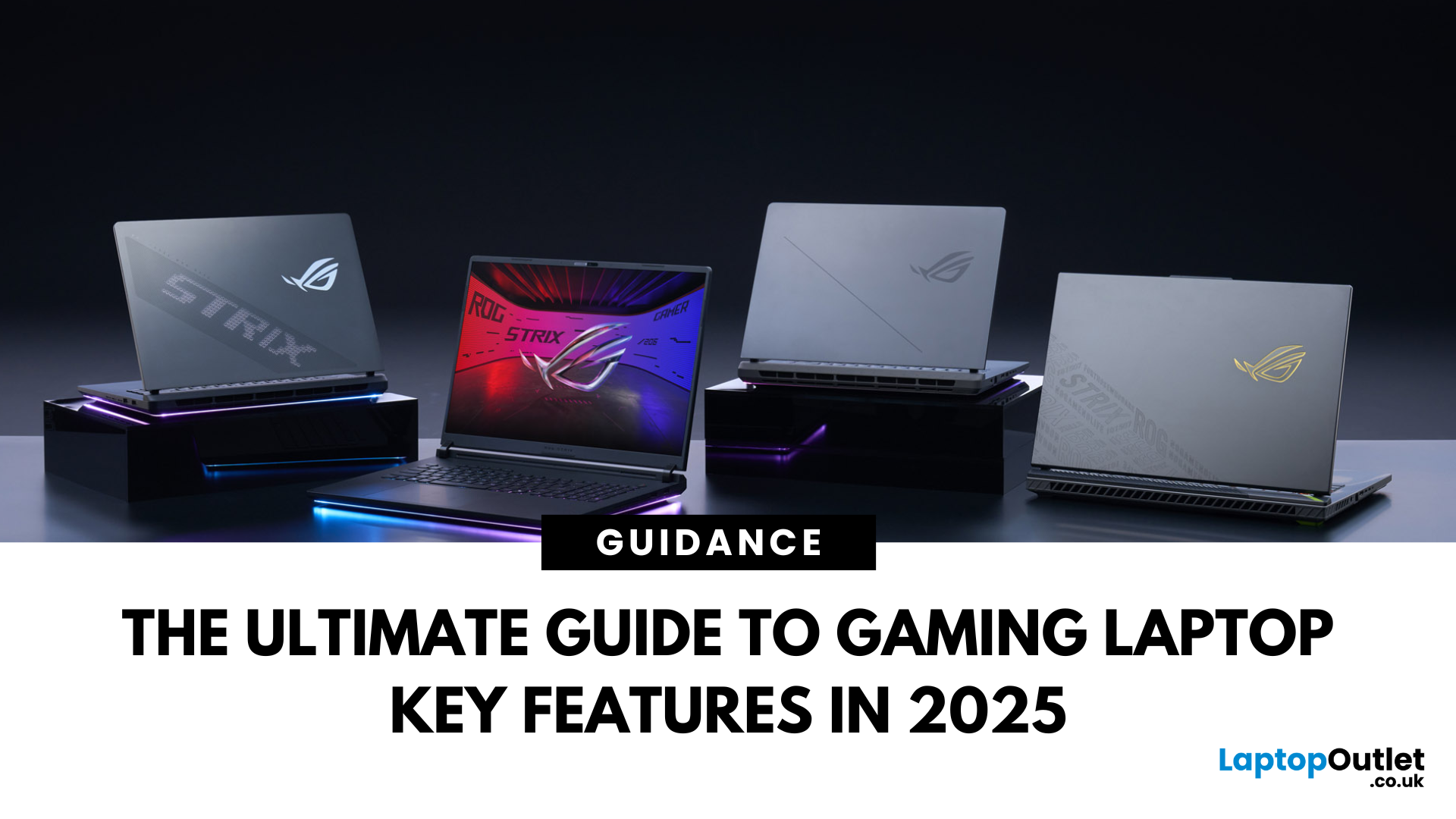
Choosing a gaming laptop today is all about understanding the gaming laptop key features that move the needle foryourgames and workflow. In 2025, the big shifts are real: next‑gen GPUs with AI frame generation, smarter CPUs with onboard NPUs, faster storage that feeds data straight to the GPU, premium displays (OLED/Mini‑LED) at esports‑grade refresh rates, and cooling systems that can keep all of it performing sustainably.
However, what does all of that actually mean when you just want smooth gameplay and a machine that lasts? Below, we have you covered with a clear, up‑to‑date walkthrough of what to look for in a gaming laptop with the evidence to back it. Whether you’re looking at entry-level models around £900, mid-range workhorses at £1,500, or premium powerhouses above £2,000, this guide focuses on the essential gaming laptop key features.
If you’d like a broader perspective from budgeting to comparisons, you can check out our full gaming laptop buying guide.
GPU: the first decision
Last Updated: October 08, 2025
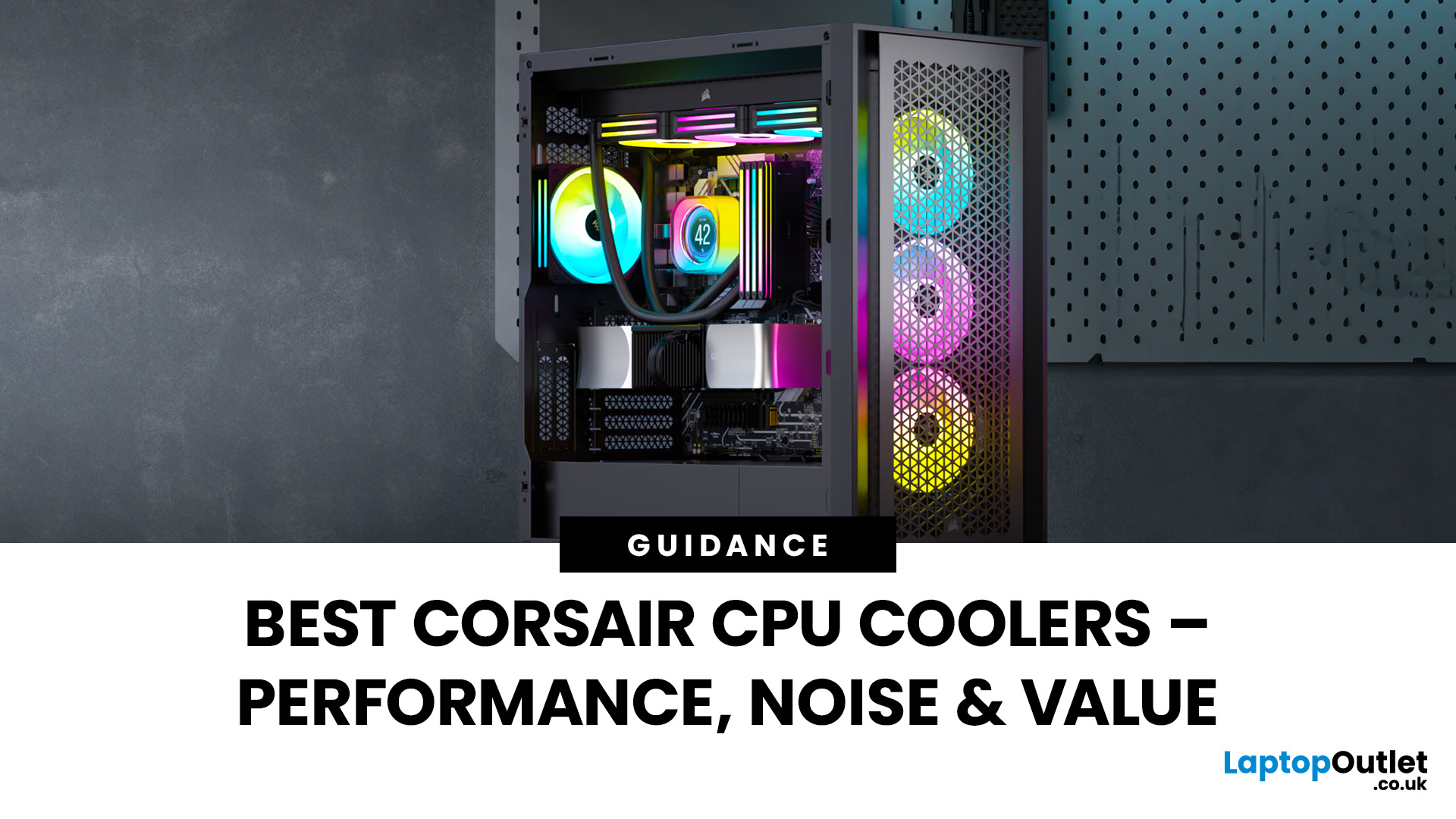
Keeping your PC cool is one of the most important factors in maintaining performance, extending hardware lifespan, and ensuring a stable computing experience. Processor of a gamer, or a professional creative generates heat that must be managed effectively. Air cooling may be sufficient for entry-level builds, but high-performance desktops and overclocked CPUs demand more advanced solutions. This is where Corsair steps in.
Corsair has earned a strong reputation for delivering reliable and innovative cooling systems. Let’s explore the best Corsair CPU cooler options in 2025, review their performance, noise levels, installation process, and software features.
Why Choose a Corsair CPU Cooler?
Before diving into the product reviews, it’s important to understand why Corsair CPU coolers continue to dominate the PC cooling market in 2025. Corsair has consistently evolved its product line to meet the demands of modern processors, gaming rigs, and workstation builds.
Proven Reliability and Build

Last Updated: January 27, 2026
Intel has remained a titan in the world of PC gaming for decades. Their processors power some of the most capable high-performance gaming desktops on the market today.
Recently, we have seen a massive shift in how these chips operate. The evolution from the classic Core i-series to the brand-new Ultra Core processors marks a new era. These advancements are not just about speed; they are redefining the entire gaming experience.
If you want a top-tier machine, understanding how Intel CPUs work in gaming desktops is essential.
The Role of a CPU in Gaming
The CPU acts as the brain of your computer. It handles every logic calculation and physics instruction required for your game.
CPU vs GPU: Understanding the Balance
The GPU handles the visuals and graphics rendering. Meanwhile, the CPU manages physics, logic, and artificial intelligence.
You need a strong balance between both components to avoid lag. If one is too slow, the other cannot perform at its full potential during intense sessions.

Last Updated: February 20, 2026
If you have been considering a high-performance processor upgrade this year, you may have noticed pricing staying firmer than expected. High-End CPU prices 2026 are under upward pressure, and in the UK, this often shows up as fewer meaningful discounts, shorter sale windows, and popular models holding close to launch pricing for longer.
A key driver is the scale of AI hardware demand 2026 and the wider push to expand AI data centres. While GPUs get most of the attention, large AI deployments also consume huge volumes of CPUs for orchestration, data handling, virtualisation, networking, and general system control. Recent industry reporting has pointed to rising pressure in high-end server CPU prices and tighter availability in some regions as AI-related demand ramps up.
This article explains what is changing, why it matters for premium desktop and laptop processors, how these pressures can filter into UK retail pricing, and what practical steps you can take to get better value when shopping
Last Updated: June 18, 2026
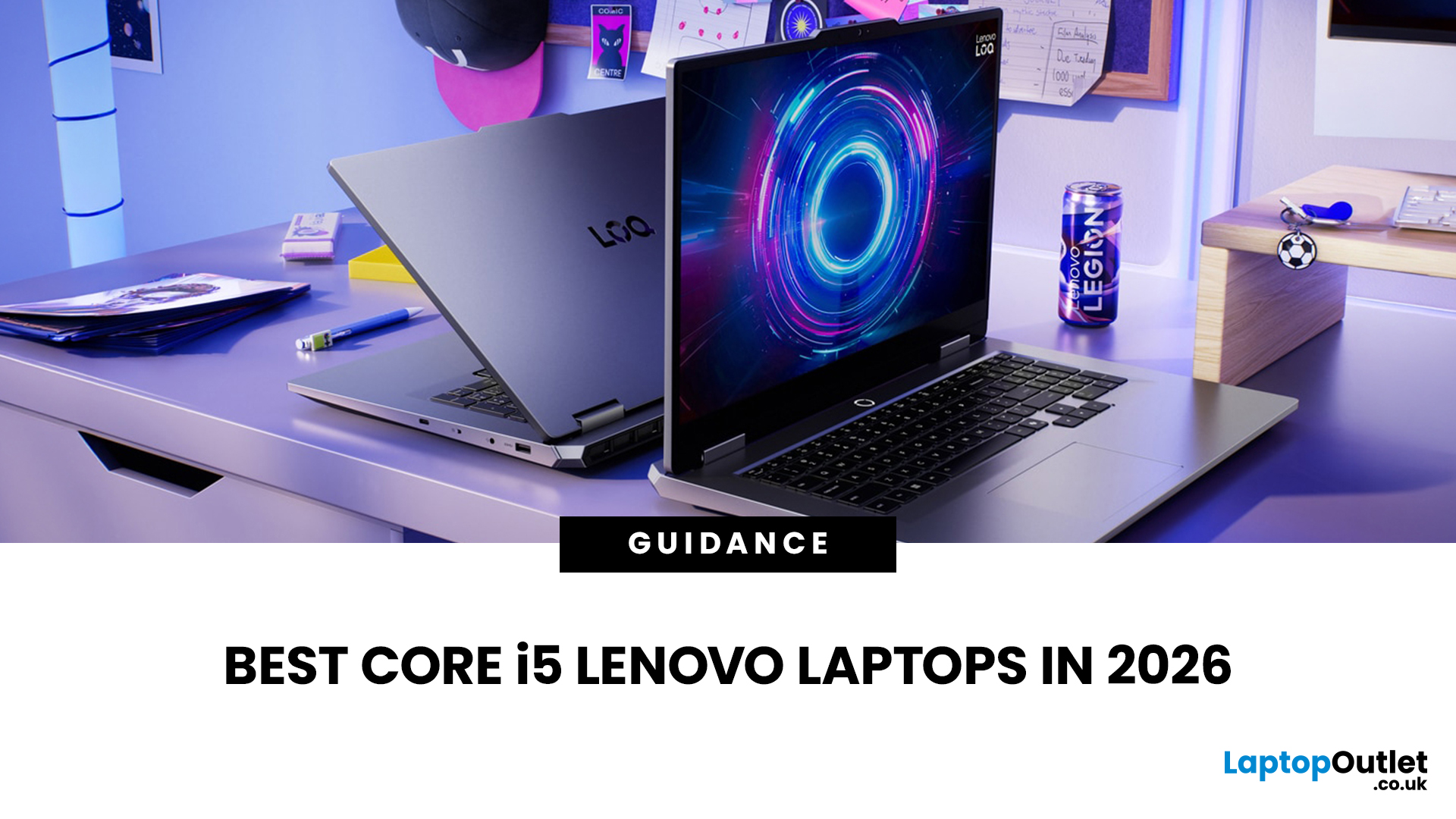
If you are searching for Core i5 Lenovo laptops, you are likely looking for a balance of performance, price, and reliability. And that is exactly where Lenovo stands out in 2026. From affordable everyday machines to durable business devices, Lenovo’s Core i5 lineup covers a wide range of use cases. Whether you need a laptop for work, study, or general productivity, there is a model that fits without pushing into premium pricing.
This guide breaks down the best options available right now, with a focus on real-world usability, value, and what each model is good for.
Why Choose a Lenovo Core i5 Laptop in 2026?
Lenovo continues to be one of the most consistent brands when it comes to mid-range laptops. Its Core i5 models are particularly popular because they offer:
- Reliable everyday performance
- Strong build quality across price ranges
- Good keyboard and typing experience
- Wide choice across business and budget segments
For most users, a Core i5 processor is more than enough for:
- Office work

Last Updated: May 01, 2026
Streaming accounted for over 38% of total TV and video consumption globally last year, overtaking traditional viewing for the first time. That means more people are now watching films on laptops, tablets, and personal screens than ever before, not TVs.
But here’s the problem: most laptops aren’t actually built for a good viewing experience.
You can open the same film on two different laptops and get completely different results. On one, colours look rich, scenes feel immersive, and everything flows smoothly. On another, the image feels dull, brightness struggles in daylight, and the whole experience falls flat - even if the specs look similar on paper.
That’s where most buyers get caught out. Terms like “Full HD,” “OLED,” or “high brightness” sound impressive, but they don’t always translate into a better streaming experience. Many people end up choosing based on performance or price, while overlooking what actually matters for watching films.
This guide breaks that down clearly - focusing

Last Updated: June 11, 2026
Choosing the best laptops for teachers in the UK is not about chasing the highest specs or the most expensive model. It is about finding a device that aligns with the realities of teaching. That means smooth multitasking for lesson planning, marking, presentations, browser-based platforms, video calls, and the everyday admin that comes with school life. A good teacher's laptop should feel reliable from the first lesson of the day to the last task in the evening.
In 2026, teachers need more from their laptops than ever. Hybrid working, online meetings, digital classroom tools, and resource-heavy workflows have made performance, portability, and practicality far more important than they used to be. For most buyers, the right choice comes down to a balance of speed, battery life, screen size, webcam quality, and the ports that still matter in real classrooms.
This guide focuses on laptops that make sense for teachers in the UK today. Whether you need a lightweight everyday device for commuting,

Last Updated: May 19, 2026
Staying connected wherever you go is no longer a luxury, it’s a necessity. Whether you’re working remotely, travelling frequently, or simply want a more reliable connection than public Wi-Fi, laptops with sim card slot capabilities are becoming an increasingly popular choice in 2026. If you’re considering making the switch to a laptop with built-in mobile internet, this guide will walk you through everything you need to know, from how they work to the key differences between 4G and 5G models, and who should be using them.
What are Laptops with SIM Card Slots?
A laptop with sim card functionality allows you to insert a SIM card directly into your device, giving you access to mobile data networks, just like your smartphone. These are often referred to as laptops with built-in mobile internet or cellular laptops.
Instead of relying solely on Wi-Fi, these devices connect to 4G LTE or 5G networks, ensuring you stay online wherever there’s mobile coverage. You’ll commonly find this feature

Last Updated: October 16, 2026
The best laptops for AutoCAD in 2026 need the right balance of processing power, RAM, graphics performance and storage. However, the ideal specifications depend on whether you're creating simple 2D drawings, developing detailed 3D models or working with complex engineering projects.
You don't necessarily need an expensive workstation for basic drafting. Equally, a standard everyday laptop may struggle with demanding architectural designs and larger CAD files.
We've selected 10 laptops for CAD and AutoCAD, covering different performance levels, working requirements and budgets to help you make an informed decision.
What Laptop Specs Do You Need for AutoCAD in 2026?
Autodesk recommends 32GB RAM and an 8GB graphics card for AutoCAD 2026 on Windows, although lighter tasks can run on less powerful hardware. For larger datasets, point clouds and advanced 3D modelling, requirements can increase further.
Here are the main specifications to consider:
- Processor (CPU): Strong single-core performance

Last Updated: July 03, 2026
For most developers, the best machine is not necessarily the most expensive one. It is the one that keeps up with your workflow, feels comfortable to use for hours at a time, and still makes sense a few years down the line.
That matters even more in 2026. Modern development work is heavier than it used to be. A typical day might include an IDE, a browser with far too many tabs open, Docker, a local database, Slack, video calls, design files, and maybe a virtual machine or AI-assisted tools running in the background. A laptop that feels fine on paper can start to struggle surprisingly quickly once real work begins.
This guide is designed for a UK audience looking for a dependable laptop for software development, whether you are a student, a junior developer, a freelancer, or a full-time engineer replacing an ageing machine. Given below are top 10 laptops for programming and coding 2026:
1. ASUS Zenbook 14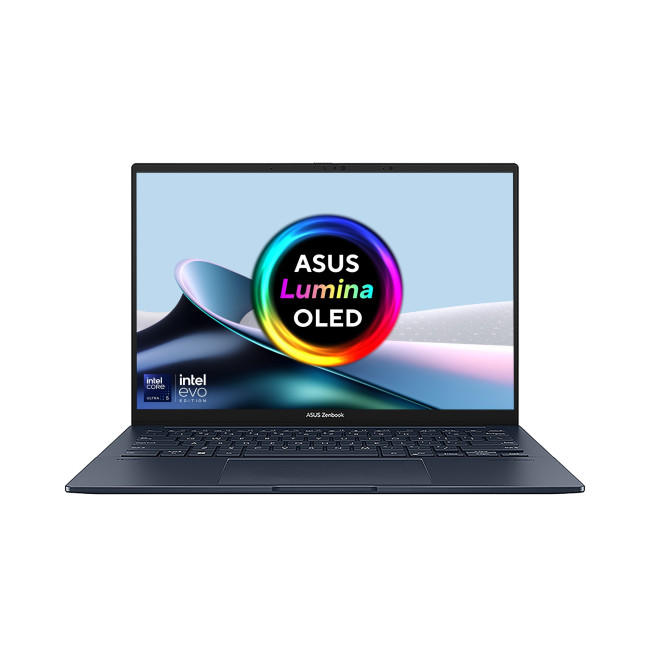
Technical Specs:
- Intel Core Ultra 5 225H 14-Core Processor
- AI Ready Laptop

