



Everything You Need to Know About iCloud Storage Management
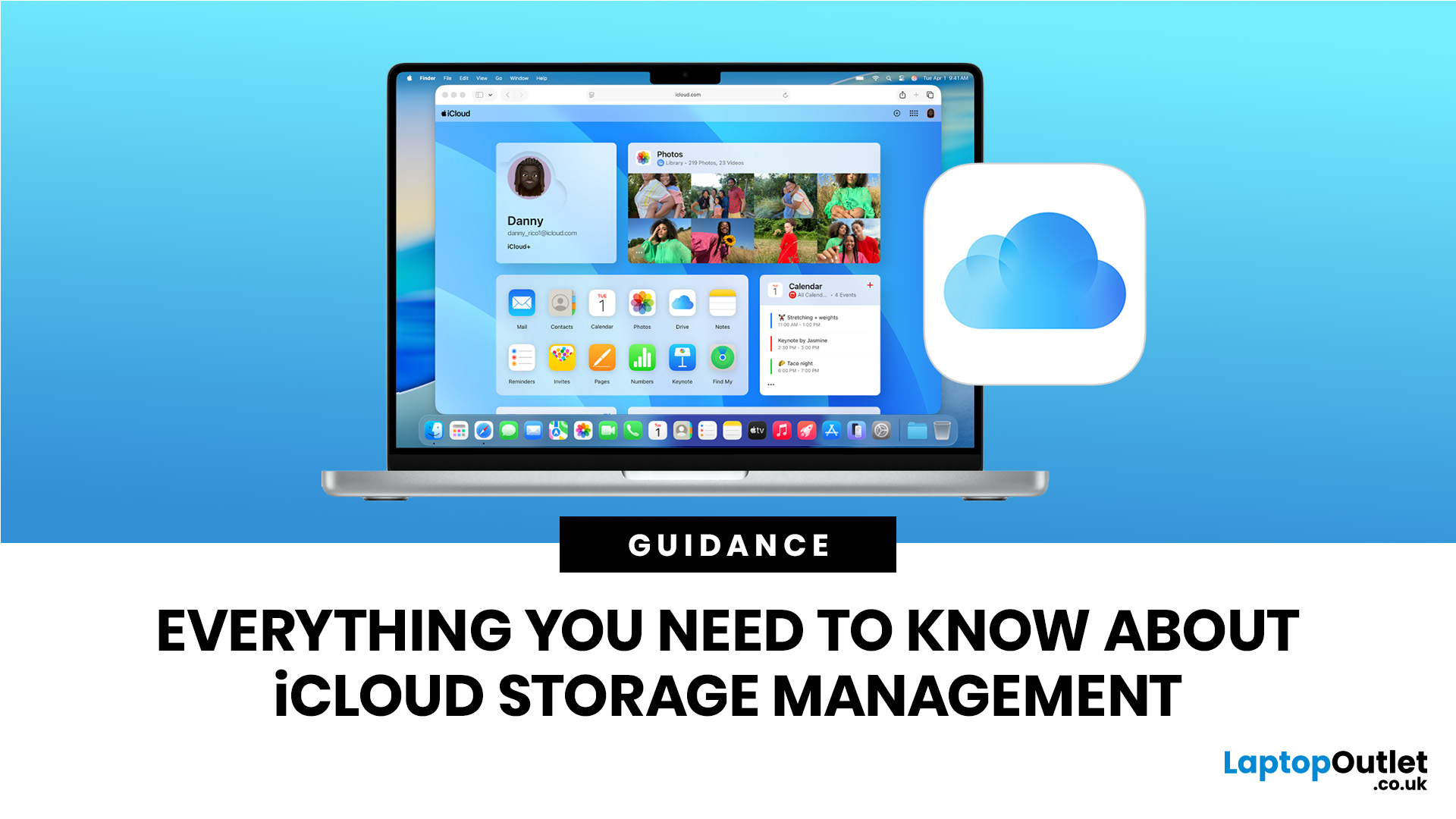
If you want better iCloud storage management, start with one simple rule: treat iCloud as a mix of syncing, backup, and storage, not just a spare online folder. iCloud keeps data safe in two main ways, syncing and backing up, and the difference matters because photos, files, messages, and device backups do not all behave the same way inside your storage allowance.
For most people, the best way to manage storage in iCloud is to check what is using space first, then decide what should stay synced, what should be backed up, what should be deleted, and when it makes more sense to upgrade to iCloud+ rather than keep trimming everything manually. Apple currently includes 5 GB of free iCloud storage, and in the UK, its paid iCloud+ tiers now run from 50 GB to 12 TB.
The Smartest Way to Manage iCloud Storage
The shortest answer is this: check your storage breakdown, clear the largest categories first, and avoid paying for more space until you know what is filling it. Apple’s storage view shows which APPs and features use the most space, with the biggest categories listed at the top, so it is usually obvious where to start.
In practice, the main culprits are usually Photos, device backups, iCloud Drive files, Messages, and mail data. Apple’s current support guidance also points iPhone and iPad users on iOS 17 or later to Recommended for You, which can suggest deleting large files, old backups, or photos you no longer need.
If your storage is full, the consequences are more disruptive than many people expect. New photos and videos stop uploading to iCloud Photos, iCloud Drive, and other iCloud APPs stop staying up to date across devices, iCloud Mail may stop working properly, and device backups to iCloud will not complete.
How iCloud Storage Works
iCloud storage is easier to manage once you separate syncing from backup. iCloud uses syncing to keep services like iCloud Photos, iCloud Drive, and Notes up to date across your devices, while iCloud Backup stores data that is not already syncing regularly so it can be restored later if needed.
That is why iCloud can feel confusing at first. If you use iCloud Photos, those photos sync to iCloud and are not included again in your daily device backup. If an app stores data in iCloud Drive, that data is stored there rather than duplicated inside the backup. In other words, good iCloud storage management is partly about avoiding overlap and partly about understanding which service is using your allowance.
What Can iCloud Do?
At the most practical level, it can store photos and videos in iCloud Photos, keep documents current through iCloud Drive, sync Notes and other supported APP data, back up iPhone and iPad data that is not already syncing, and make your information available across Apple devices and the web. Apple also positions iCloud+ as more than storage alone, adding features such as Private Relay, Hide My Email, Custom Email Domain, and HomeKit Secure Video support, depending on the plan.
For everyday users, the real value is continuity. It is what lets a file saved on one device show up on another, helps restore an iPhone from backup, and keeps a photo library accessible without forcing every original file to sit on each device all the time.
How Much Free Storage iCloud Gives You

The answer is 5 GB. Every iCloud account starts with 5 GB of free storage, and that space can be used for iCloud backups, iCloud Photos, and iCloud Drive documents.
If you are asking how much free storage in iCloud is enough, 5 GB is usually only enough for lighter use. It can work for contacts, notes, a few files, and limited backup data, but it fills quickly once photos, videos, or full device backups are involved. That is why many users hit the limit faster than expected, especially on iPhones with larger camera files.
How Big is iCloud?
Eligible plans can be shared with up to five other family members.
|
Plan |
Storage |
Monthly price (UK) |
Family sharing |
|
Free iCloud |
5 GB |
Free |
No |
|
iCloud+ |
50 GB |
£0.99 |
Up to 5 other family members |
|
iCloud+ |
200 GB |
£2.99 |
Up to 5 other family members |
|
iCloud+ |
2 TB |
£8.99 |
Up to 5 other family members |
|
iCloud+ |
6 TB |
£26.99 |
Up to 5 other family members |
|
iCloud+ |
12 TB |
£54.99 |
Up to 5 other family members |
For most users, the question is not really how big iCloud can get. It is which tier matches how you use it. A light personal user may only need 50 GB, while family photo libraries, frequent device backups, and shared storage needs can push people toward 200 GB or 2 TB very quickly.
How Do I Manage iCloud Storage?
Start by checking the breakdown on the device you use most.
- On iPhone or iPad, go to Settings > [your name] > iCloud, then tap Storage or Manage Account Storage.
- On Mac, go to Apple menu > System Settings > your name > iCloud > Manage.
- On Windows, open iCloud for Windows and click Manage.
Apple also lets you check your storage on iCloud.com. Once you are inside the storage view, focus on the biggest categories first. Apple’s interface lists the APPs and features using the most space at the top, which is the fastest way to spot what is worth trimming.
What Usually Takes Up the Most Storage in iCloud?
Most storage in iCloud is usually taken by a small number of categories, not dozens of tiny ones.
|
iCloud storage category |
What it usually includes |
Why it grows quickly |
|
Photos and Videos |
iCloud Photos library |
High-resolution photos and video use space fast |
|
Backups |
iPhone or iPad backups |
App data, settings, and device restore data accumulate over time |
|
Documents |
iCloud Drive files and some app data |
Large files, downloads, PDFs, and project folders build up quietly |
|
Messages |
Messages and attachments |
Photos, videos, and long conversation attachments add up |
|
|
iCloud Mail messages and attachments |
Large attachments and old mailboxes can stay stored for years |
How to Use iCloud Storage Without Wasting It
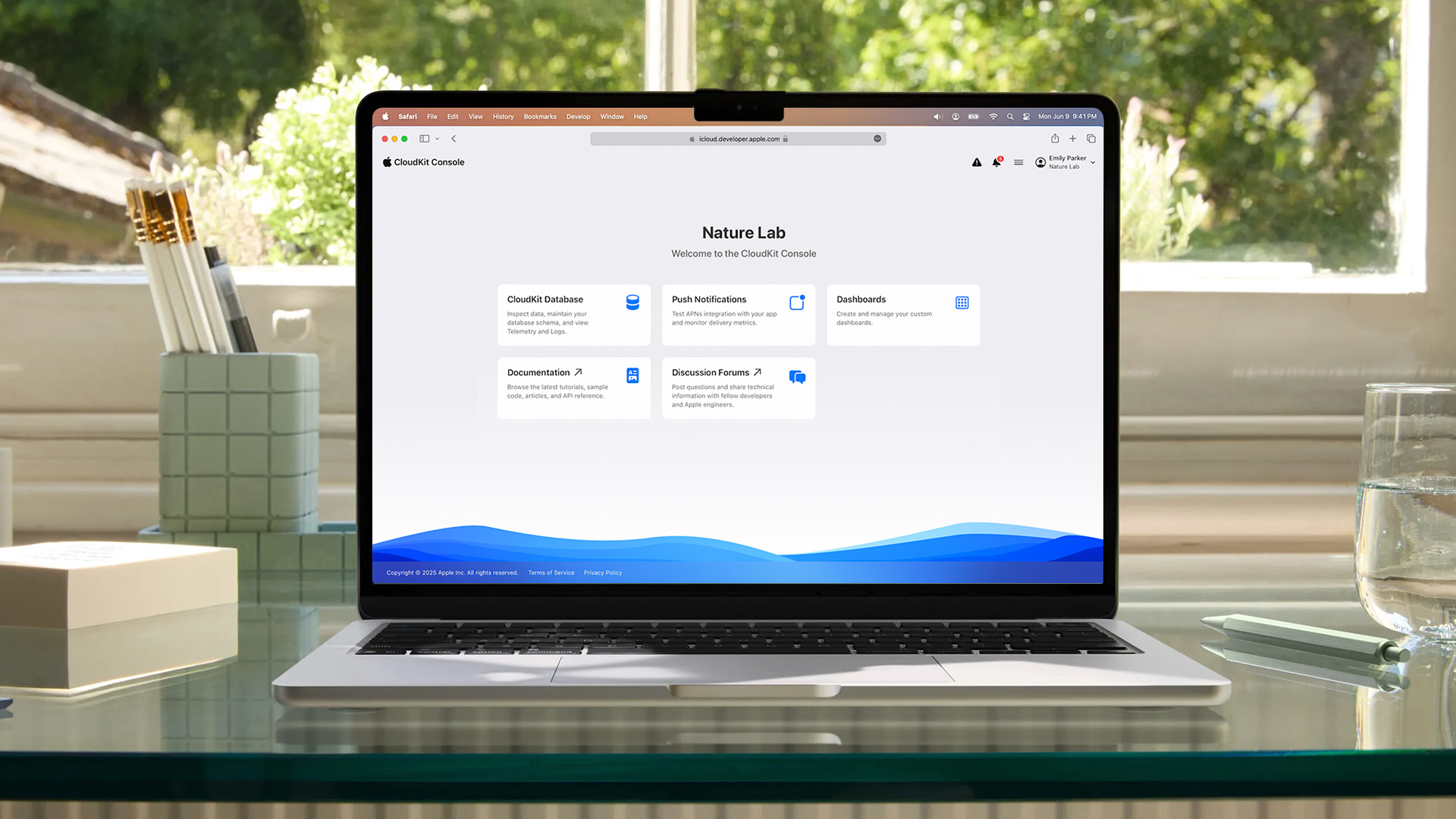
A sensible setup usually looks like this:
- Use iCloud Photos if you want one photo library across Apple devices
- Use iCloud Drive for active documents you need across devices
- Keep device backups on if restore convenience matters
- Turn off app backups you do not care about
- Delete outdated files and old backups before upgrading blindly
You can reduce backup size by turning off APPs you do not want backed up and by deleting old backups you no longer need. It also says iPhone and iPad users on recent software can use Recommended for You to delete large files, photos, or older backups more quickly.
The best way to utilise iCloud storage is to decide what needs constant access, what needs backup protection, and what should live elsewhere. That keeps you from paying for cloud storage that is really being consumed by forgotten backups, message attachments, or files you no longer use.
Read our complete MacBook guide to learn more about models, tips, and troubleshooting.
iPhone Storage Options vs iCloud Storage
A lot of confusion comes from mixing up device storage and cloud storage. iPhone storage options are about the physical storage on the phone itself, while iCloud storage is your online allowance for backups, synced files, photos, and other cloud data. Apple separate these clearly:
- Device storage is checked under Settings > General > [device] Storage,
- iCloud storage is checked under Settings > [your name] > iCloud.
That means buying more iCloud storage does not increase the physical capacity of your iPhone. What it can do is reduce pressure by storing full-resolution photos and videos in iCloud while keeping smaller, space-saving versions on the device when Optimise iPhone Storage is enabled. With iCloud Photos turned on, full-resolution originals stay in iCloud and optimised versions can stay on the device as needed.
When Should You Delete Files, and When Should You Upgrade?
Delete first when the storage problem is clearly caused by clutter. That includes old iPhone backups, oversized attachments in Messages or Mail, duplicate or unwanted photos, and old files in iCloud Drive that no longer matter.
Upgrade when the storage reflects genuine ongoing use rather than mess. If you actively use iCloud Photos, keep backups on, store work files in iCloud Drive, and want everything synced across devices, trimming endlessly usually becomes poor value for your time. In that case, moving from 5 GB to 50 GB or 200 GB is often the more practical answer.
How to Free Up iCloud Storage Step by Step
The cleanest iCloud storage management process is usually:
- Check your storage breakdown on iPhone, iPad, Mac, Windows, or iCloud.com.
- Open the largest category first and review what is inside it.
- Delete old device backups you no longer need. Deleting a backup stops automatic iCloud backup for that device until you turn it back on again.
- Turn off backup for APPs you do not need backed up.
- Remove large files from iCloud Drive, clear message attachments, and review iCloud Mail if those are using space.
- Use Recommended for You on supported iPhones and iPads if you want quicker suggestions.
- Upgrade only if the remaining usage reflects things you genuinely want to keep synced or backed up.
What Happens if Your iCloud Storage is Full?
If your iCloud storage is full, the impact is wider than just one failed upload. New photos and videos stop uploading to iCloud Photos, iCloud Drive and other iCloud apps stop staying up to date, iCloud Mail may stop sending or receiving mail, and iPhone or iPad backups to iCloud will not run.
That is why full iCloud storage tends to show up as several smaller annoyances at once. Photos lag behind, files stop syncing cleanly, and backup warnings start appearing. If those problems are happening together, storage is often the real cause. You can also learn how to factory reset a MacBook if you need a fresh start or are troubleshooting persistent issues.
Which iCloud Setup Makes Sense for Different Users?
Students
Students usually need a simple setup that keeps coursework, notes, screenshots, and phone backups protected without overpaying. For lighter use, 5 GB may be enough briefly, but regular photo use and document syncing often push students toward 50 GB quite quickly. If you are also choosing a study device, our affordable laptops for studying is a useful next step.
MacBook and iPhone Users
For people using more than one Apple device, iCloud becomes more valuable because syncing is part of the point. Photos, files, notes, and backups are easier to manage when the ecosystem is working properly, and Apple’s Mac settings make it easy to manage iCloud storage directly from System Settings. If you are comparing Apple hardware as well, you can browse our latest MacBook collection.
Business Users
For work, the right plan depends less on photos and more on documents, mail, and shared access patterns. The key management rule is to keep active files in sync, avoid bloated backups, and stop using iCloud as an archive for everything you have ever downloaded. If you are reviewing hardware for work at the same time, our best business laptops fit naturally here.
Creators and Designers
Designers and other creative users fill cloud storage faster because asset libraries, exported files, reference images, and large media collections build up quickly. iCloud can still work well, but it needs tighter folder discipline and realistic plan sizing. If your workflow is starting to outgrow your device as well as your cloud allowance, our best laptops for designers are worth comparing.
What Buyers Often Overlook About iCloud Storage Management
The first thing many people miss is that iCloud is not a full substitute for device storage. Apple is clear that device storage and iCloud storage are managed separately. Buying more iCloud can help reduce pressure with features like optimized photo storage, but it does not increase the physical storage of your iPhone or Mac.
The second thing they miss is that backups are not the same as syncing. If your photos, notes, and files already sync to iCloud, they are handled differently from backup-only data. Managing iCloud well means knowing which category you are dealing with before you start deleting things. If you’re trying to clean up your system, learning how to uninstall APPs on Mac can make the process much easier.
The third is that storage stress can sometimes be a device-fit problem, not just a cloud problem. If you constantly rely on iCloud because local storage is too tight, it may be worth comparing a broader laptop range instead of solving everything through cloud upgrades alone.

The Best Next Step for Most Users
To sum up, the best iCloud storage management plan is simple: check the storage graph, clean out the biggest categories first, turn off backup for APPs you do not need, and only upgrade once you know the remaining usage is legitimate. That approach is faster, cheaper, and far more useful than deleting random files in frustration.
If your iCloud usage reflects real day-to-day needs such as photos, files, and backups across multiple devices, paying for more storage can be sensible. If it reflects clutter, fix the clutter first. That is the decision line most people need.

Still Got Questions?
How do I manage iCloud storage?
To manage iCloud storage, open iCloud settings on your device, review the storage breakdown, and start with the largest categories first. Apple says the biggest storage users appear at the top of the list, which makes it easier to decide what to delete or keep.
How much free storage in iCloud do you get?
You get 5 GB of free iCloud storage. Apple says that free allowance can be used for backups, iCloud Photos, and iCloud Drive documents.
What can iCloud do for everyday users?
iCloud can sync photos, files, and notes across devices, store backups for iPhone and iPad data that is not already syncing, and keep content available across Apple devices and the web.
How do you use iCloud storage more efficiently?
The most efficient way is to keep only useful synced data and current backups, delete old backups and large files you no longer need, and use optimized photo storage on supported devices. Apple also recommends reviewing Recommended for You on recent iPhone and iPad software when space is tight.
Does buying more iCloud storage increase iPhone storage?
No. Buying more iCloud storage increases your cloud allowance, not your device’s physical capacity. Apple separates device storage and iCloud storage in settings and management tools.
| Read More: |
| PC vs Mac in 2026: Which One Is Right for You? |
| Chromebook vs MacBook: Which Should You Buy? |
| How to Clean a MacBook Keyboard Safely |
Related Articles

Last Updated: June 18, 2026
If you are searching for Core i5 Lenovo laptops, you are likely looking for a balance of performance, price, and reliability. And that is exactly where Lenovo stands out in 2026. From affordable everyday machines to durable business devices, Lenovo’s Core i5 lineup covers a wide range of use cases. Whether you need a laptop for work, study, or general productivity, there is a model that fits without pushing into premium pricing.
This guide breaks down the best options available right now, with a focus on real-world usability, value, and what each model is good for.
Why Choose a Lenovo Core i5 Laptop in 2026?
Lenovo continues to be one of the most consistent brands when it comes to mid-range laptops. Its Core i5 models are particularly popular because they offer:
- Reliable everyday performance
- Strong build quality across price ranges
- Good keyboard and typing experience
- Wide choice across business and budget segments
For most users, a Core i5 processor is more than enough for:
- Office work

Last Updated: May 01, 2026
Streaming accounted for over 38% of total TV and video consumption globally last year, overtaking traditional viewing for the first time. That means more people are now watching films on laptops, tablets, and personal screens than ever before, not TVs.
But here’s the problem: most laptops aren’t actually built for a good viewing experience.
You can open the same film on two different laptops and get completely different results. On one, colours look rich, scenes feel immersive, and everything flows smoothly. On another, the image feels dull, brightness struggles in daylight, and the whole experience falls flat - even if the specs look similar on paper.
That’s where most buyers get caught out. Terms like “Full HD,” “OLED,” or “high brightness” sound impressive, but they don’t always translate into a better streaming experience. Many people end up choosing based on performance or price, while overlooking what actually matters for watching films.
This guide breaks that down clearly - focusing

Last Updated: June 11, 2026
Choosing the best laptops for teachers in the UK is not about chasing the highest specs or the most expensive model. It is about finding a device that aligns with the realities of teaching. That means smooth multitasking for lesson planning, marking, presentations, browser-based platforms, video calls, and the everyday admin that comes with school life. A good teacher's laptop should feel reliable from the first lesson of the day to the last task in the evening.
In 2026, teachers need more from their laptops than ever. Hybrid working, online meetings, digital classroom tools, and resource-heavy workflows have made performance, portability, and practicality far more important than they used to be. For most buyers, the right choice comes down to a balance of speed, battery life, screen size, webcam quality, and the ports that still matter in real classrooms.
This guide focuses on laptops that make sense for teachers in the UK today. Whether you need a lightweight everyday device for commuting,
Last Updated: May 19, 2026
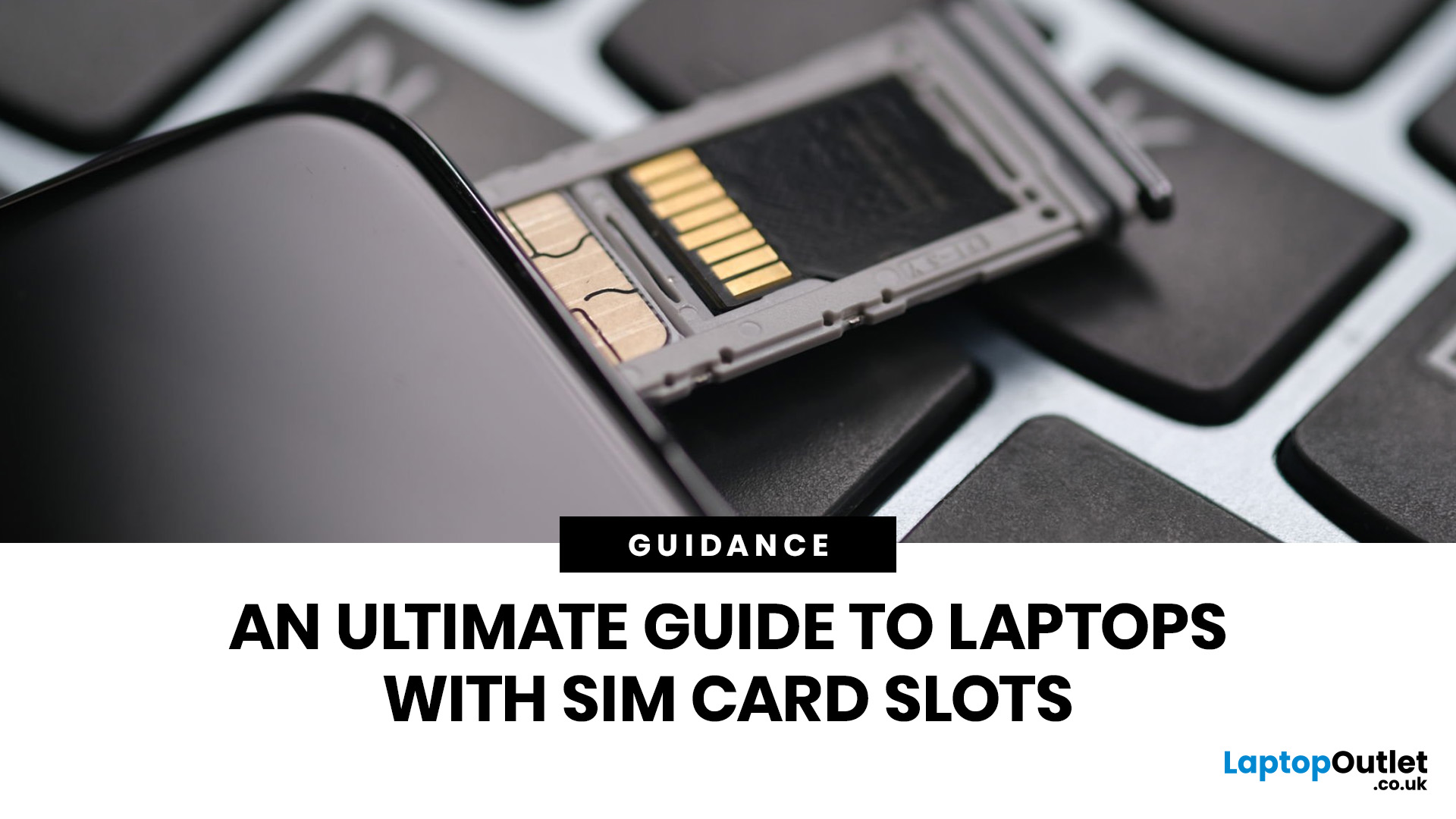
Staying connected wherever you go is no longer a luxury, it’s a necessity. Whether you’re working remotely, travelling frequently, or simply want a more reliable connection than public Wi-Fi, laptops with sim card slot capabilities are becoming an increasingly popular choice in 2026. If you’re considering making the switch to a laptop with built-in mobile internet, this guide will walk you through everything you need to know, from how they work to the key differences between 4G and 5G models, and who should be using them.
What are Laptops with SIM Card Slots?
A laptop with sim card functionality allows you to insert a SIM card directly into your device, giving you access to mobile data networks, just like your smartphone. These are often referred to as laptops with built-in mobile internet or cellular laptops.
Instead of relying solely on Wi-Fi, these devices connect to 4G LTE or 5G networks, ensuring you stay online wherever there’s mobile coverage. You’ll commonly find this feature

Last Updated: May 01, 2026
Finding the best laptop for CAD in 2026 means looking beyond a decent spec sheet. AutoCAD, Fusion 360, SolidWorks, and similar tools push processors, RAM, and graphics to their absolute limits. Whether you are a working engineer, an architect, or a design student, this guide covers everything you need to make the right call.
What Makes a Laptop Good for CAD Work?
Not every high-performance laptop is cut out for CAD. The right machine needs a specific combination of components working together, and getting even one wrong can cost you hours of frustration on a deadline.
Processor: The Core of CAD Performance
CAD software is heavily reliant on single-core CPU speed for most tasks, though multi-core performance matters for rendering. Look for at least an Intel Core i7 or AMD Ryzen 7 series as a minimum. For demanding 3D work, Intel Core Ultra 9 or AMD Ryzen AI 9 processors are the gold standard in 2026.
Turbo clock speeds above 4.5GHz keep viewport navigation snappy and simulation times down.

Last Updated: July 03, 2026
For most developers, the best machine is not necessarily the most expensive one. It is the one that keeps up with your workflow, feels comfortable to use for hours at a time, and still makes sense a few years down the line.
That matters even more in 2026. Modern development work is heavier than it used to be. A typical day might include an IDE, a browser with far too many tabs open, Docker, a local database, Slack, video calls, design files, and maybe a virtual machine or AI-assisted tools running in the background. A laptop that feels fine on paper can start to struggle surprisingly quickly once real work begins.
This guide is designed for a UK audience looking for a dependable laptop for software development, whether you are a student, a junior developer, a freelancer, or a full-time engineer replacing an ageing machine. Given below are top 10 laptops for programming and coding 2026:
1. ASUS Zenbook 14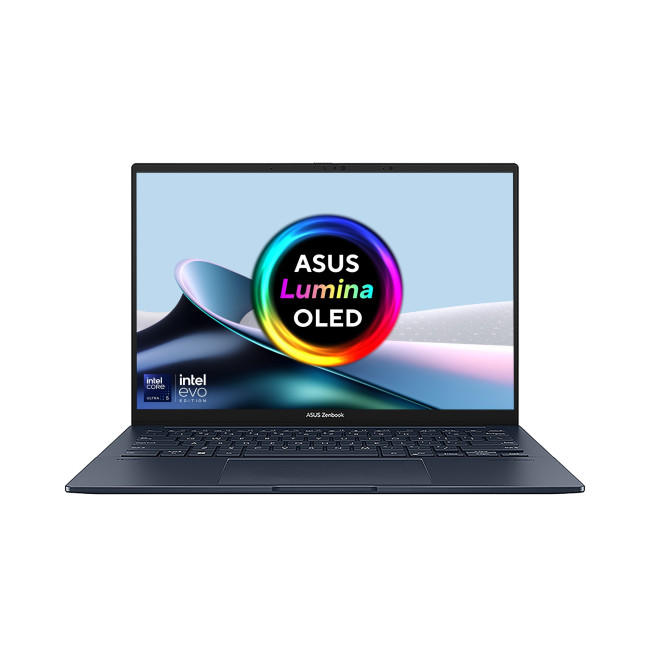
Technical Specs:
- Intel Core Ultra 5 225H 14-Core Processor
- AI Ready Laptop
Last Updated: May 01, 2026
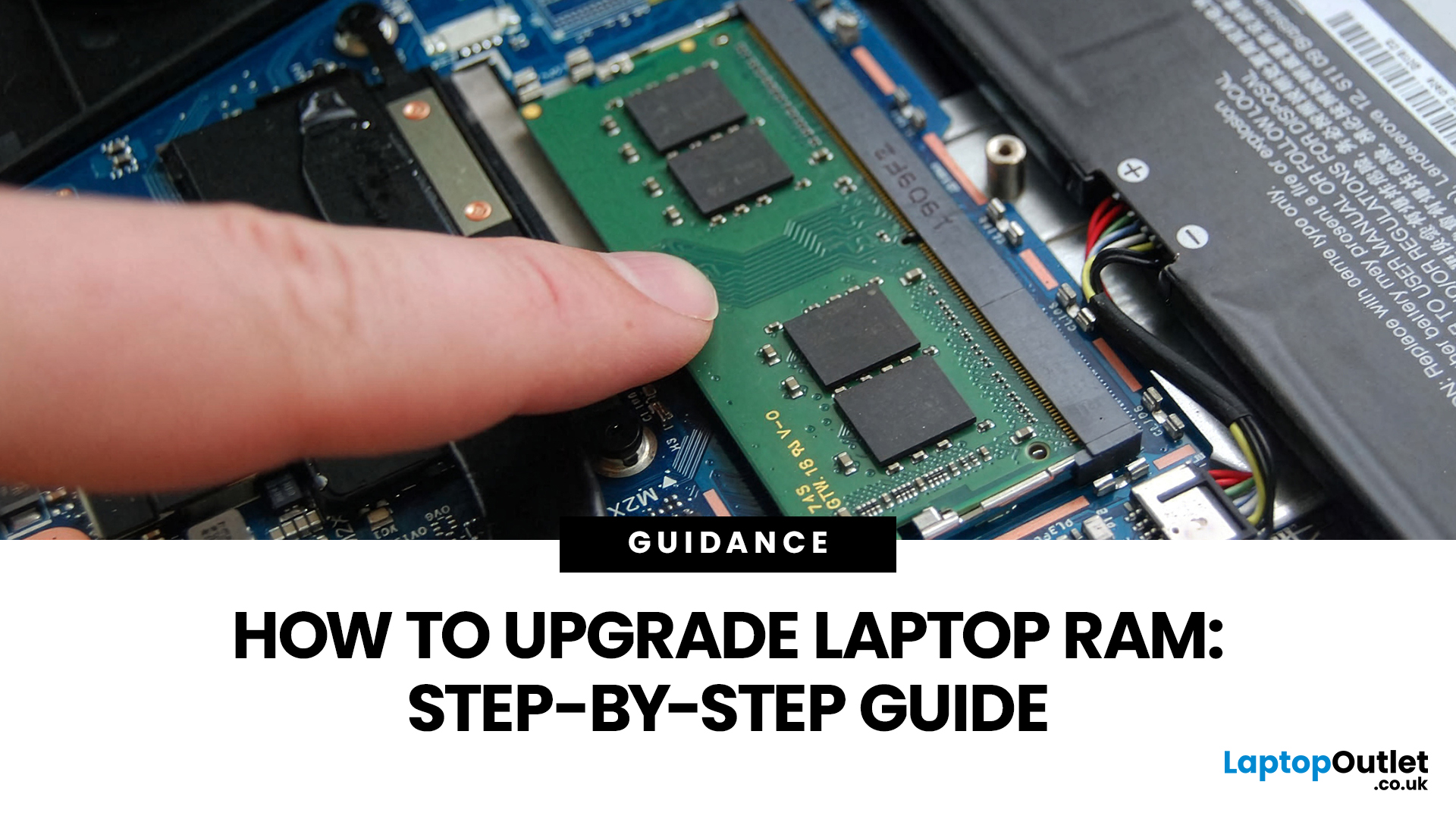
Upgrading laptop RAM is one of the simplest ways to make an older machine feel faster and more capable again, but only if the compatibility side is right from the start. That is the part many quick guides skip. Before buying anything, we always recommend checking whether the laptop has upgradeable memory, what RAM standard it uses, how much it supports, and whether upgrading means adding another module or replacing the existing setup.
For UK shoppers, that matters because a RAM upgrade can be a much smarter option than replacing a laptop too early. If a system slows down with lots of browser tabs, Office apps, study tools, or light creative work, upgrading the RAM can improve day-to-day responsiveness at a much lower cost than buying a new machine. If the laptop is already maxed out, has soldered memory, or is really held back by old storage, the better move may be to consider an SSD upgrade or a newer device.
Why Upgrade Laptop RAM in the First Place?
RAM is the short-term memory your
Last Updated: May 01, 2026
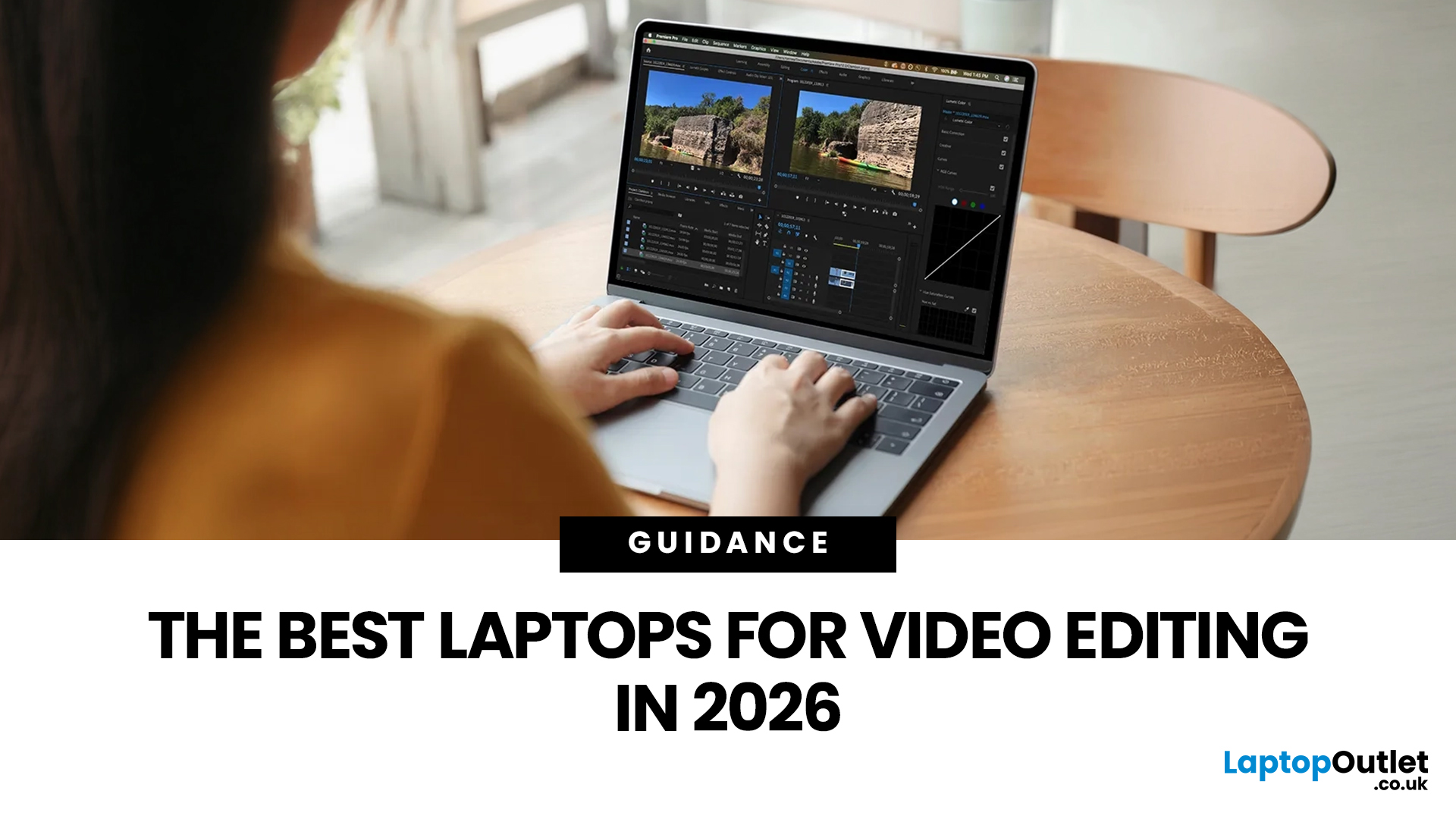
Video editing has become one of the most demanding everyday laptop workloads. Even relatively simple projects can involve high-resolution footage, multiple layers, colour work, motion graphics, audio cleanup, and export-heavy timelines. That means the best laptop for video editing is not just the one with the biggest headline spec. It is the one that fits the kind of editing you do, whether that is short-form social content, YouTube videos, client work, documentary edits, or more advanced professional production.
This guide includes mainstream creator laptops, premium ASUS ProArt models, mobile workstations, and a few higher-powered gaming machines that are relevant because video editing often benefits from the same strengths: strong sustained performance, capable graphics, fast storage, and displays built for visual work.
What Makes a Good Video Editing Laptop in 2026?
A good video editing laptop needs to do three things well:
- Handle demanding timelines smoothly,
- Stay responsive under
Last Updated: May 01, 2026
The computer that helped guide the Apollo missions worked with just 4 KB of RAM and around 72 KB of stored memory. Today, a modern laptop can burn through more than that just opening a few tabs.
That is how fast tech has moved and why an older laptop can suddenly feel frustratingly slow. Long boot times, laggy apps, and constant low-storage warnings can make even simple tasks feel harder than they should.
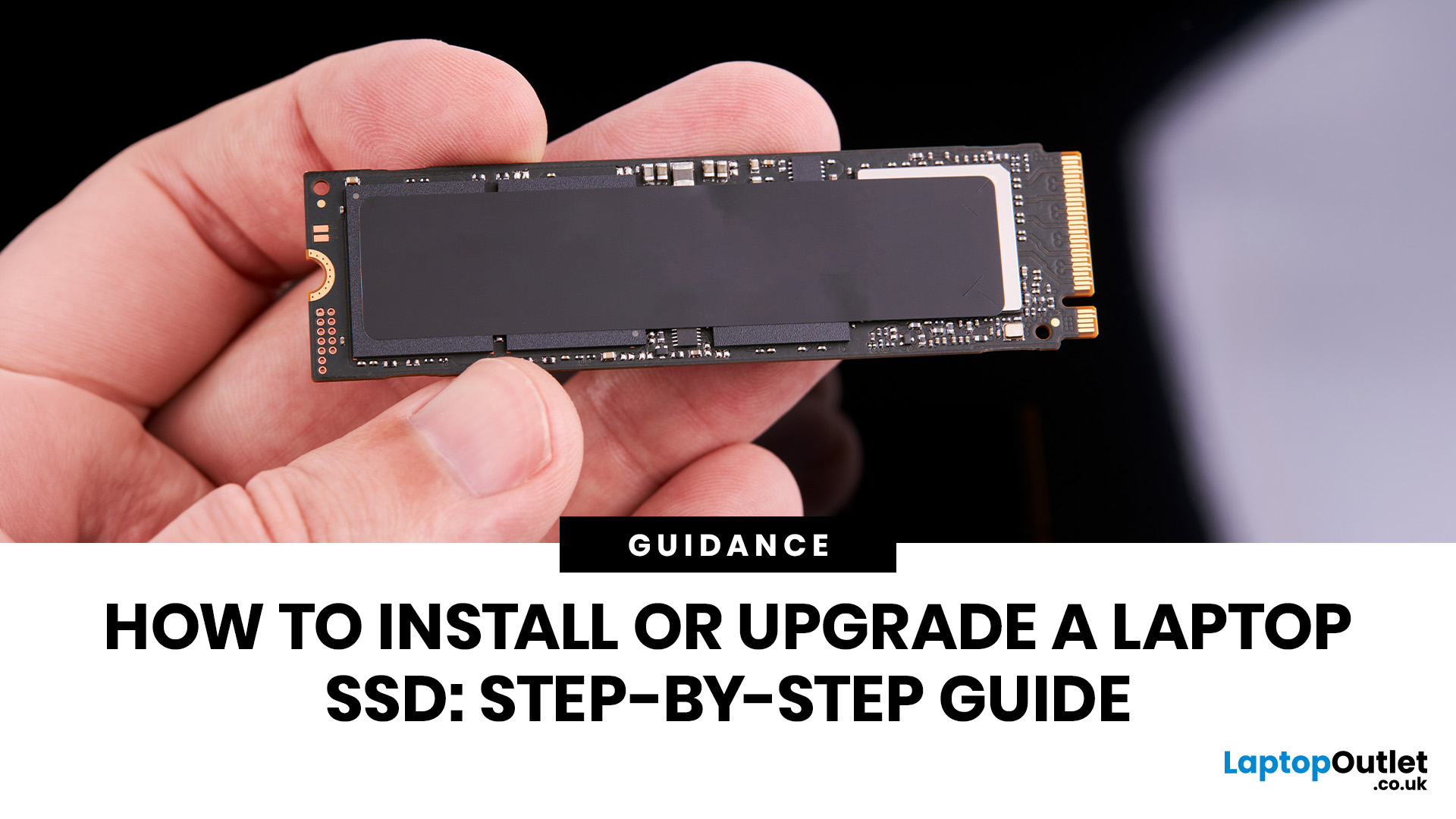
The good news is that you do not always need a brand-new machine. In many cases, upgrading your SSD is one of the easiest ways to make your laptop feel faster, smoother, and far more usable.
In this guide, we will show you how to upgrade a laptop SSD step by step, from checking compatibility to choosing the right drive and installing it properly.
Why upgrading your laptop SSD is worth it
Faster boot times, file transfers, and app loading
A slow laptop gets old fast. Long startup times, laggy apps, and endless waiting usually point to one thing: slow storage.
That is why how to upgrade
Last Updated: July 09, 2026
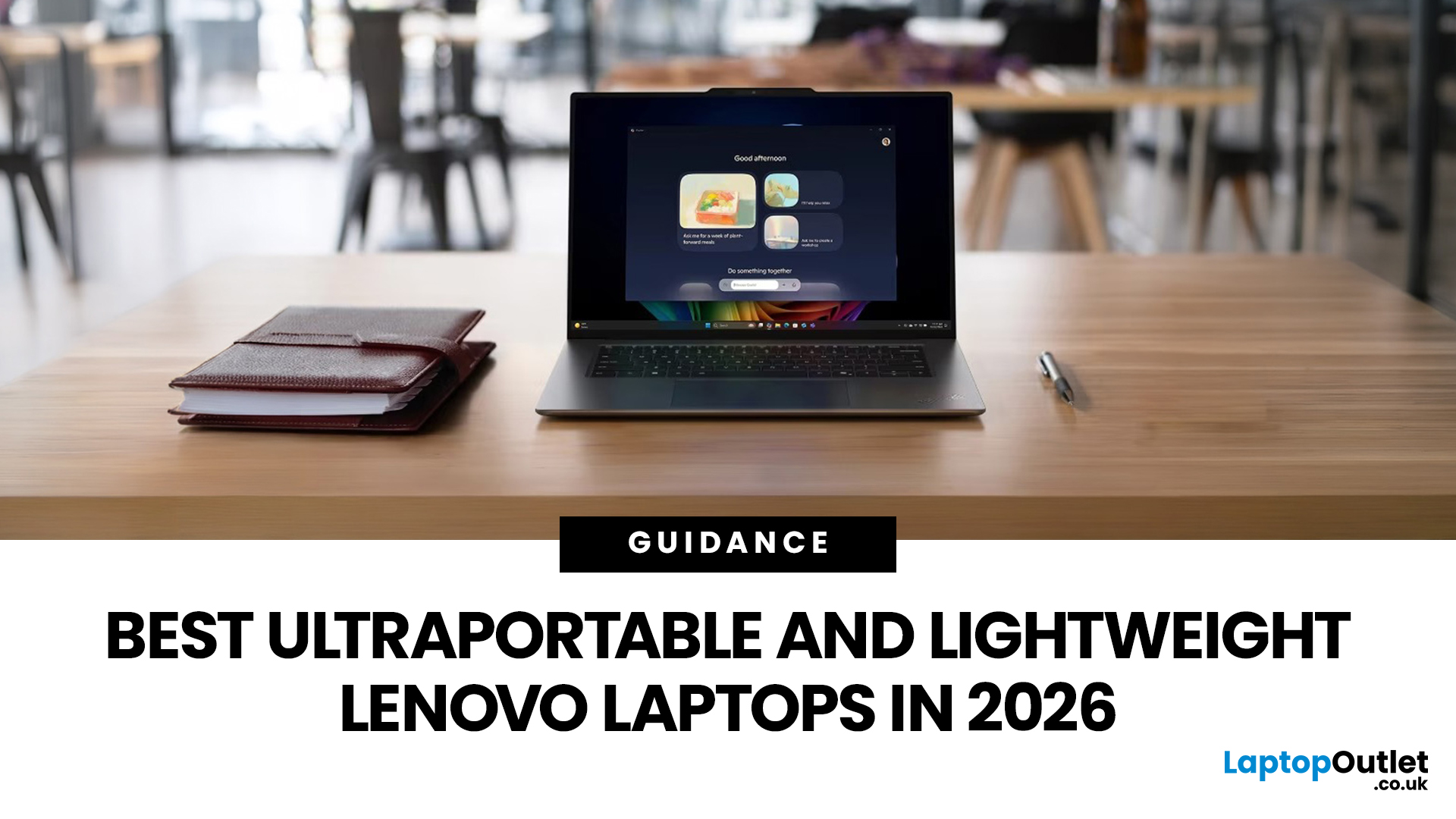
The best lightweight Lenovo laptops in 2026 are not all trying to do the same job. If we want the lightest premium 14-inch option, Lenovo’s Yoga Slim 7i Ultra Gen 11 Aura Edition stands out at 975g with a 75Wh battery. If business travel comes first, the ThinkPad X1 Carbon Gen 13 Aura Edition is still one of the strongest all-round choices thanks to its sub-1kg starting weight on some configs, proper business-grade connectivity, and classic ThinkPad focus.
That matters because buyers looking for ultraportable Lenovo laptops usually care about more than one thing at once: low carry weight, reliable battery life, enough ports to avoid living off dongles, and a screen that still feels good after a full day of work, study or travel. In this guide, we break down the best current Lenovo options for commuters, students, professionals, creators and home users, using Lenovo’s own 2026-era spec sheets first and independent reviews where they add useful trade-offs.

