



Chromebook vs MacBook: Which Should You Buy?
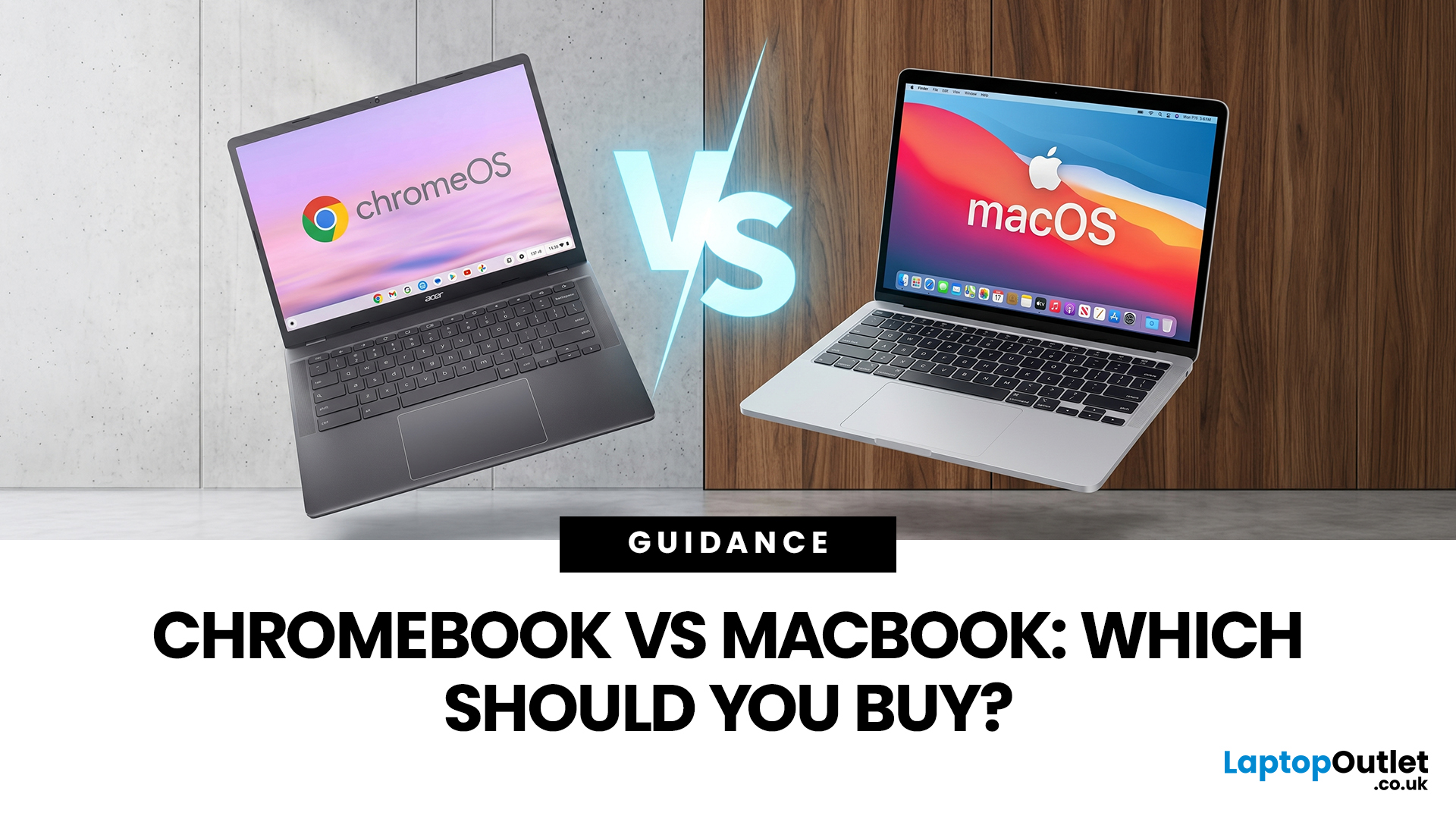
If you want the quickest answer, buy a Chromebook if you mainly use a browser, Google apps, streaming services, email, and simple everyday tools. Buy a MacBook if you need stronger performance, fuller desktop software support, and a laptop that gives you more room to grow over the next few years. That is the real Chromebook vs MacBook decision. It is less about the logo on the lid and more about how you actually work, study, and relax every day.
A Chromebook is a laptop that runs Chrome OS, built around speed, simplicity, built-in Google services, and lightweight computing. A MacBook runs macOS and is designed for a fuller desktop experience, stronger multitasking, and tighter integration with other Apple devices. If you already know you want to compare categories before choosing, start by browsing the best laptops to see where both options sit in the wider market.
Still deciding whether macOS is right for you at all? Read our PC vs Mac in 2026 guide before you choose.
Chromebook vs MacBook: Key differences
|
What matters most |
Chromebook |
MacBook |
|
Best for |
Browsing, email, streaming, Google apps, lighter study, simple home use |
Heavier multitasking, broader software needs, premium everyday use, longer-term flexibility |
|
Operating system |
ChromeOS |
macOS |
|
App style |
Web apps first, with some Android app support on supported models |
Full desktop apps with a wider software ecosystem |
|
Price position |
Usually the more affordable option |
Usually the more premium option |
|
Offline use |
Better than many people expect, but still more web-first overall |
Stronger if you want a fuller local desktop experience |
|
Gaming |
Fine for casual use and limited cloud or supported gaming |
Better than a Chromebook, but still not the first choice if gaming is your main priority |
What Is the Difference Between a Chromebook and a MacBook?
The biggest difference between a MacBook and a Chromebook is the operating system.
A Chromebook runs ChromeOS. It is designed to keep things simple, fast, and easy for web-based work. It suits you well if most of what you do happens inside a browser, a document app, a streaming service, or an online learning platform.
A MacBook runs macOS. It gives you a fuller desktop experience and makes more sense if you want more serious multitasking, broader software support, and a laptop that feels more capable when your workload gets heavier.
This is also why people often search for the difference between a Chromebook and a laptop. A Chromebook is a laptop. The real difference is that it runs ChromeOS instead of macOS or Windows. So, when you compare Chromebook versus MacBook, you are really comparing software experience, app flexibility, and the kind of work you expect your laptop to handle.
Chromebook Pros and Cons
If you want a clear look at Chromebook pros and cons, the biggest plus is value. ChromeOS is designed to feel fast and easy to use, and Google still positions Chromebooks as affordable everyday laptops. That makes them a strong option if you mostly browse, stream, write, email, attend online classes, and work inside web tools.
Another strength is low maintenance. Chromebooks receive automatic updates, and Google says current support lasts up to 10 years from the platform release date. For many buyers, that matters more than raw power because it helps you avoid the feeling that a low-cost device has aged out too quickly.
The downside is that a Chromebook still makes the most sense when your workflow is light and web-friendly. If you need specialist desktop software, heavier editing tools, more local storage freedom, or broader professional app support, you can hit the ceiling faster than you would on a MacBook. That is where the Chromebook vs MacBook comparison stops being about price and starts being about fit.
MacBook Pros and Cons
If you are looking at MacBook pros and cons, the biggest strength is capability.
A MacBook makes more sense when you want stronger performance, better long-term flexibility, and a more premium all-round experience. It is the easier choice to recommend if you multitask heavily, want smoother handling for bigger workloads, or simply do not want to feel boxed in a year or two from now.
A MacBook can also feel more rewarding if you already use other Apple devices. That is because the overall experience tends to feel more joined up when your phone, laptop, files, messages, and everyday workflow sit inside the same ecosystem.
The downside is cost.
If your laptop use is light and mostly browser-based, a MacBook can be more machine than you really need. In that case, you may be paying for performance and polish that you will not use often enough to justify the extra spend. However, if you know you want the extra flexibility, this is where it makes sense to explore our MacBook collection.
If you are leaning towards Apple, our MacBook user guide breaks down the models, key features, and which one suits each best.
Chromebook vs MacBook Features that Actually Matter
Performance and processing power
If you mainly use your laptop for browsing, email, documents, streaming, light admin, and online study or work, a Chromebook can feel fast enough because ChromeOS is built around a lightweight, web-first approach. Nevertheless, Chromebook performance varies more than many people realise. A cheaper model may be perfectly fine for day-to-day tasks, while a stronger Chromebook Plus model is built to handle more demanding multitasking with a higher baseline spec that includes at least an Intel Core i3 12th Gen or AMD Ryzen 3 5000 series processor, 8GB of RAM, 128GB of storage, a Full HD IPS display, and a 1080p webcam.
A MacBook, by comparison, gives you a more consistently high performance floor. Current MacBook Air models use Apple silicon, with Apple now positioning the line around the M5 chip, 16GB of unified memory as standard, a silent, fanless design, and support for heavier multitasking, 4K video editing, and AI-led workflows. Unified memory sounds technical, but the key is simple: the CPU and GPU share the same fast memory pool, which helps the system stay smooth when you juggle demanding tasks. That is one reason a MacBook tends to feel more comfortable when your workload gets heavier.
Apps and software
For most buyers, this is the feature section that matters more than processor names. A Chromebook works best when your digital life already lives in the browser. Google apps are built in, Microsoft 365 files can be opened, edited, downloaded, and saved on a Chromebook, Android apps are available on supported devices, and Linux can also be enabled on supported Chromebooks if you need a more technical development-style environment.
But there is an important catch. Not every Chromebook supports the same extras, and work or school-managed devices may restrict things like the Play Store. Linux support is helpful, but Linux apps on a Chromebook run in their own sandboxed environment and are still not the same as having a full, traditional desktop operating system for every use case.
A MacBook gives you a more traditional laptop answer here. You get a full desktop operating system, wider support for creative, productivity, and professional software, and a more local-first experience when you need it. That does not mean everybody needs a MacBook, but it does mean the software ceiling is much higher. So, if your apps are mostly web-based, ChromeOS can feel clean and efficient. If your work, course, or hobbies depend on fuller desktop software support, a MacBook is usually the safer choice.
Battery life, portability, and day-to-day feel
Both categories can work well if you want a laptop that is easy to carry, easy to open anywhere, and practical for daily use. The difference is that Chromebooks vary much more by model, while MacBooks deliver a more predictable premium experience. With Chromebooks, the battery size, processor speed, display quality, keyboard feel, and webcam standard can vary quite a bit between entry-level and higher-tier models. That is why two Chromebooks can look similar on paper but feel quite different in real use. Chromebook Plus is useful here because it sets a stronger quality floor with Full HD IPS displays and 1080p webcams.
A MacBook Air is easier to describe because the category is tighter. Apple currently promotes it around thin and light design, up to 18 hours of battery life, a 12MP Center Stage camera, a Liquid Retina display, and a silent fanless build. That combination matters because it improves the parts of laptop life you notice every day, not just in a benchmark test. Better webcam quality helps on calls. A brighter, sharper display feels easier on the eyes. A quieter design is simply nicer to live with. So, when people say a MacBook feels more premium, they usually mean these everyday details as much as raw speed.
Ports, displays, and working space
This is one of the quieter differences between a Chromebook and a MacBook, but it matters if you plug into monitors, use accessories, or want a cleaner desk setup. Chromebook hardware spans a much wider range of designs, so ports and display options can vary widely by model. Some are kept simple and affordable, while others are designed to be much more capable. That variety is useful if you like choice, but it also means you need to check the exact machine more carefully, rather than assuming every Chromebook will give you the same experience.
A current MacBook Air is more predictable. Apple’s latest models include two Thunderbolt 4 ports, MagSafe charging, and support for up to two external displays, which is more useful than it sounds if you want a proper desk setup for work, study, or multitasking.
Security, updates, and long-term value
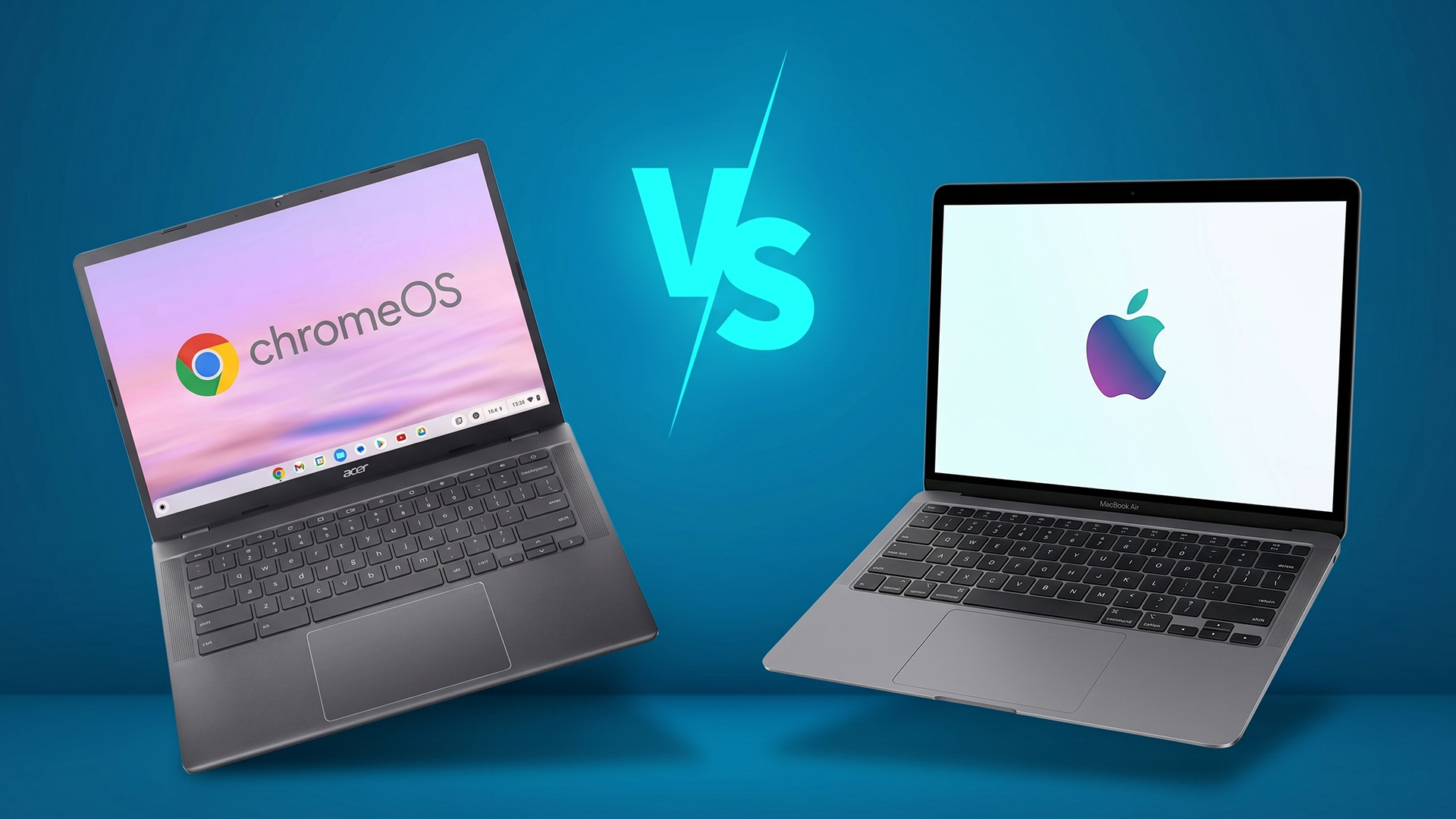
This is where ChromeOS earns a lot of trust. Google’s Chromebook update policy is among the clearest in the market. Chromebooks receive 10 years of automatic updates from the platform release date, and even after updates end, Google says verified boot remains in place so the system can check for tampering when it starts up. Chrome OS also relies heavily on sandboxing, which helps isolate apps and browser tabs from the rest of the system. In plain English, that means ChromeOS is built to stay simple, secure, and low-maintenance.
A MacBook takes a different route. Apple’s security model relies on features such as the Secure Enclave, Touch ID, and hardware-backed protection for encryption keys and biometric data. You do not need to understand all of that at the chip level to feel the benefit. What matters is that Apple deeply integrates security into both the hardware and the operating system. Add in the stronger performance headroom you usually get from a MacBook, and that helps explain why many buyers see it as the longer-term investment, even though it costs more upfront.
Gaming, creative work, and heavier use
If you are thinking about Chromebook vs MacBook for gaming or more demanding tasks, it helps to be realistic. A Chromebook can handle more than it used to. Google now supports Steam in beta on selected Chromebooks, and the Chromebook Plus has pushed the category further toward stronger everyday performance.
On the other hand, a MacBook is the stronger of the two if you want one machine to handle premium everyday use and occasional, heavier work. MacBook Air models, for example, support smoother multitasking, 4K video editing, AI workflows, and even more serious gaming than earlier Air generations could reasonably claim. That still does not make a MacBook the default gaming-first purchase, but it does make it the more capable all-rounder if you want one premium laptop that stretches further.
Which Should You Buy for Students?
- If your study life mostly involves documents, browser research, virtual learning platforms, email, and video calls, a Chromebook is often the better value. It is easier to justify when your needs are straightforward, and your budget matters more than premium hardware.
- If your course is likely to become more demanding, or you simply want a laptop with more flexibility for the next few years, a MacBook can be the better investment. That is especially true if you want stronger performance, more desktop-style freedom, and a machine that feels less limited as your workload grows.
If you are shopping with value in mind, browse affordable laptops for studying and compare what you actually get for your budget.
Which Should You Buy for Work?
- For lighter admin, browser-based tools, cloud software, and meetings, a Chromebook can be enough. If your role involves web apps and communication platforms, it can be a simpler, more cost-effective solution.
- For heavier work, a MacBook is usually the safer choice. If you spend long days multitasking, rely on broader desktop software, or want a laptop that feels more future-proof, it is hard to ignore the MacBook's advantages.
This is also the point at which some buyers broaden their search to professional laptops for work, or even compare the latest Dell laptops and the best ASUS laptops, before deciding whether macOS is the right premium step.
Can a Chromebook Replace a MacBook?
Sometimes yes, but only if your needs are genuinely light.
A Chromebook can replace a MacBook if you mainly use web apps, email, streaming services, cloud documents, online classes, and browser-based admin. For that kind of use, a Chromebook can feel simpler and better value.
A Chromebook is less likely to replace a MacBook if you care about full desktop apps, more demanding multitasking, deeper local workflows, or long-term performance flexibility. That is where the difference between a Chromebook and a MacBook becomes much more noticeable in daily use.
If your current Mac feels tired rather than truly outdated, read our guide to MacBook battery problems before you replace it.
Chromebook vs MacBook for Gaming
Chromebook vs MacBook for gaming is one of the easier parts of this choice.
- A Chromebook can handle casual gaming, Android games, and cloud gaming more comfortably than many people assume. Google actively positions Chromebooks as capable gaming devices through cloud platforms and selected gaming features.
- A MacBook is still the better choice if you want more gaming headroom alongside everything else, but it is not the obvious gaming-first answer either.
If gaming sits near the top of your list, you are better off looking at the best laptops for gaming instead of trying to force either category into a role it is not designed to dominate.
Why Should I Not Buy a Chromebook?
Do not buy a Chromebook if you already know you need heavier desktop software, wider professional app support, or more performance for demanding tasks. It can be a false economy if you save money up front and then outgrow the device quickly.
You should also be careful if you expect every workflow to feel identical offline. Chromebooks do support offline use for Gmail and Google Drive files like Docs, Sheets, and Slides once set up properly, but the overall experience still makes more sense for people who are comfortable with a web-first way of working.
Why Should I Not Buy a MacBook?
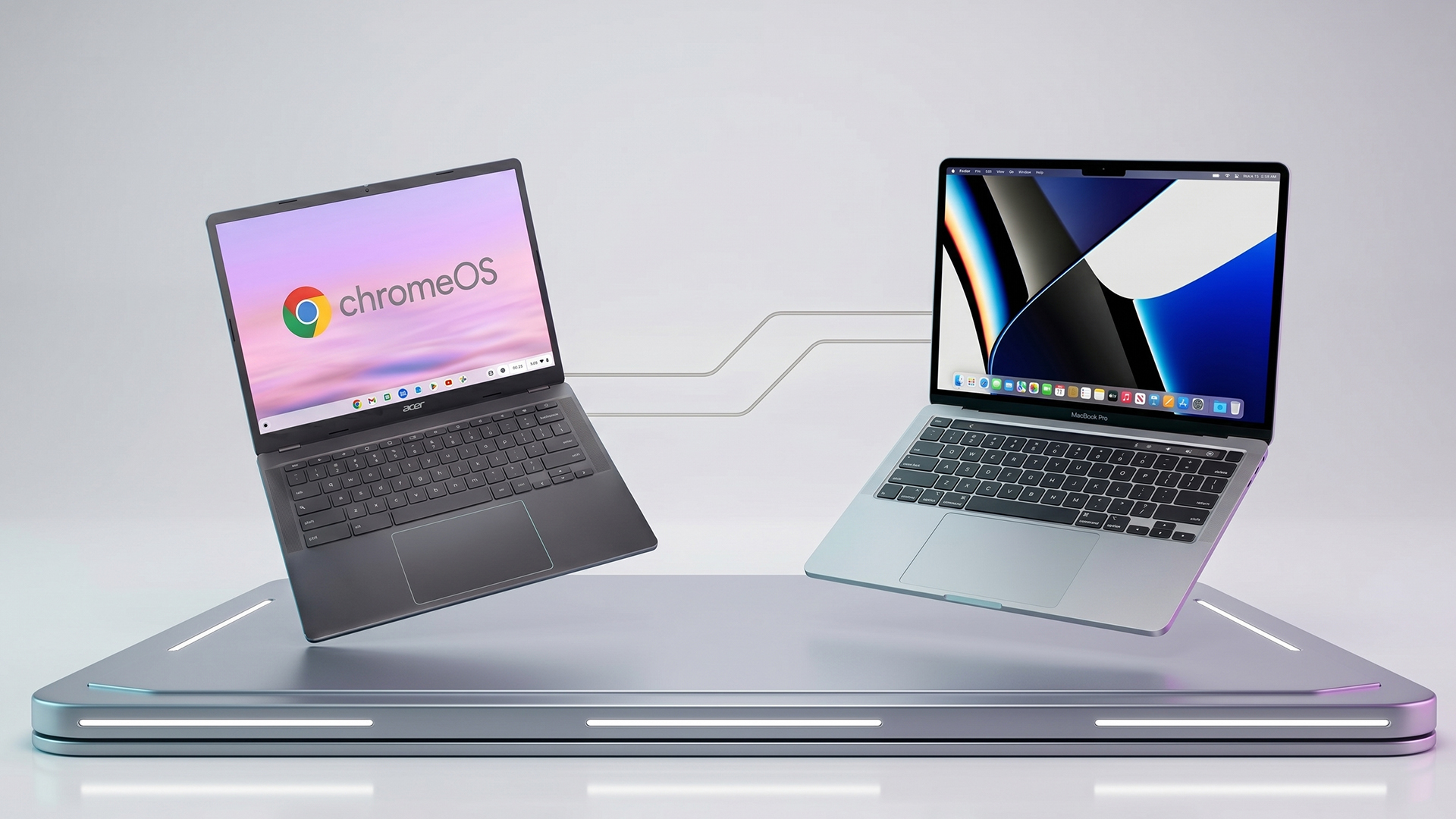
Do not buy a MacBook if your needs are basic, your budget is tight, and you will mainly use a browser, docs, email, and streaming. In that situation, the premium can be hard to justify.
You should also pause if you are paying for the idea of a premium laptop rather than for how you will actually use it. A good buying habit here is to follow a MacBook user guide mindset: list the apps you need, the performance you actually use, and the budget you want to stay within. If that list stays simple, a Chromebook may be the smarter buy.

Final Verdict
If you want the simplest buyer answer, this is it.
- Buy a Chromebook if you want a lower-cost laptop for browser-based work, study, streaming, email, and everyday tasks. It is the better-value option when your needs are light and your budget matters.
- Buy a MacBook if you want stronger performance, more software flexibility, tighter Apple ecosystem features, and a laptop that is easier to grow into over time. It costs more, but for many buyers it also solves more problems before they start.
That is why the best Chromebook vs MacBook comparison always comes back to one question: are you buying for what you do now, or what you expect your laptop to handle next?

FAQs
What is the difference between a Chromebook and a MacBook?
A Chromebook runs ChromeOS and is built around a browser-first, cloud-friendly way of working. A MacBook runs macOS and is designed as a full desktop laptop for people who want broader software support and more performance headroom.
Which is better for students, Chromebook or MacBook?
A Chromebook is often the better fit if you mainly need web research, documents, email, and online learning tools. A MacBook makes more sense if your course is more demanding or you want a laptop that is easier to grow into over the next few years.
What is the difference between a Chromebook and a laptop?
A Chromebook is a laptop. The real difference is that it runs ChromeOS rather than another operating system, such as macOS or Windows.
Can a Chromebook do everything a MacBook can do?
No, not everything. A Chromebook can handle many everyday tasks very well, but it is not built to replace every traditional desktop workflow, and app support depends more on web apps, with Android or Linux support on compatible devices.
Is a MacBook worth the extra money?
It usually is if you need stronger multitasking, broader software support, and a laptop with more long-term headroom. If your needs are light and mostly browser-based, the extra spend can be harder to justify.
Which is better for work, a Chromebook or a MacBook?
A Chromebook can be enough if your work is mostly browser-based and cloud-led. A MacBook is usually the safer choice if you rely on heavier apps, more demanding multitasking, or a fuller desktop setup.
Is Chromebook vs MacBook a good comparison for gaming buyers?
Not really, if gaming is high on your list. Chromebooks can handle some offline and Android-supported games on compatible devices, while the MacBook Air is positioned more around performance, battery life, and premium everyday use than as a gaming-first laptop.
Should you buy a Chromebook or MacBook for everyday use?
You should buy a Chromebook if you want a simpler, lower-cost laptop for email, browsing, streaming, and basic day-to-day tasks. You should buy a MacBook if you want a more premium everyday laptop with stronger performance and broader flexibility.
What is the downside of a Chromebook?
The main downside is that a Chromebook is not the best fit for every desktop-style workflow. It works best when your day revolves around web apps and lighter tasks, so if you need specialist software or more demanding local workflows, it can feel limiting sooner than a MacBook.
Why do schools use Chromebooks instead of MacBooks?
Schools often choose Chromebooks because ChromeOS devices are easier to manage at scale through the Google Admin console. Admins can enforce policies, set up Wi-Fi and VPN access, and force-install apps and extensions, making large classroom rollouts much easier.
Are Chromebooks good for dyslexia?
They can be a good option for some users with dyslexia because ChromeOS includes accessibility tools such as Reading mode, Read aloud, Select-to-speak, and dictation. Google specifically says Select-to-speak can help with learning differences, dyslexia, or low vision.
What cannot be done on a Chromebook?
A Chromebook cannot reliably replace every Windows or Mac desktop workflow. You should not expect it to run every traditional desktop app natively, and some tasks depend on web apps or on Android and Linux support being available on that specific device.
| Read More: |
| Chromebook vs MacBook: Which Should You Buy? |
| How to Clean a MacBook Keyboard Safely |
| How to Reset a MacBook to Factory Settings Safely: A Complete Guide |
Related Articles

Last Updated: September 23, 2025
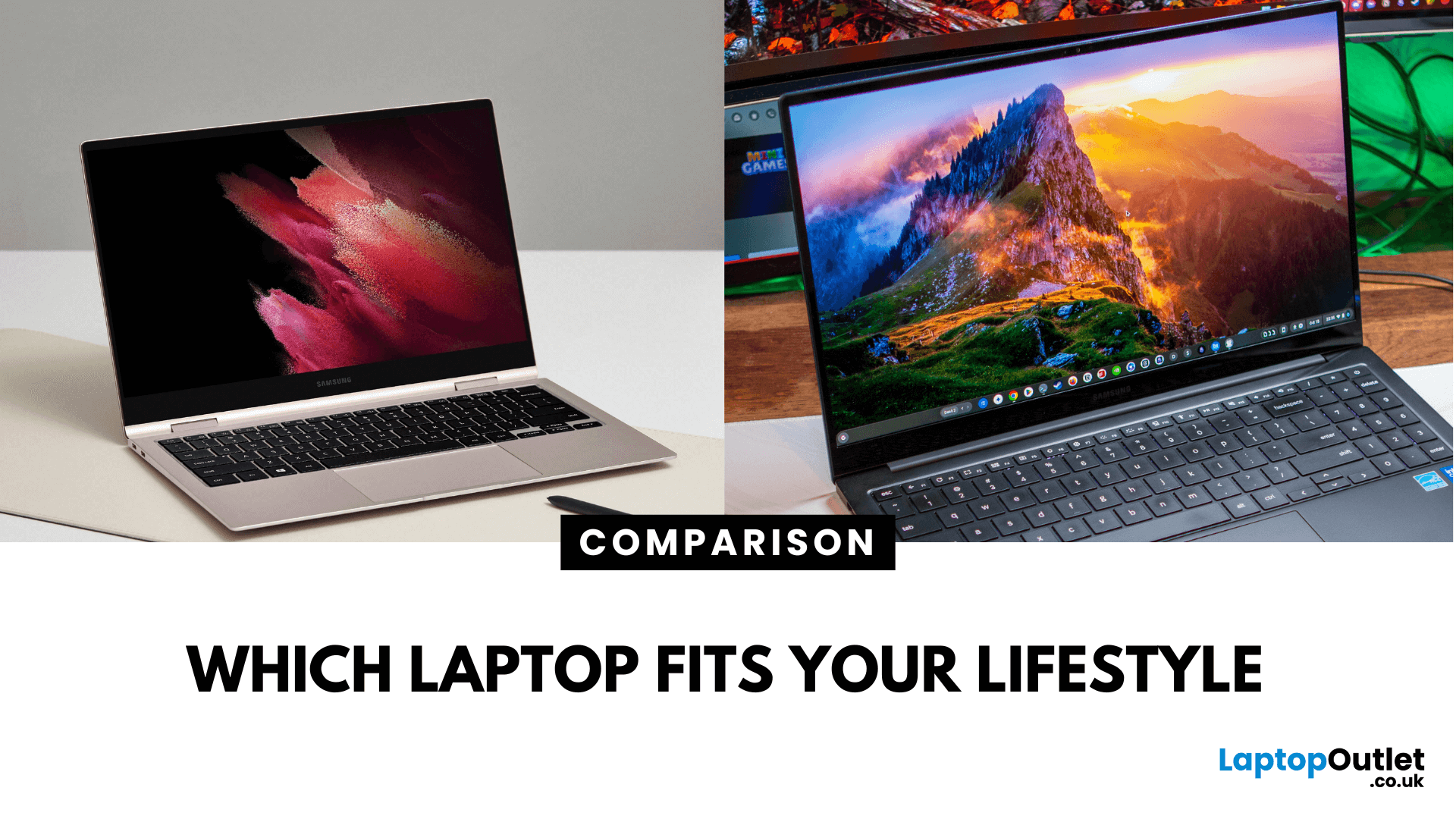
What’s the Key Difference?
Samsung Galaxy Book is Samsung’s line of Windows laptops offering powerful hardware, rich feature sets, and mature software support -built for productivity and creativity. Chromebooks run Chrome OS—Google’s streamlined, cloud-centric platform built for speed, web apps, and light computing.
Fundamentally, Galaxy Books deliver full Windows power; Chromebooks deliver lightweight simplicity.
Feature Comparison Table
| Feature | Samsung Galaxy Book | Chromebook |
| Operating System | Windows – full desktop environment | Chrome OS – cloud-first, lightweight platform |
| Performance & Hardware | Premium processors, abundant RAM & storage | Lighter processors and configurations tailored for basic tasks |
| Design & Build | Sleek, stylish, built for mobility and premium feel | Ultra-light, minimalistic, highly portable |
| Battery Life | Strong battery for Windows usage | Excellent battery due to efficiency of Chrome OS |
| Portability | Lightweight for a Windows laptop | Extremely portable with featherweight designs |
Last Updated: September 09, 2025
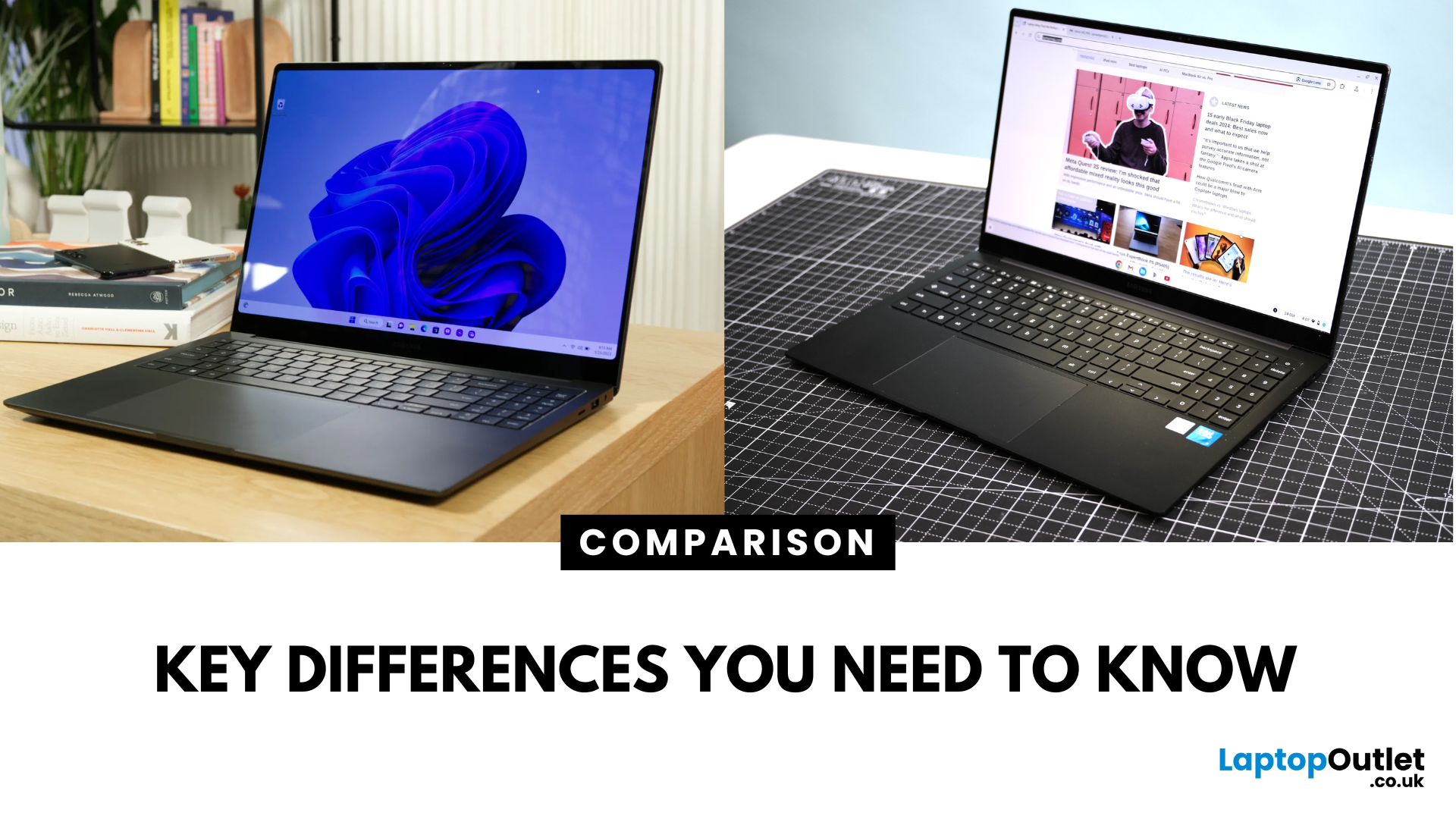
Key Difference Between a Galaxy Laptop and a Galaxy Chromebook?
Galaxy Laptop (Galaxy Book): Runs Windows 11, supports all desktop software (Office, Adobe, coding tools, gaming), offers higher storage and RAM options, and integrates with Samsung Galaxy devices.
Galaxy Chromebook: Runs ChromeOS, focused on cloud apps and Android apps via Google Play Store. Cheaper, lighter, and built for students or light for everyday use.
Feature Comparison Table
| Feature | Samsung Galaxy Laptop (Galaxy Book) | Samsung Galaxy Chromebook |
| Operating System | Windows 11 | ChromeOS |
| Performance | Intel Core i5/i7, AMD, up to 16-32GB RAM | Entry-level Intel/ARM, up to 8GB RAM |
| Software | Full Windows apps (Office, Adobe, games) | Web apps + Android apps |
| Battery Life | 10–13 hours (depending on model) | 12–15 hours (light workloads) |
| Display Options | AMOLED 2X display, FHD/QHD, larger screens | OLED display, FHD or 4K touchscreen options |
| Weight | ~1.5–1.7 kg (Galaxy Book3 360, Pro) | ~1.0–1.2 kg (Chromebook Go, Pro) |
| Price Range (UK) | ~£750–£1,500+ |
Last Updated: July 02, 2026
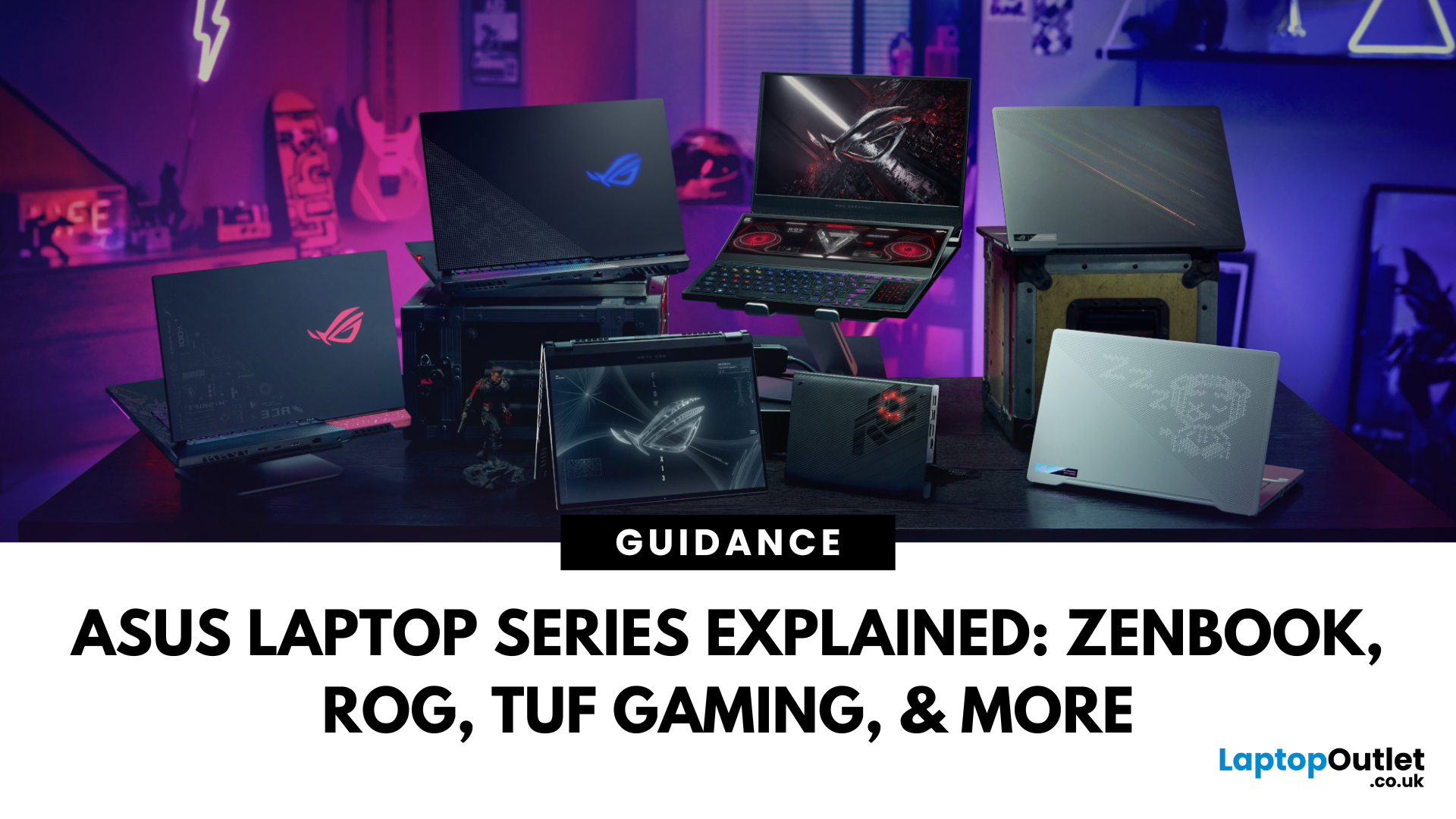
Choosing the right laptop in 2025 can feel like a challenge. With endless options in the UK market, different brands, specifications, and price points, it’s easy to feel overwhelmed. This is where ASUS makes the decision simpler. Over the years, ASUS has built a reputation as one of the most trusted technology brands by offering laptops that combine performance, reliability, and affordability.
Think about the wide variety of users today: a student who needs a lightweight laptop for lectures, a business professional who spends hours travelling, a gamer chasing the ultimate performance, or a creative tackling demanding design projects. Each has unique needs, but ASUS has carefully designed a laptop series for all of them.
In this ASUS laptop Series explained blog, we’ll explore the full 2025 lineup: ZenBook, VivoBook, ROG, TUF Gaming, ExpertBook, Chromebook, and ProArt StudioBook, so you can confidently choose the ASUS laptop that fits your life.
A Quick Overview of the ASUS Laptop Series
Last Updated: October 15, 2025
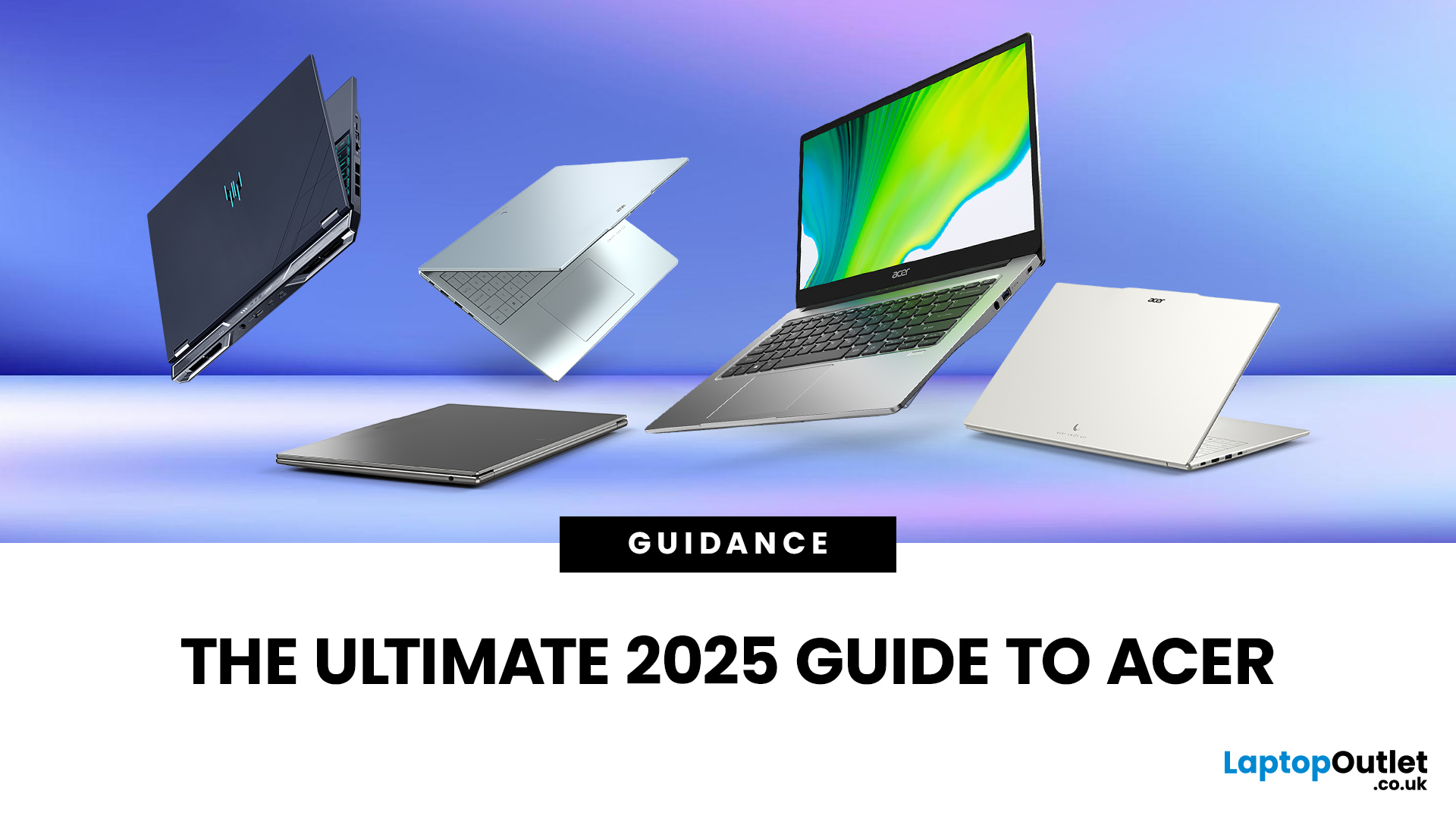
Acer has quietly built one of the most diverse laptop ranges on the market. While some brands focus on a single niche, Acer has gone broad, creating machines for every kind of user: from budget-friendly student laptops to thin-and-light ultrabooks, and even beastly gaming rigs that’ll chew through the latest AAA titles without blinking.
The key to understanding Acer lies in its series structure. Each family of laptops has its own personality and purpose. The Aspire range caters to everyday users who want balance on a budget. Swift laptops are all about style and portability for professionals. Nitro and Predator models push gaming to new levels, while Chromebooks simplify life for schools and casual users. And then there’s the TravelMate series, purpose-built for business reliability.
In this guide, we’ll break down the Acer Laptop Series one by one, highlight their standout models - like the Aspire 5, Swift Go, Nitro 5, Predator Triton, and Chromebook Spin - and explain who they’re best
Last Updated: March 06, 2026
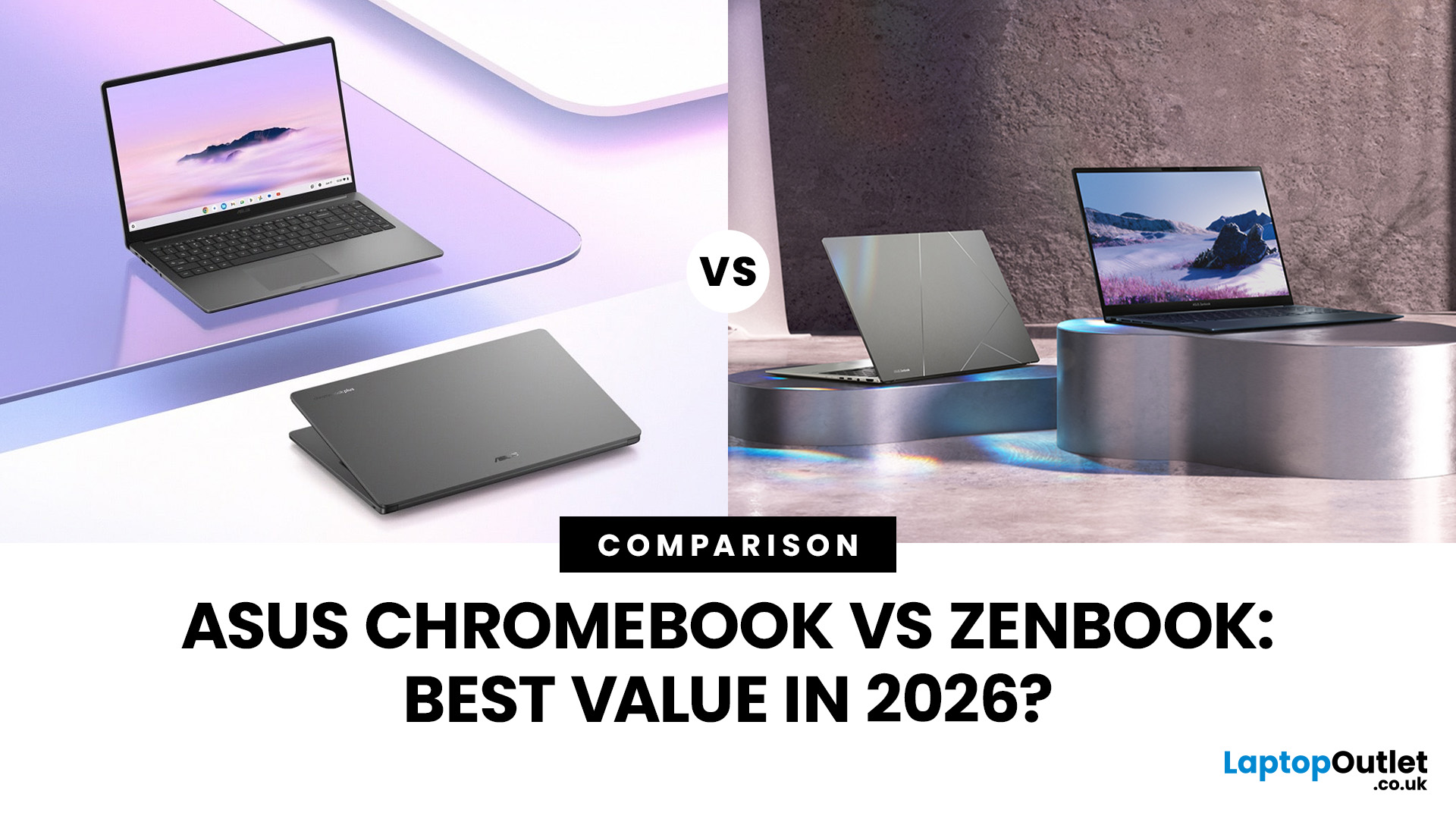
In 2026, ASUS continues to lead the ultrabook market with two standout options, the ASUS Chromebook and the ASUS ZenBook. Both deliver sleek design, portability, and performance, but they cater to different users. ASUS Chromebooks are lightweight, affordable, and perfect for students and everyday tasks, while ZenBooks offer premium craftsmanship, powerful hardware, and superior productivity for professionals and creators.
This comparison explores their specs, performance, battery life, and value, helping you decide which ultrabook suits your needs best. Whether you’re after effortless portability or all-day performance, we’ll uncover which ASUS laptop truly offers better value in 2026.
ASUS Chromebook vs ZenBook – The 2026 Ultrabook Showdown
In 2026, ASUS continues to lead the ultrabook arena with two stellar lineups that capture the essence of modern computing, the ASUS Chromebook and the ASUS ZenBook. Both are sleek, reliable, and performance-driven, but they serve very different lifestyles.
Published: March 13, 2026
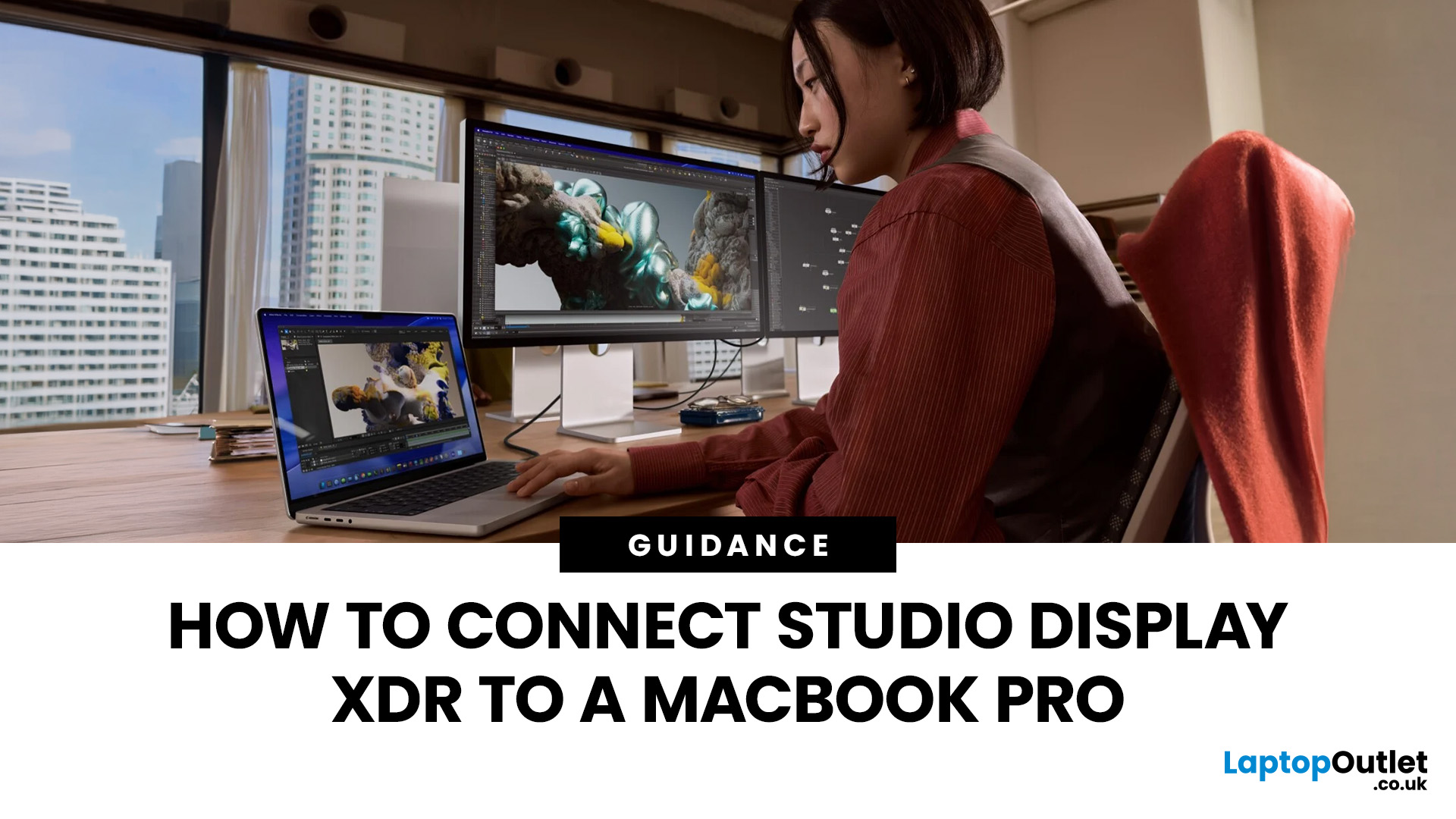
If you have just bought Studio Display XDR and want to use it with a MacBook Pro, the setup is usually quick. In most cases, the screen should come on automatically within a few seconds. macOS should recognise the display without extra drivers or manual installation. According to Apple’s official Mac support documentation, compatible MacBook Pro models automatically detect Studio Display when connected through Thunderbolt. Studio Display XDR can also deliver up to 140W of host charging through that same cable, so your MacBook Pro can charge while connected.
This Studio Display XDR setup guide explains the full process for connecting the Apple Studio Display XDR to a MacBook Pro, from the initial cable connection to the display settings you may need to adjust afterwards. Studio Display XDR is not just another external monitor. It is a 27-inch 5K Retina XDR display with mini-LED backlighting, up to 2,000 nits peak HDR brightness, a 120Hz refresh rate with Adaptive Sync, built-in camera and
Published: March 13, 2026
Apple is entering a new era of product strategy. For years, the company has dominated the premium tech market with devices like the iPhone Pro and MacBook Pro. But now Apple appears to be expanding its ecosystem in two directions at once: more affordable devices and ultra-premium hardware.
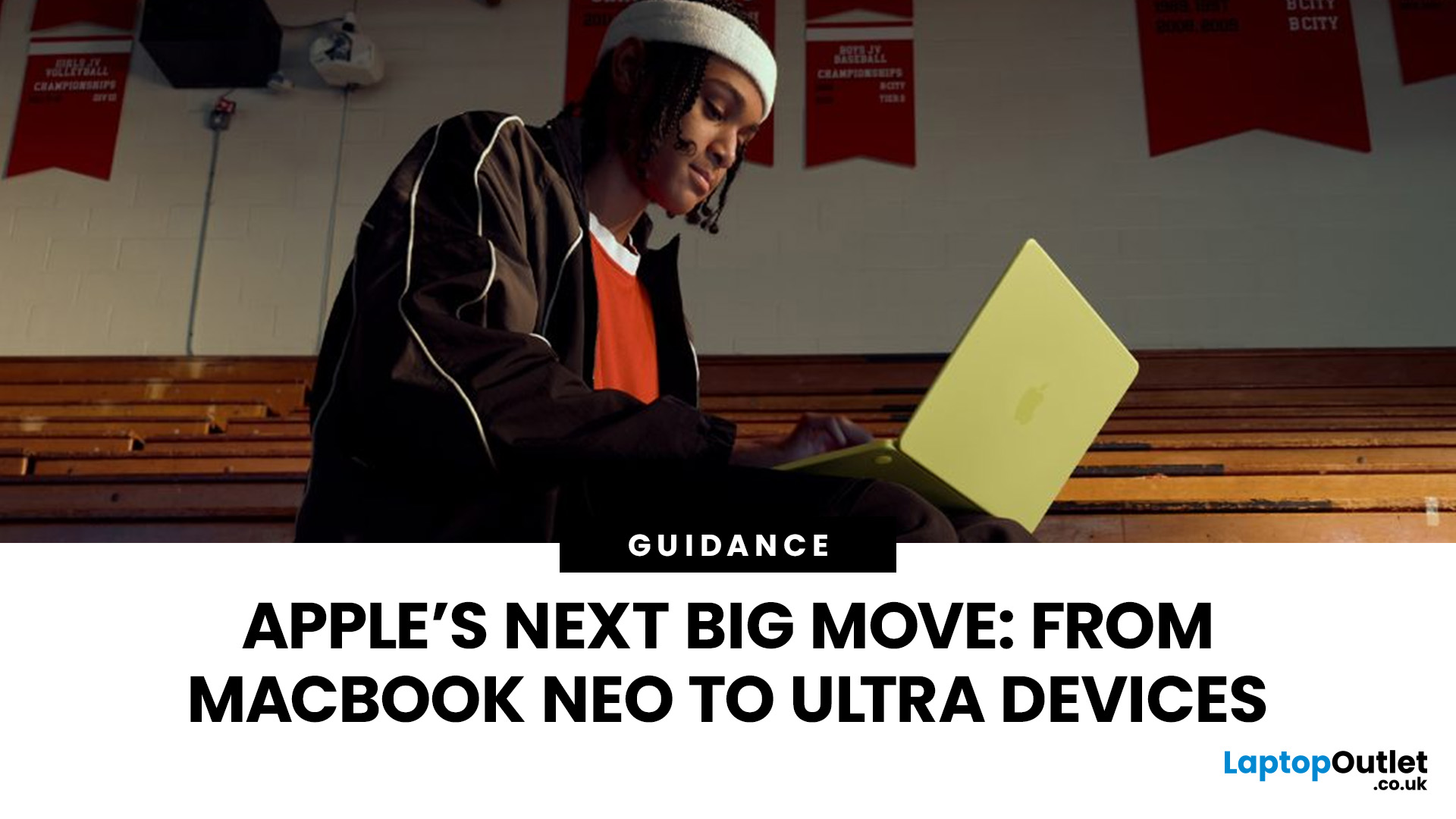
The recent MacBook Neo release indicates that Apple has a budget-friendly laptop to attract students and first-time Mac users. At the same time, industry reports indicate Apple is building a lineup of Ultra devices that will sit above its current Pro models.
This shift highlights what many analysts now call the Apple Ultra strategy, a long-term plan to stretch Apple’s ecosystem from entry-level devices all the way to cutting-edge luxury hardware. From the MacBook Neo at the affordable end to devices like iPhone Ultra, MacBook Ultra, and AirPods Ultra, Apple’s premium device roadmap is becoming more ambitious than ever.
MacBook Neo: Apple’s New Entry-Level Laptop
The MacBook Neo is expected to become
Last Updated: July 06, 2026
Apple’s MacBook lineup has earned its reputation through years of delivering fast performance, long battery life, and a genuinely premium build quality that is hard to beat. Whether you are buying your first Mac, switching from Windows, or troubleshooting an issue, this MacBook & Apple guide covers everything you need.
What Exactly Is a MacBook?
A MacBook is Apple’s range of portable computers, running macOS. Unlike most Windows laptops, MacBooks use Apple’s own silicon. In 2026, that means the MacBook Neo runs on A18 Pro, while the latest MacBook Air and MacBook Pro run on M5-family chips: M5, M5 Pro, and M5 Max.
All MacBooks benefit from Apple’s tight hardware and software integration, meaning everything from apps to system updates is designed specifically for the machine you are holding. That is a big reason why so many people in creative, professional, education, and everyday roles swear by them.
What Are the Latest MacBook Models in 2026?

Apple currently sells MacBooks in three lines:
Last Updated: May 06, 2026
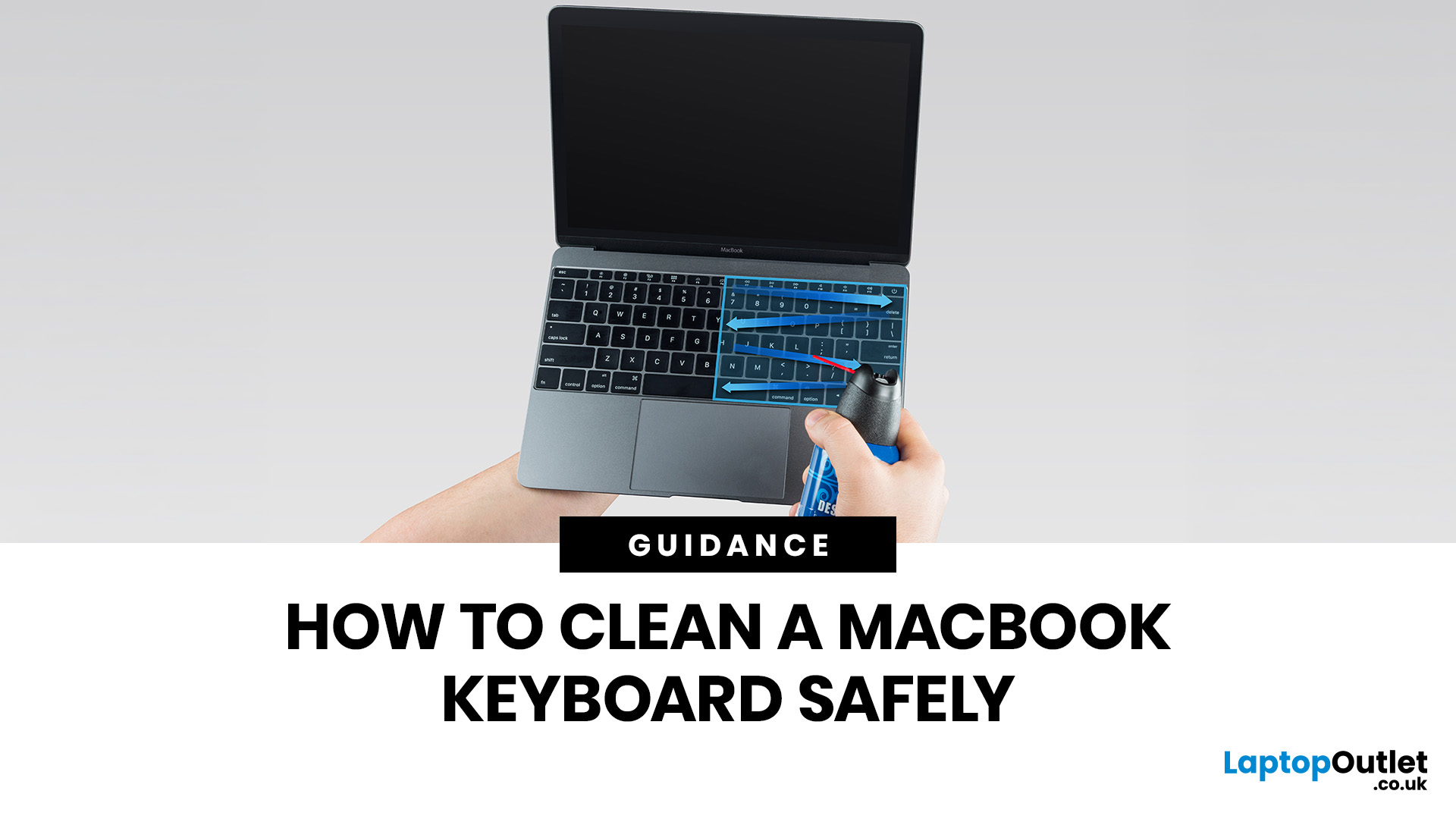
MacBook keyboard cleaning is simple when you do it the Apple-safe way: shut the laptop down, unplug it, use a soft lint-free cloth, keep moisture out of the openings, and never spray cleaner directly onto the keyboard. If you need to disinfect the surface, Apple says you can gently wipe off the hard, non-porous exterior, including the keyboard, with a 70 per cent isopropyl alcohol wipe, a 75 per cent ethyl alcohol wipe, or a disinfectant wipe.
That is the short version. The longer version matters because MacBook keyboards are not built for chaotic cleaning energy. Too much liquid, the wrong cleaner, or one “quick” spray straight onto the keys can turn a dusty keyboard into an expensive repair story. We will discuss today how to clean a Mac keyboard properly, how to remove dirt from MacBook keys, when compressed air makes sense, what not to use, and when a keyboard issue is no longer a cleaning job.
Quick Answer: How Can We Clean a MacBook Keyboard Safely?
The safest way to clean a MacBook
Last Updated: May 06, 2026
MacBook battery issues do not always mean it is time for a replacement. Sometimes your battery is genuinely wearing out, but sometimes the real problem is heat, charging habits, background apps, or even a charger that is not pulling its weight. That is what makes battery problems so confusing: the symptoms can look dramatic, while the fix might be simple.
In this guide, we will help you figure out what your MacBook is actually trying to tell you. From battery drain and overheating to charging limits and health checks, you will learn how to spot the issue, understand the cause, and decide whether a repair or replacement makes the most sense.
Why MacBook battery issues happen in the first place
MacBook batteries are built with lithium-ion technology, which is great for fast charging and portability, but like every rechargeable battery, they wear down over time. Battery age is not just about how many years you have owned the laptop. It is also shaped by your charging habits, temperature

