



MacBook Not Turning On or Charging? Here’s How to Fix It

If your MacBook is not turning on, the quickest way to solve it is to work out which problem you have. Some Macs have no power at all. Others are turning on, but the screen stays black, the battery is not charging properly, or macOS is failing during startup. Those are different faults, and they need different fixes.
In most cases, the right order is simple: check the charger and outlet, force a restart, rule out a blank-screen issue, then move to Safe Mode, Apple Diagnostics, or macOS Recovery if the Mac still will not boot. If your MacBook is charging but not turning on, the issue is often startup, display, or battery-health related rather than a completely dead machine.
What to do First When MacBook Doesn't Turn On

If your MacBook won't turn on, start with the basics before assuming the worst.
- Plug it into a known-working wall socket with a compatible charger and cable.
- Leave it connected for several minutes if the battery may be flat.
- Press and hold the power button for up to 10 seconds, then press it again to restart.
- If it seems to power on but the screen stays black, treat it as a display or startup issue, not a charging issue.
- If it still fails, try Safe Mode, Apple Diagnostics, or macOS Recovery, depending on the symptoms.
- If you have an older Intel Mac, an SMC reset can still help. On Apple silicon Macs, Apple says you do not need to reset the SMC.
That sequence solves a large share of common “MacBook not turning on” cases without jumping straight to repair. It also helps separate a dead battery, a weak charger, a black-screen problem, and a startup failure.
What Does “MacBook Not Turning On” Actually Mean?
“MacBook not turning on” usually means one of three things:
- the Mac has no power,
- the Mac powers on but the display stays blank,
- the Mac starts but gets stuck during startup.
This distinction matters because the fix is different in each case. If you see nothing at all, focus on power and charging first. If the screen is black but the Mac seems alive, focus on the display and startup recovery. If you see a question mark, a circle with a line through it, an Apple logo, startup options, or Recovery Assistant, the Mac is on, but macOS is not completing startup normally.
Why Won't My MacBook Turn On?
The most common causes are simpler than people expect. A flat battery, a faulty or underpowered charger, a bad cable, debris in the charging port, a frozen startup state, or a software problem can all stop a MacBook from starting normally. On older Intel models, power-management issues can sometimes be helped by an SMC reset. On Apple silicon models, Apple's guidance is to restart instead.
The key is not to jump straight to “broken logic board” or “dead battery.” Work through the power path first, then the startup path, then the hardware checks.
What Should You Check First When a MacBook Won't Turn On?
Start with the charger, cable, wall socket, and charging port. Apple recommends checking that the power cable is undamaged, firmly connected, and plugged into a working outlet. If you have another compatible cable or adapter, try that too. If your Mac charges over USB-C, Apple says it can use any USB-C power adapter or display that supports USB Power Delivery, but you get the best results with at least the minimum recommended wattage for your model.
If your Mac uses MagSafe, the connector light gives a clue. Amber means charging is in progress or charging is on hold. Green means the battery is fully charged. If you are using an older MagSafe accessory with a newer MagSafe 3 model, remember they are not cross-compatible.
If you are charging by USB-C, low wattage can be the whole problem. Apple notes that a charger can provide enough power to run the Mac but not enough to charge the battery, especially under heavier loads. In those cases, macOS can also show a slow-charger warning or “Not Charging” status. If you want a broader look at MacBook models, everyday maintenance, and common fixes beyond power issues, our complete MacBook guide is a useful next read.
How To Restart a MacBook That Won't Respond
If your MacBook is frozen, press and hold the power button for up to 10 seconds until it turns off, then press the power button again to turn it back on. On MacBooks with Touch ID, press and hold the button properly rather than tapping it. This is the quickest first move when a MacBook Pro won't turn on, a MacBook Air is not switching on, or the screen is black with no response.
For Intel Macs only, an SMC reset can still be relevant if the Mac still does not power on after the basic checks. Apple's current guidance is clear that you do not need to reset the SMC on Apple silicon Macs.
What if Your MacBook is Charging but Not Turning On?
If your MacBook is charging but not turning on, do not assume the battery is the main issue. A Mac can be receiving power and still fail to show a usable image because of a blank-screen problem, a startup failure, corrupted system files, or firmware trouble. Apple treats “blank screen” as a separate problem from “won't turn on.”
Apple also notes that “Not Charging” does not always mean something is broken. Charging can pause to protect battery health, a low-wattage adapter may not provide enough power to recharge the battery, and heavy workloads can consume power faster than the charger can keep up. That is why a MacBook Pro won't turn on but is charging, or a Mac won't turn on but is charging, often needs startup troubleshooting as much as battery troubleshooting.
If the charger is connected, the battery indicator is active, or the machine gets warm but nothing appears on screen, move to the blank-screen and recovery steps next rather than replacing the charger immediately.
MacBook Not Turning On vs Charging but Not Starting
|
Symptom |
What it usually means |
Best next step |
|
No light, no sound, no image, no response |
Possible power-path issue |
Check outlet, cable, adapter, port, then force restart |
|
Charger connected but battery not rising |
Low wattage, battery-health pause, or charging fault |
Confirm charger wattage and cable, then test another charger |
|
Fans, sounds, or signs of life but black screen |
Display or startup issue |
Force restart, then use macOS Recovery |
|
Question mark, prohibitory symbol, Apple logo, startup options |
Mac is on but not starting properly |
Use Recovery, Disk Utility, or reinstall macOS |
|
Repeated failure after all checks |
Possible hardware issue |
Run Apple Diagnostics or book service |
This symptom split follows Apple's own support flow for no-power issues, blank-screen startup issues, charging status, and startup error screens. Macworld also makes the useful distinction between a Mac that is not turning on at all and one that is turning on but not starting up properly. If your MacBook is charging inconsistently, draining too quickly, or showing battery health warnings, our guide to MacBook battery problems can help you decide whether to repair or replace it.
When Should You Use Safe Mode, Apple Diagnostics, or macOS Recovery?

Use Safe Mode when you think software loaded at startup may be causing the problem. Use Apple Diagnostics when you suspect hardware. Use macOS Recovery when the Mac will not boot normally, the screen stays blank after startup, or you may need Disk Utility or a reinstall.
|
Tool |
Best for |
How it helps |
|
Safe Mode |
Login items, startup apps, software conflicts |
Loads macOS with fewer extras so you can isolate software issues |
|
Apple Diagnostics |
Suspected hardware problems |
Checks internal components and returns reference codes |
|
macOS Recovery |
Startup failure, disk repair, reinstall |
Lets you use Disk Utility, reinstall macOS, and restore from backup |
How To Start Safe Mode
On Apple silicon Macs, shut down, then press and hold the power button until startup options appear. Select your startup disk, hold Shift, then choose Continue in Safe Mode. On Intel Macs, restart and immediately hold Shift until the login window appears.
How To Run Apple Diagnostics
On Apple silicon, shut down, then hold the power button until startup options appear, then press Command-D. On Intel, turn on the Mac and immediately hold D during startup. Apple Diagnostics can identify which hardware component may be at fault and gives you reference codes if it finds a problem.
How To Use macOS Recovery
macOS Recovery is the built-in repair environment for reinstalling macOS, repairing the startup disk, restoring from Time Machine, and more. If the Mac reaches Recovery, start with Disk Utility. If the issue continues, reinstall macOS from Recovery. Apple says reinstalling macOS from Recovery does not remove your apps or personal data, though backing up first is still recommended where possible.
If your MacBook still won't start properly after basic troubleshooting, our guide to factory resetting a MacBook explains when a full reset is worth considering and what to do first.
What To Do if the Screen is Black but the Mac Might Still Be On
A black screen is often misread as a dead Mac. If you think the Mac is powering on but the screen stays blank, treat it as a startup or display problem.
Start by forcing the Mac off, then power it back on. If that changes nothing, try macOS Recovery. If Recovery works, use Disk Utility on the startup disk first. If the problem continues after disk repair, reinstall macOS. If Recovery does not start and you have Apple silicon or a Mac with the Apple T2 Security Chip, Apple says the firmware may need to be revived or restored.
Use Case Breakdown: What Matters for Different Buyers
Students
If your MacBook air is not switching on during term time, uptime matters more than squeezing out one more temporary fix. If the machine is older, battery life is poor, and charging is inconsistent, replacement can be the more practical answer. Our range of affordable laptops for students is a sensible fallback if you need something dependable fast.
Home and Everyday Users
For home users, the best path is usually to rule out charger, cable, and startup issues before paying for repair. If the Mac comes back after a forced restart or Recovery reinstall, you have likely avoided an unnecessary service bill.
Office and Business Users
For work devices, downtime costs more than the repair itself. If a MacBook Pro not turning on is blocking daily work, check whether you need the machine repaired or whether it makes more sense to move straight to a newer affordable business laptops with better battery life, modern ports, and a current support window.
Creators, Developers, and Heavy Workloads
If your Mac frequently shows charging issues under heavy workloads, the charger may be too weak for what you are asking the system to do. Apple notes that high-performance tasks can use more power than some adapters provide. If your workflow now includes local AI tools, heavier editing, or sustained GPU work, it may be time to compare newer hardware or best laptops for AI workloads.
How To Decide: Fix, Wait, Repair, or Replace?
Choose to fix it now if the issue looks charger-related, software-related, or tied to a one-off startup freeze.
Wait and monitor if the only symptom is occasional “Not Charging” and the Mac otherwise works normally, because Apple says charging pauses can happen for battery health or because the adapter is too low-powered for current demand.
Repair it if Apple Diagnostics returns hardware codes, the Mac will not power on with a known-good charger, the charging port is damaged, or Battery Health shows “Service Recommended.” Apple says that status means the battery either holds less charge than when new or is not functioning normally, though the Mac can still be used safely in the meantime.
Replace it instead of fixing a MacBook Pro if the machine is older, repair costs are creeping up, battery life is poor, and the device no longer fits your workload. Repeated power issues on an ageing laptop are often a sign to stop spending around the problem and move to hardware you can rely on.
What Buyers Often Overlook Before Replacing a MacBook

The first thing many buyers miss is charger wattage. A Mac can appear to charge and still struggle because the adapter is underpowered for the model or workload. The second is model age. A Mac that technically works after each fix may still be the wrong machine for modern use if the battery is tired, ports are limited, and performance is no longer where you need it.
The third is the real cost of downtime. If you are fixing a MacBook Pro every few months, the cheapest option on paper may not be the cheapest option in practice. That is the point where browsing our Apple laptops or comparing other use-case-led ranges becomes a practical next step rather than an impulse buy.
If your MacBook does turn on but feels unusually slow, runs hot, or struggles under load, our step-by-step guide to checking CPU usage on a Mac can help you spot what is causing the strain.

Fix the Problem First, Then Decide if it is Time to Move On
If your MacBook won't turn on, start with the power chain, then the startup path, then Diagnostics or Recovery. That keeps you from replacing a charger when the issue is software, or reinstalling macOS when the real issue is an underpowered adapter.
For most readers, the right move is simple: troubleshoot in order, repair when the fault is clear, and replace only when the Mac is no longer dependable for the way you use it. If you are already at that point, our Apple laptop collection is the best next place to compare current options.

People Also Ask
Why won't my MacBook turn on?
The most common reasons are a flat battery, a faulty or underpowered charger, a frozen startup state, a blank-screen issue, or a startup problem in macOS.
How do you restart a MacBook when it is not responding?
Press and hold the power button for up to 10 seconds until the Mac turns off, then press it again to restart.
Why is my MacBook charging but not turning on?
A MacBook charging but not turning on often points to a blank-screen or startup issue rather than a dead battery, especially if the machine is receiving power but showing no usable display.
What does “Not Charging” mean on a MacBook?
“Not Charging” can mean the Mac has paused charging to protect battery health, the charger wattage is too low, or the system is under heavy load and using power faster than the charger can supply it.
Should I reset the SMC on my MacBook?
You should only consider an SMC reset on older Intel-based Macs, because Apple says Apple silicon Macs do not need it.
Can a low-wattage charger stop a MacBook from charging properly?
Yes. Apple says a charger can provide enough power to run the Mac but not enough to charge the battery, particularly under heavier workloads.
When should I use Apple Diagnostics?
Use Apple Diagnostics when you suspect a hardware problem and want to check which internal component may be at fault.
When should I replace instead of repairing a MacBook?
Replacement usually makes more sense when the Mac is older, battery health is poor, power issues keep returning, and the repair cost is getting too close to the value of the machine.
| Read More: |
| PC vs Mac in 2026: Which One is Right for You? |
| Chromebook vs MacBook: Which Should you Buy? |
| Everything you need to know about iCloud Storage Management |
Related Articles


Last Updated: March 09, 2026
Apple has done something surprising. In March 2026, the company unveiled its most affordable laptop ever: the MacBook Neo.
Starting at just £599, it brings the full Mac experience to a much wider audience: students, first-time buyers, and budget-conscious shoppers who have long been priced out of the Apple ecosystem.
This is not just a stripped-down machine. The MacBook Neo features a beautiful aluminium design, a sharp Liquid Retina display, the A18 Pro chip, and up to 16 hours of battery life. In short, it packs a serious punch for its price.
So, what exactly makes this laptop worth your attention? Let us walk through every key MacBook Neo feature in detail.
MacBook Neo: Full Specs at a Glance
Before diving deep, here is a quick overview of everything the MacBook Neo brings to the table.
| Specification | Details |
| Processor | Apple A18 Pro (6-core CPU, 5-core GPU, 16-core Neural Engine) |
| Display | 13-inch Liquid Retina, 2408 x 1506 resolution, 500 nits |
| Memory | 8GB unified memory |

Last Updated: March 09, 2026
Apple’s MacBook Pro lineup has consistently defined what professional laptops can do, but the introduction of the M5 generation pushes the category even further. Powered by Apple’s latest silicon architecture and backed by upgrades in storage, connectivity, and AI performance, the MacBook Pro M5 is designed to handle modern workflows, from video production and software development to AI experimentation and heavy multitasking.
While the external design remains familiar, the real upgrades are under the hood. Apple has focused heavily on improving computational power, on-device AI processing, wireless capabilities, and storage performance. These changes make the MacBook Pro M5 one of the most capable laptops available for professionals and power users.
Below are the top seven MacBook Pro M5 features that stand out in the latest generation.
1. Next-Generation Apple Silicon: M5 Pro and M5 Max Chips
The biggest upgrade in the MacBook Pro M5 lineup is the introduction of Apple’s M5 Pro and M5

Last Updated: March 09, 2026
If you have been waiting for a proper budget Mac, it is finally here. MacBook Neo launched as Apple’s most affordable laptop ever, and it is clearly built for students, first-time Mac buyers, and anyone who just needs a reliable everyday laptop for browsing, documents, streaming, and calls. The big headline is the price. In the UK, MacBook Neo starts at £599, with £499 education pricing, and it goes on sale on Wednesday, March 11, 2026. Pre-orders are open now.
This guide breaks down what MacBook Neo is, who it is for, what you get for the money, and the trade-offs you should know before ordering.
Want to Buy a MacBook Neo? Quick Verdict
Buy MacBook Neo If You Want the Cheapest New Mac
MacBook Neo makes sense if your daily laptop life looks like this:
- Browsing and web apps
- Word, PowerPoint, Google Docs
- Email and admin
- Zoom or FaceTime calls
- School work and research
- Light photo editing and creative hobbies
It is designed to feel like a real MacBook, just at a lower cost.
Skip MacBook
Last Updated: March 09, 2026
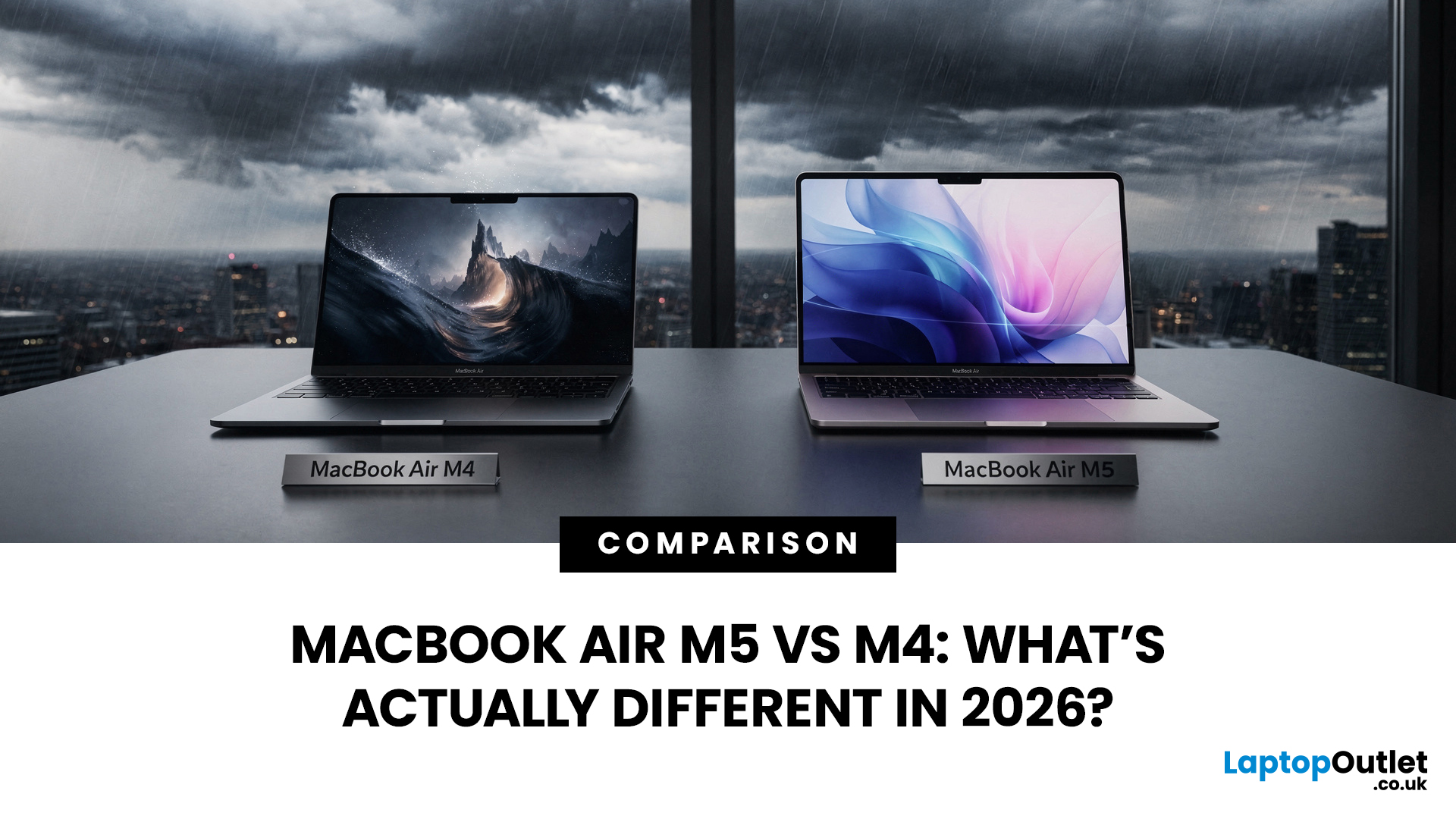
If you’ve been thinking about buying a MacBook Air this year, you’ve probably run into the same question everyone in the UK tech community is asking:
Should you buy the new MacBook Air M5 or save money with the M4?
At first glance, the two laptops look almost identical. Same ultra-thin aluminium design. Same beautiful display. Same lightweight build that makes the MacBook Air perfect for working in cafés, trains, or university libraries.
But once you dig a little deeper, the MacBook Air M5 vs M4 comparison starts to reveal some interesting differences.
Apple hasn’t completely reinvented the MacBook Air in 2026, but the company has quietly improved several areas including performance, storage, wireless connectivity, and AI features.
So, if you're planning to buy an Apple MacBook from UK, Laptop Outlet or Amazon, this guide will help you decide which model actually makes more sense.
Let’s break it down.
MacBook Air M5 vs M4: Quick Comparison
Before diving into details, here’s a quick overview

Last Updated: March 09, 2026
Apple laptops have never really been known for being “cheap.” For years, the entry point into the MacBook world started at around £999 or more. But that has finally changed.
In March 2026, Apple unveiled something unexpected: MacBook Neo, the company’s most affordable MacBook ever. Designed for students, casual users, and first-time Mac buyers, the Neo brings the macOS experience to a much lower price point than previous Apple laptops.
So how much does it cost in the UK? What specs do you get? And is it worth buying?
Let’s break it all down.
MacBook Neo Price UK
The MacBook Neo price in the UK starts at around £599 for the base configuration.
That makes it the cheapest MacBook Apple has ever released, significantly undercutting the MacBook Air, which currently starts at around £1,099 in the UK.
Here’s a quick breakdown of expected pricing tiers:
| Model | Storage | Expected UK Price |
| MacBook Neo (Base) | 256GB SSD | ~£599 |
| MacBook Neo | 512GB SSD | ~£699 |
| Education pricing | 256GB SSD | ~£499 (students/educators) |
Last Updated: March 09, 2026
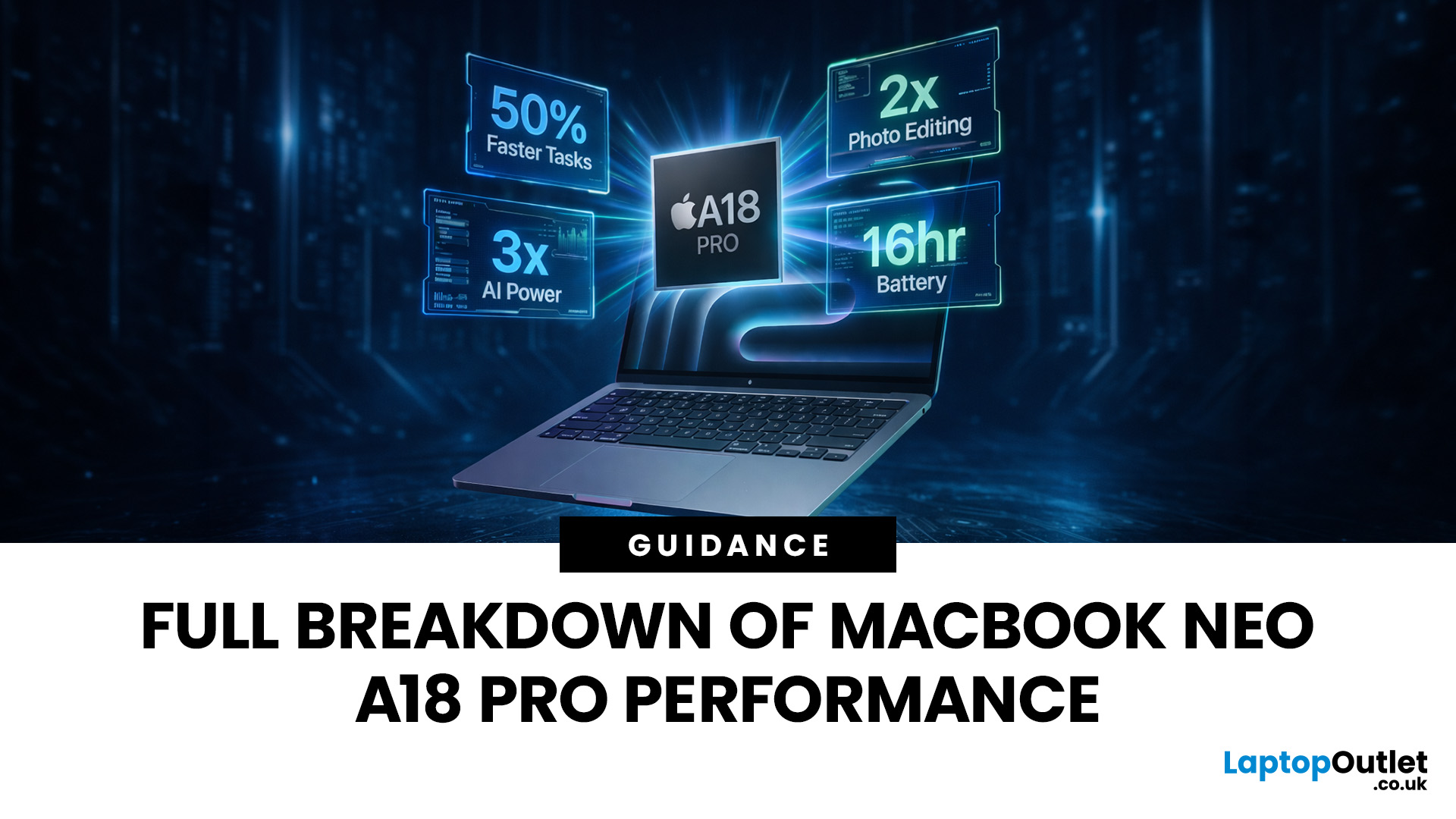
If you are comparing MacBook Neo vs Windows laptops, you are really asking one question: should you buy Apple’s cheapest Mac, or get a budget Windows laptop with more ports and more choice?
MacBook Neo is new, starts at £599, and is designed to be a simple, premium-feeling everyday laptop with macOS, long battery life, and strong call quality.
Budget Windows laptops can offer more screen sizes, more ports, and sometimes better upgrade options. But quality is inconsistent in this price range, and that’s where Neo tries to win.
Below is the practical, buyer-focused breakdown.
10-Second Answer Box
Choose MacBook Neo if
- You want the cleanest everyday experience for browsing, school, docs, and calls
- You value build quality and trackpad feel
- You want a laptop that stays fast and quiet for years, without tweaking settings
Choose a budget Windows laptop if
- You want more ports like HDMI and USB-A built in
- You need a bigger screen for the money
- You want the flexibility of Windows software and lots
Last Updated: March 09, 2026
Apple made a bold move on 4 March 2026. It introduced the MacBook Neo — a laptop that starts at just £599 and runs on a chip that, until now, only lived inside iPhones.
That chip is the A18 Pro. And its arrival in a Mac laptop raises a very obvious question: what does it actually mean for performance?
The answer is more interesting than you might expect. This article breaks it all down — the architecture, the real-world gains, the trade-offs, and who this machine is really built for.
What Is the A18 Pro Chip?
The A18 Pro is not a new chip. It first appeared in the iPhone 16 Pro in late 2024. But placing it inside a laptop is entirely new territory for Apple.
This is the first time Apple has ever used a mobile-class chip to power a Mac. That alone makes the A18 Pro MacBook Neo a significant moment in computing history.
The Core Architecture
Here is what sits inside the A18 Pro:
- 6-core CPU — 2 performance cores and 4 efficiency cores
- 5-core GPU — hardware-accelerated ray tracing included

Last Updated: April 28, 2026
Apple’s Studio Display and Pro Display XDR are among the most advanced monitors available for professionals. With ultra-sharp 5K and 6K resolutions, these displays are designed for creatives who need exceptional colour accuracy, brightness, and detail.
However, to get the best experience, you need a powerful MacBook with strong graphics performance and Thunderbolt connectivity. Apple’s latest MacBooks powered by M3, M4, M5, M5 Pro, and M5 Max chips bring major improvements in performance, AI capabilities, and external display support.
Can MacBooks Support the Studio Display or Pro Display XDR?
Yes. Most modern Apple Silicon MacBooks can connect to these displays.
Studio Display
- Resolution: 5K (5120 × 2880)
- Thunderbolt / USB-C connection
- Works with most Apple Silicon Macs
Pro Display XDR
- Resolution: 6K (6016 × 3384)
- Requires high bandwidth Thunderbolt connection
- Best paired with MacBook Pro models
Modern MacBooks with Thunderbolt ports and Apple Silicon chips can drive high-resolution

Published: March 12, 2026
Apple’s new MacBook Air M5 is officially here, and after spending time testing it myself, I can confidently say one thing: it’s fast. Like, open-all-my-tabs, edit-4K, switch-between-apps-without-thinking fast. But benchmarks and real use aren’t always the same thing. So, I ran several tests, used it for everyday work, and compared it with previous Air models to answer the real question: Are the MacBook Air M5 benchmarks strong enough to justify the upgrade?
For UK buyers in particular, this is shaping up to be one of the easiest MacBooks to recommend in 2026. Apple kept the thin, fanless design that people already love, but added the new M5 chip, improved base storage, faster wireless connectivity, and stronger performance across both benchmarks and daily workflows. Let’s break down the numbers and the real-world experience.
MacBook Air M5 Overview
Like iPhone 17e, iPad Air M4, and MacBook M5 Pro and M5 Max, Apple announced the MacBook Air M5 on 3 March 2026, with availability beginning

Published: March 13, 2026
If you have just bought Studio Display XDR and want to use it with a MacBook Pro, the setup is usually quick. In most cases, the screen should come on automatically within a few seconds. macOS should recognise the display without extra drivers or manual installation. According to Apple’s official Mac support documentation, compatible MacBook Pro models automatically detect Studio Display when connected through Thunderbolt. Studio Display XDR can also deliver up to 140W of host charging through that same cable, so your MacBook Pro can charge while connected.
This Studio Display XDR setup guide explains the full process for connecting the Apple Studio Display XDR to a MacBook Pro, from the initial cable connection to the display settings you may need to adjust afterwards. Studio Display XDR is not just another external monitor. It is a 27-inch 5K Retina XDR display with mini-LED backlighting, up to 2,000 nits peak HDR brightness, a 120Hz refresh rate with Adaptive Sync, built-in camera and

