



PC vs Mac in 2026: Which One Is Right for You?
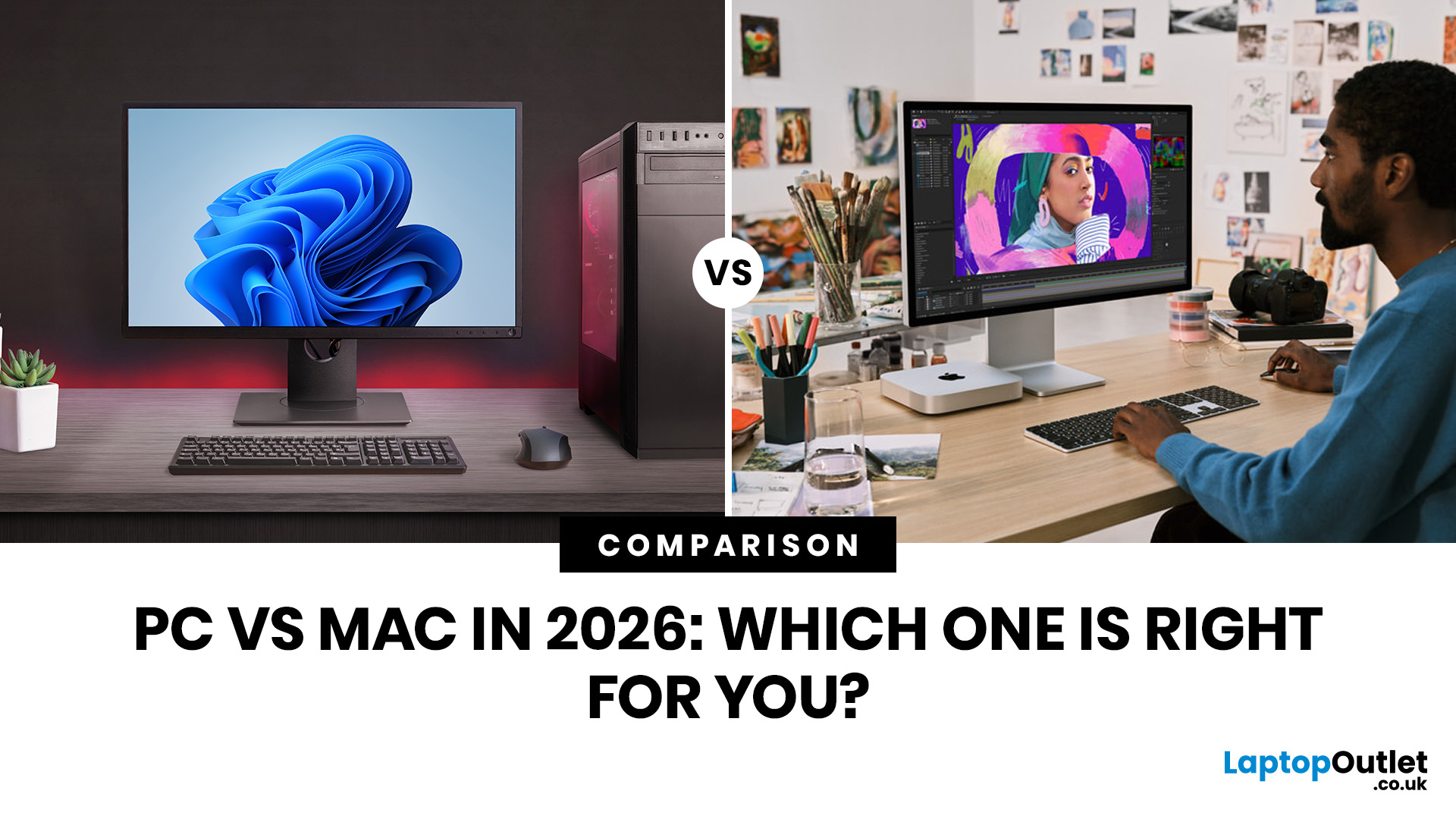
Quick Answer: Choose a PC in 2026 when you want more choice, broader software support, better gaming options, easier business compatibility, and a wider spread of prices. Choose a Mac when you want excellent battery life, a polished day-to-day experience, and tighter integration with your iPhone and other Apple devices.
The PC vs Mac 2026 decision is not really about which side has the louder fan base. It is about which setup makes more sense for the way you use your laptop every day.
Right now, the gap is shaped by practical things rather than old brand arguments. Windows 10 support ended on 14 October 2025, which means older Windows laptops need more careful checking before you buy. At the same time, current MacBook Air models now start from a stronger baseline with 16GB unified memory and up to 18 hours of battery life, so the entry-level Mac story is better than it used to be. Windows still keeps the advantage in gaming and overall device variety, while Mac remains attractive for portability, efficiency, and Apple ecosystem convenience.
So, when you are choosing between Mac and PC, the smart move is to match the platform to your real use case. That means looking at performance, software, gaming, price, compatibility with work, battery life, upgrade flexibility, and how long the laptop is likely to remain useful.
What is the Difference Between a Mac and a PC in 2026?
A Mac is Apple hardware running macOS. A PC usually means a Windows laptop or desktop from a much wider range of device makers, price points, designs, and performance tiers.
That means the modern Mac vs PC laptop decision is usually about 5 things:
|
What you care about |
PC |
Mac |
|
Choice |
Much wider range of models, sizes, and budgets |
Smaller, more focused lineup |
|
Gaming |
Best overall choice |
Still limited compared with Windows |
|
Ecosystem |
Flexible, works across many brands and setups |
Best if you already use iPhone, iPad, or Apple Watch |
|
Business fit |
Usually easier for Windows-first workplaces |
Very good for many teams, especially browser and app-based work |
|
Battery and noise |
Varies a lot by model |
Usually very strong on modern MacBooks |
Which One Feels Faster in Everyday Use?
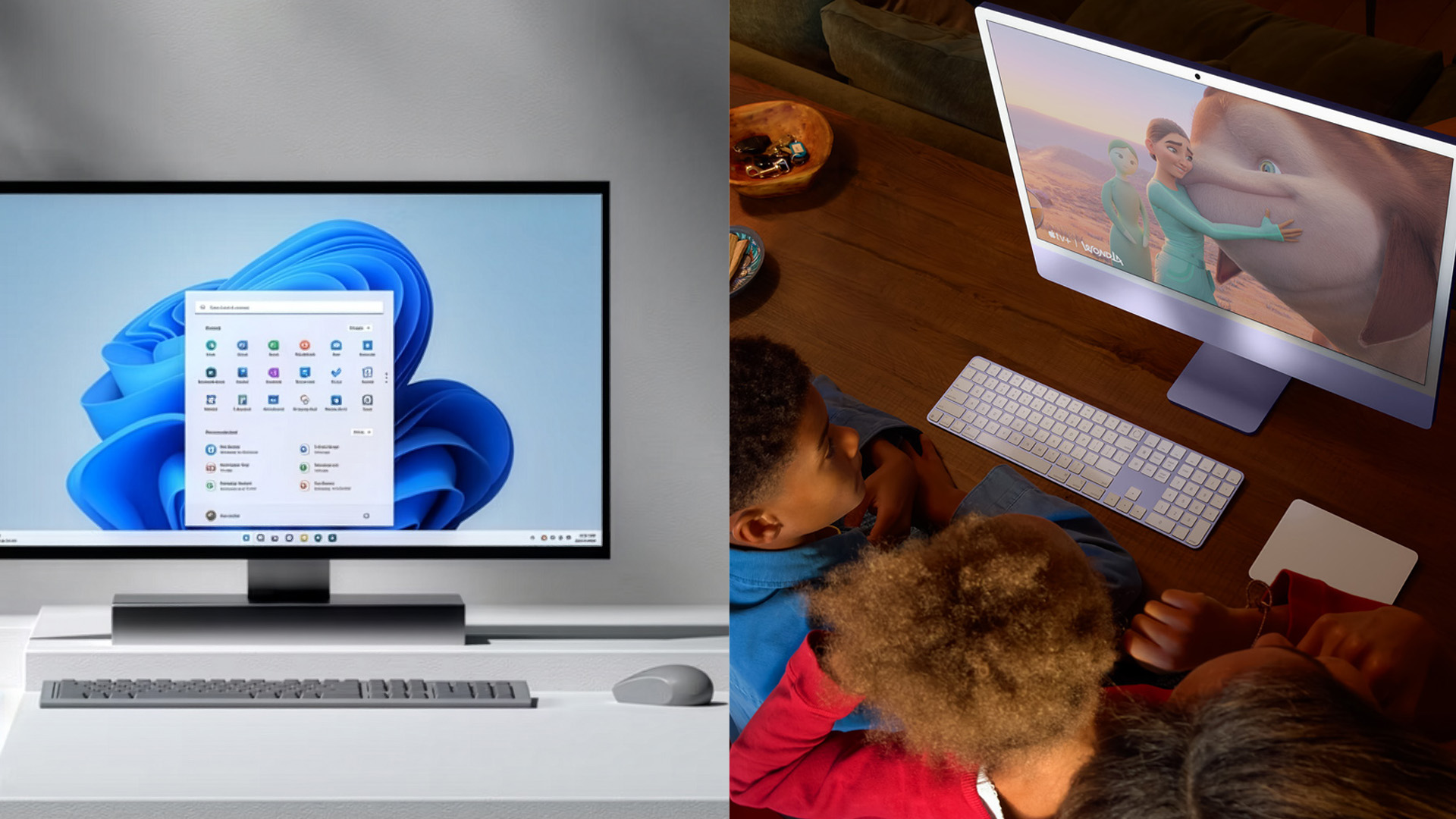
For normal daily use, both can feel fast.
Your browser, email, documents, video calls, streaming, admin work, and light editing can run smoothly on either platform when you buy sensible specs. That is why the Mac vs Windows speed comparison is often misunderstood. What slows most people down is not the logo on the lid. It is low memory, weak cooling, slow storage, or buying an old machine that no longer makes sense for current software.
Mac has become easier to recommend at the lower end because the current MacBook Air starts with 16GB unified memory, which is healthier for multitasking than the old 8GB baseline many buyers used to debate. Windows, on the other hand, still offers a broader performance spectrum, from basic machines to premium productivity devices and dedicated gaming laptops. Microsoft is also drawing a clearer line around new AI-focused Windows hardware through Copilot+ PCs, which use 40+ TOPS NPUs for advanced on-device AI experiences.
So, when you are thinking about Mac vs Windows performance in 2026, the better question is: what do you need to run well every day? For office work, study, web use, and general productivity, either platform can be excellent. For gaming and broad hardware choice, PC still has the edge. For quiet, efficient everyday use, Mac stays very appealing.
If you want to compare what is actually available across price points, a natural next step is to explore top laptops rather than rely on outdated opinions.
Which Platform Gives You Better Software Compatibility?
A PC is still the safer all-around choice for software compatibility.
That matters most when you rely on specialist business software, older accessories, certain peripherals, custom enterprise tools, or games with Windows-first support. In many workplaces, Windows is still the default environment, making a PC the lower-friction choice for many buyers.
Mac handles mainstream productivity very well. Browsers, office tools, collaboration apps, content apps, and plenty of creative software run well on modern Macs. The catch is that niche tools, some legacy software, and parts of the gaming ecosystem still lean heavily toward Windows.
So, choosing between Mac and PC becomes much easier once you list the actual apps and services you use every week. The more specialist or gaming-heavy your setup is, the more comfortable a PC tends to be.
Is Mac Better for Battery Life and Portability?
For many buyers, yes.
This is one of the clearest Mac wins in 2026. Apple’s current MacBook Air range is still built around long battery life and efficient everyday performance, with the current model listing up to 18 hours of battery life. That does not mean every Mac will outperform every Windows laptop. Premium Windows machines can also deliver excellent endurance. The difference is consistency. MacBooks are widely seen as one of the safer bets when battery life, low noise, and travel-friendly use are near the top of your checklist.
So, in case your laptop spends a lot of time in a backpack, on trains, in lectures, or moving between meetings, a Mac starts to look more attractive. When you care more about ports, price range, or hardware variety, a PC gives you more options to shape around those priorities.
Thinking about going with a Mac? Read our complete MacBook guide to compare models, understand what suits your needs, and avoid common buying mistakes.
PC vs Mac for Gaming: Which Should You Buy?
If gaming matters, buy a PC.
That is the clearest part of the whole PC vs Mac debate in 2026. Windows still dominates mainstream PC gaming, game support, graphics options, upgrade paths, and laptop variety. Steam’s March 2026 hardware survey shows Windows at 92.33% of surveyed systems, while macOS sits at 2.35%. That does not mean you cannot play on a Mac. It means the safest, simplest, least restrictive choice for gaming is still Windows.
Mac gaming is better than it used to be, and Apple clearly wants that part of the story to improve. But if you are buying a machine specifically for esports, AAA titles, modding, launchers, or the widest compatibility, you should not overthink it. In the PC vs Mac for gaming conversation, Windows wins.
Which One Makes More Sense for Work and Business?
Mac vs PC for business use comes down to the environment you work in.
A PC is often the safer fit for Windows-first workplaces, older systems, accessory-heavy desks, and companies that standardise around Microsoft tools and policies. Windows 11 Pro continues to focus heavily on hardware-backed security features such as TPM 2.0, Trusted Boot, virtualisation-based security, encryption, and additional secured-core protections on supported devices.
Mac still makes strong sense for plenty of professionals. For browser-based work, mainstream office tasks, meetings, writing, presentations, and portable productivity, a Mac can be a very smooth work machine. It also becomes more attractive when you already use an iPhone, because continuity features let you move messages, calls, clipboard content, and tasks between devices more easily. Apple also supports iPhone Mirroring on current systems, which adds another convenience layer for people already inside that ecosystem.
For a work-led purchase, compare the top Microsoft and Lenovo laptops, especially if your day revolves around Office, meetings, spreadsheets, and general productivity.
Mac vs PC: Which is Better for Students and Everyday Home Use?
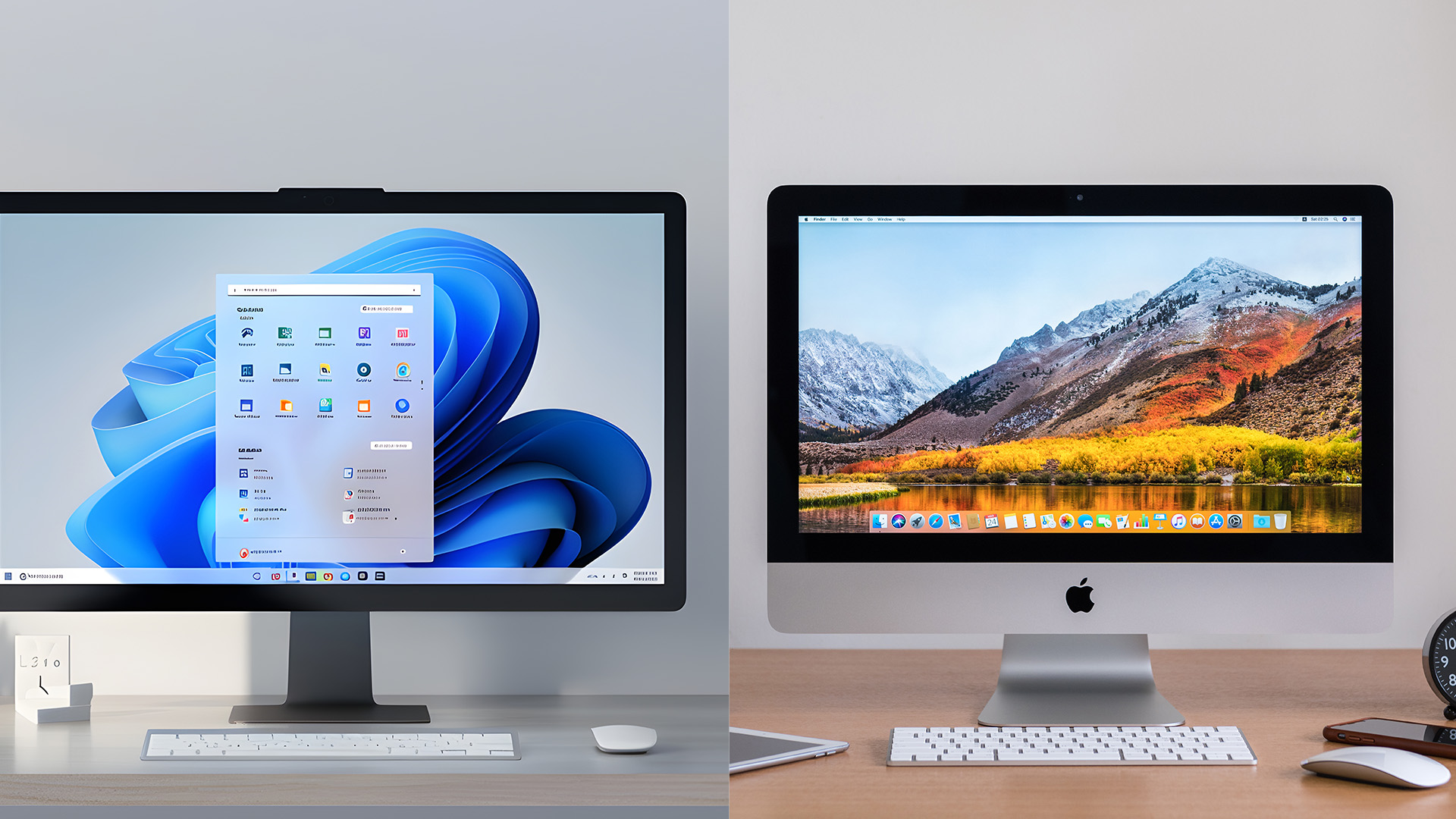
For students and home users, the answer depends more on budget and habits than on brand loyalty.
A PC often makes more sense when you want flexibility, a lower starting price, a wider range of sizes, and less pressure to buy premium. A Mac often makes more sense when you value battery life, portability, and a clean, simple setup that you plan to keep for several years.
For coursework, essays, email, streaming, research, and general everyday use, you are usually better off starting with affordable study laptops. That gives you a more realistic view of what your budget can actually get before you talk yourself into features you may never use.
If you are mainly buying for study, browsing, and everyday tasks, our Chromebook vs MacBook guide can help you narrow it down faster.
Mac vs PC Cost Comparison: Which Gives You Better Value?
PC usually wins on entry price and range of choice. Mac usually wins on consistency, premium feel, and the straightforwardness of the buying decision.
That is why the Mac vs PC cost comparison depends on what you mean by value. If your budget is tight, a Windows PC usually gives you more ways to stay within it. If you want a tidy premium laptop for several years of study or work, and you already like macOS, a Mac can make good sense.
The important 2026 warning is on the PC side. A suspiciously cheap older Windows laptop is not necessarily a good value anymore. Windows 10 support has already ended, and Windows 11 still has clear baseline requirements such as TPM 2.0, Secure Boot, and minimum hardware thresholds. So, if you buy purely on price and ignore compatibility, you can end up with a machine that feels like a bargain on day one and a headache on day thirty.
Which One Is Easier to Live with Long-term?
A Mac is often easier to live with when you want a straightforward, premium laptop experience, and you prefer keeping things simple. A PC is easier to live with when you want more freedom over specs, hardware choice, ports, form factors, and the kind of machine you buy in the first place.
That makes the Mac vs PC pros and cons very clear:
Pros
- Excellent battery life on modern models
- Quiet, polished everyday use
- Strong ecosystem features with iPhone and other Apple devices
- Cleaner product lineup with fewer confusing choices
Cons
- Higher upfront pricing for many buyers
- Less flexible hardware choice
- Weaker gaming case
- Fewer routes to tailor the machine after purchase

Pros
- Far wider choice across budgets and use cases
- Better for gaming
- Easier fit for many business environments
- More variety in design, ports, sizes, and performance levels
Cons
- Quality varies much more between models
- Budget choices can be poor value when specs are weak
- Older Windows laptops need more careful checking after Windows 10 end of support
- Buying decisions can feel more confusing because there are so many options
Choosing Between Mac and PC: The Easiest Way to Decide
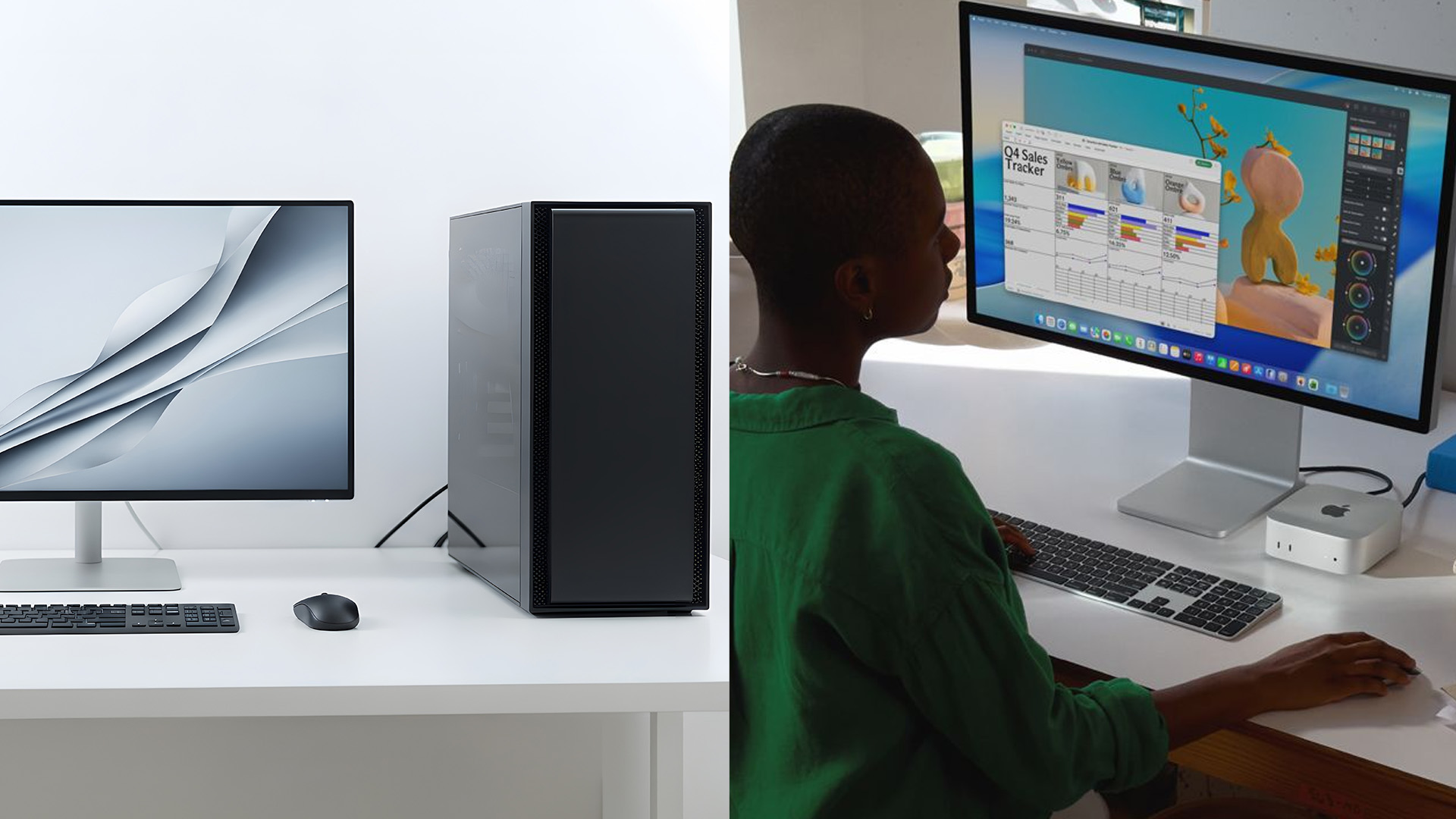
Here is the simplest way to choose between Mac and PC in 2026.
|
If this sounds like you |
Choose PC |
Choose Mac |
|
You want the widest choice of models and prices |
Yes |
No |
|
You care about gaming |
Yes |
No |
|
You need the easiest fit for Windows-first work |
Yes |
Sometimes |
|
You want strong battery life and a very quiet laptop |
Sometimes |
Yes |
|
You already use iPhone and want everything to work together smoothly |
Sometimes |
Yes |
|
You want one of the easiest premium laptop buying decisions |
Sometimes |
Yes |
|
You are happy to compare lots of options to get the best fit |
Yes |
No |
If you still cannot decide, use this rule:
- Buy a PC if you want flexibility, gaming, value options, and the broadest compatibility
- Buy a Mac if you want portability, battery life, Apple integration, and a more focused experience
Already leaning towards Mac? Learn the most useful Mac keyboard shortcuts so the switch feels easier from day one.

Final Verdict
For most buyers in 2026, a PC is the safer all-round recommendation. It gives you more choice, greater price flexibility, better gaming support, and fewer workflow surprises if your work or studies are already built around Windows.
However, that does not make Mac the wrong choice. A Mac is the better choice for you if you want a premium laptop experience, excellent battery life, quiet performance, and tight integration with the Apple devices you already use every day.
So, the best answer is this: buy the platform that matches your real life, not the one with the loudest fanbase.

People Also Ask: PC vs Mac Buying FAQs
Is Mac or PC better in 2026?
A PC is better for most people in 2026 if you want more choice, lower starting prices, gaming support, and broader compatibility. A Mac is better for you if you want strong battery life, a premium laptop experience, and tighter Apple device integration.
Is a Mac faster than a Windows PC in 2026?
Not always. A Mac can feel very fast in everyday use, but a well-specced Windows laptop can feel just as quick for normal work. The bigger factor is the actual hardware you buy, especially memory, storage, and processor class.
Which is better for students, Mac or PC?
A PC is usually better for students on a tighter budget because you get more price options. A Mac can still be a great choice if you want battery life and portability, and if you already use an iPhone or iPad.
Why do gamers still choose PC over Mac?
Gamers still choose PCs because Windows offers much broader game support, more gaming hardware options, and a stronger overall ecosystem for high-performance play. If gaming is one of your main reasons for buying a PC, it is the easier choice.
Is Mac or PC better for business use?
A PC is usually better for Windows-first workplaces, specialist software, and established IT setups. A Mac is a strong option for browser-based work, mainstream productivity apps, and teams already using Apple devices.
Is it easier to switch from PC to Mac now?
Yes, switching from PC to Mac is easier now than it used to be. Apple continues to support migration tools and cross-device continuity features, and most mainstream work apps already run well on Mac.
| Read More: |
| How to Clean a MacBook Keyboard Safely |
| MacBook Battery Problems: When to Repair or Replace |
| A Guide to How to Factory Reset a MacBook |
Related Articles

Published: March 06, 2026
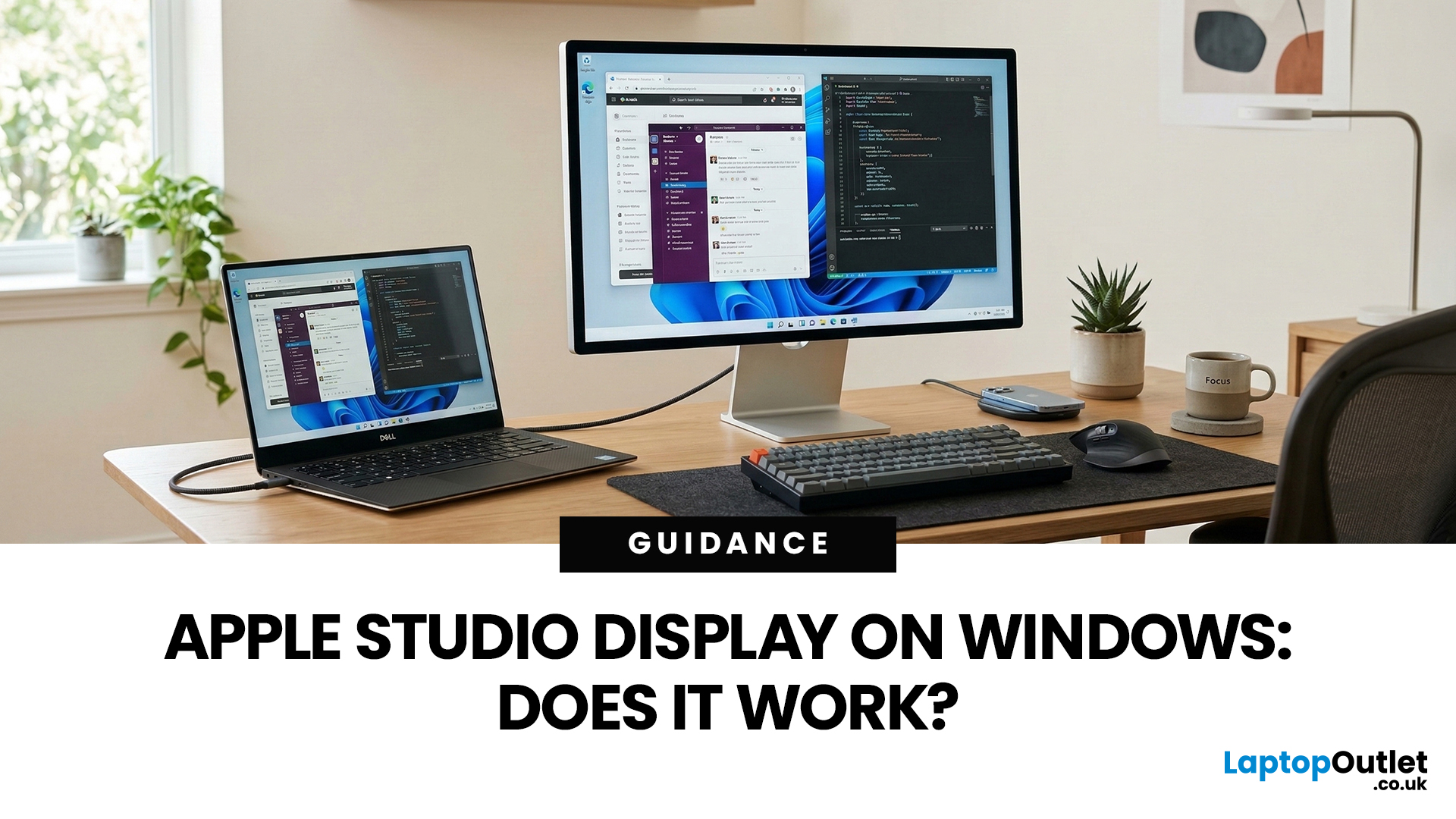
You’ve seen the Apple Studio Display. It’s sleek, stupidly sharp, and it makes your desk look like you’ve got your life together. But you’re on Windows. So, the big question is: Does Apple Studio Display work with Windows PCs? Yes, it can. But you won’t always get the full “Apple magic” experience on Windows.
Apple Studio Display + Windows: What Works vs What Doesn’t
Core Monitor Functions (generally work)
The good news: the basics are solid.
- You’ll get a picture (yep, it’s a monitor)
- Resolution and scaling can be adjusted in Windows settings
- It can act as an audio device (the built-in speakers often show up as an output option)
In other words: for day-to-day “I need a stunning screen”, you’re fine.
Features that May be Limited or Not Supported on Windows
Here’s where the “Apple ecosystem” bit starts showing:
- Center Stage (auto-follow webcam feature): usually not available as intended on Windows
- True Tone (auto colour temperature shifts): Generally not supported
- Firmware updates: typically
Published: March 12, 2026
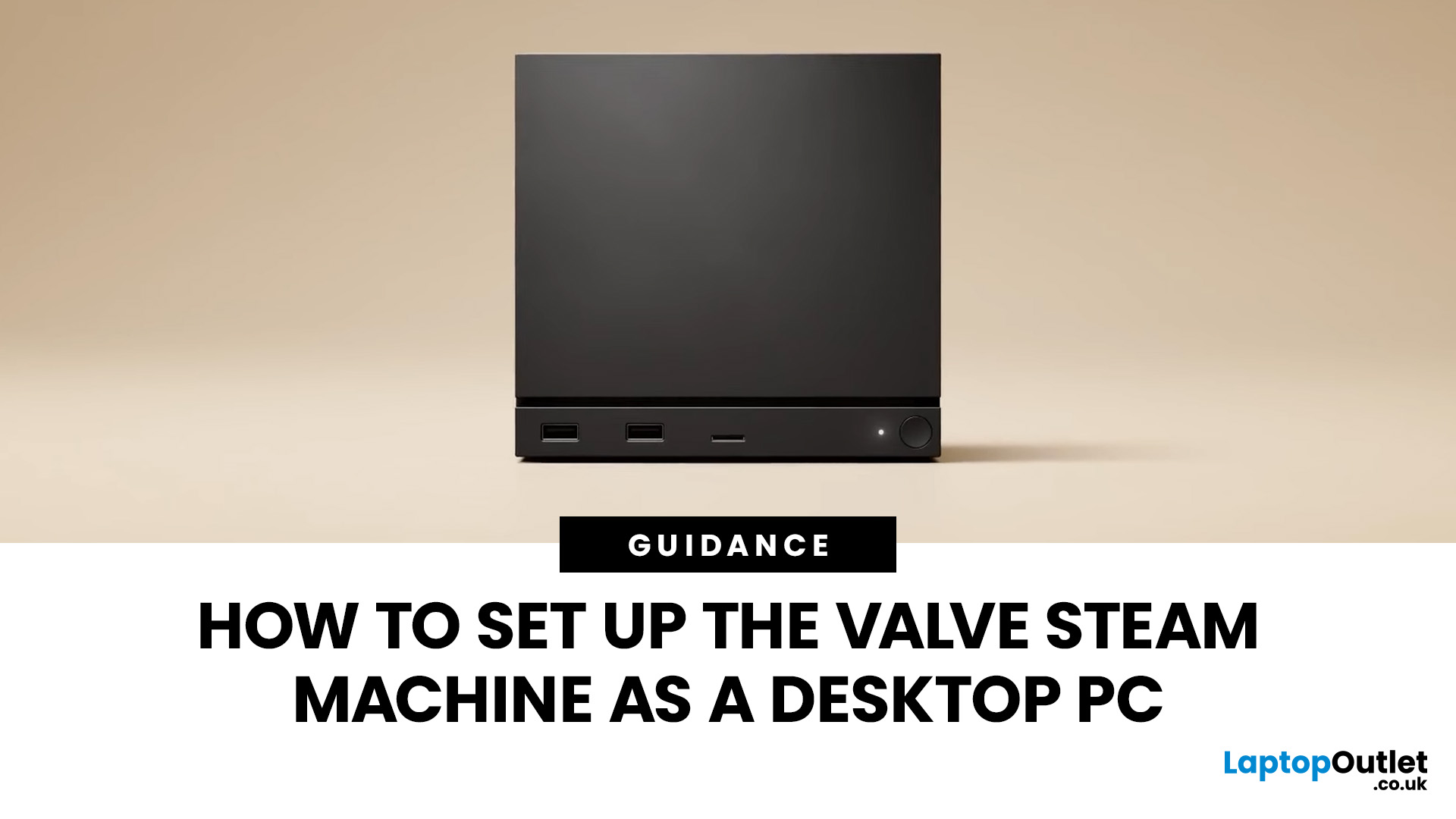
If you have an old Valve Steam Machine tucked away under the telly or on a shelf, you might be wondering whether it can still do more than launch games. The good news is that, with the right setup, it can absolutely pull double duty as a compact desktop computer for everyday use.
This guide walks you through a practical Valve Steam Machine setup for desktop use, from connecting a monitor and peripherals to accessing SteamOS desktop mode and making the system feels more like a standard PC. Whether you want a lightweight machine for web browsing, media streaming, or casual home computing, repurposing a Steam Machine can be a clever and cost-effective option.
What is a Valve Steam Machine?
A Valve Steam Machine was originally designed as a living-room gaming PC. It brought PC gaming closer to the console experience, usually running SteamOS and focusing on controller-friendly play from the sofa.
That said, the hardware inside many Steam Machines is still capable of handling basic desktop
Last Updated: April 02, 2026
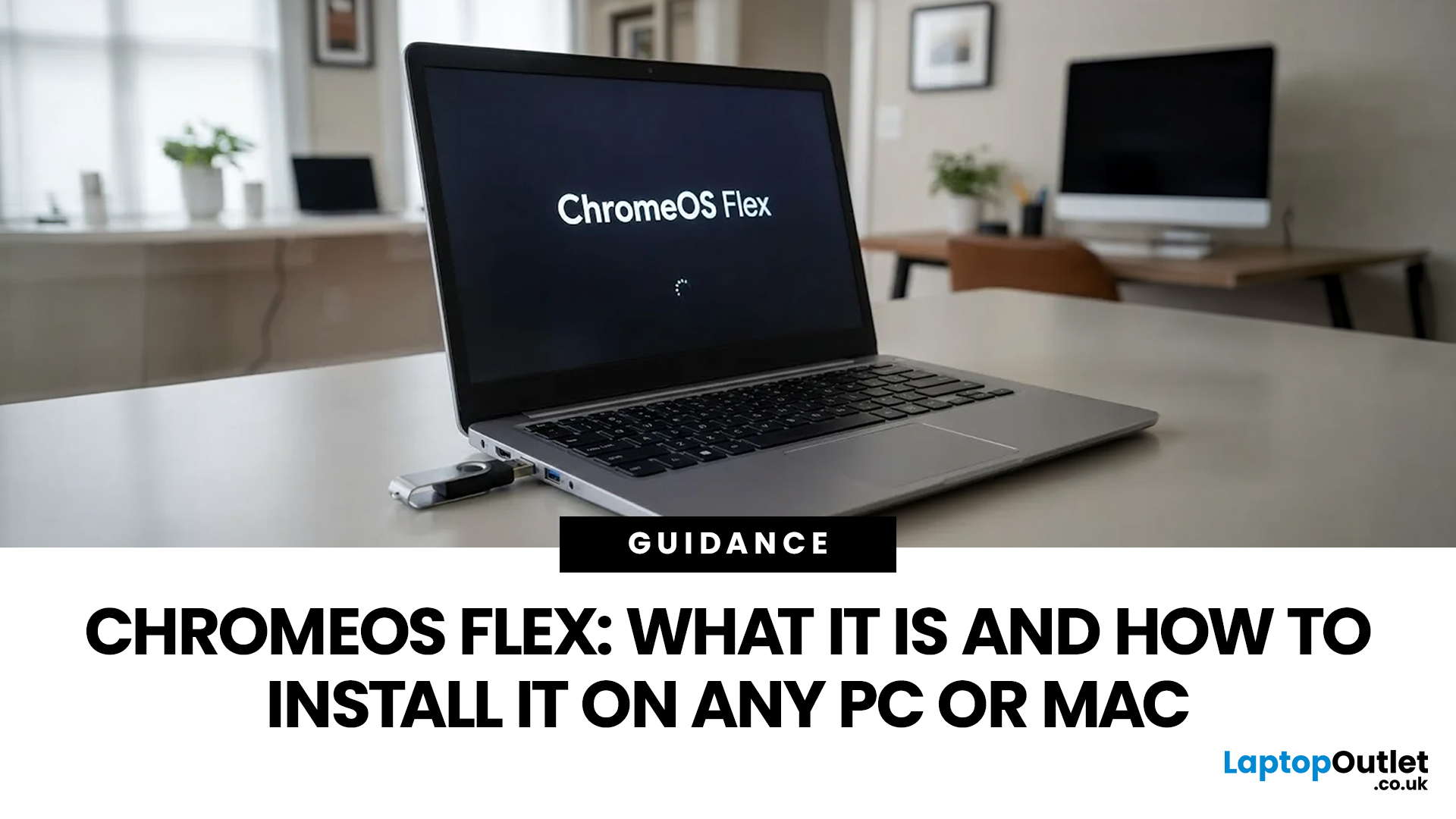
Most of us have an old laptop somewhere collecting dust. It’s slow, takes ages to boot, and probably sounds like it’s about to take off every time you open Chrome. But what if you could turn that relic into something fast, secure, and actually enjoyable to use again?
Enter ChromeOS Flex.
Whether you’re a student, a gamer needing a lightweight secondary machine, or a professional looking for a distraction-free setup, ChromeOS Flex is one of the easiest ways to revive old hardware without spending a penny.
In this guide, we’ll break down exactly what ChromeOS Flex is, why it’s worth your time, and most importantly, how to install ChromeOS Flex on both PC and Mac step by step.
What Is ChromeOS Flex?
ChromeOS Flex is a lightweight, cloud-first operating system developed by Google. It’s essentially a version of ChromeOS (the one used on Chromebooks) designed to run on older Windows PCs and Macs.
Think of it as giving your ageing laptop a fresh brain, one that’s faster, safer, and built for

Last Updated: April 07, 2026
If your PC is on for hours every day, it is absolutely part of your electricity bill story. Not in a dramatic “this one desktop is ruining your life” way, but enough that efficiency matters. That is why energy-efficient PCs are getting more attention from UK buyers who want solid performance without wasting power.
And honestly, fair enough. Nobody wants a machine that runs hot, pulls extra watts for no reason, and quietly adds more to the bill every month. This guide breaks down what energy efficient computers mean, how much you could realistically save in a year, and where the biggest differences show up between everyday desktops and a power efficient gaming PC.
What Counts as an Energy-Efficient PC?
An energy-efficient PC is simply a desktop that delivers the performance you need without drawing more power than necessary. That can come from better components, smarter power management, or both. A more efficient system usually has a few things going for it:
- newer processors that do more
Last Updated: April 14, 2026
Picking the right gaming monitor is no longer as simple as choosing the biggest screen you can afford. Your setup matters, your platform matters, and the way you play matters even more. A monitor that feels perfect for a competitive PC player might not be the best fit for someone gaming on a PS5 or Xbox Series X.
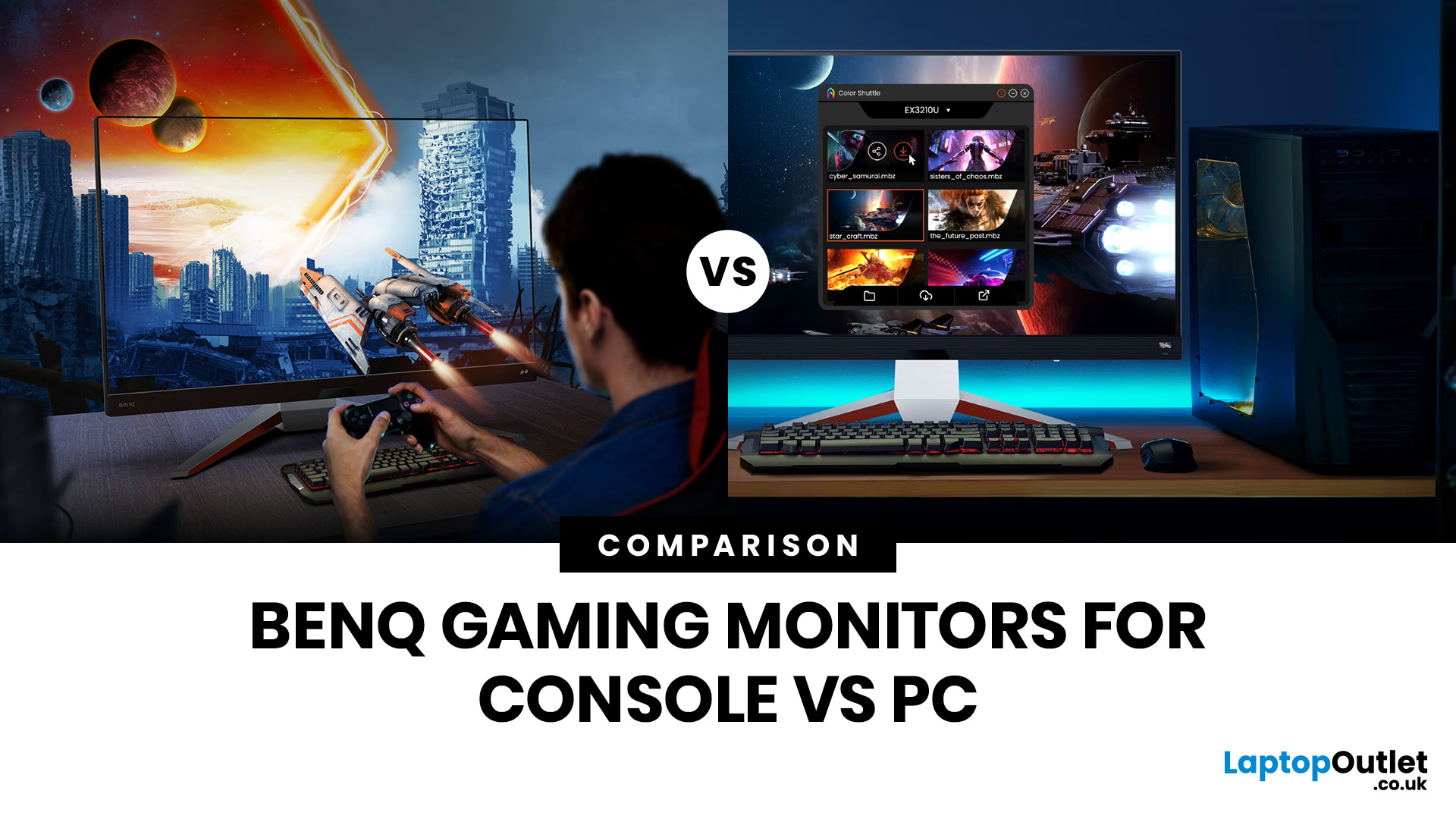
That’s exactly why choosing the right BenQ gaming monitor for console or PC comes down to more than specs on a product page. You need to think about refresh rate, resolution, connectivity and whether you care more about raw speed or immersive visuals.
BenQ makes that decision easier by offering two clear gaming monitor families. ZOWIE is built for fast, focused competitive PC play, while MOBIUZ is designed for players who want strong performance with more visual depth and better console-friendly features. If you’ve been stuck comparing 1080p, 1440p and 4K, this guide breaks it all down in a way that helps.
Do Console and PC Gamers Need Different BenQ Monitors?
Console and PC
Last Updated: May 01, 2026
If your MacBook is not turning on, the quickest way to solve it is to work out which problem you have. Some Macs have no power at all. Others are turning on, but the screen stays black, the battery is not charging properly, or macOS is failing during startup. Those are different faults, and they need different fixes.
In most cases, the right order is simple: check the charger and outlet, force a restart, rule out a blank-screen issue, then move to Safe Mode, Apple Diagnostics, or macOS Recovery if the Mac still will not boot. If your MacBook is charging but not turning on, the issue is often startup, display, or battery-health related rather than a completely dead machine.
What to do First When MacBook Doesn't Turn On

If your MacBook won't turn on, start with the basics before assuming the worst.
- Plug it into a known-working wall socket with a compatible charger and cable.
- Leave it connected for several minutes if the battery may be flat.
- Press and hold the power button for up to 10 seconds,
Last Updated: May 06, 2026
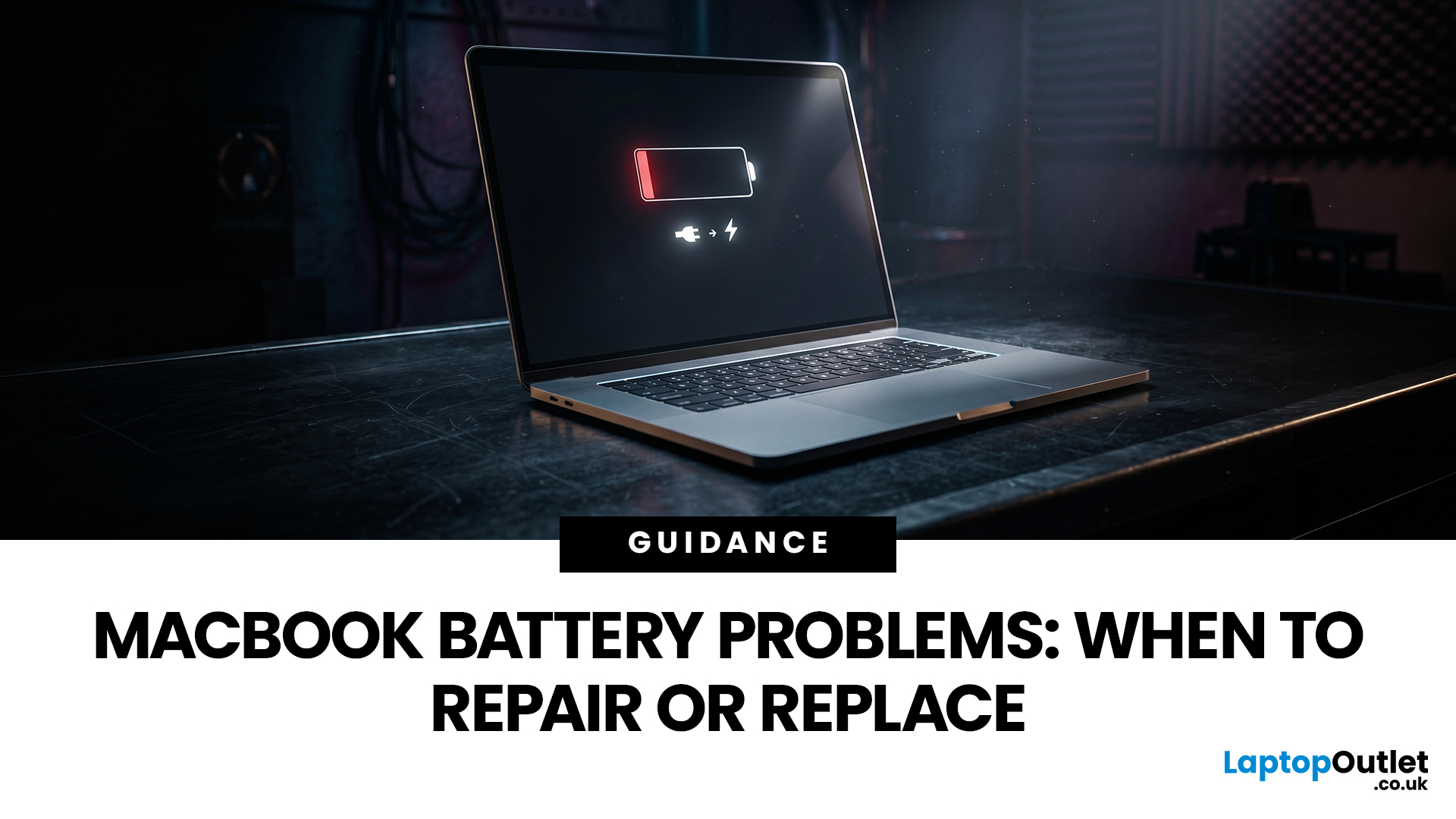
MacBook battery issues do not always mean it is time for a replacement. Sometimes your battery is genuinely wearing out, but sometimes the real problem is heat, charging habits, background apps, or even a charger that is not pulling its weight. That is what makes battery problems so confusing: the symptoms can look dramatic, while the fix might be simple.
In this guide, we will help you figure out what your MacBook is actually trying to tell you. From battery drain and overheating to charging limits and health checks, you will learn how to spot the issue, understand the cause, and decide whether a repair or replacement makes the most sense.
Why MacBook battery issues happen in the first place
MacBook batteries are built with lithium-ion technology, which is great for fast charging and portability, but like every rechargeable battery, they wear down over time. Battery age is not just about how many years you have owned the laptop. It is also shaped by your charging habits, temperature
Last Updated: May 06, 2026
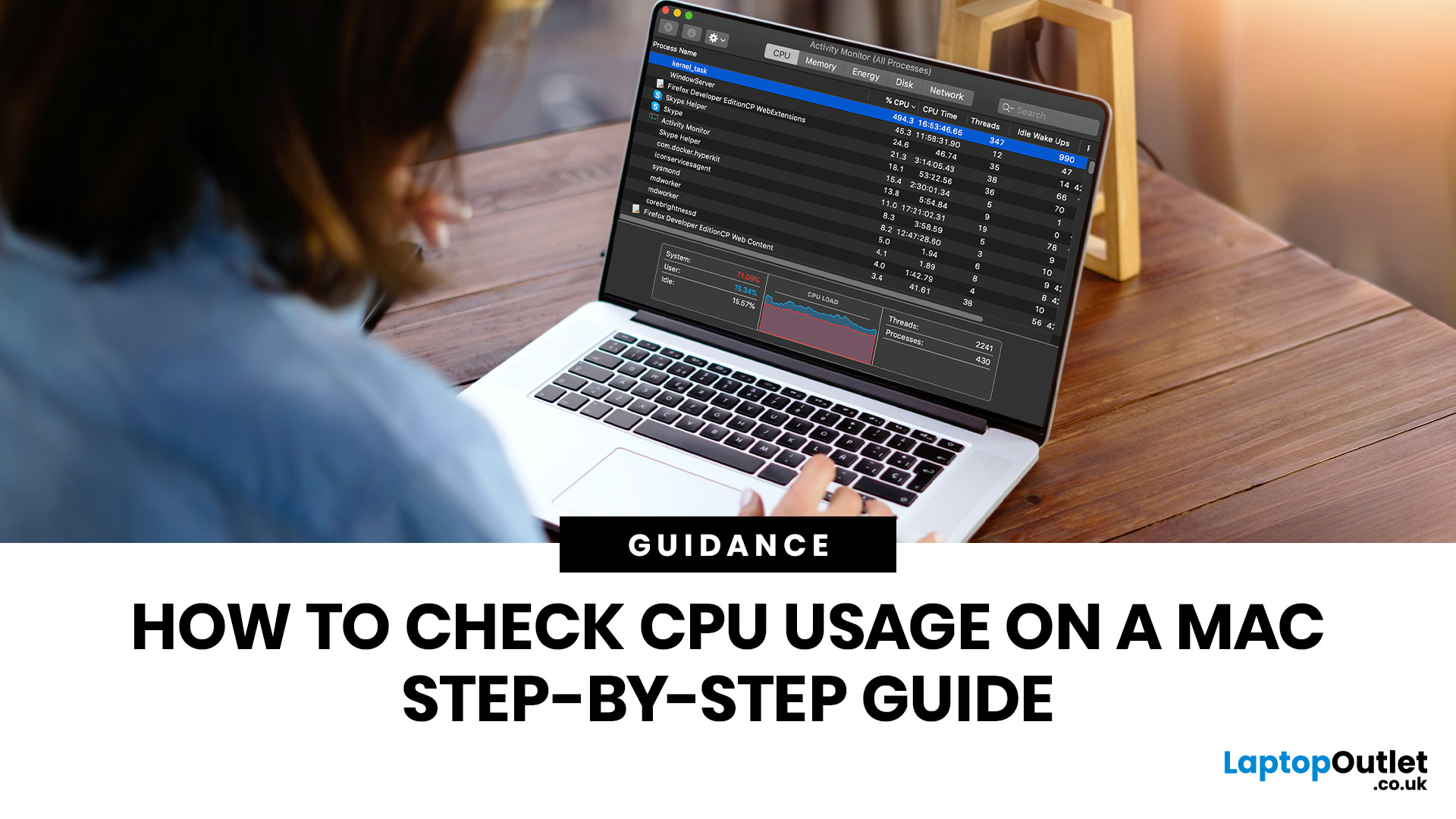
If you want to check CPU usage on a Mac, the fastest built-in method is Activity Monitor. Open it, click the CPU tab, and you can immediately see which APPs and processes are using the most processor power, along with overall User, System, and Idle percentages at the bottom of the window.
That makes CPU usage one of the most useful checks when your Mac feels slow, runs hot, drains battery quickly, or sounds busier than usual. In this guide, we will show you exactly how to see CPU usage on a Mac, how to interpret what you are looking at, and what to do next if one APP is using more processing power than it should.
How to See CPU Usage on a Mac
The easiest way to check processor usage on a Mac is to open Activity Monitor and click CPU. That view shows your Mac’s processor activity over time and lists active APPs and processes so you can spot what is using the most CPU. Apple also lets you open CPU Usage and CPU History from the Window menu for a more visual view.
If you want a quicker
Last Updated: June 17, 2026
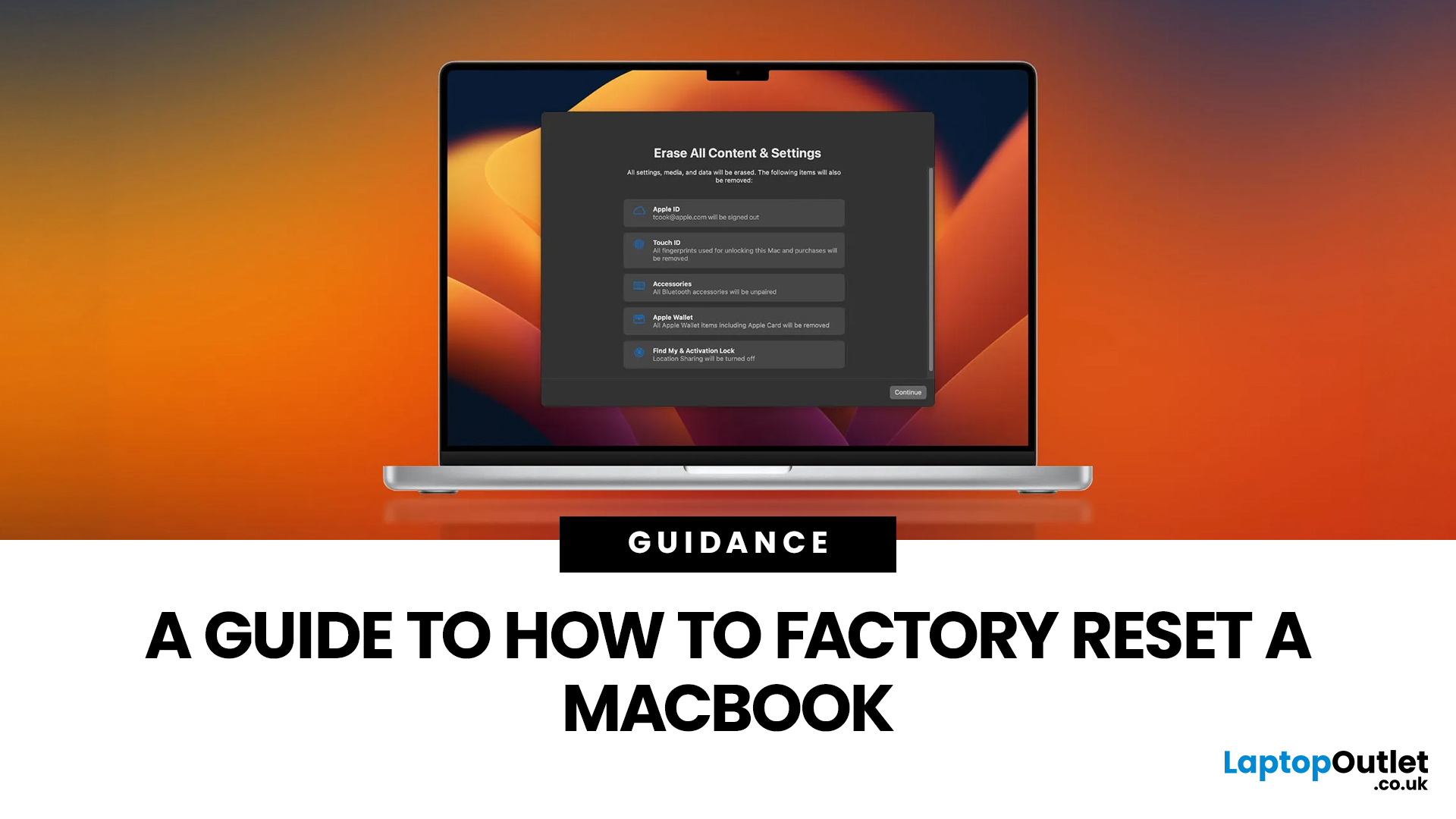
Whether you are selling your MacBook, troubleshooting a persistent software issue, or simply wanting a clean slate, knowing how to factory reset a MacBook safely is an essential skill for any Apple user.
The good news? Apple has made the process simpler than ever. But the steps you need to follow depend entirely on your MacBook model and the version of macOS you are running.
This guide will help you reset your Mac safely, avoid losing important files, and leave the laptop ready either for you or for its next owner.
What Does a Mac Factory Reset Actually Do?
A factory reset wipes your MacBook completely, removing all your files, apps, accounts, and personal settings. The end result is a machine that behaves exactly as it did the day you took it out of the box.
Depending on the method you use, the reset will either keep the current version of macOS installed or reinstall it fresh from scratch. Either way, your personal data is gone, so preparation is everything.
What To Do Before You
Last Updated: May 01, 2026
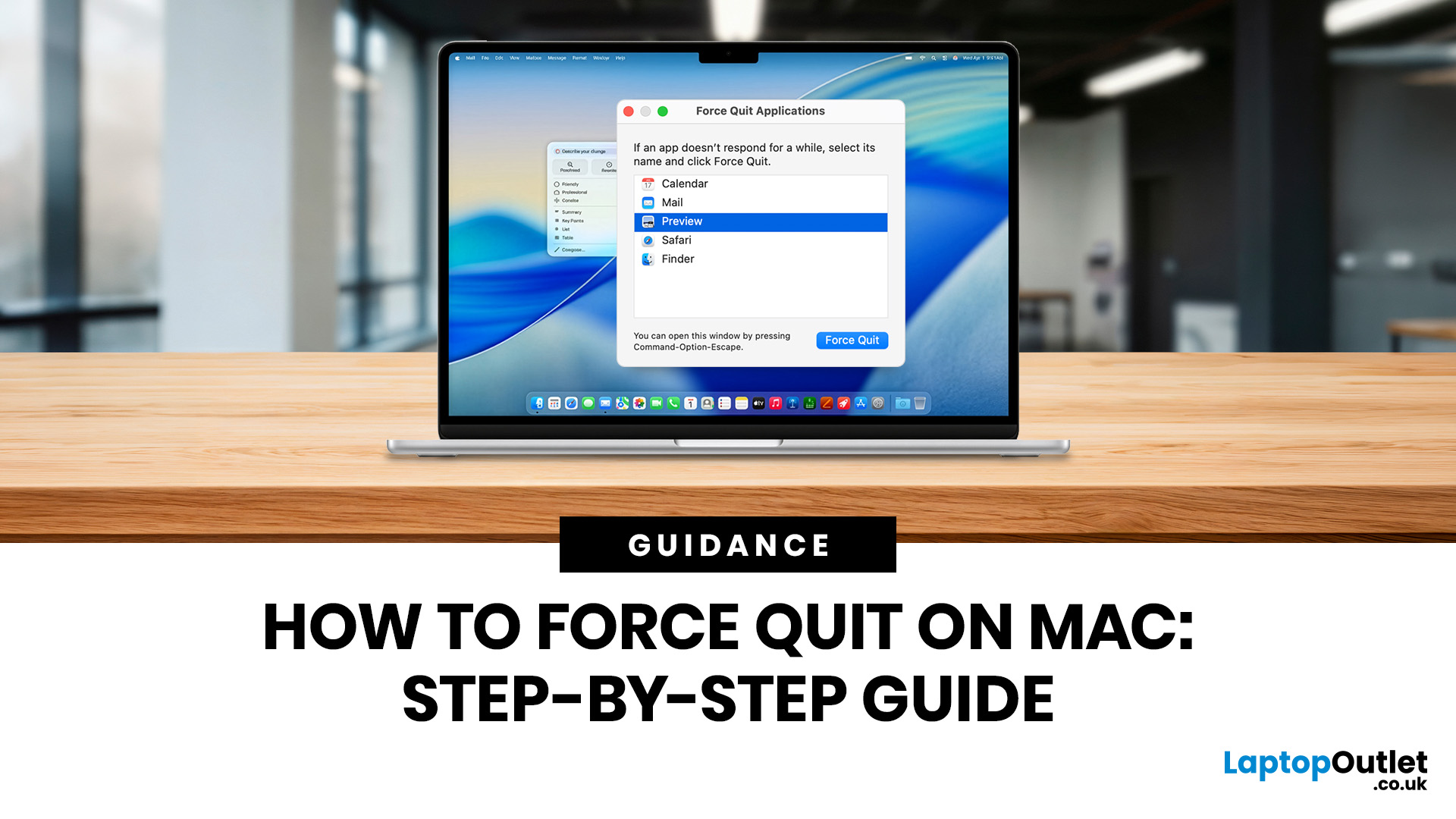
If you need to force quit Mac apps because one has frozen, the safest approach is to try a normal quit first, then use the Force Quit window, the Apple menu, or Activity Monitor if the app still will not respond. These steps work across current Mac laptops, including MacBook Air, MacBook Pro, and MacBook Neo, as well as desktop Macs.
What Does Force Quit Actually Do on a Mac?
Every method to force quit an app on Mac achieves the same result: it instructs macOS to terminate the application immediately, without waiting for it to shut down on its own terms.
Unlike a standard quit (Command + Q), force quitting bypasses the app's normal closing sequence entirely. Force closing of an app on Mac means it doesn't get a chance to save open files or tidy up temporary processes, so it's worth understanding the implications before you use it, particularly if you have unsaved work on screen.
When Should You Force Quit an App on Mac?
Choosing to force close on Mac should always be a last resort

