



How to Calibrate BenQ DesignVue & PhotoVue Monitors for Accurate Colour

If you want reliable colour from a BenQ creative monitor, calibration is not the final polish. It is the foundation. Whether you are editing photos, preparing work for print, designing for web, or reviewing client visuals, the goal is the same: your monitor should show colour in a way that is consistent, repeatable, and appropriate for the job in front of you.
This guide will walk you through how to calibrate a BenQ DesignVue monitor or BenQ PhotoVue monitor, when to use sRGB vs AdobeRGB on BenQ monitors, what hardware calibration changes, and how often you should recalibrate if accurate colour matters to your work.
Why BenQ Monitor Colour Calibration Matters
A high-spec monitor is only one part of colour accuracy. Out of the box, even a very good display may be too bright for print work, set to the wrong colour space for your workflow, or simply drift over time. That is where BenQ monitor colour calibration comes in.
BenQ explains that hardware calibration works by adjusting colour directly through the monitor’s processing, rather than leaving all correction to the graphics card. In practical terms, that means a supported monitor can store calibration data in its own colour pipeline, which is one reason hardware calibration is prized for more dependable results.
For creatives, that matters because “accurate colour” is not just about the screen looking nice. It is about confidence. You want skin tones to remain believable, brand colours to stay controlled, and prints to come out closer to what you saw on screen.
What You Need Before You Calibrate a BenQ DesignVue or PhotoVue Monitor
Before you start the calibration itself, make sure the basics are in place.
You will need a compatible BenQ DesignVue or PhotoVue monitor, a supported hardware calibrator, and BenQ’s calibration software. BenQ’s official software pages and specifications reference support for common calibrators from Calibrite, X-Rite and Datacolor, depending on the software version and monitor compatibility.
You should also let the monitor warm up first. In everyday terms, that simply means giving the display a bit of time before calibrating so brightness and colour settle properly. It also helps to work in steady lighting. If your room light changes every few minutes, the monitor may be accurate while your viewing conditions are not. A good pre-calibration setup usually looks like this:
- the monitor has been on for a while
- the room lighting is stable
- Night Light, True Tone or similar colour-shifting features are off
- you are not calibrating in direct sunlight
- the screen is clean
- the monitor is connected normally and recognised correctly by the software
That preparation sounds simple, but it often makes the difference between a clean result and a frustrating one. If you also need something more comfortable for hybrid work or everyday study, Best BenQ Monitors for Home Office & Study: Eye-Care, USB-C and Hybrid Work Setups covers the models that prioritise comfort, connectivity and flexible desk setups.
BenQ DesignVue calibration vs BenQ PhotoVue Calibration
This is where some confusion tends to start, because BenQ has more than one colour-management tool in circulation.
Palette Master Ultimate
BenQ’s current software pages describe palette master ultimate as its hardware-calibration software for supported monitors, with custom gamut selection, validation features and a faster process than earlier approaches. Its monitor-specific quick-start guidance for PD-series displays also points users towards Palette Master Ultimate for calibration. If you are using a newer compatible DesignVue monitor, this is likely the software BenQ expects you to use.
Palette Master Element
BenQ still maintains official palette master element pages and describes it as proprietary hardware-calibration software, especially in relation to PhotoVue monitor workflows. BenQ’s own wording specifically says it fine-tunes the colour engine on PhotoVue monitors and supports Calibrite and Datacolor colorimeters.
So if you are looking for a BenQ SW and PD calibration guide, the short version is this: many current DesignVue workflows now point towards Palette Master Ultimate, while PhotoVue owners may still encounter Palette Master Element depending on model and documentation.
Paper Colour Sync for Print Workflows
If your work is print-focused, there is one more tool worth knowing about. BenQ’s paper colour sync is designed to simulate printing results on screen by letting you choose colour gamut, printer model and paper type to preview the final output more faithfully. It is not the same thing as hardware calibration, but it is highly relevant to a print-ready workflow. That distinction matters. Calibration gets your display into a known, reliable state. Paper colour Sync helps bridge the gap between the screen and the paper.
How to Calibrate a BenQ DesignVue Monitor or BenQ PhotoVue Monitor
Now for the actual process. The exact screens may vary a little depending on whether you are using Palette Master Ultimate or Palette Master Element, but the overall workflow is broadly the same.
1. Decide What You are Calibrating For
Before you click anything, decide what the monitor needs to do.
If your work mainly ends up on websites, social platforms, digital ads, content platforms or apps, start with sRGB. If your work is photography-led and prepared for print or a wider-gamut workflow, AdobeRGB may be the better fit.
This is one of the biggest mistakes people make with BenQ DesignVue calibration and BenQ PhotoVue calibration. They choose the wider colour space because it sounds better, rather than because it matches the actual output.
2. Open the BenQ Calibration Software
Launch Palette Master Ultimate or Palette Master Element, depending on your monitor and workflow. BenQ’s software documentation presents both as guided calibration tools, so the process is designed to be manageable even if you are not deeply technical.
Once open, confirm the software detects the correct monitor. If you have more than one screen connected, double-check that you are calibrating the right one.
3. Connect and Place Your Calibrator
Attach your calibrator and follow the prompt to place it on the display. The sensor needs to sit properly against the screen surface so it can read colour and luminance accurately. This is the point where it pays to slow down. A hurried setup can undermine the result.
4. Choose Your Target Settings
Most users will need to choose or confirm settings such as:
- colour space
- white point
- gamma
- luminance
- profile name or storage slot
For many creative workflows, a sensible starting point is:
- sRGB for web and general digital work
- AdobeRGB for print-aware photo work
- D65 white point for common screen-based workflows
- Gamma 2.2 for standard desktop creative use
The ideal luminance depends on your room and output. For web work, people often prefer a brighter screen than they should use for print work. If you edit for print on a very bright display, prints can end up looking darker than expected simply because the monitor encouraged you to underexpose or under-adjust.
5. Run the Hardware Calibration
Once the targets are set, let the process complete without interruption. BenQ’s documentation around Palette Master Ultimate specifically frames the process as a quick, guided way to customise and validate colours through hardware calibration. The monitor will go through measurement stages and then save the result, depending on model and workflow.
6. Validate the Result
This part often gets skipped, but it should not. BenQ highlights validation as part of the Palette Master Ultimate workflow, and it is useful because it tells you whether your result is merely finished or good. If the result looks off, do not assume your eyes are wrong. Check the room lighting, the chosen target, and whether you selected the correct monitor and mode.
If you are still deciding between BenQ’s creative displays, take a look at BenQ Monitors for Creators: DesignVue PD & PhotoVue SW for Designers, Photographers & Video Editors for a clearer comparison of who each range is built for.
sRGB vs AdobeRGB on BenQ Monitors
If you only take one practical lesson from this guide, let it be this: the best colour space is the one that suits your output.
When sRGB Makes More Sense
Choose sRGB if your work is primarily viewed on ordinary consumer screens or published online. For most web designers, marketers, content creators and mixed-use creatives, this is the safer and more predictable choice.
It is not less professional. It is simply the most universal.
When AdobeRGB Makes More Sense
Choose AdobeRGB if your workflow is strongly photography-led and print-aware, especially if you are working in apps and pipelines that properly support colour management. AdobeRGB offers a wider gamut than sRGB, which can be useful for certain photographic and print workflows. But it only helps if the rest of your workflow understands it.
The Mistake that Causes the Most Confusion
The common trap in sRGB vs AdobeRGB BenQ monitor discussions is assuming AdobeRGB is always the premium option. In reality, AdobeRGB is only better when the whole workflow justifies it. If not, it can complicate matters and make colours look inconsistent across apps or devices. That is why sRGB vs AdobeRGB on BenQ monitors is not really a spec question. It is a workflow question.
Best Calibration Approach for Web, Photography and Print-Ready Colour
A useful way to think about calibration is by output, not by monitor model.
For Web Design and Digital Content
If your output is mainly websites, paid social, YouTube thumbnails, interface assets, pitch decks or digital campaigns, calibrate for sRGB and keep things practical. You want consistency across typical screens, not theoretical maximum gamut.
For Photography Intended Mostly for Screen Viewing
If you edit photos for delivery online, portfolio sites or social use, you can still stay comfortably in sRGB unless you have a reason to work wider and a colour-managed pipeline to support it.
For Photography Intended for Print
If your images are heading to print and you are managing colour carefully, AdobeRGB becomes more relevant. This is also where paper colour sync can be helpful, because BenQ describes it as a way to preview printing results on screen by accounting for colour gamut, printer model and paper type.
For Mixed Workflows
If you switch between web and print work regularly, it often makes sense to maintain separate presets or separate calibration targets. That way, you are not forcing one compromise setting to do everything.
How Often Should Creatives Recalibrate a BenQ Monitor?
There is no single rule that suits everyone, but there is a practical answer.
If colour is business-critical, recalibrate regularly. Not because the monitor is poor, but because consistency matters and displays drift over time. BenQ’s software materials emphasise accurate colour, validation and supported calibration workflows, all of which point to calibration as an ongoing process rather than a one-off event.
A sensible rhythm looks like this:
- every few weeks for colour-critical print or photography work
- every month or two for general design and digital creative work
- sooner if the room lighting changes, the monitor behaves differently, or you have made major system changes
In practice, the best recalibration schedule is the one you keep.
Common BenQ Calibration Mistakes
Even people with great monitors can end up with poor results if the setup is wrong. These are the issues that come up most often.
Calibrating for the Wrong Output
This is the big one. If you calibrate for AdobeRGB but your real-world work is mostly web, you may be optimising for the wrong environment.
Using a Screen that is Far too Bright
Many people work with monitors brighter than they realise, especially in home offices. That can make print work particularly frustrating because the display looks punchy while paper does not.
Skipping Hardware Calibration on a Supported Monitor
If your BenQ model supports hardware calibration, it is worth using the proper workflow rather than relying only on software-level tweaks. BenQ explicitly frames hardware calibration as direct monitor processing adjustment for accurate colours.
Ignoring the Room
A colour-accurate monitor in unstable lighting is still a compromised viewing setup.
Expecting One Calibration to Suit Every Workflow
Web, photo, print and mixed creative environments do not always need identical settings. Trying to use one catch-all profile for everything can make every task slightly worse.
BenQ Monitor Still Looks Wrong After Calibration?
If the monitor still does not look right after a fresh calibration, do not panic. Work through the basics first.
Make sure the monitor is running the mode or profile you intended. Confirm the right ICC profile is active in the operating system. Check that the calibrator is supported by your chosen BenQ software. BenQ maintains official software downloads, specifications and FAQs for both Palette Master Ultimate and related tools, so it is worth making sure you are not working from an outdated setup.
If you are print-matching, also remember that “wrong” can sometimes mean “different medium”. A glowing screen and reflected light on paper are never identical experiences. That is exactly why tools such as paper colour sync exist in the first place.
A Practical Colour-Management Workflow for BenQ Users
If you want a simple BenQ colour management guide, here is the most sensible approach for most creatives.
Start by deciding what kind of work dominates your week. If it is digital-first, calibrate for sRGB and keep the workflow clean. If it is print photography, use AdobeRGB where appropriate and pair calibration with a print-aware soft-proofing process. If you move between both, keep distinct presets and avoid trying to force one setup to cover everything. That is the real difference between casual monitor tweaking and professional BenQ monitor colour calibration. One is reactive. The other is intentional.

Final Thoughts
If you want accurate colour from a creative BenQ display, the answer is not just to buy a good monitor and hope for the best. The real win comes from matching the monitor, the software and the workflow.
To calibrate BenQ DesignVue PhotoVue monitor setups properly, start with the right target. Use sRGB if your world is mainly digital. Use AdobeRGB if your photo and print workflow genuinely supports it. Use BenQ’s hardware calibration tools where your monitor supports them. And recalibrate often enough that colour accuracy stays dependable instead of slowly drifting off course.

FAQ
How do I calibrate a BenQ DesignVue monitor?
Use the BenQ-supported hardware calibration workflow for your model, which for many current compatible PD/DesignVue monitors means Palette Master Ultimate, along with a supported calibrator.
How do I calibrate a BenQ PhotoVue monitor?
Many PhotoVue workflows still reference Palette Master Element, which BenQ describes as proprietary hardware calibration software for PhotoVue monitors.
Does BenQ support hardware calibration?
Yes. BenQ’s own software and specification pages describe hardware calibration as direct monitor processing adjustment for accurate colour.
Should I choose sRGB or AdobeRGB on a BenQ monitor?
Choose the one that matches your output. sRGB is generally the safer choice for web and everyday digital delivery. AdobeRGB makes more sense for wider-gamut, print-aware photography workflows.
What is Paper Colour Sync for?
BenQ describes Paper Colour Sync as software that simulates printing results by letting you choose colour gamut, printer model and paper type for on-screen preview.
Related Articles

Last Updated: August 28, 2026
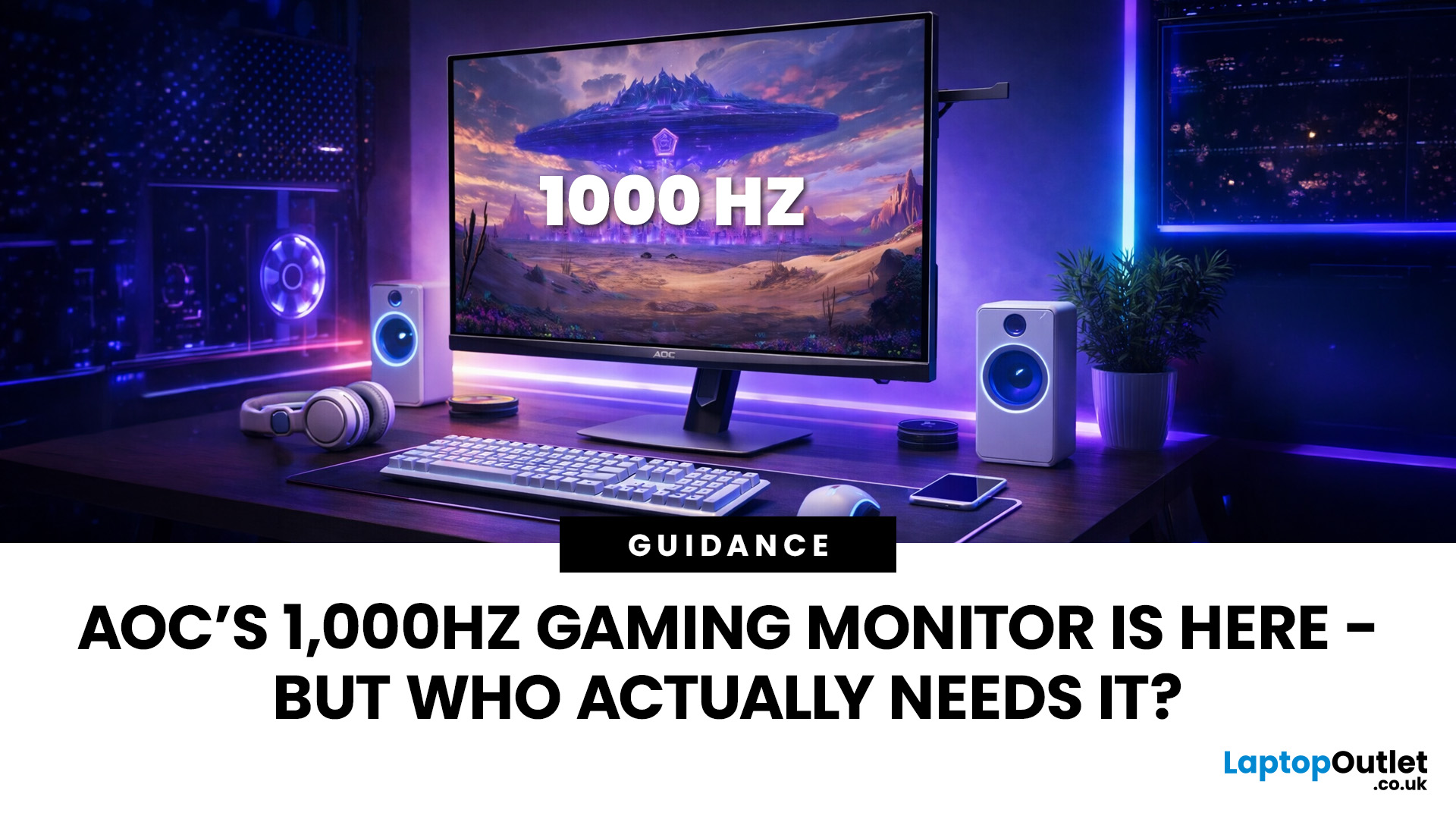
Gaming monitors have moved from 144Hz to 240Hz, then 360Hz and 500Hz in just a few years. Now AOC is pushing even further with its new AOC 1000Hz gaming monitor, the AGON PRO AGP277QK. At 1000Hz, the screen refreshes 1000 times per second, cutting frame time to just 1 millisecond. That is half the frame time of 500Hz and one quarter of 240Hz.
AOC’s new dual-mode 1000Hz monitor can switch between 500Hz at QHD and 1000Hz at a lower resolution, targeting elite competitive players. But who actually benefits from refresh rates this extreme, and should most gamers even consider waiting for it?
What AOC’s 1,000Hz Dual-Mode Monitors Actually Are
The AOC 1000Hz gaming monitor, known as the AOC AGON PRO AGP277QK, is part of a new wave of next-gen AOC AGON PRO monitors focused purely on competitive performance. It introduces a dual-mode 1000Hz monitor design, meaning it can operate at two different refresh rate and resolution combinations.
In its standard mode, the panel runs at QHD resolution with
Last Updated: August 28, 2026
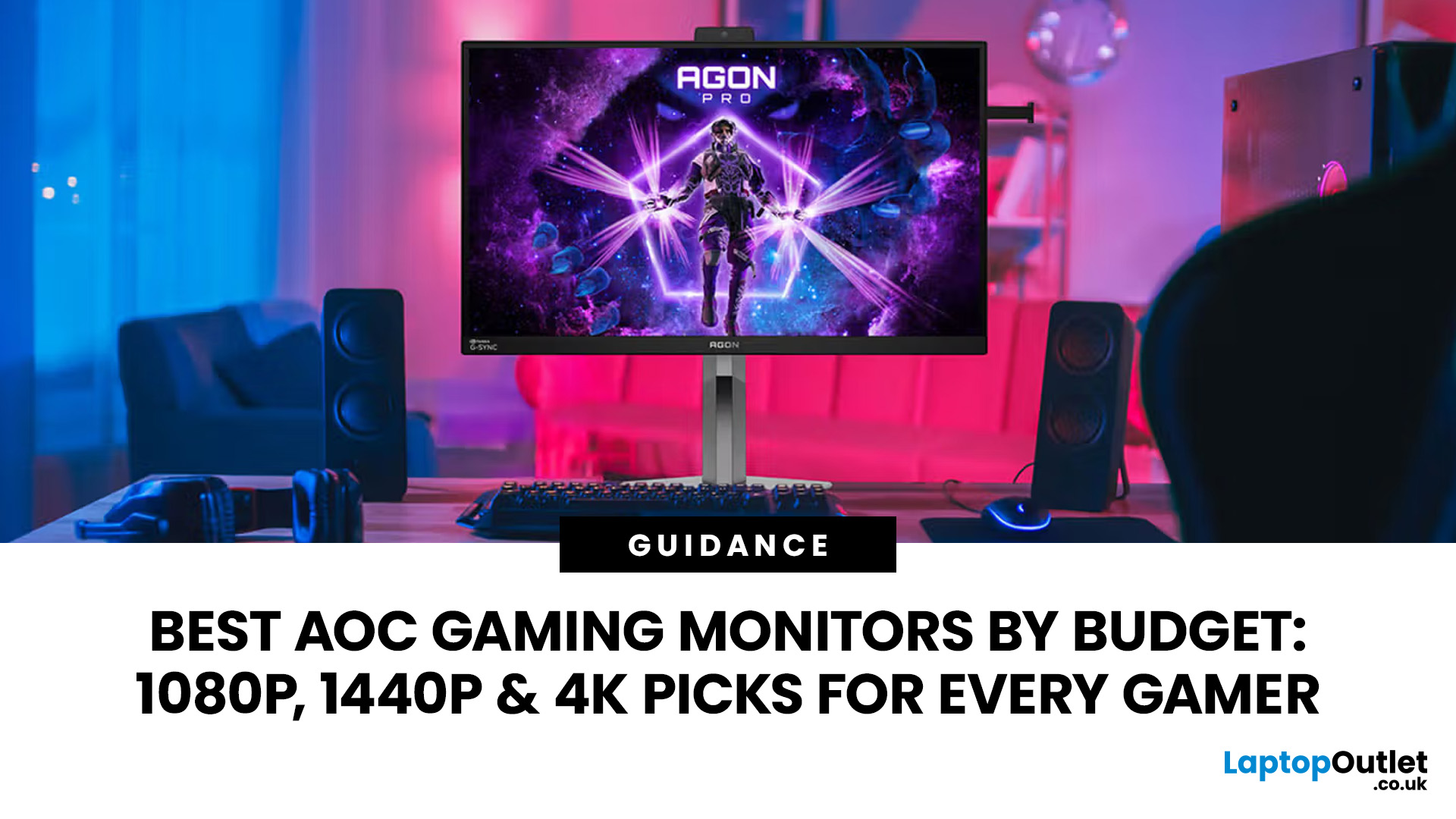
Choosing the right gaming monitor depends on factors like refresh rate, resolution, panel type, response time, and HDR support.
AOC offers gaming monitors across every budget, making it hard to know which one is right for you.
This guide highlights the best AOC gaming monitors by budget and helps you choose between 1080p, 1440p, and 4K options based on your gaming needs.
How to Choose an AOC Gaming Monitor for Your Budget
Before looking at specific recommendations, it's important to understand what you're paying for.
Resolution Matters More Than Most Gamers
Last Updated: March 13, 2026
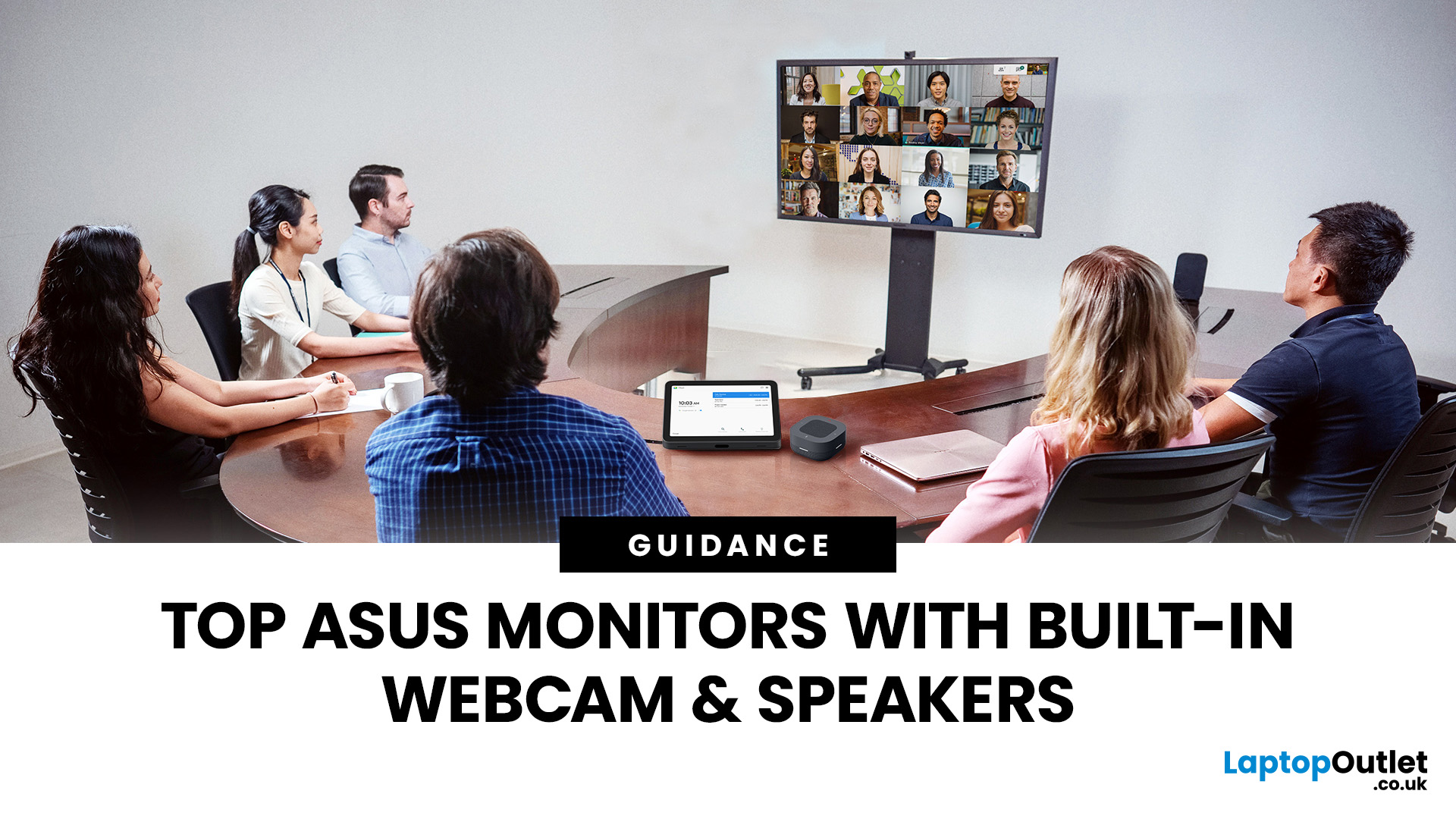
Choosing the right ASUS monitor with a webcam can significantly simplify how modern meeting rooms operate. As hybrid work becomes the norm, businesses are looking for cleaner, more efficient conferencing setups that don’t rely on multiple external peripherals. An integrated solution that combines display, camera, microphone, and speakers into one device makes deployment faster and more cost-effective. For small meeting spaces and huddle rooms in particular, an ASUS business monitor with speakers and a built-in webcam offers a practical alternative to a full conferencing kit.
What to Know About Microsoft Teams Rooms Compatibility
It’s important to clarify how an ASUS monitor with webcam fits into a Microsoft Teams Rooms environment.
Microsoft Teams Rooms (MTR) systems are typically powered by a dedicated PC or collaboration bar. The monitor itself is not the Teams Rooms system, instead, it acts as the display and USB conferencing endpoint. When paired with a Teams-enabled PC, many ASUS
Last Updated: October 09, 2026
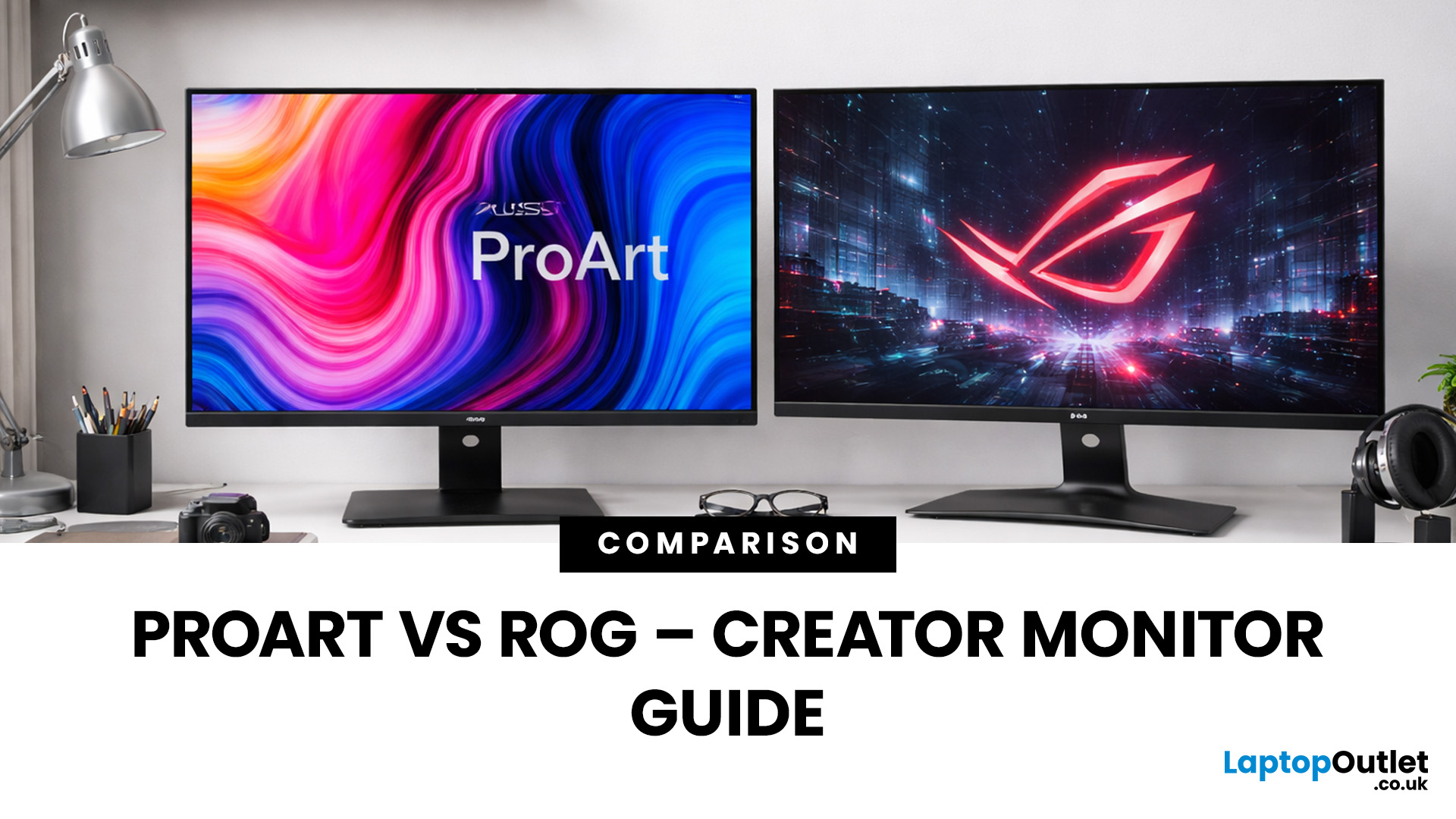
Choosing the right display can dramatically impact your workflow, especially when it comes to colour grading, motion graphics, and smooth timeline playback. If you're deciding between ASUS ProArt vs ROG for video editing, you're essentially choosing between two different philosophies: precision-focused colour accuracy or high refresh performance.
Both ranges are among the best ASUS monitors available today, but they serve different types of creators. In this guide, we’ll break down everything you need to know about ASUS ProArt vs ROG, including panel technology, refresh rates, HDR performance, and which models make the most sense for editors in the UK.
What Video Editors Actually Need from a Monitor
Before comparing models, it’s important to understand what really matters in a video editing monitor UK buyers should consider.
1. Colour Accuracy (ΔE, Rec.709 & DCI-P3)
For editors, colour accuracy is critical. If you're delivering to YouTube or broadcast, your monitor must reproduce colours
Last Updated: September 01, 2026
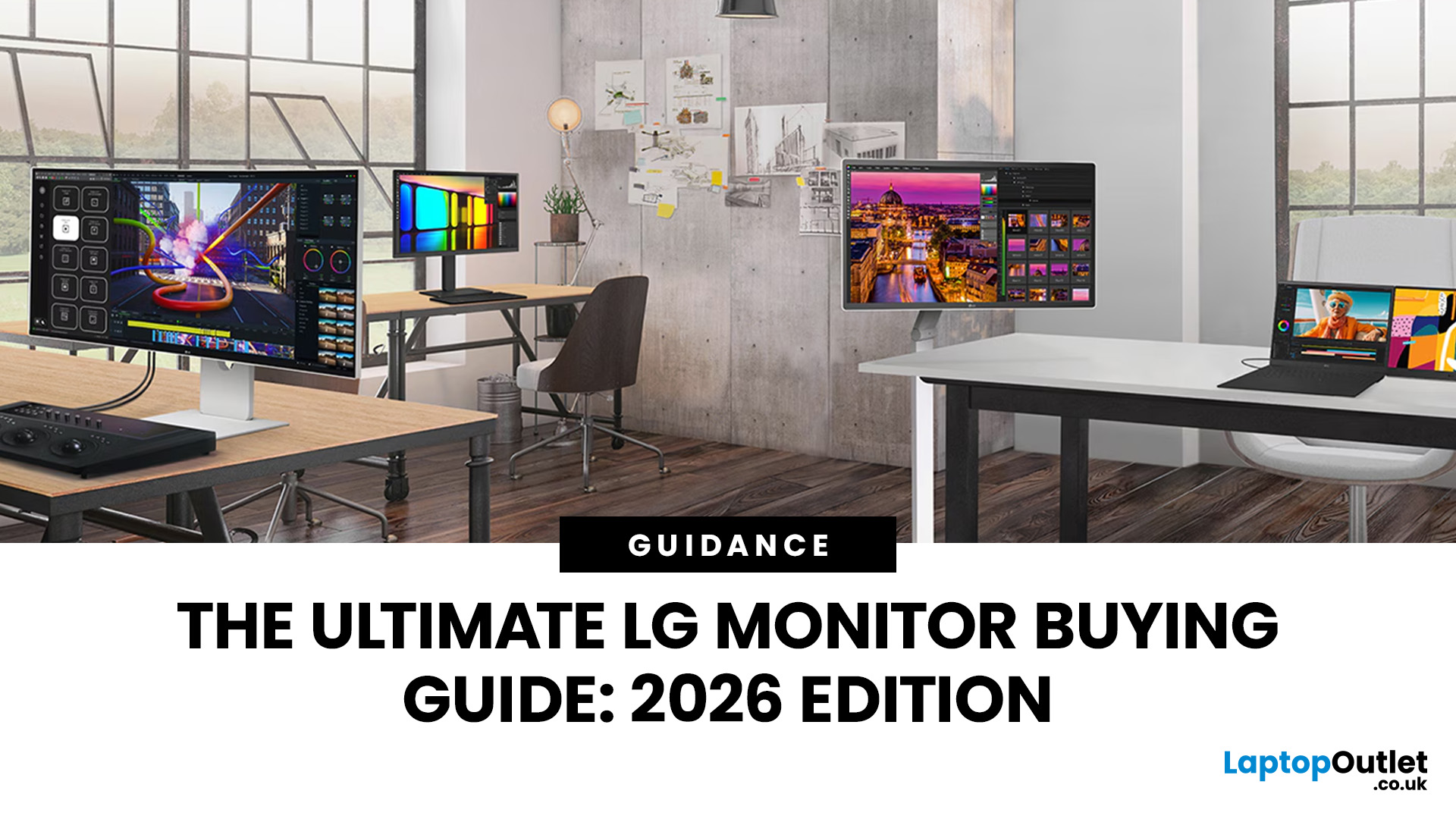
Choosing a new monitor is not always straightforward. With so many screen sizes, panel types, and resolution options on the market, it is easy to get lost before you even reach a shortlist. This LG monitors buying guide cuts through all of that.
It walks you through every major LG screen series, explains the specs that actually matter, and helps you find the right display for your needs and budget. Whether you are gaming, working from home, editing photos, or simply upgrading a tired old screen, LG has a monitor built for the job. Let’s get started.
Why Choose an LG Monitor in 2026?
LG is one of the few brands that designs and manufactures its own display panels. That matters because it gives LG direct control over colour accuracy, panel quality, and how quickly new technology reaches the market.
Whether you need a budget-friendly Full HD screen or a professional-grade OLED display, LG offers a broad, well-priced range. They continue to lead with innovations like Nano IPS for
Last Updated: September 01, 2026
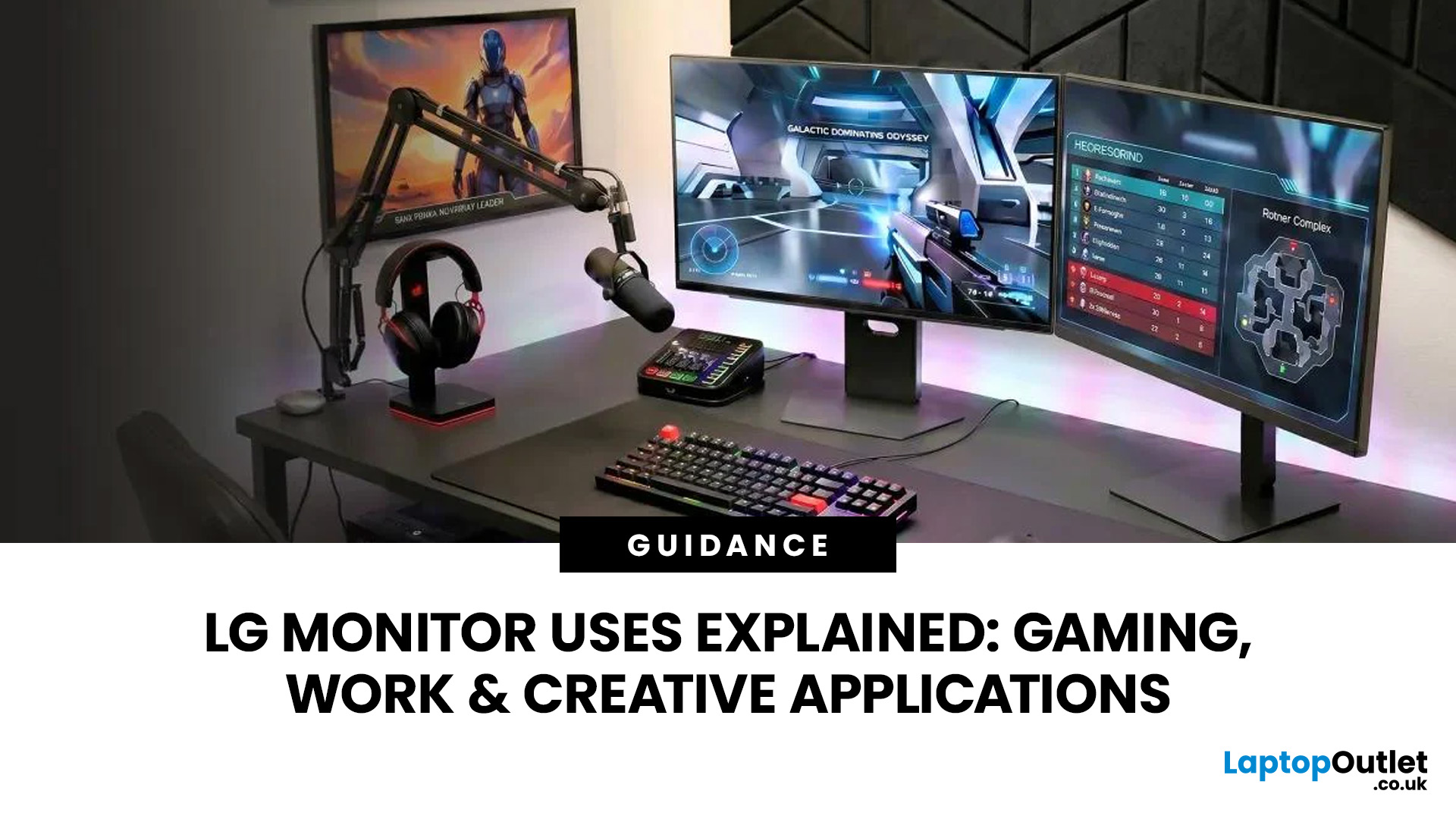
A monitor can suit very different tasks depending on its resolution, refresh rate, panel type, colour performance, screen format, and connectivity. That is why understanding LG monitor uses is more helpful than simply comparing model names or product lines.
For gaming, the priority may be smooth motion and responsiveness. For office work, text clarity, screen space and ergonomics usually matter more. Creative workplaces greater emphasis on colour consistency, detail and a display that can be set up accurately for visual tasks.
This guide explains how LG displays can support gaming, productivity and creative applications, and how the most important display requirements change depending on what you do at your desk.
How LG Monitors Support Gaming
Refresh Rate and Motion Smoothness
Gaming places different demands on a display from office or general home use. Fast-moving scenes, rapid camera movement and competitive play can make refresh rate, response behaviour and motion clarity much more
Last Updated: August 28, 2026
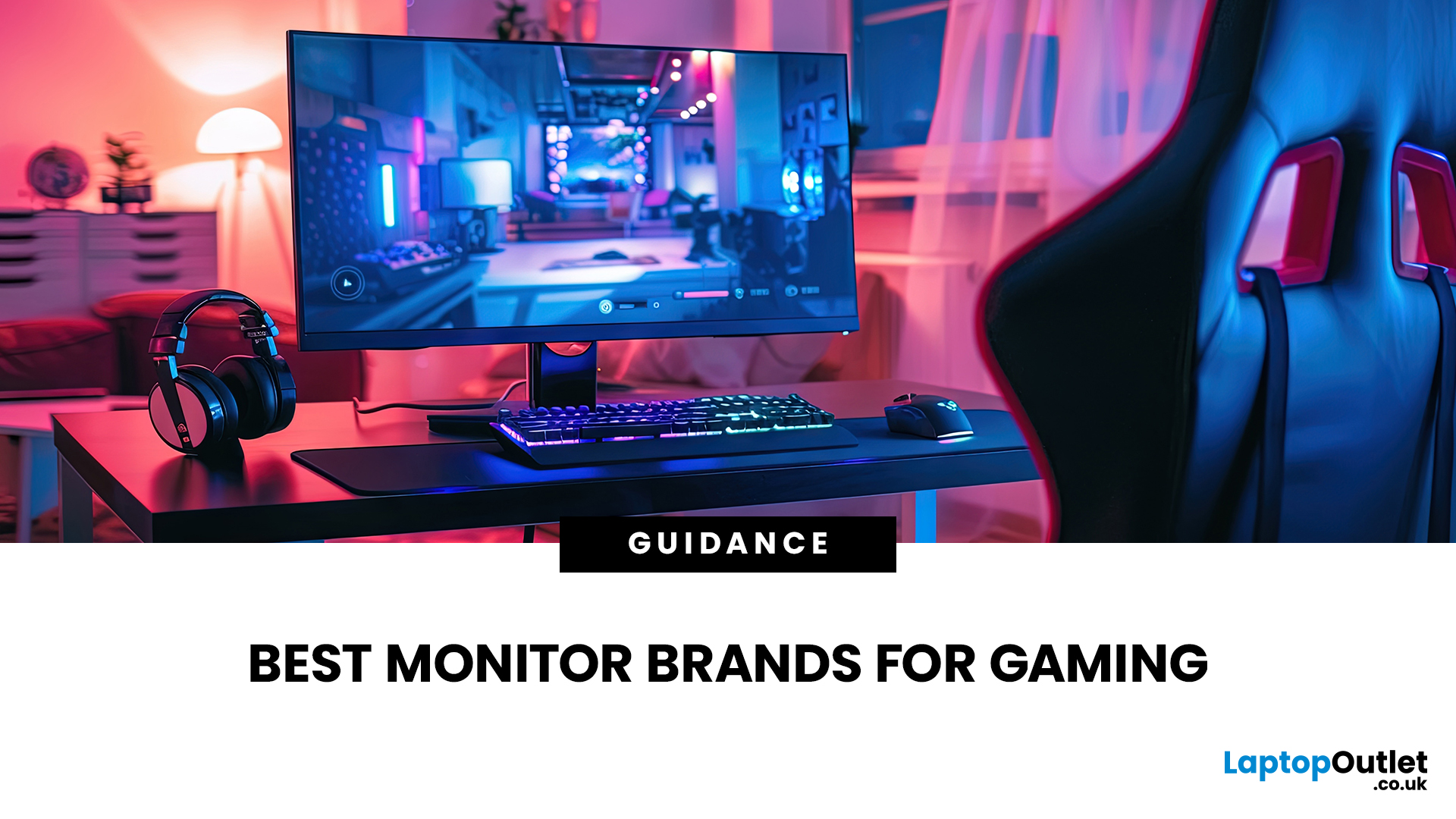
Choosing the best gaming monitor brand can make a huge difference to your gaming experience. Whether you play competitive esports titles, immersive AAA games, or console exclusives on PS5 and Xbox Series X, the right monitor brand delivers smoother performance, better visuals, and long-term reliability.
In the UK gaming market, several brands consistently stand out for quality, innovation, and value. Companies like ASUS, LG, BenQ, AOC, Philips, and iiyama offer gaming monitors across every price range - from affordable 144Hz displays to cutting-edge OLED and 4K panels.
But with so many options available, it’s not always obvious which gaming monitor brand is best for your setup, budget, and gaming style.
Let’s discuss the best gaming monitor brands in the UK, compare their strengths, and help you choose the right one based on resolution, refresh rate, and platform compatibility.
What Makes a Gaming Monitor Brand Worth Buying in 2026?
When comparing the top gaming monitor brands, it’s important
Last Updated: April 06, 2026
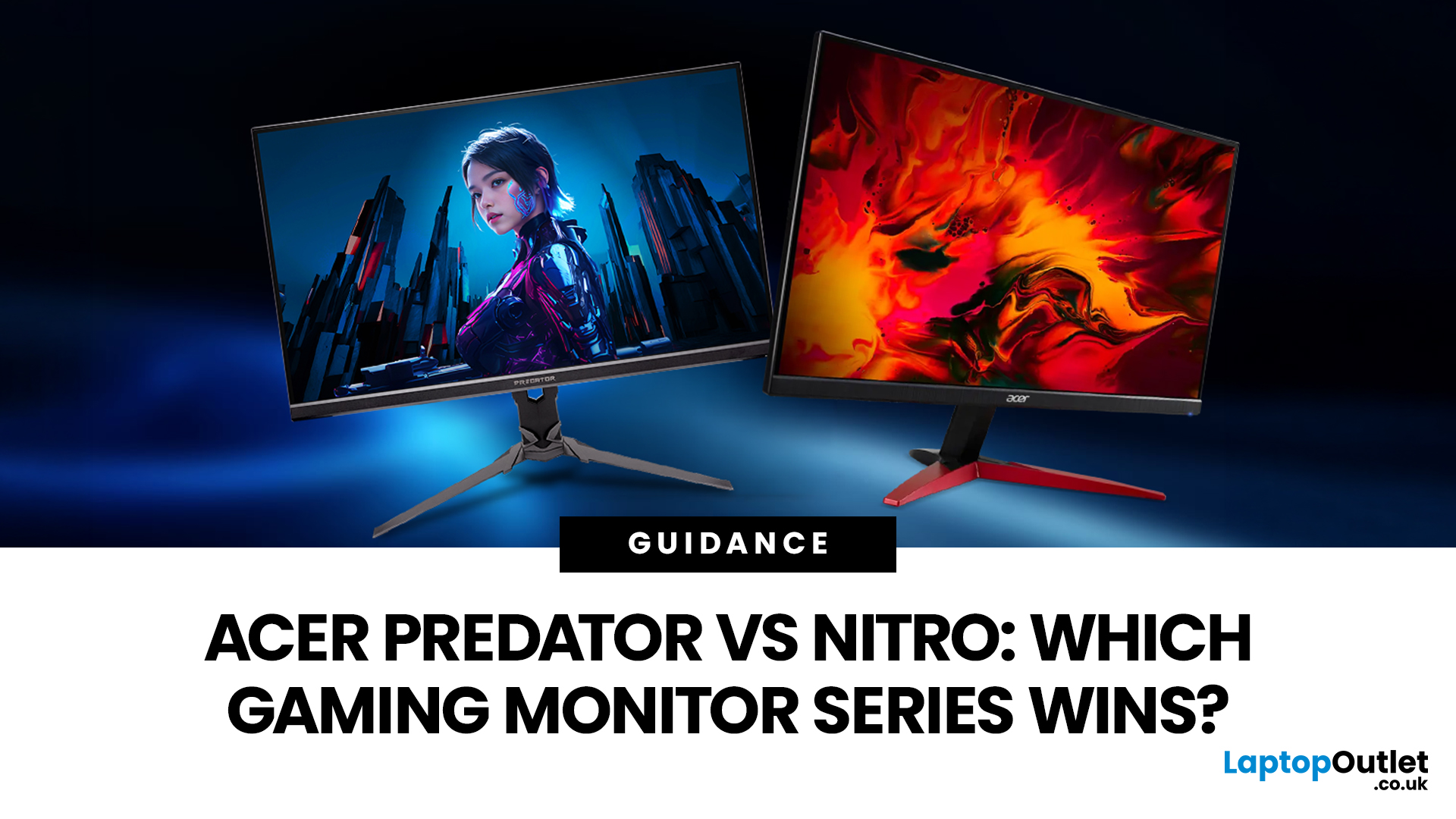
If you are comparing Acer Predator vs Nitro, you are likely at a point where a standard monitor no longer cuts it. Maybe you are upgrading your setup, moving into competitive gaming, or simply trying to get better value for your money.
Acer has made this decision slightly more complex by offering two strong Acer gaming monitor ranges that, at first glance, seem similar. Both support high refresh rates, both look like gaming displays, and both are widely available across the UK.
But once you dig deeper, Predator and Nitro are built for very different types of users. This guide breaks it down properly. No fluff, no brand hype, just a clear explanation of what matters when you are choosing between them.
Why Acer Splits Predator and Nitro in the First Place
Before comparing specs, it helps to understand Acer’s thinking. The company is not just offering two versions of the same product. These are two separate strategies:
- Predator is where Acer pushes performance, display innovation, and premium
Last Updated: April 14, 2026
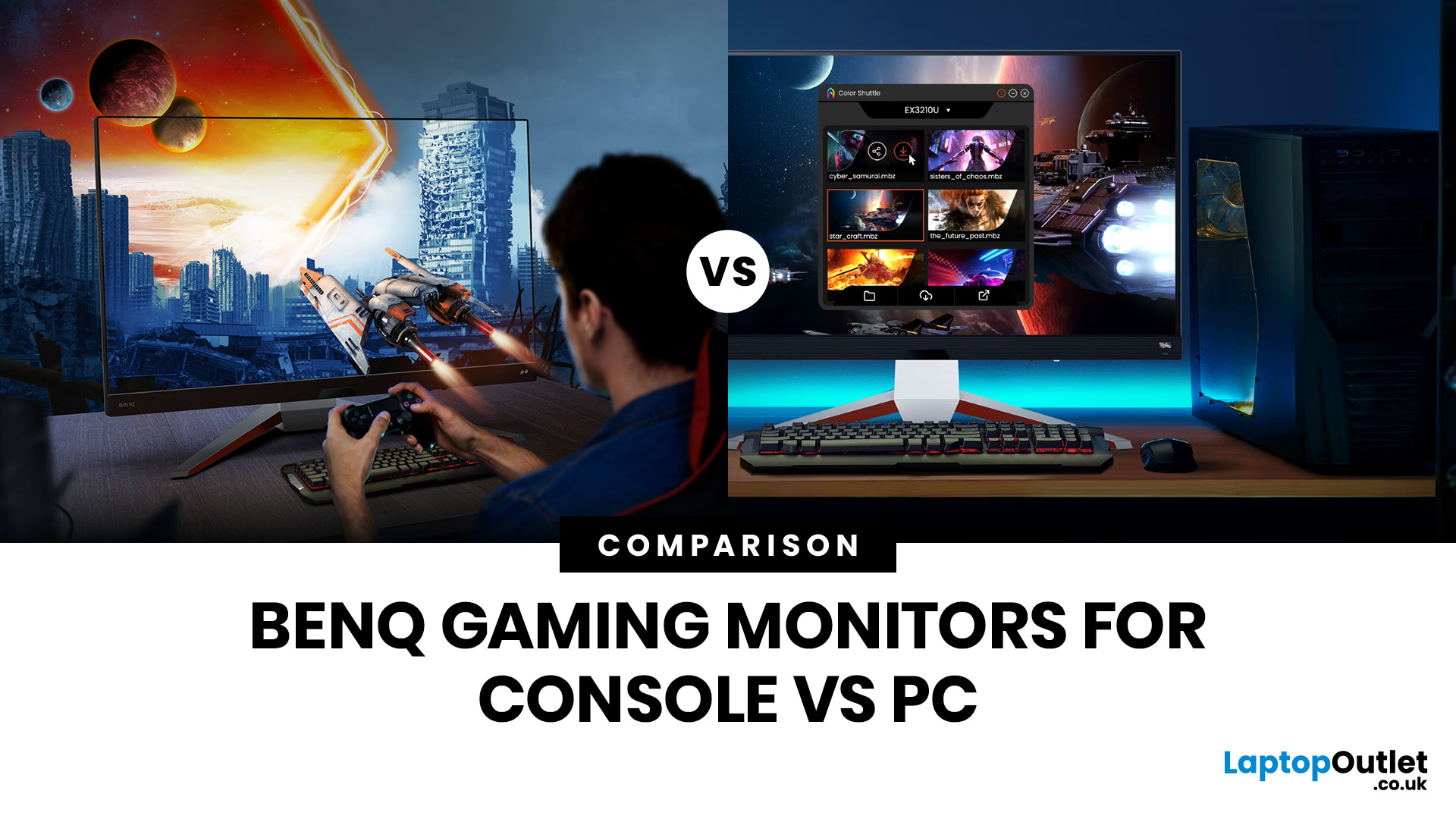
Picking the right gaming monitor is no longer as simple as choosing the biggest screen you can afford. Your setup matters, your platform matters, and the way you play matters even more. A monitor that feels perfect for a competitive PC player might not be the best fit for someone gaming on a PS5 or Xbox Series X.
That’s exactly why choosing the right BenQ gaming monitor for console or PC comes down to more than specs on a product page. You need to think about refresh rate, resolution, connectivity and whether you care more about raw speed or immersive visuals.
BenQ makes that decision easier by offering two clear gaming monitor families. ZOWIE is built for fast, focused competitive PC play, while MOBIUZ is designed for players who want strong performance with more visual depth and better console-friendly features. If you’ve been stuck comparing 1080p, 1440p and 4K, this guide breaks it all down in a way that helps.
Do Console and PC Gamers Need Different BenQ Monitors?
Console and PC
Last Updated: April 28, 2026
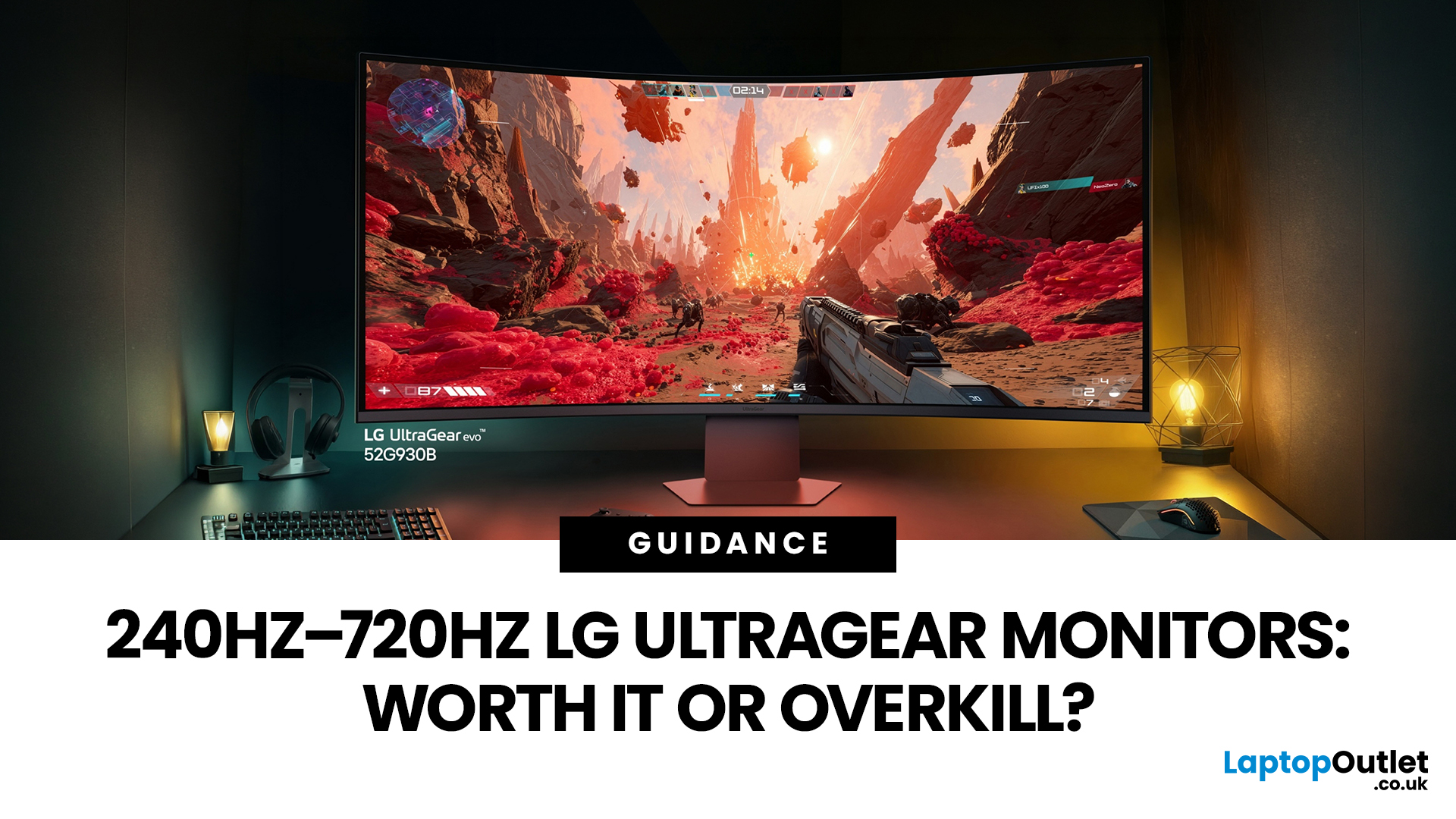
If you've been shopping for a gaming monitor lately, you've probably noticed the numbers getting a bit daft. 240Hz, 330Hz, 480Hz, 540Hz, and now 720Hz.
High refresh LG UltraGear monitors are pushing the boundaries of what gaming displays can do, and the specs are genuinely impressive. But the real question isn't what these monitors can do. It's whether you'll actually notice the difference when you're in the thick of a match.
This guide cuts through the spec sheet jargon and answers what most gamers genuinely want to know: when does a higher refresh rate actually matter, who benefits from it, and which part of the spectrum makes sense for your setup?
What Refresh Rate Actually Does During Gameplay
Refresh rate is one of the most talked-about monitor specs, yet it is also one of the most misunderstood. Before diving into the numbers, it helps to know what is actually happening at the hardware level, because the real-world experience comes from two separate things working together.
A monitor's

