



How to Clean Your Monitor and TV Screen
Dust, fingerprints and smudges can make even a high-resolution display look dull. Fortunately, you can clean monitor at home safely with a soft cloth, a small amount of suitable liquid and the right technique.
To clean a monitor screen safely, switch it off and unplug it. Wipe away dust with a dry microfibre cloth. For fingerprints, lightly dampen the cloth with distilled water and wipe gently. Never spray liquid directly onto the screen or apply strong pressure. Avoid paper towels, window cleaner and ammonia, as they can scratch the display or damage its protective coating. Let it dry completely before reconnecting and switching on.
The safest method is to begin with a dry microfibre cloth and use distilled water only when necessary. Never spray cleaner directly onto the screen, apply strong pressure or use rough materials that could damage the panel or its protective coating.
What Do You Need to Clean a Monitor Screen?
Before cleaning your monitor, gather the following items:
- A clean, soft microfibre cloth
- Distilled water
- A screen-cleaning solution approved for your monitor, if required
- A second dry microfibre cloth
Using distilled water for monitor cleaning helps reduce the risk of mineral marks and streaks that tap water may leave behind. However, always check the manufacturer’s instructions first, especially if the display has an anti-glare, glossy or specialist coating.
Avoid homemade chemical mixtures unless the monitor manufacturer specifically approves them.
How to Clean Monitor Screen in Five Steps
1. Switch Off and Unplug the Monitor
Turn off the monitor and disconnect it from the mains. If it is connected to a computer, games console or another device, disconnect those cables where practical.
A dark screen makes dust and fingerprints easier to see. Allowing the monitor to cool before cleaning can also help prevent liquid from drying too quickly and leaving streaks.
2. Remove Dust with a Dry Microfibre Cloth
Wipe the screen gently with a clean, dry microfibre cloth. Use slow movements and very light pressure.
Do not press on stubborn marks. Strong pressure can damage pixels, panel layers or surface coatings, particularly on thin LCD and LED displays.
3. Lightly Dampen the Cloth When Needed
If the dry cloth does not remove every mark, lightly dampen part of it with distilled water. The cloth should be slightly damp, not wet or dripping.
Never spray cleaner directly onto the screen. Liquid can run into the bezel, ports or internal components and cause permanent damage.
4. Wipe the Screen Gently
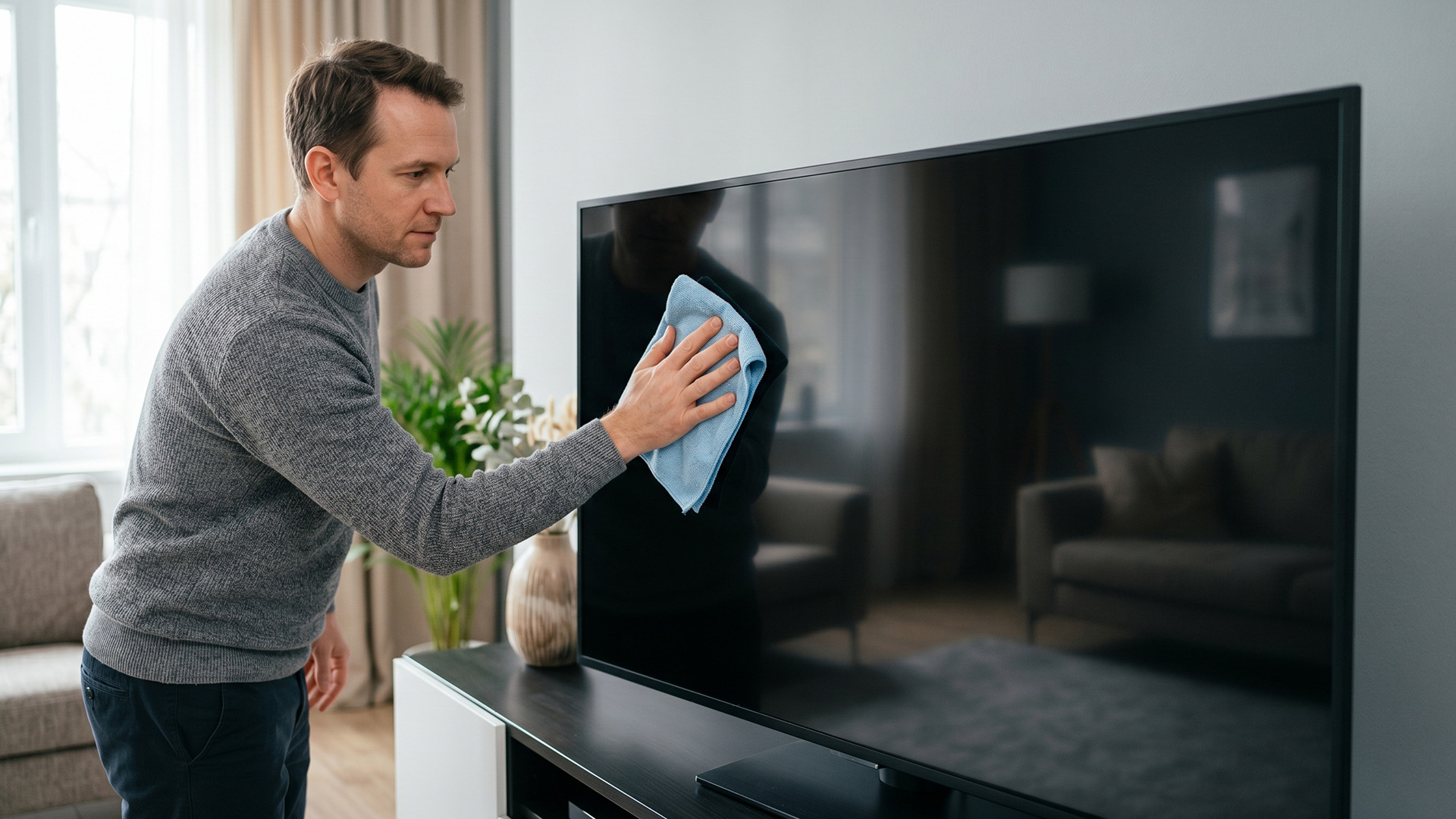
Wipe the affected area carefully, following the monitor manufacturer’s recommended direction where one is specified. Do not scrub the screen or repeatedly rub the same area with force.
For fingerprints, hold the lightly dampened cloth against the mark briefly before wiping it away gently. This can loosen oily residue without requiring extra pressure.
5. Let the Screen Dry Completely
Use a second dry microfibre cloth to remove any remaining moisture if necessary. Allow the monitor to air-dry completely before reconnecting cables or switching it on.
No visible moisture should remain around the screen edges, bezel or ports.
How to Clean an LCD Monitor
Cleaning an LCD screen requires particular care because the panel and its surface coating can be sensitive to moisture, chemicals and pressure.
Follow these steps when cleaning LCD screen:
- Switch off and unplug the monitor.
- Use a dry microfibre cloth to remove loose dust.
- Lightly dampen the cloth with distilled water if fingerprints remain.
- Wipe gently without pressing or scrubbing.
- Leave the screen to dry fully before reconnecting it.
Do not use paper towels, tissues or rough cloths on an LCD monitor. Their fibres can leave lint or create fine scratches. Window cleaner and products containing ammonia may damage anti-glare or protective coatings.
If your current display has damaged pixels, permanent marks or a worn coating that cleaning cannot fix, compare top LCD monitors designed for work, entertainment and everyday computing.
How to Clean an LED Monitor
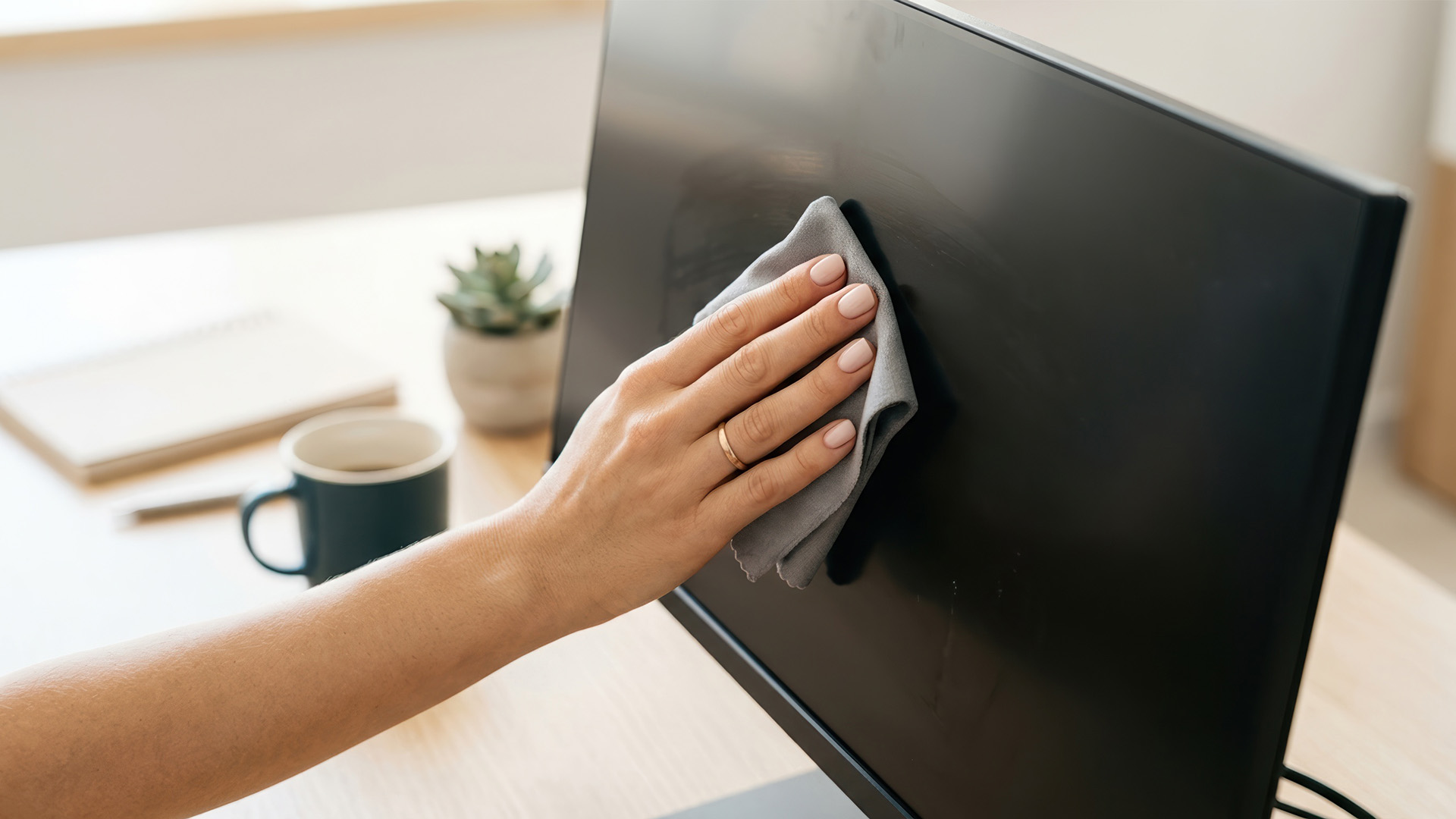
Most monitors described as LED displays use an LCD panel with LED backlighting, so the same gentle cleaning method normally applies. However, coatings and manufacturer requirements can differ between models.
To clean an LED monitor safely:
- Turn it off and unplug it first.
- Remove dust with a dry microfibre cloth.
- Use only a small amount of distilled water or an approved screen cleaner when needed.
- Apply the liquid to the cloth, never directly to the display.
- Avoid strong pressure around the centre and edges of the panel.
- Wait until the screen is completely dry before switching it on.
Check the product manual before using any cleaning solution. This is particularly important for specialist matte, anti-glare and glossy finishes. You can also explore the latest LED screens if you are considering a newer display.
What Should You Never Use on a Monitor?
Using the wrong material or cleaner can scratch the screen, strip its coating or allow moisture into the monitor.
Avoid using:
- Paper towels or tissues: Their fibres can be abrasive and may leave scratches or lint.
- Window cleaner: Household glass cleaners are not automatically safe for monitor coatings.
- Ammonia-based products: Ammonia can damage anti-glare and protective surface treatments.
- Kitchen sponges or abrasive cloths: These can scratch the screen.
- Excess water: Liquid can enter the monitor through its edges or openings.
- Strong pressure: Pressing or scrubbing can damage the panel and pixels.
- Cleaner sprayed directly onto the screen: It can drip beneath the bezel and reach internal parts.
Alcohol-based cleaners should only be used when the monitor manufacturer explicitly confirms that the specific product and concentration are safe for that model.
How Can You Keep a Monitor Clean for Longer?
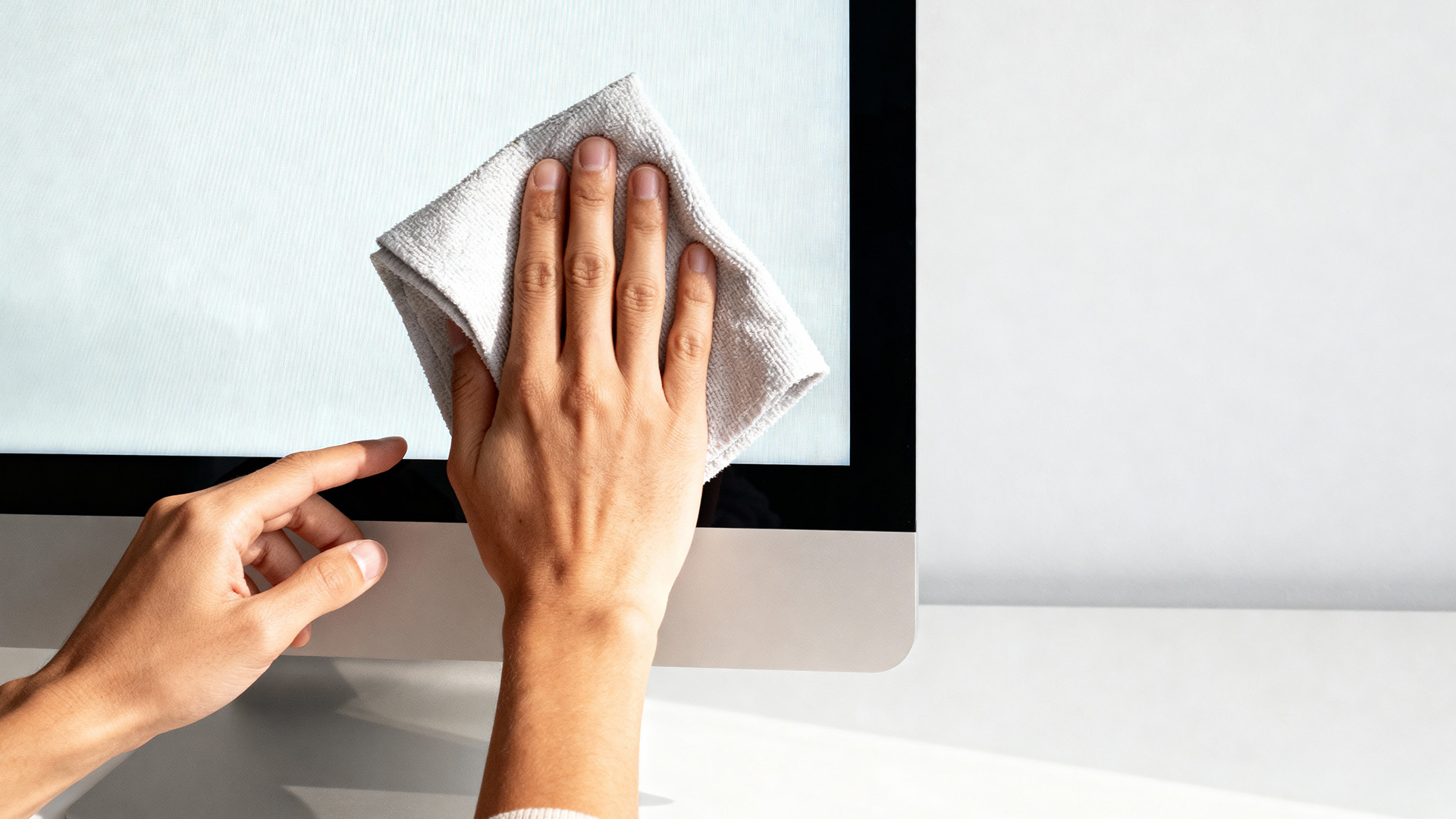
A few simple habits can reduce the build-up of dust and fingerprints:
- Avoid touching the display.
- Keep food and drinks away from the monitor.
- Dust the desk and surrounding area regularly.
- Use a clean microfibre cloth before marks accumulate.
- Store cleaning cloths in a clean, dry place.
- Avoid smoking or vaping near the screen.
There is no fixed cleaning schedule for every display. Lightly dust the monitor whenever necessary and remove fingerprints before residue builds up. Always use the gentlest effective method.
When Is It Time to Replace Your Monitor?
Cleaning can remove surface dust, fingerprints and some marks, but it cannot repair dead pixels, internal discolouration, scratches or damaged coatings.
If these problems continue after careful cleaning, browse affordable monitors for everyday use or compare budget gaming monitors if smoother gameplay and faster response times are priorities.

Final Thoughts
The safest way to clean monitor screen is to use a dry microfibre cloth first, followed by a cloth lightly dampened with distilled water only when required. Keep moisture away from the screen edges, never spray liquid directly onto the display and avoid rough materials, harsh chemicals and strong pressure.
Because screen coatings vary, check the manufacturer’s cleaning instructions before using any solution beyond water. A careful approach will help keep the display clear without risking damage.

Common Questions for Monitor and TV Screen Cleaning
Can I Use Water to Clean a Monitor Screen?
Yes, but use only a small amount on a microfibre cloth. Distilled water is preferable because it is less likely to leave mineral spots. Never pour or spray water directly onto the screen, and check the manufacturer’s instructions before cleaning.
How Do I Clean an LCD Monitor Safely?
Switch off and unplug the LCD monitor, then remove dust with a dry microfibre cloth. For persistent fingerprints, lightly dampen the cloth with distilled water and wipe gently. Avoid harsh chemicals, excess moisture and strong pressure.
How Do I Remove Fingerprints from a Monitor?
First, try a clean, dry microfibre cloth. If the fingerprints remain, lightly dampen the cloth with distilled water and wipe the marks gently without scrubbing. Allow the display to dry fully before switching it back on.
Can I Use Paper Towels to Clean a Screen?
No. Paper towels can be abrasive, leave lint and potentially create fine scratches or damage the screen coating. Use a clean, soft microfibre cloth instead.
| Read More: |
| How to Connect Two Monitors to a Laptop? |
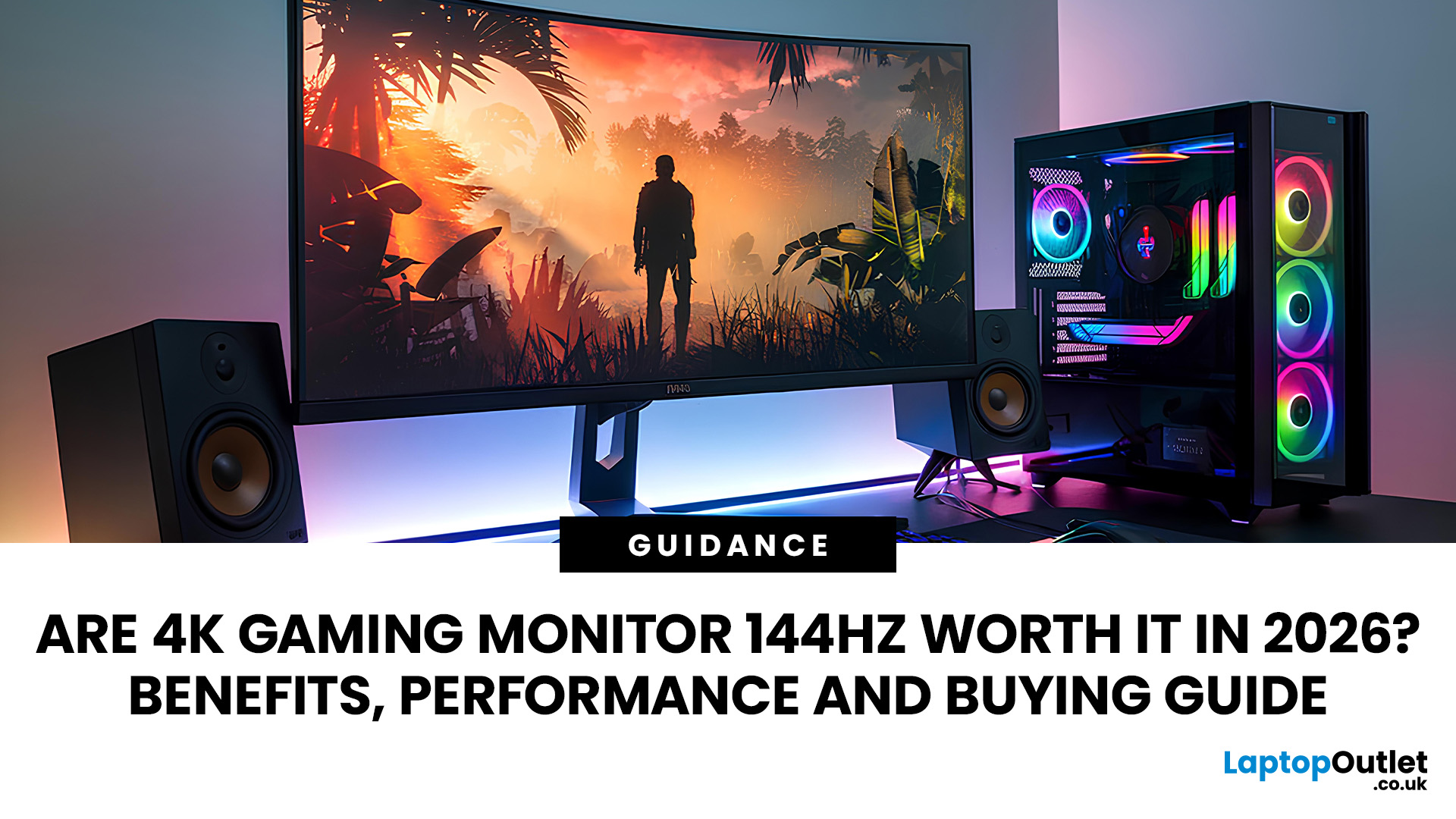
| Which are the Best 4K Gaming Monitors? Selection Criteria |
| What are the key features to look for when choosing an HP monitor? |
Related Articles

Last Updated: September 03, 2026
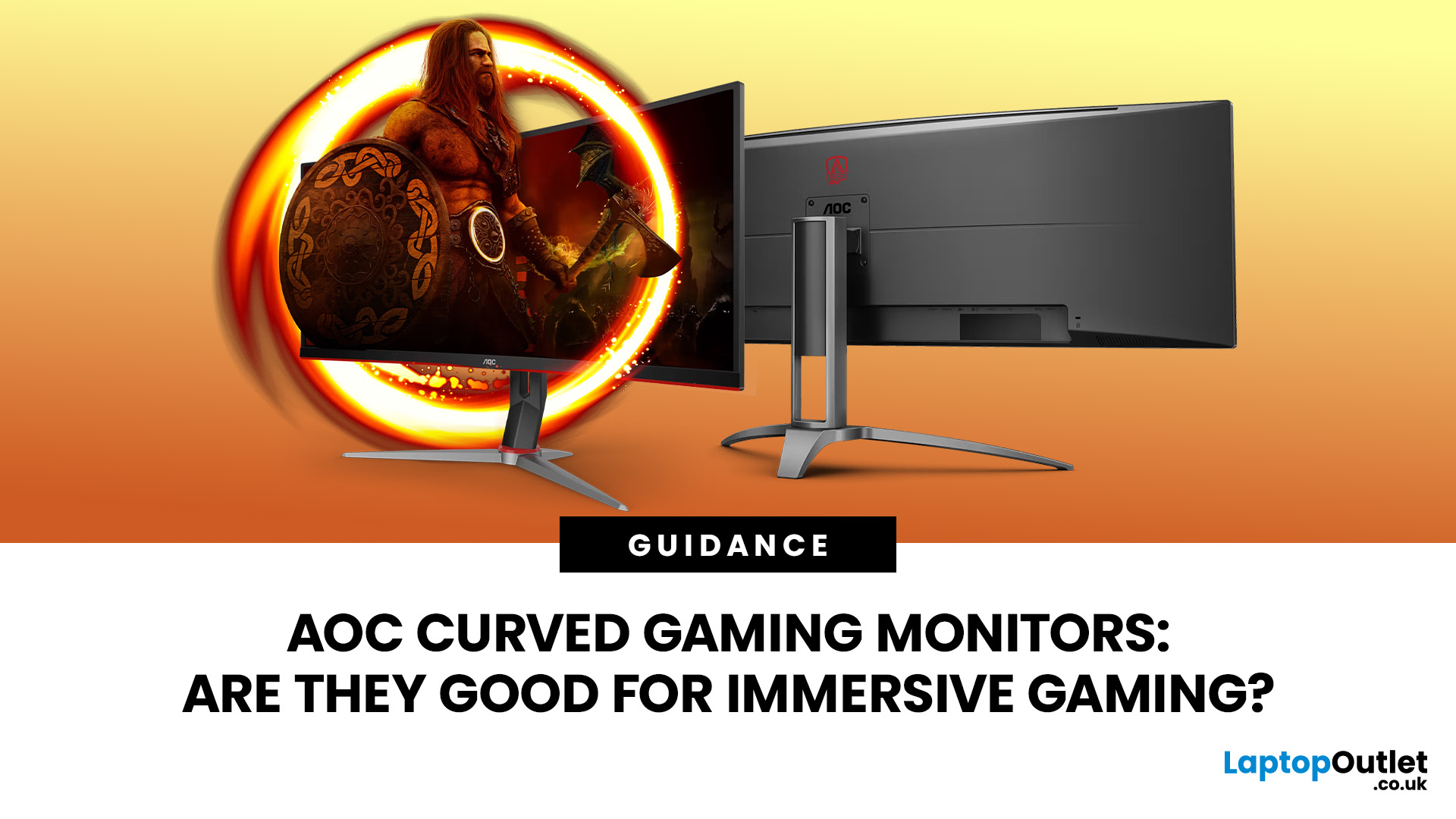
An AOC curved gaming monitor can be a strong choice for immersive gaming, especially if you play racing, simulation, RPG, open-world or cinematic single-player games. The curved screen helps draw more of the display into your natural field of view, which can make gameplay feel more engaging on larger panels. For many PC gamers, the sweet spot is a 27-inch or 32-inch high-resolution QHD monitors. For maximum immersion, an AOC 34 curved gaming monitor or another ultrawide curved gaming monitor can offer a wider, more cinematic view.
Are AOC Curved Gaming Monitors Good for Immersive Gaming?
Yes, AOC curved gaming monitors can be good for immersive gaming, but the experience depends on three things:
- Screen size
- Resolution
- Refresh rate
A curved display is most effective when the screen is large enough for the curve to matter. On a 24-inch screen, the curve may feel subtle. On a 32-inch or 34-inch screen, it becomes much more noticeable because the edges of the panel sit further into your peripheral
Published: July 27, 2026
Last Updated: September 03, 2026

Last Updated: August 11, 2026
The ASUS VG27AQM5F is a 27 inch QHD gaming monitor built primarily for competitive PC players who want a higher refresh rate without dropping to Full HD resolution. As an ASUS QHD monitor, it combines a 2560 x 1440 Fast IPS panel with a maximum 320Hz refresh rate, adaptive-sync support and ASUS ELMB Sync. This ASUS new gaming display launch is aimed at players seeking smoother competitive gameplay, although its tilt-only stand, basic HDR capability and service-only USB-C port remain important limitations.
ASUS VG27AQM5F Quick Answer
| Question | Answer |
| Best suited to | Competitive PC gamers who regularly play above 200fps and still want QHD detail |
| Main strengths | 320Hz refresh rate, Fast IPS panel, 95% DCI-P3 coverage and broad adaptive-sync support |
| Main limitations | Tilt-only stand, modest 300cd/m² brightness, basic HDR10 support and no functional USB-C display input |
| Testing status | Specification-based assessment, not a hands-on review |
| UK availability | Available through UK retail channels, but not |
Last Updated: August 13, 2026
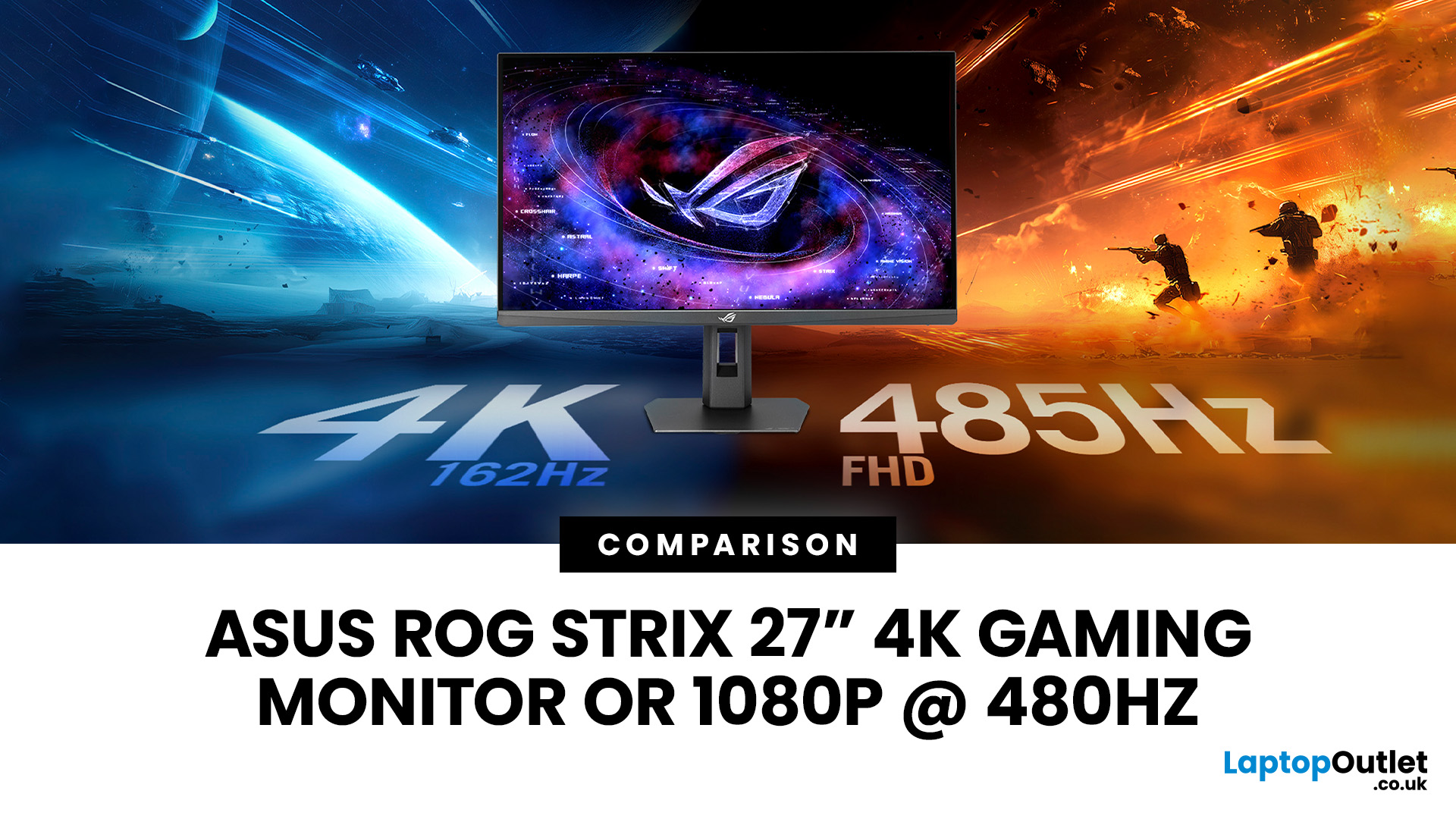
The ASUS ROG Strix XG27UCGR Gen2 is a 27 inch 4K gaming monitor that runs at up to 162Hz in 4K and switches to Full HD at 485Hz for esports. It succeeds the original XG27UCG’s 160Hz and 320Hz dual mode, adding a much faster competitive setting, Smart Pixel processing and a lower quoted minimum response time.
Most gaming monitors make you choose between resolution and refresh rate. A sharp 4K screen suits visually detailed games, while an ultra-fast Full HD display is usually better suited to competitive titles where responsiveness matters more than image detail.
The ASUS ROG Strix XG27UCGR Gen2 attempts to cover both uses. Its native mode delivers 3840 x 2160 resolution at up to 162Hz. Activating Frame Rate Boost changes the monitor to 1920 x 1080 and raises the refresh rate to 485Hz. ASUS confirms both modes for the XG27UCGR, alongside a Fast IPS panel, Smart Pixel processing and a manufacturer-rated minimum response time of 0.3ms.
ASUS ROG Strix XG27UCGR Specifications
The XG27UCGR Gen2
Last Updated: September 03, 2026
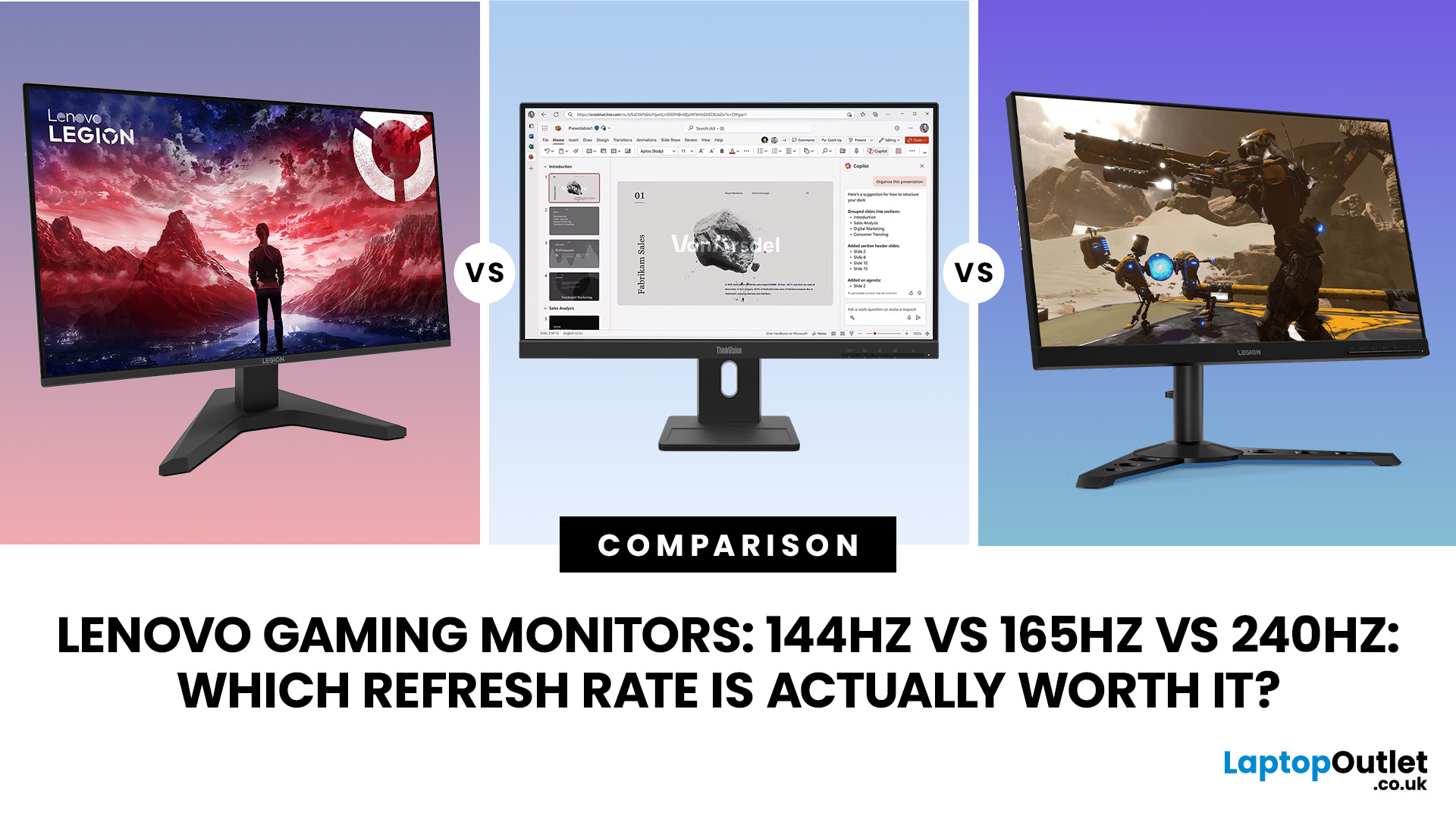
Refresh rate is one of the first specifications you will notice when shopping for a gaming monitor. A higher number promises smoother movement and faster feedback, but that does not automatically mean a 240Hz display is the right choice for your setup.
The best Lenovo monitor refresh rate depends on the games you play, the frame rates your computer can produce and whether you prioritise competitive responsiveness or sharper graphics. A casual player running cinematic games at 70 frames per second will gain little from 240Hz, while a competitive FPS player maintaining more than 200fps may notice a meaningful improvement.
This guide compares 144Hz, 165Hz, and 240Hz Lenovo gaming monitors so you can pay for performance you will actually use.
Quick Answer: Is 144Hz, 165Hz or 240Hz Best?
For most PC gamers, 144Hz or 165Hz offers the best balance of smoothness, hardware requirements, and value. Choose 240Hz when you mainly play competitive shooters and your PC can regularly produce close to 240fps
Last Updated: August 24, 2026
Published: August 19, 2026
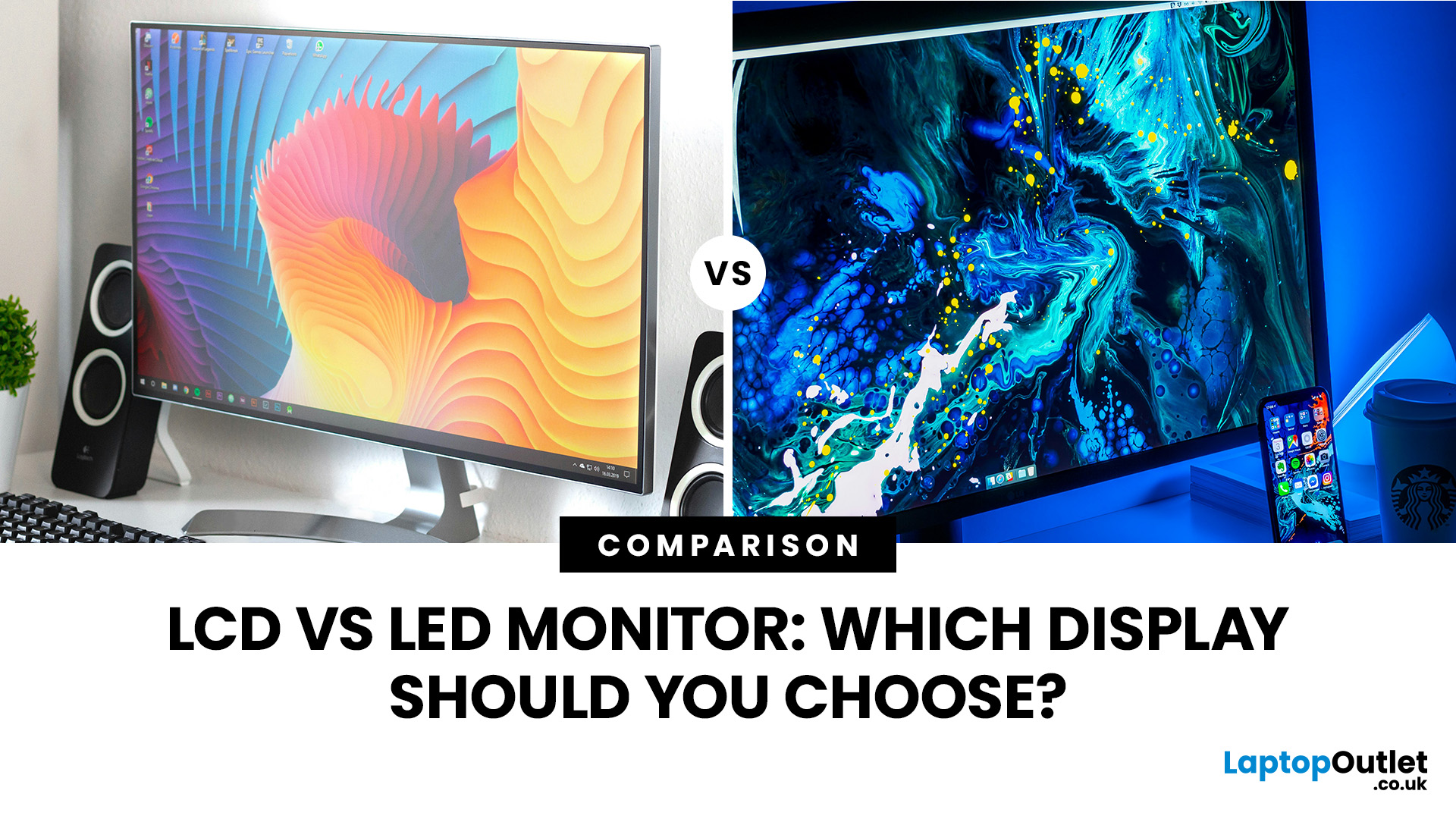
Comparing LCD vs LED monitors? An LED monitor is an LCD that uses energy-efficient LED backlighting, while older LCDs typically use fluorescent CCFL lights.
LED-backlit models are generally slimmer, more efficient and more widely available. However, the LED label alone does not guarantee better colours, smoother gaming or greater eye comfort. Panel type, refresh rate, response time, resolution and brightness all matter too.
LCD vs LED Monitors at a Glance
The main difference between a traditional LCD monitor and an LED monitor is the backlight. A traditional LCD commonly uses CCFL tubes, while an LED monitor uses smaller light-emitting
Last Updated: August 19, 2026
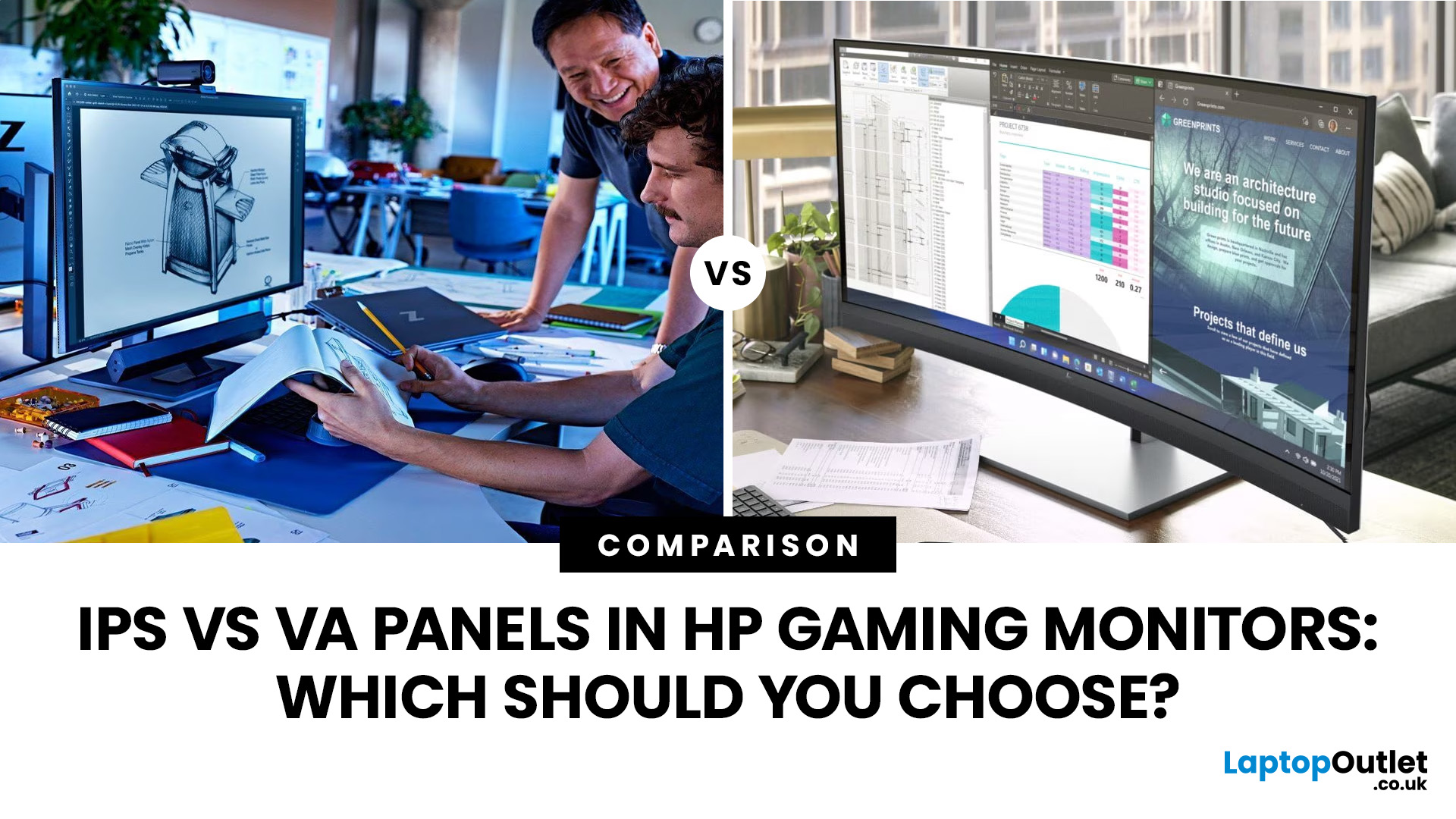
IPS panels are usually the better choice for competitive gaming, wider viewing angles and mixed gaming and creative work. VA panels generally deliver deeper blacks and stronger contrast, making them attractive for immersive games in darker rooms. However, the IPS vs VA panel decision should also consider the monitor’s exact response time, refresh rate, resolution, adaptive sync, and measured performance. Read our complete guide to gaming monitor panels for a full breakdown of IPS vs VA and other display technologies.
IPS vs VA Panels: Quick Comparison
| Feature | IPS Panel | VA Panel |
| Native contrast | Usually lower | Usually higher |
| Black depth | Blacks can appear grey in dark rooms | Deeper blacks in suitable conditions |
| Viewing angles | Wider and more consistent | Narrower, with more off-centre variation |
| Fast-motion clarity | Generally cleaner | Can show dark smearing |
| Colour consistency | Usually strong across the screen | Can change more when viewed off-centre |
| Colour accuracy | Depends on the individual monitor | Depends |
Published: August 24, 2026

