



ARGB vs RGB: PC Lighting Connectors and Compatibility Explained
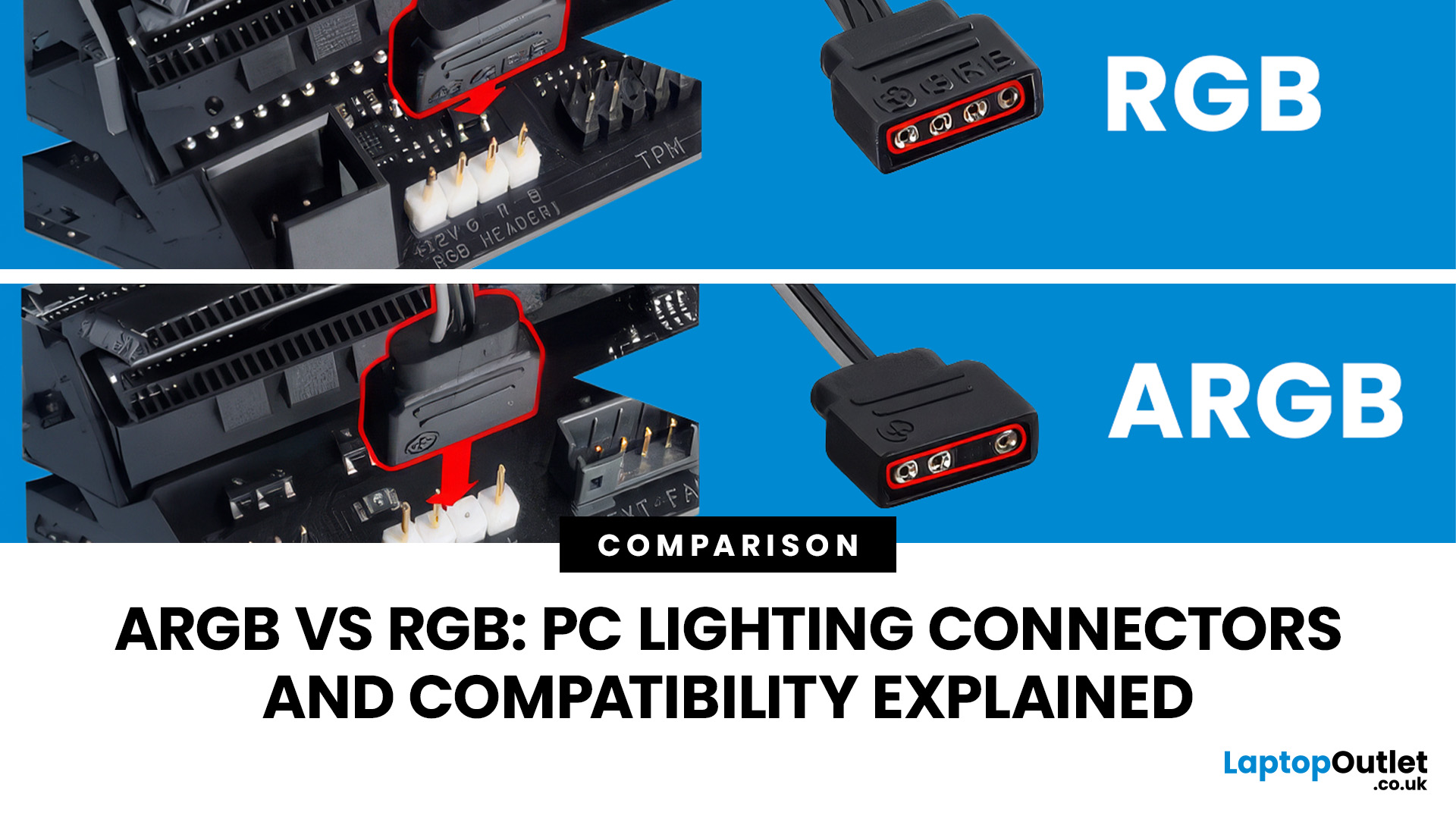
ARGB and RGB are not interchangeable PC lighting systems. ARGB normally uses a 5V three-pin connection and can control individual LEDs, while standard RGB normally uses a 12V four-pin connection and controls a whole lighting channel together. Before connecting anything, match the voltage, connector, motherboard header or controller, power limits and software support for every component in your PC build.
PC lighting looks simple until you start connecting fans, cases and controllers. Two products can both say RGB on the box yet use different voltages, plugs and control methods.
That is why ARGB vs RGB is really a compatibility question. The safest way to plan a lighting setup is to check the lighting voltage and connector first, then confirm how the fan motor, controller, hub and motherboard are meant to work together.
ARGB vs RGB: The Main Differences You Need to Know About
Standard RGB and addressable RGB use different signalling and usually different voltages, so compatibility matters before visual effects do.
|
Feature |
ARGB |
RGB |
|
Typical voltage |
5V |
12V |
|
Typical lighting plug |
3 active pins in a 4-position layout |
4 pins |
|
LED control |
Individual LEDs |
Whole lighting channel |
|
Multiple colours on one device |
Yes |
Normally no |
|
Common labels |
ARGB, ADD_GEN2, JRAINBOW, D_LED |
RGB, AURA RGB, JRGB, LED_C |
|
Use the same header? |
No |
No |
RGB Lighting Explained
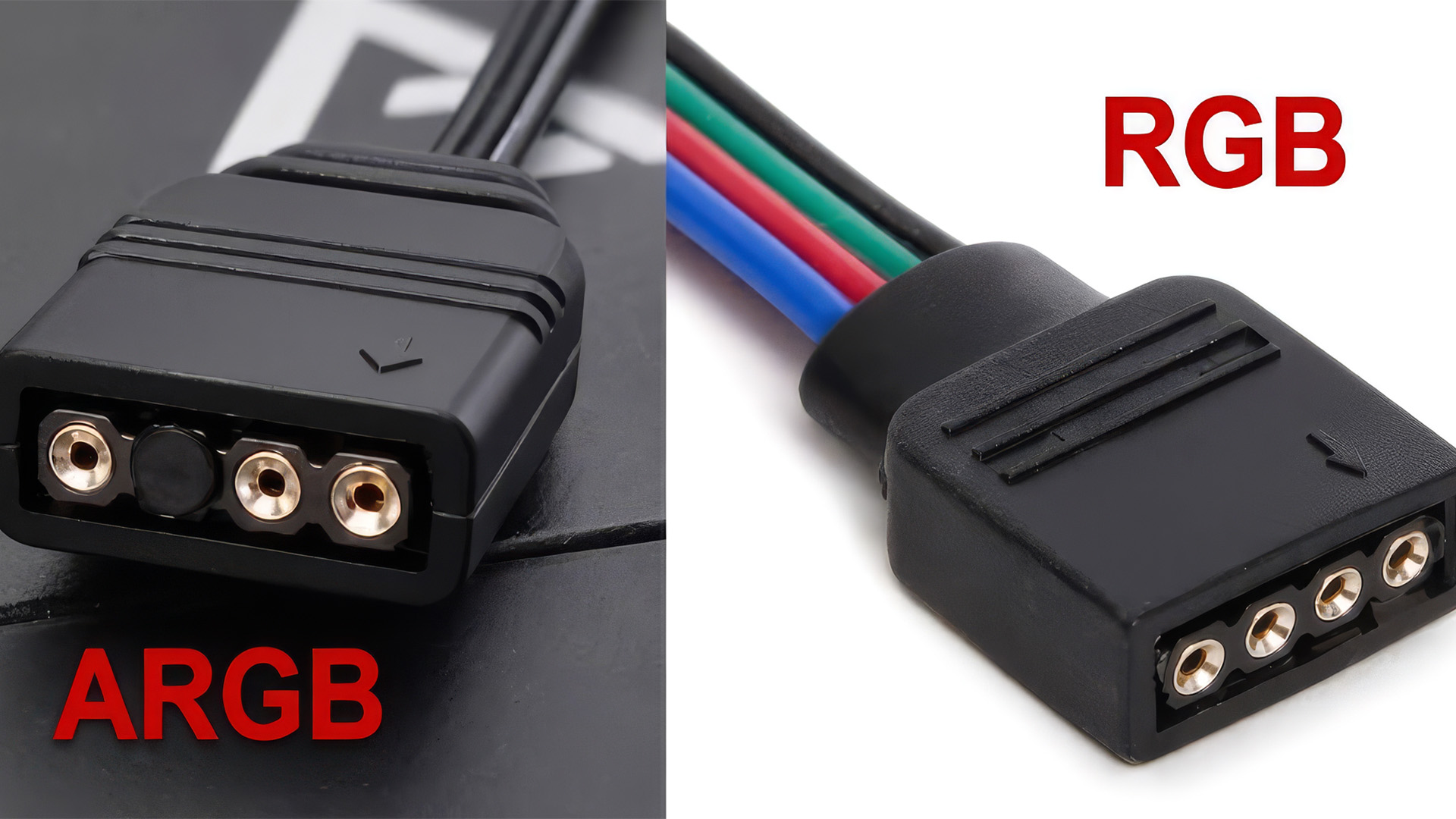
Standard RGB lighting in desktop PCs usually uses a 12V four-pin connection. The red, green and blue channels control the whole connected lighting run together. Compatible hardware can still fade, pulse and cycle colours, but individual LEDs on that channel are not normally addressed separately.
ARGB Lighting Explained
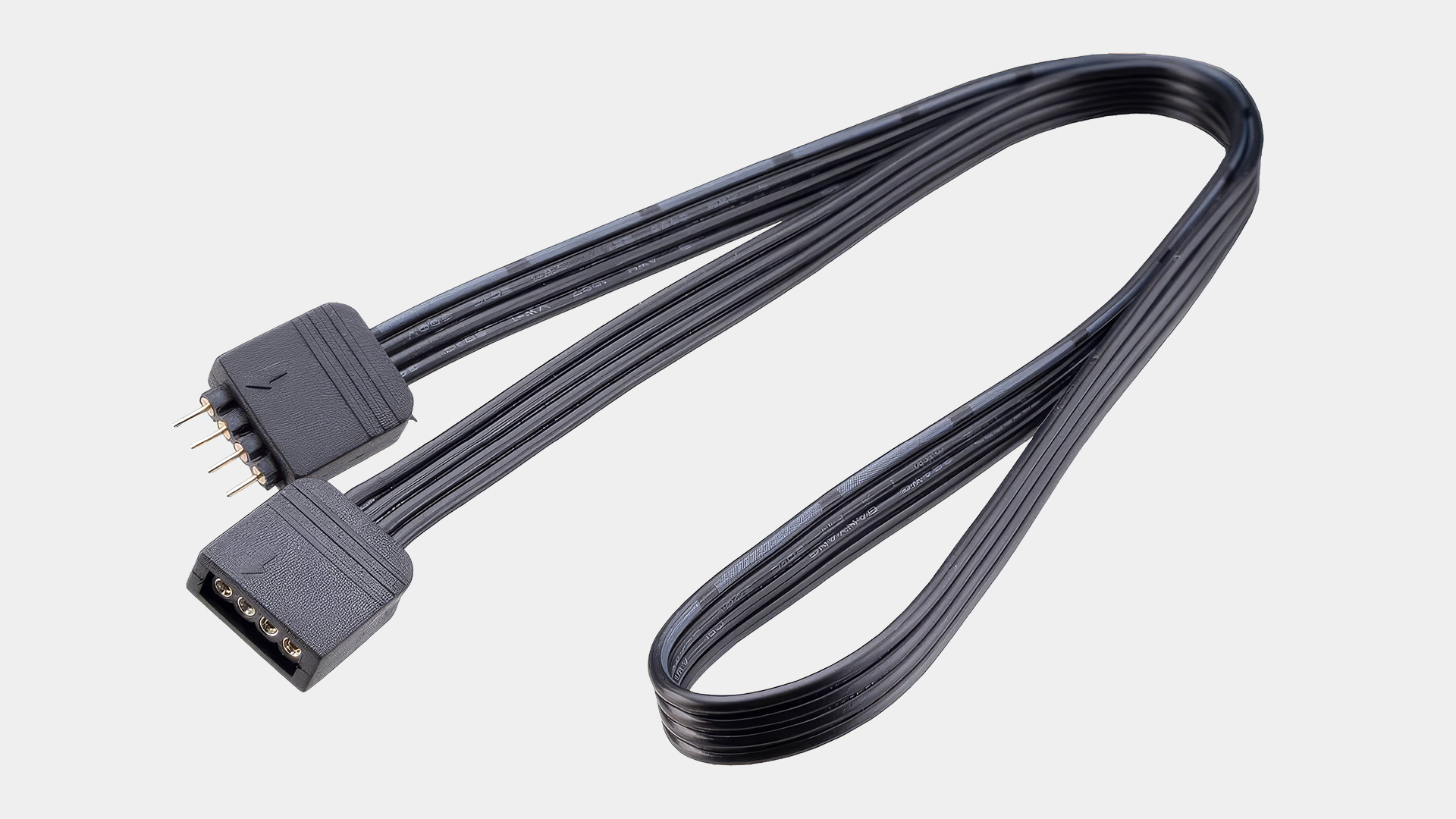
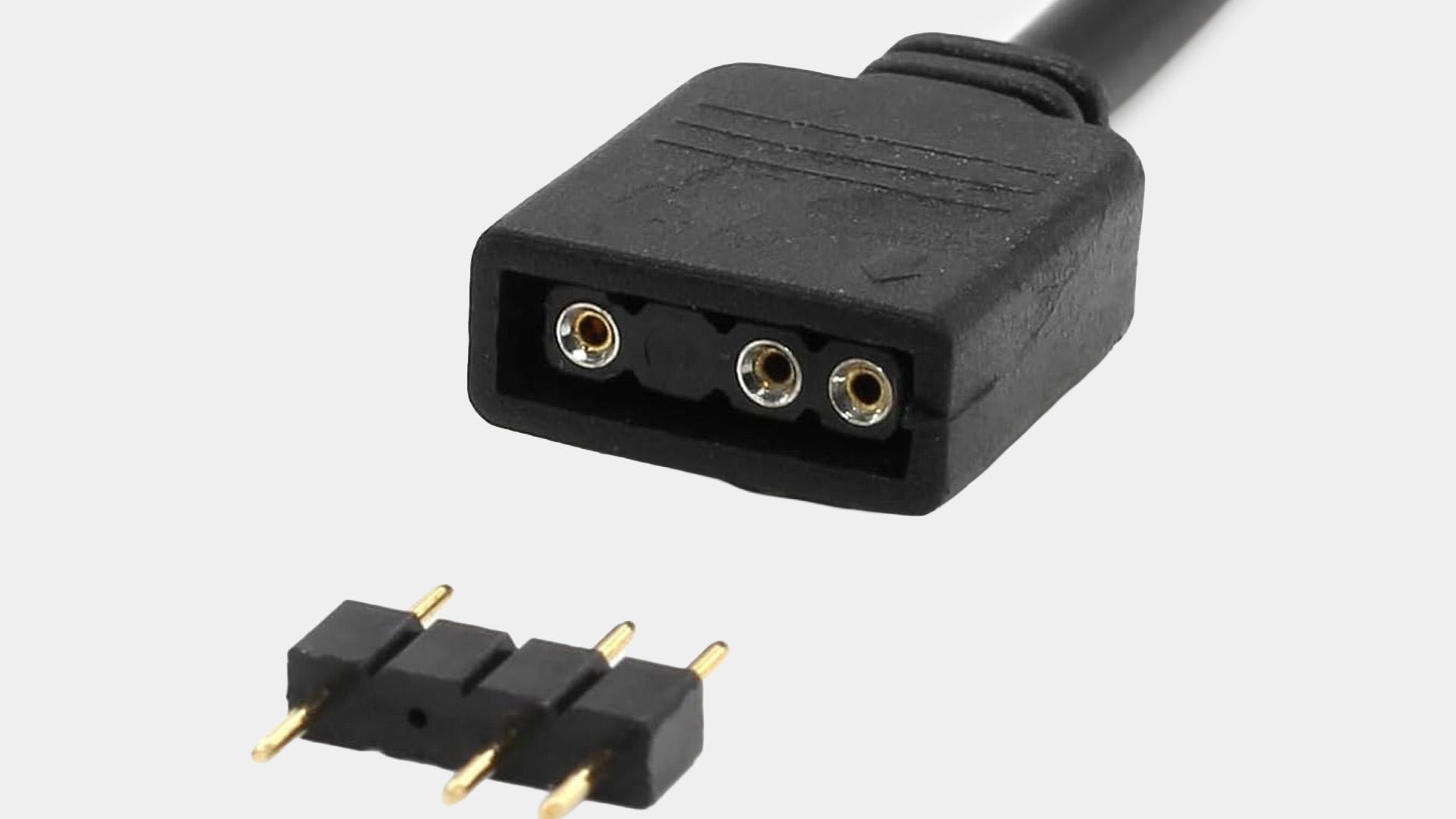
Addressable RGB lighting normally uses a 5V connection with three active pins in a four-position layout. Its data signal lets compatible hardware address LEDs individually, enabling gradients, chasing patterns and several colours on one device. This is the practical difference behind RGB vs addressable RGB lighting.
3-Pin vs 4-Pin RGB Connectors Explained
When people compare 3 pin vs 4 pin RGB, the most important point is voltage. A typical 3-pin ARGB connection is 5V, while a traditional 4-pin RGB lighting connection is 12V.
Safety rule: never connect a 5V 3-pin ARGB device to a 12V 4-pin RGB header. The voltage and signalling are different, and the wrong connection can damage the lighting hardware.
Do Not Confuse RGB With Fan Power Connectors
This is one of the easiest mistakes to make. PC fans can also use three-pin or four-pin motor connectors, but those plugs control fan power and speed rather than lighting.
A typical ARGB PWM fan can therefore have two separate cables: a four-pin PWM plug for the fan motor and a three-pin 5V ARGB plug for the LEDs. A 4-pin PWM fan plug is not a 4-pin RGB lighting plug.
How to Identify Your Motherboard RGB Headers
Do not identify a lighting header by pin count alone. Check the label printed on the motherboard and confirm it in the manual for the exact board model.
If you are choosing a new PC motherboard with RGB header, compare the specification for both 5V ARGB and 12V RGB connections rather than assuming every modern motherboard includes both.
5V ARGB Motherboard Header
An ARGB motherboard header may be labelled ARGB, Addressable RGB, ADD_GEN2, JRAINBOW, JARGB_V2 or D_LED, depending on the manufacturer and motherboard. The usual pin functions are 5V, data and ground.
Treat the motherboard manual as the final reference, and check its electrical or LED-count limit before attaching several devices to one header.
12V RGB Motherboard Header
A standard RGB motherboard header is usually a four-pin 12V connection. Common labels include RGB_HEADER, JRGB, AURA RGB or LED_C. If the board has only 12V RGB, do not force a 5V ARGB plug onto it or rely on a passive adapter that only changes the connector shape.
ARGB vs RGB Fans: What Do You Need to Connect?
ARGB vs RGB fans can look almost identical, so check the motor connection and lighting connection separately before buying.
Modern RGB-equipped case fans often use a 3-pin DC or 4-pin PWM connector for the fan itself, plus a separate lighting connector. If you are comparing RGB PC fans, check fan size, PWM support, lighting voltage, connector type and whether daisy chaining or a controller is required.
Do not assume an ARGB fan guarantees a standard motherboard plug. Some families use proprietary connectors or require their own controller.
What Is an ARGB Controller?
An ARGB controller manages addressable lighting when a suitable motherboard header is unavailable or extra channels are needed. Control may come through USB software, a case button or a remote. Check the supported voltage, connector type, device count and power input before connecting fans or strips.
What Is an RGB Controller?
An RGB controller manages compatible standard 12V RGB lighting and can provide colour or effect control. It does not make 12V RGB electrically compatible with 5V ARGB, so the controller itself must support the lighting type you connect.
ARGB Hub vs Controller: What Is the Difference?
Hub and controller are not used consistently across the PC industry. A basic hub may only distribute one lighting signal, causing several devices to mirror the same effect, while a controller may generate effects, connect to software and provide independent channels. Check the specification, not just the product name.
What If Your Motherboard Has No ARGB Header?
You can still use addressable lighting with a compatible standalone controller or a case or fan kit that includes one. It may use SATA power plus USB, a remote or a case button. Never connect 5V ARGB directly to a 12V RGB header.
Can You Daisy-Chain ARGB Fans?
Some ARGB fans support daisy chaining before one motherboard header or controller. Corsair’s RS ARGB family is one example. Support is not universal, so check the total current, LED count and header or controller limit before adding more devices.
Can You Mix Different RGB Brands?
Sometimes. Standard 5V ARGB devices can often share a compatible motherboard ecosystem when voltage, connector and signalling match, although software affects synchronisation. Proprietary fans, coolers and controllers may still require brand-specific hardware, so ARGB does not guarantee a universal physical connector.
How to Check ARGB Hub Compatibility
ARGB hub compatibility depends on more than whether the plug appears to fit. Before ordering a hub or controller, check all of the following:
- Lighting voltage: normally 5V for standard ARGB.
- Connector and pinout: standard three-pin ARGB or proprietary.
- How the hub receives its lighting signal.
- Whether it needs SATA, Molex or another power source.
- Maximum connected devices, current and LED count.
- Whether ports mirror one signal or offer independent channels.
- Whether motherboard synchronisation is supported.
- Which software, remote or case controls are required.
Do not treat a high port count as proof that every socket can be fully loaded. The electrical limit in the hub or controller specification is more important than the number of empty connectors.
Does a PC Case With an RGB Controller Need a Header?
Not always. Some cases can run pre-set lighting from an included powered controller and case button, while others need a motherboard connection for software synchronisation.
When comparing a PC case with RGB controller, check whether the included hub supports standalone effects, motherboard sync, PWM fan control, standard ARGB connections or a proprietary fan system. This can save you from buying a second controller that the case does not need.
Common ARGB and RGB Compatibility Mistakes
- Connecting a 5V ARGB plug to a 12V RGB header.
- Confusing a four-pin PWM fan connector with a four-pin RGB lighting connector.
- Assuming every addressable fan uses a standard three-pin ARGB plug.
- Buying a passive hub and expecting independent lighting on every port.
- Ignoring the current or LED-count limit of a motherboard header.
- Forgetting that some controllers need separate SATA power or internal USB.
- Mixing proprietary ecosystems without checking adapter and software support.
- Connecting hardware while the PC power supply is switched on.
Which Should You Choose: ARGB or RGB?
ARGB offers more lighting flexibility because individual LEDs can display different colours, while standard RGB can still suit an older 12V build or a simple uniform lighting scheme. Compatibility with the hardware you already own matters more than choosing the option with the longest feature list.
Final Compatibility Checklist
Before connecting any lighting component, work through these checks in order:
- Confirm whether the lighting device is 5V ARGB or 12V RGB.
- Check the exact connector and pinout, especially with proprietary hardware.
- Separate fan power or PWM cables from lighting cables.
- Confirm the correct motherboard header, hub or controller.
- Check current, LED-count and device limits before adding splitters or chains.
- Confirm how the lighting will be controlled: motherboard software, USB controller, remote or case button.
If any one of those details is unclear, stop and check the product or motherboard manual before applying power. A connector that looks close enough is not a safe compatibility test.

Final Thoughts on ARGB vs RGB
ARGB vs RGB comes down to control and compatibility. ARGB normally uses 5V three-pin lighting and addresses individual LEDs, while standard RGB normally uses 12V four-pin lighting and controls a whole channel together. Do not cross-connect the two standards. Match voltage, connector, motherboard or controller, electrical limits and software first, then choose the lighting style that suits your build.

Common Questions About PC RGB Lighting
Can I plug ARGB into an RGB header?
No. Standard ARGB is normally 5V while conventional RGB is normally 12V. They use different signalling and connector layouts. Connecting 5V ARGB hardware to a 12V RGB header can damage the lighting device.
Can I use ARGB fans without an ARGB motherboard header?
Yes, if you use a compatible standalone ARGB controller or a case or fan kit with its own controller. Check how that controller is powered and whether it supports your fans’ connector and LED limits.
Is 3-pin RGB the same as ARGB?
In current PC lighting, a three-pin connection with one missing position usually refers to 5V ARGB. However, proprietary connectors also exist, so confirm the voltage and pinout rather than identifying compatibility from pin count alone.
Why does my ARGB fan have two cables?
One cable normally powers and controls the fan motor, often through a 4-pin PWM header. The second controls the LEDs through a 5V ARGB connection. Fan speed and lighting are separate functions.
Can I connect multiple ARGB fans to one header?
Sometimes. Daisy chaining or a compatible splitter can connect several devices, but the combined current and LED count must remain within the motherboard header or controller limit stated by the manufacturer.
| Read More: |
| Which Motherboard Brands Are Best for Gaming? |
| How to Build a Gaming PC |
| Gaming Desktop PC Overheating? How to Fix High Temperatures |
Related Articles

Last Updated: September 02, 2026
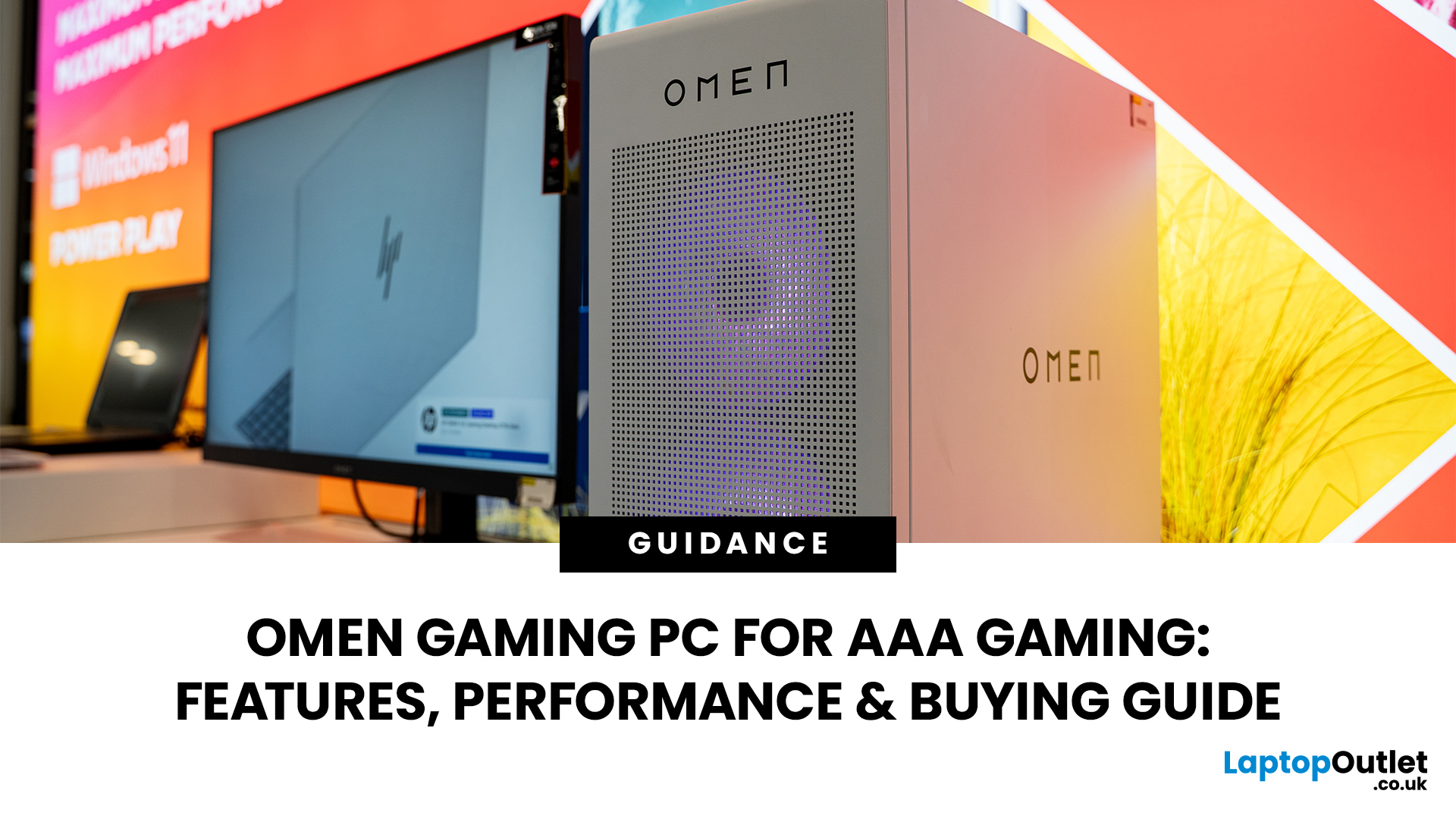
AAA games can be absolutely stunning, but they are not shy about demanding serious hardware. High-resolution textures, dense open worlds, ray-traced lighting, advanced physics, and background asset streaming can push an ordinary desktop to its limits. If your computer is short on graphics power, memory or cooling capacity, the result may be stuttering, inconsistent frame rates and a graphics menu full of compromises.
That's where an OMEN gaming PC comes in. An HP OMEN desktop combines dedicated gaming graphics, modern processors, SSD storage, and performance-focused cooling in a pre-built system. But not every configuration delivers the same experience, one OMEN gaming desktop may be ideal for 1080p gaming, while another is built for high-refresh 1440p or demanding 4K gameplay. This guide breaks down the HP OMEN specs that actually matter and how to match them to the way you play.
Is an OMEN Gaming PC Actually Good for AAA Games?
Yes. A correctly configured OMEN PC for AAA games can deliver
Last Updated: September 08, 2026
Two laptops can both say AMD Ryzen 5 on the specification sheet and still be built for very different jobs. One may prioritise battery efficiency and portability, while another is designed to sustain more performance for gaming, coding or creative work.
That is why choosing an AMD Ryzen 5 laptop in 2026 means looking beyond the tier name. AMD currently spans several mobile naming families, from Ryzen 7000 and 8000 to newer Ryzen 100, Ryzen 200 and Ryzen AI ranges. The exact processor, power class, memory, graphics, storage and laptop design all influence the experience.
This guide explains how to read those specifications, avoid misleading shortcuts and match the complete configuration to the way you actually use your laptop.
Quick Answer: How to Choose a Ryzen 5 Laptop
For most buyers, the right Ryzen 5 laptop is the one with a balanced specification rather than simply the largest processor number. Start with your main workload, then check the full CPU name, RAM, storage, graphics, display

Last Updated: July 21, 2026
Using your laptop in public is normal now. Cafés, trains, airports, libraries, lecture halls, shared offices, the laptop comes everywhere. But if the person sitting next to you can casually read your emails, bank details, work chats or assignments, that is not exactly ideal.
That is where privacy screen protectors laptops come in. Whether you are a student, business user, commuter or hybrid worker, this guide explains how privacy screens work, their benefits, disadvantages, types and whether they are actually worth buying.
How Does a Privacy Screen Protector Work?
Most laptop privacy screens use tiny vertical filter layers, often called micro-louvres. These work a bit like blinds. When you look at the laptop straight on, you can see the display clearly. When someone looks from the side, the filter blocks the view.
This is also how laptops and notebooks privacy screens work in everyday spaces. If you are working on a train, someone sitting beside you should find it much harder to read your
Last Updated: September 03, 2026

Last Updated: July 29, 2026
Your Lenovo laptop is slow, crashing, affected by persistent software problems or being prepared for a new owner; don't panic, it’s simply time for a factory reset.
A proper Lenovo factory reset reinstalls Windows and may remove applications, settings and personal data. This guide explains how to reset Lenovo laptop systems through Settings, the sign-in screen, Lenovo recovery mode, the Novo button or recovery media.
Before You Factory Reset Your Lenovo Laptop
- Back up documents, photos and other important files to cloud storage or an external drive.
- Keep the charger connected, remove unnecessary laptop accessories

Published: August 13, 2026
Your HP gaming monitor might have a fast refresh rate, sharp resolution, and solid HDR support, but poor colour settings can still leave games looking washed out, overly dark, or weirdly saturated. That is where monitor calibration makes a noticeable difference.
The key thing to know is that there is no single magic set of values that works for every HP or OMEN monitor. The right monitor settings depend on your exact panel, room lighting and whether you are playing in SDR or HDR.
This HP display calibration guide will show you how to get a more accurate starting point, fine-tune your screen in Windows 11 and fix the most common colour problems without turning everything up to 100.
What Does Monitor Calibration Actually Change?
Monitor calibration adjusts how your screen reproduces brightness and colour so that the image looks balanced rather than artificially enhanced. The main settings you are dealing with are:
- Brightness: Controls how bright the screen appears.
- Contrast: Affects the difference

Published: August 17, 2026
Dell laptops are built for everything from everyday study to demanding business workloads, but any device can develop faults over time. Common Dell laptop problems can involve slow performance, charging, overheating, displays, connectivity, or startup. The useful first step is not replacing parts at random, but identifying exactly what the laptop is doing. In this guide, you’ll learn how to recognise common symptoms, try safe, practical Dell laptop troubleshooting steps and decide when a repair or replacement makes practical sense.
What are the Most Common Dell Laptop Problems?
Slow Performance and System Lag
A Dell laptop may slow down because of too many startup apps, limited free storage, demanding background processes or outdated software. These Dell laptop issues often appear as slow boot times, freezing, or delayed app launches.
Battery Draining Too Quickly
Fast battery drain can result from high brightness, heavy workloads, background activity or an ageing battery. If runtime has
Published: August 20, 2026
Published: August 24, 2026
Published: August 25, 2026

