



Common Dell Laptop Problems and How to Fix Them (Complete Guide)
Dell laptops are built for everything from everyday study to demanding business workloads, but any device can develop faults over time. Common Dell laptop problems can involve slow performance, charging, overheating, displays, connectivity, or startup. The useful first step is not replacing parts at random, but identifying exactly what the laptop is doing. In this guide, you’ll learn how to recognise common symptoms, try safe, practical Dell laptop troubleshooting steps and decide when a repair or replacement makes practical sense.
What are the Most Common Dell Laptop Problems?
Slow Performance and System Lag
A Dell laptop may slow down because of too many startup apps, limited free storage, demanding background processes or outdated software. These Dell laptop issues often appear as slow boot times, freezing, or delayed app launches.
Battery Draining Too Quickly
Fast battery drain can result from high brightness, heavy workloads, background activity or an ageing battery. If runtime has fallen noticeably, check battery health first.
Laptop Not Turning On
A Dell laptop not turning on is different from one that powers up but cannot load Windows. No lights or fan activity suggests a power problem, while a Dell logo followed by a freeze, error or boot loop points towards laptop startup issues. Dell distinguishes between no power, no POST, no boot, and no video.
Overheating During Everyday Use
Dell laptop overheating can occur when vents are restricted, cooling components collect dust or the processor is under sustained load. Dell laptop fan noise may also rise as internal temperature increases. Persistent heat, throttling or unexpected shutdowns deserves investigation rather than being treated as normal.
Wi-Fi or Bluetooth Connectivity Problems
If Wi-Fi disconnects or Bluetooth devices disappear, check whether other devices are affected. Restart the laptop and router, reconnect, then check the correct Dell wireless or Bluetooth driver for your model.
Screen Flickering or Display Issues
Laptop screen flickering can come from graphics drivers, Windows settings, an app conflict or screen hardware. With a Dell laptop black screen, first check for power lights and signs that Windows is running. Dell’s LCD built-in self-test can help separate screen hardware faults from software problems.
Keyboard or Touchpad Not Working
Laptop keyboard issues can affect individual keys or the whole keyboard. Restart, disconnect unnecessary peripherals and test again. If an external keyboard works normally, the built-in keyboard may need further inspection.
Charging Problems
For intermittent charging, inspect the adapter and connector and make sure both are firmly connected. On supported models, BIOS can show whether the AC adapter is recognised. Persistent failure needs further diagnosis.
Dell Docking Station Issues
Dell docking station issues can include missing displays, unreliable USB devices, Ethernet drop-outs or a dock that is not detected. Reconnect the dock, check cable compatibility, and update the laptop drivers and dock firmware. When replacing a cable, hub or dock, choose compatible accessories for Dell laptops rather than assuming every USB-C accessory offers the same functions.

Why Do Dell Laptop Problems Occur?
Outdated Drivers or BIOS
Drivers connect Windows with hardware such as graphics, Wi-Fi and power-management components. Use the laptop’s exact model or Service Tag when checking Dell Support for driver or BIOS update files.
Windows Update Conflicts
If a problem begins immediately after a Windows, driver or application update, check update history before changing hardware. A corrected driver or rollback may help, but avoid removing security updates without evidence that an update caused the fault.
Dust Build-Up and Poor Cooling
Dust can restrict airflow, while batteries, fans and charging components wear with use. Soft surfaces can also block ventilation.
How to Fix Common Dell Laptop Issues
Improve Laptop Performance
Start with the basics:
- Restart the laptop.
- Use Task Manager to identify heavy CPU, memory or storage use.
- Disable unnecessary startup apps.
- Remove files and applications you no longer need.
- Install appropriate Windows and Dell driver updates.
- Run a security scan if the slowdown appeared unexpectedly.
If the hardware no longer handles your applications comfortably, compare business laptops for productivity rather than repeatedly optimising an unsuitable machine.

Fix Battery and Charging Issues
Check the wall socket, adapter, cable and charging port before buying replacement parts. Disconnect non-essential peripherals and look for charging LEDs. Where supported, check battery health and AC adapter status in BIOS.
If the laptop reaches the Dell logo, F12 can open the One-Time Boot Menu on supported Dell computers so you can run pre-boot hardware diagnostics. If there is no power at all, treat it as a power fault, not a Windows problem.
Reduce Overheating and Fan Noise
Use the laptop on a firm, flat surface and close unnecessary high-load applications. Turn it off before clearing dust from external vents with compressed air, then check relevant Dell driver and BIOS updates. If the fan grinds, heat remains excessive or shutdowns continue, arrange hardware inspection rather than dismantling the cooling assembly yourself.
Resolve Display Problems
To fix Dell laptop screen problems, update or reinstall the appropriate graphics driver and test an external display where possible. For a Dell laptop black screen fix, Dell’s LCD BIST can be useful: on supported laptops, hold D and press the power button to start the test.
If the test shows lines, flickering or dark areas, screen hardware is more likely to be involved. If it appears normal, continue checking graphics drivers, Windows settings and applications.
Solve Wi-Fi and Bluetooth Issues
Forget and reconnect to Wi-Fi, restart the router and laptop, then install the appropriate Dell network drivers if necessary. For Bluetooth, remove and re-pair the device.
For a dock, reconnect it directly, update its firmware and test monitors or USB devices one at a time. This helps identify whether the problem sits with the dock, cable, peripheral or laptop port.
When Should You Repair or Replace Your Dell Laptop?
Signs a Repair is Worth it
Repair usually makes sense when the laptop still meets your needs and the fault is isolated, such as a battery, charger, keyboard or display problem. Compare repair cost with its age and condition. There is little reason to replace capable everyday laptops for work and study because of one economical repair.
When Replacement is the Better Option
Replacement makes more sense when several components are failing, a major repair is disproportionately expensive or performance no longer meets your needs. Compare the latest Dell laptops by workload, RAM, storage, display and connectivity. If you’re replacing an older laptop for university or college, our guide to the best Dell laptops for students in 2026 can help you compare suitable models for studying, research and everyday use.

How to Prevent Dell Laptop Problems in the Future
Keep Drivers and BIOS Updated
Check Dell’s support tools or support page for updates that apply to your exact model. Use official Dell files for a BIOS update, keep the laptop connected to suitable power and do not interrupt the process.
Maintain Battery Health
Control screen brightness, reduce unnecessary background activity and avoid excessive heat. Check battery health using available Dell tools or BIOS options. If a battery becomes swollen, stop using the laptop and arrange service.
Clean Air Vents Regularly
Keep ventilation openings clear and use the laptop on a firm surface. Turn it off before cleaning external vents and avoid pushing objects into the cooling system.
Avoid Overloading System Resources
Close applications you do not need, limit unnecessary startup programmes and keep sufficient storage free. If your workload has outgrown the hardware, moving to a suitable system is more effective than repeated optimisation.

Final Thoughts
Most Dell laptop problems are easier to resolve when you identify the symptom before trying fixes. Separate power, startup, display, thermal and Windows problems, then use model-specific diagnostics and updates. If repair no longer offers sensible value, Laptop Outlet has top-rated laptops across everyday, business, and performance categories to help you compare a suitable replacement.

Common Troubleshooting Questions
Why does my Dell laptop keep shutting down by itself?
Unexpected shutdowns may be linked to overheating, power problems, software errors or hardware instability. Check airflow, recent software changes and Dell hardware diagnostics. Repeated shutdowns need investigation.
Why is my Dell laptop fan so loud and how do I fix it?
Fan speed can increase as the processor or graphics hardware generates heat. Close heavy tasks, use a hard surface and clear blocked vents. If noise stays excessive at light loads, check updates and diagnostics. Grinding or rattling can indicate fan wear.
Should I repair my Dell laptop or buy a new one?
Repair it when the fault is isolated and the laptop still meets your needs. Consider replacement when several components are failing, repair costs are high compared with its value or the specification no longer suits your workload.
How do I improve Dell laptop battery life?
Lower unnecessary screen brightness, use an appropriate Windows power mode and close resource-heavy background apps. Check battery health as the laptop ages. If capacity has dropped significantly, a replacement battery may help.
| Read More: |
| Dell’s New XPS 13 Could Be the Best MacBook Neo Rival Yet |
| Dell XPS vs Latitude: Premium Ultrabook vs Business Focused |
| The Ultimate Guide to Common Laptop Problems and How to Fix Them |
Related Articles


Last Updated: September 09, 2025
What’s the main difference between Lenovo and Dell laptops?
Lenovo (ThinkPad, Yoga, Legion, IdeaPad) is known for MIL-STD-tested durability, spill-resistant keyboards, and the ThinkShield security stack on business lines. Great for students and professionals who prioritise reliability and manageability. On the other hand, Dell (XPS, Latitude, Inspiron, Alienware/ G-Series) is famous for premium XPS ultrabooks with excellent battery life and ProSupport/ProSupport Plus service for businesses, plus fast-charge (ExpressCharge) options.
Lenovo vs Dell laptops: Quick Comparison
| Feature | Lenovo | Dell |
| Build & Durability | MIL-STD testing on ThinkPads; spill-resistant keyboards. | Premium metal builds on XPS; robust Latitude chassis. |
| Battery Life | Strong on premium models; varies by series. | Standout on XPS (widely reviewed as “all-day+”). |
| Security/Manageability | ThinkShield stack & enterprise controls. | ProSupport/ProSupport Plus, ExpressCharge & fleet tools. |
| Key Lines | ThinkPad, Yoga, Legion, IdeaPad | XPS, |
Last Updated: September 07, 2026
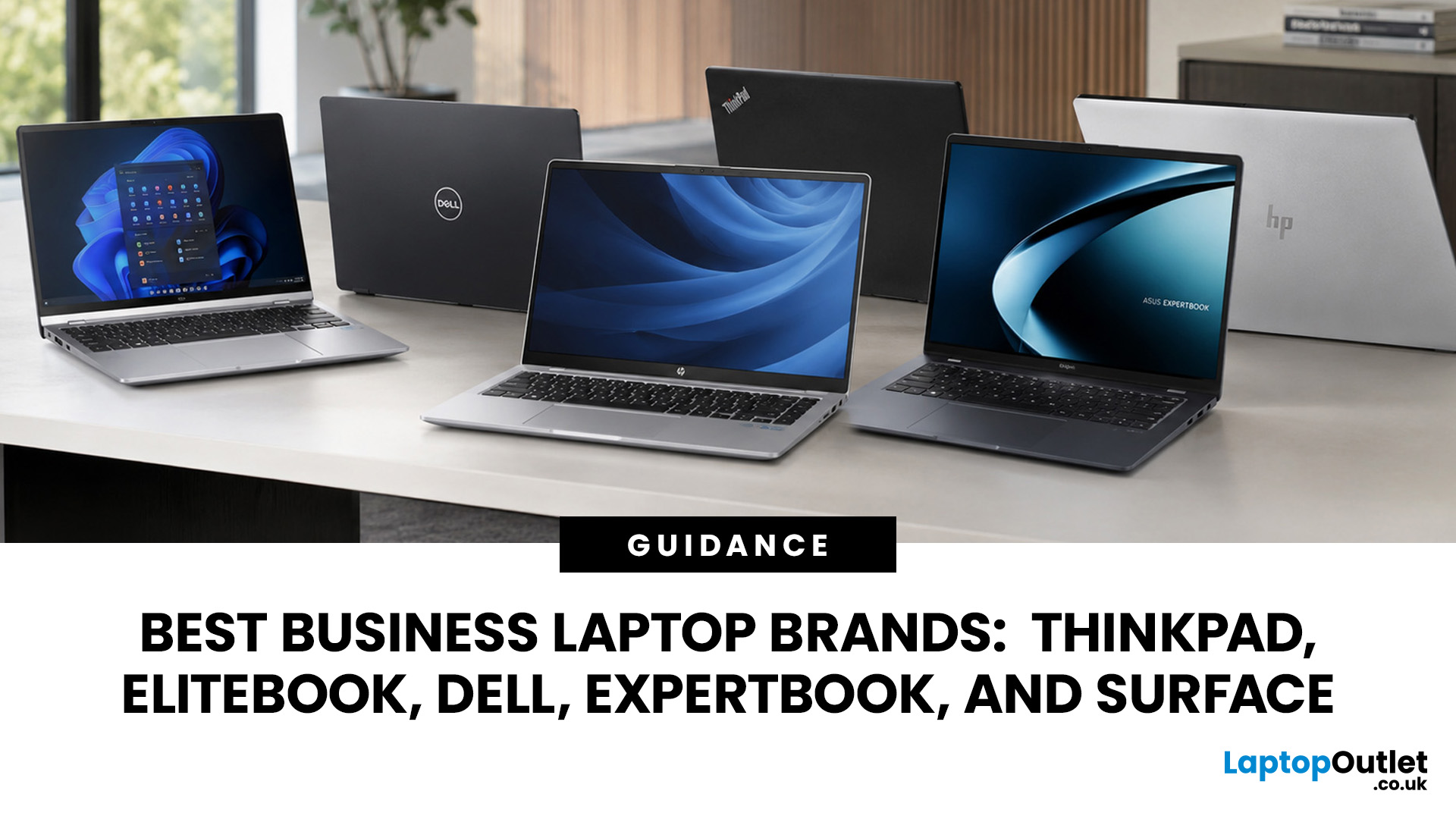
A dependable business laptop must do more than open emails and spreadsheets. It should support your applications, protect company data, connect to workplace equipment, and remain comfortable through long working days. However, even the best business laptop brands take different approaches to these requirements. This guide compares Lenovo ThinkPad, HP EliteBook, Dell Latitude, and Dell Pro, ASUS ExpertBook, and Microsoft Surface so you can identify the most suitable range for your work.
Which Business Laptop Brand is Best?
There is no single best brand for every professional. Lenovo ThinkPad offers one of the broadest selections, while HP EliteBook places strong emphasis on security and collaboration. Dell Latitude and newer Dell Pro systems suit managed IT environments, ASUS ExpertBook provides practical options for SMEs, and Microsoft Surface combines premium mobility with close Windows integration.
The right choice ultimately depends on your software, security policies, working location,

Last Updated: September 02, 2026
In the HP vs Dell laptops debate for 2026, HP wins on value, stylish design, and accessibility, making it ideal for students and home users. Dell wins on build quality, battery endurance, enterprise-grade support, and long-term durability, making it the stronger pick for professionals and power users. Neither brand is universally better; the right choice depends entirely on your budget, use case, and how long you plan to keep the device.
This guide cuts through the noise and gives you a proper, head-to-head Dell vs HP comparison across every major category so you can shop with confidence.
What Are HP and Dell Each Known For in 2026?
Before diving into the specs, it helps to understand the design philosophy behind each brand. HP and Dell both make excellent laptops, but they approach the market from noticeably different angles, and that shapes every product decision they make.
HP: Design, Value, and Accessibility
HP positions itself around choice, modern aesthetics, and broad accessibility.
Last Updated: September 11, 2025
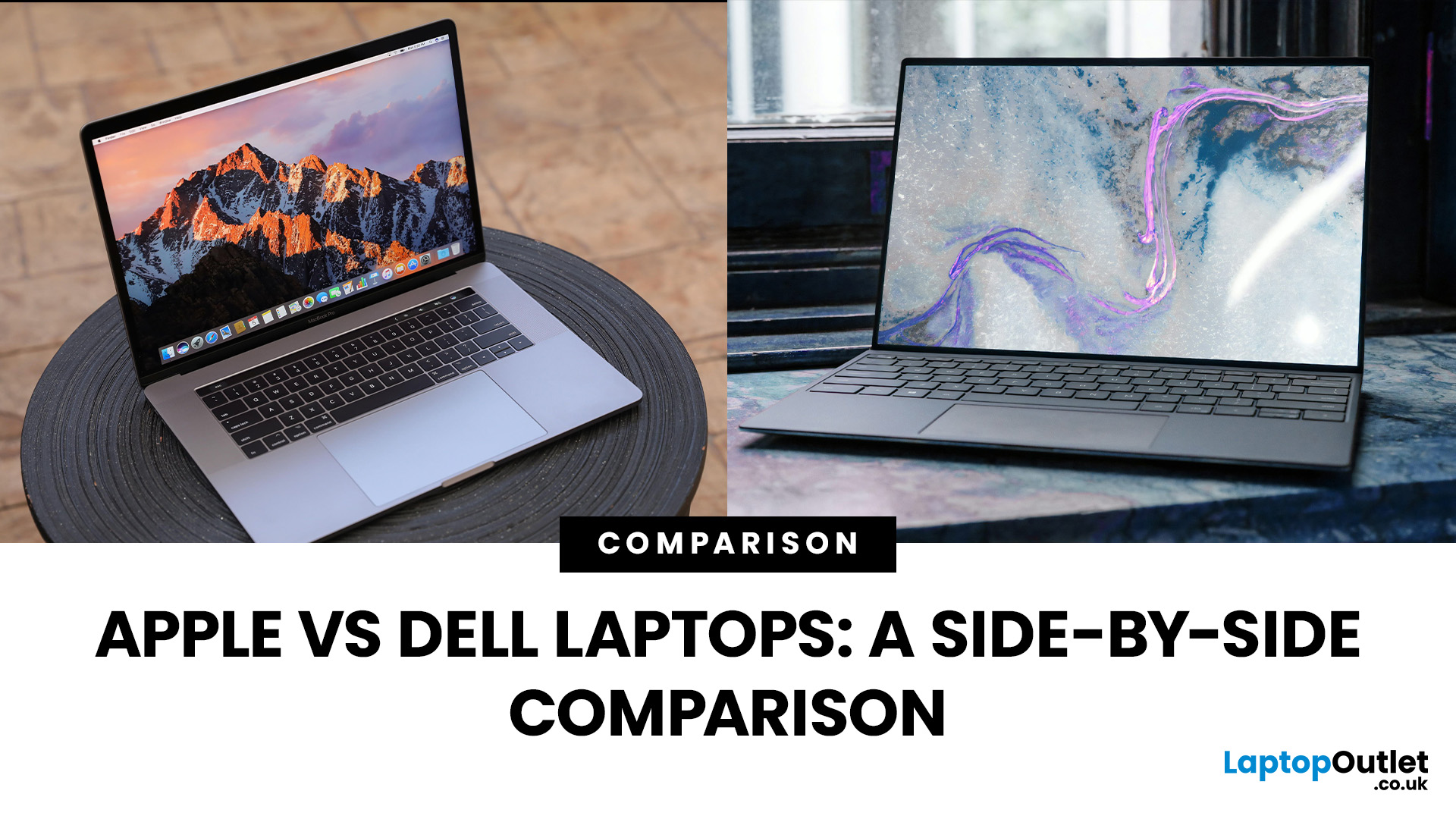
Choosing between Apple vs Dell laptops in 2025 is less about which brand is “better” overall and more about which suits your needs best. Apple’s MacBooks are known for their premium build, exceptional battery life, and smooth macOS ecosystem, while Dell offers a wider range of laptops—from affordable everyday machines to high-end XPS ultrabook delivering flexibility, Windows compatibility, and value across budgets. This comparison breaks down the key differences in performance, design, battery life, displays, and pricing to help you decide which brand delivers the right balance for your work or personal use.
What’s the Main Difference Between Apple and Dell?
Apple (MacBook Air/Pro) focuses on seamless macOS integration, class-leading battery life, and quiet, efficient performance on Apple silicon (M-series). Hardware is premium, but upgrades/ports are limited, and prices skew higher. On the other hand, Dell (XPS/Inspiron/Latitude/Alienware) offers a wider spread from budget to premium with

Last Updated: September 12, 2025
Choosing the right laptop in 2025 means balancing performance, price, and reliability—and two brands that regularly compete for attention are Dell and Acer. Both have carved out strong positions in the UK market, but they approach value in very different ways. Dell has built its reputation on premium craftsmanship, dependable business machines, and long-lasting ultrabooks like the XPS and Inspiron. Acer, meanwhile, is known for its aggressive pricing, bringing OLED displays and high-end specifications to budget-conscious buyers through the Swift and Aspire ranges, alongside accessible gaming rigs such as the Nitro and Predator series.
This guide compares both brands in detail covering design, performance, battery life, displays, gaming, and overall value so you can decide which delivers more for your money this year.
What’s the Main Difference Between Dell and Acer?
Dell focuses on premium fit and finish, quiet confidence in design, and balanced performance with excellent battery life in

Last Updated: September 08, 2026
ASUS and Dell compete across everyday laptops, premium ultraportables, business machines and high-performance gaming systems, but they take different routes to get there. ASUS offers a particularly broad mix through Vivobook, Zenbook, ExpertBook, ProArt, TUF Gaming and ROG, while Dell covers consumer computing, XPS, Dell Pro, and Alienware. This ASUS vs Dell laptops comparison looks beyond the badge at the specifications and features that actually affect your experience.
ASUS vs Dell: Key Differences at a Glance
| Area | ASUS | Dell |
| Everyday | Vivobook | Inspiron |
| Premium | Zenbook | XPS |
| Business | ExpertBook | Dell Pro |
| Creator | ProArt | XPS / Dell professional systems |
| Gaming | TUF Gaming / ROG | Alienware |
| Current CPUs | Intel Core Ultra, AMD Ryzen AI, Snapdragon | Intel Core / Core Ultra |
| Displays | IPS, OLED, Mini LED, high-refresh | IPS/LCD, OLED, high-refresh |
| Main strength | Range depth and specialist hardware | Premium and business focus |
Dell's current XPS family includes 13-, 14- and 16-inch options, while ASUS spreads
Last Updated: September 02, 2026
Did you know that the very first laptop to ever make it onto a space shuttle mission was a Toshiba? That legacy continues today under the Dynabook brand, which has quietly built a reputation for lightweight, business-ready machines. On the other side of the spectrum, Dell has grown into a household name, its Latitude and XPS lines often being the go-to choice for professionals and large enterprises alike.
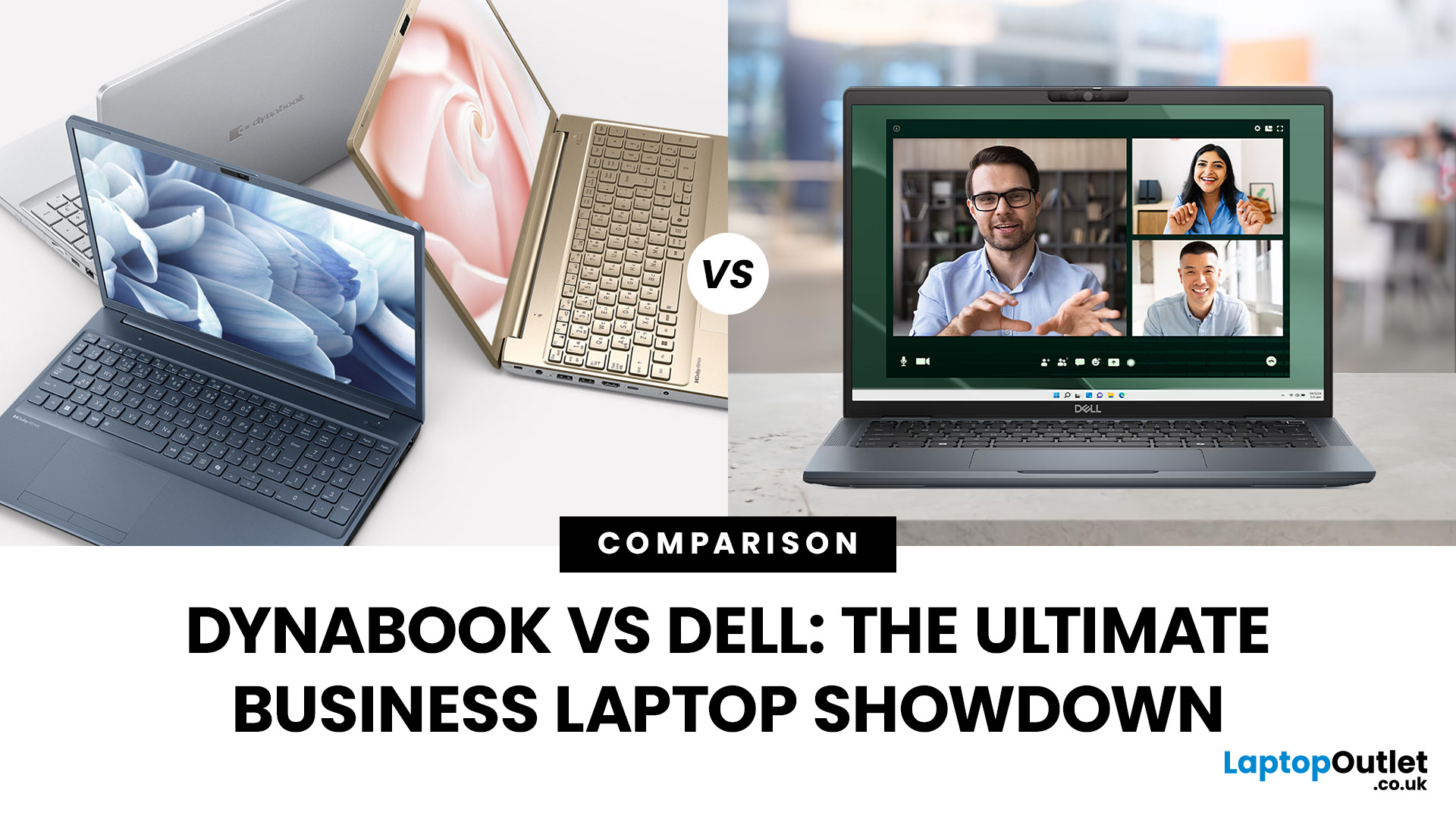
When it comes to choosing a laptop for business, it isn’t just about sleek design or raw power. Professionals need reliability, security, and the kind of performance that won’t let them down in the middle of a client call or when running heavy spreadsheets. That’s where the comparison between Dynabook vs Dell laptops gets really interesting. One brings space-age durability, the other offers enterprise-level scalability. The real question is, which one truly delivers on what business users need most?
TL;DR – Dynabook vs Dell Laptops for Business
- Dynabook = Portability & Durability
- Ultra-lightweight
Last Updated: February 19, 2026
Are you a creative professional or a student looking for the perfect hardware? Choosing the right tools can make or break your workflow. Animation and 3D design are demanding tasks. They require power, precision, and reliability. In this guide, we explore the best laptops for animation and 3D modelling available today.
Why Your Hardware Matters for 3D Work?
Animation is not just about drawing. It involves complex calculations. When you work in software like Blender or Autodesk Maya, your computer handles millions of polygons. It also calculates lighting, physics, and textures in real-time.
If your laptop is too slow, you will face lag. Your software might crash. Most importantly, your rendering times will be incredibly long. High-performance 3D laptops solve these problems. They allow you to focus on your art instead of your technical issues.
To get the best results, you need a balance of components. This includes a fast processor (CPU), a powerful graphics card (GPU), and plenty of memory

Last Updated: August 05, 2026
I made almost every mistake possible when I bought my first laptop as a student. I focused on the processor name, ignored the RAM, underestimated how heavy it would feel in my backpack and had no idea what half the technical jargon meant.
Within months, I realised I had paid for features I barely used while missing the ones I actually needed. Choosing between Core i5, Core Ultra, SSD sizes and different Dell series can still feel just as confusing today.
To help you avoid the same blunder, we reviewed the best Dell laptops for students in 2026 and narrowed them down based on real student needs, including performance, mobility,
Last Updated: August 06, 2026

