



How to Check CPU and RAM Performance with Stress Tests
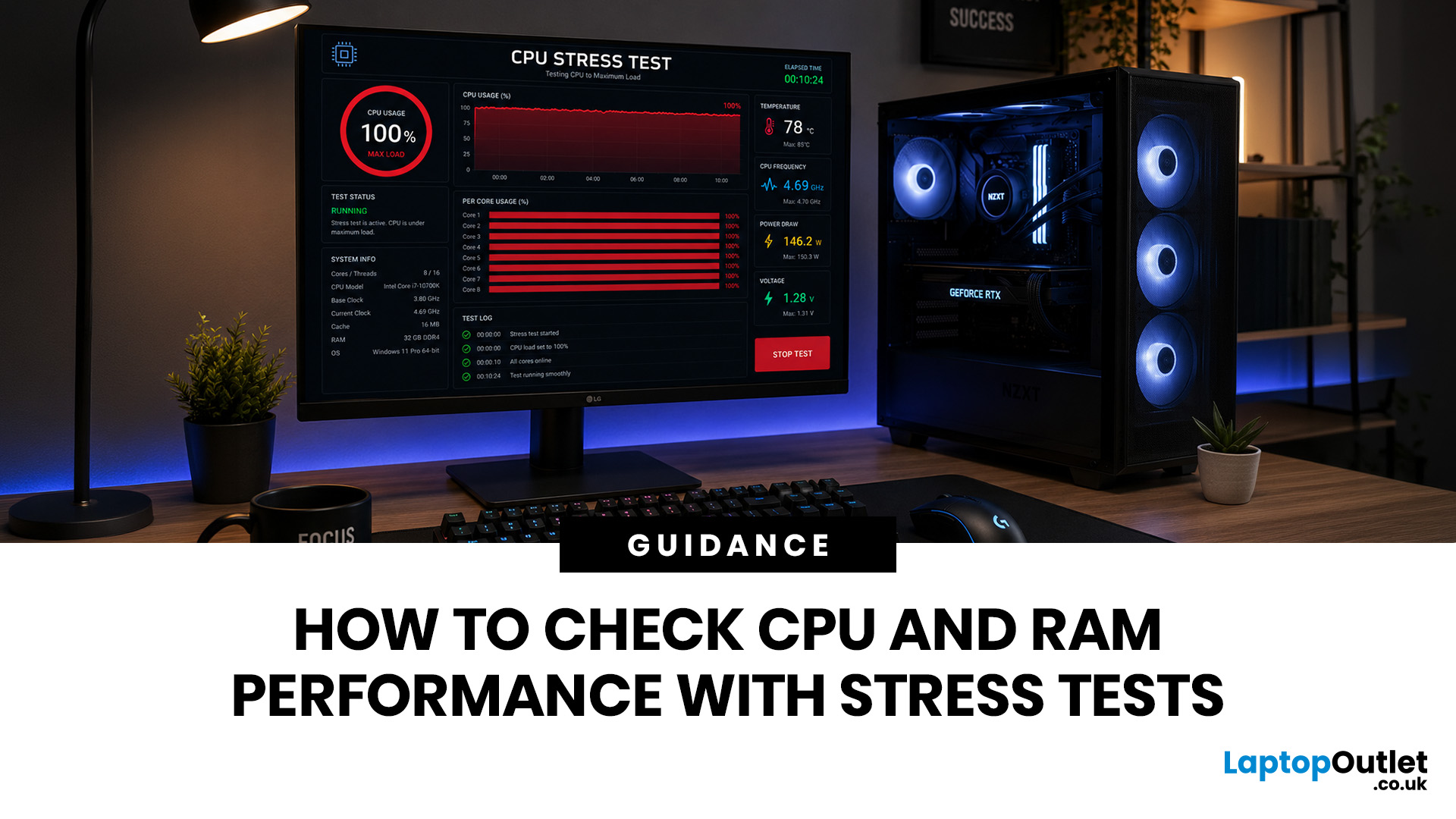
Your PC can look perfectly fine on the outside and still fail the moment it is pushed hard.
A game crashes after 20 minutes. A video export freezes at 92%. Your laptop randomly restarts during a heavy workload. Or maybe you have just upgraded your memory, changed your processor, built a new desktop, or enabled XMP/EXPO in the BIOS and want to know one thing:
Is my system actually stable?
That is where a stress test CPU RAM process helps. By running a controlled CPU, RAM, or combined system stress testing session, you can find problems before they interrupt your work, gaming, editing, coding, or daily use.
In this guide, you will learn:
- What CPU and RAM stress testing actually means
- When you should stress test your PC
- How to stress test my CPU and RAM safely
- Which tools are useful for CPU testing and memory testing
- How to read the results
- When poor results mean you should upgrade your processor, RAM, cooling, or other computer components
What Is a CPU and RAM Stress Test?
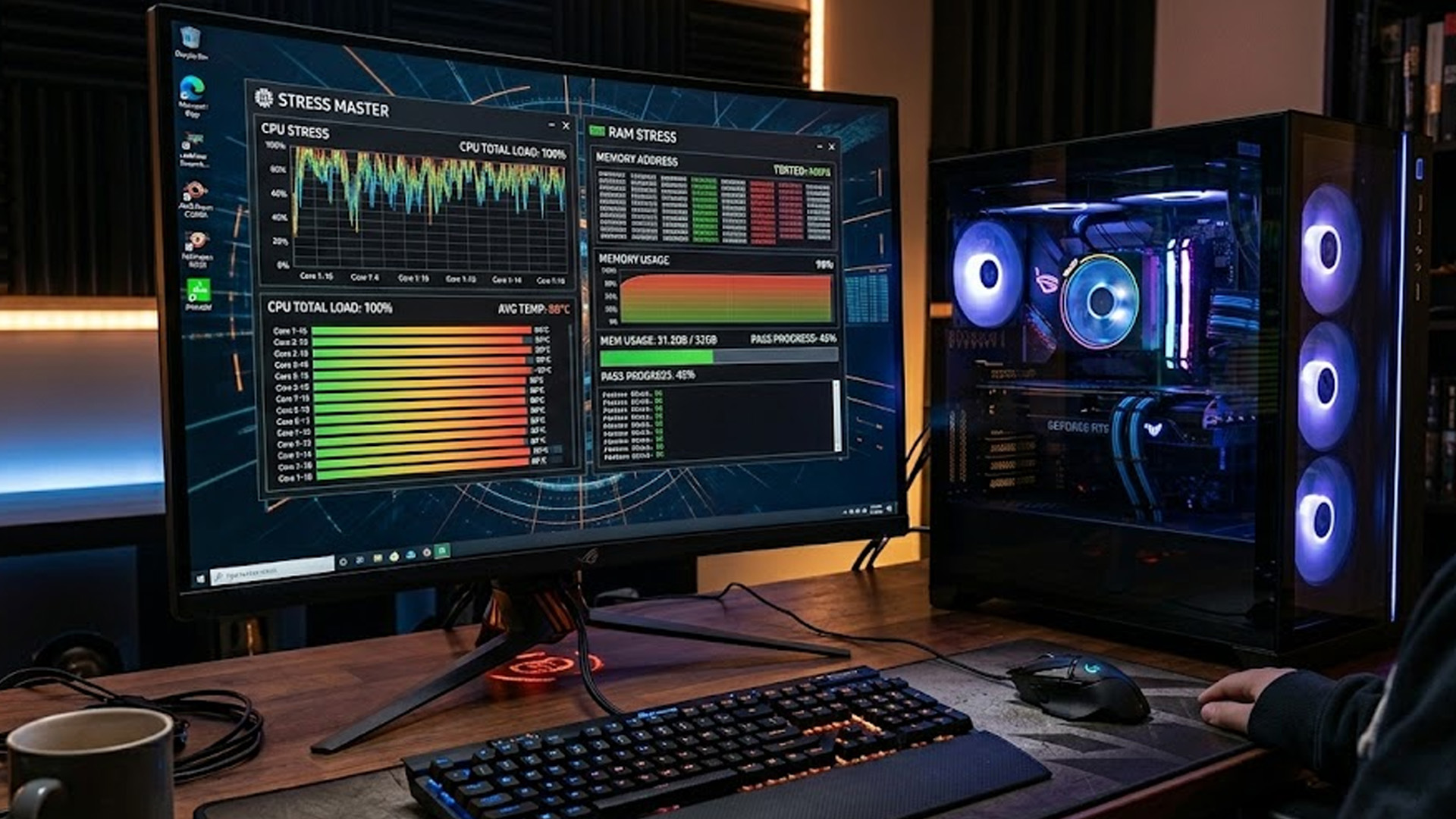
A CPU and RAM stress test is a controlled performance test that pushes your processor and memory harder than normal everyday use.
A CPU stress test loads the processor with demanding calculations to check:
- Thermal stability
- Clock speed behaviour
- Power delivery
- Cooling performance
- Crash or throttling issues
- Overall CPU performance
A RAM stress test checks whether your memory can store, move, and retrieve data reliably. This helps identify:
- Faulty RAM modules
- Unstable XMP or EXPO profiles
- Incorrect BIOS settings
- Memory compatibility issues
- Random crashes, blue screens, or file corruption
A combined CPU and RAM stress test checks how well the main performance parts of your PC work together under pressure.
In simple terms:
A CPU test checks processing stability. A RAM test checks memory stability. A system stress test checks whether your PC can stay reliable when both are working hard.Why Stress Test CPU and RAM?
Most people only think about stress testing after something goes wrong. But the smartest time to test your system is before a problem costs you time, data, or productivity.
You should run a CPU RAM stress test if:
- You have built a new PC
- You have installed new RAM
- You have upgraded your processor
- You enabled XMP, EXPO, or memory overclocking
- Your PC crashes under load
- Games freeze or close unexpectedly
- Video editing, rendering, or 3D workloads fail
- Your laptop gets unusually hot
- You want to check system performance before selling or buying a used PC
- You are troubleshooting blue screens or random restarts
Modern tools can reveal whether your processor, memory, cooling, or configuration is the weak point. Intel’s official Processor Diagnostic Tool, for example, is designed to verify Intel processor functionality and includes checks such as processor frequency, features, and a stress test. Before starting any stress test, it is worth checking how to monitor CPU and GPU temperatures so you can spot overheating before it causes crashes or throttling.
RAM testing is just as important. MemTest86 explains that unreliable RAM can cause corrupted data, crashes, and unexplained behaviour, which is why memory faults can be difficult to diagnose from symptoms alone.
CPU Stress Test vs RAM Stress Test: What Is the Difference?
|
TEST TYPE |
WHAT IT CHECKS |
COMMON PROBLEMS FOUND |
BEST FOR |
|---|---|---|---|
|
CPU stress test |
Processor stability, temperatures, clock speeds, power handling |
Overheating, throttling, unstable overclocks, weak cooling |
Gamers, creators, PC builders, workstation users |
|
RAM stress test |
Memory reliability and stability |
Faulty RAM, unstable XMP/EXPO, compatibility issues |
New RAM installs, crashes, blue screens, random freezes |
|
CPU and RAM stress test |
Overall system stability |
Combined load instability, power or cooling limits |
Full PC stability checks after upgrades |
|
CPU performance test |
Processing speed and benchmark performance |
Lower-than-expected performance, throttling |
Comparing processors or checking upgrades |
|
RAM performance test |
Memory speed, latency, and configuration |
Single-channel setup, incorrect speed, poor timings |
Checking whether RAM is running correctly |
A common mistake is assuming that a CPU performance test and stress test are the same thing.
They are not.
A CPU performance test measures how fast your processor is. A stress test checks whether it can remain stable under heavy load.
The same applies to memory. A RAM performance test may show speed and bandwidth, while a RAM stress test checks reliability.
Before You Start: How to Stress Test Safely
Stress testing is useful, but it should be done carefully. You are intentionally pushing your hardware, so preparation matters.
Before you run a CPU or RAM stress test:
1. Back up important files
Stress testing should not delete data, but unstable RAM or system crashes can corrupt open files.
2. Close unnecessary apps
Shut down games, browsers, editing software, and background workloads.
3. Plug in your laptop
Battery mode can limit performance and distort results.
4. Check cooling and airflow
Make sure fans are working and vents are not blocked.
5. Monitor temperatures
Watch CPU temperature during testing. If your system becomes dangerously hot, stop the test.
6. Return extreme overclocks to safer settings
If your PC crashes instantly, test at stock settings first.
7. Do not leave a new stress test unattended
Watch the first 10–15 minutes to catch overheating quickly.
Important Note:
A stress test is not about punishing your PC. It is about finding out whether your system can handle realistic high-load conditions safely.
How to Stress Test CPU: Step-by-Step
If you are wondering how to stress test my CPU, start with a controlled approach.
Step 1: Record Your Baseline
Before running a test, note your normal system behaviour:
- Idle CPU temperature
- Normal fan noise
- Typical clock speed
- Current CPU model
- Current cooling setup
- Any recent hardware changes
This gives you something to compare against later.
For example, if your PC normally idles quietly but instantly reaches very high temperatures during a CPU test, cooling may be the issue rather than the processor itself.
Step 2: Choose a CPU Stress Test Tool
Popular testing and diagnostic options include:
- Intel Processor Diagnostic Tool for Intel CPUs
- Prime95 for heavy synthetic load testing
- OCCT for CPU, memory, and power testing
- AIDA64 for system stability testing
- Cinebench for CPU performance comparison
- CPU-Z benchmark for quick processor checks
For an official processor diagnostic check, Intel’s tool is useful because it verifies processor functionality and includes a stress test as part of its diagnostic process. (Intel)
Step 3: Run a Short CPU Test First
Start with a short test rather than a long session.
A sensible first run:
- 10–15 minutes for a basic heat and stability check
- Watch CPU temperature closely
- Listen for unusual fan noise
- Check for freezes, restarts, or errors
If your PC crashes in the first few minutes, you have already found a stability issue. There is no need to run a longer test yet. If you are still comparing devices or planning an upgrade, it helps to understand how CPU, RAM, GPU and storage specs affect real-world performance before running any stress test.
Step 4: Run a Longer Stability Test
If the short test passes, run a longer CPU stress test.
Suggested test lengths:
|
GOAL |
RECOMMENDED DURATION |
|---|---|
|
Quick health check |
10–15 minutes |
|
Basic stability check |
30 minutes |
|
Gaming stability check |
1 hour |
|
Workstation/rendering stability |
2–4 hours |
|
Overclock validation |
6+ hours, depending on risk tolerance |
Longer tests are useful for catching heat soak. This is when temperatures gradually rise as the cooler, case, and internal components warm up over time.
Step 5: Interpret CPU Stress Test Results
Your test is usually successful if:
- The PC does not crash
- Temperatures stay within safe limits
- Clock speeds remain consistent
- There are no calculation errors
- The system remains responsive
- Fan noise is reasonable for the workload
Possible warning signs include:
- Sudden shutdowns
- Blue screen errors
- Thermal throttling
- CPU clocks dropping sharply
- Very high temperatures
- Application errors
- Burning smells or abnormal fan noise
A failed CPU stress test does not always mean the processor is defective. It may indicate poor cooling, dried thermal paste, unstable BIOS settings, insufficient power delivery, or dust buildup.
How to Stress Test RAM: Step-by-Step
RAM problems can be frustrating because they often look random. One day the system works. The next day a browser tab crashes, a game fails, or Windows throws a blue screen.
That is why knowing how to stress test RAM is so valuable.
Step 1: Check Your Current RAM Configuration
Before testing, confirm:
- Total installed RAM
- Number of RAM sticks
- RAM speed
- Whether XMP or EXPO is enabled
- Whether memory is running in single-channel or dual-channel mode
- Whether your motherboard supports the installed RAM speed
This matters because RAM stability is affected by the memory kit, motherboard, processor memory controller, BIOS version, and selected speed profile.
For users upgrading or replacing memory, it is also worth choosing the correct type of RAM for your device, whether that is RAM for computers, laptop RAM or RAM for desktop PCs.
Step 2: Use a Reliable RAM Stress Test Tool
Common RAM testing tools include:
- MemTest86
- Windows Memory Diagnostic
- TestMem5
- HCI MemTest
- Karhu RAM Test
- OCCT memory test
MemTest86 is a widely used standalone memory testing tool that boots from a USB flash drive and tests RAM using comprehensive algorithms and test patterns.
Windows Memory Diagnostic is another accessible option for Windows users, and Microsoft provides guidance on using it to check memory problems.
Step 3: Run the RAM Test Outside Windows When Possible
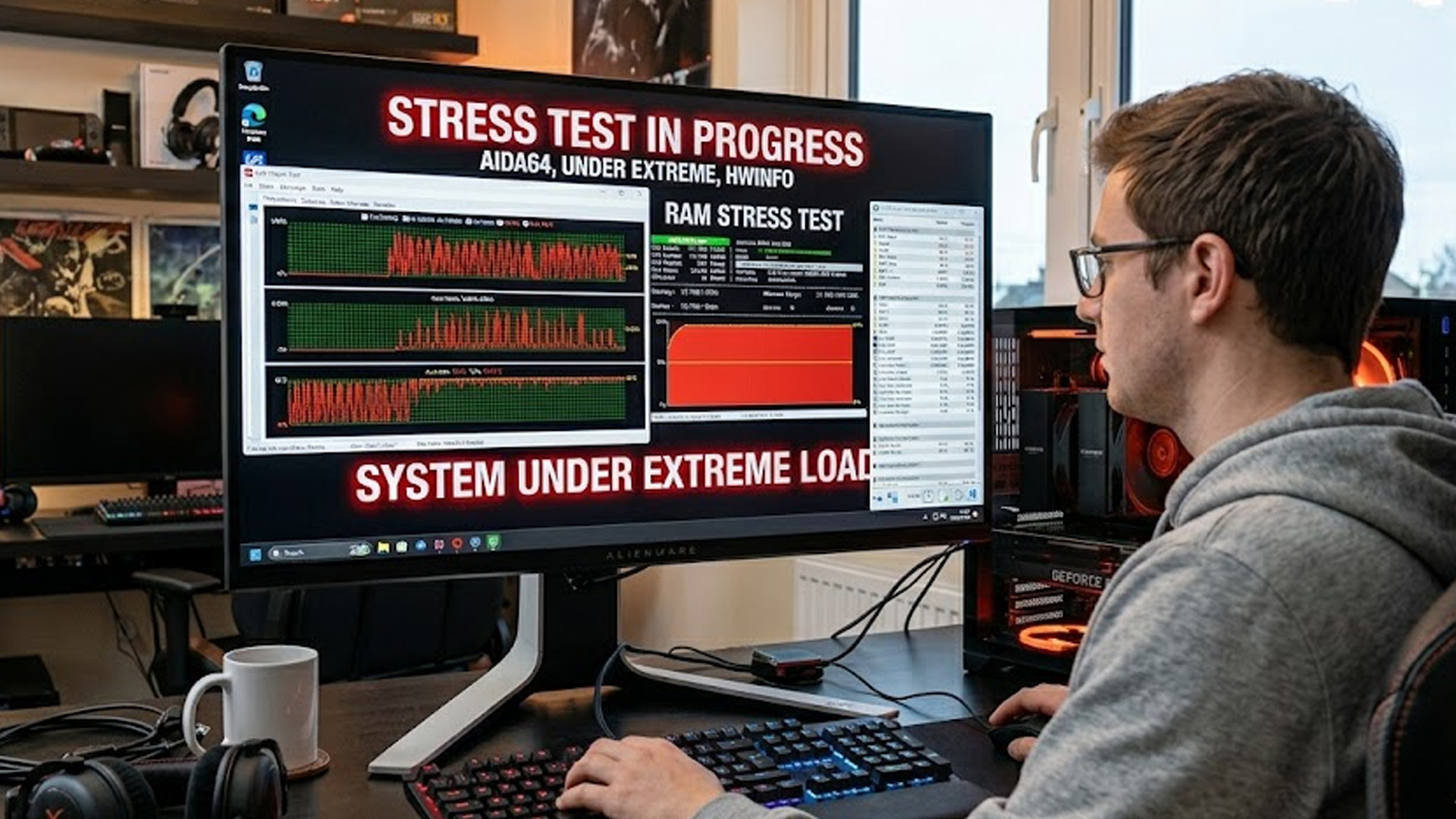
For deeper testing, a bootable RAM test is often preferred because it runs outside the operating system. This allows the tool to test memory more thoroughly without Windows and background apps occupying large areas of RAM.
A typical process looks like this:
- Download a memory testing tool such as MemTest86.
- Create a bootable USB drive.
- Restart your PC.
- Boot from the USB drive.
- Start the memory test.
- Let the test complete multiple passes.
- Review errors, if any appear.
Step 4: Test One RAM Stick at a Time If Errors Appear
If your RAM stress test shows errors, do not immediately assume every module is bad.
Test methodically:
- Turn off the PC.
- Remove all but one RAM stick.
- Test that stick.
- Repeat with each stick.
- Test different motherboard slots if needed.
This helps identify whether the issue is:
- A faulty RAM stick
- A faulty motherboard slot
- An unstable memory profile
- A compatibility issue
- A memory controller limitation
Step 5: Interpret RAM Stress Test Results
Your RAM test is usually successful if:
- It completes multiple passes
- No memory errors are reported
- The system does not freeze or restart
- You see no blue screens during or after testing
Warning signs include:
- Any reported RAM errors
- Freezes during testing
- Restart loops
- Failure to boot
- Errors only when XMP or EXPO is enabled
A single RAM error is enough to take seriously. Unlike a low benchmark score, memory errors can lead to data corruption, crashes, failed installations, and unpredictable behaviour.
How to Stress Test CPU and RAM for Stability
Testing CPU and RAM separately is useful, but some problems only appear when the entire system is under load.
A combined cpu and ram stress test is useful after:
- Building a new PC
- Installing new DDR4 memory or DDR5 computer memory
- Replacing a processor
- Updating BIOS
- Changing memory speed
- Upgrading cooling
- Experiencing crashes during gaming or creative workloads
Recommended Combined Testing Process
Use this order:
1. Run a CPU test first
Confirm the processor and cooling are stable.
2. Run a RAM test separately
Confirm the memory is reliable.
3. Run a combined system stress testing session
Load CPU and RAM together.
4. Run a real-world workload
Test the apps you actually use, such as games, video exports, CAD software, virtual machines, or development tools.
This order helps you isolate the problem. If you run every test at once immediately, you may know the system is unstable but not know why. If your CPU passes the stability test but still feels slow in demanding tasks, it may be time to compare CPU clock speed and core count to understand what really affects performance.
How Long Should You Stress Test a PC?
There is no single perfect test length. The right duration depends on what you are trying to prove.
|
USE CASE |
SUGGESTED TEST LENGTH |
|---|---|
|
New laptop check |
15–30 minutes |
|
New desktop build |
1–2 hours |
|
New RAM installation |
Multiple memory test passes |
|
Gaming PC stability |
1–3 hours plus real gameplay |
|
Workstation reliability |
4–8 hours |
|
Overclock testing |
Longer repeated tests with different workloads |
For most users, a practical approach is:
- Run a short CPU stress test
- Run a proper RAM stability test
- Run a combined system stress test
- Confirm with real-world usage
Do not rely on one tool alone. A PC can pass one synthetic test and still crash in a specific game, editing suite, or workload.
Common CPU and RAM Stress Testing Mistakes
Stress testing is only useful if you interpret the results correctly. Avoid these common mistakes.
Mistake 1: Only Testing for Five Minutes
A five-minute CPU test may catch obvious cooling issues, but it may miss heat buildup and long-term instability.
Mistake 2: Ignoring Temperatures
If your CPU test passes but temperatures are too high, the system may still throttle or age faster than necessary.
Mistake 3: Testing RAM Only Inside Windows
Windows-based memory tests are convenient, but bootable tools can often provide a deeper check.
Mistake 4: Assuming XMP or EXPO Is Always Stable
XMP and EXPO are advertising memory profiles, but they are still a form of performance tuning. Your motherboard, BIOS, CPU memory controller, and RAM kit all need to work together.
Mistake 5: Blaming the CPU Too Quickly
A failed stress test can be caused by:
- Weak cooling
- Old thermal paste
- Dust buildup
- Poor case airflow
- Power supply instability
- Incorrect BIOS settings
- Aggressive undervolting
- Motherboard VRM limitations
Mistake 6: Keeping Faulty RAM Installed
If a RAM test reports errors, do not ignore them. Faulty memory can create random problems that are difficult to trace later.
What To Do If Your PC Fails a Stress Test
A failed stress test is not the end of the world. It is a useful clue.
If the CPU Fails
Try this:
- Stop the test.
- Let the system cool down.
- Check CPU temperatures.
- Clean dust from fans and heatsinks.
- Improve airflow.
- Reapply thermal paste if needed.
- Reset overclock or undervolt settings.
- Update BIOS if appropriate.
- Retest.
If the processor is old, underpowered, or consistently throttling, it may be time to compare newer computer processors or review broader computer components for a balanced upgrade.
If the RAM Fails
Try this:
- Disable XMP or EXPO and retest.
- Test each RAM stick individually.
- Test different motherboard slots.
- Update BIOS.
- Check motherboard memory compatibility.
- Reduce memory speed slightly.
- Replace the faulty module if errors continue.
If you are upgrading, make sure the memory type matches your system. For older platforms, DDR4 memory may be the right choice. For newer builds, DDR5 computer memory may offer better future-ready performance, provided your motherboard and processor support it.
When Should You Upgrade Instead of Troubleshoot?
Sometimes stress testing reveals that your hardware is not broken; it is simply no longer suitable for your workload.
Consider upgrading if:
- Your CPU constantly runs at 100% in normal tasks
- Your RAM usage is frequently maxed out
- Your PC slows down during multitasking
- Games stutter despite stable temperatures
- Creative software takes too long to render
- Your laptop cannot handle modern workloads
- Your laptop RAM capacity is too low for your needs
- Your processor lacks the cores or speed required
Here is a simple decision guide:
|
PROBLEM |
LIKELY UPGRADE |
|---|---|
|
High CPU usage during normal tasks |
Processor upgrade |
|
Apps reload or freeze when multitasking |
More RAM |
|
Games stutter with background apps open |
More RAM or better CPU |
|
System overheats during stress testing |
Better cooling or airflow |
|
RAM errors appear repeatedly |
Replace RAM |
|
Slow performance but no instability |
CPU, RAM, or storage upgrade depending on bottleneck |
A stress test PC session helps you avoid unnecessary upgrades. Instead of replacing parts blindly, you can identify whether the issue is performance, stability, compatibility, or cooling.
CPU and RAM Stress Test Checklist
Use this checklist before and after testing.
Before Testing
- Back up important files
- Close unnecessary programs
- Plug in laptop power
- Check fans and vents
- Monitor temperatures
- Record current CPU and RAM settings
- Disable extreme overclocks if troubleshooting
During Testing
- Watch temperatures
- Check for errors
- Listen for unusual fan behaviour
- Stop if temperatures become unsafe
- Note when failures happen
After Testing
- Save results or screenshots
- Compare temperatures and performance
- Test one component at a time if errors appear
- Adjust settings carefully
- Retest after changes
- Upgrade only when the evidence supports it
Best Practices for Reliable System Stress Testing
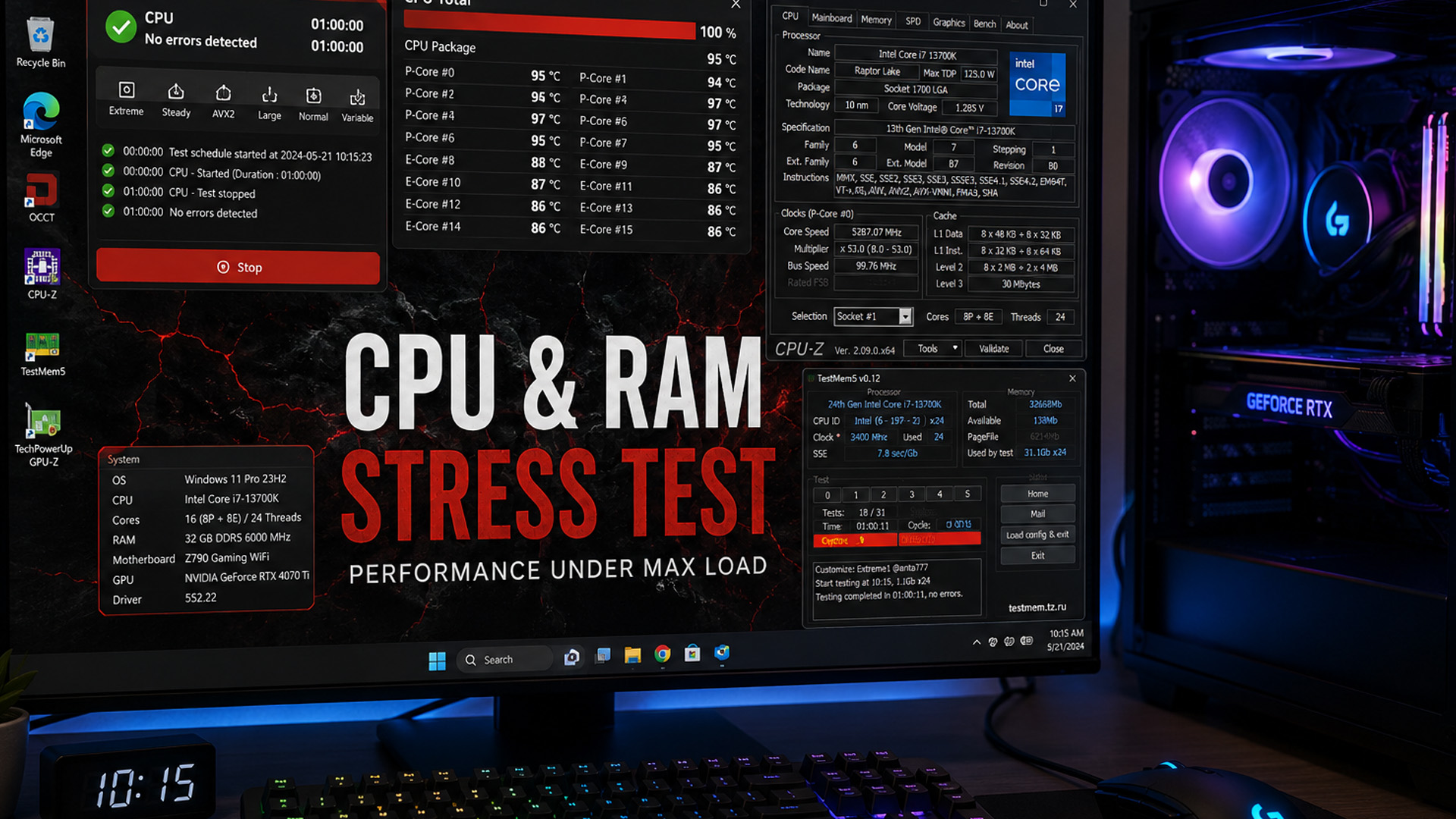
To get better results from your CPU RAM stress test:
- Test at stock settings first
- Use more than one tool if the issue is hard to diagnose
- Combine synthetic tests with real-world workloads
- Keep BIOS and drivers reasonably up to date
- Make sure RAM is installed in the correct slots
- Use matched RAM kits where possible
- Avoid mixing different memory speeds and capacities
- Check whether your motherboard supports your chosen RAM
- Improve cooling before pushing higher performance settings
- Do not ignore intermittent errors
A stable PC is not just faster. It is more predictable, more productive, and less frustrating.

Final Thoughts: A Stable PC Starts with Better Testing
A stress test CPU RAM process gives you something every PC user needs: confidence. Instead of guessing why your computer crashes, freezes, slows down, or restarts, you can test your CPU, test your RAM, monitor system behaviour, and make decisions based on evidence.
Run a CPU stress test to check processor stability. Run a RAM stress test to confirm memory reliability. Then run a combined system stress testing session to see how your PC performs under real pressure.
If the results are good, you can use your system with more confidence. If the results reveal a problem, you now know where to look next.

Common Questions for Stress Test CPU RAM
What is the best way to stress test CPU and RAM?
The best way is to test in stages. Run a CPU stress test first, then a RAM stress test, then a combined system stress test. This helps you identify whether instability comes from the processor, memory, cooling, power, or settings.
How to run a CPU stress test?
Choose a CPU testing tool, close unnecessary apps, monitor temperatures, and start with a short 10–15 minute test. If the system remains stable, run a longer test for 30 minutes to several hours depending on your goal.
How to test RAM stability?
Use a dedicated RAM stress test tool such as MemTest86 or Windows Memory Diagnostic. For deeper testing, bootable tools are useful because they run outside Windows and can test memory more thoroughly.
Is a CPU stress test safe?
It is generally safe when temperatures are monitored and the system is properly cooled. Stop the test if temperatures rise too high, the system becomes unstable, or you notice unusual noise or behaviour.
Is a RAM stress test safe?
Yes, RAM testing is generally safe. However, unstable memory can cause crashes, so save your work and back up important files before testing.
How long should I stress test my CPU?
For a quick check, 10–15 minutes is useful. For stronger stability confidence, test for 1–2 hours. Workstations or overclocked systems may need longer testing with multiple tools.
Related Articles


Last Updated: May 06, 2026
year is more than just a fresh calendar; it’s one of the best times of the year to upgrade your PC hardware for less. As retailers clear stock, introduce refreshed product lines, and compete for attention during seasonal sales, motherboard New Year deals 2026 unlock savings that simply aren’t available during regular months. Whether you’re planning a brand-new desktop build, upgrading an ageing system, or finally pairing a powerful CPU with a compatible board, New Year sales make high-end components far more affordable.
New Year Sale on AMD Motherboards

This New Year, AMD motherboard discounts make it easier than ever to build or upgrade your PC with powerful AM5 boards at lowered prices.
1. ASUS TUF GAMING X870E-PLUS WIFI7 ATX AMD Socket AM5 Motherboard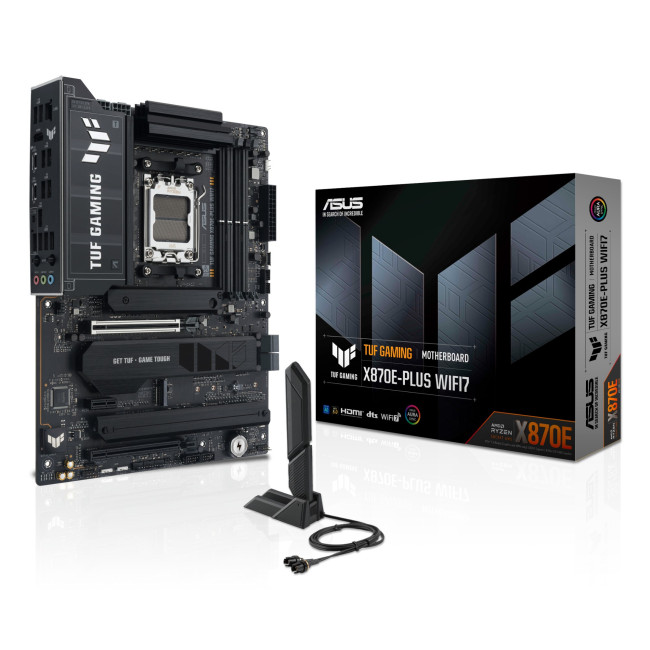
This flagship TUF board typically sits in the upper mid-range price bracket, but New Year Sale pricing often brings it into compelling territory compared to standard retail tags, shaving a noticeable percentage off regular prices.

Last Updated: January 27, 2026
Intel has remained a titan in the world of PC gaming for decades. Their processors power some of the most capable high-performance gaming desktops on the market today.
Recently, we have seen a massive shift in how these chips operate. The evolution from the classic Core i-series to the brand-new Ultra Core processors marks a new era. These advancements are not just about speed; they are redefining the entire gaming experience.
If you want a top-tier machine, understanding how Intel CPUs work in gaming desktops is essential.
The Role of a CPU in Gaming
The CPU acts as the brain of your computer. It handles every logic calculation and physics instruction required for your game.
CPU vs GPU: Understanding the Balance
The GPU handles the visuals and graphics rendering. Meanwhile, the CPU manages physics, logic, and artificial intelligence.
You need a strong balance between both components to avoid lag. If one is too slow, the other cannot perform at its full potential during intense sessions.

Last Updated: February 20, 2026
If you have been considering a high-performance processor upgrade this year, you may have noticed pricing staying firmer than expected. High-End CPU prices 2026 are under upward pressure, and in the UK, this often shows up as fewer meaningful discounts, shorter sale windows, and popular models holding close to launch pricing for longer.
A key driver is the scale of AI hardware demand 2026 and the wider push to expand AI data centres. While GPUs get most of the attention, large AI deployments also consume huge volumes of CPUs for orchestration, data handling, virtualisation, networking, and general system control. Recent industry reporting has pointed to rising pressure in high-end server CPU prices and tighter availability in some regions as AI-related demand ramps up.
This article explains what is changing, why it matters for premium desktop and laptop processors, how these pressures can filter into UK retail pricing, and what practical steps you can take to get better value when shopping

Last Updated: May 01, 2026
Wondering how much RAM you need? The practical answer is fairly simple. 8GB is still usable for basic laptop tasks; 16GB is the best all-around choice for most buyers, and 32GB is the right move for heavier gaming, creative work, coding, or extra long-term headroom.
For RAM shoppers, the real question is not just how much RAM a laptop can run. It is about how much memory will give you a smooth, comfortable experience for how you actually work, study, stream, game, and multitask every day. That is where the difference between 8GB vs 16GB RAM, or 16GB vs 32GB, starts to matter.
What RAM Actually Does?
RAM is your laptop’s short-term working memory. It holds the data your system needs right now, including browser tabs, open apps, video calls, spreadsheets, images, background services, and game assets. When you run out of RAM, the system starts leaning more heavily on storage as temporary working space. Even with a fast SSD, that is still slower than proper memory, which is why low-RAM
Last Updated: May 01, 2026
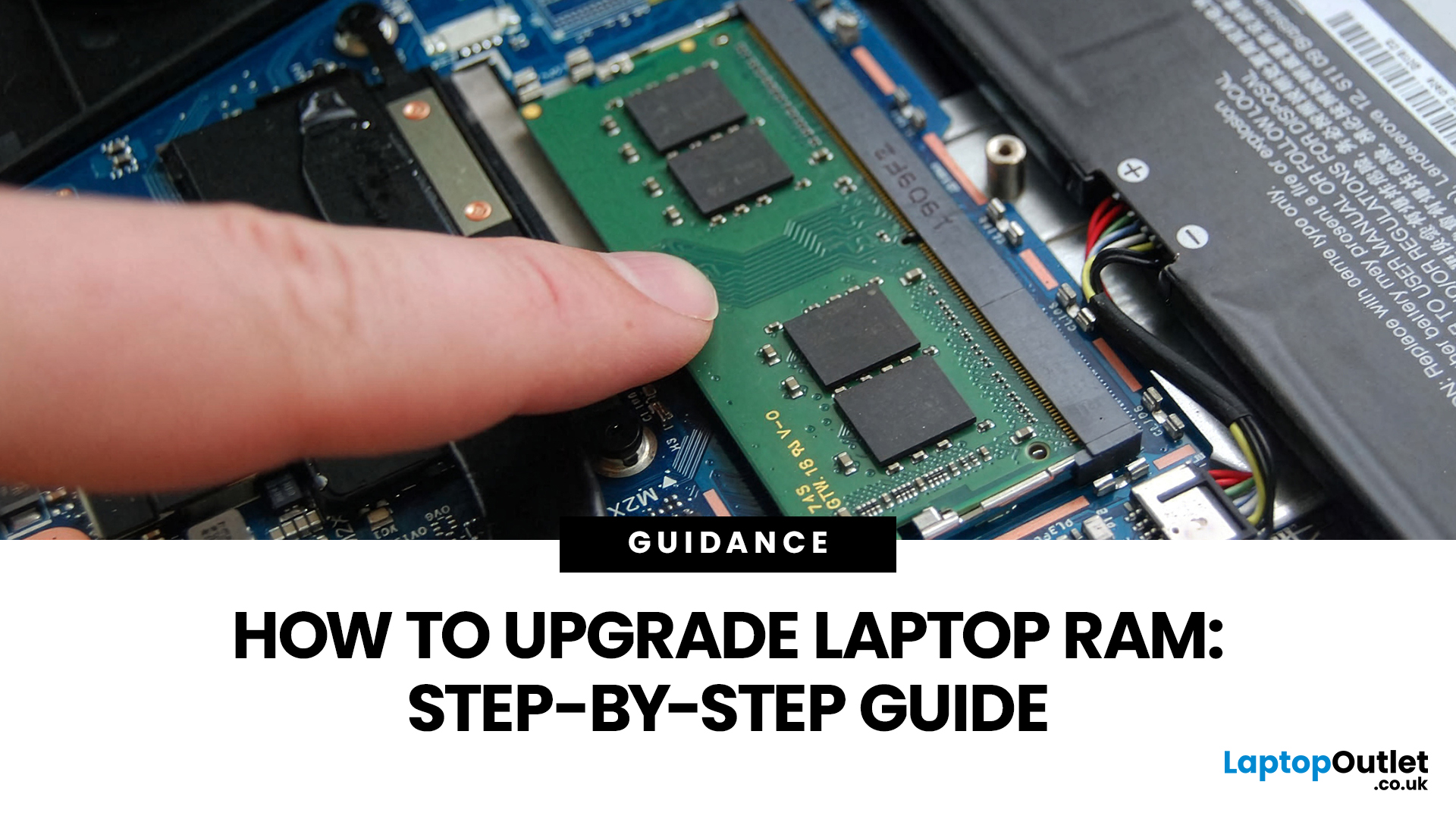
Upgrading laptop RAM is one of the simplest ways to make an older machine feel faster and more capable again, but only if the compatibility side is right from the start. That is the part many quick guides skip. Before buying anything, we always recommend checking whether the laptop has upgradeable memory, what RAM standard it uses, how much it supports, and whether upgrading means adding another module or replacing the existing setup.
For UK shoppers, that matters because a RAM upgrade can be a much smarter option than replacing a laptop too early. If a system slows down with lots of browser tabs, Office apps, study tools, or light creative work, upgrading the RAM can improve day-to-day responsiveness at a much lower cost than buying a new machine. If the laptop is already maxed out, has soldered memory, or is really held back by old storage, the better move may be to consider an SSD upgrade or a newer device.
Why Upgrade Laptop RAM in the First Place?
RAM is the short-term memory your

Last Updated: May 01, 2026
Memory cards look simply until you are standing there with a camera, drone, dash cam, or handheld console thinking, “Why does this tiny bit of plastic have more labels than a flight booking?” Fair. The names are confusing, the speed symbols look like exam questions, and buying the wrong one is a very expensive way to get absolutely nowhere.
So, let’s fix that.
This guide explains the main memory card types, the differences between SD, microSD, and CF, how memory cards work, and which card actually makes sense for your device. We’ll also answer the questions people ask all the time, like microSD the same as microSDXC, what is a CF card vs SD card, and how many pictures can a 64GB card hold. No waffle. No acronym soup. Just the stuff that helps you buy the right card first time.
Quick answer: what are the main types of memory cards?
Right now, the memory card world mostly splits into two big families: SD-based cards and CompactFlash-based cards. The SD family includes standard SD cards
Last Updated: May 06, 2026
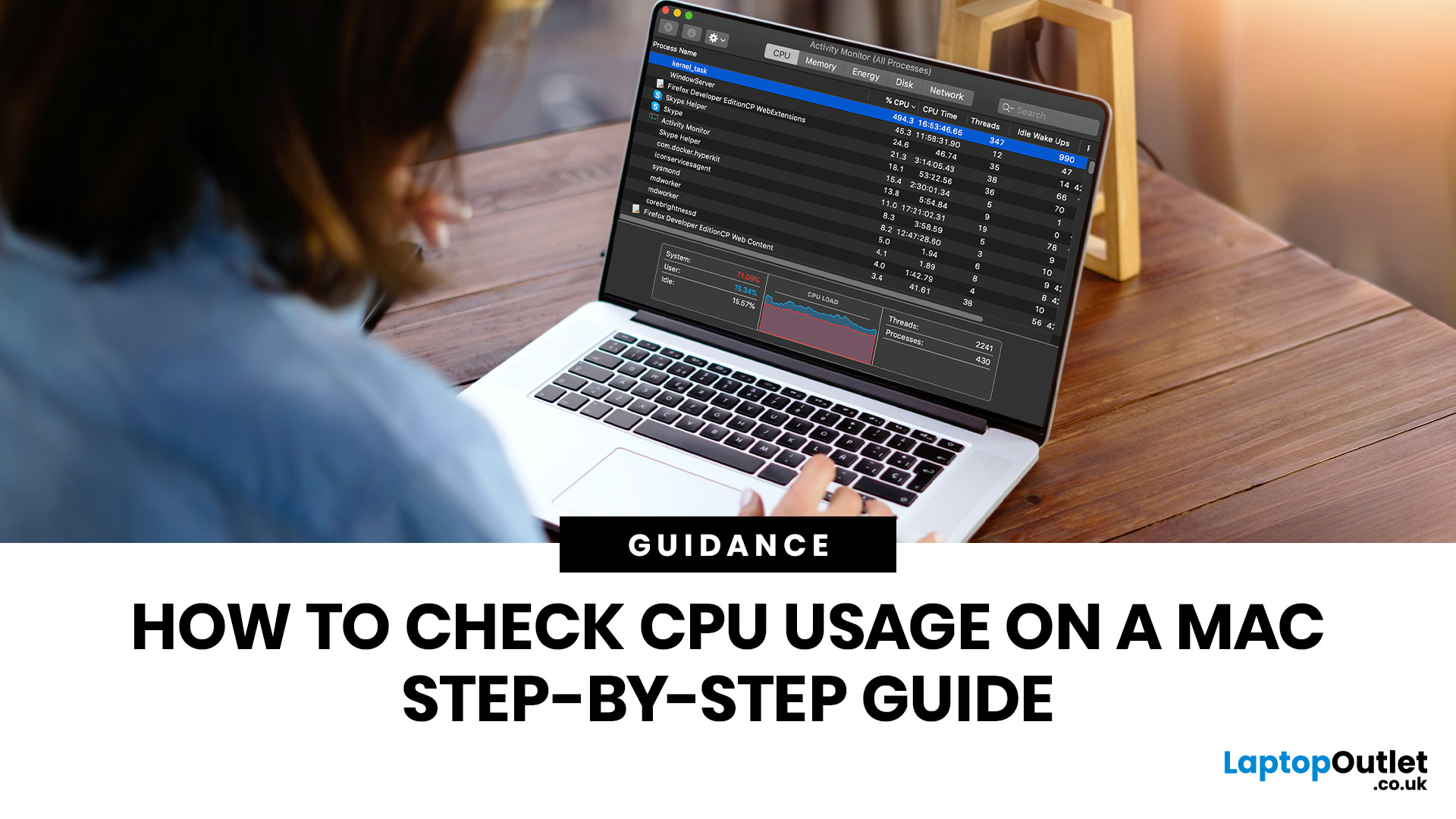
If you want to check CPU usage on a Mac, the fastest built-in method is Activity Monitor. Open it, click the CPU tab, and you can immediately see which APPs and processes are using the most processor power, along with overall User, System, and Idle percentages at the bottom of the window.
That makes CPU usage one of the most useful checks when your Mac feels slow, runs hot, drains battery quickly, or sounds busier than usual. In this guide, we will show you exactly how to see CPU usage on a Mac, how to interpret what you are looking at, and what to do next if one APP is using more processing power than it should.
How to See CPU Usage on a Mac
The easiest way to check processor usage on a Mac is to open Activity Monitor and click CPU. That view shows your Mac’s processor activity over time and lists active APPs and processes so you can spot what is using the most CPU. Apple also lets you open CPU Usage and CPU History from the Window menu for a more visual view.
If you want a quicker
Last Updated: May 13, 2026
DDR4 is basically the reliable older sibling of modern PC memory. It powered gaming rigs, office PCs, laptops, creator setups and budget builds for years. But now? DDR5 has entered the chat, and new PC hardware is slowly moving on.
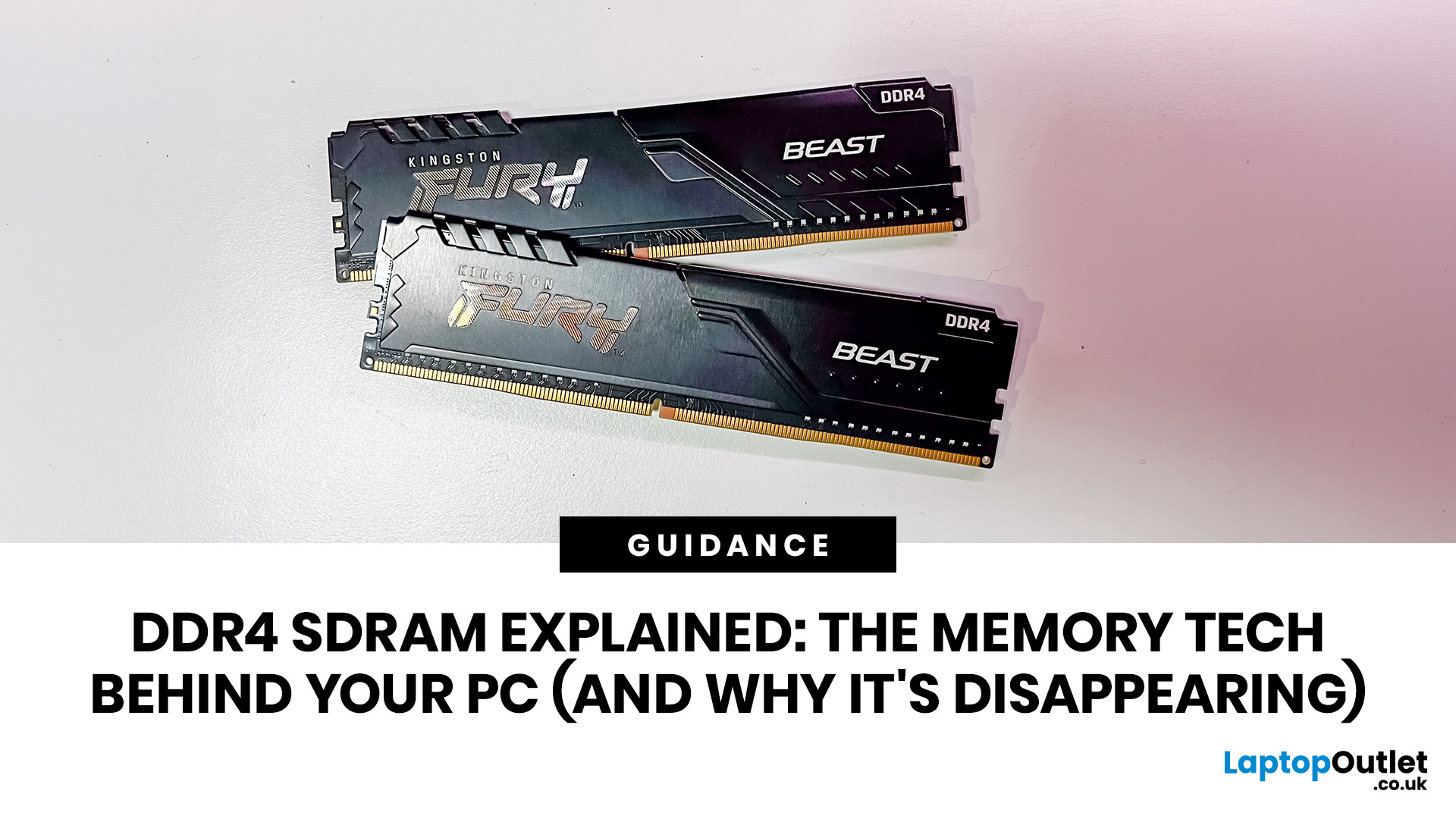
Still, DDR4 is not suddenly useless. Far from it. If your current PC uses DDR4, a memory upgrade can still make your system feel faster, smoother and less stressed. This guide has DDR4 SDRAM explained in plain English: what DDR4 memory is, how it works, how it compares with DDR5, and why it is gradually disappearing from new builds.
What is DDR4 SDRAM?
DDR4 stands for Double Data Rate 4. SDRAM stands for Synchronous Dynamic Random-Access Memory. Put together, DDR4 SDRAM is a type of computer memory used in desktops, laptops, workstations and servers.
In normal human terms, DDR4 is the short-term memory your PC uses while it is switched on. It temporarily holds the data your processor needs right now, such as open browser tabs, game assets, APPs, system

Last Updated: June 10, 2026
The 2026 RAM crunch is being driven by AI data centre demand. Memory makers are shifting capacity towards high-bandwidth memory, server DDR5, and enterprise SSDs, leaving less supply for consumer laptops. As a result, laptop RAM and SSD costs may rise, making many 2026 laptops more expensive or less generously specified.
If you were hoping laptop prices would settle down in 2026, the RAM market may have other plans.
The AI boom is pushing huge demand for memory chips, including DDR5, SSD storage, and high-bandwidth memory used in data centres. As manufacturers prioritise these high-margin AI products, consumer laptops could face tighter supply and higher component costs.
For UK buyers, that may mean more expensive laptops in 2026, fewer strong discounts, and budget models with weaker specs than before.
What Is the 2026 RAM Crunch?
The 2026 RAM crunch is a global memory shortage caused by rising demand for AI servers, high-bandwidth memory, DDR5 server memory, and enterprise SSDs.
In
Last Updated: June 18, 2026
For most buyers in 2026, the best laptop specs are a modern Intel Core Ultra 5/7 or AMD Ryzen AI 5/7 processor, 16GB RAM, 512GB SSD storage, and integrated graphics. Choose 32GB RAM, 1TB storage, and a dedicated GPU if you edit videos, create content, play demanding games, or use professional software.
Buying a new laptop in 2026 can feel confusing, especially when every product page is packed with technical words, numbers, and abbreviations. This processors & specs explained guide breaks everything down in plain English so you can understand what matters before you spend your money.
For most buyers, the four most important laptop components are the CPU, RAM, GPU, and storage. Once you understand these, it becomes much easier to compare models, avoid overspending, and choose a laptop that actually suits your daily needs.
What are Laptop Specs and Why Do They Matter?
Understanding laptop specifications becomes important. Specs affect:
- How fast your laptop feels when opening apps.
- How many

