



Mechanical vs Membrane Keyboards for Gaming: Which One Should You Choose?
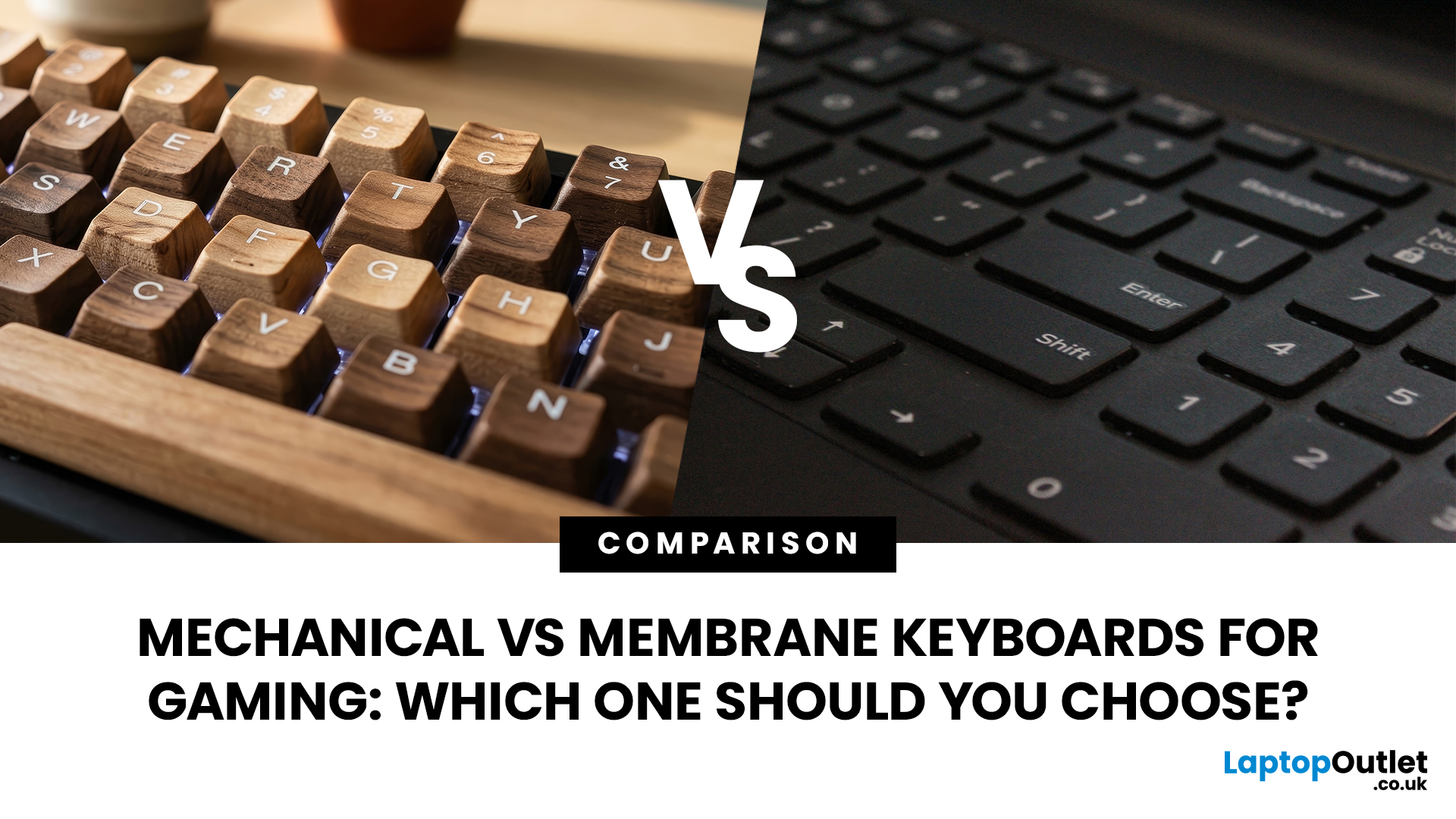
In the mechanical vs membrane keyboard debate, mechanical keyboards generally win on gaming performance, offering individual switches, full N-key rollover, lower input lag and durability rated up to 100 million keystrokes. Membrane keyboards stay quieter, lighter and cheaper, which suits casual or budget setups. Competitive and frequent gamers usually benefit most from mechanical, while occasional players can stick with a membrane board.
This guide breaks the debate down factor by factor, covering performance, durability, typing feel, noise, price and portability, so you can work out which keyboard genuinely suits how you play and game in 2026.
Mechanical vs Membrane Keyboard for Gaming: What Changes When You Play
Every gaming keyboard on the market is built around one of two mechanisms underneath the keycaps. That single design choice affects speed, sound, feel, price and how long the keyboard lasts. Here's the short version before we dig into each factor properly.
|
At a Glance: Mechanical vs Membrane Keyboards |
||
|
Factor |
Mechanical |
Membrane |
|
Switch type |
Individual switch per key |
Rubber dome over a circuit sheet |
|
Gaming performance |
Faster, more consistent actuation |
Fine for casual play |
|
Rated lifespan |
50–100 million keystrokes |
5–10 million keystrokes |
|
Noise |
Quiet to loud, depending on switch |
Quiet by default |
|
UK price (2026) |
Roughly £30–£200+ |
Roughly £10–£45 |
|
Weight |
Heavier |
Lighter |
|
Repairs |
Often hot-swappable |
Usually full replacement |
Many gaming keyboards, mechanical or membrane, now include per-key RGB lighting as standard, so backlighting alone isn't a reason to pick one type over the other. The real differences sit underneath the keycap, and that's where the rest of this guide digs in.
Mechanical vs Membrane: How They Actually Work
A mechanical keyboard uses a separate switch under every key. Each switch contains a spring, a stem and a set of metal contacts, so pressing one key has no effect on any other key's circuit.
A membrane keyboard works differently. Membrane keys sit above a thin rubber dome layer and a pair of flexible plastic sheets printed with conductive traces. Pressing a key pushes the dome down until the traces meet and complete the circuit, which is a simpler, cheaper design to manufacture at scale.
This construction difference is the root cause of almost every other difference in this guide, from how fast a keystroke registers to how many years the board survives regular gaming.
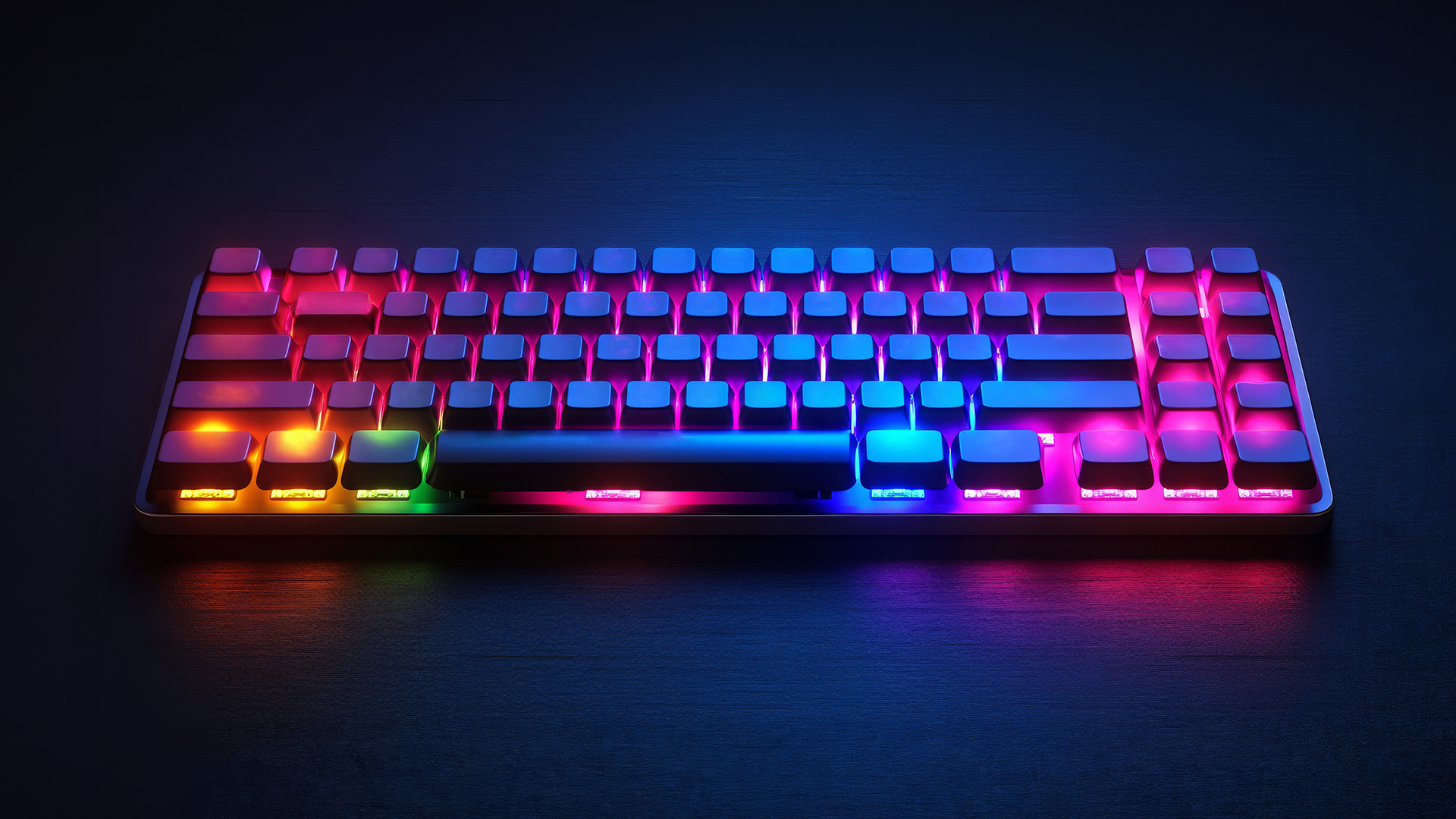
Gaming Performance: Input Lag, Actuation and N-Key Rollover
Mechanical keyboard gaming performance is most noticeable in fast, twitch-based titles. Because each key has its own switch, many mechanical and optical switches register a keystroke at a defined actuation point, often somewhere around 1.2mm to 2mm into a roughly 4mm total travel, rather than waiting for you to bottom the key out.
Membrane keyboards typically need the key pressed closer to the full travel distance before the rubber dome completes the circuit against the traces beneath it. In practice, this usually adds a small amount of extra travel time per keystroke, though the real-world impact is minor for most players outside the highest levels of competitive play.
Independent testing has generally found mechanical and optical switches registering inputs in roughly 0.2 to 1 millisecond, with quality membrane boards sitting a little higher, often in the 1 to 3 millisecond range. At casual and mid-level play, this gap is rarely something you'd consciously notice.
Rollover matters more day to day. Most mechanical gaming keyboards support full N-key rollover (NKRO), meaning every key you press registers regardless of how many others are already held down. Membrane keyboards commonly offer 6-key rollover on decent models, which covers the vast majority of gaming scenarios, though budget membrane boards that share circuits across keys can occasionally drop an input during complex combinations like strafing, crouching and reloading at once.
|
Performance Comparison |
||
|
Metric |
Mechanical |
Membrane |
|
Input registration |
~0.2–1ms (optical/mechanical) |
~1–3ms, typical |
|
Actuation point |
Partial travel (often 1.2–2mm of ~4mm) |
Usually near full travel |
|
Key rollover |
Commonly full N-key rollover |
Commonly 6-key rollover (varies) |
|
Consistency over time |
Stable for the switch's rated life |
Can soften unevenly with heavy use |
Want to understand N-key rollover properly? Read our full guide to N-Key Rollover and anti-ghosting in gaming keyboards for a closer look at how it stops missed inputs during fast combos.
Durability and Lifespan
Durability is where the gap between the two technologies is widest and best documented. Mechanical switch manufacturers such as Cherry, Gateron and Kailh commonly rate their switches for between 50 and 100 million keystrokes per key, with some specialist optical and Hall effect switches rated even higher.
Membrane keyboards are typically rated for around 5 to 10 million keystrokes before the rubber domes begin to lose consistency. In real terms, that often works out to somewhere between one and three years of regular gaming, depending on how hard and how often you play.
Repairability adds to the gap. Many modern mechanical keyboards use hot-swappable sockets, so a single worn or faulty switch can be pulled out and replaced without any soldering. A failed membrane, on the other hand, usually means replacing the whole keyboard, since the rubber dome sheet isn't designed to be repaired.
|
Durability Comparison |
||
|
Metric |
Mechanical |
Membrane |
|
Rated keystrokes |
50–100 million per switch |
5–10 million |
|
Typical real-world lifespan |
Around 5–10+ years of regular use |
Around 1–3 years of regular use |
|
Repairability |
Hot-swap sockets on many models |
Usually a full replacement |
Typing Feel and Comfort
Mechanical switches come in three broad feel categories: linear (smooth, no bump), tactile (a distinct bump with no click) and clicky (a bump plus an audible click). Because you can choose the switch, mechanical keyboards let you match the feel to your hands rather than accepting whatever the manufacturer decided.
Membrane keys feel softer and mushier by comparison, since the entire keystroke rides on a single rubber dome rather than a defined mechanical action. Some gaming-focused membrane boards use scissor-switch mechanisms borrowed from laptop keyboards to add a bit more structure, which narrows the gap somewhat.
Neither feel is objectively correct. Plenty of long-time typists prefer the lighter touch of membrane keys, while others find the tactile confirmation of a mechanical switch reduces finger fatigue during long gaming sessions, since you don't need to bottom out every key to register it.
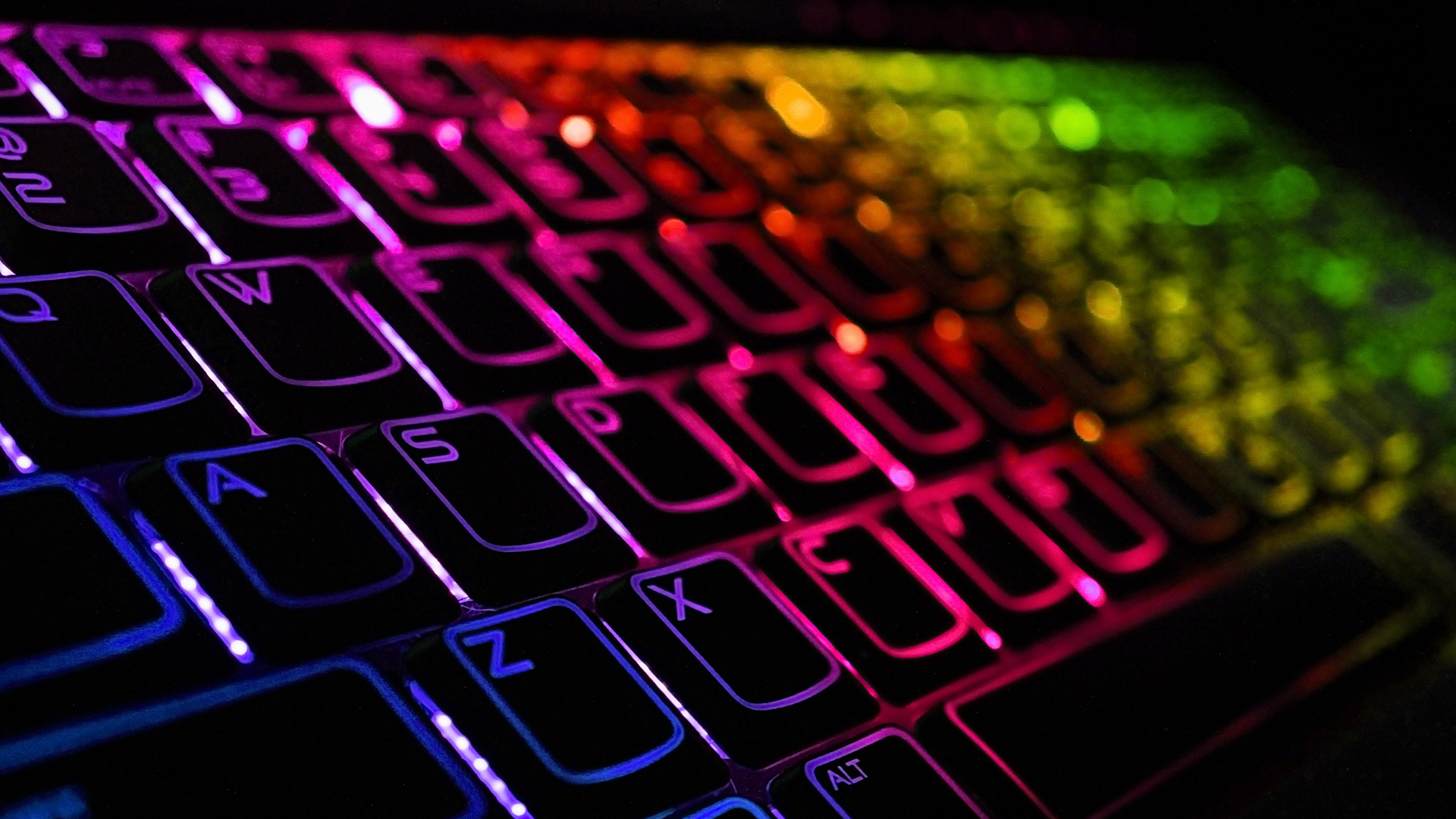
Noise Levels for Gaming, Streaming and Shared Spaces
Membrane keyboard gaming setups are usually the quieter option straight out of the box, since there's no physical click mechanism and the rubber dome absorbs most of the sound of a keystroke.
Mechanical keyboards span a much wider noise range. Clicky switches are the loudest, tactile switches sit in the middle, and linear switches are quieter still since there's no bump or click at all. Silent or dampened linear switches, combined with foam-lined cases and stabiliser O-rings, can bring a mechanical board down to a noise level that rivals membrane, though this usually takes a deliberate switch choice rather than happening by default.
|
Noise by Switch Type |
||
|
Switch / type |
Typical noise |
Best suited to |
|
Clicky mechanical |
Loud, audible click |
Solo gaming, not shared rooms |
|
Tactile mechanical |
Moderate |
Most home gaming setups |
|
Linear mechanical |
Moderate, no click |
FPS gaming, careful streaming |
|
Silent/dampened mechanical |
Quiet |
Late-night gaming, shared spaces |
|
Membrane |
Quiet by default |
Shared spaces, offices, casual play |
Best Mechanical Switches for Gaming: Linear, Tactile, Clicky and Beyond
Picking the right keyboard switches for gaming is arguably a bigger decision than mechanical versus membrane on its own, since switch feel varies enormously within the mechanical category alone.
Linear switches, such as Cherry MX Red or Gateron Red style switches, move smoothly from top to bottom with no bump or click. Many competitive FPS players favour linear switches because there's nothing interrupting a fast, repeated keystroke.
Tactile switches add a small bump partway down the keystroke, giving physical confirmation that the key has actuated without the noise of a click. They suit players who split their time between gaming and typing or coding.
Clicky switches add an audible click on top of the tactile bump. They're satisfying to type on but are generally the least practical choice for gaming, particularly if you stream or use voice chat, since a microphone will pick up every click.
Hall effect, TMR and optical switches represent the newest wave of gaming-focused technology. These use a magnetic field or a light beam rather than physical metal contacts, which allows features like adjustable actuation points and rapid trigger, where the key resets the instant you release it rather than waiting for a fixed reset point. This is particularly useful for fast direction changes in shooters and for rhythm games.
|
Switch Types Compared |
||
|
Switch type |
Feel |
Best for |
|
Linear |
Smooth, no bump or click |
Fast FPS, rapid repeated presses |
|
Tactile |
Bump, no click |
Mixed gaming and typing |
|
Clicky |
Bump plus audible click |
Typing feel, less ideal for streaming |
|
Hall effect / TMR / optical |
Adjustable actuation, rapid trigger |
Competitive FPS, rhythm games |
Ready to see specific models? Our guide to the best gaming keyboards in 2026 lists tested picks across mechanical, membrane and Hall effect switches at every UK budget.
Price Comparison in the UK (2026)
If you're after budget gaming peripherals to get started, a basic membrane keyboard from around £10 to £25 will do the job for casual play. Gaming-focused membrane models with RGB lighting and macro keys generally sit between £25 and £45.
On the mechanical side, genuinely usable budget mechanical keyboards now start around £30 to £60, covering brands such as Redragon, Royal Kludge and entry-level Logitech and Corsair models. Mid-range boards between roughly £50 and £100 often add hot-swappable sockets or Hall effect switches, while premium wireless mechanical keyboards with multi-device support and premium materials typically run from £100 up to £200 or more.
|
UK Price Tiers (2026) |
|||
|
Tier |
Type |
UK price range |
What you typically get |
|
Entry membrane |
Membrane |
£10–£25 |
Basic gaming features, occasional spill resistance |
|
Gaming membrane |
Membrane |
£25–£45 |
RGB lighting, macro keys, sturdier switches |
|
Budget mechanical |
Mechanical |
£30–£60 |
True mechanical switches, TKL or full-size |
|
Mid-range mechanical |
Mechanical |
£50–£100 |
Hot-swap sockets, some Hall effect options |
|
Premium wireless mechanical |
Mechanical |
£100–£200+ |
Multi-device wireless, premium build, long battery life |
Prices move fairly often around UK sales periods, so it's worth checking current listings rather than treating any figure here as fixed. You can browse gaming keyboards range to compare mechanical and membrane options across these price bands directly.
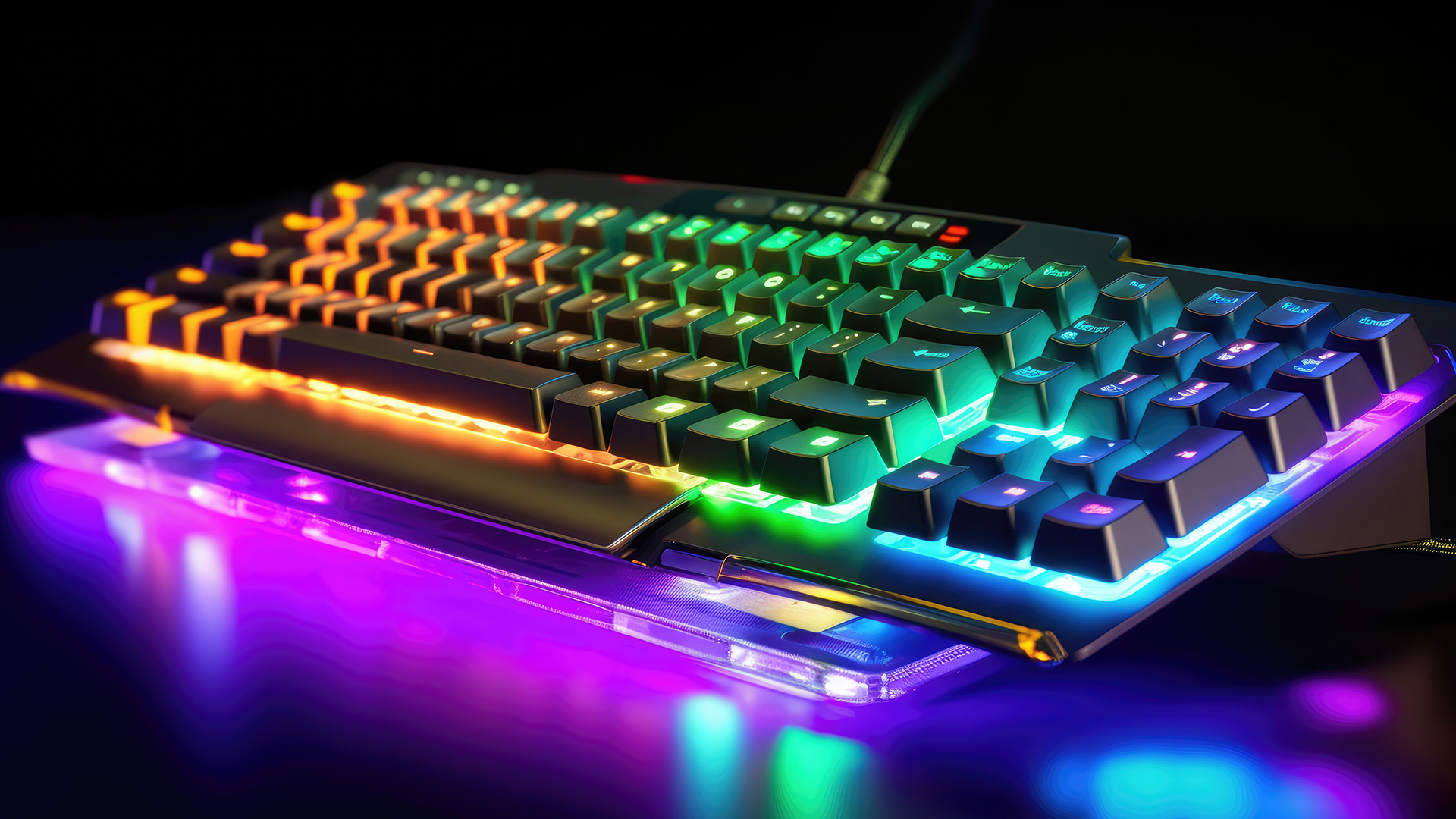
Portability, Build Quality and Wireless Options
Membrane keyboards are usually lighter and slimmer, making them the easier option to shove in a bag. Compact 60% and 65% mechanical layouts have narrowed this size gap considerably, though they remain heavier due to their rigid internal frames. However, this extra weight gives mechanical keyboards far superior build quality.
A wireless connection used to mean a noticeable latency trade-off, but that has largely changed for both types. Modern gaming keyboards use a dedicated 2.4GHz RF connection that reports input at close to 1 millisecond, which most players won't distinguish from a wire. Bluetooth modes on both styles are fine for casual multi-device switching, but competitive players still favour 2.4GHz or wired connections.
Where they truly compete is battery life. Wireless membrane keyboards need very little power and can last for months or years. In contrast, wireless mechanical keyboards are power-hungry; they can last a few hundred hours with the lights off, but full RGB brightness can drain the battery in just 40 hours.
Which Keyboard Type Suits Your Games?
Different game genres put different demands on a keyboard. Here's a rough guide to what tends to matter most for each.
|
Best Keyboard Type by Game Genre |
||
|
Game type |
Better suited |
Why |
|
Competitive FPS |
Mechanical (linear/Hall effect) |
Fast, consistent actuation and full rollover |
|
MOBA |
Mechanical or quality membrane |
Multiple simultaneous keybinds reward good rollover |
|
MMO |
Mechanical with macro support |
Complex keybinds and heavy daily use reward durability |
|
Racing/flight sims |
Either |
Hall effect switches add precision, but aren't essential |
|
Casual/single-player |
Membrane or budget mechanical |
Performance gap is rarely noticeable at this pace |
Ready to see specific models? Our guide to the best gaming keyboards in 2026 lists tested picks across mechanical, membrane and Hall effect switches at every budget.
Membrane vs Mechanical for Gaming: A Quick Decision Guide
If you're still weighing up a mechanical vs membrane keyboard purchase, this quick checklist should help settle it.
| Choose mechanical if | Choose membrane if |
|
|
Understanding the two main gaming keyboard types this way, rather than assuming one is universally "better", tends to produce a choice you'll actually be happy with months later.
Completing Your Gaming Setup
A keyboard is only one part of a complete setup. Pairing your keyboard with an affordable wired and wireless mouse rounds out the essentials, and it's worth checking that both devices support the connection type you actually plan to use, whether that's USB, 2.4GHz RF or Bluetooth.
Many gamers also upgrade their headset alongside their keyboard. A headset with a noise-cancelling microphone helps teammates hear callouts clearly over switch noise and background sound, which matters more than people expect once you switch from membrane to a clicky mechanical board. A Bluetooth headset with custom EQ settings is also handy if you regularly switch between gaming audio and calls without swapping hardware.
Another great option is to look at combos of the top keyboard and mouse options. Combos can work out cheaper if you don't have strong preferences on either device.

Mechanical for Performance, Membrane for Practicality
There's no single winner in the mechanical vs membrane keyboard debate; the right choice depends on how you game.
Mechanical keyboards suit competitive players who want faster actuation, full N-key rollover and switches rated for tens of millions of keystrokes. Membrane keyboards remain a sensible pick for casual gaming, tight budgets or households that need a quieter setup.
If you play FPS or fast-paced multiplayer titles regularly, a mechanical board is worth the extra cost. If you game occasionally or share a space with others, a quality membrane keyboard still gets the job done without breaking the bank.

A Few More Things Worth Knowing...
What is better, mechanical or membrane keyboard?
The mechanical vs membrane keyboard choice depends on use. Mechanical generally performs better for gaming, thanks to faster actuation, individual switches and full N-key rollover. Membrane suits casual play, quieter environments and tighter budgets.
Is a mechanical keyboard worth the extra cost?
Yes, for regular gamers. Mechanical switches are rated for 50 to 100 million keystrokes versus roughly 5 to 10 million for membrane, so the higher price often pays off over years of use with better accuracy and consistency.
Are membrane keyboards good for gaming?
Membrane keyboards work fine for casual and single-player gaming, and modern gaming-focused membrane models include RGB lighting and reasonable rollover. For competitive multiplayer or fast FPS titles, mechanical or Hall effect switches generally offer a noticeable edge in speed and consistency.
What is the lifespan difference between mechanical and membrane keyboards?
Mechanical switches are typically rated for 50 to 100 million keystrokes, roughly 10 to 15 years of regular use. Membrane keyboards are usually rated around 5 to 10 million keystrokes, often needing replacement within 1 to 3 years of heavy daily gaming.
Do wireless mechanical keyboards work as well as wired ones for gaming?
Yes, for most players. A good wireless mechanical keyboard using 2.4GHz RF typically adds only 1 to 2 milliseconds of latency, unnoticeable outside elite competitive play. Bluetooth suits casual gaming, but wired or RF connections are still preferred for esports.
| Read More: |
| Top Wireless Keyboards and Mice for Work and Gaming in 2026 |
| What to Look for When Buying a Refurbished Keyboard? |
| Speed Up Your PC with Windows Keyboard Shortcuts Guide |
Related Articles


Last Updated: December 19, 2025
Emojis have become a language of their own, especially for the Gen Z and Alphas. You’re replying to an email, chatting on WhatsApp Web, creating social posts, or even completing work messages with a little personality, being able to type emojis using your keyboard saves time and makes communication more expressive.
Let’s learn the easiest ways to type emojis on Windows, Mac, Chromebooks, and even mobile keyboards. No more copy-and-paste from emoji websites, you’ll be able to insert any emojy in seconds.
Why Use Keyboard Emojis?
Before we get into shortcuts, here’s why knowing them matters:
- Fast: Add emojis without switching tabs or using your mouse.
- Professional + fun: Modern workplaces increasingly accept emojis for clarity and tone.
- Easy to remember: Once you learn shortcuts, they feel natural.
- Universal: Works across apps - Word, Slack, Teams, Gmail, Instagram, web browsers, and more.
Now let’s jump into the shortcuts for every device. If you enjoy adding creativity to your messages,

Last Updated: February 13, 2026
Because nothing kills the vibe faster than a laptop, that suddenly decides your fingers are irrelevant.
You sit down. You open your laptop. You’re mentally prepared to be productive (or at least pretend). And then .....boom... your laptop touchpad is not working. Or your laptop keyboard is not working. Or worse… both.
At this point, your laptop isn’t broken; it’s personally offended by you.
Before you rage-buy a new device or spiral into tech despair, here’s the good news: most laptop keyboard problems and touchpad issues are completely fixable. And no, you don’t need a computer science degree or a sacrifice to the tech gods.
This guide is not one of those vague “restart your device” articles and call it a day. This is a deep-dive, all-reasons, all-solutions, no-BS troubleshooting guide, written in human language, with enough detail to actually solve the problem.
We’ll cover:
- Software vs hardware problems (and how to tell the difference)
- Every common and uncommon reason your laptop input
Last Updated: April 22, 2026
Stop reaching for the mouse every five seconds. Windows keyboard shortcuts are one of the fastest, simplest ways to boost your daily output - whether you're writing reports, navigating spreadsheets, or juggling a dozen open tabs at once.
This complete guide covers every shortcut worth knowing across Windows 10 and Windows 11, from the basics to the more advanced tricks that most people never discover.
Why Keyboard Shortcuts Are Worth Learning
Most people pick up one or two shortcuts by accident and never go any further. Yet the productivity gap between someone who relies on a mouse and someone genuinely fluent in shortcuts is striking - you spend less time clicking, less time searching, and considerably more time actually doing the work.
Here's what mastering shortcuts gives you:
- Speed: Tasks that take three clicks happen in milliseconds
- Concentration: Your hands stay on the keyboard, your eyes on the screen
- Less strain: Reduced repetitive mouse movement means fewer aches over a long
Last Updated: May 06, 2026
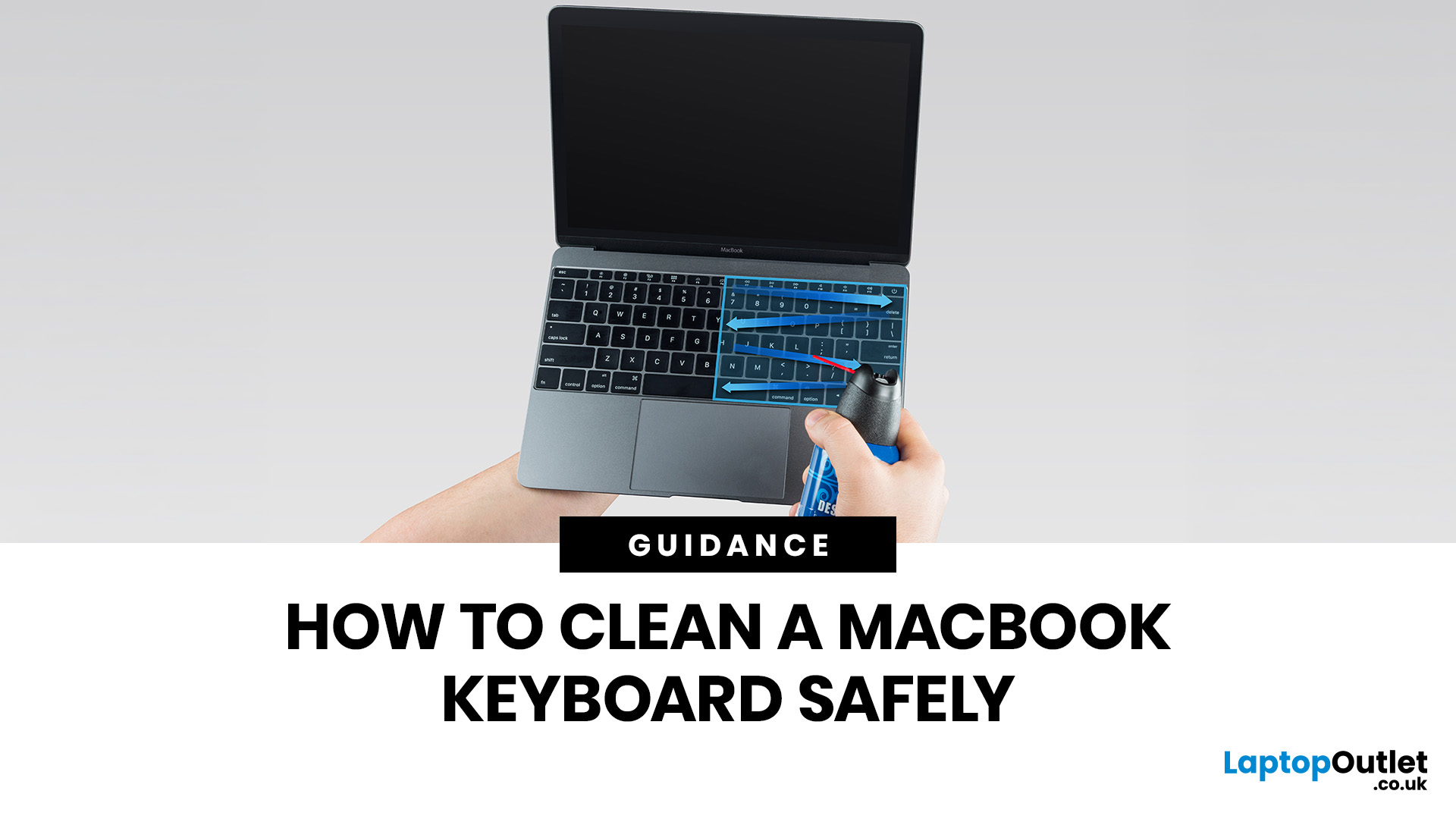
MacBook keyboard cleaning is simple when you do it the Apple-safe way: shut the laptop down, unplug it, use a soft lint-free cloth, keep moisture out of the openings, and never spray cleaner directly onto the keyboard. If you need to disinfect the surface, Apple says you can gently wipe off the hard, non-porous exterior, including the keyboard, with a 70 per cent isopropyl alcohol wipe, a 75 per cent ethyl alcohol wipe, or a disinfectant wipe.
That is the short version. The longer version matters because MacBook keyboards are not built for chaotic cleaning energy. Too much liquid, the wrong cleaner, or one “quick” spray straight onto the keys can turn a dusty keyboard into an expensive repair story. We will discuss today how to clean a Mac keyboard properly, how to remove dirt from MacBook keys, when compressed air makes sense, what not to use, and when a keyboard issue is no longer a cleaning job.
Quick Answer: How Can We Clean a MacBook Keyboard Safely?
The safest way to clean a MacBook
Last Updated: June 10, 2026
Mac keyboard shortcuts help you copy, paste, search, switch apps, manage files, take screenshots, and control system features faster from the keyboard. This 2026 guide explains the essential shortcuts, the meaning of Apple's modifier keys, practical shortcuts for everyday work, and the easiest ways to customise them for a smoother workflow.
What Are Mac Keyboard Shortcuts, And Why Should You Use Them?

Mac keyboard shortcuts are key combinations that carry out actions you would otherwise do with a mouse or trackpad. Apple notes that these shortcuts can save time, but also points out that some shortcuts vary by app, keyboard layout, and language.
For most people, the biggest benefit is speed. Copying text, opening Spotlight, closing tabs, switching apps, and locking the screen all feel quicker when your hands stay on the keyboard.
The same core shortcuts work across modern Macs, including MacBook, iMac, and Mac mini, as long as the keyboard layout matches.
If you are also comparing machines
Last Updated: October 12, 2026
Last Updated: June 11, 2026
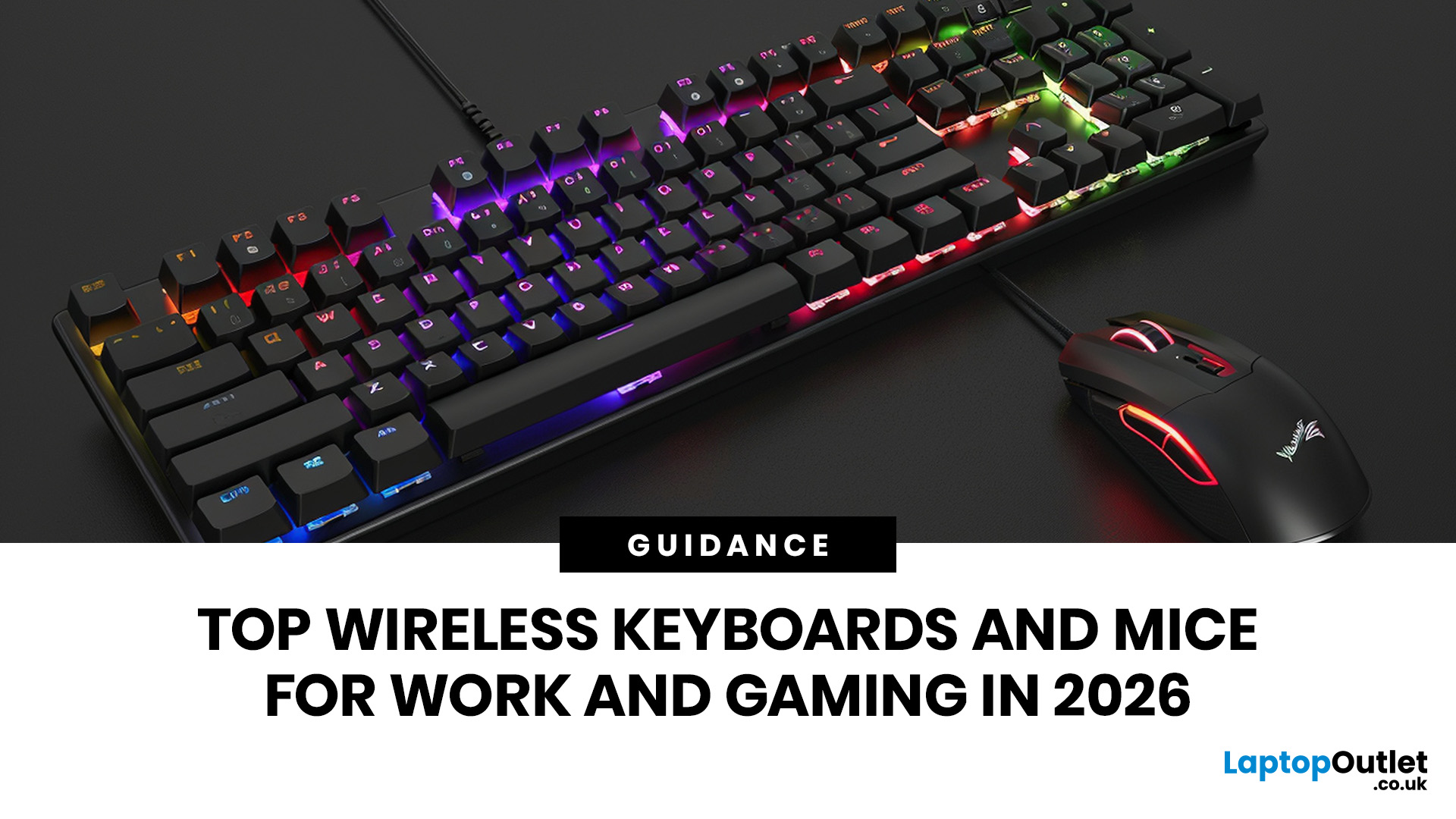
For a clean and minimalist look of your working or gaming setup, choosing the right wireless mouse and keyboard can make a bigger difference than you think.
If you're on a budget, the Logitech Wireless Mouse M235 is a reliable and affordable option.
For UK shoppers in 2026, the best setup is for comfort, connectivity, battery life, accuracy, layout, and daily usability. Some people need a simple keyboard mouse combo for emails and spreadsheets. Others want fast switches, RGB lighting, ultra-light mouse movement, and reliable wireless performance for gaming.
This guide breaks down the best wireless keyboard mouse UK options from Laptop Outlet, covering work-friendly sets, Bluetooth-ready mice, premium
Last Updated: July 16, 2026
Published: July 08, 2026
Last Updated: July 10, 2026
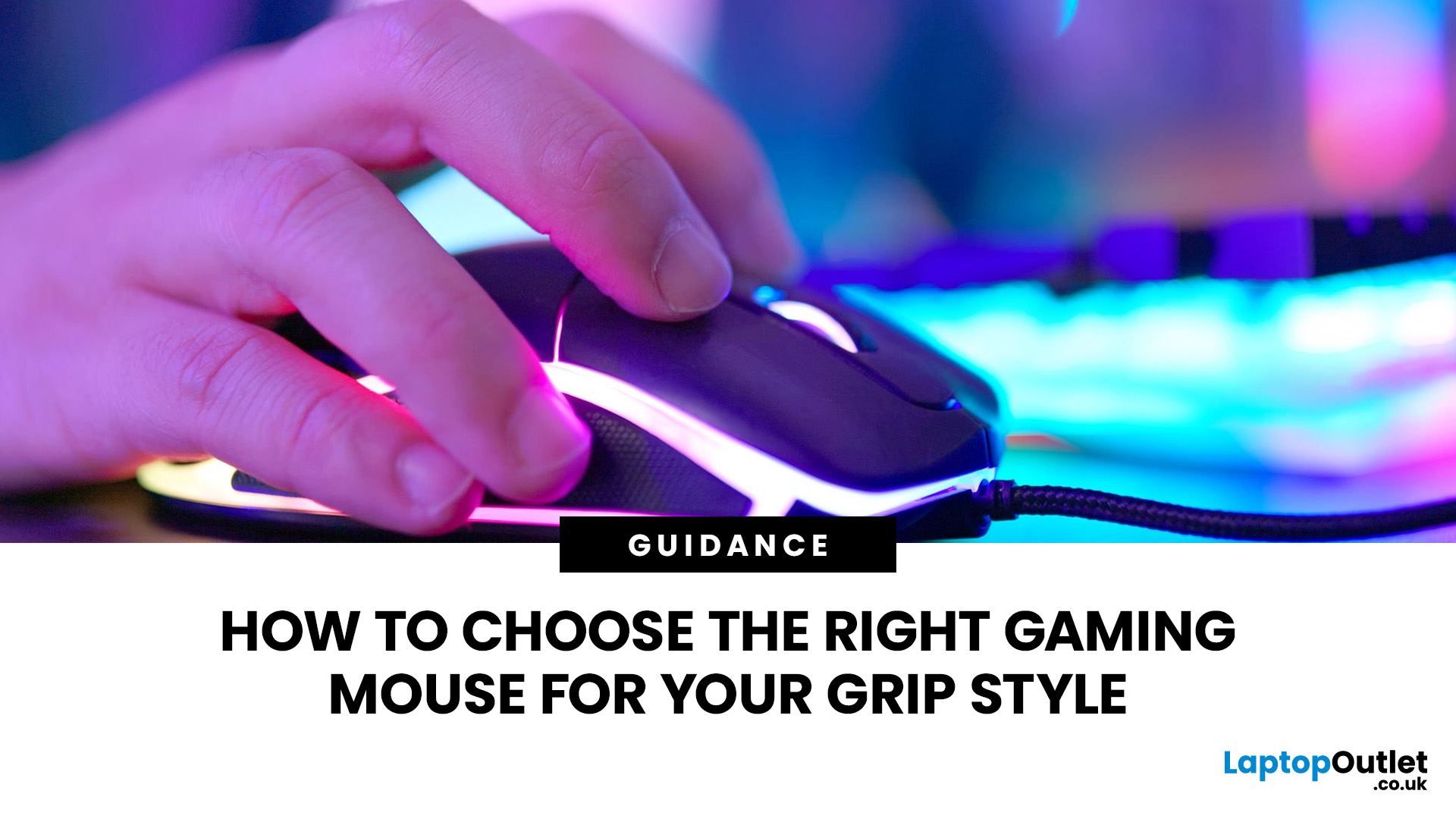
To choose the right gaming mouse for your grip style, first identify whether you use a palm, claw, or fingertip grip by placing your hand naturally on your current mouse. Palm grip players need a larger, fuller-bodied mouse; claw grip suits a mid-size mouse with a defined rear hump; and fingertip grip calls for a compact, lightweight mouse under 65g. Your grip style mouse choice affects comfort, control, and long-term wrist health, so getting the shape right matters more than any spec on the box.
This guide explains how to choose gaming mouse for your grip style. We will cover everything from identifying your grip and measuring your hand to understanding which shapes, weights, and features actually suit you.
The Three Main Gaming Mouse Grip Styles Explained<
Before you look at a single product listing, you need to know which of the three core grip styles you actually use. Most people have a natural default they've never consciously thought about. There's no objectively best mouse grip

