



Powerline Adapters: Reliable Home Networking via Electrical Wiring

Dead zones and buffering are the enemies of a modern home. We rely on the internet for almost everything. We stream 4K movies in the lounge. We join video calls in the home office. We play fast-paced games in the bedroom. However, thick walls and long distances often weaken Wi-Fi signals.
This is where home network powerline adapters become essential. They offer a clever way to extend your internet connection without drilling holes or running long, messy network cables through your hallway. In this guide, we will explore the best PLC adapters UK residents can buy today.
What is a Powerline Adapter?
A powerline adapter (also known as a PLC adapter) is a device that sends internet data through the copper wiring in your walls. Most people use these home network powerline adapters to connect devices that require high bandwidth, such as gaming consoles, smart TVs, laptops, or desktop PCs. They provide the stability of a wired network adapter with the convenience of a plug-and-play setup.
How Powerline Adapters Work?
If you are wondering how powerline adapters work, the process is surprisingly simple.
- The Signal Entry: You connect one adapter to your router using a standard Ethernet cable and plug it into a nearby wall socket.
- The Frequency Shift: The adapter takes the internet data and sends it across your electrical wires using a higher frequency than the electricity itself.
- The Data Travel: Because the data and electricity use different frequencies, they can travel through the same copper wires without interfering with each other.
- The Output: You plug a second adapter into a socket in a different room. This unit "listens" for the data frequency, converts it back into an internet signal, and delivers it to your device via a cable or Wi-Fi.
It is a plug-and-play solution. You do not need to be a tech expert to get it running.
Why Choose Wired Network Adapters Over Wi-Fi?
While Wi-Fi is convenient, it is prone to interference. Baby monitors, microwaves, and even your neighbour’s router can slow you down. Wired network adapters provide a dedicated "lane" for your data.
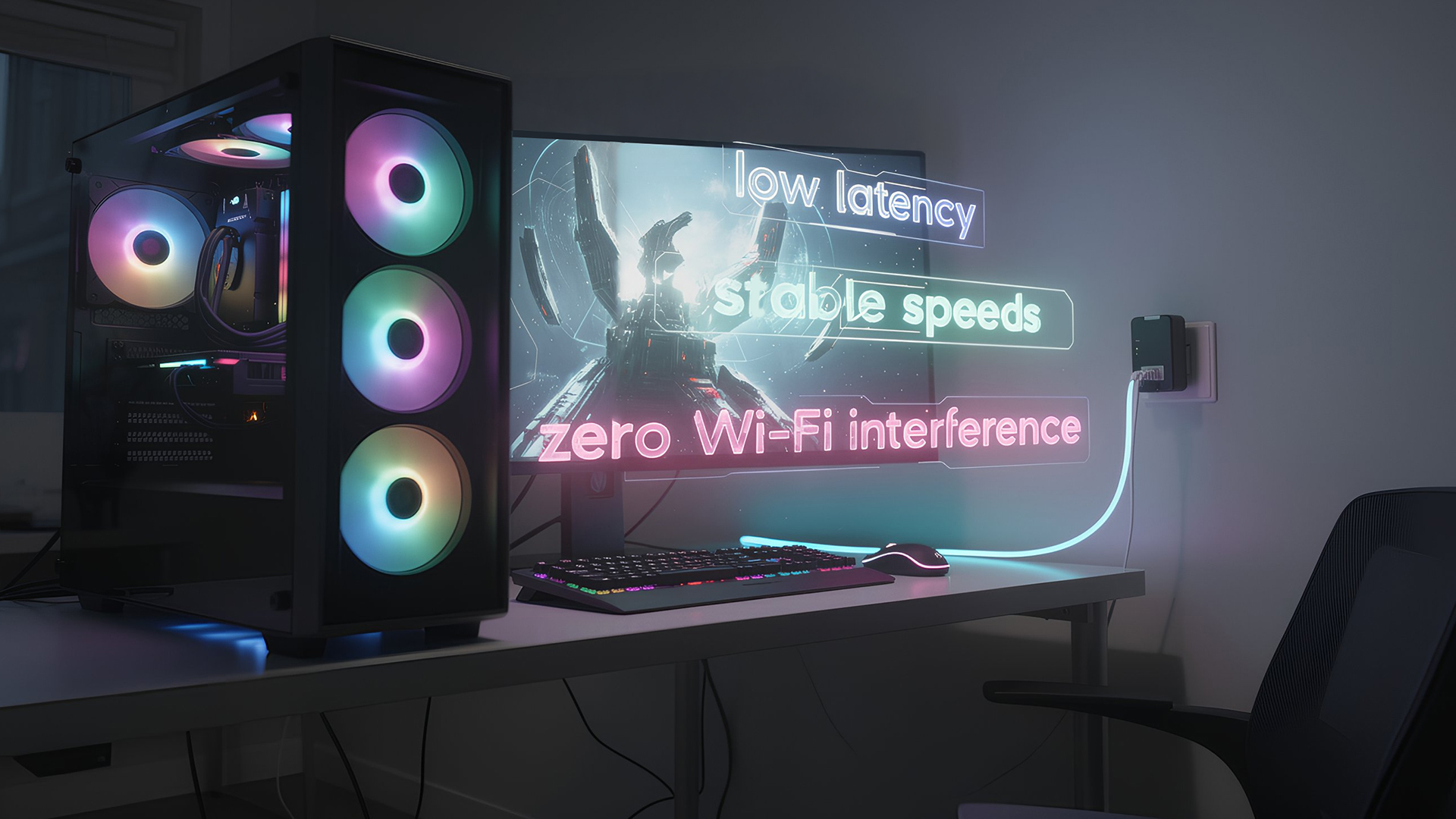
The Benefits of Wired Adapters Over Wi-Fi
- Lower Latency: Essential for gaming where every millisecond counts.
- Consistent Speeds: Unlike Wi-Fi, which fluctuates, powerline speeds remain steady.
- Easy Setup: Most are "plug and play" with no complex software required.
- Security: Since the data stays within your physical wiring, it is harder to intercept than wireless signals.
Top TP-Link Powerline Adapters for Your Home
Choosing the right home network powerline adapters is easier when you look at top-rated brands like TP-Link. Here are some excellent options available now.
1. TP-Link AV1000 Powerline Adapter (TL-PA7017 KIT)
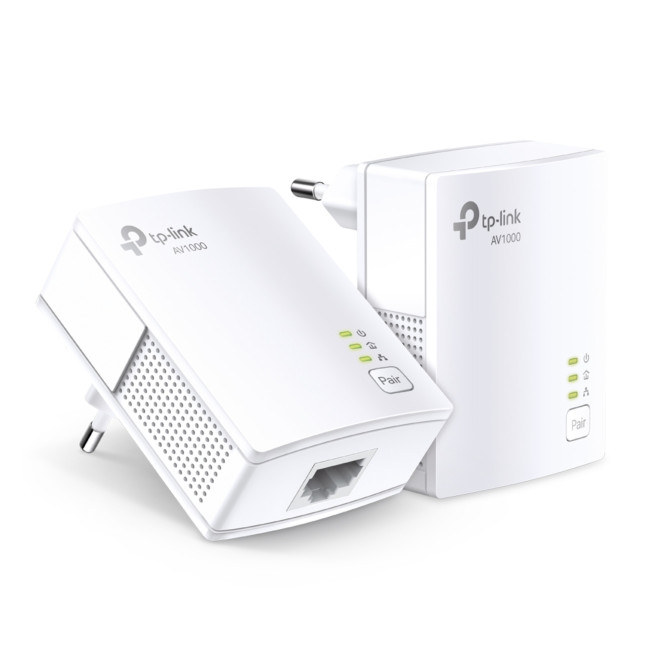
Key Features & Specs
- AV1000 Speed: Up to 1000Mbps for bandwidth-heavy tasks like 4K streaming and gaming.
- Gigabit Port: One Gigabit Ethernet port for ultra-fast wired connections to PCs, TVs, consoles.
- Plug & Play: Quick, simple setup in minutes, extending your network through existing electrical wiring.
- 128-bit AES Security: Secures your powerline network with a simple pairing button.
- Power-Saving Mode: Automatically reduces power consumption by up to 85% when inactive.
Who Is It Good For?
This kit is perfect for users needing stable, fast wired connections in areas with weak Wi-Fi. Ideal for lag-free 4K streaming on Smart TVs or for competitive online gaming on PCs and consoles, bringing high-speed internet to any room with an electrical socket.
2. TP-LINK AV1300 Powerline Adapter (TL-WPA8631P)
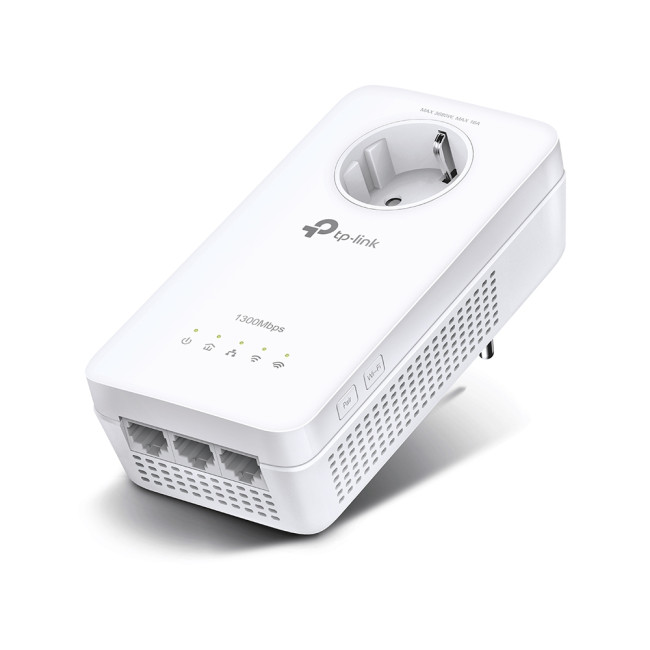
Key Features/Specs
- HomePlug AV2 Standard: Delivers up to 1300Mbps Powerline speeds over your home's wiring.
- AC1200 Dual-Band Wi-Fi: Offers 867Mbps (5GHz) for streaming/gaming and 300Mbps (2.4GHz) for general browsing.
- 2x2 MIMO Technology: Uses multiple simultaneous connections for faster, more stable data transmission.
- 3x Gigabit Ethernet Ports: Provides fast, wired connections for smart TVs, consoles, or PCs.
- Passthrough Socket: Includes an integrated socket with a noise filter, so you don't lose a power outlet.
Who Is It Good For?
This kit is ideal for UK users struggling with weak Wi-Fi in dead zones. It provides reliable wired connections for lag-free gaming, 4K streaming, or smart devices, extending robust internet to awkward spots like attics or sheds without drilling.
3. TP-Link AV1300 Powerline Adapter (TL-WPA8631P KIT)
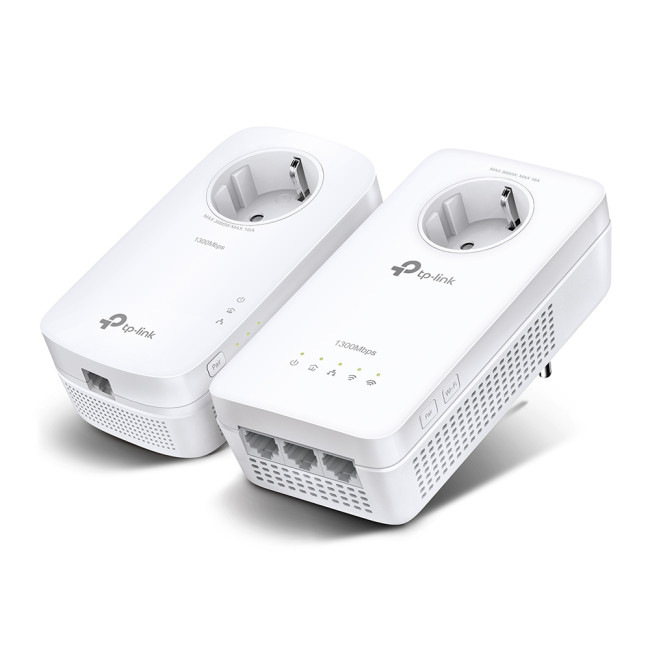
Key Features & Specs
- AV1300 Powerline: Up to 1300Mbps speed over electrical wiring using HomePlug AV2.
- AC1200 Dual-Band Wi-Fi: 867Mbps (5GHz) for streaming/gaming & 300Mbps (2.4GHz) for everyday use.
- 2x2 MIMO: Establishes multiple connections for higher speeds and better stability.
- OneMesh™ Support: Works with compatible TP-Link routers to create a single, seamless mesh network.
- Gigabit Ethernet Ports: Multiple ports for wired devices like PCs, consoles, and smart TVs.
Who Is It Good For?
This kit is ideal for UK households struggling with Wi-Fi dead zones, gamers, and streamers who need consistently fast, lag-free internet in distant rooms, providing both powerful Wi-Fi and wired connections for demanding devices.
Enhancing Your Smart Home with Wi-Fi Sockets
While powerline adapters handle the heavy lifting of data, your home network can be made even "smarter" with compatible sockets. Here are some available options:
1. TP-Link Tapo P110 Smart Plug (4-Pack)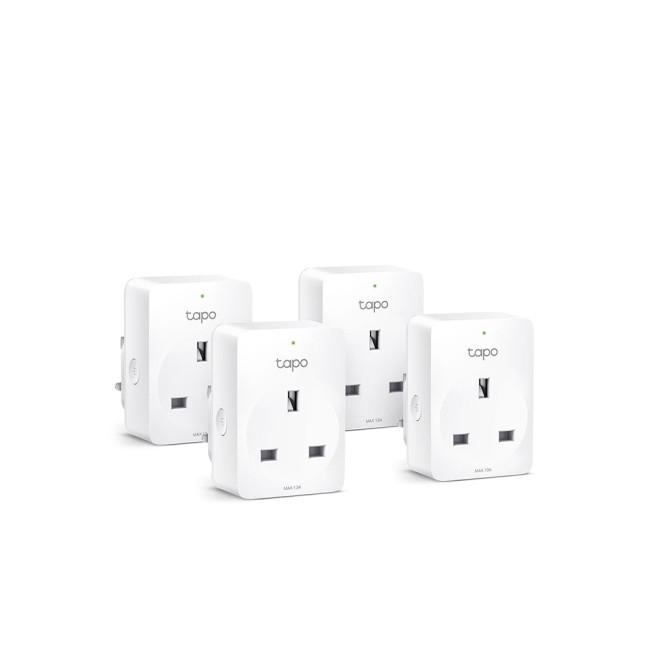
Key Features & Specs:
- Energy Monitoring: Track real-time and historical energy usage for cost estimates.
- Voice Control: Use Alexa or Google Assistant to manage plugged-in devices.
- Remote Control: Turn devices on/off from anywhere via the Tapo app.
- Scheduling & Timers: Set schedules, countdowns, and an Away Mode to simulate occupancy.
- Compact & Safe Design: Mini-size to prevent blocking other sockets, with flame-retardant material and child-proof shutters for safety.
Who Is It Good For?
It's great for UK homeowners looking to easily automate and monitor energy-hungry devices like chargers or lamps. It helps cut costs and enhance convenience with voice commands or remote access, especially for those new to smart home tech.
2. TP-Link Tapo MiniP100 Smart Wi-Fi Socket (4-Pack)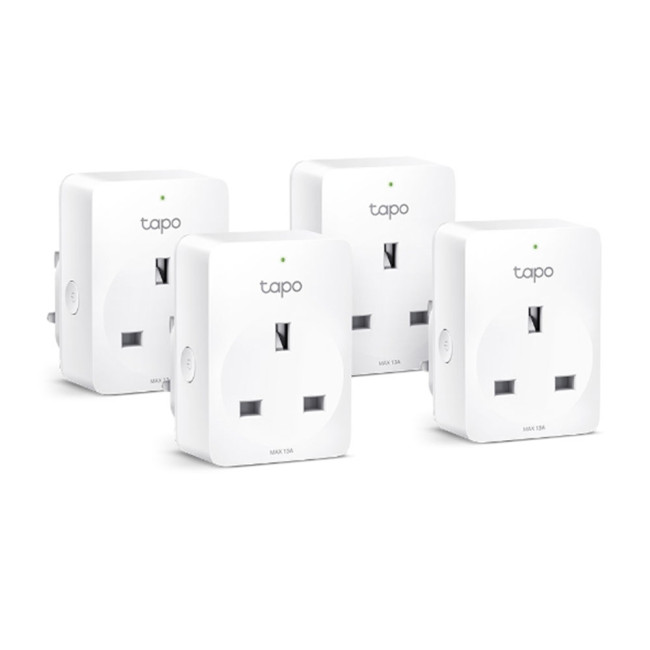
Key Features/Specs
- Remote Control: Control plugged-in devices via the Tapo app from anywhere.
- Scheduling & Timer: Automate on/off times for daily routines or countdowns.
- Voice Control: Works with Alexa & Google Assistant for hands-free management.
- Away Mode: Randomly turns devices on/off to mimic occupancy, deterring intruders.
- Compact Design: Won't block neighbouring sockets, perfect for busy plugs.
Who Is It Good For?
It's great for UK renters or homeowners wanting simple smart home integration, especially for lamps, fans, and kettles. It boosts security and energy efficiency through app or voice commands, easily managing multiple devices without complex setups.
Advanced Tips for Best Performance
Knowing how powerline adapters work is half the battle. To get the most out of your PLC adapters UK setup, don’t forget to follow these expert tips:
Plug Directly into the Wall
Never plug your powerline adapter into an extension lead or a surge protector. These devices can filter out the high-frequency signals that the adapters use, which will significantly reduce your speed or prevent the connection from working at all.
Use the Same Circuit
Powerline adapters work best when both units are on the same electrical circuit. In most UK homes, the upstairs and downstairs may be on different ring mains. They will usually still work across different circuits, but you might notice a slight drop in maximum speed.
Avoid Noise Interference
Certain electrical appliances can create "noise" on your wiring. Chargers for older mobile phones, hair dryers, and vacuum cleaners are common culprits. If you notice your speed dropping, try moving the adapter to a different socket away from these appliances.
Expanding Your Home Network Beyond Adapters
While knowing how powerline adapters work is a great first step, a truly robust home network often requires a few extra "building blocks," such as:
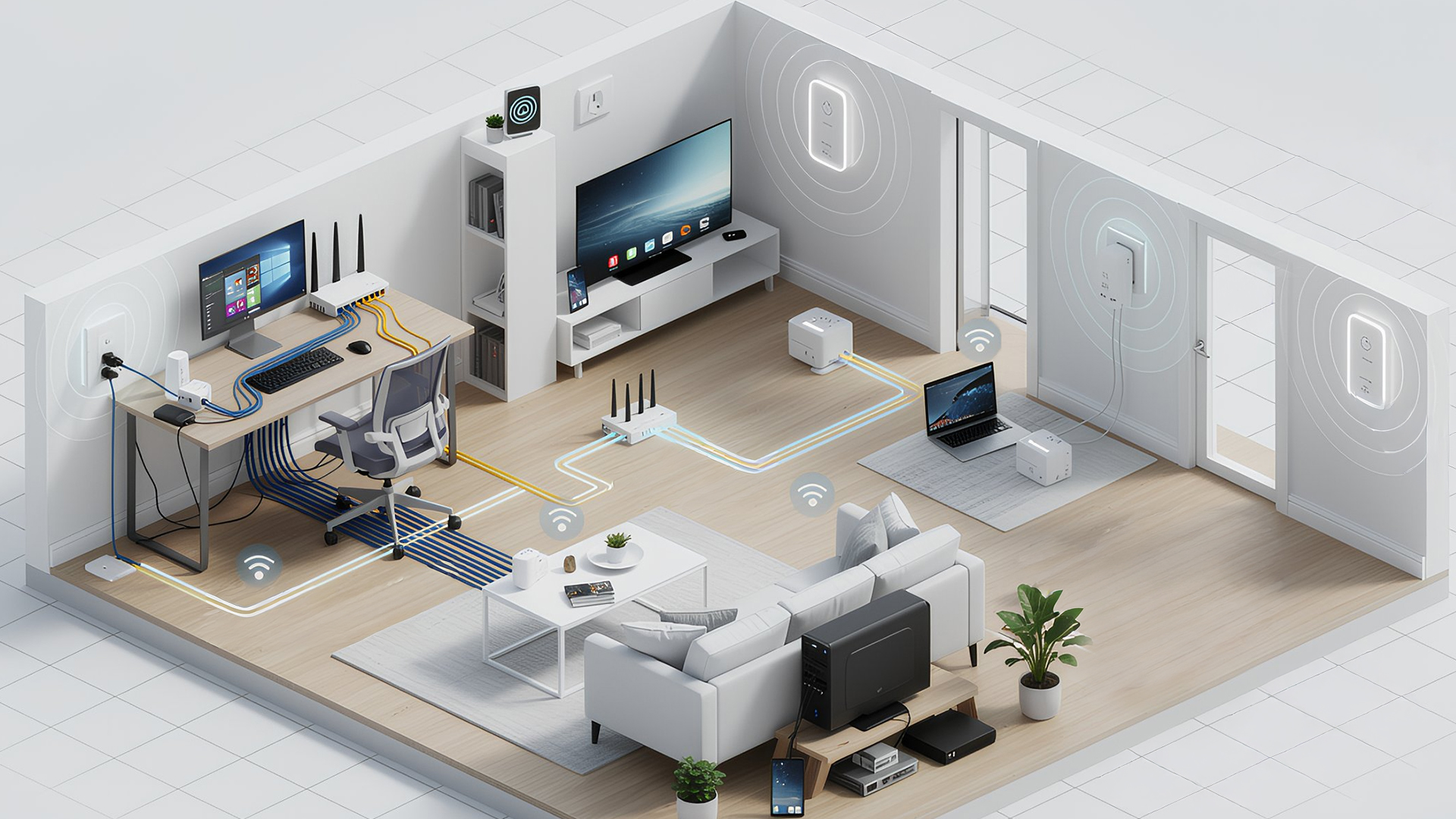
Network Switches
If you find yourself running out of ports on your router, network switches are the answer. They act like a high-speed "extension lead" for your internet, allowing you to plug in multiple consoles, PCs, and smart TVs via network cables without losing speed.
Mesh Wi-Fi Systems
For very large homes with many floors, mesh Wi-Fi works alongside your wired network adapters. It uses multiple nodes to create a "blanket" of coverage, ensuring you never drop a signal as you move from room to room.
High-Speed Network Cards
Sometimes the bottleneck isn't your router, but your computer. Upgrading to modern network cards allows your PC to actually handle the lightning-fast speeds that Ethernet over powerline and Wi-Fi 7 can provide.
Access Points
Unlike Wi-Fi range extenders that just repeat a signal, access points create a fresh, full-strength wireless hotspot. They are often connected back to the main router via a long Ethernet run or a powerline adapter for maximum efficiency.
Next-Gen Routers
Technology moves fast. Upgrading to Wi-Fi 7 routers or dedicated ASUS and Netgear models ensures your network can handle the dozens of smart devices modern households now own. Those who game seriously, should consider dedicated gaming routers.
Server Racks
For the ultimate "pro" setup, small server racks or data cabinets keep your router, switches, and cables organised, cool, and out of sight. This prevents overheating and makes troubleshooting much easier.
Quality Network Cables
Don't let a cheap wire ruin your experience. Using high-quality network cables (like Cat6 or Cat6a) ensures that the data moving between your powerline adapters and your devices stays at the highest possible bitrate.

Work, Stream, and Game Without Limits
A home network shouldn't be a source of stress. By understanding how powerline adapters work, you can take control of your connectivity. They offer a simple, cost-effective, and powerful way to bring the internet to every corner of your house.
Whether you are working from home, streaming 4k movies, or climbing the ranks in a video game, these fast network adapters ensure you stay connected.
Ready to upgrade? Explore the full range of networking solutions at Laptop Outlet today and say goodbye to Wi-Fi dead zones forever.

The Bits You Shouldn't Miss...
How do I know if powerline adapters will work in my house?
They work in most homes where the electrical sockets are on the same circuit. If your home has modern wiring and a single consumer unit, you should have no issues.
Do powerline adapters work in older UK homes?
Yes, they usually work very well. As long as the electrical wiring is in good condition and connected to the same consumer unit, you can enjoy a stable connection.
What is the typical warranty on powerline adapters?
Most reputable manufacturers, such as TP-Link, provide a 1-year manufacturer warranty. This covers any hardware defects, ensuring your home network remains protected and reliable.
Do powerline adapters work through extension leads?
It is not recommended. Extension leads often have surge protectors that can block the data signal. For the best performance, always plug the adapter directly into a primary wall socket.
Do powerline adapters use a lot of electricity?
No. Most modern units have an automatic power-saving mode. When the connected device is turned off, the adapter reduces its power consumption by up to 85%.
Can I use powerline adapters with gaming routers?
Absolutely. Connecting your adapter to high-end gaming routers ensures that the low-latency signal is carried directly to your PC or console for a lag-free experience.
| Read More: |
| ASUS Routers: Premium Wi-Fi Solutions for UK Homes |
| Wi-Fi Range Extenders: Boost Your Home Network Coverage |
| Network Switches: Expand Your Home or Office Network Efficiently |
Related Articles

Last Updated: July 01, 2025
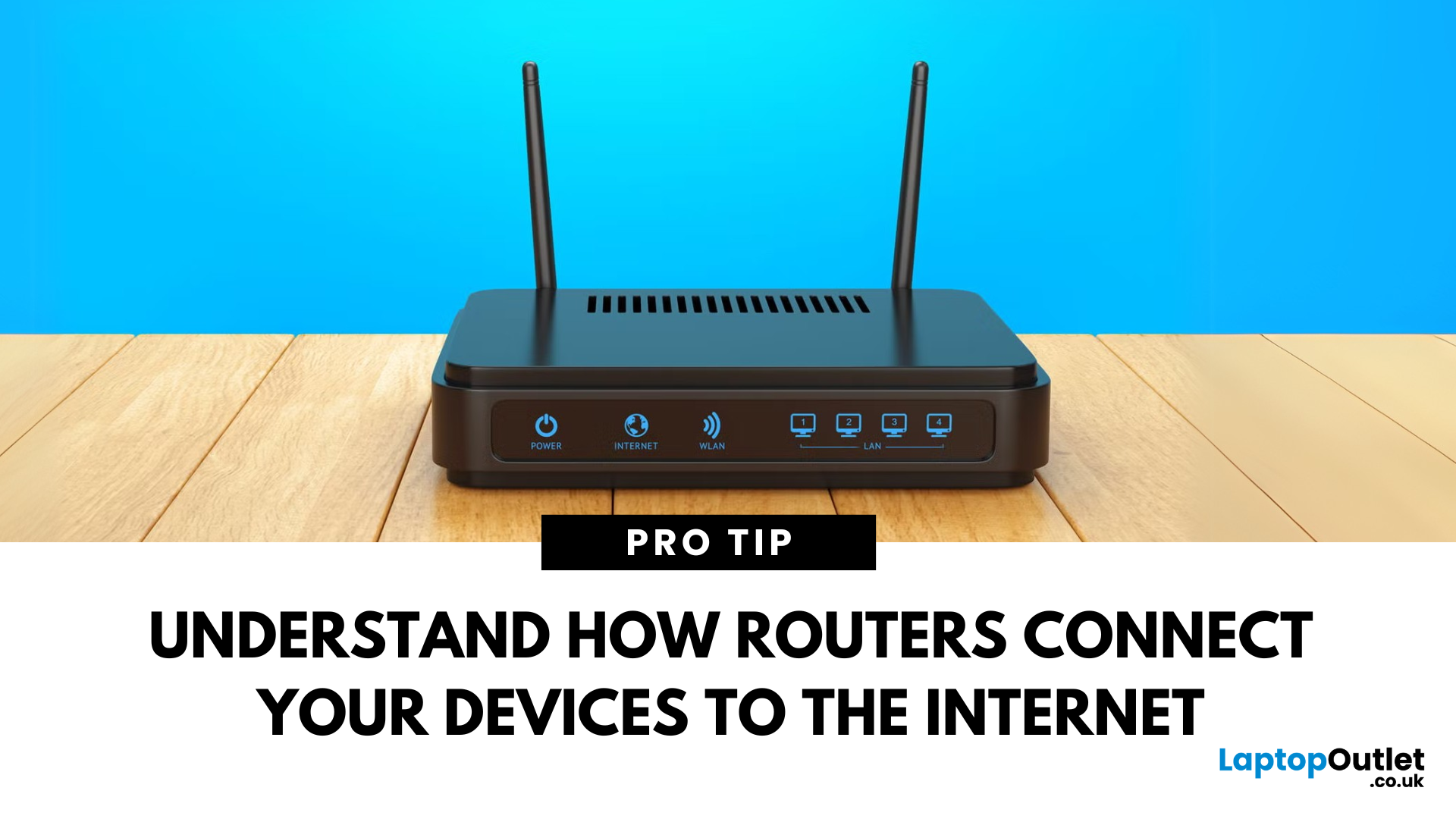
That Little Button Isn’t Just for Looks
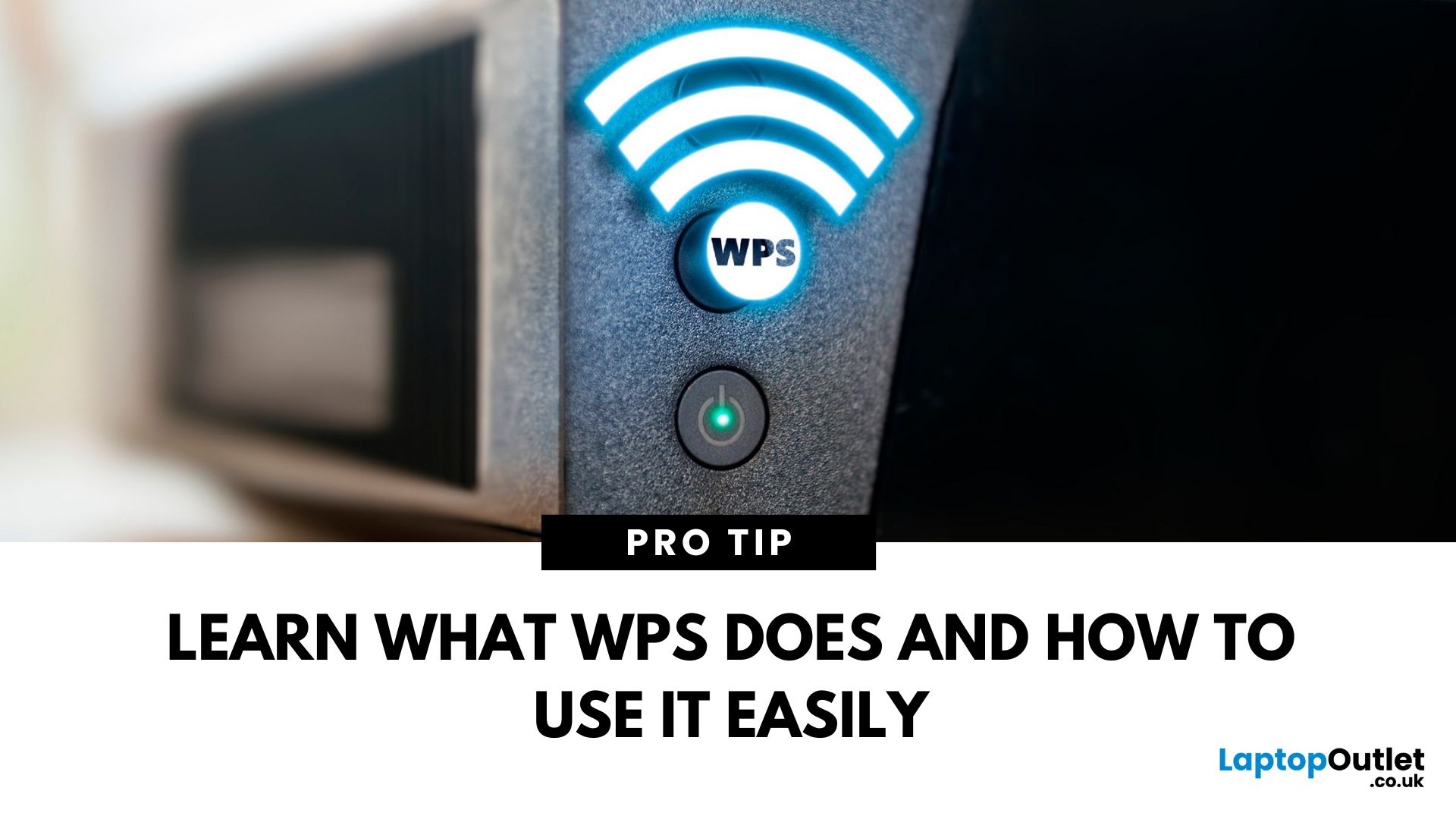
If you’ve spotted a mysterious button labelled WPS on your Wi-Fi router, you might be wondering: What does it do—and should I use it? Here’s a beginner-friendly explanation of what the WPS button is and how it simplifies connecting devices to your Wi-Fi.
What Does WPS Stand For?
WPS stands for Wi-Fi Protected Setup. It’s a feature that helps you connect devices to your Wi-Fi network without typing in the Wi-Fi password.
Designed for convenience, especially for smart TVs, printers, and Wi-Fi extenders
What Does the WPS Button Do?
When you press the WPS button:
Your router enters a two-minute pairing mode
During this time, you can connect a compatible device without entering the password
It uses WPA2 security, so it’s secure for most home networks
How to Use the WPS Button
Steps:
Turn on the device you want to connect (e.g., printer or smart TV)
Go to its Wi-Fi settings and select your Wi-Fi network
Choose WPS connection
Last Updated: July 01, 2025
Your Wi-Fi Starts Here
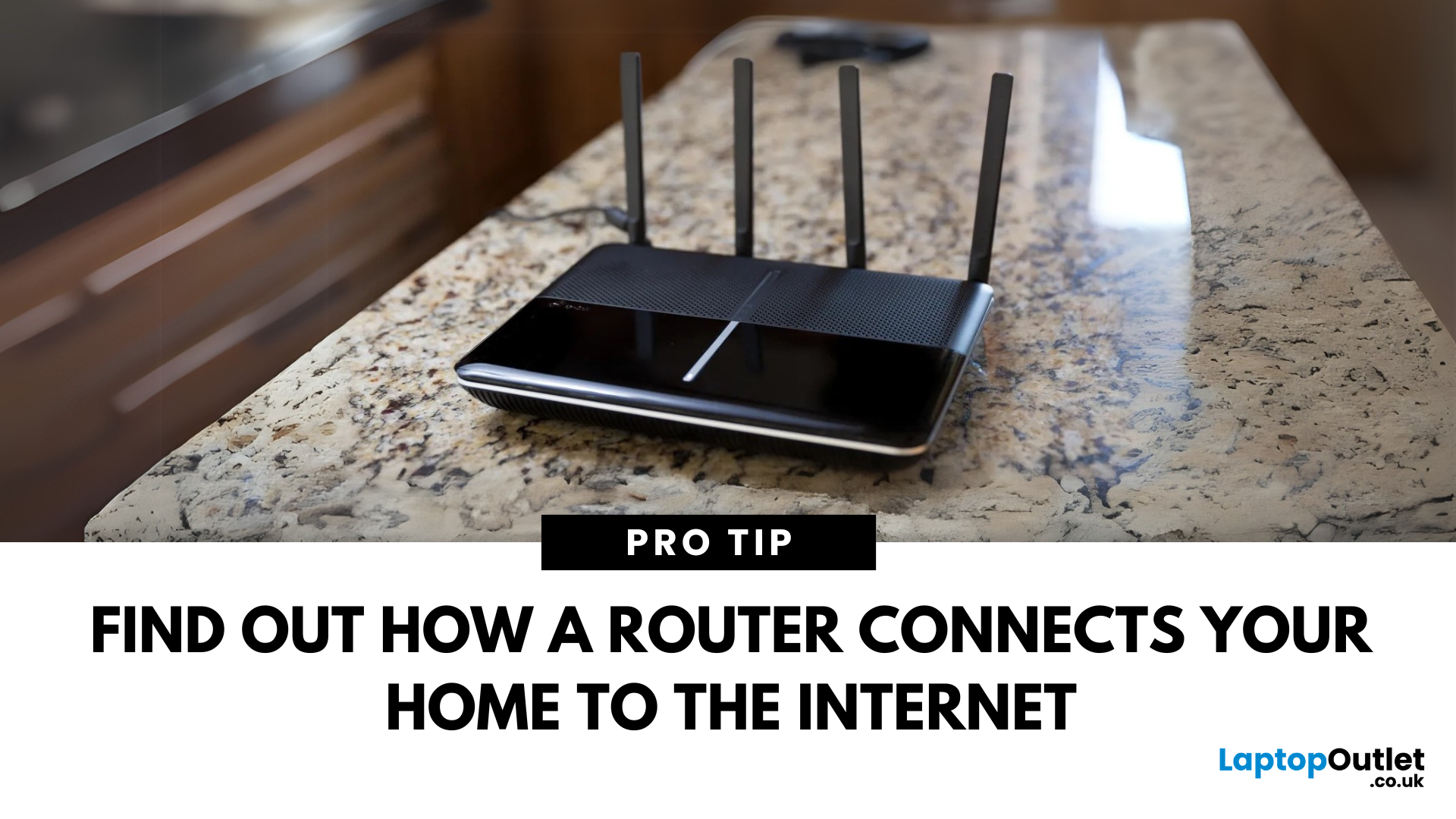
You’ve probably seen it flashing away in the corner of the room—but what is a router, and why is it essential for your internet connection? Here’s everything you need to know about this small but powerful device.
What Is a Router?
A router is a device that connects your home or office to the internet by routing data between your internet service provider (ISP) and your connected devices (like phones, laptops, smart TVs, and more).
It’s the heart of your Wi-Fi network, sending and receiving data from the web
How Does a Router Work?
- Connects to a modem (or includes one in some models)
- Assigns local IP addresses to devices in your network
- Sends and receives data packets to and from the internet
- Uses Wi-Fi or Ethernet to link devices wirelessly or via cable
Types of Routers
- Standalone Router: Connects to a separate modem
- Modem-Router Combo: Two-in-one device with both modem and router
- Mesh Wi-Fi Router: Covers large homes with multiple units
Last Updated: July 01, 2025
The Backbone of Your Internet
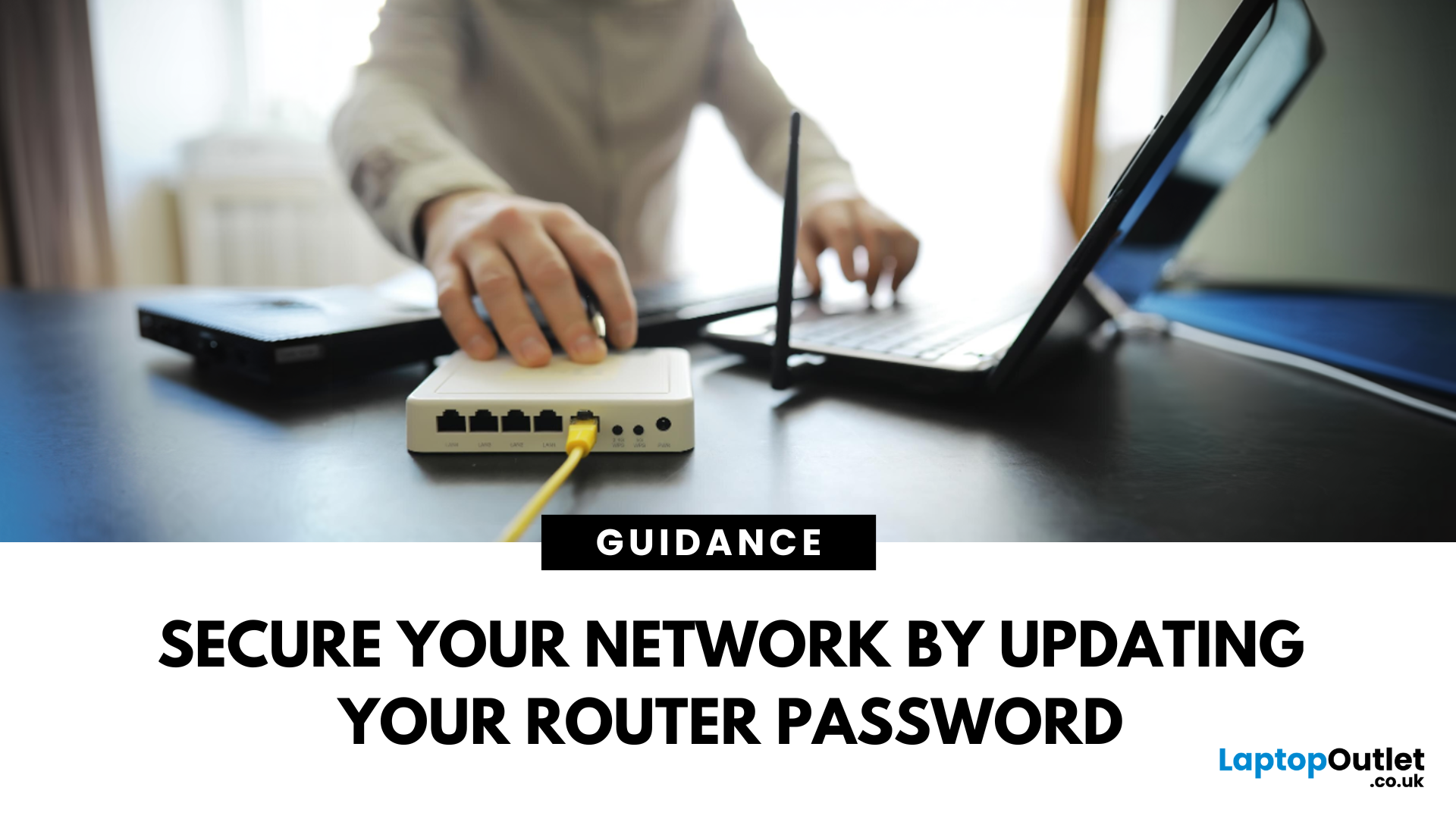
Your internet experience starts with a router—but what exactly does it do? Whether you’re streaming, gaming, working from home, or scrolling on your phone, the router keeps your digital life connected. Let’s break down what a router does and why it’s so important.
What Is a Router?
A router is a networking device that connects your devices to the internet and manages how they communicate with each other.
It “routes” traffic between your local devices (like your phone or laptop) and the broader internet
What Does a Router Actually Do?
- Distributes internet access from your modem to all connected devices
- Creates a local network so devices can talk to each other
- Assigns IP addresses to each device
- Directs data packets so the right information reaches the right device
Wi-Fi vs Router – What’s the Difference?
- Router: Manages traffic and connects devices
- Wi-Fi: The wireless signal your router creates
The router gives you internet; Wi-Fi
Last Updated: July 01, 2025
Keep Your Wi-Fi Safe and Secure
Your router password protects your home network from unwanted access. Whether you're updating your Wi-Fi credentials or changing the admin login, it’s a smart step for security. Here’s how to change your router password in just a few steps.
1. Know Which Password You’re Changing
- Wi-Fi Password: The one users enter to connect to your network
- Router Admin Password: Used to access router settings via web browser
It’s best to change both regularly for security
2. Connect to Your Router
- Make sure you're connected to your Wi-Fi or directly via Ethernet
- Open a web browser and type your router’s IP address (usually 192.168.0.1 or 192.168.1.1)
- Enter your admin username and password (often printed on the router or found in your manual)
3. Change Your Wi-Fi Password
Steps:
- Log in to your router settings
- Navigate to Wireless Settings or Wi-Fi Settings
- Locate the SSID (network name) and password fields
- Enter your new password (use a strong,

Last Updated: December 23, 2025
When it comes to competitive gaming or smooth 4K streaming, your internet connection is only as good as the router powering it. High latency, buffering, and packet drops can turn a winning game into frustration or ruin a live stream in seconds. That’s why choosing the right router—and configuring it correctly- is just as important as having fast broadband.
Ubiquiti has become a go-to name for gamers, streamers, and tech enthusiasts who want more than basic Wi-Fi. From the powerful UniFi Dream Machine to the gamer-centric AmpliFi series, Ubiquiti routers combine enterprise-grade stability with features built for demanding home setups. With the right optimisation - like low-latency settings, QoS for gaming traffic, and GeForce NOW tweaks - you can unlock their full potential.
In this guide, we’ll explore the best Ubiquiti routers for gaming and streaming and reveal the settings that give you a true performance edge.
Why Router Quality Matters for Gaming & Streaming
Every gamer and streamer

Last Updated: December 09, 2025
Wi-Fi acting weird? Pages not loading? Passwords forgotten? You’re not alone - sometimes even the most reliable routers like TP-Link need a fresh start. Whether your internet is unstable, you changed too many settings, or you just want to start over, resetting your router can fix a surprising number of problems.
In this complete guide, we’ll walk you through how to reset your TP-Link router, both the quick way (via the Reset button) and the advanced way (through the web interface). We’ll also explain what happens after a reset, how to reconfigure your network, and what to do if your reset doesn’t work.
Understanding What “Reset” Really Means

Before you hit any buttons, it’s important to know what a router reset actually does.
When you reset a TP-Link router, you’re restoring it to its factory default settings, exactly how it was when you first took it out of the box.
That means:
- All Wi-Fi names (SSID) and passwords you’ve set will be erased.
- Any changes to IP addresses, DNS, or security
Last Updated: January 26, 2026
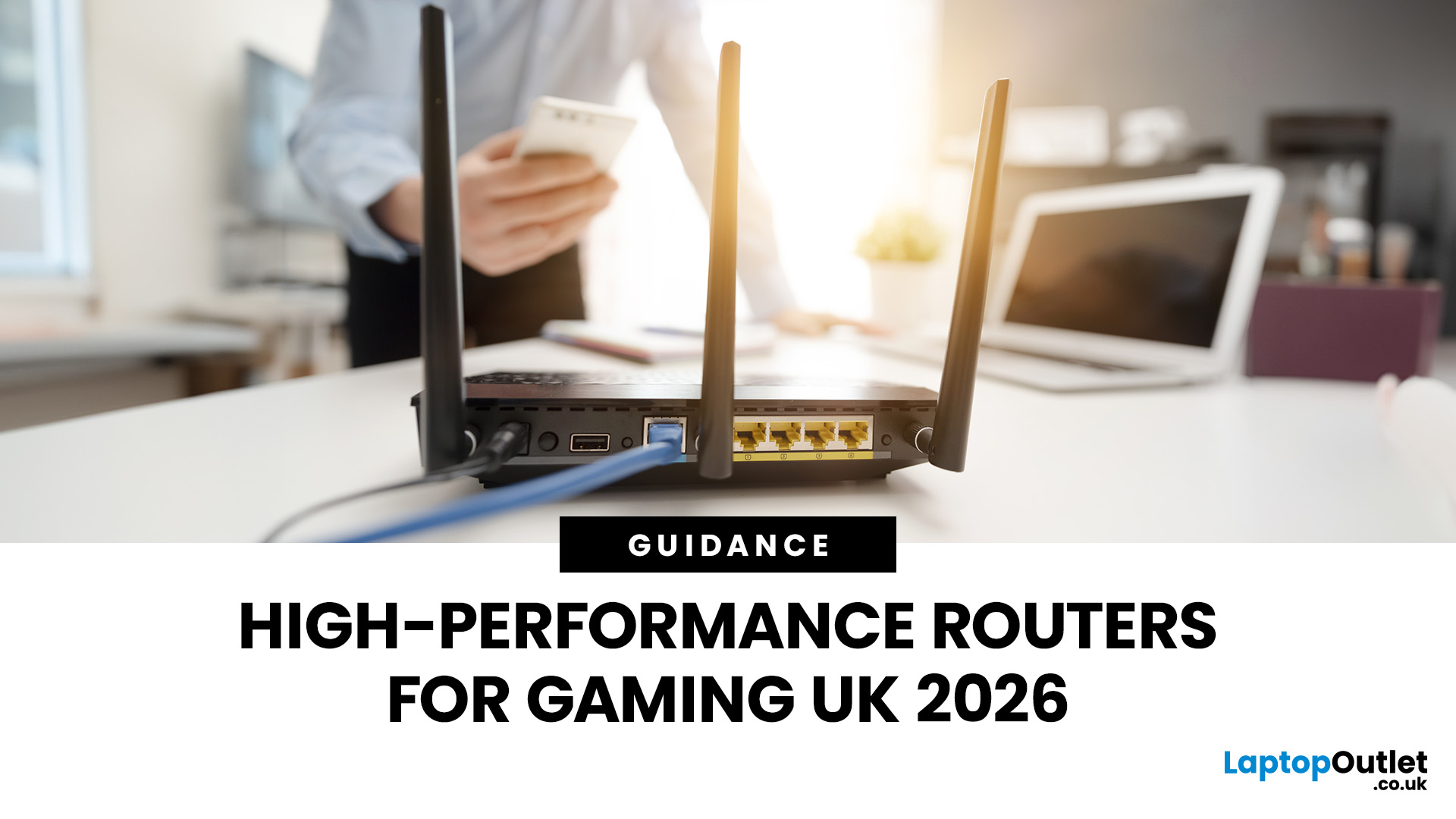
If you’re still using the free router that came with your broadband deal, you need to read this gaming router guide UK. With faster broadband speeds, competitive multiplayer titles, cloud gaming services, and always-connected consoles and PCs, your home network plays a critical role in how well you play. A powerful gaming PC or next-gen console can only perform at its best if it’s supported by a reliable, high-performance router. Whether you’re a competitive PC gamer, a PS5 warrior, a streamer juggling Twitch and Discord, or someone who just wants smooth online gaming without drama, this guide breaks down the best gaming routers UK gamers should actually care about, with real detail, not fluff.
What Makes a Router Good for Online Gaming?
Not all routers are created equal, and “gaming” isn’t just a marketing label. Understanding the core features will help you choose the right router for online gaming setup.
Low Latency and Stable Connections
Latency, often referred to as ping, is the
Last Updated: January 26, 2026
From working remotely and online learning to 4K streaming, smart home devices, and competitive gaming, UK households are placing more demand than ever on their home networks. Yet many homes still struggle with weak signals, dead zones, and inconsistent speeds. This is where mesh Wi-Fi explained properly can make all the difference.
In this guide, we’ll break down exactly how mesh Wi-Fi works, why it’s ideal for British homes, and how to choose the right system for your space. Whether you live in a Victorian terrace with thick brick walls, a multi-storey townhouse, or need reliable connectivity in a garden office, a modern Wi-Fi mesh system could be the upgrade your home network needs.
Mesh Wi-Fi Explained: What is a Mesh Network?
Traditional home Wi-Fi usually relies on a single router placed near where your broadband enters the property. While this can work in smaller flats, it often struggles to deliver consistent coverage across larger or more complex homes. Signal strength drops rapidly
Last Updated: March 12, 2026
Most Wi-Fi guides start with specs. That’s already the wrong place.
To choose the best Wi-Fi router for your home, you first need to understand how Wi-Fi behaves inside real buildings, especially UK homes, which are often older, brick-built, and not designed for wireless signals.
What Wi-Fi Really Is (Without the Marketing Spin)
Wi-Fi is not “internet speed in the air”. It’s a radio signal that carries data between your router and your devices.
That signal:
- Weakens over distance
- Loses strength passing through walls
- Competes with other signals nearby
This is why Wi-Fi performance changes dramatically depending on where you are in your home, even when your broadband speed stays the same.
Important reality check:
Your router doesn’t “push” Wi-Fi evenly in all directions. It broadcasts radio waves that are:
- Reflected
- Absorbed
- Blocked
UK homes often make this worse because of:
- Solid brick and stone walls
- Metal-backed insulation
- Floor heating systems
- Older layouts with thick internal walls
This
Last Updated: January 26, 2026
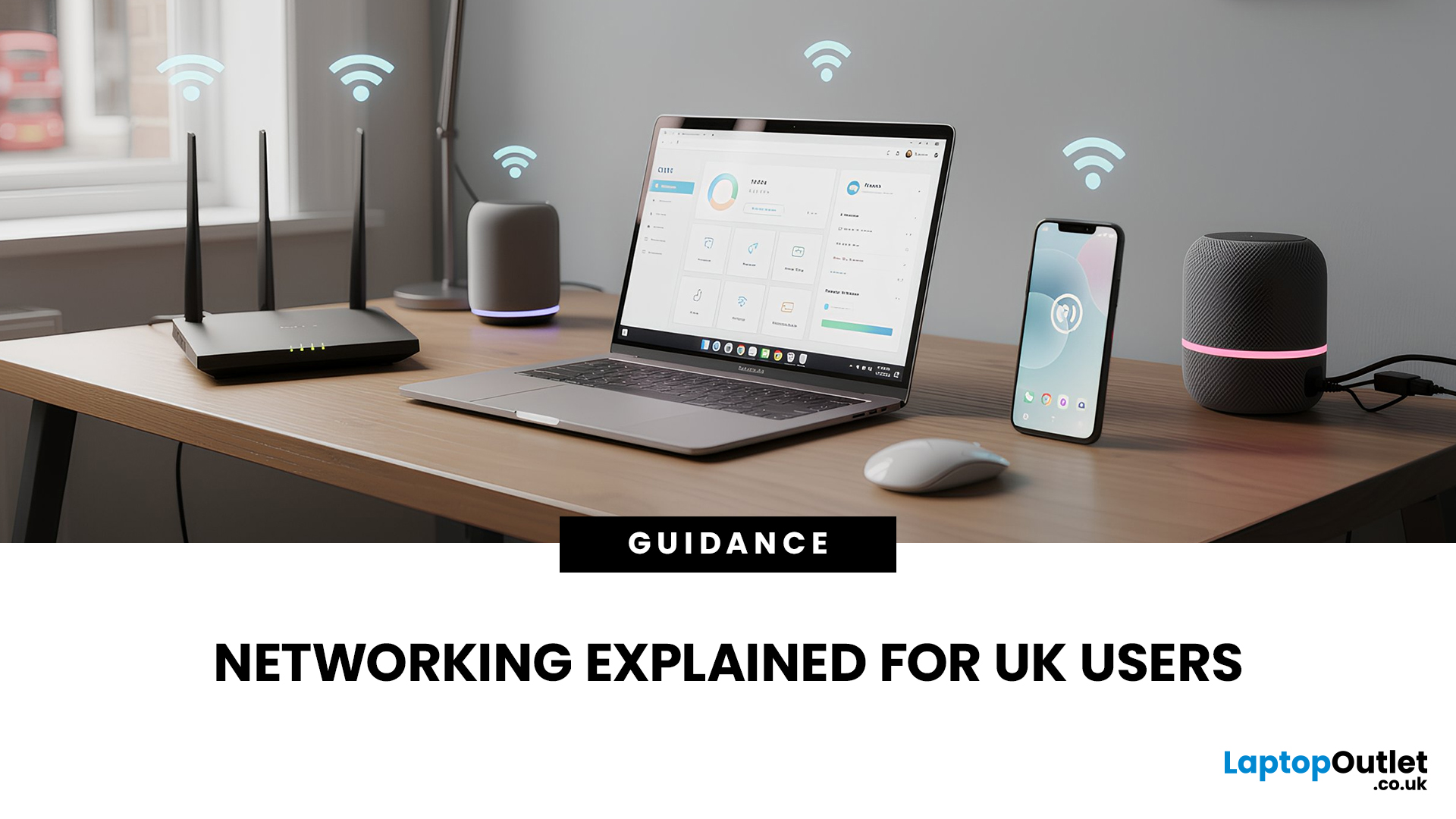
In today’s UK homes and offices, networking isn’t optional - it’s the backbone of how we work, study, stream, and stay connected. From remote meetings and online gaming to smart homes and cloud storage, everything relies on reliable networking accessories and networking devices working together behind the scenes.
Yet many people still struggle with slow Wi-Fi, unstable connections, or poor coverage, not because their internet provider is bad, but because their networking equipment isn’t set up correctly.
What Is Networking? (A Simple Explanation)
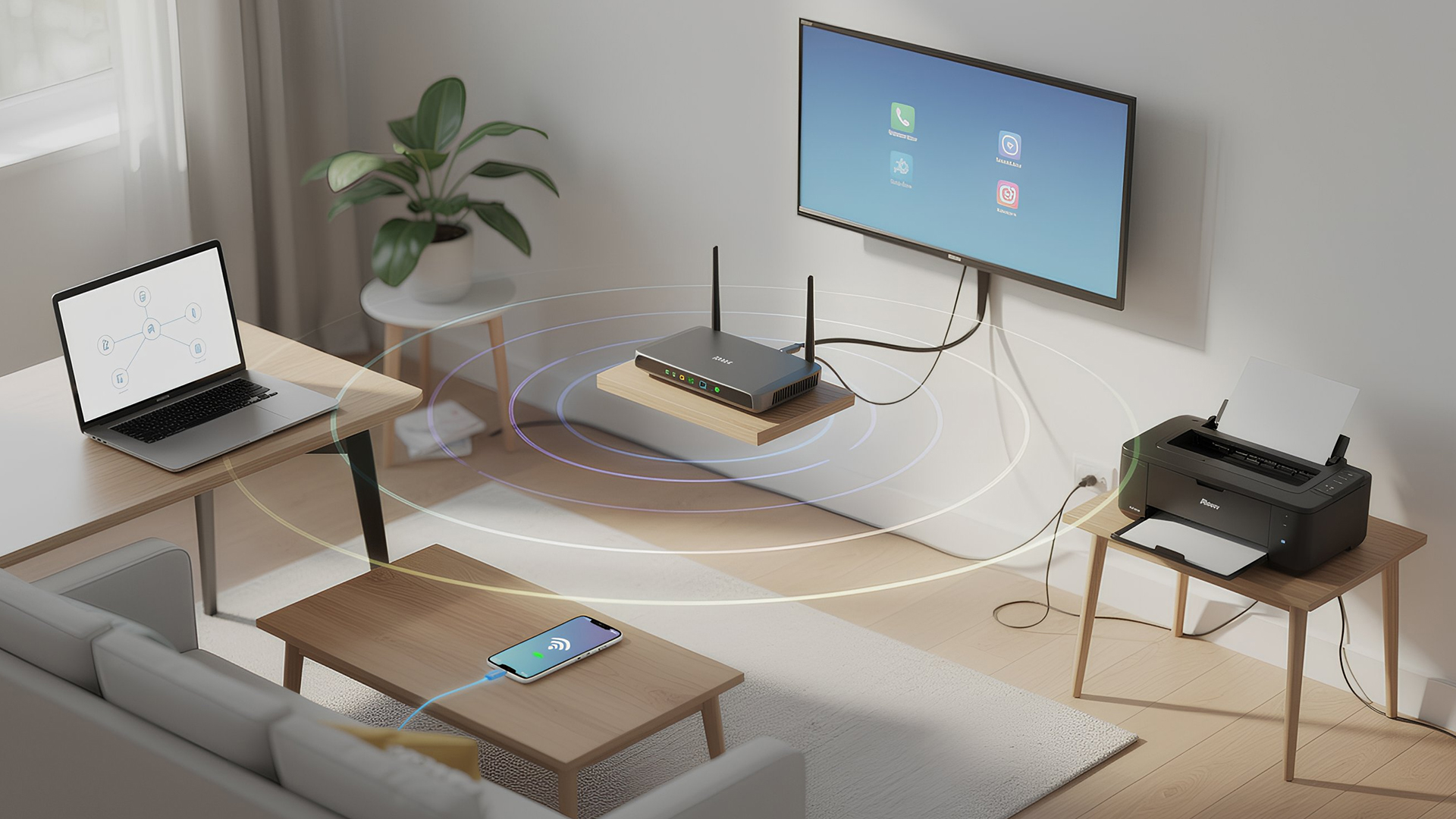
Networking is the process of connecting devices so they can communicate, share data, and access the internet. These devices might include:
- Laptops and desktops
- Smartphones and tablets
- Printers and scanners
- Smart TVs and streaming devices
- Smart home systems (lights, cameras, thermostats)
To make this possible, you need a combination of networking devices (like routers and access points) and networking accessories (such as network cards, adapters,

