



How to Replace a Desktop CPU: A Step-by-Step Upgrade Checklist
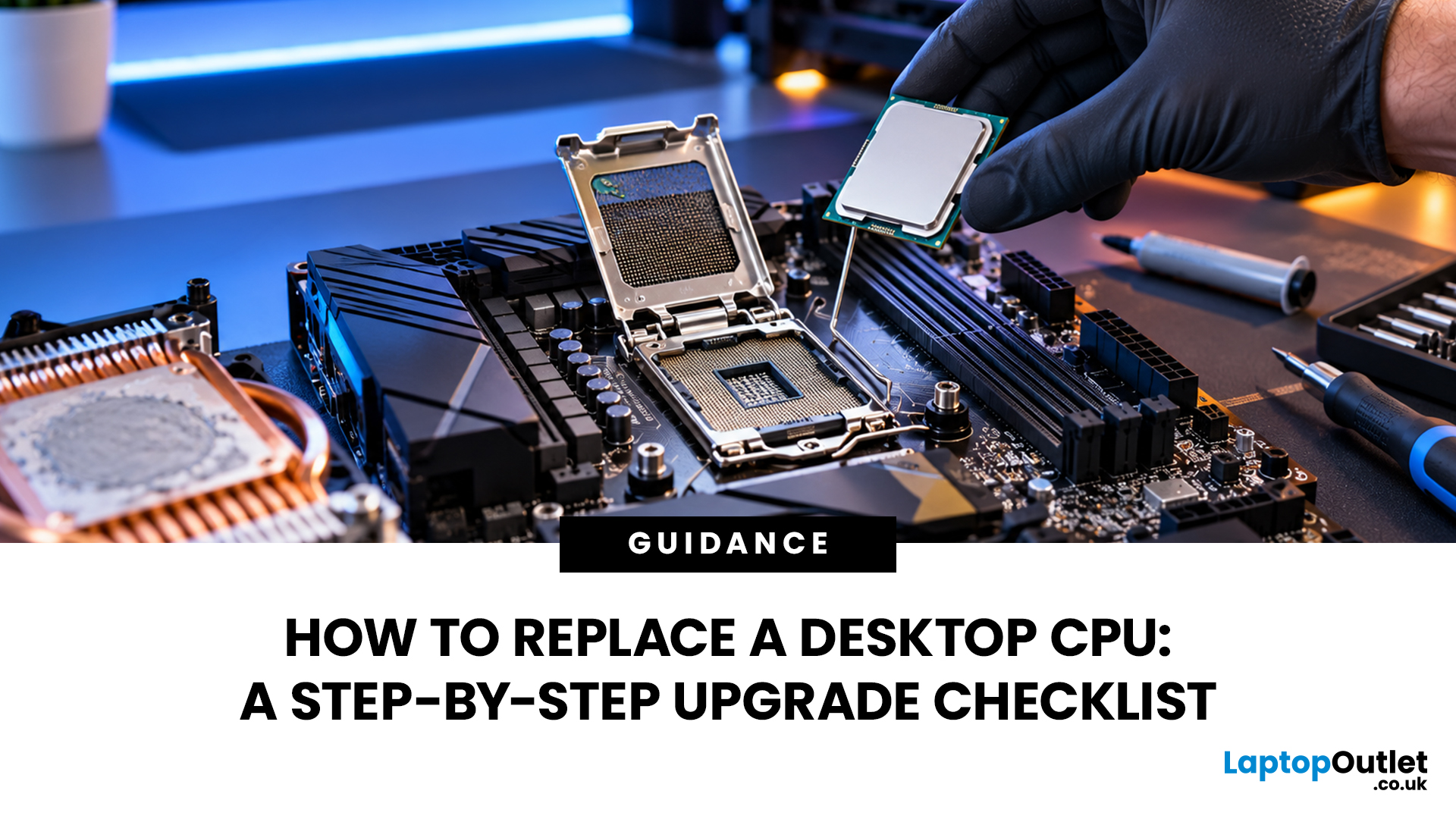
Quick Answer: Learning how to replace a CPU is surprisingly straightforward if you understand your motherboard's compatibility requirements and follow the correct installation steps. The tricky part isn't necessarily fitting the new chip. It's choosing the right processor, removing the cooler safely and making sure everything works afterwards.
Is your desktop PC struggling with demanding games, slow rendering, or everyday multitasking? Your processor could be holding things back. Rather than replacing the entire computer, upgrading the CPU might give your existing setup the performance boost it needs.
But how difficult is it to swap a processor yourself? This guide covers everything from checking CPU compatibility and gathering tools to fitting thermal paste, reinstalling the cooler and testing your upgraded desktop.
Can You Replace a Desktop CPU Yourself?
Yes, most desktop PCs with socketed processors allow you to replace the CPU without specialist equipment. However, the replacement must be compatible with your motherboard, BIOS, and cooling system.
You can usually upgrade a desktop CPU without reinstalling Windows or replacing your storage. Your existing files and applications should remain intact, although backing up important data beforehand is sensible.
There are a few exceptions. Some compact desktops and all-in-one computers have soldered processors, proprietary cooling assemblies or restricted firmware support, making upgrades difficult or impossible.
Expert Tip: Before buying a processor, check whether the CPU is actually limiting performance. If your graphics card is consistently running near full utilisation during gaming, a processor upgrade alone might deliver little improvement.
What to Check Before Upgrading Your Desktop CPU
A successful processor swap starts with compatibility, not installation. Even processors from the same manufacturer aren't necessarily interchangeable.
1. Check Your Motherboard Socket and Chipset
Your motherboard has a specific CPU socket, such as AMD AM4, AMD AM5, Intel LGA1700, or Intel LGA1851. Your replacement processor must match the supported platform. Here's a quick overview of common desktop CPU platforms.
|
CPU platform |
Socket |
Important consideration |
|
AMD Ryzen 3000 and 5000 desktop CPUs |
AM4 |
Support depends on motherboard model and BIOS |
|
AMD Ryzen 7000, 8000G and 9000 desktop CPUs |
AM5 |
Requires DDR5 and an appropriate BIOS |
|
Intel Core 12th, 13th and 14th Gen |
LGA1700 |
Requires a compatible Intel 600 or 700-series motherboard |
|
Intel Core Ultra 200S desktop CPUs |
LGA1851 |
Requires a compatible Intel 800-series motherboard |
Once you have the model, consult the manufacturer's CPU support list. At Laptop Outlet, we recommend checking the complete platform before choosing a replacement. You can compare desktop processors based on core count, clock speeds, cache, power requirements, and supported sockets.
2. Verify BIOS Compatibility
A processor can physically fit your motherboard but still fail to boot because the installed BIOS doesn't recognise it.
Visit the motherboard manufacturer's support page and confirm the minimum BIOS version required for your chosen CPU. If an update is necessary, it's usually best to complete it while your existing processor is installed and functioning.
Important: Follow the manufacturer's exact firmware update procedure. Don't interrupt the process or install BIOS files intended for another motherboard revision.
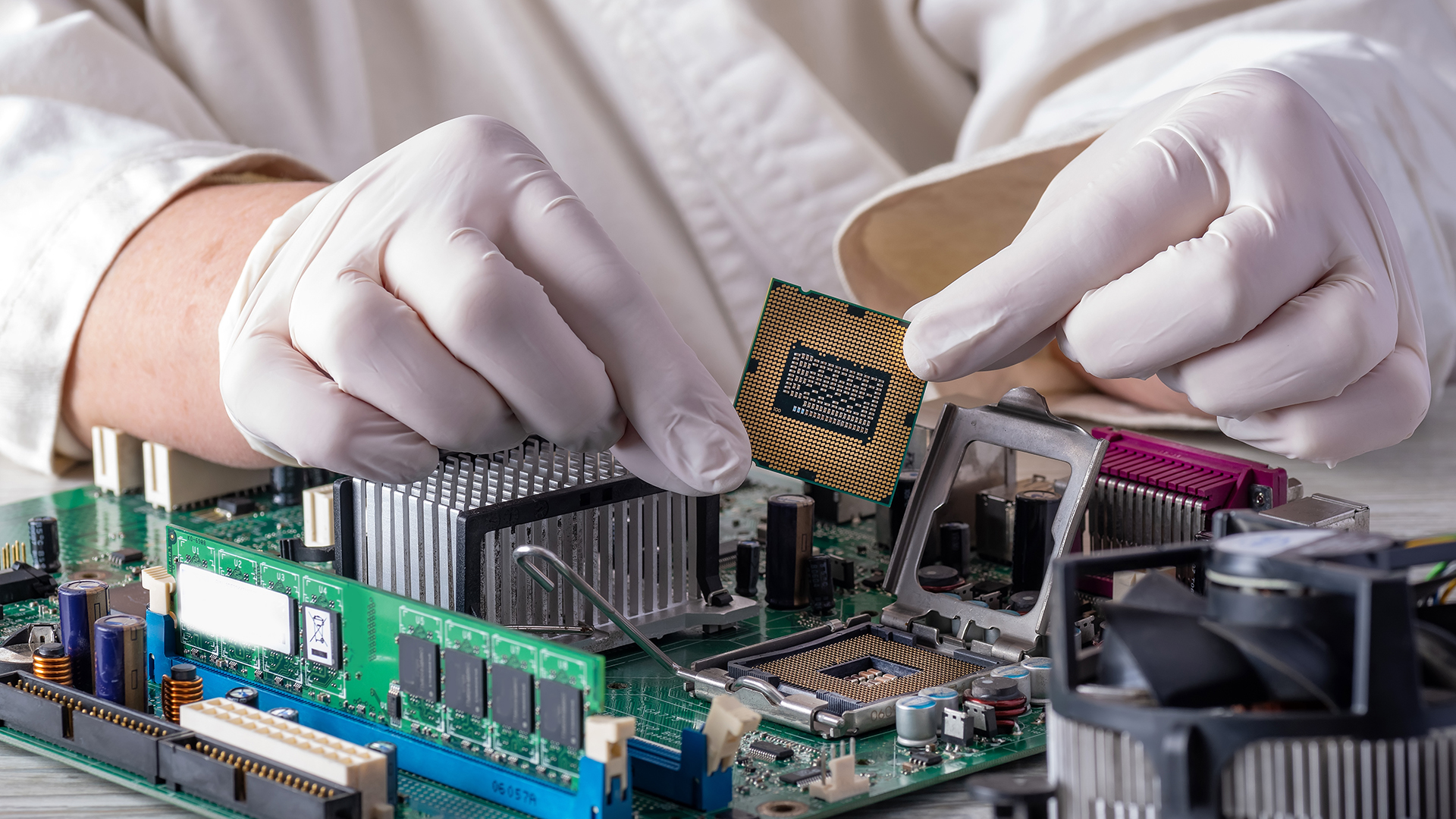
3. Check Cooling, RAM and Power Requirements
Before you upgrade a desktop CPU, consider the other components supporting it.
- CPU cooler: Ensure its mounting hardware and cooling capacity suit the replacement processor.
- RAM compatibility: Confirm whether the platform uses DDR4 or DDR5 memory.
- Power delivery: Check that your motherboard's voltage regulator modules (VRMs) can handle the new CPU's power demands.
- Power supply: Make sure your PSU offers sufficient capacity for the overall system.
If your chosen processor requires a different socket or memory standard, you may need additional components. You can assess our motherboard upgrade options if your existing board cannot support the CPU you want.
Tools Needed to Replace a CPU
You won't need an expensive toolkit for a typical desktop processor replacement. Most of the equipment is already available in a basic PC maintenance kit.
|
Tool or material |
Purpose |
|
Phillips screwdriver |
Removing case panels and compatible cooler mounts |
|
Thermal paste |
Improving heat transfer between the CPU and cooler |
|
Isopropyl alcohol (preferably 90%+) |
Removing existing thermal compound |
|
Lint-free cloth |
Cleaning CPU and heatsink surfaces |
|
Antistatic wrist strap |
Reducing electrostatic discharge risks |
|
Small container |
Keeping screws and mounting parts organised |
|
Torch |
Improving visibility around the CPU socket |
Some coolers require specialised mounting tools, so consult their installation manuals before proceeding.
CPU Upgrade Checklist: Before You Open Your PC
Preparing a PC for CPU replacement properly reduces the chances of damaged hardware, missing accessories and startup problems.
Pre-installation checklist
- Confirm the replacement CPU appears on the motherboard's support list
- Update the BIOS if required and back up important files
- Check cooler compatibility and obtain fresh thermal paste
- Record current temperatures and CPU performance
- Shut down Windows, switch off the PSU and unplug the power cable
- Move the PC to a clean, stable workspace and prepare ESD protection
- Reset checklist
Allow the PC to cool before handling components. Once unplugged, press the case power button briefly to help discharge residual power. This does not make the inside of the PSU safe to touch, so never open the power supply enclosure.
How to Replace a CPU: 8 Step-by-Step Instructions
The following process covers standard desktop CPU sockets. The precise retention mechanisms and cooler fittings differ between Intel, AMD AM4 and AMD AM5 platforms.
Step 1: Open the Computer Case
Remove the side panel, typically secured with thumbscrews or Phillips screws.
Locate the CPU cooler attached to the motherboard. It may be a tower-style air cooler, a low-profile heatsink or an all-in-one liquid cooling (AIO) pump block.
If cables or large components obstruct access, carefully move them aside. Photographing the original connections can make reassembly easier.
Step 2: Disconnect and Remove the CPU Cooler
Unplug the cooler's fan cable from the motherboard's CPU_FAN header. For an AIO, identify the relevant pump and fan connections before disconnecting anything.
Next, loosen its mounting screws or retention clips according to the cooler manufacturer's instructions.
Gently rotate the cooler a little in each direction to break the thermal paste seal, then lift it away.
Expert Tip: Older thermal compound can behave like adhesive. AMD specifically recommends gently twisting the heatsink before removal to avoid pulling an AM4 processor out of its socket. Never yank a cooler upwards if it feels stuck.
Step 3: Remove the Existing Processor
Now you're ready to remove a CPU from its socket.
First, clean away accessible thermal paste so you can handle the processor without spreading residue.
For an Intel LGA socket or AMD AM5, release the socket retention arm and open the loading frame.
For AMD AM4, lift the small socket lever to release the pin-grid-array (PGA) processor.
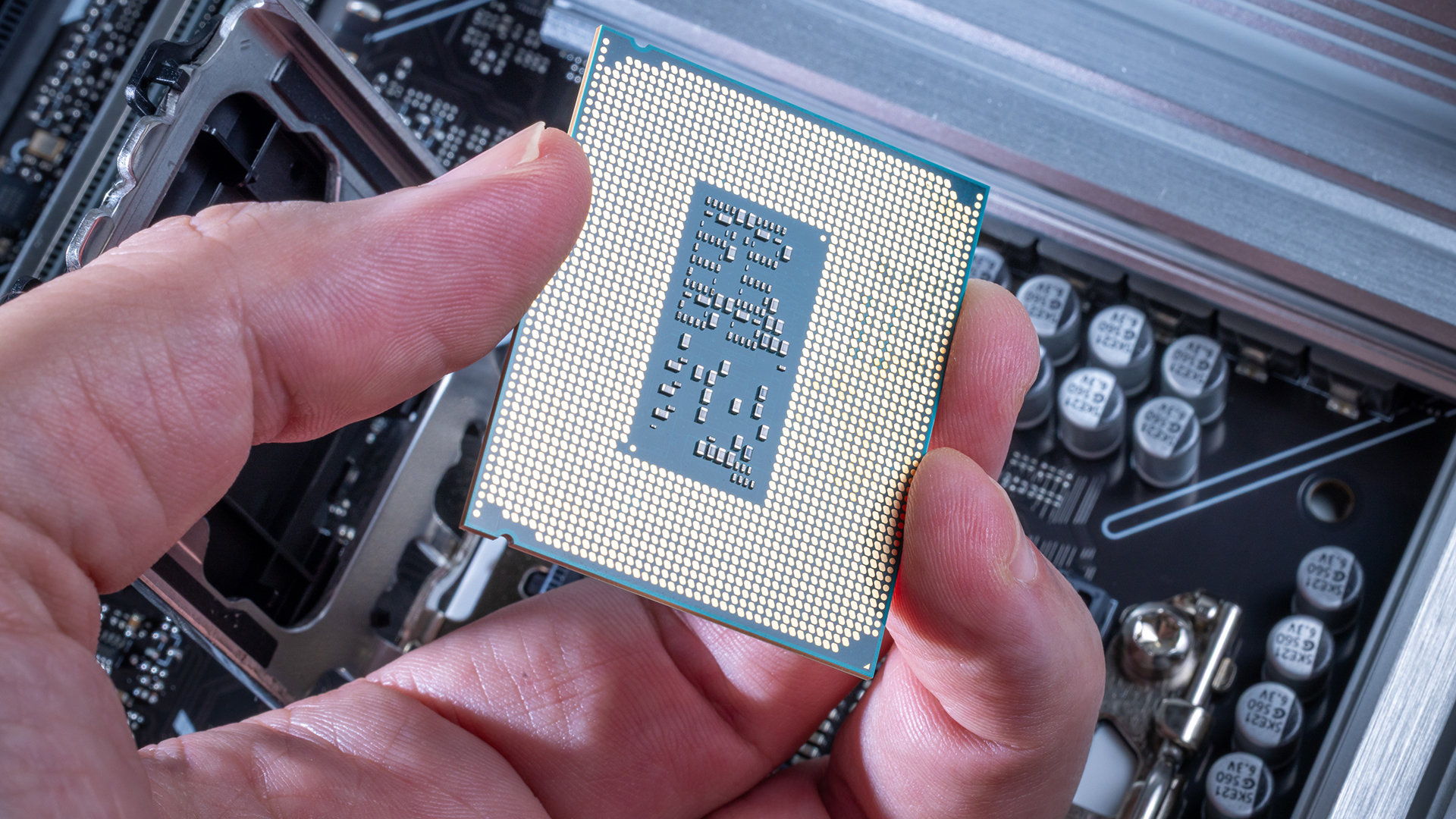
Hold the chip by its edges and lift it straight out, taking care not to touch the electrical contacts.
Intel LGA and AMD AM5 processors use socket contact pins, while AMD AM4 processors have pins on the CPU itself.
Never touch or attempt to straighten socket pins while removing the processor. If you spot damaged contacts, stop and assess the socket before proceeding.
Step 4: Install a New CPU
This is the most delicate part of the desktop processor replacement process.
Take the replacement processor out of its packaging and locate the small triangular alignment marker on one corner.
Match this marker with the corresponding indicator on the motherboard socket. Lower the CPU gently into position without sliding, pressing or forcing it.
Once seated correctly, secure the appropriate retention mechanism.
-
For AMD CPUs: When you replace an AMD CPU, remember that AM4 and AM5 have different contact designs. The AM4 chip drops into a zero-insertion-force socket, while AM5 uses a loading frame and retention arm.
-
For Intel CPUs: When you replace an Intel CPU, the processor should sit evenly within the socket before the loading mechanism is closed. Intel specifically advises checking alignment and all four corners before applying retention pressure.
Step 5: Clean the Contact Surfaces and Apply Thermal Paste
Old thermal compound shouldn't be reused when fitting the cooler.
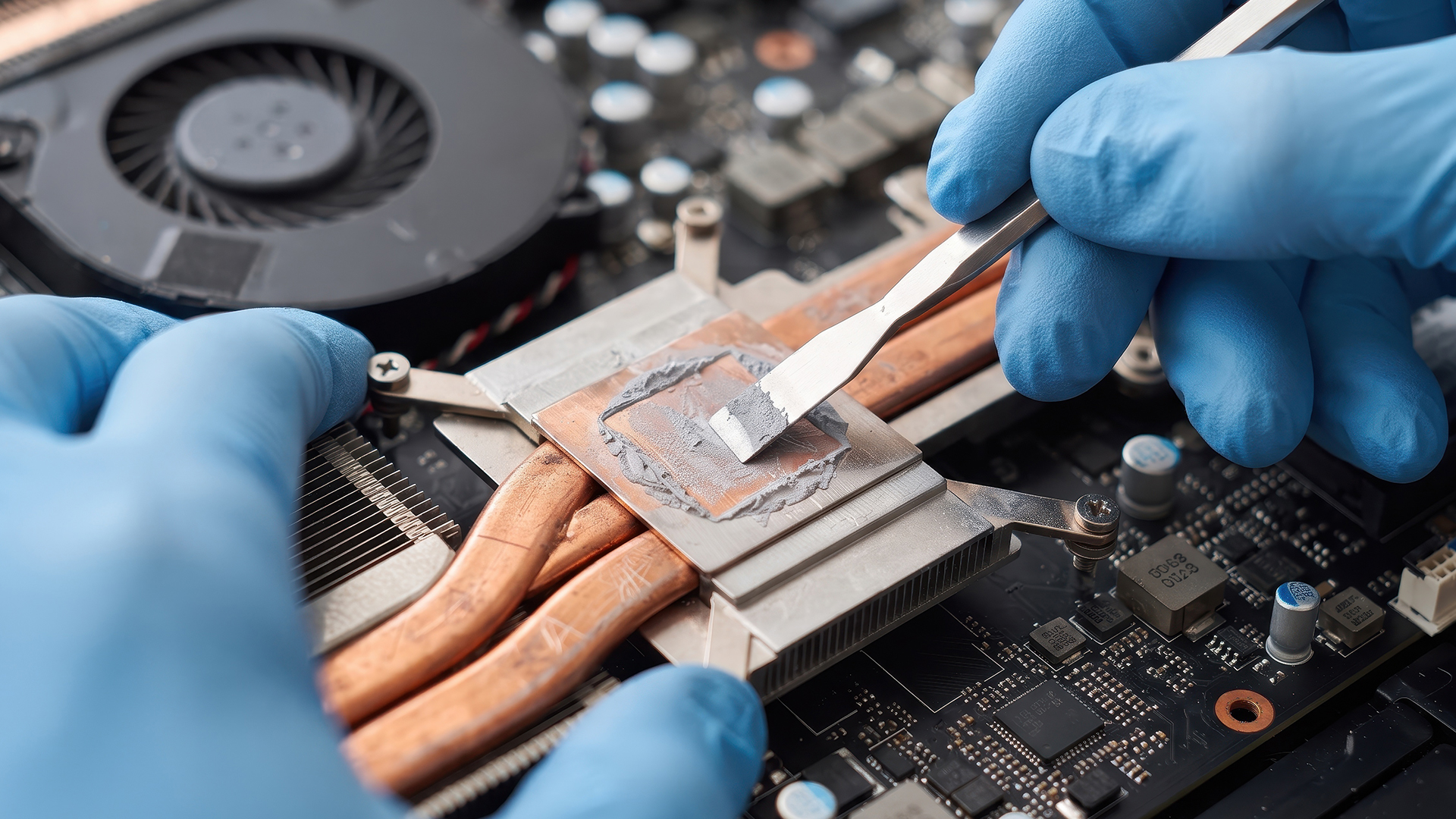
Using a lint-free cloth and isopropyl alcohol, remove residue from the cooler's contact plate. Clean the CPU heat spreader if necessary and allow the surfaces to dry completely.
Apply fresh thermal paste according to the cooler or paste manufacturer's recommendations.
For many desktop CPUs, a small central dot works well with an appropriate cooler mounting pressure. Larger or unusually shaped processors may benefit from a different application pattern.
Avoid excessive paste, which can spread beyond the heat spreader. If your new heatsink already has thermal paste applied, don't add another layer.
Step 6: Reinstall the CPU Cooler
Position the heatsink or pump block above the processor and align its mounting points.
Secure the cooler using the manufacturer's specified sequence. For screw-mounted models, tightening gradually in a diagonal pattern helps distribute pressure evenly.
Reconnect the cooler's fan and pump cables to their correct headers. If your old cooler doesn't support the new CPU's socket or thermal requirements, you may need a replacement.
Our CPU air and liquid coolers include cooling solutions for different desktop configurations. Check mounting brackets, radiator clearance and processor compatibility before choosing one. Unsure where to connect the cooler's cables? Our explanation of CPU_FAN, CPU_OPT and AIO_PUMP connections covers the different motherboard headers and their functions.
Step 7: Reassemble and Start Your Desktop
Before closing the case, verify that all essential connections are secure.
Check the motherboard's CPU power connector, cooler wiring, memory modules and graphics card connections.
Reconnect power and start the PC. Enter BIOS or UEFI using the manufacturer's designated key, commonly Delete or F2.
Confirm that:
- The new processor is correctly identified.
- The CPU fan or pump is operating.
- Idle CPU temperatures appear reasonable.
- Installed memory is detected.
- Firmware settings match your hardware.
The first boot after a processor change may take longer than usual, particularly when the motherboard performs memory training.
Step 8: Test CPU Performance and Stability
Once Windows loads, open Task Manager and select Performance > CPU. Check that Windows recognises the processor's model, core count and expected configuration.
Next, monitor temperatures using a suitable hardware monitoring utility and run a recognised CPU benchmark or stress test.
You might use Cinebench for rendering performance or OCCT for stability diagnostics.
There's no universal safe operating temperature for every processor. Check your specific CPU's published thermal limit and look for signs of excessive heat, unexpected throttling or instability.
If the system remains stable under realistic workloads, your processor upgrade is likely successful. If temperatures remain unusually high after installation, follow our gaming desktop overheating troubleshooting guide to identify potential cooling and airflow problems.
What to Do if Your PC Won't Boot After a CPU Upgrade
A blank screen or repeated restart doesn't automatically mean your new processor is faulty. Start with these common causes.
|
Problem |
Possible cause |
What to try |
|
PC powers on but no display |
Outdated BIOS or graphics connection issue |
Check CPU support, firmware and display cabling |
|
System repeatedly restarts |
Memory training or unstable settings |
Allow training to complete, then review RAM settings |
|
CPU not recognised |
Unsupported firmware or processor |
Confirm exact motherboard compatibility |
|
CPU overheats quickly |
Incorrect cooler contact or fan operation |
Check mounting pressure, paste and fan connections |
|
Windows crashes under load |
Unstable memory, power or CPU settings |
Load stable BIOS defaults and test components |
If you changed the motherboard alongside the CPU, check whether your existing desktop PC RAM matches its required memory standard.
For persistent startup problems, power the system down and review connections before reseating components.
You can also clear the CMOS using the motherboard manufacturer's procedure. Remember that this resets firmware settings and may require you to restore boot configuration or other custom settings.
If BitLocker or device encryption is enabled, ensure you have your recovery key before making firmware or motherboard changes.
Is Replacing Your CPU Worth it?
A CPU upgrade makes sense when your existing processor is limiting applications that rely heavily on processing power.
For example, moving from an older quad-core processor to a compatible modern six-core or eight-core chip may improve multitasking, productivity and performance in CPU-intensive games.
However, gains depend on more than core count alone. Processor architecture, cache, clock speeds, cooling and software optimisation all influence the result.
A faster CPU won't necessarily deliver a noticeable gaming improvement if your graphics card is already the bottleneck.
Likewise, switching to a different socket might require a new motherboard, memory or cooling hardware. At that point, assess the total upgrade cost rather than just the CPU price.
Our Advice: If you can achieve a meaningful performance improvement while keeping your existing motherboard, a processor-only upgrade may be excellent value. If multiple major components need replacing, a wider platform upgrade could be more sensible. Still deciding between processor platforms? Our Intel vs AMD desktop processor comparison explains the differences that matter for gaming, productivity and future upgrades.

Final Thoughts: Upgrade Your CPU with Confidence
Knowing how to replace a CPU can help you extend your desktop's useful life without buying a completely new system. The key is to confirm compatibility first, handle the processor carefully, and test everything after installation. Don't rush the cooler removal or overlook firmware requirements, as these are common sources of upgrade problems.
At Laptop Outlet, we stock desktop processors and supporting PC components to help you plan a compatible upgrade, whether you're refreshing an older system or building around a newer platform.

Your CPU Replacement Questions Answered
Can I replace my CPU without changing the motherboard?
Yes, provided the replacement processor is compatible with your motherboard's socket, chipset, BIOS and power delivery capabilities. Check the manufacturer's official processor support list before purchasing.
Do I need to reinstall Windows after replacing my CPU?
Usually not. A straightforward processor replacement on the same motherboard generally allows you to continue using your existing Windows installation. A motherboard change may introduce driver, activation or device-encryption recovery requirements.
How long does it take to replace a desktop CPU?
A straightforward processor swap typically takes around 30 to 60 minutes once compatibility has been confirmed and the necessary tools are ready. Complex cooling systems, BIOS updates or troubleshooting can extend the process.
Can I replace an Intel CPU with an AMD CPU?
Not on the same motherboard. Intel and AMD desktop platforms use different sockets and chipset ecosystems. Switching between them requires a compatible motherboard and potentially different RAM or cooler mounting hardware.
Do I need new thermal paste when replacing a CPU?
Yes, you should use fresh thermal paste whenever you remove and reinstall a CPU cooler, unless the replacement cooler already has suitable compound pre-applied. Reusing old paste can compromise thermal contact and cooling performance.
Can replacing a CPU damage my PC?
Yes, incorrect installation can damage processor contacts, socket pins or the motherboard. However, following the correct socket procedure, using ESD protection and avoiding excessive force significantly reduces the risk.
Related Articles

Last Updated: October 08, 2025
Keeping your PC cool is one of the most important factors in maintaining performance, extending hardware lifespan, and ensuring a stable computing experience. Processor of a gamer, or a professional creative generates heat that must be managed effectively. Air cooling may be sufficient for entry-level builds, but high-performance desktops and overclocked CPUs demand more advanced solutions. This is where Corsair steps in.
Corsair has earned a strong reputation for delivering reliable and innovative cooling systems. Let’s explore the best Corsair CPU cooler options in 2025, review their performance, noise levels, installation process, and software features.
Why Choose a Corsair CPU Cooler?
Before diving into the product reviews, it’s important to understand why Corsair CPU coolers continue to dominate the PC cooling market in 2025. Corsair has consistently evolved its product line to meet the demands of modern processors, gaming rigs, and workstation builds.
Proven Reliability and Build

Last Updated: May 06, 2026
year is more than just a fresh calendar; it’s one of the best times of the year to upgrade your PC hardware for less. As retailers clear stock, introduce refreshed product lines, and compete for attention during seasonal sales, motherboard New Year deals 2026 unlock savings that simply aren’t available during regular months. Whether you’re planning a brand-new desktop build, upgrading an ageing system, or finally pairing a powerful CPU with a compatible board, New Year sales make high-end components far more affordable.
New Year Sale on AMD Motherboards
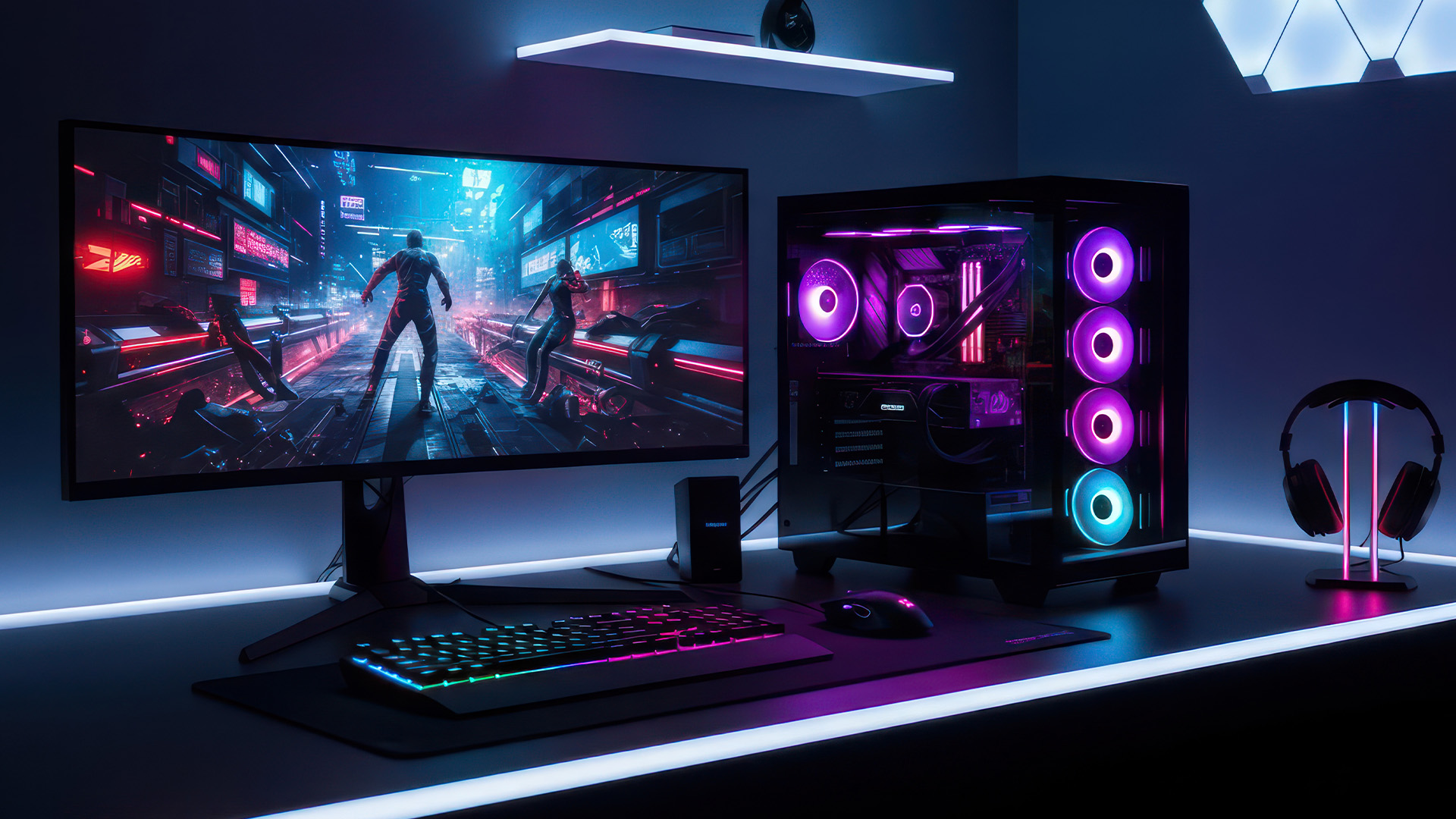
This New Year, AMD motherboard discounts make it easier than ever to build or upgrade your PC with powerful AM5 boards at lowered prices.
1. ASUS TUF GAMING X870E-PLUS WIFI7 ATX AMD Socket AM5 Motherboard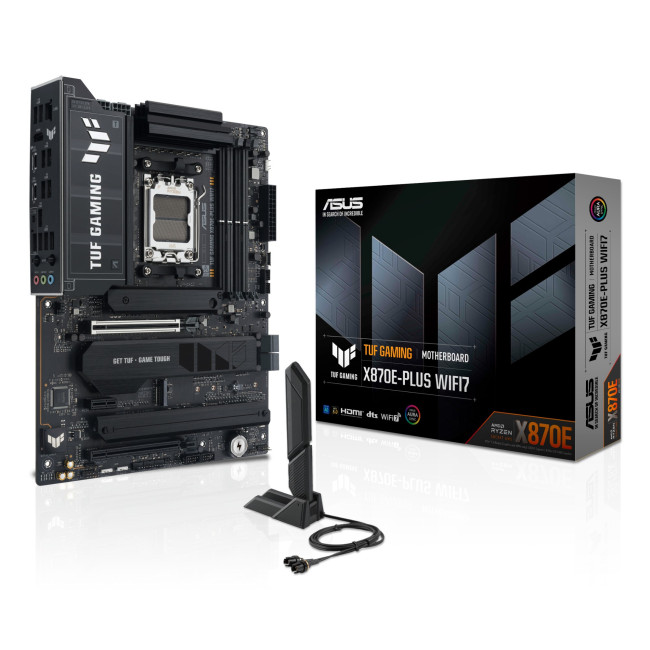
This flagship TUF board typically sits in the upper mid-range price bracket, but New Year Sale pricing often brings it into compelling territory compared to standard retail tags, shaving a noticeable percentage off regular prices.

Last Updated: January 27, 2026
Intel has remained a titan in the world of PC gaming for decades. Their processors power some of the most capable high-performance gaming desktops on the market today.
Recently, we have seen a massive shift in how these chips operate. The evolution from the classic Core i-series to the brand-new Ultra Core processors marks a new era. These advancements are not just about speed; they are redefining the entire gaming experience.
If you want a top-tier machine, understanding how Intel CPUs work in gaming desktops is essential.
The Role of a CPU in Gaming
The CPU acts as the brain of your computer. It handles every logic calculation and physics instruction required for your game.
CPU vs GPU: Understanding the Balance
The GPU handles the visuals and graphics rendering. Meanwhile, the CPU manages physics, logic, and artificial intelligence.
You need a strong balance between both components to avoid lag. If one is too slow, the other cannot perform at its full potential during intense sessions.

Last Updated: February 20, 2026
If you have been considering a high-performance processor upgrade this year, you may have noticed pricing staying firmer than expected. High-End CPU prices 2026 are under upward pressure, and in the UK, this often shows up as fewer meaningful discounts, shorter sale windows, and popular models holding close to launch pricing for longer.
A key driver is the scale of AI hardware demand 2026 and the wider push to expand AI data centres. While GPUs get most of the attention, large AI deployments also consume huge volumes of CPUs for orchestration, data handling, virtualisation, networking, and general system control. Recent industry reporting has pointed to rising pressure in high-end server CPU prices and tighter availability in some regions as AI-related demand ramps up.
This article explains what is changing, why it matters for premium desktop and laptop processors, how these pressures can filter into UK retail pricing, and what practical steps you can take to get better value when shopping
Last Updated: May 06, 2026
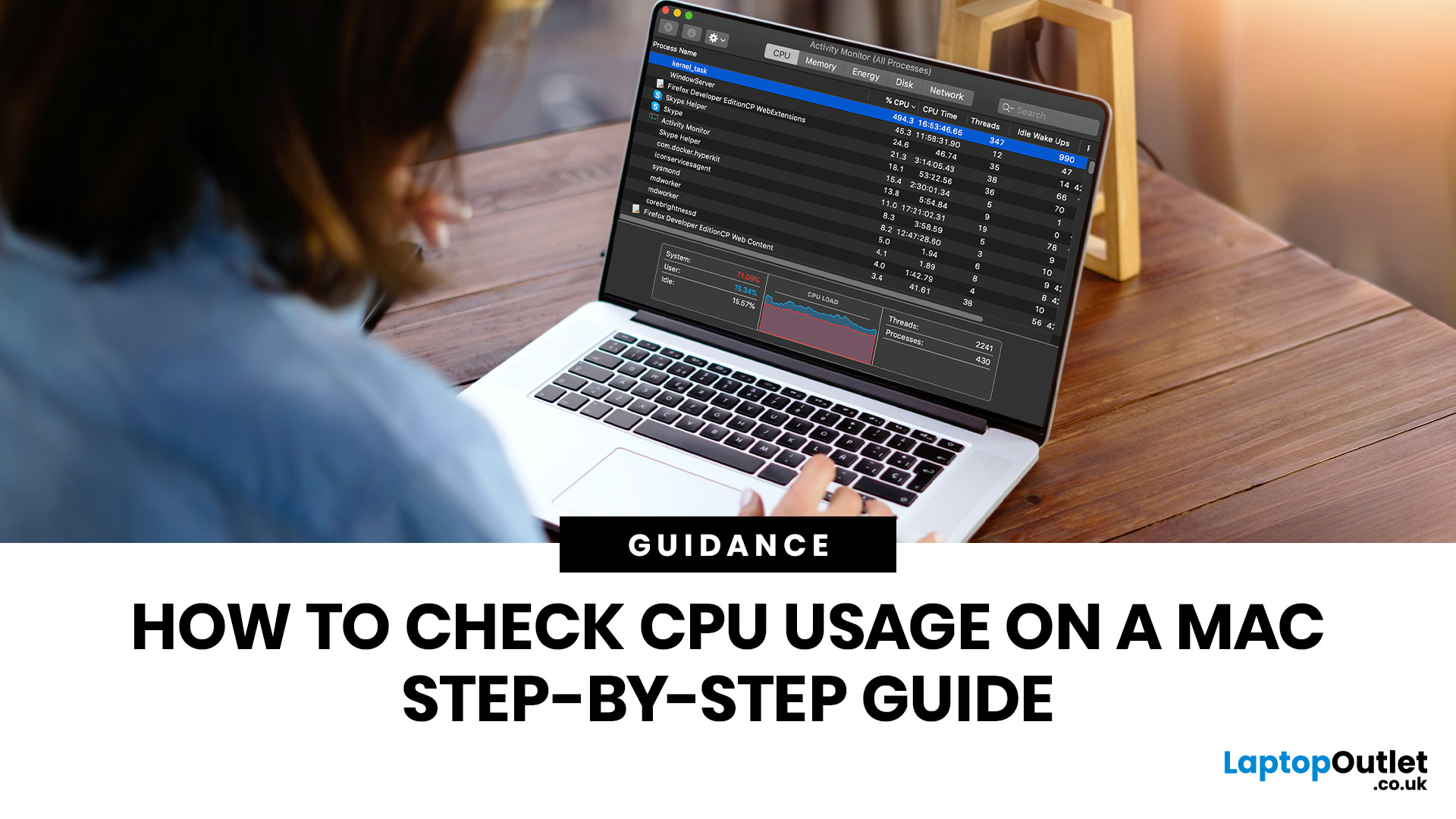
If you want to check CPU usage on a Mac, the fastest built-in method is Activity Monitor. Open it, click the CPU tab, and you can immediately see which APPs and processes are using the most processor power, along with overall User, System, and Idle percentages at the bottom of the window.
That makes CPU usage one of the most useful checks when your Mac feels slow, runs hot, drains battery quickly, or sounds busier than usual. In this guide, we will show you exactly how to see CPU usage on a Mac, how to interpret what you are looking at, and what to do next if one APP is using more processing power than it should.
How to See CPU Usage on a Mac
The easiest way to check processor usage on a Mac is to open Activity Monitor and click CPU. That view shows your Mac’s processor activity over time and lists active APPs and processes so you can spot what is using the most CPU. Apple also lets you open CPU Usage and CPU History from the Window menu for a more visual view.
If you want a quicker
Last Updated: June 18, 2026
For most buyers in 2026, the best laptop specs are a modern Intel Core Ultra 5/7 or AMD Ryzen AI 5/7 processor, 16GB RAM, 512GB SSD storage, and integrated graphics. Choose 32GB RAM, 1TB storage, and a dedicated GPU if you edit videos, create content, play demanding games, or use professional software.
Buying a new laptop in 2026 can feel confusing, especially when every product page is packed with technical words, numbers, and abbreviations. This processors & specs explained guide breaks everything down in plain English so you can understand what matters before you spend your money.
For most buyers, the four most important laptop components are the CPU, RAM, GPU, and storage. Once you understand these, it becomes much easier to compare models, avoid overspending, and choose a laptop that actually suits your daily needs.
What are Laptop Specs and Why Do They Matter?
Understanding laptop specifications becomes important. Specs affect:
- How fast your laptop feels when opening apps.
- How many
Published: June 11, 2026
Choosing the right gaming desktop can be the difference between smooth, immersive gameplay and a system that struggles within a year. This gaming PC buying guide explains the key components that affect gaming performance, future-proofing, and value for money, so you can buy with confidence rather than guessing from confusing spec sheets.
A good gaming PC is not just about the most expensive graphics card. It is about balance. The CPU, GPU, RAM, storage, cooling, power supply, motherboard, and case all work together. Whether you play competitive esports, cinematic single-player titles, open-world RPGs, racing games or VR, understanding the right configuration helps you avoid overspending and choose a desktop that lasts.
This article is designed as a practical gaming PC specs guide for beginners, but it also includes up-to-date 2026 advice for buyers comparing modern RTX, Radeon, Intel, and AMD-powered systems.
Why Buy a Gaming Desktop PC?
A gaming desktop PC remains one of the best choices
Last Updated: June 15, 2026
Overheating can slow down your PC, crash games, and damage key components. Checking CPU and GPU temperature helps spot heat issues early, compare readings with safe ranges, and choose the right fix, from cleaning vents to upgrading cooling fans, coolers, processors, or graphics cards for smoother everyday performance and overall stability.
Is your laptop sounding like it’s about to take off? Or does your PC randomly slow down, crash, or shut itself off? Yeah, that’s usually not a vibe. It could mean your system is overheating.
Doing a quick check CPU GPU temperature laptop test can help you spot heat issues before they turn into expensive damage. Whether you game, edit videos, stream, or just multitask like a boss, keeping an eye on your processor’s and graphics cards temperature is a smart move.
Here’s how to check both easily.
Signs Your PC or Laptop is Overheating
Your device usually gives you clues before things get serious. Watch out for:
- Loud fans running non-stop
- Sudden lag or freezing
Last Updated: June 22, 2026
Your PC can look perfectly fine on the outside and still fail the moment it is pushed hard.
A game crashes after 20 minutes. A video export freezes at 92%. Your laptop randomly restarts during a heavy workload. Or maybe you have just upgraded your memory, changed your processor, built a new desktop, or enabled XMP/EXPO in the BIOS and want to know one thing:
Is my system actually stable?
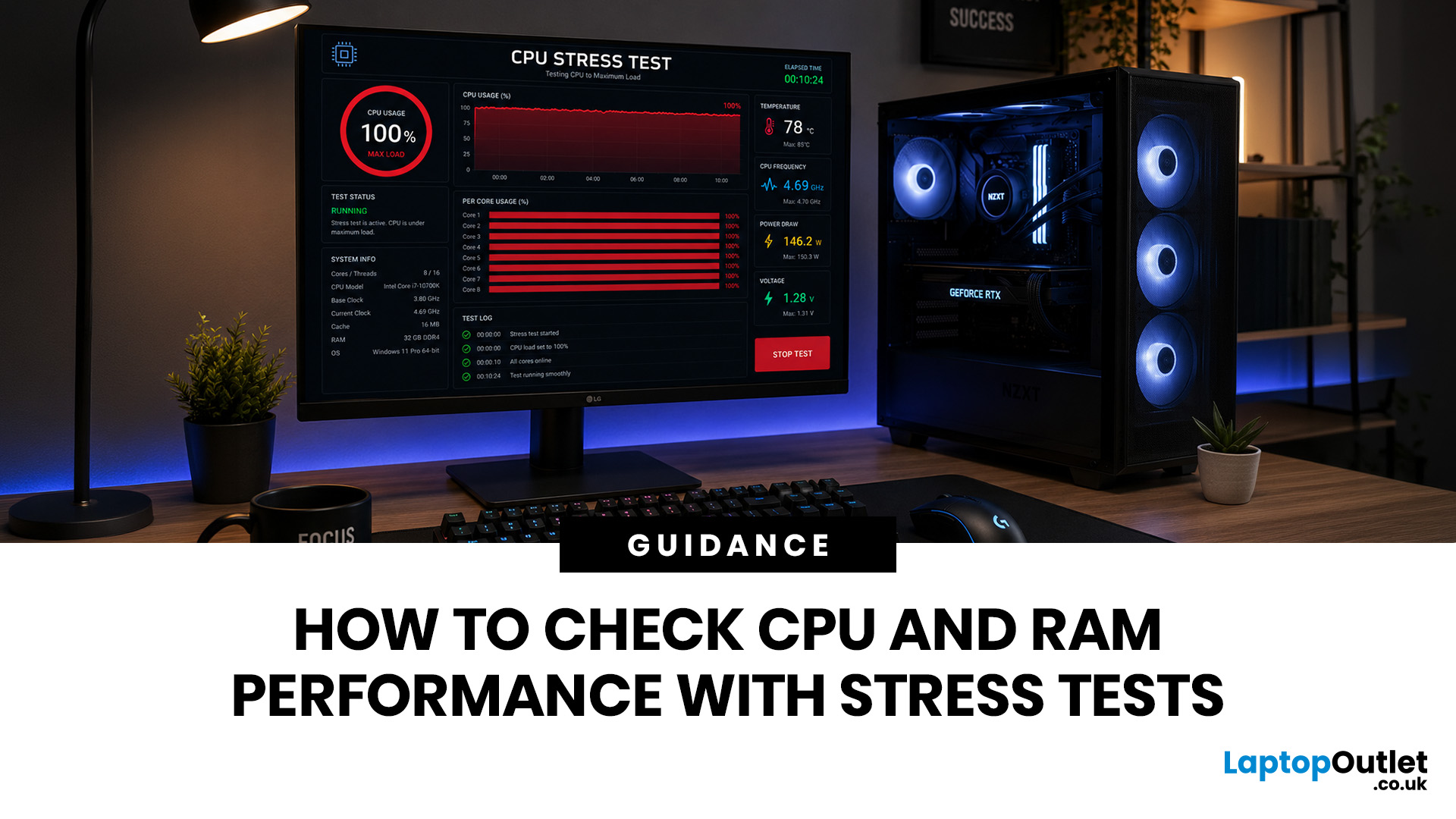
That is where a stress test CPU RAM process helps. By running a controlled CPU, RAM, or combined system stress testing session, you can find problems before they interrupt your work, gaming, editing, coding, or daily use.
In this guide, you will learn:
- What CPU and RAM stress testing

Last Updated: July 07, 2026
If you mainly browse, stream, study or use office apps, choose a modern balanced processor rather than paying extra for lots of cores. If you game, prioritise strong single-core performance, cache and a good dedicated GPU. If you edit video, render, compile large projects or run virtual machines, more cores and threads become much more important.
Have you ever stared at two laptop spec sheets wondering whether a higher GHz number or an extra two cores will serve you better? You are not alone. This is one of the most common questions and this guide will answer it by breaking down CPU clock speed vs cores. It will help you work out which matters more for your specific use case, whether that is gaming, video editing, office work, or coding.
What Is CPU Clock Speed?
CPU clock speed is the rate at which a processor's cores work through instructions, measured in cycles per second. In simple terms, CPU clock speed tells you how many of these cycles a core can complete every second.

