



How to Clean Your Laptop Keyboard?
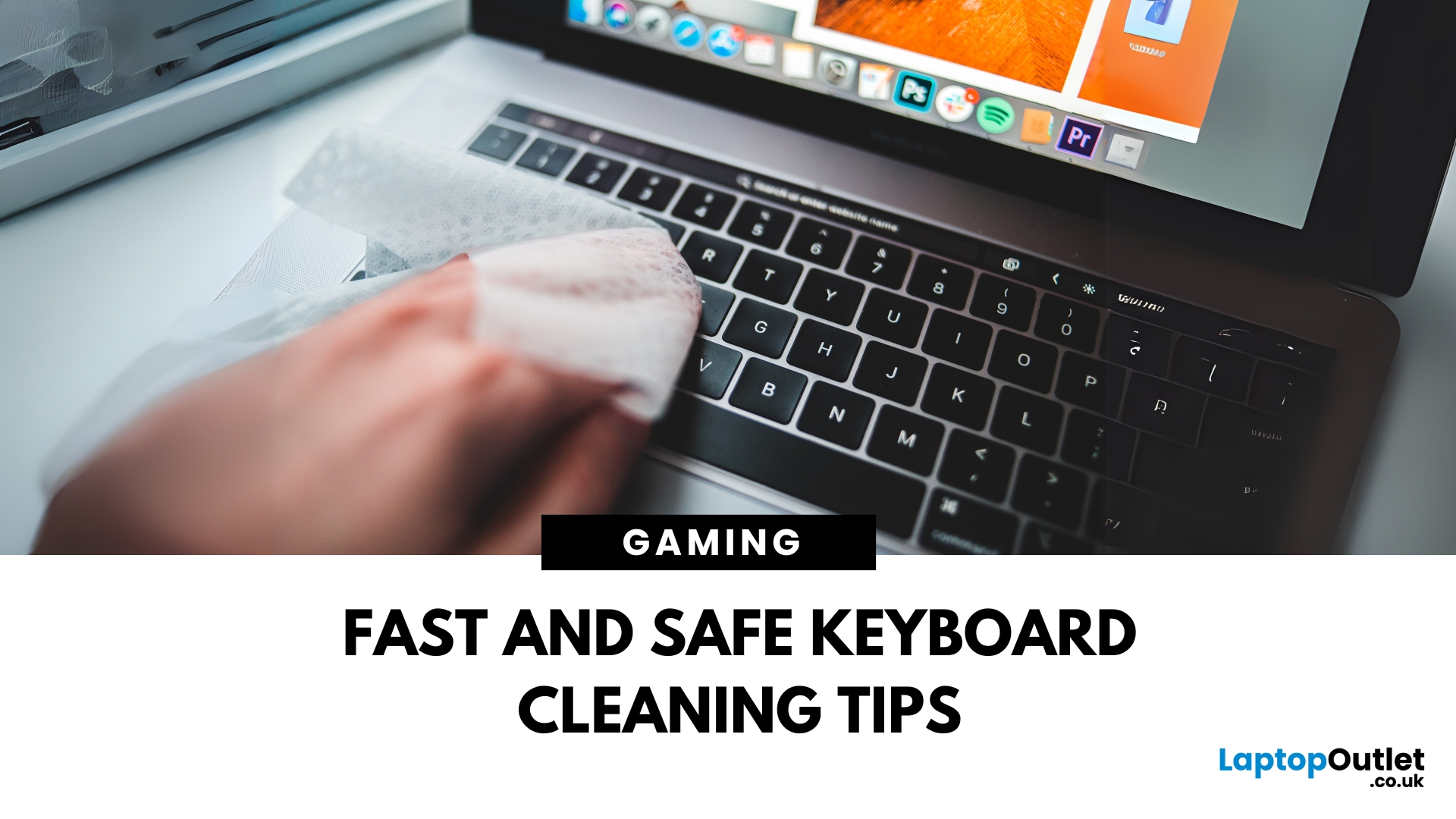
Dust, crumbs, skin oils, and drink residue can make a laptop keyboard look grubby or leave keys slow and sticky. Cleaning it correctly takes only a few minutes, but excess liquid or unsuitable products can damage the key coating and electronics.
How to Clean a Keyboard Safely: Quick Answer
Shut down and unplug the laptop. Remove loose debris with short bursts of compressed air, then wipe the keys with a soft microfibre cloth lightly dampened with 70% isopropyl alcohol. Never spray liquid directly onto the keyboard and let it dry fully before switching it on.
What You Will Need
- Soft microfibre cloth
- Compressed air
- Cotton buds or a soft brush
- 70% isopropyl alcohol
How to Clean a Laptop Keyboard Step by Step
1. Turn Off and Unplug the Laptop
Save your work, shut the laptop down and disconnect the charger and accessories. Cleaning while it is powered can cause accidental inputs and increases the risk if moisture enters an opening.
2. Remove Loose Crumbs and Dust
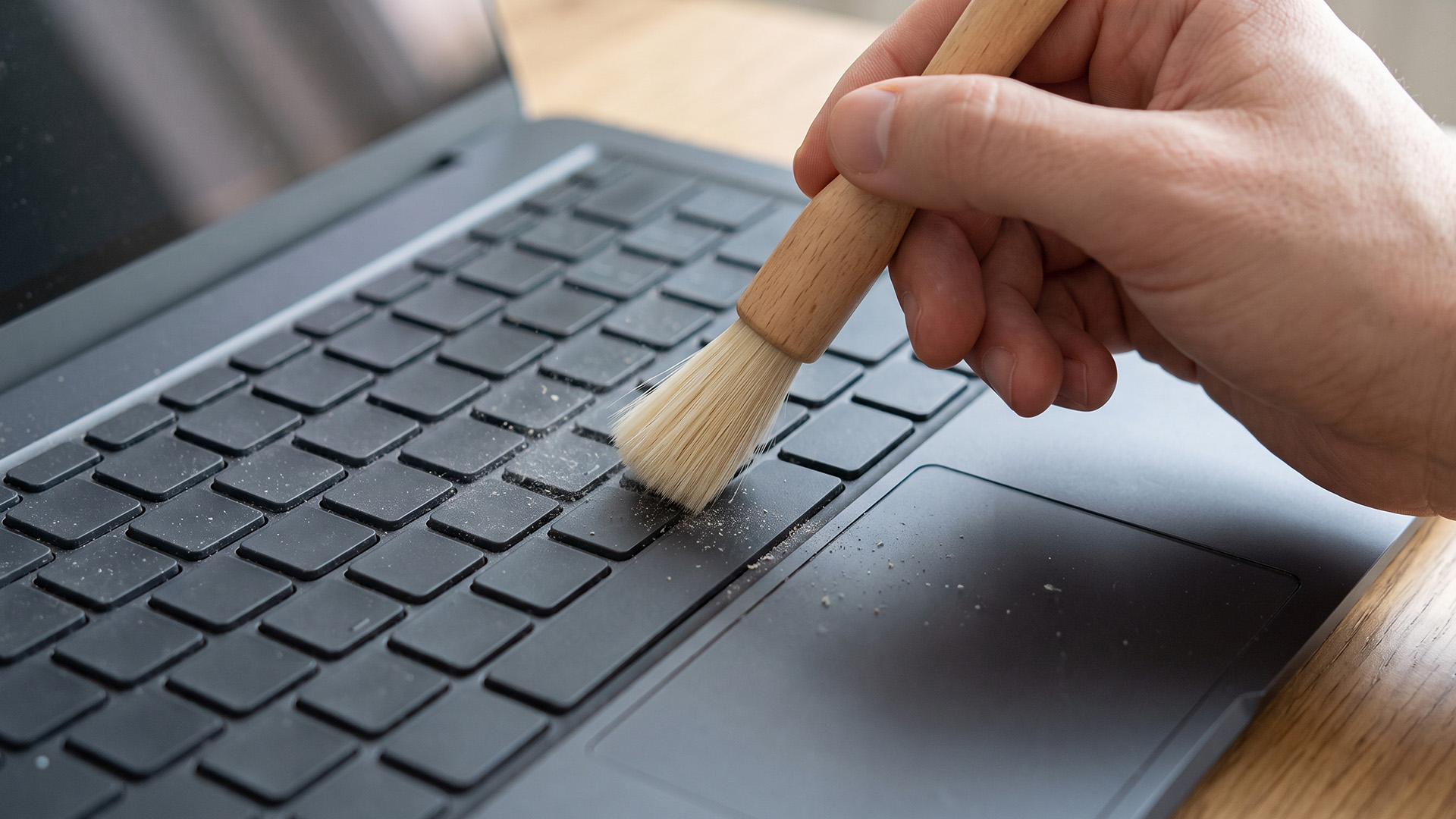
Place the laptop on a stable surface and tilt it slightly. Use compressed air in short bursts across the rows of keys, keeping the can upright. A soft brush can loosen dirt around the edges, but do not force anything beneath the keycaps.
3. Wipe the Key Surfaces
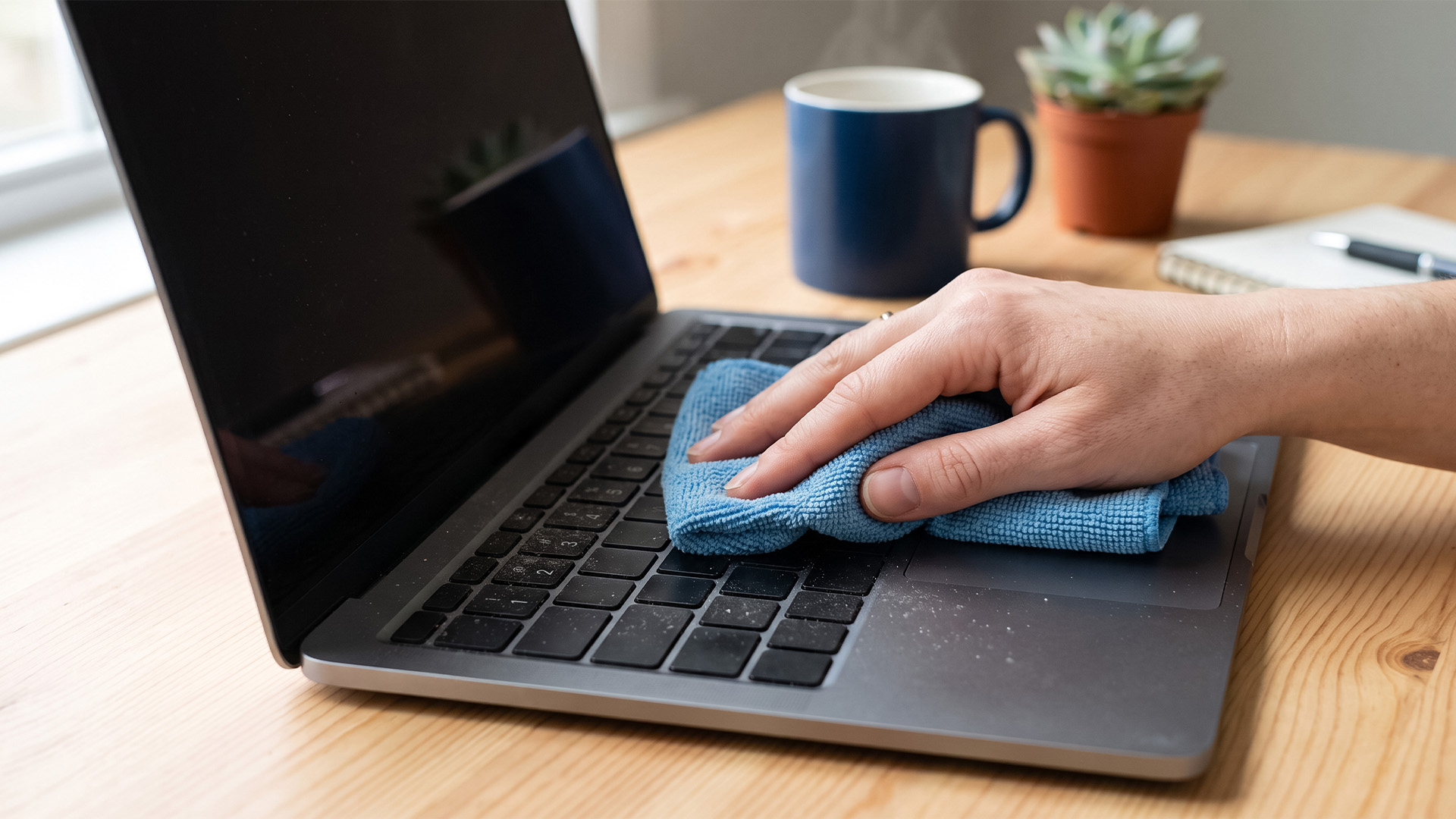
Lightly dampen a microfibre cloth with 70% isopropyl alcohol. It should feel damp, not wet. Gently wipe the keys, spaces between them and the surrounding palm rest. Always apply the liquid to the cloth rather than the laptop. This reduces the chance of droplets entering gaps around the keys, trackpad or power button.
4. Clean Around Individual Keys
For dirt around a key, lightly dampen a cotton bud and squeeze out any excess. Trace around the edges without pushing it underneath the mechanism. Finish with a dry part of the cloth and wait until the keyboard is completely dry before reconnecting power.
How to Clean Sticky Keys
To clean sticky keys, switch off the laptop and wipe around the affected key with a cotton bud or microfibre cloth lightly dampened with 70% isopropyl alcohol. Once dry, press the key gently several times to check its movement.
Do not pry off a laptop keycap unless the manufacturer confirms it is removable. If the key remains sticky, dried liquid may be trapped underneath and professional cleaning or replacement may be safer.
How to Disinfect a Laptop Keyboard
Use a soft, lint-free cloth lightly dampened with no more than 70% isopropyl alcohol. Wipe the non-porous key surfaces gently without soaking them, then let the keyboard air-dry completely. Approved cleaning products can vary, so follow the instructions for your model.
What Not to Use on a Laptop Keyboard
Avoid:
- Bleach or cleaners containing hydrogen peroxide
- Window cleaner
- A hot hairdryer
- A household vacuum
- Direct spraying of any cleaner
Bleach and unsuitable chemicals may damage finishes. Heat can affect plastics and adhesives, while a household vacuum may be too powerful for delicate keycaps. Direct spraying allows liquid to reach the electronics beneath the keys.
What to Do After a Liquid Spill
Turn the laptop off immediately, unplug it and disconnect accessories. Do not keep typing, apply heat or repeatedly press wet keys. Blot visible liquid with a dry, lint-free cloth. Sugary, milky or alcoholic drinks can leave sticky residue. Arrange professional inspection before powering the laptop back on, especially after a substantial spill.
If several keys no longer respond and repair is uneconomical, you can explore our laptops for a suitable replacement.
When Cleaning is Not Enough
Cleaning cannot repair broken clips, worn switches or liquid-damaged circuitry. For a more comfortable desk setup, compare the best laptop keyboards alongside compatible mice and accessories.

Final Thoughts
Regular light cleaning stops dirt from building up and reduces the need for aggressive deep cleaning. Use only a barely damp cloth, keep drinks away and stop if a key appears loose or damaged.

In Case You’re Wondering...
Is isopropyl alcohol safe for laptop keyboards?
Yes, 70% isopropyl alcohol is generally suitable for many laptop keyboards when applied sparingly to a lint-free cloth. Check the manufacturer’s instructions and never spray it directly.
Why are my keys still sticky after cleaning?
Residue may remain beneath the keycap, or the mechanism may be damaged. Avoid prising the key off unless approved by the manufacturer and consider professional cleaning.
How do I disinfect a laptop keyboard?
Turn off and unplug the laptop. Wipe the keys with a soft cloth lightly dampened with up to 70% isopropyl alcohol, then allow them to dry completely.
Can a dirty keyboard cause problems?
Yes. Dust, crumbs and residue can obstruct key movement, cause missed or repeated inputs and make the keyboard unhygienic. Liquid residue may also contribute to internal damage.
What should I do if I spill liquid on my keyboard?
Switch it off immediately, unplug it and blot visible liquid. Do not use heat or power it on to test it. Seek professional help for sugary or substantial spills.
| Read More: |
| Top Wireless Keyboards and Mice for Work and Gaming in 2026 |
| Best Laptop Accessories in 2026: Keyboards, Monitors, Hubs & More |
| A Complete Guide to Mac Keyboard Shortcuts |
Related Articles

Last Updated: July 28, 2026
Last Updated: September 03, 2026
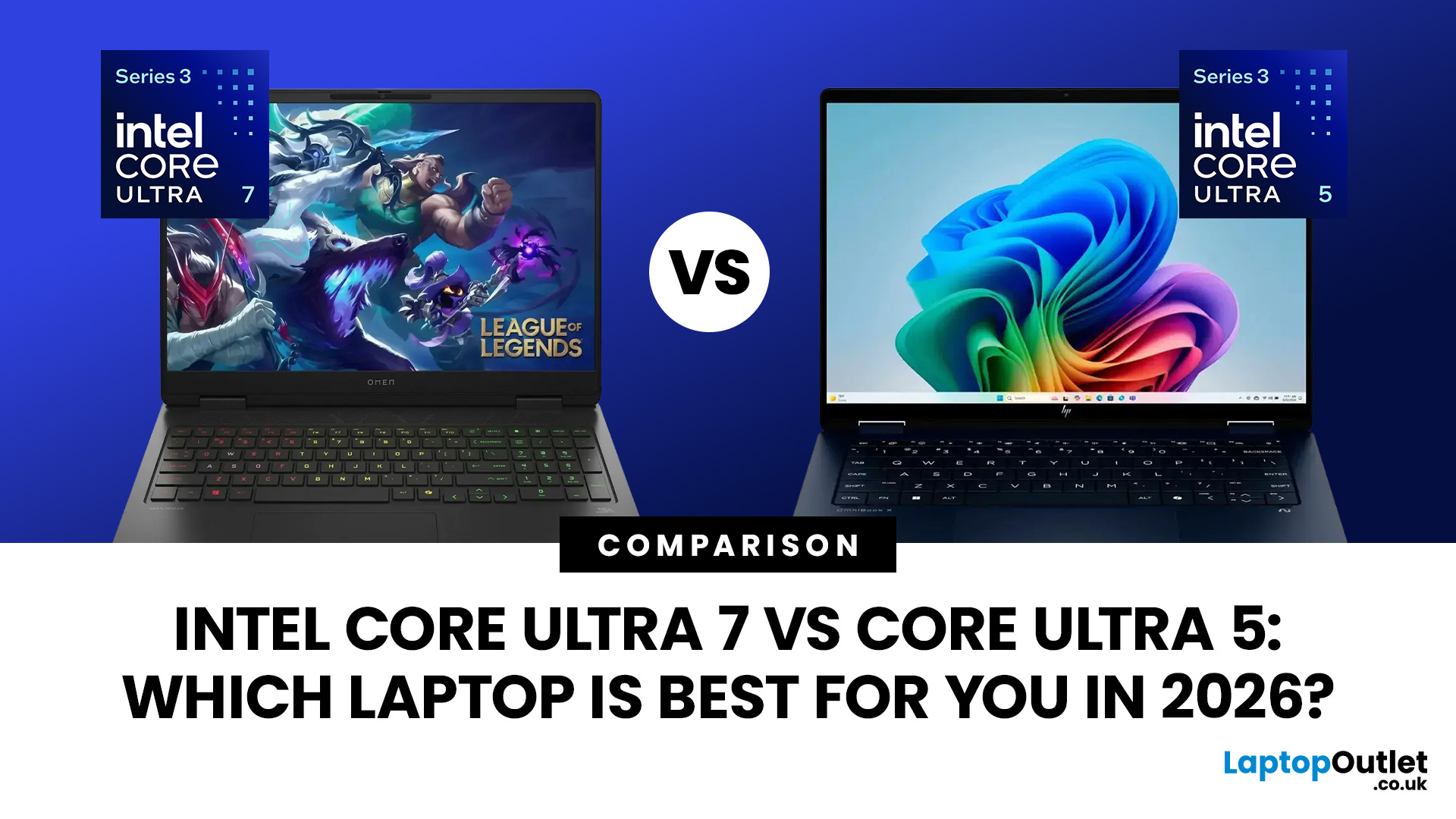
Deciding between Intel Core Ultra 7 vs Core Ultra 5 is not as simple as picking the higher number. Core Ultra 5 delivers excellent value for students, office users, and everyday multitaskers, while Ultra 7 adds more power for demanding creative work, coding, and heavy multitasking. However, generation, processor suffix, graphics, RAM, and laptop cooling can all affect real-world performance. In some cases, a newer Intel Ultra 5 laptops can even outperform an older Core Ultra 7. This Intel Core Ultra laptop comparison guide breaks down the key differences so you can choose the right laptop without overspending.
Last Updated: July 29, 2026
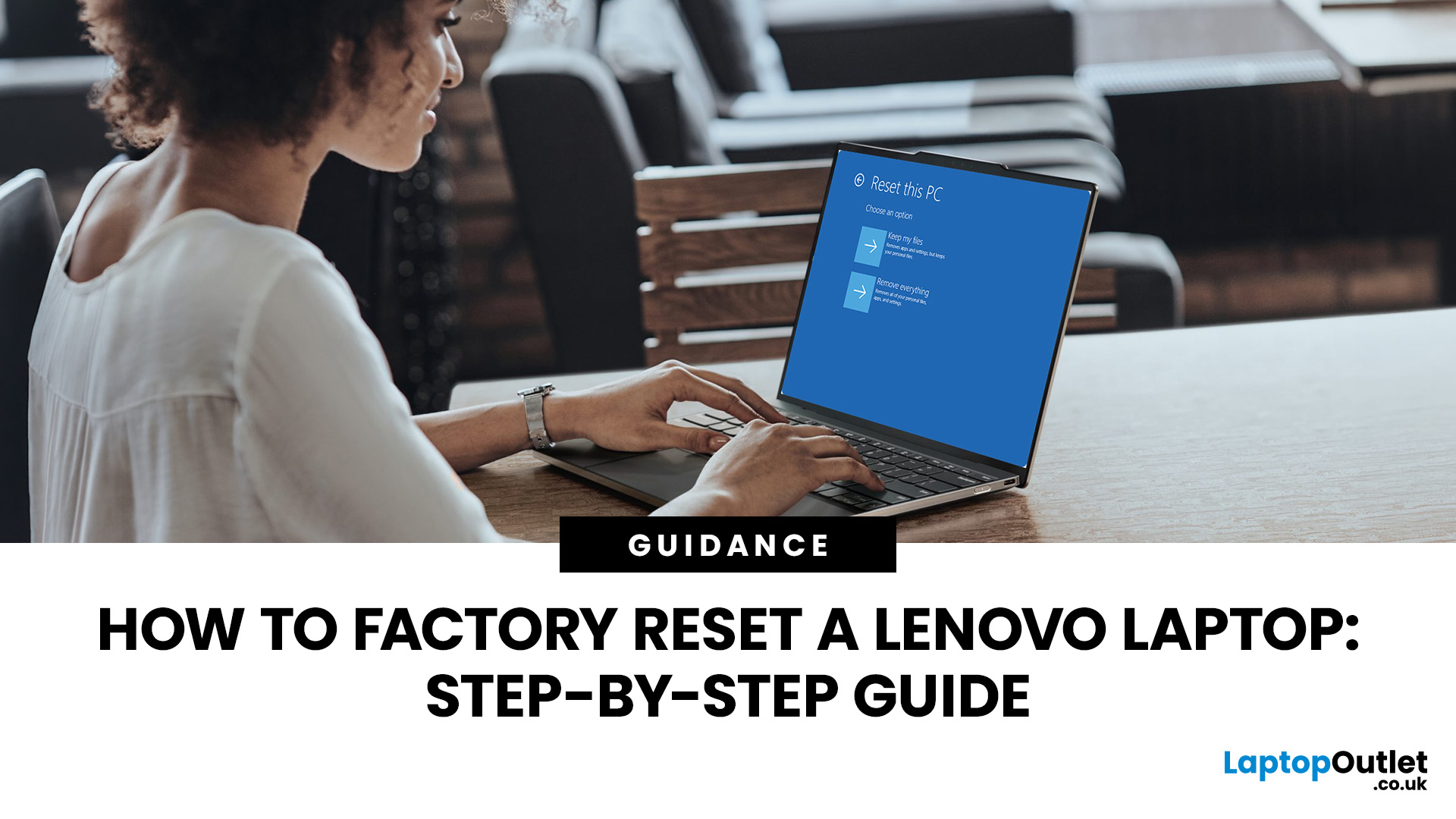
Your Lenovo laptop is slow, crashing, affected by persistent software problems or being prepared for a new owner; don't panic, it’s simply time for a factory reset.
A proper Lenovo factory reset reinstalls Windows and may remove applications, settings and personal data. This guide explains how to reset Lenovo laptop systems through Settings, the sign-in screen, Lenovo recovery mode, the Novo button or recovery media.
Before You Factory Reset Your Lenovo Laptop
- Back up documents, photos and other important files to cloud storage or an external drive.
- Keep the charger connected, remove unnecessary laptop accessories

Last Updated: September 03, 2026
When comparing premium laptop screens, the OLED vs AMOLED debate is simpler than it seems. Both deliver deep blacks, vibrant colours, fast response times and strong contrast. OLED is the broader technology, while AMOLED is a type of OLED that uses an active-matrix system to control pixels. Many modern OLED laptops already use this system, even if not labelled AMOLED. Instead of focusing on the name, buyers should compare resolution, refresh rate, brightness, colour accuracy, battery life and burn-in protection. This guide helps you understand the differences and choose the right display for your needs.
OLED vs AMOLED: The Quick Answer
OLED, or Organic Light-Emitting Diode (OLED), is a display technology in which each pixel creates its own light. An OLED screen does not require the separate backlight used by traditional LCD panels.
AMOLED, or Active Matrix OLED (AMOLED), is a type of OLED display that uses an active-matrix transistor system to control each pixel quickly and individually.
Last Updated: August 17, 2026
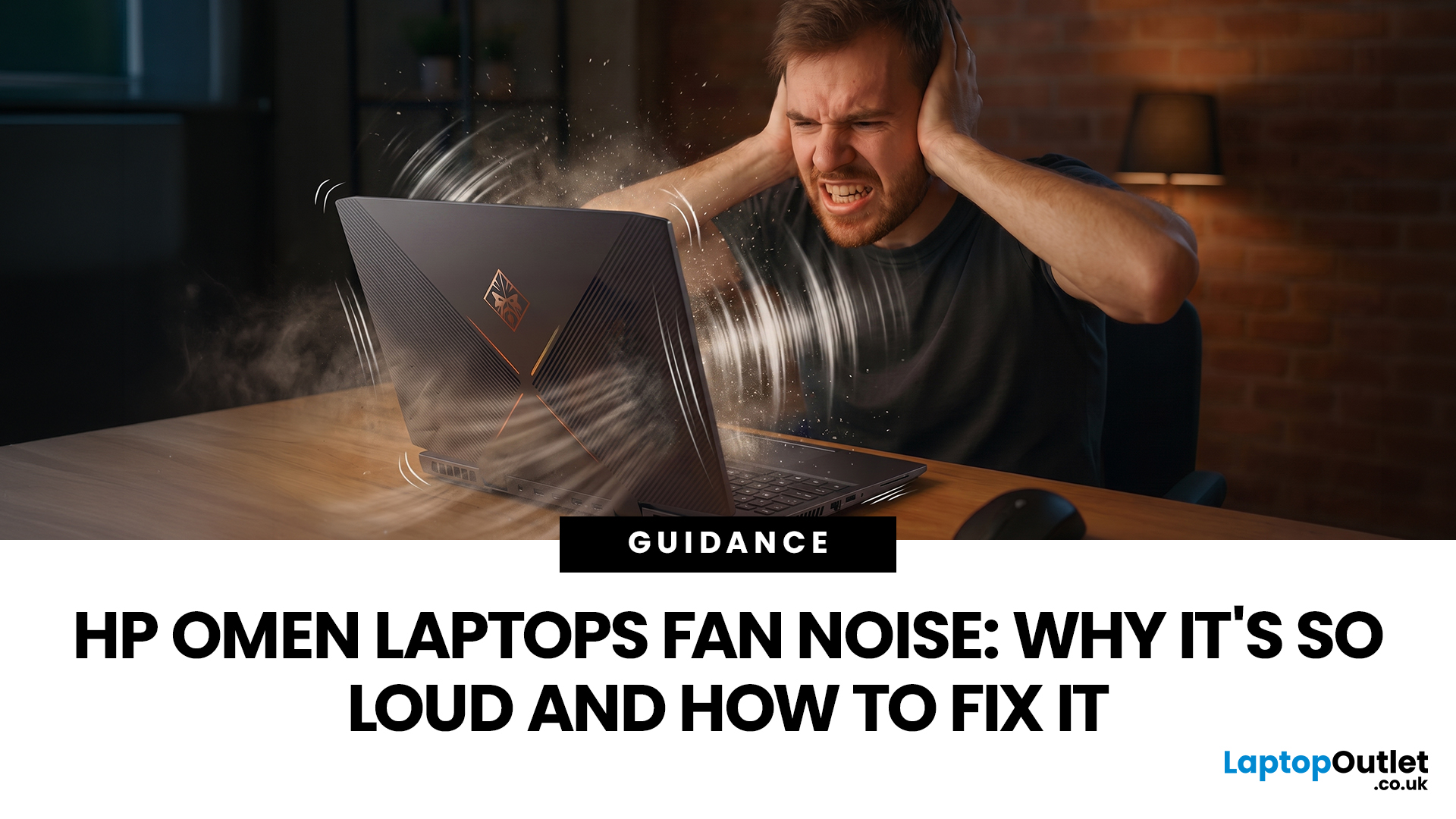
HP OMEN laptops use powerful processors and dedicated graphics, so their cooling systems can become clearly audible during gaming and other demanding work. Some HP OMEN fan noise is normal, but constant noise at idle, grinding or repeated overheating deserves attention. This guide explains how to identify the sound, diagnose the cause and choose a safe fix across the top HP OMEN laptop range.
| HP OMEN Fan Noise: Quick Answer Loud fan noise is normal while an OMEN laptop starts, updates, games, renders or runs a demanding AI task. HP says a brief fan surge for about five to twenty seconds at startup can be normal, while Performance mode deliberately increases fan speed to manage higher CPU and GPU power and temperature. Investigate an HP OMEN loud fan when it remains noisy during light use, produces mechanical sounds or appears with weak airflow, throttling or shutdowns. Many cases improve after reducing background load, changing settings, updating HP software and BIOS, restoring airflow |

Last Updated: August 20, 2026
OLED screens are becoming more common across premium ultrabooks, creator workstations and gaming laptops in 2026. Newer panels offer higher resolutions, faster refresh rates and improved efficiency, while recent tandem OLED developments are also increasing brightness and durability.
However, an OLED screen does not automatically make a laptop suitable for every buyer. Processing power, graphics, memory, ports, battery life and weight remain equally important.
This guide compares the best OLED laptops for students, professionals, creators, gamers and everyday users. It also explains the specifications that matter, helping you understand what each feature means when choosing a laptop.
Quick Picks: Best OLED Laptops in 2026
| Category | Laptop |
| Best Overall | ASUS Zenbook S 16 |
| Best Premium | Samsung Galaxy Book5 Pro |
| Best Value | Samsung Galaxy Book4 |
| Best Student Laptop | ASUS Zenbook 14 OLED |
| Best Business Laptop | Samsung Galaxy XE550XGA |
| Best Creator Laptop | ASUS ProArt PX13 |
| Best Professional Workstation |
Published: August 03, 2026
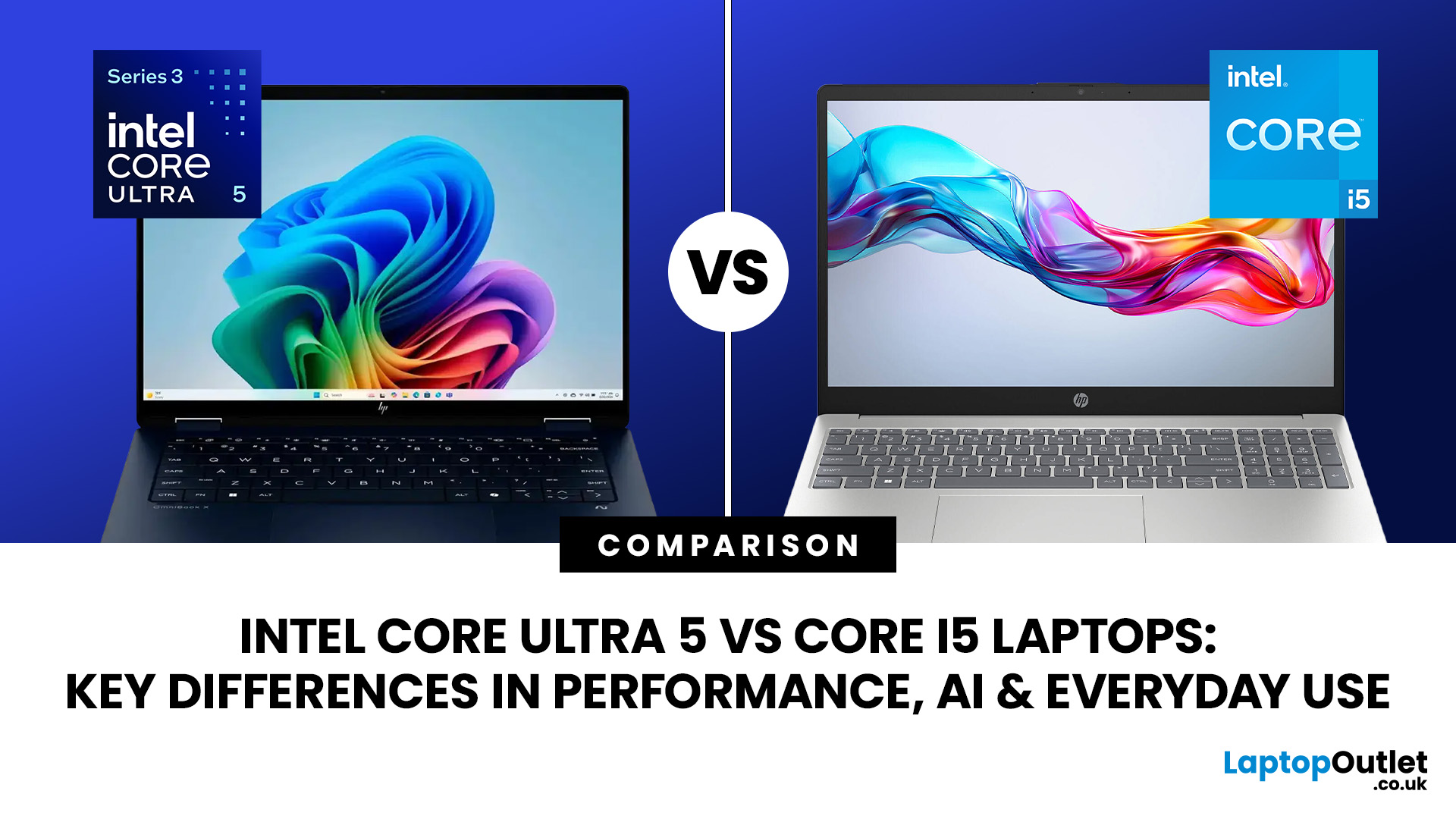
Intel has changed how it names and builds its laptop processors (CPUs). Traditional Core i5 chips remain widely available, but newer premium laptops increasingly use the Core Ultra 5 name, which Intel introduced alongside a major architectural redesign and built-in AI acceleration. That makes the Intel Core Ultra 5 vs i5 comparison more complicated than simply checking which number looks newer.
This guide explains the differences in everyday speed, multitasking, graphics, gaming, AI features, and battery life, without burying the answer under unnecessary technical jargon.
Quick Answer: Should You Buy Intel Core Ultra 5 or Core i5?
Buy Core Ultra 5 for stronger integrated graphics, on-device AI features and generally better efficiency. Buy Core i5 when price matters most, especially for office work or laptops with dedicated graphics card. Always compare the exact processor suffix and laptop configuration.
| If you want... | Buy | Why |
| Lowest price | Core i5 | Older i5 laptops are regularly discounted |
Last Updated: August 13, 2026
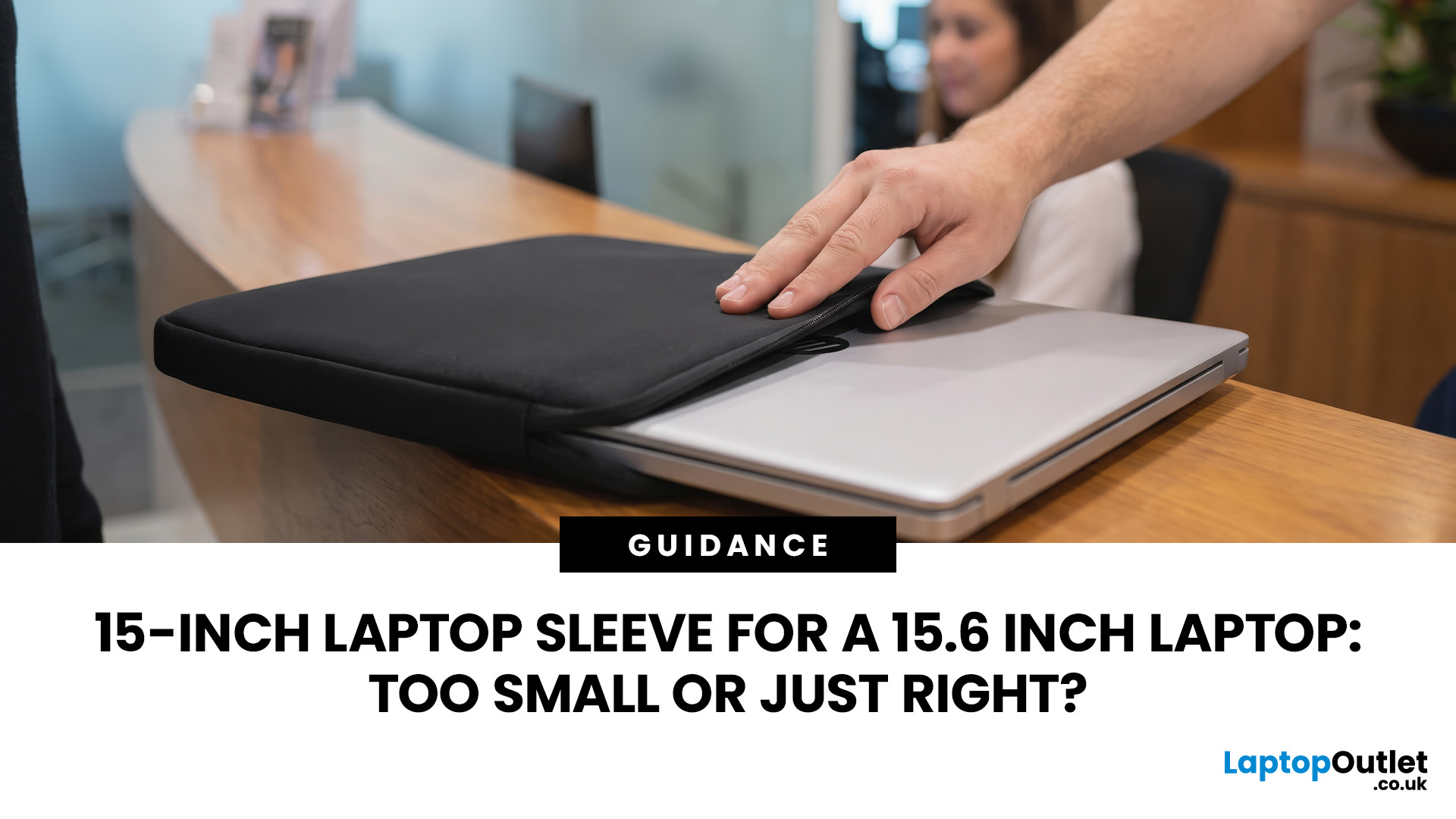
A 15 inch laptop sleeve can fit a 15.6-inch laptop, but the label alone does not guarantee it. The deciding factor is whether your laptop’s actual width, depth, and thickness fit within the sleeve’s internal measurements.
Laptop screen sizes are measured diagonally, whereas sleeves must accommodate the complete device. This means a slim 15.6-inch laptop may fit comfortably inside some 15 inch laptop sleeves, while a thicker model with wide bezels may not.
Before buying, compare the external dimensions of your laptop with the internal dimensions of the sleeve rather than relying only on the advertised screen size.
Why 15-Inch vs. 15.6-Inch Laptop Sleeve Sizing Causes Confusion
The 15-inch measurement usually refers to the diagonal display size, not the overall size of the laptop. It does not tell you the device’s width, depth, or thickness.
Retailers and accessory manufacturers also use “15-inch” as a broad size category. Laptop Outlet, for example, groups many 15-inch and 15.6-inch models

Last Updated: August 05, 2026
I made almost every mistake possible when I bought my first laptop as a student. I focused on the processor name, ignored the RAM, underestimated how heavy it would feel in my backpack and had no idea what half the technical jargon meant.
Within months, I realised I had paid for features I barely used while missing the ones I actually needed. Choosing between Core i5, Core Ultra, SSD sizes and different Dell series can still feel just as confusing today.
To help you avoid the same blunder, we reviewed the best Dell laptops for students in 2026 and narrowed them down based on real student needs, including performance, mobility,
Last Updated: August 20, 2026
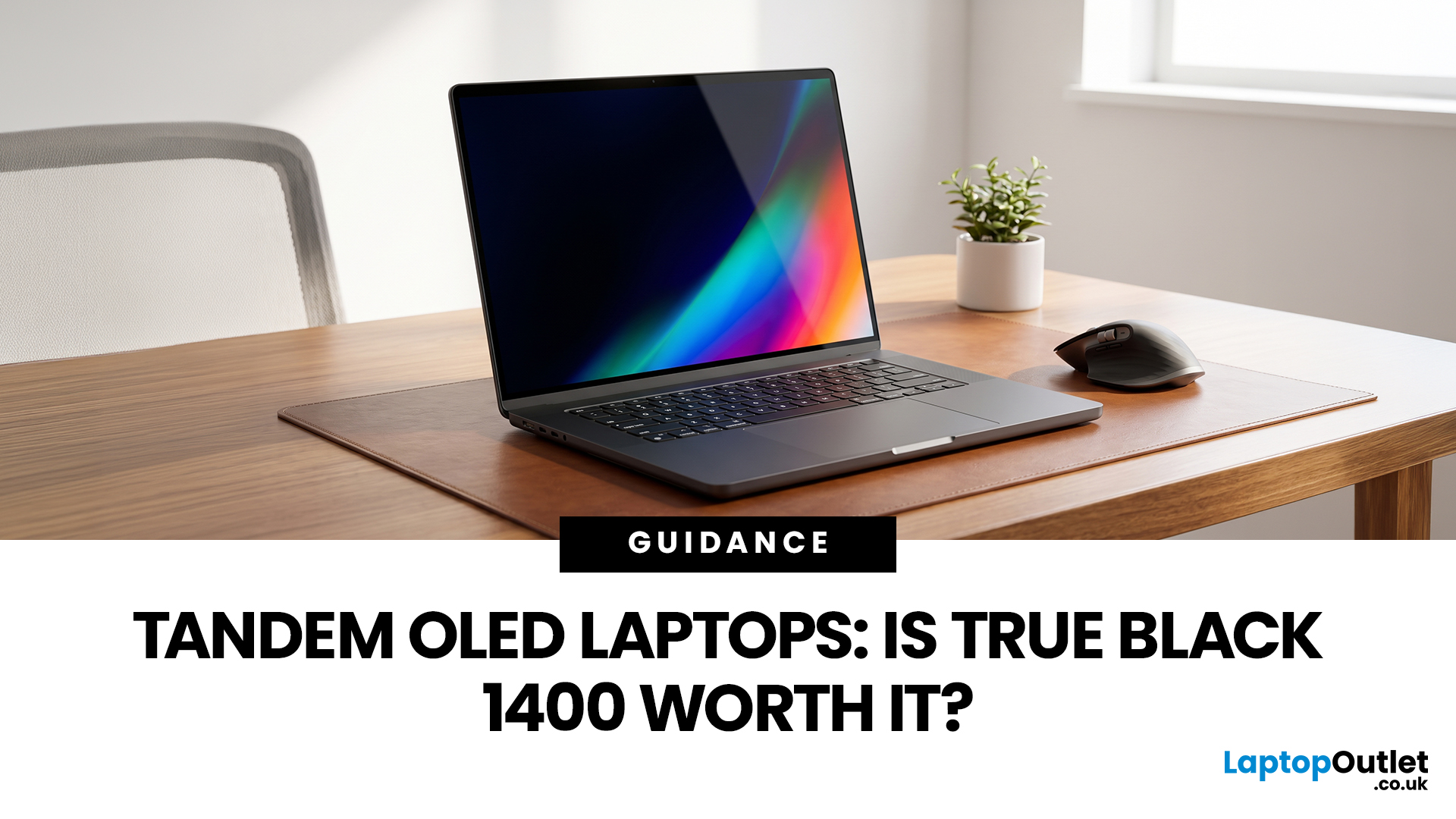
OLED laptops are already known for deep blacks, rich colour and fast pixel response, but a newer display design is pushing brightness further.
Tandem OLED laptops use stacked light-producing layers to deliver stronger HDR highlights while retaining the pixel-level control that makes OLED attractive.
That improvement now has an official benchmark. VESA introduced DisplayHDR True Black 1400 in July 2026 as its highest True Black certification tier, aimed at next-generation OLED screens for professional HDR creation and premium entertainment. The first certified laptop display shows that tandem OLED is becoming a buying consideration.
Understanding the Real Impact of True Black 1400 Displays
DisplayHDR True Black 1400 is worth considering if you edit HDR video, review colour-critical content, watch high-quality HDR films

