



How to Clean Your Laptop
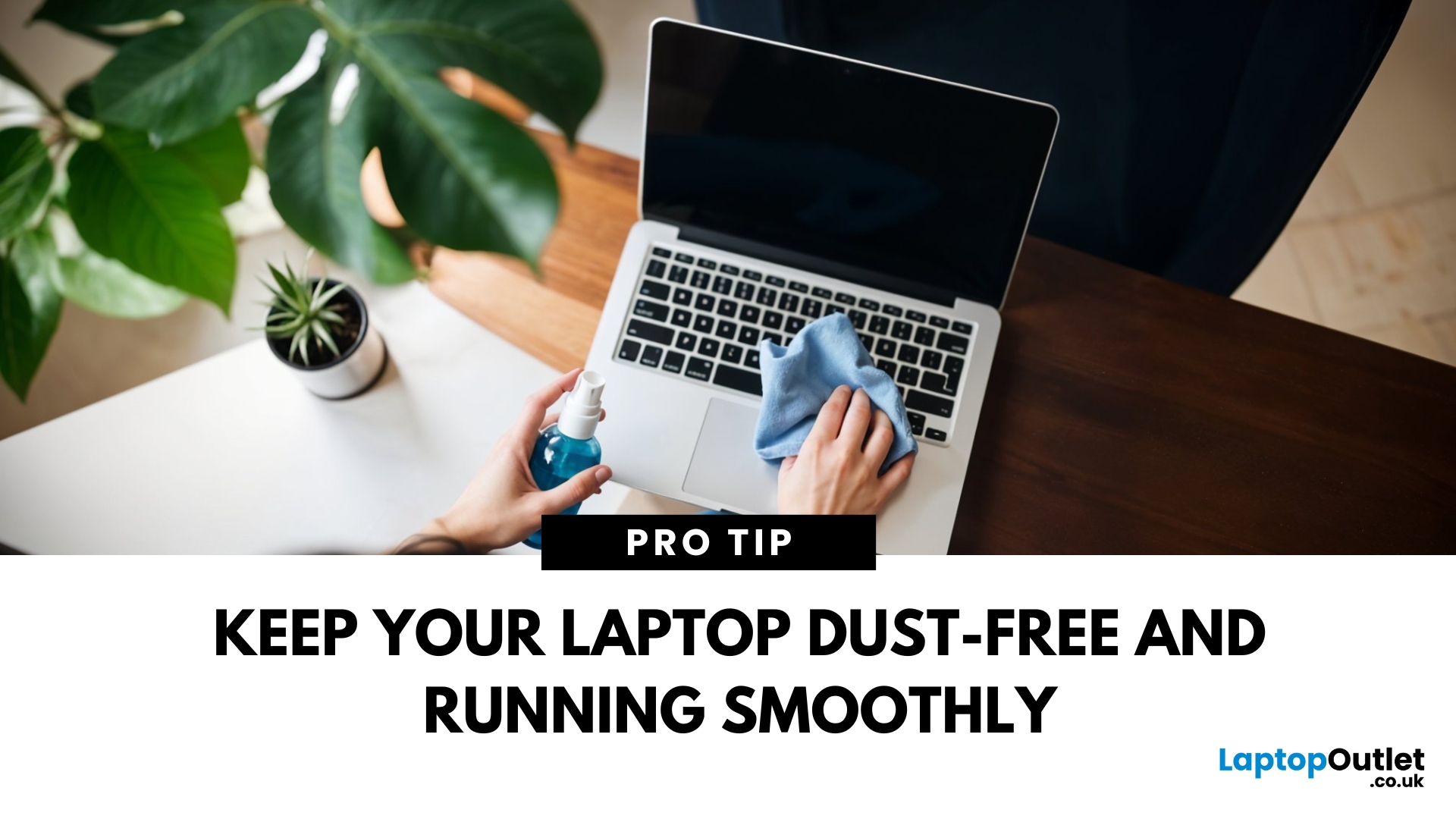
A Clean Laptop = A Happy Laptop
Your laptop works hard—so show it some love! Dust, fingerprints, and crumbs not only look messy but can affect performance and cooling. Here’s how to clean your laptop safely and effectively without damaging it.
What You’ll Need
Before you start, gather these essentials:
- Microfibre cloth (soft, non-abrasive)
- Isopropyl alcohol (70% or higher)
- Compressed air can
- Cotton buds or soft brush
- Screen cleaning solution (optional)
How to Clean a Laptop – Step by Step
1. Power Off and Unplug
Always turn off and unplug your laptop before cleaning. If possible, remove the battery too.
2. Clean the Laptop Exterior
- Use a slightly damp microfibre cloth
- Wipe the lid, bottom, and sides of your laptop
- Avoid harsh cleaners that can damage the finish
3. Clean the Keyboard
- Turn your laptop upside down and gently shake out debris
- Use compressed air to blow dust between the keys
- Wipe the keys with a cloth dampened with isopropyl alcohol
- Use a cotton bud for tricky spots around the keys
4. Clean the Screen
- Use a dry microfibre cloth to wipe away dust and smudges
- For stubborn marks, use a screen-safe cleaner or a mix of distilled water and isopropyl alcohol
- Wipe gently in circular motions—don’t press hard
5. Clean the Ports and Vents
- Use compressed air to blow out dust from ports and cooling vents
- A soft brush can help remove stubborn dirt
Extra Tips for Keeping Your Laptop Clean
- Wash your hands before use to avoid transferring oils and dirt
- Avoid eating or drinking near your laptop
- Store your laptop in a clean, dry space when not in use
How Often Should You Clean Your Laptop?
- Surface wipe-down: Weekly
- Deep clean (vents, keyboard, screen): Monthly
Final Thoughts: Clean Tech, Better Performance
Regular cleaning keeps your laptop looking fresh, improves airflow, and prevents dust build-up. A little effort goes a long way in keeping your device running smoothly.
Ready for an upgrade? Check out Laptop Outlet’s latest laptop deals—because nothing beats a fresh start with fresh tech.
FAQs: Laptop Cleaning Questions Answered
1. Can I use disinfectant wipes to clean my laptop?
No—avoid bleach or ammonia-based cleaners. Use isopropyl alcohol wipes or a damp microfibre cloth.
2. How do I clean dust from laptop vents?
Use compressed air to blow dust out gently.
3. Is it safe to clean the screen with water?
Use distilled water or a screen-safe solution—never tap water.
4. Should I remove my laptop keys to clean underneath?
Only if your model allows it—check your manual first.
5. Can dust slow down my laptop?
Yes—dust blocks airflow, causing overheating and performance issues.
Read More:
| How to Clean Your Laptop Keyboard |
| How Long Do Laptops Last |
| How to Factory Reset a Laptop |
Related Articles

Last Updated: May 19, 2025
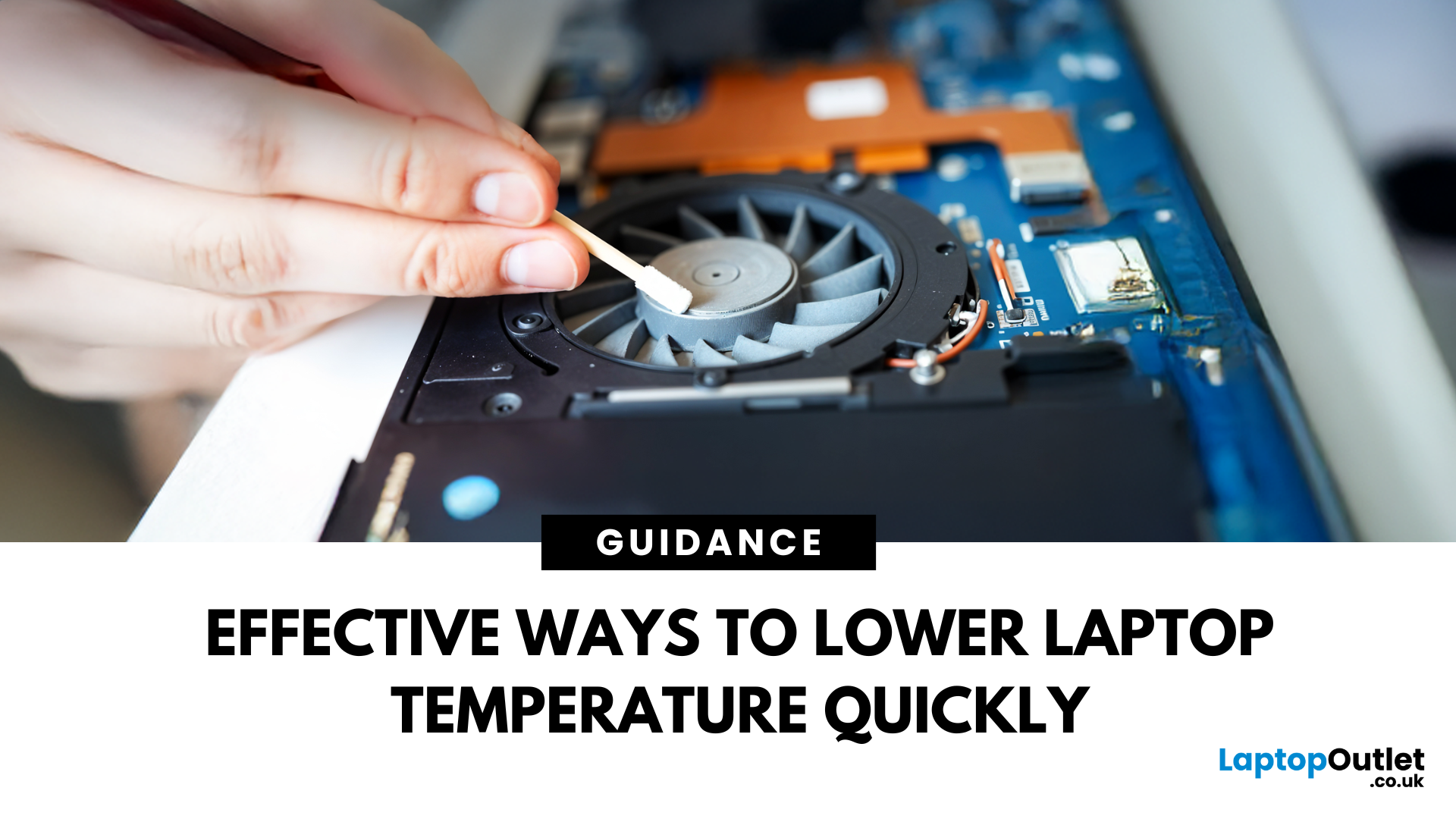
Laptop Too Hot to Handle?
If your laptop feels like it’s about to melt—or sounds like it’s ready for takeoff—you’re dealing with overheating. Not only is it annoying, but it can slow down performance and damage hardware. Here’s how to stop your laptop from overheating before it turns into a desktop toaster.
1. Keep It on a Hard, Flat Surface
- Soft surfaces like beds and sofas block airflow.
- Use a desk, table, or cooling pad to let air circulate freely.
- Bonus: it’s better for your posture too!
2. Clean Out the Vents and Fans
- Dust = public enemy number one for laptop cooling.
- Use compressed air to gently blow dust out of vents.
- Do this every couple of months to keep airflow smooth.
3. Use a Cooling Pad or Stand
- Laptop cooling pads are affordable and effective.
- They come with built-in fans for extra airflow.
- Elevating your laptop also improves natural ventilation.
4. Close Unused Apps and Tabs
- Too many apps = extra workload = more heat.
- Open Task Manager (Windows)
Last Updated: February 23, 2026
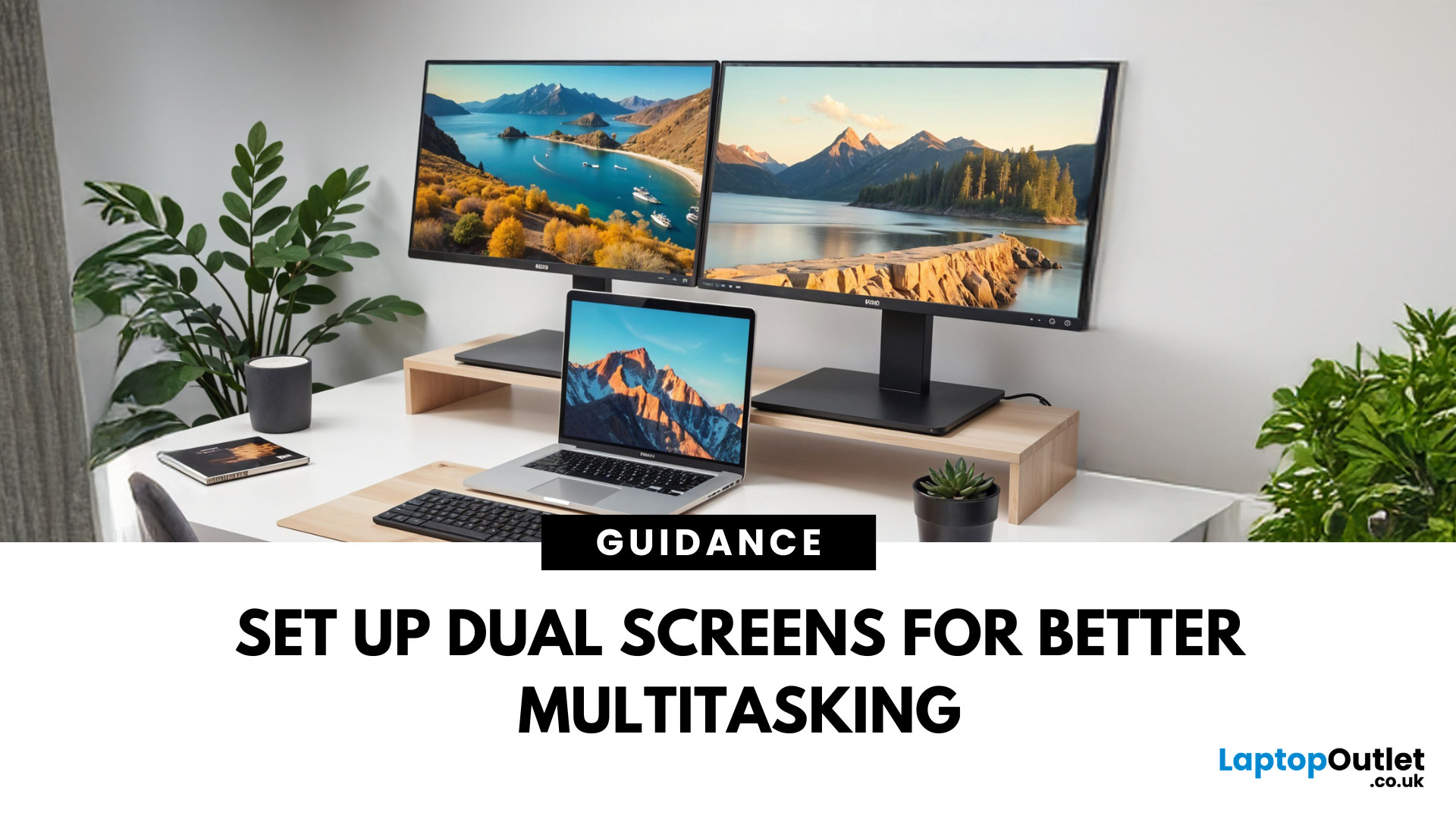
Feeling cramped on your laptop screen? Whether you’re a creative pro, a remote worker, or just need more screen real estate for multitasking—dual monitors are a total game-changer. Here’s how to connect two monitors to your laptop and level up your workspace.
What You’ll Need to Connect Two Monitors
Before you dive in, make sure you’ve got:
- A laptop with multiple display outputs (HDMI, USB-C, DisplayPort, Thunderbolt)
- Two external monitors
- Compatible cables or adapters (HDMI, VGA, USB-C, DisplayPort)
- Optional: Docking station for easier setup
Step-by-Step: How to Connect Two Monitors to a Laptop
1. Check Your Laptop’s Ports
Look at the sides of your laptop—do you have two separate video outputs (e.g., HDMI + USB-C)? If not, you might need a USB-C hub, docking station, or display splitter.
2. Plug in the First Monitor
- Connect your first monitor to the laptop using an HDMI, VGA, or DisplayPort cable.
- Turn on the monitor and make sure it’s set to the correct input source.
Last Updated: October 02, 2025
Capture Your Screen Like a Pro
Whether you’re saving receipts, capturing memes, or sending error messages to IT support—screenshots are super handy. But how you take one depends on your laptop. Don’t worry, we’ve got all the easy ways to screenshot on Windows and Mac laptops in one place.
How to Screenshot on a Windows Laptop
1. Use the Print Screen (PrtScn) Key
- Press PrtScn – Captures the whole screen to clipboard
- Open Paint or Word and press Ctrl + V to paste and save
2. Alt + Print Screen
- Press Alt + PrtScn – Captures the active window only
- Paste into your desired app (e.g., Paint, email, etc.)
3. Windows + Shift + S (Snip & Sketch Tool)
- Opens a selection tool
- Click and drag to capture a specific area
- Screenshot goes to clipboard—paste it anywhere or save via pop-up
4. Windows + Print Screen
- Captures the whole screen and saves it automatically
- Find it in Pictures > Screenshots folder
How to Screenshot on a MacBook or Mac Laptop
1. Command + Shift + 3

Last Updated: October 02, 2025
Time for a Fresh Start?
Whether you’re selling your device, fixing performance issues, or just want a clean slate—a factory reset gives your laptop a fresh start. We’ll walk you through how to factory reset both Windows and Mac laptops, with simple steps anyone can follow.
Before You Factory Reset: Back It Up
- A factory reset wipes everything—apps, files, and settings. So before you dive in:
- Back up files to an external hard drive or cloud (e.g., Google Drive, OneDrive, iCloud)
- Sign out of any accounts (Microsoft, Apple ID)
- Note down any licence keys or passwords you’ll need later
How to Factory Reset a Windows Laptop
- Using Windows Settings (Windows 10 & 11)
- Click Start > Settings > System > Recovery
- Under Reset this PC, click Reset PC
Choose:
- Keep my files – Removes apps/settings, keeps personal files
- Remove everything – Full factory reset
- Follow the prompts to complete the reset
Using Advanced Startup (If You Can’t Boot Normally)
- Force restart the laptop

Last Updated: October 02, 2025
Got iPhone Photos? Let’s Move Them
Snapped the perfect selfie? Captured your holiday vibes? Now you want to transfer those shots to your laptop—whether it’s for storage, editing, or sharing. We’ve got you covered with simple ways to transfer photos from iPhone to laptop—whether you’re using Windows or Mac.
How to Transfer Photos from iPhone to Windows Laptop
1. Using USB Cable & Photos App
- Connect your iPhone to your laptop using a Lightning to USB cable
- Unlock your iPhone and tap Trust when prompted
- Open the Photos app on your Windows laptop
- Click Import > From a USB device
- Select the photos you want and import
2. Using File Explorer (Manual Method)
- Plug in your iPhone and unlock it
- Open File Explorer > This PC > Apple iPhone
- Go to Internal Storage > DCIM
- Copy and paste photos to your laptop folder
3. Using iCloud Photos
- Enable iCloud Photos on your iPhone: Settings > Photos > iCloud Photos
- Visit iCloud.com and sign in
- Go to Photos, select images, and

