



Wi-Fi Range Extenders: Boost Your Home Network Coverage
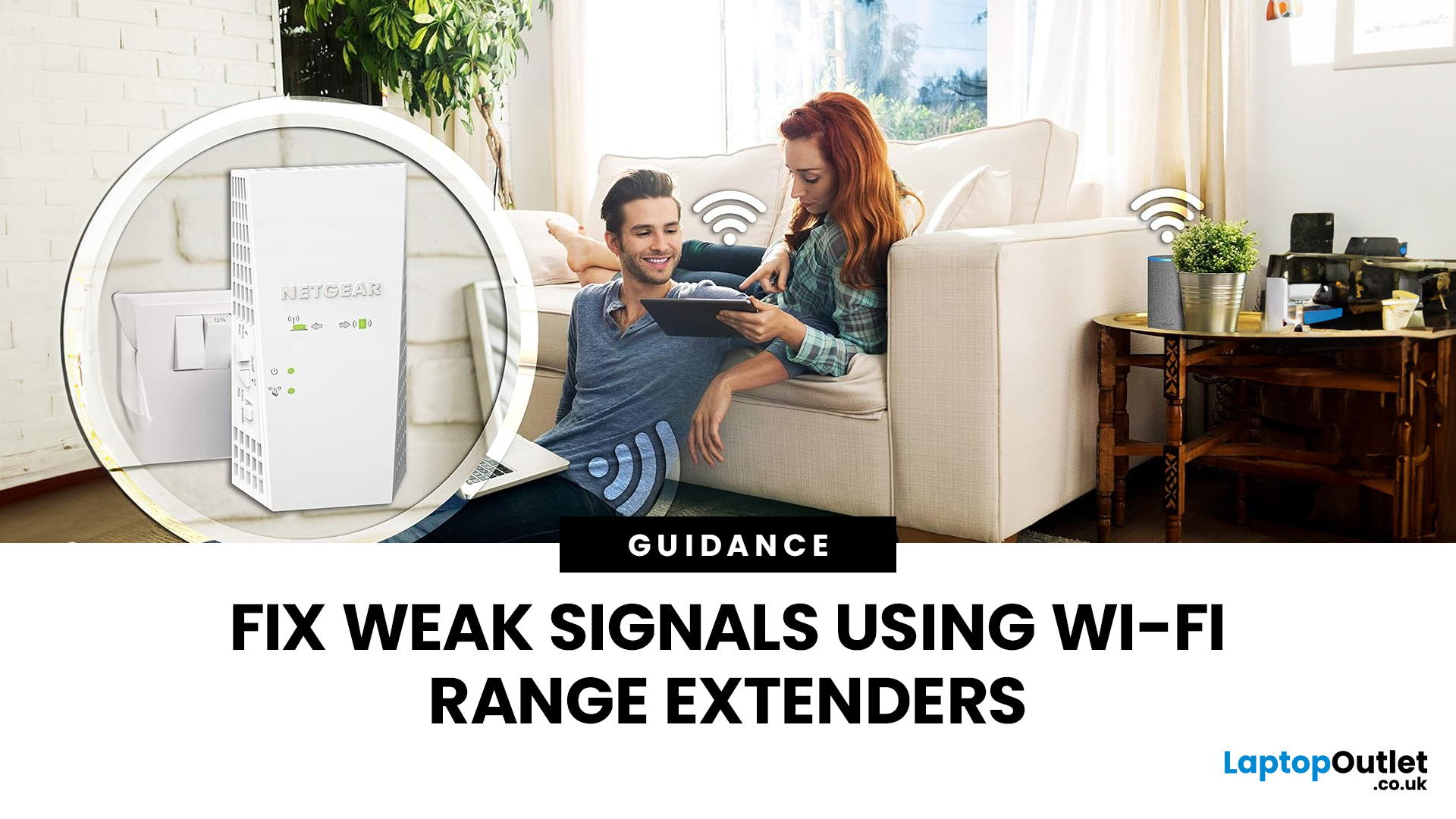
Imagine sitting down to stream your favourite show, join a work call or load a game, only for your Wi-Fi to drop the moment you move into another room. Weak signals, buffering, and dead zones are common in UK homes, especially in larger houses, older properties with thick walls, garden offices, and busy family spaces with several connected devices.
The good news is that you do not always need a new broadband package to fix the problem. A Wi-Fi range extender, mesh system, or access point can help extend your Wi-Fi range and make your home network more reliable.
This guide explains how Wi-Fi range extenders work, what to check before buying, which newer products are worth knowing about, and when a mesh system may be a better fit than a standard booster.
What are Wi-Fi Extenders?
A Wi-Fi range extender is a networking device that helps improve wireless coverage in areas where your main router struggles to reach.
It sits between your router and the weak-signal area, receives the existing Wi-Fi signal, and rebroadcasts it further into your home. In simple terms, it acts like a middle point between your router and the dead zone.
You can browse Wi-Fi range extenders if you only need to improve coverage in one or two specific rooms.
Top Wi-Fi Range Extenders and Mesh Systems to Boost Your Signal
Choosing the right device depends on the problem you are trying to solve. A simple extender can be enough for one weak room. A modern Wi-Fi 6 extender is better for a busier home office or streaming space. A full mesh Wi-Fi system is better for larger homes where coverage needs to feel seamless across several rooms or floors.
Product availability can change. If Laptop Outlet does not currently stock a specific model listed below, use the details as a buying guide and compare similar networking devices with the same key features.
1. Netgear RBKE963B Orbi AX11000 WiFi 6E Mesh System
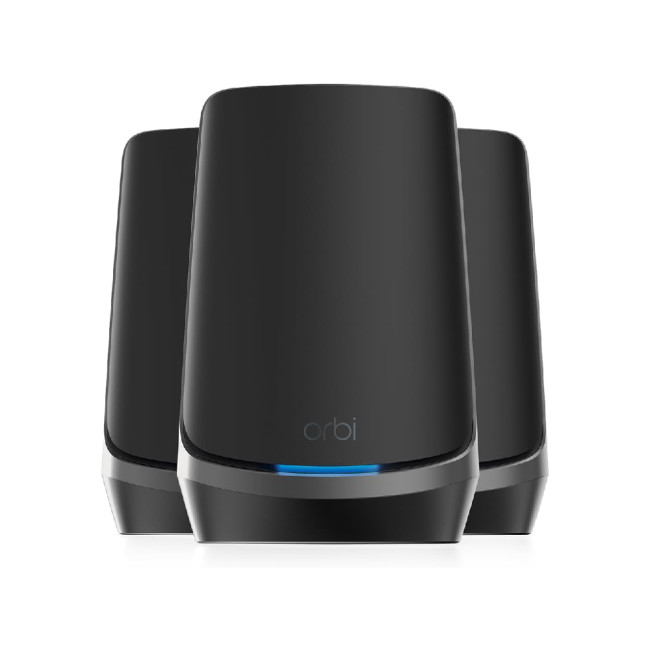
The Netgear RBKE963B Orbi AX11000 WiFi 6E is very different from a small plug-in extender. It is a premium whole-home mesh system designed for large homes, busy households and users with many connected devices.
Instead of simply repeating your router’s signal, the Orbi system uses a router and satellites to create wider coverage across the home. It supports Wi-Fi 6E, which adds access to the 6GHz band for compatible devices. This can help reduce congestion in homes where several people are streaming, gaming, working, downloading and using smart home devices at the same time.
The RBKE963B is aimed at demanding setups. It makes more sense if you have fast fibre broadband, a large property, multiple floors, a garden office or many connected devices. It is also a better option than using several separate extenders, which can sometimes cause inconsistent performance.
The trade-off is cost. This kind of mesh system is more expensive and more advanced than many households need. If you only have one weak bedroom or one corner of the house with poor signal, a range extender will usually be better value.
2. TP-Link RE450 AC1750 Dual-Band Wi-Fi Range Extender
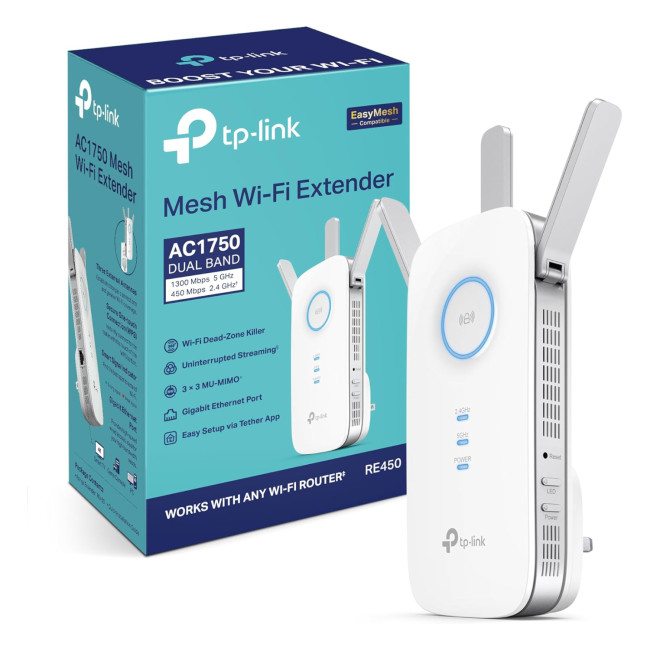
The TP-Link RE450 is a well-known AC1750 dual-band Wi-Fi range extender. Although it is sometimes searched for as a router, it is not a full router. It is designed to extend your existing router’s wireless coverage.
It offers dual-band Wi-Fi 5 performance, with 2.4GHz for longer reach and 5GHz for faster short-range connections. The three external antennas help with signal coverage, while the intelligent signal light helps you find a better placement point.
The Gigabit Ethernet port is one of its most useful features. You can use it to connect a wired device such as a games console, smart TV, streaming box or desktop PC. It can also work in Access Point mode, which is useful if you can run an Ethernet cable from your router to another part of the home.
The RE450 is not the newest option and does not support Wi-Fi 6, Wi-Fi 6E or Wi-Fi 7. That does not make it a bad product. It simply means it is better suited to everyday browsing, HD streaming, schoolwork, basic home office use and fixing one or two weaker rooms.
3. ASUS RP-AX58 AX3000 Dual-Band Wi-Fi 6 Range Extender with AiMesh
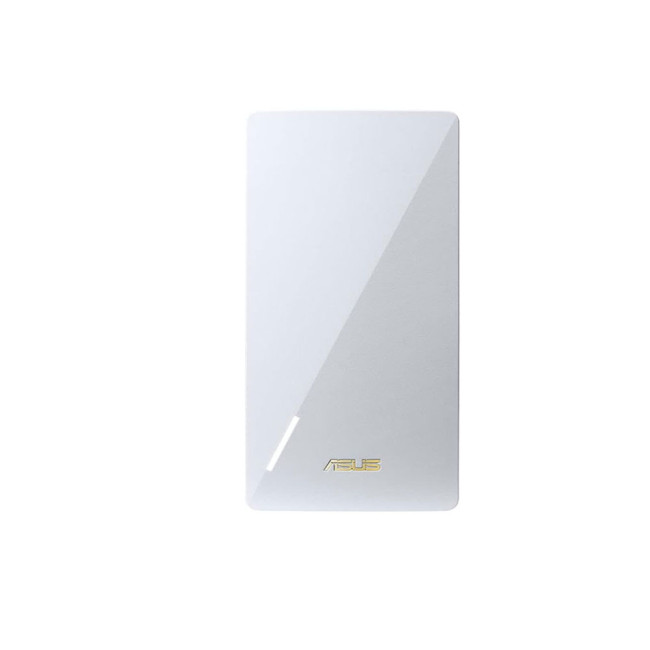
The ASUS RP-AX58 is a modern AX3000 dual-band Wi-Fi 6 range extender. It is designed to improve weak Wi-Fi areas while still working with many existing routers.
Its most useful feature is AiMesh support. If you already use an ASUS AiMesh-compatible router, the RP-AX58 can work as part of a more seamless mesh-style network. That can make it easier to move around the house without constantly switching between different Wi-Fi names.
It also supports 2.4GHz and 5GHz bands, which helps balance range and speed. The 2.4GHz band is better at travelling through walls, while the 5GHz band is better for faster speeds over shorter distances. The built-in Gigabit Ethernet port is useful for connecting a desktop PC, smart TV, games console or streaming device with a wired connection.
This model is a good fit if you want a Wi-Fi 6 upgrade without replacing your whole router setup. It is especially useful for a home office, upstairs room, extension or living room where your current signal is weak.
How Do Wi-Fi Range Extenders Work?
A Wi-Fi extender does not create a new internet connection on its own. It depends on the signal it receives from your main router. That means placement matters.
If you place an extender too far from your router, it may receive a weak signal and simply repeat it. If you place it too close to the router, it may not reach the dead zone properly. The best position is usually around halfway between the router and the weak area.
Some modern extenders can also work as access points when connected to the router by Ethernet. This can be faster and more stable because the extender is not relying on a wireless backhaul.
Key Features to Consider Before Buying
When choosing a Wi-Fi extender or mesh system, do not focus only on the biggest speed number. Real-world performance depends on your router, broadband speed, wall thickness, device support and where the extender is placed.
|
FEATURE |
WHY IT MATTERS |
WHAT TO LOOK FOR |
|---|---|---|
|
Compatibility |
Not every feature works with every router |
Check whether it supports your router, Wi-Fi standard and app setup |
|
Wi-Fi standard |
Affects speed, efficiency and future-readiness |
Wi-Fi 5 is fine for basic use, Wi-Fi 6 is better for modern homes, Wi-Fi 6E and Wi-Fi 7 suit higher-end setups |
|
Band support |
Helps manage congestion |
Dual-band is enough for many homes; tri-band or quad-band is better for busy networks |
|
Ethernet port |
Useful for wired devices |
Look for Gigabit Ethernet or faster if you connect consoles, PCs or smart TVs |
|
Mesh support |
Helps with smoother roaming |
AiMesh, EasyMesh or full mesh systems can be useful in larger homes |
|
Setup method |
Makes installation easier |
WPS, mobile app setup and signal indicators are helpful |
|
Coverage claim |
Helps estimate suitability |
Treat manufacturer coverage figures as guidance, not a guarantee |
Which One Should You Choose?
Choose the ASUS RP-AX58 if you want a modern Wi-Fi 6 extender that works well with ASUS AiMesh routers. It is a strong middle-ground choice for users who want better coverage without replacing the whole network.
Choose the Netgear RBKE963B Orbi if your Wi-Fi problem is not limited to one room. It is a better fit for large homes, thick walls, multiple floors, fast fibre and several people using the internet at once.
Choose the TP-Link RE450 if you want a more affordable extender for one weak spot and do not need the latest Wi-Fi 6 or Wi-Fi 7 features.
Which are the Latest Wi-Fi 7 Products?
Wi-Fi 7 hardware is now available in the wider market, including newer routers, extenders and mesh systems. These products are designed for faster speeds, lower latency and better handling of busy networks.
Examples include newer Wi-Fi 7 range extenders, such as ASUS RP-BE58 and TP-Link RE655BE, as well as premium mesh systems, such as the NETGEAR Orbi 970 series. These are useful to know about, even if not every retailer stocks every model at the same time.
That said, Wi-Fi 7 is not automatically worth paying extra for. To benefit properly, you need Wi-Fi 7-compatible devices, a fast broadband plan and a setup that can actually use the extra bandwidth. If most of your devices are still Wi-Fi 5 or Wi-Fi 6, a good Wi-Fi 6 extender or Wi-Fi 6E mesh system may offer better value.
You can browse Wi-Fi 7 routers if you want a more future-ready router upgrade rather than a simple extender.
Placement and Setup Tips
Even the best Wi-Fi extender can underperform if it is placed badly. The goal is to put it where it can still receive a strong signal from your router while pushing coverage towards the weak area.
Best Placement
Place the extender around halfway between your router and the dead zone. Do not put it inside a cupboard, behind a TV, beside a microwave, next to a thick metal object or directly on the floor.
A hallway socket, landing area or open room between your router and the weak spot usually works better than hiding it behind furniture.
Watch Out for Interference
Wi-Fi signals can be weakened by thick brick walls, concrete, mirrors, large appliances, metal furniture and other wireless devices. Older UK homes can be especially challenging because solid walls and extensions often block signal more than people expect.
If you are trying to improve the connection for gaming PCs, gaming consoles, or smart TVs, try using the extender’s Ethernet port, if available. A wired connection from the extender to the device can feel more stable than relying on Wi-Fi alone.
Step-by-Step Setup
- Plug the extender near your router for the first setup.
- Use the WPS button or the manufacturer’s app to connect it to your existing Wi-Fi.
- Wait for the connection light or app confirmation.
- Move the extender to a better halfway position.
- Check the signal indicator or app guidance.
- Test the connection in the previous dead zone.
- If speeds are poor, move the extender slightly closer to the router.
If your extender supports Access Point mode and you can run an Ethernet cable from the router, that setup will usually be more stable than wireless repeating.
Extender, Access Point, Powerline or Mesh: What Is Better?
A range extender is not always the best answer. The right option depends on your home layout and the severity of the coverage problem.
|
OPTION |
BEST FOR |
MAIN TRADE-OFF |
|---|---|---|
|
Wi-Fi extender |
One or two weak rooms |
Can lose speed if placed badly |
|
Access point |
Fast, stable coverage in one area |
Usually needs Ethernet cabling |
|
Powerline adapter |
Thick walls where Wi-Fi struggles |
Performance depends on electrical wiring |
|
Mesh Wi-Fi system |
Large homes and multi-room coverage |
Costs more than a basic extender |
Access points are best when you can connect them by Ethernet. They are often faster and more reliable than wireless extenders.
Powerline adapters use your home’s electrical wiring to move data between rooms. They can be useful where thick walls block the wireless signal, but results vary depending on the wiring.
Mesh Wi-Fi systems are usually better for larger homes because they are designed to work as one connected network with multiple nodes.
Other Networking Essentials Worth Considering
Improving Wi-Fi coverage is only one part of building a reliable home network. You may also need extra accessories depending on your setup.
Networking switches are useful if you want to connect multiple wired devices in a single room. They are especially handy for home offices, gaming rooms and media setups.
Networking cards can help upgrade an older desktop PC so it can use faster or more reliable wireless standards.
Adapters are a quick fix for older laptops or desktops that need better wireless connectivity without a full repair or internal upgrade.
Gaming routers can help prioritise latency-sensitive traffic for online gaming, cloud gaming and streaming.
Server racks are useful for more advanced home or office networks where you want to organise switches, routers, cables and other equipment properly.
Networking cables are still worth considering. A good Ethernet cable is often more stable than Wi-Fi for fixed devices such as desktop PCs, consoles and smart TVs.
Fix Your Wi-Fi Issues Today
Weak Wi-Fi can make everyday tasks feel harder than they need to be. The right extender, mesh system, or networking upgrade can improve coverage, reduce dead zones, and make your connection more reliable throughout the home.
For one weak room, a range extender may be enough. For a larger home, a mesh system is usually the smoother choice. For the fastest and most stable setup, wired access points or Ethernet-connected devices are still hard to beat.
Check the full range of networking solutions at Laptop Outlet to find the right setup for your home, office or gaming space.
A Few Things Worth Knowing
Is the ASUS RP-AX58 a router or a Wi-Fi extender?
The ASUS RP-AX58 is a Wi-Fi 6 range extender and AiMesh extender. It can help extend your current router’s signal and can work especially well with ASUS AiMesh-compatible routers.
Is the Netgear RBKE963B Orbi a Wi-Fi extender?
No. The Netgear RBKE963B Orbi is a premium Wi-Fi 6E mesh system. It is designed to provide whole-home coverage using a router and satellites, rather than simply repeating your existing router’s signal like a basic extender.
Is the TP-Link RE450 a router?
No. The TP-Link RE450 is an AC1750 dual-band Wi-Fi range extender. It extends the signal from your existing router and can also work in Access Point mode when connected by Ethernet.
Do Wi-Fi extenders work with all routers?
Most universal Wi-Fi extenders work with standard routers, but advanced features can vary. For example, ASUS AiMesh features work best with compatible ASUS routers, while EasyMesh features require compatible EasyMesh hardware.
Will a Wi-Fi extender slow down my internet?
It can. A basic extender has to receive and rebroadcast the Wi-Fi signal, so speeds may drop depending on placement, signal strength and interference. A good Wi-Fi 6 extender, wired access point or mesh system can reduce this problem.
Where is the best place to put a Wi-Fi extender?
The best place is usually halfway between your router and the weak-signal area. It should still receive a strong signal from the router. Avoid cupboards, corners, thick walls, large appliances and metal objects.
Do I need an Ethernet cable for setup?
Usually, no. Most extenders can be set up with WPS or a mobile app. However, an Ethernet cable is useful if you want to use Access Point mode or connect a fixed device such as a console, desktop PC or smart TV.
Can I use multiple extenders in one house?
You can, but it is not always the best idea. Too many separate extenders can create interference or inconsistent performance. For larger homes, a mesh system is usually cleaner and more reliable.
Is Wi-Fi 6E better than Wi-Fi 6?
Wi-Fi 6E extends Wi-Fi 6 features into the 6GHz band, which can reduce congestion for compatible devices. However, not every device supports Wi-Fi 6E, and 6GHz signals may have a shorter range through walls than 2.4GHz or 5GHz signals.
Do I need Wi-Fi 7 now?
Not necessarily. Wi-Fi 7 is useful if you have very fast broadband, newer compatible devices and a demanding home network. For many households, Wi-Fi 6 or Wi-Fi 6E still offers better value.
Which option is best for a large UK home?
For a large home, thick walls or multiple floors, a mesh system such as the Netgear Orbi RBKE963B is usually better than a single extender. For one weak room, a product such as the ASUS RP-AX58 or TP-Link RE450 may be enough.
Related Articles

Last Updated: July 01, 2025
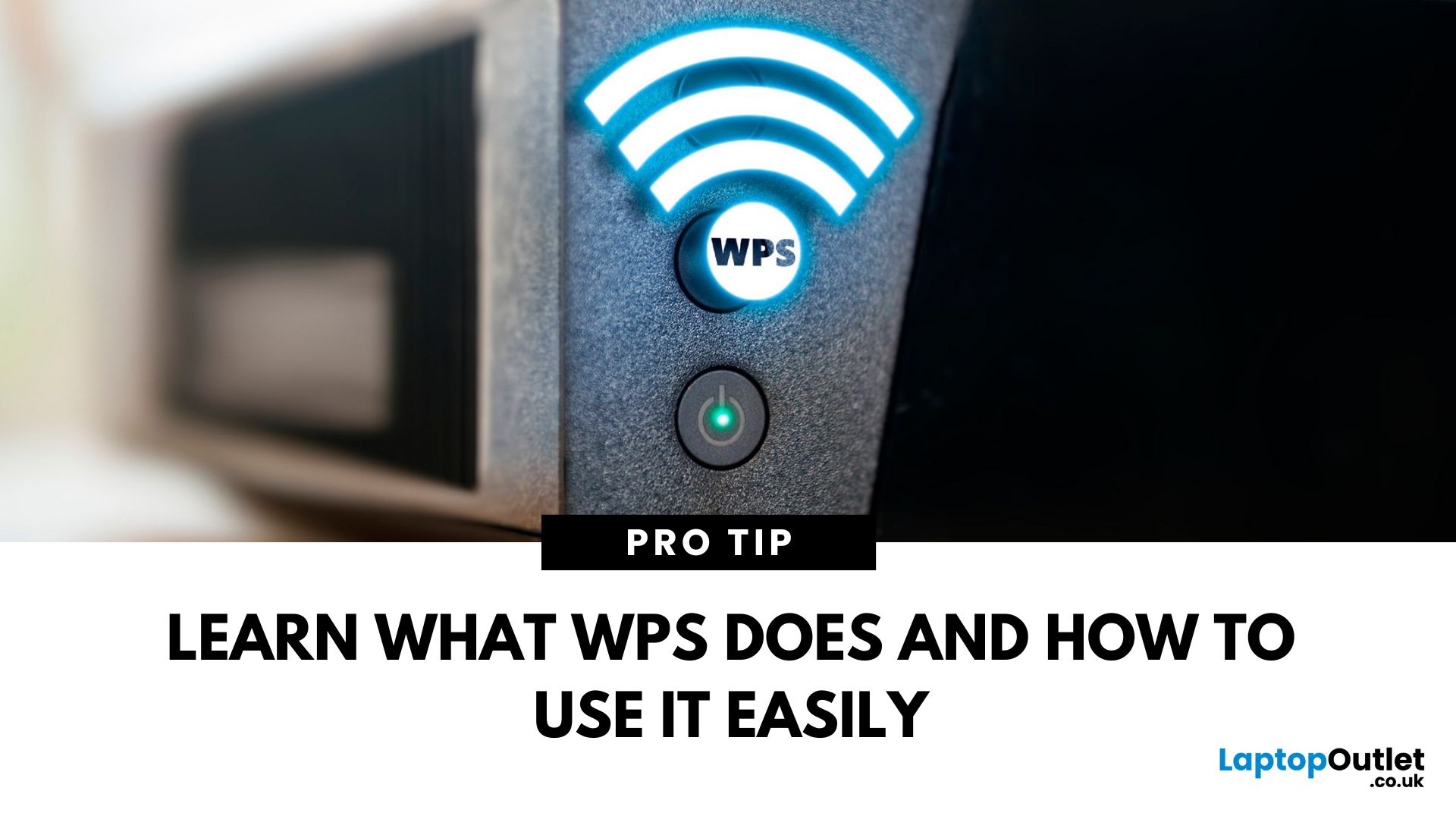
That Little Button Isn’t Just for Looks
If you’ve spotted a mysterious button labelled WPS on your Wi-Fi router, you might be wondering: What does it do—and should I use it? Here’s a beginner-friendly explanation of what the WPS button is and how it simplifies connecting devices to your Wi-Fi.
What Does WPS Stand For?
WPS stands for Wi-Fi Protected Setup. It’s a feature that helps you connect devices to your Wi-Fi network without typing in the Wi-Fi password.
Designed for convenience, especially for smart TVs, printers, and Wi-Fi extenders
What Does the WPS Button Do?
When you press the WPS button:
Your router enters a two-minute pairing mode
During this time, you can connect a compatible device without entering the password
It uses WPA2 security, so it’s secure for most home networks
How to Use the WPS Button
Steps:
Turn on the device you want to connect (e.g., printer or smart TV)
Go to its Wi-Fi settings and select your Wi-Fi network
Choose WPS connection
Last Updated: July 01, 2025
Your Wi-Fi Starts Here
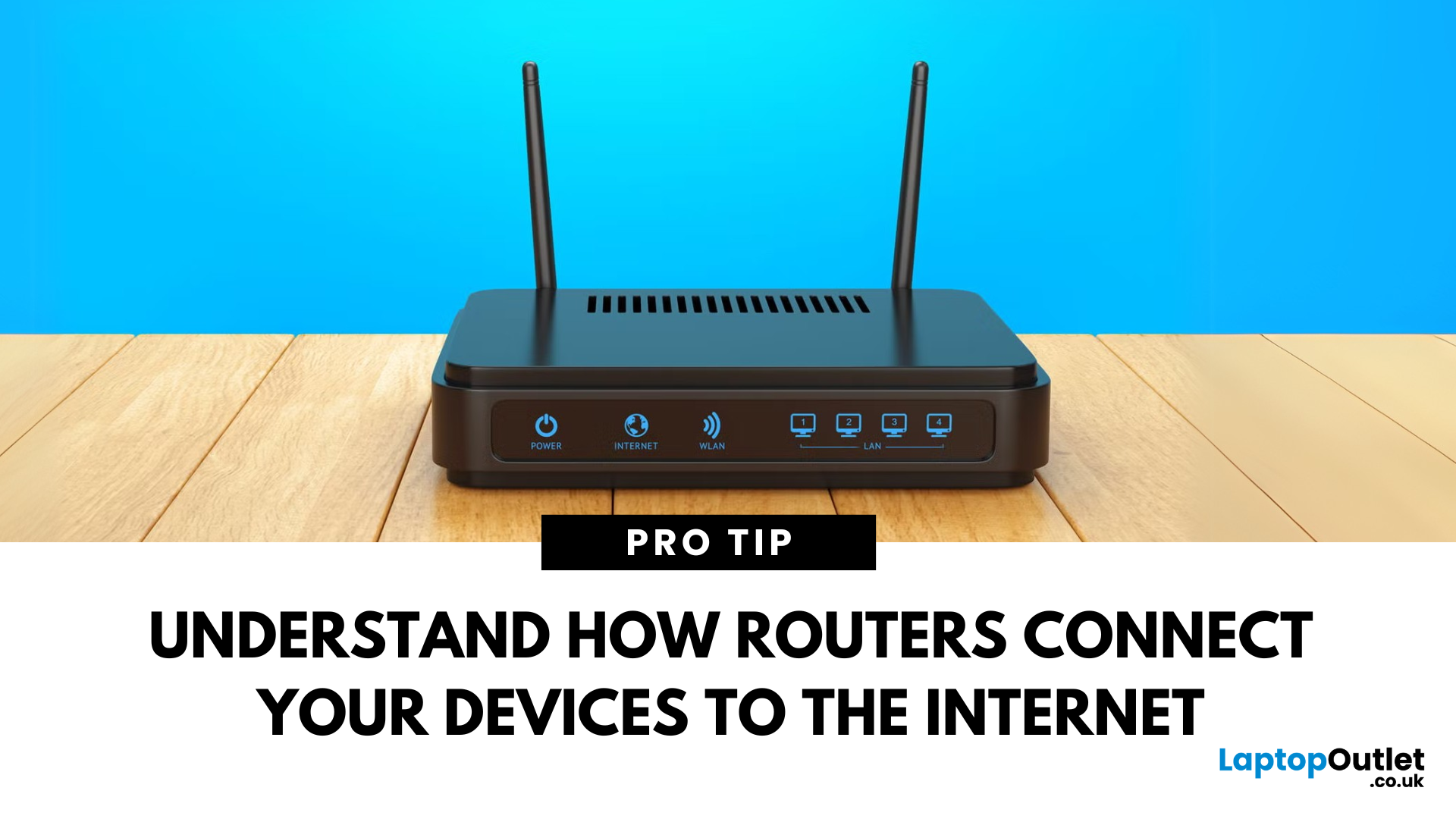
You’ve probably seen it flashing away in the corner of the room—but what is a router, and why is it essential for your internet connection? Here’s everything you need to know about this small but powerful device.
What Is a Router?
A router is a device that connects your home or office to the internet by routing data between your internet service provider (ISP) and your connected devices (like phones, laptops, smart TVs, and more).
It’s the heart of your Wi-Fi network, sending and receiving data from the web
How Does a Router Work?
- Connects to a modem (or includes one in some models)
- Assigns local IP addresses to devices in your network
- Sends and receives data packets to and from the internet
- Uses Wi-Fi or Ethernet to link devices wirelessly or via cable
Types of Routers
- Standalone Router: Connects to a separate modem
- Modem-Router Combo: Two-in-one device with both modem and router
- Mesh Wi-Fi Router: Covers large homes with multiple units
Last Updated: July 01, 2025
The Backbone of Your Internet
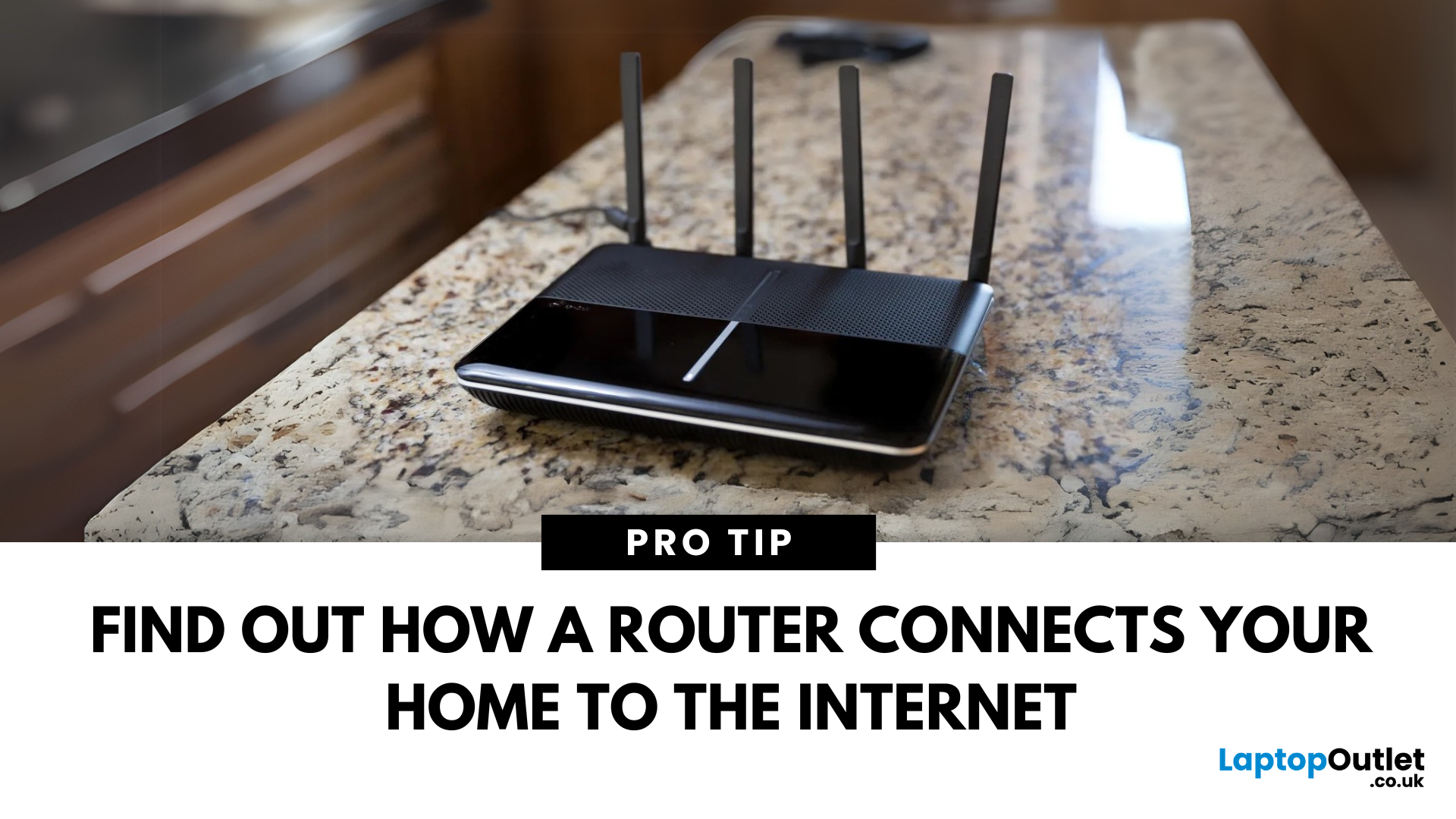
Your internet experience starts with a router—but what exactly does it do? Whether you’re streaming, gaming, working from home, or scrolling on your phone, the router keeps your digital life connected. Let’s break down what a router does and why it’s so important.
What Is a Router?
A router is a networking device that connects your devices to the internet and manages how they communicate with each other.
It “routes” traffic between your local devices (like your phone or laptop) and the broader internet
What Does a Router Actually Do?
- Distributes internet access from your modem to all connected devices
- Creates a local network so devices can talk to each other
- Assigns IP addresses to each device
- Directs data packets so the right information reaches the right device
Wi-Fi vs Router – What’s the Difference?
- Router: Manages traffic and connects devices
- Wi-Fi: The wireless signal your router creates
The router gives you internet; Wi-Fi
Last Updated: July 01, 2025
Keep Your Wi-Fi Safe and Secure
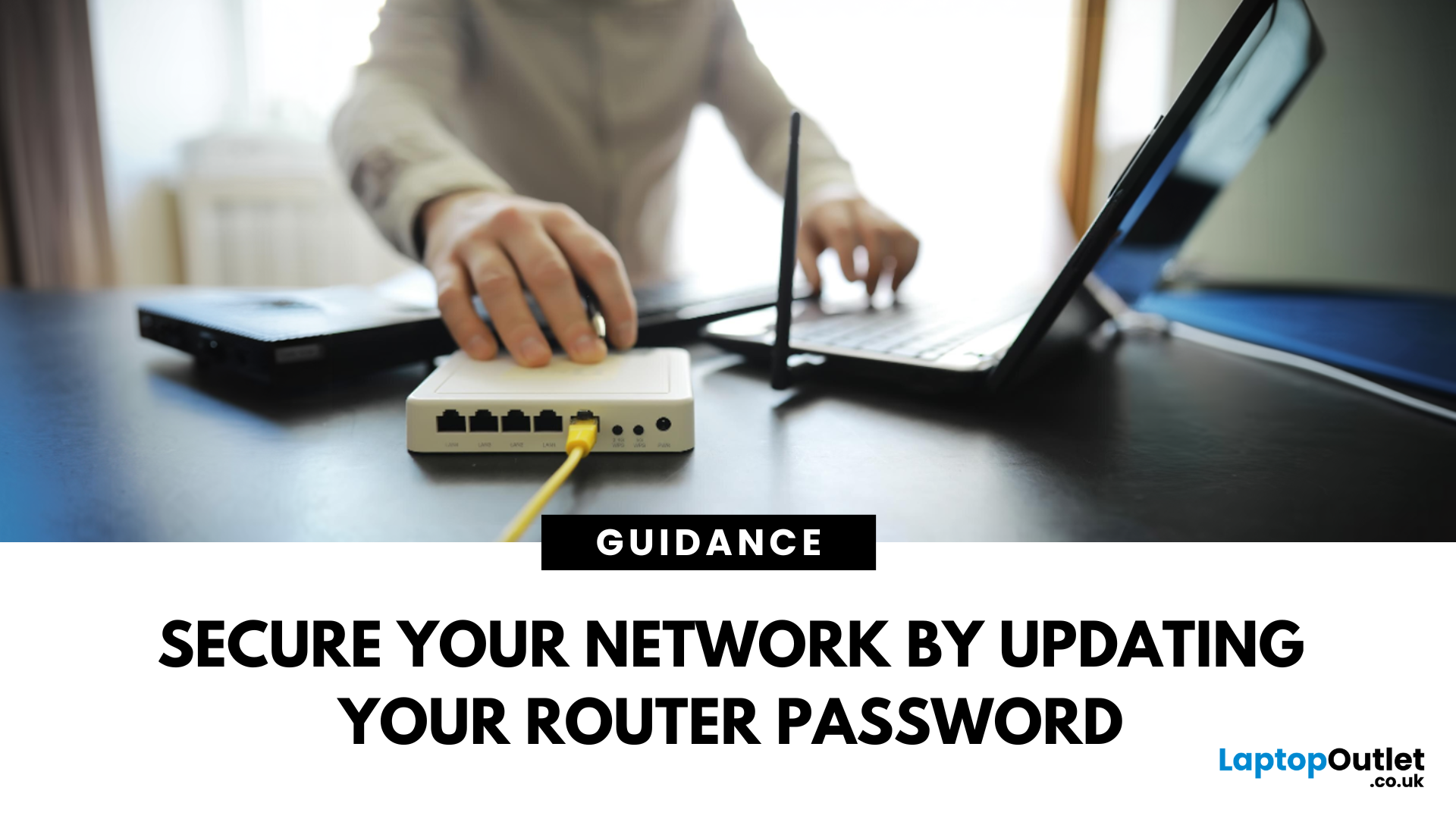
Your router password protects your home network from unwanted access. Whether you're updating your Wi-Fi credentials or changing the admin login, it’s a smart step for security. Here’s how to change your router password in just a few steps.
1. Know Which Password You’re Changing
- Wi-Fi Password: The one users enter to connect to your network
- Router Admin Password: Used to access router settings via web browser
It’s best to change both regularly for security
2. Connect to Your Router
- Make sure you're connected to your Wi-Fi or directly via Ethernet
- Open a web browser and type your router’s IP address (usually 192.168.0.1 or 192.168.1.1)
- Enter your admin username and password (often printed on the router or found in your manual)
3. Change Your Wi-Fi Password
Steps:
- Log in to your router settings
- Navigate to Wireless Settings or Wi-Fi Settings
- Locate the SSID (network name) and password fields
- Enter your new password (use a strong,

Last Updated: December 23, 2025
When it comes to competitive gaming or smooth 4K streaming, your internet connection is only as good as the router powering it. High latency, buffering, and packet drops can turn a winning game into frustration or ruin a live stream in seconds. That’s why choosing the right router—and configuring it correctly- is just as important as having fast broadband.
Ubiquiti has become a go-to name for gamers, streamers, and tech enthusiasts who want more than basic Wi-Fi. From the powerful UniFi Dream Machine to the gamer-centric AmpliFi series, Ubiquiti routers combine enterprise-grade stability with features built for demanding home setups. With the right optimisation - like low-latency settings, QoS for gaming traffic, and GeForce NOW tweaks - you can unlock their full potential.
In this guide, we’ll explore the best Ubiquiti routers for gaming and streaming and reveal the settings that give you a true performance edge.
Why Router Quality Matters for Gaming & Streaming
Every gamer and streamer

Last Updated: December 09, 2025
Wi-Fi acting weird? Pages not loading? Passwords forgotten? You’re not alone - sometimes even the most reliable routers like TP-Link need a fresh start. Whether your internet is unstable, you changed too many settings, or you just want to start over, resetting your router can fix a surprising number of problems.
In this complete guide, we’ll walk you through how to reset your TP-Link router, both the quick way (via the Reset button) and the advanced way (through the web interface). We’ll also explain what happens after a reset, how to reconfigure your network, and what to do if your reset doesn’t work.
Understanding What “Reset” Really Means

Before you hit any buttons, it’s important to know what a router reset actually does.
When you reset a TP-Link router, you’re restoring it to its factory default settings, exactly how it was when you first took it out of the box.
That means:
- All Wi-Fi names (SSID) and passwords you’ve set will be erased.
- Any changes to IP addresses, DNS, or security
Last Updated: January 26, 2026
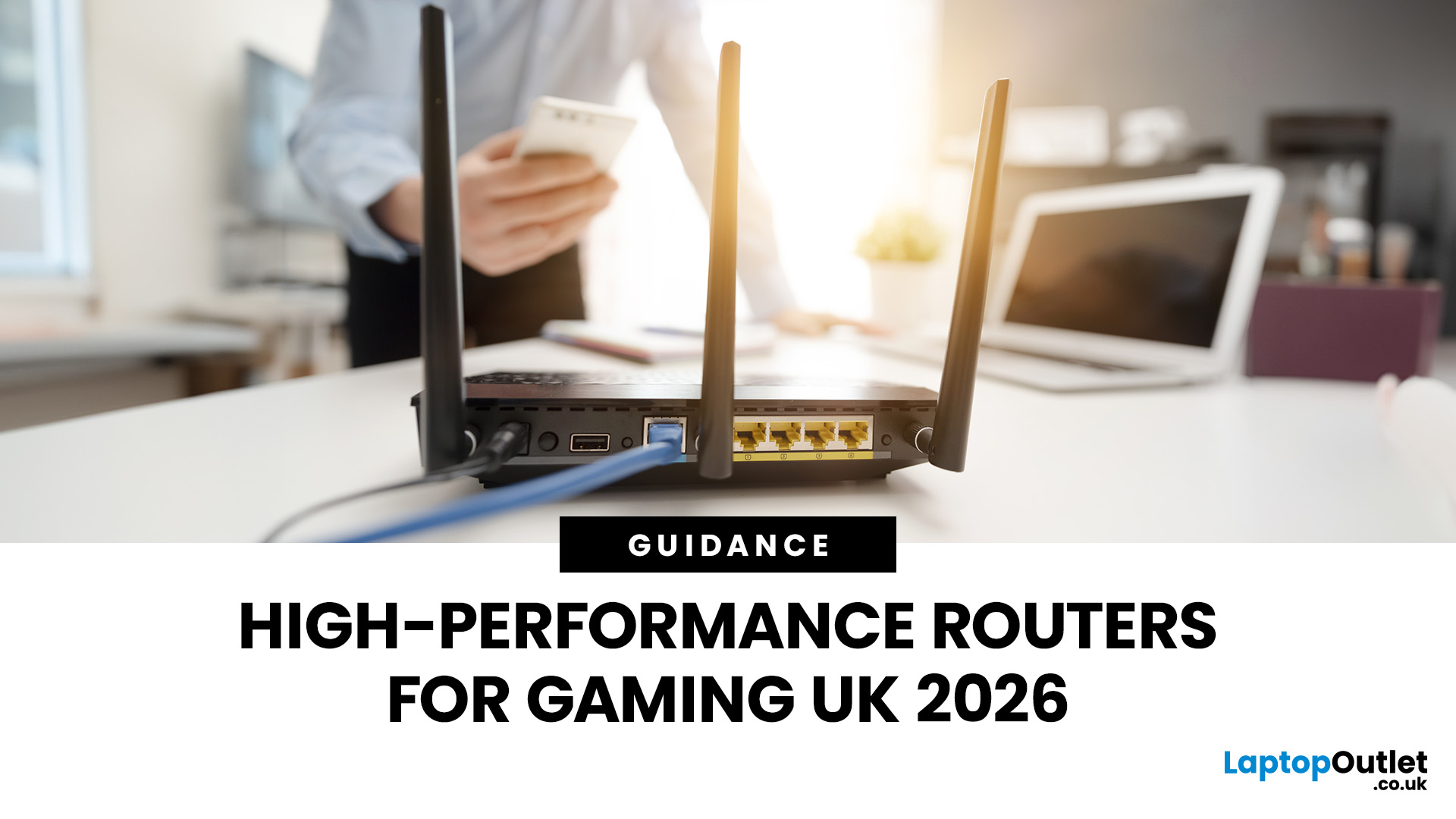
If you’re still using the free router that came with your broadband deal, you need to read this gaming router guide UK. With faster broadband speeds, competitive multiplayer titles, cloud gaming services, and always-connected consoles and PCs, your home network plays a critical role in how well you play. A powerful gaming PC or next-gen console can only perform at its best if it’s supported by a reliable, high-performance router. Whether you’re a competitive PC gamer, a PS5 warrior, a streamer juggling Twitch and Discord, or someone who just wants smooth online gaming without drama, this guide breaks down the best gaming routers UK gamers should actually care about, with real detail, not fluff.
What Makes a Router Good for Online Gaming?
Not all routers are created equal, and “gaming” isn’t just a marketing label. Understanding the core features will help you choose the right router for online gaming setup.
Low Latency and Stable Connections
Latency, often referred to as ping, is the
Last Updated: January 26, 2026
From working remotely and online learning to 4K streaming, smart home devices, and competitive gaming, UK households are placing more demand than ever on their home networks. Yet many homes still struggle with weak signals, dead zones, and inconsistent speeds. This is where mesh Wi-Fi explained properly can make all the difference.
In this guide, we’ll break down exactly how mesh Wi-Fi works, why it’s ideal for British homes, and how to choose the right system for your space. Whether you live in a Victorian terrace with thick brick walls, a multi-storey townhouse, or need reliable connectivity in a garden office, a modern Wi-Fi mesh system could be the upgrade your home network needs.
Mesh Wi-Fi Explained: What is a Mesh Network?
Traditional home Wi-Fi usually relies on a single router placed near where your broadband enters the property. While this can work in smaller flats, it often struggles to deliver consistent coverage across larger or more complex homes. Signal strength drops rapidly
Last Updated: March 12, 2026
Most Wi-Fi guides start with specs. That’s already the wrong place.
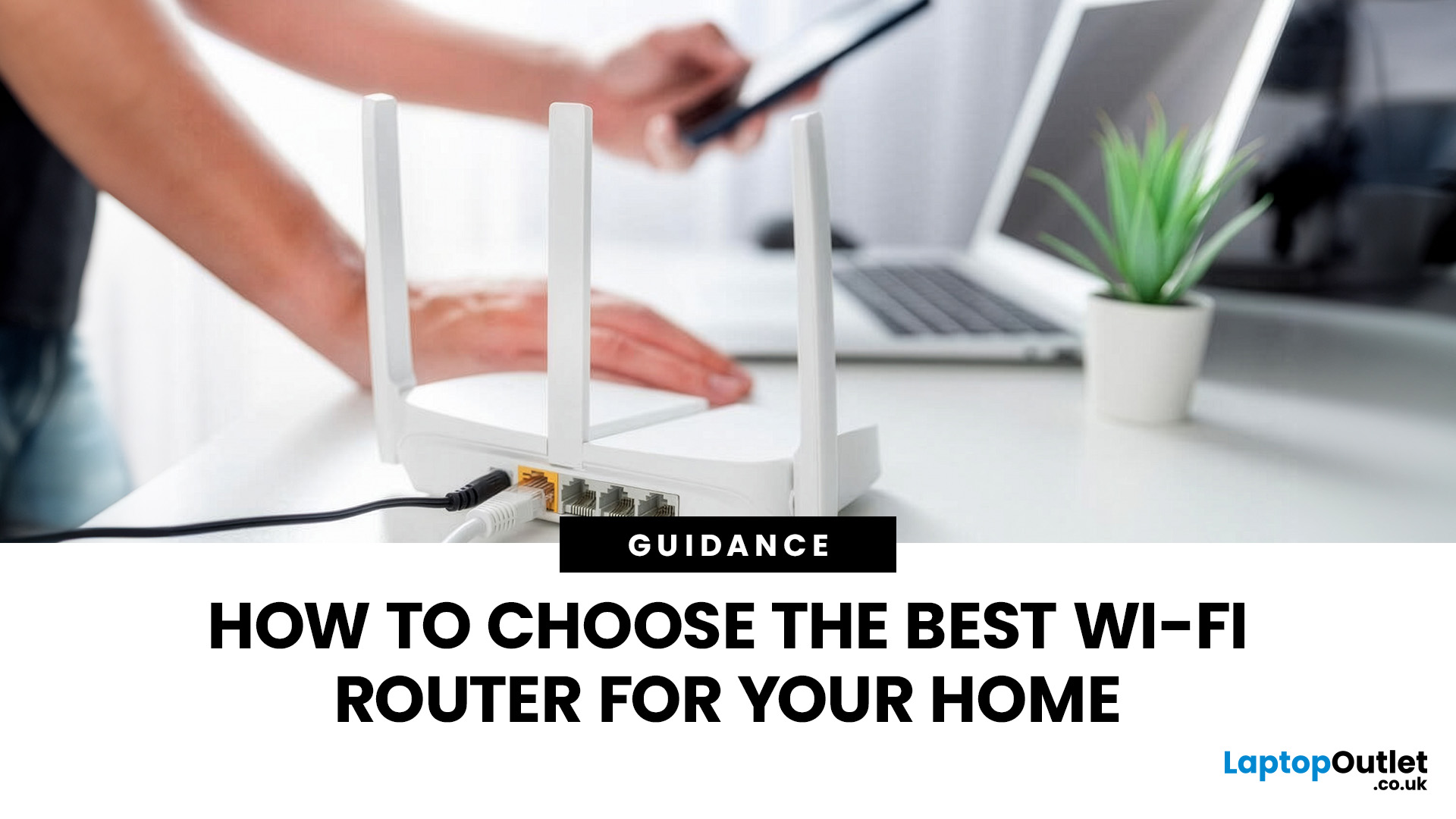
To choose the best Wi-Fi router for your home, you first need to understand how Wi-Fi behaves inside real buildings, especially UK homes, which are often older, brick-built, and not designed for wireless signals.
What Wi-Fi Really Is (Without the Marketing Spin)
Wi-Fi is not “internet speed in the air”. It’s a radio signal that carries data between your router and your devices.
That signal:
- Weakens over distance
- Loses strength passing through walls
- Competes with other signals nearby
This is why Wi-Fi performance changes dramatically depending on where you are in your home, even when your broadband speed stays the same.
Important reality check:
Your router doesn’t “push” Wi-Fi evenly in all directions. It broadcasts radio waves that are:
- Reflected
- Absorbed
- Blocked
UK homes often make this worse because of:
- Solid brick and stone walls
- Metal-backed insulation
- Floor heating systems
- Older layouts with thick internal walls
This
Last Updated: January 26, 2026
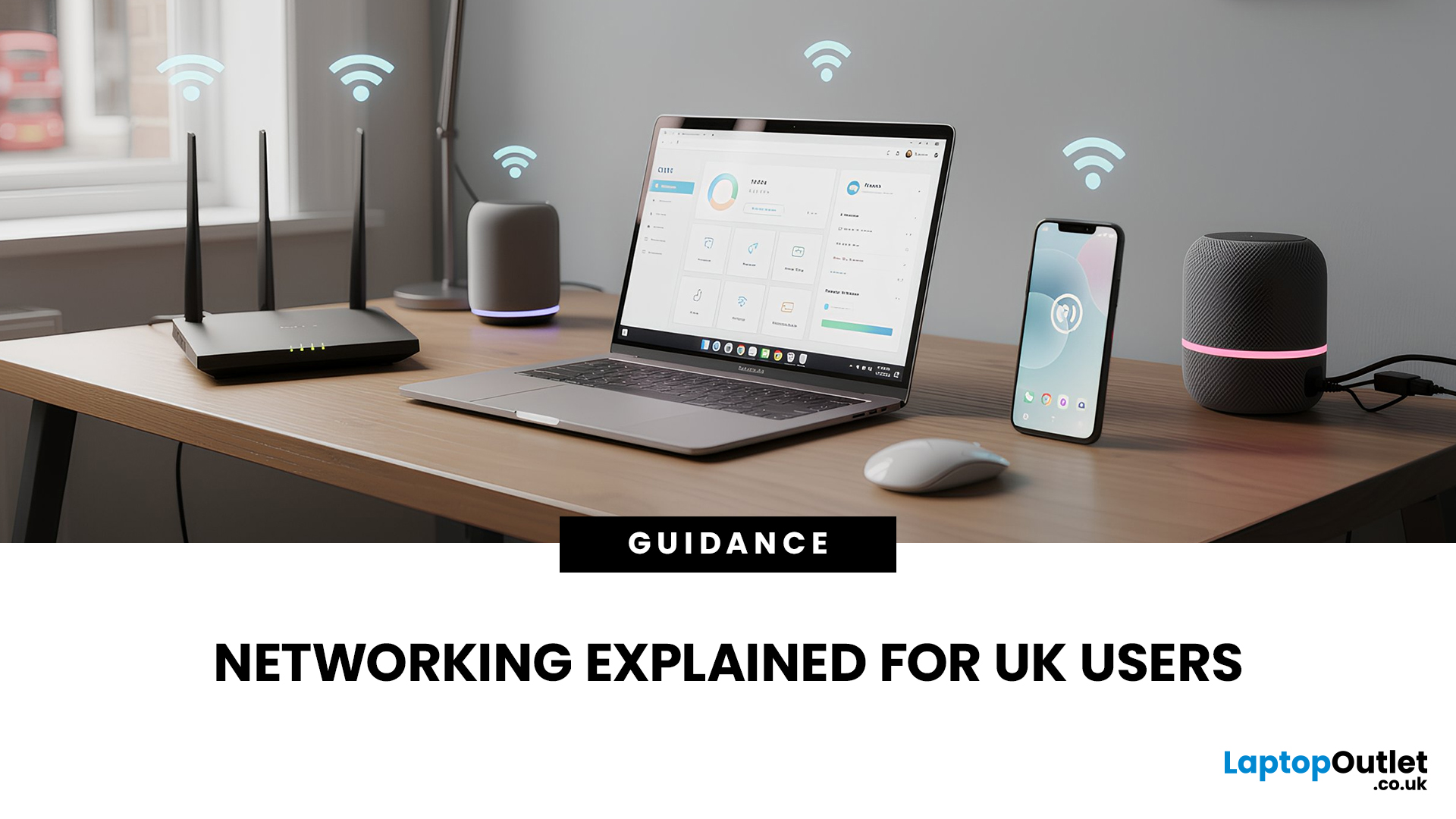
In today’s UK homes and offices, networking isn’t optional - it’s the backbone of how we work, study, stream, and stay connected. From remote meetings and online gaming to smart homes and cloud storage, everything relies on reliable networking accessories and networking devices working together behind the scenes.
Yet many people still struggle with slow Wi-Fi, unstable connections, or poor coverage, not because their internet provider is bad, but because their networking equipment isn’t set up correctly.
What Is Networking? (A Simple Explanation)
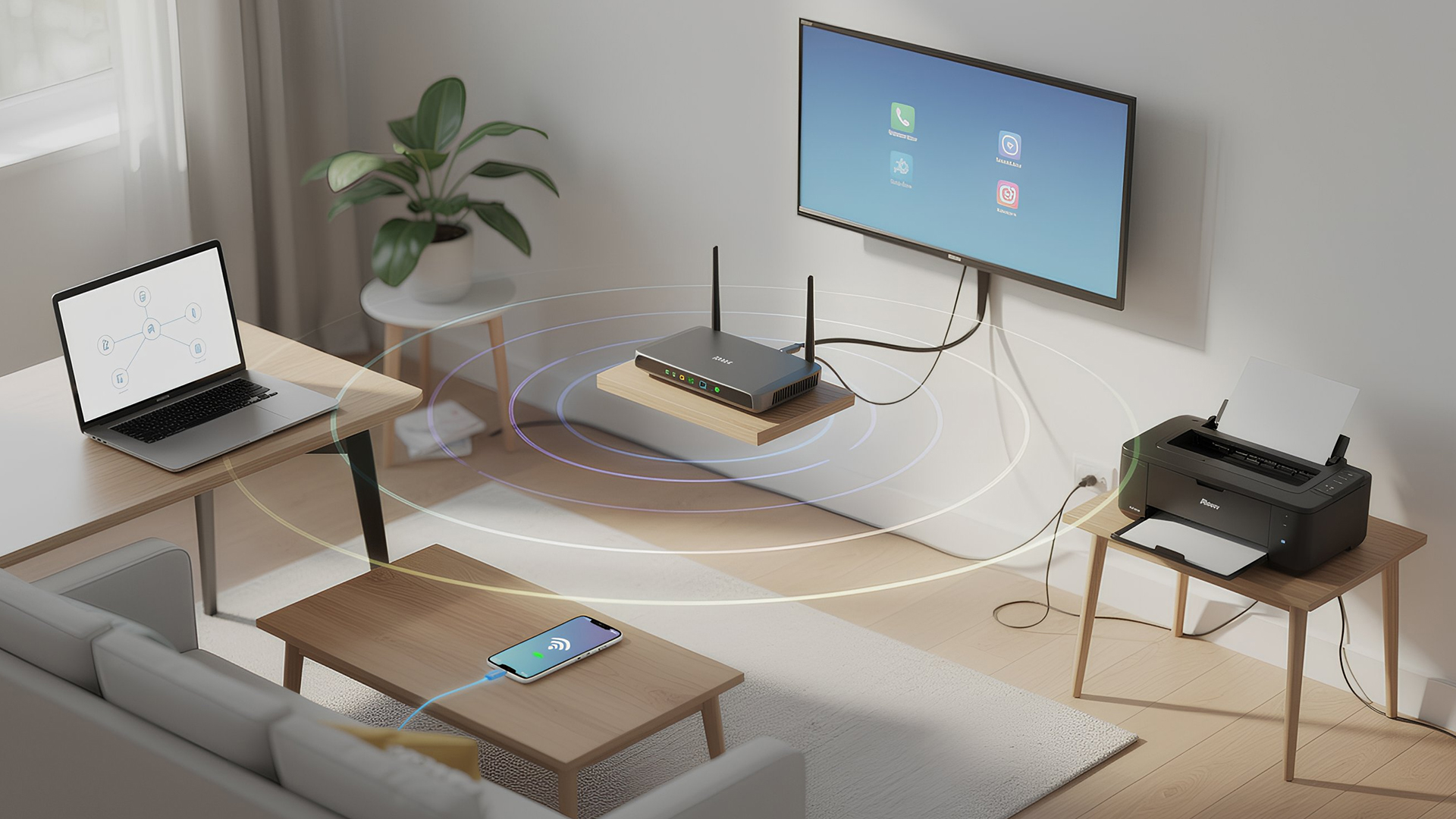
Networking is the process of connecting devices so they can communicate, share data, and access the internet. These devices might include:
- Laptops and desktops
- Smartphones and tablets
- Printers and scanners
- Smart TVs and streaming devices
- Smart home systems (lights, cameras, thermostats)
To make this possible, you need a combination of networking devices (like routers and access points) and networking accessories (such as network cards, adapters,

