



HP Gaming PC Troubleshooting: Common Issues and Easy Fixes
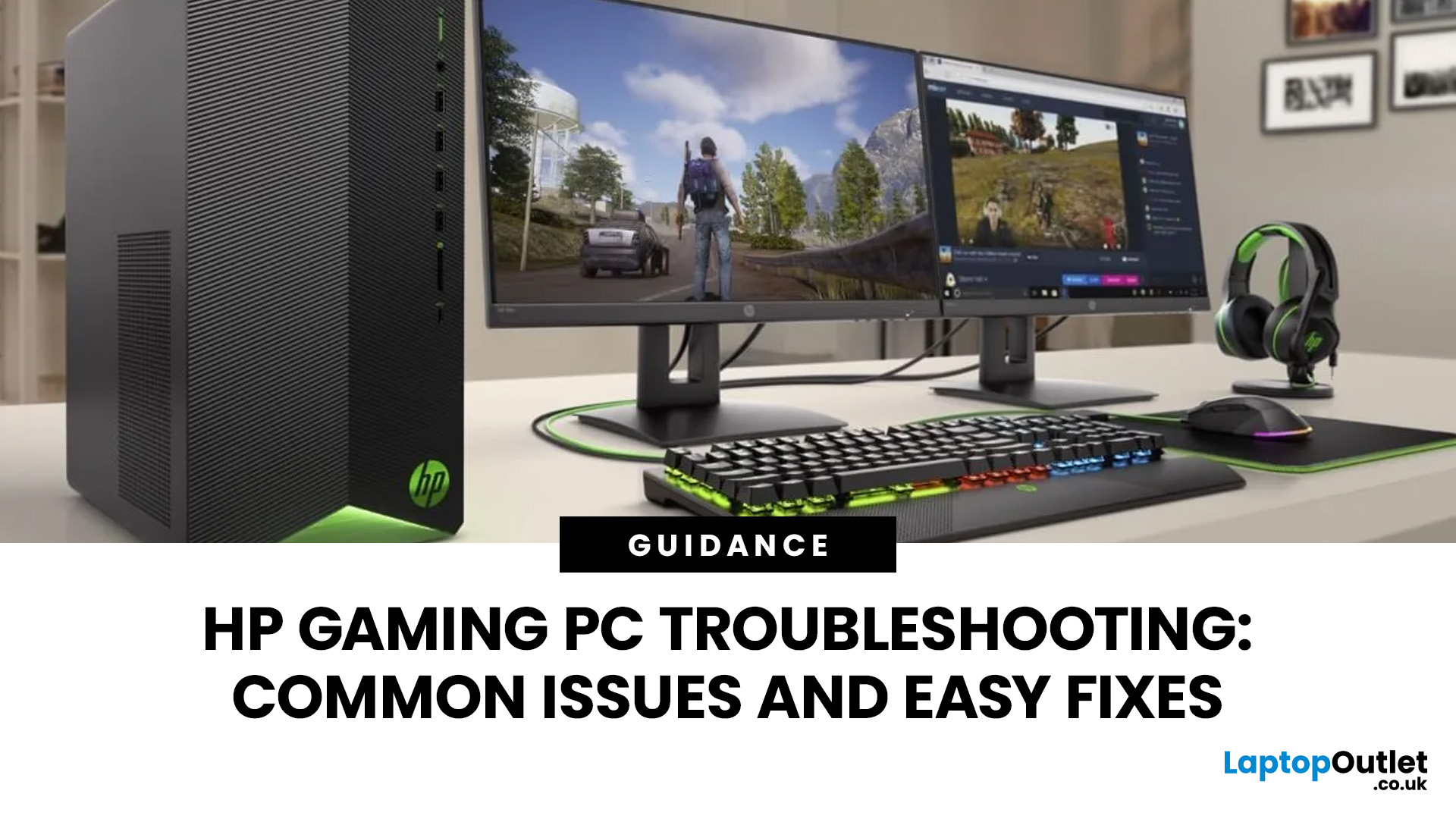
Your HP gaming PC should not feel like a boss fight before the game even loads.
HP gaming PC problems include black screens, overheating, lag, crashes, fan noise, slow performance, and startup failures. Most can be fixed by updating drivers, cleaning dust, improving airflow, freeing storage, and checking power or display connections.
You will also learn when a repair is worth it, when an upgrade makes more sense, and when it might be time to compare newer HP desktop PCs for gaming.
What Are the Most Common HP Gaming PC Problems?
Most HP gaming desktop issues fall into a few major categories: power, display, heat, performance, drivers, storage, and hardware wear.
Here is a quick overview.
|
PROBLEM |
COMMON SYMPTOMS |
LIKELY CAUSES |
FIRST THING TO TRY |
|
PC not turning on |
No lights, no fan, no display |
Power cable, PSU, wall socket, internal component issue |
Check power source and perform a hard reset |
|
Black screen |
Fans spin, lights on, no image |
Monitor, cable, GPU, Windows, driver issue |
Check display cable and reset graphics driver |
|
Overheating |
Loud fans, FPS drops, shutdowns |
Dust, poor airflow, old thermal paste, high settings |
Clean vents and improve airflow |
|
Running slow |
Long boot times, stutters, lag |
Startup apps, low RAM, full SSD/HDD, malware |
Disable startup apps and check storage |
|
Crashing |
Game closes, blue screen, restart |
Drivers, overheating, RAM, PSU, unstable updates |
Update drivers and check temperatures |
|
Fan noise |
Constant loud fan or buzzing |
Dust, heat, faulty fan, high CPU/GPU load |
Clean vents and check background apps |
1. HP Gaming Desktops Not Turning On
Few things are more stressful than pressing the power button and getting nothing. No RGB. No fans. No display. Just silence.
HP’s own support guidance explains that if there are no case noises, no fan movement, no lights, and no video signal, the PC may not be receiving power.
Common causes
Your HP gaming desktop may not turn on because of:
- Loose or faulty power cable
- Dead wall socket or extension lead
- Power supply unit failure
- Faulty power button
- Internal short circuit
- Motherboard issue
- Failed RAM or GPU seating after movement
- Power surge damage
How to troubleshoot startup problems
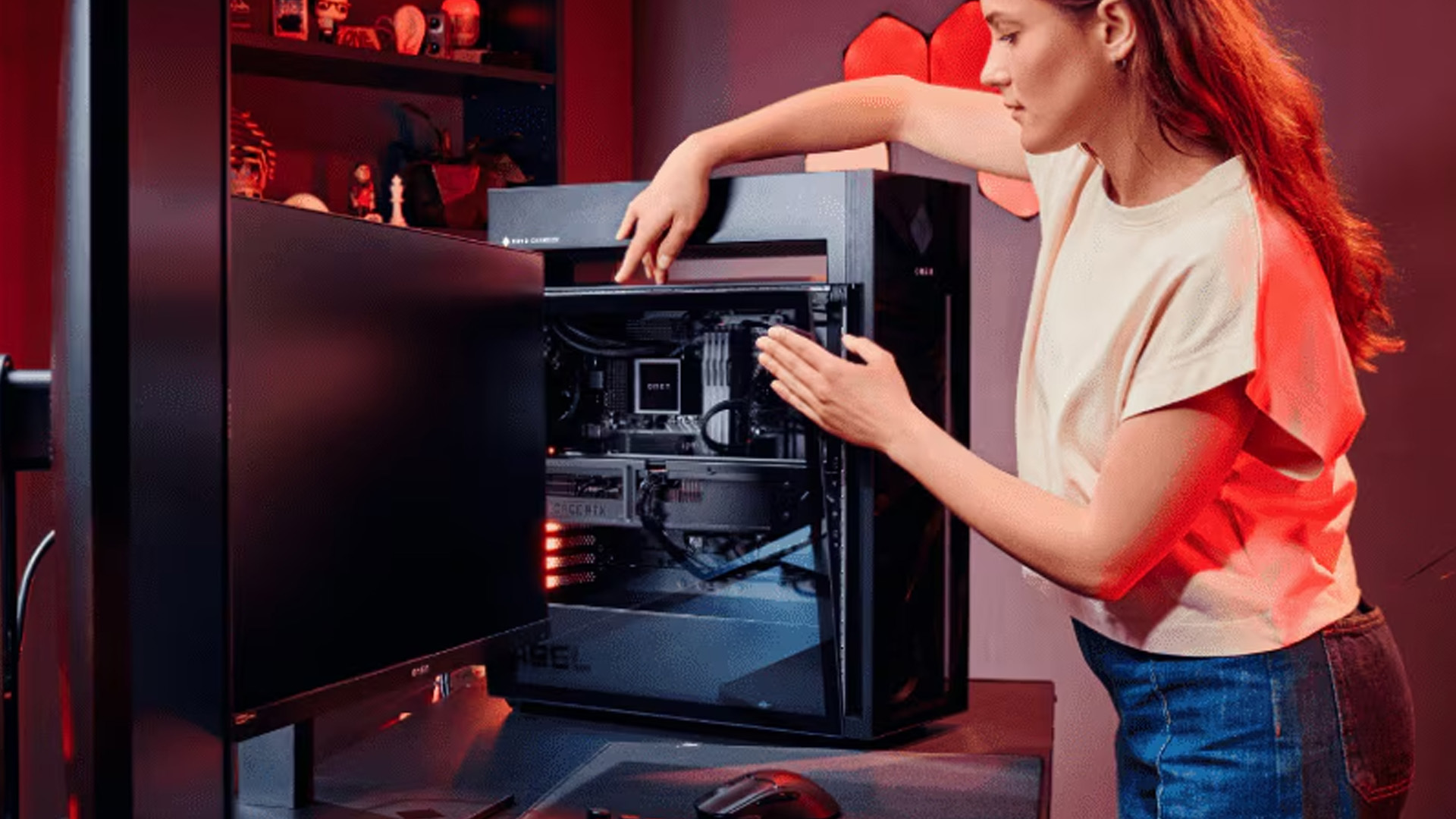
Try these steps in order:
1. Check the wall socket
Plug in another device, such as a phone charger or lamp, to confirm the socket works.
2. Remove extension leads
Connect the PC directly to the wall. Cheap or overloaded extension blocks can cause unstable power.
3. Check the power cable
Make sure the cable is firmly connected to the PSU and wall socket.
4. Check the PSU switch
Many desktop power supplies have a switch at the back. Make sure it is set to “I”, not “O”.
5. Perform a power reset
- Turn off the PC.
- Unplug the power cable.
- Hold the power button for 15–20 seconds.
- Reconnect the cable.
- Try turning it on again.
6. Disconnect non-essential devices
Remove USB drives, controllers, external hard drives, webcams, and accessories. Leave only the monitor, keyboard, and mouse connected.
7. Look for signs of life
Check for fan movement, motherboard lights, beeps, or blinking LEDs.
When to stop troubleshooting
Stop using the PC and seek professional help if you notice:
- Burning smell
- Popping sound
- Smoke
- Liquid damage
- Repeated power tripping
- PSU fan not spinning with no other response
A faulty PSU is not the place to “DIY for the vibes”. It can damage other components if ignored.
2. HP Gaming PC Black Screen
An HP gaming PC black screen can happen in two main ways:
- The PC turns on, but the monitor shows nothing.
- Windows loads, but the screen goes black after login, update, or game launch.
HP separates this from a “no power” issue. If the lights and fans are on but no image appears, HP recommends troubleshooting the blank display separately. Microsoft also notes that Windows black or blank screens can happen at startup, after login, or following updates.
Quick checks first
Before assuming your GPU is dead, check the basics:
- Is the monitor turned on?
- Is the correct input selected?
- Is the HDMI or DisplayPort cable connected to the graphics card, not the motherboard?
- Is the cable damaged?
- Does another monitor or TV work?
- Does the monitor work with another device?
This one catches a lot of people: many gaming desktops have motherboard display ports, but if your CPU does not have integrated graphics or the GPU is required, plugging the cable into the wrong port can show a black screen.
How to fix a black screen on an HP gaming PC
Try this sequence:
1. Restart the display driver
Press:
Windows + Ctrl + Shift + B
The screen may flicker or beep. This resets the graphics driver without fully restarting the PC.
2. Power cycle the monitor
Turn the monitor off, unplug it for 30 seconds, then reconnect it.
3. Try another cable
A faulty HDMI or DisplayPort cable can mimic a serious GPU problem.
4. Boot into Safe Mode
If Windows loads in Safe Mode, the issue may be caused by a graphics driver, startup app, or update.
5. Roll back or reinstall graphics drivers
Use Device Manager or the GPU manufacturer’s driver tool.
6. Disconnect extra displays
Multi-monitor setups can sometimes confuse Windows after driver updates.
7. Check GPU seating
If the PC was moved recently, the graphics card may have shifted slightly. Only open the PC if you are comfortable doing so and the warranty terms allow it.
3. HP Gaming PC Overheating
Overheating is one of the biggest causes of HP gaming PC performance issues. It can lead to fan noise, FPS drops, sudden shutdowns, freezes, and long-term component stress.
HP recommends preventing overheating by ensuring proper ventilation, cleaning fan vents regularly, keeping the computer in a cool environment, and updating the BIOS where appropriate.
Signs your HP gaming PC is overheating
Watch for:
- FPS starts high, then drops after 10–20 minutes
- Fans become very loud during gaming
- PC shuts down without warning
- Games stutter even on lower settings
- Case feels unusually hot
- CPU or GPU temperatures spike under load
- Performance improves after letting the PC cool down
Why overheating happens
Gaming PCs generate heat because the CPU and GPU work hard. That is normal. The issue starts when heat cannot escape quickly enough.
Common causes include:
- Dust blocking vents
- PC placed against a wall
- Poor airflow under a desk
- High room temperature
- Old thermal paste
- Weak or failing fan
- Too many background apps
- High graphics settings for the hardware
- Blocked intake or exhaust vents
How to reduce overheating
Start with easy wins:
1. Move the PC into open space
Leave room around the front, back, and side vents.
2. Clean dust carefully
Use compressed air to clear vents and fans. Hold fans in place while cleaning so they do not spin aggressively.
3. Check fan direction
Ideally, cool air should enter from the front/bottom and hot air should exit from the rear/top.
4. Update BIOS and drivers
BIOS updates can improve fan behaviour and hardware stability, but only install updates from official HP support pages.
5. Lower demanding graphics settings
Try reducing:
-
- Ray tracing
- Shadows
- Volumetric effects
- Anti-aliasing
- Render distance
- Texture quality if VRAM is limited
6. Cap your FPS
Running at uncapped FPS can push the GPU harder than needed. Capping at 60, 120, or 144 FPS can reduce heat and noise.
7. Consider better airflow
If your desktop supports it, adding or replacing desktop cooling fans can help maintain more stable temperatures.
4. HP Desktop Fan Noise
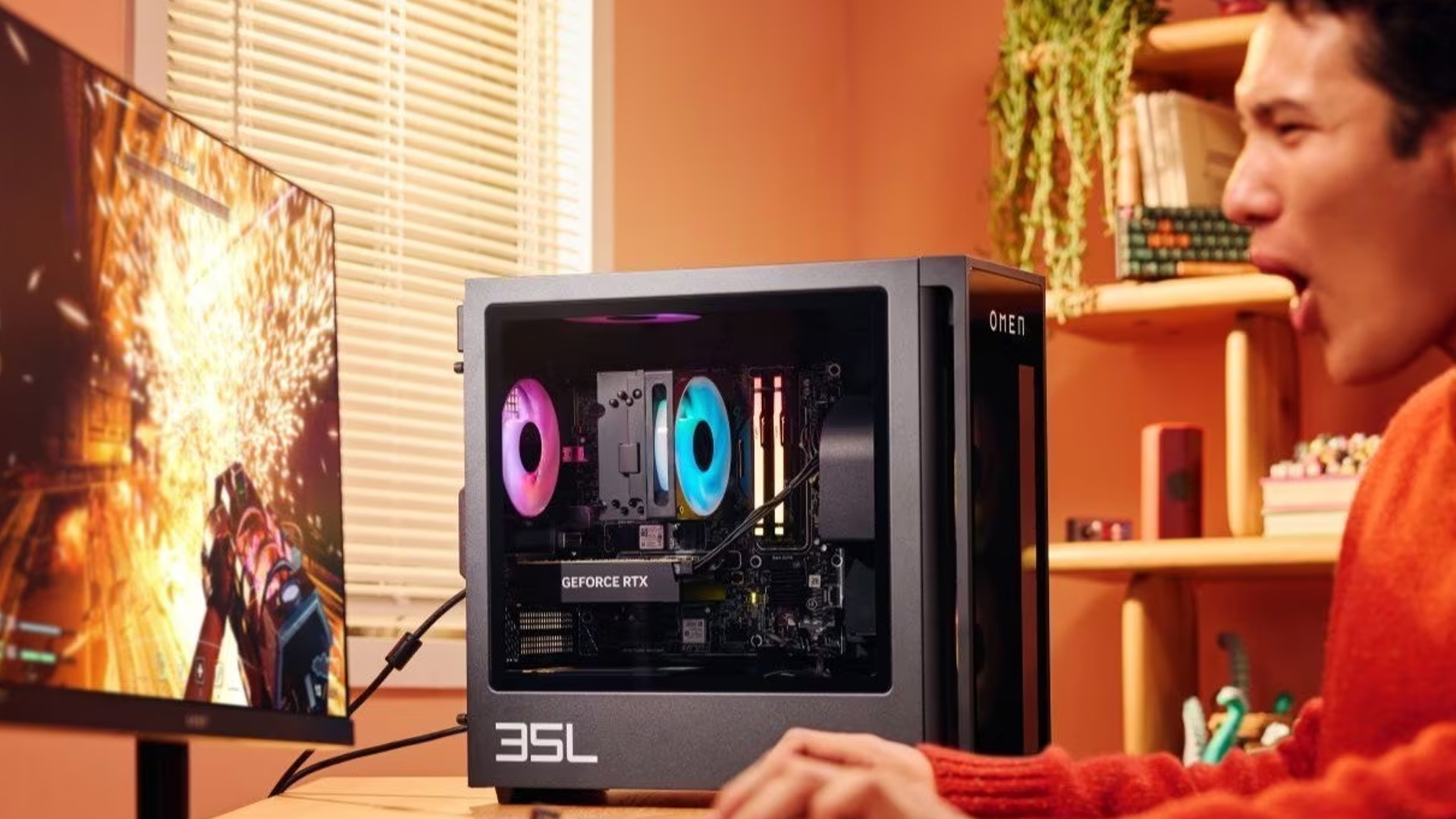
A loud fan is not always a fault. Gaming PCs need cooling. But if your HP desktop fan noise is constant, sudden, rattly, or louder than usual, something needs checking.
HP notes that if fan noise stops after the system cools, the cause may be excessive heat inside the computer rather than a bad fan.
Normal fan noise vs problem fan noise
|
FAN SOUND |
WHAT IT USUALLY MEANS |
|---|---|
|
Louder during gaming |
Normal under heavy load |
|
Constant high-speed fan at idle |
Heat, background apps, dust, BIOS issue |
|
Clicking or rattling |
Fan obstruction or failing bearing |
|
Grinding noise |
Possible fan failure |
|
Sudden fan spikes |
CPU/GPU load changes or software updates |
How to quiet a noisy HP gaming desktop
Try these steps:
- Check Task Manager for high CPU/GPU usage.
- Close unnecessary launchers, browsers, and recording apps.
- Clean dust from vents and fans.
- Move the PC away from carpet, walls, and heat sources.
- Update HP system firmware if available.
- Check whether the fan cable is touching the fan blades.
- Replace a failing fan if it clicks, grinds, or vibrates.
Gaming reality check
Some noise is normal during high-performance gaming. A PC pushing modern titles at high settings will create heat, and fans have to respond. The goal is not total silence. The goal is stable cooling without panic mode.
5. HP Gaming PC Running Slow
An HP gaming PC running slow can feel worse than a crash because everything technically “works”, just badly.
You click. It thinks. You launch a game. It loads forever. You open Chrome and your frames disappear.
HP recommends steps such as restarting a locked computer, checking and cleaning air vents, and running Windows Update when dealing with freezing or lock-up issues.
Common reasons your HP gaming PC is slow
- Too many startup apps
- Full or nearly full SSD
- Old HDD instead of SSD
- Not enough RAM
- Malware or unwanted software
- Outdated drivers
- Windows updates running in the background
- Game installed on a slow drive
- Overheating
- Low-end GPU for the game/settings
- Browser tabs eating memory
Best HP gaming PC fixes for slow performance
1. Disable startup apps
Open Task Manager, go to Startup Apps, and disable anything you do not need immediately when Windows starts.
Common culprits include:
- Game launchers
- RGB software
- Cloud sync apps
- Chat apps
- Updaters
- Peripheral control software
2. Free up storage
Keep at least 15–20% of your main drive free where possible. A nearly full SSD can slow down system responsiveness.
Delete or move:
- Old game installs
- Temporary files
- Large downloads
- Duplicate clips
- Unused apps
3. Move games to SSD
If your HP gaming desktop still uses a hard drive for games, load times and texture streaming can suffer. Installing games on an SSD can massively improve day-to-day responsiveness.
4. Upgrade RAM if needed
For modern gaming, 8GB can feel tight. 16GB is a more comfortable baseline for most gamers, especially if you use Discord, Chrome, OBS, or streaming tools while playing.
5. Scan for malware
Unwanted software can steal CPU, memory, and network resources. Use Windows Security or trusted antivirus software.
6. HP Gaming Computer Lagging and FPS Drops
A gaming PC lagging problem can mean different things:
- Low FPS
- Stuttering
- Input delay
- Network lag
- Freezes
- Rubber-banding in online games
Before fixing it, identify the type of lag.
FPS lag vs internet lag
|
SYMPTOM |
LIKELY TYPE |
|---|---|
|
Game looks choppy |
FPS or GPU/CPU issue |
|
Character teleports or rubber-bands |
Network issue |
|
Mouse feels delayed |
Input latency or low FPS |
|
Game freezes briefly |
RAM, storage, shader compilation, driver issue |
|
FPS drops after 15 minutes |
Heat or throttling |
How to fix gaming PC FPS drops
Try this checklist:
1. Update graphics drivers
Driver issues are one of the most common causes of gaming PC performance problems.
2. Lower graphics settings
Start with shadows, ray tracing, reflections, and anti-aliasing.
3. Use the correct resolution
Playing at 1440p or 4K on entry-level hardware can cause heavy FPS drops.
4. Enable performance mode
In Windows, use a balanced or high-performance power plan.
5. Close overlays
Disable unnecessary overlays from launchers, recording tools, and chat apps.
6. Check temperatures
If performance drops after a few minutes, overheating may be the issue.
7. Install games on SSD
Open-world games can stutter when streaming assets from a slow drive.
8. Use wired internet where possible
For competitive gaming, Ethernet is usually more stable than Wi-Fi.
Pro gamer move
Do not just copy “best settings” from YouTube without checking your exact specs. An HP Victus with an entry-level GPU and an OMEN with a higher-end GPU need different settings.
7. HP Gaming PC Crashing
An HP gaming PC crashing problem can show up as:
- Game closes to desktop
- PC restarts during gaming
- Blue screen error
- Frozen screen
- Black screen with audio still playing
- Random shutdown under load
Common crash causes
- GPU driver conflict
- Overheating
- Faulty RAM
- Power supply instability
- Corrupted game files
- Windows update problem
- Overclocking or unstable performance tuning
- Failing SSD/HDD
- Game bug or anti-cheat conflict
If your current setup struggles with demanding AAA titles, upgrading to an OMEN gaming PC for AAA gaming may offer better cooling, stronger graphics, and smoother high-setting performance.
How to troubleshoot crashes
Follow this order:
1. Check whether it happens in one game or all games
If only one game crashes, verify the game files or reinstall it.
2. Update GPU drivers
Use official driver sources only.
3. Check Windows Update
Install important updates, then restart.
4. Monitor temperatures
Crashes under load can point to heat or power problems.
5. Remove overclocks
Return CPU, GPU, and RAM settings to default.
6. Test RAM
Use Windows Memory Diagnostic or another reputable memory testing tool.
7. Check Event Viewer
Look for critical errors around the time of the crash.
8. Run HP diagnostics
HP systems often include built-in diagnostics for hardware checks.
When crashes suggest hardware trouble
Hardware may be involved if:
- The PC crashes during multiple games.
- It restarts instantly under GPU load.
- You hear clicking from a drive.
- RAM tests fail.
- Temperatures are safe but crashes continue.
- The PC crashes even after a clean driver install.
At that point, compare the cost of repair against upgrading to newer high-performance gaming PCs, especially if your current system is several years old.
8. HP Victus Troubleshooting Tips
HP Victus desktops are popular with casual and mid-range gamers because they offer gaming performance without going fully extreme on price. But like any gaming PC, Victus systems can still face driver issues, heat build-up, storage limits, and FPS drops.
Common HP Victus troubleshooting checks
For an HP Victus gaming desktop:
- Make sure the display cable is connected to the dedicated GPU.
- Keep BIOS, chipset, and GPU drivers updated.
- Clean dust from intake and exhaust vents.
- Check whether the installed RAM is enough for your games.
- Avoid placing the tower inside a closed cabinet.
- Use SSD storage for modern games.
- Lower ray tracing and ultra settings on entry-level GPU models.
Best settings mindset
Think of your PC as a performance budget. Every setting spends some of that budget. Shadows, ray tracing, high textures, resolution, and background apps all compete for resources.
Your goal is not always “Ultra everything”. Your goal is smooth gameplay. If you’re comparing HP’s gaming lineup before upgrading, it’s also worth looking at the difference between HP OMEN and HP Victus gaming laptops to see which performance level fits your gaming style.
9. Driver Issues on HP Gaming PCs
Gaming PC driver issues can cause:
- Black screens
- Crashes
- Low FPS
- Audio problems
- Game launch errors
- USB device problems
- Display resolution issues
Drivers you should keep updated
- Graphics driver
- Chipset driver
- Network driver
- Audio driver
- BIOS/firmware when needed
- Peripheral drivers for gaming keyboards, mice, and headsets
Best practices
- Download drivers from official HP, NVIDIA, AMD, or Intel
- Do not install random “driver booster” tools.
- Create a restore point before major driver changes.
- Restart after installing important drivers.
- If a new driver causes problems, roll back to the previous stable version.
10. When Should You Repair, Upgrade, or Replace Your HP Gaming PC?
Not every issue means you need a new system. But not every repair is worth it either.
Repair makes sense when:
- The PC is fairly new.
- Warranty still applies.
- The problem is isolated.
- The repair cost is low.
- Performance is still good for your games.
Upgrade makes sense when:
- You need more RAM.
- Your storage is slow or full.
- Cooling can be improved.
- Your GPU still meets your needs.
- Your CPU is still strong enough.
Useful upgrades may include:
- More RAM
- Larger SSD
- Better cooling
- New fans
- Better monitor
- Improved keyboard, mouse, or headset from PC gaming accessories
Before replacing your system, it’s smart to understand why gaming desktop prices are increasing and which upgrades still offer the best value.
Replacement makes sense when:
- Multiple parts are failing.
- The GPU is too weak for modern games.
- The system overheats despite cleaning and airflow fixes.
- Repair costs are close to a newer PC.
- You want smoother 1440p, high-refresh, or streaming performance.
If you are comparing options, browse HP desktop computers or dedicated HP desktop PCs for gaming based on the games, resolution, and FPS target you actually care about.
HP Gaming Desktop Troubleshooting Checklist
Use this quick checklist before spending money on repairs or upgrades.
Power and startup
- Check wall socket.
- Check power cable.
- Check PSU switch.
- Remove unnecessary USB devices.
- Perform a power reset.
Black screen
- Check monitor input.
- Try another cable.
- Plug into the GPU port.
- Reset graphics driver.
- Test another display.
- Boot into Safe Mode.
Performance
- Disable startup apps.
- Free up storage.
- Update GPU drivers.
- Install games on SSD.
- Check RAM usage.
- Scan for malware.
Overheating and fan noise
- Clean dust.
- Improve airflow.
- Keep PC off carpet.
- Check fan operation.
- Cap FPS.
- Reduce demanding settings.
- Consider upgraded cooling.
Crashes
- Update drivers.
- Verify game files.
- Check temperatures.
- Remove overclocks.
- Test RAM.
- Run HP diagnostics.

Final Thoughts: Fix the Problem, Then Build a Better Gaming Setup
Most HP gaming PC problems are not random. A black screen usually points to display, cable, driver, or GPU issues. Overheating usually points to airflow, dust, fan behaviour, or demanding settings. Lag and crashes often come from drivers, RAM, storage, temperatures, or unstable software.
The smart move is to troubleshoot step by step:
- Check power, cables, and display connections.
- Update Windows, BIOS, and drivers carefully.
- Clean dust and improve airflow.
- Reduce unnecessary background load.
- Monitor temperatures and FPS.
- Upgrade only when the diagnosis supports it.
That way, you avoid wasting money and get your gaming setup back to what it should be: smooth, stable, and ready for the next match.

Questions About HP Gaming PC Problems
What are the common problems with HP PCs?
Common HP PC problems include startup failure, black screen, overheating, loud fan noise, slow performance, freezing, crashing, driver issues, and storage-related lag. On HP gaming desktops, these issues often become more noticeable during demanding games because the CPU, GPU, RAM, cooling system, and storage are under heavier load.
How to troubleshoot HP PC problems?
Start with the simplest checks: restart the PC, check cables, remove unnecessary USB devices, update Windows, update drivers, clean dust from vents, and check storage space. For gaming-specific issues, monitor CPU/GPU temperatures, lower graphics settings, verify game files, and make sure the monitor cable is plugged into the dedicated graphics card.
How to diagnose gaming PC problems?
Identify when the problem happens. If it occurs at startup, check power and boot devices. If it happens during gaming, check temperatures, GPU drivers, RAM usage, and power stability. If it happens after updates, roll back drivers or use Safe Mode. If FPS drops after several minutes, overheating may be the cause. If lag only happens online, check internet stability.
How do I fix a black screen on my HP gaming PC?
Check the monitor power, display input, and HDMI or DisplayPort cable first. Make sure the cable is connected to the graphics card, not the motherboard. Then restart the graphics driver using Windows + Ctrl + Shift + B. If the issue continues, boot into Safe Mode, reinstall or roll back graphics drivers, test another monitor, and check whether the GPU is seated correctly.
Why is my HP gaming PC running slow?
Your HP gaming PC may be running slow because of too many startup apps, limited RAM, a full SSD, games installed on a hard drive, outdated drivers, malware, overheating, or graphics settings that are too demanding for the hardware. Start by disabling startup apps, freeing storage, updating drivers, checking temperatures, and closing unnecessary background software before gaming.
Related Articles


Last Updated: June 05, 2026
If you’re upgrading your gaming rig or building one from scratch in 2025, the motherboard you choose is going to set the tone for your entire PC. Whether you’re aiming for an affordable setup or an ultra-high-end powerhouse, the motherboard is the foundation - determining not just what components you can use today, but how future-ready your system will be.
This guide takes you through the best motherboards for gaming PCs in 2025, handpicked for performance, features, and value. You’ll find AMD and Intel options, from budget boards with modern DDR5 support to premium PCIe 5.0 powerhouses. Every recommendation is researched using up-to-date 2025 benchmarks, market data, and UK availability, ensuring you can make an informed purchase that fits your budget and build goals.
Why the Motherboard Matters in 2025

With the launch of AMD’s Ryzen 9000 and Intel’s 15th-gen “Arrow Lake” CPUs, the motherboard landscape has changed considerably. New chipsets like AMD B650E and Intel Z890 bring cutting-edge
Last Updated: February 26, 2026
If you're looking to elevate your gaming experience in 2026, HyperX is one of the most exciting names to watch. Now operating under HP, HyperX is known for its premium gaming accessories and enthusiast-grade components, and it is now making a strong mark in the desktop PC space. This complete breakdown covers HyperX gaming PC specs, performance capabilities, and feature sets.
Best HyperX Gaming PCs in 2026: Top Picks
If you’re after powerful, prebuilt desktops that deliver high-end gaming performance and match or even surpass many systems often paired with HyperX accessories, it’s important to note that HyperX itself does not manufacture gaming PCs. Instead, HP, the parent company behind HyperX, produces some of the strongest desktop gaming machines on the market. Among them, the two HyperX OMEN towers below stand out. They offer top-tier specs, modern cooling solutions, and excellent upgrade potential.
OMEN 35L GT16-0034na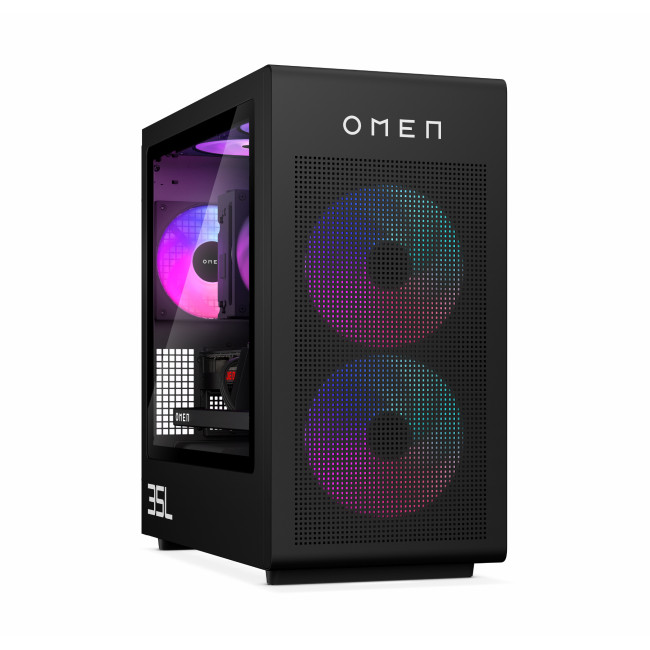
- CPU: Intel Core Ultra 7 265K (20-core)
- GPU: NVIDIA

Last Updated: June 10, 2026
Hades II has arrived, and it’s already proving itself as one of the most stylish, addictive, and fast-paced roguelikes of the year. Supergiant Games has taken everything players loved from the first title and given it more flair, more depth, more chaos, and far more visual punch. And with all that comes the question many players are quietly asking: what are the best gaming PCs and laptops for Hades II?
Whether you're upgrading your battlestation, grabbing a powerful yet portable gaming laptop, or hunting a cheap refurbished gaming laptop for Hades 2, this guide breaks down real, current system requirements, recommended modern hardware, and the best deals you can jump on right now.
Let’s dig in.
Why Gaming PCs and Laptops for Hades II Matters?
Although Hades II is beautifully optimised, it is still more demanding than the original game. More spell effects, more enemies on screen, more layered environments, higher-resolution assets and a broader range of animations mean your hardware needs

Last Updated: February 19, 2026
A new year is the perfect excuse to retire the sluggish desktop that wheezes when you open five tabs or the “gaming PC” that now struggles to hold stable FPS in modern titles. New Year desktop PC deals are one of the best windows to upgrade because prices tend to be sharper, stock gets refreshed, and you can often jump up a whole performance tier for less than you’d expect.
If you’re shopping from the UK, this is also the season where desktop PC New Year deals UK searches explode for a reason: people want a better PC for less, and they want it delivered quickly and safely. Laptop Outlet’s New Year event is built for that kind of upgrade run, tech across categories, limited-time promos, and a straightforward way to browse by what you actually need. You can start with huge savings in New Year tech sale while you compare options and decide your budget.
What counts as a “great deal” in 2026?
The best New Year desktop PC Deals don’t just mean “lowest price.” A great deal in 2026 is one where

Last Updated: January 27, 2026
Intel has remained a titan in the world of PC gaming for decades. Their processors power some of the most capable high-performance gaming desktops on the market today.
Recently, we have seen a massive shift in how these chips operate. The evolution from the classic Core i-series to the brand-new Ultra Core processors marks a new era. These advancements are not just about speed; they are redefining the entire gaming experience.
If you want a top-tier machine, understanding how Intel CPUs work in gaming desktops is essential.
The Role of a CPU in Gaming
The CPU acts as the brain of your computer. It handles every logic calculation and physics instruction required for your game.
CPU vs GPU: Understanding the Balance
The GPU handles the visuals and graphics rendering. Meanwhile, the CPU manages physics, logic, and artificial intelligence.
You need a strong balance between both components to avoid lag. If one is too slow, the other cannot perform at its full potential during intense sessions.
Last Updated: January 27, 2026
Over the past decade, AMD has transformed from an underdog in the CPU market to a dominant force in gaming PCs.
With its Ryzen series, AMD has consistently delivered processors that combine high performance, competitive pricing, and innovative features. For UK gamers, this has meant more choice, better value, and the ability to build powerful rigs without overspending.
In this guide, we’ll explore exactly how AMD processors work in gaming PCs, the key features that make them stand out, and the benefits they bring to gamers.
Understanding AMD Processors in Gaming PCs
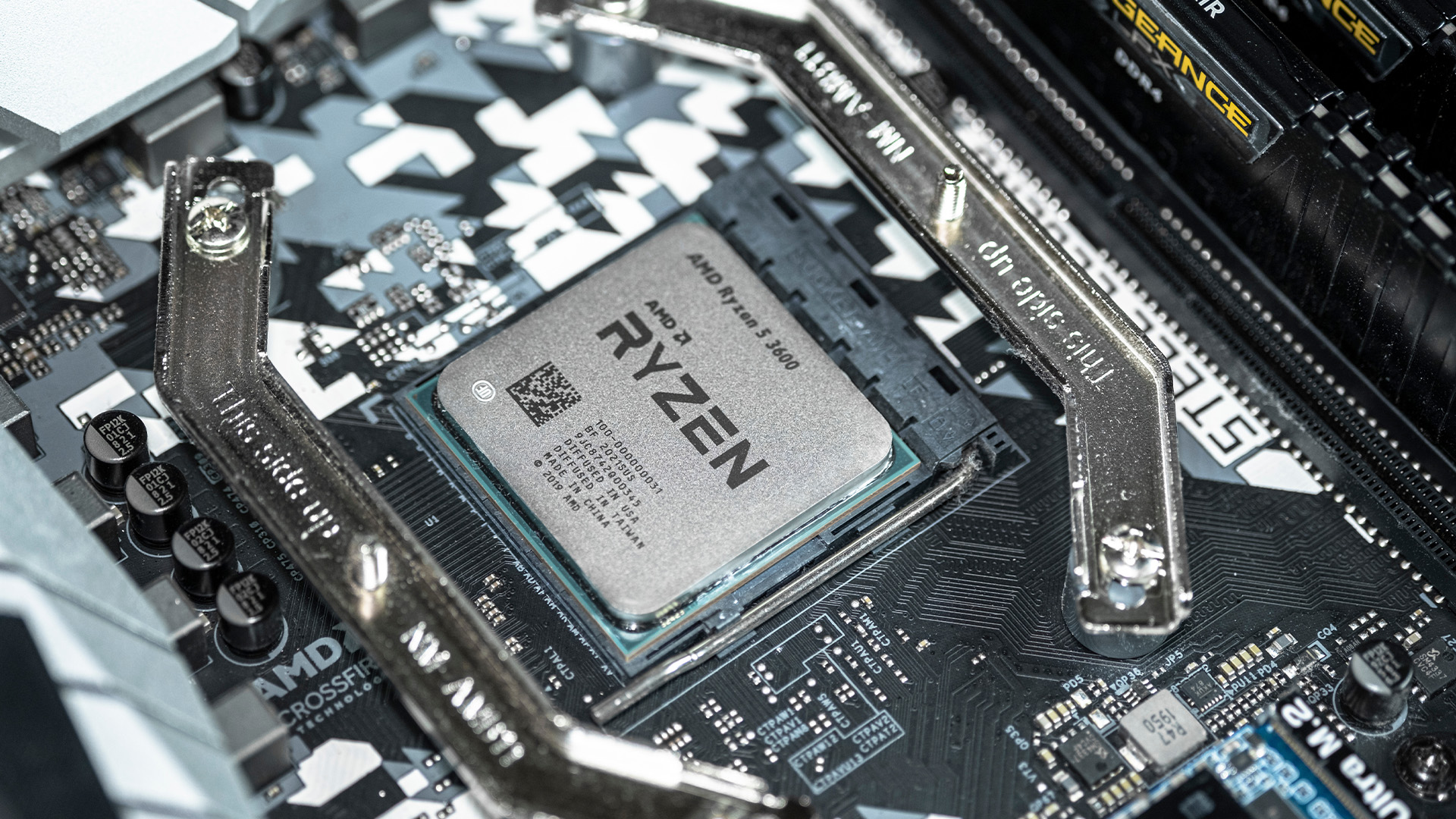
In any gaming setup, the Central Processing Unit (CPU) acts as the primary coordinator. It handles complex AI logic, processes game physics, and manages all background system tasks while your graphics card renders the visuals.
AMD has revolutionised this space by moving away from traditional "monolithic" chip designs where everything is on one piece of silicon. Instead, the modern AMD CPU architecture uses a modular

Last Updated: January 27, 2026
The world of PC gaming has changed forever thanks to a massive leap in graphics innovation. If you have looked at modern gaming desktop PCs recently, you have likely seen the term "RTX" everywhere.
But what is NVIDIA RTX technology exactly? It is not just a fancy label on a box. It represents a total shift in how your computer creates the images you see on screen.
By combining clever artificial intelligence with raw power, NVIDIA has made games look like Hollywood films while keeping them running smoothly.
Introduction to NVIDIA RTX Technology
NVIDIA RTX (Ray Tracing Texel eXtreme) is more than just a brand name. it is a high-end computing platform. It combines specialized hardware cores with advanced software to create lifelike visuals.
A Brief History of NVIDIA Graphics Cards
Before RTX, we had the GTX (Giga Texel Shader eXtreme) series. These cards were powerful, but they relied on "rasterisation." This is a method where a 3D scene is squashed into 2D pixels on your screen. It worked

Last Updated: January 27, 2026
Building or buying a high-end gaming PC is an exciting journey for any enthusiast. The market moves fast, and staying updated on the latest hardware is essential for the best experience.
In this gaming desktop PC breakdown, we will explore the core parts that make a machine powerful. We will look at the latest processors from AMD and Intel, the incredible graphics power of NVIDIA RTX and Radeon RX, alongside other core components.
Whether you want to play the newest AAA titles or compete in esports, understanding these parts is vital. Let us dive into the modern world of gaming PC technologies.
Understanding Gaming Desktop PCs
A gaming desktop PC is a high-performance computer designed specifically to handle demanding video games. Unlike standard PCs, these machines focus on graphical power and fast processing speeds. They use specialised parts that can handle high heat and heavy workloads.
While gaming laptops and consoles are popular, the desktop remains the "gold standard" for several
Last Updated: July 20, 2026
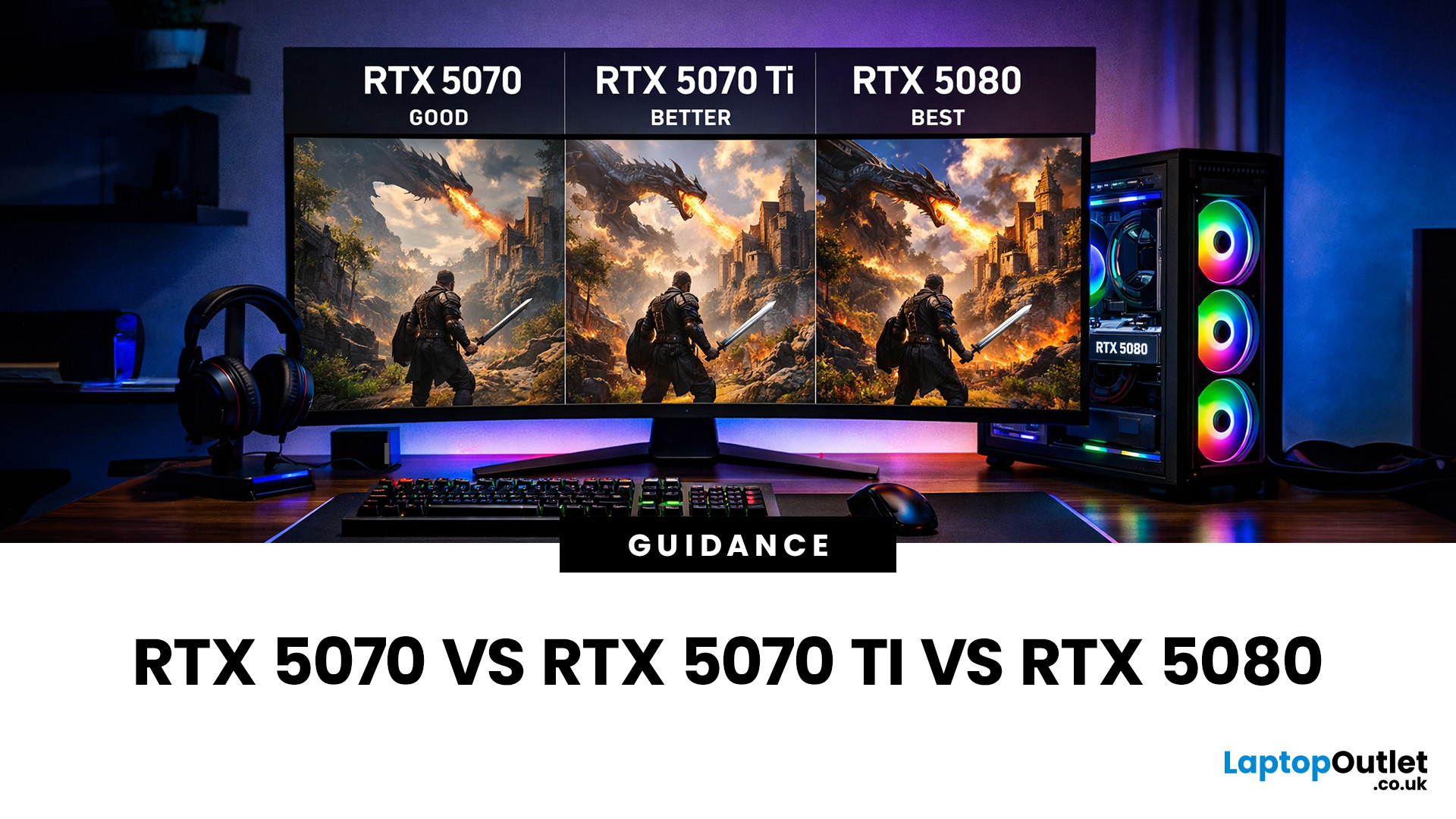
Choosing between an RTX 5070 and RTX 5080 gaming PC is one of the biggest decisions you may face when buying or upgrading a gaming desktop. Although both GPUs support NVIDIA’s latest gaming technologies, they are designed for different resolutions, performance targets, system budgets, and types of players.
In this RTX 5070 vs RTX 5080 comparison, we examine gaming performance, ray tracing, power requirements, system specifications, overall value and the right graphics card for you. We will also briefly explain where the RTX 5070 Ti fits for buyers who want more performance than the RTX 5070 without moving to a premium RTX 5080 gaming PC.
Whether you are considering an RTX 5070 prebuilt PC or planning a high-end custom desktop, this guide will help you understand the difference between RTX 5070 and 5080 gaming systems.
Understanding the RTX 50 Series Line-Up
NVIDIA’s RTX 50 series GPUs are designed to push performance further while improving efficiency and AI-powered features. Across the

Last Updated: February 11, 2026
Choosing the right desktop PC can feel a bit like picking a side in a long-running tech rivalry. HP, Dell, and Lenovo are three of the biggest names and for good reason. They all offer reliable, powerful desktops that suit everything from casual home use to hardcore business workloads and creative setups.
But when it comes to HP vs Dell vs Lenovo desktop PCs, which brand actually wins for you?
Why Compare HP, Dell, and Lenovo Desktop PCs?
HP, Dell, and Lenovo are all global heavyweights in the PC world. They each offer a wide range of desktops — from budget-friendly towers to powerful workstations and compact all-in-one PCs.
But here’s the thing:
Not all desktop PCs are built for the same kind of user.
Some are better for productivity, some for gaming, and others for long-term reliability. Understanding the differences is key before you hit “Add to Basket”.
HP Desktop PCs: Style Meets Performance
HP desktops are known for blending solid performance with modern design. If you like your

