



Do USB to Ethernet Adapters Work? Everything You Need to Know
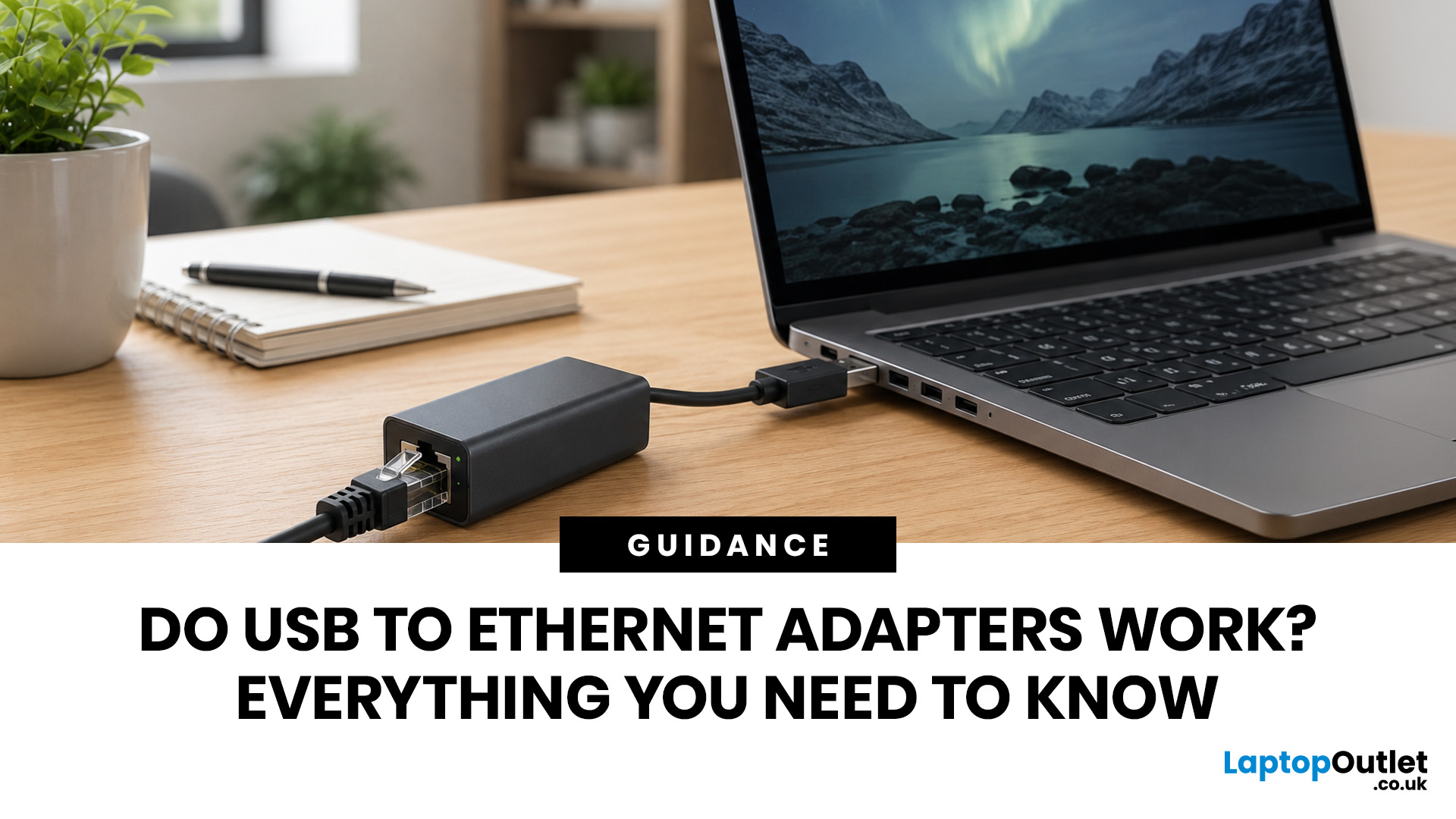
USB to Ethernet adapters do work reliably on many devices, including laptops, tablets, some smart TVs, and selected gaming consoles. They convert a USB port into a wired network connection, offering a more stable connection than WiFi in many situations. Speed depends on the USB version: USB 3.0 models support up to 1Gbps, while USB 2.0 models are limited to around 100Mbps.
This USB Ethernet adapter review gives you a thorough guide to how these adapters work, real-world speeds, operating system compatibility, known limitations, and what to look for before spending your money.
What Is a USB to Ethernet Adapter and How Does It Work?
A USB to Ethernet adapter is a compact dongle that plugs into a USB port and adds an RJ45 Ethernet socket to your device. It bridges the gap for laptops, tablets, and other hardware that ships without a built-in wired network port, which is increasingly common as devices get thinner.
The Technology Behind It
Inside every adapter is a controller chip, most commonly made by Realtek such as the RTL8153 or RTL8156, or ASIX such as the AX88179A. This chip handles the translation between USB data protocols and Ethernet signalling. The operating system uses a driver to communicate with that chip.
Built-in Ethernet ports are usually handled by internal Network Interface Cards (NICs), while USB Ethernet adapters provide a similar wired networking function externally through a USB port.
Most modern adapters are effectively plug-and-play. Windows 10, Windows 11, macOS, Chrome OS, and many recent Linux and Android-based systems include built-in support for widely used chipsets, so you generally do not need to hunt for a driver disc. However, compatibility can still vary by chipset, device model, and operating system version.
Types of USB Ethernet Adapters
Not all adapters are the same. The key differences come down to the USB version, the Ethernet standard, and the connector type on your device. Remember that USB-C is a connector, not a guaranteed speed rating. A USB-C port can support different USB speeds depending on the device.
|
TYPE |
USB STANDARD |
MAX ETHERNET SPEED |
BEST FOR |
|---|---|---|---|
|
USB-A to Ethernet |
USB 2.0 |
100Mbps |
Basic browsing, sub-100Mbps broadband |
|
USB-A to Ethernet |
USB 3.0 / USB 3.2 Gen 1 |
1Gbps Gigabit |
Most home and office users |
|
USB-C to Ethernet |
USB 3.0 / USB 3.1 / USB 3.2, depending on device support |
1Gbps Gigabit |
Modern thin laptops, iPads, Chromebooks |
|
USB-C to 2.5G Ethernet |
USB 3.0 / USB 3.2 Gen 1 or better |
2.5Gbps |
Fast home networks, NAS transfers |
|
Thunderbolt 3/4 to Ethernet |
Thunderbolt |
1Gbps to 10Gbps |
MacBooks, high-end Windows laptops, specialist networks |
| Tip: Check the USB ports on your device before buying. USB 3.0 ports are often marked with “SS” for SuperSpeed or have a blue-coloured insert, although this is not always true on newer devices, especially USB-C models. A USB 3.0 adapter plugged into a USB 2.0 port will only run at USB 2.0 speeds. |
Do USB to Ethernet Adapters Actually Work?
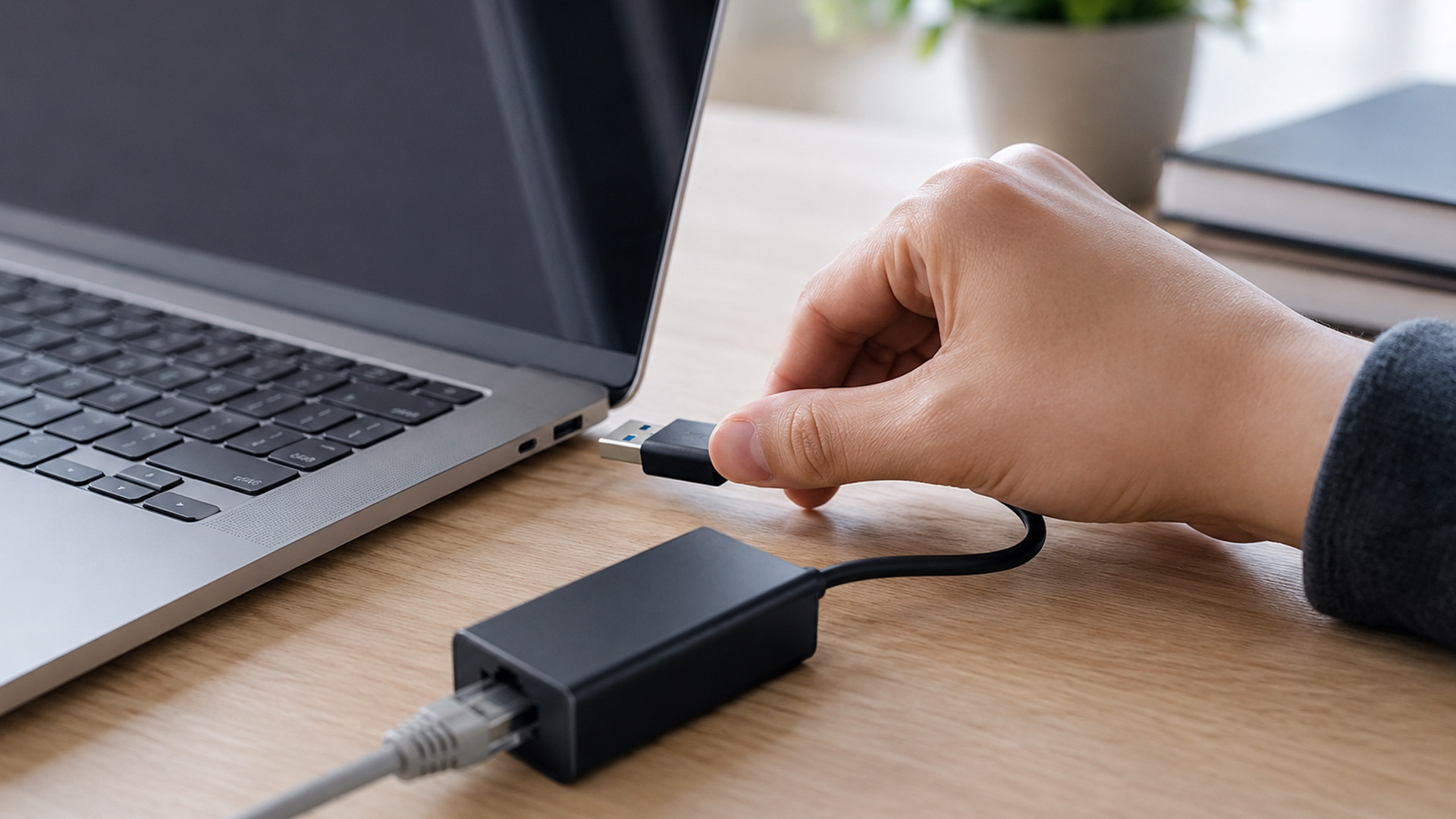
The short answer is yes, they work well for most common devices and everyday use cases. Performance depends on three things: the USB version in your device, the chipset inside the adapter, and the quality of the network cable you use.
On Laptops and Desktop PCs
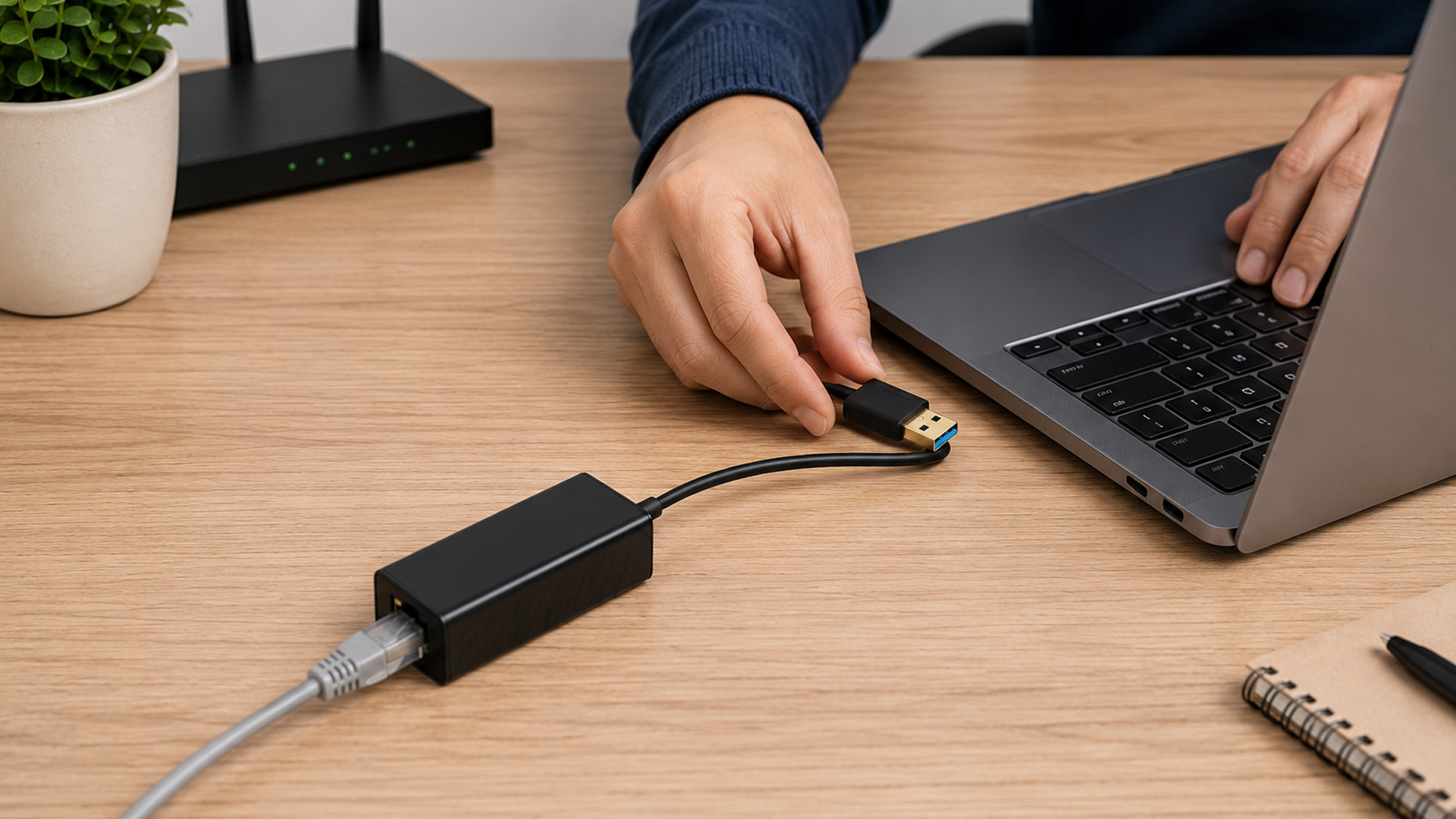
Windows laptops and desktops are the most straightforward use case. A USB to Ethernet adapter for a laptop running Windows 10 or 11 is usually plug-and-play, with no setup needed. Device Manager will recognise the adapter within seconds of plugging it in.
On macOS, many USB-C Gigabit adapters work natively on recent versions of macOS. Some USB-A adapters using older chipsets may need a driver downloaded from the manufacturer’s site, especially after a major macOS update. It is always worth checking the adapter packaging or product page for macOS compatibility before purchasing.
Linux users generally have good out-of-the-box support. Realtek and ASIX chipsets are widely supported in the Linux kernel, meaning most adapters work without any manual configuration on Ubuntu, Fedora, and similar distributions.
On Tablets and iPads
iPad compatibility is generally good, especially on USB-C iPads. iPads with a USB-C port, including the iPad Pro, iPad Air, and iPad mini models with USB-C, can usually connect to compatible USB-C Ethernet adapters directly.
Older iPads with a Lightning connector can connect via an Apple Lightning to USB 3 Camera Adapter, often with external power connected to the adapter. Speeds and reliability may be constrained by the Lightning interface, the adapter, and the power available to the accessory.
For Android tablets with USB host or OTG support, a USB-C to Ethernet adapter, or a USB-A adapter used through an OTG connector, can work on many devices. However, compatibility varies more on Android because it depends on the manufacturer, Android build, kernel support, and whether USB host mode is enabled.
| Watch Out: Not all Android tablets enable USB OTG or USB Ethernet support by default. Check your device’s specifications or manufacturer support page before purchasing a USB LAN adapter for Android use. |
On Smart TVs
Some smart TVs and streaming devices support a wired connection via a USB Ethernet adapter, which can improve stability compared with WiFi. However, this is not universal. Compatibility depends heavily on the TV model, operating system, firmware version, USB port behaviour, and adapter chipset.
The process is usually straightforward where supported: plug the adapter in, connect an Ethernet cable, and navigate to Network Settings on the TV. The wired connection option may appear automatically. This can be useful where WiFi is weak, congested, or unreliable.
| Tip: Some smart TVs only recognise adapters with specific chipsets. Adapters using common Realtek or ASIX chipsets often have better compatibility, but you should check your TV’s manual, support page, or user forums for confirmed compatible models before buying. |
On Gaming Consoles
For gaming consoles, the answer is more nuanced. The PlayStation 4 already includes Gigabit Ethernet, so a USB Ethernet adapter is usually not needed unless the built-in Ethernet port is damaged or unavailable. The PlayStation 5 also includes built-in Gigabit Ethernet.
Xbox One, Xbox One S, Xbox One X, Xbox Series S, and Xbox Series X also include Gigabit Ethernet, so a USB Ethernet adapter is not required as a speed upgrade for these consoles.
The Nintendo Switch is compatible with wired Ethernet when used with a compatible dock setup. The original Switch dock can use a supported USB LAN adapter, while the Nintendo Switch OLED dock includes a built-in LAN port, so a separate adapter is not needed for that dock.
For gaming laptops without an Ethernet port, a USB 3.0 or USB-C Gigabit Ethernet adapter can still be a practical upgrade over unstable WiFi.
USB Ethernet Adapter Speeds: What to Realistically Expect
Speed is frequently where buyers get caught out, particularly if they do not check the USB version of their device or the adapter itself. Understanding the limits of each USB standard helps avoid disappointment and ensures the adapter does not become the weakest link in your network.
USB 2.0 vs USB 3.0 vs USB-C: Speed Comparison
|
USB STANDARD |
THEORETICAL BANDWIDTH |
REAL-WORLD ETHERNET SPEED |
RECOMMENDED |
|---|---|---|---|
|
USB 2.0 |
480Mbps |
~90–100Mbps |
Only for sub-100Mbps broadband plans |
|
USB 3.0 / USB 3.2 Gen 1 |
5Gbps |
~940Mbps with a Gigabit adapter |
Yes, for most UK home users |
|
USB 3.1 Gen 2 / USB 3.2 Gen 2 |
10Gbps |
~940Mbps with a 1Gbps adapter |
Yes, but only useful beyond Gigabit if your adapter and network support higher speeds |
|
USB 3.0 / USB 3.2 Gen 1 or better |
5Gbps+ |
Up to 2.5Gbps with a 2.5G adapter |
For fast home networks and NAS |
|
Thunderbolt 3/4 |
40Gbps |
Up to 10Gbps with a 10G adapter |
Specialist use; overkill for most |
Will the Adapter Slow Down Your Internet?
On a USB 3.0 Gigabit adapter, your broadband plan is unlikely to be the bottleneck. Many UK full-fibre broadband packages are below or around 1Gbps, and a good Gigabit USB 3.0 adapter should run close to the practical limit of a Gigabit Ethernet connection.
A USB 2.0 adapter, however, caps real-world throughput at around 90 to 100Mbps. If your broadband plan delivers more than that, a USB 2.0 model will be the limiting factor, not your ISP. This is an important consideration given that many UK fibre plans now exceed 100Mbps.
There is also the matter of CPU overhead. USB Ethernet processing uses a small amount of CPU resource compared with built-in Ethernet controllers. On modern laptops and tablets, this overhead is negligible. On very old hardware with slow processors, there may be a minor impact during heavy file transfers, though this rarely affects standard browsing or streaming.
Pros and Cons of USB Ethernet Adapters
Like any accessory, USB Ethernet adapters come with trade-offs. The list below covers the practical points that matter for everyday use, not just theoretical specifications.
|
✓ Pros of USB Ethernet Adapters
|
✗ Cons of USB Ethernet Adapters
|
What to Look for Before Buying a USB Ethernet Adapter
A good USB Ethernet adapter goes beyond brand names and ratings. The chipset, USB version, and Ethernet standard matter far more than packaging or marketing copy. Here is what to check before you add one to your basket.
Key Specifications to Check
- USB version: Confirm your device supports USB 3.0 or faster for Gigabit speeds. Do not assume a USB-C port automatically means high-speed data support.
- Ethernet standard: Look for IEEE 802.3ab, which refers to Gigabit Ethernet or 1000BASE-T, rather than only IEEE 802.3u, which refers to Fast Ethernet or 100Mbps.
- Chipset: Realtek RTL8153, Realtek RTL8156 for 2.5G, and ASIX AX88179A are reliable, widely supported choices.
- Bus-powered: Confirm the adapter draws power from the USB port and does not need a separate mains supply, which would limit portability.
- Form factor: Slim dongles are better for travel; models with a short cable reduce physical stress on the USB port over time.
- Driver support: Check the product listing for your exact OS version, especially if you use a recently released version of macOS, Windows, or Linux.
Compatibility and Driver Support by OS
|
OPERATING SYSTEM |
PLUG-AND-PLAY? |
NOTES |
|---|---|---|
|
Windows 10 / 11 |
Yes |
Built-in drivers for many Realtek and ASIX adapters. Network adapter support is native for most common chipsets. |
|
macOS |
Mostly |
Many USB-C Gigabit adapters work natively. Some older USB-A models may need a manufacturer driver. |
|
Chrome OS |
Yes |
Plug-and-play in many cases; Ethernet appears automatically in network settings. |
|
Linux such as Ubuntu and Fedora |
Yes |
Kernel-level support for many Realtek and ASIX chipsets. No additional setup is typically needed. |
|
iPadOS |
Yes, with compatible adapters |
USB-C iPads are the easiest. Lightning iPads may need Apple’s Lightning to USB 3 Camera Adapter and external power. |
|
Android |
Varies |
Depends on device manufacturer, USB host or OTG support, Android build, and chipset support. |
UK Price Guide for USB Ethernet Adapters
Prices in the UK have remained fairly stable, although they fluctuate by brand, retailer, chipset, and whether the adapter is a simple dongle or a full hub. Gigabit USB 3.0 and USB-C adapters usually represent the best value for most buyers, offering full-speed performance for typical home broadband plans at a low entry price.
|
ADAPTER TYPE |
UK PRICE RANGE |
BEST FOR |
|---|---|---|
|
USB 2.0 Fast Ethernet 100Mbps |
£6 to £12 |
Light browsing, sub-100Mbps broadband plans |
|
USB 3.0 Gigabit Ethernet USB-A |
£10 to £30 |
Most home and office users |
|
USB-C Gigabit Ethernet |
£12 to £35 |
Modern laptops, iPad Pro/Air, Chromebooks |
|
USB-C 2.5Gbps Ethernet |
£20 to £60 |
Fast home networks, NAS file transfers |
|
Multi-port hub with Gigabit Ethernet |
£20 to £80 |
Users needing extra USB, HDMI, card reader, or charging ports alongside Ethernet |
|
Thunderbolt or 10G Ethernet adapter |
£120 to £300+ |
Specialist high-speed networks; creative studios; high-end MacBook Pro and workstation users |
| Buying Tip: For most UK buyers with fibre broadband up to 1Gbps, a USB-C or USB-A Gigabit adapter in the £12 to £30 range is usually enough. There is no practical benefit to spending more unless your local network, router, switch, and connected devices support 2.5Gbps or higher. |
Common Problems and How to Fix Them
Even with solid plug-and-play support, occasional issues do come up with USB Ethernet adapters. The good news is that most problems have straightforward solutions and rarely require specialist knowledge to resolve.
Adapter Not Recognised by the Device
If your device does not detect the adapter at all, work through these steps in order:
- Try a different USB port on the same device.
- Restart the device with the adapter already plugged in.
- On Windows, open Device Manager by right-clicking Start and choosing Device Manager, then look for any yellow warning flags under Network Adapters.
- Download the latest driver directly from the chipset manufacturer or adapter brand, such as Realtek, ASIX, TP-Link, UGREEN, Anker, StarTech, or Cable Matters.
- On macOS, check System Settings > Network to see if the adapter appears but is listed as inactive.
- Check that the USB-C to RJ45 adapter or USB-A adapter is rated for your device’s OS version. Some adapters list compatibility only up to a specific OS release.
Slower Than Expected Speeds
If the adapter is recognised but speeds are underwhelming, the issue is usually one of the following:
- Wrong USB port: Ensure the adapter is plugged into a USB 3.0 or faster port. Plugging a Gigabit adapter into a USB 2.0 port will cap speeds at around 100Mbps.
- Ethernet cable quality: Use Cat5e or Cat6 network cables for reliable Gigabit speeds. Older Cat5 cables are not automatically limited to 100Mbps, but damaged, low-quality, or poorly terminated Cat5 cables may fall back to slower speeds.
- Speed negotiation issue: In Windows, open Network Adapter Properties and check the reported link speed. Auto Negotiation is usually best for Gigabit Ethernet. Only test manual settings if advised by your adapter manufacturer, router vendor, or network administrator.
- Outdated drivers: Update to the latest driver version from the manufacturer’s website.
- USB hub in the chain: Avoid connecting the adapter through an unpowered USB hub. Connect directly to the device’s USB port wherever possible.
- Router or switch limitation: Confirm your router or network switch has Gigabit Ethernet ports. Some older or very basic WiFi routers and switches still use 100Mbps ports, which would cap your speed regardless of the adapter.
Intermittent or Dropping Connection
An intermittent connection is often caused by a loose cable, a damaged RJ45 port on the adapter, a poor-quality Ethernet cable, or power management settings on the OS switching off the USB device to save battery.
- On Windows, open Device Manager, right-click the Ethernet adapter, select Properties, go to Power Management, and untick “Allow the computer to turn off this device to save power”.
- On macOS, intermittent drops may relate to a driver conflict after an OS update. Reinstalling the driver or checking for an updated version usually resolves this.
- Try a different Ethernet cable to rule out physical damage to the cable itself.
- If the adapter gets unusually hot or disconnects during heavy transfers, try another USB port or a better-quality adapter with a known chipset.
The Best Use Cases for a USB Ethernet Adapter
A USB Ethernet adapter is not just for people whose laptop lacks a port. There are several specific scenarios where it delivers a meaningful improvement over WiFi, and knowing these helps you decide whether one is genuinely worthwhile for your situation.
- Working from home: Video calls, VPNs, and large file transfers are all more reliable over a wired connection. A wired internet connection for a laptop reduces dropped calls and latency spikes during busy hours on shared WiFi.
- Online gaming: Lower ping and less packet loss are two direct benefits of wired Ethernet. Using a USB Ethernet adapter for gaming on a laptop can provide a tangible improvement where WiFi is unstable.
- Streaming: Smart TVs and streaming devices can benefit from a stable wired connection where WiFi is congested or weak. For mainstream 4K services, speed alone is rarely the issue because many 4K streams need far less than 100Mbps, but Ethernet can still improve consistency and reduce buffering.
- High-bitrate local media and NAS playback: USB Ethernet can be especially useful for Plex, local 4K Blu-ray rips, large media libraries, and NAS playback where bitrates may exceed typical streaming-service requirements.
- Large file transfers: Whether backing up to a NAS or transferring between devices, a Gigabit wired connection is significantly faster and more consistent than many WiFi setups in practice.
- Guest and travel use: Hotels and conference venues sometimes have wired Ethernet in rooms or meeting halls. An adapter lets you use that connection on a modern laptop or tablet.
- Security-conscious environments: Wired connections avoid some WiFi-specific risks and interference issues. However, Ethernet is not automatically secure; you should still use HTTPS, VPNs where appropriate, and good network security practices.
USB-A vs USB-C Ethernet Adapters: Which Should You Choose?
The choice between USB-A and USB-C largely depends on the ports available on your device. Both can deliver Gigabit speeds when paired with a suitable USB standard, so the decision is mostly about physical compatibility rather than performance.
USB-A Ethernet Adapters
USB-A adapters are the traditional, rectangular-plug type and remain widely compatible with laptops, desktops, some gaming setups, and many older devices. They are generally affordable and widely available. Most USB 3.0 Ethernet adapters in the UK still use a USB-A connector.
The limitation is that many modern thin-and-light laptops, particularly those released from 2021 onwards, are moving away from USB-A ports in favour of USB-C only. If your device has no USB-A port, you will need either a USB-C adapter or a USB hub that includes Ethernet.
USB-C Ethernet Adapters
A USB-C to Ethernet adapter is the right choice for MacBooks, recent iPad Pro and Air models, Chromebooks, Google Pixel tablets, and newer Windows laptops from brands such as Dell, HP, Lenovo, and ASUS that have dropped USB-A ports.
USB-C adapters can support higher data rates, but only if the USB-C port itself supports those speeds. USB-C is the connector shape; the actual speed depends on the USB, Thunderbolt, or USB4 specification supported by your device.
One consideration is that USB-C is used for charging on many devices, so plugging in a USB-C Ethernet adapter may mean losing one charging port. A USB-C hub with Ethernet and power delivery passthrough solves this by combining the adapter with additional ports and charging support.
|
Quick Verdict: USB-A vs USB-C For devices with USB-A ports, such as desktops, older laptops, and many older accessories, choose a USB-A USB 3.0 Gigabit adapter. For modern thin laptops, iPads, MacBooks, and Chromebooks, choose a USB-C Gigabit adapter. If you need extra ports alongside Ethernet, consider a USB-C hub with built-in Ethernet and power delivery passthrough. |
Are USB to Ethernet Adapters Worth Buying?
For anyone dealing with unreliable WiFi, working from home, gaming on a laptop, or using a device without a built-in Ethernet port, a USB Ethernet adapter is a practical and affordable solution. A USB 3.0 or USB-C Gigabit model typically costs around £10 to £30 in the UK, making it one of the cheapest networking improvements available.
WiFi has improved considerably with WiFi 6/6E and WiFi 7, but it still introduces variables that wired connections do not: signal interference from walls, overlapping channels from neighbouring networks, device placement, and congestion during peak hours. A wired connection removes many of these variables and provides more consistent speeds under difficult network conditions.
The main limitation is port usage. On a laptop with only two USB-C ports, using one for Ethernet means one fewer port for charging or peripherals. In that case, a USB-C hub with integrated Ethernet is worth the extra spend. For laptops and desktops with spare USB-A or USB-C ports, there is very little downside to adding an adapter.
| Worth Knowing: A USB Ethernet adapter is not a substitute for a proper network upgrade if your router, switch, broadband plan, or home wiring is the actual bottleneck. Check that your router supports Gigabit Ethernet ports and that your broadband plan justifies the upgrade before buying a high-end adapter. |
USB Ethernet Adapter vs Other Home Networking Options
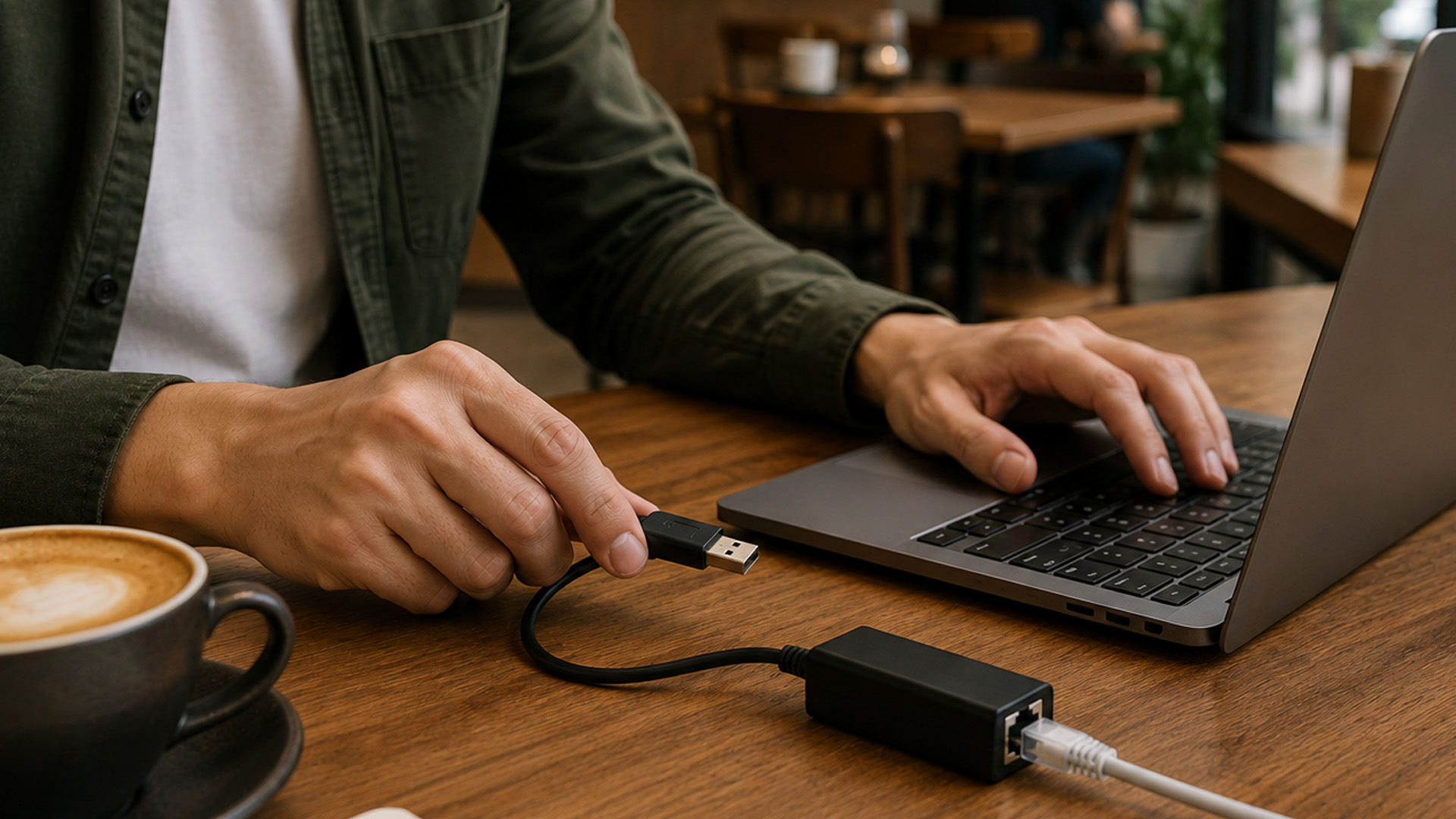
A USB Ethernet adapter is best when you want a direct wired connection for one device, such as a laptop, tablet, desktop, or compatible docked device. It is not always the only solution, especially if your wider home network has weak coverage or awkward room layouts.
Mesh WiFi is usually better when you want to improve wireless coverage across the whole home rather than connect one device by cable. It can reduce dead zones, but it still depends on wireless backhaul quality unless you use wired backhaul.
Powerline adapters can be useful when running Ethernet cable across rooms is difficult. They use your home’s electrical wiring to carry network traffic, but performance varies depending on the age and quality of your wiring.
WiFi range extenders are another option for improving signal in a specific room, although they may reduce throughput and add latency compared with a direct wired Ethernet connection.
For the most stable connection to one device, a USB Ethernet adapter is usually the simplest and most predictable option. For whole-home coverage, mesh systems or properly installed Ethernet cabling may be more suitable.

Plug, Play, and Stay Connected
USB to Ethernet adapters are a practical, low-cost solution for anyone whose device lacks a built-in network port or suffers from unreliable WiFi. Modern USB 3.0 and USB-C Gigabit models perform reliably across many laptops, desktops, tablets, and selected media devices. Choosing a reputable chipset, such as Realtek or ASIX, from a trusted brand makes all the difference between a seamless experience and a frustrating one.
This USB Ethernet adapter review shows that, for most people, the best choice is a USB 3.0 or USB-C Gigabit Ethernet adapter. Choose 2.5G or 10G only if your router, switch, cables, and other devices support those speeds.

Let’s Clear Things Up...
Do USB to Ethernet adapters work on Windows 11?
Yes. Windows 11 includes built-in drivers for many adapters, particularly common Realtek and ASIX chipsets, making them plug-and-play on most laptops without additional setup.
Can I use a USB Ethernet adapter on an iPad?
Yes. USB-C iPads can usually use compatible USB-C Ethernet adapters directly. Older Lightning iPads can use Ethernet through Apple’s Lightning to USB 3 Camera Adapter, often with external power connected to the adapter.
Will a USB Ethernet adapter slow down my internet?
A USB 3.0 Gigabit adapter will not slow down most UK broadband plans. USB 2.0 models cap real-world speeds at roughly 100Mbps, which may limit faster broadband packages.
Do USB Ethernet adapters work on smart TVs?
Some smart TVs and streaming devices support USB Ethernet adapters, but compatibility depends on the TV model, firmware, operating system, USB port support, and adapter chipset. Always check the manufacturer’s support page before buying.
Is a USB Ethernet adapter good for gaming?
Yes, especially on laptops or devices with unstable WiFi. A wired connection provides lower latency and greater stability than WiFi. However, consoles such as PS4, PS5, Xbox One, Xbox Series S, and Xbox Series X already include Gigabit Ethernet, so they usually do not need a USB Ethernet adapter.
Do I need to install drivers for a USB Ethernet adapter?
Most modern systems, including Windows 10/11, macOS, Chrome OS, and many Linux distributions, support common adapters without manual driver installation. Some older chipsets or recent OS updates may still require a manufacturer driver.
What is the maximum speed of a USB Ethernet adapter?
USB 3.0 Gigabit adapters support up to 1Gbps, with real-world throughput usually around 900–940Mbps under good conditions. USB 2.0 adapters are limited to approximately 100Mbps. USB 2.5G and 10G adapters can go faster, but only if your USB port, router, switch, cables, and network devices all support those speeds.
| Read More: |
| WiFi vs Ethernet: Which Connection Is Better for Laptops? |
| WiFi 6 and WiFi 6E Explained |
| USB Types Explained: USB-A, USB-C, USB 3.2, USB4 and Thunderbolt |
Related Articles

Last Updated: September 11, 2025
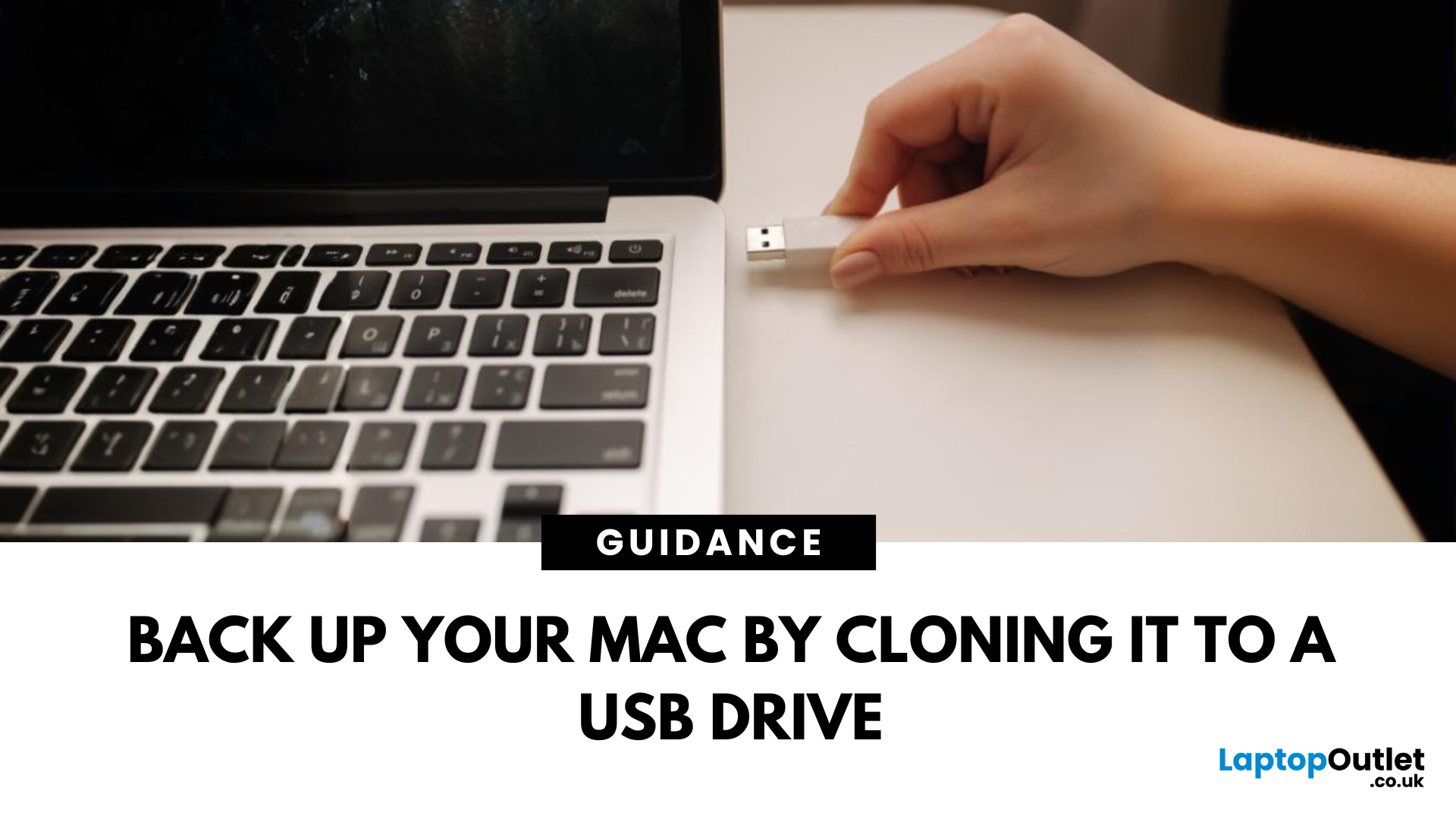
Portable Mac Backup, Sorted
Cloning your Mac to a USB stick is a great way to create a full system backup, test new software, or carry a bootable version of macOS. Whether you're preparing for emergencies or upgrading your Mac, here’s how to clone your Mac system to a USB drive safely.
1. What Does Cloning a Mac Mean?
- Copies your entire system, including macOS, files, apps, and settings
- Lets you boot from the USB if your Mac fails or if you want to use another machine
- Ideal for creating a full backup before macOS upgrades
2. What You’ll Need
- A USB stick or external SSD (at least 64GB recommended; more for full system clone)
- A Mac running macOS Ventura or newer
- Cloning software (recommended: SuperDuper! or Carbon Copy Cloner)
Use a fast USB 3.0 or USB-C drive for better performance
3. Format the USB Drive (macOS Journaled)
- Open Disk Utility (Applications > Utilities)
- Select your USB drive in the sidebar
- Click Erase > Format as Mac OS Extended (Journaled)
- Name
Last Updated: September 29, 2026
Quick Answer
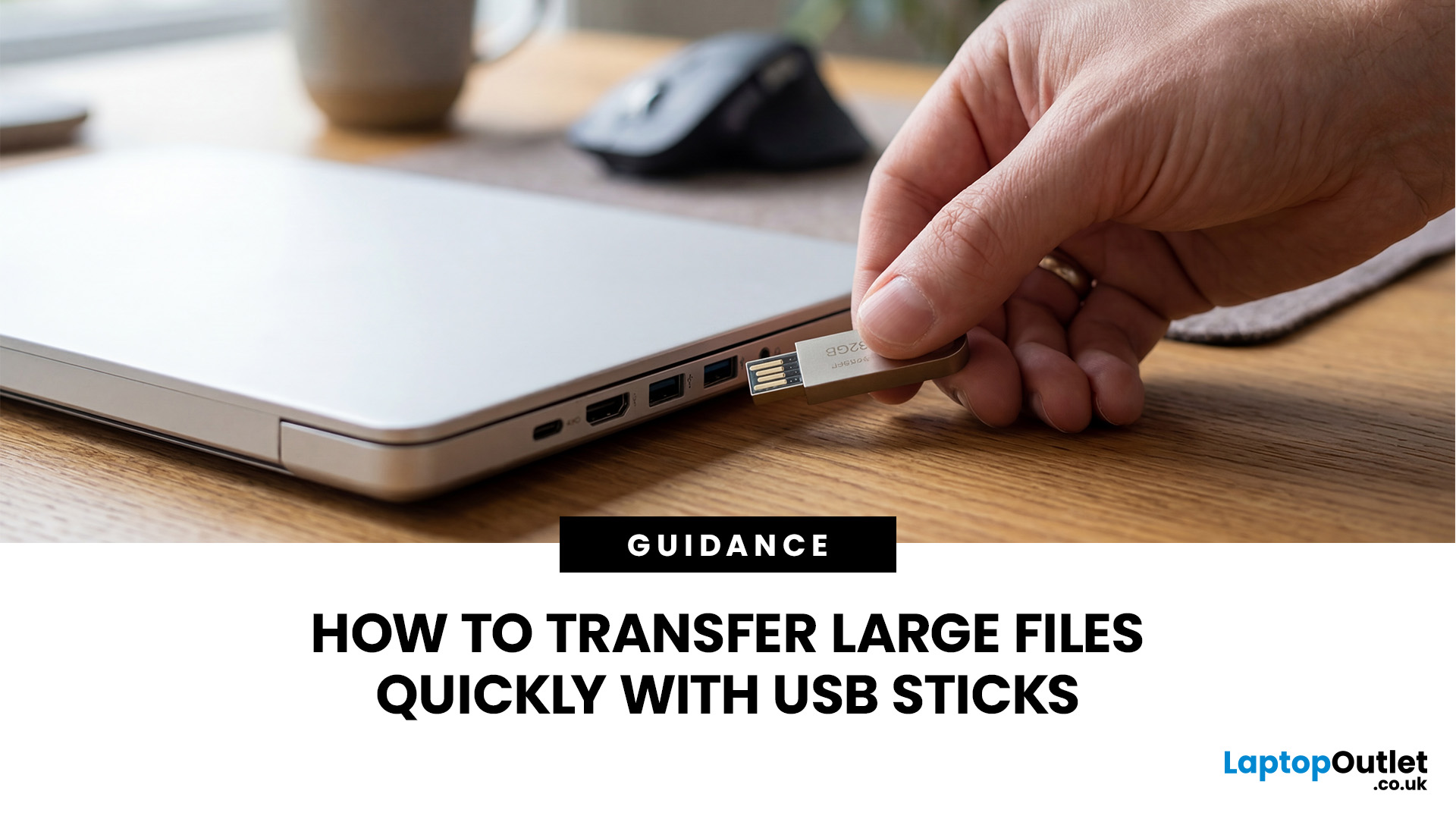
To transfer large files quickly with a USB stick, first check the drive format and connection speed. FAT32 cannot store a single file larger than 4GB, so exFAT or NTFS may be required. Use the fastest compatible USB port, confirm the drive's real write speed, avoid shared bottlenecks, and remember that USB-C alone does not guarantee fast transfers in practice.
Large video files, game folders, backups and project archives can expose two very different USB problems: the file may refuse to copy at all, or the transfer may work but take far longer than expected.
The fix depends on what is actually limiting the transfer. File-system limits, USB link speed, the flash drive itself, the source storage, adapters and even the number of files can all matter. This guide shows you how to diagnose the bottleneck before changing settings or buying another drive.
Why Large USB Transfers Fail or Feel Slow
A USB transfer can fail even when the drive has plenty of free space, or it can run much
Last Updated: September 11, 2025
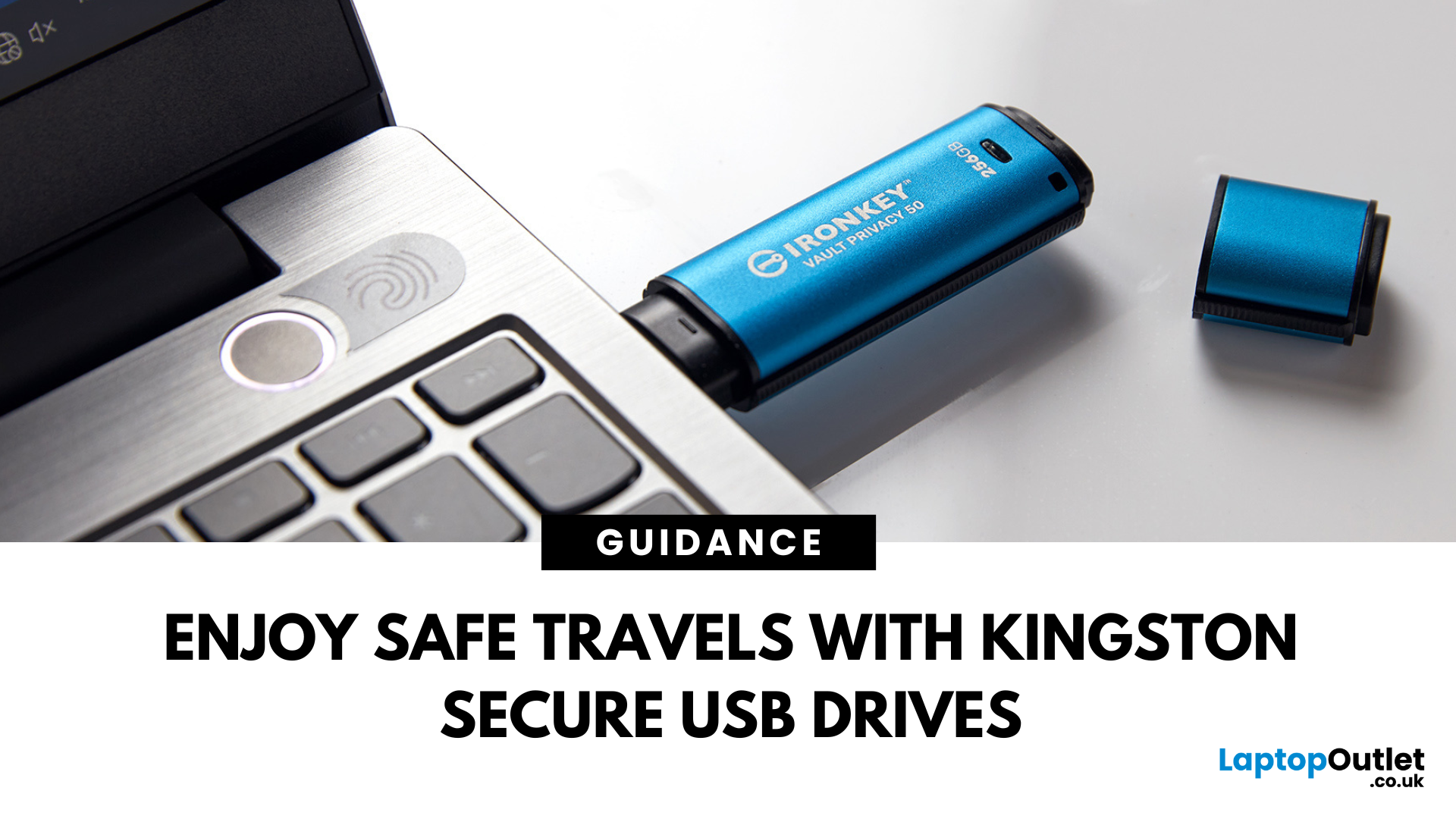
Enjoy Safe Travels with Kingston Secure USB Drives:
Whether you are a business professional travelling across continents or a student going home for the holidays, your data travels with you. From confidential presentations and financial documents to personal photos and files, portable storage devices like USB drives have become increasingly popular for storing a wide range of data. They offer convenience with their portability, but this convenience can sometimes pose some risks.
Travelling exposes your data to a number of threats, ranging from lost or stolen devices to unauthorised access in public spaces such as airports, hotels, and cafes. Even a moment of carelessness can lead to a data breach, especially if you are using standard USB drives that offer little to no protection.
That is where Kingston secure USB drives come in. Designed with military-grade encryption and tamper-proof features, these USB drives are built to keep your data safe, even in the most unpredictable environments.

Last Updated: September 11, 2025
Small Device, Big Function
You’ve probably used a USB flash drive or thumb drive before—but what exactly are they? These small but mighty devices are essential for storing and transferring data quickly and easily. Let’s unpack what a USB flash drive is, what it does, and why it’s still so popular in 2025.
1. What Is a USB Flash Drive?
A USB flash drive (also called a thumb drive, pen drive, or memory stick) is a small, portable storage device that connects to your computer or laptop via a USB port.
Key Characteristics:
Uses flash memory (no moving parts)
Plugs directly into USB-A or USB-C ports
Often pocket-sized and lightweight
The term "thumb drive" comes from its compact size—similar to a human thumb
2. What Is It Used For?
Storing documents, photos, videos, and music
Transferring files between devices
Backing up important data
Creating bootable drives for OS installations (like Windows 11)
3. USB Flash Drive vs External Hard Drive
| Feature | USB Flash Drive | External |
Last Updated: September 11, 2025
Decoding USB Types in Everyday Tech
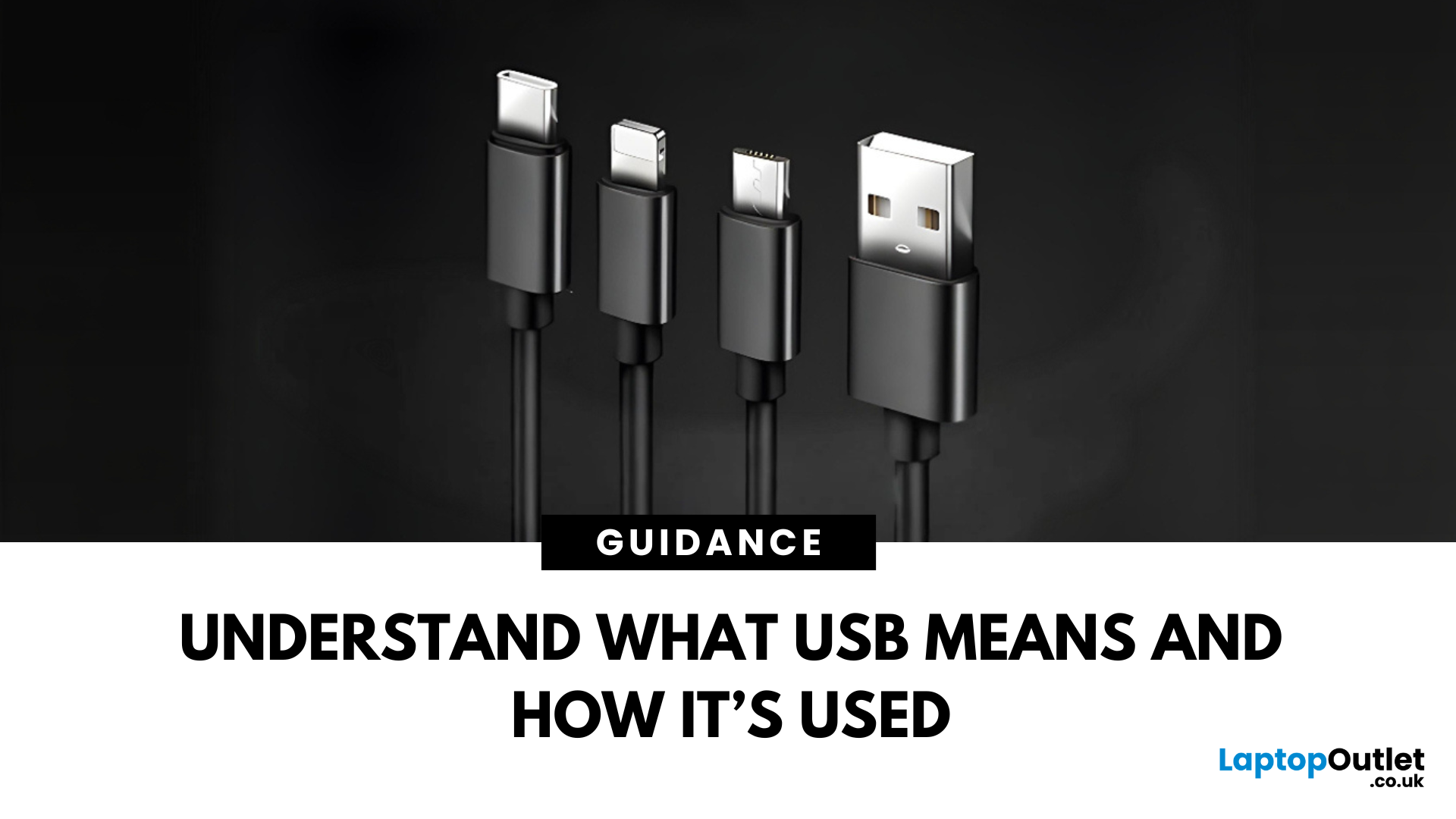
We all use USB cables, but few know the real differences between USB, USB-C, and Micro USB. Whether you're charging your phone, connecting a device, or transferring data, understanding these terms helps you pick the right tech. Let’s break it down simply.
What Does USB Stand For?
USB stands for Universal Serial Bus. It’s a standard for cables, ports, and communication between electronic devices.
Developed to simplify connections between computers and peripherals (like keyboards, printers, and flash drives)
Main Uses:
- File transfers
- Charging smartphones, tablets, accessories
- Powering small devices
What Is USB-C?
USB-C is the latest version of USB and is now standard on most new smartphones, laptops, tablets, and accessories.
Key Features:
- Reversible connector—no wrong way to plug it in
- Fast data transfer (up to 40Gbps with USB4)
- Supports fast charging and video output (great for docking stations and monitors)
- Universal use—one
Last Updated: September 11, 2025
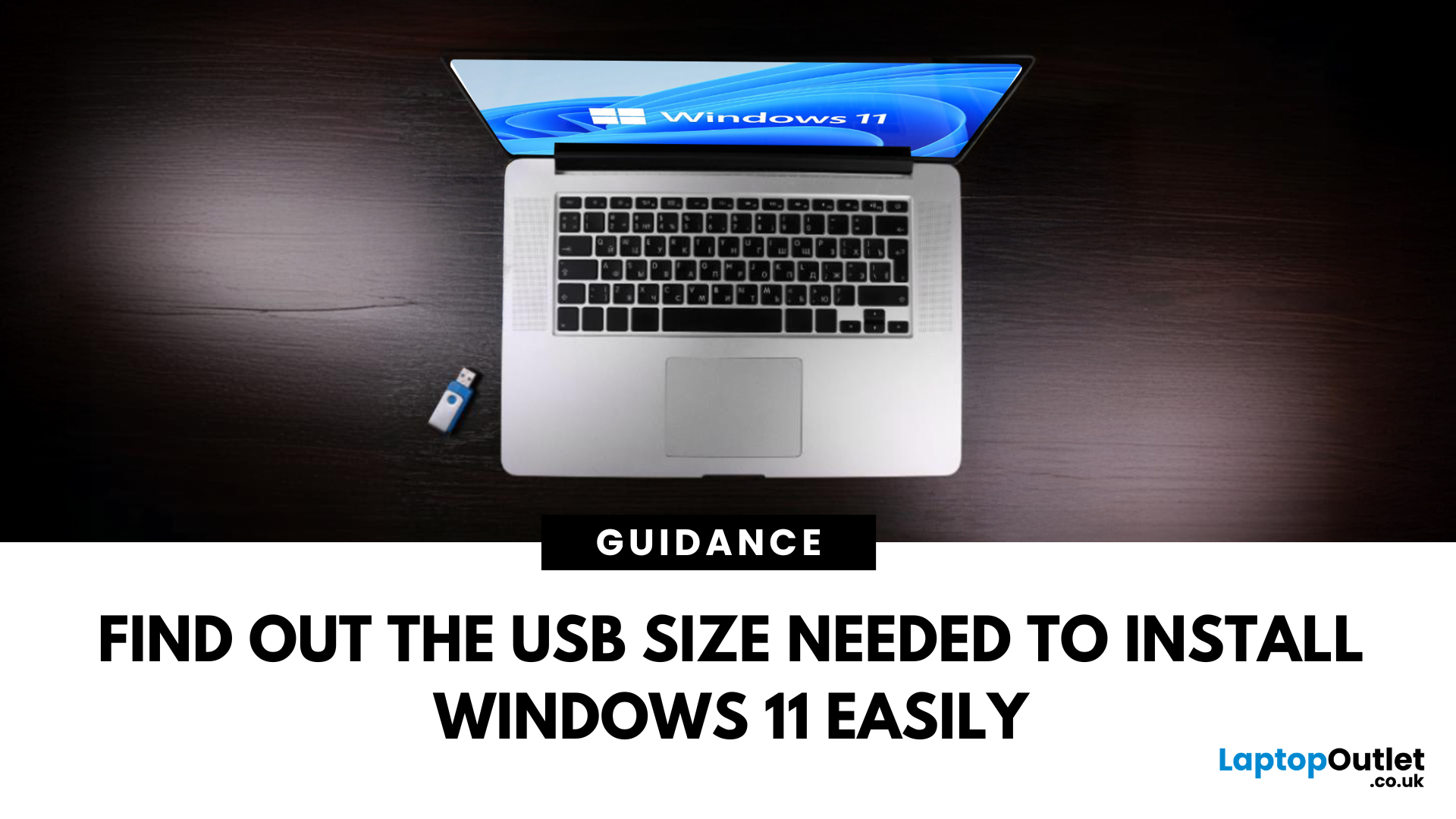
Ready to Install Windows 11?
If you're planning to install Windows 11 using a USB stick, one of the first things to sort out is the size. Too small, and it won’t fit the installer. Too large, and it’s unnecessary. Let’s clear up exactly what size USB you need to install Windows 11 and how to get it ready.
Minimum USB Size for Windows 11 Installation
- At least 8GB of storage is required
- Recommended: 16GB or more for extra space and reliability
Microsoft officially recommends a USB drive with 8GB minimum, but using a 16GB or 32GB USB stick ensures you won’t run into space issues.
USB Format Requirements
Before using the USB stick:
- Format it as FAT32 (for UEFI systems) or NTFS (for BIOS/Legacy systems)
- Use tools like Rufus (Windows) or Disk Utility (Mac) to format and prepare the drive
Create a Bootable USB for Windows 11
Using Microsoft’s Media Creation Tool:
- Download the Media Creation Tool from Microsoft’s website
- Run the tool and choose Create installation media
Published: November 14, 2025
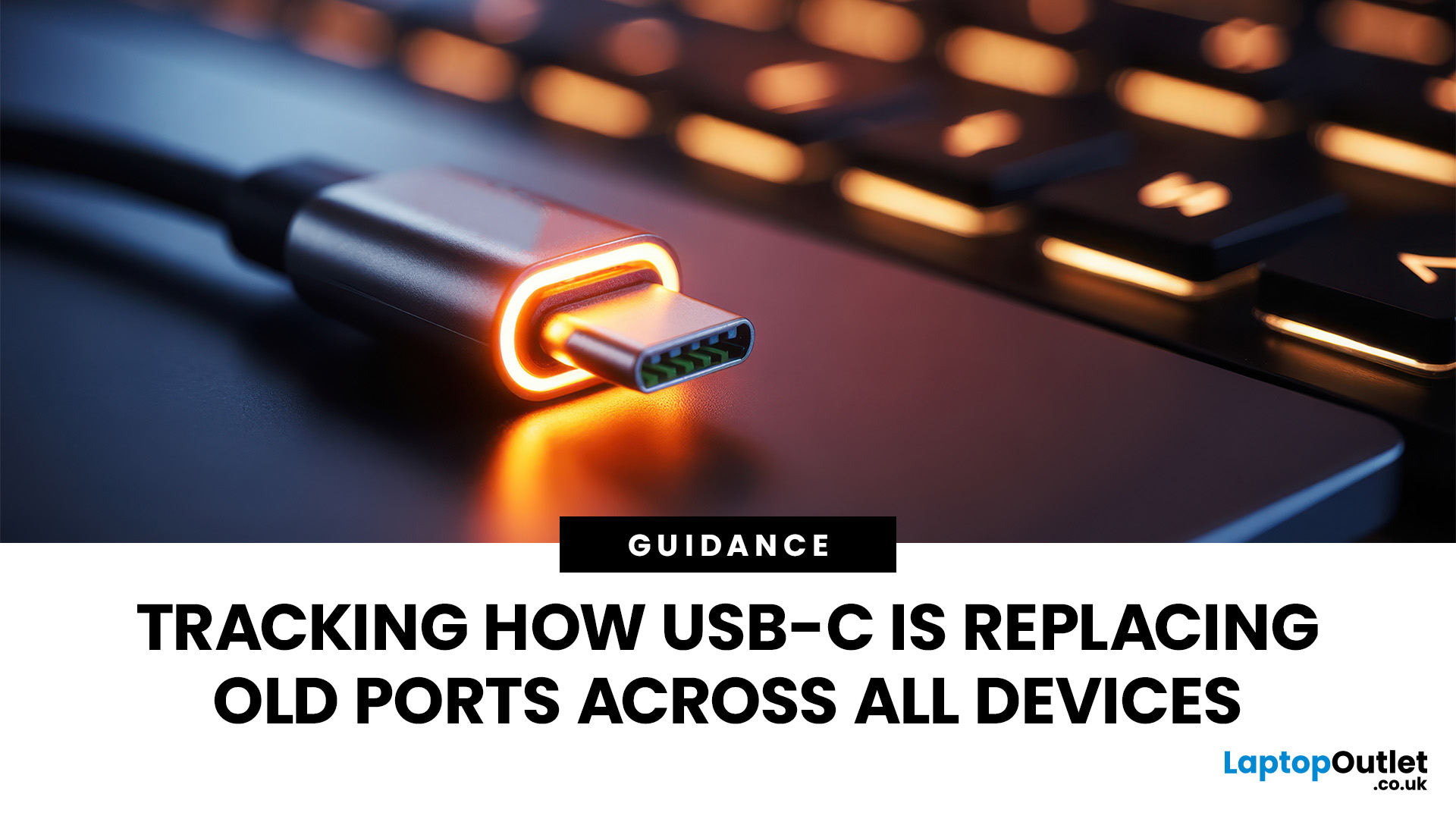
For years, we’ve juggled a drawer full of tangled cables — micro-USB, Lightning, HDMI, and others. But now, USB-C adoption is changing that.
This small, reversible connector has become the go-to choice for phones, laptops, and even monitors. It promises a single, universal solution for charging, data transfer, and video output.
But are we finally there yet? Let’s explore how close we are to a world of USB-C everything.
What Is USB-C and Why It Matters
USB-C, also known as USB Type-C, is a reversible connector that can handle multiple functions. Introduced in 2014, it was designed to be faster and more versatile than previous USB types.
Key features include:
- Reversible Design: No more flipping the cable to find the right orientation.
- Fast Data Transfer: Up to 40Gbps with USB4 and Thunderbolt 4 support.
- High Power Delivery: Up to 240W, enough to charge large laptops and monitors.
- Multiple Functionality: The same port handles charging, data, and video.
This all-in-one capability is what

Last Updated: January 02, 2026
When you start plugging in devices and suddenly run out of USB slots, the first question that comes to mind is a simple one: how many USB ports does my motherboard actually have?
This is something most users never think about until they hit a limitation. Whether you are building a PC, upgrading an old system, or just trying to understand why you need a USB hub, the answer always comes back to your motherboard USB ports.
The tricky part is that the total number of USB ports is not always obvious at first glance. Some are visible on the back of the PC, others are internal, and some are supported but not even active unless you connect the right headers.
This guide breaks everything down in a practical way and helps you discover how to check the total USB ports supported by your motherboard.
Why Motherboard USB Ports Matter More Than You Think
Motherboard USB ports define how many devices your system can handle directly. That includes keyboards, mice, external drives, webcams, printers

Last Updated: June 05, 2026
Dead zones and buffering are the enemies of a modern home. We rely on the internet for almost everything. We stream 4K movies in the lounge. We join video calls in the home office. We play fast-paced games in the bedroom. However, thick walls and long distances often weaken Wi-Fi signals.
This is where home network powerline adapters become essential. They offer a clever way to extend your internet connection without drilling holes or running long, messy network cables through your hallway. In this guide, we will explore the best PLC adapters UK residents can buy today.
What is a Powerline Adapter?
A powerline adapter (also known as a PLC adapter) is a device that sends internet data through the copper wiring in your walls. Most people use these home network powerline adapters to connect devices that require high bandwidth, such as gaming consoles, smart TVs, laptops, or desktop PCs. They provide the stability of a wired network adapter with the convenience of a plug-and-play setup.
Last Updated: March 12, 2026
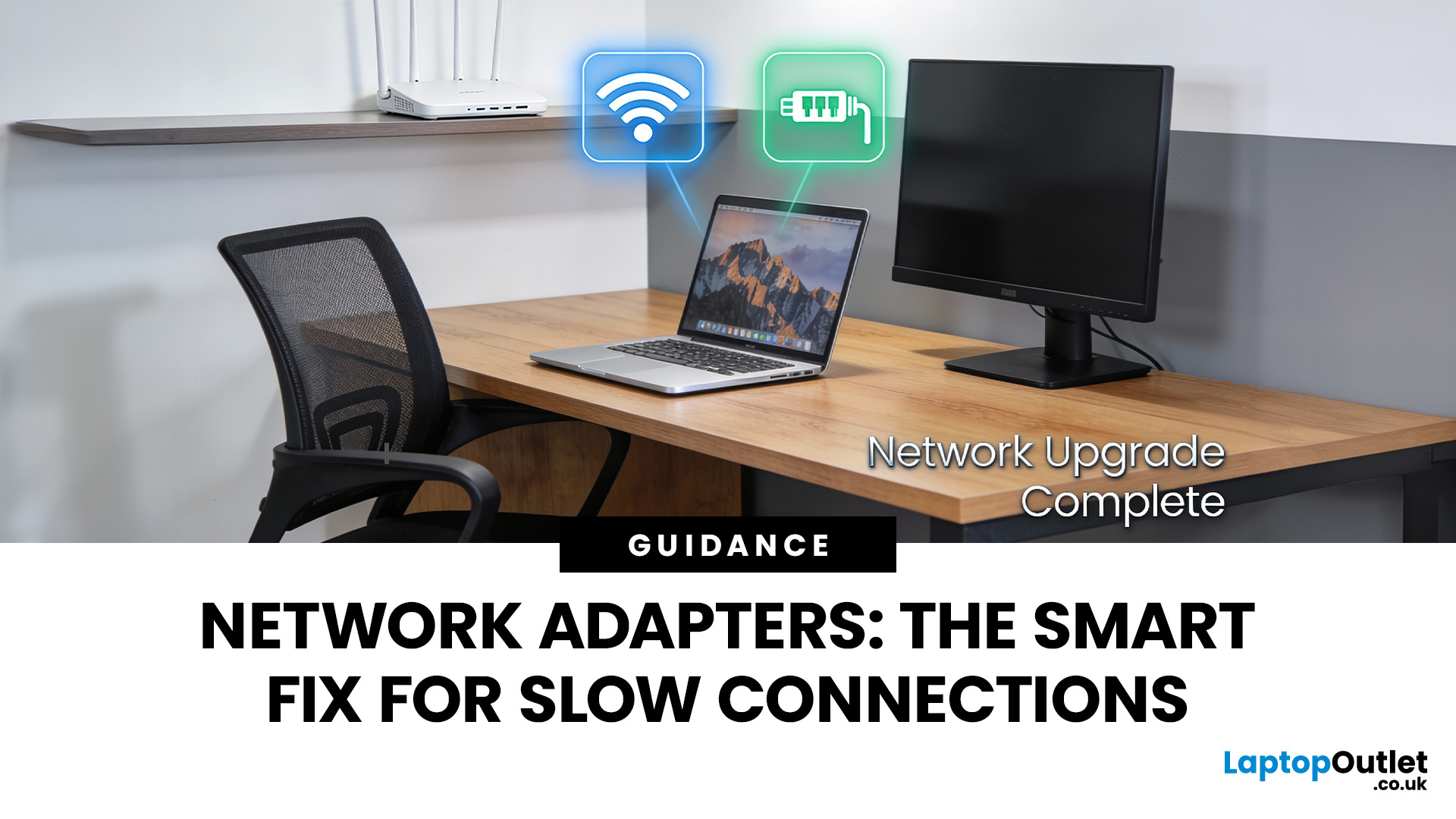
If you’ve ever wondered why your laptop struggles to stay connected while your phone works perfectly on the same Wi-Fi, the answer is often simpler than people expect.
It’s usually the network adapter.
Understanding what is a network adapter, and what it actually does — is the key to fixing many everyday connectivity problems without replacing your router, broadband plan, or entire device.
This section explains network adapters in plain English, with real UK use cases, so you can recognise when an adapter is the missing piece in your home or PC setup.
What Is a Network Adapter, Really?

A network adapter is the component that allows a device to connect to a network, either wirelessly or with a cable.
Every device that accesses the internet has one:
- Laptops and PCs
- Smartphones and tablets
- Smart TVs and consoles
Without a network adapter, a device simply cannot communicate with your router or the wider internet.
Think of the adapter as a translator:
- Your router speaks “network”
- Your device

