



Bluetooth Not Connecting on Laptop? Here’s How to Fix It
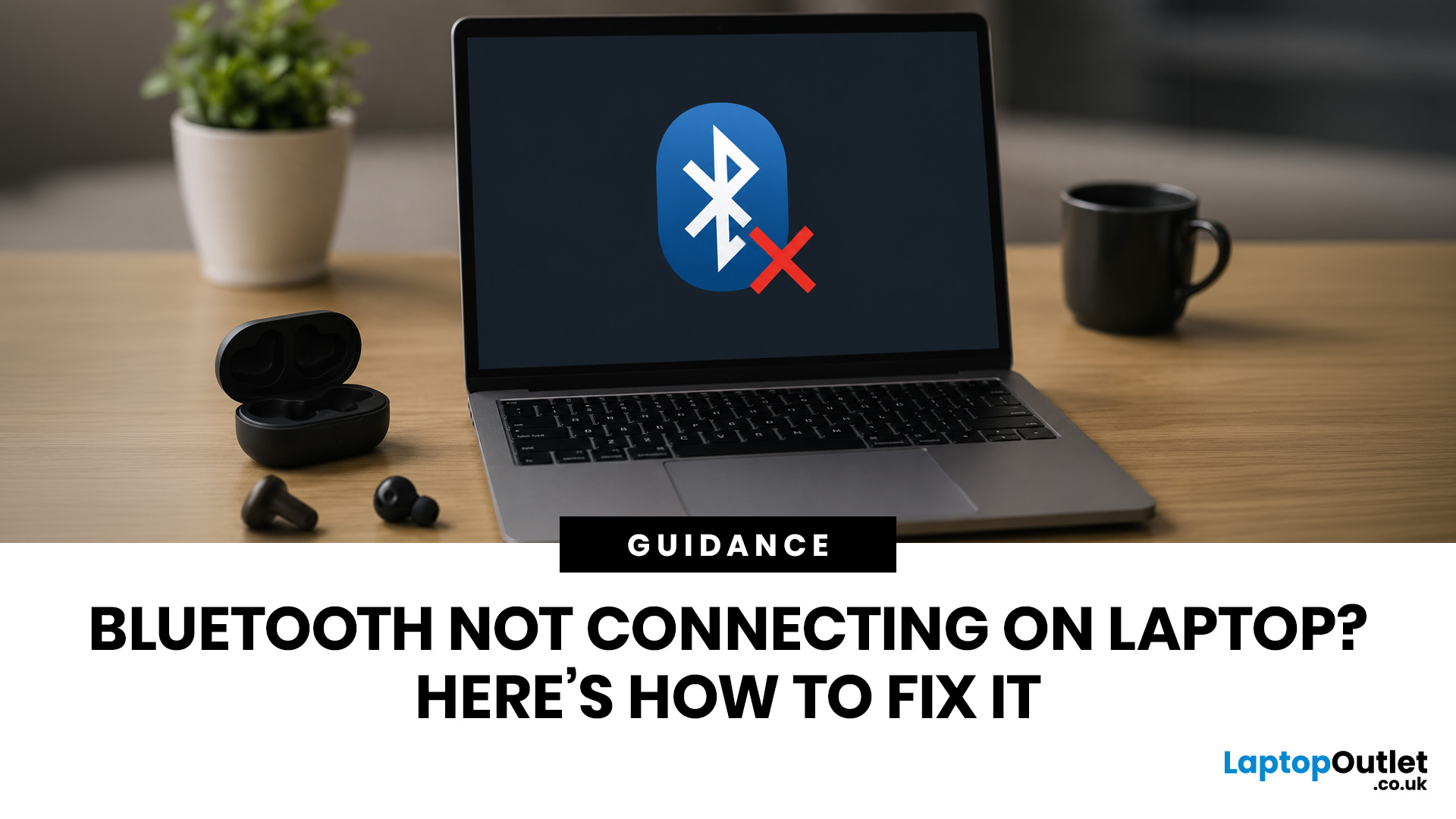
To fix Bluetooth connection issues on your laptop, start by turning Bluetooth off and on, restarting your laptop, removing the problem device, and pairing it again. If that fails, update or reinstall your Bluetooth driver on Windows, or forget and reconnect the device on macOS.
A “Bluetooth not connecting laptop fix” is one of the most searched tech support queries, and it is easy to see why. One minute your wireless mouse, keyboard, or headphones are working fine, and the next they simply will not pair. It is frustrating, especially when you have work to get done.
The good news? Most Bluetooth issues can be resolved at home without spending a penny. This guide will walk you through every step to get you back online.
Why Is Bluetooth Not Connecting on Your Laptop?
The question “why is my Bluetooth not working” has more than one answer. Bluetooth connection problems can stem from a wide range of causes, both software and hardware related.
The Most Common Causes
- Bluetooth is switched off in system settings or has been toggled off by an accidental keyboard shortcut (Fn + F key).
- Aeroplane mode is enabled, which cuts all wireless connections including Bluetooth in one go.
- Outdated, corrupted, or missing Bluetooth drivers are among the most common software causes on Windows.
- The Bluetooth Support Service has stopped running in the background, which is a Windows-specific issue.
- The target device is already connected to another phone, tablet, or laptop and has not been released.
- Corrupted pairing data means your laptop thinks it is connected but the device disagrees.
- Signal interference from 2.4GHz Wi-Fi routers, USB 3.0 hubs, or nearby microwave ovens.
- The device is too far away from the laptop, or there are walls, desks, monitors, or other obstructions weakening the signal.
- Low battery on the peripheral is causing erratic or failed pairing attempts.
- A pending OS update is holding back a Bluetooth patch that fixes a known bug.
- A hardware fault on the internal Bluetooth adapter, especially common in older or physically damaged machines.
How to Fix Bluetooth Not Connecting on a Windows Laptop
Windows is the most common platform for Bluetooth faults, and there are several proven fixes you can work through yourself before calling anyone or spending a single penny. These steps cover both Windows 10 and Windows 11 laptops and are listed from the simplest to the most thorough.
Work through them in order. Most people find a fix within the first three or four steps.
Fix 1: Make Sure Bluetooth Is Actually Switched On
This sounds obvious, but it is still one of the most common causes. Many laptops have a function key shortcut that toggles Bluetooth, and it is very easy to press it by accident while adjusting the screen brightness or volume.
- Press the Windows key and open Settings (the cog icon in the Start menu).
- On Windows 10, go to Devices. On Windows 11, go to Bluetooth & devices.
- Confirm the Bluetooth toggle is set to On.
- Also open the Action Centre or Quick Settings panel and check the Bluetooth tile is highlighted.
|
Tip: Check your keyboard for a function key with a Bluetooth symbol. On many laptops it is Fn + F3, Fn + F8, or similar. If you pressed it by accident, this one step is your entire fix. |
Fix 2: Switch Off Aeroplane Mode
Aeroplane mode disables all wireless connections in one go, including Bluetooth and Wi-Fi. If both stop working simultaneously, this is almost certainly the reason.
- Open Settings > Network & Internet.
- Select Aeroplane mode from the left-hand menu.
- Toggle Aeroplane mode Off.
- Then go back to Bluetooth settings and re-enable Bluetooth separately.
Fix 3: Restart the Bluetooth Support Service
The Bluetooth Support Service manages all Bluetooth activity in the background on Windows. If it has stopped, Bluetooth not working errors will appear even though your hardware is perfectly fine.
- Press Windows + R, type services.msc, and press Enter.
- Scroll down to Bluetooth Support Service in the list.
- If it shows Stopped, right-click and select Start. If it shows Running, right-click and select Restart.
- Double-click to open its Properties, set Startup type to Automatic, and click Apply > OK.
- Close Services and test your Bluetooth connection.
Fix 4: Update or Reinstall Bluetooth Drivers
Outdated or corrupted drivers are one of the leading causes of laptop Bluetooth not working. This is especially common directly after a Windows update that replaces an existing driver with an incompatible version.
To update:
- Right-click the Start button and open Device Manager.
- Expand the Bluetooth section by clicking the arrow next to it.
- Right-click your Bluetooth adapter (e.g., Intel Wireless Bluetooth, Realtek Bluetooth 5.0) and select Update driver.
- Choose Search automatically for drivers and let Windows find the latest version.
- Restart your laptop once the update completes.
To reinstall (if updating fails):
- In Device Manager, right-click the Bluetooth adapter and select Uninstall device.
- Tick Attempt to remove the driver for this device if the option appears, then confirm.
- Restart your laptop. Windows will automatically detect and reinstall the Bluetooth driver on reboot.
Fix 5: Run the Windows Bluetooth Troubleshooter
Windows has a built-in tool designed to automatically troubleshoot Bluetooth faults. It will not fix every issue, but it catches service failures, driver mismatches, and basic configuration errors quickly.
On Windows 10:
- Open Settings > Update & Security > Troubleshoot.
- Click Additional troubleshooters.
- Select Bluetooth and click Run the troubleshooter.
On Windows 11:
- Open Settings > System > Troubleshoot.
- Click Other troubleshooters.
- Find Bluetooth in the list and click Run.
On newer Windows 11 versions, Bluetooth troubleshooting may also open through the Get Help app. Follow the on-screen prompts if this appears.
Fix 6: Change Bluetooth Device Discovery Settings on Windows 11
If your laptop Bluetooth is on but cannot find any devices, the discovery setting may be too limited. Windows 11 includes a Bluetooth devices discovery option that can be changed from Default to Advanced.
- Open Settings > Bluetooth & devices.
- Click Devices.
- Scroll to Device settings.
- Find Bluetooth devices discovery.
- Change it from Default to Advanced.
- Try searching for your Bluetooth device again.
This is especially useful when headphones, speakers, keyboards, or mice are not appearing in the Add device list.
Fix 7: Remove the Device and Re-Pair From Scratch
If the Bluetooth connection issue is with a device that was previously working fine, corrupted pairing data is very likely the cause. Removing the device and re-pairing it completely fresh is one of the most effective fixes available.
- Open Settings > Bluetooth & devices (Windows 11) or Settings > Devices > Bluetooth & other devices (Windows 10).
- Find the problematic device in the list.
- Click the three-dot menu or tap on the device and select Remove device. Confirm the removal.
- Put your Bluetooth device back into pairing mode (usually by holding the power or pairing button until the LED flashes rapidly).
- Click Add device > Bluetooth and select your device when it appears in the list.
- Accept any pairing codes that appear on either device.
Fix 8: Install Pending Windows Updates
Microsoft regularly pushes Bluetooth driver patches and bug fixes through Windows Update. Skipping updates can leave known faults unresolved for months, which is a very easy problem to overlook.
- Open Settings > Windows Update.
- Click Check for updates.
- Install all available updates, including those listed under Optional updates, which often contain driver improvements.
- Restart your laptop after the updates complete and test Bluetooth again.
Fix 9: Turn Off Power Management for the Bluetooth Adapter
Windows can be configured to shut down the Bluetooth adapter to save power, particularly when running on battery. This causes connections to drop or fail to establish after the laptop has been idle for a while.
- Open Device Manager and expand the Bluetooth section.
- Right-click your Bluetooth adapter and choose Properties.
- Click the Power Management tab.
- Untick “Allow the computer to turn off this device to save power”.
- Click OK and restart your laptop.
Fix 10: Roll Back a Problem Driver
If Bluetooth stopped working immediately after a Windows update, rolling back the driver to its previous version can often resolve the issue. This reverses only the Bluetooth driver, not the entire update.
- Open Device Manager, right-click the Bluetooth adapter, and choose Properties.
- Go to the Driver tab.
- Click Roll Back Driver. If this button is greyed out, there is no previous version stored.
- Choose a reason when prompted and click Yes.
- Restart your laptop and test Bluetooth.
Fix 11: Check BIOS for a Disabled Wireless Adapter
On some laptops, particularly older business models from Dell, HP, and Lenovo, the Bluetooth adapter can be disabled entirely at the BIOS/UEFI level. This is rarer, but it explains why Bluetooth may not appear anywhere in Windows at all.
- Restart your laptop and immediately press the BIOS key shown on screen. Common keys are F2, F10, F12, Del, or Esc depending on the manufacturer.
- Navigate to a section labelled Wireless, Advanced, Connectivity, or Devices.
- Check that Bluetooth is set to Enabled.
- Press F10 to save and exit, then let Windows boot normally.
|
Manufacturer Drivers: For the most stable Bluetooth drivers, download them directly from your laptop manufacturer's support page rather than relying on Windows Update alone. Dell, HP, Lenovo, ASUS, and Acer all offer dedicated driver downloads for their hardware. |
How to Fix Bluetooth Not Connecting on a MacBook
MacBook Bluetooth issues are less common than Windows, but they do occur, particularly after a macOS update or when juggling multiple paired devices at once. These fixes are confirmed to work on macOS Ventura, Sonoma, and Sequoia, including M1, M2, M3, and M4 Macs.
Fix 1: Toggle Bluetooth Off and On
Simple, but genuinely effective. Toggling Bluetooth resets the Bluetooth stack without requiring a full restart of your Mac.
- Click the Apple menu and open System Settings (macOS Ventura and later) or System Preferences (older versions).
- Click Bluetooth in the sidebar.
- Toggle Bluetooth Off, wait five seconds, then toggle it back On.
- Alternatively, click the Control Centre icon in the menu bar and toggle Bluetooth from there.
Fix 2: Remove and Re-Pair the Device
If you are seeing no Bluetooth connection with a specific device on your Mac, stale or corrupted pairing data is very likely the culprit. Forgetting the device and starting the pairing process from scratch usually fixes it immediately.
- Open System Settings > Bluetooth.
- Hover over the problematic device and click the Info button (i) that appears next to it.
- Click Forget this device and confirm.
- Put your device back into pairing mode.
- When it appears in the Nearby Devices list, click Connect.
Fix 3: Check Bluetooth Audio Output and Input
If your headphones or speaker connect but no sound plays, the problem may be the audio output setting rather than Bluetooth pairing itself.
- Open System Settings.
- Click Sound.
- Under Output, select your Bluetooth headphones or speaker.
- If using a Bluetooth headset microphone, also check the Input tab and select the correct device.
- Test audio again.
This is a common fix when Bluetooth appears connected but sound continues to come from the MacBook speakers.
Fix 4: Delete Bluetooth Preference Files (PLIST)
This is an advanced troubleshooting step for persistent Bluetooth connection problems on Mac. The PLIST preference files store all your pairing history and device configuration data, and they can become corrupted over time or after a macOS update.
- Open Finder, click Go in the menu bar, then select Go to Folder.
- Type /Library/Preferences and press Enter.
- Look for files beginning with com.apple.Bluetooth. There may be more than one.
- Drag them all to the Trash but do not empty the Trash yet.
- Restart your MacBook.
- Re-pair your Bluetooth devices from scratch after the reboot.
|
Safe to Do Deleting these preference files is generally safe when done carefully, as macOS can create fresh ones automatically after restart. However, this can remove saved Bluetooth pairing information, so you may need to reconnect your devices. If removing them fixes the problem, empty the Trash. If not, you can restore the original files from the Trash and investigate further. |
Fix 5: Reset the Bluetooth Module
This is a powerful hidden fix that resets Bluetooth to a completely clean state without affecting any other system settings or data.
On Intel Macs running macOS Monterey or earlier:
Hold Shift + Option and click the Bluetooth icon in the menu bar. You will see a hidden option: Reset the Bluetooth module. Click it, confirm, and then restart your Mac.
On Apple Silicon Macs (M1/M2/M3/M4) or macOS Ventura and later:
Apple removed the hidden menu option on newer systems. Use Terminal instead:
- Open Terminal via Applications > Utilities > Terminal.
- Type the following command and press Enter: sudo pkill bluetoothd
- Enter your administrator password when prompted and press Enter.
- The Bluetooth daemon restarts automatically within a few seconds. Restart your Mac as well if the device still does not reconnect.
Fix 6: Update macOS
Apple includes Bluetooth bug fixes in most macOS point releases, particularly in the months following a major version launch. Running an older version is an easy problem to overlook and a quick fix to apply.
- Click Apple menu > System Settings > General > Software Update.
- If an update is available, click Update Now.
- Allow the update to complete, then restart your Mac and test Bluetooth.
Bluetooth Not Connecting to Specific Devices
Sometimes the problem is not with Bluetooth itself, but with how a particular type of device behaves during pairing. Different categories of accessories have different pairing requirements, so the right fix depends on what you are trying to connect.
Wireless Headphones and Earphones
Pairing wireless headphones & earphones is usually simple, but a few common mistakes get in the way far more often than they should.
- Make sure they are in pairing mode, not just switched on. Most wireless headphones require holding the power button for 5 to 10 seconds until the LED flashes rapidly. Simply powering them on is not enough.
- Disconnect from another device first. If your headphones are already connected to your phone or another device, they will not appear as available on your laptop. Disconnect them from the other device before attempting to pair.
- Remove the old pairing entry. If they have been paired before but are now refusing to connect, remove the entry from your Bluetooth list entirely and pair completely from scratch.
- Check the battery level. Headphones with less than 15 to 20% battery remaining can refuse to pair or will drop connections frequently. Charge them first.
- Codec conflicts and audio quality. If they connect but audio sounds poor, the active codec may be the issue. On Windows, right-click the speaker icon, go to Sound settings > More sound settings and check the audio format for the Bluetooth device.
Wireless Keyboard and Mouse
Wireless keyboards and mouse peripherals are hugely convenient, but they do have particular pairing quirks, especially after a driver update or OS upgrade.
- Check the batteries first – every time. Low battery is the most common cause of erratic or failed pairing in wireless peripherals, even when the device appears to power on normally.
- Confirm the correct pairing channel. Multi-device keyboards and mice use numbered channels (1, 2, 3) for different computers. Make sure the device is on the right channel for your laptop.
- Try Bluetooth instead of the USB dongle, or vice versa. If the dongle is causing issues, switching to direct Bluetooth pairing often resolves them, and vice versa.
- Plug the USB receiver into a USB 2.0 port rather than a USB 3.0 port. USB 3.0 ports emit electromagnetic interference on the 2.4GHz band that directly disrupts Bluetooth and 2.4GHz wireless peripherals.
- Re-pair the device. Remove it from your Bluetooth list and re-pair from scratch, putting the keyboard or mouse into pairing mode using the instructions in the manual.
Mobile Phone Pairing with a Laptop
Pairing mobile phones with a laptop for file sharing, tethering, or audio requires both devices to be actively discoverable at exactly the same time, which is a step many people miss.
- On your phone, go to Settings > Bluetooth and make sure it is set to both On and Discoverable. Some Android phones stop broadcasting after two minutes, so act quickly.
- On Windows, open Settings > Bluetooth & devices > Add a device > Bluetooth and select your phone when it appears.
- Accept the pairing code on both devices simultaneously. The confirmation prompt must be accepted on both the laptop and the phone within a short window.
- If using an iPhone, temporarily turn off Personal Hotspot and retry, as hotspot and continuity features can sometimes complicate connection behaviour.
- For Android, make sure Nearby Share or Quick Share is not interfering if you are trying to use standard Bluetooth pairing or file transfer.
Bluetooth Speaker Not Connecting
Bluetooth speakers are simple devices but they do have a few pairing gotchas that catch people out regularly.
- Make sure the speaker is in pairing mode, not just switched on. The LED will typically flash rapidly when pairing mode is active.
- Some speakers have a maximum number of saved devices, often between 8 and 12. If the memory is full, pairing a new device will fail silently. Clear the speaker's memory by holding the Bluetooth button for 10 to 15 seconds until the indicator light changes behaviour.
- If audio is choppy rather than failing to connect entirely, interference or distance is the likely cause, not a pairing problem.
- Try using the speaker with a different device to confirm whether the issue is with the speaker or the laptop.
When to Consider a Hardware Replacement
If you have worked through every fix above and Bluetooth is still not functioning, the issue may be with your laptop’s internal hardware rather than software or settings. Internal Bluetooth adapters do fail over time, particularly in machines that are five or more years old or have suffered physical damage.
Signs It Is Likely a Hardware Fault
- Bluetooth is completely absent from both Device Manager and the BIOS, even with hidden devices shown.
- The laptop was dropped, knocked, or exposed to liquid at some point before the issue started.
- Bluetooth stopped working after physical impact, not after a software change.
- Device Manager shows Error Code 43 or Error Code 10 that cannot be resolved by reinstalling drivers.
- The manufacturer’s own hardware diagnostics tool reports the wireless adapter as failed or not detected.
Your Repair and Replacement Options
|
Option |
Approx. UK Cost |
Best For |
|
USB Bluetooth Dongle |
£5 to £15 |
Instant fix for any laptop |
|
Internal Adapter Replacement (DIY) |
£10 to £30 (parts only) |
Confident users with compatible parts |
|
Repair Shop Replacement |
£40 to £80 (parts + labour) |
Newer machines still under warranty value |
|
Upgrade to a New Laptop |
£200 and above |
Older machines where repair is not cost-effective |
A USB Bluetooth dongle is hands-down the easiest and most affordable fix if the internal adapter has failed. You simply plug it into a spare USB port, let Windows install the driver automatically, and your laptop has full Bluetooth functionality again within minutes.
For quality-tested options that work reliably, have a browse through the full range of laptop accessories available.

Your Bluetooth, Sorted
Sorting a Bluetooth not connecting laptop fix does not have to be a major ordeal. Whether it is a simple settings toggle, a driver reinstall, or a full device re-pair, the vast majority of Bluetooth faults are solvable at home without spending a penny.
If the hardware turns out to be genuinely faulty, a USB Bluetooth dongle is a fast, affordable, and completely reliable workaround. And if your laptop is ageing and causing recurring problems, it may be time to explore a reliable refurbished or new option.
At Laptop Outlet, you can compare great-value UK laptops and notebooks, find practical laptop accessories, or explore tablets if you are ready for a more portable setup.

Worth Keeping in Mind...
Why won’t my Bluetooth find any devices?
Your Bluetooth device is probably not in pairing mode, or Bluetooth is disabled on your laptop. Check both before anything else.
How do I reset Bluetooth on Windows 11?
Open Device Manager, uninstall the Bluetooth adapter under the Bluetooth section, then restart your laptop. Windows reinstalls the driver automatically.
Why does my Bluetooth keep disconnecting on my laptop?
Windows power management may be switching off the Bluetooth adapter to save battery. Disable this in Device Manager under the Power Management tab.
Can a Windows update break Bluetooth?
Yes, occasionally a Windows update introduces Bluetooth driver conflicts. Rolling back the driver in Device Manager under the Driver tab can often resolve the problem if it started immediately after an update.
How do I fix Bluetooth on a MacBook after an update?
Start by toggling Bluetooth off and on, forgetting the device, and pairing it again. If the issue continues, update macOS, check your audio output settings, or use advanced fixes such as removing Bluetooth preference files carefully.
Is a USB Bluetooth dongle a good fix for broken laptop Bluetooth?
Yes, a USB Bluetooth dongle costing between £5 and £15 is a reliable, quick solution when your internal laptop Bluetooth adapter has completely failed.
| Read More: |
| How to Mirror or Cast Your Screen to a TV: Complete Guide |
| How To Fix HDMI Not Working on Laptop |
| Do USB to Ethernet Adapters Work? Everything You Need to Know |
Related Articles

Last Updated: December 17, 2025
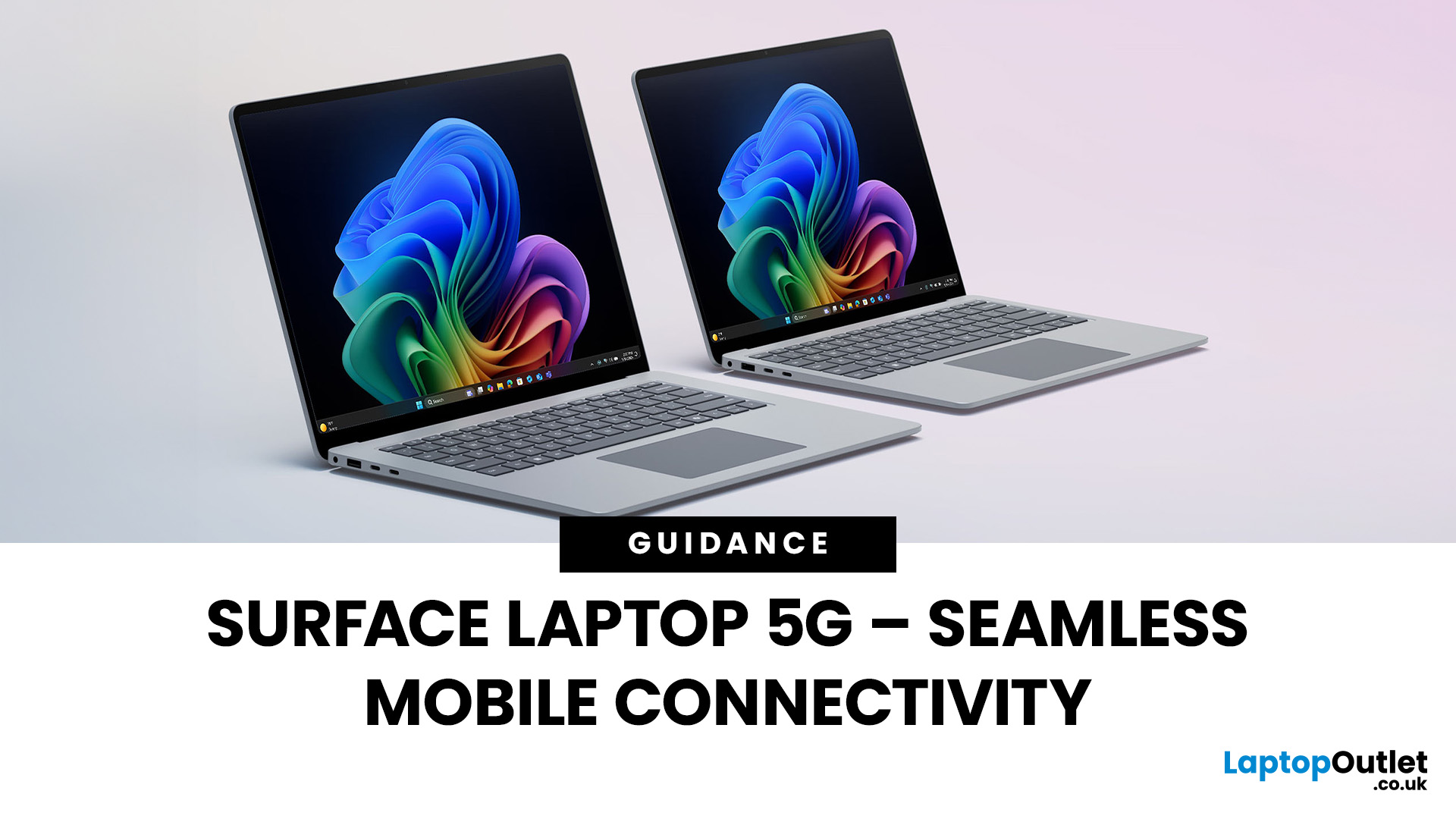
Do you want a device in hybrid setting? In 2025, staying connected is vital for mobile professionals balancing hybrid work, remote meetings, and cloud collaboration. The Surface Laptop 5G is designed to go beyond Wi-Fi, delivering Microsoft’s premium build with next generation 5G connectivity. With advanced Surface 5G modem specs, eSIM support, and the ability to act as a mobile hotspot, it ensures secure, high-speed internet anywhere. This guide covers everything from Surface 5G vs Wi-Fi performance to how these features enhance productivity for remote workers. If you want to buy Microsoft Surface laptops in 2025, the Surface Laptop 5G can redefine your experience, setting new standards for performance and business mobility in 2025.
Why 5G Matters for Professionals in 2025
The Evolution of Connectivity
For years, Wi-Fi has been the default for workplace and home internet. However, it struggles with limited coverage, interference in crowded areas, and security risks on public networks.
Last Updated: June 22, 2026
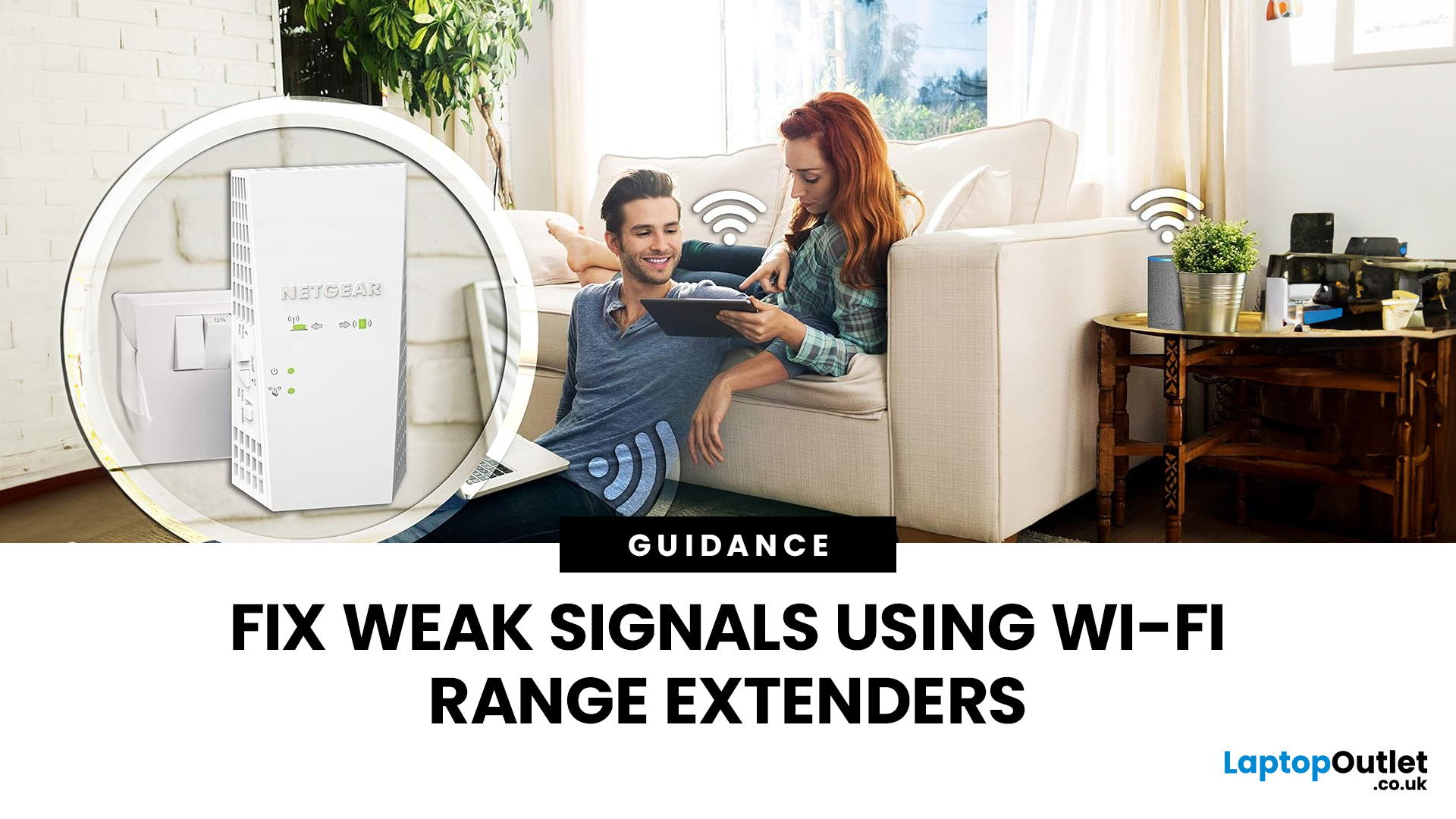
Imagine sitting down to stream your favourite show, join a work call or load a game, only for your Wi-Fi to drop the moment you move into another room. Weak signals, buffering, and dead zones are common in UK homes, especially in larger houses, older properties with thick walls, garden offices, and busy family spaces with several connected devices.
The good news is that you do not always need a new broadband package to fix the problem. A Wi-Fi range extender, mesh system, or access point can help extend your Wi-Fi range and make your home network more reliable.
This guide explains how Wi-Fi range extenders work, what to check before buying, which newer products are worth knowing about, and when a mesh system may be a better fit than a standard booster.
What are Wi-Fi Extenders?
A Wi-Fi range extender is a networking device that helps improve wireless coverage in areas where your main router struggles to reach.
It sits between your router and the weak-signal area, receives the existing Wi-Fi

Last Updated: January 26, 2026
Whether you are gaming, working from home, or streaming 4K content, having a slow internet connection is frustrating. While many people blame their ISP or router, the culprit might be inside your computer. Upgrading to high-quality network cards can transform your online experience.
In this guide, we will explore the best options available in the UK. We will also explain the technology behind these devices to help you make an informed choice.
What is a Network Card?
A network card, also known as a Network Interface Controller (NIC), is a hardware component that allows a computer to connect to a network. It acts as a middleman. It takes data from your computer and translates it into a format that can travel through cables or radio waves.
How Network Cards Work
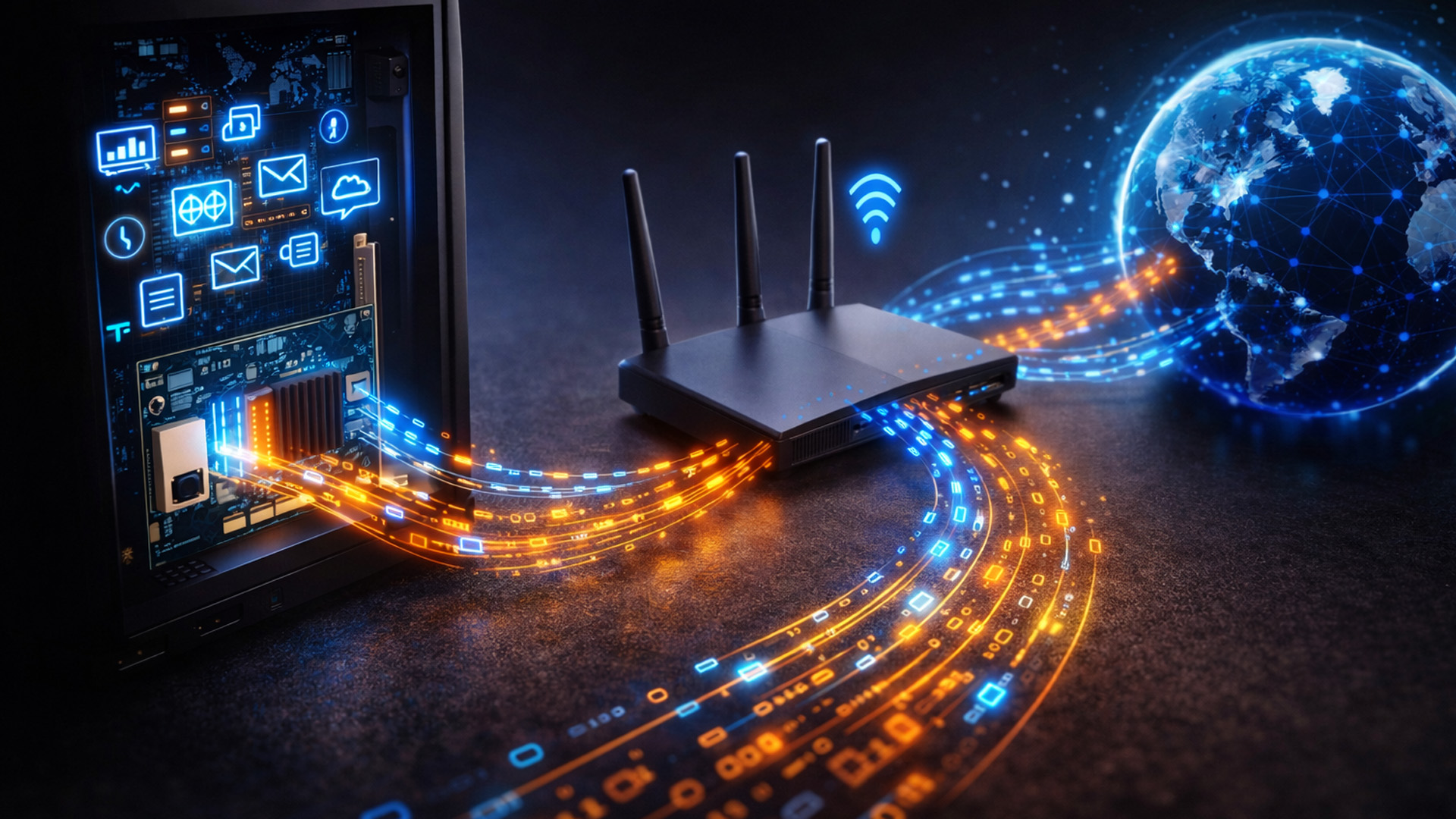
If you are wondering how network cards work, think of them as a translator. Your computer processes data in a specific way. To send this data to a router or another PC, it needs to be packaged correctly.
The network card prepares
Last Updated: January 26, 2026
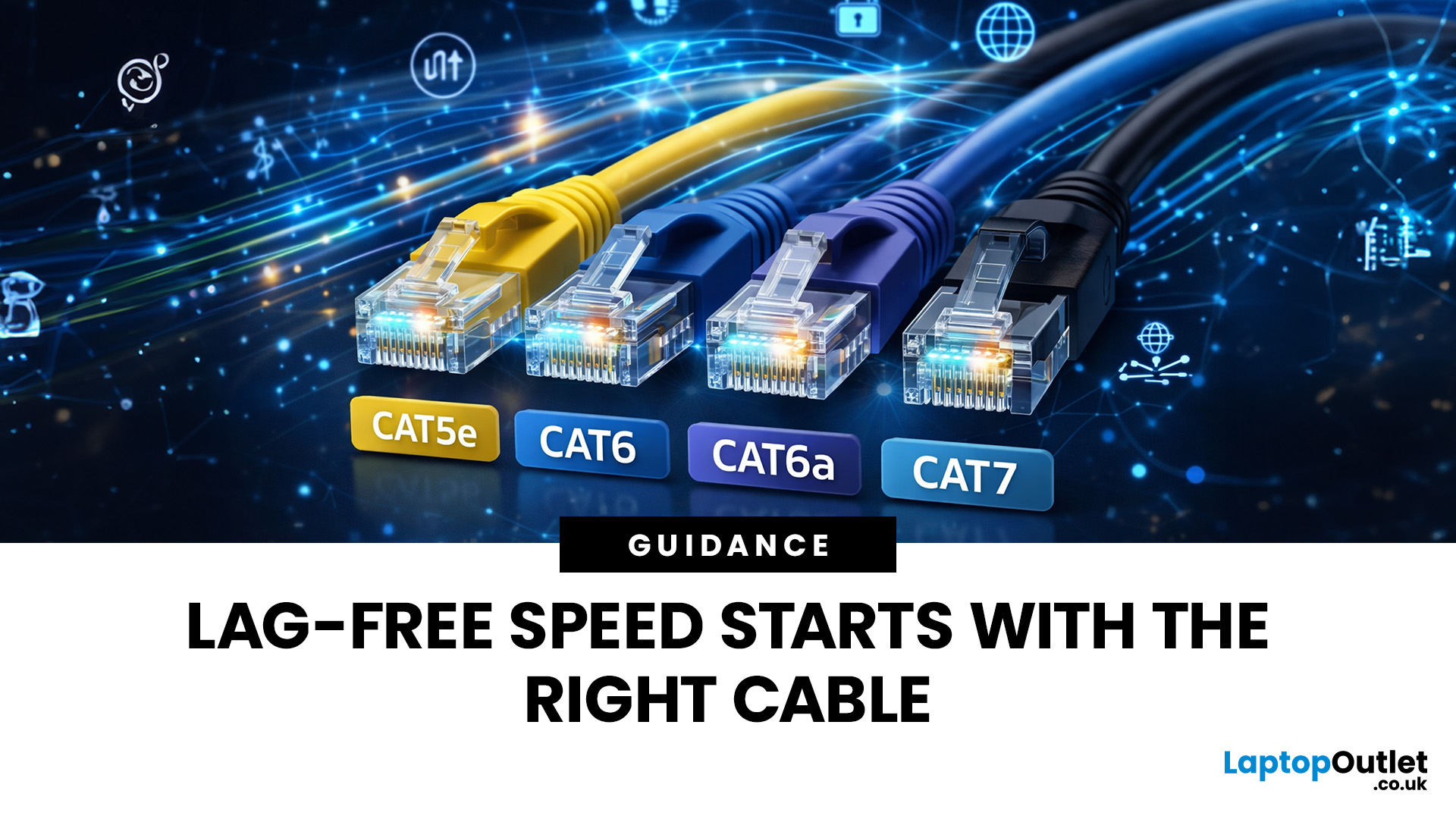
Network cables are the essential, physical links that form the backbone of any robust, high-speed network. While wireless is popular, wired connections provide unmatched stability and speed for gaming, streaming, and business operations.
In this post, we’ll get network cables explained simply, covering everything you need to know about choosing and installing Ethernet cables for your UK home or office.
Why Wired Connectivity Matters in 2026
Wired connections are the secret to a stress-free digital life. They offer a level of performance that wireless routers often promise but rarely deliver consistently.
Unmatched Speed & Reliability
Physical LAN cables eliminate the frustrating signal dropouts often found with wireless signals. This reliability is vital for professional home offices and growing business environments. A direct wire ensures your bandwidth remains consistent throughout the entire day.
Low Latency for Serious Users
Low latency is the secret to a smooth experience
Last Updated: January 26, 2026
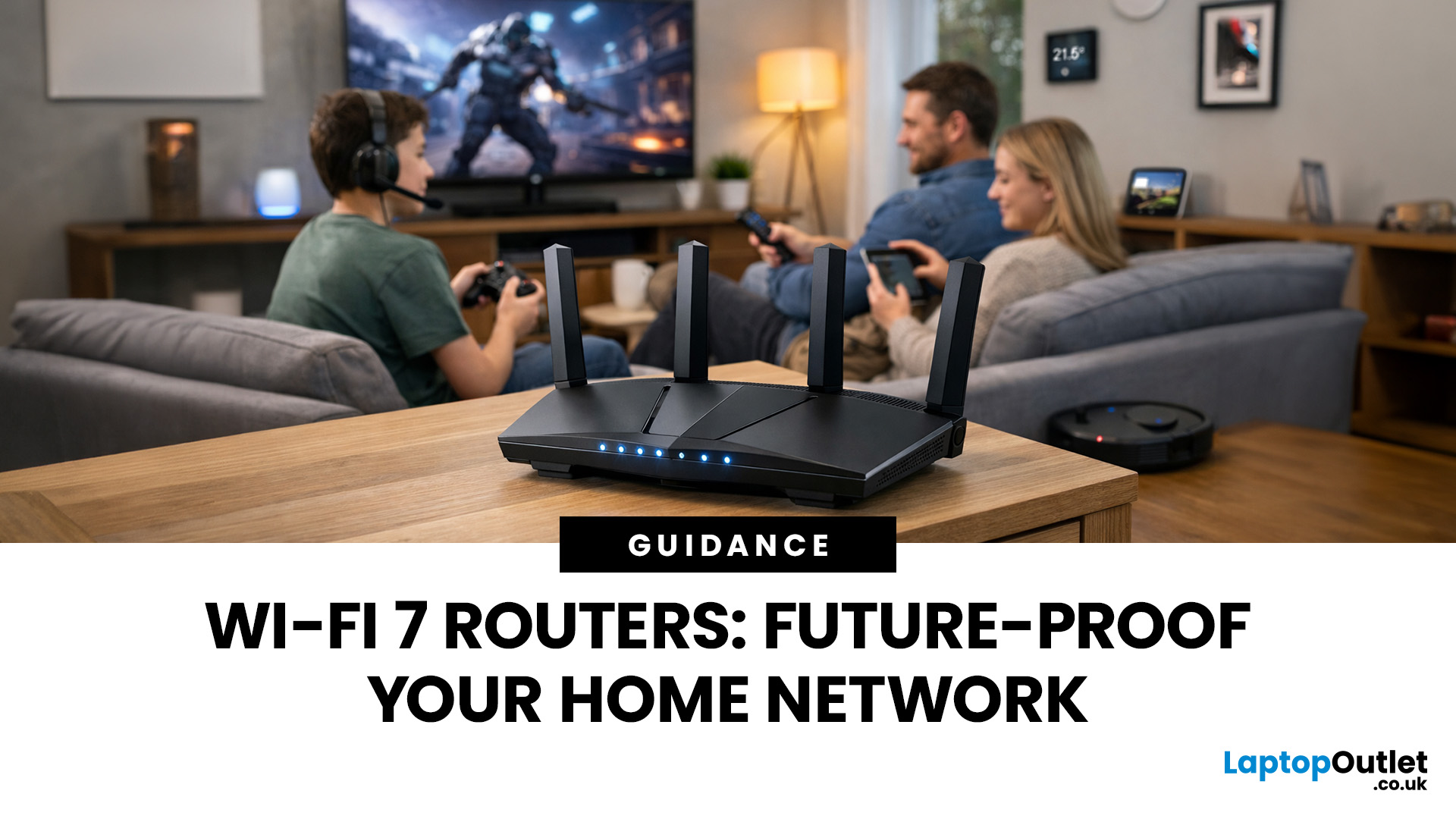
Wi-Fi 7 is being described everywhere as “the fastest Wi-Fi ever”, but that description alone doesn’t help most people decide whether it actually matters for their home.
To understand the real Wi-Fi 7 benefits for home users, you first need to understand why Wi-Fi 7 exists at all and what problems previous generations never fully solved, especially in modern UK homes.
This section breaks Wi-Fi 7 down in plain language, without marketing noise, so you can understand what genuinely changes and what doesn’t.
The Evolution of Home Wi-Fi: Why Wi-Fi 7 Exists
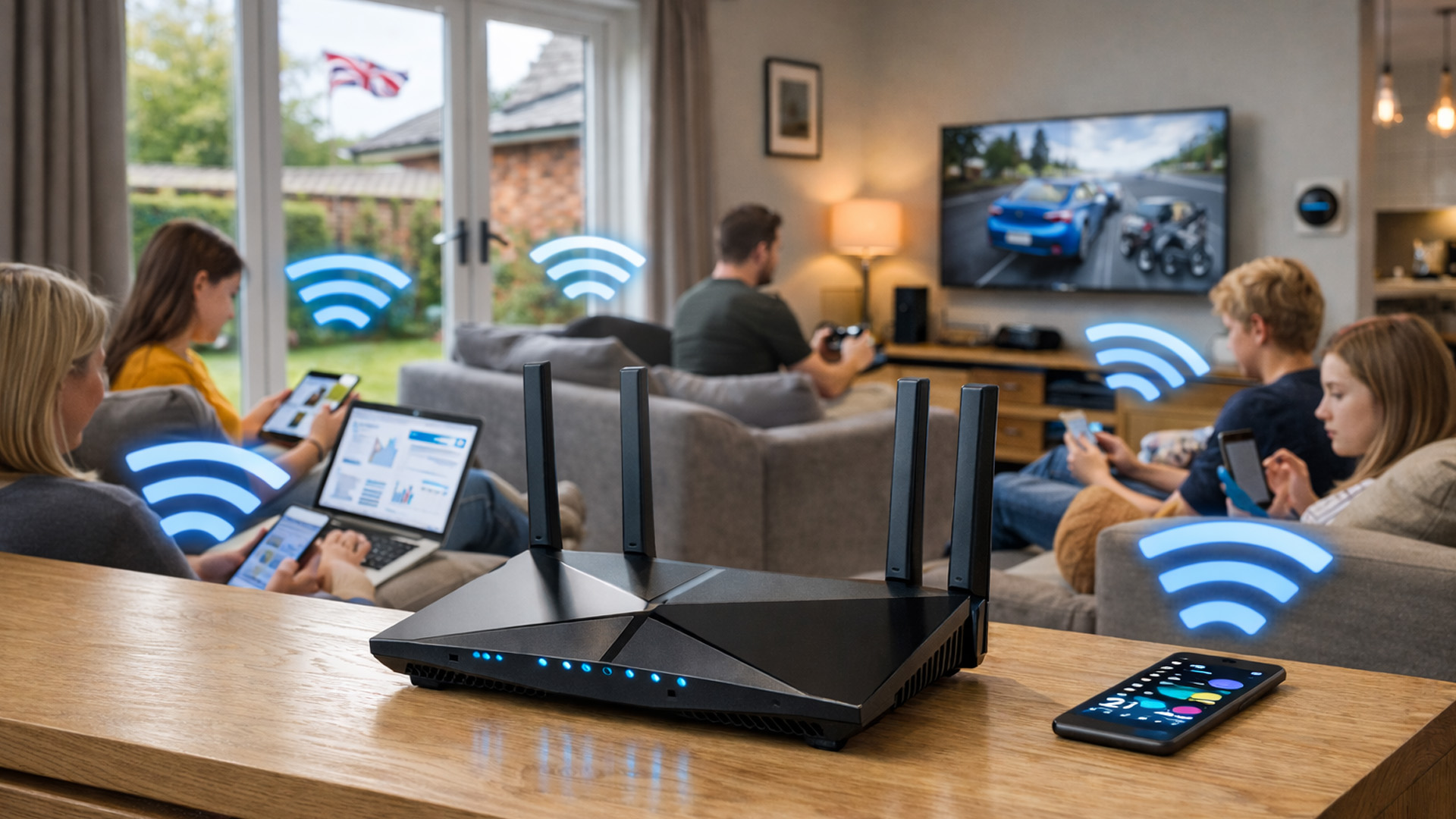
Home Wi-Fi hasn’t evolved because people want bigger speed numbers. It’s evolved because how we use networks has fundamentally changed.
Where Older Wi-Fi Generations Fell Short
Wi-Fi 5 (802.11ac) was built for a world where:
- Most homes had a few devices
- Streaming was mainly HD
- Smart homes were rare
Wi-Fi 6 (802.11ax) improved efficiency and multi-device handling, but it still assumed:
- Moderate device counts
- Predictable usage patterns
- Limited
Last Updated: March 12, 2026
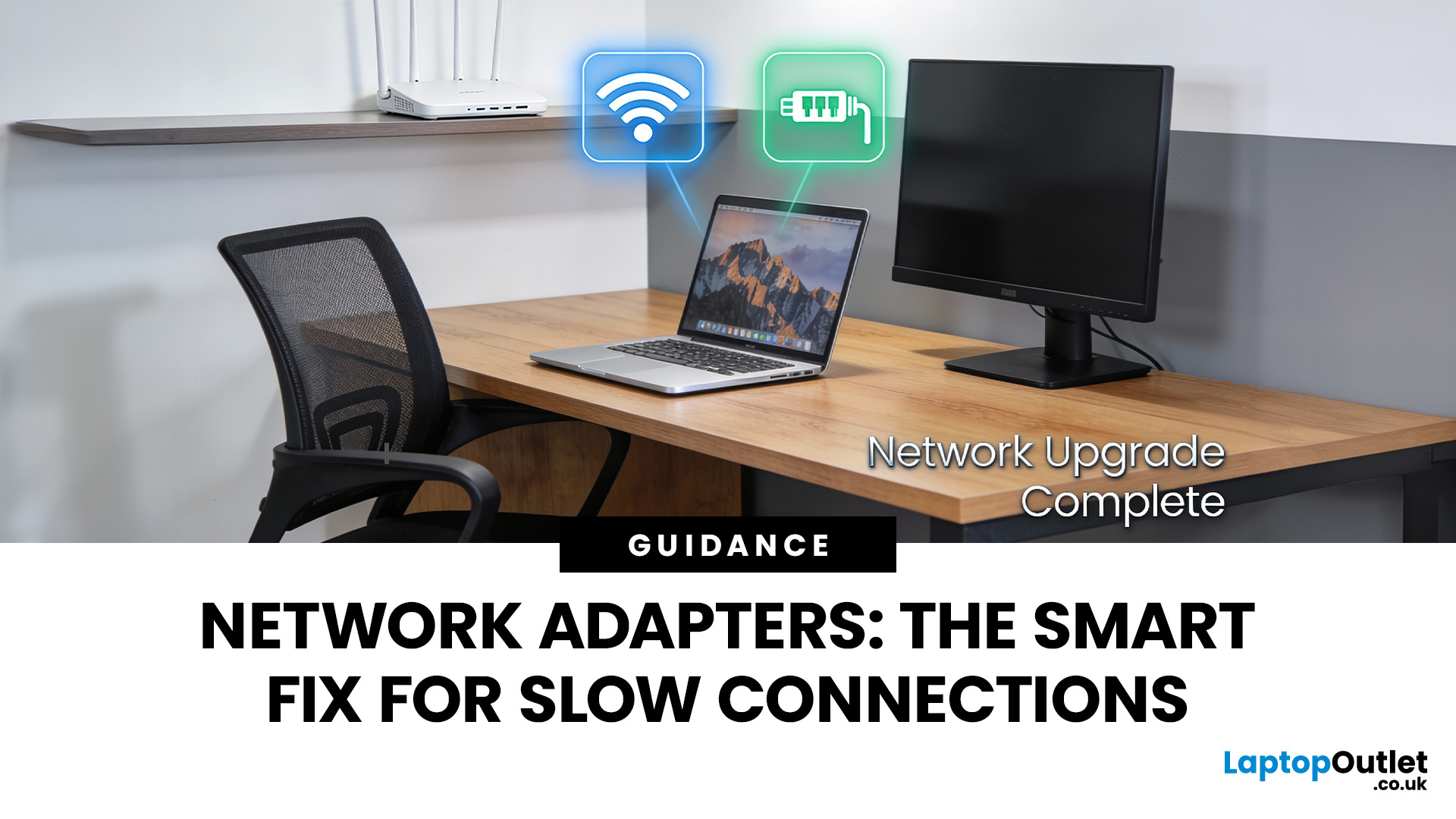
If you’ve ever wondered why your laptop struggles to stay connected while your phone works perfectly on the same Wi-Fi, the answer is often simpler than people expect.
It’s usually the network adapter.
Understanding what is a network adapter, and what it actually does — is the key to fixing many everyday connectivity problems without replacing your router, broadband plan, or entire device.
This section explains network adapters in plain English, with real UK use cases, so you can recognise when an adapter is the missing piece in your home or PC setup.
What Is a Network Adapter, Really?
A network adapter is the component that allows a device to connect to a network, either wirelessly or with a cable.
Every device that accesses the internet has one:
- Laptops and PCs
- Smartphones and tablets
- Smart TVs and consoles
Without a network adapter, a device simply cannot communicate with your router or the wider internet.
Think of the adapter as a translator:
- Your router speaks “network”
- Your device
Last Updated: February 13, 2026
Few things are more irritating than a laptop that insists it cannot connect to Wi-Fi, especially when your phone and tablet are happily online. The good news is that most Wi-Fi faults fall into a handful of predictable categories, and you can usually narrow it down in 10 to 15 minutes with a calm, methodical check.
This guide covers the most common laptop Wi-Fi connection issues and how to fix them. Let’s start with the quickest checks, then move into deeper fixes, and finish with the point where it makes sense to involve your broadband provider or consider hardware.
Start by Identifying the Best Possible “Laptop Wi-Fi Connection Issues”

A laptop can have “Wi-Fi Connection Issues” in several different ways. If you choose the wrong fix for the wrong symptom, you can waste time.
Here’s a quick symptom map so you can match what you’re seeing:
| What you’re seeing | What it usually means | Best first move |
| No networks appear at all | Wi-Fi is switched off, Aeroplane mode is on, adapter is disabled, |
Last Updated: June 17, 2026
Quick Answer: You can set up multiple Bluetooth speakers on one device when your phone, laptop, tablet, or speakers support multi-speaker audio. The easiest method is to use compatible speakers from the same range and link them via the speaker’s party mode, stereo pair mode, the connect button, or the companion app.
Standard Bluetooth pairing does not always let you play sound through multiple Bluetooth speakers simultaneously. Your device may remember several speakers yet only send audio to one. For two-speaker playback, Samsung Galaxy Dual Audio, AirPlay-compatible speakers, Bluetooth LE Audio, Auracast, same-brand speaker pairing, or a Bluetooth transmitter are usually the best routes.
Introduction
You can connect multiple Bluetooth speakers, but the right setup depends on your device and the compatibility of your speakers. A Samsung Galaxy phone, an iPhone, an Android phone, a Windows laptop, a MacBook, or a TV may all need a slightly different method.
The main thing to know is
Last Updated: June 10, 2026
The best free AI apps that work offline include Ollama, LM Studio, GPT4All, Jan, Msty Studio, AnythingLLM, PocketPal AI, llamafile, Upscayl, and DiffusionBee. These tools help users run offline chatbots, local AI assistants, AI writing apps, document Q&A tools, and AI image tools without relying on the internet after setup.
Looking for the best free AI apps offline? You are not alone. More users now want AI tools that can work without constant internet access, protect private data, and run directly on a phone or laptop.
Offline AI apps are especially useful for writing, coding, document chat, transcription, image generation, image upscaling, and personal productivity. Instead of sending every prompt to the cloud, these local AI tools use models stored on your own device.
What Are Offline AI Apps?
Offline AI apps are tools that run AI models directly on your device instead of depending fully on cloud servers. Once installed and configured, they can perform tasks like chatting, summarizing,
Last Updated: July 15, 2026
Ethernet is faster, more stable, and lower-latency than Wi-Fi for laptops, making it the better choice for gaming, video calls, and large file transfers. Wi-Fi wins on convenience and flexibility, especially for everyday browsing and light tasks where a physical cable is not practical. The right connection depends on your specific use case.
The debate around Ethernet vs WiFi is one that most laptop users run into at some point, whether you are setting up a home office, getting into PC gaming, or just trying to stop your video calls from dropping out mid-meeting.
Both connection types are perfectly capable of getting you online, but they work in very different ways and perform quite differently depending on what you are doing. This guide breaks everything down clearly so you can make the right call for your setup.
How Does Each Connection Actually Work?
Before comparing the two, it helps to understand the basics of how each technology functions. Knowing this makes it much easier to understand

