



Dual-Chamber vs Standard PC Cases: Is the Extra Space Worth It?
Quick Answer
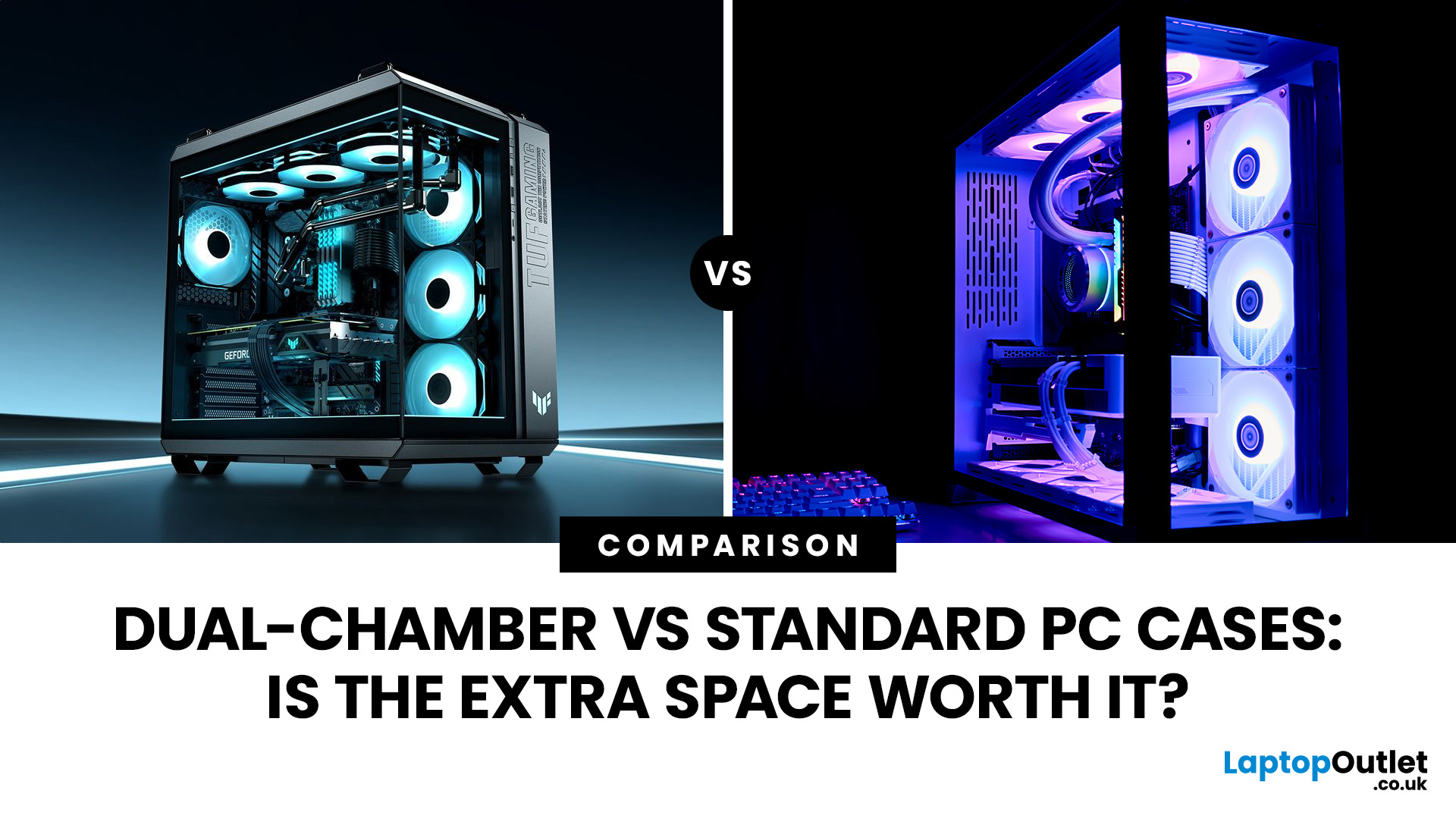
A dual-chamber PC case gives you more room for cables, a cleaner view of your components and extra fan or radiator mounting options. A standard case is usually narrower and simpler to build in. If you are weighing up a dual-chamber vs standard PC case, measure your desk carefully and check your graphics card, CPU cooler and power supply first.
Choosing a PC case should be straightforward: your components need to fit, stay cool and remain easy to access. The extra compartment in a dual-chamber design can make a complicated build much easier to manage. For a more conventional PC, that extra width might sit unused.
If you are building from scratch or replacing an old chassis, start with what you need the case to hold. You can compare PC cases by size and compatibility once you know your priorities. There is no reason to choose a wider design unless it offers something you will use.
What Is a Dual-Chamber PC Case?
A dual-chamber PC case separates the main hardware from the less visible parts of the build. Your motherboard, graphics card and CPU cooler sit in one compartment. The power supply, drive mounts and much of the cabling sit in a second compartment behind or beside it.
You gain more room to work with cables and can keep the main chamber clear of power leads and controllers. That is especially useful if you have several RGB fans, a modular power supply or multiple storage drives.
Many dual-chamber gaming cases also leave the bottom of the main chamber available for intake fans. Glass-fronted designs commonly draw air through side and bottom vents, so fan planning matters as much as the appearance of the empty case.
What Is a Standard or Single-Chamber PC Case?
A standard tower keeps the motherboard and graphics card in the main compartment, with the power supply usually fitted underneath a shroud. Cables run through openings in the motherboard tray and are secured behind it.
This is a practical layout for a PC with one graphics card, a conventional cooler and a modest number of fans. You can still build neatly with a good set of cable channels, tie-down points and removable panels.
A single-chamber PC case also tends to take up less desk width. If you prefer a direct front-to-back airflow path and have no need for a large rear cable compartment, a traditional tower deserves serious consideration.
Dual-Chamber vs Standard PC Case: Key Differences
|
What matters |
Dual-chamber case |
Standard case |
|
Power supply |
Housed in a separate rear or side area |
Usually beneath a lower shroud |
|
Cable management |
More space for long cables, hubs and controllers |
Tighter routing behind the motherboard tray |
|
Cooling layout |
Commonly side or bottom intake, with top or rear exhaust |
Commonly front intake, with top or rear exhaust |
|
Width |
Typically wider for the same motherboard size |
Usually easier to fit on a narrow desk |
|
Build appearance |
Open main chamber, often with panoramic glass |
Conventional tower layout, with glass or solid panels |
|
Main advantage |
Easier organisation for complex builds |
Simpler, more space-efficient setup |
Both layouts can hold powerful gaming hardware. The useful differences appear when you start routing cables, positioning cooling equipment and measuring the space available beside your monitor.
What Do You Gain from the Second Chamber?
More Room for Cables and Controllers
If you have ever tried to close a side panel over thick power cables, you will appreciate the extra room. A separate chamber gives you space to route the 24-pin motherboard lead, GPU power leads, fan cables and storage connections without bunching them together.
It also makes later upgrades less frustrating. You can find the cable you need, move it and reconnect it without disturbing everything else. This benefit is particularly noticeable in builds with multiple fan hubs or RGB controllers.
A Cleaner Main Compartment
Moving the PSU and cable bundles out of sight gives the motherboard and graphics card more visual space. This works well if you want a glass-sided build where the components, rather than the wiring, are on display.
That tidy look is a good reason to choose the layout. Just do not mistake empty space for cooling performance: the case still needs suitable intake vents, correctly positioned fans and a clear way for warm air to leave.
More Choices for Cooling Hardware
Some dual-chamber designs free up the lower section for fans or provide a full side mount for a radiator. You can position airflow closer to the graphics card or make room for a large liquid-cooling installation.
Before buying extra case cooling fans , check which fans come fitted, where the intakes are and how the radiator would affect the remaining mounts. A case with ten available fan positions does not need ten fans to work well.
Does a Dual-Chamber PC Case Keep Components Cooler?
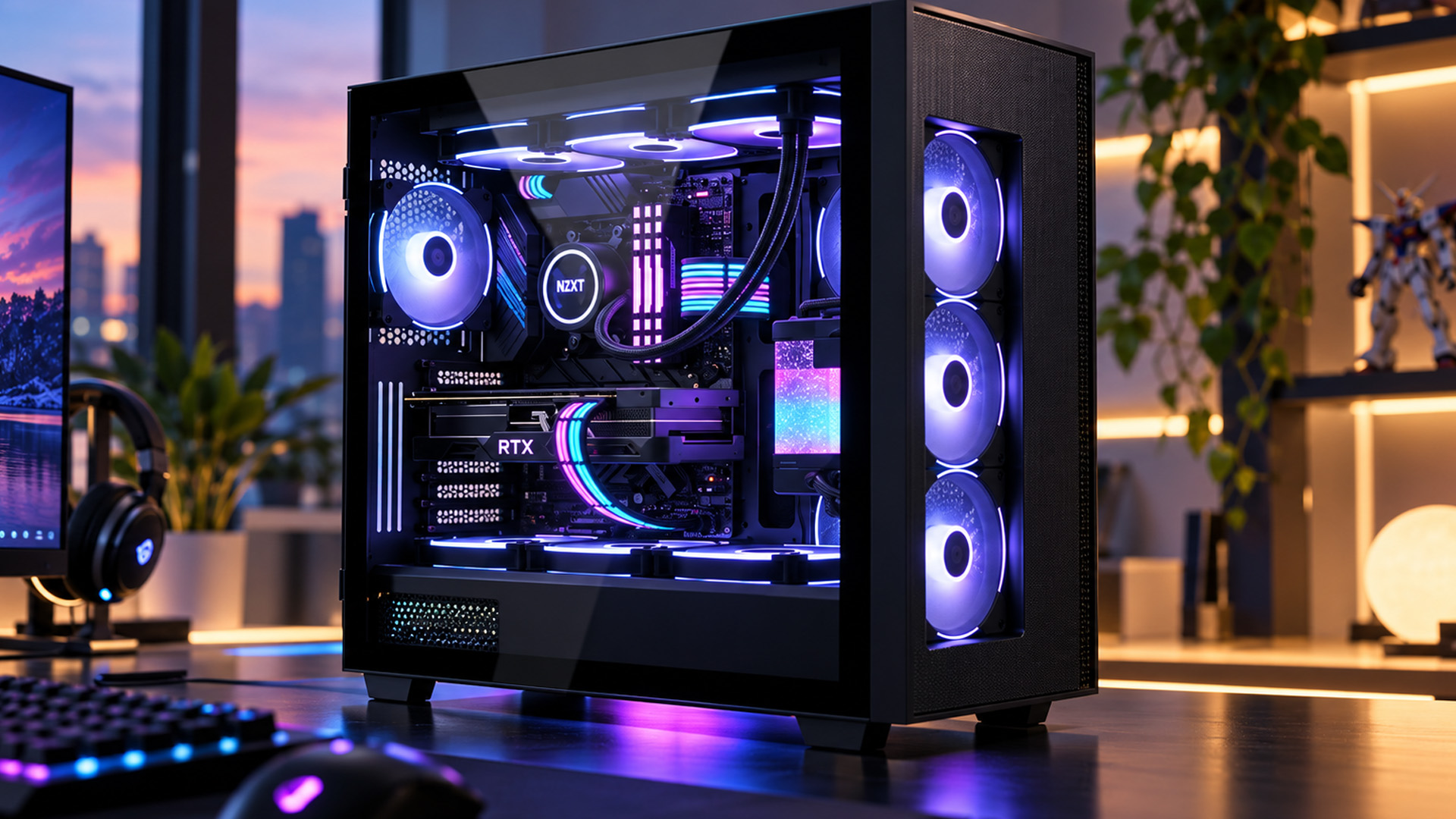
It can, but the layout needs to support the airflow you want. A dual-chamber case with unrestricted bottom intake can deliver fresh air directly towards the graphics card. Side-mounted fans can also feed air into the main compartment, while roof and rear fans carry warm air out.
A standard mesh-front tower uses a simpler route. Front fans pull cool air towards the GPU and CPU cooler, and warm air leaves through the rear or top. This arrangement is easy to set up and can cool demanding components very effectively.
For either design, decide where the cool air enters before deciding where to mount exhaust fans. Avoid blocking the intake with a radiator, drive cage or a case position that leaves too little clearance below the bottom vents.
Air Cooling or an AIO: What Fits Best?
If you use a tower air cooler, check its height against the case limit and make sure the fans can move air through the heatsink towards an exhaust. A wider case does not help if its side panel cannot close over your cooler.
If you use an all-in-one liquid cooler, check the full radiator and fan thickness as well as the advertised radiator length. When considering CPU cooling options , check the exact mounting position and clearance around your motherboard, RAM and graphics card.
The aim is a cooling setup that fits comfortably and is easy to maintain, not simply the greatest number of mounts.
How Much Desk Space Will a Dual-Chamber Case Use?
Width is the first measurement to check. The NZXT H9 Flow (2025) is 315 mm wide, the Corsair 6500X is 328 mm wide, and the Fractal Design North is 215 mm wide. Put an H9 Flow beside your monitor and it takes up 10 cm more desk width than the North.
If the wider layout appeals to you, check the individual measurements of NZXT PC Cases before deciding. If you prefer a narrower conventional tower, look at Fractal Design PC cases as well.
Allow room to remove panels and reach the rear connections. If your PC will sit in a shelf or cabinet, check where the vents are as well as the external dimensions. A side intake pressed close to a wall will struggle to draw air freely.
Is a Dual-Chamber Micro ATX Case More Compact?
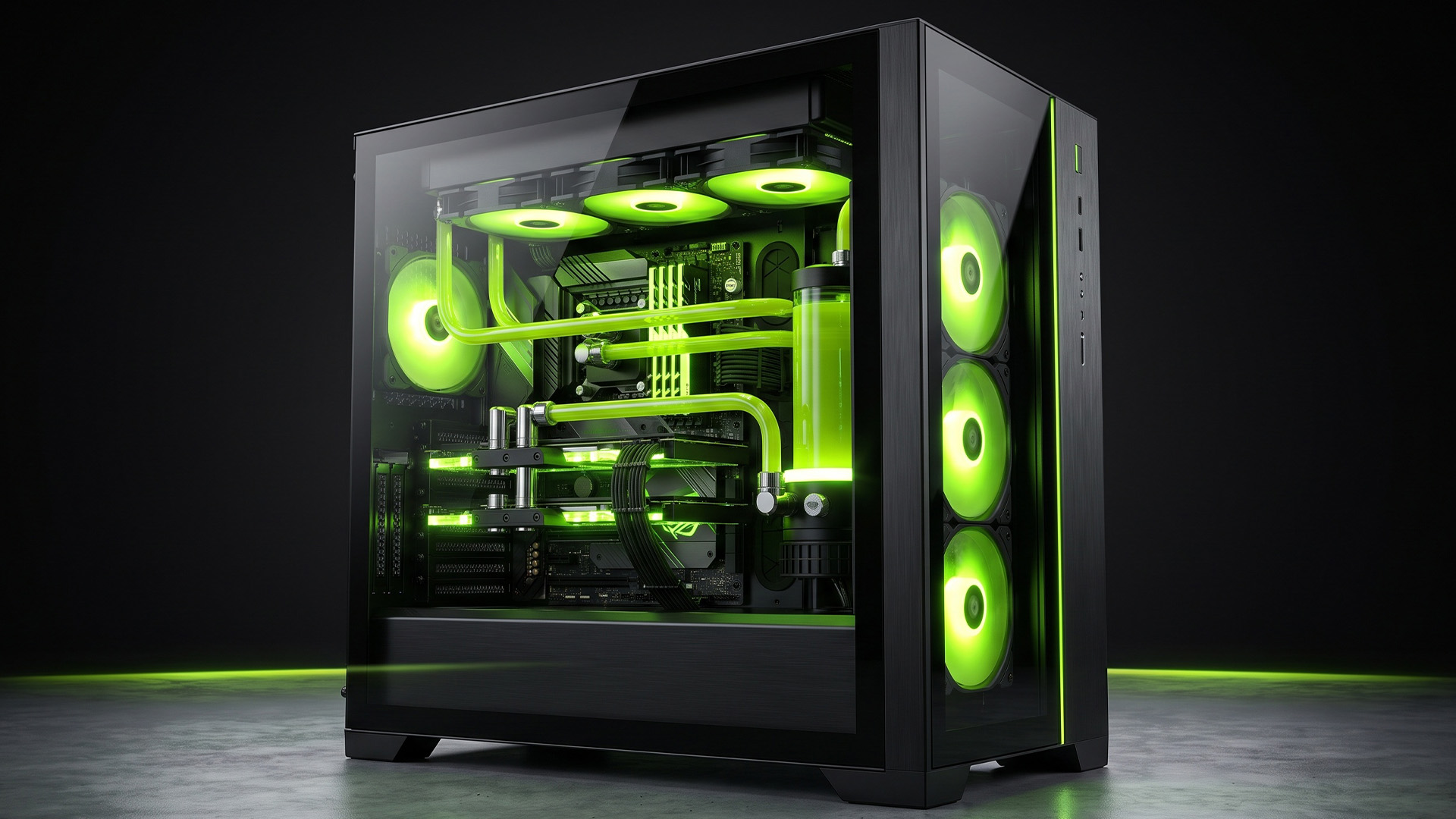
Not necessarily. A smaller motherboard does not mean the outer case will be narrow. The Corsair 2500X, for instance, supports Micro ATX and Mini-ITX motherboards but measures 304 mm wide because its power supply and cabling occupy a separate compartment.
A dual-chamber ATX case can suit a full-size build with more expansion cards and radiator options. A dual-chamber Micro ATX case reduces the motherboard area, but you still need to check its width, GPU clearance and cooling mounts.
If saving desk space is your main goal, look through Micro ATX PC cases and check the actual width and depth. A conventional Micro ATX tower may suit you better than a compact-looking glass showcase chassis.
What Should You Check Before Choosing a Case?
Motherboard fit. Check whether the case supports ATX, Micro ATX or Mini-ITX. If you want rear-facing power connectors, confirm the case has the correct cut-outs. If you are fitting a new board, check the connector positions against compatible PC motherboards before ordering.
Graphics card clearance. Check length and thickness, including the space needed for the power connector. A side radiator or thick bottom fans can reduce the usable room around a large GPU.
CPU cooler and radiator space. Match cooler height or radiator dimensions to the chosen mounting position. A 360 mm radiator label does not tell you whether a thick radiator and its fans will fit beside the motherboard.
Power supply dimensions. Check PSU length and room for the cables to leave the unit. When reviewing PC power supplies , allow for stiff modular leads and the space needed to bend them without putting pressure on their connectors.
Included fans and connections. Count the fans you receive with the case, then check for the right motherboard headers, fan hub connections and front USB-C support. Extra fan mounts are only useful if you plan to use them.
Storage and access. If you still use 3.5-inch hard drives, check the bays. Make sure you can remove dust filters and side panels without dismantling your desk setup.
Is a Dual-Chamber Case Worth the Extra Cost?
Think about the complete build, not just the empty chassis. A glass-heavy dual-chamber case may need extra fans to achieve the airflow you want. Additional controllers, a different fan arrangement or a particular radiator can increase the final cost.
A standard tower with a ventilated front panel and a sensible set of included fans can be a more economical starting point. You may be better off putting that money towards a quieter cooler or a stronger graphics card.
When looking through Corsair PC cases , pay attention to what comes in the box, not just the number of available fan mounts. Two cases can offer similar room for hardware but require very different spending on cooling accessories.
When Should You Choose a Dual-Chamber Case?
Choose the wider layout if you want an organised showcase build and have enough room for it. It makes particular sense when your PC includes several cooling fans, RGB controllers, a large AIO or a rear-connector motherboard.
It is also useful if you rebuild or upgrade regularly. Having space to reach the PSU, hubs and storage drives can save time every time you open the side panel.
A dual-chamber gaming case is especially appealing when the extra fan positions match your planned GPU cooling. Check those positions against the actual hardware rather than buying a case first and working out the airflow later.
When Is a Standard PC Case the Smarter Choice?
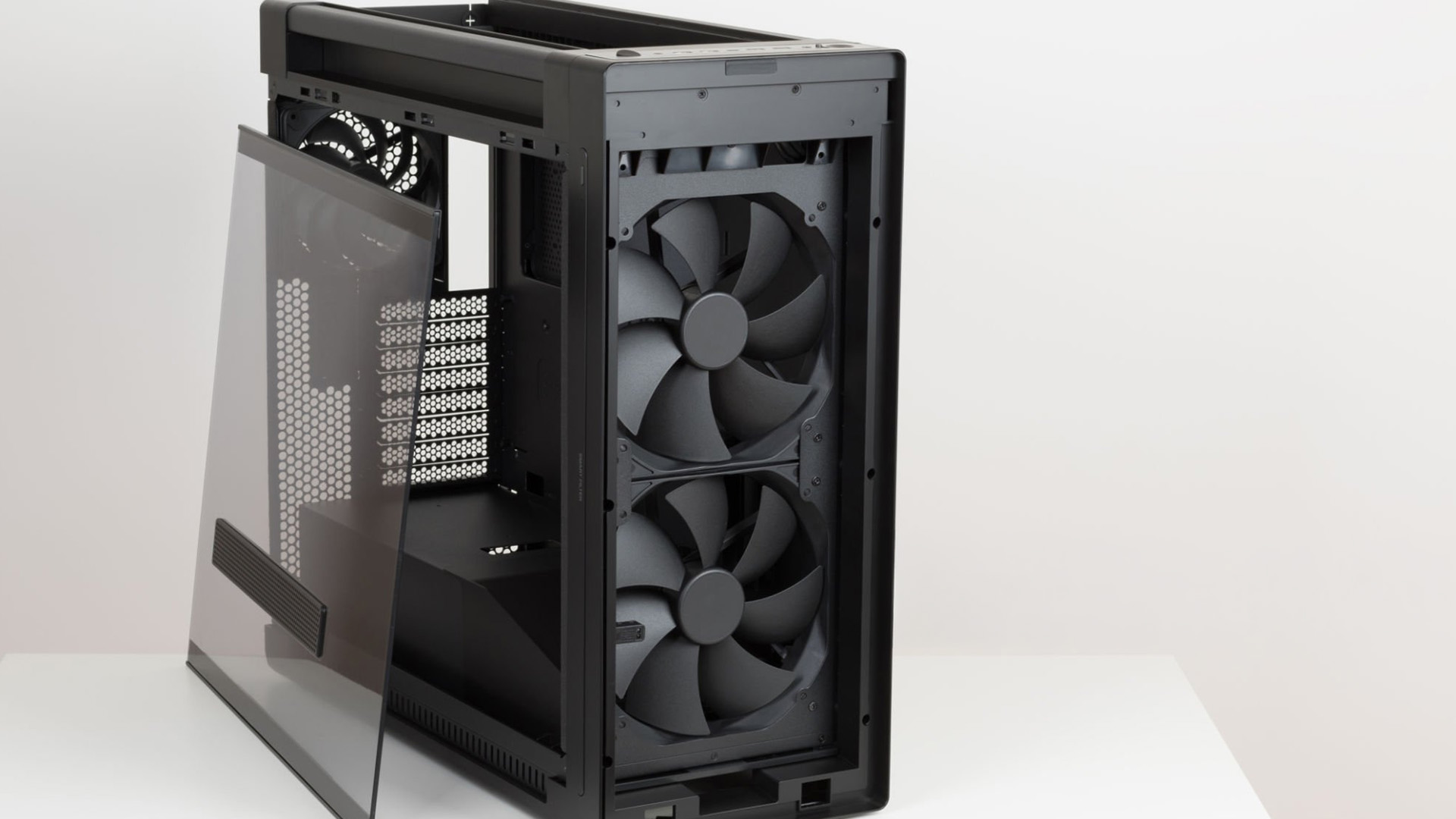
Choose a standard case when you want a compact, straightforward tower that keeps a gaming or work PC cool without an elaborate installation. A strong front intake, sensible cable-routing space and enough clearance for your components cover most everyday builds.
A conventional layout is also easier to accommodate on a smaller desk. With fewer separate compartments to plan around, you can concentrate on motherboard compatibility, storage, GPU clearance and the cooling system you already own.
You are not giving up performance by choosing a standard design. Give your components the airflow they need and keep the cables tidy, and a traditional tower will serve you well.

Which PC Case Layout Should You Choose?
Picture the PC you want to build. A dual-chamber case earns its extra width when you need room for controllers, a large cooling setup and several power cables. For a straightforward gaming or work PC with limited desk space, a standard tower is the more sensible choice.
Measure the area before you buy, then confirm the exact motherboard, GPU, cooler and PSU fit. A case should make the PC easier to build and live with. You should not have to rearrange your entire desk or compromise cooling just to accommodate its appearance.

Common Questions About Dual-Chamber and Standard PC Cases
Are dual-chamber PC cases better for cooling?
They can provide useful bottom or side fan mounts, especially for GPU cooling. A good standard tower with open front intake can work just as well. Judge the airflow layout and cooling hardware you will actually install.
Are dual-chamber cases bigger than standard cases?
They are generally wider because the PSU and cables sit in a separate compartment. Height and depth still differ across products. Check the full dimensions and leave enough room around the vents and removable panels.
Do dual-chamber PC cases need more fans?
No. A dual-chamber case can work well without filling every fan position. Choose enough intake and exhaust airflow for your components, check the fans already included and add more only where temperatures or noise justify it.
Can you get a dual-chamber Micro ATX case?
Yes. Some dual-chamber cases support Micro ATX or Mini-ITX boards, but still have wide outer dimensions. Check motherboard support, GPU length, PSU fit and the actual case measurements if space is your main concern.
Is a dual-chamber PC case worth the extra space?
Yes, if you need extra cable room, more cooling positions or a cleaner glass-sided build. For a simple PC with limited desk space, a good standard case gives you a more straightforward and often less expensive setup.
| Read More: |
| Vertical vs Horizontal GPU Mounting: Cooling and Compatibility |
| GPU Sag Explained: Do You Need a Graphics Card Support Bracket? - |
| Gaming Desktop PC Overheating? How to Fix High Temperatures |
Related Articles

Last Updated: July 13, 2026
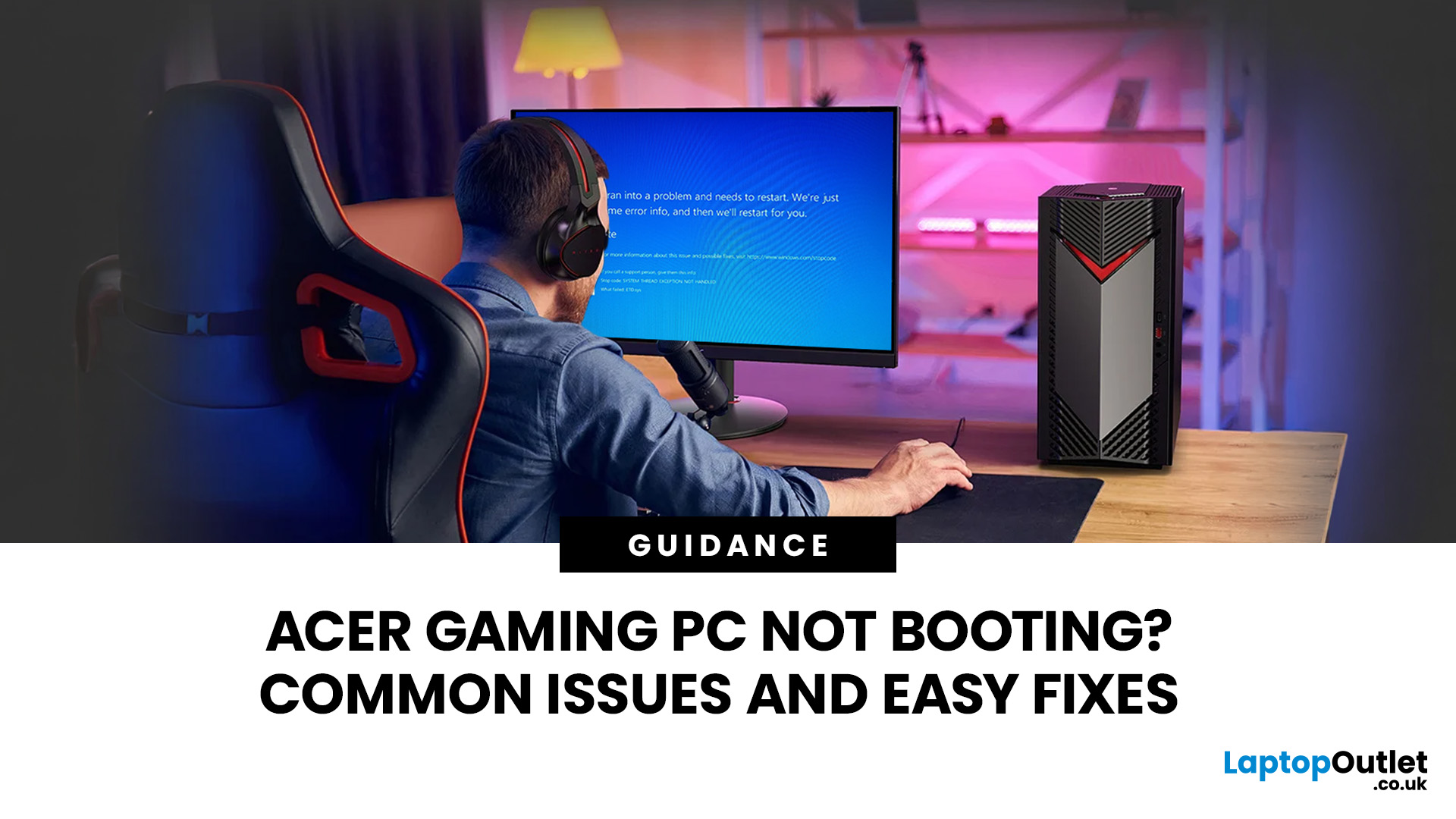
An Acer gaming PC not booting can feel like instant panic mode, especially when you were ready to jump into a game, finish work, or just chill. One minute everything is fine, and the next your PC turns on but no display appears, the monitor says no signal, or the screen stays completely black.
The good news? A PC not booting does not always mean something major is broken. Sometimes it is a loose cable, a monitor input issue, a RAM problem, or a BIOS setting that needs a reset. In this guide, we will walk through the most common Acer desktop startup issues, what they usually mean, and the easy fixes you can try before heading straight to a repair shop.
Is Your Acer PC Actually Not Booting, or is There No Display?
Before you start unplugging parts, it helps to know what problem you are really dealing with. A PC can fail in different ways, and each one points to a different cause.
If your Acer PC is not starting up that means there are no lights, no fans, and no sound at all, it may be a power
Last Updated: September 03, 2026
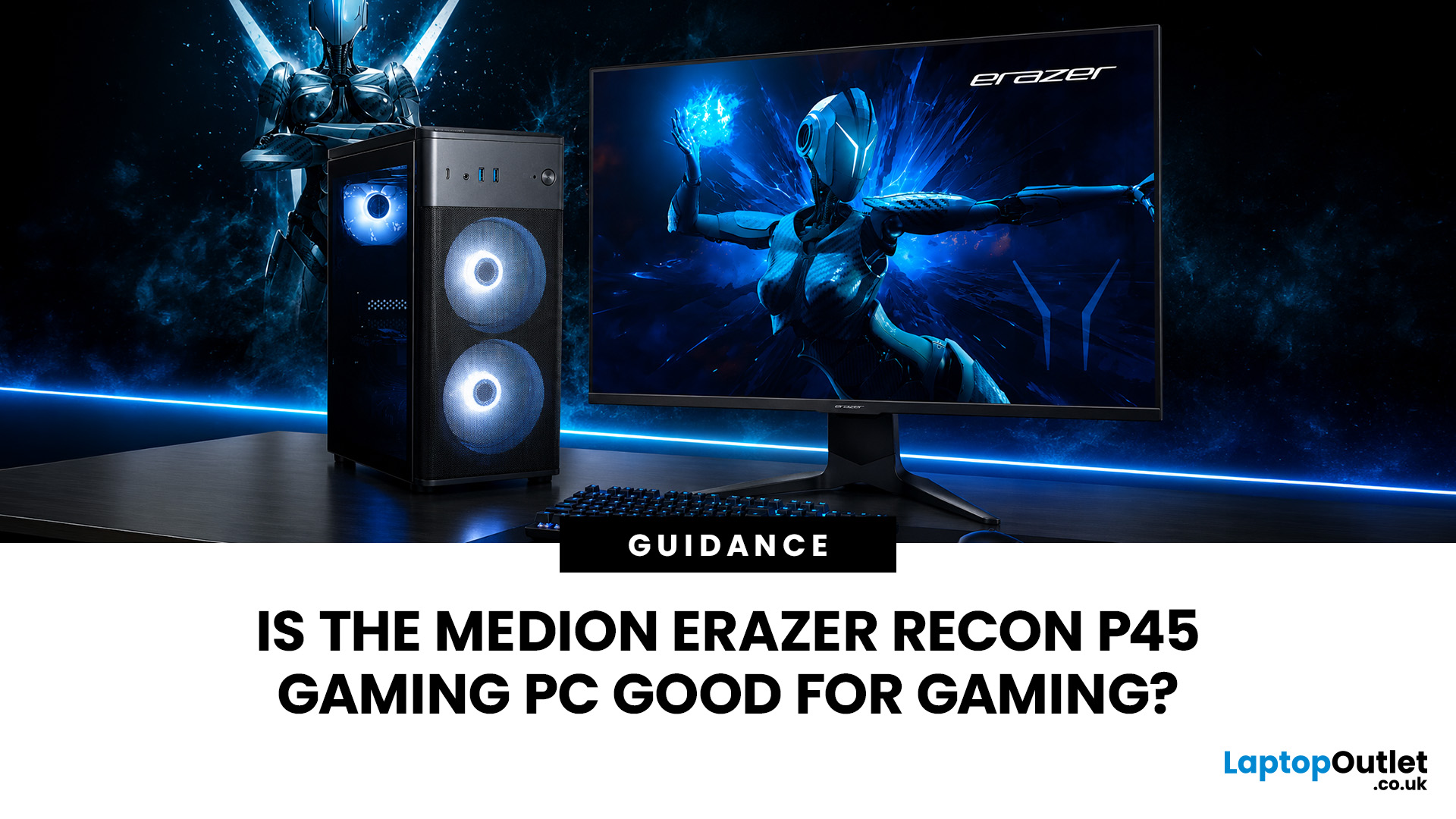
Yes, the Medion Erazer Recon P45 is a good gaming PC for players who want smooth everyday gaming, strong 1080p performance, fast loading times and a ready-to-use desktop without building a PC from scratch.
At Laptop Outlet, current Medion Erazer Recon P45 Gaming PC options include configurations with an AMD Ryzen 5 5500, 1TB SSD, Windows 11 Home, and dedicated NVIDIA RTX graphics, including RTX 5060 and RTX 5050 variants. The RTX 5060 model also includes 32GB RAM in the listed specification, while the RTX 5050 model is listed with 16GB RAM.
Is the Medion Erazer Recon P45 Worth it?
For most UK gamers, the Medion Recon P45 PC makes sense if you want a capable prebuilt gaming desktop that can handle modern games, multitasking, streaming, schoolwork, everyday browsing, and entertainment. It is especially suitable for:
| User Type | Is it a Good Fit? | Why |
| Beginner gamers | Yes | No PC-building knowledge needed |
| 1080p players | Yes | RTX graphics and Ryzen 5 power are well matched |
| Students | Yes | Good for gaming, |
Last Updated: September 01, 2026
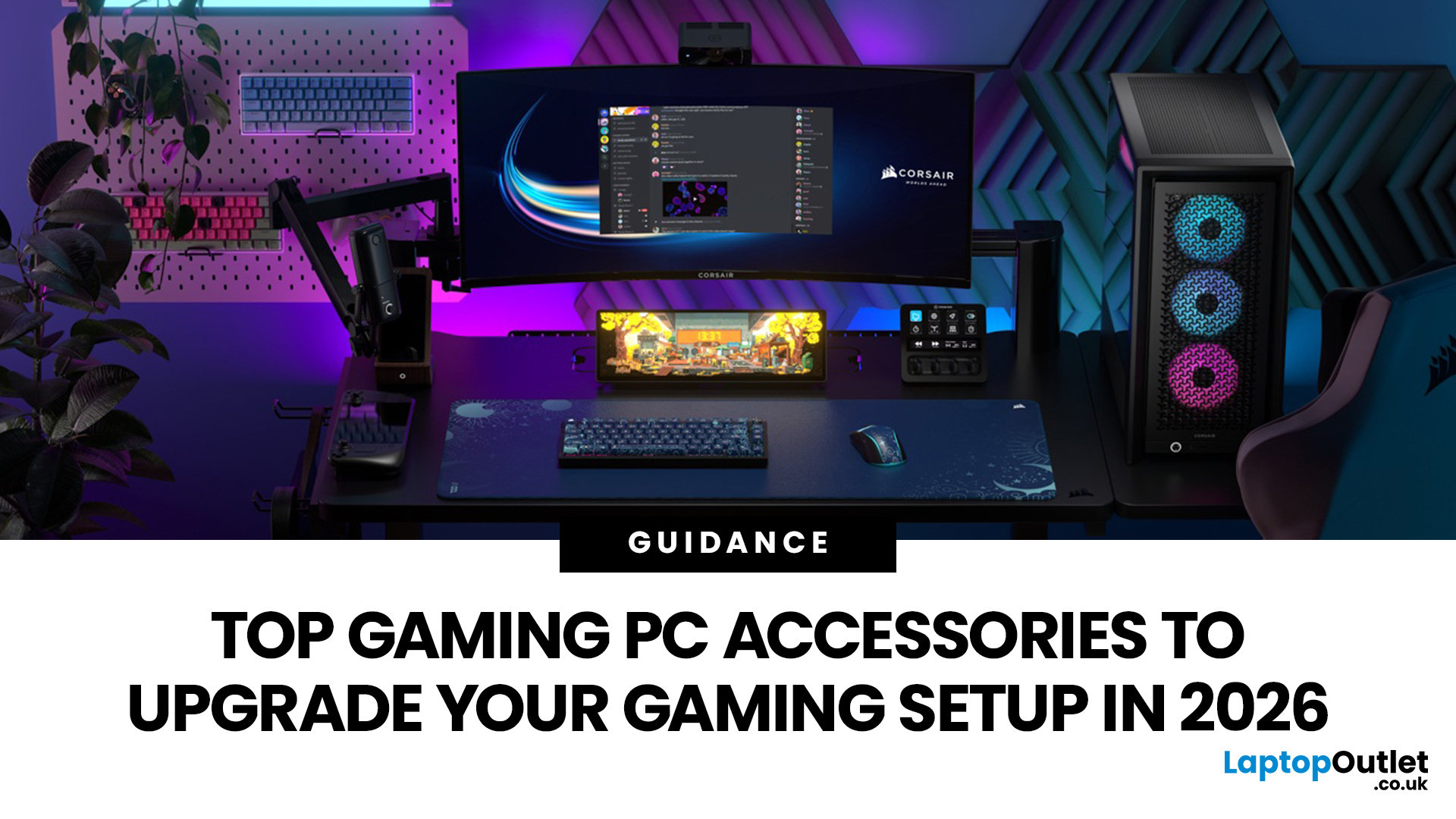
In gaming, your PC is the engine - but your accessories are the steering wheel, tyres, mirrors, and dashboard. You can have all the power in the world, but if your mouse feels sluggish, your monitor looks choppy, your headset misses key sound cues, or your desk is a cable jungle, the whole setup feels off.
Your PC might be built to run the latest games, but your accessories decide how well you actually experience them. A lightweight mouse can sharpen your aim, a mechanical keyboard can clean up your inputs, a gaming headset can help you catch every footstep, and a high refresh rate
Last Updated: September 02, 2026
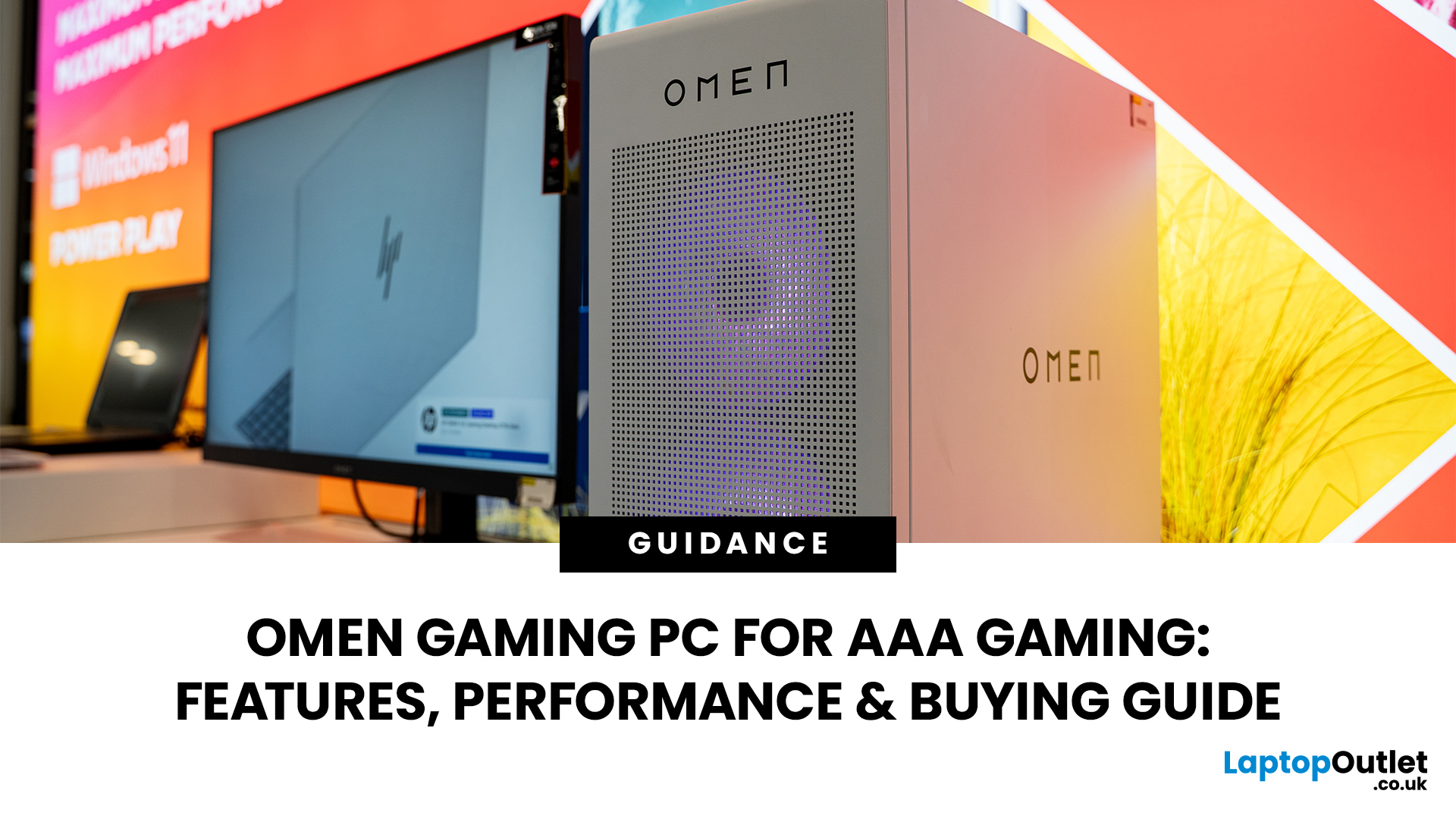
AAA games can be absolutely stunning, but they are not shy about demanding serious hardware. High-resolution textures, dense open worlds, ray-traced lighting, advanced physics, and background asset streaming can push an ordinary desktop to its limits. If your computer is short on graphics power, memory or cooling capacity, the result may be stuttering, inconsistent frame rates and a graphics menu full of compromises.
That's where an OMEN gaming PC comes in. An HP OMEN desktop combines dedicated gaming graphics, modern processors, SSD storage, and performance-focused cooling in a pre-built system. But not every configuration delivers the same experience, one OMEN gaming desktop may be ideal for 1080p gaming, while another is built for high-refresh 1440p or demanding 4K gameplay. This guide breaks down the HP OMEN specs that actually matter and how to match them to the way you play.
Is an OMEN Gaming PC Actually Good for AAA Games?
Yes. A correctly configured OMEN PC for AAA games can deliver
Published: July 21, 2026
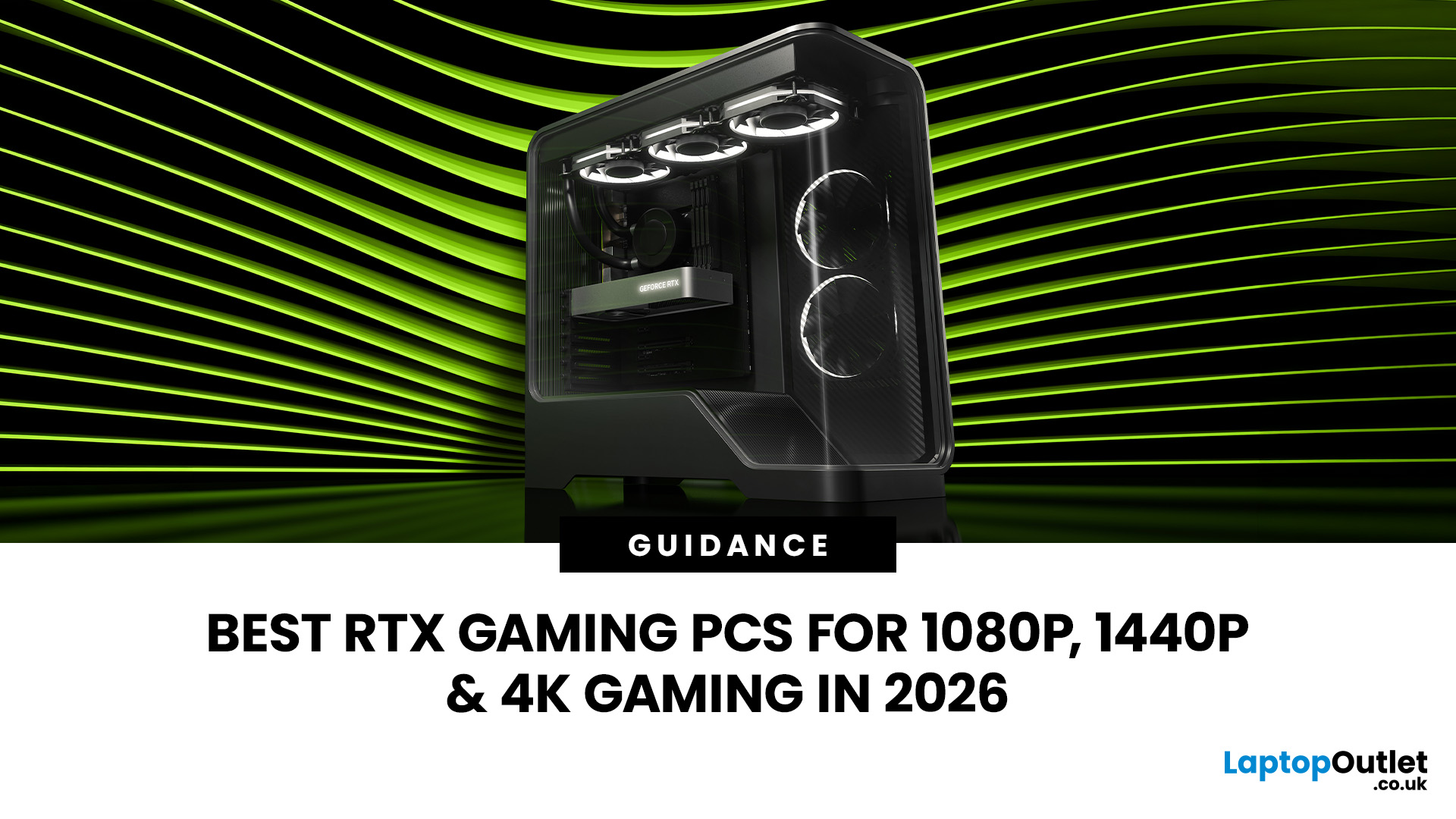
For 1080p, an RTX 5060 is the sensible mainstream pick. For 1440p, step up to an RTX 5060 Ti 16GB or RTX 5070. For 4K, the RTX 5080 is the best-balanced choice for most people, with the RTX 5090 reserved for buyers who genuinely need its 32GB of memory or maximum settings at every resolution.
Picking one of the best RTX gaming PCs isn't about flexing the priciest GPU - it's about matching your rig to your setup and the games you actually play. A competitive player on a 1080p 240Hz display needs strong CPU performance and low latency. Someone playing cinematic single-player games on a 4K screen needs more GPU power, VRAM, and cooling. A 1440p buyer usually wants the strongest balance of image quality, speed, and price.
Getting this right prevents two expensive mistakes: overspending on performance your display can't show, or buying a PC that leans too heavily on generated frames to hit numbers it can't sustain natively. The most common upgrade enquiry we see at Laptop Outlet is from 1080p
Last Updated: July 21, 2026

Last Updated: July 27, 2026
The Lenovo Legion Go Gen 2 takes almost everything that made the original handheld exciting and pushes it further. You get a huge 8.8-inch OLED display, smoother variable refresh rate gaming, upgraded AMD processing power and redesigned detachable controllers. It is powerful, flexible and packed with features, but it is also one of the biggest and most expensive handheld PCs available.
So, does this premium portable gaming PC represent the future of handheld gaming, or has Lenovo built more machine than most gamers need? This review examines its performance, battery, display, software, and competition.
Lenovo Legion Go Gen 2 Overview: What Makes This Handheld Gaming PC Different?
Lenovo officially markets the device as the Legion Go (8.8", 2), although Legion Go Gen 2 and Legion Go 2 are the names most gamers use. You may also see it shortened to Lenovo Go Gen 2, but it belongs firmly to Lenovo’s Legion gaming range. Its standout features include:
| Specification | Lenovo Legion Go Gen 2 |
| Processor |

Last Updated: August 17, 2026
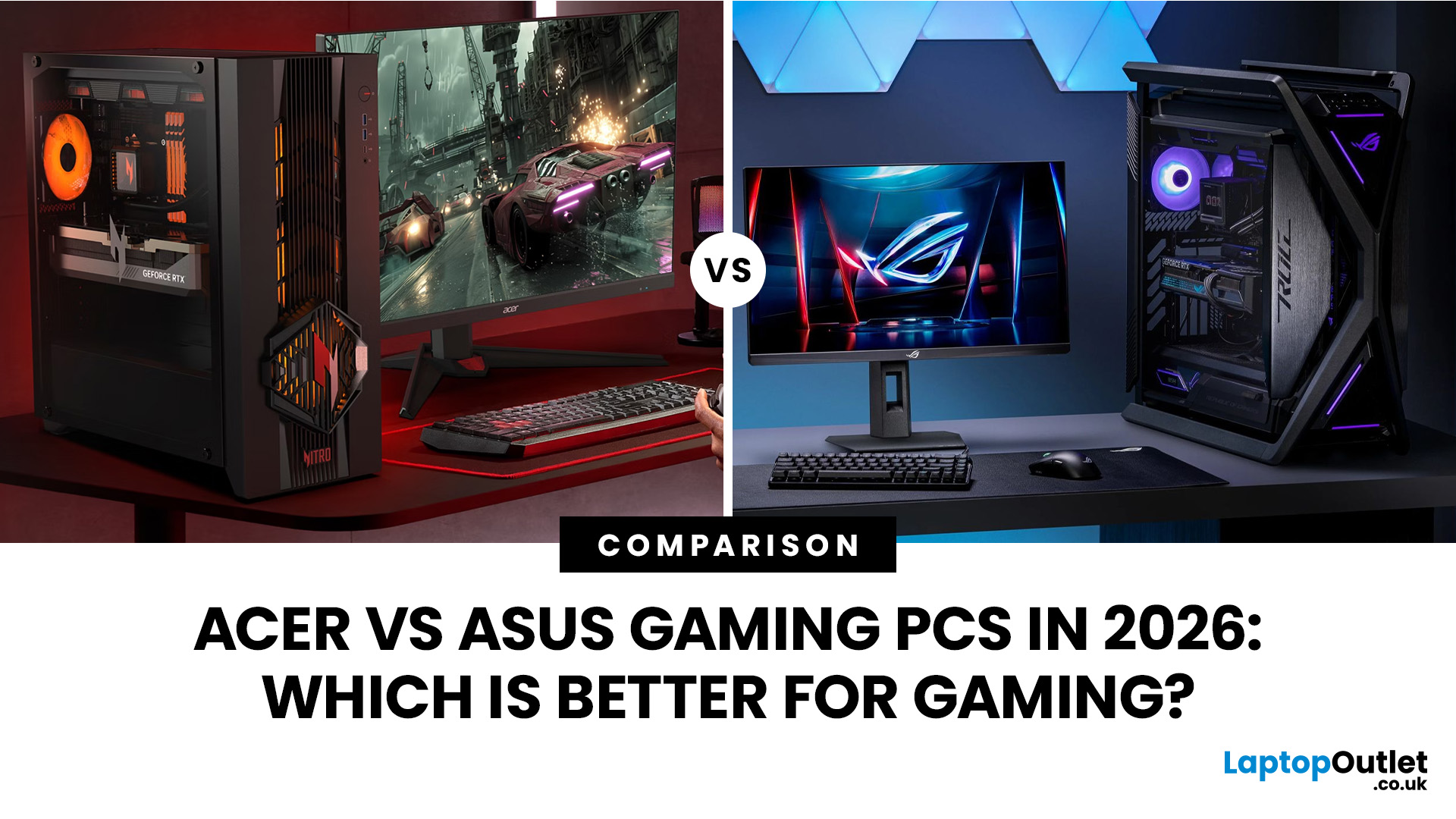
An Acer gaming PC can run Fortnite, Call of Duty: Warzone and Valorant, but the frame rate you get depends heavily on the graphics card, processor, resolution and in-game settings.
If you are comparing Acer gaming PC FPS, the biggest difference comes from whether you choose an entry-level RTX 3050 system, a newer RTX 5060 setup or a more powerful RTX 5070 desktop. Fortnite and Valorant are relatively accessible, while Warzone places much greater demands on your GPU, memory, and storage.
The Acer Nitro N20 and Predator PO3-665 desktops currently available from Laptop Outlet cover all three of these performance levels, so let’s look at what their specifications actually mean when you start playing.
Fortnite, Warzone, and Valorant PC Requirements in 2026
Before choosing a PC, compare its components against what the developers currently recommend.
| Game | Current PC Hardware Guidance | What You Should Aim For |
| Fortnite | Recommended: GTX 960-class GPU, Core i5-7300U/Ryzen 3 3300U and 16GB RAM. Epic |
Last Updated: August 18, 2026
Choosing the best AMD gaming PC in 2026 is less about buying the fastest processor and more about matching the CPU, GPU, memory and monitor to your target resolution. AMD Ryzen processors scale from efficient integrated-graphics systems for light Full HD gaming to X3D-equipped towers built for demanding AAA titles.
This guide compares six current AMD Ryzen gaming PCs across 1080p, 1440p and 4K use. It explains where each system makes sense, where it has limitations and which games suit its hardware.
Best AMD Gaming PCs at a Glance
The six systems below cover very different levels of gaming performance. That matters because an office-focused PC with integrated graphics should not be judged in the same way as dedicated gaming desktop PCs equipped with RTX graphics.
| PC | Processor | Graphics | RAM | Storage | Best For |
| Lenovo ThinkCentre M75s Gen 2 | Ryzen 5 5600G | Integrated Radeon | 8GB DDR4 | 256GB SSD | Light 1080p gaming |
| Lenovo IdeaCentre AIO 24ARR9 | Ryzen 5 7533HS | Radeon 660M | 16GB DDR5 | 512GB SSD | Casual 1080p |
Last Updated: August 20, 2026
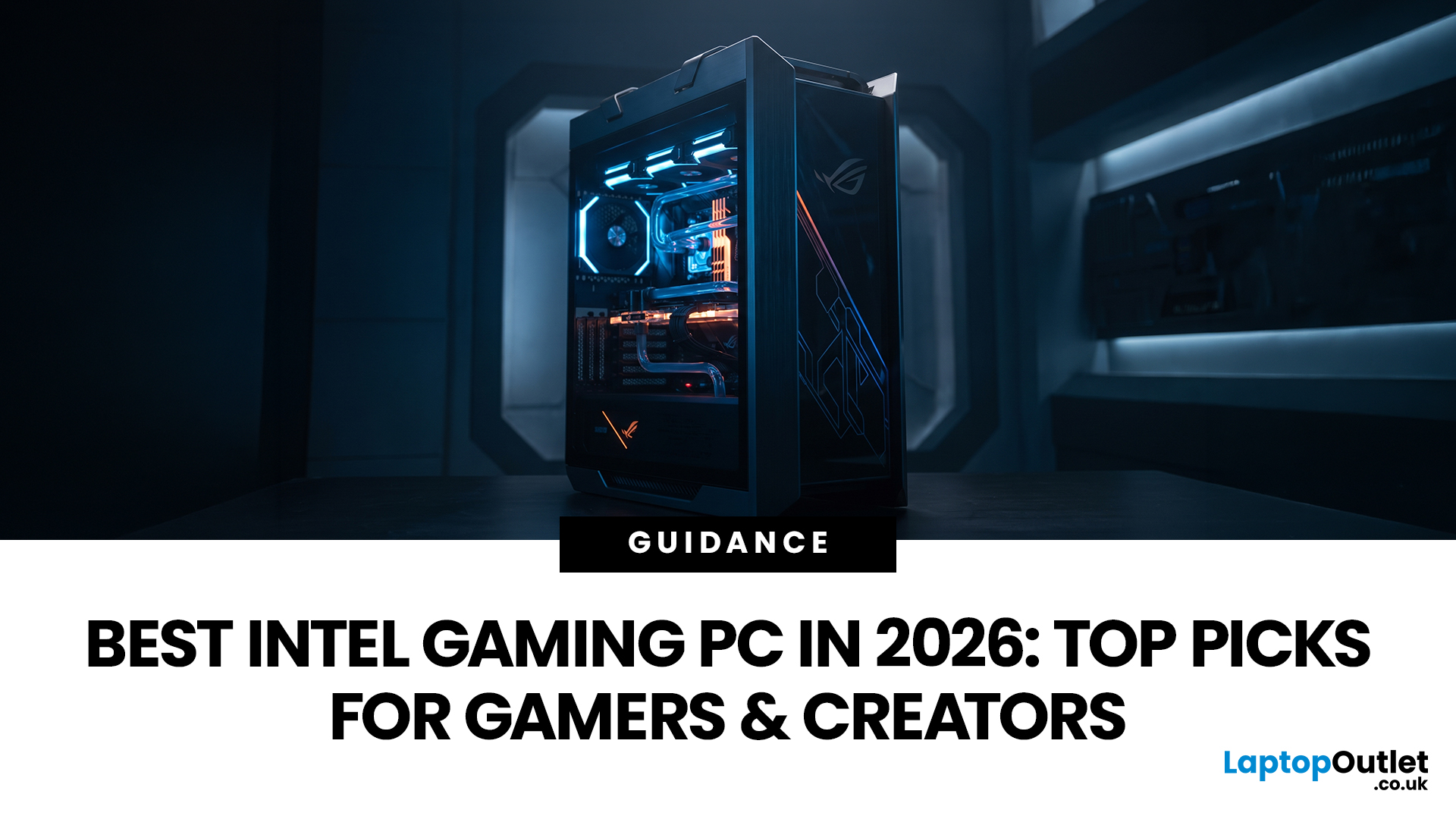
Choosing the best Intel PC for gaming and creative work in 2026 means looking beyond the processor name. CPU performance matters, but your graphics card, system memory, storage and cooling can have just as much impact on how the PC handles games and demanding applications.
This guide compares eight Intel-powered desktops for different types of gamers and creators, from accessible 1080p systems to powerful 4K gaming and content-creation PCs.
Why Intel PCs Make Sense for Gaming and Content Creation
Intel is a strong choice for gaming and content creation because its desktop range covers everything from mainstream Core i5 systems to more powerful Core i7 and Core Ultra configurations. That gives buyers plenty of choice when matching performance to gaming, streaming or creative workloads.
Many high-performance Intel processors use a hybrid architecture with Performance-cores and Efficient-cores. With Intel Thread Director, compatible systems can help the operating system prioritise demanding

