



How to Maintain a Laser Printer for Long-Term Use
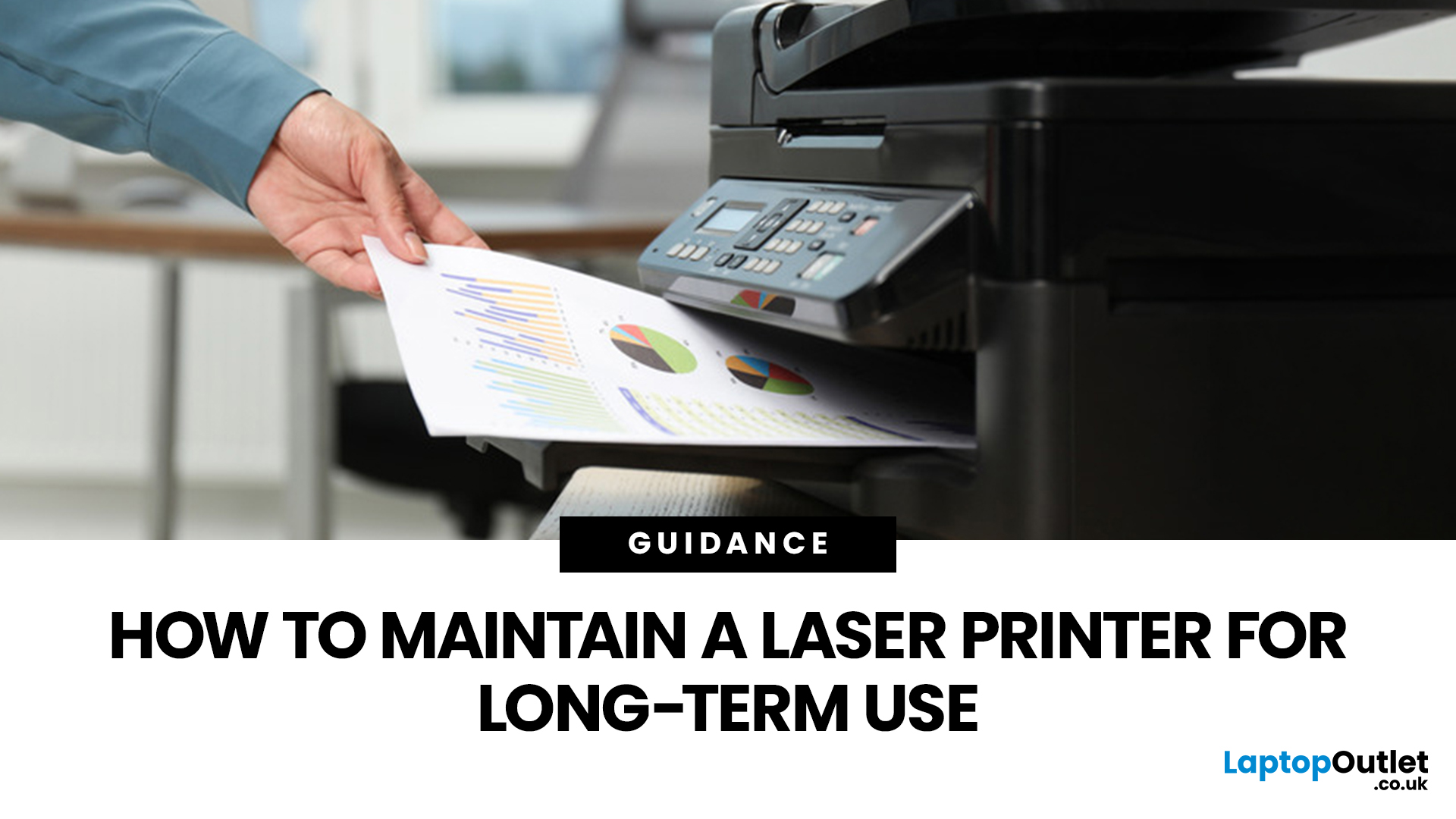
Laser printers are built for sharp text, fast output, and dependable running costs, but they still need routine care to stay reliable year after year. Dust, paper debris, toner residue, worn feed parts, and poor storage habits can all shorten a printer’s life long before any major component actually fails.
The good news is that laser printer maintenance does not need to be complicated. A sensible routine can help reduce smudging, paper jams, streaks, faded print, and unnecessary consumable waste. It can also help you maintain stable print quality for longer, which matters whether you are printing coursework at home, handling household paperwork, or managing documents in a busy office.
This guide covers the practical side of laser printer cleaning and long-term care, including how to clean a laser printer safely, what to check regularly, how to handle toner and drum maintenance, and when maintenance stops making sense, and replacement becomes the smarter choice. If you are still weighing up printer types or planning an upgrade later, it is also worth browsing the full printer range to compare what suits your workload.
Laser Printer Maintenance at a Glance
If you want printer maintenance for better print quality, focus on the parts that directly affect print marks and paper feeding. Most printers have cleaning features built into the control panel. Your job is to use them at sensible intervals and keep the printer in a clean environment.
|
Area |
What to Check |
Why It Matters |
|
Paper trays |
Dust, curled paper, poor alignment |
Helps reduce jams and skewed feeding |
|
Exterior and vents |
Surface dust and blocked airflow |
Supports cleaner operation over time |
|
Feeder and scanner areas |
Roller marks, streaks, feeder dust |
Helps keep copies and scans clean |
|
Toner cartridge |
Correct seating, leaks, low toner |
Prevents print defects and toner errors |
|
Drum unit |
Streaks, repeated marks, wear |
Helps maintain consistent print quality |
|
Paper path |
Loose paper scraps and dust |
Reduces recurring jams |
|
Print settings |
Wrong media type, toner save mode |
Affects print quality and wear |
|
Internal cleaning functions |
Cleaning pages and maintenance cycles |
Helps clear residue from key areas |
Why Laser Printer Care Matters More Than Most People Think

Many printer problems start as maintenance issues rather than hardware faults. That is why routine laser printer maintenance matters. If paper dust builds up, rollers grip less reliably. If toner residue collects in the wrong place, pages can come out streaked or smudged. If you keep loading damp or curled paper, the printer can look unreliable even when the mechanism itself is fine.
Good laser printer care is really about reducing avoidable stress on the machine. That means:
- Keeping the paper path clean
- Loading the right media properly
- Checking consumables before quality drops badly
- Using cleaning functions when needed
- Not ignoring early signs of wear
If you stay on top of those basics, you can often get better print quality for longer and put off replacement costs.
Maintenance Schedule for Long-Term Performance
Most people do nothing until the printer starts misbehaving. A better approach is to have a light routine that keeps problems from building up.
|
Frequency |
What to Do |
Best For |
|
Weekly or every two weeks |
Check paper condition, clear output tray, keep exterior dust-free |
Home users, students, light office use |
|
Monthly |
Inspect toner status, clean tray area, check for scraps after jams |
Regular home office and small business use |
|
Every 2 to 3 months |
Clean feeder rollers and scanner strip on multifunction models, wipe vents, review print settings |
Shared printers and heavier usage |
|
When print quality changes |
Run built-in cleaning functions, inspect toner and drum condition |
Any setup with new streaks, marks, or smudges |
|
When replacing consumables |
Clean accessible areas and reseat parts carefully |
Toner and drum replacement |
If you mainly print schoolwork, household forms, and occasional home-office documents, it’s often easier to maintain a compact device that matches your real volume. Browse home printers to compare size, connectivity, and everyday usability.
Laser Printer Cleaning Step by Step
Laser printer cleaning tips are only helpful if they’re safe. Laser printers combine heat, fine toner powder, and static-sensitive components. The goal is not to scrub every inch inside the machine. The goal is to clean the right areas, in the right order, without spreading toner dust or damaging parts.
Prep And Safety First
- Pause printing and, if possible, clear queued jobs.
- Turn the printer off and unplug it.
- Let it cool down before opening access panels. Some printers explicitly recommend waiting a short period to ensure internal areas are safe to handle.
- Clear a clean workspace and place a sheet of disposable paper down before removing a toner or drum unit.
- Use a soft cloth. Avoid tissues and paper towels where they might shed fibers or stick (model-specific, unspecified unless your manual warns).
- Avoid volatile cleaners and solvents. A common manufacturer's warning is to avoid chemical cleaners that can damage components.
What you need: two lint-free cloths (one dry, one lightly dampened with water), disposable paper, and cotton swabs for very specific drum cleaning steps, only if your printer manual supports it (unspecified unless your model’s support guidance confirms).
Clean The Exterior and Ventilation Slots
Exterior cleaning sounds basic, but it matters. Dust around vents can get pulled into the printer over time, reducing airflow.
- Wipe the exterior with a lightly dampened soft cloth.
- Do not soak the cloth. Damp, not wet.
- Let the printer dry fully before plugging it back in.
Practical UK note: If your printer sits near a radiator, in a utility room, or in a dusty under-desk space, expect to do this more often.
Clean The ADF, Feeder Rollers, And Scanning Strip
This is essential laser printer care for all-in-one devices. Many people blame the printer when the real issue is the feeder system.
Use this approach when:
- Scans or copies show streaks or smudges
- Originals come out dirty
- The feeder jams frequently
- Printouts appear smudged after scanning, copying, or faxing (model-dependent)
A typical manufacturer-approved method is:
- Power off and unplug.
- Open the feeder cover.
- Wipe the feeder rollers and the surrounding area with a cloth soaked in water and wrung out, then wipe dry.
- Open the feeder and wipe the scanning area with the same damp-and-dry approach.
- Let parts dry completely before powering back on.
Many devices also offer a feeder-cleaning routine that runs plain paper through the feeder to lift dust and graphite residues. When available, it’s often worth using after manual wiping.
If scanning and copying are central to your workflow, you’ll usually get better long-term results from a model designed for frequent document handling. Explore all-in-one printers to compare devices built for home and office scanning.
Clean Paper Trays and Feed Rollers Without Overdoing It
Paper dust is a common cause of misfeeds and repeat jams, especially with low-cost paper or older reams stored in damp spaces.
Start with the basics:
- Remove the paper tray
- Empty loose paper dust (do not blow it deeper into the machine)
- Wipe the tray area with a dry cloth
- Reload paper neatly with guides snug, not bending the stack
If your printer offers a built-in “paper feed roller cleaning” function, use it only when the printer is struggling to pick up paper. Some manufacturers warn that roller cleaning can wear out the feed roller, so it should be done only when necessary (model-specific).
UK tip: Paper stored in cupboards, loft spaces, or near windows can absorb moisture and curl slightly, which can increase misfeeds. Keeping one sealed ream for “important prints” reduces preventable jams.
If your use case is dominated by shipping labels, you may reduce wear on your document printer by using a dedicated label device. Browse label printers if labels are frequent rather than occasional.
Cleaning Laser Printer Drum and Corona Wire
Your printer may have either:
- An integrated toner-and-drum cartridge (common in some ranges, model-specific, unspecified), or
- Separate toner and drum components, where you can maintain or replace them independently (model-specific)
Cleaning The Corona Wire Tab
Some drum units include a corona wire cleaning tab (often a small colored slider).
A manufacturer-recommended process typically includes:
- Remove the toner and drum assembly slowly.
- Place it on disposable paper to avoid toner scatter.
- Slide the cleaning tab left and right several times.
- Return it to the home position. If it’s not returned properly, the printer can produce vertical stripes.
- Avoid touching electrodes and contacts to reduce static-related damage risk.
This is one of the highest-impact “routine laser printer maintenance” actions because it directly affects uniform charge and clean transfer.
If you’re cleaning the corona wire because you’re seeing vertical streaks, our Laser Printer Troubleshooting guide walks through the other common causes.
Cleaning Laser Printer Drum Safely
Drum cleaning is model-dependent. Many printers provide a built-in “drum cleaning” or “print quality” maintenance routine. If your device offers one, use it first (unspecified by model, check your manual).
If your manufacturer provides manual drum cleaning steps for spots or marks, follow them precisely. One common warning is to avoid using sharp objects on the photosensitive drum.
Good rule of thumb: If you cannot clearly identify the safe-to-touch surfaces based on the manufacturer’s support guidance, do not attempt manual drum cleaning. In many cases, replacing the drum unit is the correct fix when quality defects persist.
Fuser And Fixing Assembly Cleaning Routines
If you’re seeing black streaks, smudges, or debris on the pages, the heat-bonding area (often referred to as the fixing assembly or fuser area) may be the cause.
Two safe options commonly exist:
Run a Built-In Fixing Assembly Cleaning Routine
Some printers offer a menu option to clean the fixing assembly, often requiring plain A4 paper, and then run a short cleaning cycle. Some manuals also note that cleaning can consume toner, so you should ensure sufficient toner remains before starting.
Print A Fuser Cleaning Page Where Available
Many printers provide a fuser cleaning page or cleaning mode. This is typically run from a print quality or service menu and may display a “do not grab the paper” message until the procedure completes.
Important: Do not power off mid-cleaning cycle unless the printer instructs you to. If your printer does not list a cleaning routine in its menu or manual, treat it as unavailable (unspecified).
When to Call Service Instead of Cleaning Again
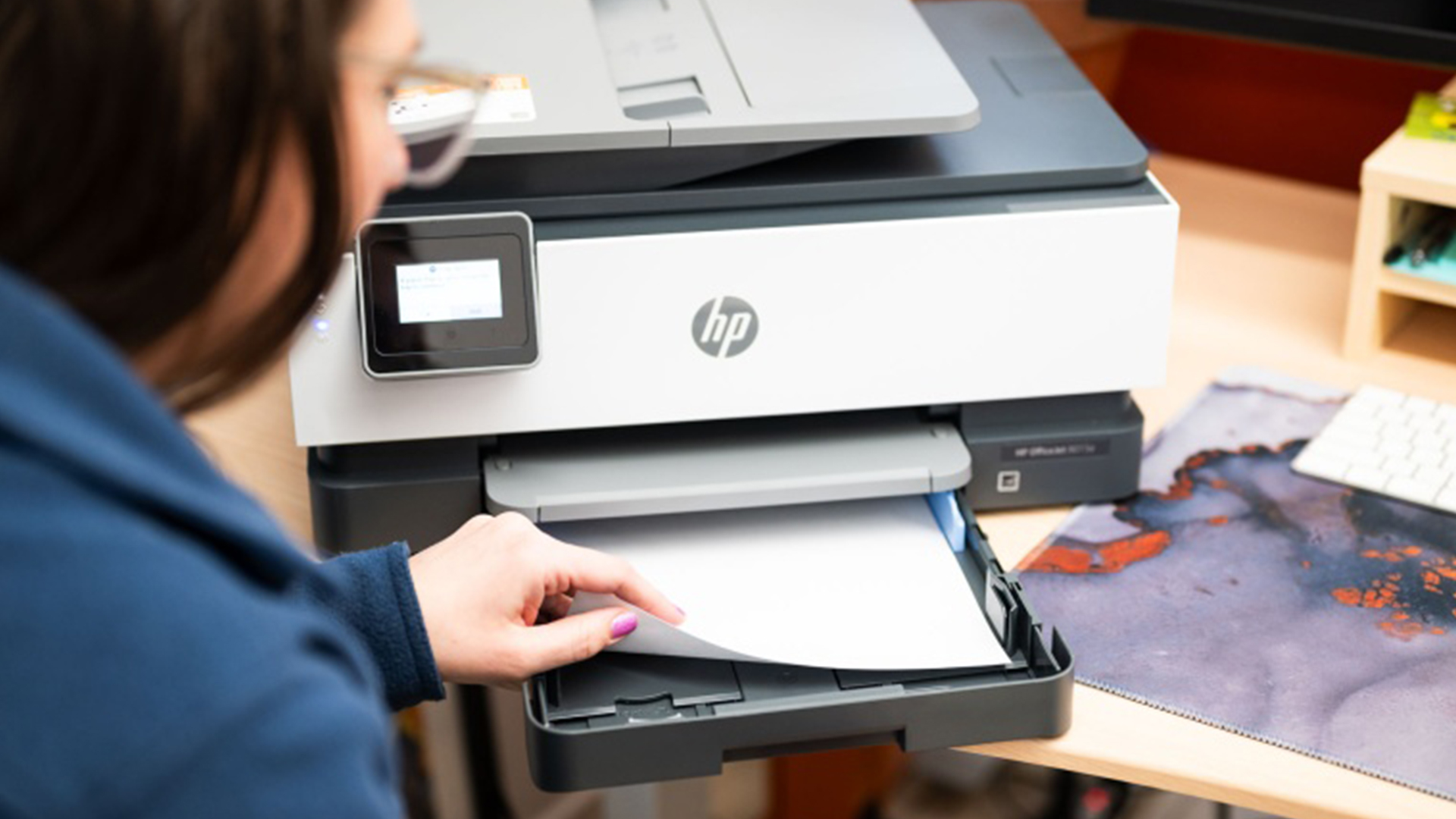
Laser printer repair tips are useful, but there’s a clear point where maintenance ends and repair begins.
Stop DIY work and consider service if:
- You smell overheating or burning
- The printer repeatedly jams in the same place after you’ve removed scraps and cleaned trays
- Print defects persist after you’ve run the manufacturer cleaning routines
- The printer displays a drum or fuser error that returns immediately after reset attempts (model-specific, unspecified)
- The device is under warranty and your manual restricts internal access
If you’re in a shared office setup where downtime is expensive, you may be better served by a model built for heavier-duty cycles and easier fleet management. Browse office printers for business-appropriate options.
Toner Cartridge Maintenance
Toner cartridge maintenance is mostly about prevention: careful removal, clean installation, and safe cleanup if something goes wrong.
How To Handle Toner Without Making a Mess
- Move slowly when removing cartridges.
- Place the assembly on disposable paper.
- If toner splashes onto the skin or clothing, use cold water. Some official guidance specifically calls out washing toner off with cold water.
- Avoid shaking cartridges unless your manufacturer instructs you to do so.
What To Do If Toner Spills
For home and office safety, the key is avoiding a toner dust cloud.
It is recommended to use a damp cloth rinsed in cold water to soak up toner spills, taking care not to generate dust (and avoid using a brush), and avoiding hot water, as toner can partially melt and become sticky.
Practical cleanup sequence:
- Keep people out of the area for a moment, especially if anyone has asthma or is at risk of respiratory irritation.
- Use a cold, damp cloth to gently lift the toner rather than sweeping aggressively.
- Bag waste carefully to prevent toner dust escaping.
- Wash your hands with cold water.
If toner spills inside the printer beyond areas you can reach safely, stop and follow manufacturer guidance. Forcing internal cleanup can push toner deeper into paper paths and sensors.
Counters, Resets, and Consumables
A lot of “maintenance” problems are actually counter problems. The printer believes a component has reached the end of its life, even after you replaced it. Or someone resets a counter early to clear a message, losing accurate tracking.
Know What Your Printer Tracks
Depending on the model, your printer may track:
- Toner
- Drum unit
- Maintenance kit components
- Waste toner container
Some printers use separate drum units. In those cases, it’s common to reset the drum counter manually after replacing the drum.
Reset Guidance That Avoids False Confidence
Official guidance from one major manufacturer is explicit: do not reset the drum counter unless you are replacing the drum unit. Resetting without replacement prevents the machine from correctly calculating the remaining drum life.
Practical rule:
- Replace the part first.
- Then reset the counter only if the printer does not automatically recognise the new part.
- If the device still shows the warning, re-check seating and model compatibility (unspecified unless your device manual lists supported consumables).
This is also where “upgrade vs maintain” becomes a real conversation: printers with separate consumables can be cheaper to keep running, but only if the rest of the device is still in good condition.
Laser Printer Maintenance Checklist
Use this as your laser printer maintenance checklist for routine checks, and as a quick response plan when output quality changes.
|
Area |
What To Check |
What To Do |
|
Paper and tray |
Curled paper, mixed sizes, guides loose |
Reload fresh paper, align guides, remove dust |
|
Exterior and vents |
Dust around vents and panels |
Wipe exterior, clear dust around vents |
|
ADF and scan strip (AIO only) |
Streaky scans, dirty originals, frequent feeder jams |
Wipe rollers and scanning area, run feeder cleaning if available |
|
Feed rollers |
Misfeeds, multi-feeds |
Run roller cleaning only if needed (can cause wear) |
|
Drum and corona wire |
Vertical streaks, inconsistent density |
Use corona tab cleaning and return to home position |
|
Fixing assembly or fuser |
Black streaks, debris on pages, smudging |
Run fixing assembly cleaning or fuser cleaning page routine |
|
Counters |
Warning persists after replacement |
Only reset counters after replacing the actual part |
Routine Laser Printer Maintenance for Home and Office Use
Routine laser printer maintenance does not need to look the same for everyone.
For Home Users and Students
If you print only occasionally, the biggest risks are:
- Dust build-up
- Stale or damp paper
- Long periods of disuse
- Forgetting to check settings
A simple light clean and paper check every so often is usually enough.
For Home Offices and Small Businesses
If you print more frequently, focus more on:
- Feeder cleanliness
- Paper storage
- Consumable monitoring
- Cleaning functions when quality starts to slip
For Label and Task-Specific Printing
If you regularly print shipping labels, stock labels, or similar output, it may make more sense to use professional label printers rather than put that workload on your main document printer.
When Maintenance Stops Being Worth It

Maintenance is worth doing when it restores performance. It’s not worth doing endlessly when the printer is simply past its best.
Keep And Maintain If
- Print quality improves after cleaning routines
- Jams are rare and clearly linked to paper condition
- Your cost per page is stable, and consumables last as expected
- You mainly print documents, and speed is still acceptable
If you’re happy with the printer type but you want a newer model with better wireless reliability or lower hassle, it’s worth browsing laser printers and comparing paper handling and duty cycle.
Upgrade If
- You’re repeatedly cleaning to “get through the week”
- You keep seeing streaks or smudges even after fixing the assembly or fuser cleaning
- You need scan and copy features, but you have a print-only unit
- Your workload has grown (more pages, more users, more heavy files)
If you’re upgrading because you need scanning and copying built in, explore our all-in-one printer range. If your printing has shifted to photo-heavy work rather than documents, consider inkjet printers as a more suitable “reliable inkjet printing solution” for colour images.

The Smart Way Forward
Laser printer maintenance is really about consistency. A clean tray, decent paper, sensible toner handling, occasional feeder cleaning, and the right built-in maintenance routine will usually do far more for long-term print quality than waiting for faults to build up.
The smartest approach is to keep the routine simple. Clean what is accessible, check the basics before replacing parts, and pay attention to early warning signs such as streaks, jams, dust buildup, and fading. That helps you avoid the cycle of poor output, rushed fixes, and unnecessary spending.
If your current printer still suits your workload, good laser printer care can help it stay useful for years. If maintenance is becoming a constant chore, that is often a sign the machine is no longer the right fit. In that case, comparing newer models across the laser printer range, office printers, or all-in-one printers is usually the more practical move.

Common Questions About Laser Printer Maintenance
What is laser printer maintenance?
Laser printer maintenance is the routine care that helps keep a laser printer clean, reliable, and printing at a consistent quality. It usually includes tray cleaning, toner checks, feeder cleaning, and using built-in maintenance functions when needed.
How often should I clean a laser printer?
For most users, light cleaning every few weeks and a more thorough check every couple of months is enough. If you print frequently, you may need to print more often.
How do you clean a laser printer safely?
Turn it off, unplug it, let it cool down, and clean only the accessible areas with a soft lint-free cloth. Avoid overhandling internal parts and do not force access to anything not designed for user maintenance.
How do I clean a laser printer drum?
Start with the printer’s own cleaning routine if it has one. If your model allows drum access, handle the unit carefully and avoid unnecessary contact with sensitive surfaces.
What helps improve print quality over time?
Good paper storage, clean trays, correct media settings, careful toner handling, and regular use of cleaning routines all help improve print quality over time.
Can toner cartridge maintenance improve print quality?
Yes. Correct toner installation, proper seating, and keeping the cartridge area clean can reduce streaks, poor transfer, and patchy output.
What is the best laser printer maintenance checklist?
A good checklist covers paper condition, tray cleanliness, feeder rollers, toner seating, print quality changes, jam clearance, and drum-related marks.
When should I replace my laser printer rather than maintain it?
If faults keep returning, print quality stays poor after cleaning, or the printer no longer suits your workload, replacement is usually the smarter long-term option.
| Read More: |
| How to Choose the Right Printer for Your Needs |
| Top 10 Ways to Save Money on Printer Ink in 2026 |
| Why Is My Printer Not Working? Easy Fixes for Common Issues |
Related Articles

Last Updated: April 22, 2026
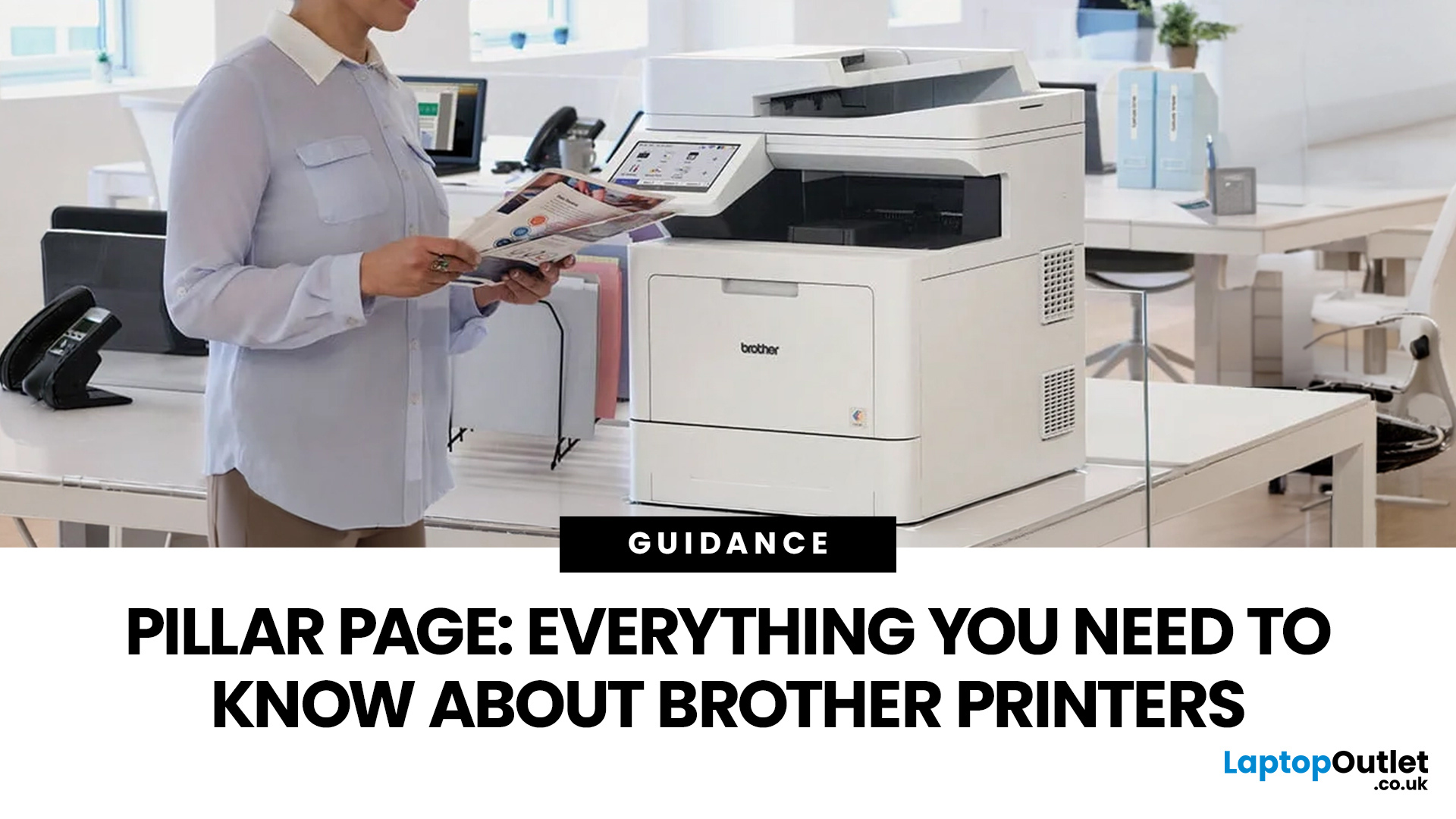
In the late 1980s, owning a printer wasn’t simple, unlike today - it was expensive, rare, and felt like a luxury. Printing was something most people could only dream of having at home.
Then Brother stepped onto the scene, redefining what a printer could be. They didn’t just enter the market, they changed it. By combining reliability, efficiency, and affordability, their printers quickly became a staple in offices and homes, setting a new standard for what printing could be.
Brother printers are widely used across the UK because they offer a practical mix of reliability, performance, and ease of use. However, with so many options available, inkjet, laser, all-in-one, wireless, the real challenge is understanding which one actually suits your needs.
This guide shows how their reliable, affordable, and easy-to-use printers fit real-life needs and helps you pick the right one without the tech overload.
What Makes Brother Printers So Popular?
Brother has built its reputation by focusing on
Last Updated: April 22, 2026
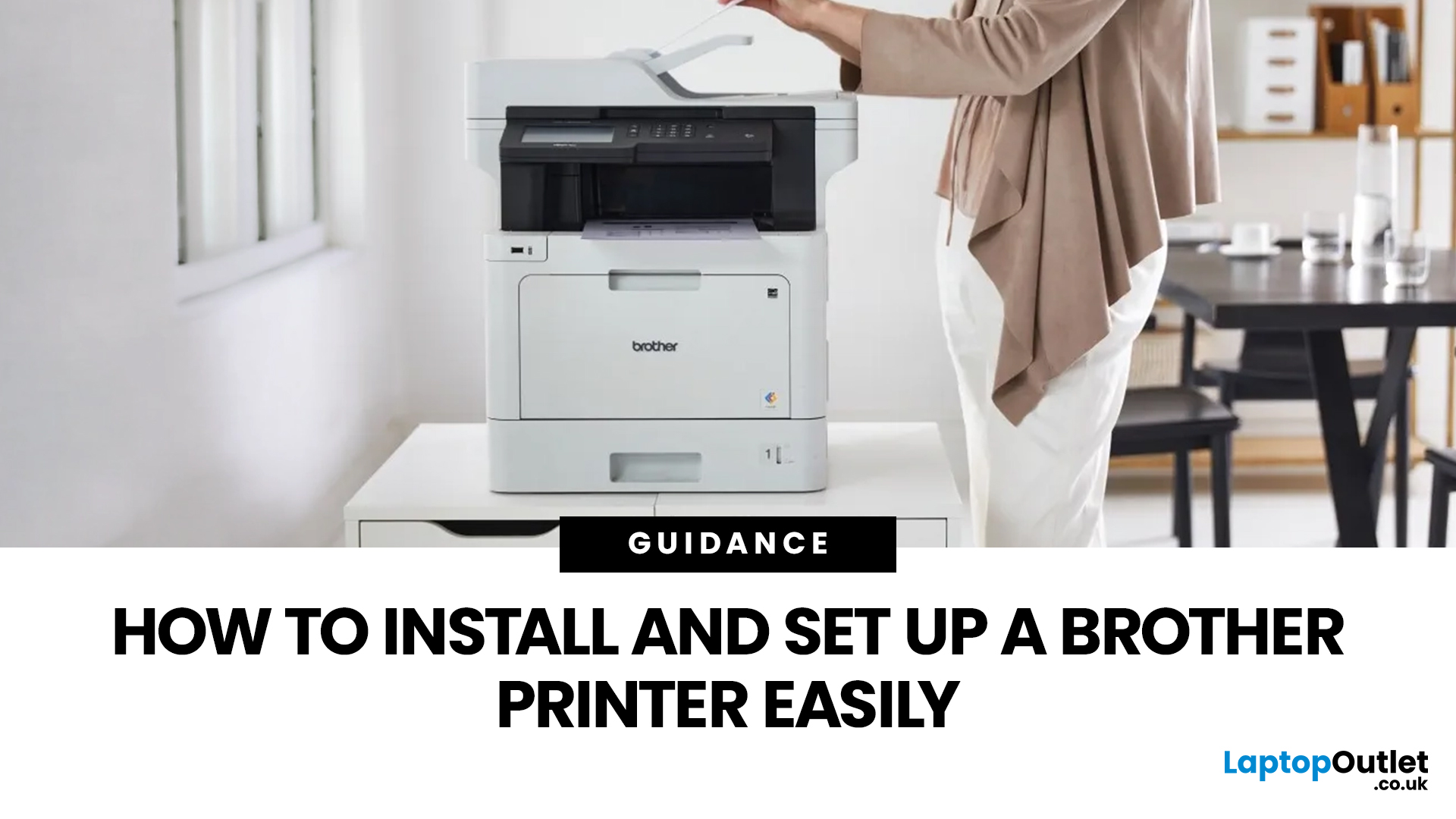
Setting up a new printer should be simple, but for many users, it can quickly become confusing. From installing toner to connecting to Wi-Fi and downloading drivers, even small steps can feel overwhelming if you are not sure what to do first.
This guide is designed to make Brother printer setup straightforward and stress-free. Whether you are installing a printer for the first time, replacing an old device, or setting up a wireless connection in a home or office environment, this step-by-step guide will walk you through everything you need to know.
By the end of this guide, you will have your Brother printer fully installed, connected, and ready to use.
Before You Start: What You Need for Brother Printer Setup
Before jumping into the installation process, it helps to prepare everything in advance. This avoids interruptions and makes the setup process much smoother.
You will typically need:
- Your Brother printer
- Power cable
- Ink cartridges or toner (included with most models)
- Paper for testing
Last Updated: April 22, 2026
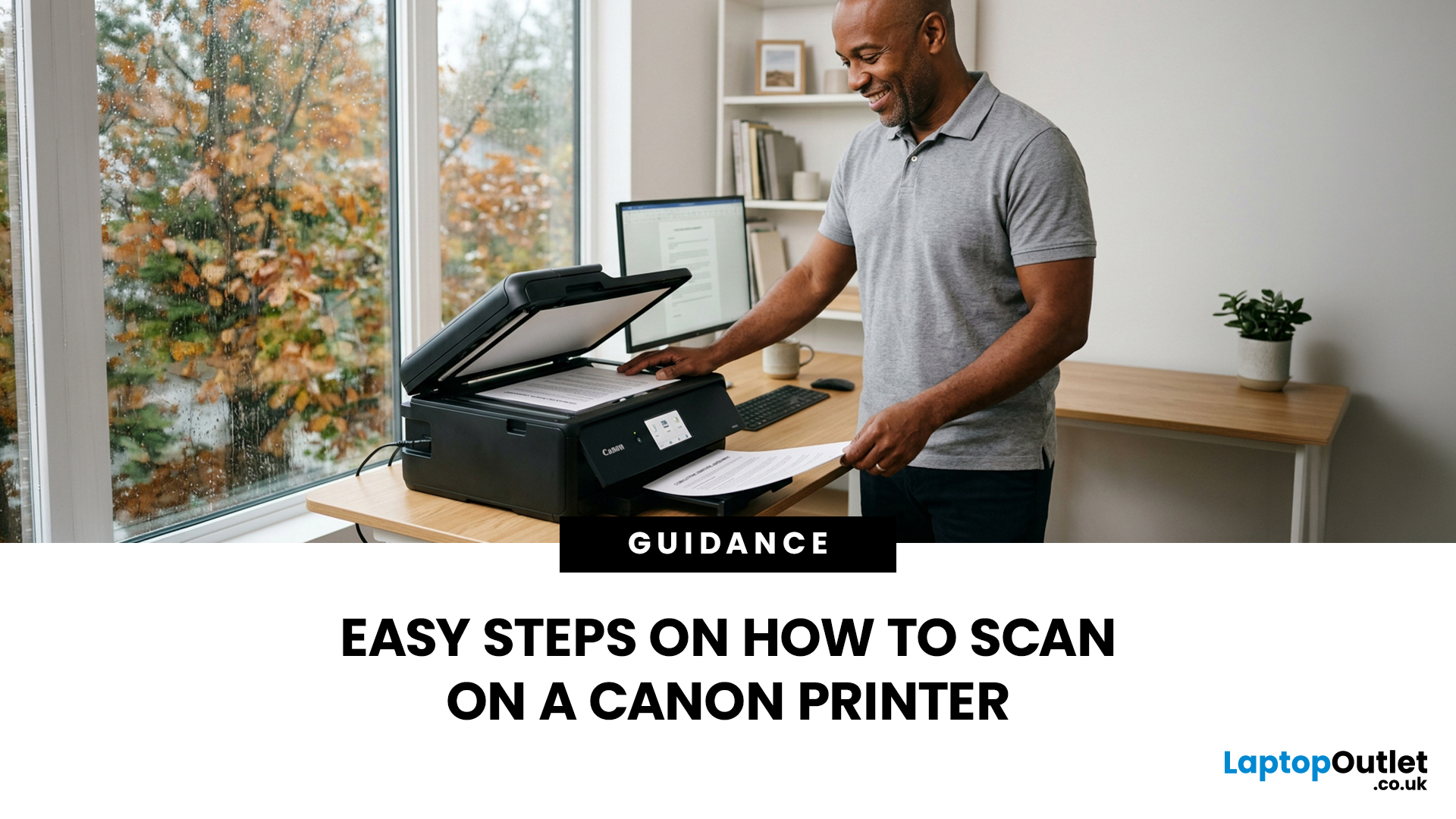
Canon makes some of the most popular multipurpose printers on the market, and for good reason. They're reliable, straightforward to use, and the scanning function is genuinely one of the better ones you'll find on a home or office printer. But if you've never used it before, staring at the control panel wondering where to start is a perfectly normal experience.
This guide covers everything you need to know to scan a document on a Canon printer, whether you're on Windows, Mac, or going straight from the printer itself. No fluff, just the steps that actually work.
Get These Things Sorted Before You Start
You don't need much to get going, but skipping these checks is how people end up wasting twenty minutes troubleshooting something obvious.
Make sure your Canon printer is switched on and connected to your computer, either by USB or over Wi-Fi. If it's a wireless connection, both your printer and computer need to be on the same network. Also confirm that your Canon drivers are installed.
Last Updated: April 22, 2026
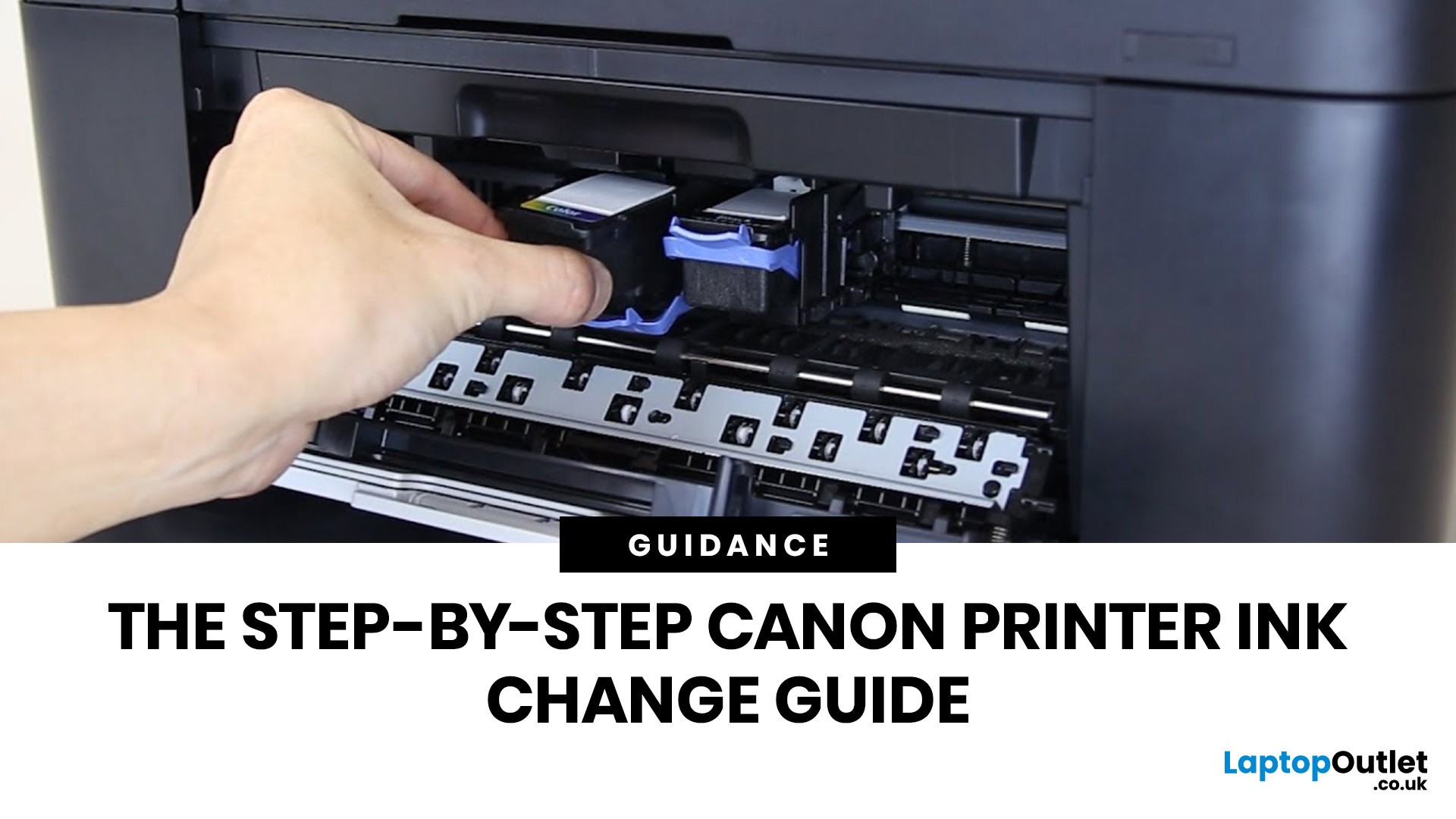
Running out of ink at the wrong moment is genuinely frustrating. Knowing how to change ink in a Canon printer quickly and confidently means less downtime, less wasted paper, and no panicked Googling mid-print.
Canon makes some of the most reliable inkjet printers on the market, and replacing the ink is one of those tasks that feels daunting the first time but becomes routine very quickly. This guide covers everything from the tools you need to the steps themselves, plus tips on cartridge costs, common mistakes, and what to do if problems persist after installation.
What You Need Before You Start
Before diving into the steps, it's worth taking a moment to get everything in order. A well-prepared workspace makes a Canon printer cartridge change much smoother and avoids unnecessary mess or confusion.
Here's what to have ready:
- The correct replacement cartridge for your specific Canon model
- A clean, flat surface to work on
- A tissue or lint-free cloth for any small drips
Always check your

Last Updated: April 22, 2026
Getting your Canon printer onto your home or office WiFi is easier than you might think. This guide covers every method available to help you connect Canon printer to WiFi, whether you have a touchscreen model, a basic entry-level printer, or you prefer to set things up from your phone. We have also included a troubleshooting section at the end for when things do not go quite to plan.
What to Have Ready Before You Begin
It is worth taking two minutes to gather everything before you start setting up Canon printer to WiFi, as it will save you stopping halfway through. Most connection problems come down to one missing detail at this stage.
Here is what you will need:
- Your WiFi network name (SSID) and password (case-sensitive)
- A Canon wireless printer with the WiFi indicator light present
- The Canon PRINT Inkjet/SELPHY app if you plan to set up via smartphone
One thing worth checking: most Canon

Last Updated: June 05, 2026
Buying a new printer sounds straightforward until you're faced with dozens of models, confusing specs, and overlapping features. If you're specifically looking at the best Canon printers, you've already made a solid start. Canon is one of the most trusted names in printing, with a range that covers everything from budget-friendly home models to high-volume business workhorses.
This Canon printer buying guide walks you through every series, every key feature, and every use case, so you can buy with confidence and get exactly what you need.
Start With Your Printing Needs and Usage Type
Before choosing a Canon printer, it is important to understand how often you will use it and what tasks you need it for, as this directly affects performance, features, and overall cost. A clear understanding of your usage helps narrow down the best options quickly.
Light Home Use Vs Heavy Office Workloads
If you only print occasionally, such as documents, tickets, or homework, basic home printers are usually

Last Updated: April 22, 2026
Printers are one of those devices you only notice when something goes wrong. One day everything works fine, and the next day your printer refuses to print, shows as offline, or gets stuck with a paper jam. These issues can be frustrating, especially when you need something printed urgently.
The good news is that most Brother printer problems are not serious. In many cases, the issue is related to setup, connectivity, or simple maintenance rather than a fault with the printer itself. Once you understand how to diagnose and fix these problems, you can save time and avoid unnecessary replacements.
This guide covers the most common Brother printer issues and provides clear, practical solutions. Whether you are using a home printer, a multifunctional device, or a printer for office use, this troubleshooting guide will help you get things working again quickly.
Understanding Common Brother Printer Problems
Before jumping into fixes, it helps to understand why problems occur in the first place.
Last Updated: April 22, 2026
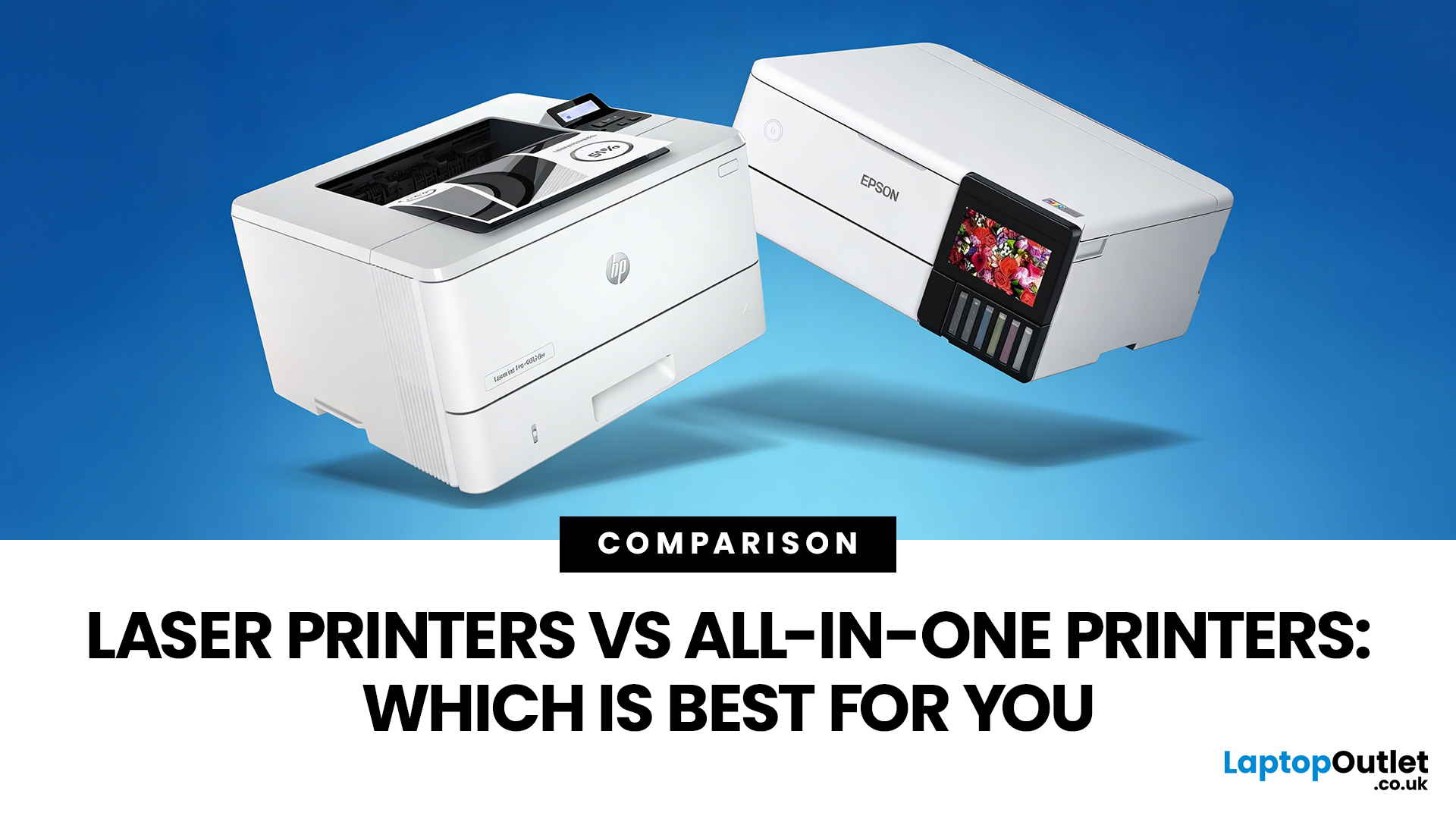
Choosing between Laser printers vs all-in-one printers sounds simple until you realise the two terms do not describe the same thing.
A Laser printer refers to the way the printer works. An all-in-one printer refers to the machine's capabilities, usually printing, scanning, and copying in one unit. That means some all-in-one printers are Laser models, while others are inkjet. So, when people compare all-in-one vs Laser printers, what they are really trying to work out is whether they need stronger print performance or broader day-to-day flexibility.
For some buyers, the Laser is the clear winner. For others, an all-in-one makes far more sense. The right choice depends on how often you print, what you print most, and whether scanning and copying matter as much as printing itself.
If your priority is fast document printing, crisp text and lower running costs over time, a Laser model is usually the smarter fit. If you want one machine that can handle household paperwork, scanning, copying and

Last Updated: April 22, 2026
If most of your printing revolves around invoices, reports, coursework, labels, forms, shipping documents, and everyday admin, a Laser printer usually makes more sense than many buyers first realise. A lot of people still think of Laser printers as large, office-only machines built for big companies, but that view is out of date. Today, you can find compact monochrome models for home desks, colour models for presentation-heavy work, and multifunction machines that print, scan, copy, and fax without dominating your space.
That matters because the right Laser printer can save time every week, keep text consistently sharp, reduce day-to-day hassle, and lower running costs when your workload is document-heavy. The wrong one can leave you paying extra for features you never use or relying on a machine that isn't actually built for the way you print.
This guide explains how Laser printers work, where they perform best, the main advantages and disadvantages to weigh up, and which features matter

Published: April 13, 2026
Inkjet printers are one of the most widely used printing solutions across UK homes, students, and small offices. They are affordable, versatile, and capable of producing high-quality colour output. But if you have used one for any length of time, you already know they can also be frustrating.
From faded prints to clogged nozzles and random error messages, inkjet printer problems are common. The good news is that most of these issues are not serious faults. In many cases, they are caused by usage habits, maintenance gaps, or simple setup errors. This guide goes beyond quick fixes. It explains why these problems happen, how to fix them properly, and how to prevent them in the future so your printer stays reliable long-term.
Why Inkjet Printer Problems Are So Common
To understand inkjet printer troubleshooting, you need to understand how these printers work in real use. Unlike laser printers, inkjet printers rely on liquid ink. That ink is pushed through extremely small nozzles to create

