



CMR vs SMR Hard Drives: Which Should You Choose?
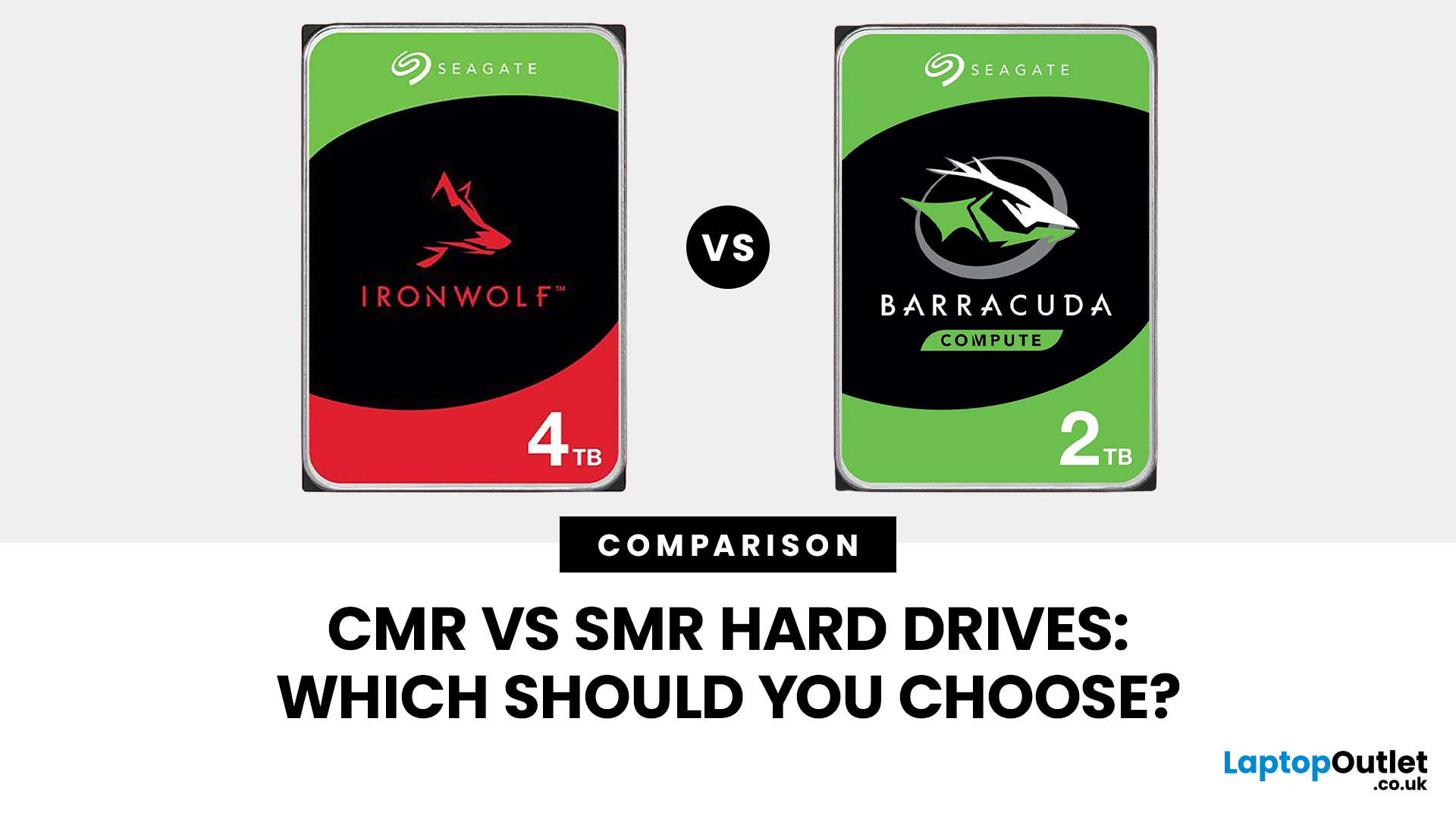
Quick Answer: When comparing CMR vs SMR hard drives, choose CMR for frequent writes, large file transfers, NAS systems, RAID arrays and other workloads where consistent write performance matters. SMR can make sense for lower-cost bulk storage, backups and lighter, read-heavy use where data is written less frequently.
The difference comes down to how data tracks are arranged on the disk. Conventional magnetic recording keeps tracks separate, whereas shingled magnetic recording overlaps them to fit more data onto the platter. That design can affect how the drive behaves when you repeatedly write or overwrite large amounts of data.
So, is CMR always better? Not necessarily. Let’s look at what each HDD recording technology actually does, and which one makes sense for your PC, backup setup, NAS, or game library.
What is a CMR Hard Drive?
A CMR hard drive uses Conventional Magnetic Recording. Data tracks are written next to one another without intentionally overlapping neighbouring tracks. This means the drive can generally rewrite one area without first having to reorganise data in surrounding tracks. As a result, CMR is well suited to workloads involving regular data changes, sustained transfers, and repeated writing.
Western Digital currently recommends CMR for active workloads, NAS systems, and RAID environments because of its more consistent write behaviour. CMR is particularly worth considering when you:
- regularly copy or edit large files
- use the HDD for active project storage
- run a NAS or multi-drive storage system
- rebuild RAID arrays
- write large datasets repeatedly
- want more predictable sustained-write behaviour
If you are upgrading a PC or building a larger-capacity storage setup, you can compare all hard drives before deciding which capacity, speed and recording technology fit your workload.
What is an SMR Hard Drive?
An SMR hard drive uses Shingled Magnetic Recording. Instead of placing every track completely alongside the previous one, parts of the tracks overlap, similar to roof shingles.
That overlapping arrangement allows manufacturers to increase recording density. Reading an SMR track works normally, but rewriting existing data may require neighbouring overlapping data to be read and written again. Drive caches and firmware help manage this process, although write speeds can fluctuate depending on the workload. That is why SMR tends to work best where data is written relatively infrequently and read more often. Typical examples include:
- secondary PC storage
- personal media collections
- infrequently changed archives
- certain backup workloads
- relatively light everyday storage
SMR should therefore not simply be described as a slower or inferior version of CMR. It is a different way of increasing drive density with different performance characteristics.
In fact, SMR continues to be developed for large-scale data centres. Toshiba announced 30TB to 34TB M12 SMR enterprise drives in March 2026, while Western Digital also uses UltraSMR in high-capacity data-centre products. These systems are specifically designed around SMR workloads, however, so they should not be treated as evidence that any consumer SMR drive is appropriate for a conventional RAID or NAS setup.
CMR vs SMR Hard Drives: Key Differences
|
Feature |
CMR |
SMR |
|
Track layout |
Tracks sit alongside one another |
Tracks partially overlap |
|
Write behaviour |
Generally more consistent |
Can slow during sustained or repeated writes |
|
Read performance |
Suitable for frequent reading |
Generally well suited to read-heavy use |
|
Large transfers |
Better suited to frequent sustained writes |
Performance may vary once caching is exhausted |
|
NAS and RAID |
Usually the safer choice |
Check manufacturer and NAS compatibility carefully |
|
Archival storage |
Suitable |
Often suitable for lighter, read-heavy storage |
|
Frequent file changes |
Better suited |
Less ideal for intensive rewriting |
|
Storage density |
Conventional arrangement |
Overlapping tracks can increase density |
|
Best for |
Active data, RAID, NAS, heavier workloads |
Bulk, archive and lighter-write storage |
The important point is that recording method is only one specification. RPM, cache, firmware, workload rating, interface, reliability features, and the intended application can also affect which drive is right for you.
Why Can SMR Sustained Write Performance Slow Down?
Small file transfers do not always reveal much difference between the two technologies because an SMR drive can use cache and internal data-management techniques to absorb incoming writes.
The difference becomes more noticeable when that buffer can no longer hide the extra work involved.
With SMR, rewriting an existing area can require the drive to preserve and rewrite neighbouring data because tracks overlap. A long file transfer, large backup, database operation, or another write-heavy task may therefore result in less consistent SMR sustained write performance.
Expert Tip: Do not judge an HDD solely by the maximum transfer-speed figure on its specification sheet. If your workload involves hours of continuous writing, recording technology and workload rating can matter just as much as headline sequential speed.
CMR vs SMR for Gaming: Does It Really Matter?
For CMR vs SMR for gaming, the first question should actually be whether the game belongs on an HDD at all.
For frequently played modern games, an SSD is normally the better primary choice because it offers much lower access latency and substantially faster random access than a mechanical hard drive. An HDD remains useful when you need affordable capacity for a large library, older titles, recordings, captures, or games you do not play regularly.
If choosing between two HDDs, either technology can read installed game files. CMR becomes more appealing if the drive frequently handles:
- large game installations
- major updates and patches
- moving games between drives
- gameplay recordings
- repeated deletion and reinstallation
An SMR disk can still serve as inexpensive game-library storage, particularly when games are written once and then mainly read. Just do not expect the recording technology itself to improve frame rates.
For a mixed PC-storage setup, you can also compare dedicated internal hard drives alongside SSDs and other storage formats. If you are still deciding whether a mechanical drive suits your setup at all, our SSD vs HDD guide compares speed, capacity, cost and everyday use cases before you choose.
Should You Use SMR Hard Drives in RAID?
This is where choosing the correct technology becomes more important.
A RAID rebuild can involve reading from existing drives while writing a large amount of reconstructed data to another disk. That creates the kind of sustained write workload where conventional consumer SMR behaviour may be less predictable.
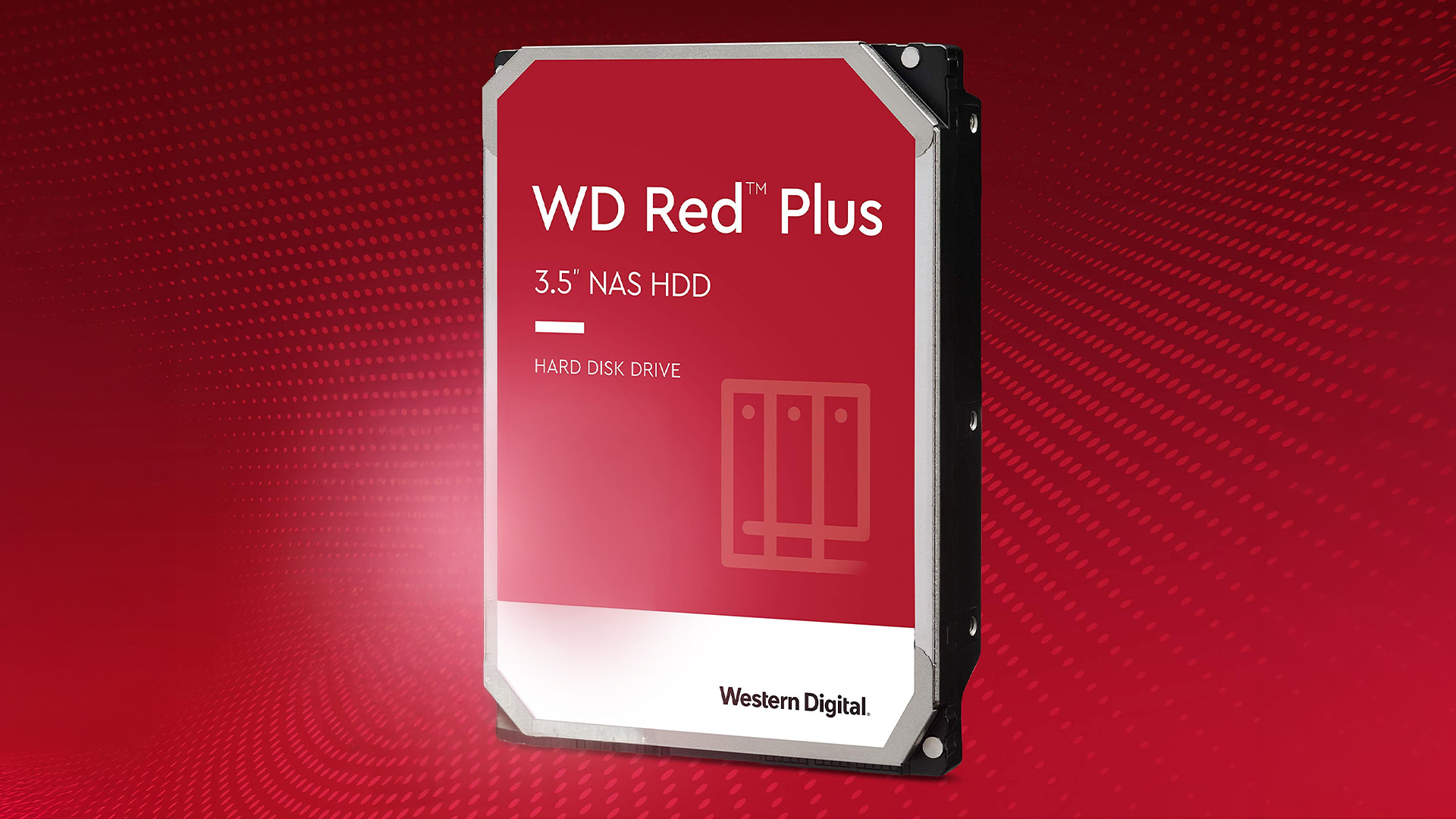
Western Digital specifically positions CMR for NAS and RAID applications and states that SMR is better suited to archival or lighter, read-mostly use. Its current WD Red Plus and Red Pro NAS ranges use CMR technology.
Potential SMR RAID rebuild performance is therefore one reason not to put an unidentified consumer SMR drive into an array simply because its capacity and SATA connection match.
There is another important distinction. Some enterprise environments use host-managed or specialised SMR technology successfully because the storage architecture is designed around how those drives write data. That is very different from installing an ordinary device-managed desktop SMR HDD into a NAS and assuming the RAID controller will treat it exactly like a CMR model.
Expert Advice: For a home or small-business NAS, check both the drive manufacturer's specifications and your NAS manufacturer's compatibility information. For conventional RAID workloads involving frequent writes or rebuilds, CMR is generally the safer choice unless the system explicitly supports the particular SMR implementation.
Is SMR Good for Backups?
It can be. A backup drive does not necessarily experience the same workload as an active storage drive. If you occasionally copy files to the disk and then leave those files unchanged for long periods, an SMR drive may be entirely reasonable.
The situation changes if you perform frequent large incremental backups, repeatedly overwrite existing backup sets or use software that constantly reorganises data. Those workloads can create more sustained writing.
It is therefore better to think in terms of how you back up rather than treating every backup drive the same.
For backups that need to be portable or stored separately from your PC, external hard drives are another option. Check the underlying drive specifications where available rather than assuming every external HDD uses the same recording method.
CMR Drive List vs SMR Drive List: How Do You Know What You Are Buying?
Searching for a CMR drive list or SMR drive list can be useful, but you should be careful with old lists published online.
Recording technology can differ between capacities within the same product family. It can also change as manufacturers introduce new models.
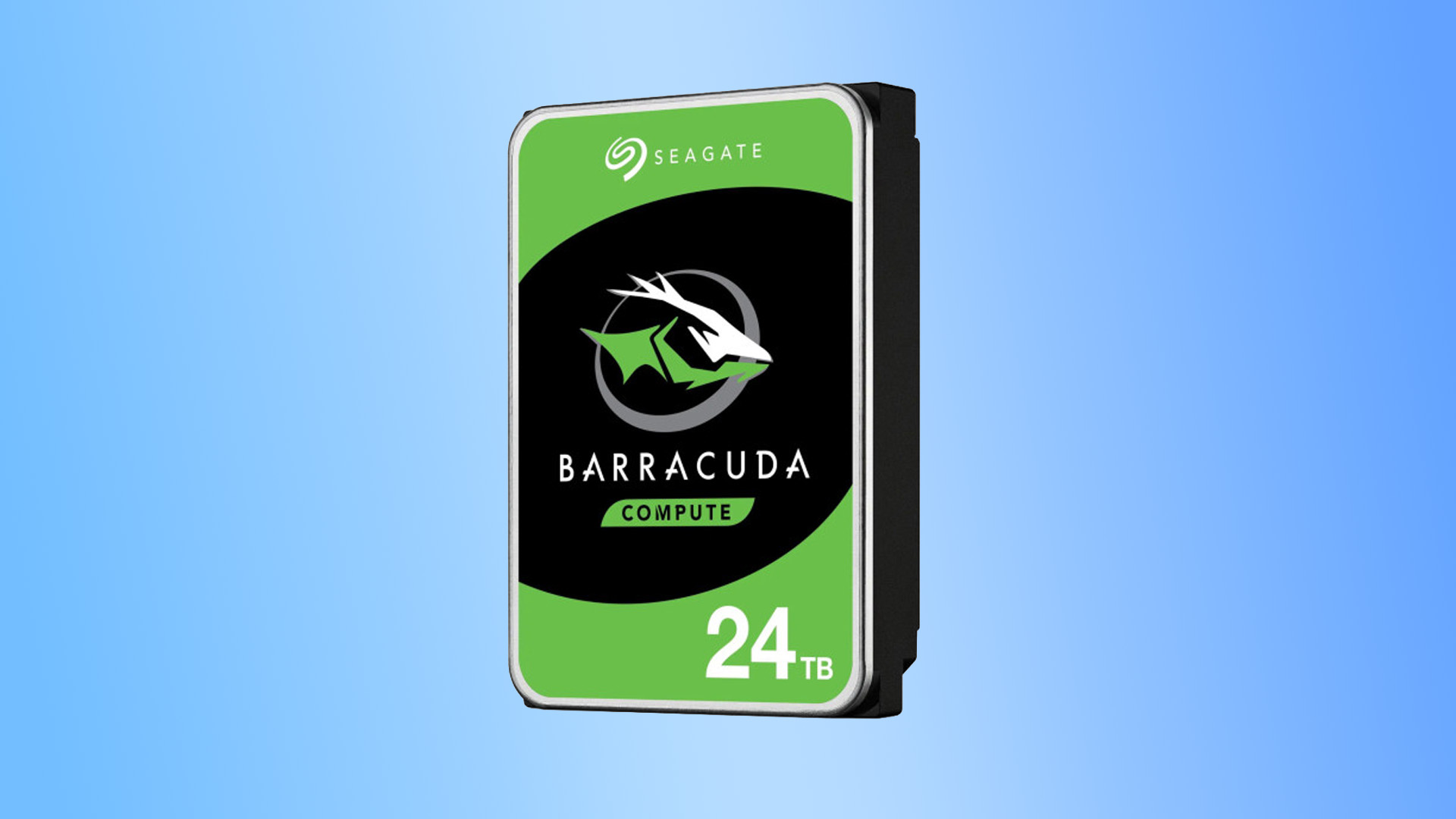
For example, Seagate's current BarraCuda 3.5-inch specifications list its 24TB, 20TB, 16TB and 12TB models as CMR, while the 8TB ST8000DM004 is listed as SMR. This shows why simply saying "BarraCuda is CMR" or "BarraCuda is SMR" would be inaccurate.
Western Digital has likewise published model-specific recording information, and its current product information identifies CMR explicitly on products such as WD Red Pro.
The safest approach is:
- Find the exact HDD model number.
- Open the manufacturer's current specification or data sheet.
- Look for "Recording Technology", "CMR" or "SMR".
- Check the intended workload and workload rating.
- For NAS or RAID, confirm system compatibility separately.
Do not rely only on capacity, RPM, cache size or the product-family name to identify recording technology.
Is CMR Always Better Than SMR?
No. It is better for some workloads.
If all other specifications were suitable and you expected constant writing, regular overwriting or RAID use, CMR would normally be the easier recommendation because of its more consistent write behaviour.
However, an SMR drive can be completely appropriate when you want economical bulk capacity for data that changes infrequently.
Modern SMR also demonstrates why the technology itself should not be dismissed. Manufacturers continue to use it to push drive density higher. Western Digital says its UltraSMR technology allows increased capacity compared with comparable CMR designs, while Toshiba is developing both high-capacity CMR and SMR enterprise products.
The better question is not "Which technology wins?" It is "Which technology matches what I am asking the drive to do?" If you are comparing more than HDD recording methods, our PC and laptop storage guide explains how HDDs, SATA SSDs and NVMe storage fit different performance and capacity requirements.
Which Hard Drive Should You Choose?
Choose a CMR hard drive if your priority is predictable performance during regular writes, especially for an active desktop storage drive, NAS, RAID array or heavier file-management workload.
Consider an SMR hard drive when the workload is lighter and largely read-focused, such as secondary bulk storage or data that will not be rewritten frequently.
You can explore broader computer data storage options if you are also deciding between HDDs, SSDs and other ways to expand your system. Here is a simple way to decide:
Choose CMR for:
- NAS and conventional RAID
- frequent large file transfers
- repeated file editing
- heavier desktop storage
- regular backups with substantial rewriting
- workloads where consistent writes matter
Consider SMR for:
- lighter secondary storage
- personal archives
- media collections
- infrequently updated data
- read-heavy storage where sustained writing is less important
Your recording technology is only one part of the decision, so our guide to choosing PC storage for gaming and work can help you balance HDDs, SSDs, capacity and performance around your actual workload.

Final Verdict: CMR or SMR?
For most users comparing CMR vs SMR hard drives, CMR is the stronger choice when the drive will handle frequent writes, large transfers, NAS duties or RAID. Its non-overlapping track layout makes write behaviour more predictable for these workloads.
SMR still has a useful place. Its overlapping tracks increase storage density, and it can work well for lighter, read-heavy or archival storage where sustained rewriting is uncommon.
Whichever you choose, check the exact model rather than assuming every capacity in a hard-drive family uses the same recording technology. Matching the drive to the workload will make a much bigger difference than choosing CMR or SMR based on the label alone.

Is CMR Better Than SMR?
CMR is generally better for frequent writes, sustained transfers, NAS and RAID workloads. SMR can be suitable for archives, secondary storage and lighter use where data is written less often.
How Can I Tell If My Hard Drive Is CMR or SMR?
Find the exact model number and check the manufacturer's current specification sheet. Do not identify recording technology from the brand, product family, capacity or RPM alone because models within one range can differ.
Does SMR Affect Read Speed?
SMR's main compromise concerns writing and rewriting overlapping tracks. Normal read-heavy workloads may work well, although overall performance still depends on the particular HDD, firmware, RPM, cache and workload.
Is an SMR Hard Drive Bad for Gaming?
Not necessarily. An SMR HDD can store and read games, particularly as secondary library storage. CMR is preferable when large installations, updates and file transfers happen regularly, while an SSD is generally better for actively played modern games.
Can I Mix CMR and SMR Drives in RAID?
Matching capacity and interface alone is not enough. Consumer SMR drives may behave differently during sustained writes and rebuilds, so check your NAS or RAID manufacturer's compatibility guidance. CMR is generally preferable for conventional RAID setups.
| Read More: |
| Which is The Best External Hard Drive? Top Brands And Prices |
| Hard Drive Prices: Storage Capacity, Robustness and Reliability |
| Surface Copilot + PC: The Future of AI-Driven Computing |
Related Articles


Last Updated: September 11, 2025
Small Device, Big Function
You’ve probably used a USB flash drive or thumb drive before—but what exactly are they? These small but mighty devices are essential for storing and transferring data quickly and easily. Let’s unpack what a USB flash drive is, what it does, and why it’s still so popular in 2025.
1. What Is a USB Flash Drive?
A USB flash drive (also called a thumb drive, pen drive, or memory stick) is a small, portable storage device that connects to your computer or laptop via a USB port.
Key Characteristics:
Uses flash memory (no moving parts)
Plugs directly into USB-A or USB-C ports
Often pocket-sized and lightweight
The term "thumb drive" comes from its compact size—similar to a human thumb
2. What Is It Used For?
Storing documents, photos, videos, and music
Transferring files between devices
Backing up important data
Creating bootable drives for OS installations (like Windows 11)
3. USB Flash Drive vs External Hard Drive
| Feature | USB Flash Drive | External |
Last Updated: September 09, 2025
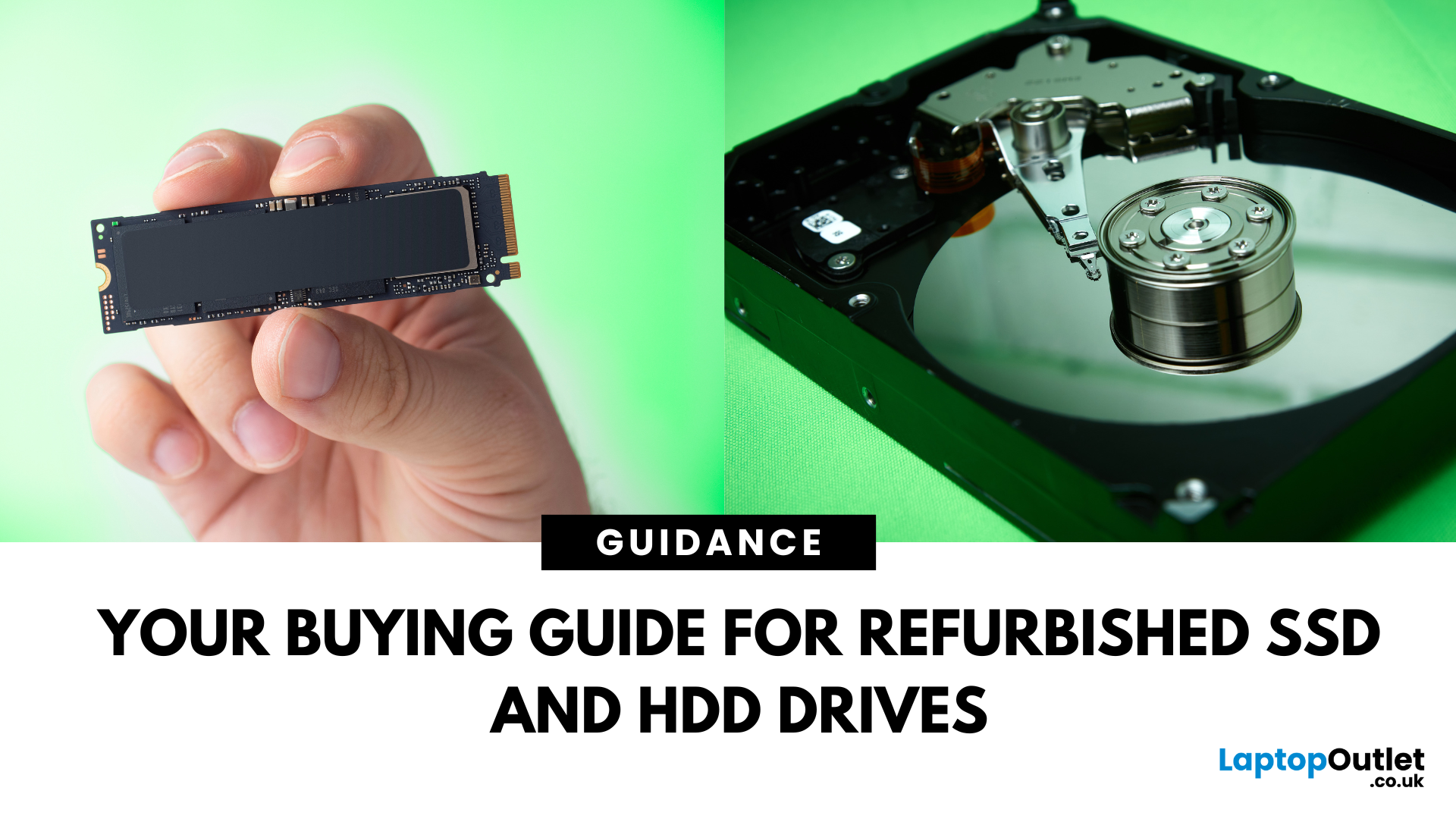
Need more storage or speed but don’t fancy paying full price? Buying a refurbished SSD or HDD could be the budget-friendly solution you’re after. Whether you're upgrading your current device or adding extra space for files, games, or media, refurbished drives offer great value without compromising functionality.
However, not all refurbished storage is created equal. To ensure your investment lasts and performs well, you need to understand the difference between drive types, evaluate their health, and select based on your specific needs, whether it’s for day-to-day use, gaming, or business tasks.
This guide covers everything you should know before buying refurbished SSD or HDD, external refurbished drives, or upgrading your refurbished SSD laptop. It’s your go-to resource for making a smart, informed choice.
Understanding the Difference Between SSD and HDD
When choosing between a refurbished SSD and HDD, it’s important to know how each works and which suits your needs better. Both offer
Last Updated: October 14, 2025
Meet the ROG Ally — the Portable Gaming Beast
If you’ve been anywhere near gaming TikTok or Reddit lately, you’ll know the ASUS ROG Ally has taken the handheld scene by storm. It’s sleek, powerful, and gives a proper run for its money. But beyond its flashy white shell and 120 Hz display, there’s one detail everyone’s curious about: how fast is the storage really?
What Kind of SSD are We Talking About?
The 512 GB variant packs a PCIe Gen 4 NVMe SSD, fancy words for “blistering quick”, running over the M.2 2230 form factor (the compact size used in handhelds).
Typical specs:
- Sequential Read Speed – around 5,000 MB/s
- Sequential Write Speed – around 3,500 MB/s
- Random 4K Read/Write – 500K / 600K IOPS
That’s several times faster than older SATA SSDs and absolutely galaxies ahead of traditional hard drives. Translation? Instant game launches, smoother texture streaming, and snappier OS performance.
What is ROG Xbox Ally 512GB SSD Speed in Real-World Use?

Loading Times
When you’re booting

Last Updated: February 17, 2026
Storage problems aren’t just annoying; they’re productivity killers. Studies show that nearly 60% of laptop slowdowns are linked to storage-related issues, whether it’s low disk space, corrupted files, or failing SSDs. When your drive is over 85% full, performance can drop significantly because your system has less room to manage temporary files and virtual memory. Add disk errors or early SSD/HDD failure into the mix, and suddenly your “quick task” turns into a 30-minute meltdown.
Laptop storage issues don’t just slow things down, they risk your data, crash your apps, and test your patience.
The good news? Most storage problems are fixable in real time. In this guide, we’ll break down exactly what’s happening, why it’s happening, and how to fix it step-by-step, no tech degree required.
SSD vs HDD: What’s Actually Inside Your Laptop (And Why It Matters)

Before you panic about laptop storage issues, you need to know what you’re working with. Not all drives fail the same way and the fix
Last Updated: May 01, 2026
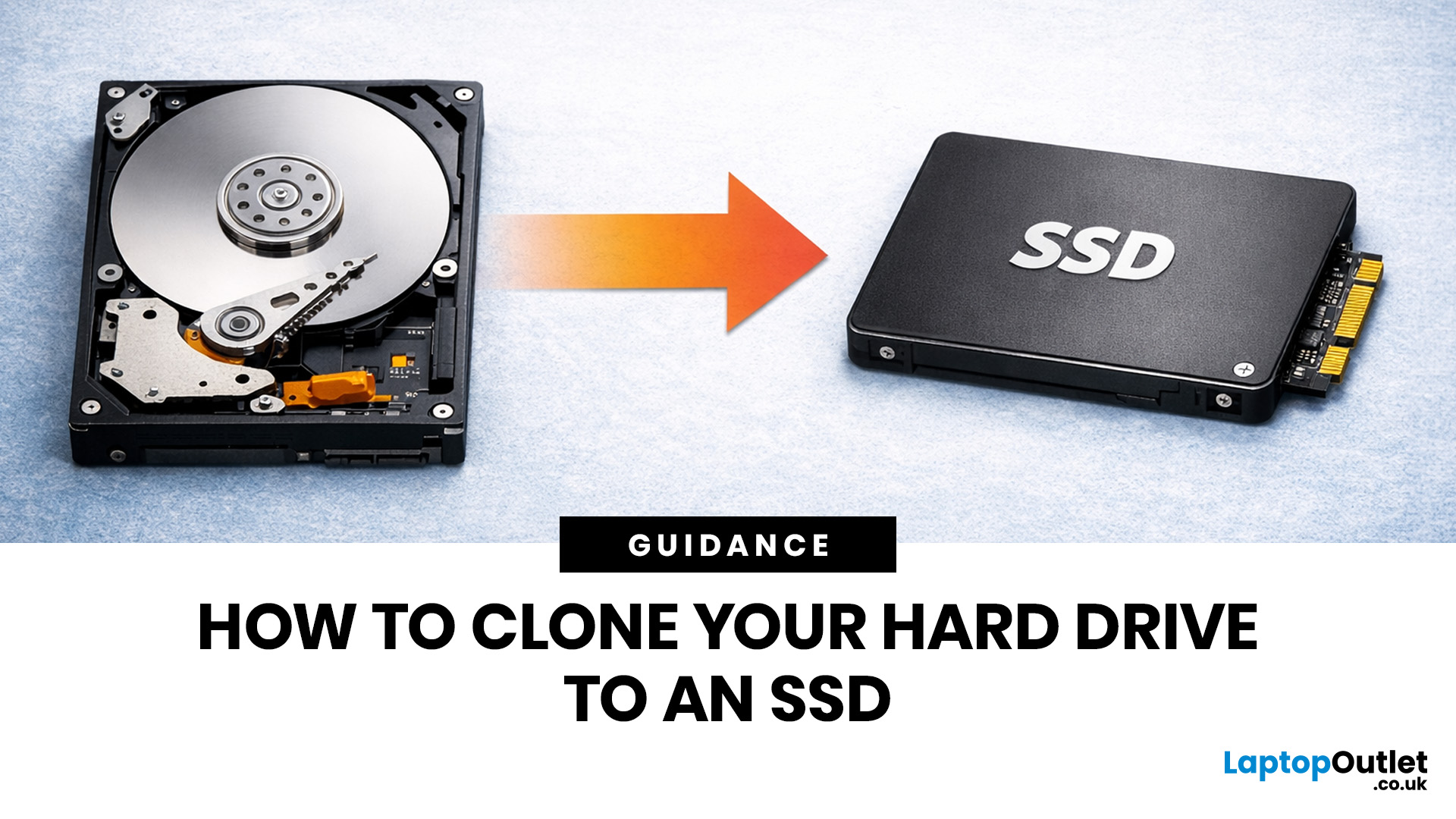
If your laptop feels slow to boot, takes too long to open files, or struggles with everyday performance, it may be time to clone hard drive to SSD and give your system a faster, more responsive upgrade. Moving from a traditional hard disk drive to a solid-state drive is one of the most effective ways to improve speed without replacing your entire device.
In this guide, you’ll learn how to clone a hard drive safely, what you need before you start, and how to handle the SSD migration process step by step. Whether you want to clone HDD to SSD for quicker startup times or simply transfer hard drive to SSD without losing your files, this guide will help you do it with confidence.
Why Upgrade from HDD to SSD?
A hard disk drive stores data using moving parts, while an SSD uses flash memory to access files much faster. That means quicker boot times, faster app launches, smoother multitasking, and less waiting around. If you use your laptop daily for work, study, browsing, or entertainment, choosing
Last Updated: May 01, 2026
Formatting an SSD takes less than five minutes when you know what you're doing. The tricky part is knowing which tool to use, which file system to pick, and how to avoid losing data along the way. That's exactly what this guide covers.
You will learn how to format a solid state drive on Windows, macOS, and Linux laptops, with step-by-step instructions for each. You'll also find out how to partition your SSD and wipe it securely when needed.
Before You Start: What You Need to Know
Before you touch any settings, take a few minutes to prepare. Skipping this stage is the most common reason people run into problems when setting up or reformatting a drive.
Back Up Your Data First
Formatting wipes everything. Every file, folder, and installed programme will be gone.
- Copy important files to a USB drive or cloud storage
- Use an external drive for large backups (if you need one, you can buy external hard drive options from Laptop Outlet)
- Double-check your backup before proceeding
There's no undo
Last Updated: May 01, 2026
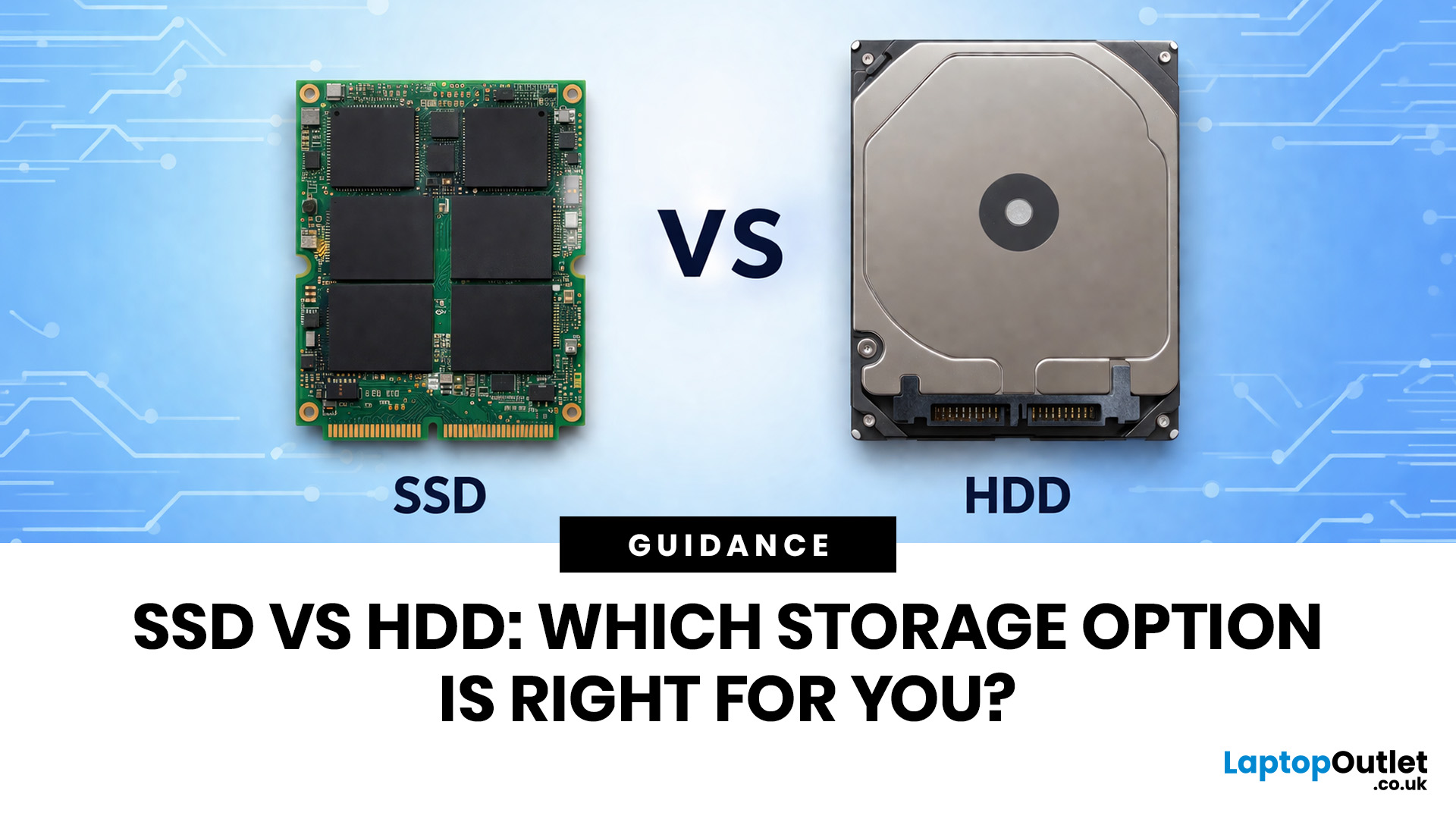
Your laptop can have a great screen, a decent processor, and enough RAM to survive the day, but if the storage is slow, the whole thing still feels off. That is why the SSD vs HDD laptop debate matters more than most people think. One option is built for speed, faster boot-ups, quicker app launches, and way less waiting around. The other is better known for giving you more storage for less money.
So which one actually makes sense for you?
That depends on how you use your laptop. If you want something that feels fast, smooth, and ready to move when you are, an SSD usually wins. If you need loads of space without spending too much, an HDD can still hold its ground.
In this guide, we will break down the real difference between HDD and SSD drives, compare speed, lifespan, value, and help you figure out which one is actually worth it.
SSD vs HDD laptop: what is the actual difference?
An HDD, or hard disk drive, is the old-school storage option. It stores your files, apps, operating system,
Last Updated: May 01, 2026
The computer that helped guide the Apollo missions worked with just 4 KB of RAM and around 72 KB of stored memory. Today, a modern laptop can burn through more than that just opening a few tabs.
That is how fast tech has moved and why an older laptop can suddenly feel frustratingly slow. Long boot times, laggy apps, and constant low-storage warnings can make even simple tasks feel harder than they should.
The good news is that you do not always need a brand-new machine. In many cases, upgrading your SSD is one of the easiest ways to make your laptop feel faster, smoother, and far more usable.
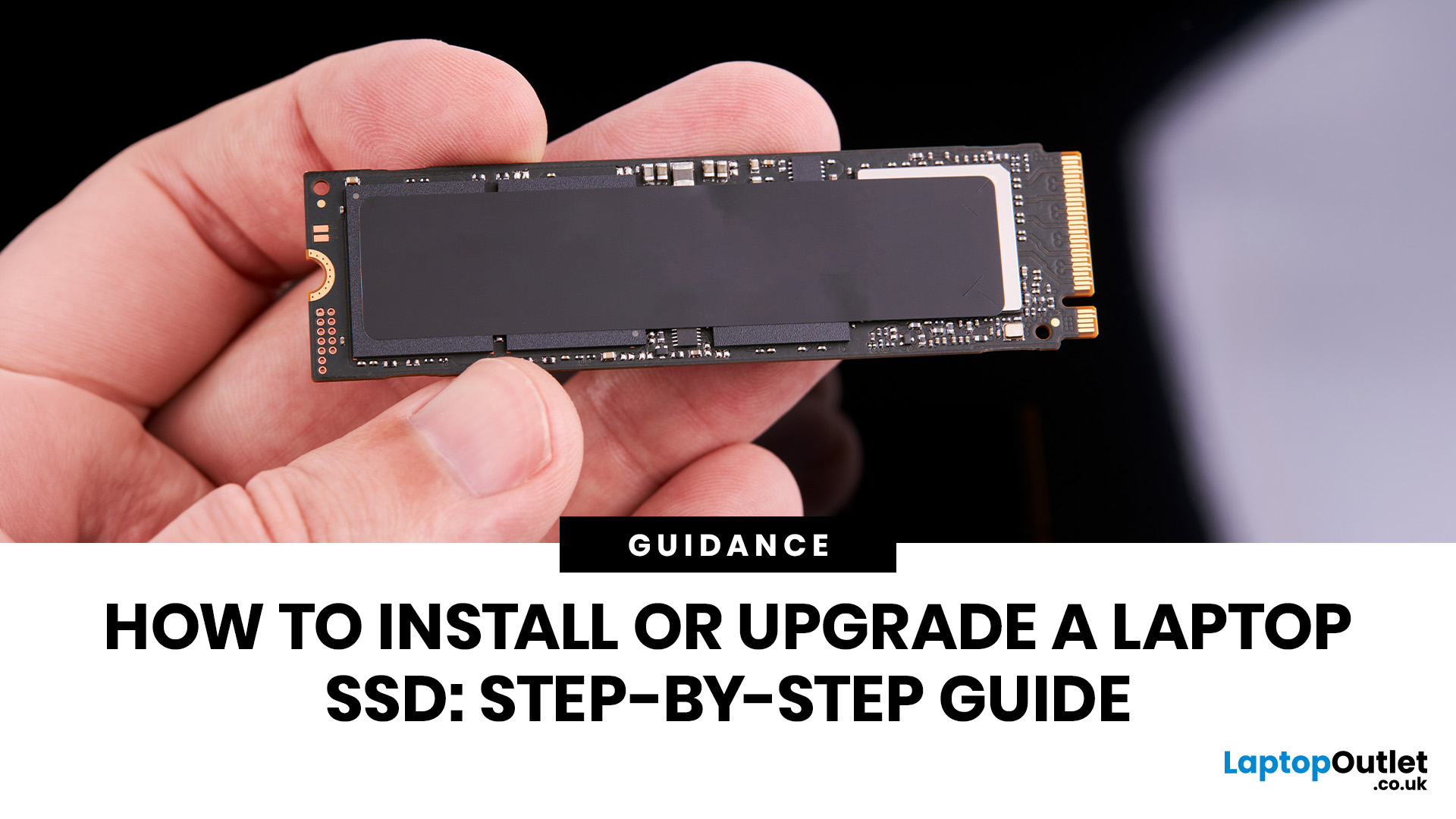
In this guide, we will show you how to upgrade a laptop SSD step by step, from checking compatibility to choosing the right drive and installing it properly.
Why upgrading your laptop SSD is worth it
Faster boot times, file transfers, and app loading
A slow laptop gets old fast. Long startup times, laggy apps, and endless waiting usually point to one thing: slow storage.
That is why how to upgrade
Last Updated: May 01, 2026
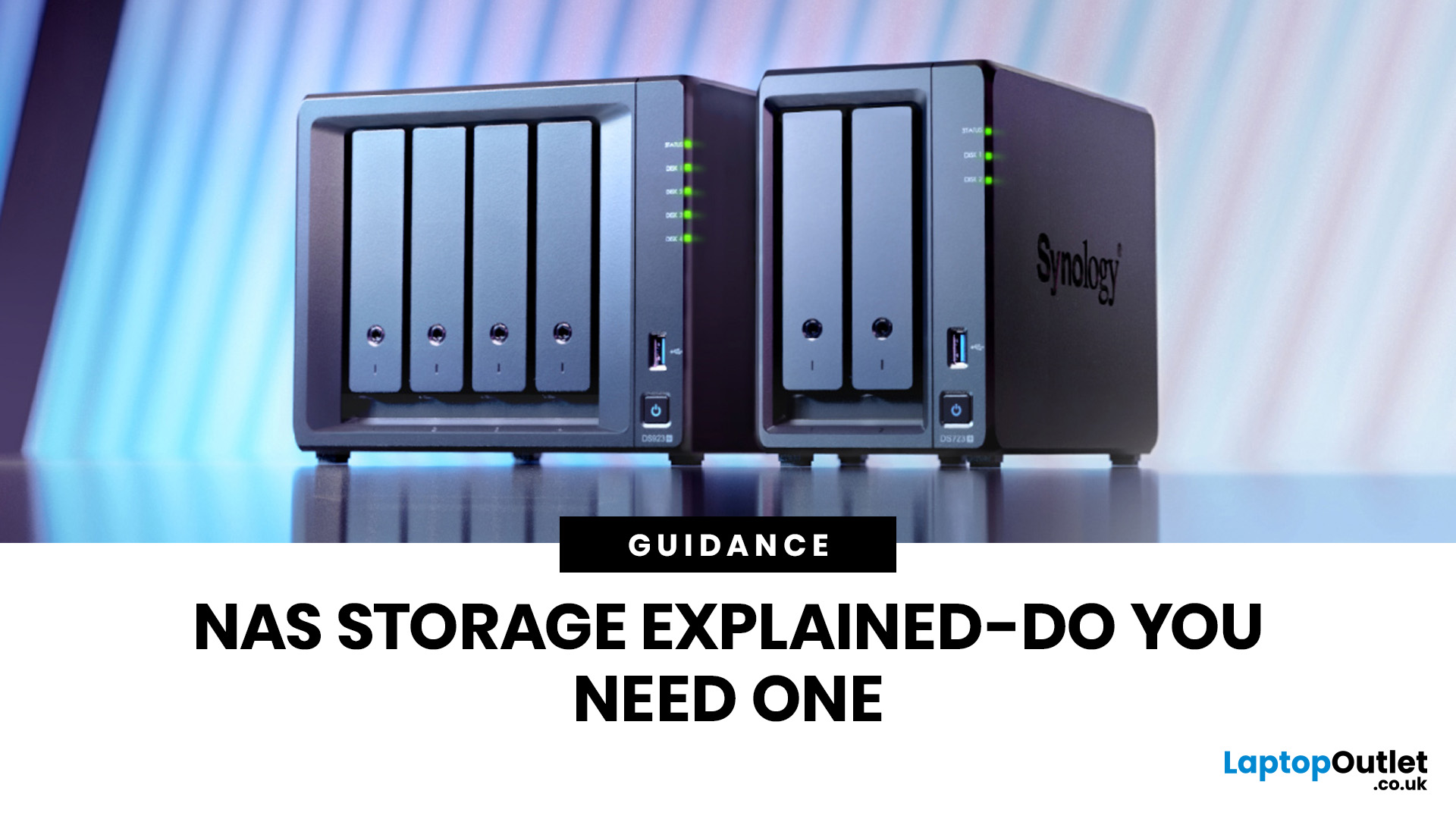
If you have been searching for NAS storage explained in a simple, practical way, this guide is for you. NAS stands for Network Attached Storage, and it is one of the most useful storage options for people who want to keep files in one central place and access them across multiple devices.
For some users, a NAS is a smart long-term upgrade. For others, it may be more than they need. The key is understanding what it does, who it is for, and when another option might make more sense.
What is a NAS?
If you are wondering what is a NAS, the short answer is this: it is a storage device connected to your network that lets you store, manage and access files from more than one device.
Instead of saving everything on a single laptop or desktop, you keep your files on the NAS and reach them through your home or office network. That means documents, photos, videos, backups and shared folders can all live in one place.
A lot of shoppers also ask what is NAS network storage in practical terms. Put simply,
Published: September 22, 2026
SSDs are fast. Like, really fast and tiny. And now we’re apparently supposed to worry about them getting too hot??
So… do SSDs actually need extra cooling, or are we just putting tiny heatsinks on everything because we can? It’s a fair question, especially now that modern SSDs are cramming more speed into less space and casually generating more heat while doing it.
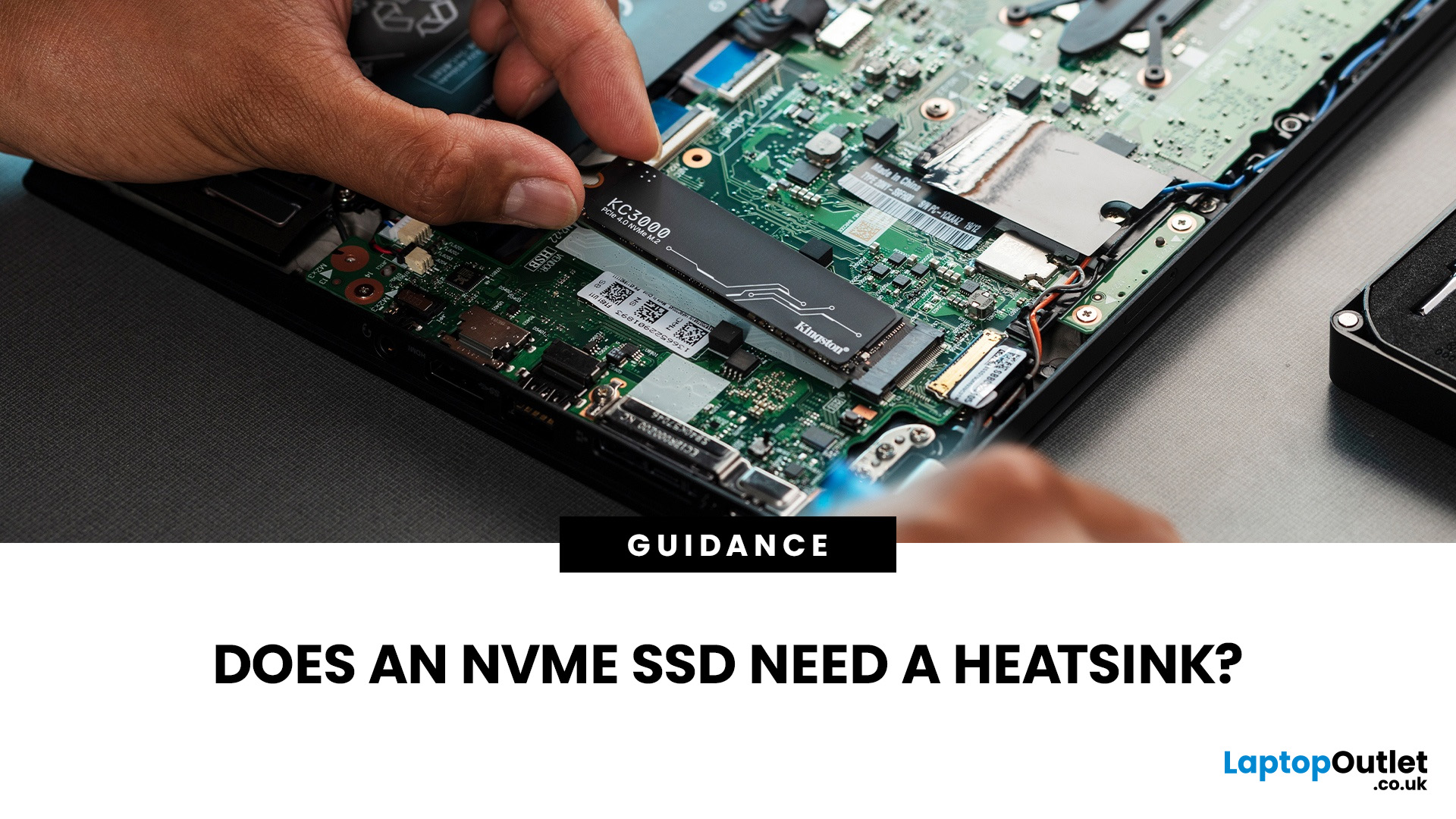
An NVMe SSD heatsink is not essential for every drive, but it can help maintain stable performance when an SSD runs hot during sustained workloads. High-performance PCIe 4.0 and PCIe 5.0 drives are more likely to benefit from additional SSD cooling, especially if airflow is limited. If your motherboard already includes an M.2 SSD heatsink, that may be sufficient. Always check the SSD manufacturer’s temperature limits and cooling guidance before adding extra cooling.
Whether you need one depends on your SSD, workload, airflow and the cooling already available in your system. Many drives can maintain safe temperatures using normal

