



NAS Storage Explained: Do You Need One?
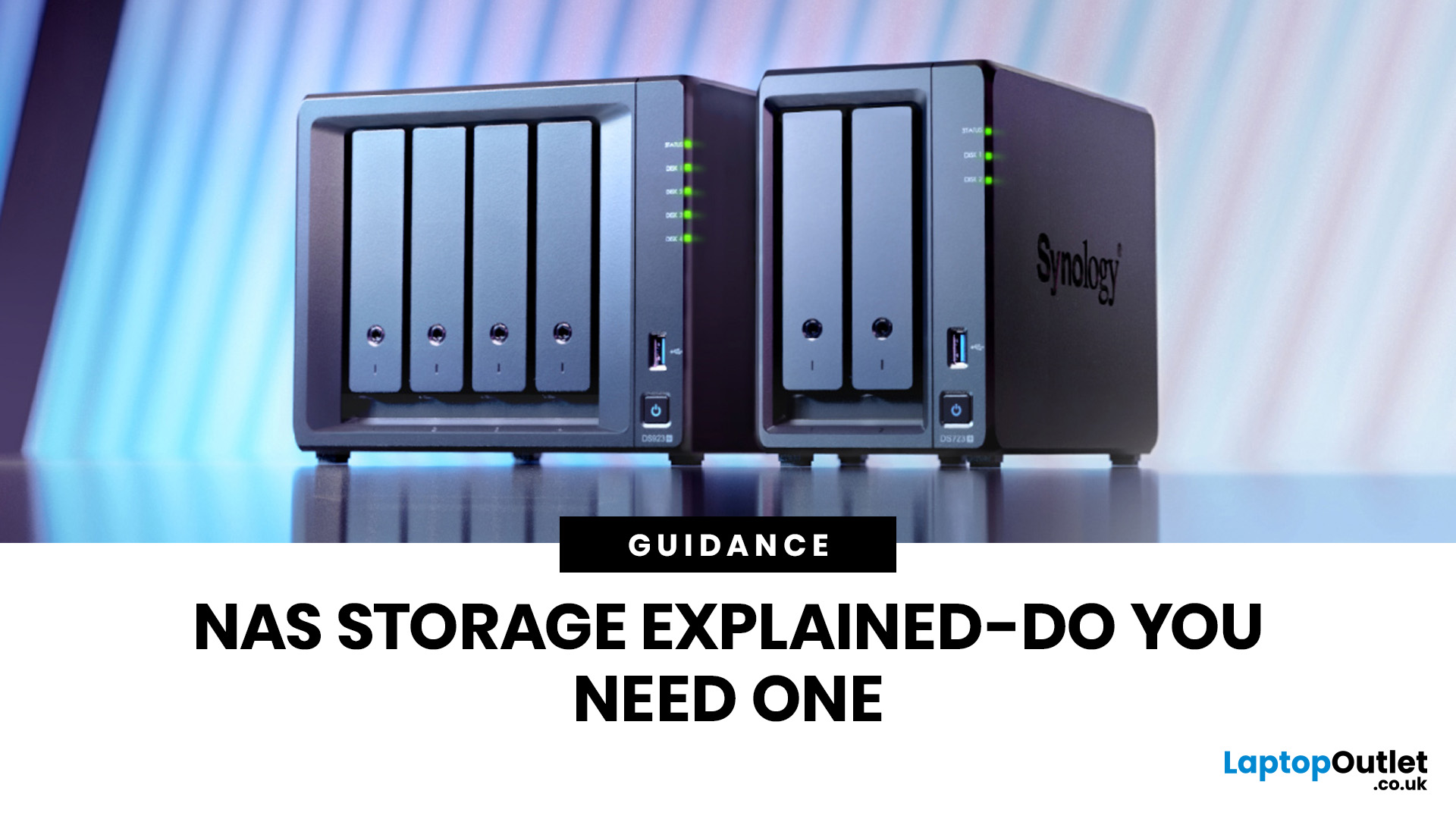
If you have been searching for NAS storage explained in a simple, practical way, this guide is for you. NAS stands for Network Attached Storage, and it is one of the most useful storage options for people who want to keep files in one central place and access them across multiple devices.
For some users, a NAS is a smart long-term upgrade. For others, it may be more than they need. The key is understanding what it does, who it is for, and when another option might make more sense.
What is a NAS?
If you are wondering what is a NAS, the short answer is this: it is a storage device connected to your network that lets you store, manage and access files from more than one device.
Instead of saving everything on a single laptop or desktop, you keep your files on the NAS and reach them through your home or office network. That means documents, photos, videos, backups and shared folders can all live in one place.
A lot of shoppers also ask what is NAS network storage in practical terms. Put simply, it is storage that works over your network rather than through a direct USB connection. That is what makes it more flexible than a standard portable drive.
What is NAS Used For?
When people ask what NAS is used for, the answer usually depends on how they work and how much storage they need. A NAS can be used for:
- storing large file collections in one place
- sharing files between family members or work teams
- creating a media library for photos, films or music
- keeping business documents accessible to authorised users
- building a more organised long-term storage setup
For home users, NAS often becomes a central hub for personal files and backups. For professionals and growing teams, it can act as a practical NAS solution for collaboration and file management without needing a full server setup.
How Does a NAS Drive Work?
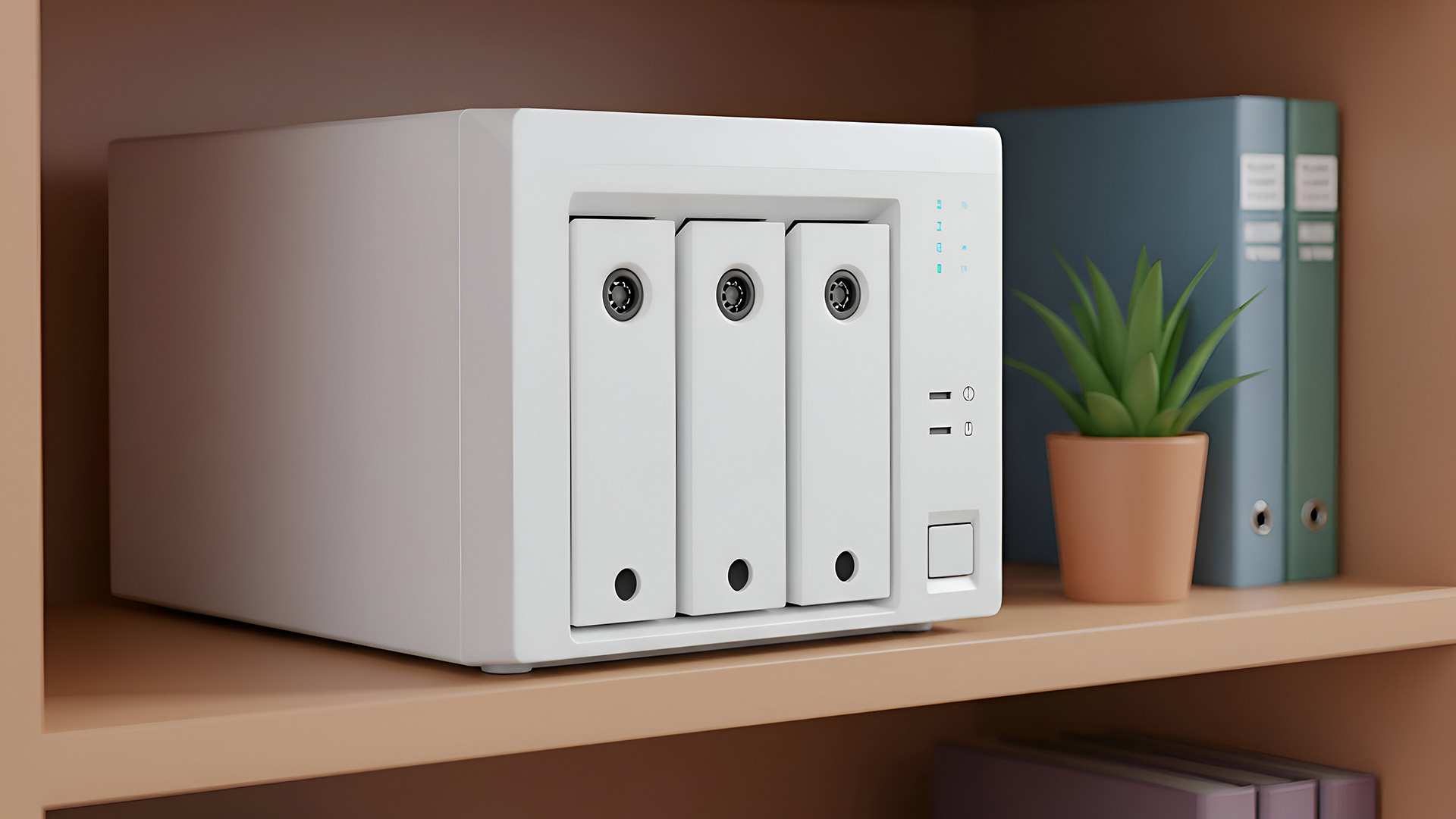
To understand how does a NAS drive work, think of it as a dedicated storage system with its own internal hardware and software. It usually includes one or more drive bays, a processor, memory, and an operating system designed to manage file sharing and storage tasks.
Once connected to your router or network switch, the NAS becomes available to devices on that network. You can create folders, set permissions, manage backups and access files from laptops, desktops, tablets or sometimes even remotely.
How to Use NAS Storage Day to Day
In everyday use, how to use NAS storage is usually quite straightforward. After setup, you log in through a browser or desktop app, organise folders, assign access rights and start moving or backing up files.
For example, a household might use it to store family photos and stream media across different rooms. A small office might use it for shared spreadsheets, project folders and automatic backups for employee devices.
Types of Network Attached Storage
There are different types of network attached storage, and the right one depends on your storage goals, your budget and the number of users who need access.
Single-Bay NAS
A single-bay NAS is often the most basic option. It can work well for light personal use, but it offers less flexibility and no real drive redundancy if the drive fails.
Two-Bay NAS
A two-bay unit is one of the most popular choices for home users and smaller teams. It gives you more capacity and can support setups focused on data protection as well as storage.
Multi-Bay NAS
A multi-bay NAS is better suited to users with larger file libraries, more demanding workloads or growth plans. This is often where a NAS for small business becomes more practical, especially when more than one person needs reliable access every day.
Desktop vs Rackmount NAS
Most home users and many smaller firms choose desktop NAS models because they are compact and easier to manage. Rackmount NAS systems are more common in larger office environments where capacity, performance and scalability matter more.
Benefits of Network Attached Storage
The main benefits of network attached storage come down to convenience, organisation and control.
Centralised File Storage
One of the biggest advantages is keeping everything in one place. Instead of checking multiple laptops, USB drives and cloud accounts, you know where your files live.
Easier Sharing
A NAS makes it much easier to share files across several users or devices. That is useful at home, but even more useful at work when teams need access to the same folders.
Better Backup Options
Many people buy a NAS because their backup setup is messy or inconsistent. A NAS can help you back up multiple systems automatically and reduce the chance of losing important files.
Room to Grow
As your storage needs increase, a NAS often gives you more room to expand than a simple external drive. That makes it a more future-ready NAS solution for users who know their storage demands will grow over time.
If your laptop struggles with multitasking, how to upgrade laptop RAM guide may point you towards a more useful upgrade.
Do You Really Need a NAS?
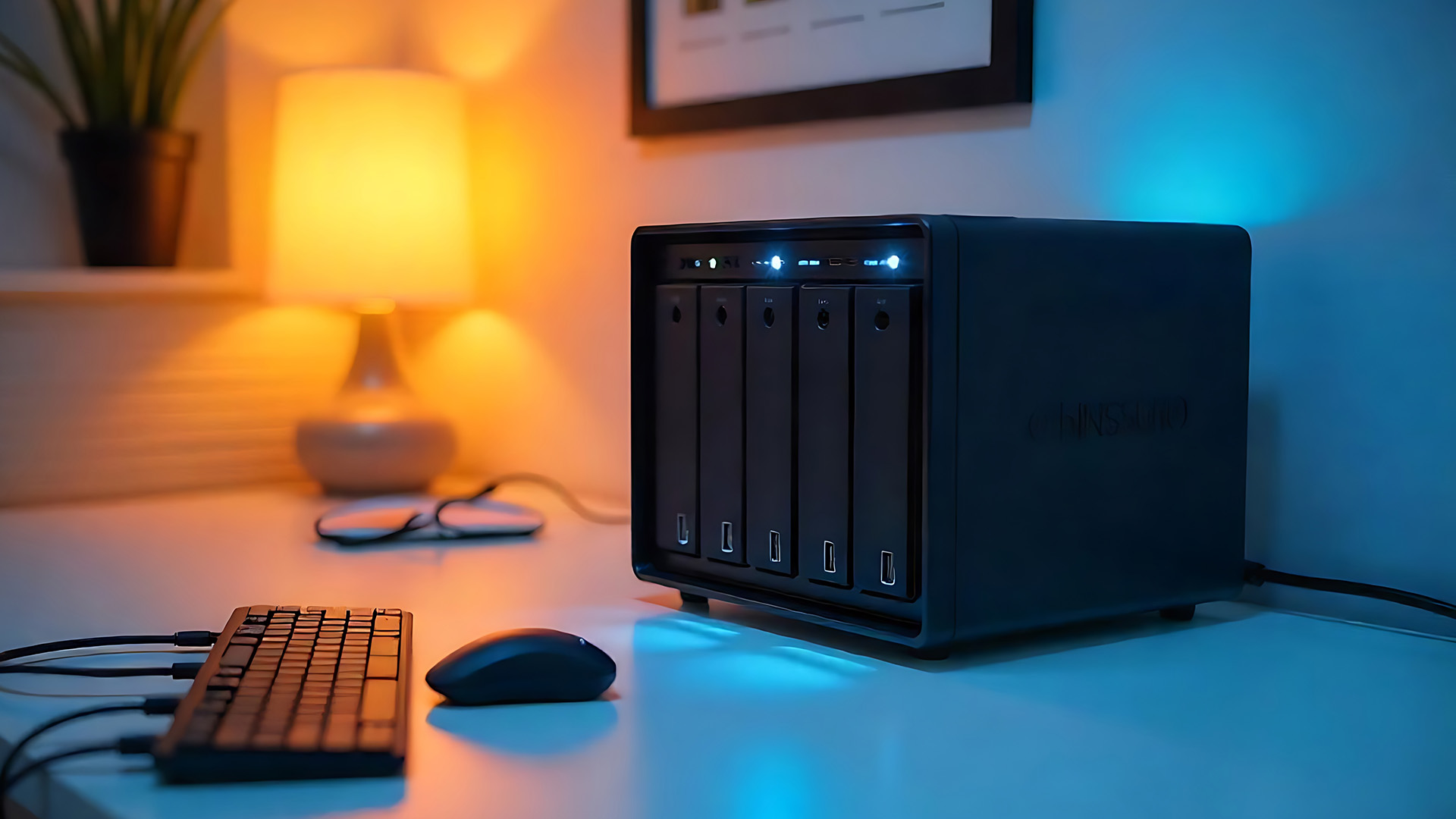
This is the question that matters most. A NAS can be an excellent buy, but not everyone needs one. In some cases, a simpler and cheaper upgrade is the better move.
You may need a NAS if…
You are more likely to benefit from a NAS if:
- you use several devices and want access to the same files everywhere
- you want centralised backups for your home or business
- you share files regularly with other users
- you have a growing photo, video or document library
- you want more control over your storage than basic cloud or USB options can offer
You may not need a NAS if…
If your main problem is speed rather than storage management, a NAS may not be the answer. For example, if your laptop feels slow during startup or while loading apps, upgrading to high-speed internal SSDs may give you a more immediate improvement.
If your issue is limited memory while multitasking, you may get better results by looking at the best RAM for laptops or finding compatible RAM for your laptop. And if you simply need a straightforward backup option for one device, it may be enough to buy external hard drive storage rather than investing in a full network setup.
If you are comparing a NAS with simpler storage options for personal use, External Hard Drives vs USB Flash Drives: Which Should You Choose? explains when portable storage might be enough for your needs.
NAS for Small Business: Is it Worth it?
A NAS for small business can make a lot of sense when teams need shared storage without the complexity of a traditional server environment. It can help with file access, routine backups, document control, and keeping project files organised across several employees. That is especially useful for smaller teams that want a more professional storage setup but still need something practical and manageable.
When a Small Business Should Consider NAS
A business should seriously consider NAS when:
- staff need access to shared files every day
- local backups are becoming harder to manage
- storage is spread across too many devices
- file security and permissions are becoming more important
- the business expects its storage needs to grow
For many companies, a NAS is not just extra storage. It is an operational upgrade.
Choosing Drives for NAS System Performance
Choosing drives for NAS system planning is a step you should not rush. The NAS enclosure matters, but the drives inside it matters just as much.
Not every hard drive is designed for the same kind of workload. A NAS often runs for longer periods, handles repeated access and may be used by several people at once. That is why it is important to choose drives that match your expected usage, storage size and reliability needs.
What to Think About When Choosing Drives
When choosing drives for NAS system use, consider:
- total storage capacity
- expected workload
- number of users
- drive compatibility
- long-term reliability
- future expansion
If you are mainly storing documents and backups, your needs may be modest. If you are working with larger media files or frequent access, your drive choice becomes much more important. In addition, you can read out article on External Hard Drives vs USB Flash Drives to learn the difference between two drives.
NAS Performance Optimization Tips

Once your system is in place, a few NAS performance optimization tips can help you get better results.
Use a Wired Connection Where Possible
If you want more reliable speeds, connect the NAS through Ethernet rather than relying heavily on wireless performance.
Match the NAS to the Workload
A basic NAS may be fine for light storage, but heavier use needs stronger hardware. If several people will access files at once, make sure the system has enough processing power and memory.
Keep Folders and Permissions Organised
A clean setup makes the NAS easier to use and manage. It also helps avoid confusion when several users are accessing the same storage.
Plan Storage Properly from the Start
Do not only think about what you need today. Think about how much data you will have in a year or two. A little planning now can save you from replacing the whole setup too soon.

Final Thoughts
A NAS is not something every user needs, but it can be the right choice for the right setup. If you want centralised storage, easier backups, shared access and a system that can grow with you, a NAS can be a very smart upgrade. If you only need extra space for one device or want faster day-to-day performance, another storage or memory upgrade may be the better route. That is what NAS storage explained comes down to. It is not just about what NAS can do. It is about whether it fits the way you use your devices.

You Still Got Questions?
What is a NAS in simple terms?
A NAS is a network-connected storage device that lets you save and access files from multiple devices in one central place.
What is NAS used for most often?
It is commonly used for file sharing, backups, media storage, document management and centralised access across home or office networks.
Is a NAS worth it for home use?
Yes, it can be, especially if you have multiple devices, lots of photos or videos, or want a better backup system at home.
Is NAS good for small businesses?
Yes. A NAS for small business can help with shared folders, better file organisation, backups and giving staff access to the same data more easily.
Do I need a NAS or an external hard drive?
If you want simple storage for one device, an external hard drive may be enough. If you want shared access, centralised storage and more flexibility, a NAS is usually the better option.
| Read More: |
| How Much RAM Do You Need? 8GB vs 16GB vs 32GB |
| SSD vs HDD: Which Storage Option is Right for You? |
| A Complete Guide to Formatting and Partitioning an SSD |
Related Articles

Last Updated: October 15, 2025
Buying a MacBook isn’t just about picking between an Air or a Pro - it’s also about making smart choices with RAM and storage. These two specs are often overlooked, yet they’re the backbone of your laptop’s performance and longevity. Choose too little, and you’ll quickly hit frustrating slowdowns or run out of space. Choose wisely, and your MacBook will stay fast, reliable, and future-proof for years.
Unlike many Windows laptops, MacBook RAM and storage can’t be upgraded later - what you buy upfront is what you’ll live with. That makes it essential to understand how much you really need. Do students get by with 8GB of RAM? Should professionals always go for 16GB or more? Is 256GB storage enough in the cloud era, or do video editors really need 1TB and beyond?
Why RAM & Storage Matter in a MacBook
When you’re choosing a MacBook, the processor often gets the spotlight - but RAM and storage are just as important. They determine how smooth your experience is today and how well your laptop
Last Updated: October 14, 2025
Meet the ROG Ally — the Portable Gaming Beast
If you’ve been anywhere near gaming TikTok or Reddit lately, you’ll know the ASUS ROG Ally has taken the handheld scene by storm. It’s sleek, powerful, and gives a proper run for its money. But beyond its flashy white shell and 120 Hz display, there’s one detail everyone’s curious about: how fast is the storage really?
What Kind of SSD are We Talking About?
The 512 GB variant packs a PCIe Gen 4 NVMe SSD, fancy words for “blistering quick”, running over the M.2 2230 form factor (the compact size used in handhelds).
Typical specs:
- Sequential Read Speed – around 5,000 MB/s
- Sequential Write Speed – around 3,500 MB/s
- Random 4K Read/Write – 500K / 600K IOPS
That’s several times faster than older SATA SSDs and absolutely galaxies ahead of traditional hard drives. Translation? Instant game launches, smoother texture streaming, and snappier OS performance.
What is ROG Xbox Ally 512GB SSD Speed in Real-World Use?

Loading Times
When you’re booting
Last Updated: April 02, 2026
Black Friday 2025 is set to bring some of the best deals we’ve seen yet on gaming laptops and PCs, especially those powered by NVIDIA’s RTX 40-series graphics. But this year, smart buyers aren’t just chasing discounts, they’re targeting the right specs for lasting performance. The RTX 4060 and RTX 4070 GPUs have become the ideal mid-to-high range picks, balancing power, efficiency, and price. Pair that with fast DDR5 RAM and a 1TB NVMe SSD, and you have a future-ready setup built for modern gaming. This guide breaks down exactly what to look for in fast DDR5 RAM and a 1TB NVMe SSD, and you have a future-ready setup built for modern gaming. This guide breaks down exactly what to look for and make the most of Black Friday gaming laptop deals (RTX 4070) in the UK.
The 2025 Gaming Hardware Landscape: What’s Changed
Gaming hardware has evolved quickly over the past year, and 2025’s market looks very different from before. NVIDIA’s RTX 40-series GPUs, like the RTX 4060 and RTX 4070, now deliver

Last Updated: February 17, 2026
Storage problems aren’t just annoying; they’re productivity killers. Studies show that nearly 60% of laptop slowdowns are linked to storage-related issues, whether it’s low disk space, corrupted files, or failing SSDs. When your drive is over 85% full, performance can drop significantly because your system has less room to manage temporary files and virtual memory. Add disk errors or early SSD/HDD failure into the mix, and suddenly your “quick task” turns into a 30-minute meltdown.
Laptop storage issues don’t just slow things down, they risk your data, crash your apps, and test your patience.
The good news? Most storage problems are fixable in real time. In this guide, we’ll break down exactly what’s happening, why it’s happening, and how to fix it step-by-step, no tech degree required.
SSD vs HDD: What’s Actually Inside Your Laptop (And Why It Matters)

Before you panic about laptop storage issues, you need to know what you’re working with. Not all drives fail the same way and the fix
Last Updated: June 05, 2026
Choosing the right laptops for video editing can feel far more complicated than it should. Some brands focus on AI features; others push gaming specs, and many guides make it sound as though you need a studio-grade machine just to edit a few clips.
In reality, the best laptop depends on the type of editing you do.
A beginner creating YouTube videos, reels, or student projects will not need the same machine as someone working on commercial edits, colour grading in DaVinci Resolve, or handling large 4K client timelines. That is why this guide breaks down the best laptops for video editing by editing level, workflow, and real-world use case.
Whether you need a machine for social content, advanced post-production, or portable editing on the move, these are the options worth considering.
If your creative work also includes Photoshop, Illustrator, or wider Adobe software, it is worth reading our guide to the best laptops for Adobe Creative Cloud apps as well.
What to Look for in Laptops for Video

Last Updated: May 01, 2026
By the end of 2025, buying a laptop had become a bigger decision than ever. Global PC shipments climbed to more than 270 million units in 2025, with the final quarter alone reaching 71.5 million units.
On the surface, that sounds like good news: more innovation, more models, more choice. But for buyers, it also means more noise. Bigger spec sheets, bolder marketing claims, AI-ready labels everywhere, and a growing chance of paying for power you do not need or missing the features you actually do.
That is what makes choosing a laptop in 2026 tricky. The best option is not always the most expensive, the most powerful, or the newest on the page. It is the one that fits the way you work, study, stream, create, or game without compromise.
This guide cuts through the clutter and helps you choose with confidence. So, get yourself ready to buy the laptop you are looking for.
How to Choose the Right Laptop in 2026
If you want the quick answer, here’s how to choose the right laptop without overthinking
Last Updated: May 01, 2026
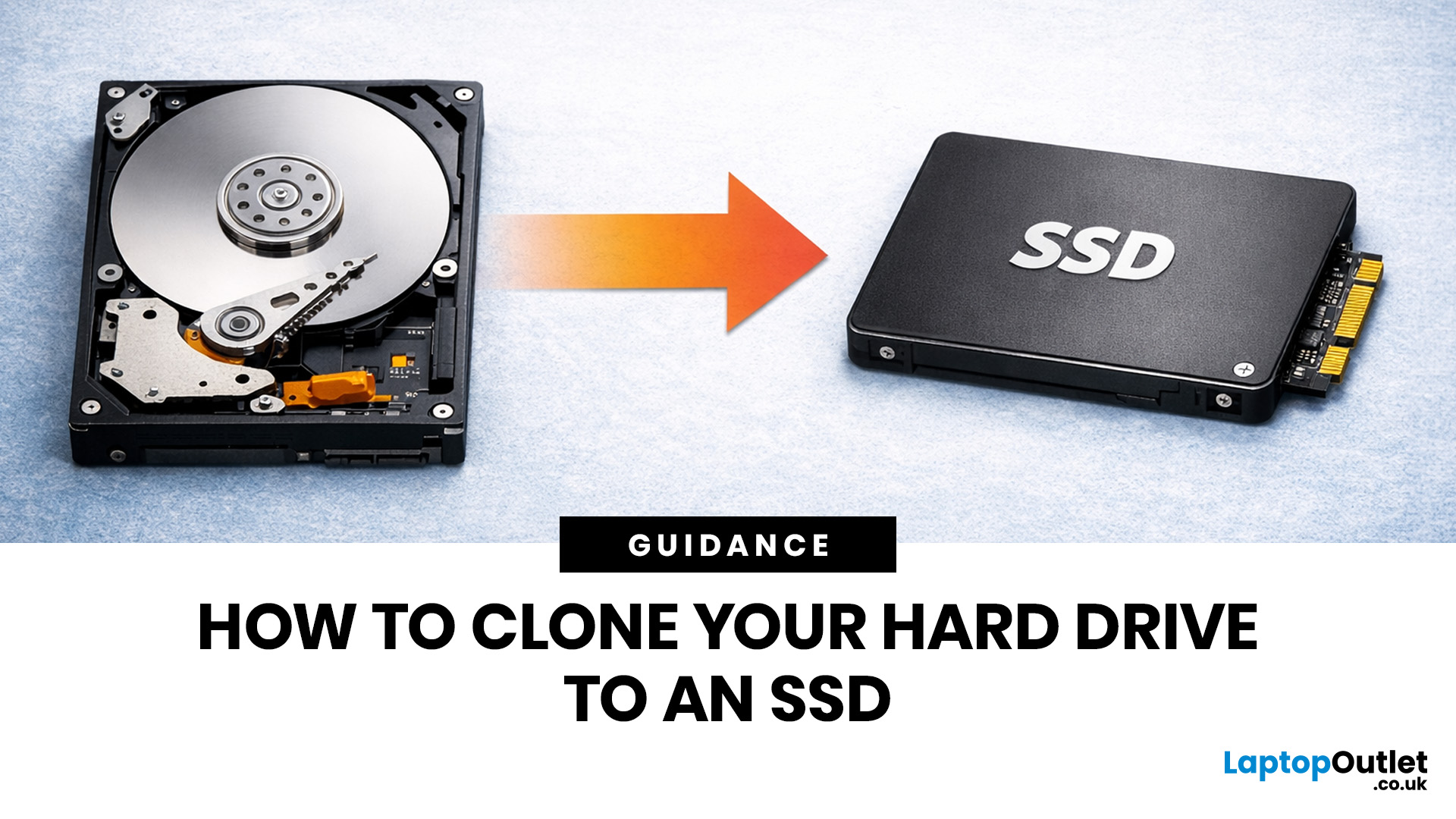
If your laptop feels slow to boot, takes too long to open files, or struggles with everyday performance, it may be time to clone hard drive to SSD and give your system a faster, more responsive upgrade. Moving from a traditional hard disk drive to a solid-state drive is one of the most effective ways to improve speed without replacing your entire device.
In this guide, you’ll learn how to clone a hard drive safely, what you need before you start, and how to handle the SSD migration process step by step. Whether you want to clone HDD to SSD for quicker startup times or simply transfer hard drive to SSD without losing your files, this guide will help you do it with confidence.
Why Upgrade from HDD to SSD?
A hard disk drive stores data using moving parts, while an SSD uses flash memory to access files much faster. That means quicker boot times, faster app launches, smoother multitasking, and less waiting around. If you use your laptop daily for work, study, browsing, or entertainment, choosing
Last Updated: May 01, 2026
Formatting an SSD takes less than five minutes when you know what you're doing. The tricky part is knowing which tool to use, which file system to pick, and how to avoid losing data along the way. That's exactly what this guide covers.
You will learn how to format a solid state drive on Windows, macOS, and Linux laptops, with step-by-step instructions for each. You'll also find out how to partition your SSD and wipe it securely when needed.
Before You Start: What You Need to Know
Before you touch any settings, take a few minutes to prepare. Skipping this stage is the most common reason people run into problems when setting up or reformatting a drive.
Back Up Your Data First
Formatting wipes everything. Every file, folder, and installed programme will be gone.
- Copy important files to a USB drive or cloud storage
- Use an external drive for large backups (if you need one, you can buy external hard drive options from Laptop Outlet)
- Double-check your backup before proceeding
There's no undo
Last Updated: September 24, 2026
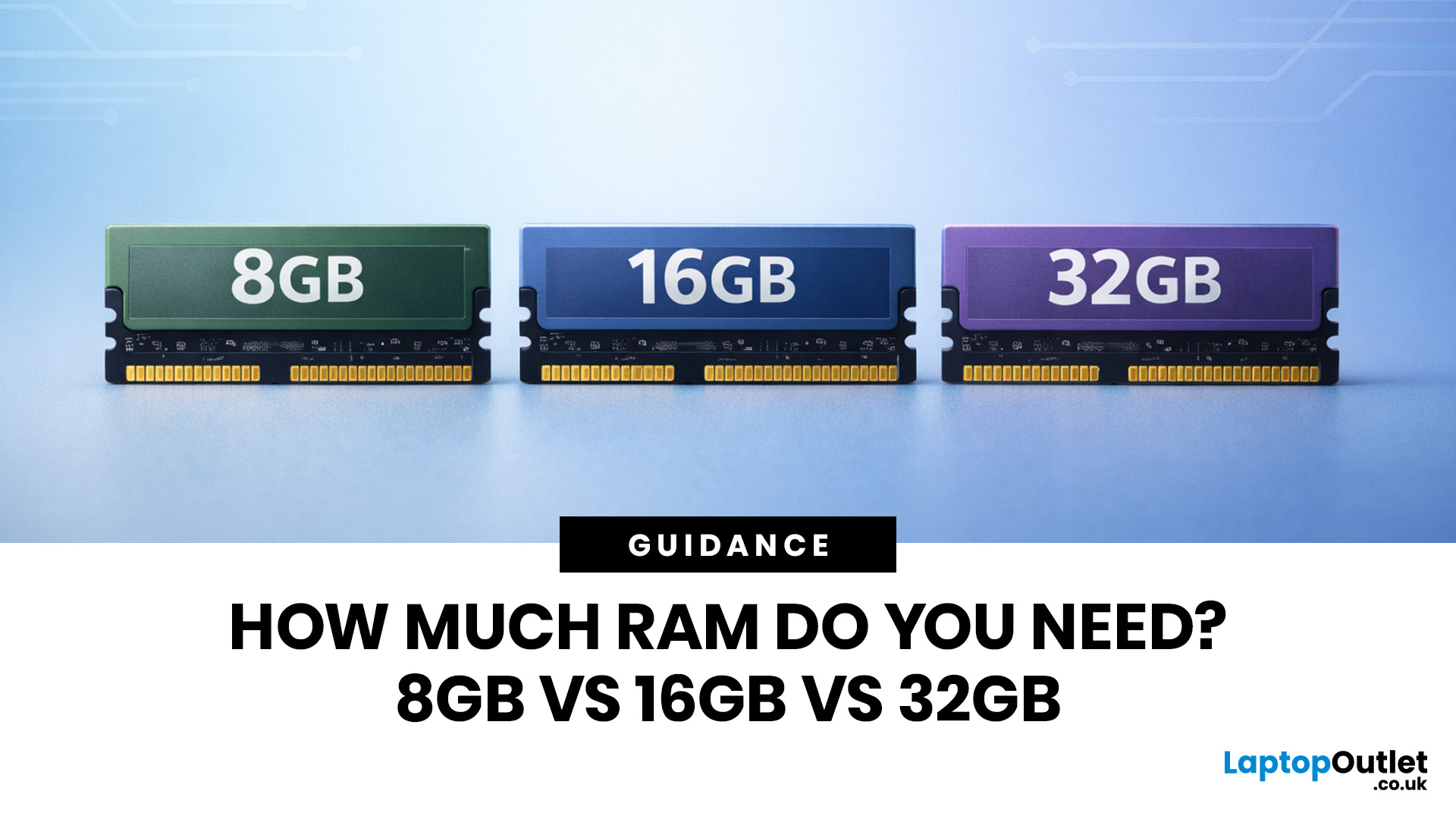
Wondering how much RAM you need? The practical answer is fairly simple. 8GB is still usable for basic laptop tasks; 16GB is the best all-around choice for most buyers, and 32GB is the right move for heavier gaming, creative work, coding, or extra long-term headroom.
For most laptop users, 16GB of RAM is the best all-round choice for work, study, multitasking and mainstream gaming. 8GB is still suitable for lighter everyday use, while 32GB makes more sense for creative work, coding, heavier gaming and demanding multitasking. 64GB is mainly for specialist professional workloads, while 4GB is best avoided on a new Windows laptop.
For RAM shoppers, the real question is not just how much RAM a laptop can run. It is about how much memory will give you a smooth, comfortable experience for how you actually work, study, stream, game, and multitask every day. That is where the difference between 8GB vs 16GB RAM, or 16GB vs 32GB, starts to matter.
What RAM Actually Does?
RAM is your laptop’s short-term
Last Updated: September 24, 2026
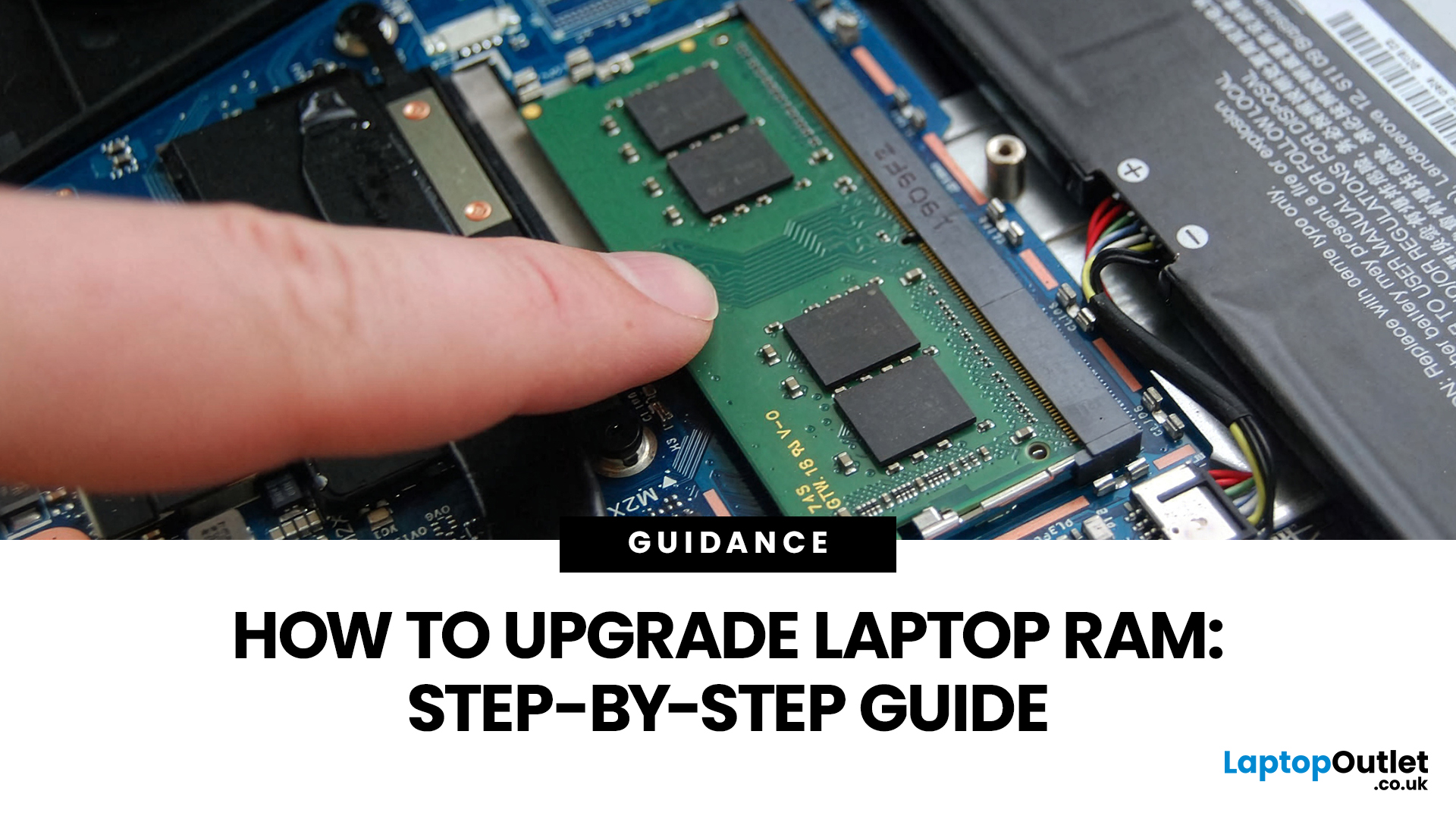
Upgrading laptop RAM is one of the simplest ways to make an older machine feel faster and more capable again, but only if the compatibility side is right from the start. That is the part many quick guides skip. Before buying anything, we always recommend checking whether the laptop has upgradeable memory, what RAM standard it uses, how much it supports, and whether upgrading means adding another module or replacing the existing setup.
To upgrade laptop RAM, first check whether your model has upgradeable SO-DIMM slots, the supported DDR generation, maximum capacity and current memory configuration. Buy compatible RAM, shut the laptop down, disconnect power, open the service panel, remove or add the module, then reassemble and boot up. Finally, confirm the new memory is recognised and test system performance for improved multitasking.
For UK shoppers, that matters because a RAM upgrade can be a much smarter option than replacing a laptop too early. If a system slows down with lots of browser

