



External Hard Drives vs USB Flash Drives: Which is Best?
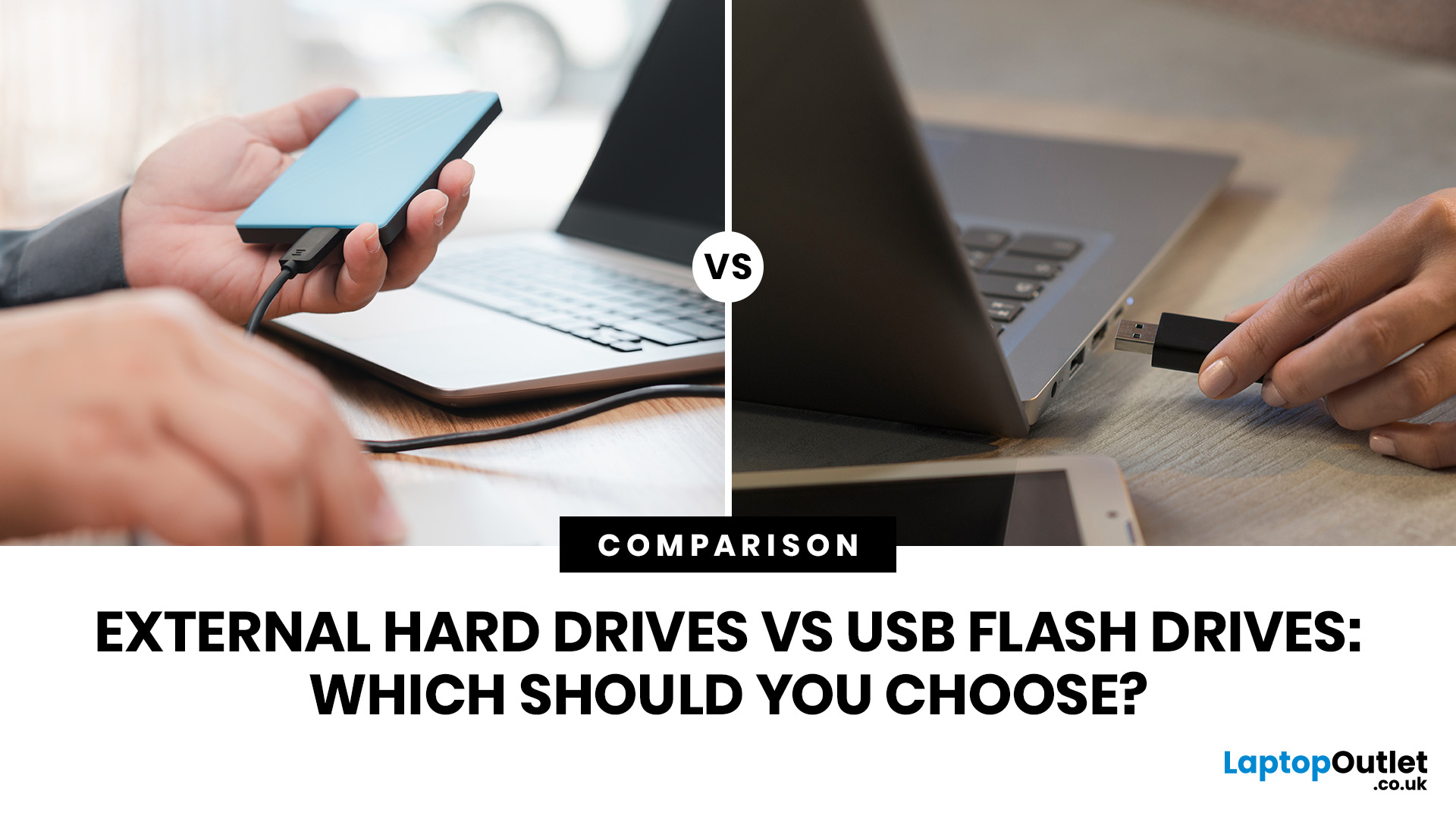
Quick Answer: External hard drives (HDDs/SSDs) are best for high-capacity, long-term storage and backups, offering cheaper cost-per-gigabyte. USB flash drives are superior for portability, quick file transfers, and convenience.
Choosing between an external hard drive vs USB flash drive is one of those decisions that seems simple until you actually try to pick one. Both plug in via USB and store your files, but they are built for very different jobs. This guide covers every key factor of these storage options, so you can make a confident, informed choice.
What is an External Hard Drive?
An external hard drive is a portable storage device that connects to your computer via USB, USB-C, or Thunderbolt. It is designed for large-scale storage, serious backups, and long-term data archiving, offering far greater capacity than most other portable options.
Types of External Hard Drive
There are two main formats to know: hard disk drives (HDDs) and solid-state drives (SSDs).
|
External HDD (Hard Disk Drive) |
External SSD (Solid State Drive) |
|
Uses spinning magnetic platters to store data Most affordable option per gigabyte Susceptible to drops and physical shocks Typical capacity: 500GB to 26TB |
Uses flash memory chips with no moving parts Faster, lighter, and more durable than HDDs Costs more per gigabyte but better for active use Typical capacity: 250GB to 8TB |
Who Should Choose an External Hard Drive?
External hard drives are ideal for:
- Creative professionals managing large video or photo projects
- IT teams running regular full-system backups
- Students storing years of coursework and research files
- Home users building extensive media and photo collections
For the help with storage decisions, a detailed SSD vs HDD comparison is worth reading if you are also weighing up internal upgrades.
What is a USB Flash Drive?
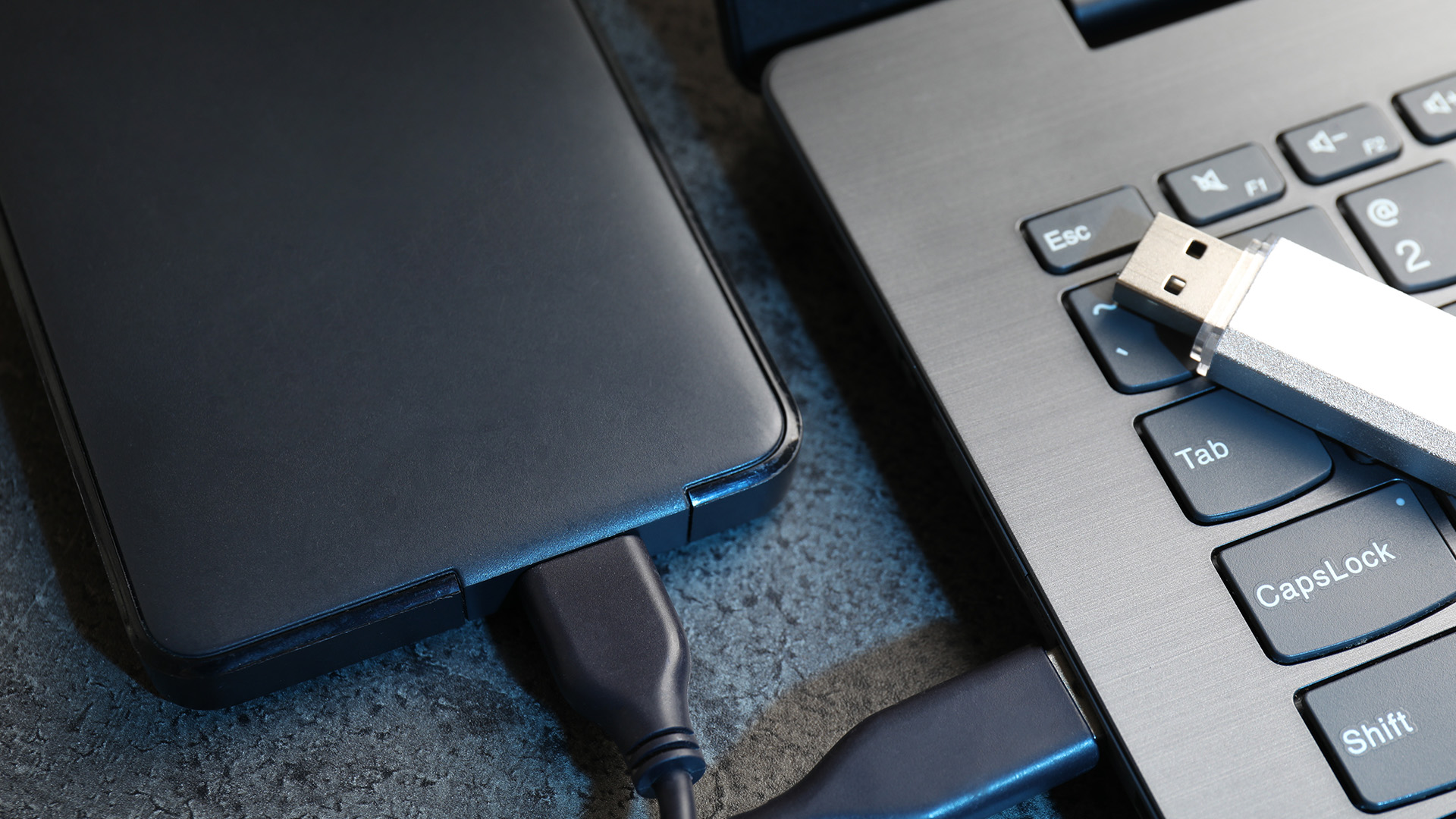
A USB flash drive (also known as a pen drive, thumb drive, or memory stick) saves your files using flash memory chips, with no moving parts or power cables needed. It is compact, affordable, and ready to use straight out of the box.
What Is a USB Flash Drive Used For?
Here are the top everyday uses:
- Transferring files between computers
- Backing up essential documents and coursework
- Sharing presentations at work or college
- Storing bootable OS installers
- Running portable software on the go
USB Flash Drive Benefits
The advantages of a USB flash drive are all about simplicity. Plug it in, drag your files across, and you're sorted. No software installation or Wi-Fi required.
USB flash drives also include near-universal compatibility. They work with laptops, desktops, smart TVs, and even some modern printers right out of the box.
Capacity: Which Storage Device Holds the Most Data?
When it comes to raw storage, the gap is significant. In a straight capacity comparison, external drives dominate by a considerable margin.
External HDDs typically range from 500GB to 26TB, while external SSDs commonly range from 250GB to 8TB. USB flash drives usually range from 16GB to 512GB, with premium 1TB+ models also available.
Capacity at a Glance
|
Storage Type |
Typical Range |
Best For |
|
External HDD |
500GB to 26TB |
Backups, media libraries |
|
External SSD |
250GB to 8TB |
Fast portable storage |
|
USB Flash Drive |
16GB to 1TB |
Light storage, file transfers |
Speed: Which Storage Device is Fastest in 2026?
Transfer speed affects everything from file copy times to whether you can run software smoothly directly from the drive. In general, external SSDs are the fastest option, followed by external HDDs, while USB flash drives can range from basic everyday performance to near-SSD speeds depending on the model and USB standard.
Speed Comparison by Drive Type
|
Drive type |
Typical read speed |
Typical write speed |
|
External SSD (USB 3.2 Gen 2x2) |
Up to 2,000 MB/s |
Up to 2,000 MB/s |
|
External SSD (Thunderbolt 5) |
Over 6,000 MB/s |
Over 6,000 MB/s |
|
External HDD (single-drive portable) |
Around 100 to 140 MB/s |
Around 100 to 140 MB/s |
|
USB flash drive (standard USB 3) |
Around 130 to 220 MB/s |
Varies widely, often lower |
|
USB flash drive (premium USB 3.2 Gen 2) |
Up to 1,000 MB/s |
Up to 900 MB/s |
|
USB flash drive (USB 2.0) |
Often much slower; real-world speeds vary |
Often much slower; real-world speeds vary |
For users who want rapid performance at the system level, upgrading to high-speed internal SSDs is well worth considering alongside any portable storage investment.
Durability: Which Storage Device is Most Reliable for Backups?
Durability is a practical concern most people overlook until something goes wrong. External HDDs contain spinning mechanical platters that are genuinely vulnerable to drops, knocks, and vibrations.
Among the advantages of flash disk storage and SSDs is the complete absence of moving parts, which gives them a clear physical resilience edge over traditional HDDs.
However, the disadvantages of flash drive technology include a finite number of write cycles, making them less suitable for constant, high-volume writing tasks.
Durability Factors at a Glance
- External HDD: High risk of data loss from physical shock due to spinning mechanical parts. Handle with care.
- External SSD: No moving parts, highly durable, but costly to replace if damaged or lost.
- USB Flash Drive: Physically tough, but write cycle limitations reduce long-term reliability under heavy use.
Portability: Which Storage Device Is Easiest to Carry Daily?
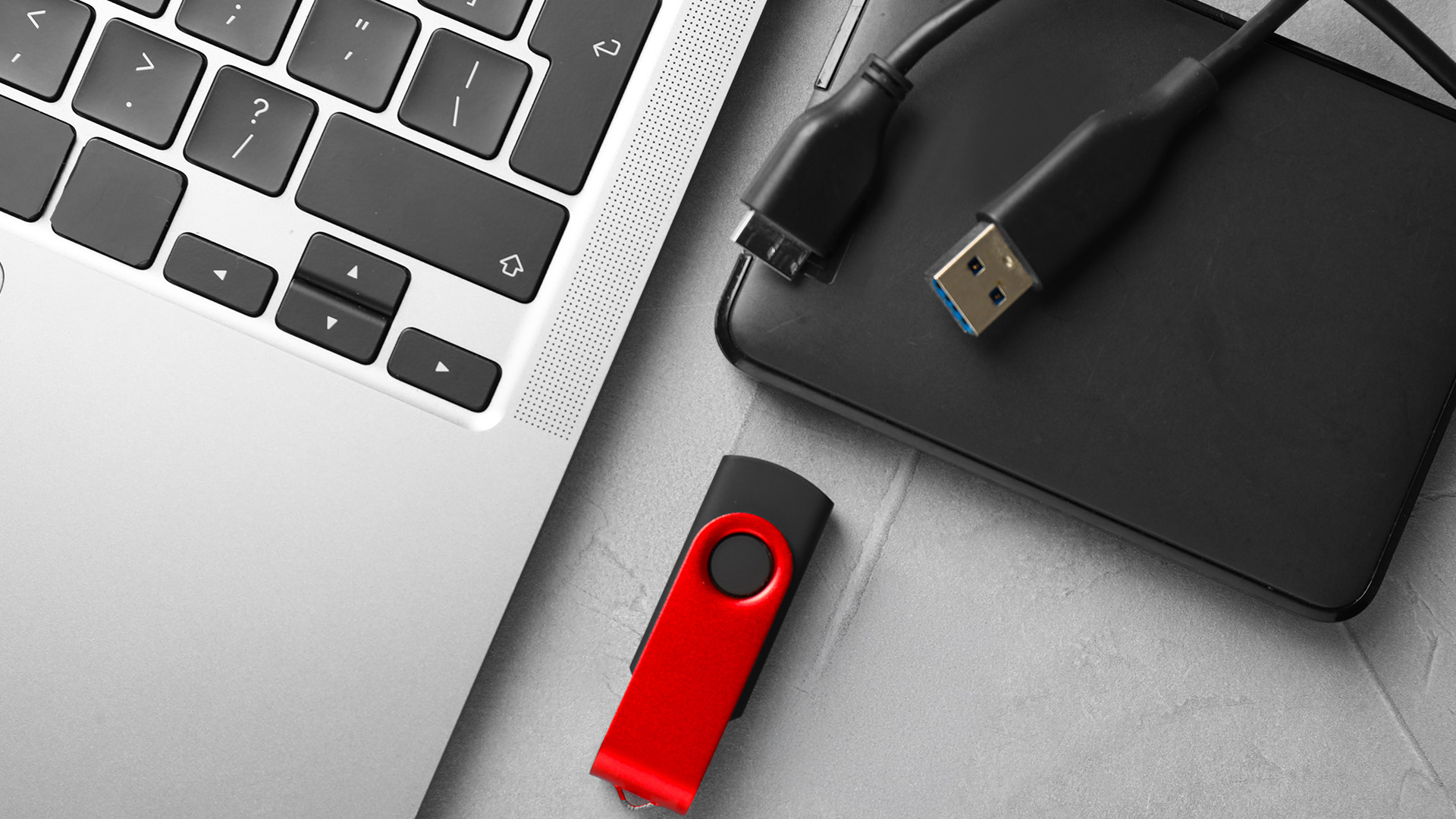
Size and convenience are often the deciding factor for professionals working across multiple machines or always on the move. When running a proper portability comparison between external drives vs USB sticks, the difference is immediately obvious.
USB flash drives are tiny, weigh under 10 grams, and require no cable whatsoever. They sit happily on a keyring. Modern external SSDs are impressively slim but still noticeably larger. External HDDs, while technically portable, require a cable and take up meaningful bag space. If maximum convenience is your priority, USB flash drives are the clear winner.
Portability Comparison
|
Feature |
External HDD |
External SSD |
USB Flash Drive |
|
Size |
Medium to large |
Small to medium |
Tiny |
|
Weight |
100g to 300g+ |
40g to 100g |
Under 10g |
|
Cable required |
Yes |
Sometimes |
No |
|
Fits on keyring |
No |
No |
Yes |
Cost: Which Storage Device Gives the Most Value?
Budget is a practical reality, and understanding the hard drive and USB cost difference helps you spend wisely. USB flash drives are the cheapest entry point, with 32GB models starting from as little as £7.
External HDDs offer the best cost-per-gigabyte for large storage, with 1TB models starting around £55 to £75. External SSDs sit at the premium end of the market, and the price reflects the superior speed and build quality you receive.
Approximate UK Price Guide
|
Storage Type |
Capacity |
Approx. Price (£) |
|
USB Flash Drive |
32GB |
£7 to £12 |
|
USB Flash Drive |
256GB |
£20 to £40 |
|
External HDD |
1TB |
£55 to £75 |
|
External HDD |
2TB |
£75 to £95 |
|
External SSD |
500GB |
£55 to £80 |
|
External SSD |
1TB |
£80 to £230 |
Full Head-to-Head Comparison: HDD vs. SSD vs. USB Flash
Here is a complete, side-by-side look at the external hard drive vs USB flash drive debate across every major category. Use this table to identify the right choice for your specific needs at a glance.
|
Feature |
External HDD |
External SSD |
USB Flash Drive |
|
Capacity |
Up to 26TB |
Up to 8TB |
Up to 1TB |
|
Speed |
Moderate |
Very fast |
Slow to moderate |
|
Durability |
Moderate |
High |
High (write limits apply) |
|
Portability |
Medium |
Medium to high |
Very high |
|
Cost per GB |
Low |
High |
Medium |
|
Best use |
Large backups, archives |
Fast portable storage |
File transfers, sharing |
|
Cable needed |
Yes |
Sometimes |
No |
|
Typical lifespan |
3 to 5 years |
5 to 10 years |
10+ years (light use) |
Decision: Which Storage Device Should You Choose?
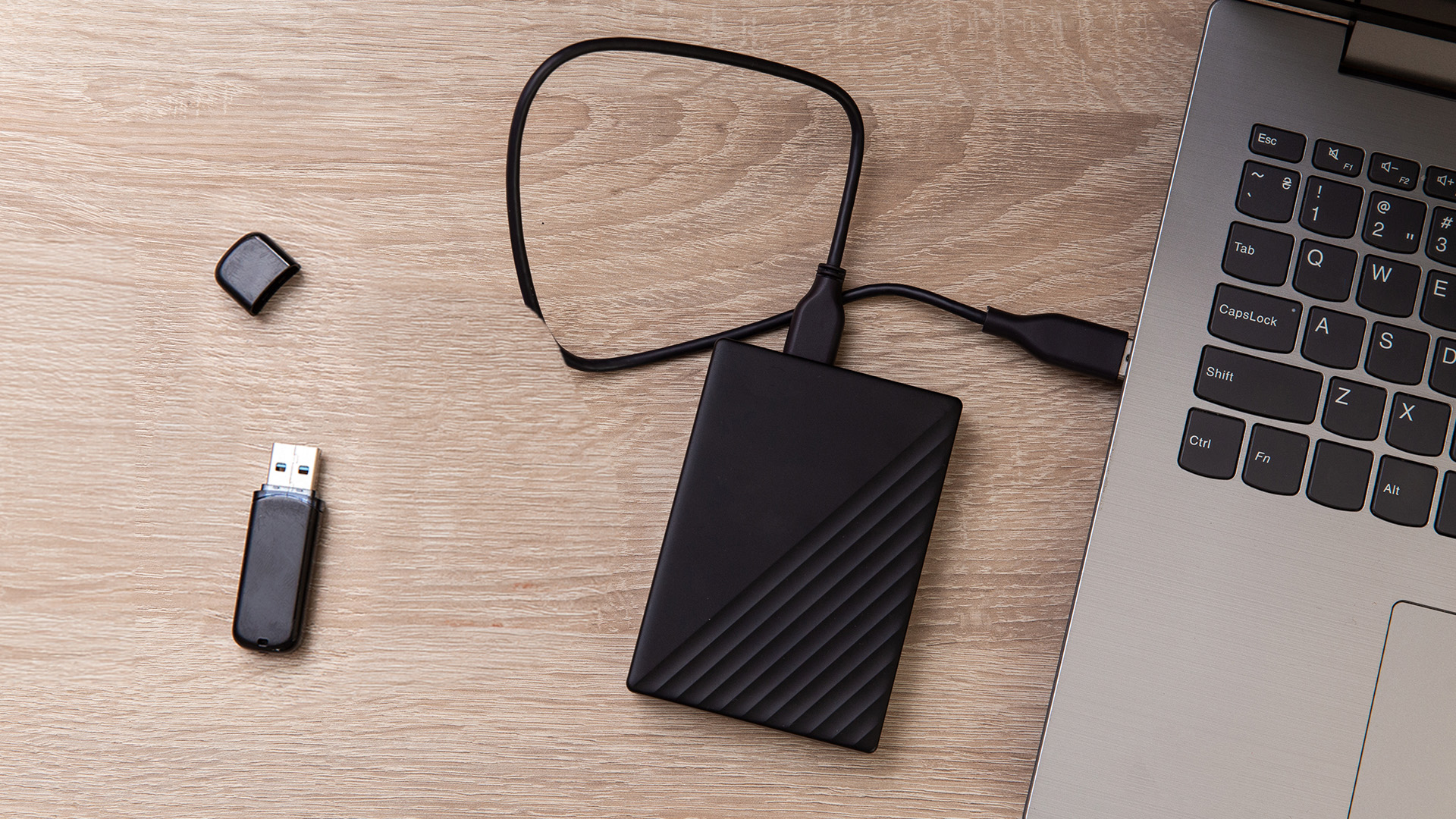
The external hard drive vs USB flash drive decision comes down to three practical questions: how much storage do you need, how often are you on the move, and what is your budget?
Choose a USB Flash Drive If...
- You need to transport small to medium files on a regular basis
- Budget is your primary concern and under £20 works for you
- You value maximum portability with absolutely zero fuss
- You're a student, commuter, or light everyday user
Choose an External HDD If...
- You need to back up a full computer, media library, or work server
- You work with large video, audio, or RAW photography files
- You want a reliable, long-term storage solution at a sensible price
- You're a gamer looking to expand console or PC storage
Choose an External SSD If...
- You need fast transfer speeds alongside generous storage capacity
- You frequently work on the go and need both speed and durability
- You're a content creator, developer, or IT professional
- Your budget stretches to the premium price point and the performance justifies it
Ready to upgrade your storage? Buy an external hard drive for massive backups today or browse our range of reliable flash drives for portable, everyday convenience.
If you're in the market for a new machine as well, explore all laptops options to find a model with the right ports and performance to match your storage needs.

Final Recommendations for Buyers
The external hard drive vs USB flash drive debate doesn't have a single right answer. It comes down to your specific storage needs, budget, and how you plan to use your device day to day.
For casual, everyday file sharing, a USB flash drive is affordable and brilliantly convenient. For serious backup, large-scale archiving, or professional use, an external hard drive is the clear winner.
Whatever your storage needs, Laptop Outlet has you covered with a trusted range of both.

Quick Answers to Your Storage Queries...
What does a pen drive do?
A pen drive (or USB flash drive) is a portable device used to store, backup, and transfer digital files between computers via a built-in USB connector and flash memory.
What is the main difference between flash drive and external hard drive?
A flash drive is small, portable, and great for quick transfers. An external hard drive offers far greater capacity for backups and long-term file archiving.
Can I use a USB flash drive as a backup device?
Yes, but only for small files. Flash drives have limited capacity and write cycles, making them less reliable than external hard drives for comprehensive backups.
Is an external hard drive safer than a USB flash drive?
External drives are generally safer and more reliable for long-term storage and large backups due to better longevity and higher data integrity. However, USB flash drives are more durable against physical drops.
How long does a USB flash drive typically last?
Most flash drives last between five and ten years with moderate use. Heavy, repeated writing degrades flash memory over time due to limited write cycles.
| Read More: |
| How to Clone Your Hard Drive to an SSD: Upgrade Guide |
| SSD vs HDD: Which Storage Option is Right for You? |
| NAS Storage Explained: Do You Need One? |
Related Articles


Last Updated: September 11, 2025
Small Device, Big Function
You’ve probably used a USB flash drive or thumb drive before—but what exactly are they? These small but mighty devices are essential for storing and transferring data quickly and easily. Let’s unpack what a USB flash drive is, what it does, and why it’s still so popular in 2025.
1. What Is a USB Flash Drive?
A USB flash drive (also called a thumb drive, pen drive, or memory stick) is a small, portable storage device that connects to your computer or laptop via a USB port.
Key Characteristics:
Uses flash memory (no moving parts)
Plugs directly into USB-A or USB-C ports
Often pocket-sized and lightweight
The term "thumb drive" comes from its compact size—similar to a human thumb
2. What Is It Used For?
Storing documents, photos, videos, and music
Transferring files between devices
Backing up important data
Creating bootable drives for OS installations (like Windows 11)
3. USB Flash Drive vs External Hard Drive
| Feature | USB Flash Drive | External |
Last Updated: September 11, 2025
Decoding USB Types in Everyday Tech
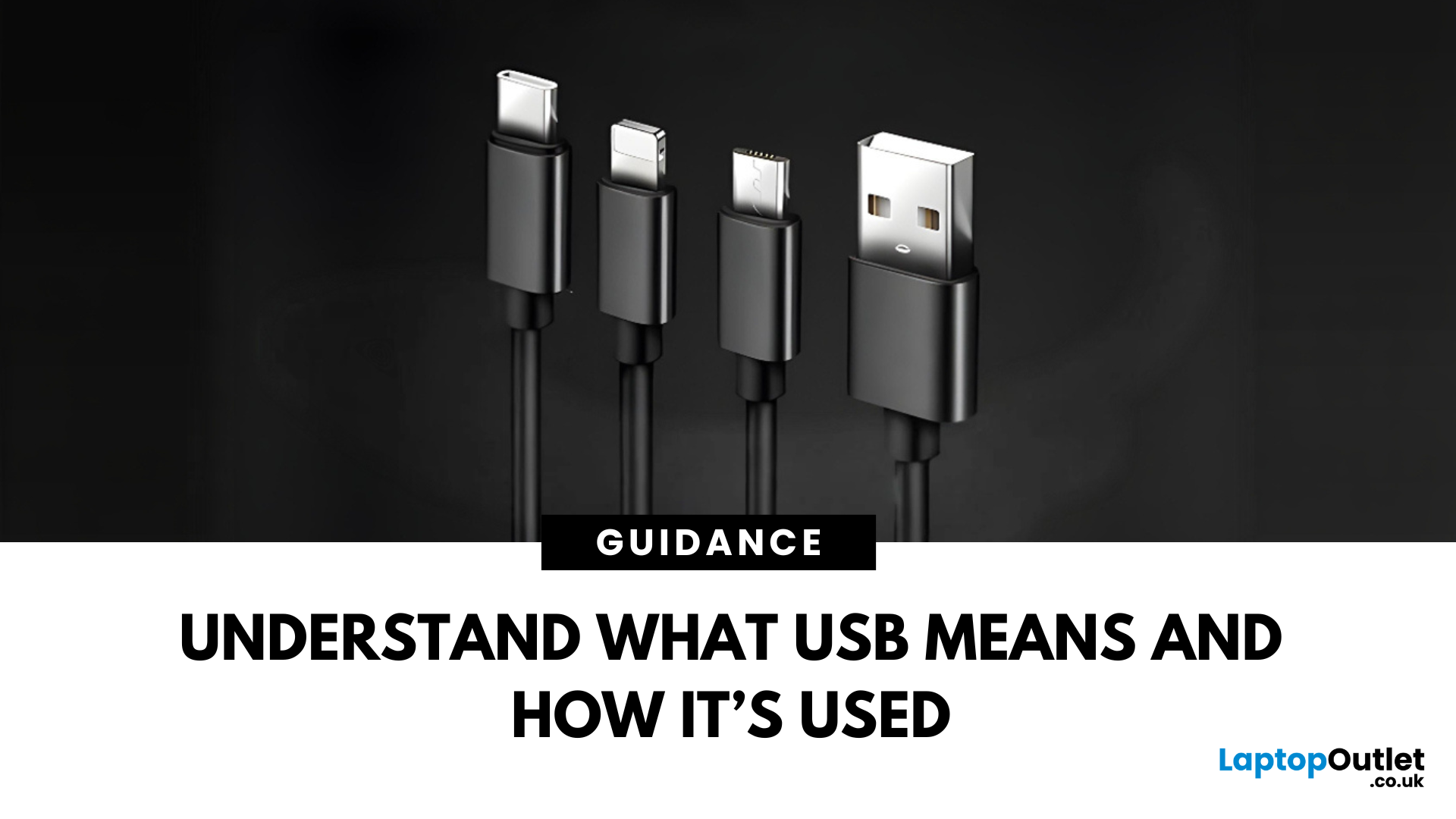
We all use USB cables, but few know the real differences between USB, USB-C, and Micro USB. Whether you're charging your phone, connecting a device, or transferring data, understanding these terms helps you pick the right tech. Let’s break it down simply.
What Does USB Stand For?
USB stands for Universal Serial Bus. It’s a standard for cables, ports, and communication between electronic devices.
Developed to simplify connections between computers and peripherals (like keyboards, printers, and flash drives)
Main Uses:
- File transfers
- Charging smartphones, tablets, accessories
- Powering small devices
What Is USB-C?
USB-C is the latest version of USB and is now standard on most new smartphones, laptops, tablets, and accessories.
Key Features:
- Reversible connector—no wrong way to plug it in
- Fast data transfer (up to 40Gbps with USB4)
- Supports fast charging and video output (great for docking stations and monitors)
- Universal use—one
Last Updated: September 11, 2025
Ready to Install Windows 11?
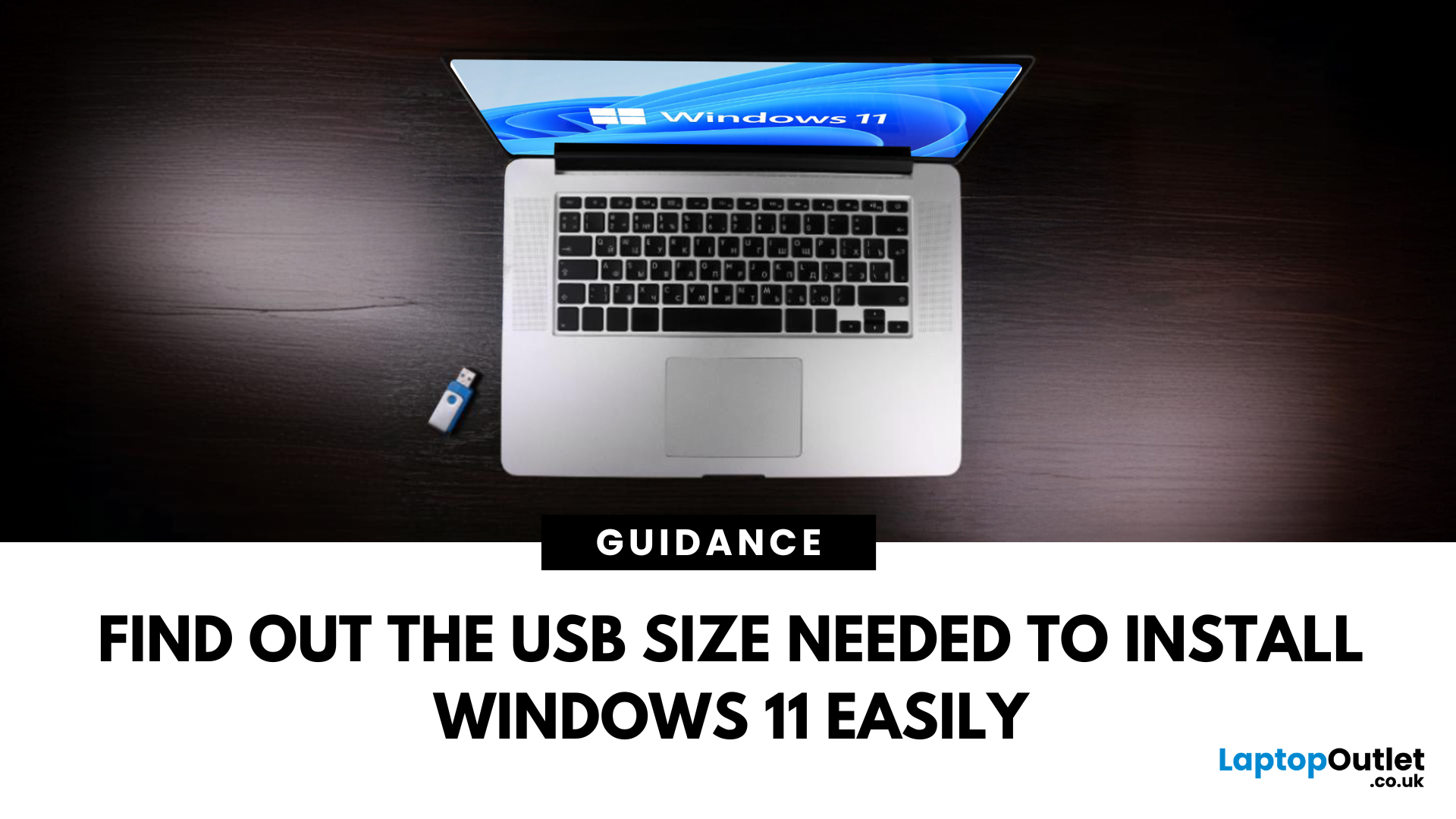
If you're planning to install Windows 11 using a USB stick, one of the first things to sort out is the size. Too small, and it won’t fit the installer. Too large, and it’s unnecessary. Let’s clear up exactly what size USB you need to install Windows 11 and how to get it ready.
Minimum USB Size for Windows 11 Installation
- At least 8GB of storage is required
- Recommended: 16GB or more for extra space and reliability
Microsoft officially recommends a USB drive with 8GB minimum, but using a 16GB or 32GB USB stick ensures you won’t run into space issues.
USB Format Requirements
Before using the USB stick:
- Format it as FAT32 (for UEFI systems) or NTFS (for BIOS/Legacy systems)
- Use tools like Rufus (Windows) or Disk Utility (Mac) to format and prepare the drive
Create a Bootable USB for Windows 11
Using Microsoft’s Media Creation Tool:
- Download the Media Creation Tool from Microsoft’s website
- Run the tool and choose Create installation media
Published: September 01, 2025
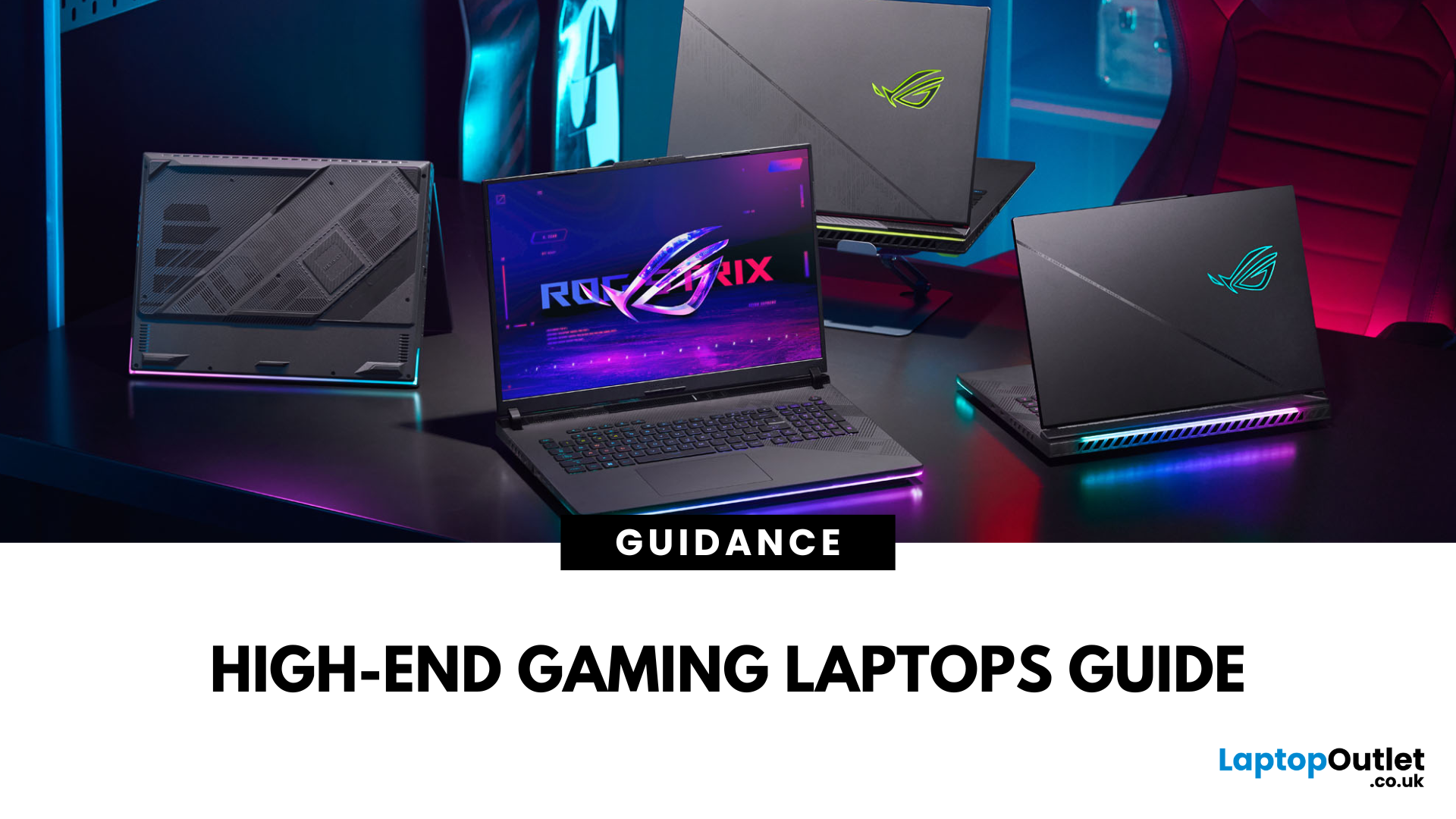
Gaming laptops have evolved massively in recent years, bridging the gap between desktop performance and portability. But what sets these devices apart from standard laptops? The answer lies in raw power: the latest processors, dedicated NVIDIA RTX or AMD Radeon GPUs, advanced cooling systems, and lightning-fast refresh rates.
In this guide, we’ll explore the best gaming laptops in the market, compare models from brands like ASUS, Acer, HP, and Lenovo, and break down what features truly matter for gaming laptop performance.
Why Choose High-End Gaming Laptops?
For serious players and professionals, only the most high-end gaming laptops deliver the speed, graphics quality, and efficiency needed to stay competitive. Before investing, it’s important to understand why powerful gaming laptops justify their price tags.
Gaming Without Limits
Unlike entry-level or mid-range models, high-end gaming laptops deliver desktop-class performance in a portable form. You can play AAA titles at ultra-settings,

Last Updated: October 12, 2026
Tech problems don’t just appear out of nowhere, they come from either the hardware (the physical components inside your device) or the software (the code, drivers, and operating systems that make it run).
- If you misdiagnose, you can waste money replacing parts that aren’t broken or reinstalling software that wasn’t the problem.
- A clear diagnosis saves time, money, and stress.
Signs of a Hardware Issue
Hardware issues are tied to physical components. You can look for the following:
- Frequent Crashes & Freezes: Device shuts down abruptly without warnings.
- Overheating: Fans running loud, device too hot to touch, sudden shutdown.
- No Power or Boot Failures: Press power button, nothing happens; often battery, PSU, or motherboard related.
- Noises or Beeps: Clicking hard drives, RAM error beeps, grinding fans.
- Peripheral Failures: Keyboard, mouse, or screen not responding even after reinstalling drivers.
You can run diagnostics like Windows Memory Diagnostic (RAM), SMART tests (hard drives/SSDs),
Last Updated: February 25, 2026
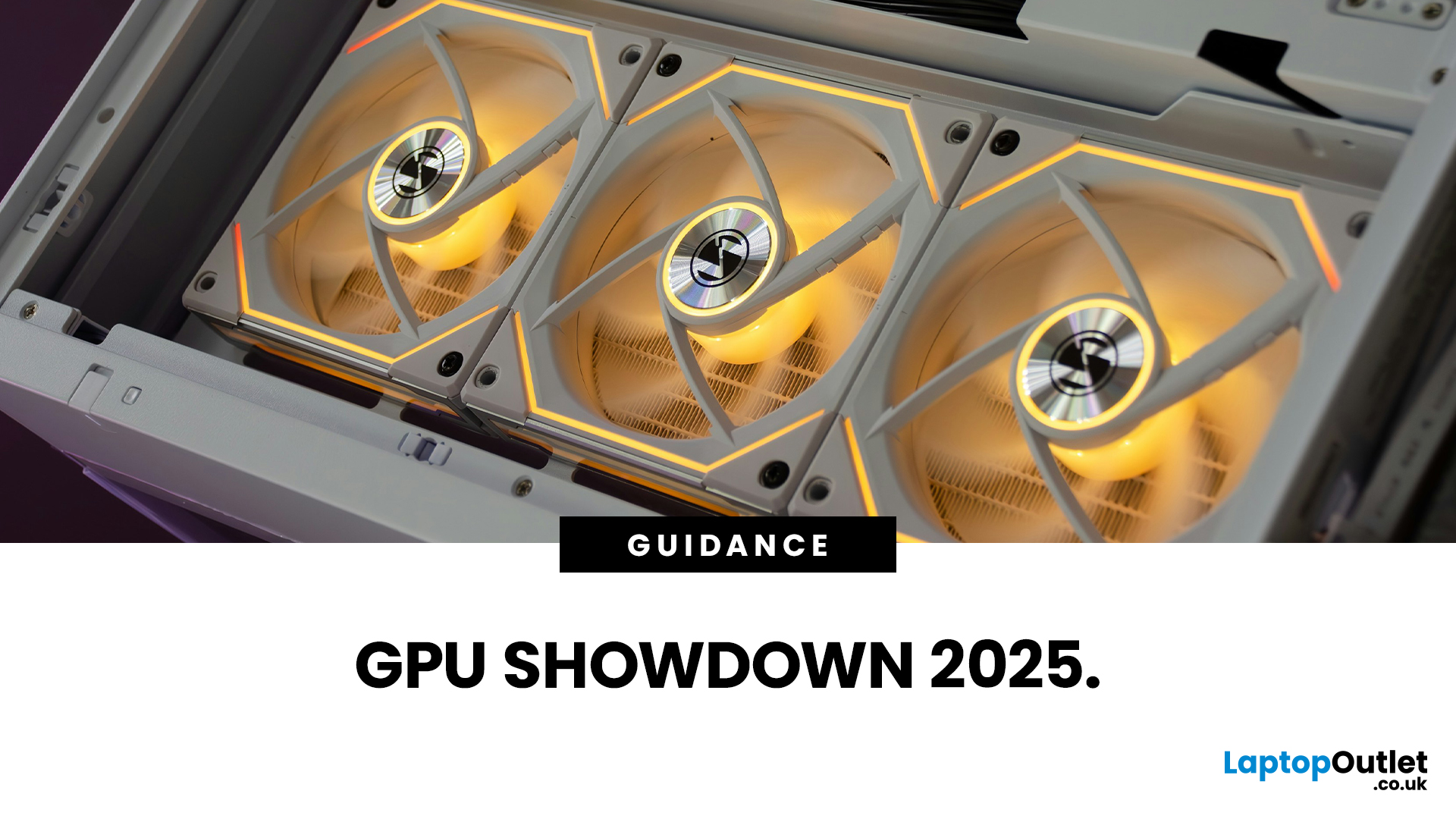
We’ve been deep in the trenches with today’s top-tier GPUs, testing them across real-world gaming sessions, editing timelines, and production rigs. This isn’t just another spec dump. It’s a curated breakdown of what actually matters when you're pushing pixels or chasing frames. Whether you're building for buttery 4K gameplay or need something that won’t choke on a multi-cam 8K edit, we’ve cut through the marketing noise to highlight what each card nails (and where it stumbles). No filler, no fluff, just the kind of insight we’d want before dropping serious cash on a new GPU.
ASUS GeForce RTX 5090 ROG Astral 32GB OC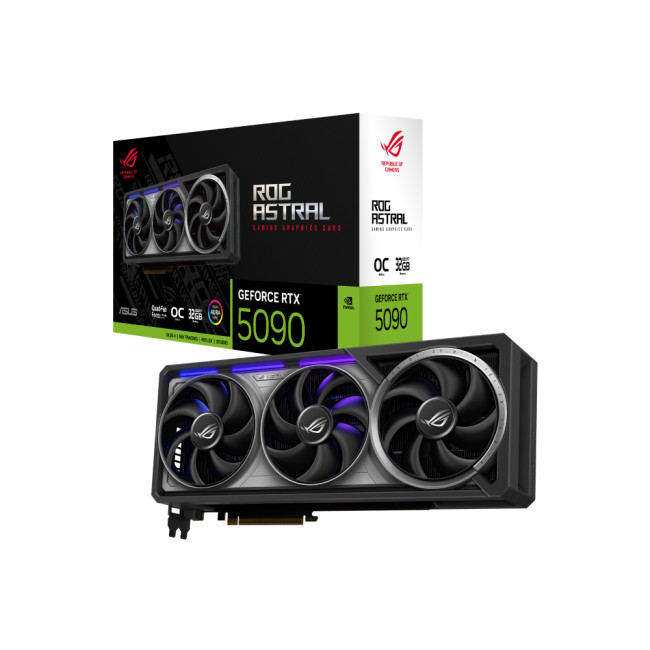
Also Known As:
- ROG STRIX RTX 5090
- NVIDIA GeForce RTX 5090 ROG Astral OC
- The Beast from the Future
Overview & Standout Features
The ASUS RTX 5090 ROG Astral isn’t just a GPU; it’s a flex. This monster packs 32GB of next-gen GDDR7 VRAM, triple axial-tech fans, and more RGB than your setup probably needs (but still wants). ASUS has taken NVIDIA’s flagship and strapped
Published: November 14, 2025
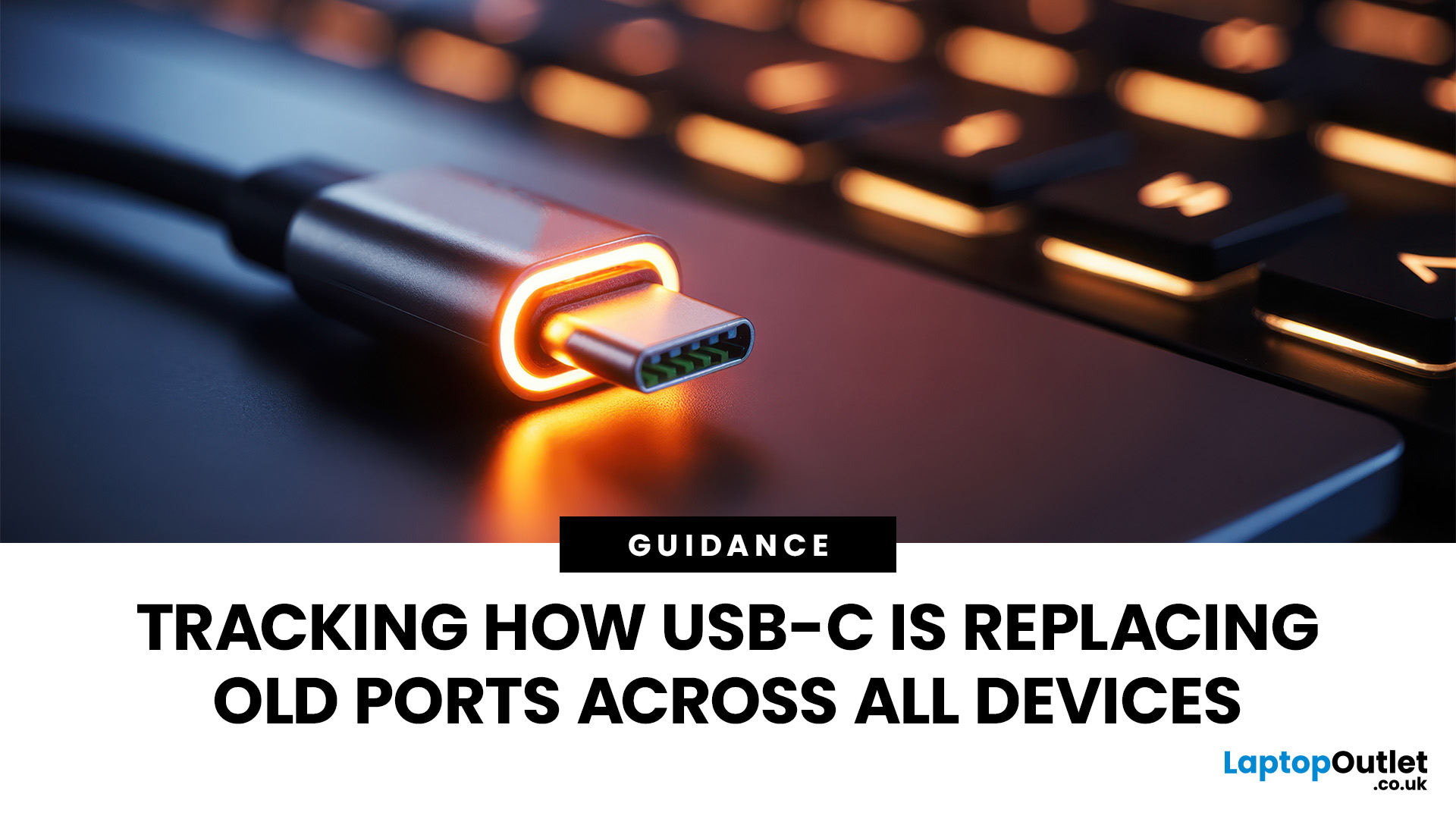
For years, we’ve juggled a drawer full of tangled cables — micro-USB, Lightning, HDMI, and others. But now, USB-C adoption is changing that.
This small, reversible connector has become the go-to choice for phones, laptops, and even monitors. It promises a single, universal solution for charging, data transfer, and video output.
But are we finally there yet? Let’s explore how close we are to a world of USB-C everything.
What Is USB-C and Why It Matters
USB-C, also known as USB Type-C, is a reversible connector that can handle multiple functions. Introduced in 2014, it was designed to be faster and more versatile than previous USB types.
Key features include:
- Reversible Design: No more flipping the cable to find the right orientation.
- Fast Data Transfer: Up to 40Gbps with USB4 and Thunderbolt 4 support.
- High Power Delivery: Up to 240W, enough to charge large laptops and monitors.
- Multiple Functionality: The same port handles charging, data, and video.
This all-in-one capability is what

Last Updated: February 27, 2026
In the years, since hybrid and remote work became widespread across the UK, a crucial question has reshaped how organisations equip their staff: what research reveals about hardware, ergonomics, and productivity? In this survey-style analysis, we will examine UK-specific guidance (HSE, Acas, GOV.UK), peer-reviewed ergonomics & productivity studies, academic findings on posture, dual monitors, and screen design, evidence-based home hardware trends in 2025, to explore what users actually prefer.
Work-From-Home Hardware Shaping Users’ Productivity
Hybrid Work is Now the UK’s Norm
The Office for National Statistics (ONS) reports that hybrid working is most common among professional and managerial occupations, jobs that depend heavily on computer use, document handling, communication platforms and online collaboration.
(ONS, “Who Are The Hybrid Workers?” 2024)
Professionals who rely on digital productivity naturally gravitate toward larger screens, dual monitors, and ergonomic peripherals,

Last Updated: January 02, 2026
When you start plugging in devices and suddenly run out of USB slots, the first question that comes to mind is a simple one: how many USB ports does my motherboard actually have?
This is something most users never think about until they hit a limitation. Whether you are building a PC, upgrading an old system, or just trying to understand why you need a USB hub, the answer always comes back to your motherboard USB ports.
The tricky part is that the total number of USB ports is not always obvious at first glance. Some are visible on the back of the PC, others are internal, and some are supported but not even active unless you connect the right headers.
This guide breaks everything down in a practical way and helps you discover how to check the total USB ports supported by your motherboard.
Why Motherboard USB Ports Matter More Than You Think
Motherboard USB ports define how many devices your system can handle directly. That includes keyboards, mice, external drives, webcams, printers
Last Updated: August 28, 2026
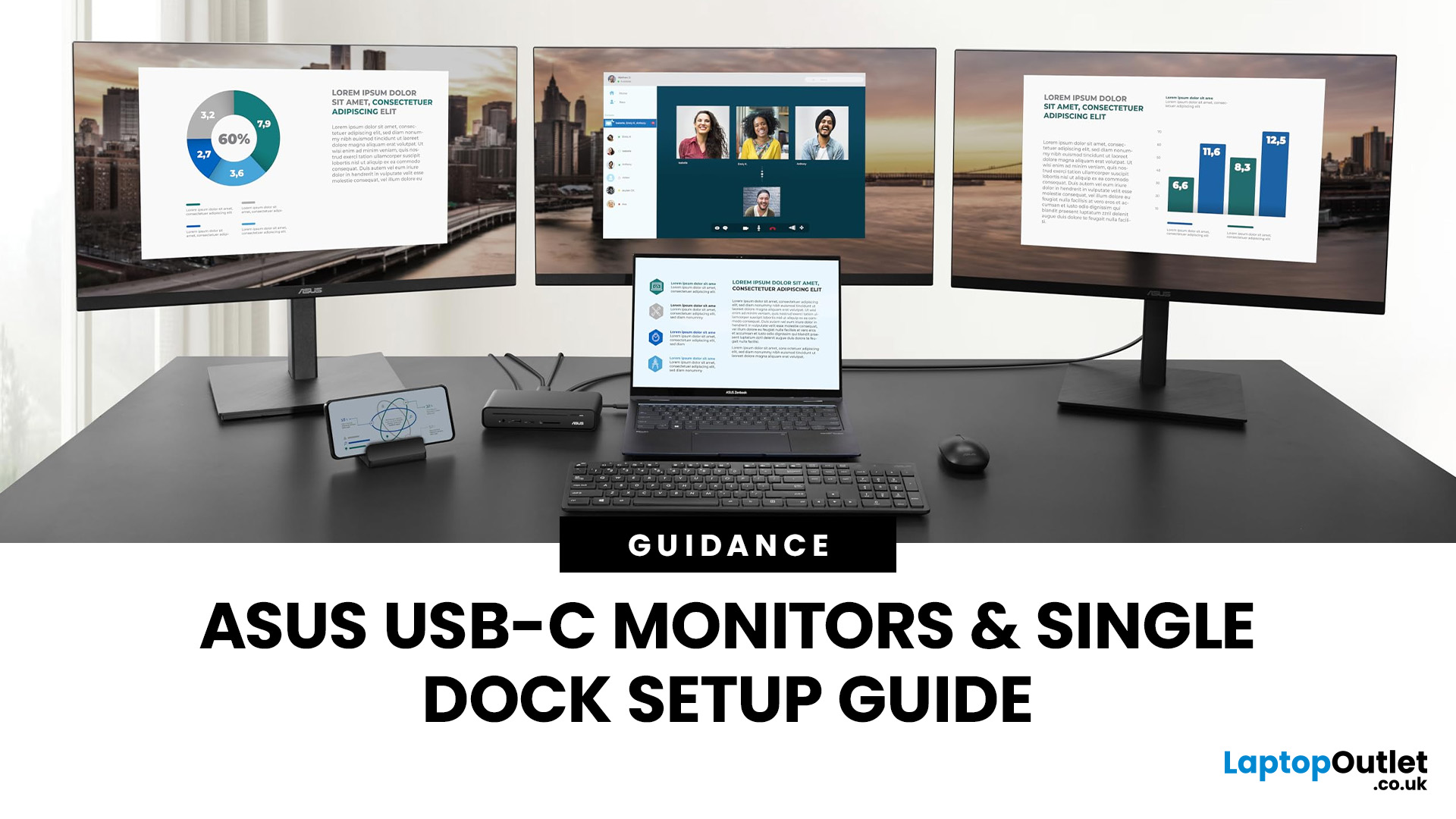
If you’re planning a desk refresh, rolling out new workstations, or managing a hot-desking environment, one question always comes up: how many ASUS USB-C monitors can you realistically run from a single dock? The short answer? It depends.
The long answer? It depends on your laptop’s GPU, the dock’s bandwidth, the monitor resolutions, and whether you’re daisy-chaining or using multiple video outputs.
In this practical IT deployment guide, we’ll break down exactly how ASUS USB-C monitors behave in real-world setups, what limits your configuration, and how to plan a reliable multi-monitor rollout without unpleasant surprises.
How USB-C Video and Power Actually Work
USB-C looks simple. One cable. Power. Video. Data. Done.
But behind that clean setup, there’s a lot happening.
USB-C monitors rely on a feature called DisplayPort Alt Mode. This allows the USB-C cable to carry video signals from your laptop’s GPU directly to the monitor. Many modern docks also use DisplayLink technology, which

