



How to Reset or Restore HP Laptops Safely

HP laptops are built for work, study, gaming and everyday use, but software problems can affect any computer over time.
Failed updates, damaged system files, unwanted applications and persistent errors can make a reset necessary. This guide explains how to factory reset an HP laptop from Windows, the sign-in screen or the recovery environment, including what to do when Windows will not start or you have forgotten your password.
What Does Resetting HP Laptops Do?
Resetting reinstalls Windows and returns many settings to their defaults. Depending on the option selected, Windows can preserve personal files or remove everything stored on the system drive.
However, “Reset this PC” and an HP factory recovery are not always identical. A standard Windows reset provides a fresh Windows installation, while an HP recovery image may also restore the original HP drivers, utilities and applications supplied with the laptop.
You will usually see two main options:
- Keep my files: Reinstalls Windows while retaining files stored in your user folders. It removes installed applications and resets system settings.
- Remove everything: Reinstalls Windows and removes personal files, applications and settings.
Neither option should replace a proper backup. Hardware failure, encryption problems or an interrupted reset could still leave files inaccessible.
When Should You Reset an HP Laptop?
A complete reset should normally be used after less disruptive troubleshooting methods have failed. It may be suitable when:
- Windows repeatedly crashes, freezes or displays serious errors.
- Damaged system files prevent Windows from working correctly.
- Malware remains after security scans and removal attempts.
- Performance remains poor after removing unwanted applications and freeing storage.
- A failed driver or Windows update has caused persistent problems.
- You are preparing the laptop for sale, recycling or transfer to another person.
- Windows will not start and Startup Repair or System Restore cannot fix it.
- You have forgotten the Windows password and cannot recover the account.
A reset will not repair failing hardware. If the laptop makes unusual noises, overheats, loses power unexpectedly or cannot detect its storage drive, investigate the hardware before reinstalling Windows.
Back Up Your Files Before You Begin
Back up everything you cannot afford to lose, even if you intend to select Keep my files. Copy documents, photographs, videos, project folders and other important data to OneDrive, another trusted cloud service or an external storage device.
Check that the copied files can be opened before starting the reset. Do not leave your only backup on the laptop being reset.
You should also prepare the following:
- Microsoft account details
- Browser bookmarks and saved passwords
- Software licence keys
- Two-factor authentication recovery codes
- Wi-Fi password
- BitLocker recovery key, if device encryption is enabled
- Installers or account details for important applications
The BitLocker recovery key may be available through the Microsoft account linked to the device. A Windows password and a BitLocker recovery key are not the same thing.
Keep the HP laptop connected to its charger throughout the reset. Disconnect external drives, printers, memory cards, docking stations and other unnecessary accessories after completing the backup.
Which HP Laptop Recovery Option Should You Use?
Choose the least disruptive method capable of fixing the problem.
Restart
A normal restart closes active processes and reloads Windows. Try this first for temporary slowdowns, minor application errors or a brief loss of connectivity.
Power Reset
A power reset, sometimes called a hard reset, clears residual electrical charge and can help when an HP laptop freezes, shows a black screen or stops responding. It does not erase personal files or reinstall Windows.
System Restore
System Restore returns system files, drivers and settings to an earlier restore point. It can help when a recent update, driver or application caused the problem. It does not normally remove personal documents, but applications and drivers installed after the chosen restore point may be affected.
Reset This PC
This Windows recovery feature reinstalls the operating system. It is the main option for serious software problems and lets you choose whether to retain personal files.
HP Cloud Recovery
HP Cloud Recovery can download an HP recovery image for supported models and create recovery media on a USB drive. It is useful when the built-in Windows recovery tools do not work or you need an HP-supplied system image.
Availability depends on the model, product ID and original operating system. Creating the recovery USB will erase the USB drive, so use an empty one.
How to Perform a Power Reset on an HP Laptop
A power reset is different from a factory reset and does not delete your data.
- Turn off the HP laptop.
- Disconnect the charger.
- Remove USB devices, memory cards and other accessories.
- Remove the battery only if the laptop has a user-removable battery.
- Hold the power button for approximately 15 seconds.
- Reconnect the charger without reconnecting other accessories.
- Turn the laptop on.
If the computer starts normally, reconnect accessories individually. If it still displays a black screen or cannot detect Windows, move to the recovery options below.
How to Factory Reset an HP Laptop Through Windows 11
Use this method when Windows starts and you can access Settings.
- Open Start > Settings.
- Select System > Recovery.
- Find Reset this PC and select Reset PC.
- Choose Keep my files or Remove everything.
- Select Cloud download or Local reinstall.
- Review any additional settings shown by Windows.
- Select Next, followed by Reset.
The laptop may restart several times. Do not switch it off, close the lid or disconnect the charger while Windows is being reinstalled.
Cloud Download or Local Reinstall?
Cloud download retrieves fresh Windows installation files from Microsoft. It is useful when local recovery files may be damaged, but it requires a reliable internet connection and can use several gigabytes of data.
Local reinstall uses files already stored on the laptop. It is usually quicker and does not require a large download, but it may not work if the local Windows files are corrupted.
Cloud download does not automatically make data deletion more secure. If the laptop is being sold or given away, select Remove everything and review the data-cleaning option in the additional settings.
How to Reset an HP Laptop Through Windows 10
Microsoft ended support for most editions of Windows 10 on 14 October 2025. If your HP laptop still runs Windows 10, check whether it supports Windows 11 after resolving the immediate problem.
To access the reset feature:
- Open Start > Settings.
- Select Update & Security > Recovery.
- Under Reset this PC, select Get started.
- Choose Keep my files or Remove everything.
- Select the available reinstall method.
- Review the summary and start the reset.
The wording may vary slightly according to the installed Windows 10 version.
How to Reset an HP Laptop from the Sign-In Screen
Use this method for resetting from the sign-in screen, but you cannot open Settings.
- Select the Power icon in the bottom-right corner of the sign-in screen.
- Press and hold the Shift key.
- While holding Shift, select Restart.
- Release Shift when the recovery screen appears.
- Select Troubleshoot.
- Choose Reset this PC.
- Select Keep my files or Remove everything.
- Choose Cloud download or Local reinstall, if offered.
- Follow the on-screen instructions.
If Windows asks you to select an account or enter a BitLocker recovery key, provide the requested information. The BitLocker key may be needed to unlock an encrypted drive before recovery tools can access it.
How to Reset an HP Laptop Without a Password
If you have forgotten the password, first check whether the sign-in screen offers legitimate account-recovery options.
For a Microsoft account, select I forgot my password and follow the verification steps. If you use a Windows Hello PIN, open Sign-in options and look for I forgot my PIN.
If account recovery is not possible, you can access the reset tools from the sign-in screen:
- Select the Power icon.
- Hold Shift and select Restart.
- Open Troubleshoot > Reset this PC.
- Choose Remove everything if you cannot authenticate the existing account.
- Select the reinstall method and continue.
This process can remove the account, password and locally stored data, but it does not bypass BitLocker encryption. If Windows requests a BitLocker recovery key, you will need the key associated with the encrypted device.
Do not use unofficial “password bypass” utilities. They may expose personal information, install malware or damage the Windows installation.
How to Reset an HP Laptop When Windows Will Not Start
If Windows cannot reach the desktop or sign-in screen, use the Windows Recovery Environment.
Method 1: Use the F11 Recovery Key
On many latest HP laptops, you can access recovery tools during startup:
- Turn off the laptop.
- Turn it on and immediately press F11 repeatedly.
- Wait for the recovery screen to load.
- Select Troubleshoot.
- Choose Reset this PC.
- Select Keep my files or Remove everything.
- Follow the instructions to reinstall Windows.
The F11 option may not work if the recovery partition is missing, the storage drive has failed or the function-key behaviour differs on your model.
Method 2: Enter Automatic Repair
Windows may open Automatic Repair after repeated failed startups. If it appears:
- Select Advanced options.
- Open Troubleshoot.
- Select Reset this PC.
- Choose the required reset and reinstall options.
- Follow the instructions.
Before resetting, you may also see options such as Startup Repair, Uninstall Updates and System Restore. These methods are less destructive and are worth trying when the problem began after a recent update or driver change.
Method 3: Use Recovery Media
If the recovery environment does not load, create Windows installation media or compatible HP recovery media using another working computer.
Boot the affected laptop from the USB drive and access the repair or installation options. HP Cloud Recovery may be preferable when you specifically need the recovery image, drivers and software intended for a supported HP model.
How to Restore an HP Laptop Without Losing Personal Files
To restore a laptop without losing data, choose Keep my files when using Reset this PC. Windows will reinstall the operating system while attempting to preserve files in your user folders.
This option will still remove:
- Installed desktop applications
- Manufacturer utilities not included in the reinstall
- Customised system settings
- Some drivers
- Applications installed outside the Microsoft Store
Windows may create a list of removed applications on the desktop after the reset. Use it to identify software that needs to be reinstalled.
Files outside standard user folders may not be treated as expected. Always create a separate backup before proceeding.
How to Use System Restore Instead of Resetting
System Restore is a better first choice when a specific driver, update or application recently caused the problem.
From Windows:
- Search for Create a restore point.
- Open System Properties.
- Select System Restore.
- Choose a restore point created before the problem started.
- Review the affected programs.
- Confirm the restore.
From the recovery environment:
- Open Troubleshoot > Advanced options.
- Select System Restore.
- Choose an account if requested.
- Select a suitable restore point.
- Confirm the restoration.
System Restore does not normally delete personal files. However, it only works when restore points exist, and System Protection was enabled.
Power Reset vs System Restore vs Factory Reset
|
Recovery method |
What it changes |
Personal files |
Best used for |
|
Restart |
Reloads Windows and active processes |
Retained |
Minor glitches and temporary slowdowns |
|
Power reset |
Clears residual power and refreshes hardware |
Retained |
Freezing, black screens and unresponsive hardware |
|
System Restore |
Reverts system files, settings and drivers |
Normally retained |
Problems following an update or installation |
|
Reset with Keep my files |
Reinstalls Windows and removes applications |
Retained, but backup required |
Persistent Windows or software problems |
|
Reset with Remove everything |
Reinstalls Windows and removes files, apps and settings |
Removed |
Resale, severe corruption or a complete fresh start |
|
HP recovery image |
Restores an HP-supplied operating system image |
Usually removed |
Failed built-in recovery or restoring HP software |
How to Reset the Laptop Before Selling It
Do not rely on Keep my files when transferring the laptop to another person.
- Back up your files.
- Sign out of Microsoft, OneDrive, browsers and licensed applications.
- Remove the device from relevant account-management pages where necessary.
- Open Settings > System > Recovery > Reset PC.
- Select Remove everything.
- Open Change settings or the equivalent additional-settings screen.
- Enable the option to clean data if Windows offers it.
- Complete the reset without signing back into your personal accounts.
Cleaning the drive takes longer than a standard file removal, but makes ordinary file recovery more difficult. Organisations and users handling highly sensitive data should follow their formal data-destruction policy rather than relying only on a consumer reset.
What to Do If the Laptop Reset Fails
A reset can fail because of damaged recovery files, insufficient storage, drive errors, encryption or a hardware problem.
The Reset Is Stuck
Leave the laptop connected to power and allow sufficient time. Reset duration varies depending on the reinstall method, storage speed and amount of data being removed.
Do not force the laptop off simply because the percentage has paused temporarily. If there is no activity for several hours, consult HP or Microsoft support before interrupting it.
“There Was a Problem Resetting Your PC” Appears
Return to Advanced options and try:
- Startup Repair
- System Restore
- Uninstall Updates
- Cloud download instead of Local reinstall
- Windows installation media
- HP Cloud Recovery on a supported model
Windows Will Not Activate
Connect to the internet and sign in with the Microsoft account previously linked to the device. Digital activation normally returns automatically when the same edition of Windows is reinstalled on the original hardware.
Drivers or HP Features Are Missing
Run Windows Update first. Then use HP Support Assistant or the official HP support page for the exact product number to install appropriate drivers and firmware.
Avoid installing drivers from unofficial download websites.
The Laptop Remains Slow
Install all Windows and driver updates, scan for malware and check storage health. A reset cannot fix inadequate memory, an ageing mechanical hard drive, thermal problems or failing components.
If the device is no longer suitable for your workload, compare the HP laptops available with current processors, SSD storage and Windows 11. For a more affordable replacement, professionally graded refurbished HP laptop deals can provide better specifications without the price of a brand-new model.
Tips for Resetting HP Laptops Safely
Before starting:
- Make a verified backup.
- Connect the charger.
- Record account and software details.
- Locate the BitLocker recovery key.
- Disconnect unnecessary peripherals.
- Confirm whether you need to keep or erase personal files.
- Check that you selected the correct drive if Windows displays multiple drives.
During the reset:
- Keep the laptop connected to power.
- Do not force a shutdown.
- Follow each prompt carefully.
- Allow the laptop to restart when required.
After the reset:
- Run Windows Update.
- Install HP-approved drivers and firmware.
- Check Windows activation.
- Restore only trusted files.
- Reinstall applications from official sources.
- Create a new restore point after setup is complete.
Should You Reset, Repair or Replace Your HP Laptop?
Resetting is worthwhile when the hardware is healthy and the problem is caused by Windows, applications or system settings. It can restore stability without the expense of replacing the laptop.
Consider professional repair when the device has a damaged charging port, broken display, overheating problem, unreliable battery or failing storage drive. Frequent crashes after a clean Windows installation may also indicate a hardware fault.
Replacement may be more practical when the laptop cannot run a supported operating system, needs several expensive repairs or no longer meets your performance requirements. Review the repair cost against the price and warranty of a suitable replacement before deciding.

Final Thoughts
Knowing how to factory reset an HP laptop gives you several ways to recover from serious Windows problems. If Windows works, begin through Settings. If you cannot sign in, use Shift and Restart from the sign-in screen. When Windows will not start, open the recovery environment with F11, Automatic Repair or recovery media.
Choose Keep my files only when you want Windows reinstalled without intentionally deleting personal folders. Choose Remove everything for a clean start or before transferring the laptop. Whichever method you use, back up important data, locate your BitLocker key and keep the device connected to power until the reset finishes.

FAQs
Can I factory reset an HP laptop without a password?
Yes. Hold Shift while selecting Power > Restart from the sign-in screen, then choose Troubleshoot > Reset this PC. BitLocker-encrypted devices may still require their recovery key.
Will resetting my HP laptop delete everything?
It depends on your selection. Keep my files retains personal folders but removes applications and settings. Remove everything deletes personal files, applications and settings before reinstalling Windows.
How do I reset an HP laptop that will not start?
Turn it on and press F11 repeatedly to enter recovery. Select Troubleshoot > Reset this PC. You can also use Automatic Repair or compatible USB recovery media.
What is the difference between a power reset and a factory reset?
A power reset clears residual electrical charge without deleting data. A factory reset reinstalls Windows and removes applications, settings and potentially personal files, depending on the chosen option.
How long does an HP laptop factory reset take?
The duration varies with storage speed, reinstall method and data-cleaning settings. It may take from under an hour to several hours, so keep the laptop connected to power.
| Read More: |
| Common HP Laptop Problems and Easy Fixes |
| Updating Drivers and BIOS on HP Laptops: Step-by-Step Guide |
| Why Your Laptop Is Running Slow: Top Causes and Quick Fixes |
Related Articles


Last Updated: February 11, 2026
Choosing the right desktop PC can feel a bit like picking a side in a long-running tech rivalry. HP, Dell, and Lenovo are three of the biggest names and for good reason. They all offer reliable, powerful desktops that suit everything from casual home use to hardcore business workloads and creative setups.
But when it comes to HP vs Dell vs Lenovo desktop PCs, which brand actually wins for you?
Why Compare HP, Dell, and Lenovo Desktop PCs?
HP, Dell, and Lenovo are all global heavyweights in the PC world. They each offer a wide range of desktops — from budget-friendly towers to powerful workstations and compact all-in-one PCs.
But here’s the thing:
Not all desktop PCs are built for the same kind of user.
Some are better for productivity, some for gaming, and others for long-term reliability. Understanding the differences is key before you hit “Add to Basket”.
HP Desktop PCs: Style Meets Performance
HP desktops are known for blending solid performance with modern design. If you like your
Last Updated: September 04, 2026
If you’re shopping for a new laptop this year, HP continues to be one of the most reliable and exciting brands to watch. From premium Ultrabooks and powerful gaming machines to flexible 2-in-1 devices built for modern work and study, the latest releases bring something for everyone.
In this guide, we’ll explore the latest HP laptops you shouldn’t miss in 2026, highlighting what makes them stand out, which users they suit best, and why HP remains a top choice for shoppers across the UK. Whether you’re upgrading your home setup, buying for university, or looking for a performance machine that keeps up with your workload, these HP laptop models are worth considering.
Top HP Laptop Models You Can Choose in 2026
The latest HP laptops in 2026 are redefining versatility, performance and AI-enabled productivity across the board. Let’s explore few of them:
HP OmniBook X FlipNGAI 14-fm0005na – Compact AI-Ready Performance
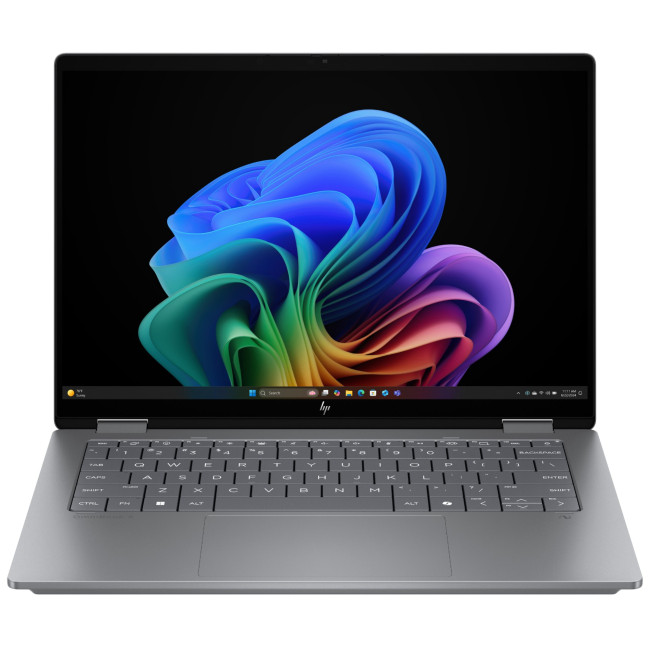
The HP OmniBook X FlipNGAI 14-fm0005na Intel® Core™ Ultra 5 226V

Last Updated: February 13, 2026
Because nothing kills the vibe faster than a laptop, that suddenly decides your fingers are irrelevant.
You sit down. You open your laptop. You’re mentally prepared to be productive (or at least pretend). And then .....boom... your laptop touchpad is not working. Or your laptop keyboard is not working. Or worse… both.
At this point, your laptop isn’t broken; it’s personally offended by you.
Before you rage-buy a new device or spiral into tech despair, here’s the good news: most laptop keyboard problems and touchpad issues are completely fixable. And no, you don’t need a computer science degree or a sacrifice to the tech gods.
This guide is not one of those vague “restart your device” articles and call it a day. This is a deep-dive, all-reasons, all-solutions, no-BS troubleshooting guide, written in human language, with enough detail to actually solve the problem.
We’ll cover:
- Software vs hardware problems (and how to tell the difference)
- Every common and uncommon reason your laptop input
Last Updated: June 10, 2026
The best HP printer depends on what you print, how often you print, whether you need scanning or copying, and how much you want to spend on ink or toner. For home users, an HP inkjet or all-in-one printer is usually the best choice. For offices and small businesses, HP OfficeJet, LaserJet or multifunctional printers are better for speed, reliability and heavier workloads.
Buying a printer can feel confusing because HP offers many different models for different users. Some are made for simple home printing. Some are designed for students and families. Others are built for small businesses, offices, shipping labels, high-volume printing or professional document handling. That is why choosing the right printer is not just about finding the cheapest model. It is about understanding your print habits, running costs, space, connectivity and long-term needs.
This HP printer guide 2026 will take you from basic printer knowledge to more advanced buying terms, so whether you are buying your first
Last Updated: July 06, 2026
Buying one of the many HP printers for small business setups out there sounds easy until you start comparing them properly. Some are better for fast document printing, some are built for scanning and colour work, and some save you more money over time. The trick is not buying the fanciest one. It is buying the one that suits your workload. This guide walks through the HP printer types that make the most sense for home offices, small teams, and day-to-day business use.
Which HP Printer Type Should a Small Business Choose?
- If your business prints mixed colour documents, scans paperwork regularly and needs one compact machine, go for an HP all-in-one in the OfficeJet Pro range. OfficeJet Pro printers are best for higher-volume printing and all-around productivity in a home or home office, which is exactly the kind of workload many sole traders, hybrid workers and small teams deal with.
- If your business prints lots of text-heavy documents and speed matters more than photo-quality colour, choose
Last Updated: May 05, 2026
HP printers are reliable, but even the best machines throw a wobble from time to time. The good news is that the vast majority of issues are easy to resolve on your own. This guide will show you how to fix common HP printer problems without calling a professional. Whether you've got an HP OfficeJet, DeskJet, LaserJet, or ENVY, many of the checks below apply across the range.
What Are the Most Common HP Printer Problems?
Before diving into individual fixes, it helps to know what you are actually dealing with. HP printers, from compact home models to full office workhorses, tend to run into the same handful of issues time and again.
Here is a quick overview of the most frequently reported HP printer problems and what typically causes them:
| Problem | Most Likely Cause |
| Printer not printing | Stuck print queue, offline status, driver fault |
| Paper jam | Overfilled tray, worn rollers, torn paper fragments |
| Printer showing offline | Wi-Fi dropout, incorrect default printer setting |
| Blank or faded pages |
Published: May 05, 2026
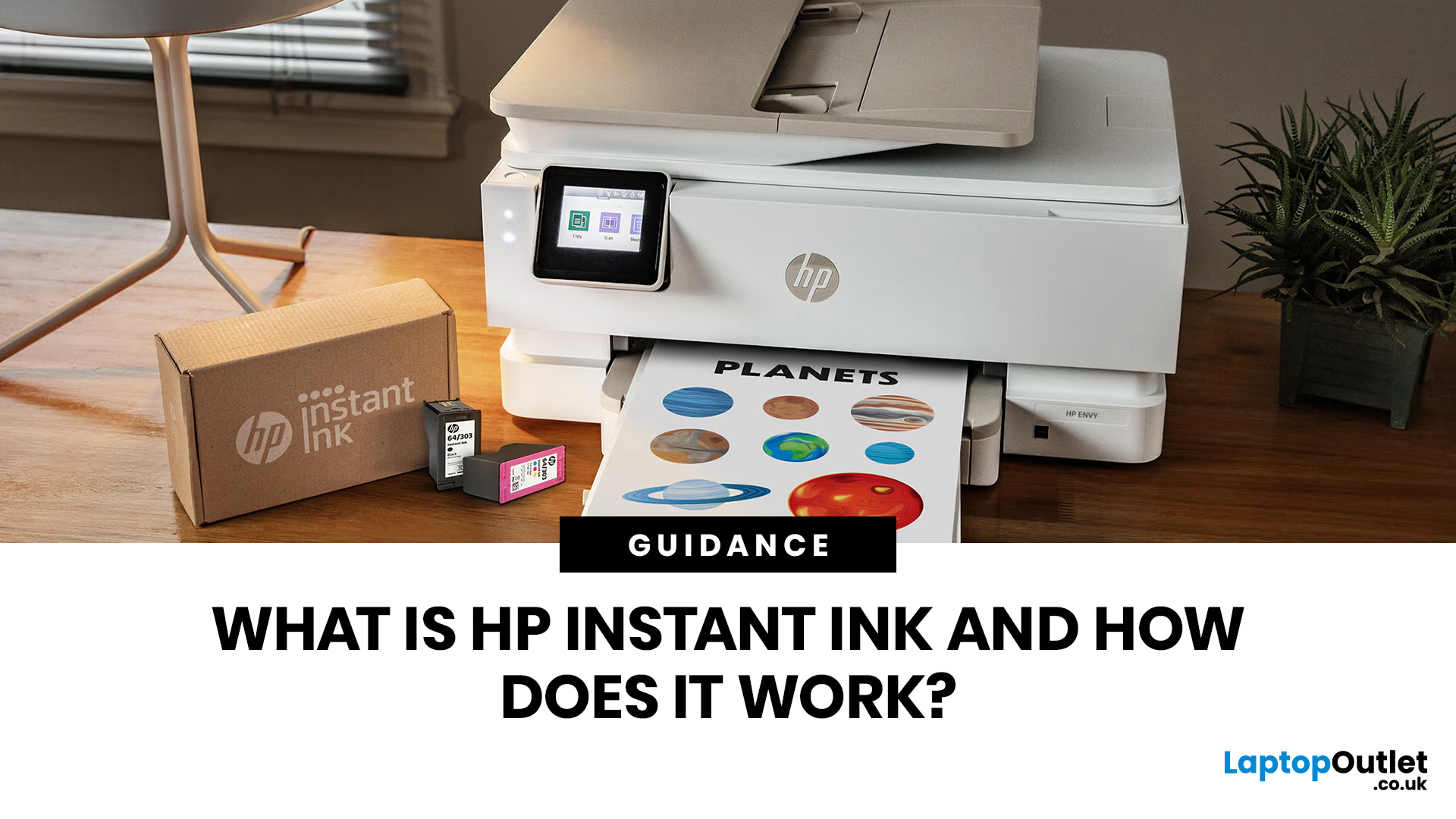
Running out of ink mid-print is one of those small but genuinely annoying life moments. HP Instant Ink aims to put an end to that, replacing the old "buy cartridges when you remember" system with a smarter, subscription-based approach. If you've been wondering what it's all about and whether it's right for you, you're in the right place.
What Is HP Instant Ink?
HP Instant Ink is HP's ink subscription service, available in the UK since 2014. Rather than purchasing individual cartridges as and when you need them, you sign up to a monthly plan and pay a flat fee based on how many pages you print each month.
The key difference from traditional ink buying is simple: you're paying for pages, not cartridges. That means printing a full-colour photo costs the same as printing a plain black text document, which is a genuinely useful feature for households that mix everyday printing with occasional photo printing.
How Does It Differ from Buying Regular Cartridges?
With standard cartridges, you
Last Updated: May 19, 2026
Quick Answer
For a quick HP printer installation, follow this order:
- Place the printer close to your router during setup.
- Connect the power cable and turn the printer on.
- Load plain A4 paper.
- Install the supplied ink cartridges or toner.
- Open the HP app or HP Smart app.
- Choose Set Up a New Printer or Add Printer.
- Connect the printer to your Wi-Fi network.
- Print a test page.
Once that is done, you can print wirelessly from your laptop, phone, tablet, or desktop.
Setting up an HP printer should not feel technical, even when you are doing it for the first time. Most new printers require only a few basic steps: power, paper, ink or toner, Wi-Fi connection, and device setup.
The confusion usually starts when different devices ask for different setup routes. A Windows laptop may ask you to add the printer through Printers & Scanners. A Mac may detect it through AirPrint. A phone may need the HP app. A Chromebook may require you to add it in Chrome OS printer settings. Your printer may also
Last Updated: June 25, 2026
Your HP gaming PC should not feel like a boss fight before the game even loads.
HP gaming PC problems include black screens, overheating, lag, crashes, fan noise, slow performance, and startup failures. Most can be fixed by updating drivers, cleaning dust, improving airflow, freeing storage, and checking power or display connections.
You will also learn when a repair is worth it, when an upgrade makes more sense, and when it might be time to compare newer HP desktop PCs for gaming.
What Are the Most Common HP Gaming PC Problems?
Last Updated: September 03, 2026
Buying an HP gaming laptop in 2026 can feel like being asked to pick between “save money now” and “avoid regret later.”
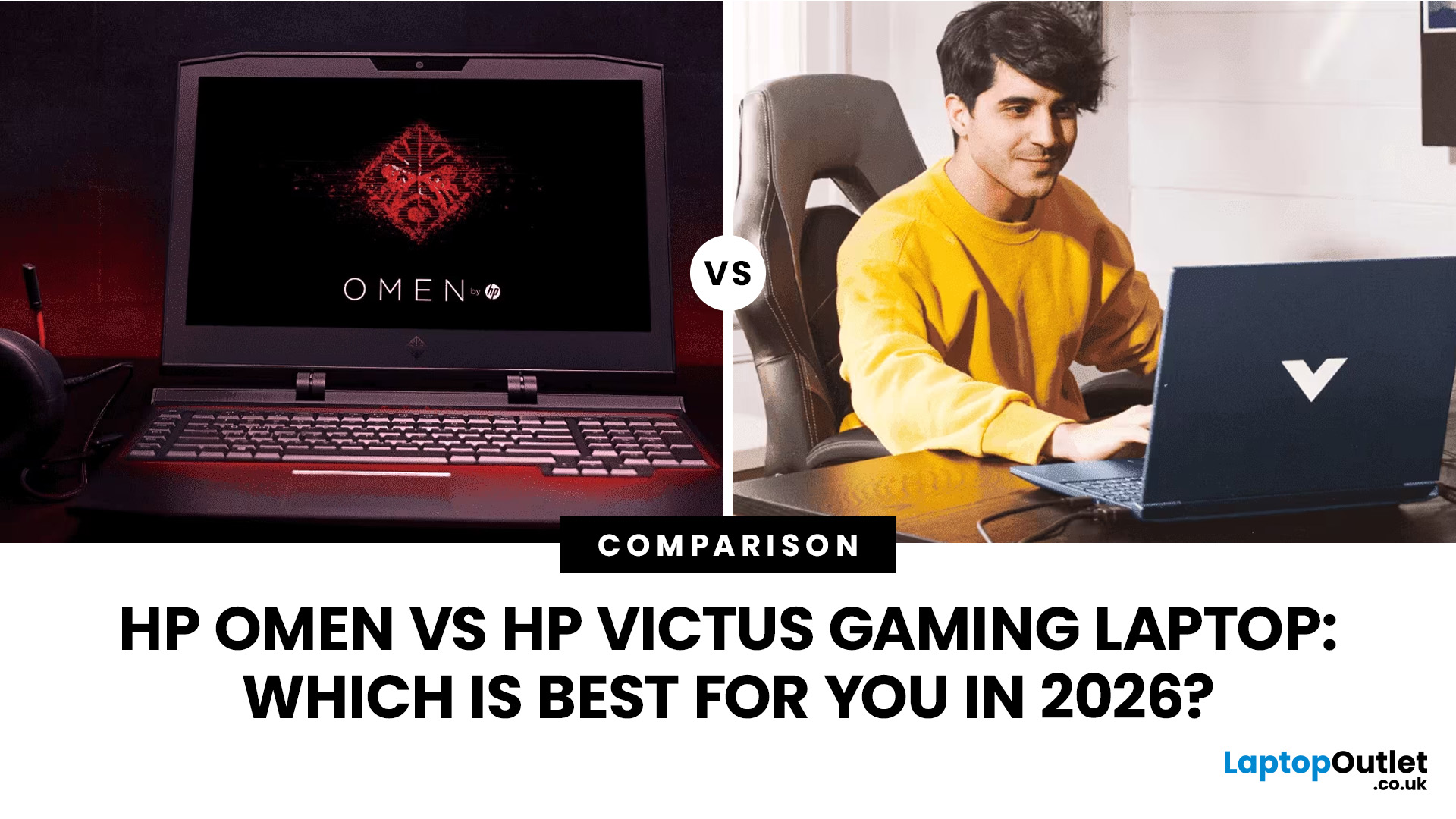
Choose HP Victus if you want the best price-to-performance balance for esports, coursework, everyday use, and casual AAA gaming. Choose HP OMEN if you want higher frame rates, better display quality, stronger cooling, and a laptop that feels ready for heavier games over the next few years.
The HP Victus gaming laptop is the value pick: more affordable, more student-friendly, and solid for 1080p gaming. The HP OMEN gaming laptop is the performance pick: stronger cooling, better displays, higher-end GPUs, and more headroom for AAA games, streaming, and long-term use.
So, which one should you actually buy?
HP OMEN vs HP Victus: The Simple Difference
HP uses Victus and OMEN for different types of gamers.
The HP Victus gaming laptop is built for mainstream buyers who want a proper gaming laptop without paying premium money. It usually targets 1080p gaming, 144Hz displays, and

