



Barebones Mini PCs: Which Parts Must You Purchase Separately?

Quick Answer: A barebone mini PC usually includes the processor, motherboard and cooling system, but RAM, storage and an operating system often need purchasing separately. This guide explains what's included, how to choose compatible components, Intel and AMD options, gaming capabilities, and how to calculate the total cost before buying.
A mini PC might look like a complete computer straight out of the box, but what if you switch it on and discover it has no memory, storage or operating system? That's the catch with a barebone mini PC. Unlike a fully configured desktop, it usually includes the core hardware but leaves certain components for you to install yourself. This approach gives you more control over performance, storage capacity and software without building a computer from scratch.
However, what's included varies between manufacturers and models. Before buying a barebones mini PC, you need to know which parts are already fitted, what you must purchase separately and whether the final cost makes sense.
What is a Barebone Mini PC?
A barebone mini PC is a partially assembled desktop computer that typically comes with a chassis, motherboard, processor, and cooling system. You complete the setup by adding compatible memory, storage and an operating system.
Think of it as a middle ground between a prebuilt PC and a custom desktop.
Most barebones systems already have the processor installed, particularly compact Intel NUC-style machines and AMD-based compact mini desktops. However, some socketed designs require you to purchase and install the CPU separately. That flexibility is useful when you want a specific RAM capacity or SSD configuration without paying for hardware you don't need.
What Does a Barebones Mini PC Include?
Before adding components to your basket, check the manufacturer's specifications and retailer's product description. Here's what you can generally expect from a barebones PC kit:
|
Component |
Usually included? |
What to check |
|
Chassis |
Yes |
Size, ventilation and mounting options |
|
Motherboard |
Yes |
Memory slots, storage interfaces and ports |
|
Processor |
Usually |
Some socketed kits require a separate CPU |
|
CPU cooling |
Usually |
Fan, heatsink or passive cooling |
|
Integrated graphics |
Often |
Depends on the installed processor |
|
RAM |
Usually not |
Memory type, capacity and supported speed |
|
SSD or HDD |
Usually not |
M.2 or 2.5-inch drive support |
|
Operating system |
Usually not |
Windows or Linux compatibility |
|
Wi-Fi and Bluetooth |
Model-dependent |
Check whether a wireless module is fitted |
|
Power adapter |
Commonly |
Confirm the adapter and UK power lead |
|
Monitor and peripherals |
Usually not |
Check whether accessories are bundled |
For example, ASUS identifies its NUC 14 Essential Kit as a barebones system supplied without RAM, storage or an operating system.
Expert Tip: Don't assume that every product described as a barebone desktop has the same missing components. Check the exact model number and package contents rather than relying on the product title alone.
Which Parts Must You Buy Separately?
For most systems, RAM and storage are the two essential hardware purchases. You'll also need a suitable operating system to use the computer for everyday tasks.
1. RAM: Choose the Right Memory Type
Without compatible system memory, most conventional barebones kits cannot complete their startup checks. Mini PCs commonly use SO-DIMM modules, although some newer compact designs use other memory formats or soldered memory. Before buying desktop memory kits, confirm:
- DDR generation: DDR4 and DDR5 are physically incompatible.
- Form factor: SO-DIMM slots cannot accept full-sized desktop DIMMs.
- Maximum capacity: Check the supported memory limit and capacity per slot.
- Memory speed: Match the manufacturer's supported specifications.
- Slot configuration: Two modules can enable dual-channel operation where supported.
For general office work, 16GB is a sensible starting point. Consider 32GB for heavier multitasking, development work or memory-intensive applications.

2. SSD: Install Your Own Storage
A new barebones computer usually needs an internal drive before you can install Windows, applications, or personal files. Most modern compact systems support M.2 SSDs, but their interface, physical length, and available expansion slots can differ. The main specifications to check are:
- M.2 format: Common lengths include 2242 and 2280.
- Interface: NVMe SSDs typically use PCIe, while some older M.2 slots also support SATA.
- PCIe generation: Gen 4 and Gen 5 drives are not guaranteed to run at their advertised speeds in every system.
- Drive clearance: Double-sided SSDs or large heatsinks may not fit.
- Additional bays: Some taller mini PCs accommodate 2.5-inch SATA drives.
Storage performance also depends on the SSD controller and caching design, not just advertised read speeds. Understanding DRAM vs DRAM-less SSDs can help you choose a suitable drive for everyday computing or demanding workloads.
Furthermore, for everyday computing, a 500GB SSD may be sufficient. A 1TB drive offers more room for applications, documents and games. You can find different capacities and interfaces among our internal solid-state drives.
Expert Tip: A faster SSD won't automatically improve everyday performance if the mini PC has a slower storage interface. Check the supported PCIe generation before paying extra for a high-end drive.
3. Operating System: Windows or Linux?
A barebone OS is simply the operating system you install on a barebones computer. Most kits don't include a pre-installed copy of Windows. Your main options include:
- Windows 11 Home: Suitable for studying, everyday computing, and entertainment.
- Windows 11 Pro: Offers additional business-oriented features, including domain joining and BitLocker management.
- Linux: An alternative for programming, lightweight servers, and users who prefer an open-source environment.
If you're installing Windows, you'll generally need bootable USB installation media and a valid licence for activation, unless you already have a qualifying transferable licence. Linux distributions such as Ubuntu may be free to install, but you should verify driver and hardware support first.
ASUS, for example, publishes separate operating system compatibility information for its NUC barebones models.
Intel NUC Barebone vs AMD Barebone: What's Different?
Both Intel-powered and AMD-powered barebones computers let you choose certain components. The important differences depend on the processor, integrated graphics, connectivity, and expansion capabilities.
Intel NUC Barebone Systems
An intel NUC barebone is a compact PC platform commonly designed around an Intel processor, integrated graphics and upgradeable memory or storage.
Modern ASUS NUC kits continue the NUC product family. Intel transferred support for specified earlier NUC generations to ASUS in January 2024.
Depending on the model, NUC-style systems can offer Thunderbolt or USB4 connectivity, multiple display outputs and compact cooling arrangements.
AMD Barebone Mini PCs
An AMD barebone typically uses a Ryzen processor, often with integrated Radeon graphics.
Certain AMD-based mini PCs offer capable integrated GPUs for media playback, creative workloads and less demanding games. However, gaming performance varies considerably across Ryzen generations and graphics architectures. Some newer AMD designs also include dedicated neural processing units for supported AI workloads.
Which should you choose? Focus on the actual processor model, GPU capability, connectivity, and memory support rather than deciding purely by brand. These specifications have a greater impact on how the finished system performs.
Can a Barebones Mini PC Handle Gaming?
Yes, but a barebones gaming PC has important limitations compared with a traditional gaming desktop.
Compact systems with modern integrated graphics can handle lighter games and some demanding titles at reduced settings, depending on the hardware. For better results, pay attention to:
- GPU performance: Integrated graphics vary widely between processors.
- Memory bandwidth: Faster supported RAM and dual-channel configurations can benefit some integrated GPUs.
- Thermal limits: Small enclosures may reduce sustained performance under heavy workloads.
- External GPU support: Some models support compatible eGPU connections, but the required port and enclosure must be checked.
If you're targeting demanding AAA gaming at high settings, a conventional system with a dedicated graphics card is generally a more suitable choice.
How Much Does a Barebones PC Bundle Really Cost?
The advertised price of a barebones PC bundle is not necessarily the amount you'll spend getting it ready for everyday use. You need to account for every missing component before judging whether it's good value. Here's an illustrative cost breakdown.
|
Component |
Example budget |
|
Barebones mini PC kit |
£300 |
|
16GB compatible RAM |
£50 |
|
1TB NVMe SSD |
£65 |
|
Windows 11 licence |
£120 |
|
Estimated total |
£535 |
These are illustrative budgeting figures, not verified current retail prices or quotations. Actual costs depend on the model, component prices, and software licensing.
Your total could be lower if you already own compatible hardware or choose a supported Linux distribution.
Cooling matters too, especially in a compact chassis with limited airflow. Our guide on whether an NVMe SSD needs a heatsink explains when additional cooling is worthwhile and why physical clearance matters. Remember that a monitor, keyboard, mouse, and any missing connectivity accessories may add further costs.
Barebones vs Prebuilt Mini PCs: Which Makes More Sense?
The better option depends on how comfortable you are installing hardware and whether the customisation offers a meaningful benefit.
|
Consideration |
Barebones mini PC |
Prebuilt mini PC |
|
RAM and storage |
Usually selected separately |
Pre-installed |
|
Operating system |
Usually installed yourself |
Often pre-installed |
|
Setup effort |
Some installation required |
Typically ready to configure |
|
Customisation |
More control over components |
Depends on model |
|
Initial price |
May look lower |
Includes fitted hardware |
|
Best suited to |
Experienced users and enthusiasts |
Convenience-focused buyers |
A barebones kit makes sense when you already have suitable components, want specific memory and storage capacities or prefer installing your own software. A prebuilt machine is often more practical if you need a working PC immediately.
At Laptop Outlet, we offer different options across our desktop computer range, including compact systems and fully configured desktops for home, study and professional use.
Checklist Before Buying a Barebones Mini PC
Before placing your order, make sure you can answer these questions:
- Does the kit include a processor and cooling system?
- Which RAM generation, form factor and capacities are supported?
- What SSD interfaces and drive lengths will fit?
- Is Wi-Fi or Bluetooth already installed?
- Is a compatible UK power adapter supplied?
- Does the system support your preferred operating system?
- Are the necessary display outputs and USB ports available?
- What is the total cost after adding missing parts?
Also check whether installing components is permitted under the manufacturer's warranty conditions and whether firmware or driver updates are recommended. A few minutes spent checking compatibility can prevent expensive returns and frustrating setup problems. If your newly installed drive doesn't appear during the initial setup, don't assume it's faulty. Our guide to fixing an SSD not detected in BIOS covers common installation, compatibility and firmware-related issues.

Final Thoughts
A barebone mini PC gives you control over memory, storage and software without requiring a complete custom PC build. For experienced users, that flexibility can make it an appealing choice. However, the advertised kit price rarely tells the whole story. Check which components are included, verify compatibility and calculate the final cost before ordering.
If you'd prefer a simpler setup, a fully configured mini desktop could save you installation time. At Laptop Outlet, you can find compact PCs for different workloads and budgets, whether you prefer a barebones system or a ready-to-use computer.

Does a barebones mini PC come with a processor?
Most compact barebones mini PCs include an installed processor, motherboard and cooling system. However, some socketed barebones designs require a separate CPU. Always read the exact specifications to confirm what's included before purchasing.
Can I use a barebones mini PC without RAM?
Most conventional barebones mini PCs cannot boot or operate without compatible system memory. You must install supported RAM before starting the computer, unless the model already has soldered or pre-installed memory.
Do barebones mini PCs include Windows 11?
Barebones mini PCs usually arrive without an operating system. You may need to install Windows 11 yourself and obtain a valid licence. Always confirm that your particular model meets Microsoft's hardware requirements.
Can I upgrade a barebones mini PC later?
Many barebones mini PCs allow RAM and SSD upgrades, provided compatible slots are available. However, processors are often soldered, and graphics upgrades are generally limited by the system's compact design.
Is a barebones mini PC cheaper than a prebuilt PC?
A barebones mini PC can cost less initially, but RAM, storage and software may increase the final price. It offers better value when you already own compatible components or need a specific configuration.
| Read More: |
| Why Businesses Are Switching to Mini PCs |
| Mini PC vs. Tower PC: Which is Right for You? |
| What is a Mini PC? Everything You Need to Know Before Buying |
Related Articles

Last Updated: October 28, 2025
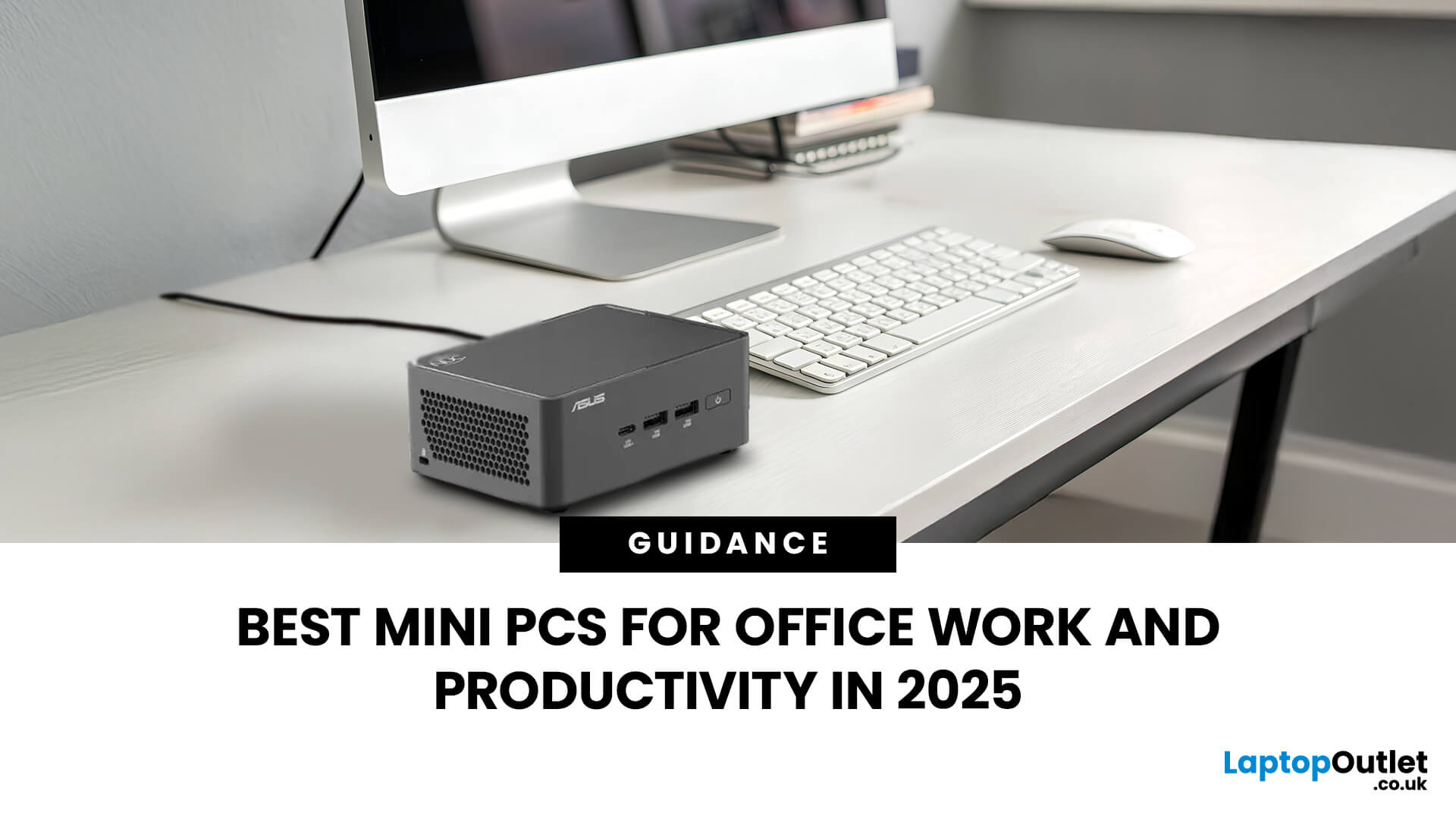
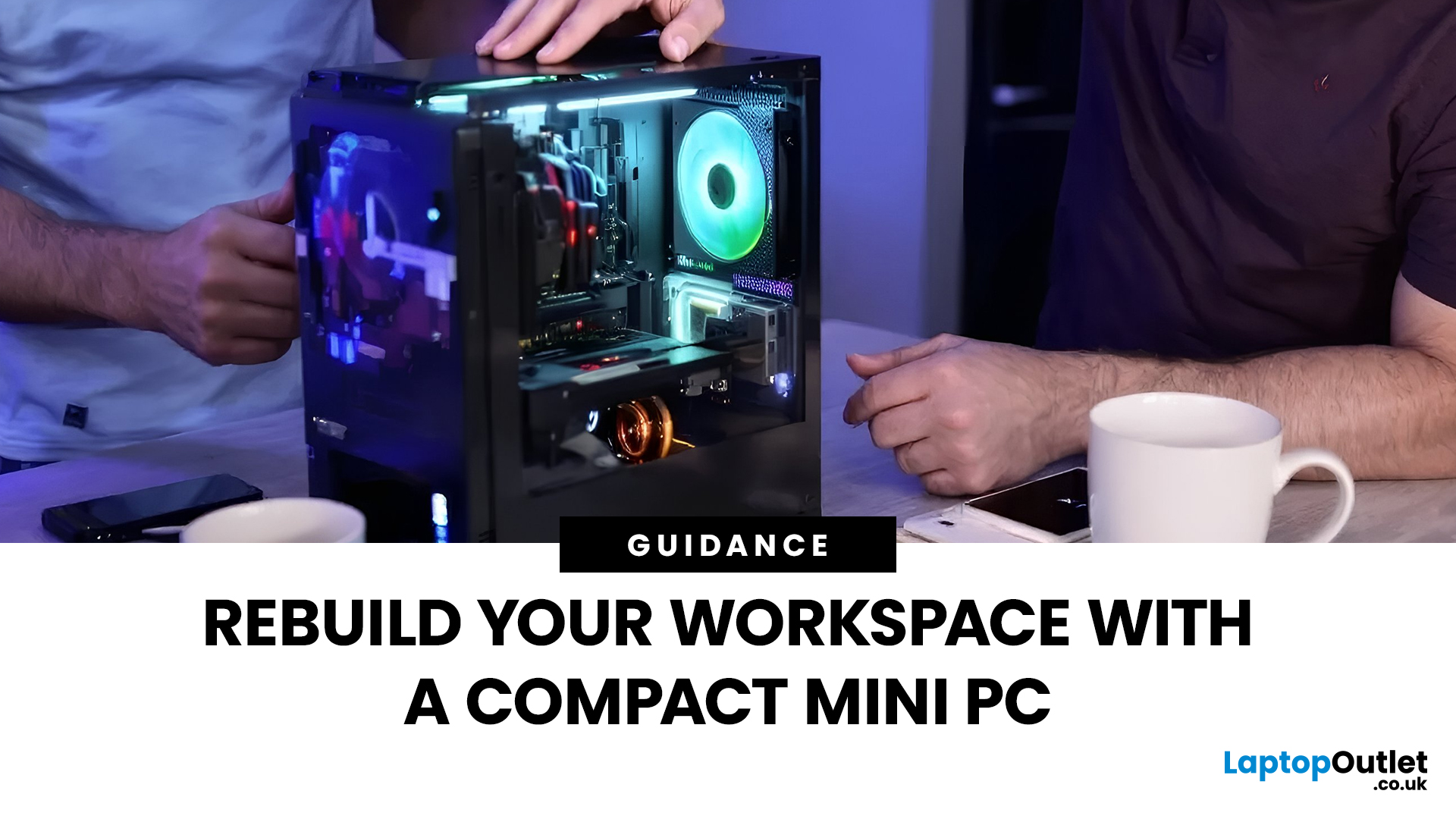
Gone are the days when office PCs had to be bulky towers humming under desks. In 2025, mini-PCs have become the ultimate productivity machines, small, silent, and surprisingly powerful. Whether you’re a remote worker, a startup founder, or managing a hybrid workspace, these compact desktops deliver desktop-grade performance without eating up your desk space.
If you’re searching for the best mini-PC for office work, this guide breaks down the top performers built for speed, efficiency, and multitasking, from entry-level options to high-end productivity powerhouses.
Why Choose a Mini PC for Work in 2025?
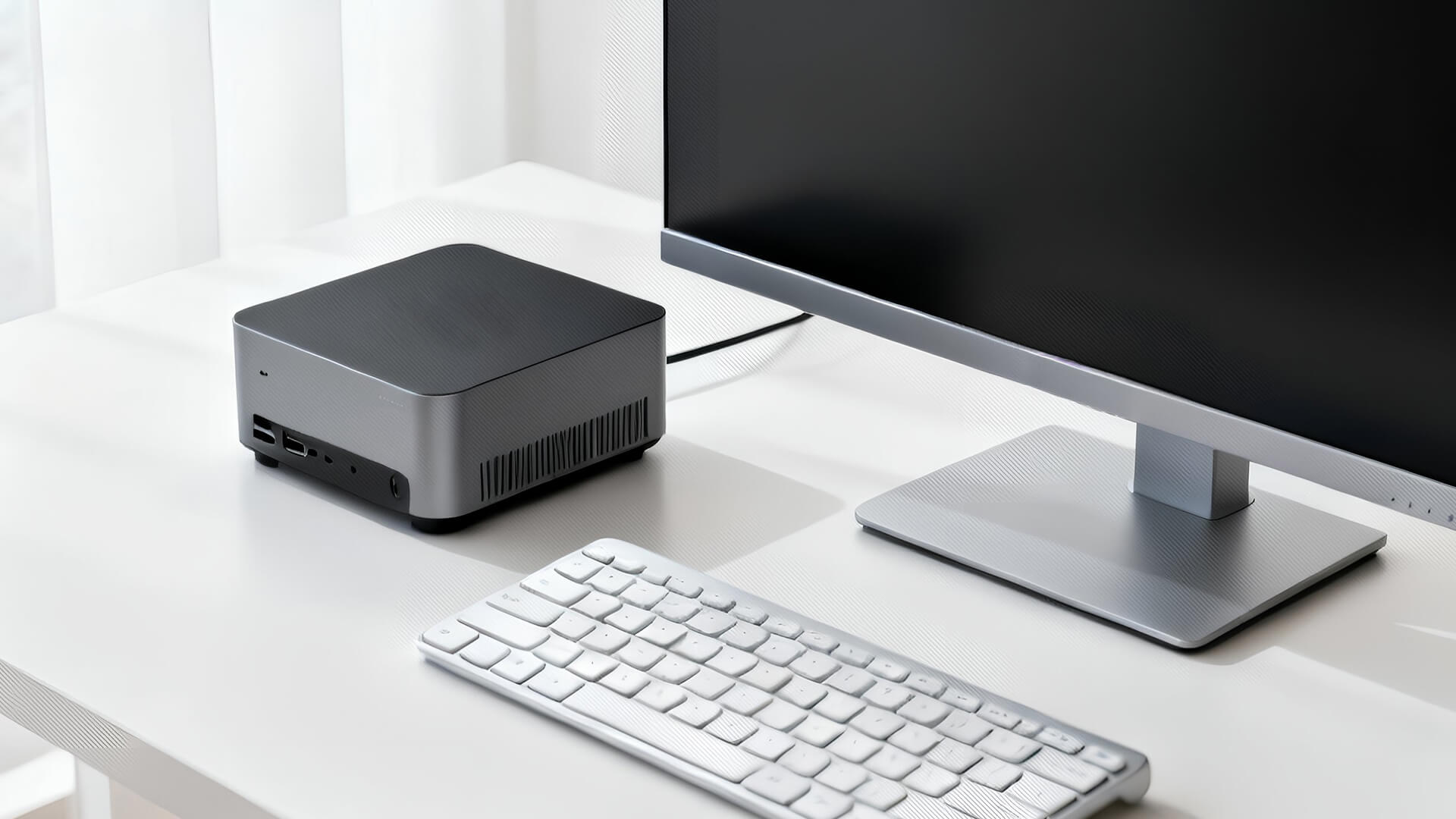
Modern mini-PCs are redefining what “office-ready” means. Thanks to next-gen CPUs, fast SSD storage, and efficient cooling, they now handle everything from heavy spreadsheets to video conferencing and multitasking without breaking a sweat.
Here’s why professionals are ditching bulky towers for compact desktops:
- Space-Saving Design: Ideal for minimalist desks or multi-monitor setups.
- Silent
Published: October 29, 2025
In a world where technology is getting smaller, faster, and smarter, mini PCs are gaining major popularity. These compact computing powerhouses deliver the performance of traditional desktops, but in a fraction of the space. Whether you’re working from home, studying, streaming, or gaming, a mini PC can be a sleek and efficient solution for your setup.
In this guide, we’ll cover everything you need to know about mini PCs, from how they work to why they might be the perfect fit for your needs.
What is a Mini PC?
A mini PC (short for mini personal computer) is a small, lightweight desktop computer designed to perform everyday tasks without taking up much space. Despite their compact size, modern mini PCs come equipped with powerful processors, ample storage, and connectivity options comparable to full-sized desktops.
They’re ideal for users who value portability, efficiency, and minimalism, making them popular among students, professionals, and even gamers.
How Does a Mini PC Work?
Just
Last Updated: February 26, 2026
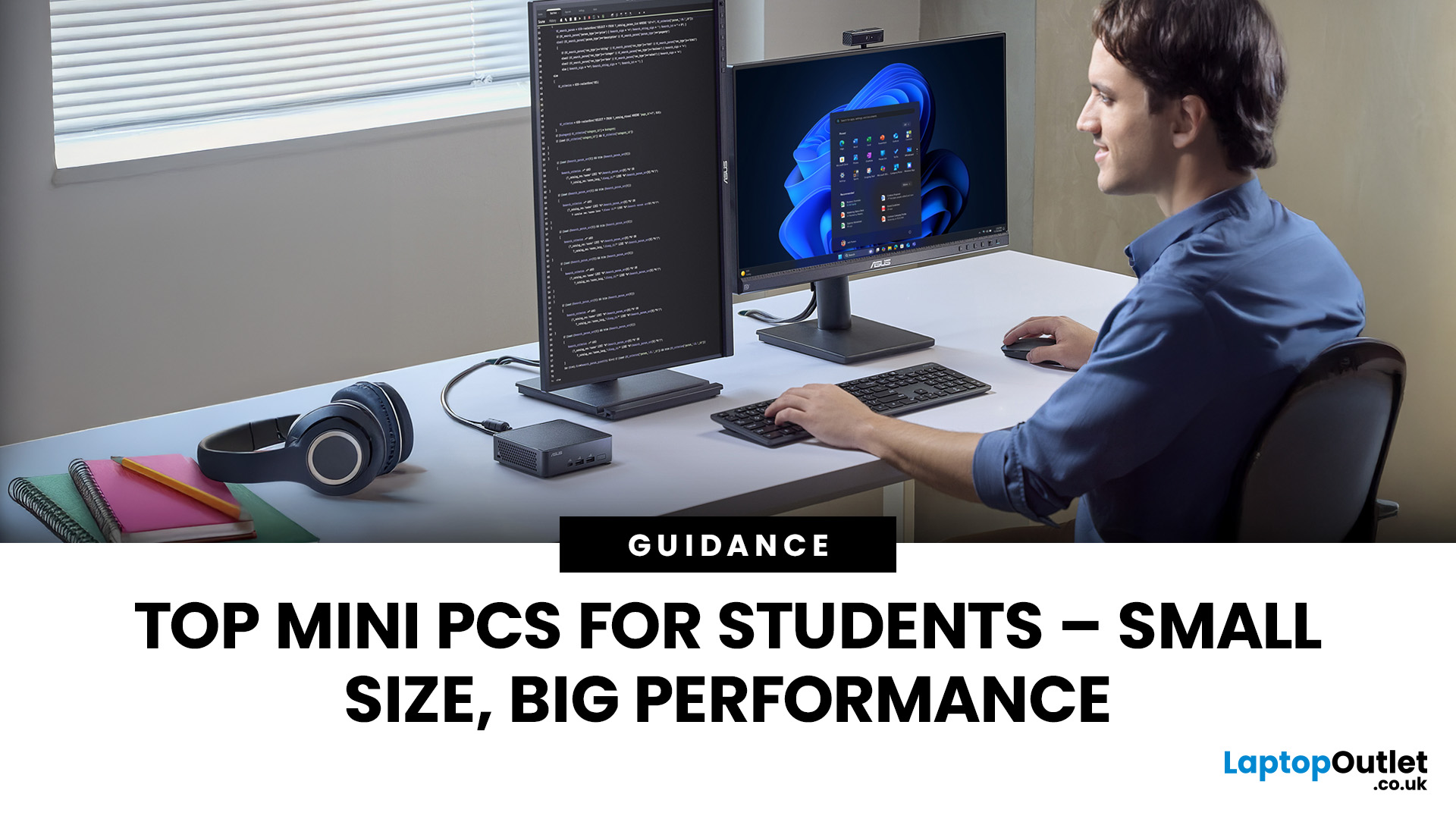
Looking for the best mini PC for students? Good call. A modern mini desktop gives you laptop-like efficiency with desktop-class reliability, without the bulk, noise, or price tag of a full tower. Whether you’re writing essays, crunching data, editing short films, or firing up a few games after class, today’s mini PCs squeeze serious performance into palm-sized cases that fit on a shelf, under a monitor, or even behind one.
Below, you’ll find a practical guide to choosing the right mini PC for school or university, followed by curated picks by use case, setup tips, and answers to common questions. Everything is written with UK students in mind, budget-savvy, space-conscious, and focused on getting things done.
Why a mini-PC makes sense for students
Small footprint, big desk space. A mini PC leaves room for your notes, sketchbooks, and that essential mug of tea.
Quiet and efficient. Low-power mobile-class CPUs and efficient cooling keep noise down in libraries and dorms.
Better ergonomics.
Last Updated: November 12, 2025
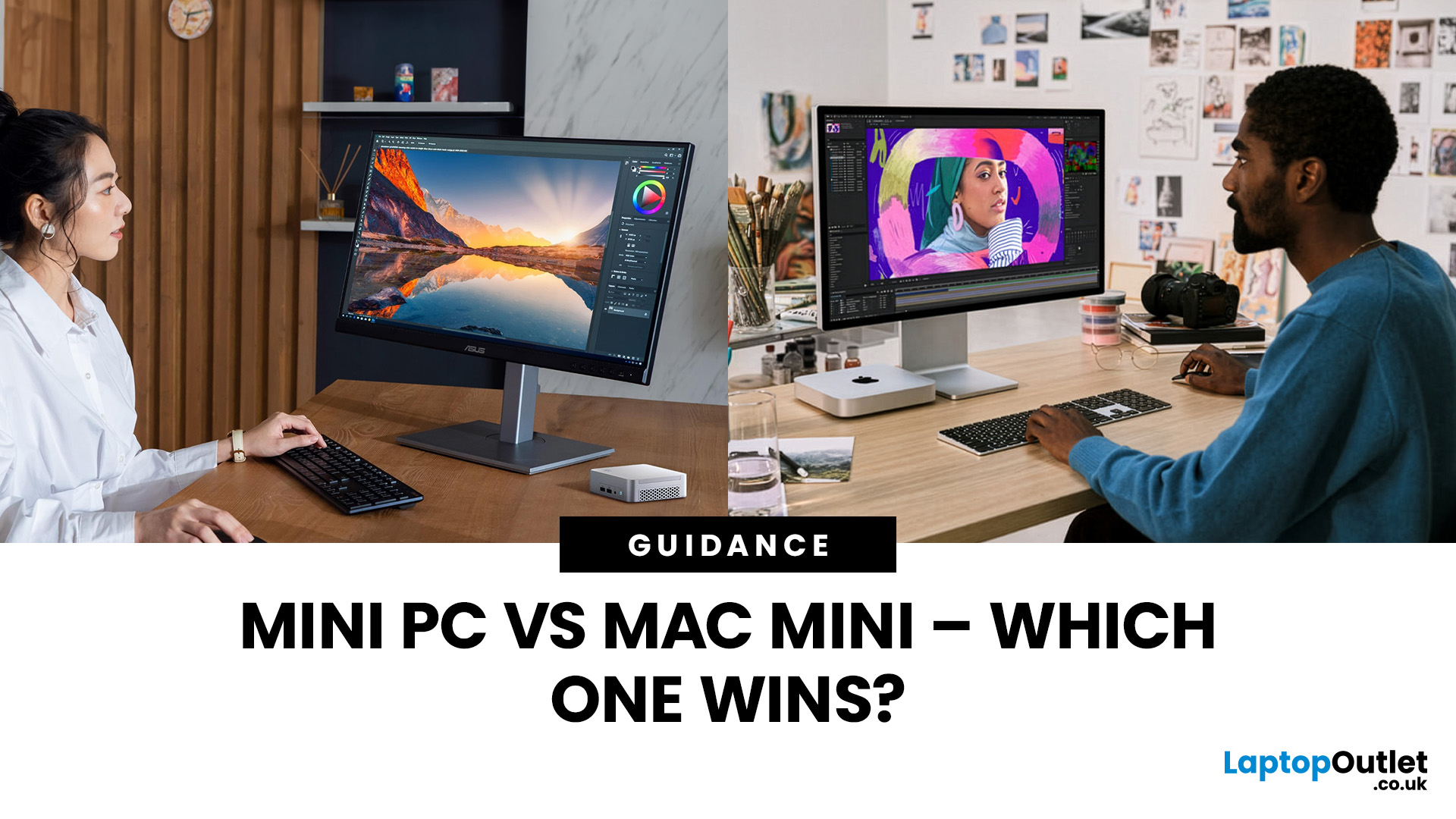
Whether you're looking to build a home office, stream movies on the big screen, or just save some precious desk real estate, the question “Should I go for a Mini PC or the Mac Mini?” has probably crossed your tech-loving mind. With the mini computing space heating up faster than a laptop under load, this comparison is long overdue. So, let’s break it down and help you figure out which one deserves a spot on your desk (or under your TV).
What is a Mini PC Anyway?
Before we throw punches, let's define the contenders.
Mini PCs are compact desktop computers made by a variety of manufacturers like Intel, ASUS, HP, and even DIY builds. They're typically small, energy-efficient, and wildly flexible in how you use them. Want Windows 11? Done.
The Mac Mini, on the other hand, is Apple’s small-but-mighty desktop. It’s essentially a baby Mac that fits in your palm but runs like a champ, especially now with Apple Silicon (M1, M2, and potentially M3 soon).
Key Considerations Before Choosing
Last Updated: April 17, 2026
Businesses don’t usually change their hardware habits quickly. But across 2026, many companies large and small are moving away from traditional desktop towers and switching to mini PCs.
This isn’t a trend pushed by marketing. It’s happening because compact systems are proving more practical in day-to-day business use: they take up less space, are easier to deploy at scale, and handle modern office workloads reliably.
Here’s what is driving the shift.
1. Mini PCs Free Up the Kind of Space Offices Never Seem to Have
A full-size desktop setup often needs more room than people realise: the tower, the cables, and the desk space you have to keep clear for airflow. Mini PCs reduce most of that clutter.
They can sit behind a monitor, on a shelf, or be mounted out of sight which makes them ideal for workplaces where:
- desks are shared
- teams rotate seats
- offices want cleaner setups
- hybrid workers plug in and out frequently
Employees get more usable space. IT teams get simpler layouts. Offices look
Last Updated: October 15, 2026
Last Updated: October 21, 2026
Published: October 20, 2026
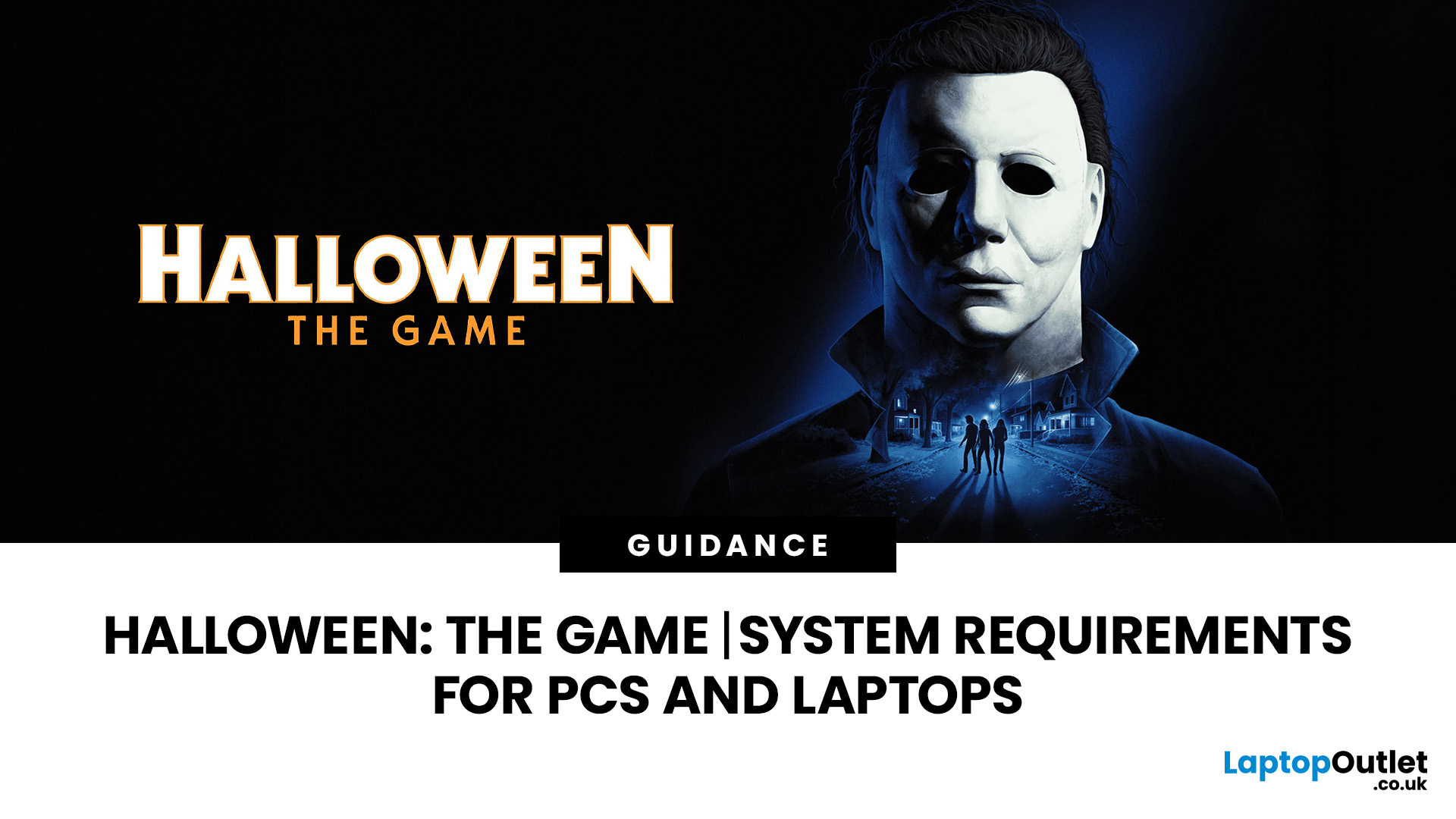
Michael Myers is back, and this time, he's coming for your gaming setup!
Halloween: The Game brings the terror of Haddonfield to PCs and consoles. With eerie neighbourhoods, unsettling shadows, and a relentless masked killer, every second could mean the difference between escaping and becoming Michael's next victim.
But before you enter the nightmare, there's one thing to check: can your PC or laptop handle it?
We've broken down the official Halloween the game PC requirements, recommended hardware, graphics settings, and practical performance fixes. Whether you're playing on a desktop or gaming laptop, here's how to prepare your system for a night of scares.
Halloween: The Game: What is it About?
Developed by IllFonic, Halloween: The Game is an asymmetrical survival horror experience inspired by John Carpenter's original 1978 film. The game takes you back to Haddonfield, where the seemingly peaceful streets have become Michael Myers' hunting ground.
In its 1v4 multiplayer mode, one player
Last Updated: October 20, 2026
Last Updated: October 22, 2026
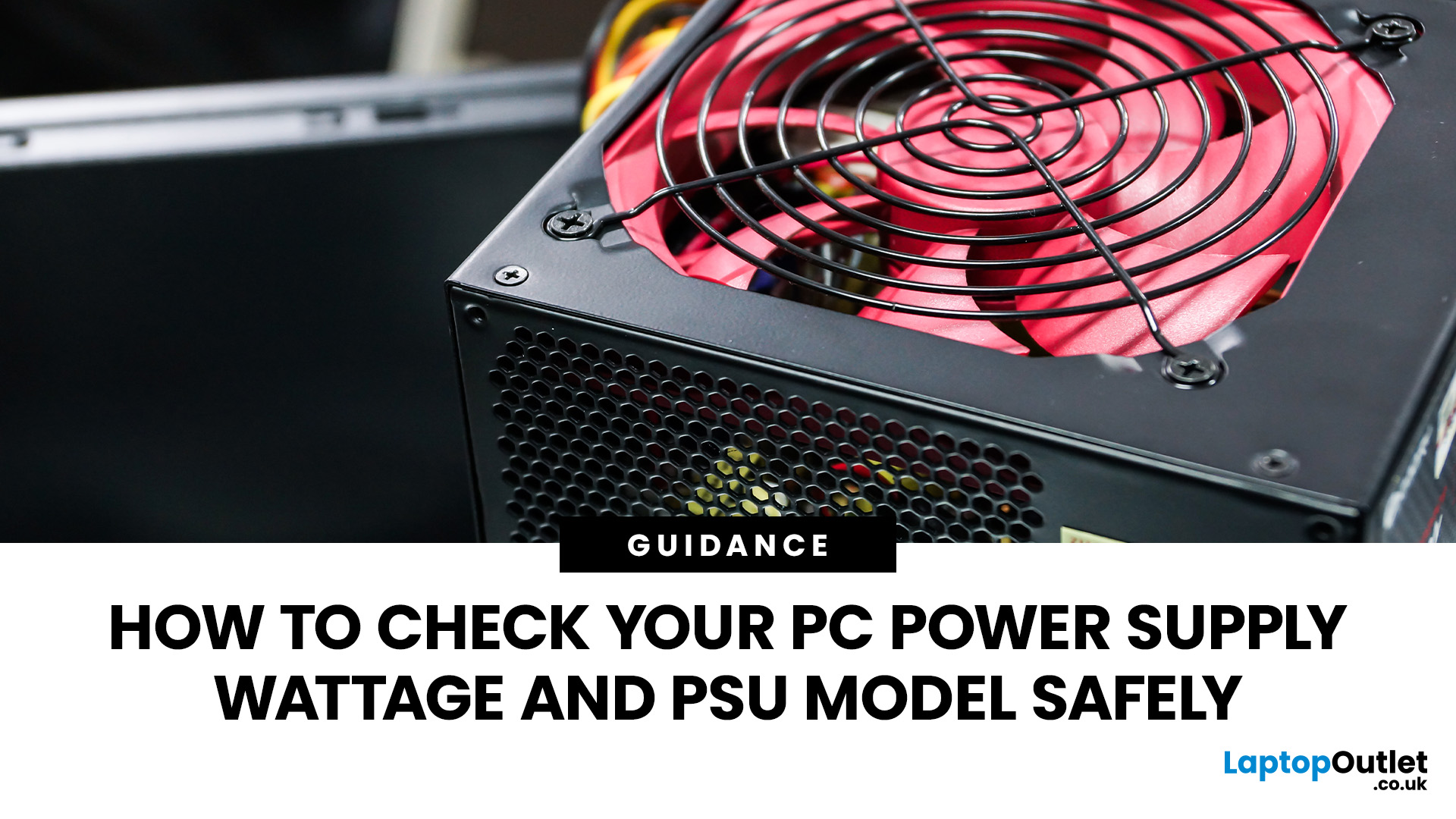
Not sure whether your PC has a 450W, 650W or 850W power supply? The most reliable way to find out is to check the label on your power supply unit (PSU). You can also use your computer's specifications or purchase records to identify its wattage without opening the case.
However, Windows 11 and Windows 10 cannot normally display your PSU's wattage or model.
This guide explains how to check PC power supply wattage safely, locate the PSU label and understand what software can actually tell you.
How to Find PSU Wattage: Quick AnswerThere are several ways to find your PSU's rated wattage and model, depending on your computer's design and available documentation.
|

